
USB-C 10-in-1 Super Dock - Support voiture Alogic - Free user manual and instructions
Find the device manual for free USB-C 10-in-1 Super Dock Alogic in PDF.


| Product Type | USB-C 10-in-1 Docking Station with Car Mount |
| Brand | Alogic |
| Model | USB-C 10-in-1 Super Dock |
| Dimensions (L x W x H) | 120 x 80 x 30 mm |
| Weight | 150 g |
| Power | USB-C Power Delivery (PD) up to 100 W |
| Ports | 1x HDMI, 1x VGA, 1x Ethernet RJ45, 2x USB-A 3.0, 1x USB-C PD, 1x USB-C Data, 1x SD card reader, 1x microSD card reader, 1x 3.5 mm audio jack |
| Connectivity | Integrated USB-C male (non-detachable cable) |
| Max Video Resolution | HDMI: 4K@30 Hz, VGA: 1080p@60 Hz |
| Main Features | 10 ports in one, fast charging, data transfer, video output, Ethernet network, memory card reading |
| Compatibility | Computers and tablets with USB-C port (Windows, macOS, Chrome OS, Android) |
| Car Mount | Adjustable mount for dashboard or windshield, 360° rotation |
| Care and Cleaning | Wipe with a soft dry cloth. Do not use chemicals. |
| Safety | Protection against overvoltage, overcurrent, and short circuits |
| Spare Parts and Repairability | Not user repairable. USB-C cable not replaceable. |
| Warranty | 2 years |
| Operating Temperature | 0°C to 40°C |
| Box Contents | Docking station, car mount, quick start guide |
Frequently Asked Questions - USB-C 10-in-1 Super Dock Alogic
User questions about USB-C 10-in-1 Super Dock Alogic
0 question about this device. Answer the ones you know or ask your own.
Ask a new question about this device
Download the instructions for your Support voiture in PDF format for free! Find your manual USB-C 10-in-1 Super Dock - Alogic and take your electronic device back in hand. On this page are published all the documents necessary for the use of your device. USB-C 10-in-1 Super Dock by Alogic.
USER MANUAL USB-C 10-in-1 Super Dock Alogic
USB-C 10-in-1 Super Dock
WITH DUAL 4K SUPPORT
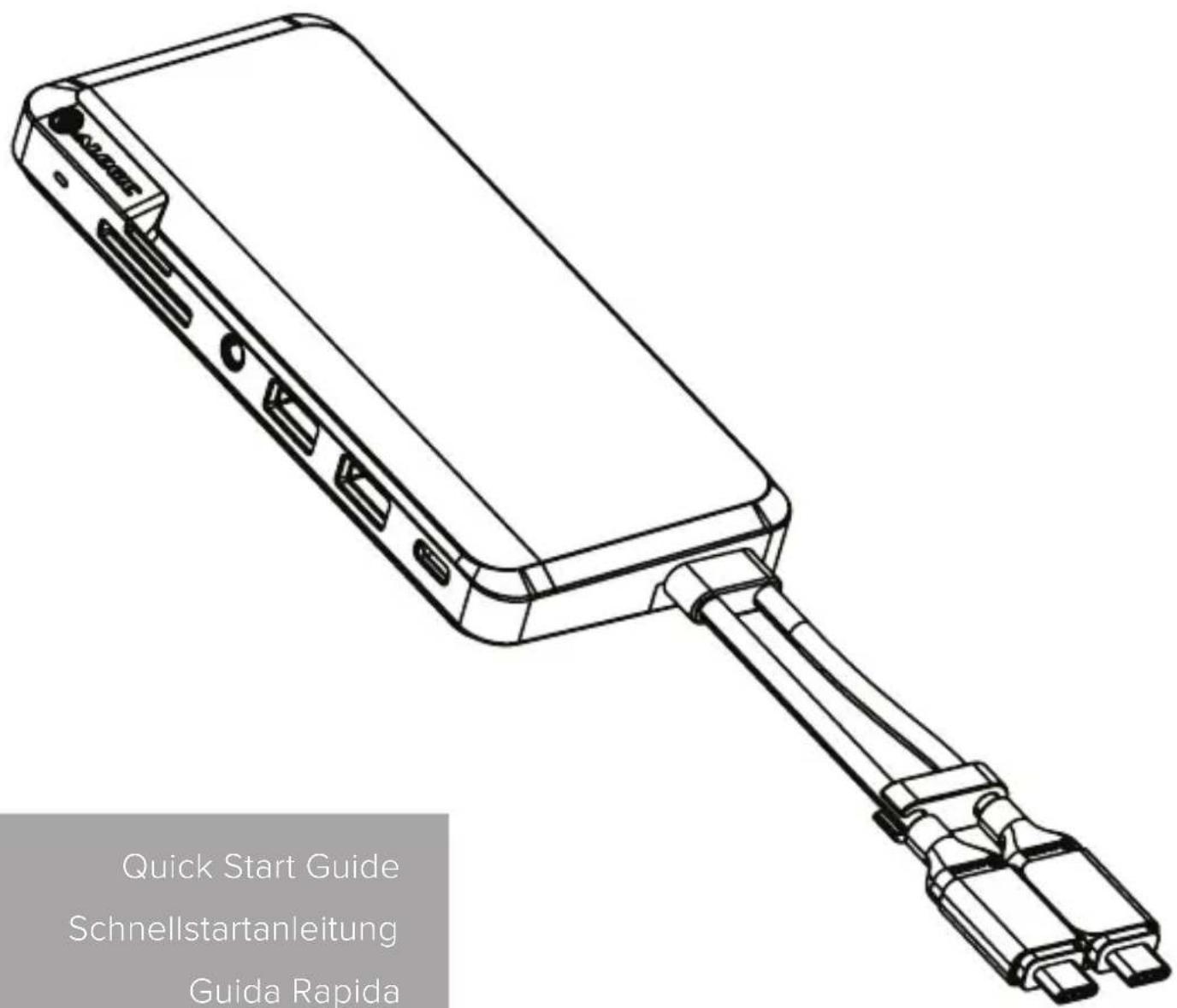
Quick Start Guide Schnellstartanleitung Guida Rapida Guide de démarrage rapide Guía de inicio rápido クイッ クスタートガイド
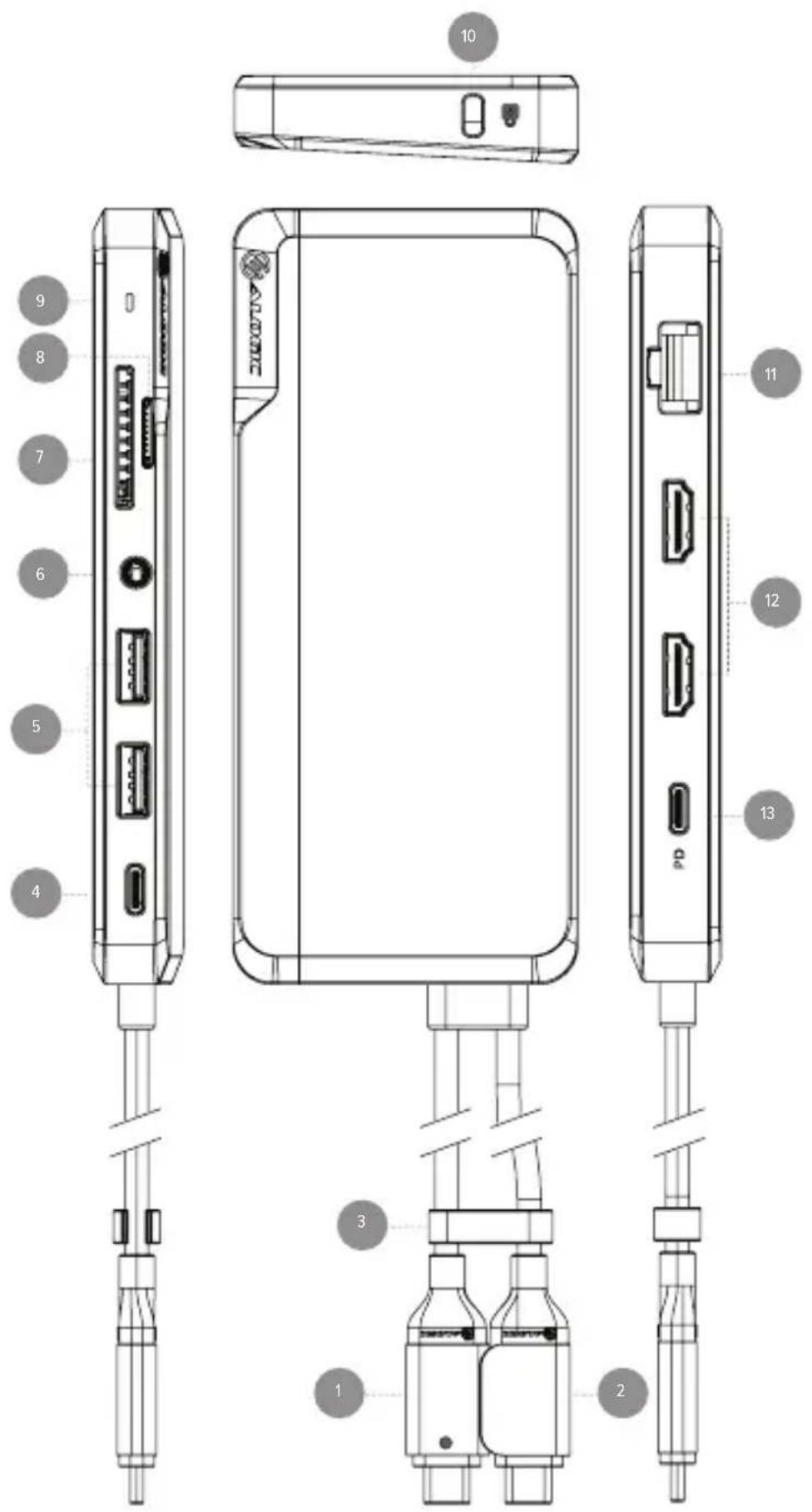
| 1 | EN Primary USB-C HeadDE Primärer USB-C-KopfES Cabezal USB-C primarioFR Tête USB-C principaleIT Testa USB-C primariaJP プライマリUSB-Cヘッド |
| 2 | EN Secondary USB-C HeadDE Sekundärer USB-C-KopfES Cabeza secundaria USB-CFR Tête USB-C secondaireIT Testa USB-C secondariaJP セカンダリUSB-Cヘッド |
| 3 | EN Cable HolderDE Kabel HalterES Soporte del cableFR Support de câbleIT Supporto per cavoJP ケーブルホルダー |
| 4 | EN USB-C (Data Only)DE USB-C (nur Daten)ES Puertos USB-C (Sólodatos)FR USB-C (données uniquement)IT USB-C (Soltanto dati)JP USB-C (データのみ) |
| 5 | EN USB-A PortsDE USB-A PortsES Puerto de USB-AFR Ports USB-AIT Porte USB-AJP USB-Aポート |
| 6 | EN 3.5mm Audio PortDE 3.5mm Audio PortES 3.5mm Audio TarjetaFR Port audio 3.5 mmIT Porta audio da 3.5mmJP 3.5mmオーディオポート |
| 7 | EN SD Card ReaderDE SD KartenleserES SD LectoraFR Lecteur de carte SDIT Lettore schede SDJP SDカードリーダー |
| 8 | EN Micro SD Card ReaderDE Micro SD KartenleserES Tarjeta lectora Micro SDFR Lecteur de carte Micro SDIT Lettore schede Micro SDJP マイクロSDカードリーダー |
| 9 | EN LED IndicatorDE LED AnzeigeES LED IndicadorFR Indicateur LEDIT Indicatore LEDJP LEDインジケータ |
| 10 | EN Kensington LockDE Kensington SchlossES Cierre KensingtonFR Kensington LockIT Kensington LockJP ケンジントンロック |
| 11 | EN Gigabit EthernetDE Gigabit EthernetES Gigabit EthernetFR Gigabit EthernetIT Gigabit EthernetJP ギガビットイーサネット |
| 12 | EN Dual HDMI PortsDE Duale HDMI PortsES Puertos Duales HDMIFR Ports HDMI doublesIT Porte doppie HDMIJP デュアルHDMIポート |
| 13 | EN USB-C Port with Power DeliveryDE USB-C Port mit StromzufuhrES Puerto USB-C con salida de energíaFR Port USB-C avec alimentation électriqueIT Porta USB-C con erogazione di potenzaJP USB-Cポートと電力供給 |
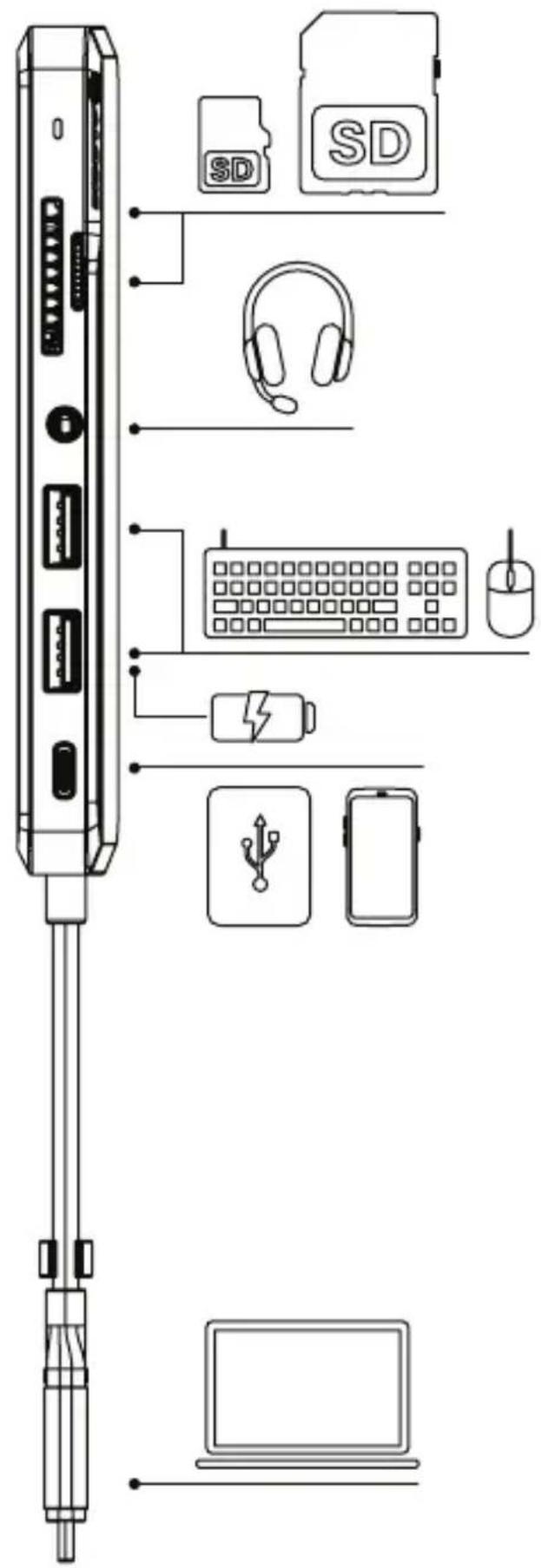
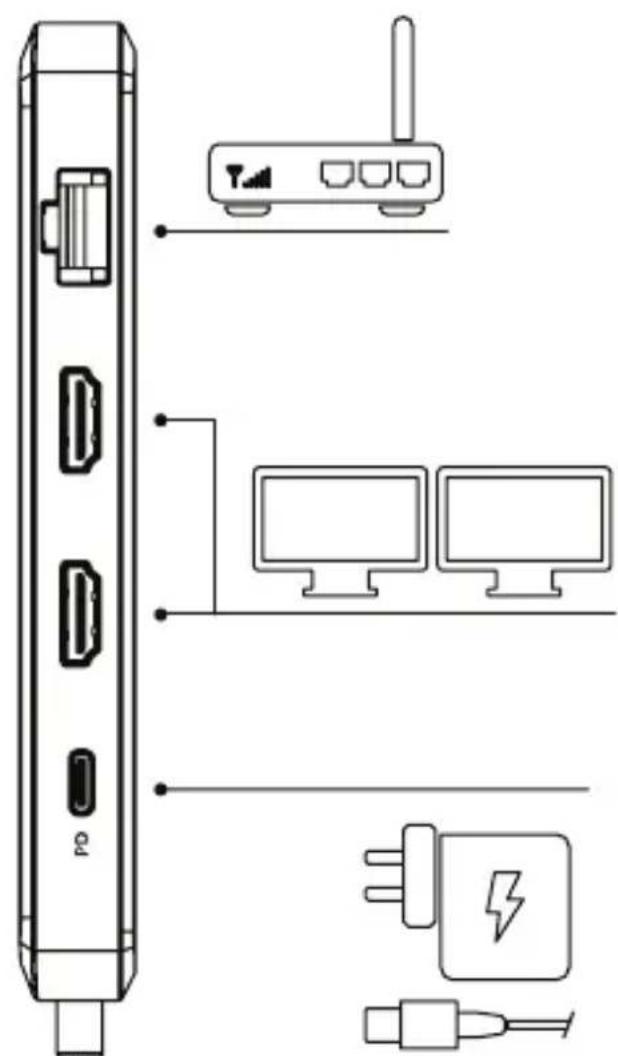


Use this port to charge mobile devices

natural_image
Line drawing of a smartphone rear panel and cable connector (no text or symbols)Windows
natural_image
Line drawing of a laptop keyboard and its connector (no text or symbols)Operating Instructions
Introduction
The ALOGIC Super Dock is a revolutionary product which addresses the differing capabilities of Windows, Mac and Chromebook computers to provide a portable docking solution that can connect multiple peripherals and drive up to two external monitors independently from any computer.
The key to the product's ability to do this is the integrated twin cable assembly which connects to the host computer.
The two cables are as follows:
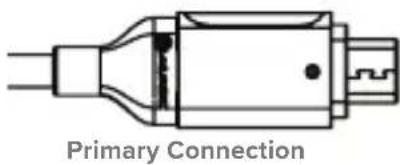
Primary Connection – Connect to Every Computer
The primary cable is marked with a dot symbol on the connector (•). This cable connects all the ports on the dock to the computer and should be connected to the computer in every instance. In addition to connecting the ports on the dock to the computer, this cable also carries video. Depending on the capabilities of the connected computer, video can be sent to two monitors over this connection at up to 4K UHD resolution at 60Hz.
Secondary Connection – Connect to Apple MacBook Computers
Some computers, such as Apple MacBooks, are unable to drive two monitors independently over USB-C using the Multi Stream Transport (MST) standard. Limitations also exist on the maximum video resolution that can be shared with data over a single USB-C cable that are dependent on the DisplayPort version supported by the computer.
For computers with either of these limitations, both the primary and secondary cables should be connected at the same time. The secondary cable addresses the limitations to allow a second external monitor to be used with the device on virtually any modern computer, at the highest resolutions possible.
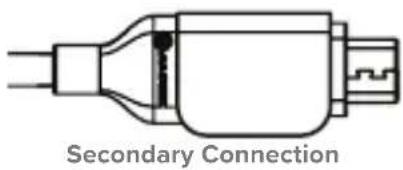
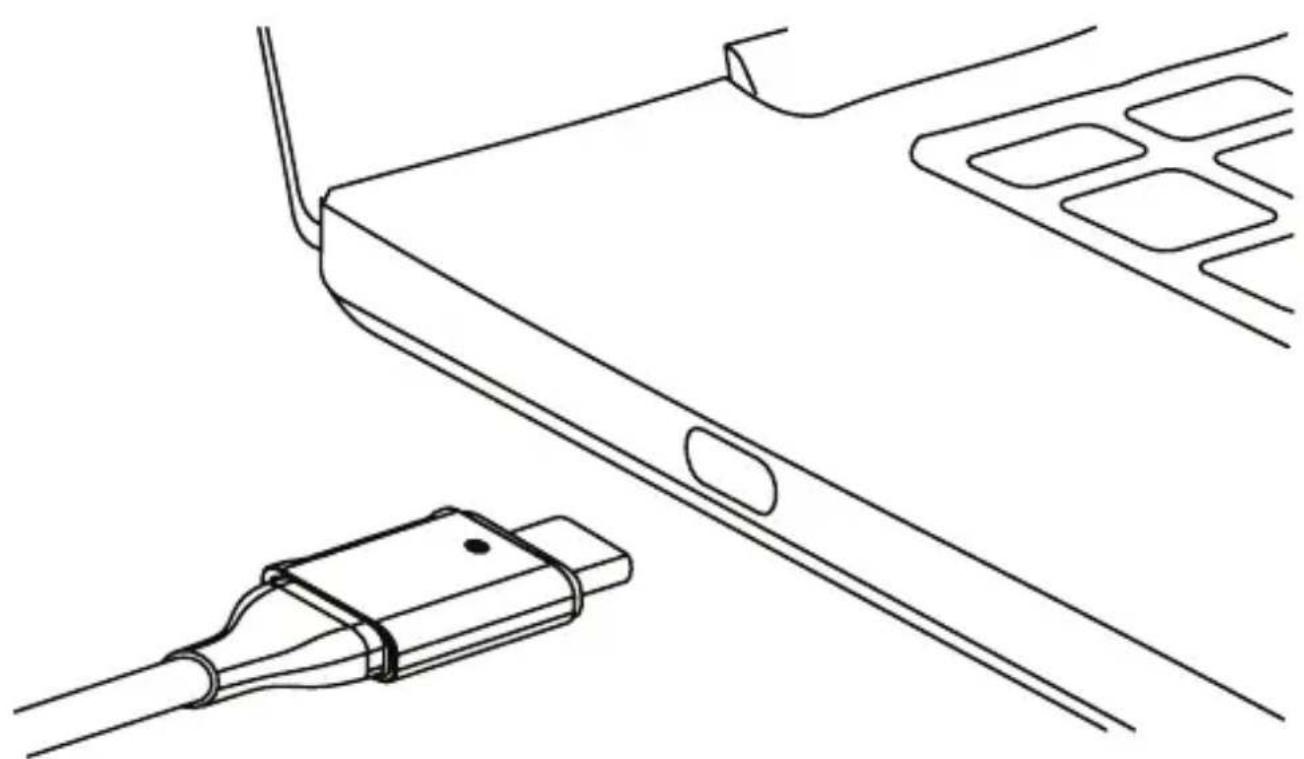
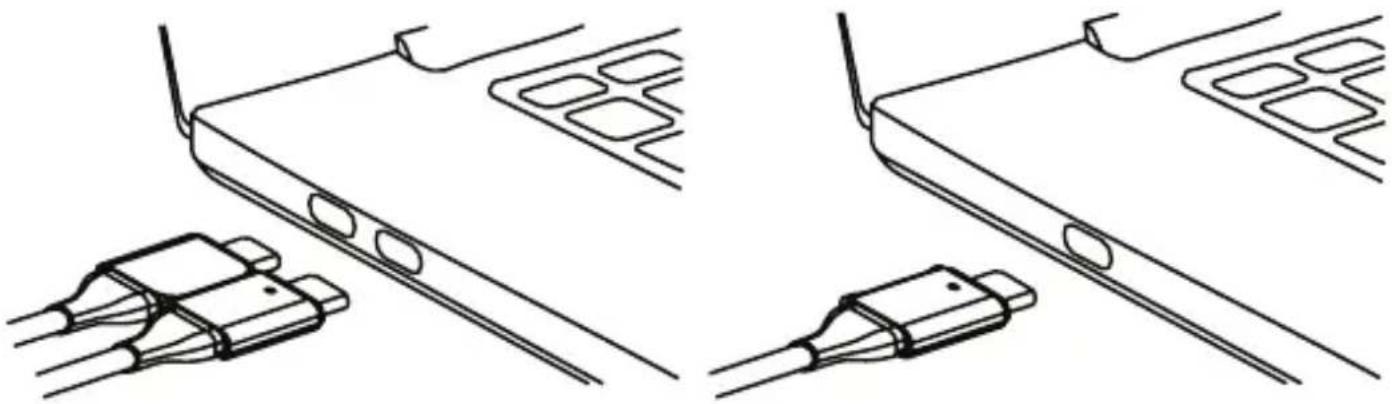
Apple computers are the most common type of computers which require the second cable to be connected. The connectors on the cable have been designed to magnetically attach to each other and connect directly to the twin ports on the side of Apple MacBook computers.
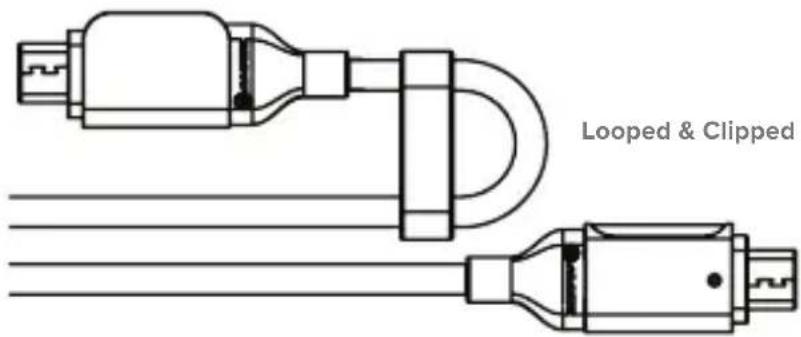
Users of Windows and Chromebook PCs generally do not need to connect the secondary cable but doing so can provide access to higher output resolutions for users who wish to connect to dual 4K displays (for example). If the cable is not in use, it can be looped back and clipped to itself using the integrated tether to keep it out of the way when using the device as shown below.
Connecting to the Computer
To use the device, connect one or both of the integrated USB-C cables to your computer as follows:
Apple MacBook Computers
- Connect both cables
Windows and Chromebook
- Connect only the primary cable (•), or both cables if desired
natural_image
Technical line drawing of a device with connectors and wiring (no text or symbols)The activity LED will illuminate when the device is plugged in to show it is connected and powered. The device is Plug and Play compatible and will be detected and configured by your computer automatically. This process will take a few seconds the first time you plug the device into your machine and you may receive a notification that it has been installed and is ready for use.
Once the device has been recognised and set up by your computer it is ready for use and you can connect other devices as desired such as HDMI monitors, USB devices and a network cable.
Not all USB-C ports on Windows and Chromebook computers support video output. Ensure that you connect the device to a port or ports that are video capable if using a Windows or Chromebook machine.
Refer to the USB-C Port Video Support section of this manual for further details.
Connecting Devices to the Super Dock
Connect external devices such as memory cards, USB memory sticks and external monitors to the dock as necessary. Refer to pages 2 to 4 for details of the available ports and their functions.
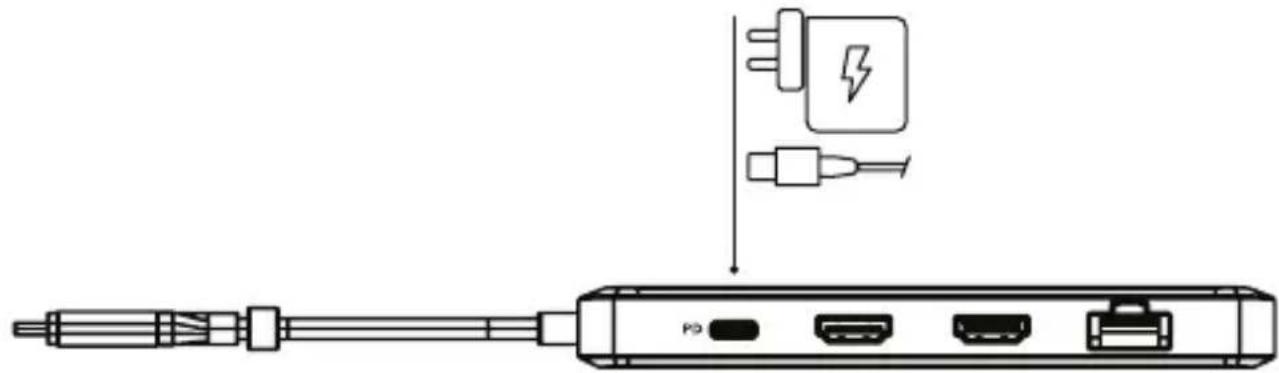
The USB-A port on the front of the unit next to the USB-C port supports rapid charging of mobile devices at up to 1.5A. If charging a device, ensure you connect it to this port. The USB-C port labelled PD supports USB Power Delivery Passthrough for charging your computer via the dock. A USB PD power supply can be connected to this port.
Connecting Power
The device can be powered over the connection from the computer and needs no external power supply for mobile use.
For computers that support charging of the computer through their USB-C ports using USB-C Power Delivery (USB PD) however, it is recommended that a USB PD power supply is connected to the port marked PD on the device.
natural_image
Diagram of a USB cable connector with ports and a power plug symbol (no text labels)Connecting a USB PD power source to the PD port will charge your computer through the Super Dock without the need to connect other cables to your computer and will provide more power to the dock to power and charge any devices connected to it.
Not every USB-C port on notebook computers supports charging. If your computer doesn't start charging when a power supply is connected to the device and the device is connected to your computer, try a different USB-C port on your machine or consult the computer's manual to determine which ports accept power from USB PD power sources.
Specifications
| Model U2CSH-SGR | |
| Dimensions 138 x | 62 x 16mm (L x W x H) |
| Weight 150g | |
| Input | 1 x USB-C Port (Primary)1 x USB-C Port (Secondary - Optional)Host computer USB-C ports require USB-C DisplayPort Alternative Mode support |
| Output | 1 x USB-C 3.1 Gen 1 (5Gbps) with Power Pass thru 100W - Data + Power, 1 x USB-C 3.1 Gen 1 (5Gbps) – Data Only, 2 x USB-A 3.1 (5Gbps), 1 x Audio / Microphone TRRS, 1 x RJ45 Ethernet 1Gbps, 1 x SD Card & Micro SD Card, 2 x HDMI |
| Resolution | Up to 2 x 4K UHD 60Hz, host computer dependentSee resolution support tables below for maximum outputs |
| Power | Powered by host machine or USB Power Delivery (PD) power sourceHost computer can be charged with up to 100W of power from USB PD power source |
| Device Compatibility | Compatible with all computers with a USB-C portRequires computer operating Windows 10, Chrome OS XXX, MacOS XXX or above. |
| Warranty 2 Years | |
Package Contents
- 1 x Dock
- 1x User Manual
Video Output Support
The following section outlines the maximum video output resolution and refresh rate combinations available to computers for a given DisplayPort version supported by their USB-C ports.
| Resolution Support – Both Cables Connected | Resolution Support – Only Primary Cable Connected | |||
| Host Computer DisplayPort Over USB-C Capability | Apple Macintosh (Or any other computers with both cables connected) | Windows / Chromebook PCs (With single cable connected) | ||
| Single Display Dual | Display Single Display Dual Display | |||
| HBR3 DP1.4 with DSC | 5120 x 2880@60Hz | 2 x 5120 x 2880@60Hz | 5120 x 2880@60Hz | 2 x 3840 x 2160@60Hz |
| HBR3 DP1.4 without DSC | 3840 x 2160@60Hz | 2 x 3840 x 2160@60Hz | 3840 x 2160@60Hz | 2 x 3840 x 2160@30Hz |
| HBR2 DP1.2 3840 x 2160@60Hz | 1 x 3840 x 2160@60Hz, 1 x 3840 x 2160@30Hz | 3840 x 2160@30Hz | 2 x 1920 x 1080P@60Hz | |
USB-C Port Video Support
Not all USB-C ports support video output. Many Windows and Chromebook computers have multiple USB-C ports, but only support video output from one or two of them. If using a Windows or Chromebook machine it is important to ensure that you plug the device into a port/ports which supports video output for it to be able to show video on external monitors.
Many USB-C ports that have no labelling support video output, however USB-C ports which have a DisplayPort logo or Intel Thunderbolt logo printed next to them almost certainly support video output and you should look for these icons next to the ports on your computer.


DisplayPort Logo Intel Thunderbolt Logo
If in doubt about whether a USB-C port supports video output, consult the user manual for your computer or the support information on the manufacturer's website.
The device can be used with USB-C ports which do not support video output; however you will not be able to connect the HDMI ports to external monitors and show video. The other ports (Ethernet, audio, card readers and USB ports) will be functional.
Troubleshooting
| Symptom Solution | |
| Video doesn’t show on external display | Check that the HDMI cable is connected securely between the monitor and device and the device is securely connected to the computerCheck that the external monitor is turned on and set to the correct inputCheck that your computer is detecting the external display and is set to show video on itCheck that the USB-C port on the computer that you have connected the device to supports video output using DisplayPort Alternate ModeIf using a 4K monitor, ensure the cable is compatible with HDMI 2.0 or aboveIf the computer doesn’t detect the external monitor or output video after checking the above, restart your computer and attempt again |
| Video drops out intermittently | Check that the HDMI cable is connected securely between the display and deviceCheck that the device is securely connected to the computerIf using a 4K monitor, ensure the cable is compatible with HDMI 2.0 or aboveCheck that the HDMI cable being used to connect to the display is of good quality and isn’t damaged |
| Computer doesn’t start charging when the device is connected | Ensure a USB Power Delivery power supply is connected to the USB-C port on the device marked PDEnsure that the power supply is connected at the wall and turned on, and the USB-C cable supplying power is securely connectedVerify that the USB-C port on the computer supports charging from a USB PD power source |
ALOGIC recommend the use of ALOGIC cables to ensure reliable, trouble free operation for your computer and peripherals.
Warnings
• This device is designed for indoors use only.
- Do not deliberately damage the device or expose it to damp, direct sunlight, or high temperature conditions.
- It is normal for the device to be warm to touch during operation. Provide adequate ventilation and do not cover the device while in operation.
- Disassembling or failing to properly use and care for your device will void the warranty on the product.
- Do not use the product if it becomes damaged as this could pose a risk of causing damage to connected devices.
- ALOGIC bears no responsibility for damage to the device or incidental damages arising from improper use or lack of care. ALOGIC will not be held liable for repair or replacement of the device or any other damages in these circumstances.
Bedienungsanleitung
Einührung
natural_image
Technical line drawing of a device with connectors and wiring (no text or symbols)natural_image
Diagram of a USB cable connector with an icon indicating a fuse or plug (no text or symbols present)natural_image
Technical line drawing of a device with connectors and wiring (no text or symbols)natural_image
Line drawing of a USB cable connector with ports and a plug, no text or symbols presentnatural_image
Technical line drawing of a device with connectors and wiring (no text or symbols)natural_image
Diagram of a USB cable connector with an icon indicating a battery symbol (no text or labels present)Windows and Chromebook
natural_image
Technical line drawing of a device with connectors and wiring (no text or symbols)natural_image
Diagram of a USB cable connector with ports and an electrical plug symbol (no text labels)natural_image
Technical line drawing of a device with connectors and wiring, no text or symbols presentnatural_image
Diagram of a USB cable connector with an icon indicating a fuse or plug (no text or symbols present)FCC Compliance Statement
This device complies with Part 15 of the FCC Rules. Operation is subject to the following two conditions:
(1) this device may not cause harmful interference, and
(2) this device must accept any interference received, including interference that may cause undesired operation.
Changes or modifications not expressly approved by the party responsible for compliance could void the user's authority to operate the equipment.
This equipment has been tested and found to comply with the limits for a Class B digital device, pursuant to Part 15 of the FCC Rules. These limits are designed to provide reasonable protection against harmful interference in a residential installation. This equipment generates, uses and can radiate radio frequency energy and, if not installed and used in accordance with the instructions, may cause harmful interference to radio communications. However, there is no guarantee that interference will not occur in a particular installation.
If this equipment does cause harmful interference to radio or television reception, which can be determined by turning the equipment of and on, the user is encouraged to try to correct the interference by one or more of the following measures:
- Reorient or relocate the receiving antenna.
- Increase the separation between the equipment and receiver.
- Connect the equipment into an outlet on a circuit different from that to which the receiver is connected.
- Consult the dealer or an experienced radio/TV technician for help.
Responsible Party - U.S. Contact Information
ALOGIC USA LLC
3730 Parish Ave
Fremont CA 94536 USA
EU Declaration of Conformity
Hereby, ALOGIC Corporation declares that this product is in compliance with Directive 2014/53/EU. The full text of the EU declaration of conformity is available at the following internet address by clicking on the Compliance Documentation link at: www.alogic.co
- USB-C 10-in-1 Super Dock
- Operating Instructions
- Introduction
- Primary Connection – Connect to Every Computer
- Secondary Connection – Connect to Apple MacBook Computers
- Connecting to the Computer
- Apple MacBook Computers
- Windows and Chromebook
- Connecting Devices to the Super Dock
- Connecting Power
- Package Contents
- Video Output Support
- USB-C Port Video Support
- Troubleshooting
- Warnings
- Bedienungsanleitung
- Einührung
- FCC Compliance Statement
- EU Declaration of Conformity
Brand : Alogic
Model : USB-C 10-in-1 Super Dock
Category : Support voiture