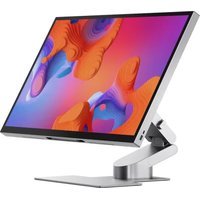
Clarity Pro Touch 27C4KPDWT - Monitor Alogic - Free user manual and instructions
Find the device manual for free Clarity Pro Touch 27C4KPDWT Alogic in PDF.


Pick your language and provide your email: we'll send you a specifically translated version.
| Product Type | Interactive Touch Monitor |
| Brand | Alogic |
| Model | Clarity Pro Touch 27C4KPDWT |
| Screen Size | 27 inches (68.58 cm) |
| Resolution | 3840 x 2160 (4K UHD) |
| Panel Type | IPS |
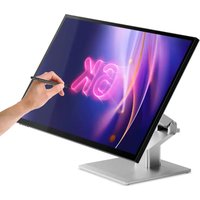
| Touchscreen | Yes, capacitive multi-touch |
| Refresh Rate | 60 Hz |
| Brightness | 350 cd/m² |
| Contrast Ratio | 1000:1 |
| Response Time | 5 ms |
| Connectivity | HDMI, DisplayPort, USB-C, USB-A, audio jack |
| Dimensions (with stand) | Approximately 615 x 450 x 200 mm |
| Weight | Approximately 8 kg |
| Power Supply | AC adapter 100-240V |
| Power Consumption | 40 W (estimated) |
| Main Features | 4K touch screen, wide viewing angle, built-in speakers |
| Maintenance | Clean with a soft, dry cloth. Avoid abrasive products. |
| Safety | Use on a stable surface, do not expose to moisture, unplug before cleaning. |
| Spare parts and repairability | Contact Alogic customer service. Do not open the device. |
| General information | User manual available in PDF format on the manufacturer's website. |
Frequently Asked Questions - Clarity Pro Touch 27C4KPDWT Alogic
How to connect my Alogic Clarity Pro Touch monitor?
Use the supplied HDMI or DisplayPort cable to connect the monitor to your computer. For touch, also connect the USB-C or USB-A cable (depending on your device). Make sure the monitor is plugged into a power outlet.
How to activate the touch screen?
The touch screen is enabled by default via the USB connection. Make sure you have installed the appropriate drivers if needed. On Windows, go to Settings > Devices > Mouse & touch to verify recognition.
What is the native resolution of the screen?
The native resolution is 3840 x 2160 (4K UHD). For optimal quality, set your computer to this resolution in the display settings.
Is the monitor compatible with Mac?
Yes, the monitor is compatible with Mac via HDMI, DisplayPort or USB-C. Touch works on Mac with appropriate drivers (generally recognized as a standard touch screen).
How to clean the touch screen?
Use a soft, non-abrasive cloth, slightly damp if necessary. Never use chemicals or glass cleaners. Turn off and unplug the monitor before cleaning.
Can I adjust the height and tilt?
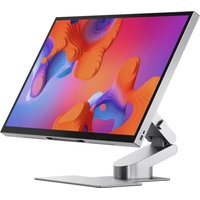
Yes, the monitor comes with an adjustable stand for tilt and height. Consult the manual for precise adjustments. Some models also allow rotation to portrait mode.
What to do if the screen remains black?
Check that the monitor is on (power LED), cables are properly connected, and the computer is running. Try a different cable or source. If the problem persists, contact Alogic customer service.
How to adjust brightness and contrast?
Use the buttons on the monitor to access the OSD (On-Screen Display) menu. Navigate to the brightness, contrast, and color temperature options. You can also use presets (movie, game mode, etc.).
Does the monitor have built-in speakers?
Yes, the monitor is equipped with built-in stereo speakers. To use them, select the monitor as the audio device in your computer's sound settings.
Where can I find the full manual?
The user manual is available for free download in PDF format on notice-facile.com or on the official Alogic website. You can also request a translation via the form on the page.
User questions about Clarity Pro Touch 27C4KPDWT Alogic
0 question about this device. Answer the ones you know or ask your own.
Ask a new question about this device
No questions yet. Be the first to ask one.
Download the instructions for your Monitor in PDF format for free! Find your manual Clarity Pro Touch 27C4KPDWT - Alogic and take your electronic device back in hand. On this page are published all the documents necessary for the use of your device. Clarity Pro Touch 27C4KPDWT by Alogic.
USER MANUAL Clarity Pro Touch 27C4KPDWT Alogic
Manual assistant
Powered by Anthropic
Waiting for your message
Product information
Brand : Alogic
Model : Clarity Pro Touch 27C4KPDWT
Category : Monitor