
Touchman TM450 - Smartphone LEXIBOOK - Free user manual and instructions
Find the device manual for free Touchman TM450 LEXIBOOK in PDF.


| Product Type | Smartphone |
| Brand | Lexibook |
| Model | Touchman TM450 |
| Dimensions (approx.) | 140 x 70 x 8 mm |
| Weight (approx.) | 150 g |
| Screen | 5 inches, 480 x 854 pixels resolution |
| Operating System | Android (Go or Lite version) |
| Processor | Quad-core 1.3 GHz |
| RAM Memory | 1 GB |
| Internal Storage | 8 GB |
| Expandable Storage | Via microSD card up to 32 GB |
| Rear Camera | 5 MP |
| Front Camera | 2 MP |
| Battery | Lithium-ion 2000 mAh |
| Network | 3G / 4G (depending on version) |
| Connectivity | Wi-Fi 802.11 b/g/n, Bluetooth 4.0, GPS |
| SIM | Dual SIM (Micro-SIM) |
| Sensors | Accelerometer, proximity |
| Maintenance and Cleaning | Wipe with a soft, dry cloth. Do not use abrasive products. |
| Safety | Do not expose to moisture or excessive dust. |
| Spare Parts and Repairability | Contact Lexibook after-sales service for parts and repairs. |
Frequently Asked Questions - Touchman TM450 LEXIBOOK
User questions about Touchman TM450 LEXIBOOK
0 question about this device. Answer the ones you know or ask your own.
Ask a new question about this device
Download the instructions for your Smartphone in PDF format for free! Find your manual Touchman TM450 - LEXIBOOK and take your electronic device back in hand. On this page are published all the documents necessary for the use of your device. Touchman TM450 by LEXIBOOK.
USER MANUAL Touchman TM450 LEXIBOOK
natural_image
World map silhouette showing continents and oceans (no text or labels)TM450
Dimension 170mm(W) X 130mm (H)
English GB-1--GB-12
Francais FR-13--FR-24
Espanol ES-25--ES-36
Portugues PT-37-PT-48....
Italiano IT-49--IT-60----
Deutsch D-61-D-72
Nerderlands NL-73--NL-84
Eaahnika GR-85-GR-97
INTRODUCTION
Thank you for purchasing the TM450 TOUCHMAN® RADIO personal assistant.
Please read this manual carefully to ensure you understand the operation and keep it for future reference.
NOTICE
- We strongly recommend that separate permanent written records be kept of all important data. Data may be lost or altered in virtually any electronic memory product under certain circumstances. Therefore we assume no responsibility for data lost or otherwise rendered unusable whether as a result of improper use, repairs, defects, battery replacement, use after the specific battery life has expected, or any other cause.
- We assume no responsibility for any damage or loss caused by data loss as a result of important use, repairs, and battery replacement. To prevent data loss, it is highly recommended that separate permanent written records be kept of all-important data.
• The information provided in this manual is subject to change without notice.
CAUTION
- Do not carry the organizer in the back pocket of your slacks or trousers.
- Do not drop the organizer or apply exercise force to it.
- Do not subject the organizer to extreme temperature.
- Clean only with a soft, dry cloth.
- Since this product is not waterproof, do not use it or store it where fluids can splash onto it. Raindrops, water spray, juice, coffee, steam, perspiration, etc. will also cause the organizer to malfunction.
CONTENT
| Introduction 1 | ||||||||||||||||||||||||||||||||||||||||||||||||||||||||||||||||||||||||||||||||||||||||||||||||||||
| Key operations | 3 | |||||||||||||||||||||||||||||||||||||||||||||||||||||||||||||||||||||||||||||||||||||||||||||||||||
| Reset 4 | ||||||||||||||||||||||||||||||||||||||||||||||||||||||||||||||||||||||||||||||||||||||||||||||||||||
| Selecting operation language 4 | ||||||||||||||||||||||||||||||||||||||||||||||||||||||||||||||||||||||||||||||||||||||||||||||||||||
| Key Tone 4 | ||||||||||||||||||||||||||||||||||||||||||||||||||||||||||||||||||||||||||||||||||||||||||||||||||||
| On/Off the organizer 4 | ||||||||||||||||||||||||||||||||||||||||||||||||||||||||||||||||||||||||||||||||||||||||||||||||||||
| Auto-Off function 4 | ||||||||||||||||||||||||||||||||||||||||||||||||||||||||||||||||||||||||||||||||||||||||||||||||||||
| Backlight 4 | ||||||||||||||||||||||||||||||||||||||||||||||||||||||||||||||||||||||||||||||||||||||||||||||||||||
| Radio 4 | ||||||||||||||||||||||||||||||||||||||||||||||||||||||||||||||||||||||||||||||||||||||||||||||||||||
| Home and world time mode 4 | ||||||||||||||||||||||||||||||||||||||||||||||||||||||||||||||||||||||||||||||||||||||||||||||||||||
| Alarm 5 | ||||||||||||||||||||||||||||||||||||||||||||||||||||||||||||||||||||||||||||||||||||||||||||||||||||
| Country code 5 | ||||||||||||||||||||||||||||||||||||||||||||||||||||||||||||||||||||||||||||||||||||||||||||||||||||
| Translator 6 | ||||||||||||||||||||||||||||||||||||||||||||||||||||||||||||||||||||||||||||||||||||||||||||||||||||
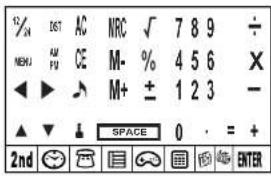
Key Operations
Home, world time clock and alarm mode key.
Telephone mode key.
Schedule mode key.
Game mode key.
Calculator, currency/metric conversion mode key.
translator mode key.
Country code mode key.
inPress to confirm or store selection.
■Secret lock mode key. In daily alarm mode, press
to enter password setting mode.
DST: To toggle the DST function on/off.
To toggle the key tone on/off.
To toggle daily alarm on/off.
To toggle hourly chime on/off.
- Cursor keys. Press to move cursor / to view
information out of the screen. Press and hold to
scroll the upper line.
Press to view other number fields in Tele mode.
Search key.
Express to enter editing files mode / enter time
Setting mode.
press to delete a character or a file.
B4Wess to select corresponding symbols.
☐o insert a decimal point / dot.
Bress to Insert a hyphen.
press to insert a space.
12/40 select 12/24-hour time basis display.
select a.m. or p.m. in time setting.
+Operators keys.
图
Reset
Before using your TM450 for the first time, press the RIGHT BUTTON located on the back of the product using a fine point "RESET" is displayed with the screen. Press ENTER to confirm. This operation can take several seconds.
Selecting operation language
After resetting your TM450, you can select the operation
language. Press <2nd> to enter the Menu function and
press up and down keys to select among ENGLISH
FRANCAIS, DEUTSCH, ITALIANO, ESPANOL, NEDER-
LANDS and PORTUGUES. Press ENTER to confirm the desired language.
Key tone
Press <2 nd> and then press ↗ to toggle key tone on/off
and indicator will be on/off accordingly.
On/Off function
Press ⏻ to switch on the organizer.
Press ⏻ to switch off the organizer.
Auto-Off function
Auto power off will be activated after 7 minutes if no key is
touched.
Press ⏻ key again to restart the organizer.
Backlight
Press ⏻ key for two seconds to turn on the backlight,
and after turning on, if no key is prebacklight will turn off automatically.
Radio
- Plug the earphone jack at the left top side of the
unit.
- Switch on the volume and then adjust to the optimum
level.
- Press ⏻ button on the facing of the unit to reach
the lowest frequency
- Press and hold (●) key for 2 seconds to start
searching upward/downward for the radio station, it will
automatically search the best sound station and stop on the bandwidth.
Home and home Time Setting
Press Ⓧ once for local (*) time, twice for world time, three
times for alarm mode and four times for count down
- Press Ⓧ to enter home and world time.
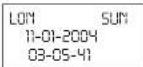
- Before setting time, press <2 nd> and
to toggle daylight saving - Press 12/24 to toggle between 12/24-hour display
- Then press <2 nd>
to enter home or world time setting mode, city name will flash. - Press √^ to select your city, then press ENTER
to confirm. - Input year, month, day, hour and minute. Press AM/PM to define a.m./p.m.
- Press ENTER to confirm. Day of week will be calculated automatically. Second starts from zero.
Alarm
Press Ⓧ key twice to select the alarm mode
Press ◀ or ▶ key to open or shut down the alarm function.
Press ▲ or ▼ to choose from the alarm 1 to alarm 3. Touch
Press ◀ or ▶ key, then press EDIT enter alarm setting
Set time alarm.
Type 06 30, then press (B/AM/PM) for a.m. or p.m.
Press ENTER
When the alarm function is open, Press 2nd and then tap number "2" to choose the second alarm ring. Touching "1" or "3" can choose the rest two alarm rings.
When the home time reaches the alarm setting, the alarm
will sound for 60 seconds. Touch any key to turn it off.
If you want to change the alarm setting, just repeat all the procedures above, and then the new setting will overwrite the old setting.
When setting alarm, press ✅ repeatedly for different
alarm types. The icon ((•)) is for the alarm, the icon ((/))
is for the schedule, is for the hourly chime.
When entering the from 1 to 3 to choose the three kinds of
the alarm rings.
Country code
Here we offer 120 country and zone telephone codes, from which you can acknowledge the country telephone code you want to know.
In the mode totally five sorts of search ways are offered. Touch 🔒 at first and then do as follows.
- Press √or ∧ key to search the country codes one by one by alphabetic sequence or reverse sequence.
- Input the whole name of the country you are looking for and then press or key to search.
- Input the first one or several letters desired to look for, then use or key to find the first country initialed by that first one or several letters and then keep using the up and down search keys to search the desired country and its code by alphabetic sequence.
- Input the abbreviation of some special countries, then use key to find the corresponding data. If the abbreviation is the same with the first letters of some certain county's name, then the search result will
display all of them. Pressing the search keys to read all. - Input the entire code number and then use √or ∧key if needs, to see the data with country name and its code.
Translator
Four kinds of languages that are English, German, Spanish and French can be translated among each other, the abbreviation of which are ENG, DEU, SPA and FRA respectively. The maximum length of the words to be translated is 36-characters.
The method for setting your translator pattern:
1. Touch at first
2. Press ◀ or ▶ to switch between source and target language
3. Source language: The language from which the arrow starts
4. Target language: The language that the arrow points at
5. Press √ or ∧ to select your source or target language
Telephone directory (business and personal)
You can store the names, e-mail addresses, and phone numbers of your friends and classmates. Store your friends under "personal" and your colleagues under "business".
There are two kinds of telephone directories: BUSINESS & PERSONAL.
- Press 📞 to enter Telephone mode. Once for PERSONAL and twice for BUSINESS mode
Press ☐ to select BUSINESS mode.
BUSINESS?
Enter JOHN SPACE SMITH and press ▼.
ADDRESS?
Press ▼, input 555777
HONE#
555777
Press ▼, input F SPML 345-456-1256
FBX#
F345-456-1256
Press ▼, input 585
CELL#
585
Press ▼ .
E-MAIL P
Enter lexibook and press 2nd and SYM key to get @, then input @lexibook.com
@lexibook.com
Press ▼
URLP
Enter@lexibook.com
www.lexibook.com
Press ▼
NOTE2
Press ENTER
STORED!
2 seconds later, screen returns to the original display.
Schedule
- Press ☐ to enter Schedule mode.
SCHEDULE
- To store schedule (Meeting on April 2nd7th at 12:30pm) Enter MEETING.
MEETING
00-00
800-00
3- Press ▼ and input schedule time (month, day, hour, minute).
MEETING
04-27
A12-30
How to do the schedule alarm
-
Press ( ■ ) to record the schedule
-
Press ( ) twice till "ALARME 1" displays
-
Press « Edit », then press ( ⊙ ) till the Schedule
alarm icon ((/)) displays.
- Press « Enter» to store.
Editing telephone / Schedule records
4- Press ENTER to save data.
Note that if the input time is out of range, display will be prompt "ERR" for 2 seconds then returns to previous screen. Input schedule time again.
5- When real time meets the schedule time, the unit turns on (if it was off) and displays the schedule. Press any key to stop the sound.
Searching and viewing telephone / schedule records
-
Press ☐ to enter related mode.
-
Press ∧ or ∨ to do the upwards or downwards search of files.
- Telephone files are in alphabetical order of the name.
- Schedule files are in chronological order of schedule date/time.
-
Press ◀ or ▶ to view upper line information exceeding 12 characters.
-
Press and hold ◀ or ▶ about 1 second, upper line scrolls continuously if content exceeds 12 characters. Press ◀ or ▶ again to
stop scrolling.
-
In Tele mode, press ◀ or ▶ to enter other number fields. Note: If it is the most top (bottom) record, after pressing (), "NOT FOUND" will be shown and then it exits to initial display.
-
Search out the record.
-
Press EDIT to enter record editing mode.
-
Press ◀, ▶, ▲ or ▼ to move the cursor to desired editing area.
-
Press DEL to delete characters.
-
Press ENTER to save the changes.
Deleting telephone / Schedule records
-
Search out the record.
-
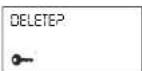
Press, DEL "DELETE?" will be prompt on the screen.
-
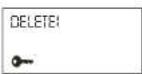
Press ENTER to confirm then "DELETE!" will be prompt for 2 seconds and then it goes to initial display. Or press other keys to abort.
Calculator
- Press to enter Calculator mode.
- 10-digit calculation with the arithmetic functions
+, -, X, - Press ☐ to clear inputting number.
- Press 📋 to calculate percentage calculation.
- Press NR N WRC and or for memory function.
- "ERR" will be shown on display for over 10-digit /error calculation. Press to exit.
Converter
Press ☐ key to select the currency conversion mode.
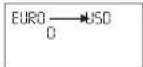
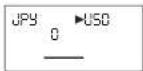
Press √ or ∧ to select the desired currency conversion. EX: JPY → USD
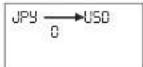
Press EDIT key to entry the setting mode, and the 1st character will flash.
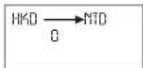
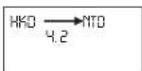
Input HKD ▶ NTD
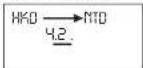
Press ENTER . Input the rate amount 4.2.
Press ENTER key to store the setting.
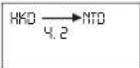
Currency conversion mode
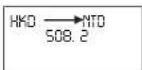
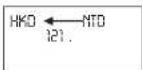
Press ☐ twice for currency conversion mode. Press √ or ^ key to select the desired conversion set in the currency conversion mode.
Input 508.2.
Press
Metric conversion mode
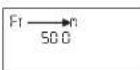
In the home time mode, press ☐ three times for metric Example: 100 Meters = ? Feet
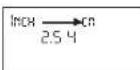
Press √ or ∧ key to search the desired conversion set.
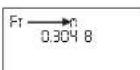
Input 500.
Press ◀ key.
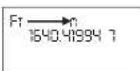
Game mode
There are two games for your choice: Hammer Game and To access the game mode, press the 📞 button. Keyboard Wiz.
Hammer
Regulations: Press ▲ and ▼ keys to move the hammer and press (ENTER) or (SPACE) key to knock the segments continuously rising under the hammer. When two are displayed in the same column, if you don't knock it within a second, the game is over. The highest score you can get is 999. Keyboard Wlz.
Keyboard Wiz
Set the desired level. (01 being the easiest, 20 the hardest.) Press to start the game. After 2 seconds, numbers and characters display sequentially from the right-hand direction. Characters or numbers will disappear by pressing the correct key and will keep displaying if the wrong key is pressed. The level will advance after you correctly type 12 characters. When the screen is full, it means you have lost the game. "Game Over" will display. When all the characters of level 20 are typed correctly, it means you have won the game. "You Win!" will display. The screen will go back to the initial display.
Secret memory
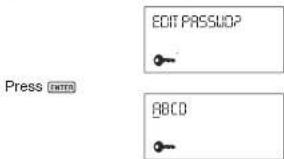
A separate list of data can be secured by using the secret mode, which is available in TELEPHONE, SCHEDULE, TO DO and MEMO modes. The password cannot be more than 6 characters. Example: Set up a password of "ABCD" and delete it. From the Time Mode.
Press 2nd key to select the secret mode.
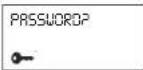
Set password (6 characters max.).
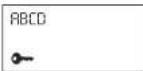
Press ENTER to confirm
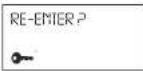
Input the password again.
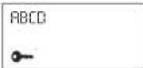
Press ENTER to confirm.
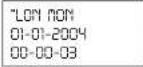
Press 2nd key.
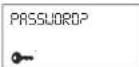
Input ABCD and press ENTER to confirm.
Press DEL
Press ENTER
Inserting Special Symbols
You can insert symbols when doing data input in Telephone / Schedule
modes. 16 symbols provided: -, @, #, \$, £, ¥, (.), \~, :, /, \, , &, %.
-
Press SYM, symbol shows at the cursor position.
-
Press SYM to select the desired symbol.
-
Continue to input other characters or press ▶ to move the cursor, the
selected symbol is inserted
- Keep Written Copies of Important Data
This organizer stores your information as long as the battery supplies
Warranty
This product is covered by our two-year warranty.
For warranty requirements or after sales service, please contact your local retailer with your proof of purchase. Our warranty covers all manufacturer defaults but does not cover deterioration due to non-respect of the Instruction Manual or bad handling of the product (like sun or water exposure or dismantling of the product).
Warranty does not cover batteries.
Freephone helpline: 0808 100 3015
http://www.lexibook.com
Changing batteries
You have to use 1 CR2032 battery and 2 AAA batteries.
You have to replace the batteries within 1 minute if you
want to save your data.
-
Press key to turn off the unit.
-
Remove the battery cover on
the back of the unit.
-
Remove the battery and insert a new battery.
-
Replace the battery door.
-
Press any key except to skip
RESET for preventing loss of previously stored data.
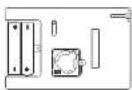
WARNING! If the battery losses power or is removed, all your information will be lost. Information can also be lost or corrupted if you make a mistake while operating this organizer. Therefore, always keep written copies of your information in case it is corrupted or lost.
INTRODUCTION
■activadas/desactivadas (on/off).
Encender/Apagar (On/Off) la agenda
Voer www.lexibook.com in
URLP
Druk op ▼.
@lexibook.com
NOTA?
Druk op ENTER
OPGESLAGEN!
- INTRODUCTION
- NOTICE
- CAUTION
- Key Operations
- translator mode key.
- Reset
- Selecting operation language
- Key tone
- On/Off function
- Auto-Off function
- Backlight
- Radio
- Home and home Time Setting
- Alarm
- Country code
- Translator
- Telephone directory (business and personal)
- Editing telephone / Schedule records
- Searching and viewing telephone / schedule records
- Deleting telephone / Schedule records
- Calculator
- Converter
- Currency conversion mode
- Metric conversion mode
- Game mode
- Hammer
- Keyboard Wiz
- Secret memory
- Inserting Special Symbols
- Warranty
- Changing batteries
- Encender/Apagar (On/Off) la agenda
Brand : LEXIBOOK
Model : Touchman TM450
Category : Smartphone