X990 - Gps WayteQ - Free user manual and instructions
Find the device manual for free X990 WayteQ in PDF.


| Product Type | GPS Navigator |
| Brand | WayteQ |
| Model | X990 |
| CPU | SiRF Prima, dual-core with 3D graphic acceleration |
| Operating System | Windows CE |
| RAM | 128 MB |
| Internal Storage | 4 GB NAND Flash (estimate) |
| Display Size | 5 inches (estimate) |
| Display Resolution | 480 x 272 pixels (estimate) |
| Touchscreen | Resistive |
| GPS Chipset | SiRF (integrated) |
| Navigation Software | Pre-installed (user-selectable .exe) |
| Audio Playback | Music, Flash, Games |
| Video Playback | AVI format |
| Photo Browsing | JPEG, BMP, etc. |
| E-book Reader | TXT format |
| USB Port | Mini USB (Mass Storage / Activesync) |
| Card Slot | MicroSD (T-Flash) |
| Battery Type | Lithium-Ion rechargeable |
| Battery Capacity | 1500 mAh (estimate) |
| Charging | AC adapter (5V) or car charger |
| Operating Temperature | 0°C to 50°C |
| Storage Temperature | -10°C to 60°C |
| Accessories Included | Car cradle, car charger, AC adapter, USB cable, stylus |
| Safety Warnings | Do not obstruct driver's view; operate only when parked; follow traffic laws |
Frequently Asked Questions - X990 WayteQ
User questions about X990 WayteQ
0 question about this device. Answer the ones you know or ask your own.
Ask a new question about this device
Download the instructions for your Gps in PDF format for free! Find your manual X990 - WayteQ and take your electronic device back in hand. On this page are published all the documents necessary for the use of your device. X990 by WayteQ.
USER MANUAL X990 WayteQ
natural_image
Close-up of colorful pastries with berries and chocolate in a red setting (no visible text or symbols)H
G
F
E
D
C
B
A
9. Windows CE
10. Téma
17. Dátum és idő
Érintse meg a

natural_image
Close-up of chocolate waffles with berries and fruit toppings on a red background (no visible text or symbols)H G F E D C B A
9. Windows CE
Pentru a selecta sunetul de fundal selectati un fisier audio.
15. Iluminare de fundal
Apăsați pe iconul "

17. Data și ora
Apăsați pe iconul "

21. Cale de navigare
Apăsați pe iconul "

eti vizualiza interfața de mai jos.
natural_image
Close-up of colorful pastries including chocolate cakes and fruit toppings on a red background (no visible text or symbols)H G F E D C B A
9. Explorer
10. Теми
Натиснете "

17. Дата и време
Натиснете икона "

9. Explorer
10. Theme
17. Datum und Zeit
21. Nav Path
A. Indikator polnjenja E. MicroSD reža za kartico
B. Zvočnik F. MINI USB vrata
C. Stikalo G. Stylus reža
D. Vtič slušalk H. Reset
2. Polnjenje z AC napajalnikom
Pritisnite "Turn off" tipko za izklop naprave.
A. Povratek v Media meni
B. Nastavitev glasnosti
C. Izberite glasbeno datoteko
D. Stop
E. Naprej
F. Premor / Predvajaj
G. Predhodni
H. Hitrost
I. Način predvajanja
J. Equalizer
Dvojni pritisk ikone "

natural_image
Close-up of colorful dessert cakes with berries and chocolate topping on a red background (no visible text or symbols)H G F E D C B A
A. Povratek v Media meni
B. Izberite foto datoteko
C. Prikazovalni način
D. Obrni
E. Zoom +
F. Zoom -
G. Naslednji
H. Predhodni
5. E-knjiga
Pritisnite " " ikono, nato Pritisnite " " ikono za izbor datotek E-knjige, dvakrat pritisnite datoteko in vstopite v naslednji meni.
9. Explorer
Dotaknite icon "

10. Teme
Pritisnite "

Za ponastavitev ikon, pritisnite na ikono in držite dokler ni vidna štiri smerna puščica na levi strani, prestavite ikono na želeno mesto.
Izberite "Music" datoteke za izbiro zvokov ozadja med delovanjem naprave.
17. Datum Ura
Pritisnite ikono "

Pritisnite ikono "OK" za nastavitev zaslona na dotik.
19. Sistemske informacije

Pritisnite " " ikono in vstopite v spodnji meni.
20. USB
Pritisnite ikono "

stavitev načina delovanja USB načina.
21. NAV Pot
Pritisnite "

" ikono in vstopite v spodnji meni.
Thanks for using WAYTEQ products!
●WAYTEQ reserves the rights of final interpretation of the manual.
● The product is subject to change without any further notice. Please accept our apology for your inconvenience.
- Please back up your information in the GPS navigator. WAYTEQ assumes no responsibility for any loss caused by material loss.
- The manual might contain a few mistakes though it has been checked. If mistakes are found, please contact the WAYTEQ customer service center.
- Please read carefully the instructions in this manual and use only accessories of WAYTEQ to avoid unpredicted damage. Failure to follow the instructions will invalidate warranty and might endanger personnel safety, for which WAYTEQ assumes no responsibility.
- Data of navigation electronic maps might be inconsistent with actual traffic signals due to transportation development. Please follow traffic regulations and signs and drive according to road situation.
- Operating the GPS navigator device while driving might cause serious accidents. Please shorten your time in viewing the navigator and use the voice prompt function. While driving, try to shorten your time in operating the navigator, for example, inputting addresses, changing settings or using other functions. WAYTEQ assumes no responsibility for accidents and loss due to improper use.
- For safe driving, please pay attention to road and weather conditions as well.
●The pictures in the manual are subject to the material object.
Welcome!
Thanks for using the WAYTEQ GPS featured with navigation as the major function as well as other amusement functions like audio play, video play, photo browsing, e-book reading, and games, etc.
√SiRF Prima, dual-core CPU with 3D graphic acceleration
√Friendly user interfaces for simple operation
√Power management for longer and more stable operation
√ Data transmission with computers via Mini USB
√Quality reception for accurate positioning and satisfactory navigation service
√Leisure partner with audio/video/amusement functions
You may use the GPS navigator anytime anywhere, for example while driving, walking or cycling. Its navigation and amusement functions will enrich your life and work!
To fully exert the functions of WAYTQ GPS and to understand the operation details, please read the manual carefully.
This manual is applicable only to the WAYTEQ GPS.
Basic Introduction
1. Overview
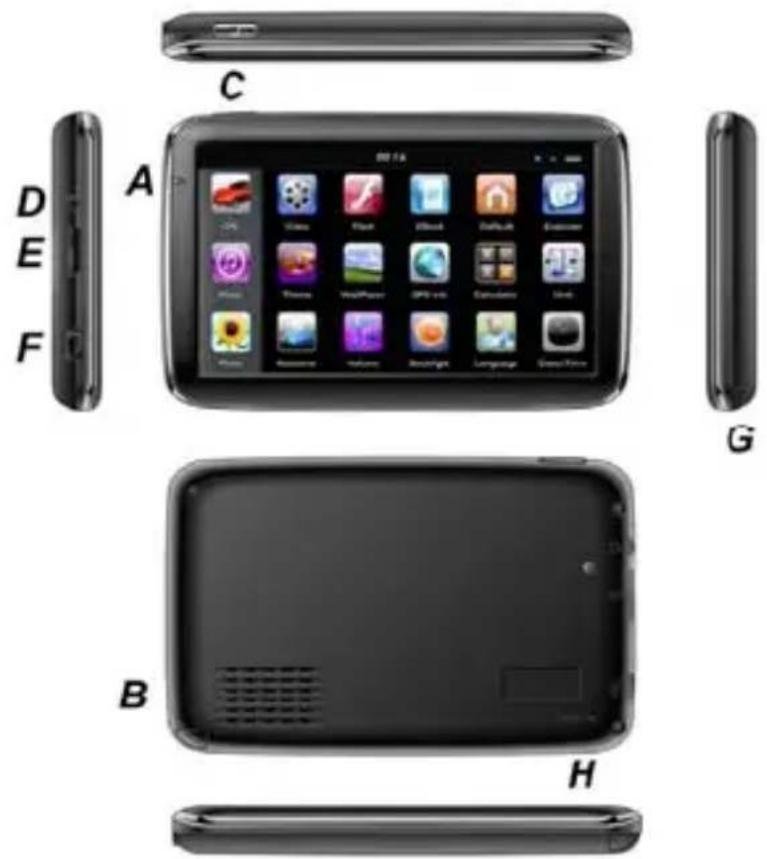
A. Charging Indication E. Memory Card Slot
B. Speaker F. Mini USB
C. Power G. Stylus Pen Slot
D. 3.5mm Earphone Socket H. Reset
2. Charging by AC Adapter
Caution: The charging indicator light is red during charging. Do not unplug the charge until the battery is fully charged and the indicator light turns green. Please charge the GPS navigator when the battery is low or used up in succeeding use.
3. Charging by Car Charger
Caution: To protect your device against suddenness, please connect the car charger only after the car engine has been started.
4. Battery
The navigator has a working temperature of 0\~50°C and storage temperature -10\~60°C. Do not expose the device in excessive heat or hot areas, for example in the car under strong sunlight. To avoid damaging the device, keep it away from direct sunlight.
Follow local regulations while disposing the battery.
5. Install the Car Cradle and Bracket
Caution: Do not place the GPS navigator in positions obstructing the driver's vision, for example at the steering wheel, pedal or gear lever. Do not place it without fixing it, or in the place of air bag or the area after the air bag is inflated. While using the mounting kit, follow local regulations. WAYTEQ will have no responsibility for any penalty or damage resulting from traffic violation.
6. Using T-Flash Card
Caution: Do not take out the T-Flash card while an navigation program is being run or a media file is being played. To avoid drop or crash of the T-Flash card, do not exert heavy pressure on it or bend it.
Mind the direction while inserting the T-Flash card to avoid damaging the slot or the card.
7. Restarting the system
When the system does not response, press the reset key on the right side of the GPS navigator to restart the system. Caution: Restarting the system by pressing the reset key will result in loss of unsaved data. Please backup your data regularly.
Main Functions Introduction
1. Starting Up and Power Off
Long press the "Power" button to power the equipment on and you can see the main interface as below :
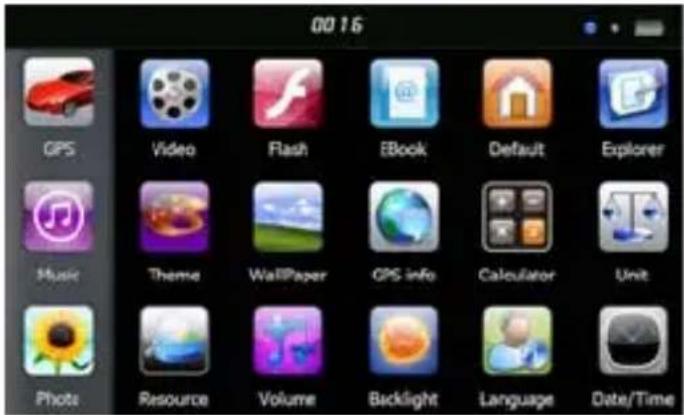
Tap the "to the system date and time.
Long press the "Power" button again to enter into the below interface :
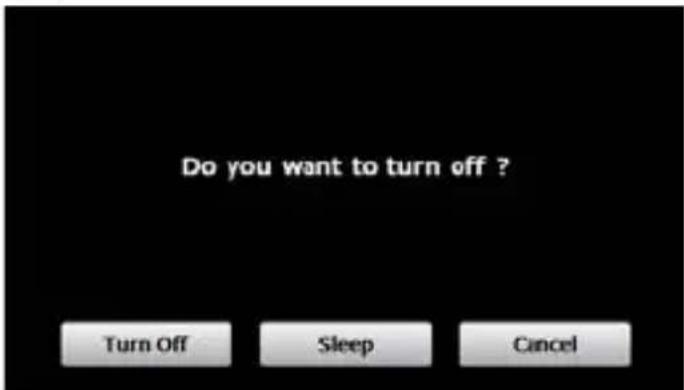
Tap the "Turn off" button to turn the unit off.
Tap the "Sleep" button to enter a suspend state and the system stops operation. Tap the "Cancel" button to turn back to the screen.
2. GPS Navigation
Double tap the "GPS" icon to start navigation program.
Caution: Please refer to navigation software instructions for details.
3. Music
Tap the icon " " to enter into the following interface :
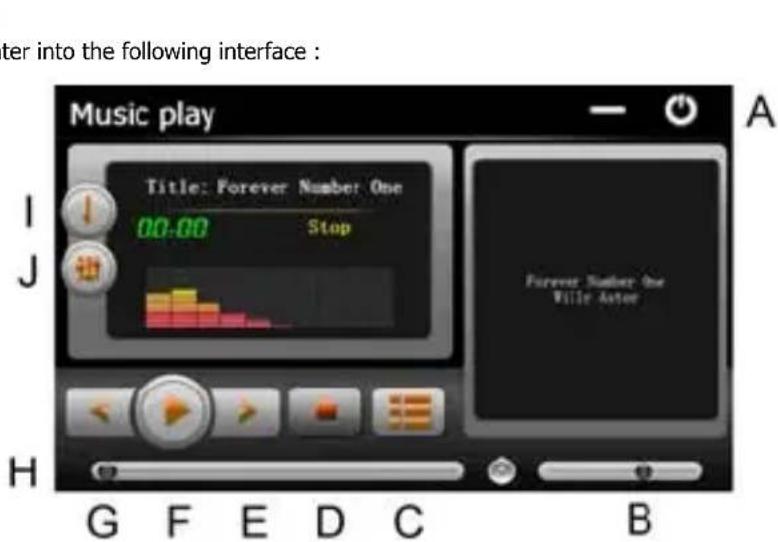
A. Return to main menu F. Pause / Play
B. Volume control G. Previous
C. Select desired music file H. Speed bar
D. Stop I. Play modes
E. Next J. Equalizer
Double tap icon " " to choose music file.

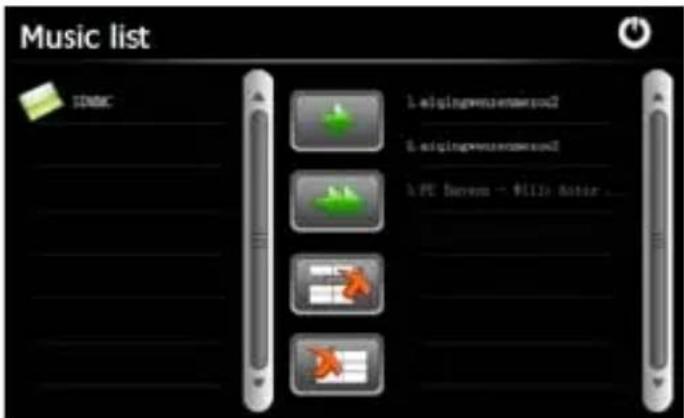
Tap the icon " " for single selection, tap the icon " " to select all, tap the icon " " for single delete, tap the icon " " to delete all.
4. Photo
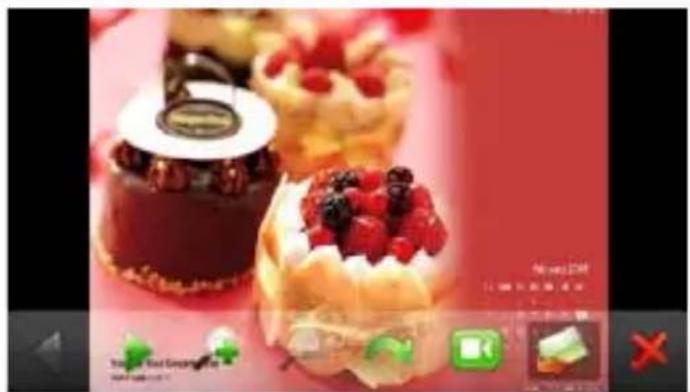
Tap the " " icon, then tap the icon " " to select photo files, double tap the photo file to see the following interface.
natural_image
Close-up of chocolate pastries topped with berries and strawberries, displayed on a red surface (no visible text or symbols)H G F E D C B A
A. Return to main menu E. Zoom in
B. Select photo file F. Zoom out
C. Slide mode G. Next
D. Rotate H. Previous
5. Video
Tap the icon " " icon, then tap the " " icon to choose video files, and double tap the file and enter into following interface.
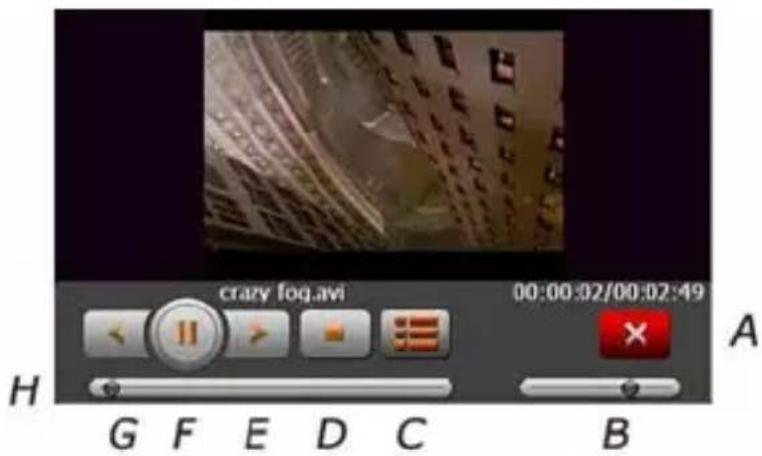
A. Return to main menu E. Next
B. Volume F. Pause / Play
C. Select video file G. Previous
D. Stop H. Speed bar
Tips:
Double tap the screen, it will display in full screen, double tap the screen again, it will return to original playing size.
6. Flash
Tap the icon " " and enter into the following interface.
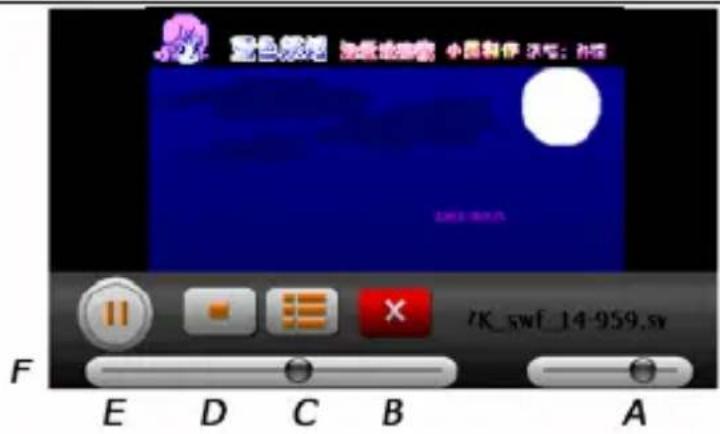
A. Volume D. Stop
B. Return to main menu E. Pause / Play
C. Select flash file F. Speed bar
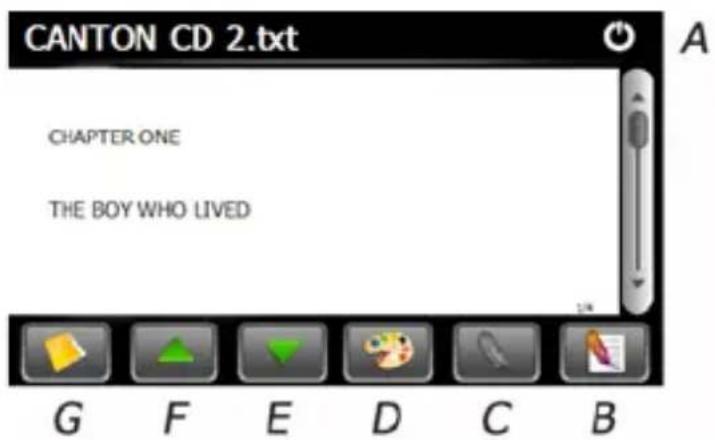
7. Ebook
Tap the " " icon, then tap the " " icon to choose Ebook files, double tap the file and enter into the following interface.
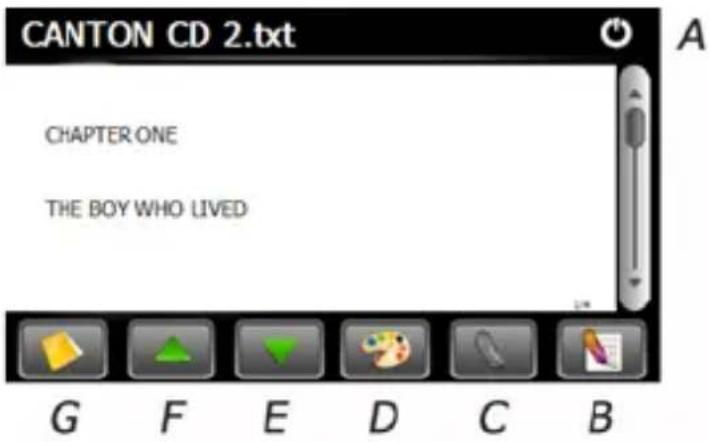
A. Return to main menu E. Next page
B. Bookmark list F. Previous page
C. Bookmark G. Select Ebook file
D. Setting to set theme & font
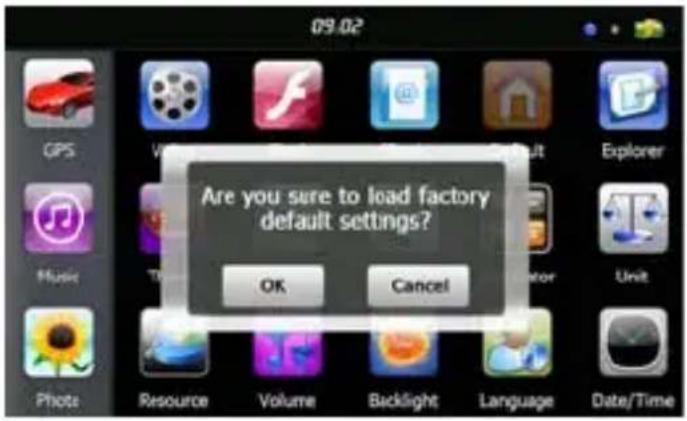
8. Default
Tap the " " icon and enter into the following interface . Tap the icon " OK " to load factory default setting .
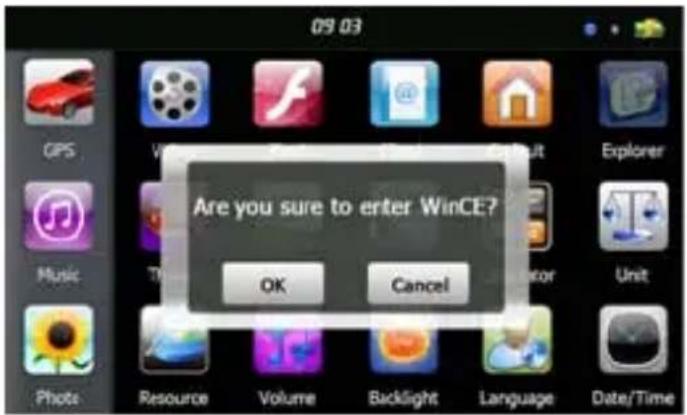
9. Explorer
Tap "G" icon, there will be one prompt as below to ask if go into WINCE mode, choose "OK" to enter and "Cancel" to exit.
10. Theme
Tap " ” icon to enter the Theme interface as below to set a style and theme for the system interfaces.
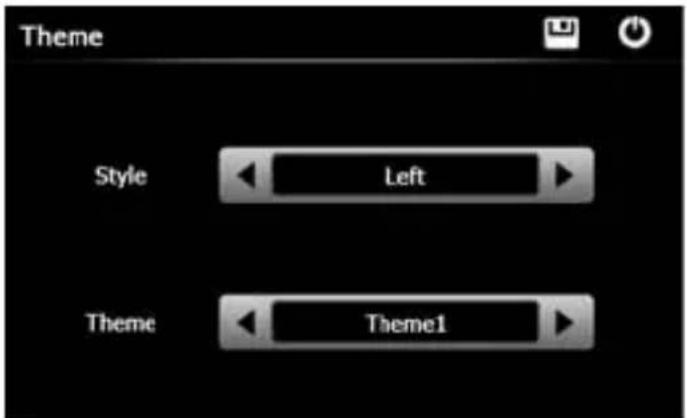
To rearrange icons at will, tap on an icon and stay until a four-way arrow appears at the upper left of it, drag the icon to a wanted place.
Tips: after make any changes of setting, tap " " to save the change.
11. Wallpaper
Tap"

"icon to enter into the Wallpaper interface as below.
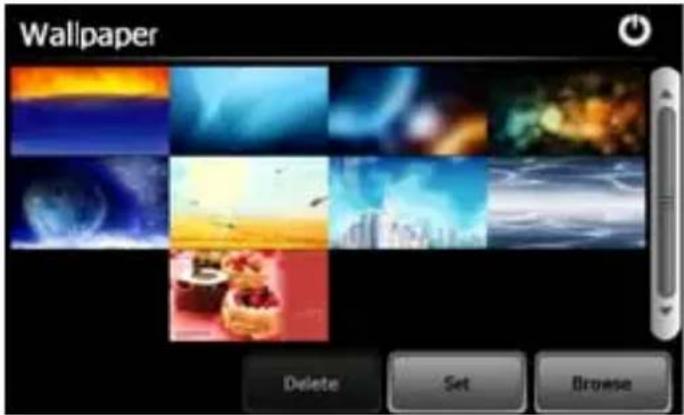
You may choose an pre-installed wallpaper, you may also set an external image as the wallpaper.
The pre-installed wallpapers cannot be deleted, while the added images can be deleted. To delete images, select an added
image from the "Wallpaper" interface and then tap

12. GPS Info
Tap the "

icon and the unit will show the detail information of GPS satellites.
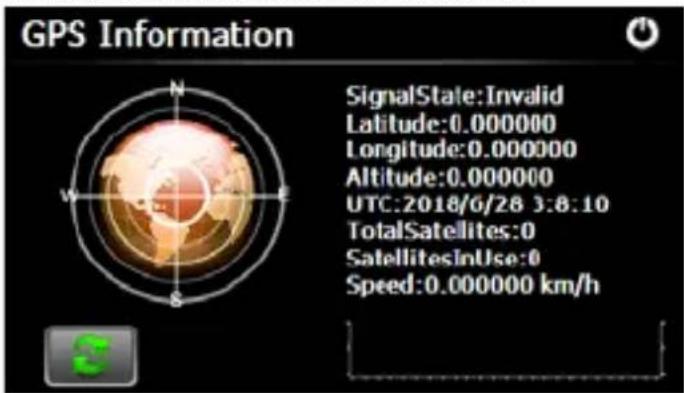

Tap "

" and will have a prompt to ask if reset GPS receiver, tap "OK" to reset signal or tap "Cancel" to exit.
13. Resource
Tap"

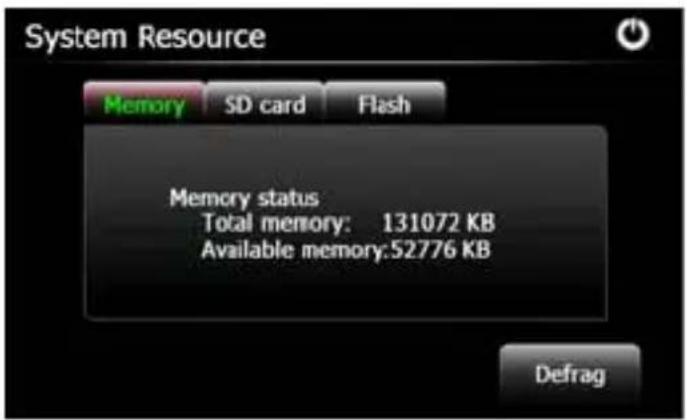
" icon to enter System Resource interface as shown below.
You may check the capacity of the memory, SD card and flash.
14. Volume
Tap the icon " " on the menu and enter into the following interface.
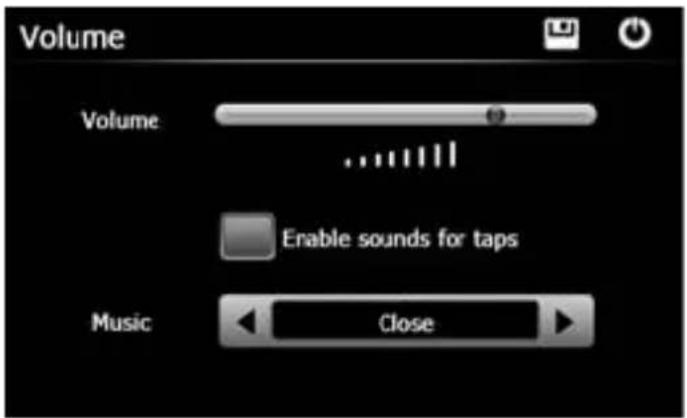
Choose "Music" files to be background sound when unit is power on.
15. Backlight
Tap the " " icon and enter into the following interface to make the backlight settings.
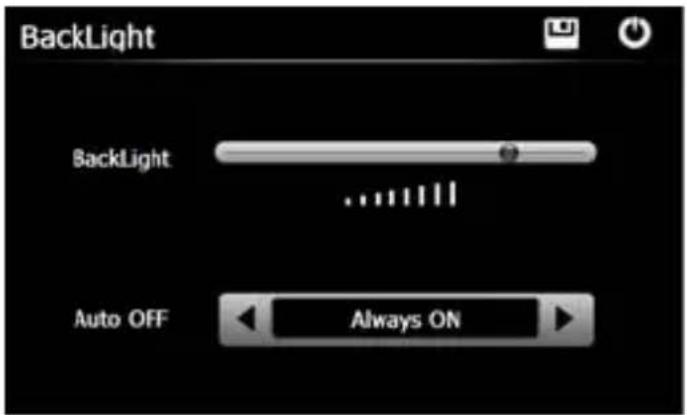
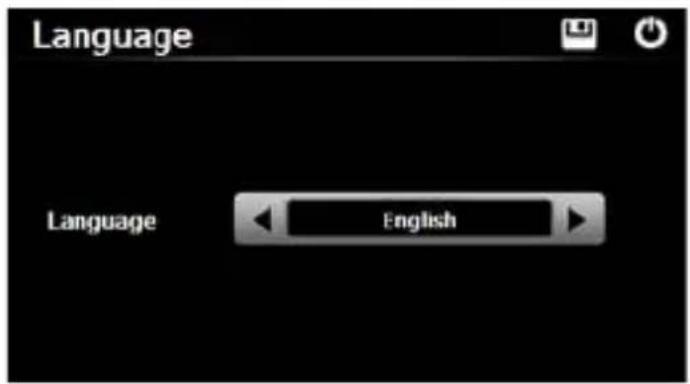
16. Lan eguag
Tap the " " icon and choose the language .
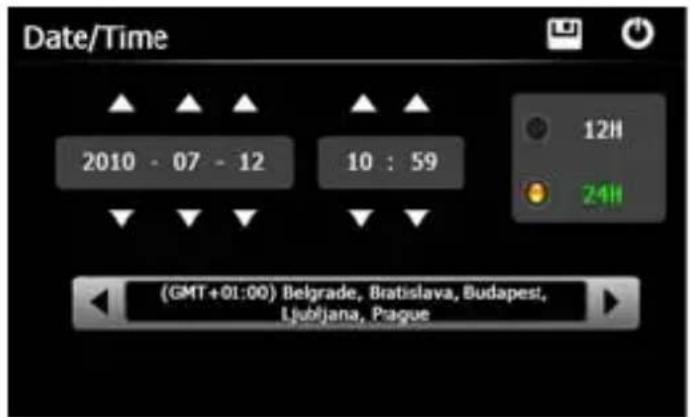
17. Date and Time
Tap the icon " " and enter into the following interface to set date, time and time zone.
18. Calibration
Tap the "icon and enter into the following interface.
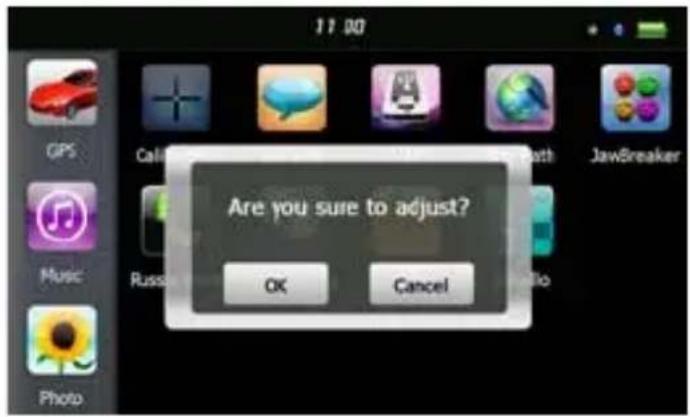
Tap the icon "OK" to adjust the touch screen.
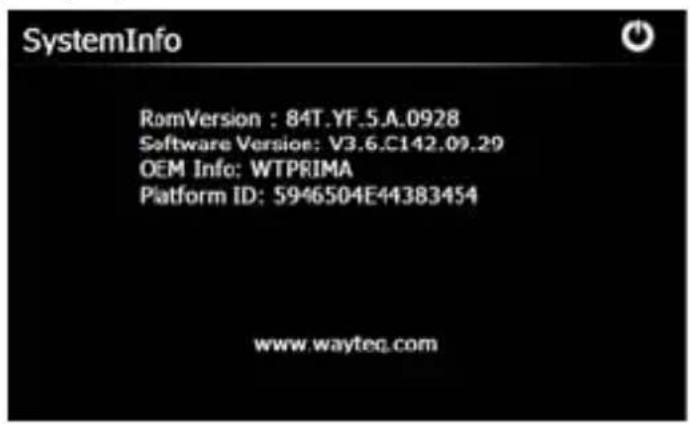
19. Sys Info
Tap the " " icon and the system information will be shown.
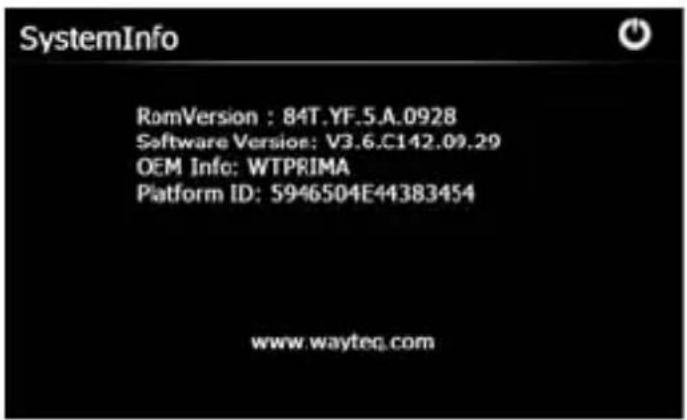
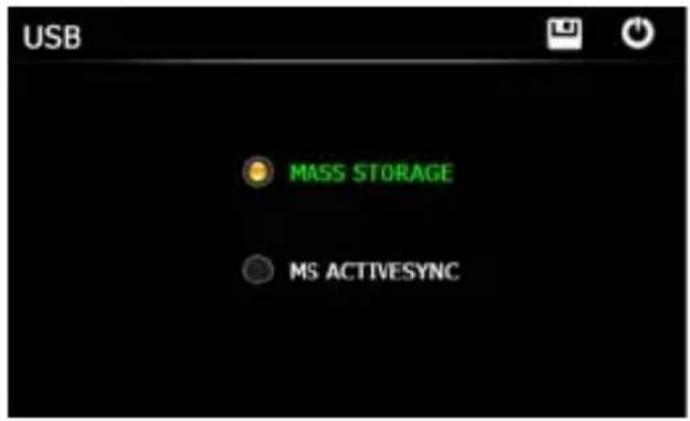
20. USB
Tap the icon "

the USB working mode.
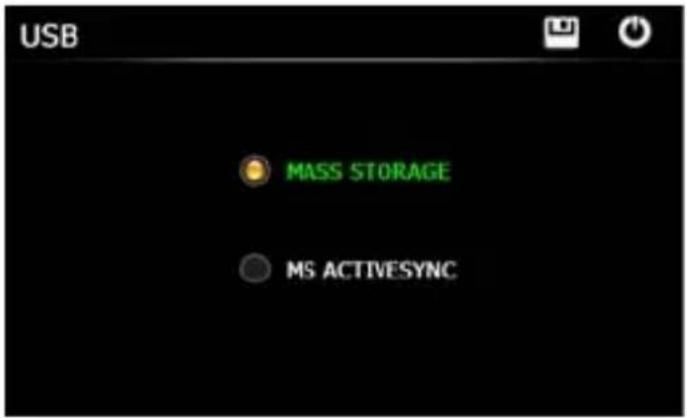
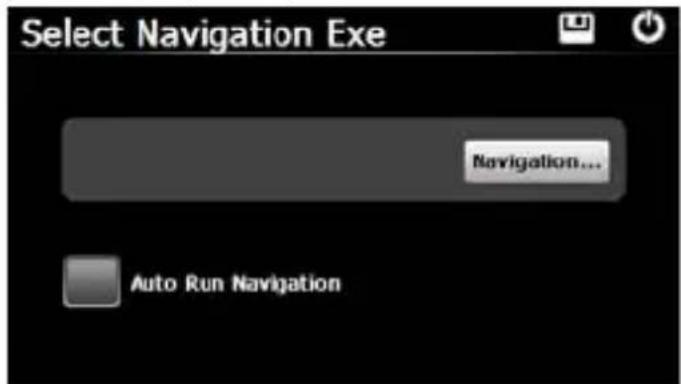
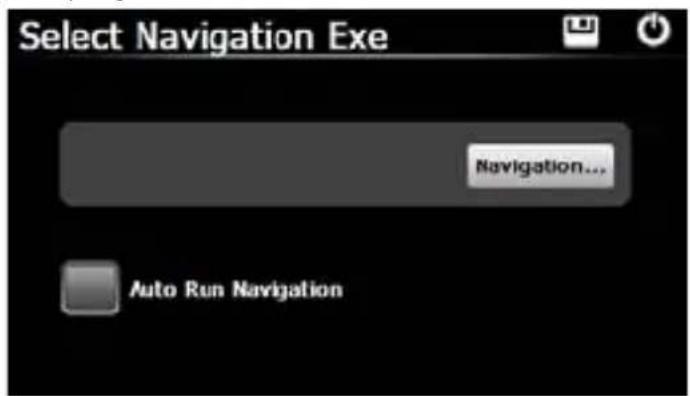
21. Nav Path

Tap the " " icon and enter into the following display interface.
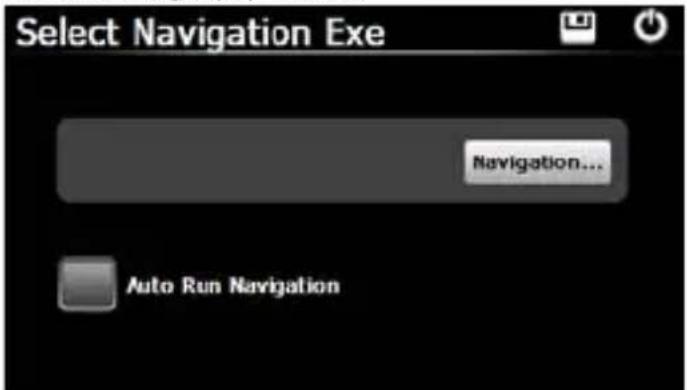
When you have several Navigation maps in the device, you can set up one of Navigation maps (navigation program files) by choosing the "Navigation" icon and selecting the Auto Run Navigation, next time when tapping the "GPS" icon in the main menu, the device will run the selected Navigation software automatically.
22. Calculator
Tap "

"icon to enter into the Calculator interface.
23. Unit
Tap"

" icon to enter into the Unit Converter interface.
24. Jaw Breaker
Tap"

"icon to enter into the game interface. Tap "New Game" to start.
25. Russia Block
Tap"

I can to enter into the game interface. Tap "Start" to start.
26. Dui Dui Peng
Tap"

"Icon to enter into the game interface. Tap "New Game" to start.
27. Snake
Tap"

“ ” icon to enter into the game interface and start playing.
28. Othello
Tap"

"icon to enter into the game interface. Tap "Start" to start.
This document is for guidance only and does not form part of any contract, and may be subject to change without notice.
© 2010 WayteQ Technology Co., Ltd. All rights reserved.
Print in China
- Windows CE
- Téma
- Dátum és idő
- Iluminare de fundal
- Data și ora
- Cale de navigare
- Explorer
- Теми
- Дата и време
- Theme
- Datum und Zeit
- Nav Path
- Polnjenje z AC napajalnikom
- E-knjiga
- Teme
- Datum Ura
- Sistemske informacije
- USB
- NAV Pot
- Welcome!
- Basic Introduction
- Overview
- Charging by AC Adapter
- Charging by Car Charger
- Battery
- Install the Car Cradle and Bracket
- Using T-Flash Card
- Restarting the system
- Main Functions Introduction
- Starting Up and Power Off
- GPS Navigation
- Music
- Photo
- Video
- Tips:
- Flash
- Ebook
- Default
- Wallpaper
- GPS Info
- Resource
- Volume
- Backlight
- Lan eguag
- Date and Time
- Calibration
- Sys Info
- Calculator
- Unit
- Jaw Breaker
- Russia Block
- Dui Dui Peng
- Snake
- Othello
Brand : WayteQ
Model : X990
Category : Gps