N800 GPS MID - Gps WayteQ - Free user manual and instructions
Find the device manual for free N800 GPS MID WayteQ in PDF.


| Product Type | GPS MID (Mobile Internet Device) |
| Brand | WayteQ |
| Model | N800 |
| Dimensions (approx.) | 120 x 80 x 15 mm |
| Weight (approx.) | 200 g |
| Power Supply | Rechargeable Li-ion battery, 5V DC charger |
| Display | 4.3-inch touchscreen LCD |
| GPS Navigation | Built-in GPS receiver with maps |
| Operating System | Windows CE or Linux embedded |
| Media Playback | Supports audio, video, and image formats |
| Connectivity | Wi-Fi, USB, microSD card slot |
| Internet Browsing | Web browser via Wi-Fi |
| Main Functions | GPS navigation, media player, e-book reader, internet access |
| Maintenance & Cleaning | Wipe with soft dry cloth; avoid liquids |
| Safety | Keep away from water and extreme temperatures |
| Spare Parts & Repairability | Battery and charger available; contact support for repairs |
| General Information | Free manual download available in PDF format |
Frequently Asked Questions - N800 GPS MID WayteQ
User questions about N800 GPS MID WayteQ
0 question about this device. Answer the ones you know or ask your own.
Ask a new question about this device
Download the instructions for your Gps in PDF format for free! Find your manual N800 GPS MID - WayteQ and take your electronic device back in hand. On this page are published all the documents necessary for the use of your device. N800 GPS MID by WayteQ.
USER MANUAL N800 GPS MID WayteQ
Precaution and Notice
The PND is used only as a navigation aid. It is not for precise measurement of direction, distance, location or topography. The user must follow all traffic signs and local regulations along the roads.
≈ GPS satellite signals cannot pass through solid materials (except glass). When you are inside a tunnel or building, GPS position is not available.
A minimum of 4 GPS satellite signals are needed to determine current location. Signal reception can be affected by situations such as bad weather or dense overhead obstacles (e.g. tall buildings).
Other wireless devices in the vehicle might interfere with the reception of satellite signals and cause the reception to be unstable.
When you get out of the car, do not leave your PND on the dashboard or subject to direct sunlight. The overheating of the battery may cause malfunctions and/or dangerous conditions.
For your own safety, do not operate the controls of the PND while driving. Do not mount where the driver's field of vision is blocked.
Battery rupture or explosion will release dangerous chemical substance. So in order to avoid fire or be burned, please do not disassemble, pierce, knock or throw the battery to fire or water.
Intense humidity fluctuations or moisture will contribute to machine internal short-circuit. Therefore, it is better to start up the device after the device adapting the surrounding when the external condition changes
significantly.
Please copy system data to external storage devices when update system data. WayteQ Technologies is not responsible for system data corruption or loss.
GPS Maintenance
Please use stylus to tap and operate the navigator, never press the touch screen forcefully. Please use soft cloth with little glass cleaning agent to clean the screen.
Never clean the touch screen without shutting down the GPS navigator. Dropping or bump may cause damage of precision parts, such as LCD Screen, etc.
Accidental damage is not covered in the warranty scope. Please do not use the device in the following conditions: sharp temperature changes; high temperature( above 60 °C); low temperature(below 0 °C); high voltage; dusty; static disturbances; humid; to prevent the device far away from corrosive liquids or from soaking the device in any liquids; avoiding radiation interference: radiation interference from other electronic equipments may impact the screen display while display screen can return to normal when getting rid of interference source.
If air transport, it is better to pass X-ray detection system with luggage when go through the security access and to prevent the device from being detected by the use of magnetic head detector or magnetic bar as these electronic equipments may lead to the damage of system data. YF International is not responsible for the above damages.
Avoiding the direct glare: Never place the GPS navigator in the glare or ultraviolet so as to prolong its service life.
Basic Introduction
1.1 Product Overview
Besides the main function - GPS navigation, N800 also supports Wi-Fi, Bluetooth (Hands-free with DSP echo-cancellation), external TMC, strong 3D entertainment function as well as multimedia play functions.
- CPU: SiRF Prima Dual-Core ARM11 600 MHz processor, 3D hardware acceleration engine, 64 channels GPS baseband
- WinCE 6.0 operating system
- 128 MB Mobile DDR RAM
- Built-in 2GB Flash, external SD card and support SDHC
- 2.4 GHZ Wi-Fi and Internet applications
- Bluetooth 2.0, Hands-free with echo cancellation
- 4.3 inch WVGA Wide-Angle-View LTPS LCD, 800*480 resolution
- USB 2.0, high speed up to 480Mbps
- Magnesium alloy cover, ultra-slim 14.5mm
- 3D animation player
- Strong multimedia function
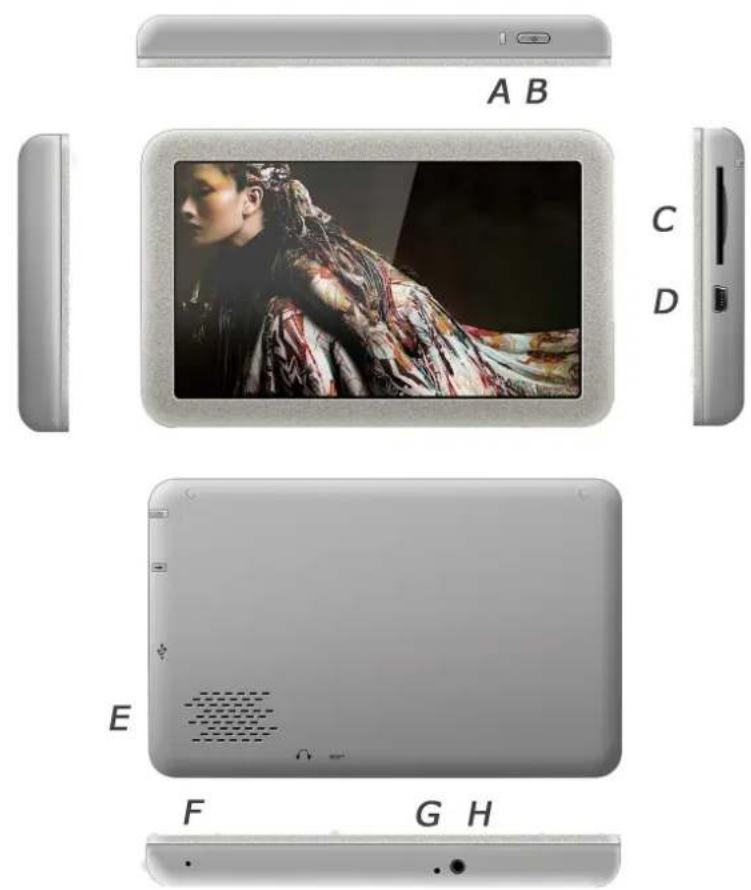
A. Indication Light
B. Power
C. SD Card slot
D. Mini USB
E. Speaker
F. MIC hole
G. Reset
H. Earphone Jack
Once the card is installed, it cannot be removed during the operation of the device.
If you need to remove the card, switch the unit off first, push the card in and it will eject from the slot.
1.2 Power Supply
N800 navigator uses built-in, irreplaceable Li-Polymer battery as power supply, battery icon " [icon] on the main menu indicates current remaining power. When the device is connected to adapter, then be powered by external power. To protect your device against suddenness, please connect the car charger only after the car engine has been started. The specific power supply time is in accordance with how to use navigator. Some function, such as audio play, video play, high-brightness backlight consuming lots of energy, may reduce power supply time obviously.
1.3 Charging by AC Adapter
Plug the adapter's USB port into the device's USB port on its right-side. Full charging time is about 3 hours when the navigator is power off; if the navigator is power on, the charging time will be prolonged. Charging indicator showing red means charging status, full charging shows green.
Please charge the device for more than 1 hour by AC adapter when you use the device for the first time.
Please charge the device in time when low battery or battery depletion. Please keep the device in a cool and dry place with more than half of battery capacity when not use the device for a long time.
1.4 Charging by Car Charger
Caution: To protect your device against suddenness, please connect the car charger only after the car engine has been started.
1.5 USB Cable
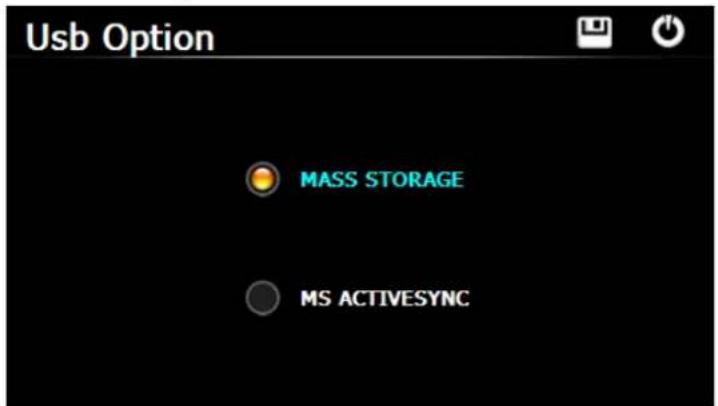
The USB cable is provided for data transmission, This USB cable will work on the PC either with Microsoft Active Sync® or as a mess storage media. You can select the mode in the "Setting-USB" menu.
1.6 Install the Car Cradle and Bracket
Take off the protection film on the bottom of the suction. Then put the bracket onto a suitable location of your windscreen or side window and make sure the suction or windscreen is clean without water or any dirty things. Never place the stand where the driver's field of vision is blocked.
Main Functions Introduction
1. Starting Up and Power Off
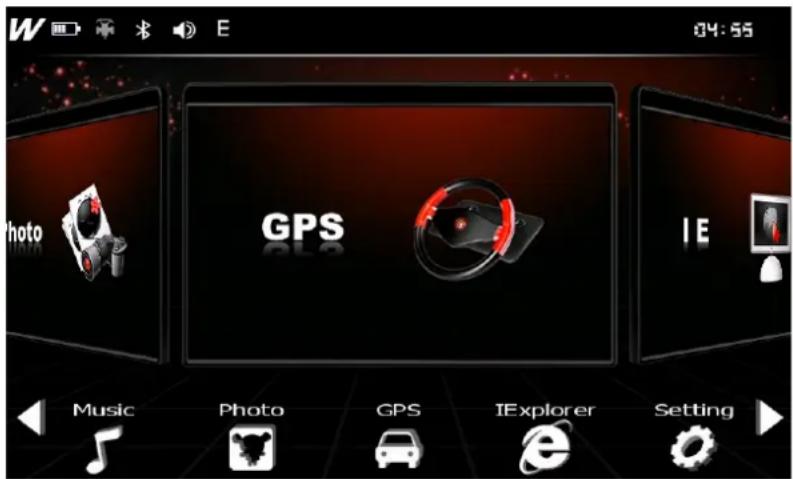
Long press the "Power" button to power the equipment on and you can see the main interface as below :
Long press the "Power" button again to enter into the below interface.
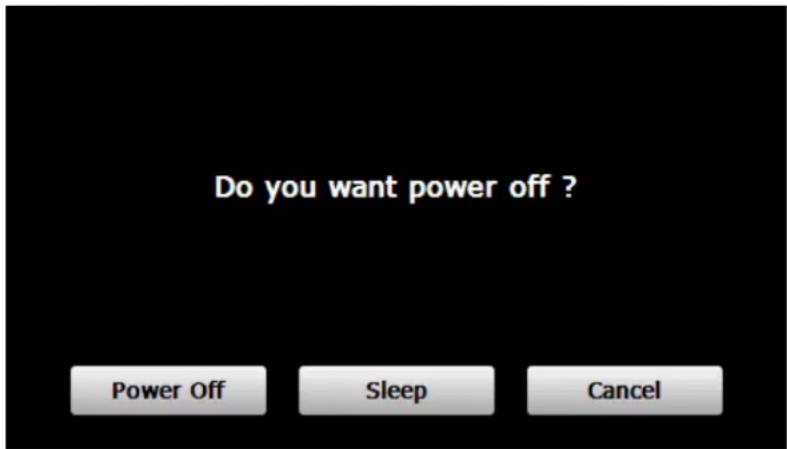
Tap the "Power off" button to turn the unit off.
Tap the "Sleep" button to enter a suspend state and the system stops operation.
Tap the "Cancel" button to turn back to the screen.
2. Reset System
When system un-responses, please press the RESET key to restart the system.
The below list may contribute to the system un-response:
- Screen duration or stagnation resulting in screen switching unsuccessfully;
- More time spent on taping and not active;
- Starting up or shutting down the device unsuccessfully when pressing the power button
Notice: Pressing the RESET key will cause the unsaved system info loss. Please keep data backup.
3. Main Interface
The menu is 3D with superfine interface. Tap the triangle icon on the lower-left or lower-right corner, you can rotate the user interface. also you can pull the bigger icon to left or right to choose functions to operate.
Tap the icon on the top-left corner, then you can enter into the related info service and quick setting.
 | WayteQ LOGO, tap and enter into system info interface |
 | Battery Status display |
 | Tap and enter into GPS Info interface |
 | Bluetooth icon, tap and enter into Bluetooth interface |
 | Loudspeaker icon, tap and enter into volume setting interface |
 | Wi-Fi icon, tap and enter into Wi-Fi setting interface |
 | Date time display, tap and enter into date time setting interface |
Tips : after make any changes of setting, tap "to save the change.
4. WiFi and Web Browser
Tap the "Setting" icon and enter into the setting interface, then tap the "WIFI" icon, or tap the " " on the
top-left corner of the main menu, then enter into Wi-Fi setting interface as below :
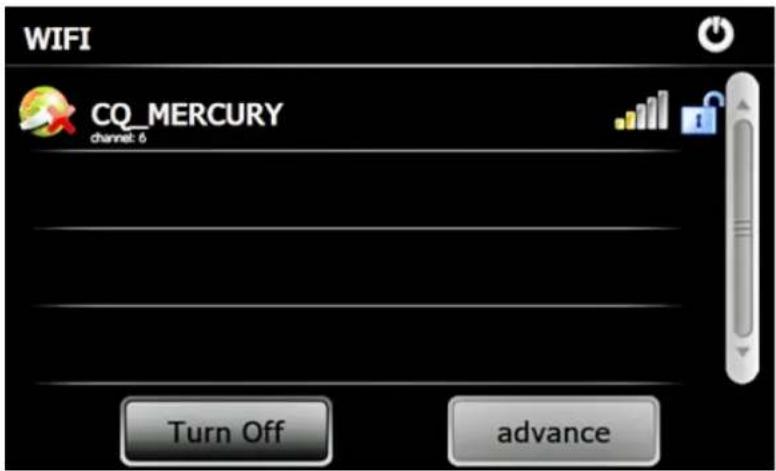
Tapping "turn on": turn on Wi-Fi module
Tapping "turn off": turn off Wi-Fi module
Choose and tap the available network, then tap "advance" icon, you can set the network as below interface :
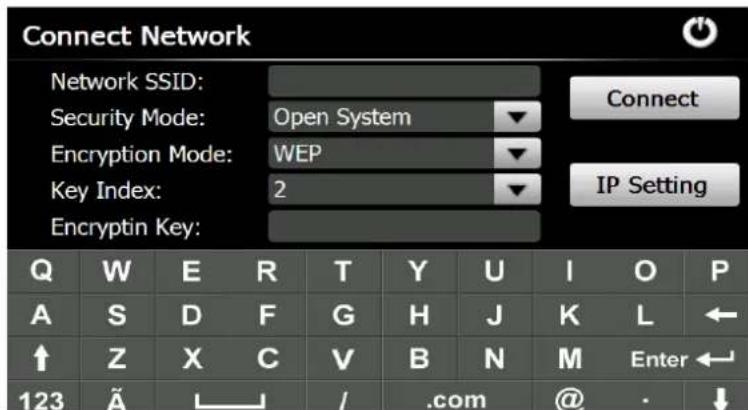
Tap "IP setting" icon, you can set the network address (interface as below). Select Auto or Manual for network setting.
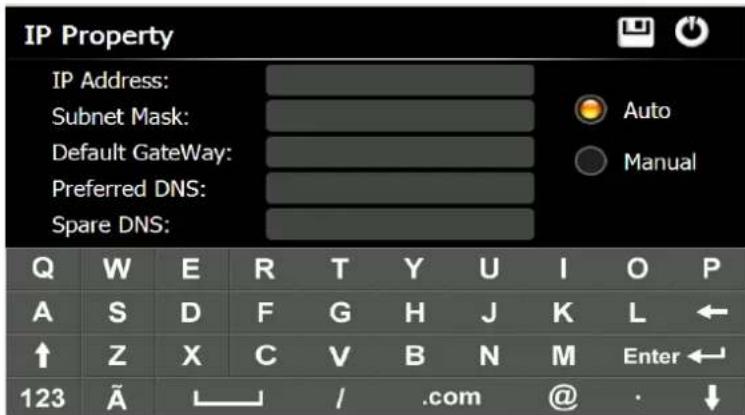
Input password, tap "connect" to connect the network; tap "disconnect" for disconnecting the network.
After network connection successfully, then you can log on and surf the internet. Return to the main menu, tap the "IE" icon as below interface :
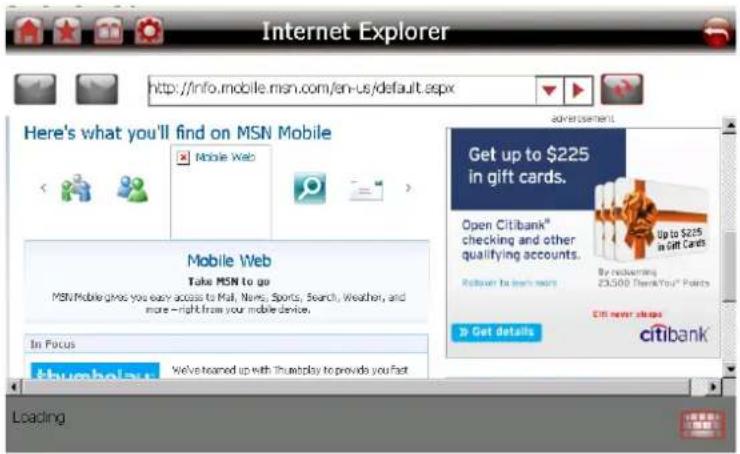
Tap "to choose hiding or showing the soft keypad, you can input web address by the keypad.
Tap" to return to home page.
Tap" to enter into favorite list interface as below :
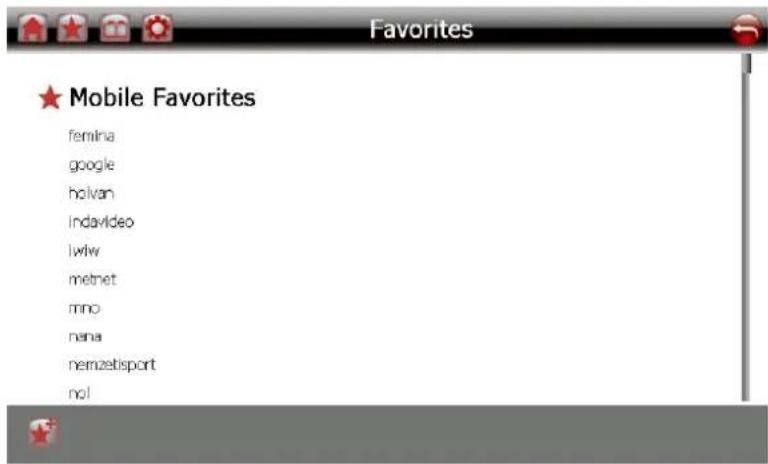
Tap" " to add new favorite web site .
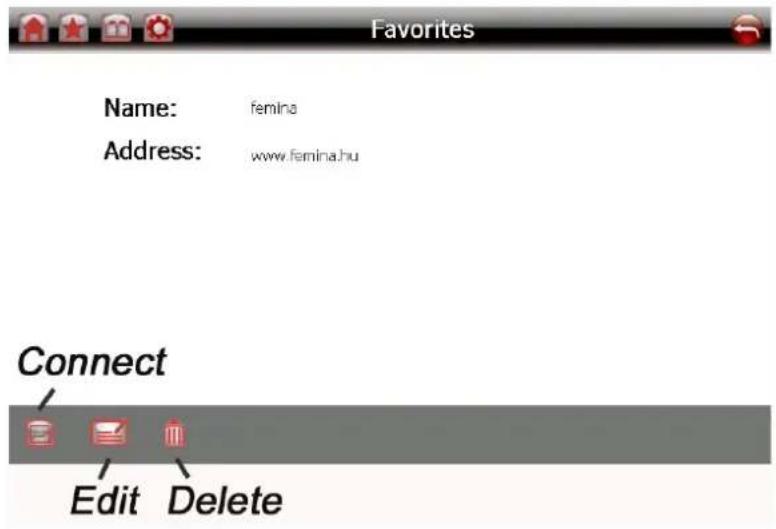
Double click the website name, and enter into below interface, you can connect this website directly, edit website or delete this website in the favorite list.
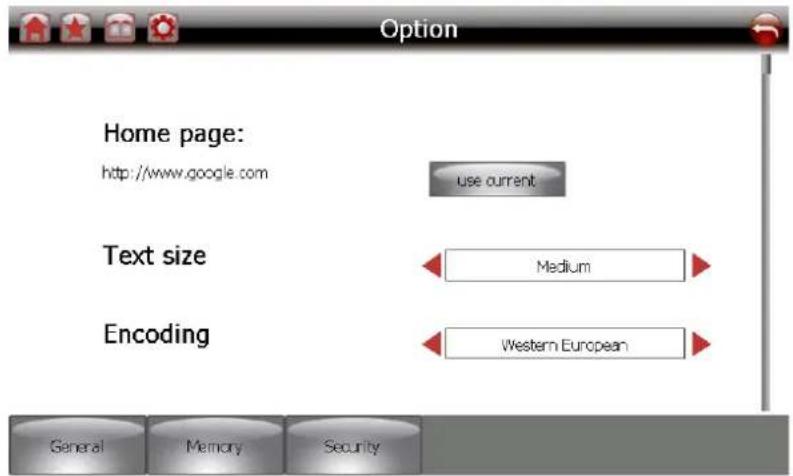
You can set "Home Page", "Text Size" and "Encoding".
Tap "Memory", you can clear web view history.
Tap" Security ", you can choose "Cookies" setting .
5. Bluetooth
Tap one of the "Bluetooth" icons on the main menu, enter into Bluetooth interface as follow, The bottom is the connection status bar:.
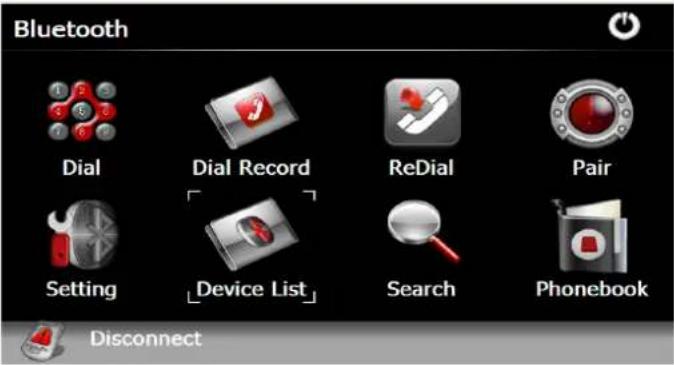
Tap the "Device list" icon and enter into the following interface :
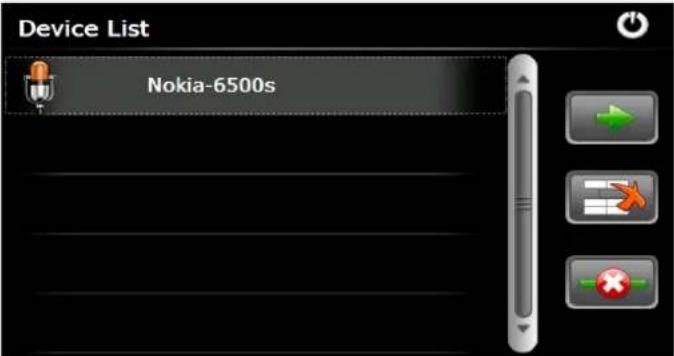
Tap the "icon" to connect the chosen device, tap the "to disconnect" tap the "to

delete pair info.
If paired mobile phone not in the device list, please tap the " ” icon and enter into searching interface and
pair with mobile phone ( mobile phone's Bluetooth should be power on and near the PND ). The interface as below:
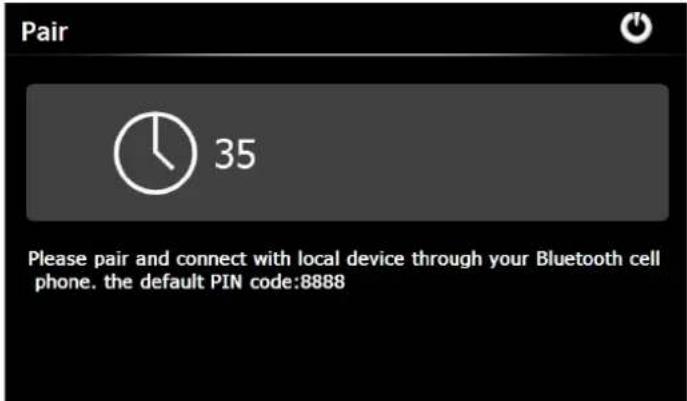
Tap the " icon on the Bluetooth setting menu and enter into dial-up interface as below :

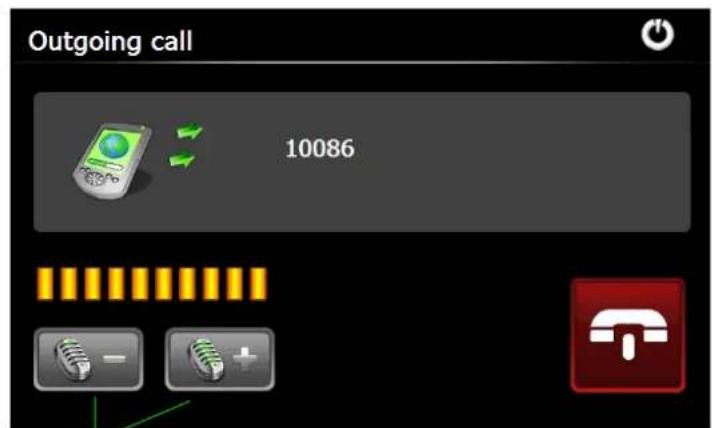
Adjust volume
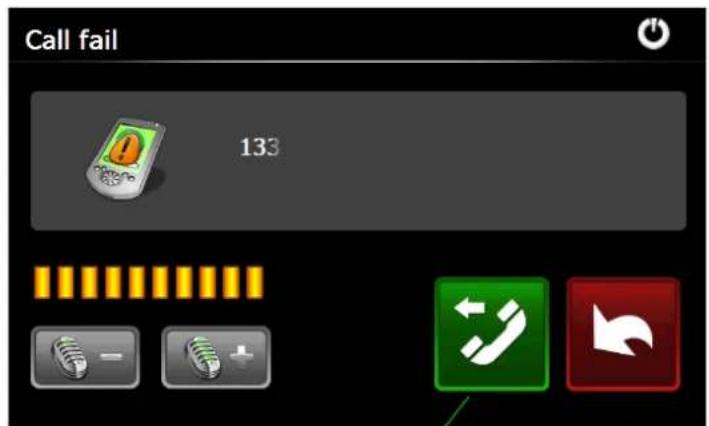
Re-Dial last number
If incoming call, the interface as below.
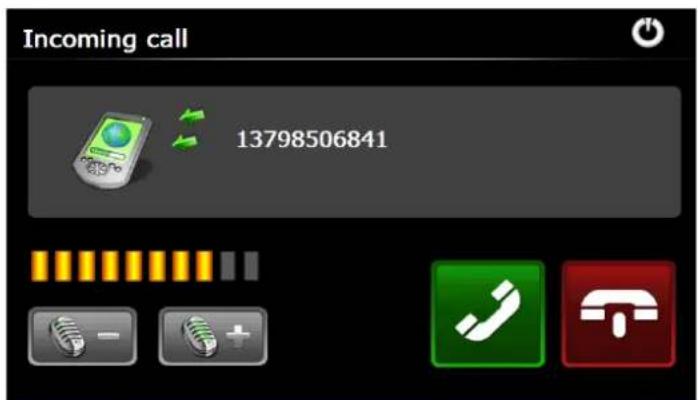
Active the call, and interface as below:
Open the small keypad
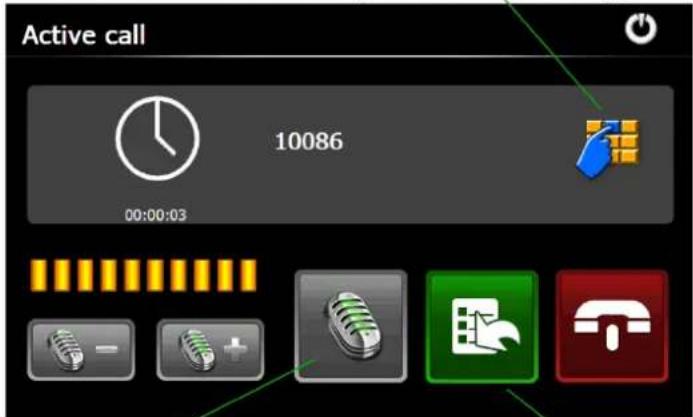
Turn on or off the MIC Switch call to phone
Tap the "10" and enter into Bluetooth setting interface as below.

and enter into Bluetooth setting interface as below.
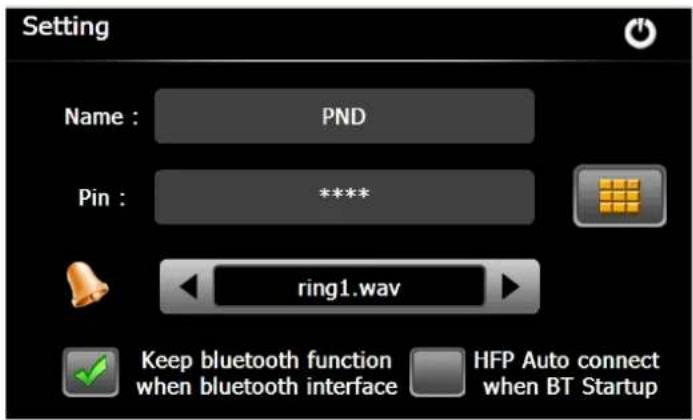
Name : display name of the device in the process of the Bluetooth transmission.
Pin: Tap the icon " and enter into pin code interface .
Optional Bluetooth Value Added Functions
Dial-Up Network (DUN)
Notice: The paired mobile phone must support GPRS function.
Tap the "Device List" icon and enter into the below interface. 【after pair successful, double tap the mobile phone's name in the device list and enter into Profile List interface】.
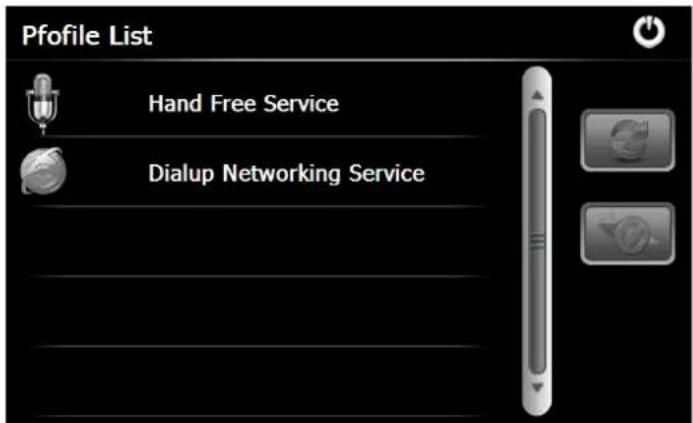
Double tap "Dialup Networking Service" and enter into GPRS setting interface as below:
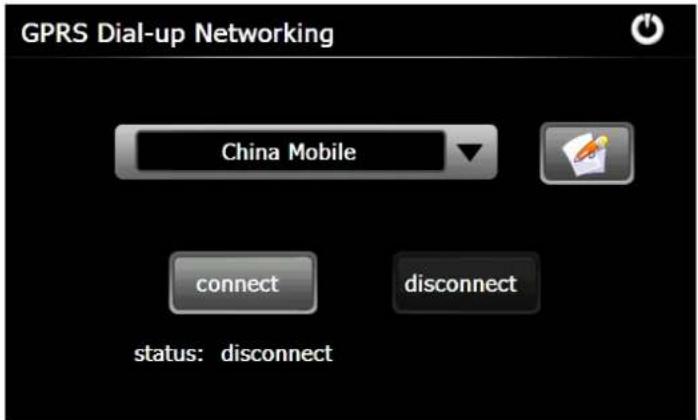
You can choose GSM/GPRS network operator or input network operator name, then tap "connect". Return to the main menu after connection successfully, and tap the "IExplorer" icon to surf the internet.
Phonebook
Tap the "which and enter into the phonebook interface as below:

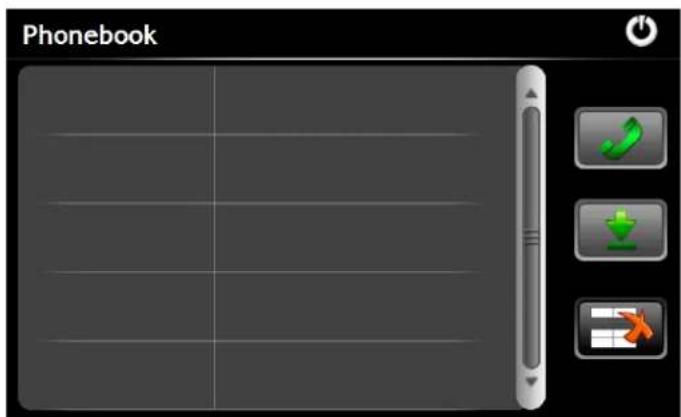
Tap the " I can to download and save the phone number to the navigator from the paired mobile phone ,
also you can dial the number through phonebook interface.
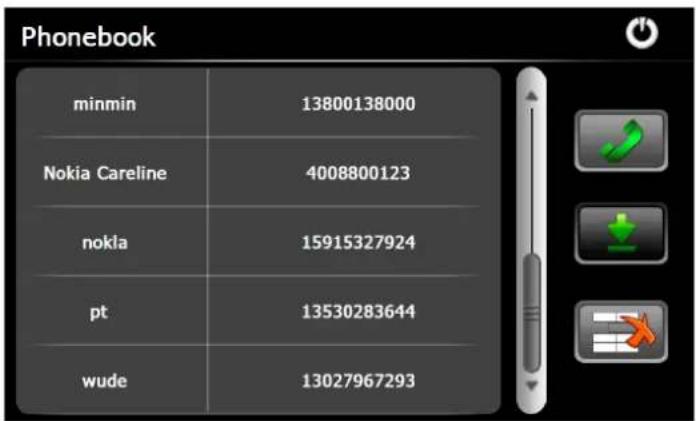
Select phone number, and tap " " to deal the number. tap the " " to delete the selected number.
6. Music
Tap the icon "Music" on the main menu and enter into the following interface.
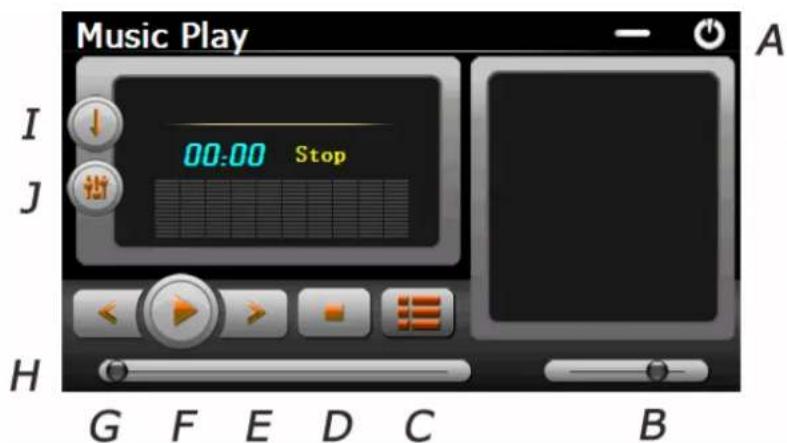
A. Return to the Media menu
B. Volume control
C. Select desired music file
D. Stop
E. Next
F. Pause / Play
G. Previous
H. Speed Bar
I. Play mode
J. Equalizer
Double tap icon " " to choose music file .
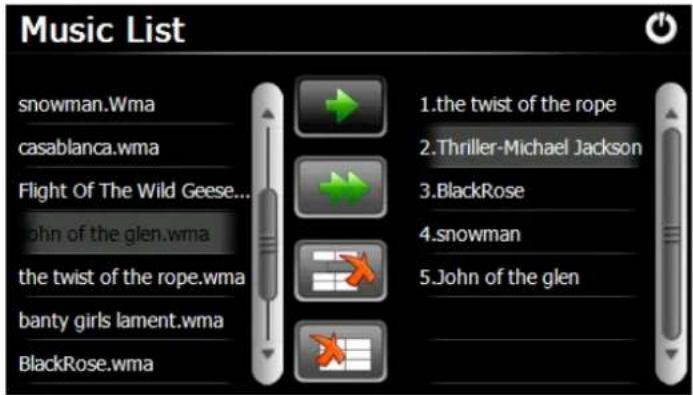
Tap the icon " " for single selection, tap the icon " " to select all, tap the icon "


single delete, tap the icon "to delete all.
7. Photo
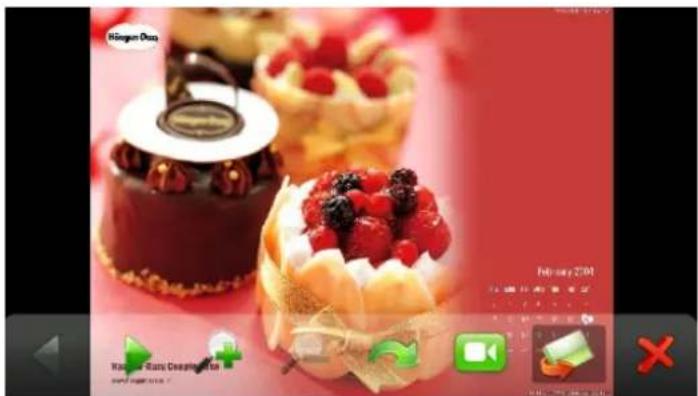
Tap the "Photo" icon on the media menu and tap the icon " [icon] " to select photo files, double tap the photo file to see the following interface.
natural_image
Close-up of chocolate pastries with berries and a decorative turt, displayed on a red surface (no text or symbols visible)H G F E D C B A
A. Return to the Media menu
B. Select photo file
C. Slide mode
D. Rotate
E. Zoom in
F. Zoom out
G. Next
H. Previous
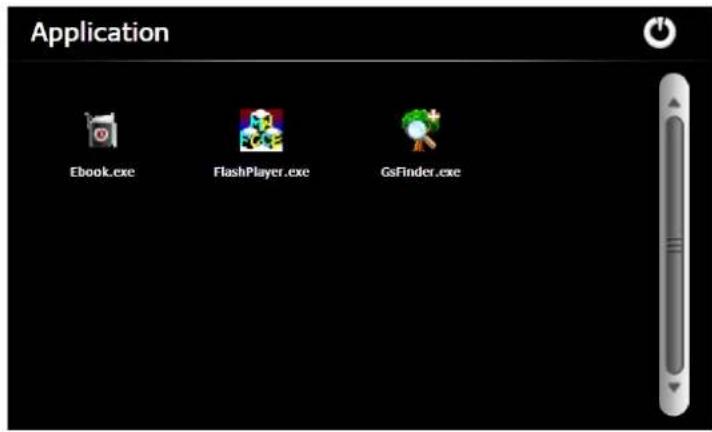
8. Application
Tap the icon "Application" on the main menu and enter into the following interface:
8.1 Ebook
Tap the "EBook" icon, then tap the

" icon to choose Ebook files, double tap the file and enter into the following interface.
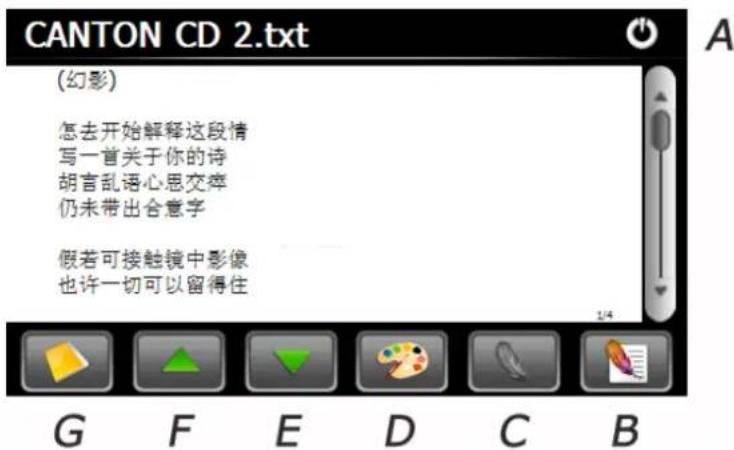
A. Return to the Media menu
B. Bookmark list
C. Bookmark
D. Theme and font
E. Down
F. Up
G. Select EBook files
8.2 Flash Player
Tap the icon "Flash" and enter into the following interface.
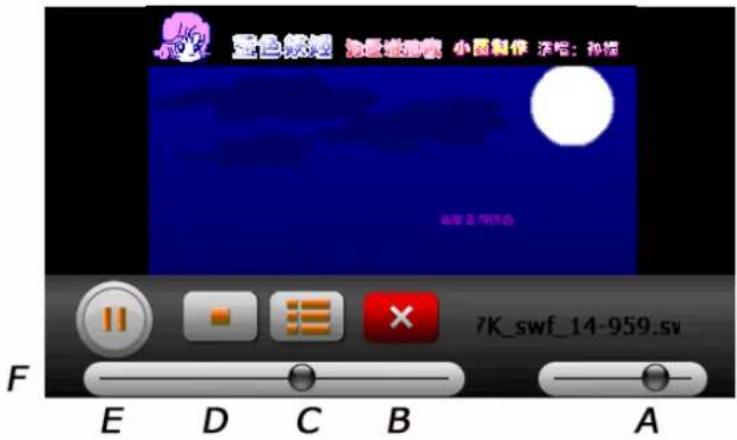
A. Volume
B. Return to the Media menu
C. Select flash file
D. Stop
E. Play / Pause
F. Speed Bar
8.3 GsFinder
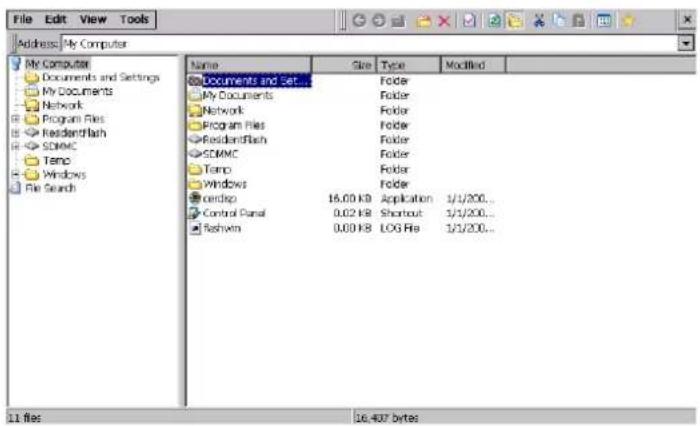
Tap the icon "GsFinder" and enter into the following interface, to manage, view or find files.
9. Video
Tap the icon "Video" on the media menu, then tap the " ” icon to choose video files, and double tap the file and enter into following interface.
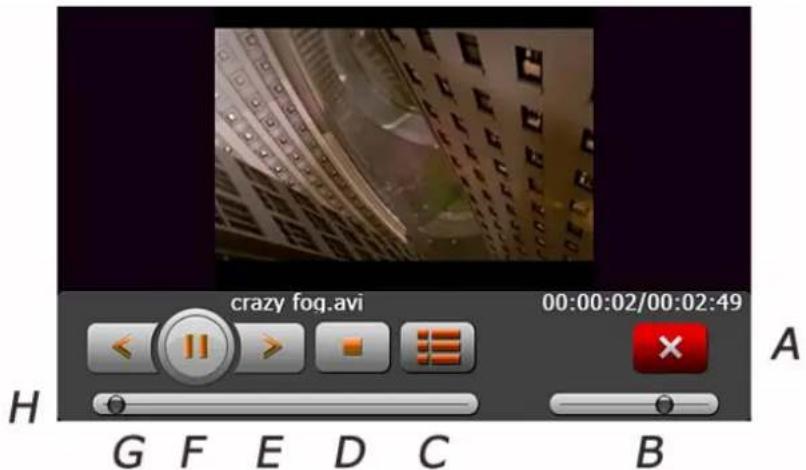
A. Return to the Media menu
B. Volume
C. Select video file
D. Stop
E. Next
F. Pause/play
G. Previous
H. Speed bar
Tips:
Tap NEXT button to recycle the movie.
Double tap the screen, it will display in full screen, double tap the screen again, it will return to original playing size.
10. Toolbox
Tap the icon "Toolbox" on the main menu and double tap the tool program to run it.
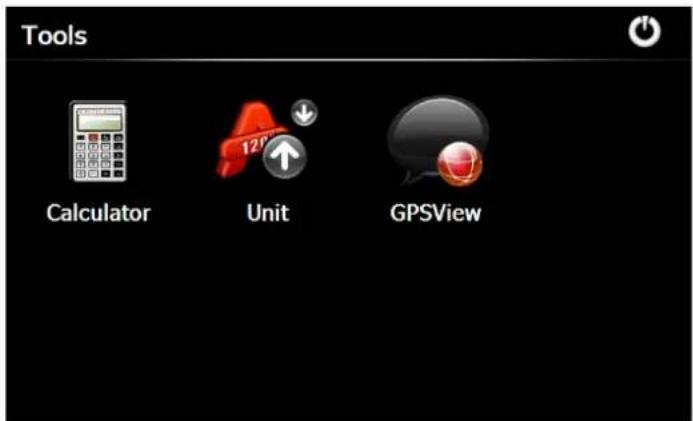
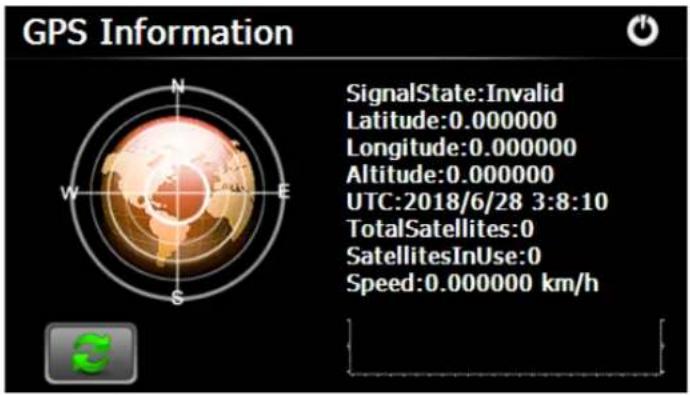
Tap the icon "GPSView" and the device will show the detail information of GPS satellites.
11. Games
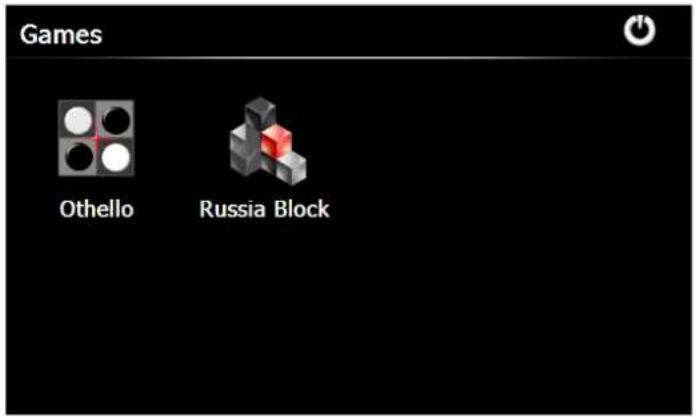
Tap the icon "Games" on the main menu and double tap the game to run it.
12. Setting
Tap the icon "Setting" on the main menu and enter into the following interface.
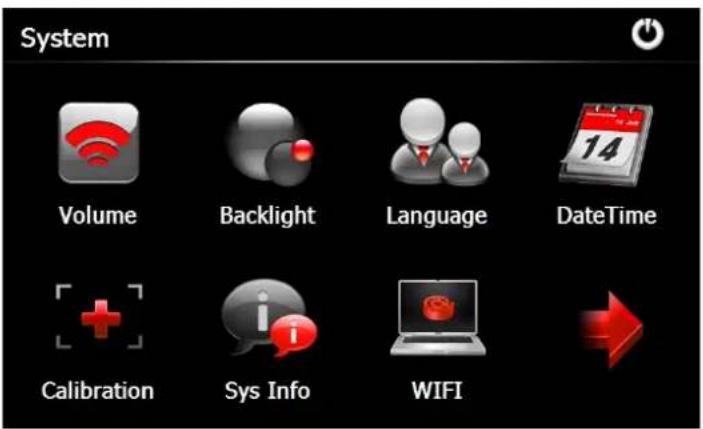
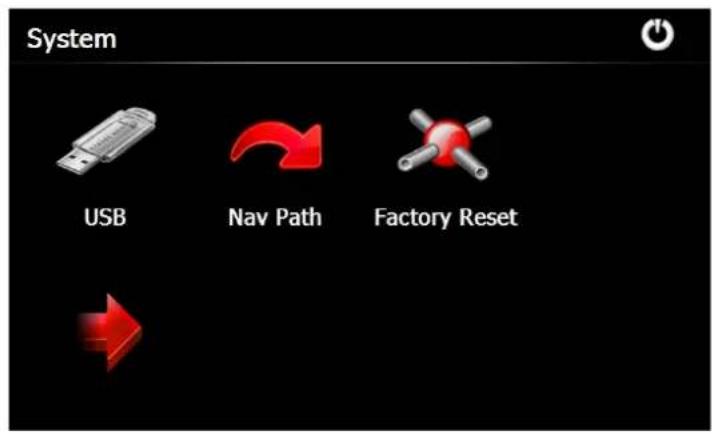
Tips: after make any changes of setting, tap "to save the change.
12.1 Volume
Tap the icon "Music" on the media menu and enter into the following interface.
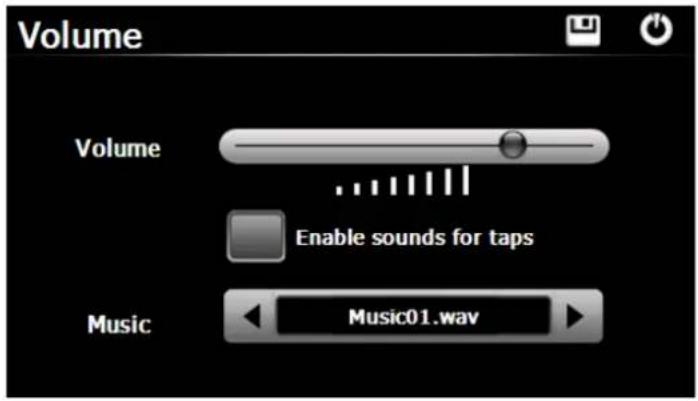
Choose "Music" files to be background sound when unit is power on.
12.2 Backlight
Tap the "Backlight" icon and enter into the following interface.
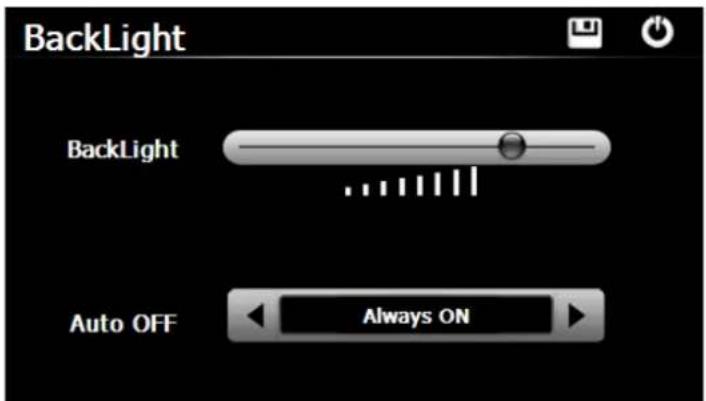
Tap "Left-side" or "Right-side" button to select the duration of automatically powering off the backlight.
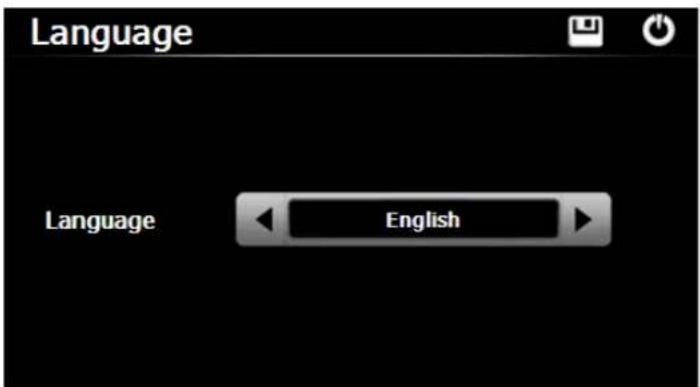
12.3 Language
Tap the "Language" icon and choose the language.
12.4 Date and Time
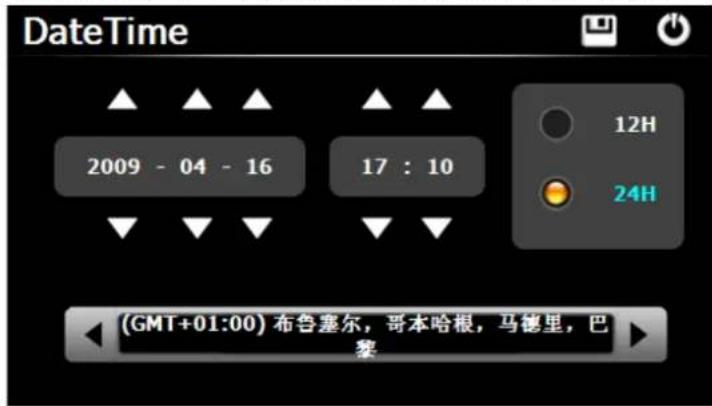
Tap the icon "Date Time" and enter into the following interface to set date, time and time zone.
12.5 Calibration
Tap the " Calibration " icon and enter into the following interface .
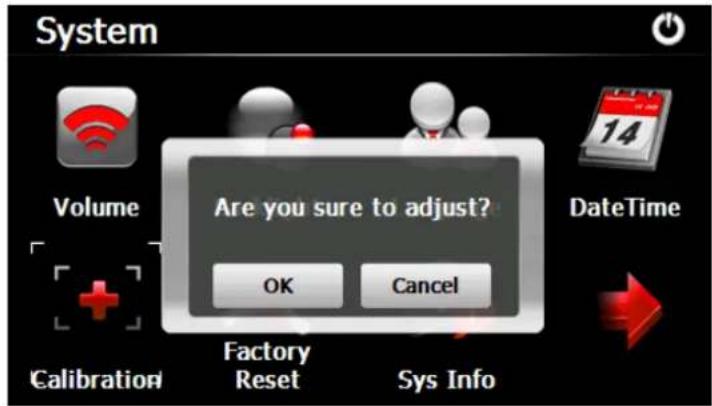
Tap the icon "OK" to adjust the touch screen.
12.6 Factory Reset
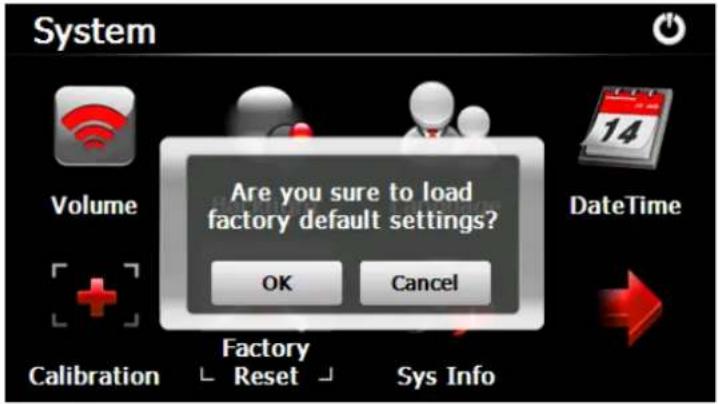
Tap the " Factory Reset " icon and enter into the following interface . Tap the icon " OK " to load factory default setting .
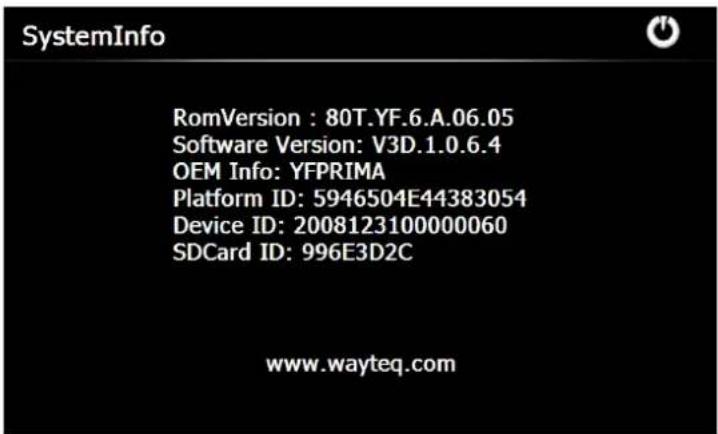
12.7 System Info
Tap the "Sys Info" icon and enter into the following display interface.
12.8 USB
Tap the icon "USB" to set the USB working mode.
12.9 Nav Path
Tap the "Nav Path" icon and enter into the following display interface.
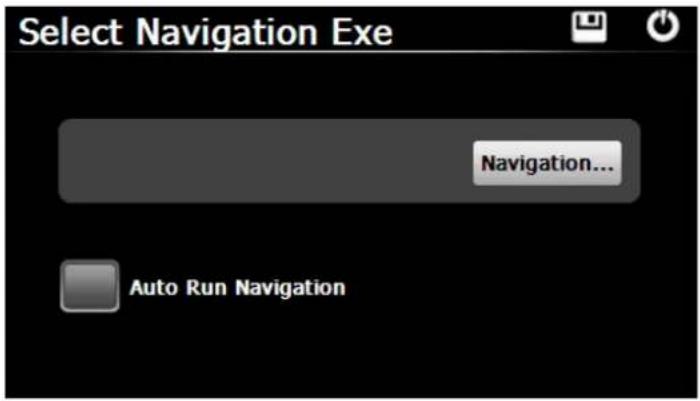
When you have several Navigation maps in the device, if you choose the "Navigation" icon, you can set up one of Navigation maps ( navigation program files ), and select the Auto Run Navigation , next time when tapping the "GPS" icon on the main menu, the device will run the selected Navigation software automatically .
13. WinCE
Tap the icon "WinCE" on the main menu and enter into the following interface.
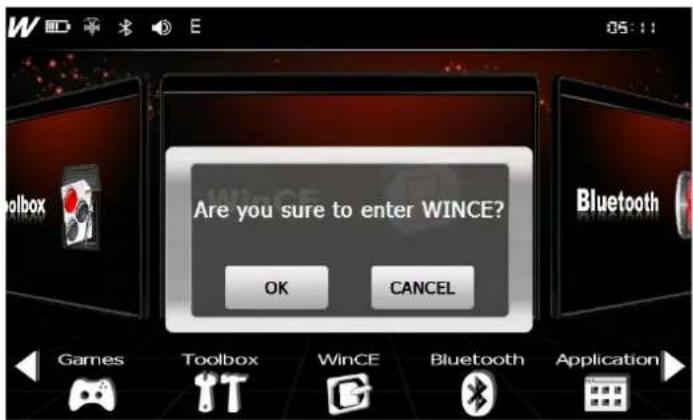
Press" ok " to enter into WinCE interface like below :
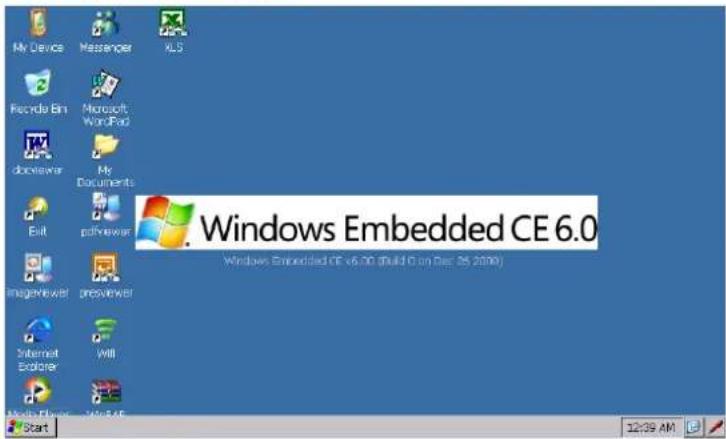
| Exit WinCE screen, the device will be re-started and enter into main menu | |
 | Internet Explorer to visit website |
 | Use Windows Messenger to contact with your friends |
 | Enter into WiFi interface |
 | Manage files in your device |
 | Read PDF files |
 | View pictures file |
 | Read Windows Word files |
 | Read Windows Excel files |
 | Read Windows PowerPoint files |
 | Notepad |
 | Windows Media Player |
This document is for guidance only and does not form part of any contract, and may be subject to change without notice
- Precaution and Notice
- GPS Maintenance
- Basic Introduction
- Product Overview
- Power Supply
- Charging by AC Adapter
- Charging by Car Charger
- USB Cable
- Install the Car Cradle and Bracket
- Main Functions Introduction
- Starting Up and Power Off
- Reset System
- Main Interface
- WiFi and Web Browser
- Bluetooth
- Optional Bluetooth Value Added Functions
- Dial-Up Network (DUN)
- Phonebook
- Music
- Photo
- Application
- Ebook
- Flash Player
- GsFinder
- Video
- Tips:
- Toolbox
- Games
- Setting
- Volume
- Backlight
- Language
- Date and Time
- Calibration
- Factory Reset
- System Info
- USB
- Nav Path
- WinCE
Brand : WayteQ
Model : N800 GPS MID
Category : Gps