x985BT - Gps WayteQ - Free user manual and instructions
Find the device manual for free x985BT WayteQ in PDF.


| Product Type | GPS Navigation Device |
| Brand | WayteQ |
| Model | x985BT |
| Processor | MStar MSB2531A |
| RAM | 256 MB |
| Internal Storage | 8 GB |
| Display | 5" TFT LCD, 800x480 pixels |
| Memory Card Support | microSD, up to 32 GB |
| GPS Receiver | Built-in, MStar MSR2112 (66 channels) |
| Battery | Built-in Lithium-Ion, rechargeable |
| Power Input | DC 5V / 1.5A (car charger: DC 12-24V to 5V/1.5A) |
| Operating System | Microsoft Windows CE 6.0 |
| FM Transmitter | Supported |
| Bluetooth Speakerphone | Supported |
| Audio Output | Built-in speaker, 2.5 mm stereo jack |
| USB Connection | MiniUSB (data and charging) |
| Operating Temperature | 5°C to 40°C (operating); -10°C to 50°C (storage) |
| Dimensions (approx.) | 13.5 x 8.5 x 1.5 cm |
| Weight (approx.) | 200 g |
| Main Functions | GPS navigation, music player, video player, photo viewer, e-book reader, games, Bluetooth, FM transmitter, calculator, unit converter, language settings |
| Navigation Software | Optional (Sygic or other, executable path configurable) |
| Included Accessories | Car charger, USB cable, stylus, user manual |
| Care Instructions | Clean with a soft dry cloth; avoid exposure to high temperatures and direct sunlight |
| Safety Precautions | Do not disassemble; avoid water; use only supplied charger; dispose battery according to local regulations |
| Repairability / Spare Parts | For service, contact WayteQ Europe Ltd. (see manual) |
| Manufacturer | WayteQ Europe Ltd., Budapest, Hungary |
Frequently Asked Questions - x985BT WayteQ
User questions about x985BT WayteQ
0 question about this device. Answer the ones you know or ask your own.
Ask a new question about this device
Download the instructions for your Gps in PDF format for free! Find your manual x985BT - WayteQ and take your electronic device back in hand. On this page are published all the documents necessary for the use of your device. x985BT by WayteQ.
USER MANUAL x985BT WayteQ
WayteQ x985BT GPS navigaon User's manual
The user's manual can be found at:
hp://wayteq.eu/en/download
CE
1. TECHNICAL SPECIFICATION
| Processor | MStar MSB2531A |
| Memory (RAM) | 256 MB |
| Internal memory (storage) | 8 GB |
| LCD display | 5” TFT LCD, 800x480 pixel |
| Memory card support | microSD card, max. 32 GB |
| USB | MiniUSB connector |
| Speaker | Built-in |
| Earphone output | 2.5 mm stereo jack |
| GPS receiver | Built-in, MStar MSR2112, (66 channels) |
| Baery | Built-in, Lithium-Ion |
| Charging current | DC 5V / 1,5 A |
| Car charger | DC 12-24V – 5V/1,5A |
| Operang system | Microso Windows CE 6.0 |
| Navigaon soware | Oponal |
| FM transmier | Supported |
| Bluetooth speakerphone | Supported |
| Operang condions | 5°C ~ 40°C operang-10°C ~ 50°C storage86KPa ~ 106KPa pressure35% ~ 80% RH operang30% ~ 90% RH storage |
2. CONTROLS

natural_image
Technical line drawing of a rectangular electronic device with labeled component '6' (no text or symbols beyond label)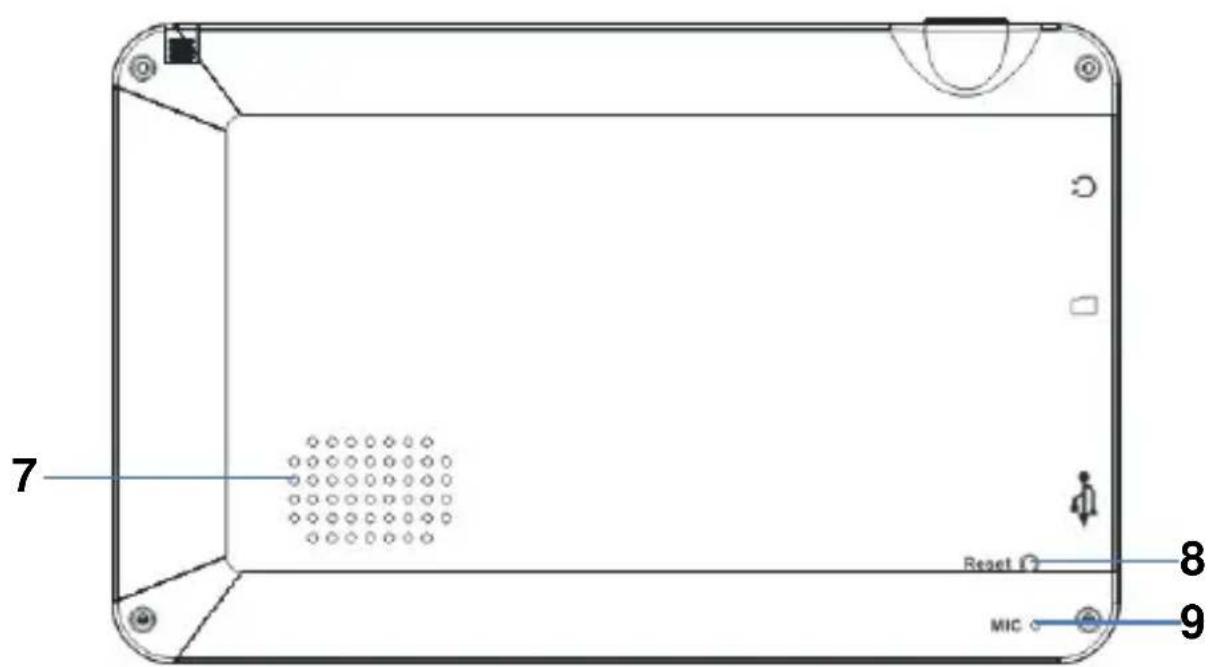
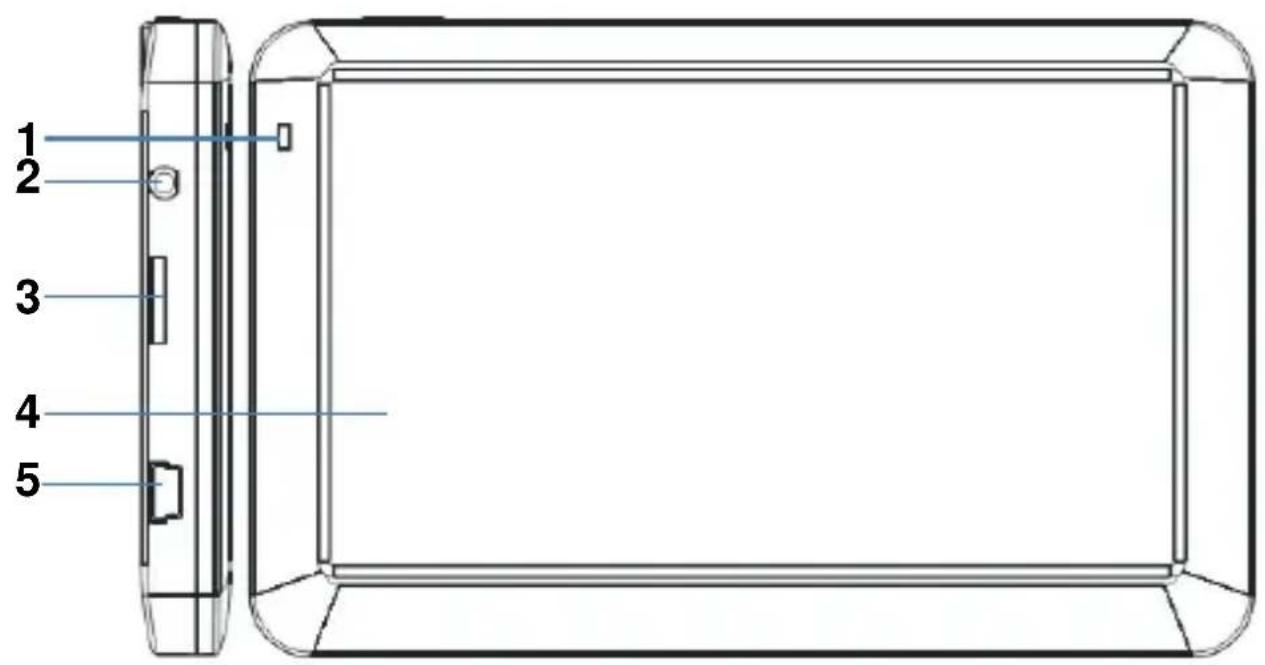
- Nocaon LED
- Earphone output
- MicroSD memory card
- LCD touchscreen
- MiniUSB charging and data socket
- Power ON/OFF switch
- Speaker
- RESET buon
- Microphone
3. CHARGING WITH THE AC CHARGER
WARNING: During charging, the LED glows in red color. Do not disconnect the device from the charger unl charging is complete and the LED glows in blue color. Charge the device when the baery level is low.
natural_image
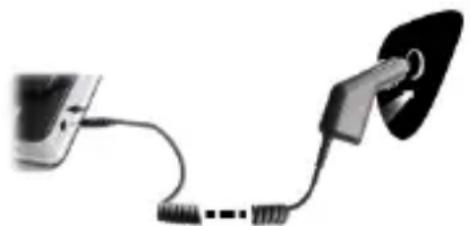
Electric plug connecting a cable to a terminal plug (no text or symbols visible)Connecng the car charger
Use connuous power supply with the supplied car charger when the device in use.
WARNING: in order to avoid sudden power surges, each the device only aer you have started the engine.
Indicator of the fully charged baery.
Baery
The device can be operated between 5 - 40°C, and it can be stored safely between -10 - 50°C. Do not expose the
device to high temperatures or hot environment for a prolonged me. For example do not leave the device exposed to direct sunlight in the car. To avoid damage to the device, keep it away from harsh environment.
Please follow the local guidelines and regulaons before you dispose the baery.
4. USING THE DEVICE
4.1 Turn ON/OFF
In order to turn on the device, press the POWER buon for 3 seconds. You will see the following screen when the system is started and it is ready to use:
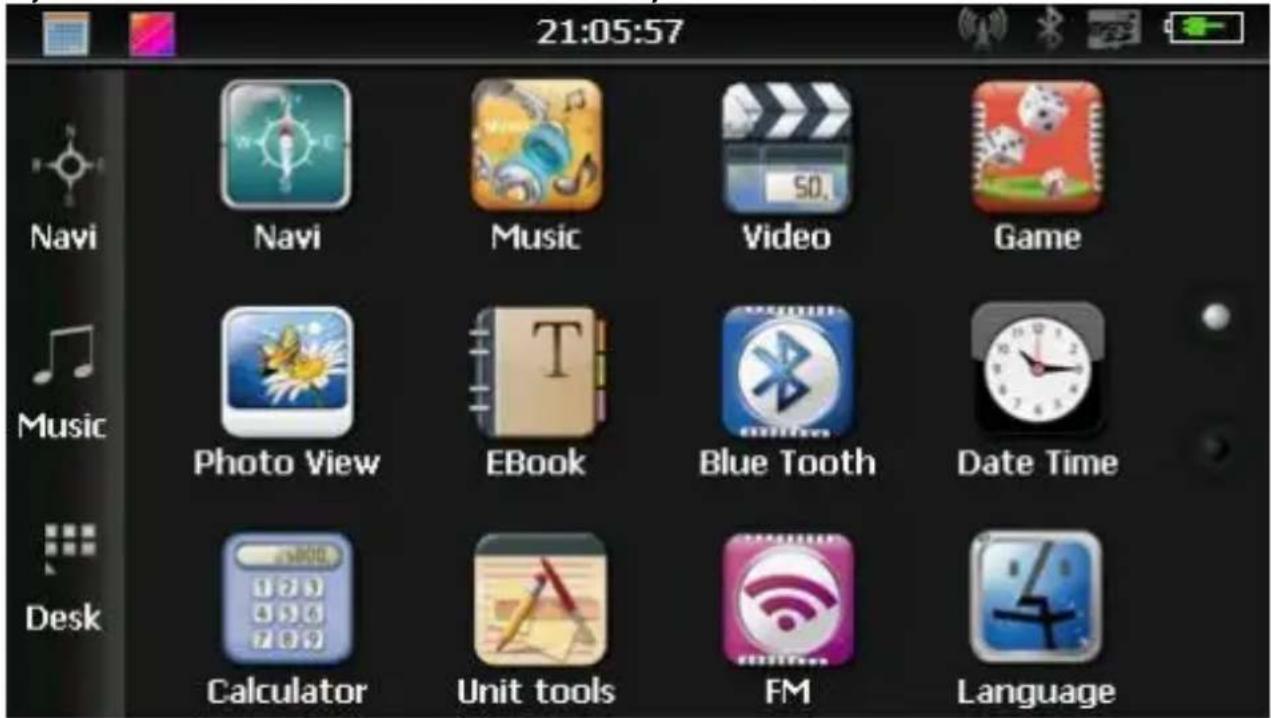
Touch the 📄icon to start the navigaon program. Touch the 📄con to start the music player.
Touch the icon to display the desktop.
4.2 GPS
Touch the GPS icon to start the navigaon applicaon. If you purchased the device with a Sygic navigaon soware, please refer to the soware's documentaon that you can nd in the internal memory's „Manual” folder, in PDF format.
Further informaon can be obtained at: www.sygic.hu.
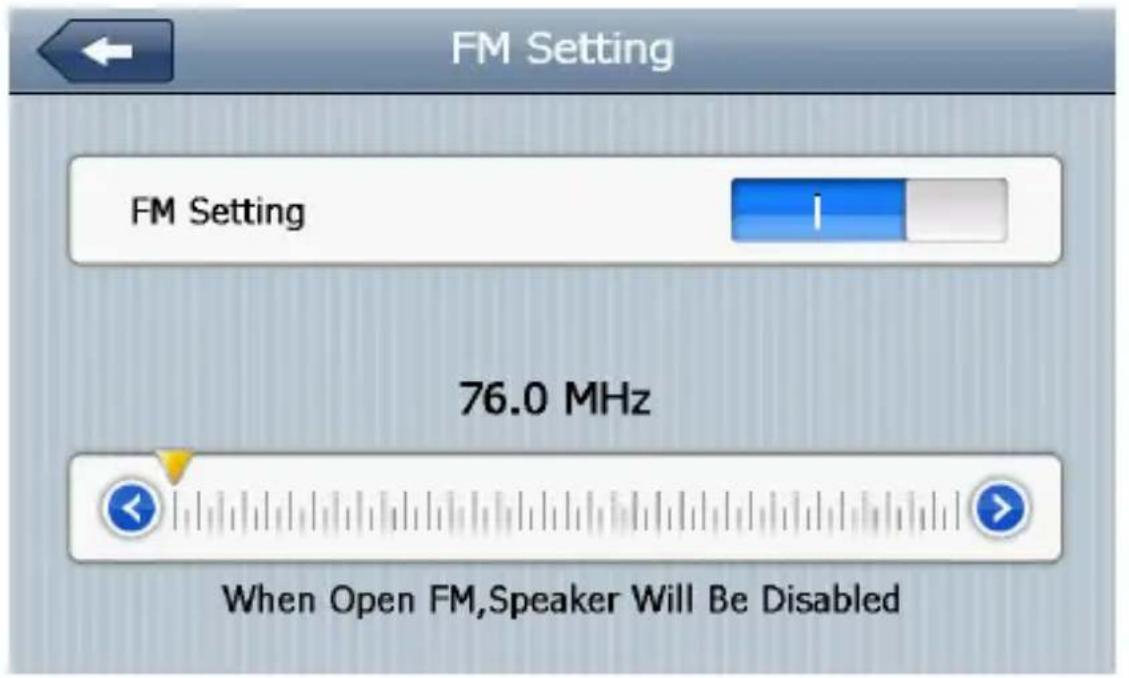
4.3 FM transmier
Touch the icon. Using the FM transmier, you can wirelessly forward the sound of the applicaons to your car stereo. Search for an FM frequency that is not used in your area to avoid any interference. Tune your car's radio equipment to the same FM frequency so you can hear the sound of your device.
Noce: A connected car charger is required to use the FM transmier.
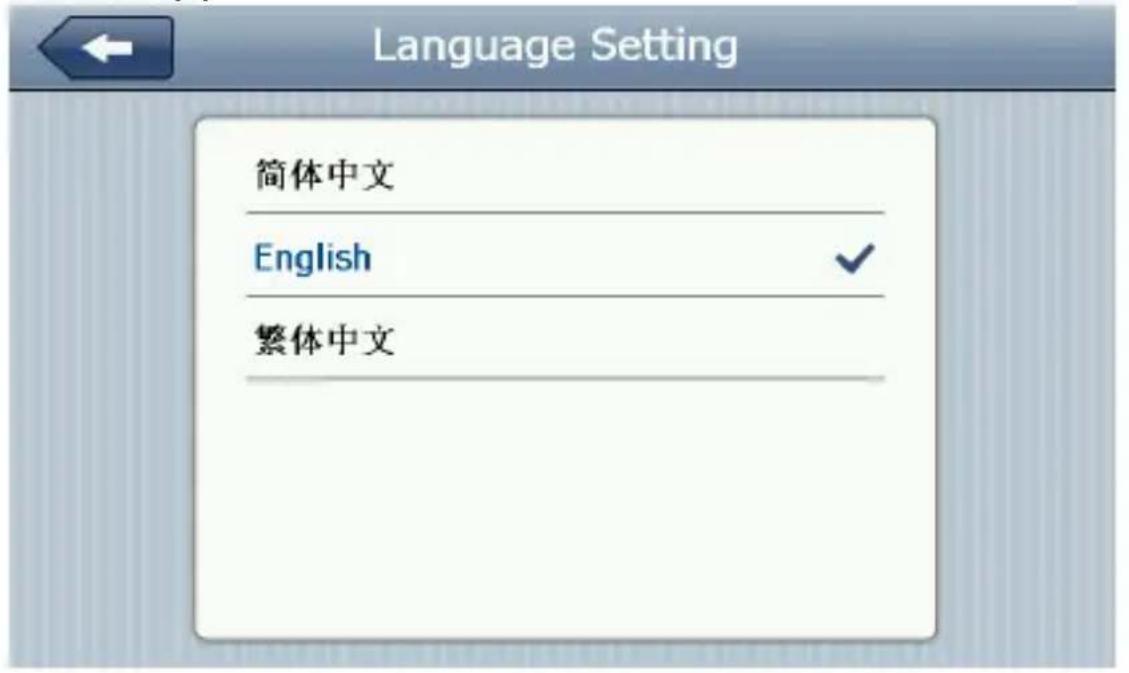
4.4 Language
Touch the 📄icon, select your preferred language, then touch the „Back” buon to apply the changes and return to the applicaon list.
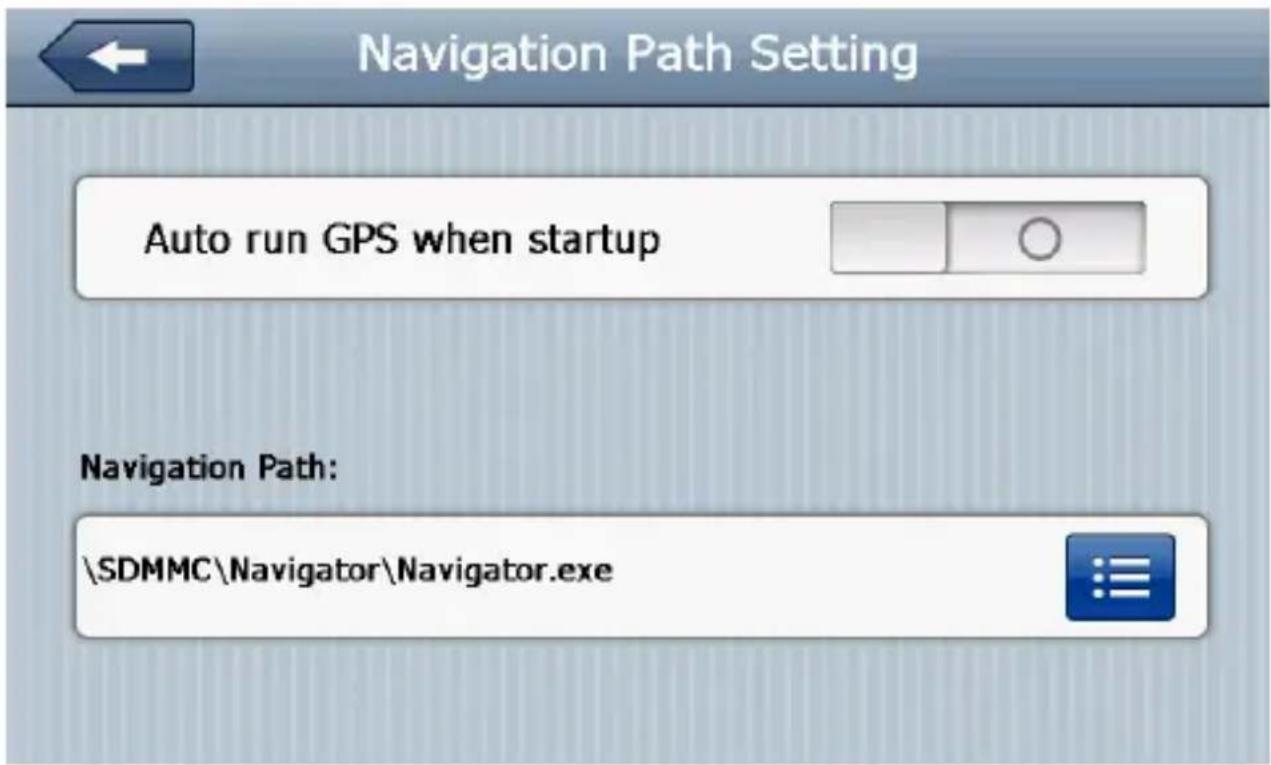
4.5 Navigaon applicaon's path
Touch the icon. The „Navigaon Path Seng” screen will appear, where you can browse for your preferred navigaon soware’s executable le. Aer you have selected the program, touch the „Back” buon to apply the changes, then you will be able to start the navigaon soware by touching the „GPS” icon in the main menu.
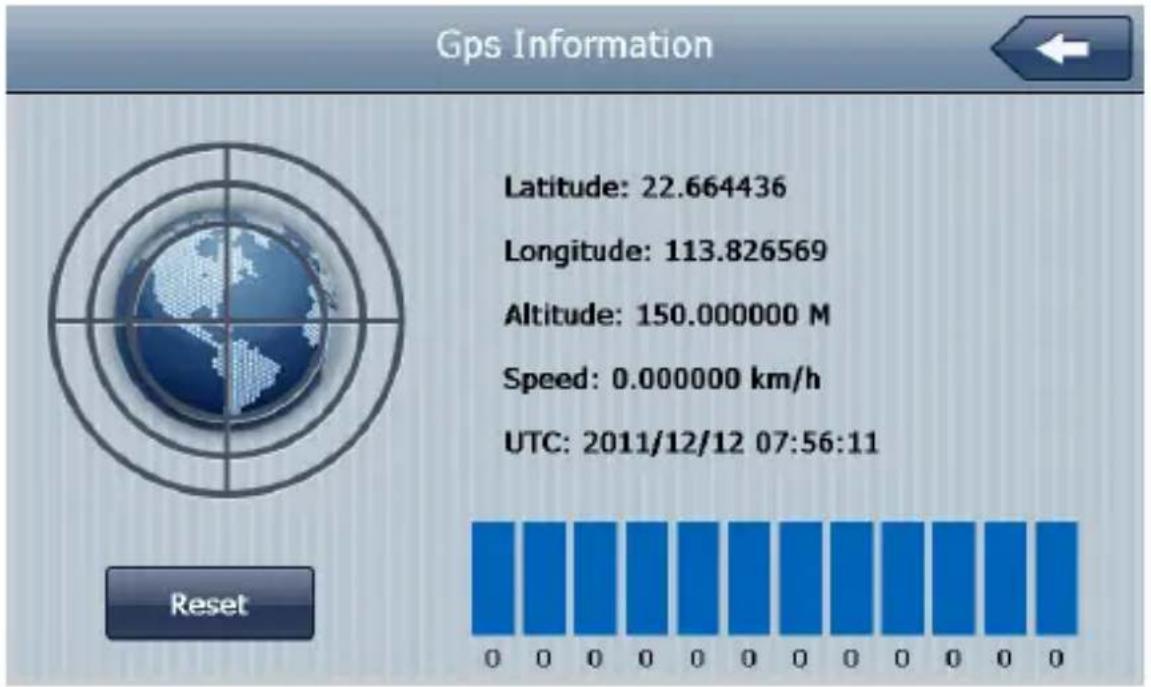
4.6 GPS informaon
Touch the 📄icon to show some informaon about the GPS receiver's current status.
4.7 USB mode
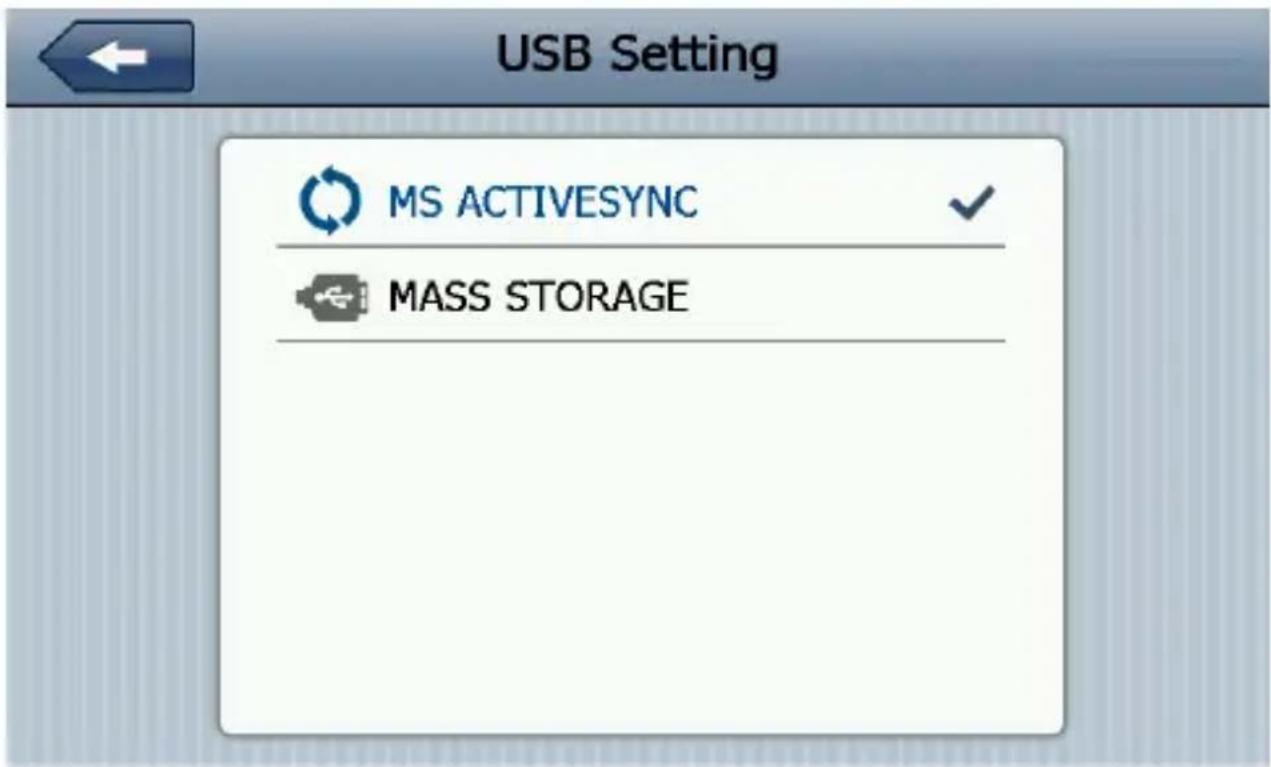
In the „USB Seng” screen you can choose the way to connect your device to a PC.
- MS ACTIVESYNC – synchronize with a PC via Windows Mobile Device Center.
- MASS STORAGE – transfer les between your device and a PC, like with a ash drive.
4.8 USB conncon with a PC
natural_image
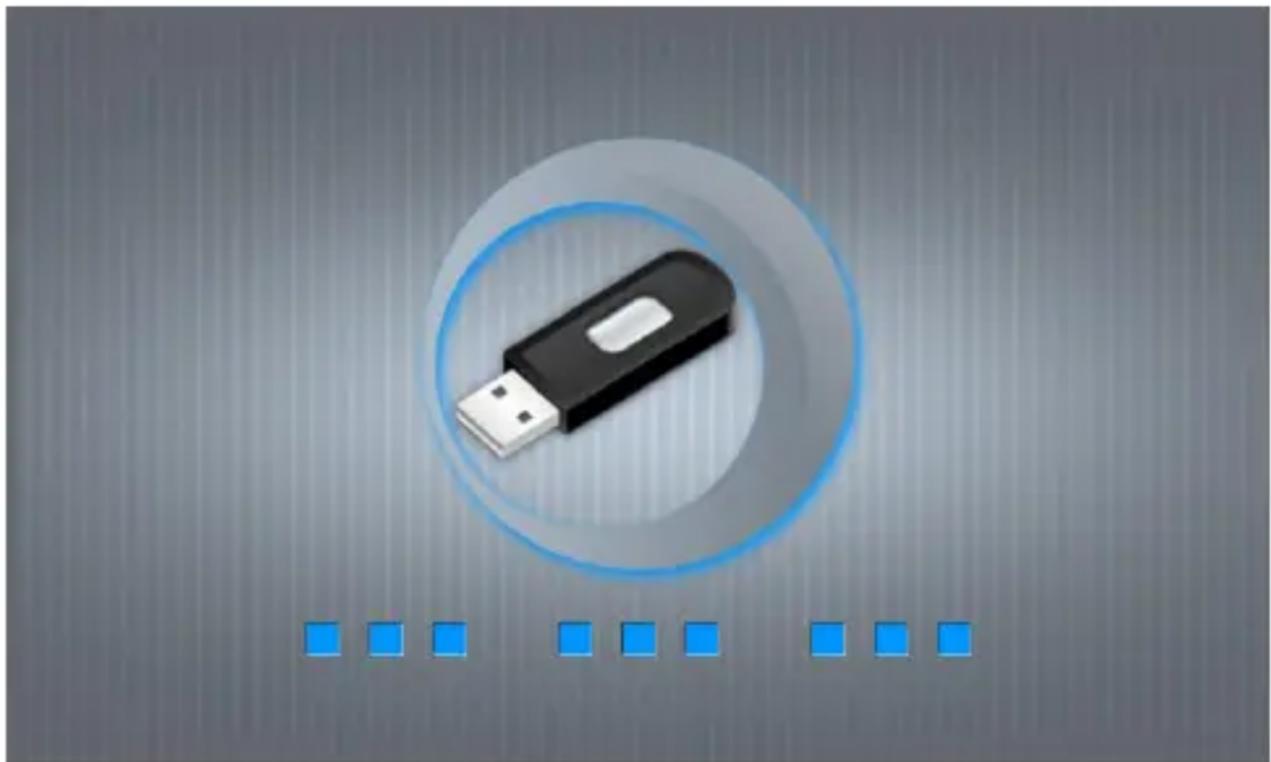
Illustration of a USB flash drive inside a circular loading circle, with blue square buttons below (no text or symbols)Aer you have successfully connected the USB cable and the device is in „MASS STORAGE” mode, you will see the picture above. This means, the PC that you are connected to can see the device and it is ready to transfer les to/from your device.
4.9 Touch screen calibraon
Touch the icon to calibrate the touch screen.
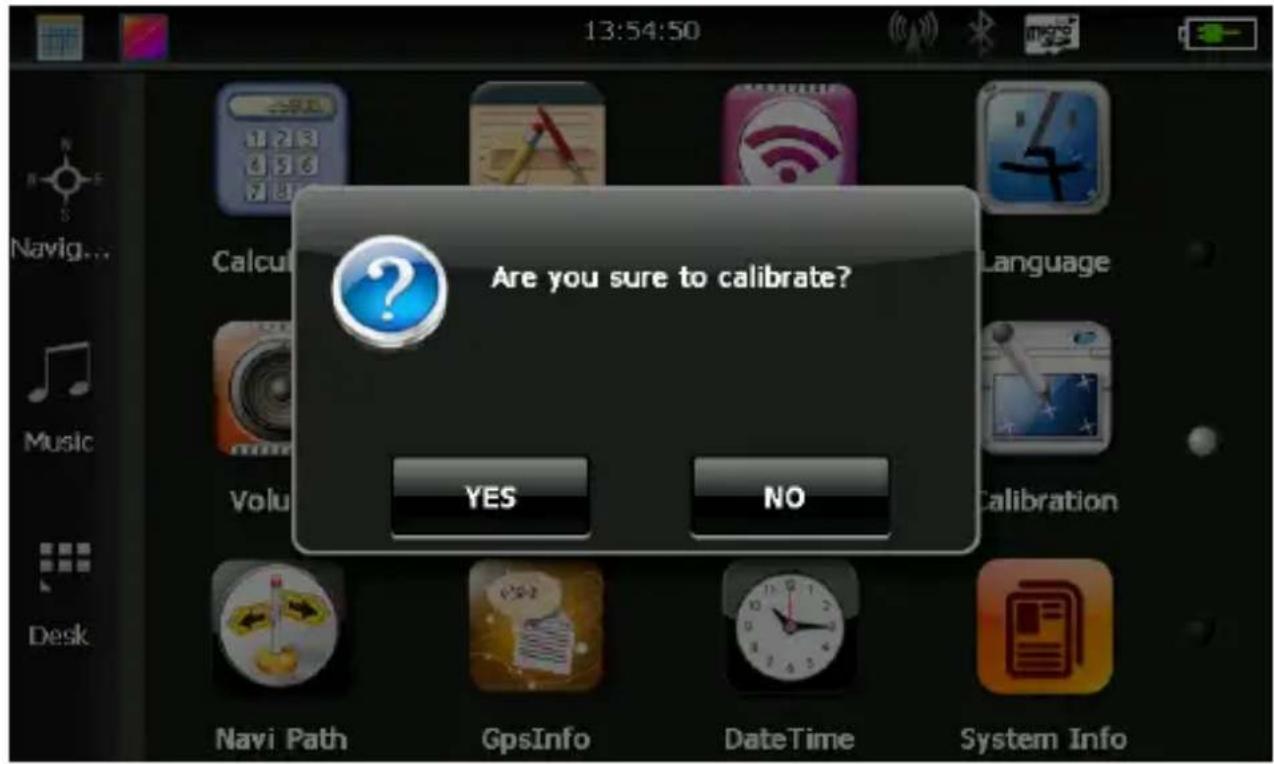
Select YES open the calibraon screen. Take out the stylus and precisely touch the screen with the stylus at the center of the black cross sign, ve mes.
Press and briefly hold stylus on the center of the target. Repeat as the target moves around the screen.

4.10 Factory defaults
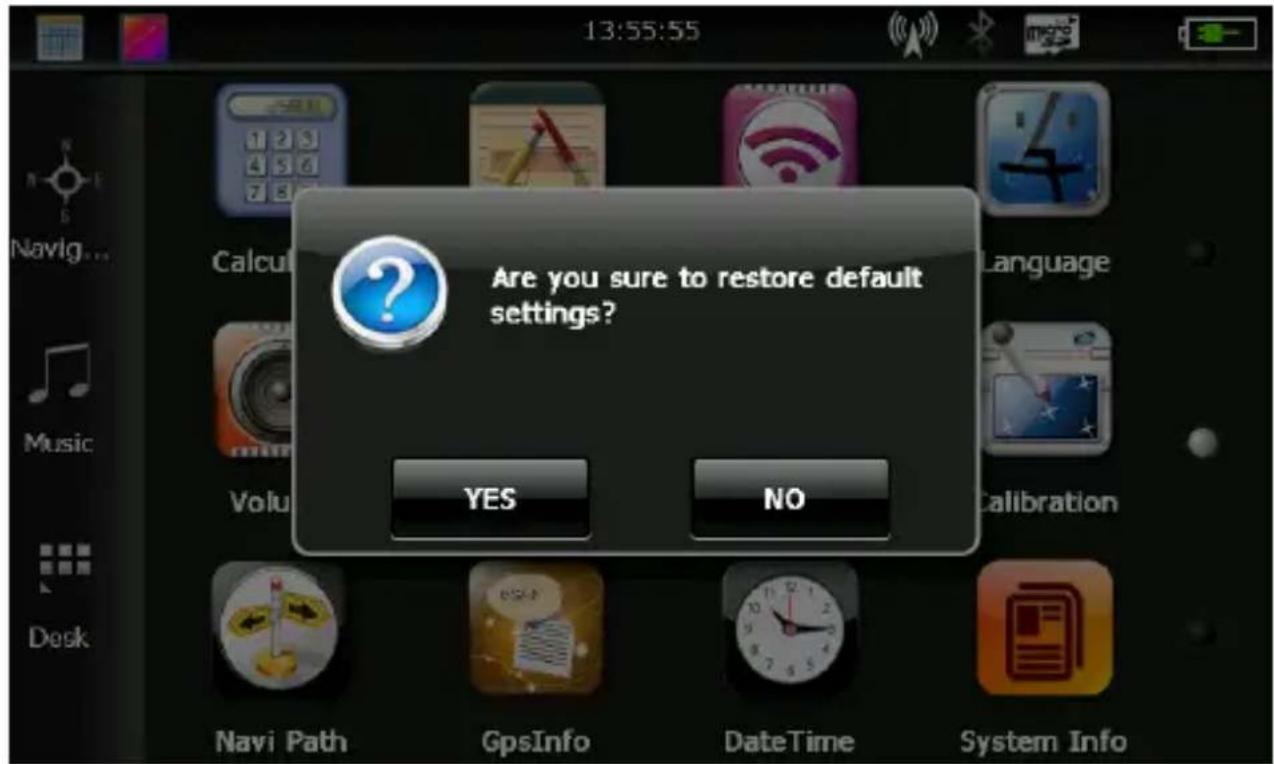
Touch the main menu to restore the device to its factory defaults. A dialog box will appear and prompt for conrmaon. If you are sure to reset the sengs, select OK. Otherwise select to return to the previous screen.
4.11 Favourite
Touch the “in to open the „Program Manager”. With the help of program manager, you can create shortcuts to your preferred applicaons, so you will not need to browse those applicaons from the internal memory to start them in the future.
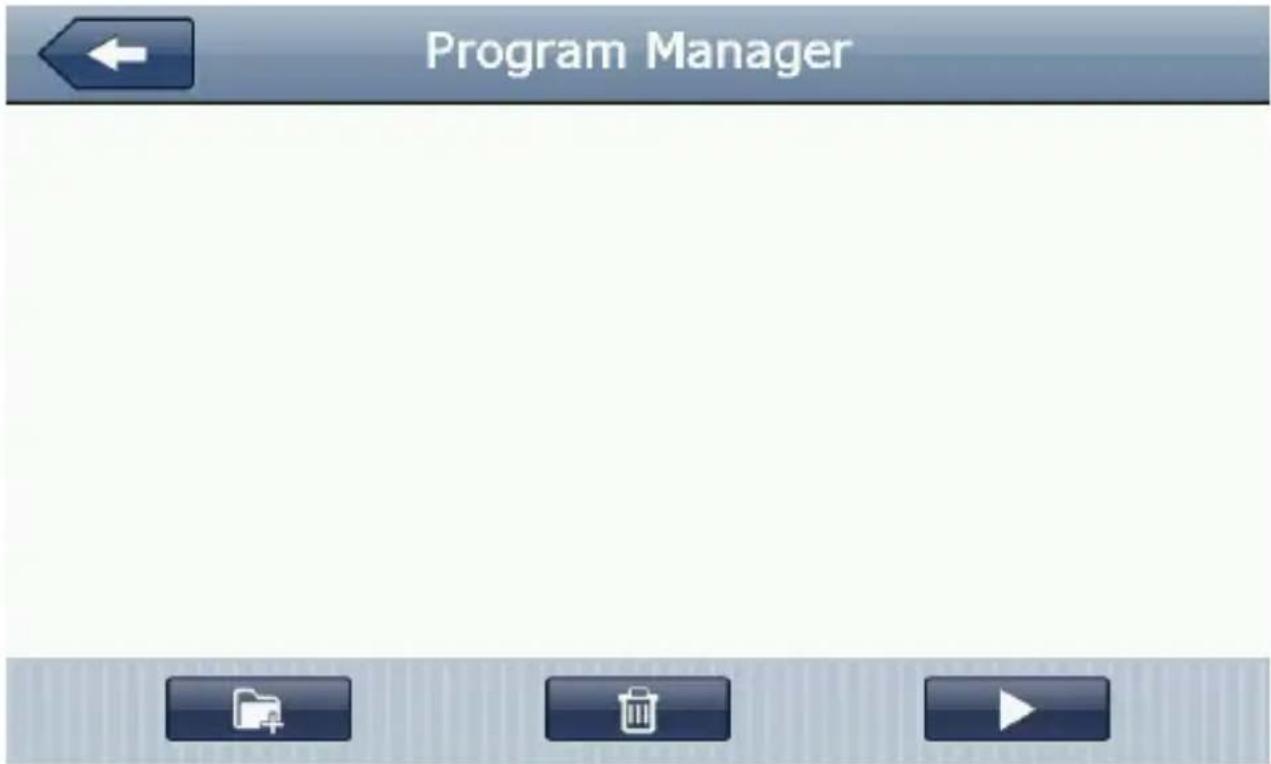
| Apply changes and exit | |
| Add new applicaon to the list | |
| Remove applicaon from the list | |
| Start applicaon |
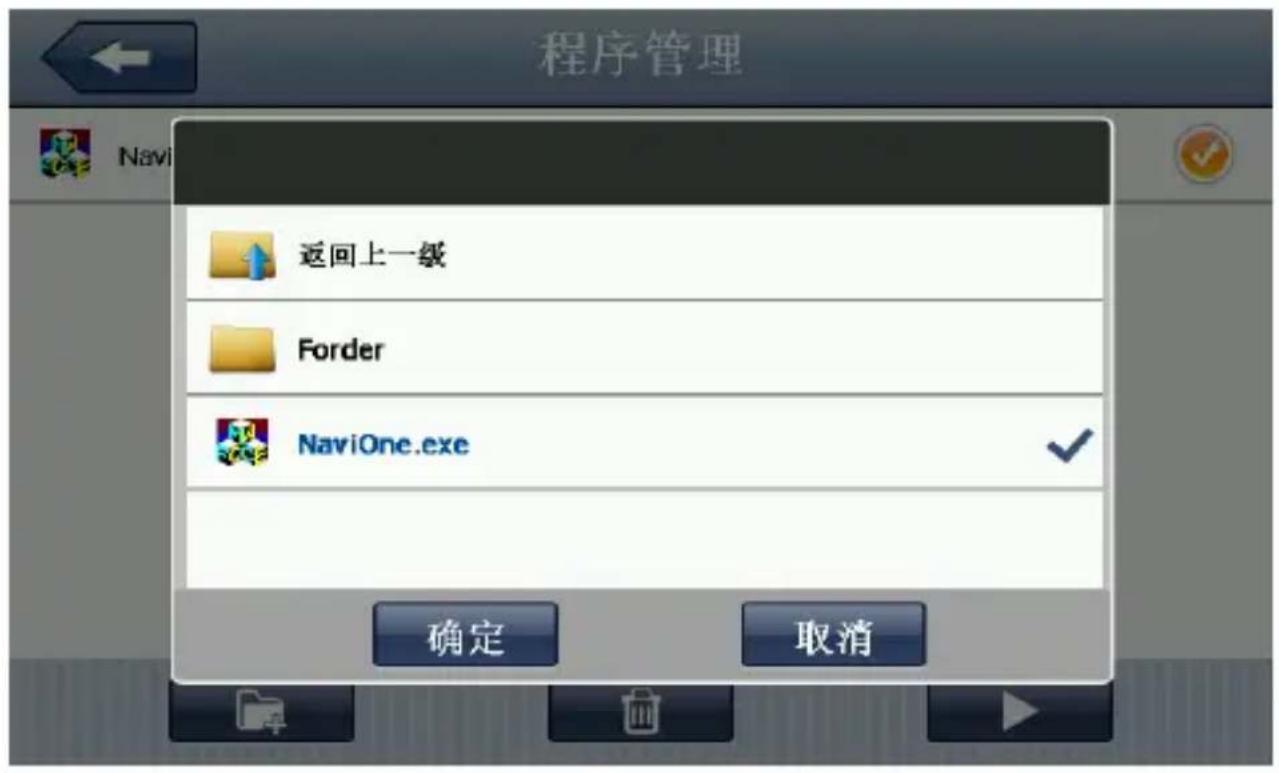
When you add a new applicaon to the list, the Program Manager will show executable programs with .exe extension from the internal memory or from the external microSD card.
Touch the buon to add a new executable applicaon (.exe) to the list. Select that le from its containing folder, then touch „OK”.
![程序管理 NaviOne [SDMMC\naviOne\naviOne.exe] GPS [SDMMC\naviOne\Forder\GPS.EXE] UUID [SDMMC\naviOne\Forder\UUID.EXE]](/content/2026/05/814237/images/055b656fddc5d3837812b1285034346fff248f43a63dfea6e90790befd52dd4a.jpg)
![Program Manager NaviOne [SDMMC\naviOne\naviOne.exe] UUID UUID [SDMMC\naviOne\Forder\UUID.EXE] GPS [SDMMC\naviOne\Forder\GPS.EXE]](/content/2026/05/814237/images/802e3bdd3cca08f86bbf71161521037028908d2db67112e7a1f62856da50f2b5.jpg)
If you want to remove an item from the list, select that item, then touch the buon. Conrm the acon with the „YES” opon.
![Program Manager NaviOne [SDMMC\NaviOne\NaviOne.exe] UID UUID [SDMMC] GPS [SDMMC] Are you sure to delete this item? YES NO](/content/2026/05/814237/images/18bf540d874b857356303bc39bc0f6f32b04054fc484fdb628418b5861a2920f.jpg)
5. DECLARATION OF COMFORMITY (ex.)
The importer states, that this product complies with the conditions of use, and in accordance with regulaons, there is a product scker on it, and have a warranty card and a user's manual in the box.
Based on a statement issued by the manufacturer, the product will be placed on the market with CE marking, according to the 79/1997.(XXII.31.) IKIM regulaon's 5.§ (1) point (HUNGARY).
6. QUALITY CERTIFICATION
The distributor tesfy, that this product is meets the technical characteriscs of the disclosure, as provided for in 2/1984. (III.10.) IpM-BkM regulaon (HUNGARY).
© 2015 All Rights Reserved, WayteQ Europe Ltd.
7. IMPORTER / DISTRIBUTOR:

WayteQ Europe Ltd.
6th Gubacsi str.
BUDAPEST, 1097
HUNGARY
Phone: +36-1 21 73 632
www.wayteq.eu
info@wayteq.eu
WARNING: WayteQ reserves the right to change the user manual without any noce. The parameters of the product can change without any noce.
- WayteQ x985BT GPS navigaon User's manual
- TECHNICAL SPECIFICATION
- CONTROLS
- CHARGING WITH THE AC CHARGER
- Connecng the car charger
- Baery
- USING THE DEVICE
- Turn ON/OFF
- GPS
- FM transmier
- Language
- Navigaon applicaon's path
- GPS informaon
- USB mode
- USB conncon with a PC
- Touch screen calibraon
- Factory defaults
- Favourite
- DECLARATION OF COMFORMITY (ex.)
- QUALITY CERTIFICATION
- IMPORTER / DISTRIBUTOR:
Brand : WayteQ
Model : x985BT
Category : Gps