
Satellite - Microphone SAMSON - Free user manual and instructions
Find the device manual for free Satellite SAMSON in PDF.


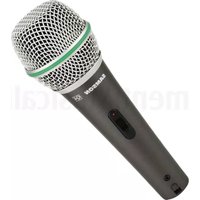
| Product type | Dynamic microphone |
| Brand | Samson |
| Model | Satellite |
| Dimensions | 185 x 50 mm |
| Weight | 320 g |
| Power supply | Battery-free (dynamic) |
| Connector | XLR 3-pin |
| Frequency response | 50 Hz – 15 kHz |
| Polar pattern | Cardioid |
| Impedance | 600 ohms |
| Sensitivity | -54 dBV/Pa |
| Key features | Clear vocal reproduction, background noise rejection |
| Care and cleaning | Wipe with a soft, dry cloth |
| Safety | Do not expose to moisture or shocks |
| Spare parts and repairability | Grille and capsule replaceable by a professional |
| General information | Use for singing or conferencing |
Frequently Asked Questions - Satellite SAMSON
User questions about Satellite SAMSON
0 question about this device. Answer the ones you know or ask your own.
Ask a new question about this device
Download the instructions for your Microphone in PDF format for free! Find your manual Satellite - SAMSON and take your electronic device back in hand. On this page are published all the documents necessary for the use of your device. Satellite by SAMSON.
USER MANUAL Satellite SAMSON
USB / iOS Broadcast Microphone
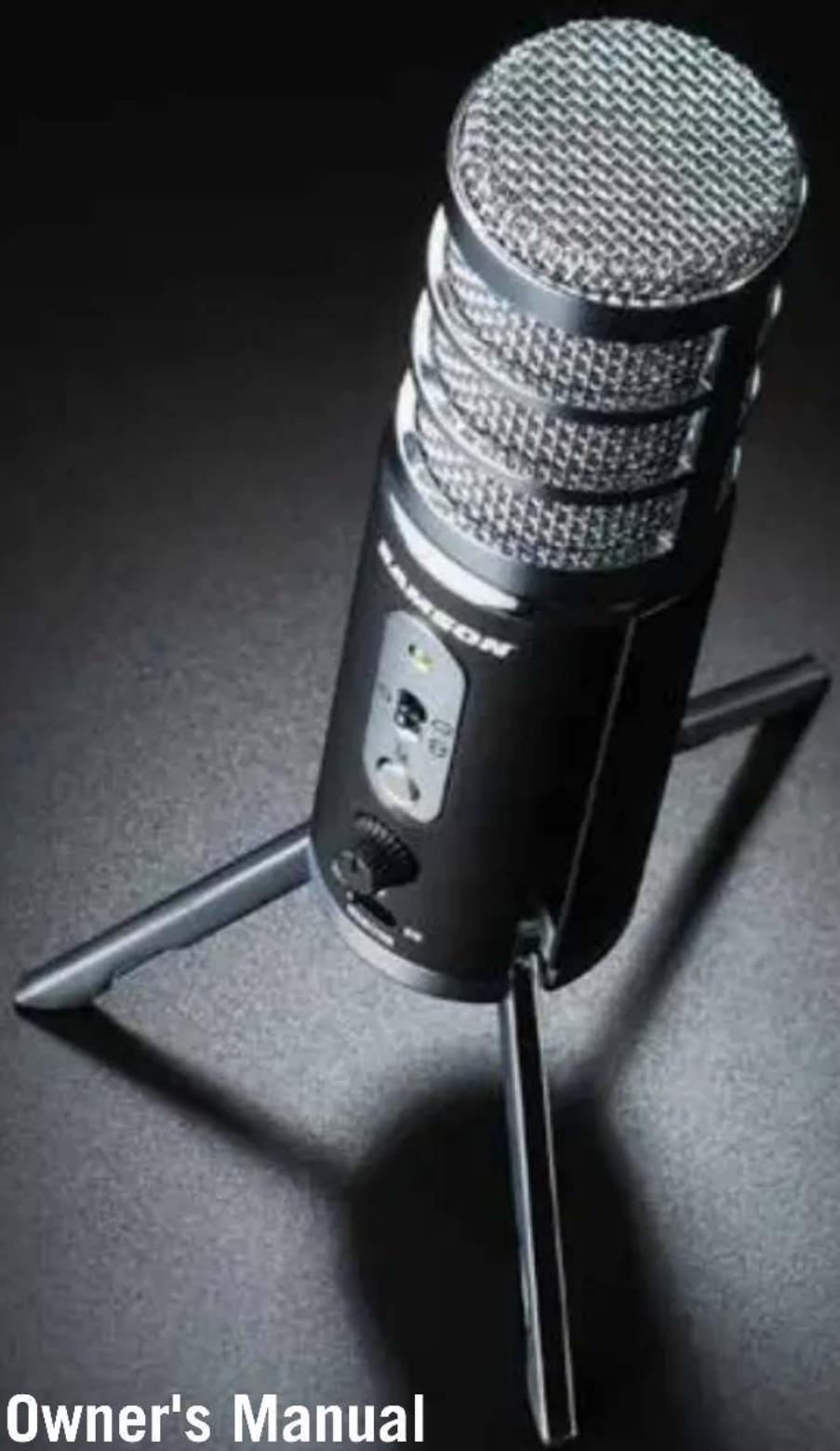
Owner's Manual
Copyright 2020, V4
Samson Technologies Corp.
278-B Duffy Ave
Hicksville, New York 11801
Phone: 1-800-3-SAMSON (1-800-372-6766)
Fax: 631-784-2201
www.samsontech.com
Introduction
Congratulations on your purchase of the Samson Satellite USB/iOS Broadcast Microphone. Satellite represents the culmination of Samson's history of building world-class microphones, and position on the leading edge of digital microphone technology. Designed for capturing high-definition audio on your computer, iPhone or iPad, the Satellite offers 24-bit/96kHz audio, three selectable pickups patterns and an innovative fold-back leg design in a portable package. Its 1/8" headphones output allows for zero-latency monitoring, while a silent mute switch further increases the production value of your recording. Whether you're recording your latest song idea, podcast, or streaming live, the Satellite is the simplest and most comprehensive solution for high-quality audio on a Mac, PC, iPhone or iPad. Just plug it in and start creating!
In these pages, you'll find a detailed description of the features of the Satellite, as well as step-by-step instructions for its setup and use. If your microphone was purchased in the United States, you'll also find a registration card enclosed—don't forget to follow the instructions so that you can receive online technical support and so that we can send you updated information about this and other Samson products in the future. Also, be sure to check out our website www.samsontech.com for complete information about our full product line.
We recommend you keep the following records for reference, as well as a copy of your sales receipt:
Serial number: ____
Date of purchase: ____
If you have any questions or comments regarding the Satellite or any other products from Samson, do no hesitate to contact us at support@samsontech.com.
With proper care, your Satellite will operate trouble-free for many years. Should your Satellite ever require servicing, a Return Authorization (RA) number must be obtained before shipping your unit to Samson. Without this number, the unit will not be accepted. Please visit www.samsontech.com/ra for an RA number prior to shipping your unit. Please retain the original packing materials and, if possible, return the unit in its original carton. If your Satellite was purchased outside of the United States, contact your local distributor for warranty details and service information.
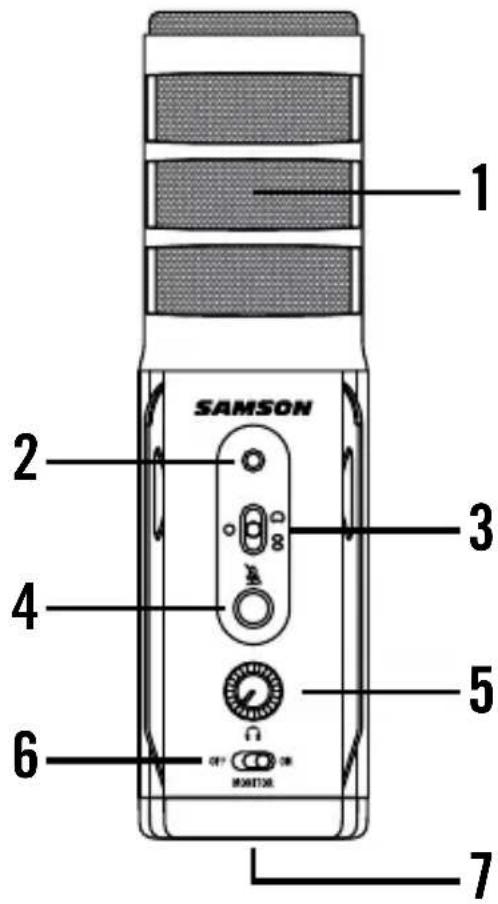
Satellite Callouts
-
Capsule – Dual condenser capsule with 16mm diaphragms.
-
Status Indicator – The three color Power/Clip/Mute LED lights green to indicate power, flashes red when the input signal is clipping, and lights amber when the microphone is muted.
-
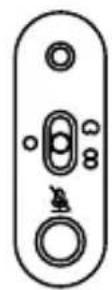
Pattern Switch – Select from one of the three pick-up patterns: Omnidirectional, Unidirectional (Cardioid), Bidirectional (Figure-8).
-
Mute Button – Mutes the output of the microphone to the computer and headphone output. The Status Indicator will illuminate amber when the microphone is muted.
-
Headphone Volume – Control to adjust the overall volume of the 1/8" Headphone output.
-
Direct MONITOR ON/OFF Switch – This switch turns the direct monitor on and off. This switch does not affect the audio from the computer.
-
Stand Mount – Standard 5/8" thread mount to attach the Satellite to a microphone stand.
Satellite Callouts
natural_image
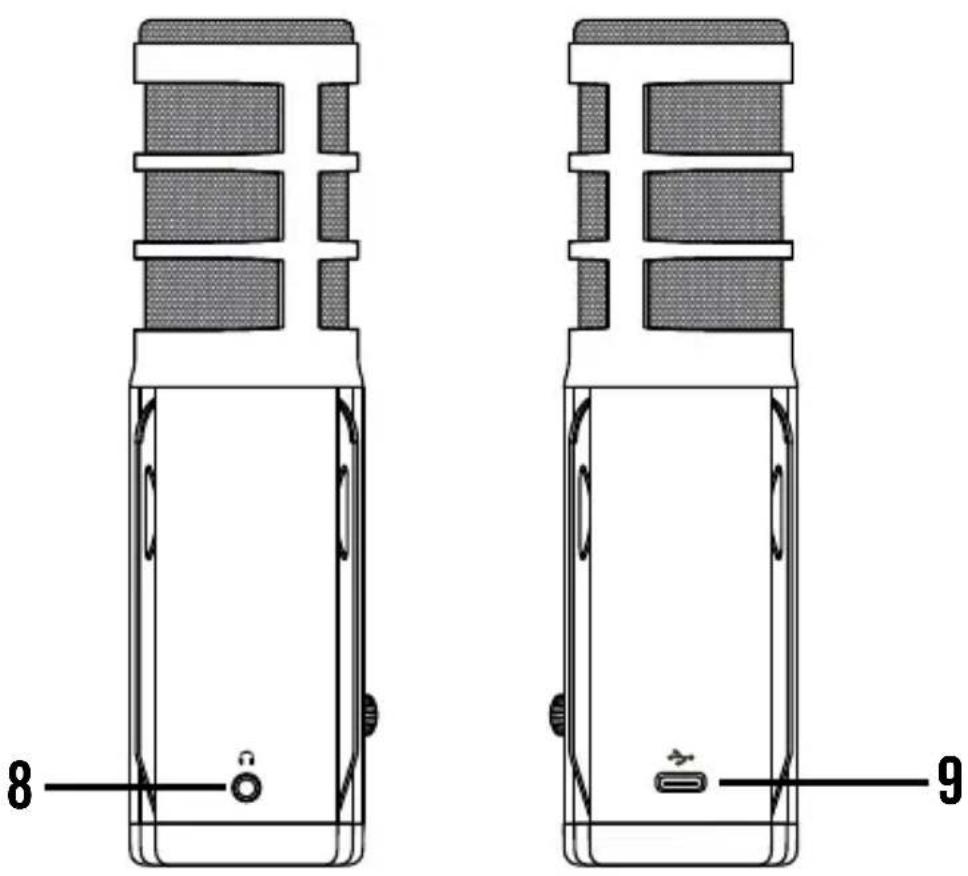
Technical line drawing of two mobile phone modules with labeled ports (no text or symbols beyond labels 8 and 9)- Headphone Output – 3.5mm stereo jack for connecting headphones or studio monitors. The headphone output provides a mix of the direct signal (if Direct Monitor is enabled) from the microphone and the audio playback from the computer.
- USB Jack – USB Type-C connector for interfacing with your computer or iOS device. The Satellite can also work with an Android device with applications that accept external audio sources using a host OTG adapter.
Quick Start
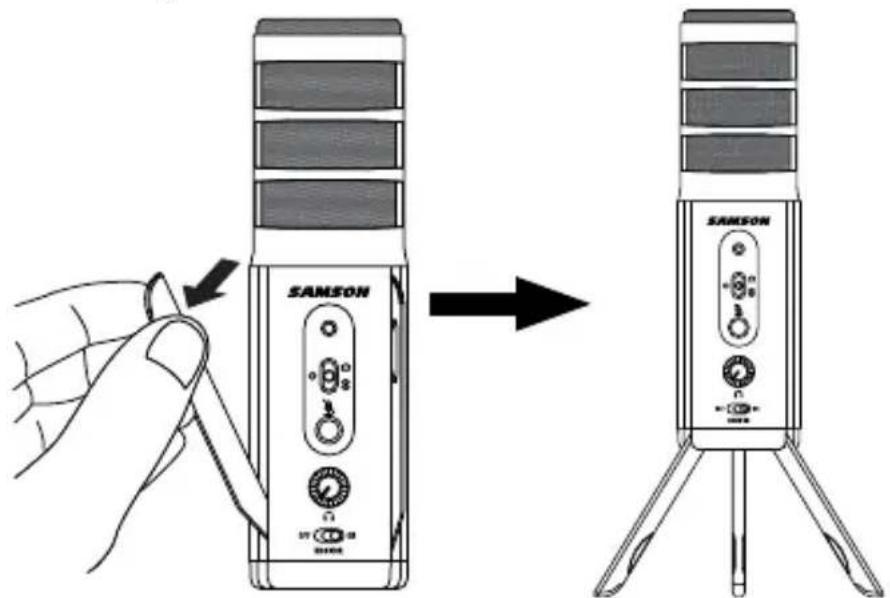
- Unfold the legs of the Satellite, and position the microphone on your desktop. The legs can be adjusted to set the angle of the microphone.
Note: the microphone can also be mounted to a microphone stand via the standard 5/8" threading on the bottom of the mic body.
- Set the Satellite's pattern switch. If you are recording a single person, set the switch to the Cardioid position and be sure to face the front side, with the Samson logo. If recording two people, set the microphone to the Bidirectional position and if recording multiple subjects, set the switch to the Omnidirectional position.
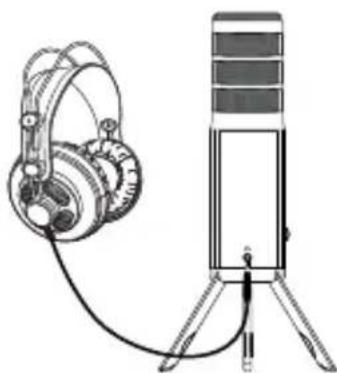
- Connect headphones to the Headphone output located on the rear of the microphone.
natural_image
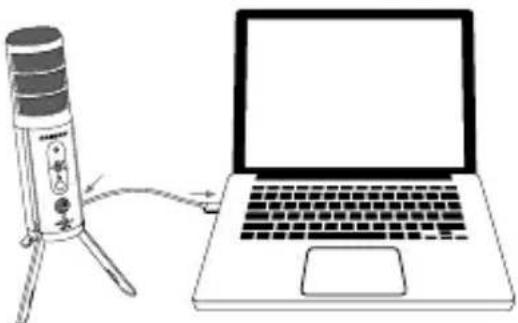
Line drawing of a desktop microphone connected to an ear headphones (no text or symbols)- Plug the USB cable into the Satellite and plug the other end of the cable into an available USB port on your computer.
natural_image
Line drawing of a microphone connected to a laptop on a stand (no text or symbols)Quick Start
- Set the Satellite as the input and output audio device by following the steps in the section "Using the Satellite with Apple OSX" or "Using the Satellite with Windows".
- Launch your recording software.
-
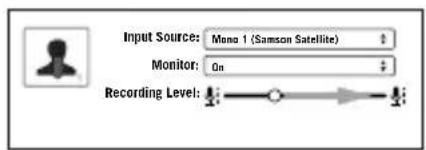
Turn down the Headphone Volume control on the Satellite and if not already set, select the Satellite as the input and outputs in the software.
-
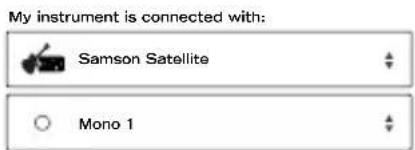
Create a mono audio track.
-
Arm the tracks for recording.
-
Set the level of the Satellite by slowly raising the level of the microphone in your software while singing or playing an instrument into the
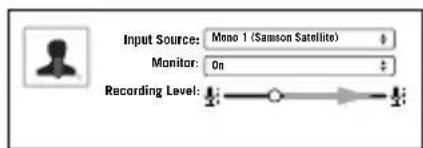
microphone at the performance level. If you see the peak indicator illuminate red, your signal will be distorted. Turn the microphone level control down until it no longer flashes red.
- Set the direct monitor setting by following the steps in the section "Direct Monitor".
- Press the record button and start creating.

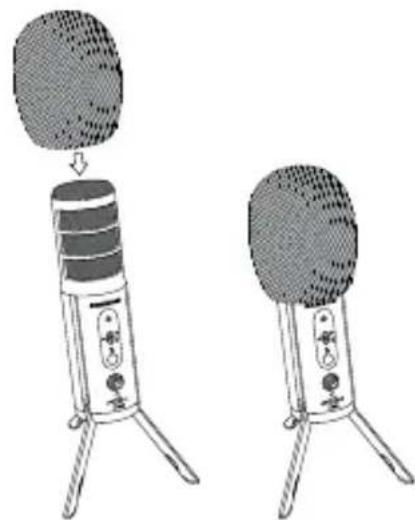
Sometimes when recording vocals certain plosive consonants (like hard "P" and "B" sounds) overload the input of the microphone which causes clipping and adds distortion to your recording. Additionally, wind and breath noise can be distracting and be harmful to your recording. It is advisable to use the included windscreen in order to reduce the effect of the blasts of air on the microphone.
natural_image
Illustration of two desktop microphones with a speaker emitting sound waves (no text or symbols)Using the Satellite with Apple OSX
- Connect the Satellite to the computer using the included USB cable.
- Open System Preferences from the dock or the main Apple Menu.
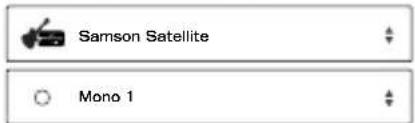
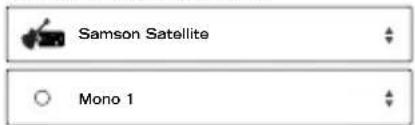
- Select the Sound preference icon, choose the Input tab and select Samson Satellite.
- Set the Satellite as the output device by clicking the Output tab and selecting Samson Satellite.
- To set the sample rate, from the Applications folder, open the Utilities folder and open Audio MIDI Setup.
- From the Window menu, select Show Audio Window.
- Select the Samson Satellite
- From the Format dropdown menu, select the desired sample rate and bit depth.
Using the Satellite with Windows
- From the Start Menu, open the Control Panel and select Sound.
- Under the Playback and Recording tabs, select the Samson Satellite as the audio device.
- To adjust the gain of the microphone, click the Properties button, and then select the Levels tab. You can view the volume level as either a percentage or in dB, by right clicking on the number box.
- If the microphone LED is lighting red, turn this control down until the LED no longer flashes red.
- In the Playback tab, select the Level tab and set the computer's Master Volume to 100%. Use the Headphone Volume knob on the Satellite control the overall output from the headphones or speaker.
- To adjust the direct monitoring level in the Playback tab by moving the fader labeled Microphone.
Setting Sample Rate in Windows
Sample Rate Conflicts
If you start recording/playback and the microphone's status indicator starts flashing red continuously, this is due to the computer's operating system requesting different sample rates for input and output at the same time. The microphone will still appear to function, but either the input or output will be garbled, so the LED is warning you of this problem.
This problem can happen in Windows 7 or Windows 8, and will happen by default in Windows 10, when playing and recording simultaneously. It happens with DirectSound, WASAPI Shared mode, WaveOut, MME, and other software that uses the Windows Default Format settings.
This will not happen in macOS or iOS, or with Windows software that uses ASIO4ALL, WASAPI Exclusive mode, WDM, or other software that sets the sample rates on its own.
To change the default sample rates in Windows 10
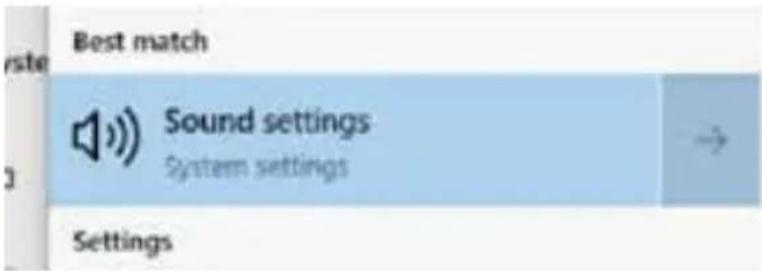
- In the Windows Search bar, type "sound", and then select Sound settings
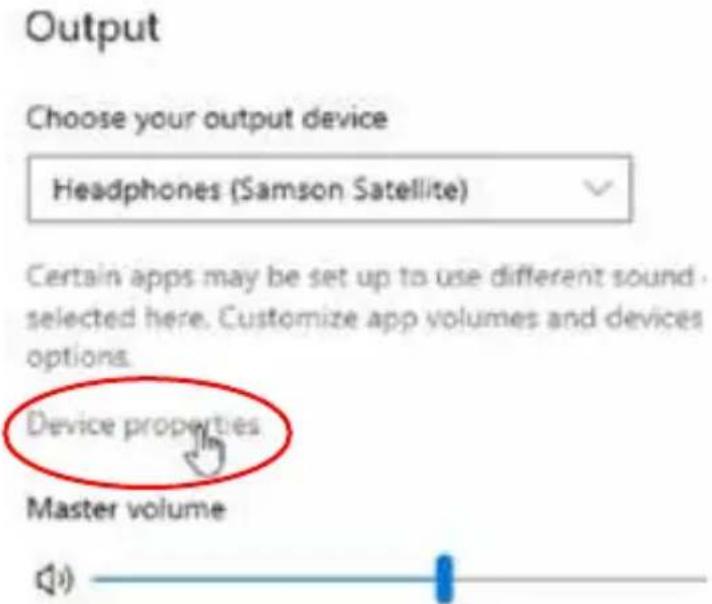
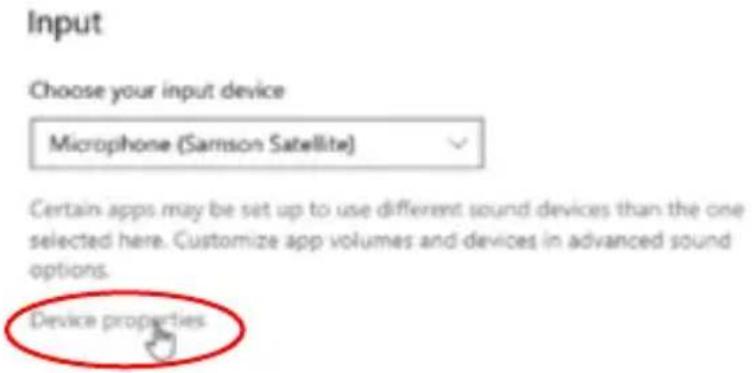
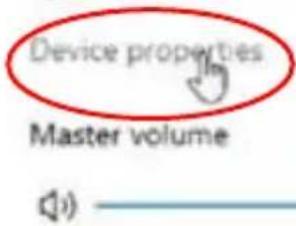
- Make sure the Samson device is selected in the drop-down menu and click Device Properties
Setting Sample Rate in Windows
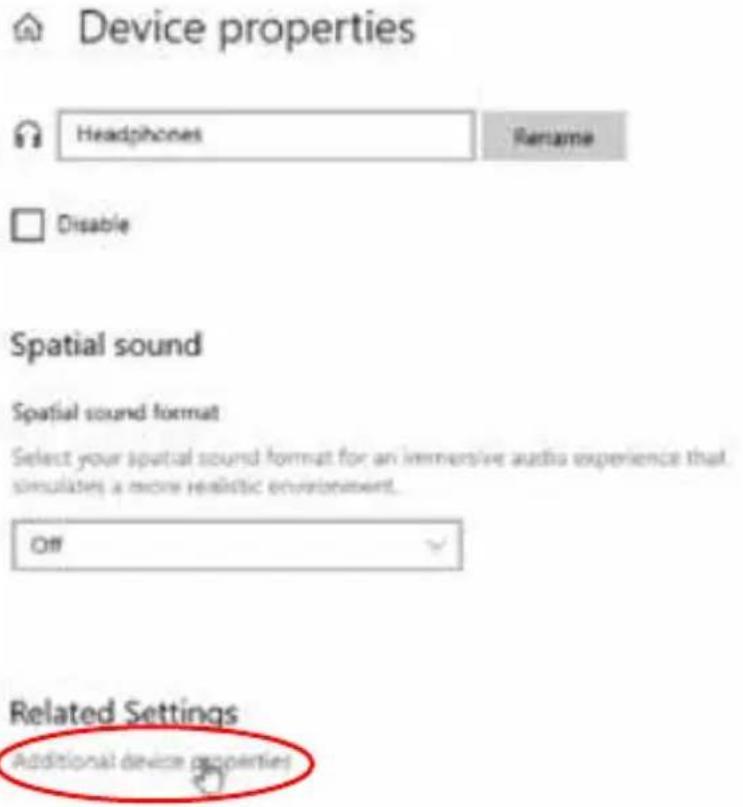
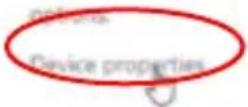
3. Scroll down and click Additional device properties
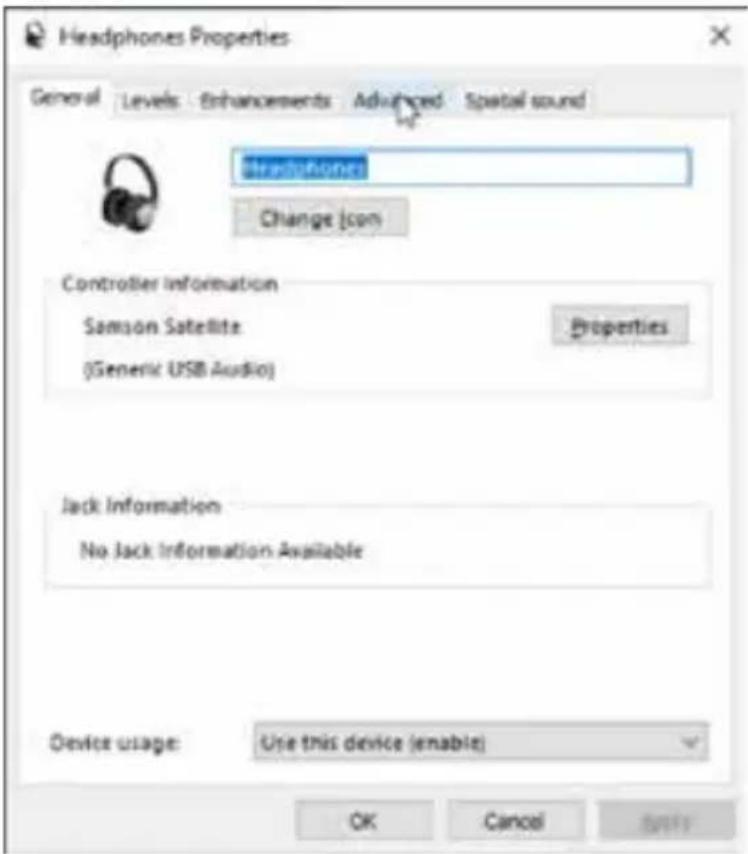
4. Click the Advanced tab
Setting Sample Rate in Windows
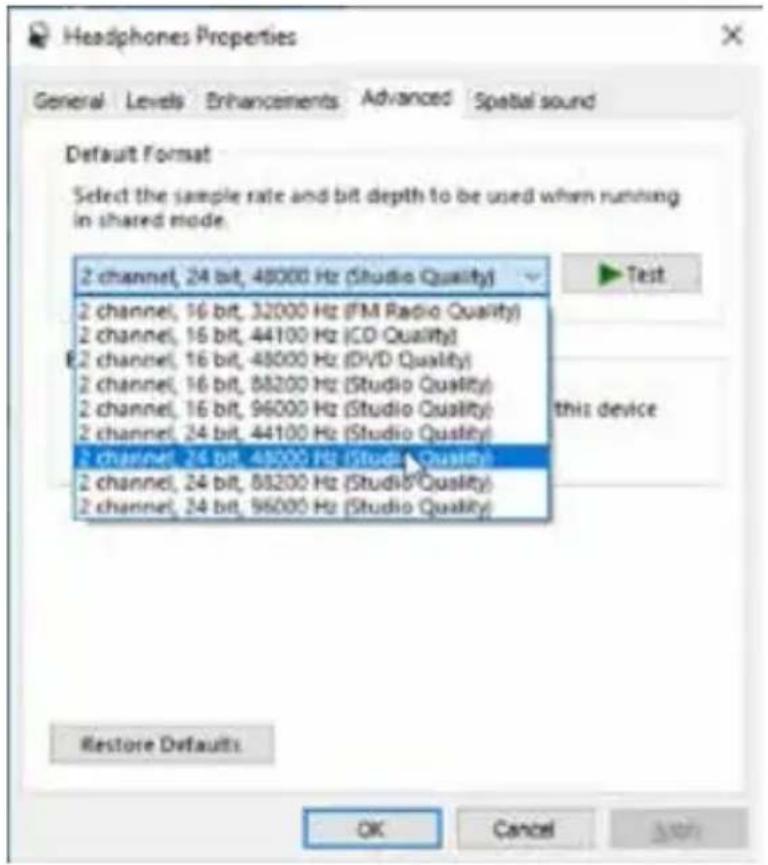
- Select a bit depth and sample rate from the drop-down menu
-
Press OK until you are back to the Sound properties window
-
Do steps 2 through 5 again, but this time for the Input device, and make sure the sample rates are the same for both input and output
Sample rates must be the same
Only the sample rate (Hz) needs to match. The bit depth can be different if needed. For example, these settings are compatible:
Output: 2 channel, 16 bit, 48000 Hz
Input: 1 channel, 24 bit, 48000 Hz
These settings are not compatible:
Output: 2 channel, 24 bit, 48000 Hz
Input: 1 channel, 24 bit, 44100 Hz
Connecting to an iPhone or iPad

natural_image
Line drawing of a SAMSON audio recording device connected to a smartphone (no text or symbols on device)- Connect the Satellite to an iPhone or iPad using the included USB to Lightning cable.
- The Satellite will receive power from the mobile device and the status indicator will light green.
- Open an application that supports external audio devices and start creating.
Note: It is recommended to put your iOS device in Do Not Disturb mode or Airplane mode to eliminate the video or audio recording from being interrupted by a phone call. Leave Airplane Mode off to keep geolocation information tagged to your files.
Direct Monitor
The Satellite has a simple, yet sophisticated direct monitor system, which provides zero latency monitoring of audio captured by the microphone.
What is Latency, and what is Zero Latency?
Latency is the delay time between record and playback that is inherent to computer software when recording and monitoring simultaneously. Simply stated, when recording, the computer software needs to recognize the input signal, crunch a bunch of numbers and then send the signal through to the output. Depending on several factors like the speed of your computer, the amount of tracks you've recorded, and whether or not you're using the effects in the software, this can take a few to several milliseconds. Even a delay of several milliseconds can sometimes make it hard for a musician to play on time or may be distracting when recording. To solve this problem, the Satellite lets you monitor the microphone signal directly on the headphones without making the round-trip in and out of the computer. As a result you hear the input with no latency.
MONITOR ON/OFF Switch
To enable the Direct Monitor, set the MONITOR switch to the ON position. If you plan to use direct monitoring on the Satellite, disable software monitoring for the armed (input) tracks.
You may want to turn the Direct Monitor switch off when listening back to your audio during a mixing session, or if you want to only hear the captured audio after it has gone through your computer software effects. To turn the Direct Monitor off, move the MONITOR switch on the front of the Satellite to the OFF position, you will hear only the playback from your computer software, with no input signal.
About Polar Patterns
An important characteristic of any microphone is its directionality or polar pattern. The Satellite feature dual 16mm capsules, allowing for a choice of three distinct polar patterns: omnidirectional, unidirectional (cardioid), and bidirectional (figure-8). The microphone pattern can be selected using the three-position slide switch on the front of the microphone. Each pattern has distinct pick-up characteristics with respect to the sensitivity and frequency response to sounds arriving from different directions. The following section discusses some of the features of each pattern, to help you choose the best setting for your application.
Omnidirectional - The omnidirectional setting reproduces sound from all directions, (including off-axis), with an even frequency response, which makes it resistant to the phenomenon known as proximity effect. It captures a greater amount of ambient sound than the other settings, and thus will include more of the room sound than when using a directional setting. The omnidirectional setting is great for recording ensemble performances including group vocals, brass, woodwind, and other instruments with the artists facing each other in a circle around the microphone.
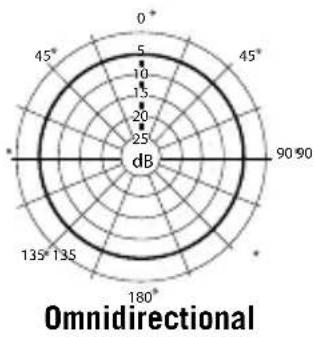
radar
Omnidirectional | Angle | Value | |---|---| | 0° | 10 | | 45° | 10 | | 90° | 10 | | 135° | 10 | | 180° | 10 | | 225° | 10 | | 270° | 10 | | 315° | 10 | | 360° | 10 |Unidirectional (Cardioid) - The cardioid pickup pattern is the most widely used for studio and live miking applications. It captures sound in front of the microphone and rejects sound from the sides and back, which allows for better separation of instruments in the studio, and picks up more of the instrument sound in relation to the sound of the room. The separation also allows for more control and more gain before feedback in live sound reinforcement situations.
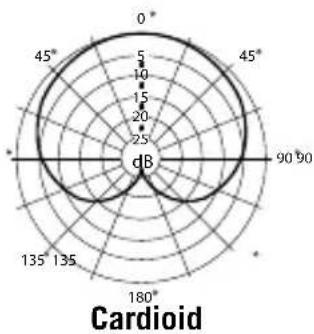
radar
| Angle | Value | |-------|-------| | 0° | 5 | | 45° | 10 | | 90° | 15 | | 135° | 20 | | 180° | 25 |Bidirectional (Figure-8) - This setting captures sound directly in front and back of the microphone while rejecting sound on the left and right sides, and has minimal off-axis frequency response deterioration. It is very useful in a variety of stereo microphone techniques. The figure-8 pattern can be used to simultaneously capture two instruments or vocalists by positioning the microphone directly between them, so one is addressing the front of the microphone and the other the rear.
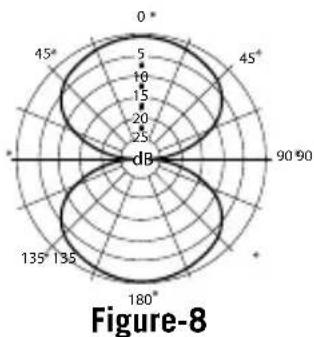
radar
Figure-8 | Angle | Value | |---|---| | 0° | 5 | | 45° | 10 | | 90° | 15 | | 135° | 20 | | 180° | 25 | | 225° | 5 | | 270° | 10 | | 315° | 15 | | 360° | 20 | | 405° | 25 | | 450° | 5 | | 495° | 10 | | 540° | 15 | | 585° | 20 | | 630° | 25 | | 675° | 5 | | 720° | 10 | | 765° | 15 | | 810° | 20 | | 855° | 25 | | 900° | 5 | | 945° | 10 | | 990° | 15 | | 1035° | 20 | | 1080° | 25 | | 1125° | 5 | | 1170° | 10 | | 1215° | 15 | | 1260° | 20 | | 1305° | 25 | | 1350° | 5 | | 1395° | 10 | | 1440° | 15 | | 1485° | 20 | | 1530° | 25 | | 1575° | 5 | | 1620° | 10 | | 1665° | 15 | | 1710° | 20 | | 1755° | 25 | | 1800° | 5 | | 1845° | 10 | | 1890° | 15 | | 1935° | 20 | | 1980° | 25 | | 2025° | 5 | | 2070° | 10 | | 2115° | 15 | | 2160° | 20 | | 2205° | 25 | | 2250° | 5 | | 2295° | 10 | | Note: The last row is a duplicate of the first row to close the circle in the radar chart. The rest of the chart is a duplicate of the previous row to complete the circle. The values in the legend are estimated based on the number of dots in each axis.Specifications
Element Type Dual back electret condenser
Diaphragm Width/Thickness 16mm/3 microns
Polar Pattern Cardioid (unidirectional),
bidirectional (figure-8),
omnidirectional
Frequency Response 20Hz–20kHz
Max Sensitivity -3dB FS @ 80dB SPL
(at maximum gain)
Max. SPL 135dB at 200Hz
Bit Depth/Sample Rate 16 or 24-bit / up to 96kHz
Digital Output USB
Headphone Output/Impedance 1/8" (3.5mm)/ 32Ω
Headphone Power Output Minimum 38mW @ 32Ω
Controls Polar Pattern, Mute,
Headphone Volume, Monitor On/Off
LED 3-color Power/Clip/Mute
Body Construction/Grille
Aluminum/steel
Accessories
USB and USB to Lightning cables, Foam windscreen, carry pouch
Product Dimensions
8.6" x 1.7" diameter (218mm x 45mm diameter)
Product Weight
0.75lb (0.34kg)
At Samson, we are continually improving our products, therefore specifications and images are subject to change without notice.
Important Safety Information
FCC Notice
- This device complies with Part 15 of the FCC Rules. Operation is subject to the following two conditions:
(1) This device may not cause harmful interference.
(2) This device must accept any interference received, including interference that may cause undesired operation.
- Changes or modifications not expressly approved by the party responsible for compliance could void the user's authority to operate the equipment.
Note: This equipment has been tested and found to comply with the limits for a Class B digital device, pursuant to Part 15 of the FCC rules. These limits are designed to provide reasonable protection against harmful interference in a residential installation. This equipment generates, uses and can radiate radio frequency energy and, if not installed and used in accordance with the instructions, may cause harmful interference to radio communications. However, there is no guarantee that the interference will not occur in a particular installation. If this equipment does cause harmful interference to radio or television reception, which can be determined by turning the equipment off and on, the user is encouraged to try to correct the interference by one or more of the following measures:
- Reorient or relocate the receiving antenna.
- Increase the separation between the equipment and receiver.
- Connect the equipment into an outlet on a circuit different from that of the receiver.
- Consult the dealer or an experienced radio/TV technician for help

If you want to dispose this product, do not mix it with general household waste. There is a separate collection system for used electronic products in accordance with legislation that requires proper treatment, recovery and recycling.
Private household in the 28 member states of the EU, in Switzerland and Norway may return their used electronic products free of charge to designated collection facilities or to a retailer (if you purchase a similar new one).
For Countries not mentioned above, please contact your local authorities for a correct method of disposal.
By doing so you will ensure that your disposed product undergoes the necessary treatment, recovery and recycling and thus prevent potential negative effects on the environment and human health.
Important Safety Information
WARNING: Listening to music at high volume levels and for extended durations can damage one's hearing. In order to reduce the risk of damage to hearing, one should lower the volume to a safe, comfortable level, and reduce the amount of time listening at high levels.
Please use the following guidelines established by the Occupational Safety Health Administration (OSHA) on maximum time exposure to sound pressure levels before hearing damage occurs.
• 90 dB SPL at 8 hours
• 95 dB SPL at 4 hours
• 100 dB SPL at 2 hours
• 105 dB SPL at 1 hour
• 110 dB SPL at 1/2 hour
• 115 dB SPL at 15 minutes
• 120 dB SPL - avoid or damage may occur
Declaration
Made for iPhone 11 Pro Max, iPhone 11 Pro, iPhone 11, iPhone XS Max, iPhone XS, iPhone XR, iPhone X, iPhone 8 Plus, iPhone 8, iPhone 7 Plus, iPhone 7, iPhone SE, iPhone 6s Plus, iPhone 6s, iPhone 6 Plus, iPhone 6, iPhone 5s, iPad Pro 10.5-inch, iPad Pro 12.9-inch (2nd generation), iPad Pro 9.7-inch, iPad Pro 12.9-inch (1st generation), iPad Air (3rd generation), iPad Air 2, iPad Air, iPad mini (5th generation), iPad mini 4, iPad mini 3, iPad mini 2, iPad (7th generation), iPad (6th generation), iPad (5th generation), iPod touch (7th generation), iPod touch (6th generation).
Use of the Made for Apple badges means that an accessory has been designed to connect specifically to the Apple product(s) identified in the badge, and has been certified by the developer to meet Apple performance standards. Apple is not responsible for the operation of this device or its compliance with safety and regulatory standards. Please note that the use of this accessory with an Apple product may affect wireless performance. iPad, iPad Air, iPad Pro, iPhone, and Lightning are trademarks of Apple Inc., registered in the U.S. and other countries. The trademark “iPhone” is used in Japan with a license from Aiphone K.K.
All other trademarks are the property of their respective owners
Introduction
natural_image
Technical line drawing of two mobile phone modules with labeled ports (no text or symbols beyond labels 8 and 9)natural_image
Line drawing of a desktop microphone connected to an ear headphones (no text or symbols)natural_image
Illustration of a desktop microphone connected to a laptop (no text or symbols present)Démarrage rapide
My instrument is connected with:

natural_image
Illustration of a desktop microphone with two views showing the top and front (no text or symbols)Certain apps may be set up to use different sound - selected here. Customize app volumes and devices options.
Choose your input device
Microphone (Samson Satellite)
Certain apps may be set up to use different sound devices than the one selected here. Customize app volumes and devices in advanced sound
options.

natural_image
Line drawing of a SAMSON audio recording device connected to a smartphone (no text or symbols on device)Construction/Grille Aluminium/acier
Accessoires Câbles USB et USB to Lightning, pare-brise en mousse, pochette de transport
natural_image
Technical line drawing of two mobile phone modules with labeled ports (no text or symbols beyond labels 8 and 9)natural_image
Line drawing of a desktop microphone connected to an ear headphones (no text or symbols)natural_image
Line drawing of a desktop microphone next to a laptop (no text or symbols present)Schnellstart
My instrument is connected with:
natural_image
Illustration of a desktop microphone with an open top and two side-view views showing internal structure (no text or symbols)Samplerate in Windows einstellen
Samplerate in Windows einstellen
Choose your input device
Microphone (Samson Satellite)
Certain apps may be set up to use different sound devices than the one selected here. Customize app volumes and devices in advanced sound
natural_image
Line drawing of a SAMSON audio recording device connected to a smartphone (no text or symbols on device body)natural_image
Technical line drawing of two mobile phone modules with labeled ports (no text or symbols beyond labels 8 and 9)natural_image
Line drawing of a desktop microphone connected to an ear headphones (no text or symbols)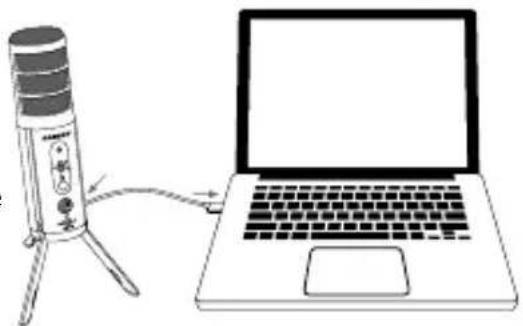
natural_image
Line drawing of a desktop microphone connected to a laptop (no text or symbols present)Inicio rápido
natural_image
Illustration of two desktop microphones with a speaker emitting sound waves (no text or symbols)Choose your input device
Microphone (Samson Satellite)

set up to use different sound devices than the one size app volumes and devices in advanced sound
Device properties
natural_image
Line drawing of a SAMSON audio recording device connected to a smartphone (no text or symbols on device)natural_image
Technical line drawing of two mobile phone modules with labeled ports (no text or symbols beyond labels 8 and 9)natural_image
Line drawing of a desktop microphone connected to an ear headphones (no text or symbols)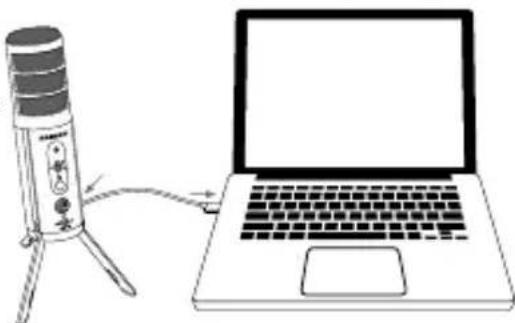
natural_image
Line drawing of a microphone connected to a laptop, no text or symbols presentAvvio rapido
My instrument is connected with:
natural_image
Illustration of a desktop microphone with two views showing the top and front (no text or symbols)natural_image
Line drawing of a SAMSON audio recording device connected to a smartphone (no text or symbols on device)Our experts can help you resolve any issues.
Follow us:



@samson @samsontech @samson_technologies
- Introduction
- Satellite Callouts
- Quick Start
- Using the Satellite with Apple OSX
- Using the Satellite with Windows
- Setting Sample Rate in Windows
- Sample Rate Conflicts
- To change the default sample rates in Windows 10
- Scroll down and click Additional device properties
- Click the Advanced tab
- Sample rates must be the same
- Connecting to an iPhone or iPad
- Direct Monitor
- What is Latency, and what is Zero Latency?
- MONITOR ON/OFF Switch
- About Polar Patterns
- Specifications
- Important Safety Information
- FCC Notice
- Declaration
- Démarrage rapide
- Schnellstart
- Samplerate in Windows einstellen
- Inicio rápido
- Avvio rapido
Brand : SAMSON
Model : Satellite
Category : Microphone