
2202 CTV - TV AEG - Free user manual and instructions
Find the device manual for free 2202 CTV AEG in PDF.


| Product Type | CRT Television |
| Screen Size | 21 inches (53 cm diagonal) |
| Dimensions (W x H x D) | Approx. 620 x 480 x 500 mm |
| Weight | Approx. 18 kg |
| Power Supply | 220-240 V ~ 50 Hz |
| Power Consumption | 80 W (typical) |
| Standby Power | Less than 1 W |
| Display Technology | Cathode Ray Tube (CRT) |
| Color System | PAL / SECAM / NTSC |
| Sound Output | 2 x 5 W |
| Connectivity | SCART, RF antenna input, Audio/Video input |
| Remote Control | Included (infrared) |
| On-Screen Display (OSD) | Multilingual menu |
| Sleep Timer | Yes, programmable |
| Child Lock | Available via menu |
| Channel Memory | Up to 100 channels |
| Auto Tuning | Automatic search with fine tuning |
| Care and Cleaning | Unplug before cleaning; use a soft, dry cloth. Do not use liquid cleaners or abrasives. |
| Safety Instructions | Place on stable surface; ensure proper ventilation; do not block vents; avoid moisture; refer to manual for full precautions. |
| Spare Parts & Repairability | Contact authorized service centers for replacement parts like remote control, power cord, or CRT tube. |
Frequently Asked Questions - 2202 CTV AEG
User questions about 2202 CTV AEG
0 question about this device. Answer the ones you know or ask your own.
Ask a new question about this device
Download the instructions for your TV in PDF format for free! Find your manual 2202 CTV - AEG and take your electronic device back in hand. On this page are published all the documents necessary for the use of your device. 2202 CTV by AEG.
USER MANUAL 2202 CTV AEG
natural_image
Black-and-white image of a flat-screen monitor with 'AEG' branding on the front panel (no additional text or symbols visible)


Inhaltsverzeichnis
- GERÄTEÜBERSICHT 3
1.1 HERZLICHEN DANK FÜR IHR VERTRAUEN!...... 5
SYSTEMEINSTELLUNGEN
Bildformat
Bewertung
12.7.1 3-in-1 Kartenleser
-
SAFETY PRECAUTIONS ....5
-
PREPARATION......6
3.1 SCOPE OF DELIVERY 6
3.2 INSERT BATTERIES 6
3.3 INSTALLATION....6
3.4 CONNECT ANTENNA....6
3.5 MAINS POWER CONNECTION....6
3.6 INITIAL INSTALLATION....6
3.7 SELECT SOURCE 7
-
CONNECT EXTERNAL DEVICES ....7
-
BASIC OPERATION....7
5.1 TURN TV SET ON AND OFF....8
5.2 SELECT TV PROGRAM 8
5.3 SET VOLUME LEVEL 8
5.4 QUICK ACCESS....8
5.5 OSD MENU STRUCTURE 8
- SEARCH AND EDIT CHANNELS 8
6.1 STORE CHANNELS AUTOMATICALLY....9
6.2 STORE DVB-T STATIONS MANUALLY....9
6.3 MANUAL SEARCH FOR ANALOG RECEPTION 9
6.4 EDIT CHANNELS 10
-
PROGRAM INFO (EPG - ONLY FOR DVB-T) 10
-
IMAGE AND SOUND SETTINGS....11
8.1 CHANGE IMAGE SETTINGS....11
8.2 NOISE REDUCTION 11
8.3 CHANGE ASPECT RATIO 11
8.4 PC IMAGE SETTINGS....12
8.5 CHANGE SOUND SETTINGS....12
8.6 OTHER SETTINGS....12
- CURRENT TIME AND TIMER.... 12
9.1 CURRENT TIME....12
9.2 SLEEP TIMER....12
9.3 ON TIME AND OFF TIME....13
-
TELETEXT....13
-
SPECIAL FUNCTIONS....14
11.1 LOCK FUNCTIONS....14
11.2 DEFAULT....14
11.3 LANGUAGE SETTINGS....14
11.4 TIME ZONE ....14
11.5 AUTO OFF....14
12. DVD 15-19
13. CLEANING 20
14. DISPOSAL 21
15. DECLARATION OF CONFORMITY 21
16. TROUBLESHOOTING 21
17. TECHNICAL DATA....22
1. OVERVIEW
Location of Controls
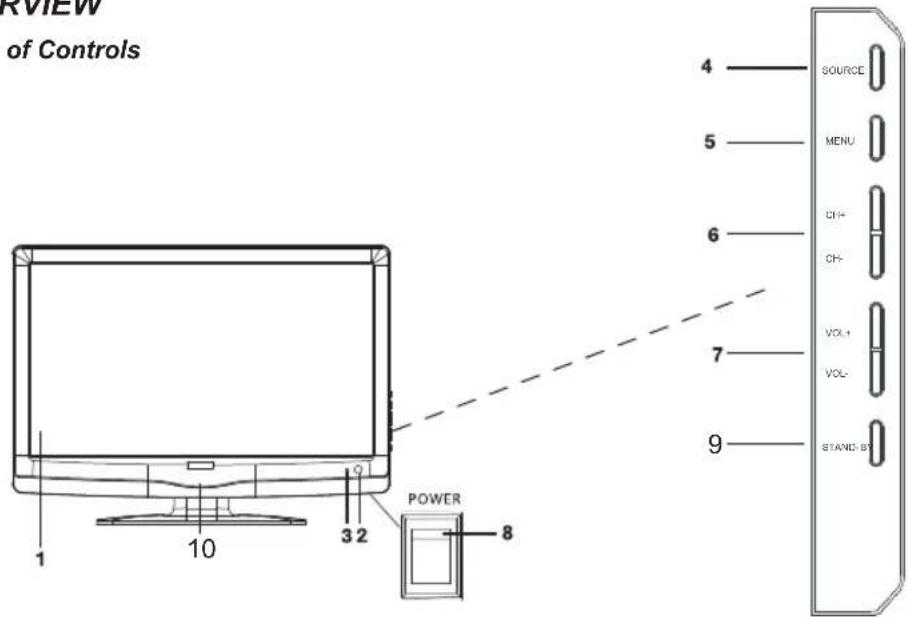
- LCD display
- IR sensor
- LED Off: when the TV is turned off green: during operation, and red: in standby mode
- SOURCE Select source
- MENU Access/exit OSD menu
- CH + / - Select channel (next/previous channel number); in menu mode one position up/down
- VOL +/- Volume control; in menu mode one position right/left / confirm selection
- Main switch
- STANDBY Switch the TV into standby mode
- LED The add-on LED lights red during operation
Connections Rear

- 100-240V Mains power supply 50/60Hz
- HDMI Input DVD recorde r, DVD player or set top box
- VGA INPUT Input PC
- Y Pb Pr Input DVD recorder, DVD player or set top box (video)
- L / R Input DVD recorder, DVD player or set top box (audio)
- SPDIF Output digital audio
- VGA AUDIO Input PC (audio) INPUT
- ANT Input 75 Ω coax antenna
- SCART Input DVD recorder, DVD player or set top box
- S-Video Input camcorder, PC or VCR (Video)
- AV Video input, e.g. camcorder
Remote Control
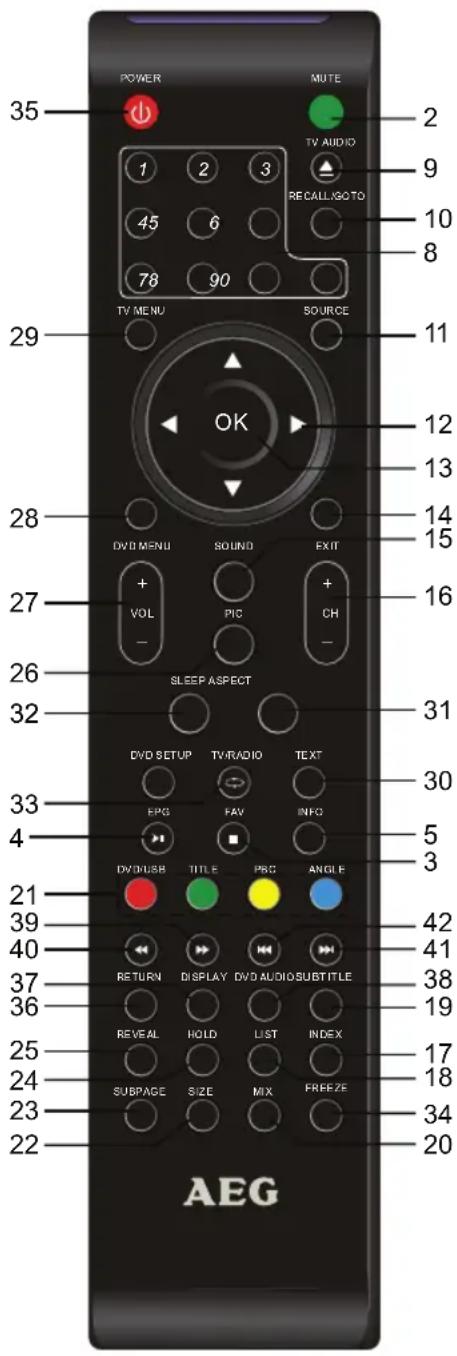
-
MUTE Mute the sound
-
FAV Access favorite list
-
EPG Display program information
-
INFO In DTV mode display information for current program, broadcaster and channel number
-
0-9 Enter programs, chapters, page or title numbers directly
-
TV AUDIO Access and select audio language (if available)
-
RECALL/ Recall previous channel GOTO
-
SOURCE Select source
-
▲▼ ◀▶ Navigate in menu / change menu settings
-
OK Confirm change menu settings
-
EXIT Exit menu
-
SOUND Access and change sound settings
-
CH + / - Select channel (next/previous channel number)
-
INDEX Teletext: display page 100
-
LIST Teletext: set favorite pages
-
SUBTITLE In DTV mode change subtitle language (if available)
-
MIX Teletext: mix TV and Teletext display
-
Color buttons Teletext: access the color-coded pages Menu: edit channel: move, skip
-
SIZE Teletext: enlarge image
-
SUBPAGE Teletext: access sub pages
-
HOLD Teletext: hold page
-
REVEAL Teletext: display hidden information
-
PIC Access and change image settings
-
VOL + / - Set volume level
-
DVD MENU Display channel list
-
TV MENU Display/exit OSD menu (TV)
-
TEXT Teletext: Teletext on/off
-
ASPECT Select aspect ratio
-
SLEEP Set sleep timer
-
TV/RADIO In DTV mode: toggle between TV and radio (if radio stations are available).
-
FREEZE Freeze image
-
POWER Turn TV on and off (standby mode)
-
RETURN Returning to the previous menu.
-
DISPLAY To display the play status on screen
-
DVD AUDIO To change the Audio settings
-
Fast forward.
-
Fast reverse.
-
To jump to the next chapter or song.
-
To return to the previous chapter or song.
1.1 THANK YOU FOR YOU TRUST!
Congratulations to your new AEG LCD TV with DVB-T tuner. We are confident you are satisfied with this modern appliance.
For best performance and your personal safety, please:
Read this user manual before first use carefully and follow all instructions, especially the safety precautions!
Only use this device as described in the user manual.
Keep the manual for future reference. Include this manual if passing the appliance on at a later point. Enjoy your new LCD TV.
2. SAFETY PRECAUTIONS
Intended Use
The appliance is intended to receive (via DVB-T) and playback TV programs.
The appliance is designed for private use and is not suitable for commercial use.
General
- Read all safety precautions and the user manual carefully before connecting the appliance. In this way you can make best use of all the features.
- Packaging materials are no toys. Do not allow children to play with plastic bags; danger of suffocation!
- This appliance is not intended for use by persons (including children) with reduced physical, sensory or mental capabilities, or lack of experience and knowledge, unless they have been given supervision or instruction concerning use of the appliance by a person responsible for their safety.
- Children should be supervised to ensure that they do not play with the appliance.
- Ensure that children do not insert foreign objects into ventilation slots or openings in the casing; danger of electric shock.
Ambient Conditions
- To avoid the danger of fire and the risk of electric shock, do not expose the receiver to rain or other types of moisture. Do not place water filled containers, such as vases, on top of the appliance.
- Do not use the appliance in areas with high humidity (e.g. bathroom). Observe the technical specifications for operating and storing temperatures.
- Do not insert foreign objects or liquids.
-
Moving the appliance from a cold to a warm environment may cause condensation. Leave the appliance turned off for several hours.
-
Place your TV set on a stable, flat and sturdy surface.
- Do not place heavy objects on top of the appliance.
- Protect the appliance from heat: danger of fire. Do not cover ventilation slots. Keep 20cm minimum distance at back and 10cm to the sides when placed in a bookcase.
- Do not place open flames, such as a burning candle, on top or right close to the appliance.
- Do not place the appliance close to equipment, which is sensitive to magnetic fields, such as tape decks.
- Protect the appliance from direct sunlight.
- Do not touch the screen unnecessarily, do not touch with pointed or sharp objects.
Mains Power
- Only connect to properly installed, easy accessible wall outlet (100-240V\~50/60Hz). The wall outlet must be freely accessible at all times.
- The appliance is not completely disconnected from mains power after being turned off with the main switch. Remove plug from wall outlet to completely disconnect from mains power.
- To disconnect always take hold of the plug; do not pull the cable.
- Ensure that cables are not pinched or kinked.
- Power supply cords should be routed so that they are not likely to become a trip hazard.
- Disconnect from mains power during a storm.
Antenna
- Only use a double-shielded antenna cable, otherwise interferences with low image quality may occur.
- To avoid damage caused by overvoltage disconnect from mains power and antenna during a storm or when not in use for a longer period of time.
Damages
- Disconnect from mains power if appliance or power cord are damaged.
- Do not use the appliance if damages of casing or power cord are visible. Repairs to casing or power cord only by authorized service center. To avoid hazards a damaged power cord must be replaced by the service center.
- Caution! Immediately disconnect from mains power if liquids of foreign objects have entered the appliance. Have the appliance checked before using it again.
Cleaning and Maintenance
- Only use a soft and dry cloth for cleaning.
Batteries
- Batteries may contain toxins. Batteries must not fall into the hands of children. Children may place batteries in their mouths and swallow them. Immediately contact a physician if batteries were swallowed.
- Danger of explosion! Do not mix different battery types or brands. Do not mix fresh and exhausted batteries or batteries with different capacity.
- Do not charge the supplied batteries. Do not dismantle, short-circuit or burn batteries.
- Remove exhausted batteries from the remote control to prevent leakage and resulting damages.
• Always replace both batteries and dispose of exhausted batteries environmentally responsible.
- Clean battery and appliance contacts before inserting the batteries.
- Remove the batteries from the remote control before longer periods of non-use.
- Do not expose batteries to extreme conditions, such as placing the remote control on a radiator; risk of leakage.
- Avoid skin, eye and mucous membrane contact with leaked battery acid. Wash thoroughly and contact a physician if you came into contact.
3. PREPARATION
3.1 SCOPE OF DELIVERY
Check the box content to ensure that all parts were included:
- TV set with foot
- Mains power cable
- Remote control (incl. 2 batteries type LR03/AAA 1.5V)
- User manual and warranty card
3.2 INSERT BATTERIES
You need to insert two batteries type LR03/AAA, 1.5V.
- Open the battery compartment at the rear of the remote control.
- Insert the supplied batteries. IMPORTANT! Observe correct polarity (+/-).
- Close the battery compartment again.
3.3 INSTALLATION
- Remove the protective foil from the remote control.
- Place the TV set on a stable, flat and sturdy surface.
- Do not expose the appliance to extreme heat or humidity.
- Ensure adequate ventilation on all sides. If placed in a bookshelf leave minimum distance of 20cm at top and 10cm on all sides.
3.4 CONNECT ANTENNA
The TV set is equipped with a built-in tuner to receive TV signals via aerial/cable connection and DVB-T signals.
IMPORTANT! Connect the antenna before connecting to mains power.
DVB-T Reception
CAUTION: The appliance is designed for passive DVB-T antenna.
- Connect a DVB-T antenna to antenna connector ANT.
Other Antenna Connections
For optimal, interference-free image quality use a double shielded 75Ω antenna cable.
- Connect a 75Ω antenna cable to your aerial.
- Connect the other end to antenna connector ANT. at the rear of the TV set.
- Select TV in the SOURCE menu.
PLEASE NOTE: To receive programs first execute channel search (see "Initial Installation" on page 5).
3.5 MAINS POWER CONNECTION
The TV set is designed for AC 100-240V\~50/60 Hz.
- Connect the power cord to AC-INPUT and a wall outlet.
CAUTION: First connect all other devices before connecting to mains power. The wall outlet must be freely accessible at all times.
3.6 INITIAL INSTALLATION
A window is displayed after turning the TV set on; here you select the menu language and start automatic search.
- Press On/Off on the right side to turn the TV set on. The Installation Guide menu is displayed.
- Press OK to confirm English as menu language (press ◀/▶ and OK on the remote control to select a different language). The item Auto Search is marked.
- Press OK. Press ◀/▶ to select the country of your location.
- Press OK twice to start automatic search. This process will take a few minutes. The progress is displayed on screen.
- After finishing the search channel number 1 is automatically displayed.
- The menu closes after a few seconds or press EXIT.
3.7 SELECT SOURCE
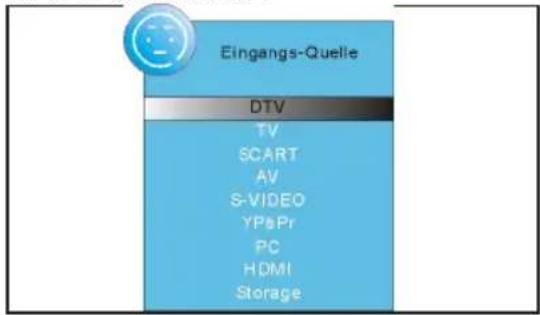
- Turn the TV set on and press SOURCE. The source menu (devices for the corresponding inputs) is displayed.
- Press ▲/▼ on the remote control or CH +/- on the TV set to select the desired source.
- Press OK or VOL +/- on the TV set to confirm.
PLEASE NOTE: Press EXIT to exit without changes.
4. CONNECT EXTERNAL DEVICES
The TV set comes with a set of inputs for external devices (e.g. DVD recorder, PC, camera and set top box).
IMPORTANT! Ensure that TV set and external devices are turned off before connecting. Please also read details in the manuals of the external devices.
SCART Connection
The SCART connector at the rear transmits analog video and audio signals in good quality. Connect VCR, satellite receiver, game console or PayTV decoder.
- Connect the device via SCART cable to SCART.
- Select SCART in the SOURCE menu.
VIDEO Connection
Connect a video camera via the RCA inputs L and R and AV or S-VIDEO.
- Connect the device via AV cable or RCA and S-Video cable to AV, L and R or S-VIDEO, L and R.
IMPORTANT! Observe the color-coding of the AV cable (video = yellow, audio L = white and audio R = red).
- Select AV or SVIDEO in the SOURCE menu.
PC Connection
- Connect PC via VGA cable to VGA INPUT on the TV set.
- Connect an audio cable to PC audio out and VGA AUDIO INPUT on the TV set.
- Select PC in the SOURCE menu.
Component Connection
The component input Y Pb Pr transmits analog video signals of a connected device, such as AV receiver or DVD recorder in very good quality.
- Connect via component cable (purchase separately) (3 x RCA) to component output of external device and inputs Y Pb Pr on the TV set.
- Connect the audio cable to the audio output of the external device and to audio inputs L and R on the TV set.
- Select YPBPR in the SOURCE menu.
HDMI Connection
The HDMI connector transmits digital video and audio signals of a connected device in very good quality.
- Connect via HDMI cable (purchase separately) to HDMI output of the external device and to and HDMI input on the TV set.
- Select HDMI in the SOURCE menu.
5. BASIC OPERATION
All settings can comfortably be changed on screen with remote control and OSD menu.
The basic functions can also be accessed with the buttons on the TV set. The user manual generally refers to operating the TV set via remote control.
5.1 TURN TV SET ON AND OFF
- Press the main switch POWER on the right to turn the TV set on. It starts in the previous mode/source. Press STANDBY on the remote control in standby mode (status LED is red). The status LED turns green and the TV set is turned on (add-on LED lights red).
- Press STANDBY on the remote control to turn the TV set off into standby mode again.
- Press the main switch on the right to turn the TV set completely off.
IMPORTANT! Turn the TV set completely off if you are not using it, as it consumes power even in standby mode.
After being turned off with the main switch the TV set is still not disconnected from mains power. Disconnect from wall outlet to disconnect from mains power.
5.2 SELECT TV PROGRAM
- Press CH +/- or the numeric buttons 0-9 to select the desired channel.
- Press RECALL on the remote control to return to the previous channel.
- Press CH.LIST for an overview of your channels. Press the arrow buttons and OK to highlight and select a channel.
5.3 SET VOLUME LEVEL
- Press VOL +/- to set the volume level.
- Press MUTE to temporarily mute the sound. Press MUTE or VOL+/- to unmute the sound.
5.4 QUICK ACCESS
| AUDIO | Select audio language (only if supported by broadcaster) |
| SOURCE | Select external device |
| SOUND | Set audio |
| PIC | Select color mode |
| SLEEP | Set sleep timer |
| ASPECT S | elect aspect ratio |
| FREEZE | Pause playback and display freeze frame |
| TEXT | Access Teletext |
| INFO | Display program information |
| SUBTITLE | Select subtitle language (only if supported by broadcaster) |
5.5 OSD MENU STRUCTURE
The OSD (On Screen Display) menu helps you to select the different functions and change settings.
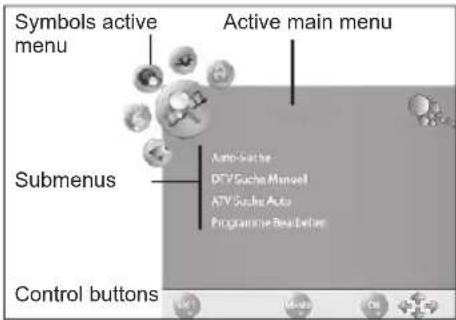
- Press TV MENU to display the OSD menu. The main menu items are displayed above. The CHANNEL menu is displayed.
- First press ◀/▶ to select the main menu item. The submenus are displayed underneath.
- Press ▼ to select a submenu. The first row of the submenu is highlighted.
- Press OK or ▶ to access the submenu.
- Press TV MENU to return to the main menu.
Submenus
- Press ▲/▼ to select a submenu item. Here you can
- press ◀/▶ to change settings or
- press OK to access a further setting window and then press ◀/▶ to change the settings.
Return to Main Menu
You must exit the active submenu to select a further item from the main menu.
- Press TV MENU to return until the headline in the main menu is highlighted (e.g. CHANNEL).
- In the submenu press ▲ until the headline in the main menu is highlighted (e.g. CHANNEL).
Exit Menu
• Repeatedly press TV MENU to return step by step or press EXIT. Your new settings are saved.
PLEASE NOTE: The menu fades out if no setting is changed within a few seconds.
6. SEARCH AND EDIT CHANNELS
Your TV set can receive DVB-T signals and traditional analog signals (e.g. via cable). You reception after automatic search depends on your antenna connection: your existing DVB-T antenna for DVB-T reception or analog cable connection. Both types can be stored in the channel list – but generally you will only use one reception type. For both types you have the automatic and manual search functions.
• DVB-T stations are displayed with DTV.
- Analog stations are displayed with ATV (TV).
6.1 STORE CHANNELS AUTOMATICALLY
• DVB-T stations are displayed with DTV.
- Analog stations are displayed with ATV (TV).
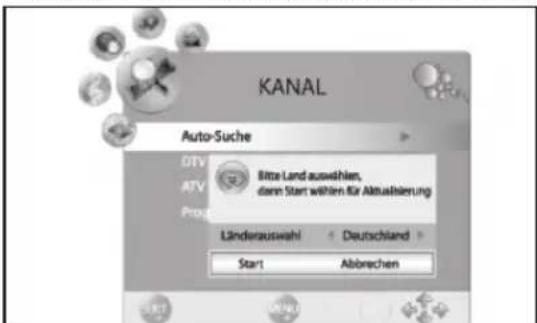
- Press TV MENU to display the OSD menu.
- Press ▼ to select Auto Search.
- Press OK. Press ◀/▶ to select the country of your location.
- Press OK twice to start automatic search. This process will take a few minutes. The progress is displayed on screen.
- After finishing the search channel number 1 is automatically displayed.
- The menu closes after a few seconds or press EXIT.
6.2 STORE DVB-T STATIONS MANUALLY
- Select a channel number under which to store the new channel.
- Press TV MENU to display the OSD main menu.
- Press ▼ to select DTV Search manually and press OK.
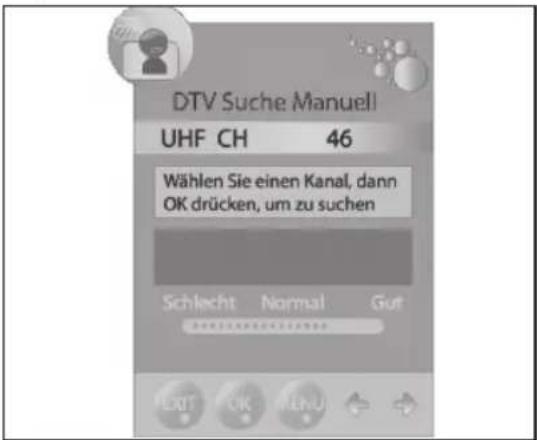
- Press ◀/▶ to select a channel. The reception quality of the selected channel is displayed. If no program is received on the selected channel then NO SIGNAL is displayed. Press again to select the next channel.
-
Press OK to start the search.
-
Press OK to save a channel.
- After finishing the search the received program is displayed. Press EXIT to close the menu.
6.3 MANUAL SEARCH FOR ANALOG RECEPTION
To search analog channels individually the antenna connector must be connected to analog antenna signal (e.g. external antenna or cable). Analog channels are displayed as ATV (TV).
If a DVB-T channel was stored previously then the new analog channel is added to this list. The digital channels are not overwritten.
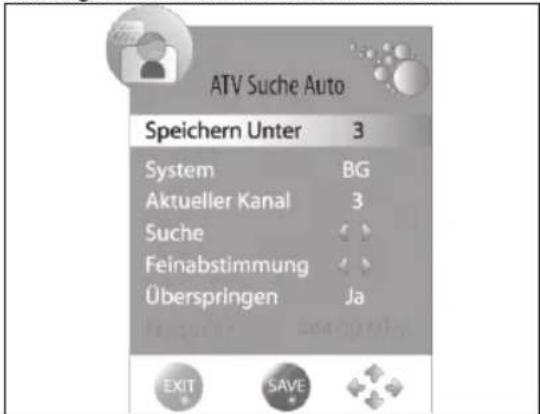
- Press TV MENU to display the OSD menu.
- Press ▼ to select ATV Search auto and press OK.
- Under Save under select the channel number for the new analog channel by pressing ◀/▶.
- Press ▲/▼ to highlight the item Search.
- Press ◀/▶ to start the search. You see the frequency changing during search. After finding a program the sound is again activated.
- Press the red button to save.
- For further channels first select a channel number under Save under again and then start the search again.
In this menu you can change the following settings:
System: is generally not changed.
Current channel: displays the channel number, which is active in the background. Press ◀/▶ and OK to change.
Fine-tuning: press ◀/▶ to change the frequency in small steps.
Skip: the channel is skipped when changing the channel with CH -/+ when selecting YES.
Frequency: displays the current frequency.
6.4 EDIT CHANNELS
After searching the channels is stored in the sequence they were found. You can add channels to your favorite list (FAV) or change the sequence by swapping or skipping channels.
Move Channel
- Press TV MENU to display the OSD main menu.
- Press ▼ to select Edit program and press OK.
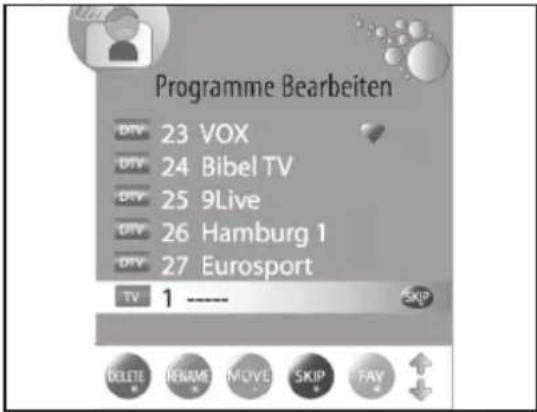
- Press ▲/▼ to highlight the channel to be moved.
- Press the yellow button to highlight the channel number in yellow.
- Press ▲/▼ to move the channel to the desired position.
- Press the yellow button again to save the channel at the desired position.
- To move further channels repeat step 5.
- Press EXIT to save the settings and exit the menu.
Skip Channel
Highlighted channels can only be accessed via the numeric buttons 0-9. Access via CH + / - is not possible.
- Press TV MENU to display the OSD menu.
- Press ▼ to select Edit program and press OK.
- Press ▲/▼/▼▼ to highlight the channel to be skipped.
- Press the blue button. SKIP is displayed behind the channel name.
- Press EXIT to save the settings and exit the menu.
To enable the channels again select the highlighted channel and press the blue button again.
Store DVB-T Channels to Favorite List
Store your favorite channels (DTV only) in the favorite list. Press FAV to access the list.
- Press TV MENU to display the OSD menu.
- Press ▼ to select Edit program and press OK.
- Press ▲/▼/▼▼ to highlight the channel to be stored in the favorite list.
- Press FAV. A heart icon is displayed behind the channel name.
- Press EXIT to save the settings and exit the menu.
To delete channels from the favorite list select and highlight, then press FAV again.
7. PROGRAM INFO (EPG - ONLY FOR DVB-T)
The Electronic Program Guide (EPG) is supported by many, but not all broadcasters.
The size also depends on the broadcaster. EPG displays a daily overview of current and future programs with corresponding times of broadcast.
Overview
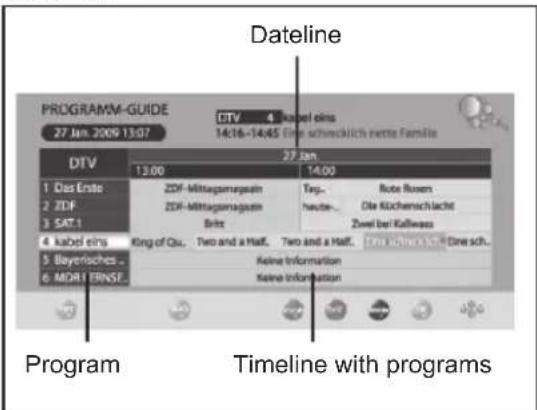
- Press EPG to access the program overview.
- Make changes with the following buttons:
◀/▶ :/▶ :▶ : select previous/next programs on this channel.
▲/▼:/▼:▼: select channel.
OK: switch to selected channel.
INFO: display detail information for selected program.
Green button: access schedule.
Yellow button: activate dateline. The date is highlighted. Press ◀/▶/▶▶ to access program overview for other dates.
Blue button: store program start.
EXIT: exit detail information or EPG.
Save Programs
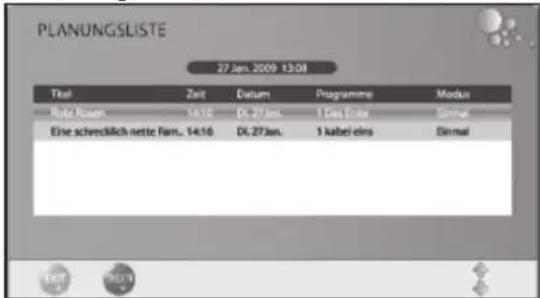
You can store program start via EPG. The programs are displayed in the Schedule. With the TV set turned on you are prompted 15 seconds before program start if you want to change the program. The program is changed if you do not respond or you press OK to confirm. If you want to stay with the current program select NO and press OK to confirm.
- Press EPG to display the electronic program guide.
- Press ▲/▼/◄/► to select desired channel and program.
- Press the blue button (reminder).
- In the next window confirm the values by pressing OK or change beforehand. The schedule with overview of all stored programs is displayed.
- Press EXIT to close the menu.
8. IMAGE AND SOUND SETTINGS
8.1 CHANGE IMAGE SETTINGS
Your TV set comes with 3 preset image settings (Standard, Soft and Dynamic). Press PIC to select your preferred setting.
When selecting User your personal image settings are accessed.
Define Picture Mode
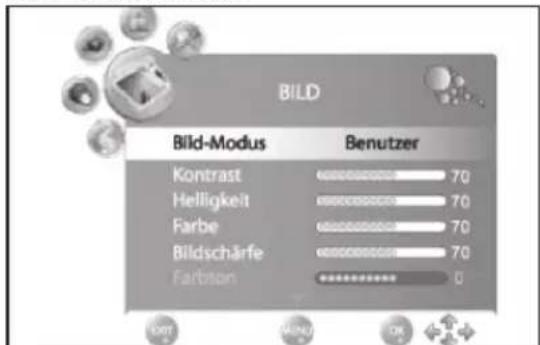
- Press TV MENU to display the OSD menu. You are currently in the CHANNEL menu.
-
Press ▶ once.. The IMAGE menu is activated.
-
Press ▼ to mark item Picture mode and press ◀/▶/▶▶ to select item User.
- The following items are always enabled and can be changed.
Contrast Brightness
Hue Sharpness
Tint (only enabled with NTSC signals)
- Press ▼ to access the desired item and press ◀/▶/▶▶ to set the desired value.
- Press TV MENU to access the complete image menu for further changes.
- Press EXIT to save the settings and exit the menu.
Set Color Temperature
Your TV set comes with 3 preset color temperature settings (Warm, Medium and Cold).
- Press TV MENU to display the OSD menu. You are currently in the CHANNEL menu.
- Press ▶ once.. The IMAGE menu is activated.
- Press ▼ to mark item Color temperature and press ◀/▶/▶▶ to select item User.
- The following items are enabled and can be changed: Red / Green / Blue
- Press ▼ to access the desired item and press ◀/▶/▶▶ to set the desired value.
- Press TV MENU to access the complete image menu for further changes.
- Press EXIT to save the settings and exit the menu.
8.2 NOISE REDUCTION
This function reduces the noise and enhances the image quality for weak signals.
- Press TV MENU to display the OSD menu. You are currently in the CHANNEL menu.
- Press ▶ once.. The IMAGE menu is activated.
- Press ▼ to mark item Noise reduction.
- Press ◀/▶/▶▶ to enable/disable the function.
- Press EXIT to save the settings and exit the menu.
8.3 CHANGE ASPECT RATIO
Your TV set is equipped with 5 aspect ratios:
16:9, 4:3, AUTO and ZOOM 1 + 2. Press ASPECT to select.
- Press ASPECT once to display the current setting.
- Press again to cycle through the settings.
PLEASE NOTE: With AUTO automatically the correct format is selected. You can also change this setting in the IMAGE menu.
8.4 PC IMAGE SETTINGS
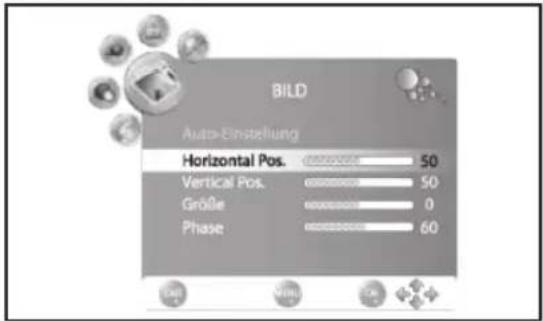
When selecting PC as the source the IMAGE menu additionally displays the item MONITOR. Here you can set Position and synchronization of PC desktop.
- Press TV MENU to display the OSD menu.
- Press ▶ once. The IMAGE menu is activated.
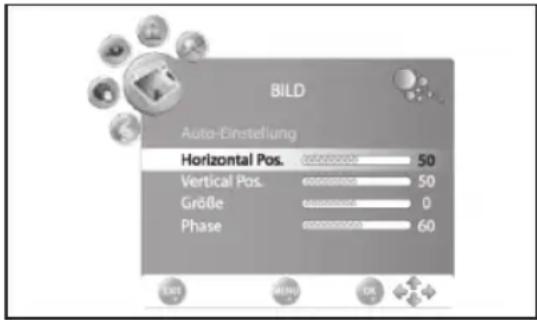
- Press ▼ until Monitor is highlighted and press OK.
- Press ▼ to select the image setting to be changed:
Horizontal Pos. (horizontal position of desktop)
Vertical Pos. (vertical position of desktop) Size
Phase (synchronization)
- Press ◀/▶/▶▶ to set the desired value.
- Press EXIT to save the settings and exit the menu.
8.5 CHANGE SOUND SETTINGS
Your TV set comes with 4 preset sound settings (Standard, Music, Movie and Sports). Press SOUND to select.
When selecting User your personal sound settings are accessed.
Set Audio Mode
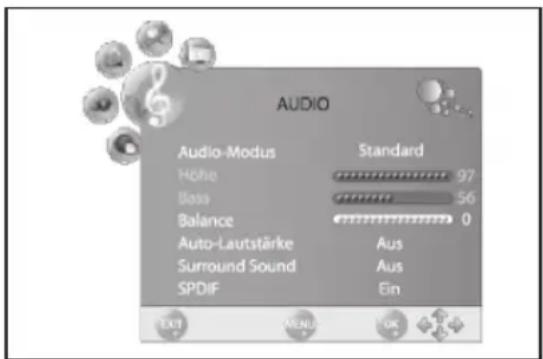
- Press TV MENU to display the OSD menu. You are currently in the CHANNEL menu.
- Press ▶ until AUDIO is enabled.
-
Press ▼ to highlight item Audio mode and press ◀/▶/▶▶ to select item User.
-
The following items are enabled and can be changed.
Treble
Bass
Balance (can also be changed for presets)
- Press ▼ to access the desired item and press ◀/▶ to set the desired value.
- Press EXIT to save the settings and exit the menu.
8.6 OTHER SETTINGS
- Press Auto volume to balance the different volumes after changing the channel.
- Surround Sound stands for the sound being played in a virtual 3D sound.
-
SPDIF determines if SPDIF signals are output.
-
Press TV MENU to display the OSD menu. You are currently in the CHANNEL menu.
-
Press ▶ until AUDIO is enabled.
- Press ▼ to highlight item Auto volume, Surround Sound or SPDIF.
- Press ◀/▶ to enable/disable the function.
- Press EXIT to save the settings and exit the menu.
9. CURRENT TIME AND TIMER
9.1 CURRENT TIME
During DVB-T reception the current time is automatically set. You can set the current time manually during analog reception.
- Press TV MENU to display the OSD menu. You are currently in the CHANNEL menu.
- Press ▶ until TIME is enabled.
- Press ▼ to highlight item Clock.
- Press OK to access the function.
- Insert the individual values, such as the date by pressing ◀/▶/▶▶.
- After setting the values press ▼ to highlight Close.
- Press OK to save the values.
9.2 SLEEP TIMER
Set your TV set that it automatically turns off after a preset time. The sleep timer setting is deleted after turning the TV set off. Set the automatic off time between 0 (= off) and 240 min.
- Press SLEEP on the remote control until the desired off time is displayed. After a few seconds the display fades out and the TV set automatically turn off after the preset time period.
PLEASE NOTE: You can also access this setting via the TIME menu.
9.3 ON TIME AND OFF TIME
On time and off time determine the point in time, when the TV set automatically turns on or off. You can make the settings for different time periods.
PLEASE NOTE: These functions turn the TV set on from standby mode and switch off into standby mode. This function is invalid if your TV set is switched on with the main switch.
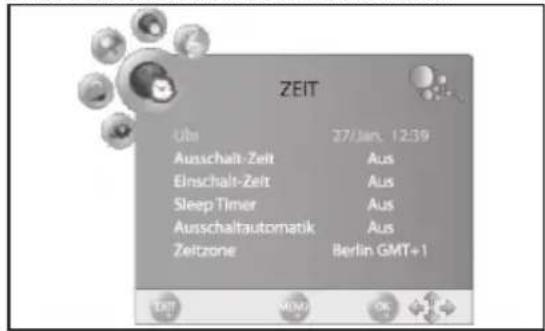
- Press TV MENU to display the OSD menu. You are currently in the CHANNEL menu.
- Press ▶ until TIME is enabled.
- Press ▼ to highlight item On timer or Off timer.
- Press OK to access the function.
-
Press the arrow buttons to highlight and change the displayed functions.
-
Activate: Determine if the setting is to be executed once or regularly. Select between: (Off, Once, Daily, Mon-Fri, Mon-Sat, Sat-Sun or Sun).
- Hour / Minute: Set on time and off time.
- Volume: Set the volume the TV set turns on with.
-
Mode: DTV – if connected to DVB-T antenna / TV – if connected to external antenna or cable box.
-
Press EXIT to exit the menu or press TV MENU to return to the main menu. The settings are saved.
10. TELETEXT
Teletext is a free service of the broadcasters. It is transmitted with the TV signal and needs good reception. Not all broadcasters offer Teletext.
Teletext information is usually classified into areas, topics and pages. Some topics spread over several pages (2/3 = page 2 of 3) and others contain hidden information (quiz answers, VPS times, etc.).
Teletext On/Off
- Press TEXT on the remote control to enable/disable the Teletext functions.
Color Buttons
Nearly all Teletext pages offer colored fields at the bottom of the screen (red, green, yellow, blue). Press the color buttons on the remote control to skip directly to these topics/pages of the colored fields.
Access Pages with Numeric Buttons
The current 4-digit page number is displayed at the top right corner of your screen.
All page numbers must be entered 3-digit with the numeric buttons. It takes a moment until the page is displayed.
Access Subpages
- Access the desired Teletext page (with subpages).
- Press SUBPAGE and enter the subpage number with the numeric buttons, e.g. 0001 for subpage 1.
(Alternative: At the bottom center of your screen a row with subpage numbers is displayed.
Press ◀/▶ to select the subpages. The selected subpage is displayed.)
Hold Function
Press HOLD to stop/start the automatic access of subpages.
Mixed Display
- Press MIX to fade in the TV image behind Teletext. Press again to return to Teletext display only.
Size
- Press SIZE to change the Teletext display size on screen.
Hidden Information
Teletext pages with games or quizzes can contain hidden answers.
- Press REVEAL to display the answers. This function is not supported by all broadcasters.
Access Index Page
- Press INDEX to display the index page (generally page 100).
Program Color Buttons
Program the color buttons with your preferred pages.
- Press LIST. Instead of color markings page numbers are displayed, in the beginning the pages 100, 200, 300 300300 and 400.
- Press the color button to be programmed and immediately enter the page number with the numeric buttons. The page is displayed and stored under the color button.
-
Press LIST to return to standard color button layout.
-
Press LISTLIST to access the stored page and then the corresponding color button.
11. SPECIAL FUNCTIONS
11.1 LOCK FUNCTIONS
This menu allows you to lock and to change the password. Enter the preset password 6666 to access the menu.
- Press TV MENU to display the OSD menu. You are currently in the CHANNEL menu.
- Press ◀ until LOCK is enabled.
- Press OK to enable the function.
- Enter the password (preset to 6666).
- You must repeat this process every time you access this menu.
System Lock
With enabled function (On) before every channel search and channel editing the password must be entered.
Change Password
- Highlight the item Set password and press OK.
- Enter the new password twice. It is valid after being entered the second time.
- Execute your settings and press EXIT to exit the menu.
Channel Lock
You can lock individual channels. These channels can only be accessed after entering the password. The channel lock is valid until disabled or the TV set is reset to default settings in menu item default.
- Highlight the item Channel lock and press OK.
- Press ▲ or ▼ to highlight the channel to be locked.
- Press the green button to lock the channel. A lock icon is displayed behind the channel name.
- Lock further channels or press EXIT to exit the menu. The channels are locked.
To unlock access the Channel lock menu, highlight the channel number to be unlocked and press the green button again. The lock icon disappears.
Parental
The menu item Parental is invalid, as the signal is not transmitted by DVB-T broadcasters.
11.2 DEFAULT
When resetting to default settings all stored channels and user settings are deleted. The password is reset to 6666.
- Press TV MENU to display the OSD menu. You are currently in the CHANNEL menu.
- Press ▶ until OPTION is enabled.
- Press ▼ to highlight item DEFAULT and press OK.
- Press ◀ to highlight YES and press OK. After reset the menu for automatic search is displayed (see "Initial Installation" on page 5).
11.3 LANGUAGE SETTINGS
- Press TV MENU to display the OSD menu. You are currently in the CHANNEL menu.
- Press ▶ until OPTION is enabled.
- Press ▼ to highlight item
- Press TV MENU to display the OSD menu. You are currently in the CHANNEL menu.
- Press ▶ until OPTION is enabled.
- Press ▼ to highlight item
- Language: press ◀▶ to select the OSD language.
- Audio language: press OK and the arrow buttons to select the audio language.
- Subtitle language: press OK and the arrow buttons to select the subtitle language.
- Press EXIT to save the settings and exit the menu.
PLEASE NOTE: The functions Audio language and Subtitle language are only valid if the selected broadcaster supports subtitles or a second soundtrack (with another language).
11.4 TIME ZONE
- Press TV MENU to display the OSD menu. You are currently in the CHANNEL menu.
- Press ▶ until TIME is enabled.
- Press ▼ to highlight item Time zone.
- Press ▶ to set the desired time zone.
- Press EXIT to save the settings and exit the menu.
11.5 AUTO OFF
Enabled auto off turns the TV set automatically to standby mode if no signal as received for 15 minutes.
-
Press TV MENU to display the OSD menu. You are currently in the CHANNEL menu.
-
Press ▶ until TIME is enabled.
-
Press▼ to highlight item Auto off.
- Press ▶ to enable/disable the function.
- PressEXIT to save the settings and exit the menu.
12 DVD SIDE PANEL
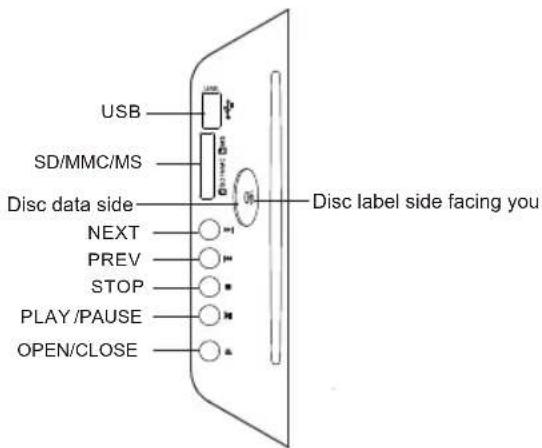
USB
In DVD mode, press DVD/USB button on the Remote control, insert a USB or a MP3 player with USB interface to play the MP3, JPEG and MPEG4 files.
3 in 1 Card Reader
In DVD mode, press DVD/USB button on the Remote control, you can insert three kinds of card (SD ,MMC, MS) to play the mp3 music or MPEG4 movie and JPEG files. All the function is the same to playing a disc.
When the discis playing, pleases top playing first and insert a USB/CARD, enjoying USB/CARD by press DVD/USB key on the remote controller, and then press ▲▼ key to select DISC/USB/CARD, and press OK to confirm.
Caution:
When using USB/3 in 1 Card Reader function, please do not insert in the wrong direction, or else it will damage the unit.
CLASS 1 LASER PRODUCT

Caution
This DVD Player has a Class 1 laser which may be harmful to your eyes. Do not attempt to disassemble the cabinet or make any adjustments. Refer all servicing to a qualified professional.
Features
Disc formats supported by this player:

MPEG4 files on discs
Multi-angle

Dolby Digital
Subtitle choices

KODAK picture CD

Audio choices

MP3 files on CD-R/CD-RW
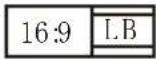
TV Aspect Ratio modes

DVD video

Parental Lock
This product incorporates copyright protecti on technology that is protected by method claims of certain U.S. paten ts and other intellectual proper ty rights owned by Macro vision Corporati on and other rights owners. Use of this copyright protection technolo gy must be authorized by Macro vision Corporation, and is intend ed for home and other limited viewi ng uses only. Unless otherwise authorized by Macro vision Corporation. Rever se engineering or disassembly is prohibit ed.
The product complies with the KODAK Pictu re CD format and will display KODAK Picture CDs. The "KODAK Pictu re CD Compatible" logo is a trademark of Eastman Kodak Company and is used with permission.
Manufactured under license from Dolby Laboratories."Dolby" and the double-D symbol are trademarks of Dolby Laboratories. Confidential Unpublished Works. © 1992-1997 Dolby Laboratories, Inc. All rights reserved.
12.1 MENU OPERATION
Press the SETUP button on the remote control, the SETUP MENU will be displayed. After accessing the setup menu, press the direction buttons for up and down movement to select an item desired, and press RIGHT direction button to select the lower item. Then press the OK button to confirm. Press LEFT direction button return to the menu of upper level. To exit the setup, press the SETUP button again. In the SETUP MENU, you may choose any of the following options as you like.
LANGUAGE SETUP
Select Language in the setup menu, and display the Language submenu:
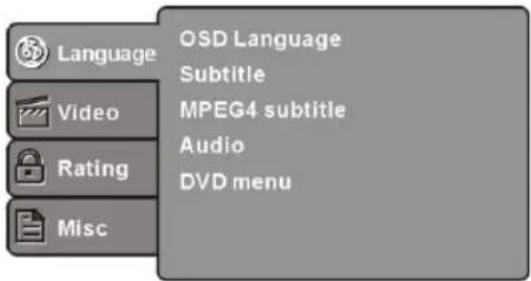
12.1.1 OSD Language
Use this item to select the language of the setup menu and screen display.
12.1.2 Subtitle
This option provides the preset subtitle language.
12.1.3 MPEG4 Subtitle(optional)
Select different MPEG4 subtitle encoding option.
Note: Not all players support this item.
12.1.4 Audio
Select the built-in disc dubbing language options.
12.1.5 DVD Menu
This option provides the film's menu language options.
12.2 VIDEO SETUP
Select Video in the setup menu, and display the Video submenu:
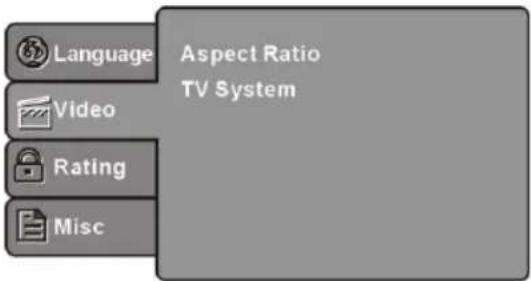
SYSTEM SETUP
Aspect Ratio
Select the aspect ratio.
Notes:
The image display ratio is related to the recorded disc format. Some disc can not display images in the aspect ratio you choose. If you play a disc recorded in 4:3 format on a wide screen TV, black bars will appear on the left and right side of the screen. You must adjust the screen setting depending on the Type of the television you have.
12.2.1 TV System
Select the different TV system.
Note: The DVD player setting should be matched to your TV set. For more information Of output format, refer to the instructions or Your TV set.
12.3 RATING SETUP
Select Rating in the setup menu, and display the Rating submenu:
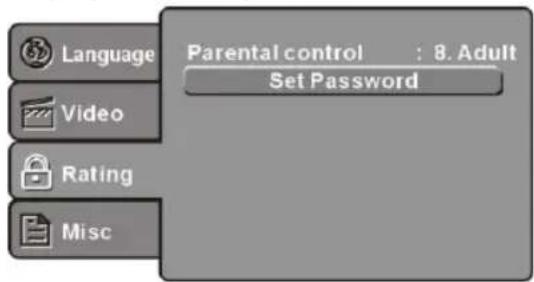
Parental Control
Set the parental control feature of the player Note: Password is needed before setting Parental Control.
12.3.1 Set Password
Input four digits (password), then press ENTERto confirm.
Note: If you forget your password, please Use the universal password 6666 tounlock.
12.4 MISC SETUP
Select MISC in the setup menu, and display the submenu:
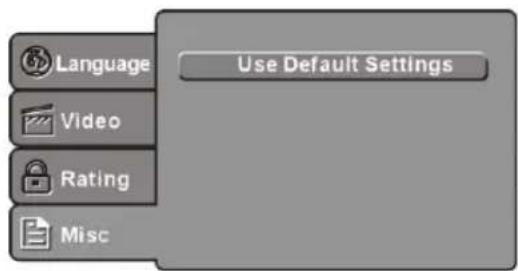
12.4.1 Use Default Settings
Reset setup data to factory default value.
12.5 MP3/WMA/JPEG/MPEG4 PLAYBACK
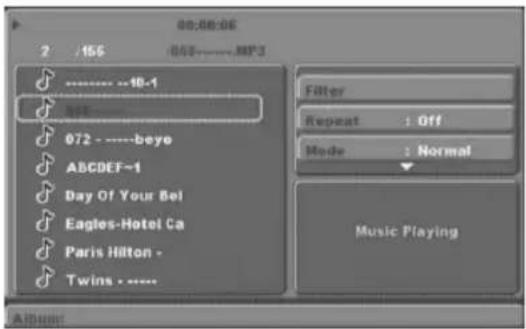
The MP3/WMA/MPEG4 disc has such a directory structure as shown picture above Press Direction key to choose the root directory and then press OK button to enter into the sub directory. Press Direction key to choose the desired track and then press OK or PLAY to enjoy the music or movie. If you want to return to the upper menu, press Direction key to choose the icon and press OK button.
Filter: Allows selecting the categories of files displayed in the browser list.
Repeat: To switch different repeat playing mode
Mode: Select different playing mode as follows:
Normal: Shuffle mode is cancelled. Shuffle: Shuffle mode enabled. When playback reaches the end of the currentchapter/track, playback jumps to a random chapter/track. As the end of each chapter/track is reached, another random chapter/track will be played until all tracks/chapters have been played or the Shuffle mode is cancelled by toggling to a different Mode Option.
12.6 PICTURE CD PLAYBACK
The PICTURE CD disc has such a directory structure structure as shown in the following picture.
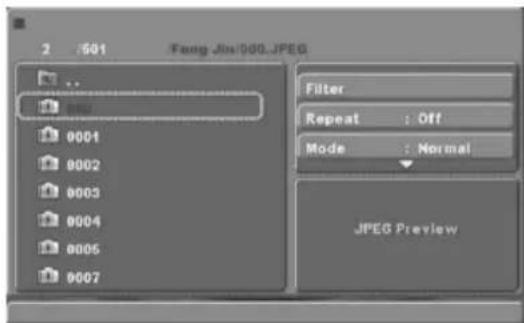
Press Direction key to choose the root directory and then press OK button to enter into the sub directory. Press Direction key to choose the desired picture and then press OK or PLAY to enjoy the picture. If you want to return to the upper menu, press Direction key to choose ↑ the icon and press OK button. Image rotation
In picture play state, press Direction key to rotate the picture.
12.7. CARD READER, USB
12.7.1 3 In 1 Card Reader
If the player has a 3 in1 card jack and it's NOT in "disc playing" status, you can insert three kinds of card (MMC, SD, MS) to play the mp3 music or MPEG4 movie and JPEG files. All the function is the same to playing a disc.
12.7.2 USB
If the player has a USB slot and it's NOT in "disc playing" status, you can insert a USB device or a Mp3 Player with USB Interface to play the MP3 music or and JPEG files. All the function is the same to play a disc.
When the disc is playing, please stop playing first and insert a USB/CARD, enjoying USB/CARD by press
DVD/USB key on the remote controller, and Then press ▼/▲ key to select
DISC/USB/CARD, and press OK to confirm.
Not all USB/CARD device can be supported by this system.
Note: When using USB/3 in 1 Card Reader function, please do not insert in the wrong direction, or else it will damage the unit.
12.8 Function Buttons
12.8.1 OPEN/CLOSE
To open the disc tray, press OPEN/CLOSE; To close the disc tray, press OPEN/CLOSE again.
12.8.2 SUBTITLE
Press the button to choose different captions (Requires support from disc)
12.8.3 GOTO
For DVD discs, press the button to choose the desired title and chapter and search the desired title time and chapter time. For Super VCD, VCD, CD discs, press this button to search the desired disc time and track time and choose the desired track.
Note: During VCD playback, the PBC mode must be set to OFF.
12.8.4 0-9 keys
These keys are used to input the time, as well as title, chapter and track numbers. When a numeric item is displayed on the screen, press the 0-9 keys to select the desired entry, and press ENTER/OK to confirm.
When a VCD is playing(with PBC off), press the 0-9 keys to select a track directly.
12.8.5 MENU
During DVD playback, press MENU to display the disc menu of the current title.
PBC: This function is subject to the disc. During VCD/SVCD playback, press PBC to control PBC ON/OFF.
12.8.6 SETUP
Press the button to enter the system setting menu. Press the button again to exit the menu.
12.8.7 RETURN
When DVD/SVCD/VCD displaying, press RETURN button to the menu (PBC ON only).
12.8.8 DISPLAY
Press the button to show the information of the current playing disc.
12.8.9 OK
Press the button to confirm your choice on screen.
12.8.10 REV:
During DVD, CD Mp3 or VCD playback, press REV to scan in reverse.
The player will review the disc at different times speed. Press PLAY/PAUSE to resume normal playback.
12.8.11 FWD
During DVD, CD, MP3, or VCD playback, press FWD to scan forward. The player will cue the disc at different speed. Press PLAY/PAUSE to resume normal playback.
12.8.12 PREV
During DVD, CD, MP3, or VCD playback, press PREV to play the previous chapter, title or track.
12.8.13 NEXT
During DVD, CD, MP3, or VCD playback, press NEXT to play the next chapter, title or track.
12.8.14 STOP
Press the button once and the player will be in memory stop state. Continuously press this button twice and the player will be in complete stop state.
12.8.15 Play/Pause
In pause state or stop state, press the button, the player will be in playing state. In play state, press the button the player will be in pause state.
12.8.16 ANGLE
Press the button to view scenes shot from ANGLE DIFFERENCE ANGLES.
(Disc support is required)
If you have any questions, please consult the troubleshooting guide below:
NO PICTURE OR SOUND
- Ensure the power button is on.
- Ensure the power outlet is operational.
- Ensure the power cord is not damaged.
Ensure the power plug is connected firmly to the outlet.
PICTURE BUT NO SOUND
- Ensure the audio is not set to mute.
- Ensure you have set the player's AUDIO settings correctly.
POOR PICTURE OR SOUND
- Ensure you have set the players AUDIO settings correctly
- Ensure the disc is not scratched or stained.
"BAD DISC"DISPLAYED
- Ensure the disc is not warped, damaged or deformed.
- Ensure the disc is not badly stained or damaged.
- Ensure the disc format is compatible with the player.
- Please check whether you have tried to play a software CD. If so, please restart the player.
Pixel mistakes
Pixel mistakes are no lack of TFT panels. Pixel mistakes can not be completely avoided during production procedure. The convergence problems for CRT TV's as well as such pixel mistakes for LCD are defined as a value of tolerance only.
Our build-in TFT panels are provided as the maximum between quality and price.
In case of faulty operation like huge pressure on the panel, pixel mistakes may occur.
Continuous inspections during and after the production are approving our high quality standard of AEG branded models in order that our products will be within our limit of tolerance.
The numbers of allowed pixel mistakes are depending from the resolution and the size of the panel as well as from the manner of pixel- or subpixel mistake.
REMOTE NOT WORKING
● Make sure the Main units POWER button is on
- Ensure the remote batteries are working.
- Point the remote control directly at the players IR sensor.
- Remove any obstacles between the remote
UNIT NOT WORKING
- Turn off the power, and then turn it on again.
"NO DISC'DISPLAYED
- Ensure you have put the disc on the tray.
- Ensure the disc is not upside down.
- Ensure the disc is not distorted, stained or scratched.
Trouble shooting
| Trouble phenomenon Symptom | Inspection Check | |||
| Picture Audio | ||||
 | Snow Noise |  | antenna position, direction or connection | |
 | Ghost |  | Normal audio | antenna position, direction or connection |
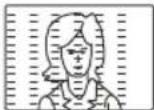 | Interference | 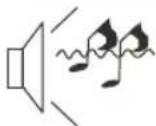 | Noise | electronic equipment, car/ motorcycle, fluorescent light |
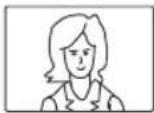 | Normal Picture |  | Mute | Volume (check if mute is activated or if the audio system connections are not correct) |
 | No picture | M  | Power cord is not inserted Power switch is not opened Contrast and brightness/volume setup Press standby key on the remote control for inspecting | |
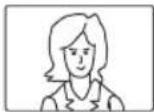 | No colour No |  | olour control | |
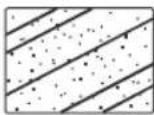 | Picture breaking up | 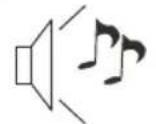 | Normal audio or weak | retune channel |
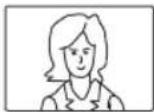 | No colour | 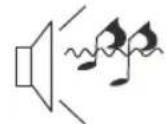 | Noise | TVsystem |
13. CLEANING
Clean all parts with a dry cloth. Do not use solvents, as this will damage the finish.
14. DISPOSAL
Keep the packaging within the warranty period and dispose of it afterwards environmentally responsible.
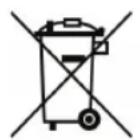
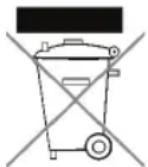
Do not dispose of the appliance in the normal domestic waste under any circumstances. Contact your town or parish administration for information on proper and environmentally compatible disposal of the device.
Dispose of used batteries at a collection point.
15. DECLARATION OF CONFORMITY
This product complies with the basic requirements of EMV directive 2004/108/EG and low voltage directive 2006/95/EG.
16. TROUBLESHOOTING
Should the unit not function properly, please check the system according to this table to find out the possible problem.
Important! Don not try to repair the appliance yourself; always contact the authorized service center.
| Problem Possible cause/solution | |
| No image, no sound. | Check if the TV set is connected to mains power? |
| Check if the TV set is switched on at the main switch? | |
| Check if the antenna cable is damaged and connected properly? | |
| Check if the broadcaster is inactive? | |
| Check if the devices are turned on in case external devices are connected? | |
| Check if the correct SOURCE is selected? | |
| Distorted image. | Check antenna direction. |
| Check if the antenna cable is damaged and connected properly; check connecting cables. | |
| Interference by other electric devices. | |
| Disconnect one of the connected external devices. | |
| Check settings in IMAGE menu. | |
| Distorted image for individual channels or good image and distorted sound. | Check fine-tuning of the channel. |
| Remote control does not work. | Check the batteries. |
| Point the remote control at the sensor at the bottom center of the TV set. | |
| Only one sound channel. | Check balance settings in VIDEO menu. |
| Good image, but no sound. | Check if the sound is muted?Press MUTE.Check if the sound is set very low?Press VOL+. |
| TV set turns off. | Check if the off timer is activated if no channel is received? |
| No response to buttons; Teletext rolls. | Turn the TV set off at the main switch and turn on again after a moment. |
- TECHNICAL DATA
| Electrical data | |
| Power supply: Input: 100 - 240 V ~ 50/60 Hz | |
| Power consumption max.: | 65W |
| Power consumption in standby mode: < 1 W | |
| Screen | |
| Screen diagonal: | 22" /56cm |
| Aspect ratio: | 16:9 (4:3 selectable) + Zoom 1+2 |
| Resolution: | 1366 x 768 |
| Audio | |
| Audio output: 2 x 3 W | |
| Reception | |
| Channel options: 100 | |
| Channels: | VHF band I channel2 - 4VHF band III channel 5 - 12UHF channel 21 - 69 |
| TV system: PAL B/G, D/K, I / SECAM B/G, D/K, L, LL | |
| Inputs | |
| Euro-AV: SCART | |
| AV: | 1 x RCA / 1 x S-Video |
| PC: 1 x VGA D-SUB / 1 x PC audio stereo jack | |
| Component: Y Pb Pr | |
| SPDIF out (digital audio); SPDIF out | |
| HDMI: HDMI | |
| Antenna: 75 Ohm | |
| Remote Control | |
| Batteries: 2 x type LR03/AAA | |
| LED class: 1 | |
| General | |
| Dimensions (W x D x H): | 530 x 97 x 394 mm (incl. foot) |
| Weight: | approx. 5.7kg |
| Operating temperature: | 10°C - 35°C |
| Manual ID: | E41456/PE/2009 |
Subject to changes without prior notice.
CONTENUTI
- PANORAMICA....3
1.1 GRAZIE PER LA VOSTRA FIDUCIA! 5
USB
Menù DVD
Controllo Parentale
- Inhaltsverzeichnis
- SYSTEMEINSTELLUNGEN
- Bildformat
- Bewertung
- 3-in-1 Kartenleser
- OVERVIEW
- Connections Rear
- Remote Control
- THANK YOU FOR YOU TRUST!
- Read this user manual before first use carefully and follow all instructions, especially the safety precautions!
- SAFETY PRECAUTIONS
- Intended Use
- General
- Ambient Conditions
- Mains Power
- Antenna
- Damages
- Cleaning and Maintenance
- Batteries
- PREPARATION
- SCOPE OF DELIVERY
- INSERT BATTERIES
- INSTALLATION
- CONNECT ANTENNA
- DVB-T Reception
- Other Antenna Connections
- MAINS POWER CONNECTION
- INITIAL INSTALLATION
- SELECT SOURCE
- CONNECT EXTERNAL DEVICES
- SCART Connection
- VIDEO Connection
- PC Connection
- Component Connection
- HDMI Connection
- BASIC OPERATION
- TURN TV SET ON AND OFF
- SELECT TV PROGRAM
- SET VOLUME LEVEL
- QUICK ACCESS
- OSD MENU STRUCTURE
- Submenus
- Return to Main Menu
- Exit Menu
- SEARCH AND EDIT CHANNELS
- STORE CHANNELS AUTOMATICALLY
- STORE DVB-T STATIONS MANUALLY
- MANUAL SEARCH FOR ANALOG RECEPTION
- EDIT CHANNELS
- Move Channel
- Skip Channel
- Store DVB-T Channels to Favorite List
- PROGRAM INFO (EPG - ONLY FOR DVB-T)
- IMAGE AND SOUND SETTINGS
- CHANGE IMAGE SETTINGS
- Contrast Brightness
- Hue Sharpness
- Set Color Temperature
- NOISE REDUCTION
- CHANGE ASPECT RATIO
- 16:9, 4:3, AUTO and ZOOM 1 + 2. Press ASPECT to select.
- PC IMAGE SETTINGS
- CHANGE SOUND SETTINGS
- OTHER SETTINGS
- CURRENT TIME AND TIMER
- CURRENT TIME
- SLEEP TIMER
- ON TIME AND OFF TIME
- TELETEXT
- Teletext On/Off
- Color Buttons
- Access Pages with Numeric Buttons
- Access Subpages
- Hold Function
- Mixed Display
- Size
- Hidden Information
- Access Index Page
- Program Color Buttons
- SPECIAL FUNCTIONS
- LOCK FUNCTIONS
- System Lock
- Change Password
- Channel Lock
- Parental
- DEFAULT
- LANGUAGE SETTINGS
- TIME ZONE
- AUTO OFF
- USB
- Caution:
- CLASS 1 LASER PRODUCT
- Features
- MENU OPERATION
- LANGUAGE SETUP
- OSD Language
- Subtitle
- MPEG4 Subtitle(optional)
- Audio
- DVD Menu
- VIDEO SETUP
- SYSTEM SETUP
- Aspect Ratio
- Notes:
- TV System
- RATING SETUP
- Parental Control
- Set Password
- MISC SETUP
- Use Default Settings
- PICTURE CD PLAYBACK
- CARD READER, USB
- 3 In 1 Card Reader
- USB
- Function Buttons
- OPEN/CLOSE
- SUBTITLE
- GOTO
- 0-9 keys
- MENU
- SETUP
- RETURN
- DISPLAY
- OK
- REV:
- FWD
- PREV
- NEXT
- STOP
- Play/Pause
- ANGLE
- NO PICTURE OR SOUND
- PICTURE BUT NO SOUND
- POOR PICTURE OR SOUND
- "BAD DISC"DISPLAYED
- Pixel mistakes
- REMOTE NOT WORKING
- UNIT NOT WORKING
- "NO DISC'DISPLAYED
- CLEANING
- DISPOSAL
- DECLARATION OF CONFORMITY
- TROUBLESHOOTING
- CONTENUTI
- Menù DVD
- Controllo Parentale
Brand : AEG
Model : 2202 CTV
Category : TV