
S5 Navi+ - Dash Cam Lamax - Free user manual and instructions
Find the device manual for free S5 Navi+ Lamax in PDF.


| Product Type | Car Dash Camera with Multimedia System |
| Brand | Lamax |
| Model | S5 Navi+ |
| Operating System | Android 4.4 KitKat |
| Internal Memory | 16 GB |
| RAM | 1 GB DDR3 667 MHz |
| Display | 4.3" LTPS |
| Viewing Angle (Front Camera) | 120° |
| Video Resolution | 1920×1080, 1280×720 |
| Video Format | TS |
| Microphone | Built-in |
| Speaker | Built-in |
| GPS | External module included |
| Memory Card Support | MicroSDHC up to 32 GB (Class 10 or higher) |
| Connectivity | Mini USB, Bluetooth, Wi-Fi, FM Transmitter |
| Cameras | Dual: front and rear |
| Power Source | 12V car cigarette lighter |
| Battery | Internal rechargeable (non-removable) |
| Package Contents | Multimedia system, power cable, USB car charger, USB cable, rear-view mirror attachment, front/rear camera connection cable, manual |
| Additional Functions | Navigation, Handsfree Bluetooth, Music and Video Player, GPS Tracker, Wi-Fi Internet |
| Warnings | Check local laws for recording; use only in accordance with regulations |
Frequently Asked Questions - S5 Navi+ Lamax
User questions about S5 Navi+ Lamax
0 question about this device. Answer the ones you know or ask your own.
Ask a new question about this device
Download the instructions for your Dash Cam in PDF format for free! Find your manual S5 Navi+ - Lamax and take your electronic device back in hand. On this page are published all the documents necessary for the use of your device. S5 Navi+ by Lamax.
USER MANUAL S5 Navi+ Lamax
LAMAX S5 Navi+ Multimedia System Features and Functions ....1
Package Contents....1
Product Layout 1
Screen Layout 1
Product Installation....2
Using the LAMAX S5 Navi+ Car Camera....2
1) Inserting a MicroSDHC Card 2
2) Powering the Device 2
3) Connecting the Rear Camera....2
4) Connecting the GPS Module 2
5) Turning the Camera On and Off 2
6) Returning to the Menu 2
7) Turning Navigation On 3
8) Audio Controls....3
9) Controls 3
a. Navigation Icon 3
b. Menu Icon 3
c. Hide Panel Icon....3
d. Settings Icon 3
e. Back Icon....3
f. Lock Video Icon 3
g. Camera Shutter Icon 3
h. Record Video Icon 3
i. Mute/Unmute Microphone Icon 3
j. Camera Settings Icon 3
k. Switch between Cameras 3
Further Features of the LAMAX S5 Navi+ 5
LAMAX S5 Navi+ Parameters....6
Warning 6
Introduction
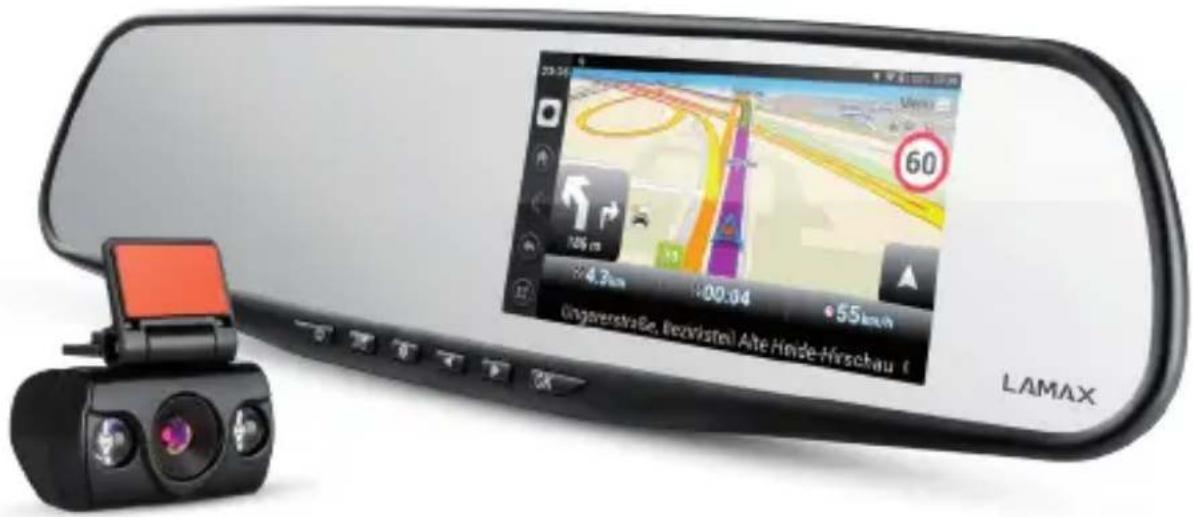
Thank you for purchasing the LAMAX S5 Navi+ multimedia system. You've acquired a dependable travel companion for your road trips. Throughout most of the EU, you'll be able to record footage whilst driving and thus protect your property and your safety.
LAMAX S5 Navi+ Multimedia System Features and Functions
- Dual car cameras
- Navigation
- Wi-Fi
- Handsfree Bluetooth
- FM Transmitter
- Music and Video Player
- GPS Tracker
Package Contents
- LAMAX S5 Navi+ Multimedia System
- Power Cable
- USB Car Charger by LAMAX Tech
- USB cable
- Rear-view mirror attachment
- Connection cable between front and rear camera
- Manual
Product Layout
- ON/OFF
- Home
- Navigation
- Left Arrow
- Right Arrow
- OK

Screen Layout
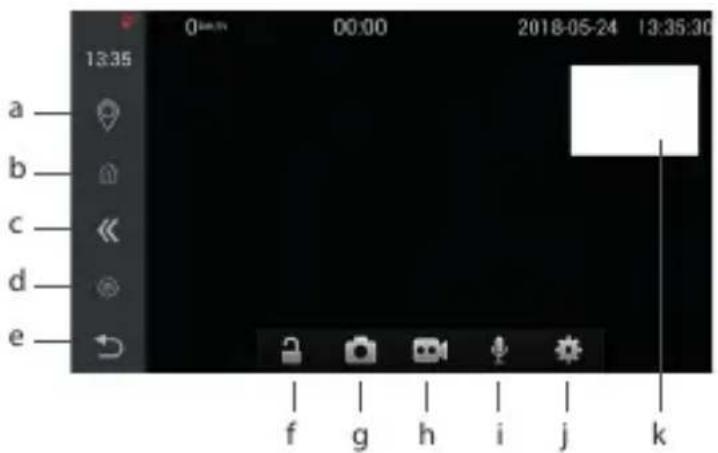
a) Navigation
b) Menu
c) Hide Panel
d) Settings
e) Back
f) Lock Video
g) Camera Shutter
h) Record Video
i) Mute/Unmute Microphone
j) Camera Settings
k) Toggle between Cameras
Product Installation
1) The front camera attaches to the rear-view mirror using rubber clips. Adjust the mirror so you can see the rear window. Adjust the front camera lens so that is is roughly aimed at the front centre of the vehicle.
2) The power cable plugs into the cigarette lighter and should be securely fixed around the windscreen so as not to obstruct the driver's view.
3) Attach the rear camera with the 3M adhesive pad to the rear window of the car. The cable connecting the front and rear camera should ideally run under the upholstery of the car. Connect the red wire to the reversing lights. When reversing, the display switches to the image from the rear camera and displays the reversing lines.
4) Some vehicles continue to power the cigarette lighter when the engine is turned off. In this case, before leaving the vehicle, unplug the power cable from the cigarette lighter.
5) When using the device for the first time, the battery may be low. If the device will not switch on due to a low battery, manually connect the external power cord and recharge the battery.
6) Use only microSDHC cards of class 10 and higher from reputable brands. For optimal recording time, we recommend using cards with a capacity of at least 8GB and up to 32GB. When using the card for the first time, we recommend formatting it.
Using the LAMAX S5 Navi+ Car Camera
1 2 3 4

1) Powering the Device
a) Camera can be powered by connecting it via a USB cable to a computer, using the power cord or using a USB car charger connected to the car cigarette lighter.
b) Camera is designed to have a constant power supply. The built-in battery can not be removed or replaced.
2) Connecting the Rear Camera
Plug the cable connecting the front and rear camera into the round AV connector on top of the mirror. In recording mode, the picture is displayed on the back of the camera, in the upper right corner of the display.
3) Inserting a MicroSDHC Card
The microSDHC card should be inserted and removed from the microSDHC card slot only when the camera is switched off and not connected to a computer or power source.
4) Connecting the GPS Module
Plug the GPS module into the round connector at the top of the mirror. Attach the GPS module on top of the dashboard using the 3M adhesive pad. Securely fix the cable around the wind-screen so as not to obstruct the driver's view.
5) Turning the Camera On and Off
a) To turn the camera on press and hold the ON/OFF button for 3-5 seconds.
b) Camera automatically turns on when connected to a power supply.
c) To turn the camera off press and hold the ON/OFF button for 3-5 seconds.
d) Camera automatically turns off when disconnected from a power supply.
6) Returning to the Menu
Press the Menu button to return to the directory of multimedia system functions.
7) Turning Navigation On
Press the navigation button to start the current primary navigation app. You can store multiple navigation systems on the LAMAX S5 Navi+ multimedia system. Press and hold the icon in the navigation menu to choose the primary navigation system.
8) Audio Controls
Left and right arrows control the audio of the device.
9) Controls
Camera is controlled by a combination of touch controls and physical buttons below the display. Most controls are the same as standard Android tablet controls.
a. Navigation Icon
Touch to start navigating.
b. Menu Icon
Touch the icon to switch to the multimedia system pop-up menu.
c. Hide Panel Icon
Touch the icon to hide the left control icon bar.
d. Settings Icon
Touch to access basic volume controls, brightness, WLAN and other specific settings.
e. Back Icon
Touch to return to the previous screen.
f. Lock Video Icon
Touch to lock the current recording. The locked file will not be overwritten in the camera when loop recording.
g. Camera Shutter Icon
Touch to take a photo from the front camera.
h. Record Video Icon
Touch to start or stop recording.
i. Mute/Unmute Microphone Icon
Touch to turn the camera microphone on or off whilst recording.
j. Camera Settings Icon
Touch to adjust the video resolution, photo quality, loop recording, rear camera rotation, G-sensor sensitivity, SD card formatting.
k. Switch between Cameras
Touch the rearview camera image to switch between front and rear cameras.
10) Bluetooth
Using Bluetooth you can connect the device to your mobile phone and use it handsfree. The Bluetooth app has four tabs to control the app – Recent Calls, Contacts, Dial and Settings. The recent calls tab lists all calls made. In the contacts tab, press the blue icon in the bottom left corner to upload you contacts to the device from the phonebook. Contacts only appear when you connect the device to your phone. To dial a phone number that is not in the phonebook, click on the Dial tab. In the Settings tab you can find basic information about Bluetooth, its status, device name, repair connectivity option and more.
11) CarRec
CarRec app is used for shooting videos and taking photos.
12) File Manager
File Manager app is used to manage files. You can toggle between internal and external memory, filter videos and photos, find out file info or move, copy and delete files.
13) FM
FM app connects the device with the radio. Set the car radio to the same frequency as the device. Use the radio to play music and make video or phone calls through your car speakers.
14) Music and Gallery
Play music and videos through the Music and Gallery app. The app not only plays videos shot on the car camera, but also movies, video clips and other video files.
15) Navigator
Navigator app serves as the primary navigation system. After launching the application, Navigator asks which maps you want to use. OpenStreetMaps (OSM) comes as part of the device. If you need to install maps, make sure you are near a Wi-Fi connection. The license covers maps for the whole of Europe.
Real Time GPS Tracker app allows you to monitor devices via a web interface in real time. Registration and all application information can be found at:
https://www.greenalp.com/RealTimeTracker/
17) Settings
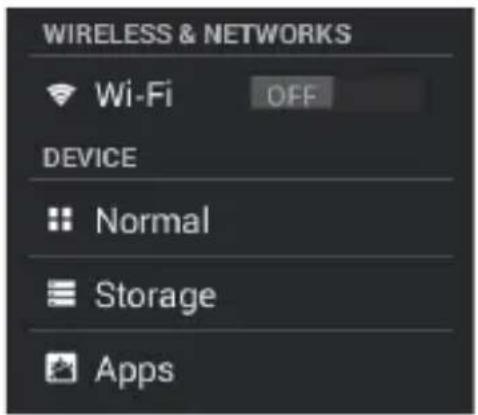
a. Wi-Fi Turn on, locate and set up a Wi-Fi connection. Touch the icon 📋 to refresh the list of available Wi-Fi networks. Press the + icon to add the network. Press the : icon to access Wi-Fi settings.
b. Devices
Under the Normal section, set the volume, brightness, sleep mode or restore factory settings. Restoring factory settings will erase all data and applications that were not included in the factory settings. In the Storage section you will find all the information on the memory size, how full the memory is and file structure. In the Applications section you can manage your installed apps.
c. Personal
Under the Location section set options to determine the position of the device. In the Language and Input section, set the language for the device, the input, the keyboard and spellchecking.
d. System
Under the Date and Time section, set the current date and time, date format and select the time zone. The device can use the network time.

Further Features of the LAMAX S5 Navi+
1) Accessing the Internet
Device can be connected via Wi-Fi to the Internet either to an access point or to mobile device set up as a hot spot. When you download or update data from the Internet, make sure you are not connected via a hot spot. Some updates are data intensive and can drain your FUP.
2) Downloading Applications
On the device you can download and use applications specific to this type of system. To download apps you can use the Aptiode App Store. Apps can be downloaded from: http://lamax-electronics.com/cz/kamery-do-auta/autokamera-lamax-s5-navi-plus/.
The LAMAX S5 Navi+ device is primarily designed for use as a tablet. Browsing the Internet and using downloaded applications may cause problems with the functioning of the device. Some apps may not be compatible with the device. If the app causes problems, uninstall it. If uninstall does not work, back up all data and restore factory settings on the device.
LAMAX S5 Navi+ Parameters
| Operating System | Android 4.4 KitKat |
| Memory | 16 GB |
| Cache | 1 GB DDR3 667 MHz |
| Display | 4.3" LTPS |
| Angle of View | 120° |
| Video Resolution | 1920×1080, 1280×720 |
| Video format | TS |
| Microphone and speakers | Built-in |
| GPS | External |
| Memory Type | MicroSDHC up to 32 GB |
| Connectivity | Mini USB, Bluetooth, Wi-Fi, FM |
| Camera | Dual |
Note: Specifications are subject to change when device components have been replaced or the software updated.
Warning
Note that some European Union countries have specific laws regarding recording using a car camera. Therefore we recommend that before each trip abroad, find out about the local law and ideally consult with local car clubs. The camera can be used as evidence, even when dealing with the police. Again we recommend studying legal regulations in individual countries. Please note that such material can also be used against the author of the recording. The LAMAX Electronics brand is not responsible for the illegal use of its cameras or the material recorded by these cameras.
Some of the apps on the device are third-party products. Their license is intrinsically related to the use of the equipment. Their use for commercial purposes or use in equipment other than the LAMAX S5 Navi+ is a punishable offence.
Instructions on using third-party applications can be found on their manufacturers' websites.
Product produced by LAMAX:
elem6, s.r.o.
Braškovská 308/15, 16100 Prague 6
http://www.lamax-electronics.com
Printing errors and changes to the manual are reserved.
LAMAX
ELECTRONICS
LAMAX S5 Navi+
INHALT
Einleitung....1
Device can be connected via Wi-Fi to the Internet either to an access point or to mobile device set up as a hot spot. When you download or update data from the Internet, make sure you are not connected via a hot spot. Some updates are data intensive and can drain your FUP.
https://www.greenalp.com/RealTimeTracker/.
17) Nastavení
a. WiFi



- Introduction
- LAMAX S5 Navi+ Multimedia System Features and Functions
- Package Contents
- Product Layout
- Screen Layout
- Product Installation
- Using the LAMAX S5 Navi+ Car Camera
- 1) Powering the Device
- 2) Connecting the Rear Camera
- 3) Inserting a MicroSDHC Card
- 4) Connecting the GPS Module
- 5) Turning the Camera On and Off
- 6) Returning to the Menu
- 7) Turning Navigation On
- 8) Audio Controls
- 9) Controls
- 10) Bluetooth
- 11) CarRec
- 12) File Manager
- 13) FM
- 14) Music and Gallery
- 15) Navigator
- 17) Settings
- b. Devices
- c. Personal
- d. System
- Further Features of the LAMAX S5 Navi+
- 1) Accessing the Internet
- 2) Downloading Applications
- Warning
- Product produced by LAMAX:
- LAMAX
- ELECTRONICS
- LAMAX S5 Navi+
- INHALT
- 17) Nastavení
- a. WiFi
Brand : Lamax
Model : S5 Navi+
Category : Dash Cam