
AVH-P4000DVD - Car stereo PIONEER - Free user manual and instructions
Find the device manual for free AVH-P4000DVD PIONEER in PDF.



| Product Type | Multimedia car stereo with DVD player |
| Brand | PIONEER |
| Model | AVH-P4000DVD |
| Power supply | 12 V DC, 10 A fuse |
| Dimensions (approx.) | 178 x 100 x 160 mm (standard double-DIN) |
| Weight (approx.) | 2 kg |
| Main functions | DVD, CD, CD-R/RW, MP3, WMA, DivX, JPEG playback; AM/FM radio reception; USB input; iPod connection; auxiliary audio/video input; rear view camera input; front, rear/subwoofer preamp outputs; rear video output |
| Compatibility | USB devices, iPod with Dock connector, CD changer players (IP-BUS), multi-channel processors (DEQ-P6600) |
| Output power | 50 W × 4 (max.); speakers 4 to 8 Ω |
| Screen | Color touch screen (not specified, estimated 7 inches) |
| Included accessories | Power cord, USB cable, side brackets (×2), pressure screws, flat head screws (8 × 5×6 mm), pressure screws (8 × 3×6 mm), touch screen stylus, rubber ring, double-headed screws |
| Installation | Max. angle 30°; use of main bracket and side brackets; possible fixing by side drill holes |
| Safety | Front video display disabled while driving (parking brake detection); light green wire for parking detection; warning on rear view camera use |
| Maintenance | Avoid overheating; do not block ventilation openings; clean with a soft dry cloth |
| Repairability | Entrust installation and maintenance to Pioneer authorized personnel; accessible fuse (10 A) |
Frequently Asked Questions - AVH-P4000DVD PIONEER
User questions about AVH-P4000DVD PIONEER
0 question about this device. Answer the ones you know or ask your own.
Ask a new question about this device
Download the instructions for your Car stereo in PDF format for free! Find your manual AVH-P4000DVD - PIONEER and take your electronic device back in hand. On this page are published all the documents necessary for the use of your device. AVH-P4000DVD by PIONEER.
USER MANUAL AVH-P4000DVD PIONEER
MANUEL D'INSTALACTION
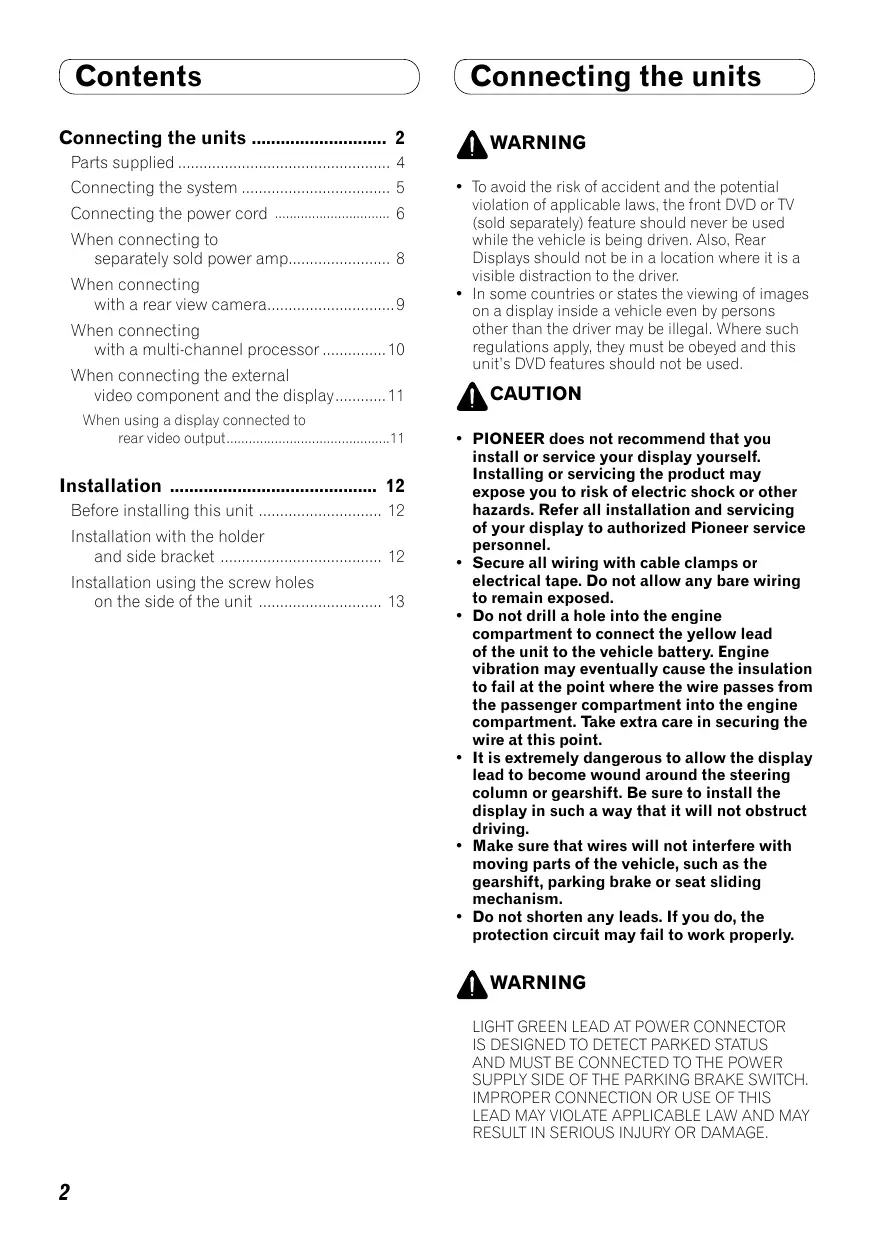
Contents
Connecting the units 2
Parts supplied 4
Connecting the system 5
Connecting the power cord 6
When connecting to separately sold power amp.... 8
When connecting with a rear view camera....9
When connecting with a multi-channel processor .... 10
When connecting the external video component and the display......11
When using a display connected to rear video output....11
Installation 12
Before installing this unit 12
Installation with the holder and side bracket 12
Installation using the screw holes on the side of the unit 13
Connecting the units

WARNING
- To avoid the risk of accident and the potential violation of applicable laws, the front DVD or TV (sold separately) feature should never be used while the vehicle is being driven. Also, Rear Displays should not be in a location where it is a visible distraction to the driver.
- In some countries or states the viewing of images on a display inside a vehicle even by persons other than the driver may be illegal. Where such regulations apply, they must be obeyed and this unit's DVD features should not be used.

CAUTION
- PIONEER does not recommend that you install or service your display yourself. Installing or servicing the product may expose you to risk of electric shock or other hazards. Refer all installation and servicing of your display to authorized Pioneer service personnel.
- Secure all wiring with cable clamps or electrical tape. Do not allow any bare wiring to remain exposed.
- Do not drill a hole into the engine compartment to connect the yellow lead of the unit to the vehicle battery. Engine vibration may eventually cause the insulation to fail at the point where the wire passes from the passenger compartment into the engine compartment. Take extra care in securing the wire at this point.
- It is extremely dangerous to allow the display lead to become wound around the steering column or gearshift. Be sure to install the display in such a way that it will not obstruct driving.
- Make sure that wires will not interfere with moving parts of the vehicle, such as the gearshift, parking brake or seat sliding mechanism.
- Do not shorten any leads. If you do, the protection circuit may fail to work properly.

WARNING
LIGHT GREEN LEAD AT POWER CONNECTOR IS DESIGNED TO DETECT PARKED STATUS AND MUST BE CONNECTED TO THE POWER SUPPLY SIDE OF THE PARKING BRAKE SWITCH. IMPROPER CONNECTION OR USE OF THIS LEAD MAY VIOLATE APPLICABLE LAW AND MAY RESULT IN SERIOUS INJURY OR DAMAGE.
Connecting the units

Note
- This unit cannot be installed in a vehicle without ACC (accessory) position on the ignition switch.

text_image
OFF ACC ON STARTACC position

text_image
OFF ON STARTNo ACC position
- Use this unit in other than the following conditions could result in fire or malfunction.
—Vehicles with a 12-volt battery and negative grounding.
—Speakers with 50 W (output value) and 4 ohm to 8 ohm (impedance value).
- To prevent short-circuit, overheating or malfunction, be sure to follow the directions below.
—Disconnect the negative terminal of the battery before installation.
—Secure the wiring with cable clamps or adhesive tape. To protect the wiring, wrap adhesive tape around them where they lie against metal parts.
—Place all cables away from moving parts, such as gear shift and seat rails.
—Place all cables away from hot places, such as near the heater outlet.
—Do not pass the yellow cable through a hole into the engine compartment to connect to a battery.
—Cover any disconnected cable connectors with insulating tape.
— Do not shorten any cables.
— Never cut the insulation of the power cable of this unit in order to share the power to other equipment. Current capacity of the cable is limited.
—Use a fuse of the rating prescribed.
—Never wire the speaker negative cable directly to ground.
—Never band together multiple speaker's negative cables.
- Control signal is output through blue/white cable when this unit is powered on. Connect it to an external power amp's system remote control or the vehicle's auto-antenna relay control terminal (max. 300 mA, 12 V DC). If the vehicle is equipped with a glass antenna, connect it to the antenna booster power supply terminal.
- Never connect blue/white cable to external power amp's power terminal. Also, never connect it to the power terminal of the auto antenna. Otherwise, battery drain or malfunction may result.
- IP-BUS connectors are color-coded. Be sure to connect connectors of the same color.
- Black cable is ground. This cable and other product's ground cable (especially, high-current products such as power amp) must be wired separately. Otherwise, fire or malfunction may result if they are accidentally detached.
Connecting the units
Parts supplied
Parts marked (*) are pre-installed.

natural_image
Line drawing of a rectangular electronic device with mounting holes and a door (no text or symbols)This product

natural_image
Pure electrical circuit lines without any symbolsPower cord

USB cable

natural_image
Isometric line drawing of a rectangular electronic enclosure with mounting holes and internal slots (no text or symbols)Holder*

natural_image
Technical line drawing of a metal bracket with mounting holes (no text or symbols)Side bracket (2 pcs.)*

natural_image
Simple line drawing of a rectangular frame with no text or symbolsTrim ring

natural_image
Simple line drawing of a rectangular frame with no text or symbolsFrame


Binding screw
(5 × 6 mm) (8 pcs.)
Flush surface screw
(5 × 6 mm) (8 pcs.)
(4 pcs. are pre-installed.)

Binding screw*
(3 × 6 mm) (8 pcs.)

Rubber bush

Double-ended screw

Touch panel pen
Connecting the units
Connecting the system

text_image
USB cable Connect to sparately sold USB device. 1.5 m This product 20 cm Multi-CD player (sold separately) Wired remote input Hard-wired remote control adaptor can be connected (sold separately). Gray 2 m iPod with Dock connector Dock connector Interface cable (e.g., CD-I200) (sold separately)Connecting the units
Connecting the power cord

flowchart
graph TD
    A["ISO connector"] --> B["Cap (1*) Do not remove cap if this terminal is not in use."]
    B --> C["Yellow (3*) Back-up (or accessory)"]
    B --> D["Red (5*) Accessory (or back-up)"]
    B --> E["Orange/white Connect to lighting switch terminal."]
    B --> F["Black (chassis ground) Connect to a clean, paint-free metal location."]
    G["Speaker leads"] --> H["White: Front left ⊕"]
    G --> I["White/black: Front left ⊖"]
    G --> J["Gray: Front right ⊕"]
    G --> K["Gray/black: Front right ⊖"]
    G --> L["Green: Rear left ⊕ or subwoofer ⊕"]
    G --> M["Green/black: Rear left ⊖ or subwoofer ⊖"]
    G --> N["Violet: Rear right ⊕ or subwoofer ⊕"]
    G --> O["Violet/black: Rear right ⊖ or subwoofer ⊖"]
    P["Connect leads of the same color to each other."] --> Q["Antenna input Fuse (10 A)"]
    Q --> R["This product"]
Yellow/black
If you use equipment with Mute function, wire this lead to the Audio Mute lead on that piece of equipment. If not, keep the Audio Mute lead free of any connections.
Connection method

- Clamp the lead.


- Clamp firmly with needle-nosed pliers.
Note:
- The position of the parking brake switch depends on the vehicle model. For details, consult the vehicle Owner's Manual or dealer.
Light green
Used to detect the ON/OFF status of the parking brake. This lead must be connected to the power supply side of the parking brake switch.
Blue/white
Connect to system control terminal of the power amp (max. 300 mA 12 V DC).

text_image
Blue/white (6*) Blue/white Connect to (max. 300 mThe pin position of the ISO connector will differ depending on the type of vehicle. Connect 6* and 7* when Pin 5 is an antenna control type. In other types of vehicles, never connect 6* and 7*.
Power supply side
Ground side
Parking brake switch

natural_image
Technical line drawing of a mechanical assembly with a cylindrical component inserted into a housing (no text or symbols)Notes:
- Change the initial setting of this unit (refer to the Operation Manual). The subwoofer output of this unit is monaural.
- When using a subwoofer of 70 W (2 Ω), be sure to connect with Violet and Violet/black leads of this unit. Do not connect anything to Green and Green/black leads.
Connecting the units
When connecting to separately sold power amp

flowchart
graph TD
    A["This product"] --> B["Front output"]
    B --> C["Rear output or subwoofer output"]
    C --> D["Blue/white Connect to system control terminal of the power amp (max. 300 mA 12 V DC)"]
    D --> E["Blue/white (6*)"]
    E --> F["Blue/white (7*) Connect to auto-antenna relay control terminal (max. 300 mA 12 V DC)"]
    F --> G["System remote control"]
    G --> H["Power amp (sold separately)"]
    H --> I["Power amp (sold separately)"]
    I --> J["Left"]
    J --> K["Front speaker"]
    J --> L["Rear speaker or Subwoofer"]
    K --> M["Right"]
    L --> M
    M --> N["Perform these connections when using the optional amplifier."]
When connecting with a rear view camera
When this product is used with a rear view camera, it is possible to automatically switch from the video to rear view image when the gear shift is moved to REVERSE (R).

WARNING
USE INPUT ONLY FOR REVERSE OR MIRROR IMAGE REAR VIEW CAMERA. OTHER USE MAY RESULT IN INJURY OR DAMAGE.

CAUTION
- The screen image may appear reversed.
- The rear view camera function is to be used as an aid for backing into a tight parking spot. Do not use this function for entertainment purposes.
- Objects in the rear view may appear closer or more distant than they actually are.

text_image
This product Rear view camera input 15 cm Violet/white Of the two lead wires connected to the back lamp, connect the one in which the voltage changes when the gear shift is in the REVERSE (R) position. This connection enables the unit to sense whether the car is moving forwards or backwards. To video output RCA cable (sold separately) Fuse resistor Rear view camera Caution You must use a camera which outputs mirror reversed images.Connection method

1. Clamp the lead.


2. Clamp firmly with needle-nosed pliers.
Note:
- It is necessary to set CAMERA POLARITY properly in SYSTEM MENU when connecting the rear view camera.
When connecting with a multi-channel processor

flowchart
graph TD
    A["IP-BUS cable (supplied with multi-channel processor)"] --> B["Multi-channel processor (e.g., DEQ-P6600) (sold separately)"]
    B --> C["IP-BUS input (Blue)"]
    C --> D["Optical output (Black)"]
    D --> E["This product To RL"]
    E --> F["Optical cable (sold separately)"]
    F --> G["IP-BUS cable (supplied with multi-channel player)"]
    G --> H["IP-BUS device (stand-alone)"]
    H --> I["Black cable (supplied with DVD player)"]
    I --> J["IP-BUS player (e.g., XDV-P6) (sold separately)"]
    J --> K["Optical cable (sold separately)"]
    K --> L["Black cable (supplied with DVD player)"]
    L --> M["IP-BUS cable (supplied with multi-channel player)"]
    M --> N["IP-BUS device (stand-alone)"]
    N --> O["Black cable (supplied with DVD player)"]
    O --> P["IP-BUS cable (supplied with multi-channel player)"]
    P --> Q["IP-BUS device (stand-alone)"]
    Q --> R["Black cable (supplied with DVD player)"]
    R --> S["IP-BUS cable (supplied with multi-channel player)"]
    S --> T["IP-BUS device (stand-alone)"]
    T --> U["Black cable (supplied with DVD player)"]
    U --> V["IP-BUS cable (supplied with multi-channel player)"]
    V --> W["IP-BUS device (stand-alone)"]
    W --> X["Black cable (supplied with DVD player)"]
    X --> Y["IP-BUS cable (supplied with multi-channel player)"]
    Y --> Z["IP-BUS device (stand-alone)"]
    Z --> AA["Black cable (supplied with DVD player)"]
    AA --> AB["IP-BUS cable (supplied with multi-channel player)"]
    AB --> AC["IP-BUS device (stand-alone)"]
    AC --> AD["Black cable (supplied with DVD player)"]
    AD --> AE["IP-BUS cable (supplied with multi-channel player)"]
    AE --> AF["IP-BUS device (stand-alone)"]
    AF --> AG["Black cable (supplied with DVD player)"]
    AG --> AH["IP-BUS cable (supplied with multi-channel player)"]
    AH --> AI["IP-BUS device (stand-alone)"]
    AI --> AJ["Black cable (supplied with DVD player)"]
    AJ --> AK["IP-BUS cable (supplied with multi-channel player)"]
    AK --> AL["IP-BUS device (stand-alone)"]
    AL --> AM["Black cable (supplied with DVD player)"]
    AM --> AN["IP-BUS cable (supplied with multi-channel player)"]
    AN --> AO["IP-BUS device (stand-alone)"]
    AO --> AP["Black cable (supplied with DVD player)"]
    AP --> AQ["IP-BUS cable (supplied with multi-channel player)"]
    AQ --> AR["IP-BUS device (stand-alone)"]
    AR --> AS["Black cable (supplied with DVD player)"]
    AS --> AT["IP-BUS cable (supplied with multi-channel player)"]
    AT --> AU["IP-BUS device (stand-alone)"]
    AU --> AV["Black cable (supplied with DVD player)"]
    AV --> AW["IP-BUS cable (supplied with multi-channel player)"]
    AW --> AX["IP-BUS device (stand-alone)"]
    AX --> AY["Black cable (supplied with DVD player)"]
    AY --> AZ["IP-BUS cable (supplied with multi-channel player)"]
    AZ --> BA["IP-BUS device (stand-alone)"]
    BA --> BB["Black cable (supplied with DVD player)"]
    BB --> BC["IP-BUS cable (supplied with multi-channel player)"]
    BC --> BD["IP-BUS device (stand-alone)"]
    BD --> BE["Black cable (supplied with DVD player)"]
    BE --> BF["IP-BUS cable (supplied with multi-channel player)"]
    BF --> BG["IP-BUS device (stand-alone)"]
    BG --> BH["Black cable (supplied with DVD player)"]
    BH --> BI["IP-BUS cable (supplied with multi-channel player)"]
    BI --> BJ["IP-BUS device (stand-alone)"]
    BJ --> BK["Black cable (supplied with DVD player)"]
    BK --> BL["IP-BUS cable (supplied with multi-channel player)"]
    BL --> BM["IP-BUS device (stand-alone)"]
    BM --> BN["Black cable (supplied with DVD player)"]
    BN --> BO["IP-BUS cable (supplied with multi-channel player)"]
    BO --> BP["IP-BUS device (stand-alone)"]
    BP --> BQ["Black cable (supplied with DVD player)"]
    BQ --> BR["IP-BUS cable (supplied with multi-channel player)"]
    BR --> BS["IP-BUS device (stand-alone)"]
    BS --> BT["Black cable (supplied with DVD player)"]
    BT --> BU["IP-BUS cable (supplied with multi-channel player)"]
    BU --> BV["IP-BUS device (stand-alone)"]
    BV --> BW["Black cable (supplied with DVD player)"]
    BW --> BX["IP-BUS cable (supplied with multi-channel player)"]
    BX --> BY["IP-BUS device (stand-alone)"]
    BY --> BZ["Black cable (supplied with DVD player)"]
    BZ --> CA["IP-BUS cable (supplied with multi-channel player)"]
    CA --> CB["IP-BUS device (stand-alone)"]
    CB --> CC["Black cable (supplied with DVD player)"]
    CC --> CD["IP-BUS cable (supplied with multi-channel player)"]
    CD --> CE["IP-BUS device (stand-alone)"]
    CE --> CF["Black cable (supplied with DVD player)"]
    CF --> CG["IP-BUS cable (supplied with multi-channel player)"]
    CG --> CH["IP-BUS device (stand-alone)"]
    CH --> CI["Black cable (supplied with DVD player)"]
    CI --> CJ["IP-BUS cable (supplied with multi-channel player)"]
    CJ --> CK["IP-BUS device (stand-alone)"]
    CK --> CL["Black cable (supplied with DVD player)"]
    CL --> CM["IP-BUS cable (supplied with multi-channel player)"]
    CM --> CN["IP-BUS device (stand-alone)"]
    CN --> CO["Black cable (supplied with DVD player)"]
    CO --> CP["IP-BUS cable (supplied with multi-channel player)"]
    CP --> CQ["IP-BUS device (stand-alone)"]
    CQ --> CR["Black cable (supplied with DVD player)"]
    CR --> CS["IP-BUS cable (supplied with multi-channel player)"]
    CS --> CT["IP-BUS device (stand-alone)"]
    CT --> CU["Black cable (supplied with DVD player)"]
    CU --> CV["IP-BUS cable (supplied with multi-channel player)"]
    CV --> CW["IP-BUS device (stand-alone)"]
    CW --> CX["Black cable (supplied with DVD player)"]
    CX --> CY["IP-BUS cable (supplied with multi-channel player)"]
When you connect a separately sold DVD player to the separately sold multi-channel processor, the optical cable from DVD player must be connected to the optical cable 2 input (OPT. IN2) of the multi-channel processor.
You can use only one video component with this unit.
When connecting the external video component and the display

flowchart
graph TD
    A["This product"] --> B["Video input"]
    B --> C["Rear monitor output"]
    C --> D["Audio input"]
    D --> E["External video component (sold separately)"]
    E --> F["Display with RCA input jacks (sold separately)"]
    F --> G["To video input"]
    G --> H["To audio outputs"]
    H --> I["External video component (sold separately)"]
    I --> J["To video output"]
    J --> K["RCA cables (sold separately)"]
    K --> L["Video input"]
- It is necessary to set AV INPUT to VIDEO in SYSTEM MENU when connecting the external video component.
- It is necessary to set AV INPUT to S-DVD in SYSTEM MENU when connecting a multi-DVD player.
When using a display connected to rear video output
This product's rear video output is for connection of a display to enable passengers in the rear seats to watch the DVD or Video CD.

WARNING
NEVER install the display in a location that enables the Driver to watch the DVD or Video CD while driving.
Installation

Note
- Check all connections and systems before final installation.
- Do not use unauthorized parts. The use of unauthorized parts may cause malfunctions.
- Consult with your dealer if installation requires drilling of holes or other modifications of the vehicle.
- Do not install this unit where: — it may interfere with operation of the vehicle. — it may cause injury to a passenger as a result of a sudden stop.
- Do not install the display where it may (i) obstruct the driver's vision, (ii) impair the performance of any of the vehicle's operating systems or safety features, including air bags, hazard lamp buttons or (iii) impair the driver's ability to safely operate the vehicle.
- The semiconductor laser will be damaged if it overheats. Install this unit away from hot places such as near the heater outlet.
- Optimum performance is obtained when the unit is installed at an angle of less than 30^ .

text_image
30°Before installing this unit
- Remove the holder.
Loosen the screws (3 × 6 mm) to remove the holder.

text_image
Holder Screw (3 × 6 mm)Installation with the holder and side bracket
1. Install the holder into the dashboard.
After inserting the holder into the dashboard, select and bend the tabs appropriate to the thickness of the dashboard material. (Install this unit as firmly as possible using the top and bottom tabs. To secure this unit, bend the tabs 90 degrees.)

text_image
Dashboard 182 111 Holder2. Install this unit and fasten the screws.

text_image
Rubber bush Double-ended screw Dashboard Screw (3 × 6 mm)Installation
3. Attach the trim ring.

text_image
Trim ringInstallation using the screw holes on the side of the unit
1. Remove the side brackets.

text_image
Side bracket Screw for fixing the side bracket (5 × 6 mm)2. Fastening the unit to the factory radio-mounting bracket.
Position the unit so that its screw holes are aligned with the screw holes of the bracket, and tighten the screws at 3 or 4 locations on each side.

natural_image
Diagram of a server rack with four ports and circular connectors (no text or labels)
text_image
If the pawl gets in the way, bend it down. Factory radio mounting bracket Binding screw or flush surface screw Be sure to use the screws supplied with this unit. Dashboard or console
Note
In some types of vehicles, discrepancy may occur between the unit and the dashboard. If this happens, use the supplied frame to fill the gap.
Contenido
text_image
OFF ACC ON STARTPosición ACC

text_image
OFF ON STARTSin posición ACC
natural_image
Line drawing of a rectangular electronic device with mounting holes and a door (no text or symbols)Este producto

natural_image
Pure electrical circuit lines without any symbolsnatural_image
Technical line drawing of a rectangular electronic enclosure with mounting holes and internal slots (no text or symbols)Sujetador*

natural_image
Technical line drawing of a metal bracket with mounting holes (no text or symbols)Ménsula lateral (2 piezas)*

natural_image
Simple line drawing of a rectangular frame with no text or symbolsnatural_image
Simple line drawing of a rectangular frame with no text or symbolsBastidor
natural_image
Diagram of a dual-chamber electronic device with four ports and circular connectors (no text or symbols)text_image
OFF ACC ON STARTACC-Position

text_image
OFF ON STARTKeine ACC-Position
natural_image
Line drawing of a rectangular electronic device with mounting holes and a door (no text or symbols)Dieses Produkt

natural_image
Pure electrical circuit lines without any symbolsNetzkabel

USB-Kabel

natural_image
Isometric line drawing of a rectangular electronic enclosure with mounting holes and internal slots (no text or symbols)Halterung*

natural_image
Technical line drawing of a metal bracket with mounting holes (no text or symbols)natural_image
Simple line drawing of a rectangular frame with no text or symbolsTrimmring

natural_image
Simple line drawing of a rectangular frame with no text or symbolsRahmen


Senkschraube
$$ (5 \times 6 \mathrm{mm}) (8 \mathrm{St.}) $$
natural_image
Diagram of a dual-chamber electronic device with four ports and circular connectors (no text or symbols)text_image
OFF ACC ON STARTPosition ACC

text_image
OFF ON STARTPas de Position ACC
natural_image
Line drawing of a rectangular electronic device with mounting holes and a door (no text or symbols)Ce produit

natural_image
Pure electrical circuit lines without any symbolsnatural_image
Isometric line drawing of a rectangular electronic enclosure with mounting holes and internal slots (no text or symbols)Support principal*

natural_image
Technical line drawing of a metal bracket with mounting holes (no text or symbols)natural_image
Simple line drawing of a rectangular frame with no text or symbolsPlaque de garniture

natural_image
Simple line drawing of a rectangular frame with no text or symbolsCadre


• Retirez le support principal.
text_image
Support principal Vis (3 × 6 mm)3. Attachez la plaque de garniture.

text_image
Plaque de garniturenatural_image
Diagram of a dual-chamber electronic device with four ports and circular connectors (no text or symbols)
text_image
OFF ACC ON STARTPosizione ACC

text_image
OFF ON STARTnatural_image
Line drawing of a rectangular electronic device with mounting holes and a door (no text or symbols)Questo apparecchio

natural_image
Pure electrical circuit lines without any symbolsnatural_image
Isometric line drawing of a rectangular electronic enclosure or housing with mounting holes and internal slots (no text or symbols)Supporto*

natural_image
Technical line drawing of a metal bracket with mounting holes (no text or symbols)natural_image
Simple line drawing of a rectangular frame with no text or symbolsBordo di rifinitura

natural_image
Simple line drawing of a rectangular frame with no text or symbolsCornice

Viti piatte

Viti di bloccaggio
$$ (5 \times 6 \mathrm{mm}) (8 \text {pezzi}) $$
$$ (4 \text {pezzi preinstallati}) $$
$$ (5 \times 6 \mathrm{mm}) (8 \text {pezzi}) $$

Viti di bloccaggio*
$$ (3 \times 6 \mathrm{mm}) (8 \text {pezzi}) $$

Bussola di gomma

Doppia vite
flowchart
Automotive power system diagram showing connections between power supply, amplification, and signal processing stages.text_image
Supporto Vite (3 × 6 mm)natural_image
Diagram of a server rack with four ports and two circular indicators (no text or labels)text_image
OFF ACC ON STARTACC stand

text_image
OFF ON STARTGeen ACC stand
natural_image
Line drawing of a rectangular electronic device with mounting holes and a door (no text or symbols)Dit product

natural_image
Pure electrical circuit lines without any symbolsStroomsnoer

USB kabel

natural_image
Technical line drawing of a rectangular electronic enclosure with mounting holes and internal slots (no text or symbols)Houder *

natural_image
Technical line drawing of a metal bracket with mounting holes (no text or symbols)natural_image
Simple line drawing of a rectangular frame with no text or symbolsAfwerkingsrand

natural_image
Simple line drawing of a rectangular frame with no text or symbolsFrame


natural_image
Diagram of a server rack with four ports and circular connectors (no text or labels)4-1, MEGURO 1-CHOME, MEGURO-KU
PIONEER ELECTRONICS (USA) INC.
P.O. Box 1540, Long Beach, California 90801-1540, U.S.A.
TEL: (800) 421-1404
PIONEER EUROPE NV
Haven 1087, Keetberglaan 1, B-9120 Melsele, Belgium
TEL: (0) 3/570.05.11
PIONEER ELECTRONICS ASIACENTRE PTE. LTD.
253 Alexandra Road, #04-01, Singapore 159936
TEL: 65-6472-7555
PIONEER ELECTRONICS AUSTRALIA PTY. LTD.
178-184 Boundary Road, Braeside, Victoria 3195, Australia
TEL: (03) 9586-6300
PIONEER ELECTRONICS OF CANADA, INC.
300 Allstate Parkway, Markham, Ontario L3R OP2, Canada
TEL: 1-877-283-5901
TEL:905-479-4411
PIONEER ELECTRONICS DE MEXICO, S.A. de C.V.
Blvd.Manuel Avila Camacho 138 10 piso
Col.Lomas de Chapultepec, Mexico, D.F. 11000
TEL: 55-9178-4270
先鋒股份有限公司
Published by Pioneer Corporation.
Copyright © 2007 by Pioneer Corporation.
All rights reserved.