
RE900 - Gps Navitel - Free user manual and instructions
Find the device manual for free RE900 Navitel in PDF.


| Product Type | GPS Navigation Device with DVR (Dashcam) |
| Brand | Navitel |
| Model | RE900 |
| Operating System | Android 6.0 |
| Processor | MTK8321 Cortex-A7 Quad Core 1.3 GHz |
| RAM | 1 GB |
| Internal Storage | 16 GB |
| Display | 5.0" touchscreen, 1280x720 resolution |
| Camera | OmniVision OV 2710, Full HD 1080p, 140° viewing angle |
| GPS | Built-in |
| Wireless Connectivity | 2G/3G, Wi-Fi 802.11 b/g/n, Bluetooth 4.0 |
| FM Transmitter | Yes |
| G-Sensor | Yes |
| Battery | 800 mAh |
| Working Current | 800-1300 mA / 5 V |
| Speaker | 8 Ohm / 1.5 W |
| Memory Card Support | microSD up to 64 GB |
| SIM Card | micro-SIM for 2G/3G |
| Package Contents | Device, car mount, car charger 12/24V, Mini-USB cable, manual, warranty card |
| Dimensions | Approx. 140 x 85 x 20 mm (estimated) |
| Weight | Approx. 250 g (estimated) |
| Operating Temperature | 0 to +35 °C |
| Storage Temperature | +5 to +45 °C |
| Cleaning | Turn off device, wipe with dry soft cloth; do not use chemicals or detergents |
| Safety | Do not disassemble; avoid heat, fire, and electromagnetic sources; use only approved accessories |
Frequently Asked Questions - RE900 Navitel
User questions about RE900 Navitel
0 question about this device. Answer the ones you know or ask your own.
Ask a new question about this device
Download the instructions for your Gps in PDF format for free! Find your manual RE900 - Navitel and take your electronic device back in hand. On this page are published all the documents necessary for the use of your device. RE900 by Navitel.
USER MANUAL RE900 Navitel
natural_image
Diagram showing two devices with internal components and a connector (no text or symbols)Technical specifications
| OS AndroidTM 6.0 | |
| CPU MTK8321 Cortex-A7 Quad Core 1.3 GHz | |
| RAM/Flash 1 GB / 16 GB | |
| microSD card capacity 64 GB max | |
| Battery capacity 800 mAh | |
| Working current 800-1300 mA/ 5 V | |
| Screen resolution 5.0", 1280x720 | |
| Speaker 8 Ohm / 1.5 W | |
| Wireless features 2G/3G, Wi-Fi 802.11 b/g/n | |
| Bluetooth Bluetooth 4.0 | |
| G-sensor Yes | |
| GPS Built-in | |
| FM transmitter Yes | |
| Camera | OmniVision OV 2710, Full HD 1080P |
| View angle | 140° |
| Lens | Glass, 5-layer |
Package Contents
• Navigation DVR NAVITEL RE900 FULL HD
• Car holder (windscreen)
- Car charger 12/24 V
- Mini-USB cable
- User manual
- Warranty card
Device Layout
(as shown on page 1)
- Rotating lens.
- Microphone.
- Speaker.
- microSD slot.
- On/Off button.
- Mini-USB port.
- Reset.
-
Display.
-
micro-SIM card slot.
Note: the specifications may change due to upgrades without notification.
NAVITEL s.r.o. hereby declares that the device NAVITEL RE900 FULL HD is compatible with the European directive RED 2014/53/EU.
The full text of Declaration of conformity is available at the following internet address:
www.navitel.cz/en/declaration_of_conformity/re900
Getting started
Turning the device on/off
To turn on the device, press and hold the Power button on the top of the device for a few seconds.
To switch the device to sleep mode, press the Power button once.
To turn off the device, press the Power button on the top panel. In the menu that appears select and press "Power Off".
Device operation
The device has the touch screen. Touch the screen to operate the device – select an app, a file or confirm any action.
Device installation
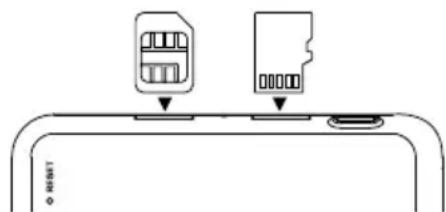
- Put microSD card into the device.

- To avoid malfunctions of the DVR and / or SD-card, don't insert and remove SD-card during DVR operation.
- Before using a microSD card, please format it inside the DVR to avoid data errors. For formatting the SD-card in Menu mode select Format SD-card and confirm it.
- Fix the case clip on the windscreen holder. Do not use excessive force to avoid any damage.
- Connect the car charger to the cigarette lighter socket.
- Adjust the lens. Make sure that it is parallel to the ground and the ratio of the sky and the earth in the image is about 4 to 6.
- The device will turn on automatically.
Note: To protect the device from sudden surges in the on-board power supply, always connect the car adapter only when the engine is on.
Work with micro-SIM card
Install the micro-SIM card with the contacts facing the lens until it clicks. If the connection is successful, you will see the connection type and the signal level in the top line of the screen.
natural_image
Diagram showing two devices on a surface with arrows pointing to them (no text or symbols present)Precautions
- Do not disassemble or repair device by yourself. In case of failure, contact the service center.
- Permissible ambient temperature in operating mode: 0 to +35 °C. Storage temperature: +5 to +45 °C. Relative humidity: 5% to 90% without condensation (25 °C).
- Put the device away from fire sources to avoid explosion or fire.
- Do not expose the device to physical impacts.
- Avoid contacting the device with sources of electromagnetic radiation.
- Do not use chemicals or detergents to clean the product; always turn off the device before cleaning.
- Use accessories only approved by manufacturer.
Main menu
After turning on, the main menu appears on the screen. From the main menu, you can select video recording mode (DVR), navigation mode (Navigator), open the browser to access the Internet, go to the Apps menu or select media files in Music section.
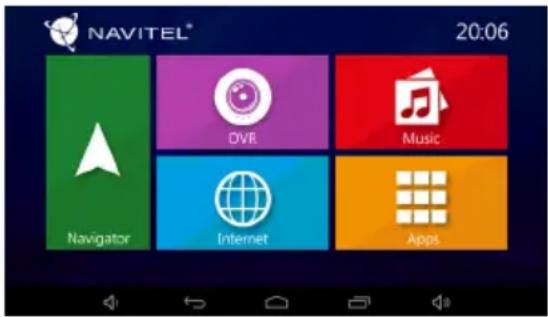
Navigator
The device has pre-installed latest version of Navitel Navigator program with maps of 43 European countries, Belarus, Kazakhstan, Russia and Ukraine. With this program you can easily build and navigate your route to any point on the map.
DVR
After pressing the DVR icon, the device switches to digital video recorder mode. In this mode, you can record video with the built-in video camera, and also record audio through the built-in microphone. For more information see the DVR mode section of this User manual.
Internet
Press this button to open internet browser window to access web-sites. The device supports Wi-Fi and mobile internet connection (with using micro-SIM-card). You can set these options in the Settings menu.
Music
Press this button to access the library of your favourite audio files, downloaded on the device. The files are sorted by artists, albums and songs. You can make playlists of songs from different albums. You can also set the shuffle mode and add sound effects to the playback.
Apps
This button opens the main menu of applications, utilities and programs installed on you device as well as gives access to the Settings menu.
DVR mode
With the DVR mode you can record video while driving the car, and thus monitor the road situation while driving.
The ability to work with memory cards allows you to save the video recorded by the DVR into a microSD card.
Interface
Press the DVR button to turn on the videorecorder. In the opened window you will see the view taken by the camera. On the left there are 3 function buttons – Settings, Record and Saved videos.
- Press Record button to start recording, press the same button again to stop. You can set the start of recording in the Settings menu – on charger connection, on device start or manually.
- Saved files button opens the album of saved files made by the camera. Press on file to play it. You can also lock the file by pressing the locker icon, delete the selected file or all files.
- In the Settings menu you can set the video quality, configure the storage space limit for files, storage location, duration of video fragments and application start mode. You can also set the screen and preview modes, turn on sound recording and select the application skin.
Preview function in Navitel Navigator program
The image from the camera can be displayed on top of the Navitel Navigator map. You can enable function in the Settings. Press Record to enable this function. The preview window will appear automatically on the Navitel Navigator program map. The window can be dragged to any place on the screen.
Navitel Navigator
Navitel Navigator is an offline multifunctional navigation application used for efficient address and POI search, as well as planning.
Press the Navigator button in your home screen to run the program. Press to open address search, build routes and program settings.
Learn more about Navitel Navigator program at
In order to update program software and installed maps, in the Navitel Navigator program go to Menu > My Navitel > Updates. The window that will open displays the necessary updates for the program and installed maps. Select the map you want to update or select Update All.
Technikai jellemzók
natural_image
Pure diagram of a conveyor belt with two labeled components (no text or symbols)natural_image
Simple line drawing of a device with two ports and a base, no text or symbols presentSaugos nurodymai
natural_image
Simple line diagram showing two devices on a curved surface with a small object nearby (no text or symbols)Drošības prasības
natural_image
Simple line drawing of two electronic components on a surface, one with internal slots and the other with a slot, both pointing to a base (no text or symbols)Ostrzeżenia
Măsuri de siguranță
natural_image
Simple line drawing of a device with two ports and a connector, no text or symbols present- Package Contents
- Device Layout
- Getting started
- Turning the device on/off
- Device operation
- Device installation
- Work with micro-SIM card
- Precautions
- Main menu
- Navigator
- DVR
- Internet
- Music
- Apps
- DVR mode
- Interface
- Preview function in Navitel Navigator program
- Navitel Navigator
- Saugos nurodymai
- Drošības prasības
- Ostrzeżenia
- Măsuri de siguranță
Brand : Navitel
Model : RE900
Category : Gps