ISM9011 - Karaoke system Singing Machine - Free user manual and instructions
Find the device manual for free ISM9011 Singing Machine in PDF.


User questions about ISM9011 Singing Machine
0 question about this device. Answer the ones you know or ask your own.
Ask a new question about this device
Download the instructions for your Karaoke system in PDF format for free! Find your manual ISM9011 - Singing Machine and take your electronic device back in hand. On this page are published all the documents necessary for the use of your device. ISM9011 by Singing Machine.
USER MANUAL ISM9011 Singing Machine
natural_image
Line drawing of a kitchen appliance with control panel and display screen (no text or symbols)www.singingmachine.com
The Singing Machine® is a registered trademark of Stingray Music USA, Inc. The Singing Machine® est une marque déposée de Stingray Music USA, Inc. The Singing Machine® is een gedeponeerd handelsmerk van Stingray Music USA, Inc. The Singing Machine® ist eine eingetragene Marke der Stingray Music USA, Inc. The Singing Machine® es una marca registrada de Stingray Music USA, Inc. The Singing Machine® è un marchio registrato di Stingray Music USA, Inc.
Warnings

CAUTION
RISK OF ELECTRIC SHOCK DO NOT OPEN

CAUTION: TO REDUCE THE RISK OF ELECTRIC SHOCK, DO NOT REMOVE COVER (OR BACK). NO USER-SERVICEABLE PARTS INSIDE. REFER SERVICING TO QUALIFIED SERVICE PERSONNEL.

DANGEROUS VOLTAGE: The lightning flash with arrowhead symbol within an equilateral triangle is intended to alert the user to the presence of uninsulated dangerous voltage within the product's enclosure that may be of sufficient magnitude to constitute a risk of electric shock to persons.

ATTENTION: The exclamation point within an equilateral triangle is intended to alert the user to the presence of important operating and maintenance (servicing) instructions in the literature accompanying this product.
DRIPPING WARNING: This product shall not be exposed to dripping or splashing, and no objects filled with liquids, such as vases, shall be placed on the product.
VENTILATION WARNING: The normal ventilation of the product shall not be impeded for intended use.
Product Disposal Instructions
The symbol shown here and on the product means that the product is classed as Electrical or Electronic Equipment and should not be disposed with other household or commercial waste at the end of its working life.
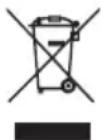
The Waste Electrical and Electronic Equipment (WEEE) Directive (2012/19/EU) has been put in place to encourage the recycling of products using best available recovery and recycling techniques to minimise the impact on the environment, treat any hazardous substances and avoid the increase of landfill.
When you have no further use for this product, please dispose of it using your local authority's recycling processes. For more information please contact your local authority or the retailer where the product was purchased.
CAUTION: TO PREVENT ELECTRIC SHOCK, MATCH WIDE BLADE OF PLUG TO WIDE SLOT AND FULLY INSERT.
WARNING: TO PREVENT FIRE OR SHOCK HAZARD, DO NOT EXPOSE THIS UNIT TO RAIN OR MOISTURE.
Important Safety Information
- Read these Instructions.
- Keep these Instructions.
- Heed all Warnings.
- Follow all Instructions.
- Do not use this apparatus near water.
- Clean only with a dry cloth.
- Do not block any of the ventilation openings. Install in accordance with the Manufacturer's instructions.
- Do not install near any heat sources such as radiators, heat registers, stoves, or other apparatus (including amplifiers) that produce heat.
- Do not defeat the safety purpose of the polarized or grounding-type plug. A polarized plug has two blades with one wider than the other. A grounding type plug has two blades and a third grounding prong. The wide blade or the third prong are provided for your safety. When the provided plug does not fit into your outlet, consult an electrician for replacement of the obsolete outlet. (Not applicable to UK and Europe Model)
- Protect the power cord from being walked on or pinched particularly at plugs, convenience receptacles, and the point where they exit from the apparatus.
- Only use attachments/accessories specified by the manufacturer.
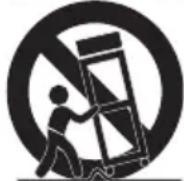
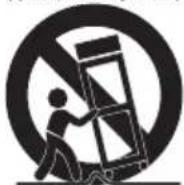
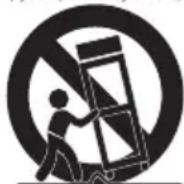
- Use only with a cart, stand, tripod, bracket, or table specified by the manufacturer, or sold with the apparatus. When a cart is used, use caution when moving the cart/apparatus combination
to avoid injury from tip-over.
- Unplug this apparatus during lightning storms or when unused for long periods of time.
- Refer all servicing to qualified service personnel. Servicing is required when the apparatus has been damaged in any way, such as power-supply cord or plug is damaged, liquid has been spilled or objects have fallen into the apparatus, the exposed to rain or moisture, does not op been dropped.
- WARNING: To reduce the risk of fire or electric shock, do not expose this apparatus to rain or moisture. Do not place objects filled with water, such as a vase, on the apparatus.
- The AC mains plug is used as the power disconnect device and it should remain readily accessible and operable during intended use. In order to completely disconnect the apparatus from power, the mains plug should be completely removed from the AC outlet socket.
- CAUTION: To reduce the risk of fire or explosion, do not expose batteries to excessive heat such as sunshine, fire or other heat sources.
PORTABLE CART WARNING (symbol provided by RETAC)
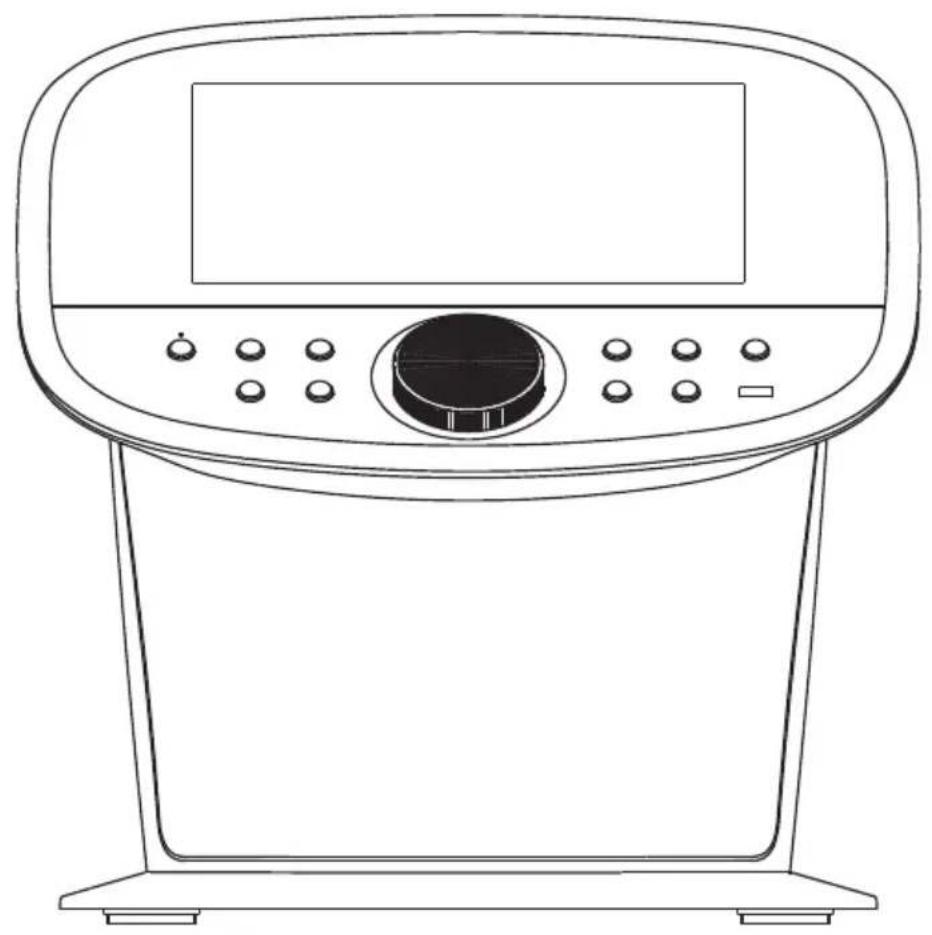
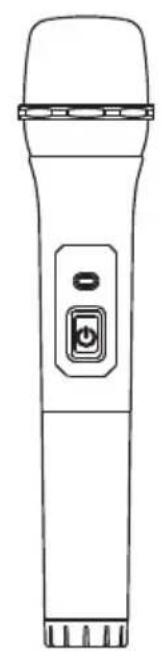
Included
Please make sure that the following items are included.
natural_image
Line drawing of a kitchen appliance with control panel and display screen (no text or symbols)Main Unit Wireless Microphone x 2
natural_image
Line drawing of a handheld device with a button and power switch (no text or symbols)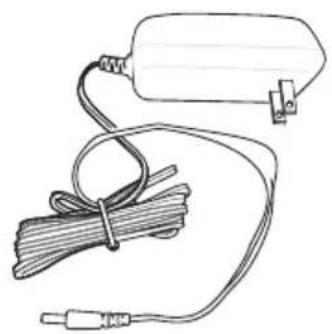
natural_image
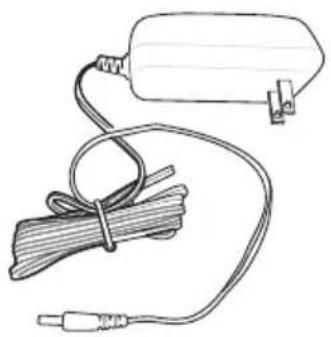
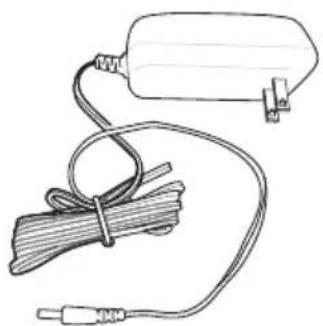
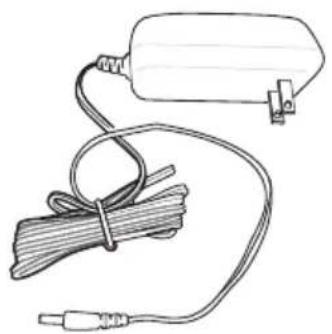
Simple line drawing of a battery connected to a coiled cable and plug (no text or symbols)AC Adapter
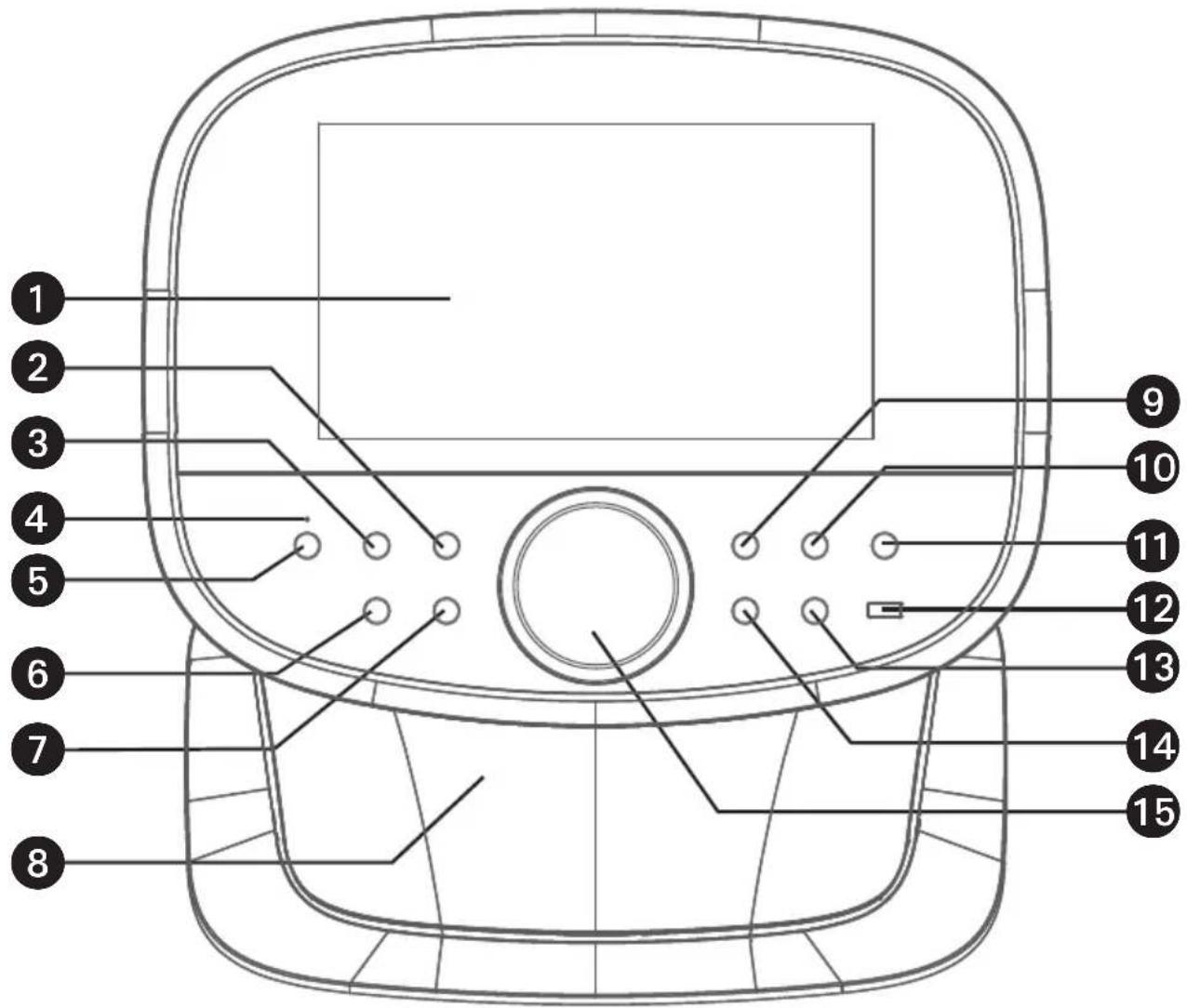
Location of Controls (Top)
text_image
Technical diagram of a device with numbered parts for identification- Touch Screen
- (BACK) Button
- (HOME) Button
- Bluetooth Indicator
- Bluetooth Button
- ON/STANDBY Button
- VOICE EFFECTS Button
-
Speaker
-
Skip Button
- SKIP Button
- LIGHTS) Button
- USB Port
- (PLAY/PAUSE) Button
- RECORD Button
- VOLUME / EFFECTS Control
Location of Controls
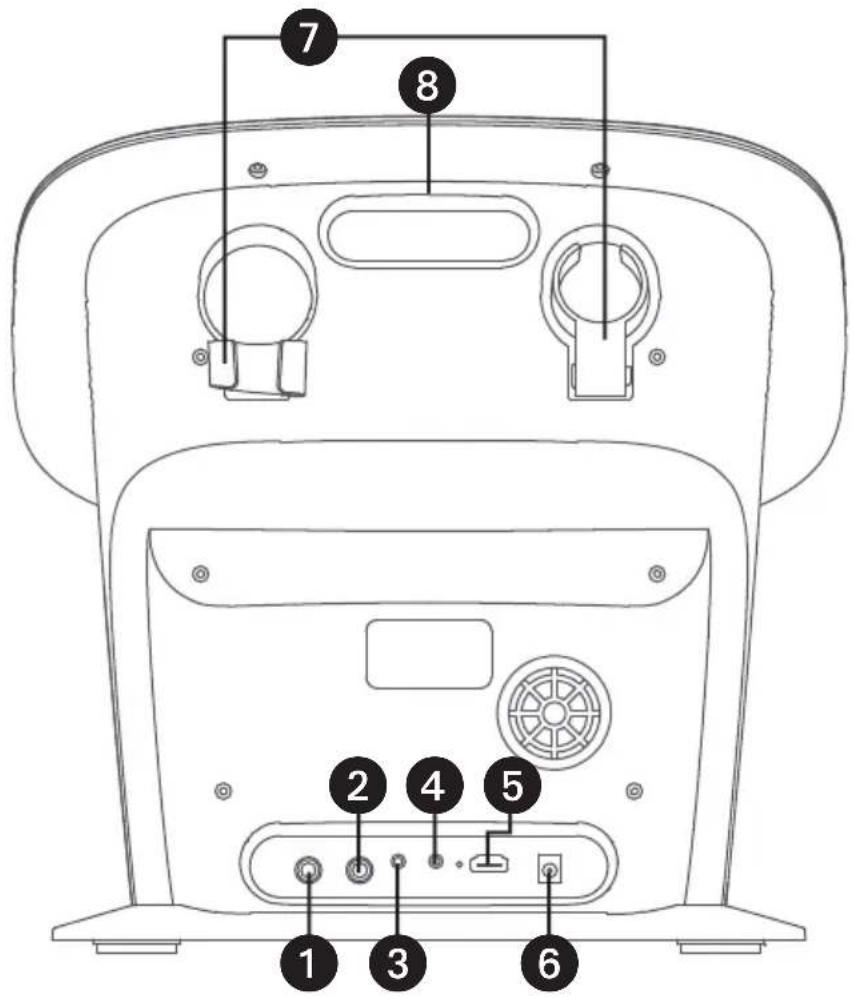
text_image
7 8 2 4 5 1 3 6- Mic 1 Jack
- Mic 2 jack
- Aux In Jack
- Line Out Jack
- HDMI Jack (video only)
- DC IN Jack
- Wireless Mic Holders
-
Handle
-
Power indicator
- Power button
- Battery compartment
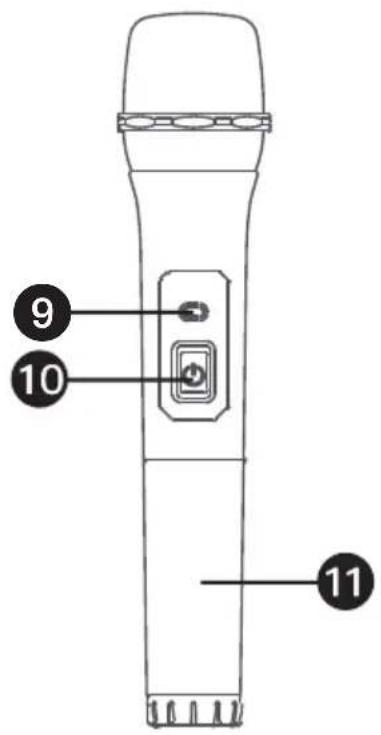
text_image
9 10 11Connections
Connecting to AC Power
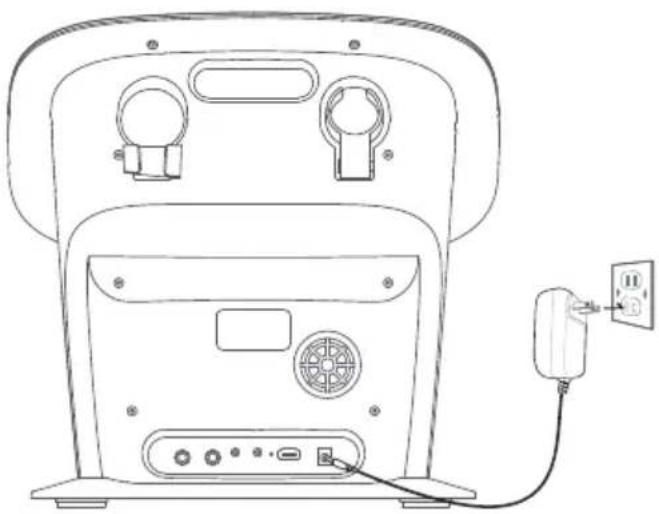
natural_image
Line drawing of a device rear panel with ports and a power outlet connected to the right side (no text or symbols)1 Insert the DC plug of the adapter into the DC IN Jack located on the main unit.
2 Insert the AC adapter into a conveniently located AC outlet having 100-240V AC, 50/60Hz.
NOTES:
• Make all connections prior to plugging the AC adaptor into a power outlet.
Connecting the unit to a TV
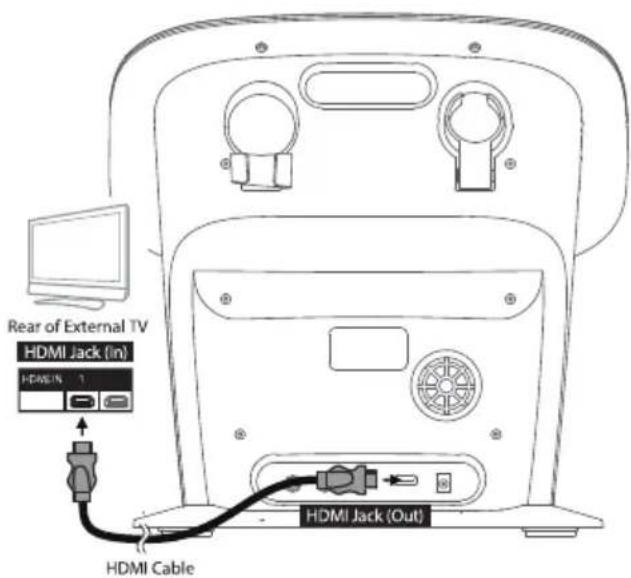
text_image
Rear of External TV HDMI Jack (in) HDMI IN 1 HDMI Cable HDMI Jack (Out)The video and lyrics will be displayed on the built-in screen. You may also want to connect a TV to display a larger image (follow the steps below):
1 Plug the HDMI cable (not included) into the HDMI Jack on the back of the unit.
2 Plug the other end of the HDMI cable into the HDMI input on your TV.
NOTES:
• This unit can be used with or without a TV.
- Also refer to the TV's or external unit's User Guide.
• Audio and mic input cannot be output to your TV.
Connections
Changing the wireless microphone's battery
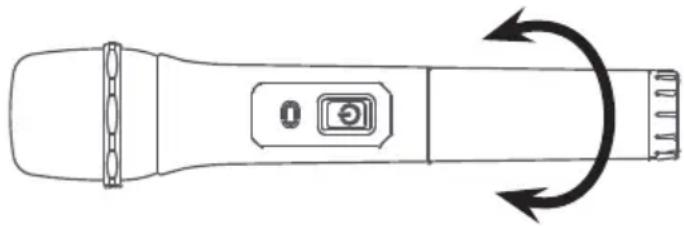
natural_image
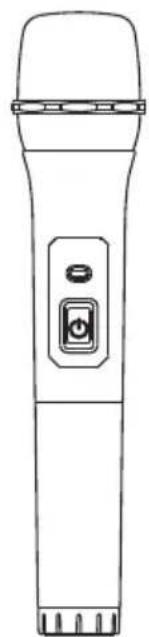
Line drawing of a handheld device with a circular button and directional arrows indicating rotation (no text or symbols)1 Unscrew the bottom of the wireless microphone.
2 Replace the existing batteries with 2 x "AA" size/LR6 batteries (not included).
3 Screw the bottom of the wireless microphone back on securely.
BATTERY PRECAUTIONS
The precautions below should be followed when using batteries in this device:
- Use only the size and type of batteries specified.
- Be sure to follow the correct polarity when installing the batteries as indicated in the battery compartment. A reversed battery may cause damage to the device.
- Do not mix different types of batteries together (eg. Alkaline, Rechargeable and Carbon-zinc) or old batteries with fresh ones.
- If the device is not to be used for a long period of time, remove the batteries to prevent damage or injury from possible battery
leakage.
- Do not try to recharge a battery not intended to be recharged; it can overheat and rupture. (Follow the battery manufacturer's directions.)
- Rechargeable batteries are to be removed from the product before being charged.
- Rechargeable batteries are only to be charged under adult supervision.
- Exhausted batteries are to be removed from the product.
- Batteries shall not be exposed to excessive heat such as sunshine, fire or the like.
DISPOSAL OF USED BATTERIES

Battery may contain hazardous substances which could endanger the environment and human health.
This symbol marked on the battery and/or packaging indicates that used battery shall not be treated as municipal waste. Batteries should be disposed of at an appropriate collection point for recycling. By ensuring the used batteries are disposed of correctly, you will help preventing potential negative consequences for the environment and human health. The recycling of materials will help to conserve natural resources. For more information about recycling of used batteries, please contact your local municipality waste disposal service.
| Type | Max EIRP Power(dBm) | Max Output Power(dBm) |
| Speaker Bluetooth | -5.35 | -4.77 |
| WLAN(2.4G) | 18.29 | 12.79 |
| WLAN(5G) | 13.76 | 8.26 |
| MIC Bluetooth | 5.009 | 2.51 |
| Wireless Type | Working Frequency | |
| Speaker Bluetooth | 2402MHz-2480MH | |
| MIC Bluetooth | 2402MHz-2480MHz | |
| WLAN(2.4G) | IEEE 802.11b:2412-2472MHzIEEE 802.11g:2412-2472MHzIEEE 802.11n HT20:2412-2472MHz | |
| WLAN(5G) | 5745MHz-5825MHz | |
Connections
Changing the Wireless Microphone's Battery (Continued)
Store Batteries Properly:
- Place used batteries in a container designated for battery disposal. Avoid mixing different types of batteries to prevent any chemical reactions.
- Do not store batteries in a way that they can come into contact with metal objects, which can cause them to short circuit.
Recycling and Disposal:
• Take the used batteries to a local recycling center or a collection point for hazardous waste. Many electronic stores and community centers have battery recycling programs.
- Do not dispose of batteries in regular household trash as they can leak harmful chemicals into the environment.
- Find a Recycling Center: For information on local battery recycling programs or to find your nearest recycling center, visit the following websites:
- Earth911
- Call2Recycle
- Local Government Waste Disposal Services
Why Recycle Batteries?
Recycling batteries helps to:
- Prevent hazardous materials from entering landfills and contaminating soil and water.
- Conserve natural resources by recovering valuable materials like metals and plastics. Reduce the environmental impact of mining and manufacturing new batteries.
- By following these steps, you contribute to a healthier environment and promote sustainable practices.
Connecting the Wireless Microphone(s)
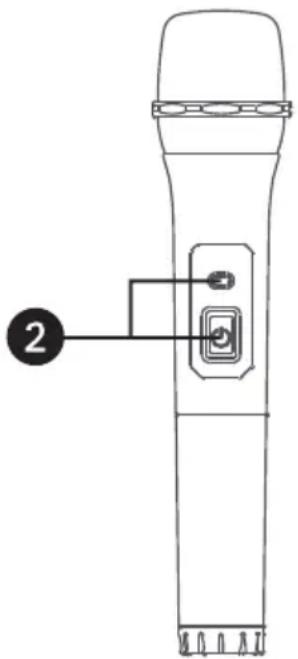
text_image
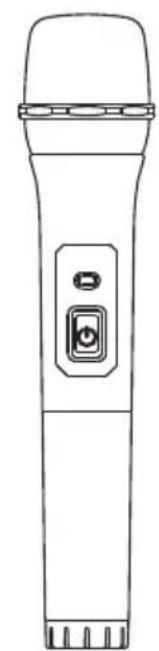
Diagram of a handheld device with labeled component 2, showing key and control buttons1 Press the button to turn the unit on.
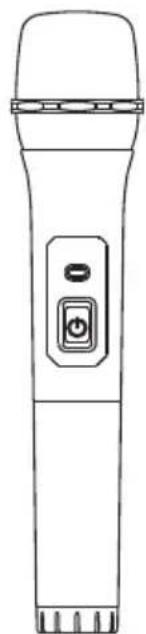
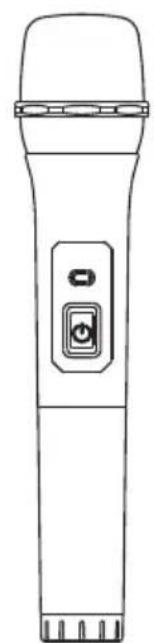
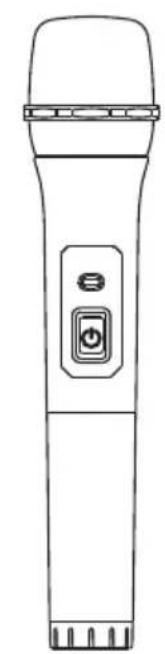
2 Press the button on the wireless microphone to turn it on.
NOTES:
- The wireless microphone has working distance of up to 10 meters / 32.8 feet in an open space.
- If there is no audio input to the unit for 20 minutes, the wireless microphone connection will automatically turn off. To reactivate the connection, turn on the unit and press the ⏻ button.
Connections
Connecting the wired Microphone(s)
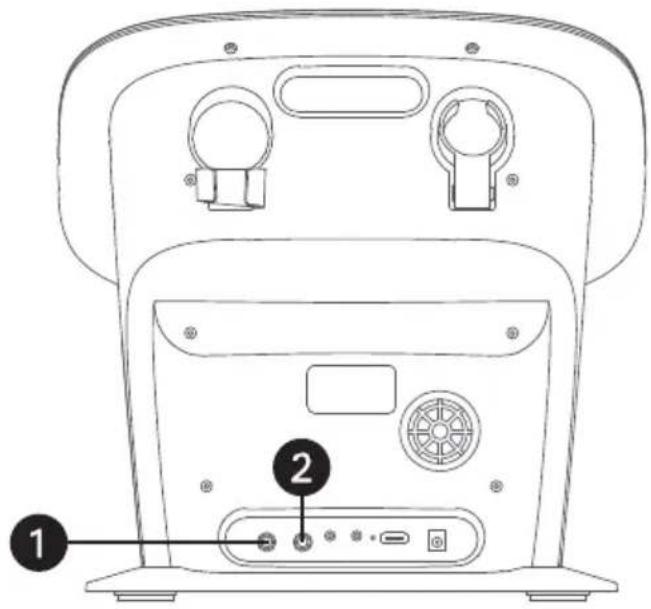
text_image
Technical diagram of a device rear panel with labeled ports and componentsConnect the wired microphone (not included) into Mic jack ① or ② (when desired).
Connecting to Line Out Jack
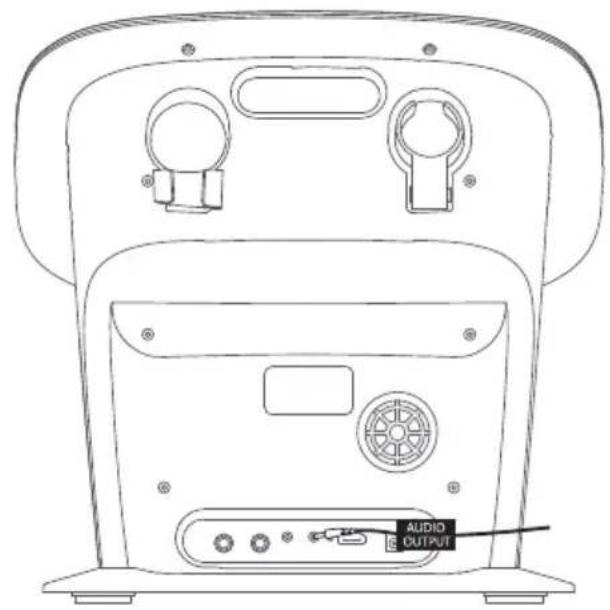
text_image
AUDIO OUTPUTThis unit can be connected to another audio system for greater audio output via a 3.5mm AUX cord (not included).
1 Plug one end of the AUX cord into the LINE OUT jack located on the rear of the machine.
2 Plug the other end of the AUX cord into the Line In jack on your separate audio device. You may need to refer to the instructions of your separate audio device for more details.
Energy Saving (Auto Power System-APS)
This unit will automatically turn to Screen Saver mode after 10 minutes of inactivity, and automatically turn off after 10 minutes. The unit can be powered back on by pressing the ON/STANDBY) button once. APS is for energy saving purposes.
NOTE: You can change the energy saving setting in the Screensaver option, see the section of Wi-Fi & Setting.
Power consumption in standby mode(s) 2.1W
Operation
Wi-Fi & Settings

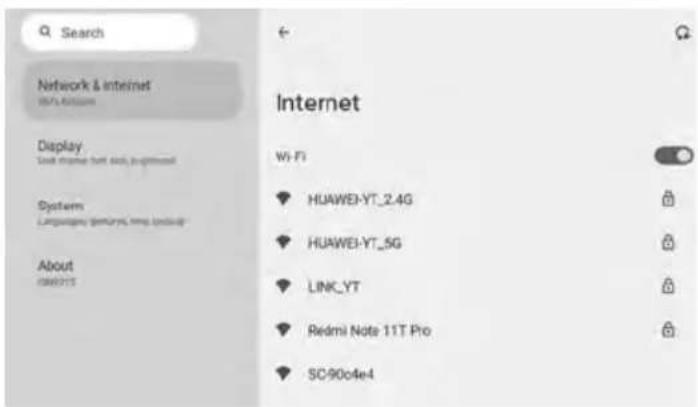
1 Connect the unit as described previously. Press the (ON/STANDBY) button to turn the unit on. The set up Wi-Fi connection window will pop up. Select CONNECT on the touch screen.
text_image
Search Network & Internet WiFi/Internet Display One-time remote host disk, broadband System Language: https://www.tnm/ About 1286015 Internet Wi-Fi HUAWEI-YT_2.4G HUAWEI-YT_5G LINK_YT Redmi Note 11T Pro SC-90c4e42 Select your Wi-Fi network using the touch screen.
text_image
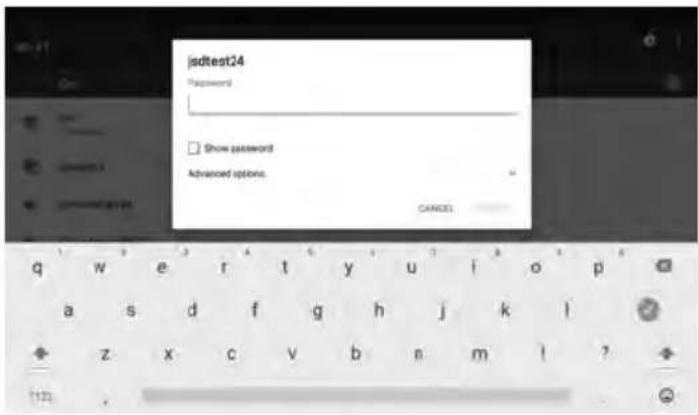
jsdttest24 Password Show password Advanced options. CANCEL3 Use the keyboard on the touch screen to enter your Wi-Fi password. "CONNECTED" will appear if the connection is successful. If unsuccessful, check your password and Wi-Fi frequency and re-connect.
Operation
Wi-Fi & Settings (Continued)
text_image
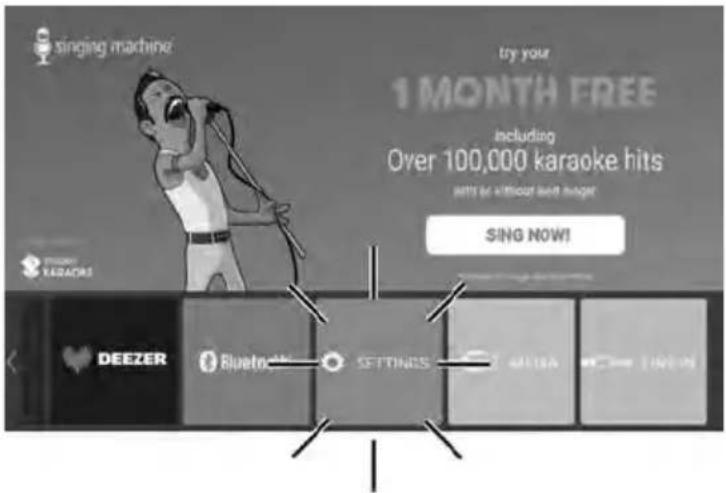
singing machine! try your 1 MONTH FREE including Over 100,000 karaoke hits with no without beat hunger! SING NOW! Deezer Bluetooth SETTINGS MERA TIME4 You can always change the Wi-Fi network, by selecting the SETTINGS icon on the touch screen to enter Wi-Fi settings mode.
text_image
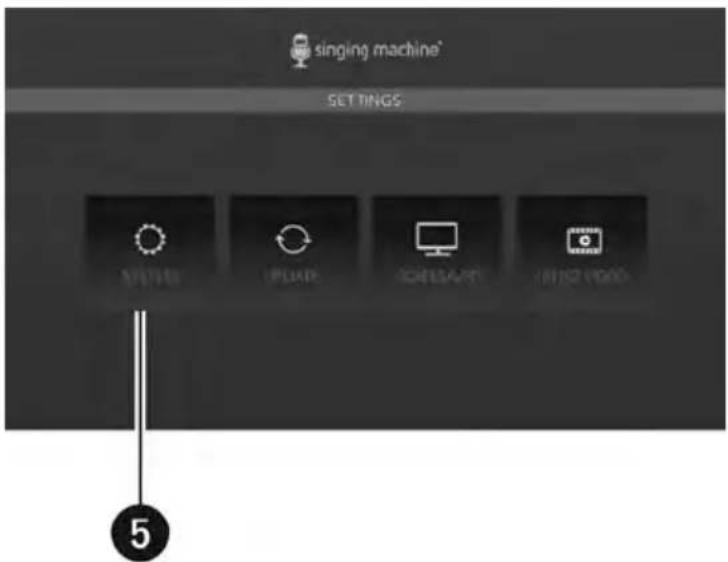
singing machine* SETTINGS PLAYER CHECKER NOTE BOARD 55 Select "SYSTEM" to configure the following settings:
a. Network and internet, network setting.
b. Display, brightness, HDMI.
c. System, Languages, time, reset setting.
d. About, to check the current number version and of this serial unit.
Operation
Wi-Fi & Settings (Continued)
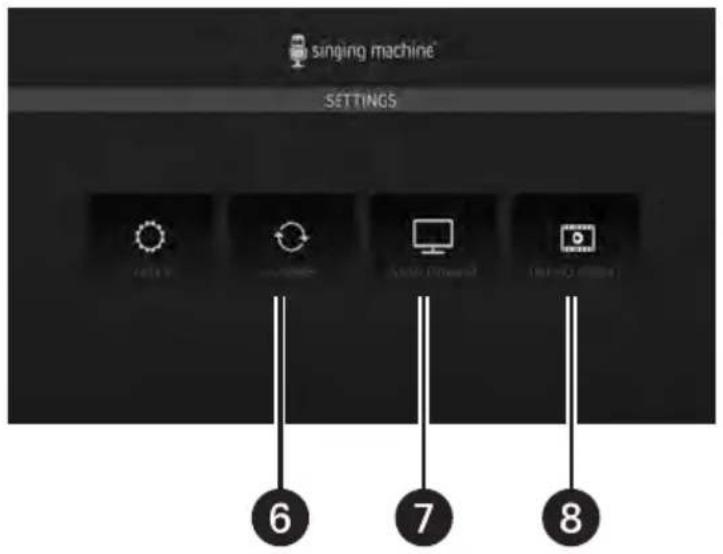
text_image
singing machine SETTINGS 6 7 86
Select UPDATE to update this unit.
7
Select SCREENSAVER to turn the screensave on or off.
8
Select INTRO VIDEO to watch a quick start guide on how to use this unit.
Applications
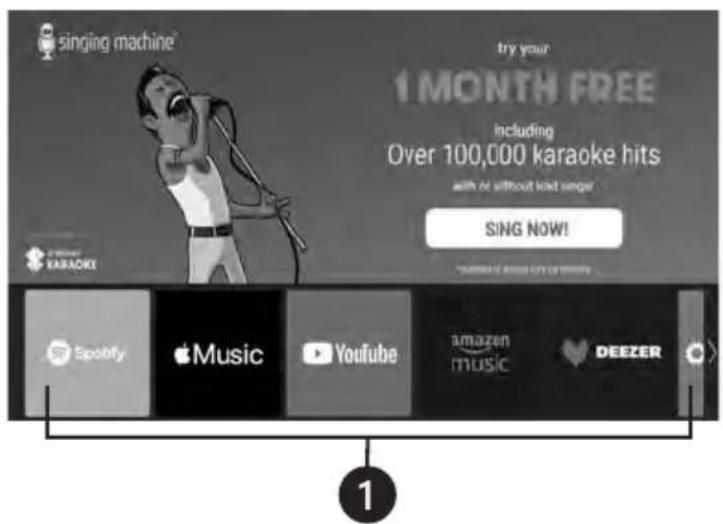
text_image
singing machine try your 1 MONTH FREE including Over 100,000 karaoke hits with or without lead range! SING NOW! Spotify Music YouTube amazon music DEEZER 11 Swipe the application bar to browse and select from the pre-installed applications.
Operation
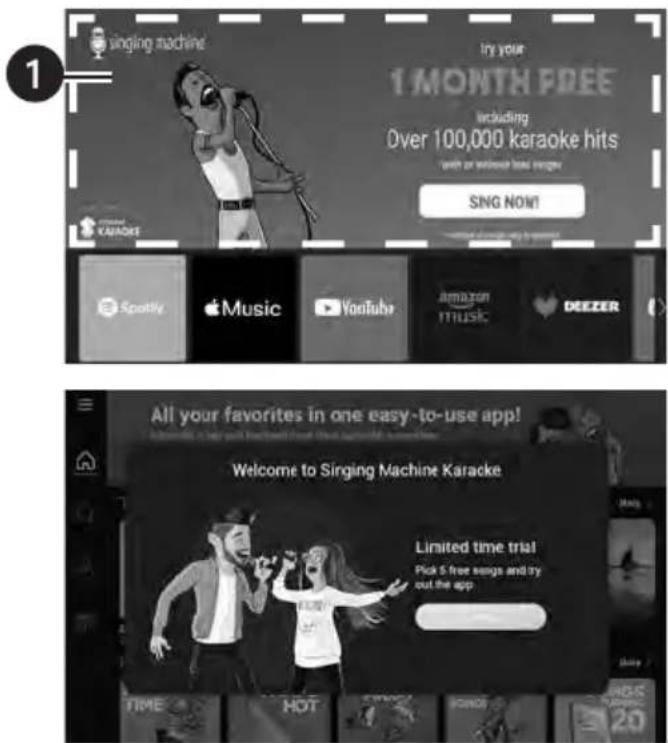
Accessing the Singing Machine Karaoke App Catalog
text_image
1 singing machine Try your 1 MONTH FREE including Over 100,000 karaoke hits with or without too much SING NOW! Spotify Music YouTube Amazon music DEEZR All your favorites in one easy-to-use app! Welcome to Singing Machine Karaoke Limited time trial Pick 5 free songs and try out the app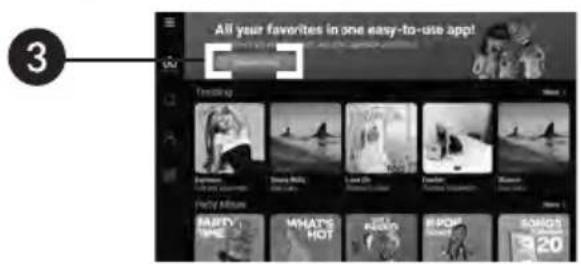
text_image
Stoping machine All your preferences are close enough to run app? Get 302 songs time saved by the user URL close enough gaining with phones pointing 40 songs can add songs and manage the option 3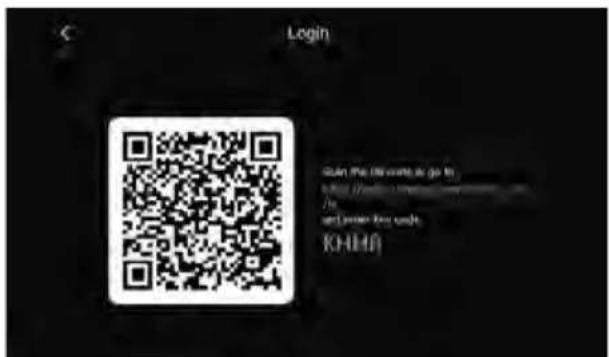
text_image
Login GAIN THE ENS WNTS IS GO TO KOHH (7000) 1892-2000 /6 and save key cards. KOHH1 Click on the Singing Machine Karaoke App to access it.
2 A welcome pop-up will appear, explaining that you get to enjoy 5 free songs every month on us! (click continue)
3 Click any "Subscribe Now" button on the screen OR go to the account button and select "Login" to start creating your account.
4 A barcode will appear on the screen. Scan it with your phone and follow the instructions to complete setting up your account.
Operation
Other icons on the touch screen
text_image
singing machine try your 1 MONTH FREE including Over 100,000 karaoke hits with or without total anger SING NOW! Deezer® Bluetooth SETTINGS C:\MELK\LIVE-R1
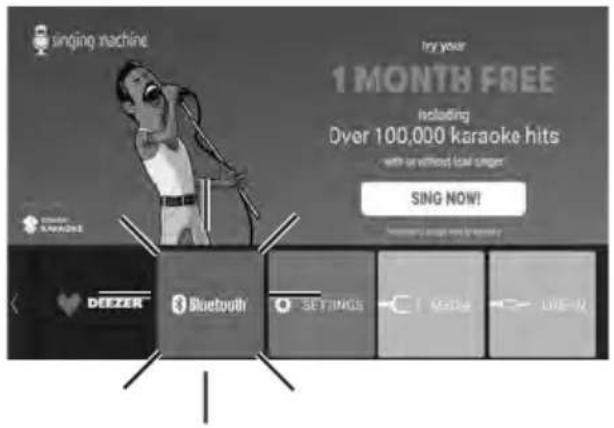
Select BLUETOOTH to enter the Bluetooth mode.
NOTE:
The unit automatically searches for and pairs a previously paired Bluetooth device (if previously paired).
text_image
singing machine try your 1 MONTH FREE including Over 100,000 karaoke hits with or without loud popper SING NOW! DEEZER Bluetooth SETTINGS Media Live-in2
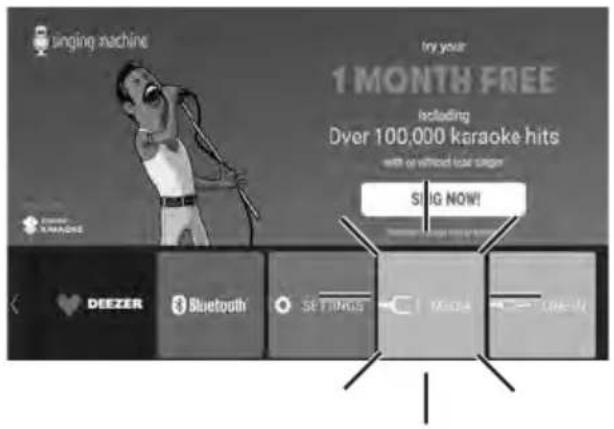
Select MEDIA to play internal or USB recorded music.
NOTE:
If you wish to play USB-recorded music, please insert the USB flash drive into the USB port of this unit.
text_image
singing machine try your 1 MONTH FREE including Over 100,000 karaoke hits with or without ear singer SING NOW! DEEZEER Bluetooth® SETTINGS Music Live It3
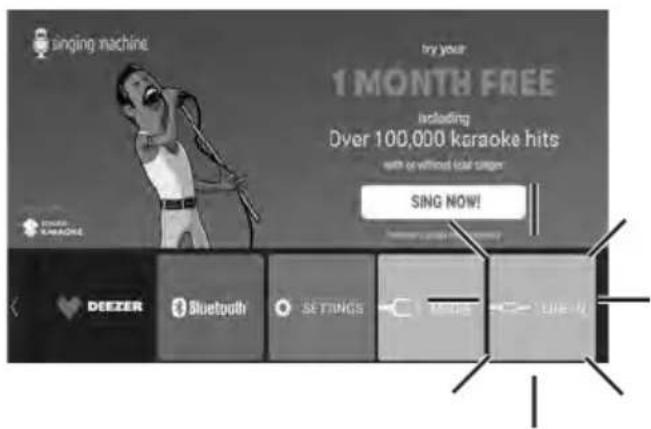
Select LINE-IN to enter the line in mode.
NOTES:
- Ensure that your audio device is connected to this unit using a 3.5mm AUX cable (not included).
- This mode cannot output video. For enhanced sound, connect additional speakers using the Line Out port (cable not included).
Operation
Control keys
natural_image
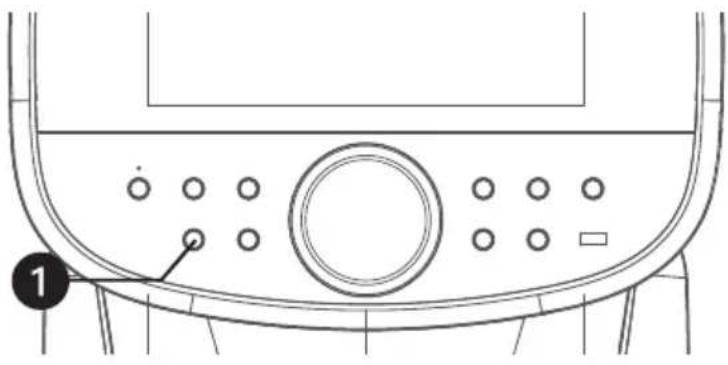
Technical line drawing of a vehicle front panel with circular buttons and a dial (no text or symbols)1 Connect the unit to power as described previously, then press the ON/STANDBY) button to turn it on. The touch screen will activate. You can press the ON/STANDBY) button once to put the unit into standby mode and then it will automatically turn off after 20 minutes. Or you can press and hold the button to turn off the unit directly.
NOTE:
If the Wi-Fi network is not connected on this unit, a Wi-Fi connection window will pop up.
natural_image
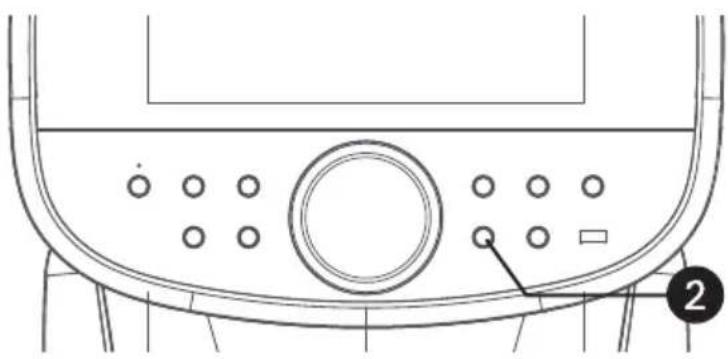
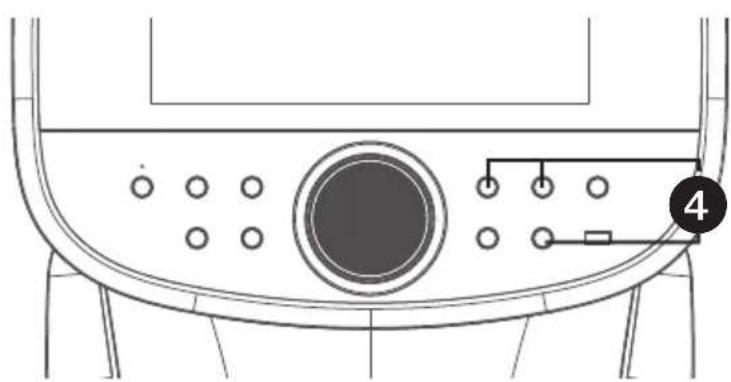
Technical line drawing of a vehicle front panel with circular buttons and a dial (no text or symbols)While music is playing, press the RECORD button to start recording your singing along with the music. The recording indicator will appear on screen. To stop recording, press the RECORD button again.
NOTES:
- You can save the recorded vocals and music to the built-in memory or a USB flash drive.
- If you intend to save the recorded audio files on a USB drive, ensure to insert a USB flash drive into the USB port on the unit.
text_image
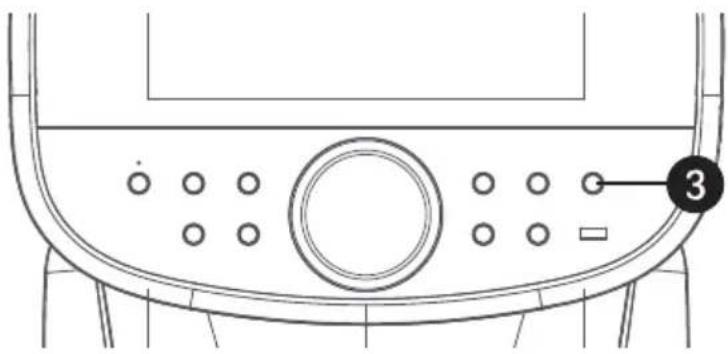
Technical diagram of a vehicle front panel with labeled buttons and circular indicators3 There are two built-in light modes. Simply press the button repeatedly to cycle through the different lighting effects.
natural_image
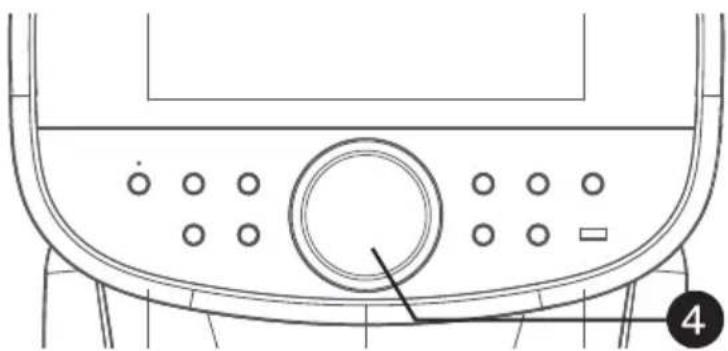
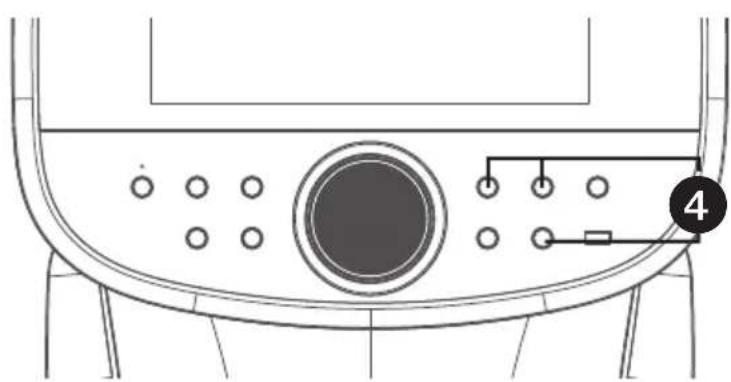
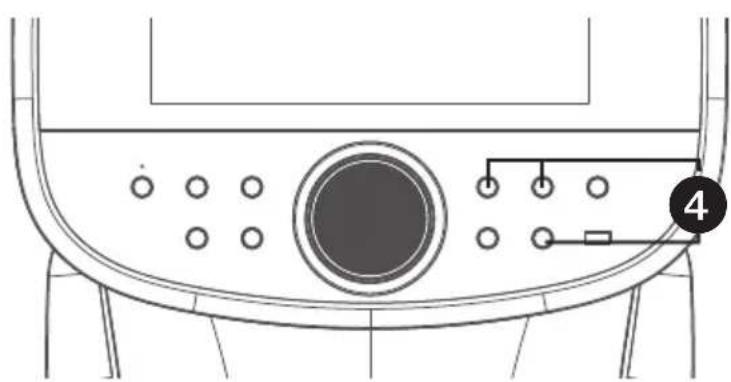
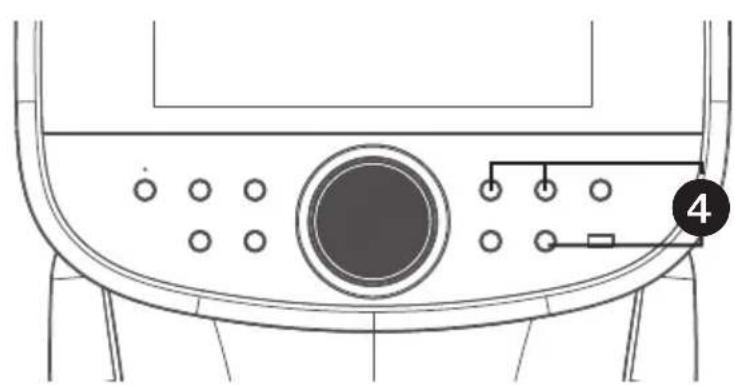
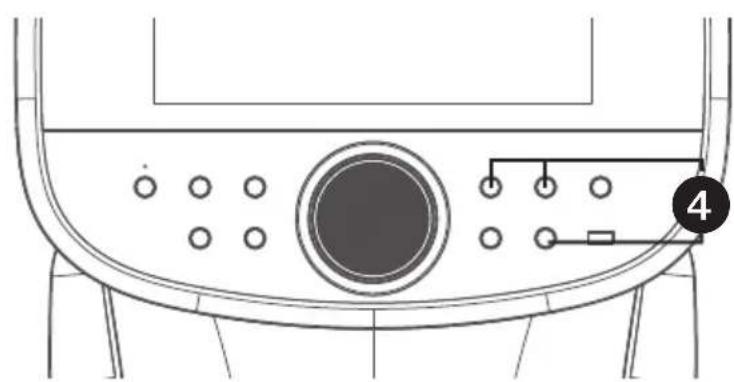
Technical line drawing of a mechanical component with circular ports and a dial (no text or symbols)4 To select a voice effect, you have two options to cycle through the different voice effects: a. Press the button repeatedly. b. Press the button once and turn the VOLUME/EFFECTS control to select a voice effect.
Operation
Control keys (Continued)
natural_image
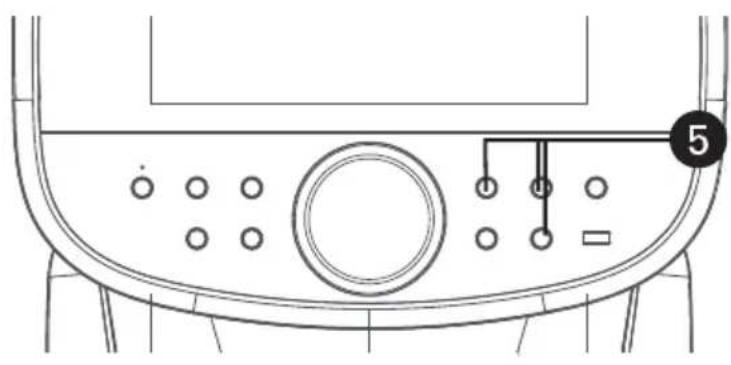
Technical line drawing of a vehicle dashboard with control panel and buttons (no text or symbols)5 Press the (PLAY/PAUSE) button to play the song.
During playback, press the ▶PLAY /PAUSE) button to pause the song.
To go back or advance one track, press the ◀ button, respectively.
text_image
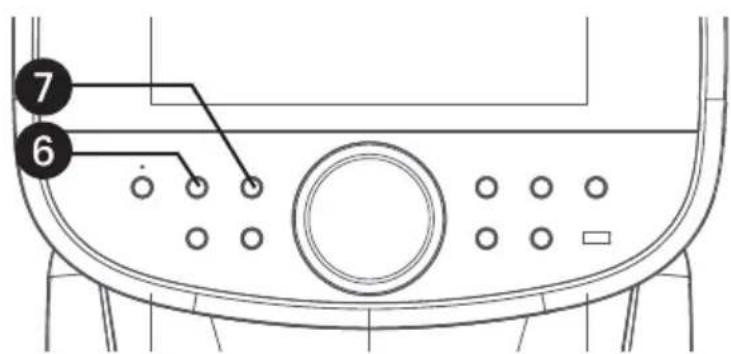
7 6NOTE:
PLAY/PAUSE, SKIP functions are only available in Bluetooth and USB modes.
6 Press the (MENU) button to access the menu screen from any mode or screen.
7 Press the (BACK) button to go back to the previous screen.
text_image
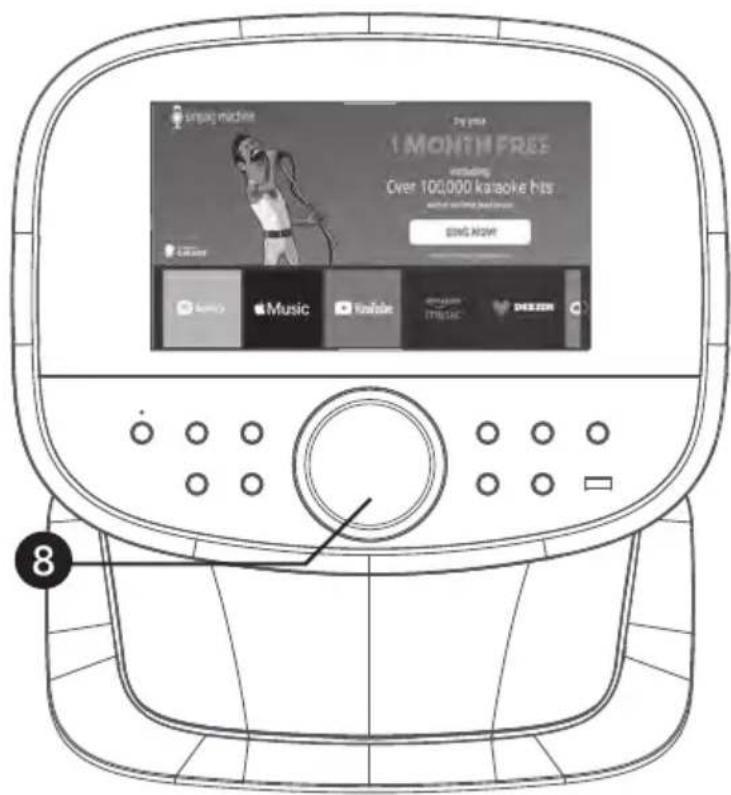
1 MONTH FREE including Over 100,000 karaoke hits SING NOW! Music Kanabe T music8 Press the VOLUME/EFFECTS control; you'll be presented with two options:
a. Adjust MUSIC VOLUME
b. Adjust MIC VOLUME
Choose your preference, then adjust it by rotating the VOLUME/ EFFECTS control knob or using the touch screen.
NOTE:
Changing the MIC VOLUME setting will control the volume for both microphones.
Operation
Voice Effects
| NAME | VOICE EFFECT DESCRIPTION# | |
| 001 | Basic Pitch | Silky smooth & balanced reverb & echo; a great all around go-to vocal enhancer |
| 002 | Alt-Rock | Queue up your fav alternative & rock tunes with this crowd-pleasing vocal effect |
| 003 | Reggae-Tone | Enhanced echo makes voices shine especially while singing reggae and reggaeton |
| 004 | Grunge | Unmistakably gritty, great for rock, alt, pop and just making your voice sound cool |
| 005 | Hip-Hop | Big room echo & reverb, great for hip-hop, rap and R&B |
| 006 | Oldtown Rd | A touch of echo with added vocal boost that's great for belting out country tunes |
| 007 | Up to Mars | Big echo, good for a wide range of songs from ballads to funk |
| 008 | Pitch Tune C | Pitch Tune like the pros with this pitch enhancing effect for singing in the key of C |
| 009 | Pitch Tune D | Pitch Tune & enhancing effect for singing in the key of D |
| 010 | Pitch Tune E | Pitch Tune & enhancing effect for singing in the key of E |
| 011 | Pitch Tune Chromatic | Pitch Tune & enhancing effect (Chromatic Scale) |
| 012 | Nosebleed Seats | Did someone say sold out stadium shows? |
| 013 | Radio | Great for singing 90"s Rock or for making big announcements |
| 014 | Doubling | Classic & versatile doubling effect |
| 015 | Doubling Tuned | Voice doubling with pitch tuning enhancement |
| 016 | Radio Tuned | Classic radio effect with pitch tuning enhancement |
| 017 | Squeeze | A fun, voice morphing effect that tweaks voices to a higher pitch |
| 018 | Diva | Add a sassy touch to voices |
| 019 | Voice Drop | Deepens voices for a fun effect |
| 020 | Deep Deep | Tunes voices deep & low |
| 021 | Robot | Machiney & robotic |
| 022 | Chipmunk | Mousey, squeaky fun voice effect |
| 023 | Echo | Creates a sense of space and depth to obtain dramatic, layered sounds |
Operation
Record Songs
natural_image
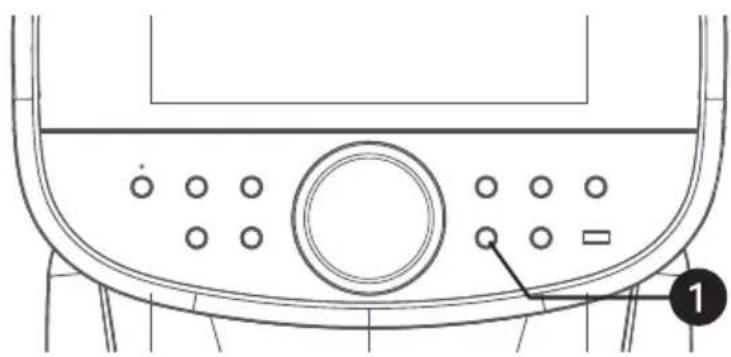
Technical line drawing of a vehicle front panel with circular buttons and a dial (no text or symbols)1 While music is playing, press the RECORD button to start recording your singing and the music. A timer will appear on the screen.
2 To stop recording, press the RECORD button again. A prompt will appear, giving you the option to Delete or Save the recording.
3 If you choose Save, a dialog box will appear asking you to select the save location: Internal or USB. Ensure a USB flash drive is inserted into the USB port if you opt to save to USB.
NOTES:
- Recorded vocals and music can be saved to the built-in memory or a USB flash drive. - Remember to insert a USB flash drive into the USB port if you want to save the recording file there.
4 After selecting the save location, a rename box will pop up, allowing you to rename the recording file as desired.
5 If you choose Delete, a Yes or No selection box will appear to confirm the deletion.
Operation
Connecting a device via Bluetooth
text_image
Jungg machine by your 1 MONTH FREE over 100,000 karaoke hits GINS NOW! DEESEN Bluetooth 2 1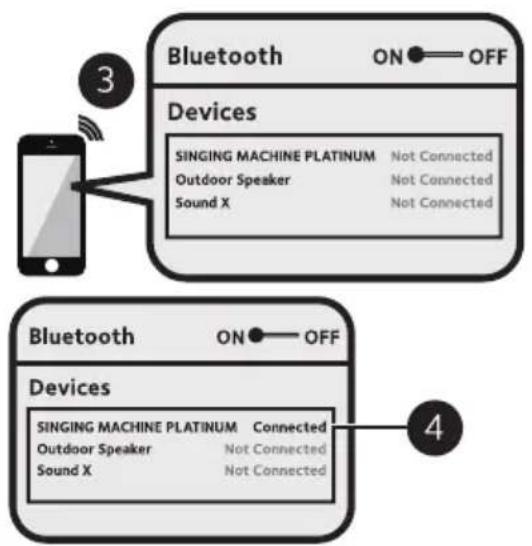
flowchart
graph TD
    A["Smartphone"] -->|3| B["Bluetooth"]
    B --> C["ON OFF"]
    B --> D["4"]
    D --> E["Bluetooth ON OFF"]
    E --> F["Device"]
    F --> G["SINGING MACHINE PLATINUM Connected"]
    F --> H["Outdoor Speaker Not Connected"]
    F --> I["Sound X Not Connected"]
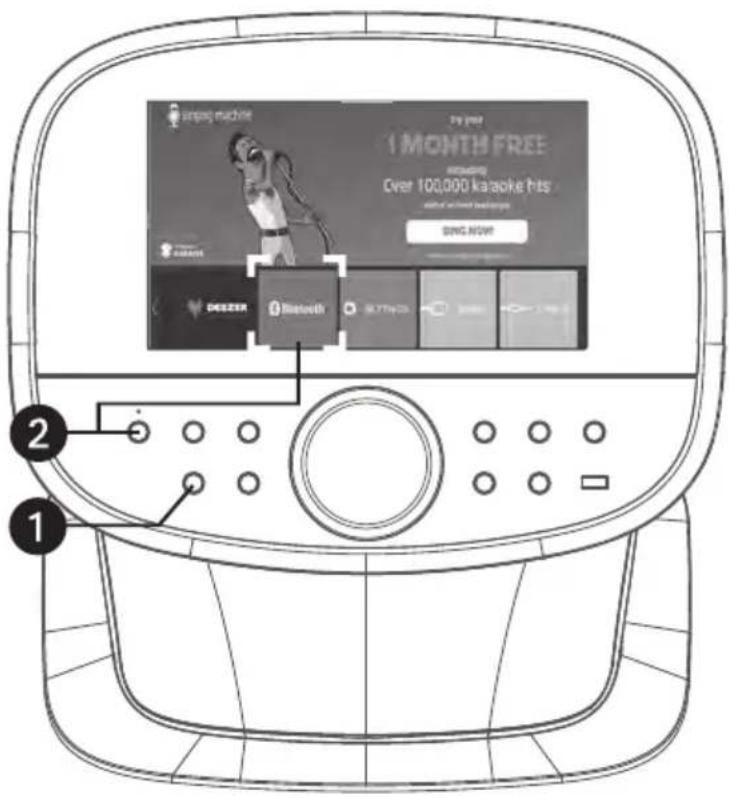
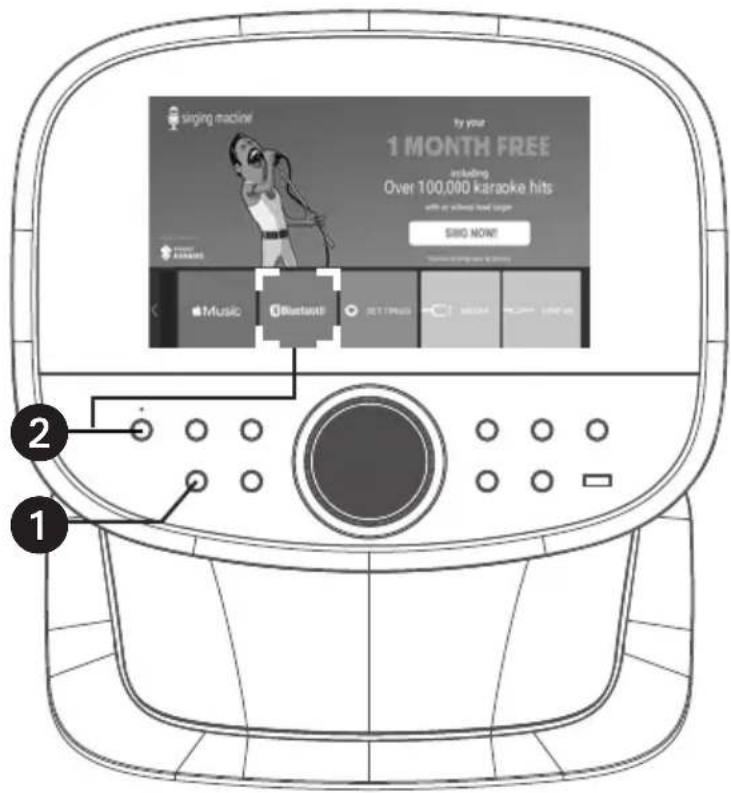
1 Connect the unit as described previously and turn it on by pressing the ⏻ (ON/STANDBY) button.
2 Press the (BLUETOOTH) button or select BLUETOOTH to enter Bluetooth mode.
3 Enable Bluetooth on your device by accessing its settings and searching for discoverable devices. Look for "SINGING MACHINE PLATINUM" in the list of available Bluetooth devices and select it.
NOTE:
Refer to the user manual of your Bluetooth device for detailed pairing instructions.
4 Once connected, the screen will indicate that your Bluetooth device is successfully paired.
NOTES:
- If your Bluetooth device requires a passcode during pairing, enter "0000" to connect. - On some Bluetooth devices, after pairing, select your Bluetooth device as "Use as Audio Device" or similar. - If the connection is lost after successful pairing, ensure that the distance between the speaker and the Bluetooth-enabled device does not exceed 30 feet/10 meters.
Operation
Connecting a device via Bluetooth (continued)
text_image
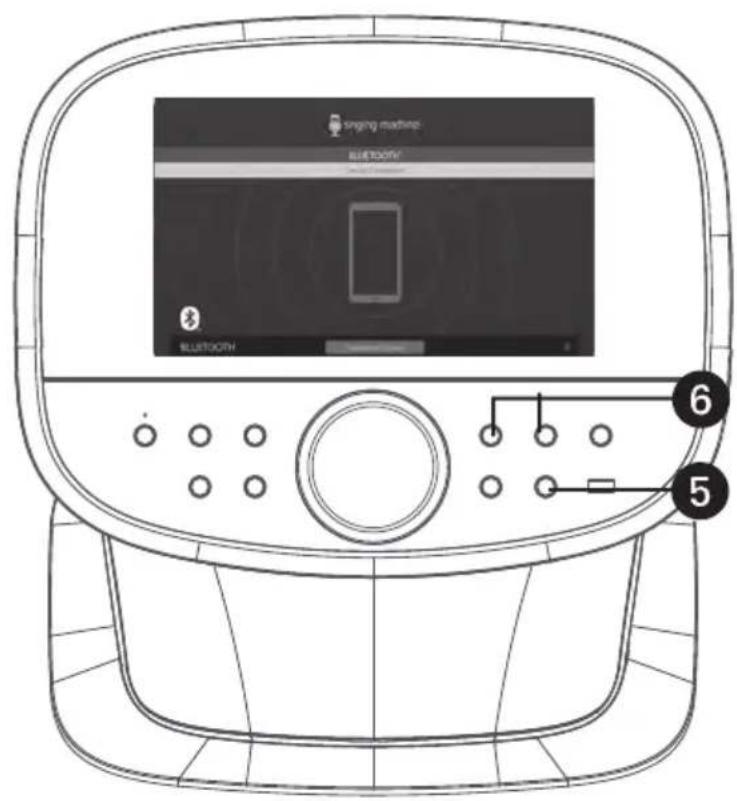
singing machine BLUTTOOTH 6 55 To control playback from your Bluetooth device using this unit, press the ▶II (PLAY/ PAUSE) button to start playback (ensure the music app is open). Press the the ▶II (PLAY/ PAUSE) button again during playback to pause the song.
6 For track navigation, use the SKIP buttons ◀◀ or ▶▶ go back or advance one track.
text_image
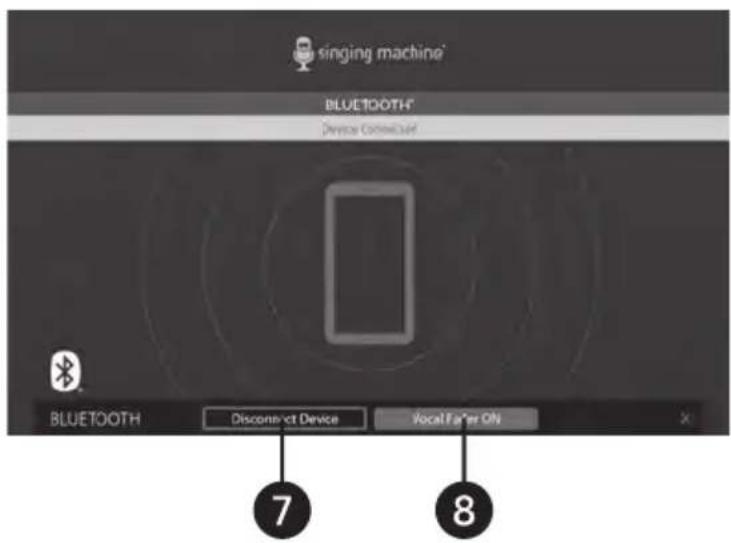
singing machine BLUETOOTH* Device Connection BLUETOOTH Disconnect Device Vocal Fan On 7 87 When you're finished using the Bluetooth connection, press Disconnect Device to terminate the connection.
8 To sing without the lead singer's vocals on the recording, press the Vocal Fader OFF button. To restore the lead singer's vocals, press Vocal Fader ON.
NOTE:
The effectiveness of lead vocal removal may vary depending on the song.
Operation
Using the AUX IN jack
text_image
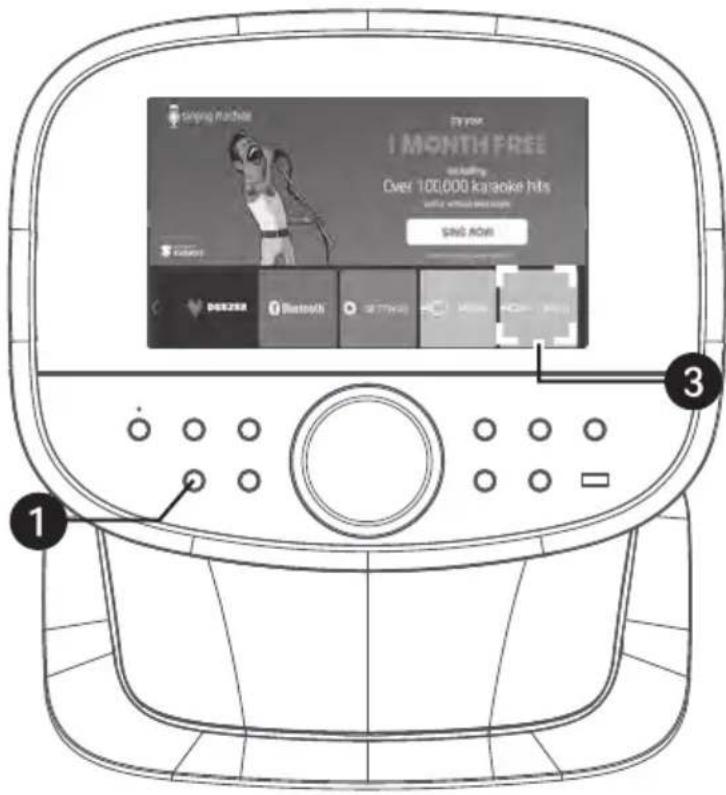
Singing machines I MONTH FREE withing Over 100,000 karaoke hits SAVE ROOM DOCKERA Bluetooth Settings 3 1 -1 Connect the unit as previously described and power it on by pressing the ⏻ (ON/STANDBY) button.
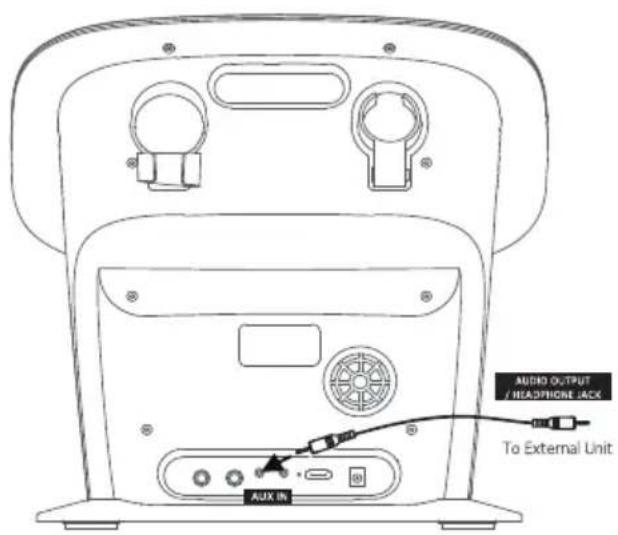
2 Use an appropriate cable (3.5mm audio cable, not included) to connect the external device to the AUX IN Jack on the rear of this unit, following the instructions provided earlier. This connection allows the audio to be played through your Singing Machine.
NOTES:
- It's highly recommended to set the volume on the auxiliary unit to 1 /3 or lower to prevent distortion. - Please note that skipping files/ tracks is not possible on this unit when using an external device.
text_image
AUDIO OUTPUT / HEADPHONE IACK To External Unit AUX IN3 Select mode. LINE IN to enter the Aux in
Operation
Playing Songs from The Recorded Files
text_image
Tipping nuckee I MONTH FREE Over 100,000 karsake hits SAG NOW OEEZIE iMantool SETTERE 1 2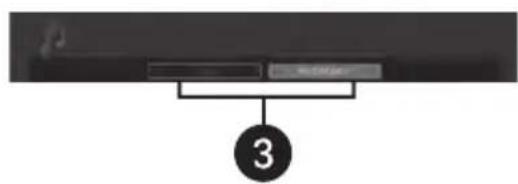
text_image
Screenshot of a music player interface showing track controls and a numbered label '3'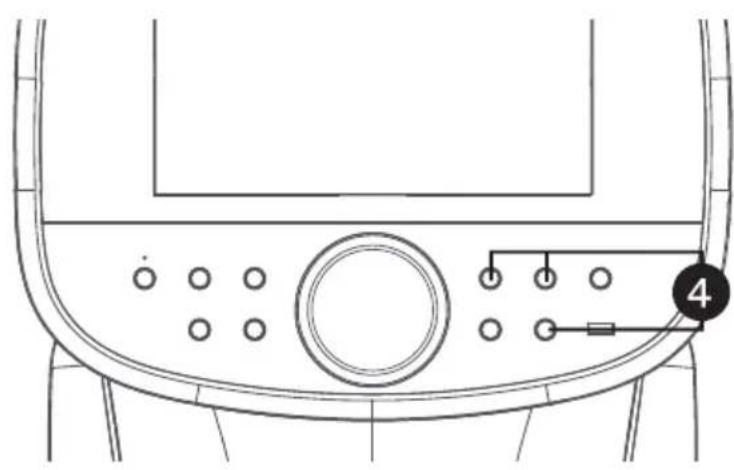
natural_image
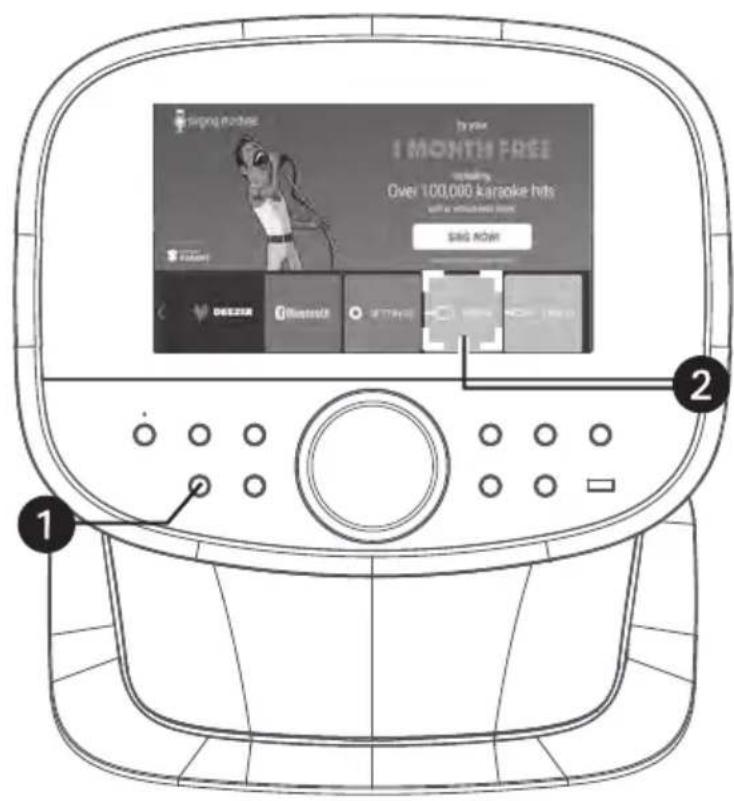
Technical line drawing of a vehicle dashboard with control panel and buttons (no text or symbols)1 Connect the unit as previously described and power it on by pressing the (ON/STANDBY) button.
2 Enter the MEDIA menu by selecting MEDIA.
3 Choose your desired playlist by selecting USB or RECORDINGS.
NOTE:
If the audio file you want to play is stored on a USB flash drive, make sure to insert the USB flash drive into the USB port of this unit.
4 Use the touch screen or the SKIP
button ◀ buttons to navigate through the song list. Once you've found the desired recorded audio file, press once on the touch screen or the ▶(PLAY/PAUSE) button on the control panel to start playing the audio file. Press the ▶II (PLAY/PAUSE) button again during playback to pause the file.
NOTE:
To delete a file, press and hold the file on the touch screen.
Troubleshooting Guide
If this unit experiences any issues, consider the following troubleshooting steps before seeking service:
No Power
- Ensure the power is on by pressing the power button.
- Check that the AC adapter is securely connected to the rear of the unit.
- Try connecting the unit to a different outlet.
- Strong electro-magnetic interference may disrupt the unit's function. Restart the unit as instructed in the manual. If issues persist, try using the product in a different location.
No Sound – General
- Increase the Music Volume if set to minimum.
- If using an external device, adjust its volume accordingly.
No sound from the Microphone
- Charge the wireless microphone if no sound comes from the microphone.
- Ensure the microphone is securely connected to the MIC 1 or MIC 2 jack (for wired microphones).
- Confirm the microphone is turned on.
- Adjust the MIC VOLUME to ensure it's not set too low.
File(s) on USB not playing
- Replace corrupted files.
- Ensure the file format is compatible with this unit.
- Check if the connected USB device is supported by the product.
Bluetooth Device Pairing Issues
- Turn off other Bluetooth devices to prevent accidental pairing.
- Activate the Bluetooth function on your device or refer to its manual for guidance.
- Restart pairing by accessing the Bluetooth icon on the main menu or press the button on the unit.
Music Unavailable After Bluetooth Connection
- Confirm that your Bluetooth device supports the A2DP Bluetooth profile.
- Adjust the volume on the external Bluetooth device as needed.
Unit will Not record
- No USB device was inserted or the USB device is full. Move all recordings to your computer to make space.
Troubleshooting Guide (Continued)
Failed to Connect to the Wi-Fi network
- Ensure the unit is within the Wi-Fi signal range.
- Verify that the Wi-Fi signal on the unit has not been turned off.
- Double-check the entered password for accuracy.
- WPA3 security settings may cause connection issues. If you have WPA3 security, consider switching to WPA2 or lower. Alternatively, reach out to us for further assistance.
No Internet Connection
- Ensure the unit is within a reasonable distance from your router (ideally within 10 meters).
- Weak Wi-Fi signal strength may prevent proper password verification.
- By default, the unit's Date and Time synchronize with internet time. If "Set Time Automatically" is turned off in the Settings menu, set the date and time manually.
- Incorrect Date and Time settings, such as December 31, 1969, may impede website access.
- If the unit is successfully connected to the router's Wi-Fi but still unable to access the internet, check the router's settings to ensure that the unit is not restricted from going online. Consult your router's instruction manual for guidance.
- Verify the unit's Wi-Fi functionality by connecting it to your mobile device's hotspot with data service.
- To further verify the unit's Wi-Fi functionality, connect it to your mobile device's hotspot with data service.
Specifications
AUDIO
Output Power 50 Watts (RMS)
BLUETOOTH
Bluetooth Version ......V5.0
Working Distance.....Up to 30 feet/10 meters measured in open space
USB
Format....FAT32
Maximum Compatibility 32GB
Wi-Fi frequency 2.4GHz/5GHz
GENERAL
Input voltage and AC frequency 100-240V, 50/60Hz
Output voltage and current 18VDC=3A Positive Center
Output power 54W
Factory name and address of adaptor ...... Dongguan Guanjin Electronics Technology Co., Ltd
...... Block 16 Qiantou New Industrial Park Niushan,
Dongcheng District Dongguan City, Guangdong Province, China.
Model.....K65A180300U
Average active efficiency....88.00%
Efficiency at low load (10%) 88.05%
No-load power consumption 0.21W
Dimensions - Main Unit 14.4 x 9.4 x 14.2 inches (36.5 x 23.8 x 36.6cm) Weight - Main
Unit 8.7 Lbs (4.0kgs)
Wireless Microphone 2.4G wireless Microphone (2)
Internal memory 4GB RAM, 1 6GB flash
Line In ....3.5mm Stereo Jack
Line Out ....3.5mm Stereo Jack
Microphone Jack 6.3mm (2)
Specifications are subject to change without notice.
HDMI®
HIGH-DEFINITION MULTIMEDIA INTERFACE
The terms HDMI, HDMI High-Definition Multimedia Interface, HDMI trade dress and the HDMI Logos are trademarks or registered trademarks of HDMI Licensing Administrator, Inc.

Bluetooth®
The Bluetooth® word mark and logos are registered trademarks owned by Bluetooth SIG, Inc. and any use of such marks and logos by The Singing Machine Company, Inc. is under license. Other trademarks and trade names are those of their respective owners.
Mises en Garde

Mises en Garde
RISQUE DE CHOC ÉLECTRIQUE
NE PAS OUVRIR

MISE EN GARDE: AFIN DE RÉDUIRE LE RISQUE D'ÉLECTROCUTION, NE PAS RETIRER LE COUVERCLE (OU LE DOS DU BOÎTIER). AUCUNE PIÈCE POUVANT ÊTRE RÉPARÉE PAR L'UTILISATEUR NE SE TROUVE À L'INTÉRIEUR. POUR TOUTE RÉPARATION, CONTACTER UN TECHNICIEN COMPÉTENT.

natural_image
Line drawing of a kitchen appliance with control panel and display (no text or symbols)Unité Principale
natural_image
Line drawing of a handheld device with a control panel and spout (no text or symbols)Microphone Sans Fil x2
natural_image
Simple line drawing of a medical or electrical device with a coiled cable and attached cylindrical component (no text or symbols)Adaptateur CA
text_image
Technical diagram of a device with numbered parts for identification- Écran Tactile
- Bouton (RETOUR)
- Bouton (ACCUEIL)
- Indicateur Bluetooth
- Bouton Bluetooth
- ⏻ Bouton (MARCHE/VEILLE)
- Bouton (EFFETS VOCAUX)
-
Haut-parleur
-
Bouton (PASSER)
- Bouton (PASSER)
- Bouton (LUMIÈRES)
- Port USB
- ▶Duton (LECTURE/PAUSE)
- Bouton ENREGISTRER
- Contrôle de VOLUME/EFETS
natural_image
Line drawing of a portable electronic device rear panel with ports and connectors, connected to a power outlet (no text or symbols)natural_image
Line drawing of a handheld device with a circular button and directional arrows indicating rotation (no text or symbols)text_image
Technical diagram of a device rear panel with labeled ports and componentstext_image
singing machine try your 1 MONTH FREE including Over 100,000 karaoke hits with or without lead sings SING NOW! KARAOKE Music Bluetooth SETTINGS Media High-ifytext_image
singing machine try your 1 MONTH FREE including Over 100,000 karaoke hits with or without loud singer SING NOW! Spotify Apple Music YouTube amazon mUSIC DEEZR 1text_image
singing machine! Try your 1 MONTH FREE including Over 100,000 karaoke hits with or without head singer! SING NOW! Music Bluetooth® SETTINGS MEDIA LINE IN singing machine! Try your 1 MONTH FREE including Over 100,000 karaoke hits with or without head singer! SING NOW! Music Bluetooth® SETTINGS MEDIA LINE IN singing machine! Try your 1 MONTH FREE including Over 100,000 karaoke hits with or without head singer! SING NOW! Music Bluetooth® SETTINGS MEDIA LINE IN1
natural_image
Technical line drawing of a vehicle front panel with circular buttons and a labeled component (no text or symbols beyond basic diagram)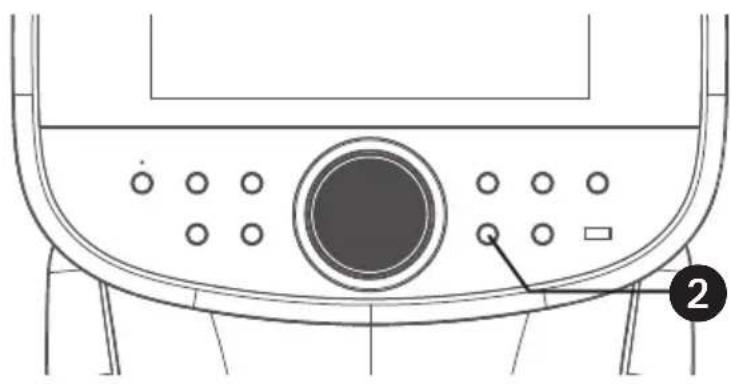
natural_image
Technical line drawing of a mechanical component with circular ports and a labeled button (no text or symbols beyond basic diagram)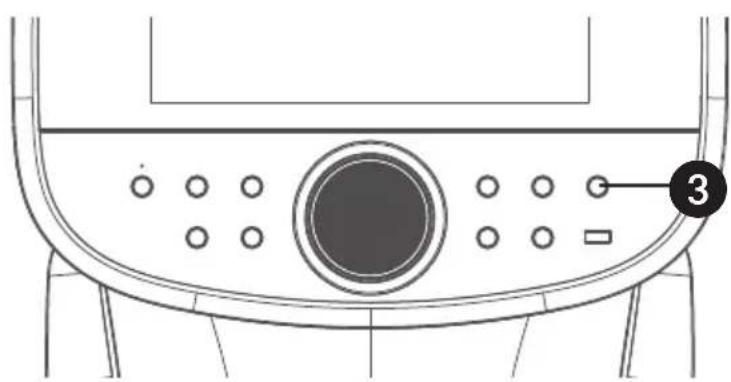
natural_image
Technical line drawing of a mechanical component with circular ports and a numbered label (3), no readable text or symbols beyond the number.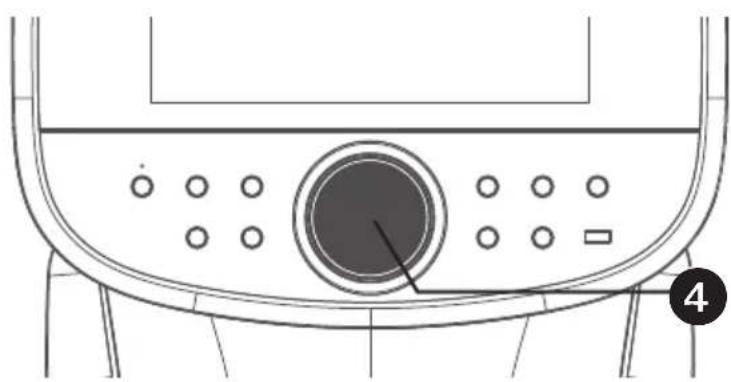
natural_image
Technical line drawing of a mechanical component with circular ports and a central knob (no text or symbols)natural_image
Technical line drawing of a vehicle front panel with circular buttons and a numbered label (5), no readable text or symbols beyond the number.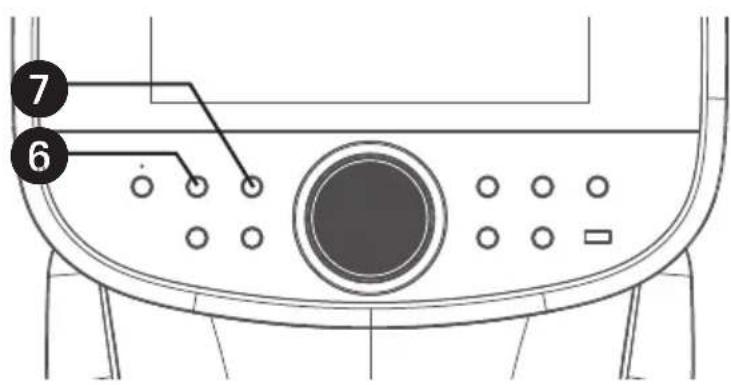
text_image
Technical diagram of a device control panel with numbered labels pointing to key components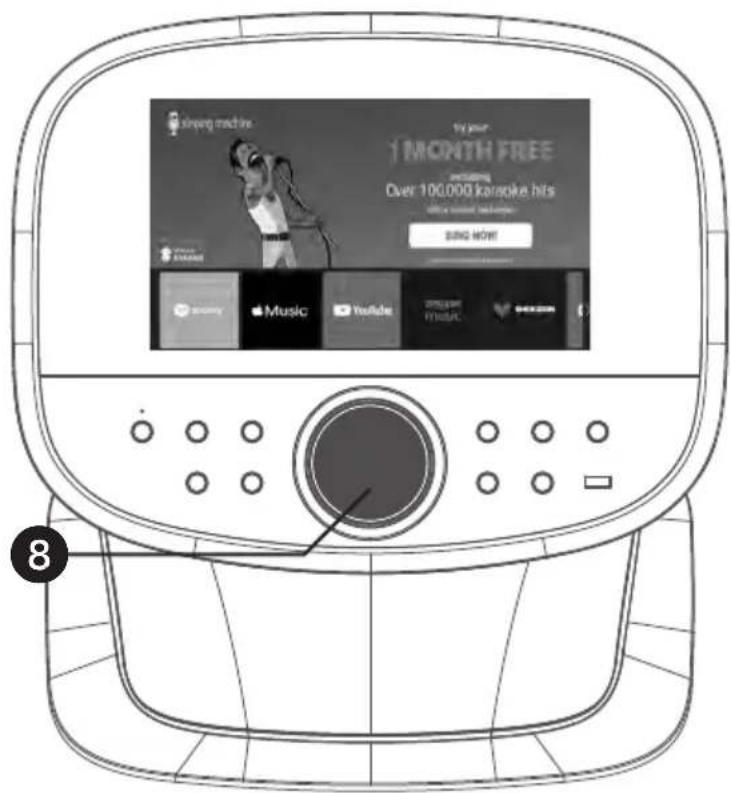
text_image
1 MONTH FREE Over 100,000 kHz hits BING NOW! #8natural_image
Technical line drawing of a mechanical control panel with circular buttons and a dial (no text or symbols)text_image
SAVE AS OPTIONAL OK Select where you want to save your recording.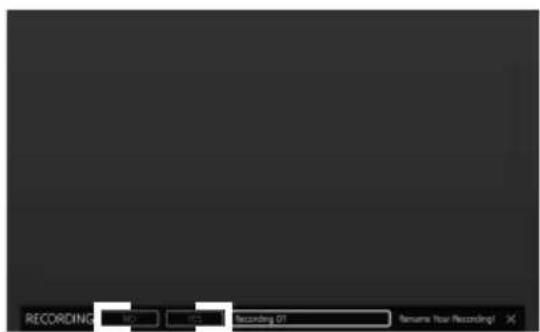
text_image
RECORDING NO 01 Recording 01 Resume Now Recording!Fonctionnement
Connexion d'un Appareil via Bluetooth
text_image
Curing machine! 1 MONTH FREE including Over 100,000 karaoke hits with or without sound longer SIND NOW! Music Bluetooth GETTPRUS MOSA SIRI 2 1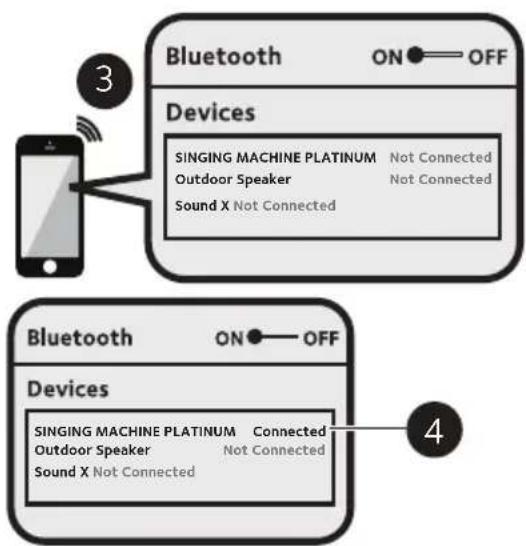
flowchart
graph TD
    A["Smartphone"] -->|3| B["Bluetooth ON OFF Devices"]
    B --> C["SINGING MACHINE PLATINUM Not Connected\nOutdoor Speaker Not Connected\nSound X Not Connected"]
    D["Bluetooth ON OFF Devices"] --> E["SINGING MACHINE PLATINUM Connected\nOutdoor Speaker Not Connected\nSound X Not Connected"]
text_image
signing machine BLUTTOOTH Digital Interface BLUTTOOTH 6 5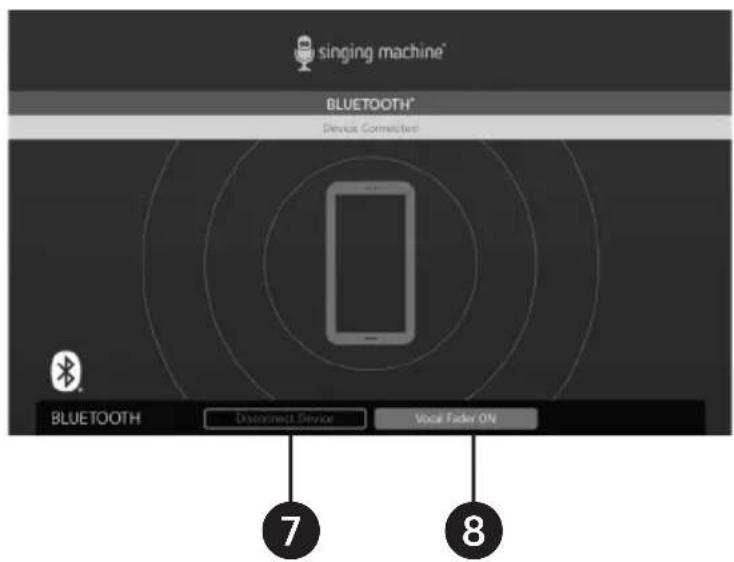
text_image
singing machine* BLUETOOTH* Device Connected BLUETOOTH Disconnect Device Vocal Fader ON 7 8text_image
1 MONTH FREE Including Over 100,000 karaoke hits with or without soundings SIRG NOW! Music Bluetooth settisys 3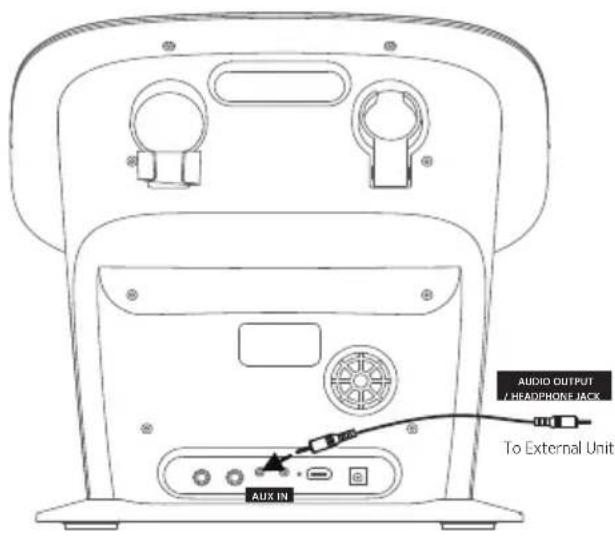
text_image
AUDIO OUTPUT & HEADPHONE JACK To External Unit AUX INtext_image
singing machine! by your 1 MONTH FREE including Over 100.000 karaoke hits with an airplane bird singer SING NOW! pandora Bluetooth SETTING MOSA ON Line ① ②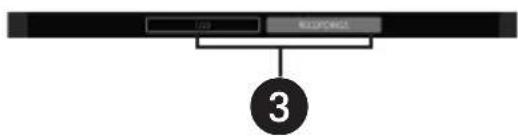
flowchart
graph TD
    A["USB"] --> C["3"]
    B["RESPONSE"] --> C["3"]
natural_image
Technical line drawing of a mechanical component with circular features and a numbered annotation (no text or symbols)PORTABLE CART WARNING (symbol provided by RETAC)
Lieferumfang
natural_image
Line drawing of a kitchen appliance with control panel and display screen (no text or symbols)Hauptgerät
natural_image
Line drawing of a handheld microphone with control buttons (no text or symbols)Drahtloses Mikrofon x2
natural_image
Simple line drawing of a medical or electrical device with a coiled cable and attached plug (no text or symbols)text_image
Technical diagram of a device with numbered parts for identification- Touchscreen
- Taste (BACK)
- Taste (HOME)
- Bluetooth-Anzeige
- Bluetooth-Taste
- ⏻ Taste (ON/STANDBY)
- Taste (VOICE EFFECTS)
-
Lautsprecher
-
Taste (SKIP)
- Taste (SKIP)
- ASTE (LIGHTS)
- USB-Port
- ▶ Taste (PLAY/PAUSE)
- Taste RECORD
- Regler VOLUME/ EFFECTS
text_image
Diagram of a device rear panel with numbered labels pointing to key components such as buttons, fans, and power supply.natural_image
Line drawing of a portable electronic device with ports, buttons, and a power outlet (no text or symbols)natural_image
Diagram of a handheld device with a circular button and bidirectional arrow indicating rotation (no text or symbols)text_image
Technical diagram of a device rear panel with labeled ports and componentsnatural_image
Line drawing of a device rear panel with labeled audio output port (no text or symbols beyond label)text_image
singing machine try your 1 MONTH FREE including Over 100,000 karaoke hits with or without lead singing SING NOW! Macromedia: Macromedia iMusic Bluetooth SETTINGS M-3A iMedia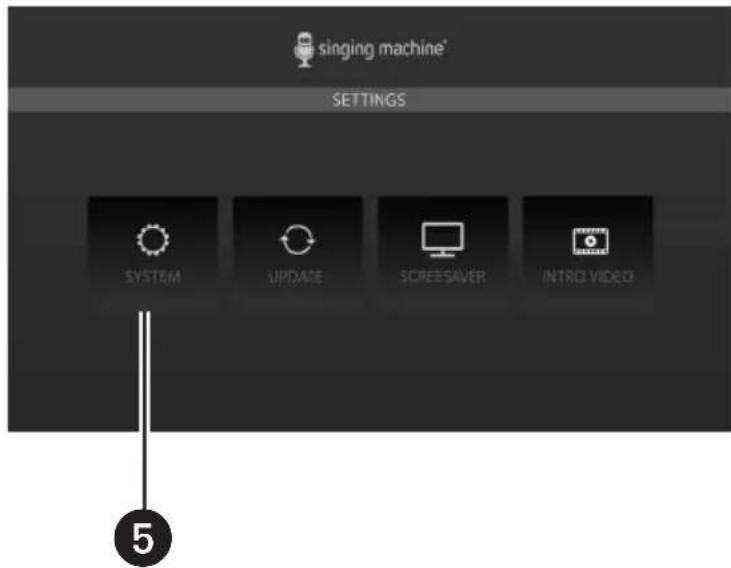
text_image
singing machine* SETTINGS SYSTEM UPDATE SCREESAVER INTRO VIDEOtext_image
singing machine try your 1 MONTH FREE including Over 100,000 karaoke hits with or without lead singer SING NOW! Spotify Apple Music YouTube amazon music DEEZER 1text_image
1 singing machine Try your 1 MONTH FREE including Over 100,000 karaoke hits with or without new singer SING NOW! Spotify Music YouTube Amazon music DEEER All your favorites in one easy-to-use app! Welcome to Singing Machine Karaoke Limited time trial Pink a free songs and try out the app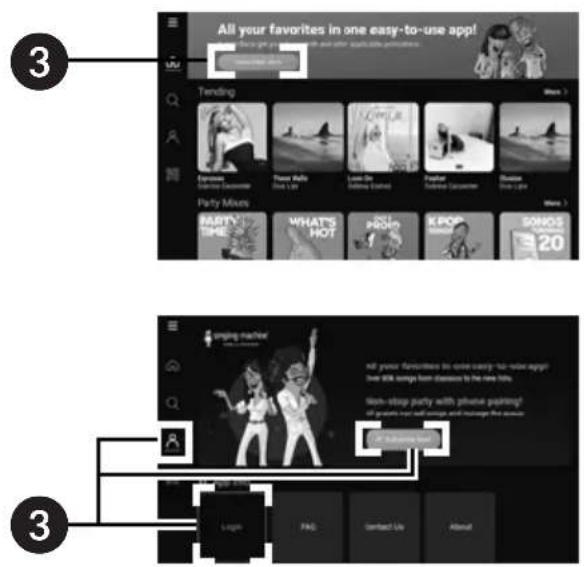
text_image
All your favorites in one easy-to-use app! Trending Ecoos Gloves Climous Climous Team Skills Live On Sailing (Text) Father Climous Climous Party Mixes PARTY TIME WHAT'S HOT HOLD K POP SONOS 20 3 3 Ongoing market All your favorites in one easy-to-use app! over 50K songs from doesn't to the new hits. Walk-up party with private painting? of your people over self-speech and manage the season. Logit PASS Contact Life About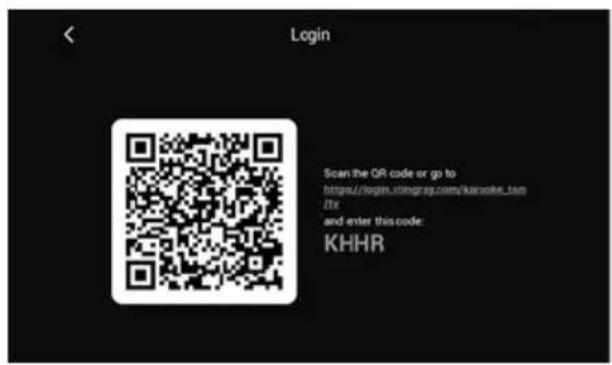
text_image
Login Scan the QR code or go to https://login.stingray.com/kansoke_tum/ Itv and enter this code: KHHR1 Singing Machine Karaoke App öffnen.
text_image
singing machine try your 1 MONTH FREE including Over 100,000 karaoke hits with or without leak singer SING NOW! *Minister of song may be difficulty JYKAW KARAOKE Music Bluetooth® SETTINGS MPTEA LINE-IN singing machine try your 1 MONTH FREE including Over 100,000 karaoke hits with or without leak singer SING NOW! *Minister of song may be difficulty JYKAW KARAOKE Music Bluetooth® SETTINGS MPTEA LINE-IN singing machine try your 1 MONTH FREE including Over 100,000 karaoke hits with or without leak singer. SING NOW! *Minister of song may be difficulty JYKAW KARAOKE Music Bluetooth® SETTINGS MPTEA LINE-INnatural_image
Technical line drawing of a vehicle front panel with circular buttons and a labeled component (no text or symbols beyond basic diagram)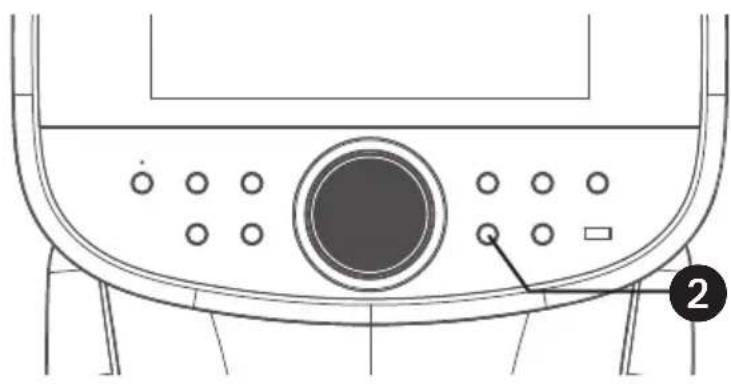
natural_image
Technical line drawing of a mechanical component with circular ports and a labeled button (no text or symbols beyond basic diagram)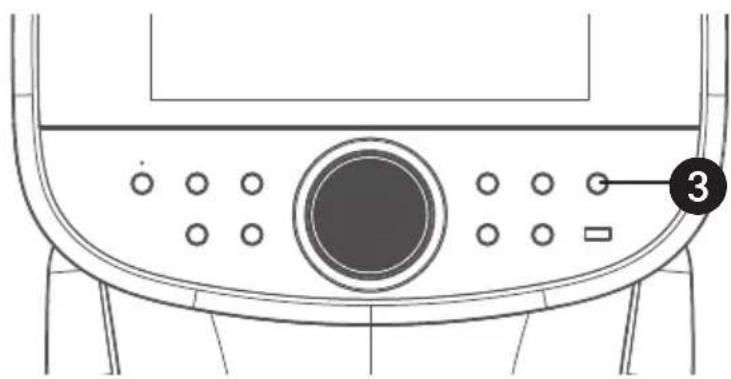
natural_image
Technical line drawing of a mechanical component with circular ports and a numbered label (3), no readable text or symbols beyond the number.
natural_image
Technical line drawing of a mechanical component with circular ports and a central knob (no text or symbols)natural_image
Technical line drawing of a vehicle front panel with circular buttons and a numbered label (5), no readable text or symbols beyond the number.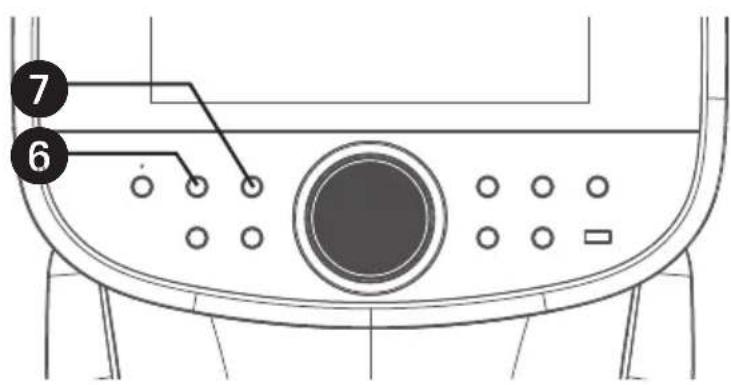
text_image
Technical diagram of a device control panel with numbered labels pointing to key components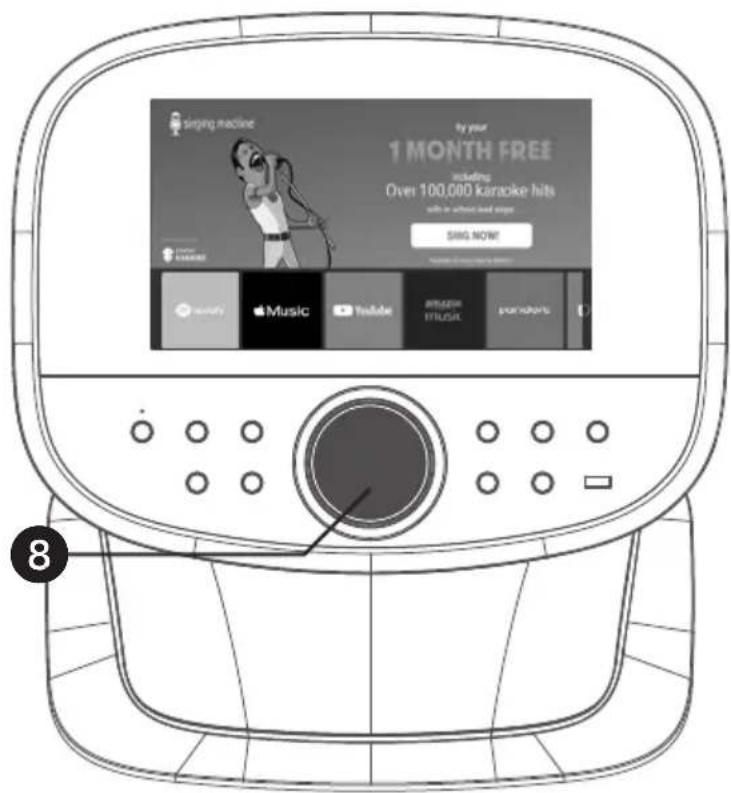
text_image
singing machine by your 1 MONTH FREE including Over 100,000 karaoke hits with in-store and song SING NOW! Spotify Apple Music YouTube Amazon Music Punchouts 8natural_image
Technical line drawing of a mechanical component with circular ports and a labeled button (no text or symbols beyond basic diagram)text_image
SAVE AS OPTIONAL OK Select where you want to save your recording.text_image
1 MONTH FREE including Over 100,000 karaoke hits SING NOW! Music Bluetooth Settings MEDIA LIVE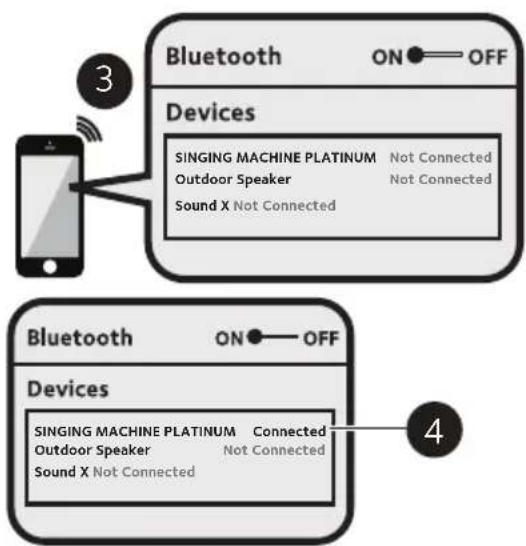
flowchart
graph TD
    A["Smartphone"] -->|3| B["Bluetooth ON OFF"]
    B --> C["Devices"]
    C --> D["SINGING MACHINE PLATINUM Not Connected\nOutdoor Speaker Not Connected\nSound X Not Connected"]
    D --> E["4"]
text_image
singing machine* BLUETOOTH* Device Connected BLUETOOTH Disconnect Device Vocal Fader ON 7 8HINWEIS:
text_image
1 MONTH FREE Including Over 100,000 karaoke hits with or without soundings SIRG NOW! Music Bluetooth NETIWOO MELISSA LIVE-IN ① ③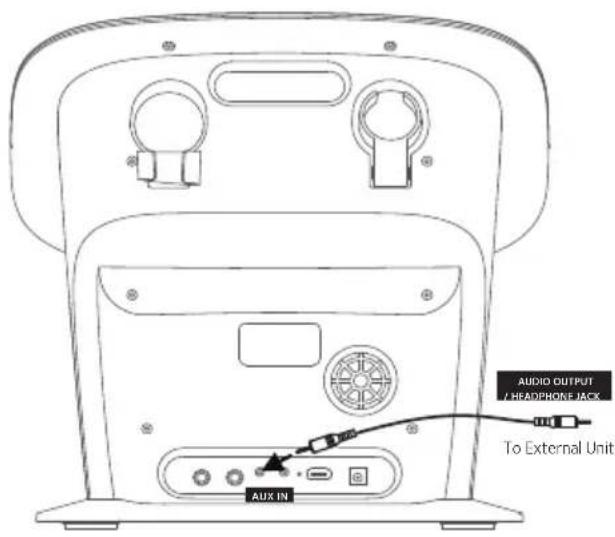
text_image
AUDIO OUTPUT / HEADPHONE JACK To External Unit AUX INtext_image
singing machine ty your 1 MONTH FREE including Over 100,000 karaoke hits with an without sound song SING NOW! Music Bursardi KETTWOZ MEGA LPG LPG ① ②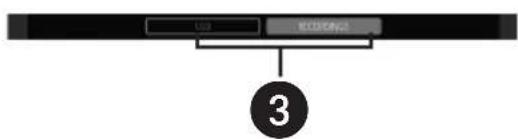
flowchart
graph TD
    A["USB"] --> C["3"]
    B["ECUTIONS"] --> C["3"]
natural_image
Technical line drawing of a mechanical component with circular features and a numbered label (4), no readable text or symbols present.Wi-Fi frequency 2.4GHz/5GHz
ALLGEMEIN
Specifications are subject to change without notice.

HIGH-DEFINITION MULTIMEDIA INTERFACE
PORTABLE CART WARNING (symbol provided by RETAC)
Meegeleverd
natural_image
Line drawing of a kitchen appliance with control panel and display screen (no text or symbols)Hoofdunit
natural_image
Line drawing of a handheld device with a button and power button (no text or symbols)natural_image
Line drawing of a portable electrical fuse with coiled cable and plug (no text or symbols)Netadapter (AC Adapter)
text_image
Technical diagram of a device with numbered parts for identification- Aanraakscherm
- (BACK)-toets
- (HOME)-toets
- Bluetooth-indicator
- Bluetooth-toets
- ⏻ (ON/Stand-by)-toets
- (VOICE EFFECTS)-toets
-
Luidspreker
-
SKIP-toets
- SKIP-toets
- (LIGHTS)-toets
- USB-poort
- (PLAY/PAUDE)-toets
- RECORD-toets
- VOLUME / EFFECTS-regelaar
natural_image
Line drawing of a portable electronic device back panel with connected cable and power outlet (no text or symbols)natural_image
Top-down schematic of a handheld device with directional arrows indicating rotation or movement (no text or symbols)text_image
Technical diagram of a device rear panel with labeled ports and componentsnatural_image
Line drawing of a device rear panel with labeled audio output (no text or symbols beyond label)text_image
singing machine try your 1 MONTH FREE including Over 100,000 karaoke hits with or without lead singer SING NOW! Music Bluetooth SETTINGS MEDIA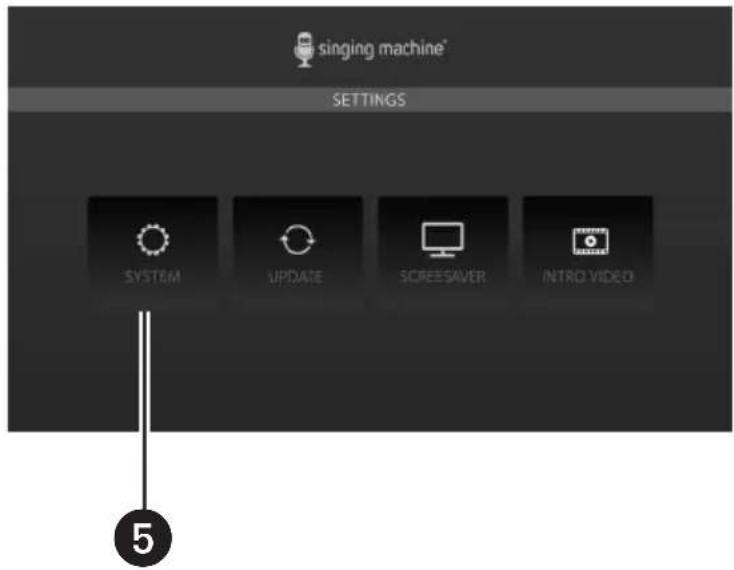
text_image
singing machine* SETTINGS SYSTEM UPDATE SCREESAVER INTRO VIDEOtext_image
singing machine try your 1 MONTH FREE including Over 100,000 karaoke hits with or without lead singer SING NOW! Spotify Music YouTube amazon music DEEZER ①text_image
1 singing machine try your 1 MONTH FREE including Over 100,000 karaoke hits with or without new singer SING NOW! Spotify Music YouTube Amazon music DEEER All your favorites in one easy-to-use app! Welcome to Singing Machine Karaoke Limited time trial Pick 3 free songs and try out the app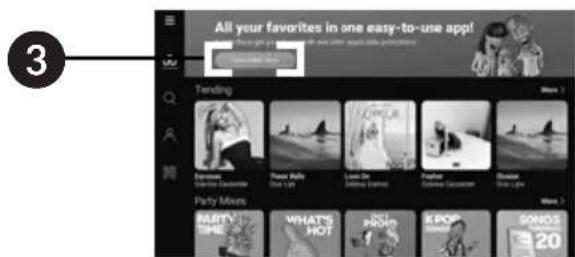
text_image
All your favorites in one easy-to-use app! Trending Everyday Pays Rinks Live On Kings Andes Festival Sonicville Boules Party Mixes BABY'S TIME WHAT'S HOT KHOON KHOON SONOS 20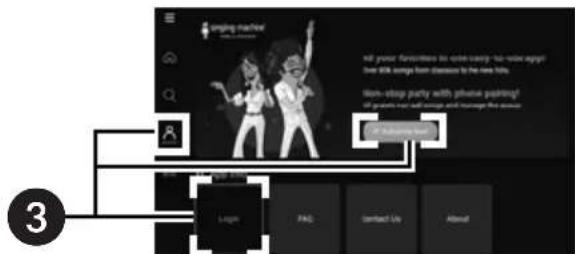
text_image
Singing machine! All popular favorites to create new - tab music app! Over 30K songs from classes to the new kids Watch-stop party with phone paging! Of people your own song and manage the app Login PASS Contact Life About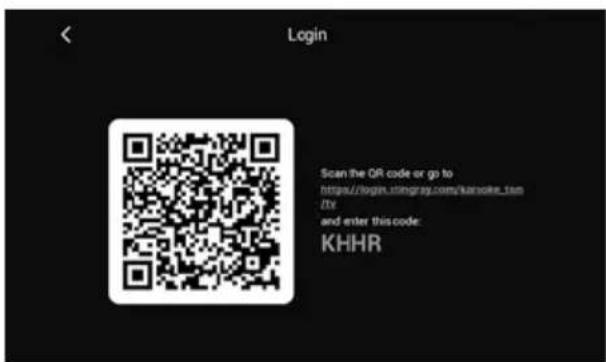
text_image
Login Scan the QR code or go to https://login.stingray.com/kansoke_tam/ ITe and enter this code: KHHRtext_image
singing machine try your 1 MONTH FREE including Over 100,000 karaoke hits with or without leak singer SING NOW! *minutes of songs may be necessary Music Bluetooth SETTINGS MOTRA LINE-IN singing machine try your 1 MONTH FREE including Over 100,000 karaoke hits with or without leak singer SING NOW! *minutes of songs may be necessary Music Bluetooth SETTINGS MOTRA LINE-IN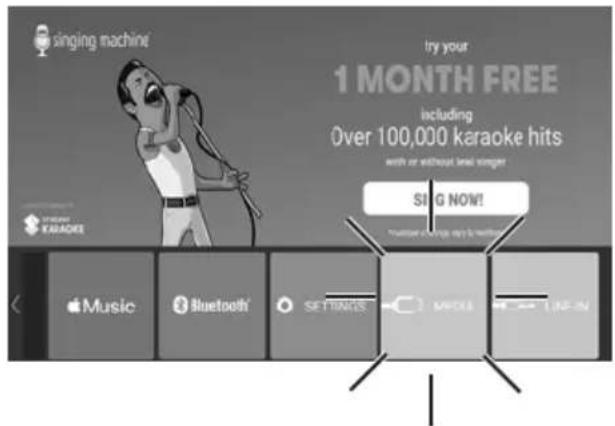
text_image
singing machine Try your 1 MONTH FREE including Over 100,000 karaoke hits with or without link singer SING NOW! Music Bluetooth SETTINGS MPDES LINE-IN1 Selecteer BLUETOOTH om de Bluetooth-modus te openen.
OPMERKING:
natural_image
Technical line drawing of a vehicle front panel with circular buttons and a labeled component (no text or symbols beyond basic diagram)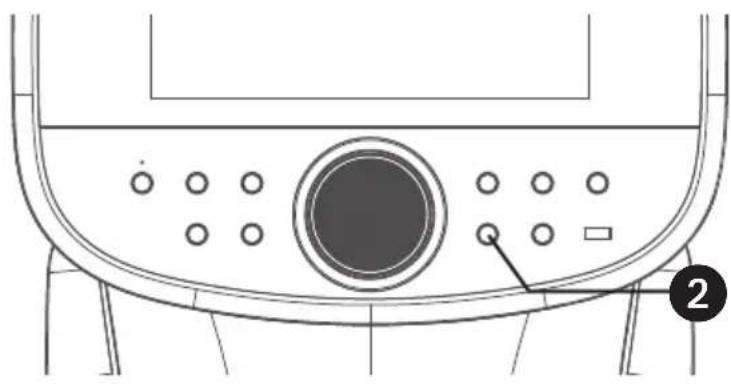
natural_image
Technical line drawing of a mechanical component with circular ports and a labeled button (no text or symbols beyond basic diagram)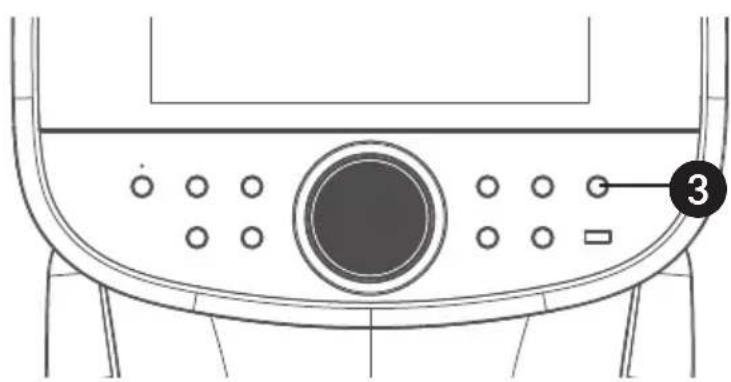
text_image
Technical diagram of a device control panel with labeled buttons and a numbered component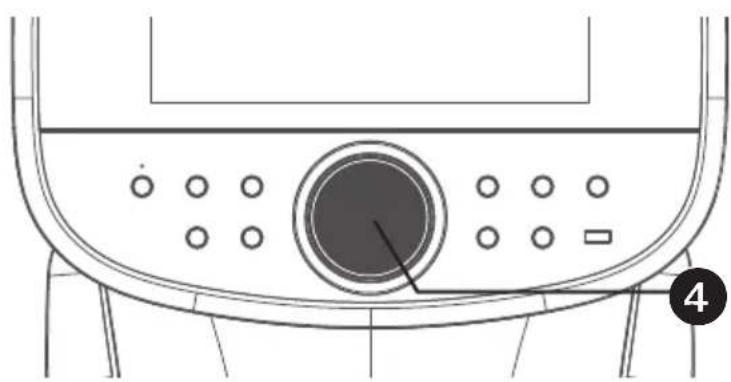
natural_image
Technical line drawing of a mechanical component with circular ports and a central knob (no text or symbols)natural_image
Technical line drawing of a vehicle front panel with circular buttons and a numbered label (5), no readable text or symbols beyond the number.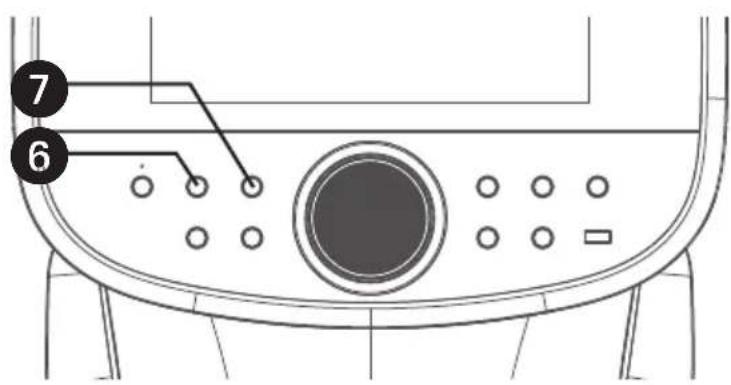
text_image
Technical diagram of a device control panel with numbered labels pointing to key components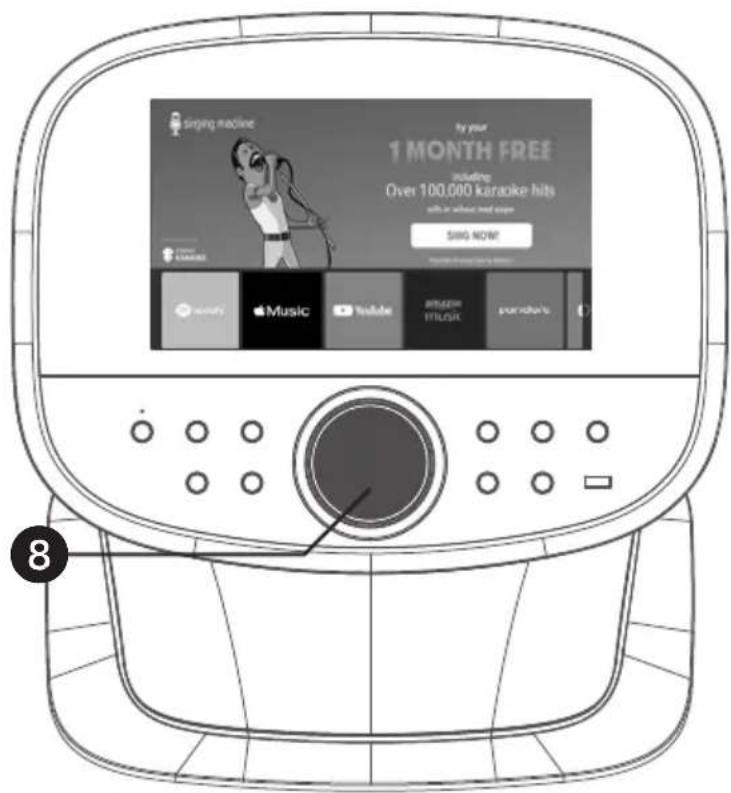
text_image
singing machine by your 1 MONTH FREE including Over 100,000 karaoke hits with in thousands of euros SING NOW! Spotify Apple Music YouTube Amazon Music P Pandoranatural_image
Technical line drawing of a mechanical component with circular ports and a labeled button (no text or symbols beyond basic diagram)text_image
SAVE AS OPTIONAL OK Select where you want to save your recording.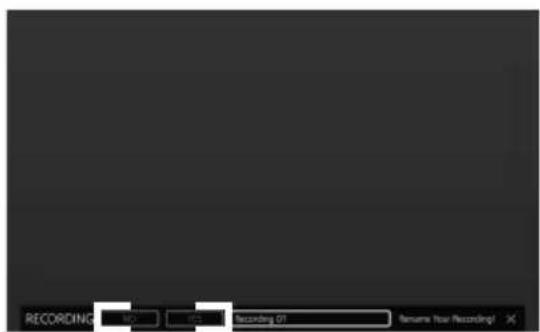
text_image
RECORDING NO 01 Recording 01 Resume Now Recording!OPMERKINGEN:
text_image
1 MONTH FREE including Over 100,000 karaoke hits SING NOW! Music Bluetooth SETTING MEDIA LINE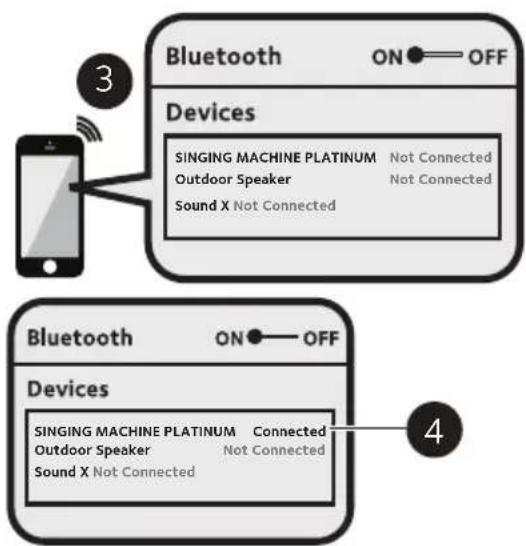
flowchart
graph TD
    A["Smartphone"] -->|3| B["Bluetooth ON OFF Devices"]
    B --> C["SINGING MACHINE PLATINUM Not Connected\nOutdoor Speaker Not Connected\nSound X Not Connected"]
    D["Bluetooth ON OFF Devices"] --> E["SINGING MACHINE PLATINUM Connected\nOutdoor Speaker Not Connected\nSound X Not Connected"]
text_image
signing machine BLUTCOFF Digital Interface 6 6 5text_image
singing machine* BLUETOOTH* Device Connected BLUETOOTH Dyconnect Device Vocal Fader ON 7 8Bediening
text_image
singing machine ty your 1 MONTH FREE including Over 100,000 karaoke hits with an without sound singer SING NOW! Music Buenesi LETTING MEGA HIGH LIME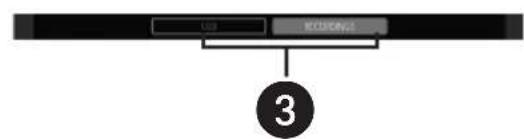
flowchart
graph TD
    A["USB"] --> C["3"]
    B["ECLOSING"] --> C["3"]
natural_image
Technical line drawing of a mechanical component with circular features and a numbered label (4), no readable text or symbols present.natural_image
Line drawing of a kitchen appliance with control panel and display (no text or symbols)Unidad Principal
natural_image
Line drawing of a handheld device with a control panel and spout (no text or symbols)natural_image
Simple line drawing of a medical or electrical device with a coiled cable and plug (no text or symbols)Adaptador de CA
text_image
Diagram of a device's front panel with numbered labels pointing to key componentstext_image
Diagram of a device rear panel with numbered labels pointing to key components such as buttons, ports, and connectors.natural_image
Line drawing of a portable electronic device back panel with ports and cable, no text or symbols presentnatural_image
Top-down schematic of a handheld device with a circular button and directional arrows indicating rotation (no text or symbols)text_image
Technical diagram of a device rear panel with labeled ports and componentstext_image
singing machine try your 1 MONTH FREE including Over 100,000 karaoke hits with or without loud singing SING NOW! KARAOKE Music Bluetooth SETTINGS ME-DA My-DA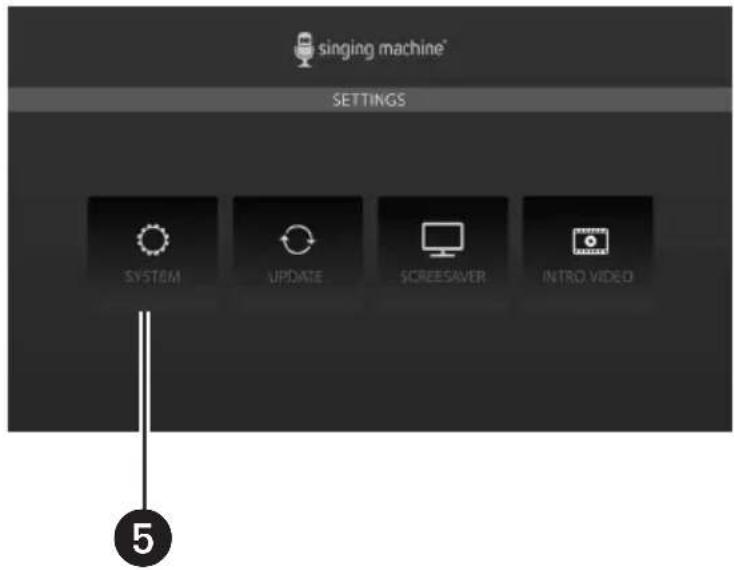
text_image
singing machine* SETTINGS SYSTEM UPDATE SCREESAVER INTRO VIDEOtext_image
singing machine try your 1 MONTH FREE including Over 100,000 karaoke hits with or without lead singer SING NOW! *number of songs now by birthday Spotify Apple Music YouTube amazon music pandora1
text_image
singing machine try your 1 MONTH FREE including Over 100,000 karaoke hits with or without lead singer SING NOW! STRAWB KARAOKE Music Bluetooth SETTINGS MEDIA LINE IN singing machine try your 1 MONTH FREE including Over 100,000 karaoke hits with or without lead singer SING NOW! STRAWB KARAOKE Music Bluetooth SETTINGS MEDIA LINE IN singing machine try your 1 MONTH FREE including Over 100,000 karaoke hits with or without lead singer SING NOW! STRAWB KARAOKE Music Bluetooth SETTINGS MEDIA LINE INnatural_image
Technical line drawing of a vehicle front panel with circular buttons and a labeled component (no text or symbols beyond basic diagram)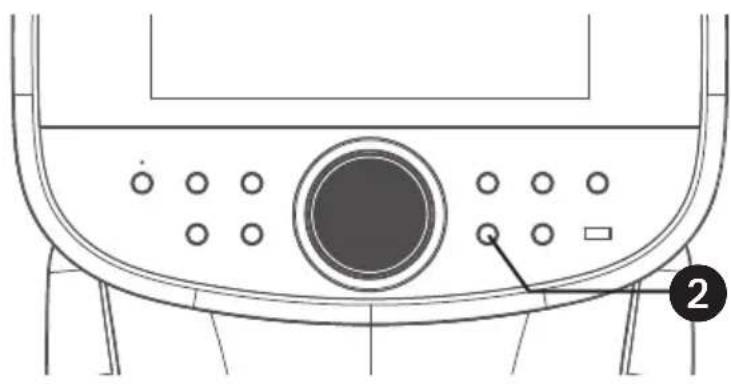
natural_image
Technical line drawing of a mechanical component with circular ports and a labeled button (no text or symbols beyond basic diagram)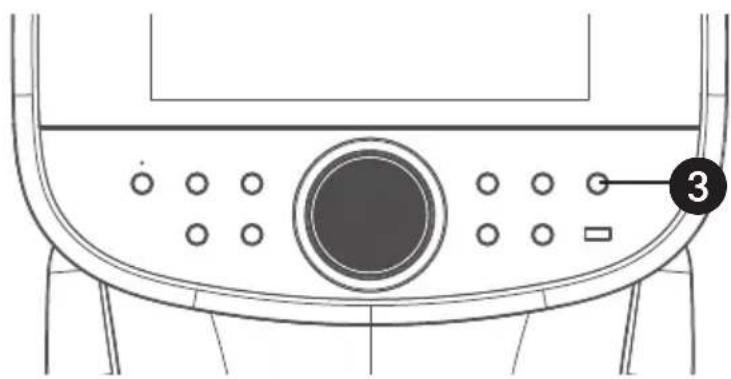
natural_image
Technical line drawing of a mechanical component with circular ports and a numbered label (3), no readable text or symbols beyond the number.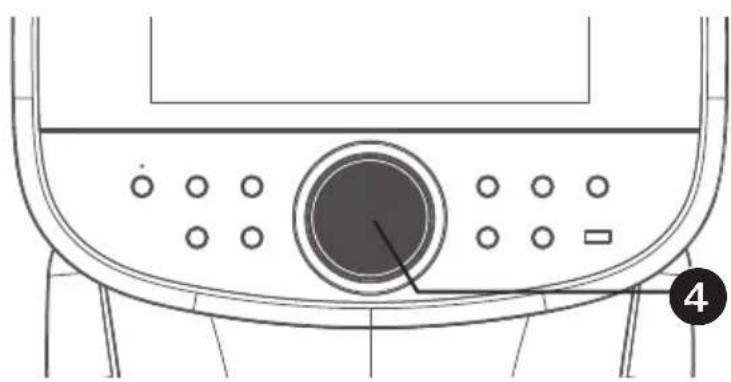
natural_image
Technical line drawing of a mechanical component with circular ports and a central knob (no text or symbols)natural_image
Technical line drawing of a vehicle front panel with circular buttons and a numbered label (5), no readable text or symbols beyond the number.text_image
Technical diagram of a device control panel with numbered labels pointing to key componentsNOTA:
natural_image
Technical line drawing of a vehicle front panel with circular buttons and a dial (no text or symbols)text_image
SAVE AS OPTIONAL OK Select where you want to save your recording.NOTAS:
text_image
RECORDING NO Copyright Recording 01 Resume Flow Recording!text_image
1 MONTH FREE including Over 100,000 karaoke hits SING NOW! Music Bluetooth SETTING MEDIA ONION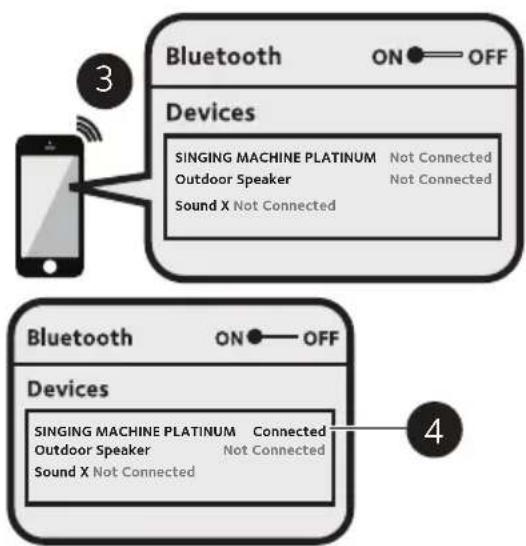
flowchart
graph TD
    A["Smartphone"] -->|3| B["Bluetooth ON OFF Devices"]
    B --> C["SINGING MACHINE PLATINUM Not Connected\nOutdoor Speaker Not Connected\nSound X Not Connected"]
    D["Bluetooth ON OFF Devices"] --> E["SINGING MACHINE PLATINUM Connected\nOutdoor Speaker Not Connected\nSound X Not Connected"]
text_image
signing machine BLUTTOOTH Digital Computer 6 BLUTTOOTH 5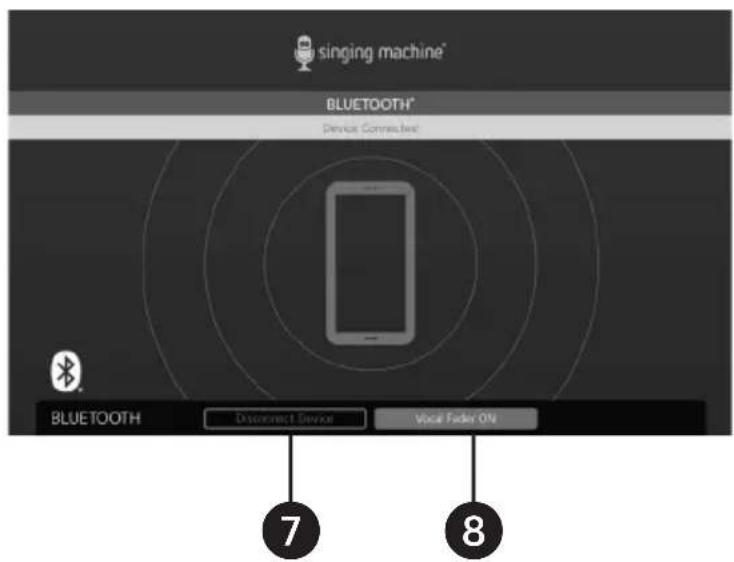
text_image
singing machine* BLUETOOTH* Device Connected BLUETOOTH Disconnect Device Vocal Fader ON 7 8text_image
using machines by your 1 MONTH FREE comusing Over 100,000 karaoke hits with or edited speaker SING NOW! Music Bensatti GETTING MOSS HAPPY LEEF ① ③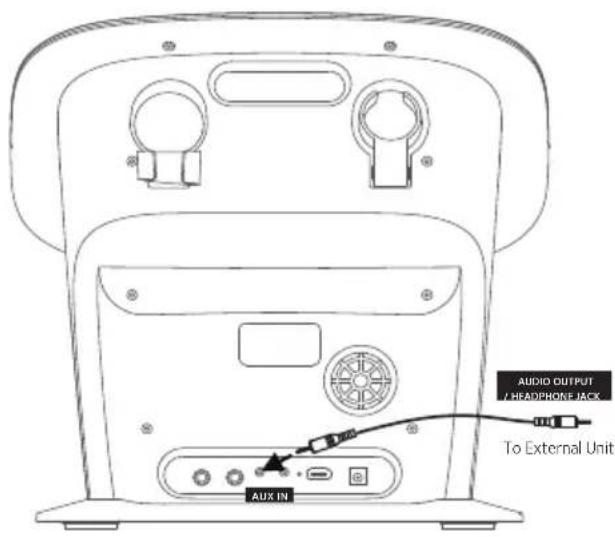
text_image
AUDIO OUTPUT / HEADPHONE JACK To External Unit AUX INtext_image
stiping machine by your 1 MONTH FREE including Over 100,000 karaoke hits with or without heat merger SING NOW! Music Bluetooth HTTPS MICA 2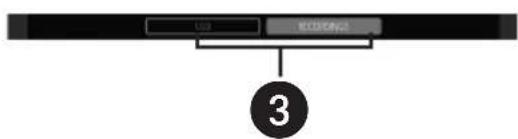
flowchart
graph TD
    A["USB"] --> C["3"]
    B["ECUTIONS"] --> C["3"]
natural_image
Technical line drawing of a mechanical component with circular features and a numbered label (4), no readable text or symbols present.PORTABLE CART WARNING (symbol provided by RETAC)

natural_image
Line drawing of a kitchen appliance with control panel and display (no text or symbols)Main Unit
natural_image
Line drawing of a handheld microphone with a control panel (no text or symbols)Wireless Microphone x2
natural_image
Line drawing of a medical or electrical device with coiled cable and plug (no text or symbols)AC Adapter
text_image
Technical diagram of a device with numbered parts for identification- Touch Screen
- Pulsante (BACK)
- Fulsante (HOME)
- Indicatore Bluetooth
- Pulsante Bluetooth
- ⏻ Pulsante (ON/STANDBY)
- Pulsante (VOICE EFFECTS)
-
Altoparlante
-
Pulsante SKIP
- Pulsante SKIP ▶▶
- Pulsante (LIGHTS)
- Porta USB
- Pulsante (PLAY/PAUSE)
- Pulsante RECORD
- Controllo VOLUME/ EFFECTS
text_image
Diagram of a device rear panel with numbered labels pointing to key components such as buttons, ports, and connectors.natural_image
Line drawing of a portable electronic device back panel with ports and cable, no text or symbols presentnatural_image
Line drawing of a handheld device with a circular button and bidirectional arrow indicating rotation (no text or symbols)text_image
Technical diagram of a device rear panel with labeled ports and componentsnatural_image
Line drawing of a device rear panel with labeled audio output (no text or symbols beyond label)Consumo in standby: 2.1 W
Funzionamento
text_image
singing machine try your 1 MONTH FREE including Over 100,000 karaoke hits with or without lead sings! SING NOW! Music Bluetooth SETTINGS MEDIA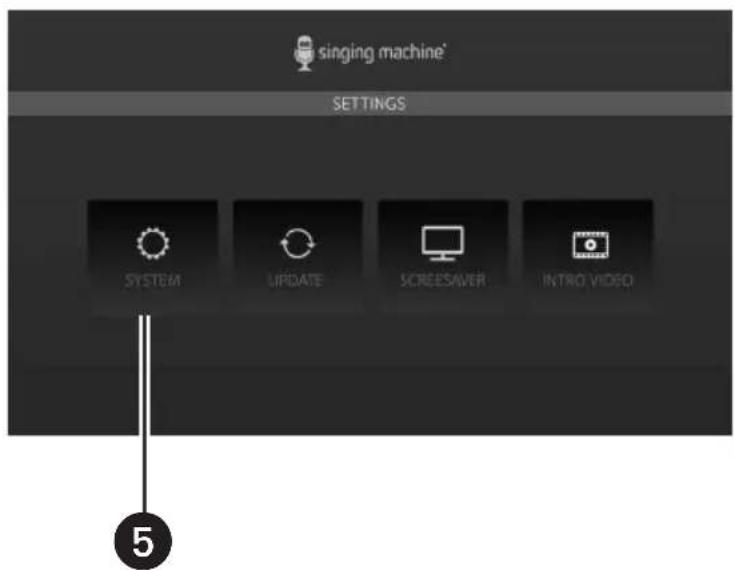
text_image
singing machine* SETTINGS SYSTEM UPDATE SCREESWER INTRO VIDEOtext_image
singing machine try your 1 MONTH FREE including Over 100,000 karaoke hits with or without had sings: SING NOW! Spotify Music YouTube amazon music DEEZR 1text_image
singing machine try your 1 MONTH FREE including Over 100,000 karaoke hits with or without leak singer SING NOW! *Minister of song may be difficulty JYKAW KARAOKE Music Bluetooth® SETTINGS MPTEA LINE-IN singing machine try your 1 MONTH FREE including Over 100,000 karaoke hits with or without leak singer SING NOW! *Minister of song may be difficulty JYKAW KARAOKE Music Bluetooth® SETTINGS MPTEA LINE-IN singing machine try your 1 MONTH FREE including Over 100,000 karaoke hits with or without leak singer. SING NOW! *Minister of song may be difficulty JYKAW KARAOKE Music Bluetooth® SETTINGS MPTEA LINE-INnatural_image
Technical line drawing of a vehicle front panel with circular buttons and a labeled component (no text or symbols beyond basic diagram)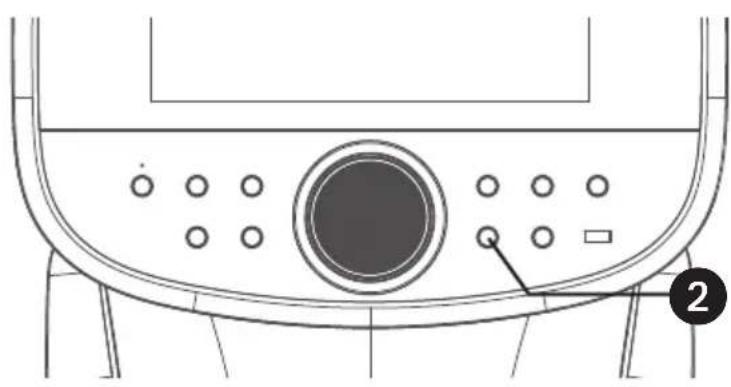
natural_image
Technical line drawing of a mechanical component with circular ports and a labeled button (no text or symbols beyond basic diagram)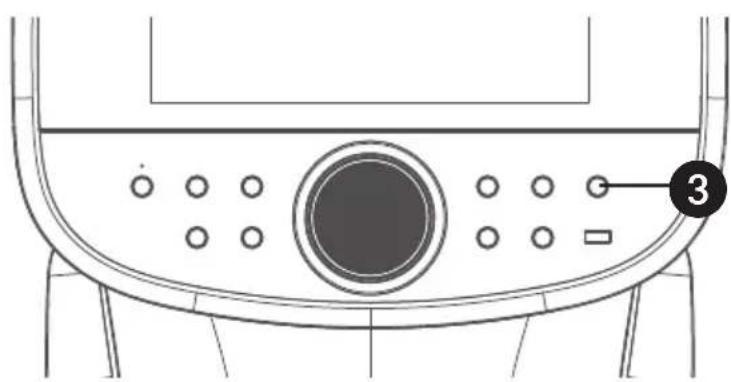
text_image
Technical diagram of a device control panel with labeled buttons and a numbered component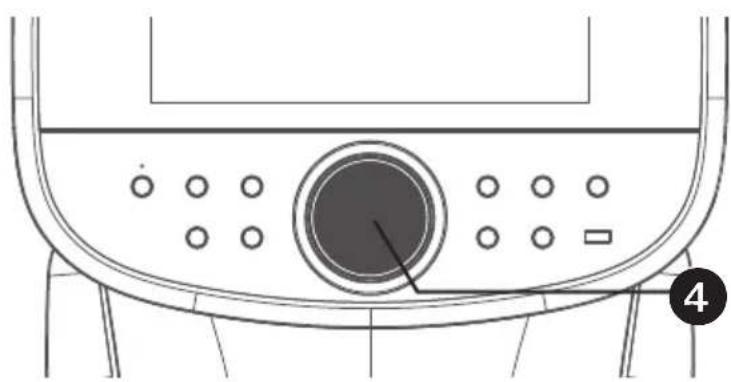
natural_image
Technical line drawing of a mechanical device with circular components and a central dial (no text or symbols)If the Wi-Fi network is not connected on this unit, a Wi-Fi connection window will pop up.
2 REGISTRARE LA PROPRIA PERFORMANCE
natural_image
Technical line drawing of a vehicle front panel with circular buttons and a numbered label (5), no readable text or symbols beyond the number.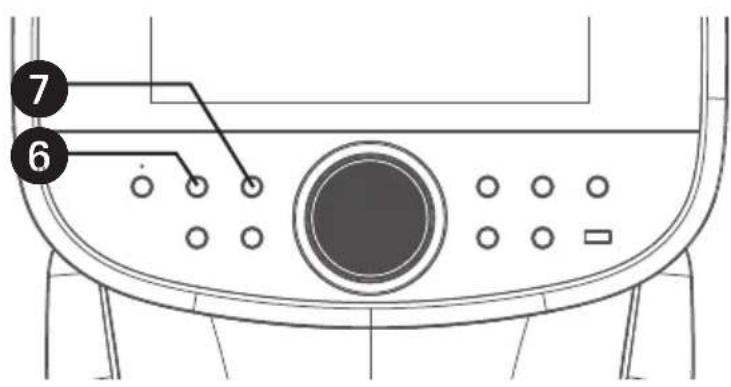
text_image
Technical diagram of a device control panel with numbered labels pointing to key components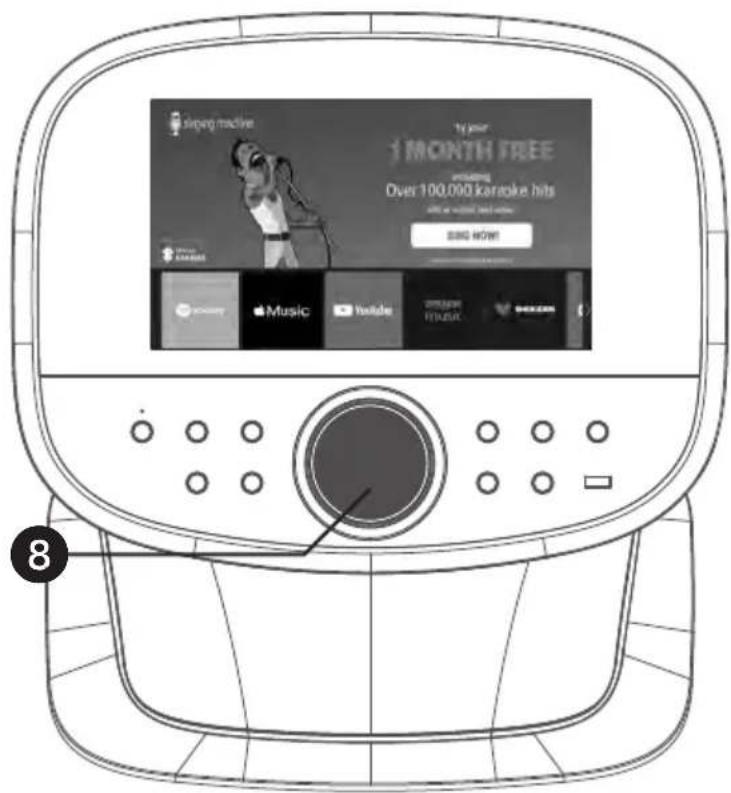
text_image
Super machine 1 MONTH FREE Over 100,000 karaoke hits 8:00 AM 9:00 PM 8:00 PM Music YouTube H2K H2Knatural_image
Technical line drawing of a mechanical component with circular ports and a labeled button (no text or symbols beyond basic diagram)text_image
SAVE AS OPTIONAL OK Select where you want to save your recording.text_image
1 MONTH FREE including Over 100,000 karaoke hits with or without bad anger SING NOW! Music Bluetooth SETTING MEDIA LINEAR 2 1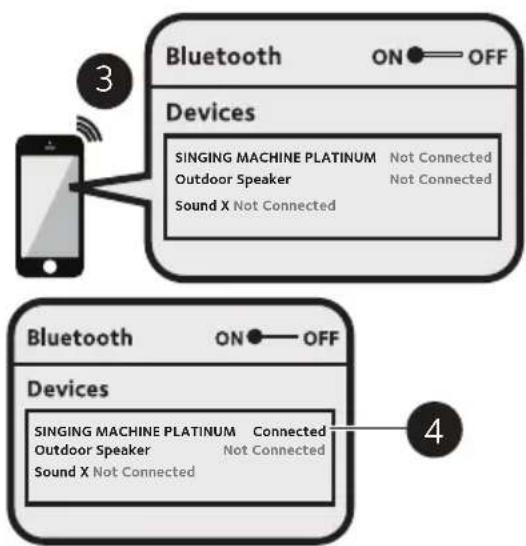
flowchart
graph TD
    A["Smartphone"] -->|3| B["Bluetooth ON OFF Devices"]
    B --> C["SINGING MACHINE PLATINUM Not Connected\nOutdoor Speaker Not Connected\nSound X Not Connected"]
    D["Bluetooth ON OFF Devices"] --> E["SINGING MACHINE PLATINUM Connected\nOutdoor Speaker Not Connected\nSound X Not Connected"]
Refer to the user manual of your Bluetooth device for detailed pairing instructions.
text_image
signing machine BLUTTOOTH Digital Interface BLUTTOOTH 6 5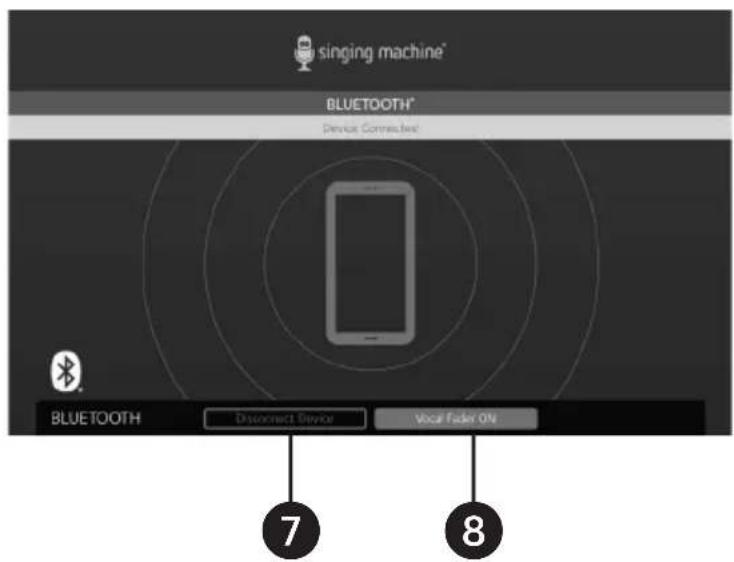
text_image
singing machine* BLUETOOTH* Device Connected BLUETOOTH Disconnect Device Vocal Fader ON 7 8text_image
1 MONTH FREE including Over 100,000 karaoke hits SING NOW! pandora Bluetooth SETTINGS MEDIA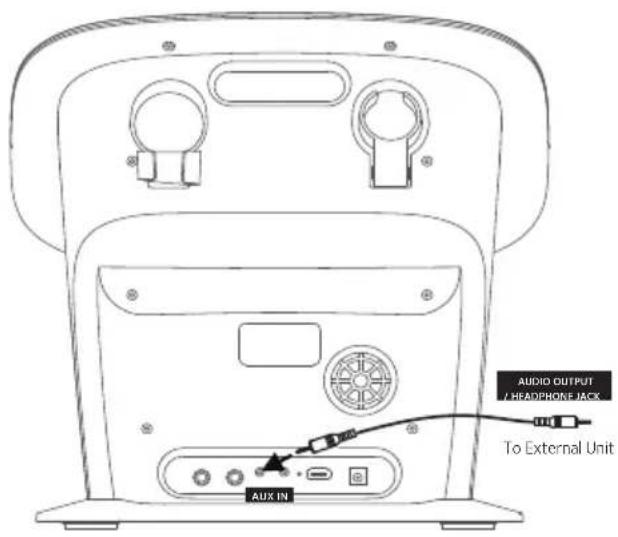
text_image
AUDIO OUTPUT / HEADPHONE JACK To External Unit AUX INtext_image
singing machine ty you! 1 MONTH FREE including Over 100,000 karaoke hits with an without head singer SIND NOW! 2 1 2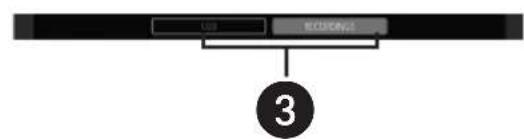
flowchart
graph TD
    A["USB"] --> C["3"]
    B["ECLOSING"] --> C["3"]
natural_image
Technical line drawing of a mechanical component with circular features and a numbered label (4), no readable text or symbols present.EU DECLARATION OF CONFORMITY
(According to applicable European Union Directives)
Manufacturer
Company name:
The Singing Machine Company, Inc.
Address:
6301 NW 5 ^th Way, Suite 2900, Fort Lauderdale, FL 33309, USA
Telephone / Email:
Telephone: 852-27811901. E-mail: letitiakwong@singingmachine.com
We hereby declare under our sole responsibility that the product described below:
• Product name: Wi-Fi Karaoke System
• Model / Type / Reference: ISM9011
- Serial number / Batch: FW-9011-26-000001 to FW-9011-26-000410
This product is in conformity with the essential requirements of the following EU Directives:
• General Product Safety Regulation (EU) 2023/988
• 2014/30/EU – Electromagnetic Compatibility Directive (EMC)
• 2014/53/EU - Radio Equipment Directive (RED)
• 2011/65/EU – RoHS Directive, as amended by (EU) 2015/863
Harmonised Standards Applied
(Where applicable)
• EN IEC 62368-1
• EN 55032

singing machine®
HONG KONG
• EN 55033
• EN IEC 61000-3-2
• EN 61000-3-3
• EN 62479
• EN 62311
• EN 50663
EN 50665
• ETSI EN 301 489
• ETSI EN 300 328
• ETSI EN 301 893
• ETSI EN 300 440
• (Standards must be adapted to the specific product)
Place and Date of Issue
Place: Hong Kong, China
Date: 18/12/2025
Authorised Signatory
Name and position:
Letitia Kwong, Operations Manager (Asia)
Signature:

text_image
J. M. G. H. I. J. M. G. H. I. J. M. G. H. I. J. M. G. H. I. J. M. G. H. I. J. M. G. H. I. J. M. G. H. I. J. M. G. H. I. J. M. G. H. I. J. M. G. H. I. J. M. G. H. I. K.DÉCLARATION UE DE CONFORMITÉ
Fabricant
The Singing Machine Company, Inc.
Adresse :
6301 NW 5th Way, Suite 2900, Fort Lauderdale, FL 33309, USA
Téléphone / Email :
Téléphone : 852-27811901. E-mail: letitiakwong@singingmachine.com
www.singingmachine.com
U.S. Representative
Stingray Music USA.
Address: 13 Roszel Road, Suite c100, Princeton, New Jersey 08540, US. © 2025
Telephone: 1-866-670-6888
Website: www.singingmachine.com
Distribution:
LOTRONIC SA
Rue François Englert 17 bt2
1480 Tubize - Belgium
info@lotronic.net
www.lotronic.net
Copyright © 2026 All Rights Reserved.