
OX6612D - Oven Atag - Free user manual and instructions
Find the device manual for free OX6612D Atag in PDF.


User questions about OX6612D Atag
0 question about this device. Answer the ones you know or ask your own.
Ask a new question about this device
Download the instructions for your Oven in PDF format for free! Find your manual OX6612D - Atag and take your electronic device back in hand. On this page are published all the documents necessary for the use of your device. OX6612D by Atag.
USER MANUAL OX6612D Atag
Extra-Zeithinzufugen
instructions for use
Oven
ATAG
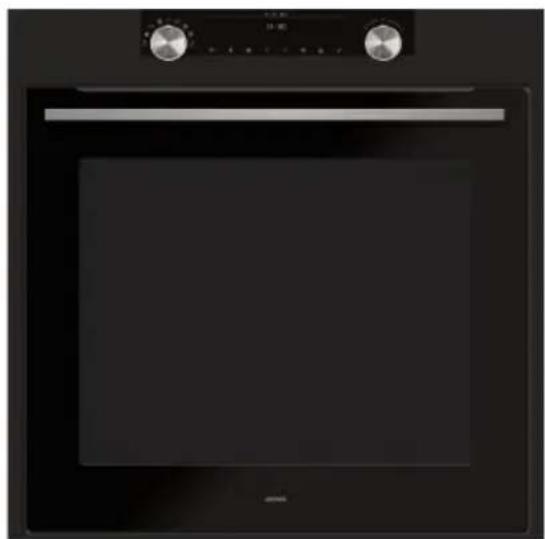
OX66xxD

Pictograms used

Important information
Tip
Your oven
Introduction 4
Control panel 5
Description 6
Guide rails/Telescopic guide rails 6
Accessories 6
Door 7
Cooling fan 7
Main functions 8
Keys 9
Navigation 10
Initial use
What to do first 11
Operation
Selecting your function 13
Functions settings mode 13
Progress mode 15
Finish display 15
Changing settings during the progress 16
Functions table 17
Settings menu 21
Plus menu 22
Cooking information 23
Fast preheat 23
Delayed start 24
Gratin 25
Stage cooking 25
Go to manual cooking 26
Programs and Favourites 26
Egg timer 27
Child lock 27
Plate warming 28
Warming 28
Defrost 28
Cleaning
Cleaning the appliance 29
29
Removing and cleaning the guide rails 30
Removal and installation of the oven door 30
Removal and installation of oven door glass 31
Replacing the oven lamp 32
Solving problems
Disposing of the appliance and the packaging 36
Introduction
Congratulations on choosing this Atag oven.
This product is designed to offer simple operation and optimum user-friendliness. The oven has a wide range of settings enabling you to select the correct cooking method every time.
This manual shows how you can best use this oven. In addition to information about operating the oven, you will also find background information that may be useful when using the appliance.

Please read the separate safety instructions carefully before using the appliance!
Read this manual before using the appliance and keep it in a safe place for future use.
Installation instructions are supplied separately.
Control panel
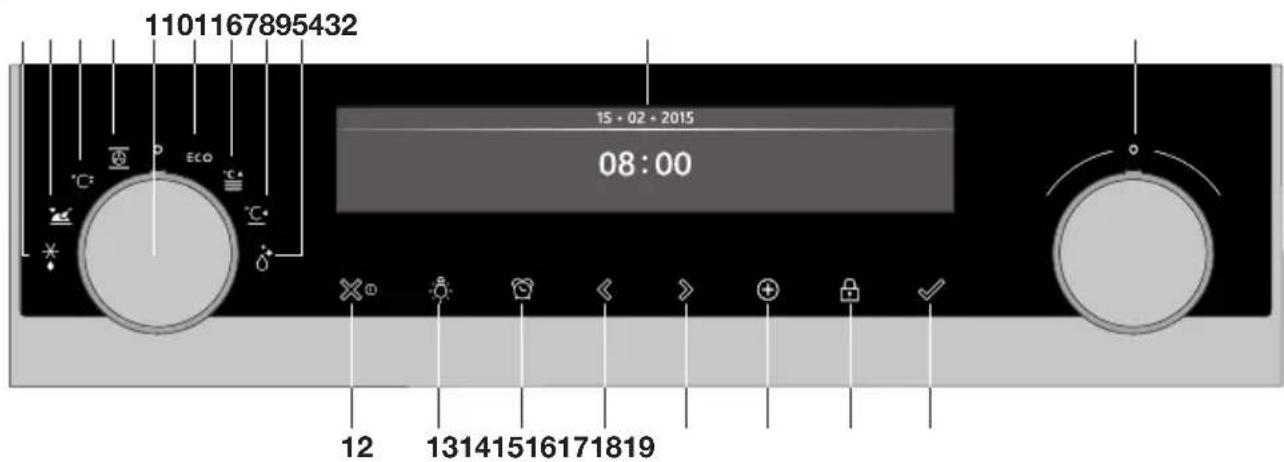
- Function knob (in 'Off' position)
- Defrost
- Programs & Favourites
- Fast preheat
- Oven
- Eco hot air
- Plate warming
- Warming
- Aqua clean
- Display
- Selection knob
- On/off key and stop key (cancel)
- Light key
- Timer key
- Navigation key left
- Navigation key right
- Plus key
- Child lock key (lock key)
- Confirm key

Note:
The keys respond best if you touch them with a large area of your fingertip. Every time you press a key during use, a short acoustic signal will sound.
Description
- Control panel
- Oven levels
- Oven door
- Door handle
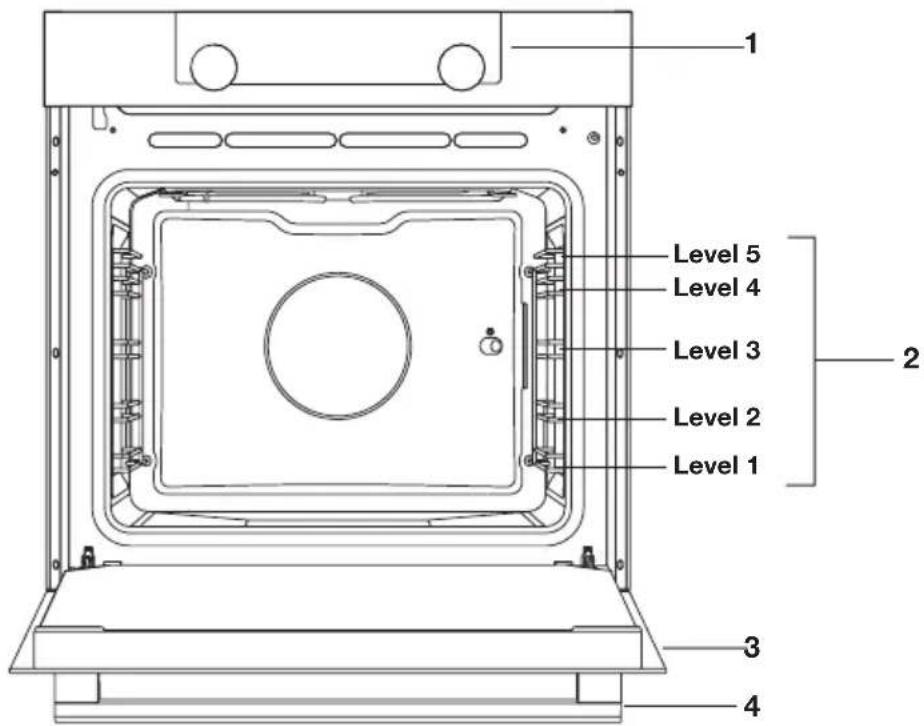
Guide rails/Telescopic guide rails
- The oven has four or five guide rails (Level 1 to 4/5), depending on the model. Level 1 is mainly used in combination with bottom heat. The two upper levels are mainly used for the grill function.
- Place the oven rack, baking tray or steam dish in the gap between the guide rail sliders.
- A number of shelf levels can have fully-retractable telescopic guide rails, depending on the model.
Pull the telescopic guide rails out of the oven cavity completely and place the oven rack / baking tray / steam dish on them. Then slide the oven rack / baking tray / steam dish on the telescopic guide rails, back into the oven cavity.
Only close the oven door when the telescopic guide rails have been returned completely back into the oven cavity.
Accessories
Your appliance is accompanied by a range of accessories, depending on the model. Only use original accessories; they are specially suited to your appliance. Be sure that all the accessories that are being used are able to withstand the temperature settings of the chosen oven function.
Note: not all accessories are suitable/available for every appliance (it may also differ by country). When purchasing, always provide the exact identification number of your appliance. Please see the sales brochures or check online for more details about optional accessories.
Note: never place an accessory on the bottom of the oven!
| Accessories that can be supplied with your appliance (depending on the model) | |
| Enamelled baking tray; to be used for pastries and cakes. • Do not use the enamelled baking tray for microwave functions! • Suitable for pyrolysis cleaning. | |
| Oven rack; mainly used for grilling. A steam dish or pan with food can also be placed on the oven rack. • The oven rack is equipped with a safety peg. Lift the rack slightly at the front to slide it out of the oven. • Do not use the oven rack for microwave functions! | |
| Deep enamelled baking tray; to be used for roasting meat and baking moist pastry. • Do not place the deep baking tray on the lowest level during a cooking process, except when using it as a drip tray during grilling, roasting or roasting with a spit roast (when available). • Do not use the deep enamelled baking tray for microwave functions! • Suitable for pyrolysis cleaning. | |
| Glass baking tray; for microwave and oven use. • NOT suitable for pyrolysis cleaning. | |
Door
- The door switches interrupt the operation of the oven when the door is opened during use. The oven continues operating when the door is closed.
- This oven has a 'Soft close door system'. When closing the oven door, this system dampens the movement, from a certain angle, and silently closes the oven door.
Cooling fan
- The appliance is equipped with a cooling fan that cools the casing and control panel.
Main functions
With the function knob you can select the main functions of your oven.
| Setting Description | |
| O | Off/standby mode |
| Oven Hot air Hot air + bottom heat Bottom + top heat Large grill Grill Large grill + fan Upper heat Bottom heat Bottom heat + fan Pro roasting | |
| °C | Fast preheat |
| ECO | Eco hot air |
| Programs and favourites Favourites Programs | |
| * | Defrost Manual defrost |
| °C | Plate warming |
| °C | Warming Keep warm |
| Aqua clean | |
Keys
In the table below you can find the discription of the different keys.
| Keys Description | tion of the keys |
| ×0 | On/off key and stop key: - Press short: cancel operation or go one step back in the menu. - Press long: turn the appliance off or on. |
| Light key: - To turn the cavity light on or off. | |
| Egg timer - The egg timer can be used independent of the oven function. - The longest possible timer setting is 23:59. | |
| Navigation key left - To move the active area to the left. | |
| Navigation key right - To move the active area to the right. | |
| Plus key - To open or exit the settings menu (in standby-mode). - To open or exit the plus menu with the extra options possible at that moment (in on-mode). | |
| Child lock key - Press and hold the lock key to lock the appliance. | |
| Confirm key - To confirm all the white settings/elements in the screen. |
Navigation
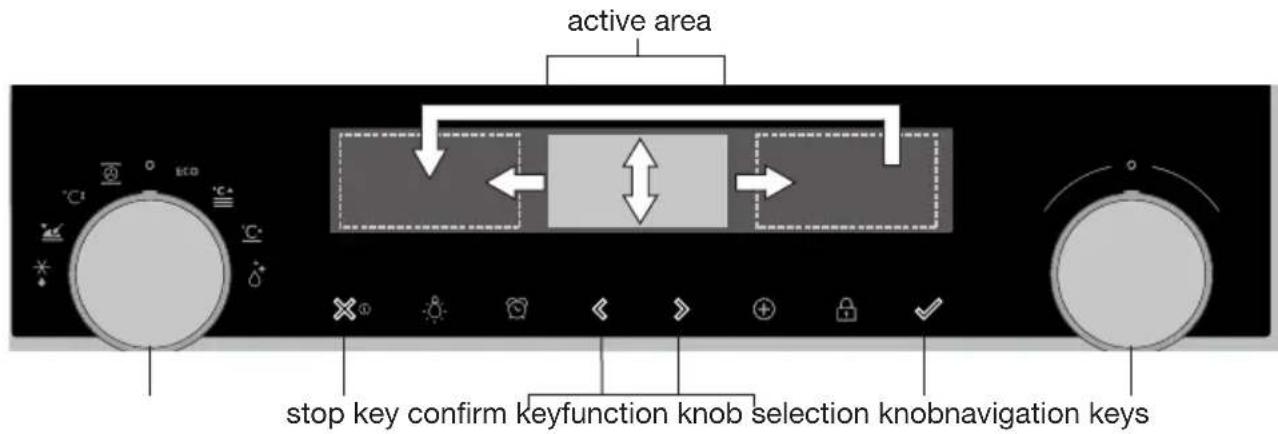
By turning the function knob away from the 0-position, the icon of the chosen main function is lit. The display will show the icon and name of the activated function for about 1,5 seconds. Next you will see the chosen main function and sub-function at the top of the display in the feedback bar. Also the function settings mode will become active (grey background). In this activated area you can select your settings using the selection knob.
OVENI HOT AIR 14:30


180°c

Within every menu the navigation is as follows:
- Use the navigation keys or press the selection knob to move the active area (grey background).
- The setting in the active area can be changed by turning the selection knob (left = decrease, right = increase). The setting will be saved automatically.
- When all elements in the screen are set, confirm these settings by pressing the confirm key (this key is blinking if it is possible to start the program).
- Press the stop key to go one step back in the menu.

At the top of the display is a feedback bar. This bar will inform where you are in the menu and what setting you are changing. Functions are separated with a vertical line.
SETTINGS | GENERAL | SOUND | KEY SOUND
What to do first

- Clean the oven interior and accessories with hot water and washing-up liquid. Do not use aggressive cleaning agents, abrasive sponges and similar.
- The oven will emit a strange smell when it is used for the first time; this is normal. You should ensure that there is good ventilation during initial use.
When the appliance is first plugged in or after connection when the appliance was disconnected from the power mains for a long period of time, you have to set 'Language', 'Date' and 'Time'.
Setting the language
LANGUAGE
English
Deutsch
In case you are not comfortable with the language on the display, you can select another language. The default setting is 'English'.
- Turn the selection knob and select your preferred language from the displayed list.
- Confirm the setting by pressing the confirm key.
The next screen will be displayed.
Setting the date
DATE DAY
01
02
01
2015
- Turn the selection knob and change the first setting (Day).
- Confirm this setting by pressing the right navigation key or by pressing the selection knob.
- Turn the selection knob and change the next setting (Month).
- Confirm this setting by pressing the right navigation key or by pressing the selection knob.
- Turn the selection knob and change the last setting (Year).
- Confirm this setting by pressing the confirm key.
The next screen will be displayed.
Setting the time

- Turn the selection knob and select the hours.
- Confirm this setting by pressing the right navigation key or by pressing the selection knob.
- Turn the selection knob and select the minutes.
- Confirm this setting by pressing the confirm key. All the start-up settings are set and the appliance will show the standby display.

The language, date and time can also be set in the settings menu. The settings menu is only available by pressing the plus key when the appliance is in standby mode (see 'Settings menu').
Standby display
The standby display will show the time, cavity temperature (if this is higher than 80^ ) and the timer (if set). The appliance goes to standby mode after:
- Turning the function knob to 0 ('off' position).
- Pressing the stop key multiple times (deeper in the menu).
03·05·2015
12:00
Off mode
- Default the appliance will shut down after no action for a set time of 30 minutes.
- Press and hold the stop key to shut down the appliance manually.
Switching the appliance on
- Press and hold the stop key to switch on the appliance.
- The appliance can also be switched on by turning the function knob to a function.
Selecting your function
Select a function appropriate for the meal you are cooking. Consult the table in chapter 'Functions table' to see which functions are available.
- Go directly to the progress mode by pressing the confirm key (this key is blinking if it is possible to start the program).
After you have chosen a main function, the function settings mode is active (grey background). In this activated area, it is now possible to change the settings in this fution.
Function settings mode
Example (Oven/Hot air + bottom heat/40 minutes)
- Choose a main function by turning the function knob.
The first sub-function setting is active.

OVENI HOT AIR 14:30

180°C

Now the settings can be changed as desired. There is the possibility to set:
- The function (consult the table in chapter 'Functions table').
-
The temperature (depends on the appliance).
The time. -
Turn the selection knob and change the setting.

OVEN I HOT AIR + BOTTOM HEAT 14:30

200 °C

- Confirm the setting by pressing the right navigation key or by pressing the selection knob.
The next sub-function setting becomes active.

OVEN I TEMPERATURE 14:30
195
200 °C
205


- Turn the selection knob and change the setting.

OVEN TEMPERATURE 14:30
205
210 °C
215


- Confirm the setting by pressing the right navigation key or by pressing the selection knob.
The next sub-function setting becomes active.

The timer icon shows that there is no timer necessary for this function. Press the confirm key to start the program directly with the chosen settings (see step 7).
To set the timer, go to step 6.
If there is a timer necessary for a current function, then the default timer setting is displayed instead of the timer icon.
- Turn the selection knob and change the setting.

H:M notation.
- If preferred, select any additional setting using the plus menu (for example fast preheat). See for more information chapter 'Plus menu'.
- Start the program: press the confirm key to go to the progress mode.
The program will start with the chosen settings; the oven will go to the progress mode and the progress screen is shown.

Progress mode
- Left side on the screen, the temperature is displayed (if the set temperature is not reached, the temperature will switch between cavity temp (grey) and set temp (white)). If the set temp is reached a pop-up will appear 'set temperature is reached'.
- Right side on the screen, the time (counting down) or the progress time (counting up if no time was set) is displayed. Next to the cooking time you can see the finishing time.
HOT AIR + BOTTOM
14:30
210 °C

0:4015:10
- If preheating is chosen, the progress mode will first show the preheating display (preheating in the feedback bar and the preheating icon). All settings are displayed only the colours are switched. The cavity temperature is white and the chosen settings are grey. If the set temperature is reached, a pop-up will appear: 'Set temperature is reached. Insert dish'.
HOT AIR + BOTTOM
14:30
210°c

0:40115:10
Finish display
When the timer is finished, the 'finish display' will appear. Now it is possible to:
- Stop the progress.
- Add extra time.
- Gratin (if possible).
- Save as favourite.
FINISH I ENJOY 14:30



Stop the progress
- Press the confirm key.
The finish display will be closed and the standby screen will be shown.
If there is no action within 10 minutes, the display will switch to standby mode.
Add extra time
- Press the right navigation key to select 'Add extra time'.
- The time setting becomes active and can be changed directly by rotating the selection knob.
- Confirm by means of the confirm key.
The previous process is activated again.
Gratin
- Press the right navigation key to select 'Gratin'. Grill settings will be shown.
- The temperature (default 200^ ) and time can be set or the program can be started directly by pressing the confirm key (time will start counting up).
After confirmation with the confirm key the progress screen will be shown.
Save as favourite
- Press the right navigation key to select 'Save as favourite'.
The next screen will show 10 positions where the program can be positioned.
- Select a position for your recipe by rotating the selection knob and press the confirm key to save it.
- Give the recipe a name. Rotate the selection knob to select the appropriate letter and press the selection knob to confirm and go to the next letter.
You can delete a character by means of the backspace function in the character list (arrow).
- Press the confirm key to save the recipe.
Changing settings during the progress
- During progress, pressing the navigation keys will show the active area. The selected setting can now be changed, see chapter 'Function settings mode'.
- After confirmation with the confirm key the progress screen will be shown with the changed settings.
- After 5 seconds without actions the progress settings are cancelled and the display will return to the progress screen.
Functions table
Consult the table to select the preferred function. Also consult the instructions for preparation on the dish packaging.
| Function Description | ||
| Oven functions | ||
| Hot Air ·Heating by means of hot air from the back of the oven. ·This mode provides uniform heating and is ideal for baking. ·Place the baking tray or oven rack in the middle of the oven. ·Suggested temperature: 180 °C ·Preheating is recommended. | ||
| Hot Air + Bottom Heat ·Heating by means of hot air from the back of the oven and the bottom heating element. ·This mode can be used to bake pizza, moist pastry, fruitcakes, leavened dough and short crust. ·Place the baking tray or oven rack in the middle of the oven. ·Suggested temperature: 200 °C ·Preheating is recommended. | ||
| Top Heat + Bottom Heat ·Heating by means of the upper and lower heating elements. ·This mode can be used for traditional baking and roasting. ·Place the baking tray or oven rack in the middle of the oven. ·Suggested temperature: 200 °C ·Preheating is recommended. | ||
| Function Description | |
| Large Grill • Heating by means of the upper element and grill element. • This mode can be used with dishes and baked goods that require a distinctive bottom crust or browning. Use just before the end of the baking or roasting time. • Place the oven rack in the upper part of the oven and the baking tray in the middle of the oven. • Maximum allowed temperature: 240 °C • Monitor the cooking process at all times. The dish may burn quickly due to the high temperature. • Preheating is recommended. | 1 2 |
| Grill • Heating by means of the grill element. • This mode can be used for grilling a smaller amount of open sandwiches, beer sausages, and for toasting bread. • Place the oven rack in the upper part of the oven and the baking tray in the middle of the oven. • Maximum allowed temperature: 240 °C • Monitor the cooking process at all times. The dish may burn quickly due to the high temperature. • Preheating is recommended. | 1 2 |
| Grill + Fan • Heating by means of the top heating elements. The heat is distributed by the fan. • This mode can be used for grilling meat, fish and vegetables. • Place the oven rack in the upper part of the oven and the baking tray in the middle of the oven. • Suggested temperature: 170 °C • Monitor the cooking process at all times. The dish may burn quickly due to the high temperature. • Preheating is recommended. | 1 2 |
| Function | Description | |
| Top Heat ·Heating only by means of the upper heating element. ·This mode can be used when you wish to bake/ roast the top part of your dish. ·Place the baking tray or oven rack in the middle of the oven. ·Suggested temperature: 150 °C | ||
| Bottom Heat ·Heating only by means of the lower heating element. ·This mode can be used with dishes and baked goods that require a distinctive bottom crust or browning. ·Place the baking tray or oven rack in the lower part of the oven. ·Use just before the end of the baking or roasting time. ·Suggested temperature: 160 °C | ||
| Fan + Bottom Heat ·Heating by means of the lower heating element. The heat is distributed by the fan. ·This mode can be used for baking low leavened cakes, as well as for preservation of fruit and vegetables. ·Place a not too high baking tray in the lower part of the oven, so that hot air can also circulate over the upper surface of the food. ·Suggested temperature: 180 °C | ||
| Pro Roasting ·Heating by means of the upper heating element in combination with the grill heating element and hot air. ·This mode can be used for roasting all types of meat. ·Suggested temperature: 180 °C | ||
| Function Description | ||
| ECO hot air | ||
| ECO | ECO Hot air ·Heating by means of hot air. ECO hot air uses less energy but gives the same result as the hot air setting. Cooking takes a few minutes longer. ·This mode can be used for roasting meat and baking pastry. ·Place the baking tray or oven rack in the middle of the oven. ·Suggested temperature: 180 °C ·This setting makes use of the residual heat (heating is not on the whole time) to achieve low energy consumption (in accordance with energy class EN 60350-1). In this mode the actual temperature in the oven is not displayed. | |
| Extra functions | ||
| Plate warming ·Plate warming: this function is used for warming tableware, so that the served food stays hotter for longer. | ||
| Warming ·Keep warm: this function is used to keep already cooked dishes warm. | ||
| Aqua clean ·Grease and grime can easily be removed from the oven walls with a damp cloth. | ||
| Defrost ·With this function, the air circulates by means of the fan. The air will be heated to a temperature of 30 °C. ·Use this function to defrost frozen dishes. | ||
| Programs and Favourites ·Use 'Programs' for baking and roasting by selecting a dish from a list of pre-programmed dishes. ·Favourites: you can select your own stored recipes. | ||
| Fast preheat ·With this function, the oven space quickly reaches the desired temperature. Do not use this setting when you have a dish in the oven space. | ||
Settings menu
The settings menu is only available by pressing the plus key when the appliance is in standby mode.
| Setting Description | |
| General Language Time Date Sound | |
| Display Brightness Clock size Night mode Appliance to stand-by mode | |
| Cooking Default program intensity Preheat settings | |
| System Appliance info Factory settings Oven light | |
General
You can set the following from this menu:
Language (language of the display)
Time (always in 24H format)
Time display (24H or 12H format)
- Date (always day-month-year format)
- Date display (ddmmyyyy or mmddyyyy)
- Sounds (volume of the general sounds and alarms)
Key sounds (on/off)
- Welcome sound (startup/shutdown sound on/off)
Display
You can set the following from this menu:
- Brightness (low, mid, high)
Night mode (start and end time for lower display brightness: first display set start timer, second display set end time) - Clock size (small / large)

- Standby (auto switch off / manually switch off)
Changing to manually switch off will increase energy consumption. If the oven is switched off manually (or when an interruption of the power supply occurs) this function will be reset (the display will automatically switch off).
Cooking settings
You can set the following from this menu:
- Default program intensity (low / medium / high)
- Preheat settings (set preheat default on or off)
System
You can set the following from this menu:
- Appliance information (request appliance information)
Factory settings (back to factory settings) - Oven light (auto switch off after 1 min / manual)
Plus menu
Depending on the appliance and the function, there is a possibility to choose extra functionality (after you have chosen a main function and settings in the 'Function settings mode') by pressing the plus key.
- A small icon next to the world time will give an indication about the activated plus menu functions. The colour of the icon will indicate if it is active (white) or inactive (grey).
- To exit the plus menu, press the stop key or plus key; the display will show the previous display again.
- If you want to cancel an extra functionality, you have to select 'cancel' (icon with a red line).
| + Menu Description Icon | |
| i | Cooking infoRequest more information about the selected function. |
| °C | Fast preheatPreheat the oven to the desired temperature quickly (not available in combination with delayed start). |
| Delayed start The cooking process will start automatically at the time you set. Only available if a cooking time is set, not available in combination with preheat. | |
| Gratin To add the grill function at the end of the progress; gratin time will be added at the end of the progress. | |
| Add to favourites Add the settings for the cooked dish to your favourites (see chapter 'Finish display'). | |
| Stage cooking Combine up to three functions in one cooking process. | 1 2 3 |
| Go to manual cooking |
Cooking information
The cooking info display will give more information about the chosen function, like the needed equipment and for what kind of purposes the function is used.
Fast preheat
There are two different ways to use fast preheat:
Activate the fast preheat in the settings menu (to be default on or off)
- Press the plus key when the appliance is in standby mode. Go to 'Cooking settings' and select if the fast preheat should be default on or off.
- Press the confirm key.
If the fast preheat is set to 'default on' the small preheat icon will be shown to indicate the active preheat function.
This option is only available for the oven functions.
Activate the fast preheat in the plus menu.
- Press the plus key (in the 'Function settings mode').
- Select 'Fast preheat' by pressing the right navigation key.
- Press the confirm key to activate fast preheat.
The small preheat icon will be shown next to the current time.
When preheat is activated, the delayed start will be greyed out, because these functions do not work together.
- When delayed start is activated preheat will be greyed out.
To cancel the preheat: press the confirm key again.
Starting with fast preheat
- If a program is started and it will start with the fast preheat, a pop-up will appear. After 15 sec. the pop-up will automatically disappear. The progress screen will show the fast preheat icon, the time will be greyed out.
- If the set temperature is reached a pop-up will show 'The set temperature is reached. Please insert the dish'. Insert the dish and the program will start automatically on door closing.
Pressing the confirm key (without opening the door) keeps the appliance at the set temperature. This situation will remain until the door is opened.
Delayed start
Use the 'delayed start' function to start cooking at a later time, by setting the desired finishing time.
- Press the plus key (in the 'Function settings mode').
- Select 'Delayed start' with the right navigation key.
- Press the confirm key.
The display will show the delay start symbol, the cooking time and the end time.
- Change the finishing time by turning the selection knob and confirm with the confirm key.
A small icon will appear to indicate that the function is active.
To cancel the delayed start: go to 'Delayed start' and select 'cancel delayed start' (a pop-up will appear to confirm the cancellation of the delayed start).
- Start the program: press the confirm key to go to the progress mode.
The function will start automatically at the calculated starting time.
Gratin
To add the grill function at the end of the progress (gratin time will be added at the end of the cooking process).
- Press the plus key (in the 'Function settings mode').
- Select 'Gratin' with the right navigation key.
- Press the confirm key.
A small grill icon will appear next to the current time.
To cancel gratin: select 'cancel gratin' in the plus menu.
Stage cooking
This function allows you to combine up to three functions in one cooking process. Select different functions and settings to compose the cooking process of your preference.
- Press the plus key (in the 'Function settings mode').
- Select 'Stage cooking' by pressing the right navigation key.
- Press the confirm key.
A small icon will appear next to the current time. The first stage is already filled with the current settings of the function. If there is no time set, then the default time will be set for the first rage.
For example: the oven mode and hot air 180^ is selected; the default time of 30 min. will be added to the first stage.
- To add a stage, choose the second function by pressing the navigation keys or pressing the selection knob.
- Press the confirm key.
The display will switch to the settings screen.
- Select the desired function, set the temperature and time.
- Save the stage and return to the stage cooking overview by pressing the confirm key.
If the stop key is pressed the setting will be cancelled and the display will turn to the previous display.
- If desired, add a third stage. Repeat steps 4, 5, 6 and 7.
- After confirmation, the display will show the set stages, with an edit and delete icon.
- If all stages are set according to your wishes, then return to the oven setting screen. Press the 'plus key' to close the plus menu. The display will show the normal oven setting screen with the settings of the first stage (stage 1 icon white).
- Start the process by pressing the confirm key.
If the stop key is pressed, the stage cooking menu will be closed and the oven will return to the normal mode.
Go to manual cooking
- In the manual cooking mode, a standard program from the 'Programs and favorites' function can be chosen and edited as in 'Stage cooking' mode.
- By selecting the manual function in the plus menu, a popup will appear: 'Switch to oven mode?' After confirmation the display will switch to the stage cooking mode if the selected program has more stages.
Programs and Favourites
Automatic programs
- You can use 'automatic programs' for baking and roasting by selecting a dish from a list of pre-programmed dishes. First select the type of dish and then the dish itself from the available list.
- All the program categories have a picture. When a dish is selected, the program settings will appear. The name of the dish and the name of the active selection are shown in the text bar.
- In the settings, first a picture of the dish is visible (not editable), the weight (depending on the dish) (if it is editable), the intensity (not always editable) and the cooking time. If necessary, adjust the intensity and/or the weight.
Favourites (see chapter 'Finish display')
- You can select your own stored recipes in 'favourites'.
- If there are no saved recipes, a pop-up will appear: 'No saved dishes'.
- The name of the recipe appears in the text bar and the saved oven settings are shown.
Egg timer
The egg timer can be used independent of the oven function.
- Press the timer key.
- Change the time by rotating the selection knob.
The longest possible timer setting is 23:59.
- Confirm the setting by pressing the confirm key.
The egg timer is started.
To cancel the timer, set the time back to 0:00 and confirm by pressing the confirm key
To close the egg timer menu, press the timer key or the stop key.
- When the egg timer goes off, a pop-up will appear with the text 'Egg timer expires' and an acoustic signal will sound. Press the stop key to switch off the signal and close the pop-up menu.
The sound will stop automatically after approximately 2 minutes.
Child lock
The oven's control panel can be locked by means of the Child Safety Lock, to protect the oven against unintended use.
- Press and hold the lock key.
The appliance will go into key lock mode. A pop-up will be shown. After 3 seconds the 'Key lock is active' pop-up will close. The current state of the appliance will be visible.
If the key lock has been activated during a cooking process, the process will keep running.
If a key is pressed during key lock, the 'Key lock is active' pop-up will show again.
The stop key is still active during lock mode. If the appliance is switched off, the process will stop. To turn the appliance on again, deactivate the key lock mode.
- To deactivate the key lock mode, press and hold the lock key again.
Plate warming
This function is used when you want to warm tableware (plates, cups) so that the served food stays hotter for longer.
By choosing this function you can determine the warming up temperature and duration.
Warming
- Keep warm
Use this function to keep already cooked food at temperature.
By choosing this symbol you can determine the food-warming temperature and duration.
Defrost
- This function uses hot air (30^) . Use this function for slow defrosting of frozen dishes (cakes, biscuits, cookies, bread, bread rolls and frozen fruit).
- By choosing this function you can determine the duration.
- Turn the food over after half the defrost time has elapsed; stir the food or break up large pieces if these are frozen together.
Cleaning the appliance
Clean the oven regularly to prevent fat and leftover food from accumulating, especially on the surfaces of the interior and the exterior, the door and the seal.
- Activate the key lock (to prevent that the appliance is switched on accidentally).
- Clean the exterior surfaces with a soft cloth and warm water with soap.
- Wipe afterwards with a clean, damp cloth and dry the surfaces.
- Remove splashes and stains on the interior surfaces with a soapy cloth.
- Wipe afterwards with a clean, damp cloth and dry the surfaces.

Important
Take care that no water enters the vents.
- Never use abrasive cleaning materials or chemical solvents.
- Always ensure that the seal of the door is clean. This prevents accumulation of dirt and allows you to close the door properly.
Aquaclean
With aqua clean and a damp cloth, you can easily remove grease and dirt from the oven walls.
Using aquaclean
Only use aqua clean when the oven has cooled down fully. It is more difficult to remove dirt and grease if the oven is hot.

The program takes 30 minutes.
Food remains on the enamel walls will be sufficiently soaked after 30 minutes so that they can be removed with a damp cloth.
- Remove all accessories from the oven.
- Pour 0.15 litres of water into the bottom of the oven.
- Select 'Aqua clean' with the function knob.
- Press on the confirm button to start aqua clean.

Please note: Do not open the door during the cleaning program.
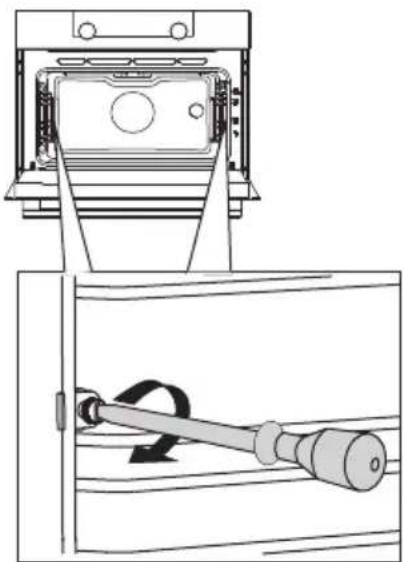
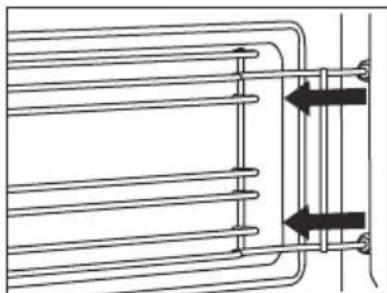
Removing and cleaning the guide rails
Use conventional cleaning products to clean the guide rails.
- Remove the screw using a screwdriver.
- Remove the guide rails from the holes in the back wall.
Removal and installation of the oven door
Keep your fingers away from the hinges of the oven door. The hinges are spring loaded and can cause injury if they spring back.
Make sure that the hinge latches are applied correctly to lock the hinges.
Remove the oven door
- Open the door to the fully open position.
- Lift both hinge latches (A) and pull them towards the oven door (B). The hinges will be locked in the 45^ position.
- Gently close the door until it reaches a 45^ angle.
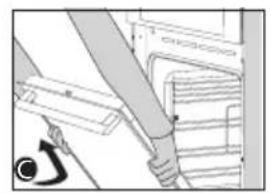
- Remove the door by lifting and tilting it towards the oven (C). The hinges need to come out of the slots in the oven.

Install the oven door
- Hold the door at an angle of approximately 45^ in front of the oven.
- Insert the hinges into the slots and make sure they are both positioned correctly.
- Open the door to the fully open position.
- Lift both hinge latches and move them towards the oven.
- Gently close the oven door and make sure that it closes correctly. If the door does not open or close correctly, then make sure that the hinges are positioned correctly in their slots.
Removal and installation of the oven door glass
The inside of the glass in the oven door can be cleaned. For this it must be removed from the oven door.
- Slightly lift (1) and shift (2) the clamps at the lower left and right of the door to release the glass (A).
- Grab the glass (A) at the bottom and gently lift (3) and shift (4) it to remove it from the upper support.
- The inner glass (B) (depending on the model) can be removed by carefully lifting (5) and shifting (6) it to removing it from the lower support. Also remove the rubber spacers (C) from the inner glass.
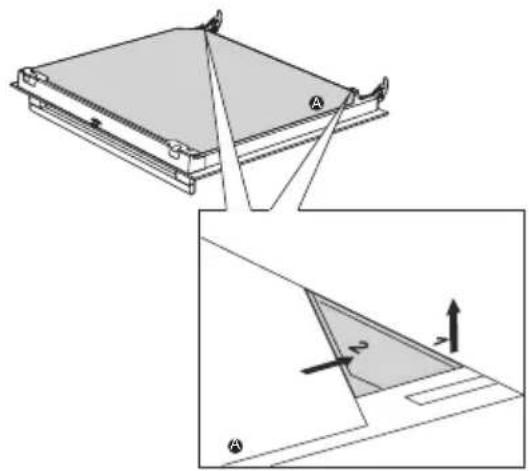
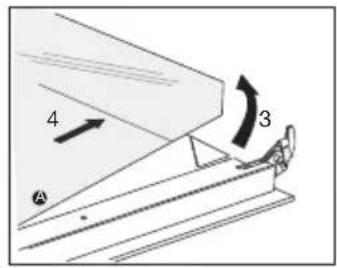
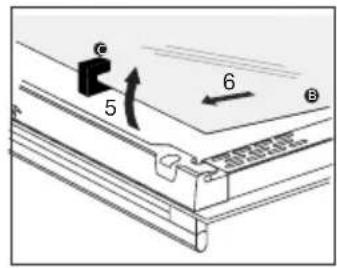

Install the glass in reverse order.
Replacing the oven light bulb

The lamp in this household appliance is only suitable for illumination of this appliance. The lamp is not suitable for household room illumination.
The lamp is a consumer item and therefore not covered by warranty. Replace the defective lamp with a lamp of the same type.

Disconnect the appliance from the power supply by removing the plug from the socket or by switching off the circuit breaker in the fuse box.

Please note: the light bulb can be very hot! Use protection to remove the bulb.
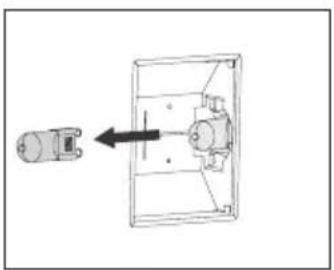
- Use a flat-blade screwdriver to snap and remove the lamp cover from the holder. Be careful not to damage the enamel.
- Take the halogen light bulb out of the fitting.
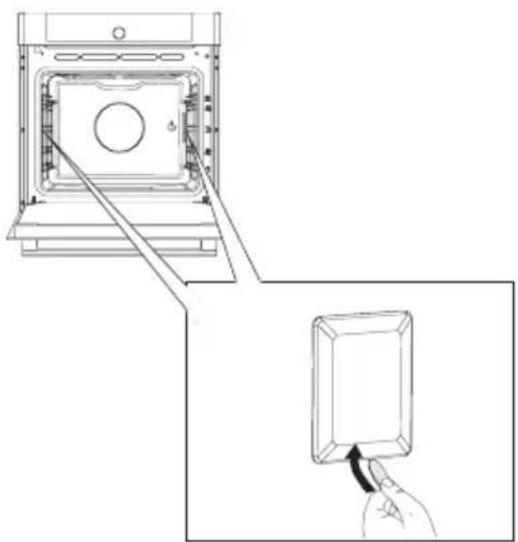
General
If you have problems with your oven, consult the error overview below. Should the problems persist, please contact the Customer Services Department.
The food stays raw
- Check whether the timer has been set and you have pressed the confirm key.
Is the door closed properly? - Check whether a fuse has blown and whether a circuit breaker has been activated.
The food is overcooked or undercooked
- Check whether the correct cooking time has been set.
- Check whether the correct power has been set.
The sensors don't respond; the display is locked.
- Disconnect the appliance from the power supply for a few minutes (unscrew the fuse or switch off the mains); then reconnect the appliance and switch it on.
Sparking in the oven space.
- Ensure that all cover panels from the lamps are secure and that all spacers are placed on the guide rails.
Power failure can cause the display to reset.
- Remove the plug from the socket and put it back in again.
- Set the time again.
There is condensation in the oven.
- This is normal. Wipe the oven clean after use.
The fan keeps working after the oven is switched off.
- This is normal. The fan will keep working for a while after the oven is switched off.
Air flow can be felt at the door and the exterior of the appliance.
This is normal.
Light reflects on the door and the exterior of the appliance.
This is normal.
Steam escapes from the door or the vents.
This is normal.
Clicking sounds can be heard when the oven is working, particularly in the defrost setting.
This is normal.
The fuse switches off regularly.
- Consult a service technician.
The display gives an error code, ERROR XX ...
(XX indicates the number of the error).
- There is a fault in the electronic module. Disconnect the appliance from the power supply for a few minutes. Then reconnect it and set the current time.
- Consult a service technician if the error persists.
Storing and repairing the oven
Repairs should only be performed by a qualified service technician. If maintenance is required, take the plug from the socket and contact the Atag customer service.
Have the following information to hand when you call:
- The model number and serial number (stated on the inside of the oven door)
- Guarantee details
A clear description of the problem

Choose a clean, dry place if you have to store the oven temporarily, as dust and moisture can damage the appliance.
Disposal of the appliance and packaging
This product is made from sustainable materials. However, the appliance must be disposed of responsibly at the end of its useful life. The government can provide you with information about this.
The packaging of the appliance can be recycled. The following materials have been used:
cardboard
polyethylene wrap (PE)
CFC-free polystyrene (hard PS foam)
Dispose of these materials responsibly in accordance with legal provisions.
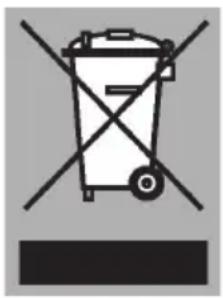
The product has a pictogram of a rubbish bin with a cross through it. This indicates that household appliances must be disposed of separately. This means that the appliance may not be processed via the regular waste flow at the end of its useful life. You should take it to a special municipal waste depot or a sales outlet that offers to do this for you.
Collecting household equipment separately prevents harm to the environment and public health. The materials used in manufacturing this appliance can be recycled, which provides considerable savings in energy and raw materials.

Declaration of conformity
We hereby declare that our products comply with the relevant European directives, standards and regulations as well as all requirements referred to in the standards.

The appliance rating label is located on the inside of the appliance.
When contacting the service department, have the complete type number to hand.
You will find the addresses and phone numbers of the service organisation on the guarantee card.
ATAG