
H-10162 - Flat screen mount Uline - Free user manual and instructions
Find the device manual for free H-10162 Uline in PDF.


| Product Type | Flat Panel Wall Mount |
| Brand | Uline |
| Model | H-10162 |
| Compatible Screen Size | 32 to 80 inches |
| Weight Capacity | Up to 45 kg |
| Material | Steel |
| VESA Compatibility | 75x75, 100x100, 200x200, 300x300, 400x400 mm |
| Tilt | -2° to +10° |
| Swivel | ±180° |
| Rotation | ±45° |
| Leveling | ±3° |
| Cable Management | Cable management clips included |
| Installation | Concrete wall or drywall with wood studs |
| Required Tools | Drill, drill bits (3/16 and 3/8 in), 6 mm Allen key, bubble level, Phillips screwdriver |
| Included Parts | Brackets x2, monitor plate, M4/M5/M6/M8 screws, spacers, washers, wall anchors, plastic covers, cable clips, unlocking straps |
| Maintenance | Clean with a dry cloth, avoid abrasive products |
| Safety | Check wall capacity before installation, two-person installation recommended |
| Manual page count | 14 pages (French pages 10-14) |
Frequently Asked Questions - H-10162 Uline
User questions about H-10162 Uline
0 question about this device. Answer the ones you know or ask your own.
Ask a new question about this device
Download the instructions for your Flat screen mount in PDF format for free! Find your manual H-10162 - Uline and take your electronic device back in hand. On this page are published all the documents necessary for the use of your device. H-10162 by Uline.
USER MANUAL H-10162 Uline
TOOLS NEEDED
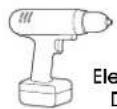
Electric Drill

Phillips Head
Drill Bit
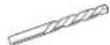
3/16" Drill Bit 3/8" Drill Bit
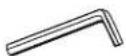
6 x 6 mm Allen Wrench (included)
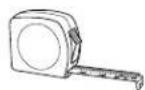
Tape Measure
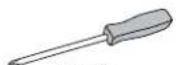
Phillips
Screwdriver

Magnetic Level (included)

Box Wrench (included)
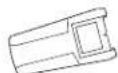
Stud Finder

Two-Person Assembly Recommended
PARTS
Plastic Cover x 2 Wall Plate x 1
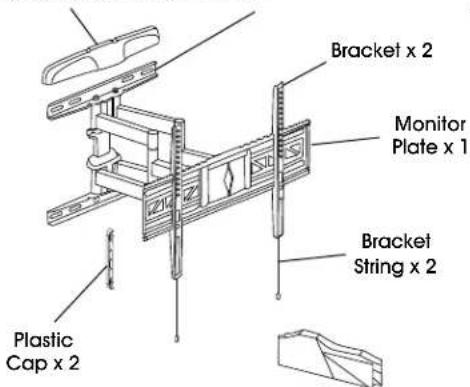
Cable Management
Clip A x 4
B1
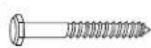
Lag
Screw x 6
B2
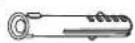
Plastic Anchor x 6
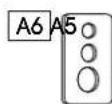
Square Washer x 4


Spacer x 4
B3

Washer x 6
A1

M4 x 12 mm Bolt x 4

M4 x 25 mm Bolt x 4
A2

M5 x 12 mm Bolt x 4

M5 x 25 mm Bolt x 4
A3

M6 x 12 mm Bolt x 4

M6 x 25 mm Bolt x 4
A4
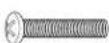
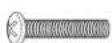
M8 x 25 mm Bolt x 4M8 x 16 mm
INSTALLATION

CAUTION! This product is designed to be installed on solid concrete walls or drywall with wood studs. Before installing, ensure wall will support the combined load of the equipment.

CAUTION! Be careful not to scratch the monitor screen during assembly.
ATTACHING TO WALL
CONCRETE WALL
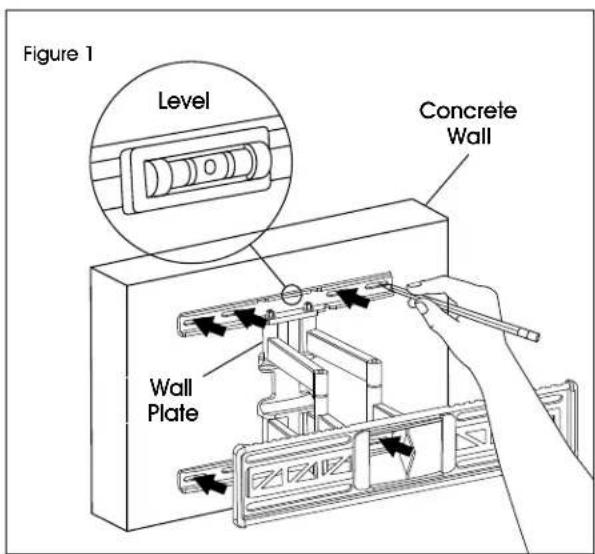
- Align wall plate in desired location. Place level on top of the wall plate to ensure it is leveled correctly. Mark where holes for screws are to be located. (See Figure 1)

NOTE: Mark four hole locations on the top section of wall plate, and two hole locations on the bottom section.
INSTALLATION CONTINUED
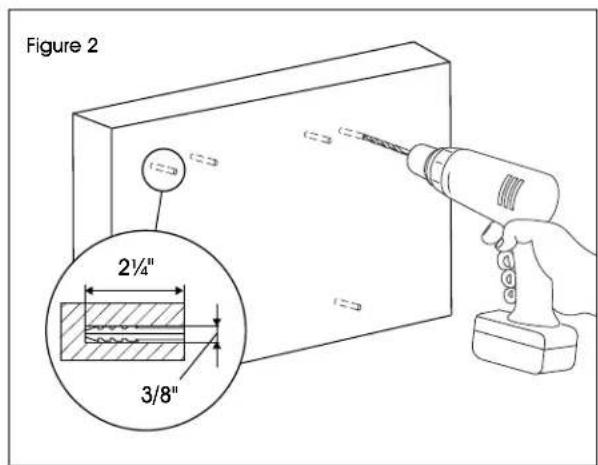
- Drill six 2 1/4 " deep holes using 3/8" drill bit. Insert plastic anchors (B2) into pre-drilled holes. (See Figure 2)

NOTE: It is recommended to use a masonry drill bit for concrete walls.
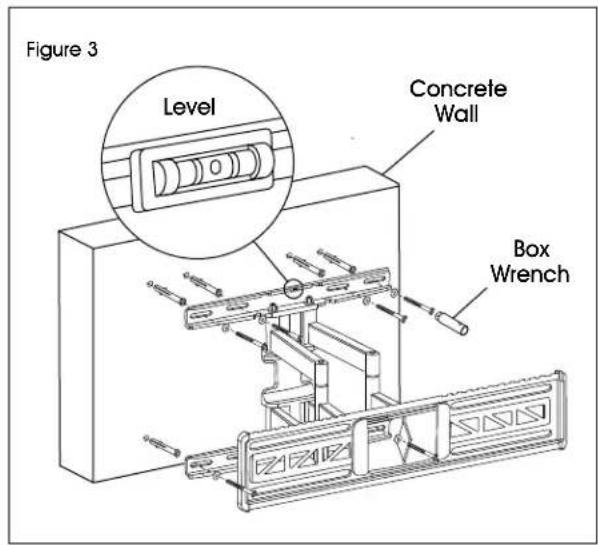
- With magnetic level attached, install wall plate using six lag screws (B1) and washers (B3). (See Figure 3)
DRYWALL

WARNING! If mounting to drywall, wall plate must be properly attached to wood studs behind the wall in order to hold the listed capacity.
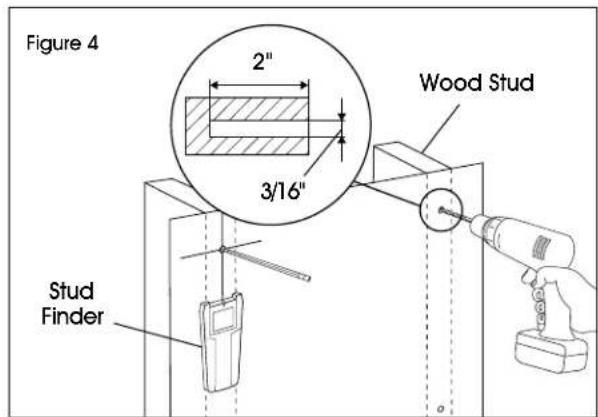
- Using stud finder, locate the studs that will be used for mounting. Studs are commonly spaced 16" center-to-center. At roughly the desired location and height, mark the center of the stud.
-
Align wall plate with studs and move to desired location. Place level on top of the wall plate to ensure it is leveled correctly. Mark where holes for screws are to be located. (See Figure 4)
-
Drill four holes using 3/16" drill bit. (See Figure 4)

NOTE: Two hole locations should be marked on each stud.
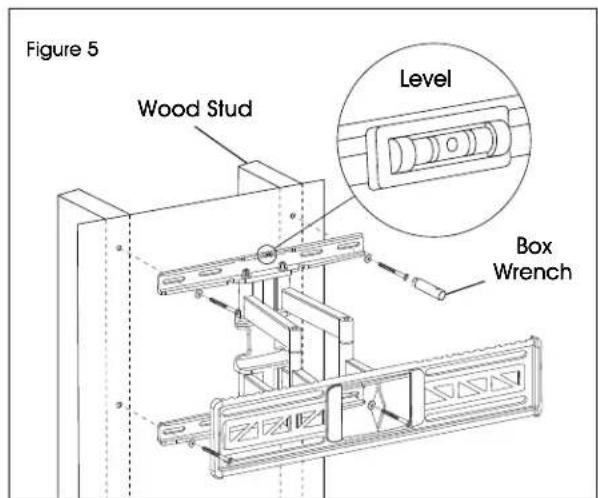
- With magnetic level attached, install wall plate using four lag screws (B1) and washers (B3). (See Figure 5)
INSTALLATION CONTINUED
ATTACHING BRACKETS TO MONITOR
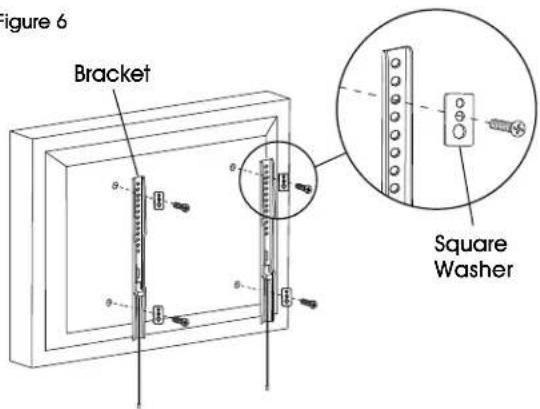
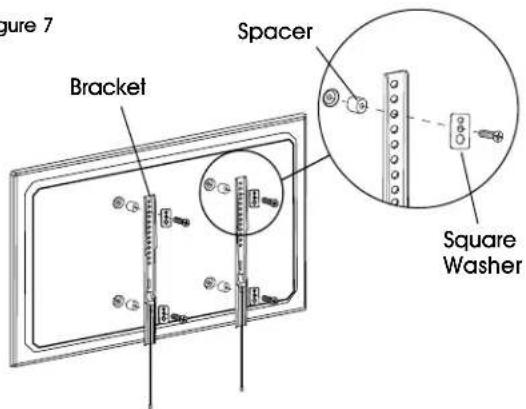
Determine bolt size that is compatible with the monitor. Using the square washers and spacers, install each bracket to the monitor.
SQUARE WASHER


NOTE: For monitors with flat backs, spacers (A5) are not needed. (See Figure 6)
Figure 6

NOTE: For monitors with a curved back or obstructions, place spacers (A5) on the side closest to the monitor. (See Figure 7)
Figure 7
CONNECTING BRACKETS TO MONITOR PLATE
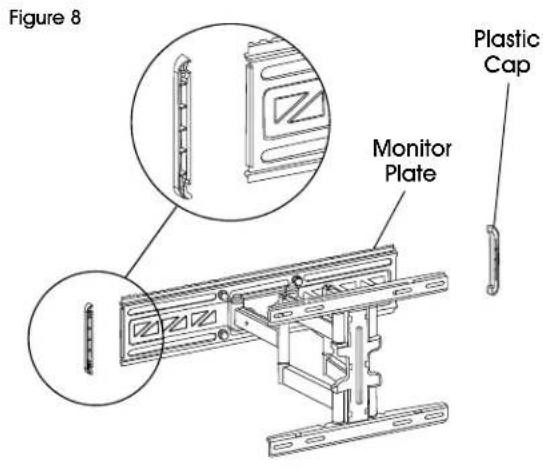
- Place plastic caps over the ends of the monitor plate. (See Figure 8)
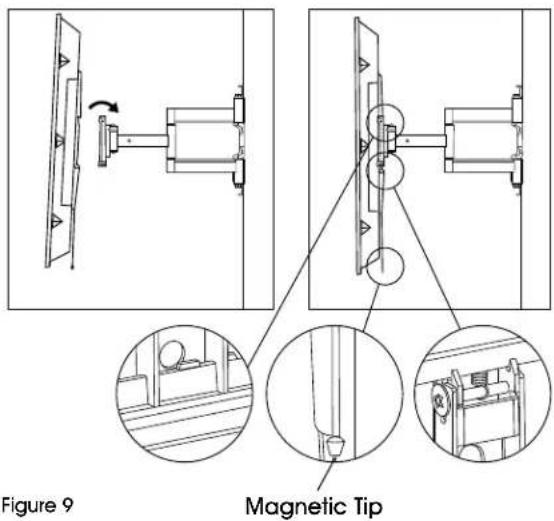
- With second person, carefully lift and align brackets on the back of monitor with the monitor plate. Tilt top of monitor toward wall and place the top of the brackets over the monitor plate. Slowly rotate the bottom of the monitor toward wall and clip the bottom of the brackets over monitor plate. This will lock the brackets onto monitor plate.

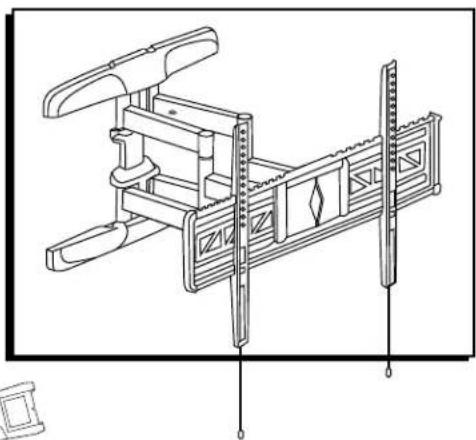
NOTE: Strings that are used to release the monitor from the mount may be visible after installation. These can be hidden behind the monitor using magnetic tips. (See Figure 9)
INSTALLATION CONTINUED
ADJUSTING MONITOR AND CABLE MANAGEMENT
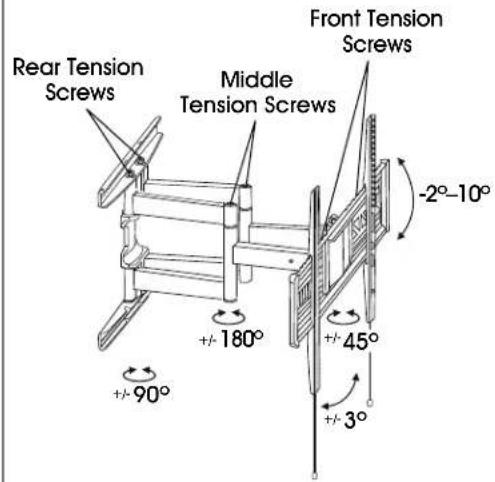
- To increase or decrease the swivel/tilt tension, adjust the rear, middle and front tension screws. (See Figure 10)

NOTE: Rear and middle tension screws have adjustments on the top and bottom of the unit.
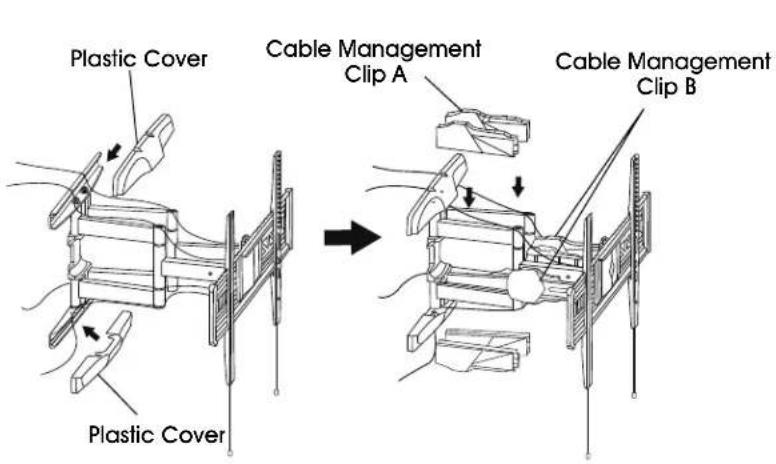
- Attach plastic covers to top and bottom of wall plate. (See Figure 10)
- Attach cable management clips to the top and bottom of the wall plate and support bars. Cables can be managed by running them through the clips. (See Figure 10)
Figure 10
REMOVING THE MONITOR
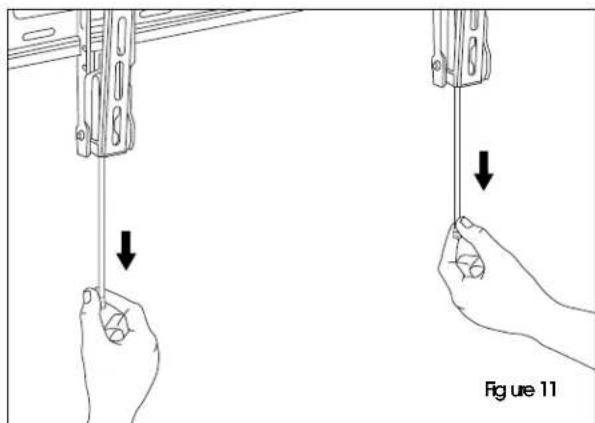
With second person, pull down on the strings attached to the brackets. This will unlock the brackets from the wall plate, and the monitor can be removed. (See Figure 11)
ULINE H-10162
800-295-5510
uline.mx
SOPORTE DE PARED PARA
PANTALLA – MOVIMIENTO TOTAL DE 32-80"


Brand : Uline
Model : H-10162
Category : Flat screen mount