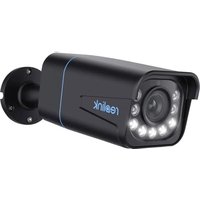
P430 - Surveillance Camera REOLINK - Free user manual and instructions
Find the device manual for free P430 REOLINK in PDF.


| Product Type | IP PoE Surveillance Camera |
| Brand | Reolink |
| Model | P430 |
| Approximate Dimensions | 100 x 70 x 60 mm (without bracket) |
| Approximate Weight | 300 g |
| Power Supply | PoE (802.3af) or 12V DC power adapter (not included) |
| Resolution | Not specified, typically 4MP or 5MP |
| Night Vision | Infrared LED, range 30 meters |
| Viewing Angle | Not specified, typically 80-100° |
| Audio | Built-in microphone and speaker |
| Weather Resistance | IP67 |
| Operating Temperature | -10°C to 55°C |
| Operating Humidity | 10% to 90% |
| Connectivity | Ethernet RJ45 (PoE) |
| Main Features | IP surveillance, motion detection, night vision, two-way audio, wall mounting |
| Box Contents | Camera, Ethernet cable, quick start guide, screws, drilling template, surveillance sign, waterproof seal |
| Maintenance and Cleaning | Clean the lens with a soft cloth; avoid direct exposure to pressurized water |
| Security | Reset via reset button (10 seconds); firmware update; recommendation to change password |
| Spare Parts and Repairability | Available accessories: power adapter, Ethernet cable, mounting brackets |
| Warranty | 2-year limited warranty (purchase from official store or authorized reseller) |
| General Information | Compliant with CE, ICES-003 Class B; online technical support: support.reolink.com |
Frequently Asked Questions - P430 REOLINK
User questions about P430 REOLINK
0 question about this device. Answer the ones you know or ask your own.
Ask a new question about this device
Download the instructions for your Surveillance Camera in PDF format for free! Find your manual P430 - REOLINK and take your electronic device back in hand. On this page are published all the documents necessary for the use of your device. P430 by REOLINK.
USER MANUAL P430 REOLINK
If you need any technical help, please visit our official support site and contact our support team before returning the products: https://support.reolink.com.
Operational Instructions
Apply to: RLC-510A, RLC-810A, RLC-811A

@ReolinkTech
https://reolink.com
EN
Contents
What's in the Box 2
Camera Introduction 3
Connection Diagram 6
Set up the Camera 7
Mount the Camera 8
Troubleshooting....12
Specifications 13
Important Safety Instructions 14
Legal Disclaimer 15
Notification of Compliance 16
| EnglishEnglish1 2
What's in the Box
Camera Waterproof Lid Ethernet Cable


Operational Instructions

Pack of Screws

Surveillance Sign

Mounting Hole Template
NOTE:
Camera and accessories vary with different camera models that you purchase.
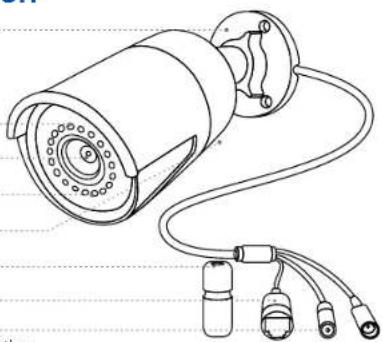
Camera Introduction
Mount
Infrared Lights
Lens
Daylight Sensor
Built-in Mic
Waterproof Lid
Network Cable
Reset Button
* Press for about 10 seconds to restore the device to factory settings.
Power Port(Optional)
natural_image
Technical line drawing of a mechanical device with coiled cable and multiple connectors (no text or symbols)EnglishEnglish3 4
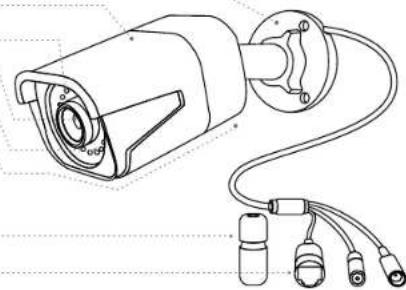
Mount
Metal Case
Infrared Lights
Lens
Daylight Sensor
Built-in Mic
Waterproof Lid
Network Cable
Reset Button
* Press for about 10 seconds to restore the device to factory settings.
Power Port(Optional)
natural_image
Technical line drawing of a mechanical device with attached cables and connectors (no text or symbols)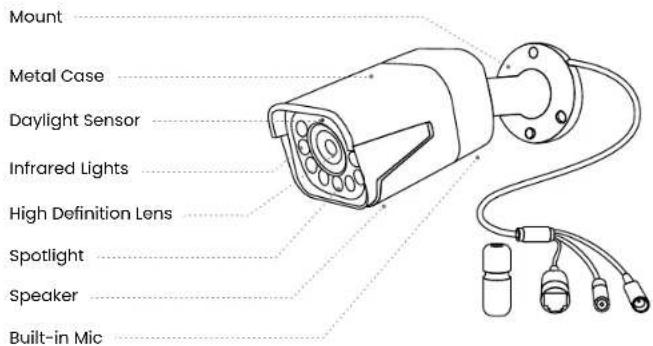
NOTE:
- Different types of cameras are introduced in this section. Please check out the camera included in the package and check out the details from the corresponding introduction above.
• The actual appearance and components may vary with different model of product.
EnglishEnglish5 6
Connection Diagram
Before using the camera, please connect your camera as instructed below to finish initial setup.
- Connect the camera to a Reolink NVR (not included) with an Ethernet cable.
- Connect the NVR to your router, and then power on the NVR.
NOTE: The camera should be powered with a 12V DC adapter or a PoE powering device such as PoE injector, PoE switch or Reolink NVR (not included in the package).
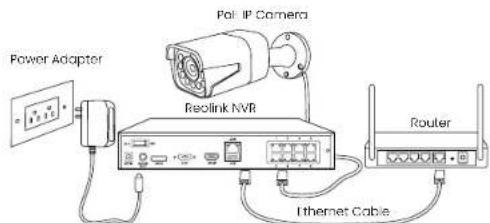
* You may also connect the camera to a PoE switch or PoE injector.
Set up the Camera
Download and Launch the Reolink App or Client software, and follow the onscreen instructions to finish initial setup.
- On Smartphone
Scan to download the Reolink App.

- On PC
Download path of the Reolink Client: Go to https://reolink.com > Support > App & Client. NOTE: If you are connecting the camera to a Reolink PoE NVR, please set up the camera via the NVR interface.
EnglishEnglish7 8
Mount the Camera
Installation Tips
- Do not face the camera towards any light sources.
- Do not point the camera towards a glass window. Or, it may result in poor image quality because of the window glare by infrared LEDs, ambient lights or status lights.
- Do not place the camera in a shaded area and point it towards a well-lit area. Or, it may result in poor image quality. To ensure best image quality, the lighting condition for both the camera and the capture object shall be the same.
• To ensure better image quality, it's recommended to clean the lens with a soft cloth from lime to lime. - Make sure the power ports are not directly exposed to water or moisture and not blocked by dirt or other elements.
- With IP waterproof ratings, the camera can work properly under conditions like rain and snow. However, it doesn't mean the camera can work underwater.
- Do not install the camera at places where rain and snow can hit the lens directly.
- The camera may work in extreme cold conditions as low as -25^ . Because when it is powered on, the camera will produce heat. You may power on the camera indoors for a few minutes before installing it outdoors.
NOTE: There are two different types of mounts for bullet cameras. Please check out the mount included in the package and follow the corresponding instruction to install the camera properly.
Install the Camera
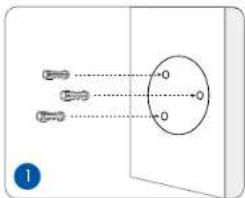
Drill holes in accordance with the mounting hole template.
NOTE: Use the drywall anchors included in the package if needed.
natural_image
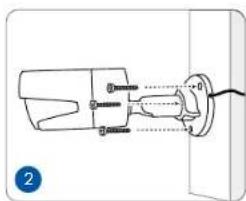
Technical line drawing of a mechanical assembly with no visible text or symbolsinstall the mount base with the mounting screws included in the package.
NOTE: Run the cable through the cable notch on the mount base.
natural_image
Illustration of a hand holding a mechanical component with a blue circular arrow indicating rotation (no text or symbols)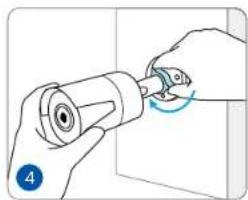
natural_image
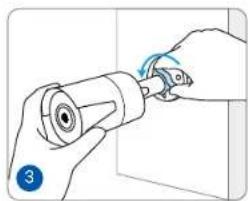
Illustration of hands using a tool to adjust or install a cylindrical component, with a blue circular arrow indicating rotation (no text or symbols present)To get the best field of view, loosen the adjustment knob on security mount and turn the camera.
Rotate the adjustment knob to lock the camera.
NOTE: If your camera has another mount without the adjusting knob, please loosen the adjusting screw with the provided hex key and turn the camera as shown below to adjust the angle.
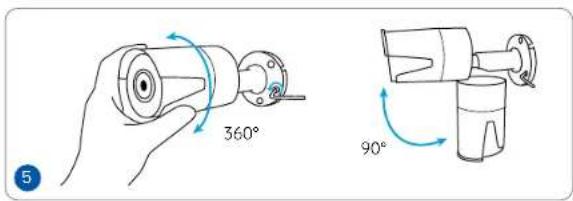
EnglishEnglish11 12
Troubleshooting
Camera is Not Powering On
If your camera is not powering on, please try the following solutions:
- Make sure your camera is powered properly. The PoE camera should be powered by a PoE switch/injector, the Reolink NVR or a 12V power adapter.
- If the camera is connected to a PoE device as listed above, connect the camera to another PoE port and see if the camera will power on.
• Try again with another Ethernet cable.
If these won't work, contact Reolink Support https://support.reolink.com/.
Infrared LEDs Stop Working
If the infrared LEDs of your camera stop working, please try the following solutions:
- Enable infrared lights on Device Settings page via Reolink App/Client
- Check if the Day/Night mode is enabled and set up auto infrared lights at night on Live View page via Reolink App/Client.
- Upgrade the firmware of your camera to the latest version.
- Restore the camera to factory settings and check out the infrared lightsettings again.
If these won't work, contact Reolink Support https://support.reolink.com/
Failed to Upgrade the Firmware
If you fail to upgrade the firmware for the camera, try the following solutions:
- Check out the current camera firmware and see if it is the latest one.
- Make sure that you download the correct firmware from Download Center.
• Make sure that your PC is working on a stable network.
If these won't work, contact Reolink Support https://support.reolink.com/.
Specifications
Hardware Features
Night Vision: 30 Meters (100ft)
Day/Night Mode: Auto Switchover
General
Operating Temperature: -10°C to 55°C (14°F to 131°F)
Operating Humidity: 10%–90%
Ingress Protection: IP67
For more specifications, visit https://reolink.com/.
EnglishEnglish13 14
Important Safety Instructions
Please read the instructions carefully before using the device.
- Replace only with the same or equivalent type of accessories recommended by Reolink.
-
Do not use the device in an environment that exceeds the recommended temperature range.
-
Do not use the device in an environment that exceeds the recommended humidity range.
-
Do not attempt to disassemble, repair, or alter the device by yourself.
-
Always follow the local safety laws and regulations when using the device.
-
The device contains (or comes with) small components, small plastic elements, and other small parts that may cause choking hazards. Keep the device and its accessories out of reach of children. Consult a physician immediately if small parts are swallowed.
-
The device contains (or comes with) cables or cords that may cause strangulation hazards. Keep the device and its accessories out of reach of children.
Legal Disclaimer
To the maximum extent permitted by applicable law, this document and the product described, with its hardware, software, firmware, and services, are delivered on an "as-is" and "as-available" basis, with all faults and without warranty of any kind. Reolink disclaims all warranties, express or implied, including but not limited to, warranties of merchantability, satisfactory quality, fitness for a particular purpose, accuracy, and non-infringement of third-party rights. In no event will Reolink, its directors, officers, employees, or agents be liable to you for any special, consequential, incidental or indirect damages, including but not limited to damages for loss of business profits, business interruption, or loss of data or documentation, in connection with the use of this product, even if Reolink has been advised of the possibility of such damages.
To the extent permitted by applicable law, your use of the Reolink products and services is at your sole risk and you assume all risks associated with internet access. Reolink does not take any responsibilities for abnormal operation, privacy leakage or other damages resulting from cyber attacks, hacker attacks, virus inspections, or other internet security risks. However, Reolink will provide timely technical support if required.
The laws and regulations related to this product vary by jurisdiction. Please check all
EnglishEnglish15 16
relevant laws and regulations in your jurisdiction before using this product to ensure that your use conforms to the applicable law and regulation. During the use of the product, you must comply with relevant local laws and regulations. Reolink is not responsible for any illegal or improper use and its consequences. Reolink is not liable in the event that this product is used with illegitimate purposes, such as third-party rights infringement, medical treatment, safety equipment, or other situations where the product failure could lead to death or personal injury, or for weapons of mass destruction, chemical and biological weapons, nuclear explosion, and any unsafe nuclear energy uses or anti-humanity purposes. In the event of any conflicts between this manual and the applicable law, the latter prevails.
Notification of Compliance
ISED Compliance Statements
This Class B digital apparatus complies with Canadian ICES-003.
SIMPLIFIED EU AND UK DECLARATION OF CONFORMITY
Hereby, REOLINK INNOVATION LIMITED declares that the equipment [refer to the cover of the Operational Instructions] is in compliance with Directive 2014/30/EU. The full text of the EU and UK declaration of conformity is available at the following internet address: https://support.reolink.com/hc/en-us/articles/36788378727065/

Correct Disposal of This Product
This marking indicates that this product should not be disposed with other household wastes throughout the EU. To prevent possible harm to the environment or human health from uncontrolled waste disposal, recycle it responsibly to promote the sustainable reuse of material resources. To return your used device, please use the return and collection systems or contact the retailer where the product was purchased. They can take this product for environmentally safe recycling.
Limited Warranty
This product comes with a 2-year limited warranty that is valid only if purchased from Reolink Official Store or a Reolink authorized reseller. Learn more: https://reolink.com/warranty-and-return/.
EnglishEnglish17 18
NOTE: We hope that you enjoy the new purchase. But if you are not satisfied with the product and plan to return, we strongly suggest that you reset the camera to factory default settings and take out the inserted SD card before returning.
Terms and Privacy
Use of the product is subject to your agreement to the Terms of Service and Privacy Policy at reolink.com
Terms of Service
By using the Product Software that is embedded on the Reolink product, you agree to the terms & conditions between you and Reolink. Learn more: https://reolink.com/terms-conditions/
Technical Support
If you need any technical help, please visit our official support site and contact our support team before returning the products, https://support.reolink.com.
Trademarks Acknowledgement
"Reolink" and other Reolink's trademarks and logos are the properties of Reolink. Other trademarks and logos mentioned are the properties of their respective owners.
DE
Lieferumfang 20
natural_image
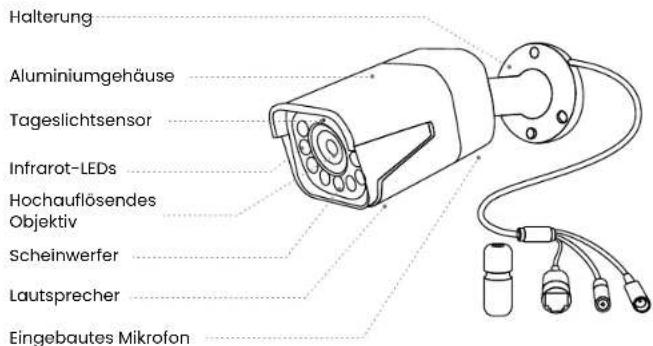
Line drawing of a mechanical device with coiled cable and multiple connectors (no text or symbols)Montagesockel
Aluminiumgehäuse
Infrarot-LEDs
Objektiv
Tageslichtsensor
Internes Mikrofon
natural_image
Technical line drawing of a mechanical device with attached cables and components (no text or symbols)DeutschDeutsch2
natural_image
Technical line drawing of a mechanical assembly with no visible text or symbolsnatural_image
Illustration of a hand holding a cylindrical device with a knob, showing mechanical assembly (no text or symbols)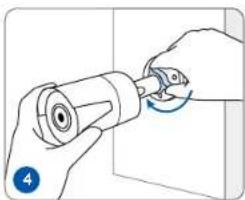
natural_image
Illustration of a hand turning a cylindrical component with a circular arrow indicating rotation (no text or symbols)natural_image
Technical line drawing of a mechanical device with coiled cable and connectors (no text or symbols)natural_image
Technical line drawing of a mechanical device with attached cable and connector (no text or symbols)Support
natural_image
Technical line drawing of a surveillance camera with attached cable and connector (no text or symbols)REMARQUE:
natural_image
Technical line drawing of a mechanical assembly with no visible text or symbolsnatural_image
Illustration of a hand holding a mechanical component with a blue circular arrow indicating rotation (no text or symbols)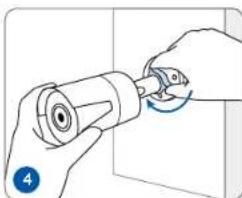
natural_image
Illustration of a hand turning a cylindrical component with a blue circular arrow indicating rotation (no text or symbols)Reolink: https://support.reolink.com/
natural_image
Technical line drawing of a mechanical device with coiled cable and connectors (no text or symbols)ItalianoItaliano61 62
Base di Montaggio
natural_image
Technical line drawing of a mechanical device with attached cables and components (no text or symbols)Staffa di Montaggio
Alloggiamento
natural_image
Technical line drawing of a mechanical device with multiple ports and wiring (no text or symbols)AVVISO
natural_image
Diagram showing three connector pins connected to a central circular component, with no text or symbols present.natural_image
Technical line drawing of a mechanical component with no visible text or symbolsnatural_image
Illustration of a hand holding a mechanical component with a blue circular arrow indicating rotation (no text or symbols)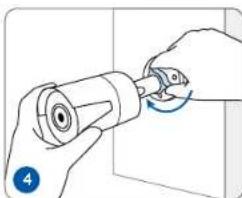
natural_image
Illustration of a hand turning a cylindrical component with a blue circular arrow indicating rotation (no text or symbols)natural_image
Technical line drawing of a mechanical device with coiled cable and connectors (no text or symbols)EspañolEspanol81 82
Base de Montaje
Caja Metálica
Luces Infrarrojas
Objetivo
Sensor de Luz Solar
natural_image
Technical line drawing of a mechanical device with cylindrical components and wiring (no text or symbols)Soporte
natural_image
Technical line drawing of a mechanical device with multiple ports and wiring (no text or symbols)NOTA:
natural_image
Diagram showing three connected components with arrows pointing to a central circle (no text or symbols)natural_image
Technical line drawing of a mechanical component with no visible text or symbolsnatural_image
Illustration of a hand holding a mechanical component with a curved arrow indicating rotation (no text or symbols)
natural_image
Illustration of a hand turning a cylindrical component with a blue circular arrow indicating rotation (no text or symbols)Reolink https://support.reolink.com/
consulte: https://reolink.com/
https://support.reolink.com/hc/en-us/articles/36788378727065/