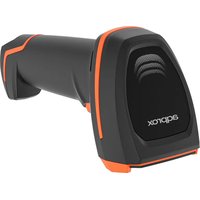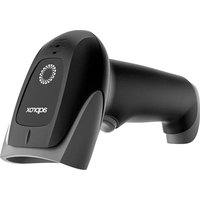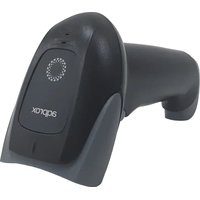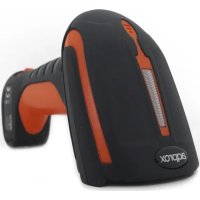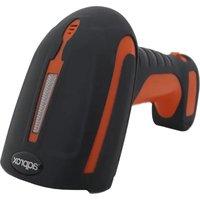
appLS17I2D - Barcode scanner Aqprox - Free user manual and instructions
Find the device manual for free appLS17I2D Aqprox in PDF.


| Product Type | 2D Wireless Barcode Scanner |
| Brand | Aqprox |
| Model | appLS17I2D |
| Dimensions (scanner) | 185 × 75 × 95 mm |
| Dimensions (base) | 142 × 105 × 70 mm |
| Power Supply | DC 5 V |
| Operating Consumption | 200 mA |
| Standby Consumption | 24 mA |
| Interface | USB (2.4 GHz or Bluetooth HID/SPP/BLE) |
| Sensor | CMOS 1280 × 800 |
| Light Source | White LED (illumination) and Red LED (focus) |
| Supported Symbologies | QR Code, MicroQR, Data Matrix, PDF417, Micro PDF417, Aztec, EAN13/EAN8, UPCA/UPCE, Code128, Code39, Code11, Code93, Code32, Coda Bar, Interleaved 2 of 5, Plessey, MSI, Pharmacode, IATA 2 of 5, Composite Code-A/B/C, RSS-14, RSS-14 Expanded, RSS-14 Limited, Straight 2 of 5 |
| Depth of Field (UPC/EAN 15 mil) | 35 mm to 310 mm |
| Minimum Print Contrast | 20% |
| Scan Angle | Rotation ±360°, tilt ±40°, skew ±40° |
| Operating Temperature | 0°C to +50°C |
| Storage Temperature | -40°C to +70°C |
| Operating Humidity | 5% to 95% (non-condensing) |
| Battery | Internal rechargeable lithium-ion battery (LED charge indicator) |
| Maintenance and Cleaning | Clean with a soft, dry cloth. Do not use liquids. |
| Safety | Do not open the device. Do not expose to water. Use the recommended voltage. |
| Recycling | Comply with WEEE directive (2002/96/EC). Do not dispose of with household waste. |
Frequently Asked Questions - appLS17I2D Aqprox
User questions about appLS17I2D Aqprox
0 question about this device. Answer the ones you know or ask your own.
Ask a new question about this device
Download the instructions for your Barcode scanner in PDF format for free! Find your manual appLS17I2D - Aqprox and take your electronic device back in hand. On this page are published all the documents necessary for the use of your device. appLS17I2D by Aqprox.
USER MANUAL appLS17I2D Aqprox
Industrial Barcode Scanner
appLS17I2D
text_image
appLS17I2 User GuideIntroducción
Code39 60mm-120mm (5mil)
text_image
Black and white barcode image with vertical lines and a central barEnter Bluetooth HID mode
text_image
Barcode image containing encoded digital informationEnter pairing situation
Modo Bluetooth SPP/BLE
text_image
Two identical barcode patterns, each with vertical black and white stripes on white backgroundEnter SPP mode Enter BLE mode
D: Connect Bluetooth to your custom software and search for Barcode
Scanner SPP /BLE Active Bluetooth y busque el lector SPP/BLE.
text_image
Black and white barcode image with vertical lines and a small number '1' at the bottom right.- Bluetooth name setting
text_image
Black and white barcode image with vertical lines above and below the bars- Read Bluetooth name
text_image
Black and white barcode image with vertical lines and dots, no readable text or symbols2.4G mode
text_image
Barcode image with black and white vertical bars on both sidesForce pairing with the receiver
text_image
Black and white barcode image with vertical lines and a central barFactory default setting
text_image
Barcode image containing encoded digital informationBattery display

text_image
Black and white barcode image with vertical lines and a small number 'n' in the center.Display version information
Our series scanner is developed to meet the increasing needs of 2D barcode identification. It does not only accurately and quickly read both 1D and 2D barcodes, but also seamlessly captures barcodes on electronic screens (such as mobile phone) and provides an effective data acquisition tool for e-coupons and e-tickets. It's suitable for a wide variety of applications. It is definitely a cost effective and high performance product for you!
Performance index
Scan performance
- Sensor: 1280×800 CMOS
- Light Source: White Light LED
- Focus: Red light LED
- Supported Symbologies: 2D: QR Code, MicroQR, Data Matrix, PDF417, Micro PDF417, Aztec / 1D: EAN13/EAN8, UPCA/UPCE, Code128, Code39, Code11, Code93, Code32, Coda Bar, Interleaved 2 of 5, Plessey, MSI, Pharmacode, IATA 2 of 5, Composite Code-A, Composite Code-B, Composite Code-C, RSS-14, RSS-14 Expanded, RSS-14 Limited, Straight 2 of 5
- Depth of Field:
UPC/EAN
35mm-310mm
(15mil)
Code39 60mm-120mm (5mil)
- Print Contrast: 20%
- Scan Angle: corner 360°, pitch angle ± 40°, skew tolerance ± 40°
Machinery / Electrical parameter
- Communication interface: USB
- Appearance size: 185 (W)× 75 (D)× 95 (H) mm
- Base size: 142 (W) × 105 (D) × 70 (H) mm
- Working Voltage: DC 5 V
- Working current: 200mA
- Standby current: 24mA
Environment parameter
- Working Temperature: 0°C \~ +50°C
- Storage Temperature: -40°C \~ +70°C
- Working Humidity: 5%\~95% (no condensation)
- Ambient light: Normal indoor light source
English
Outlook
External view
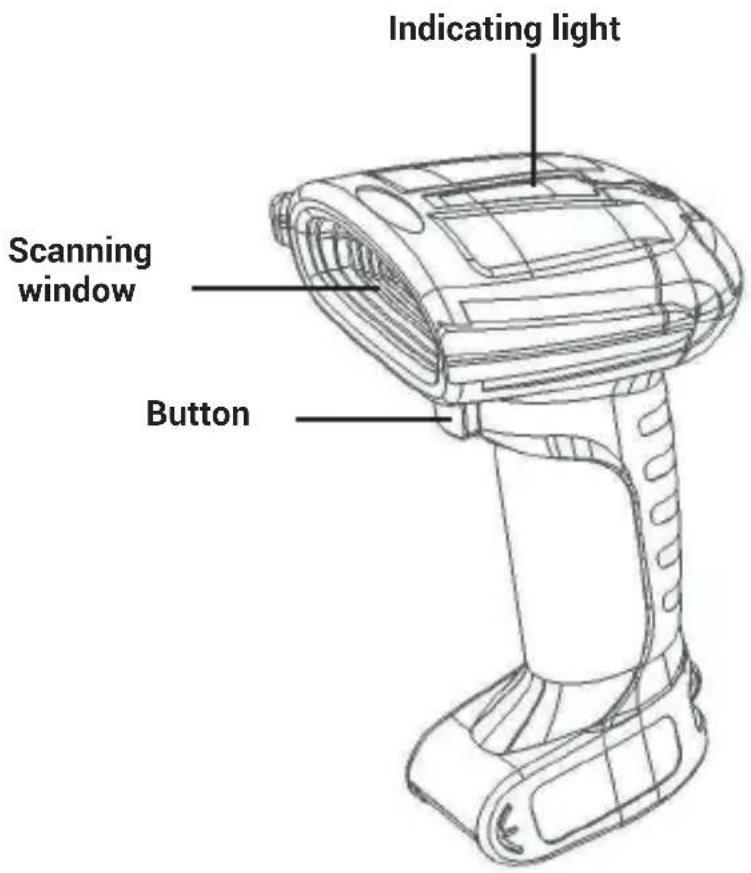
text_image
Indicating light Scanning window ButtonDimention (mm)
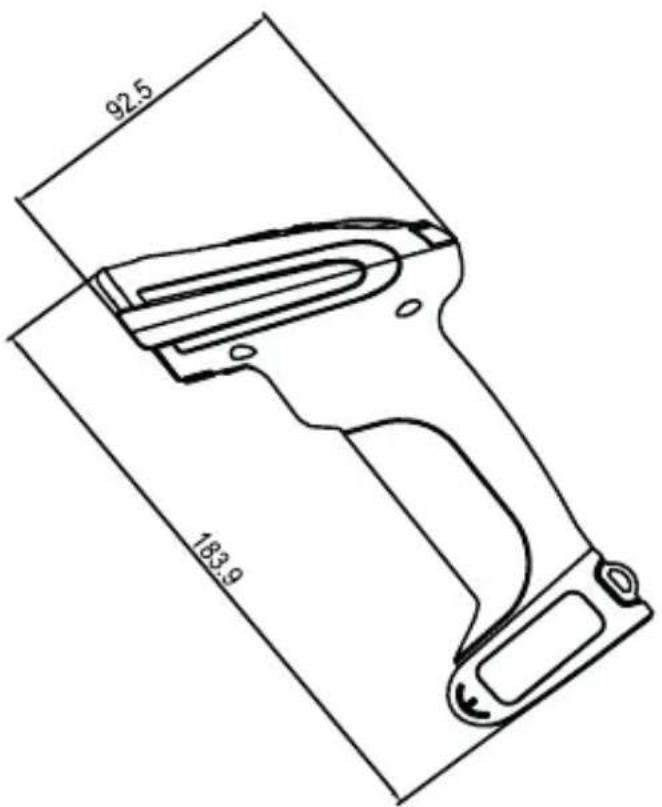
text_image
92.5 183.9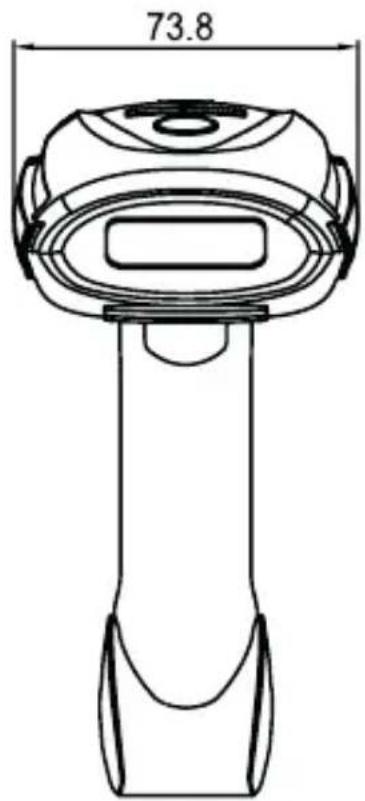
text_image
73.8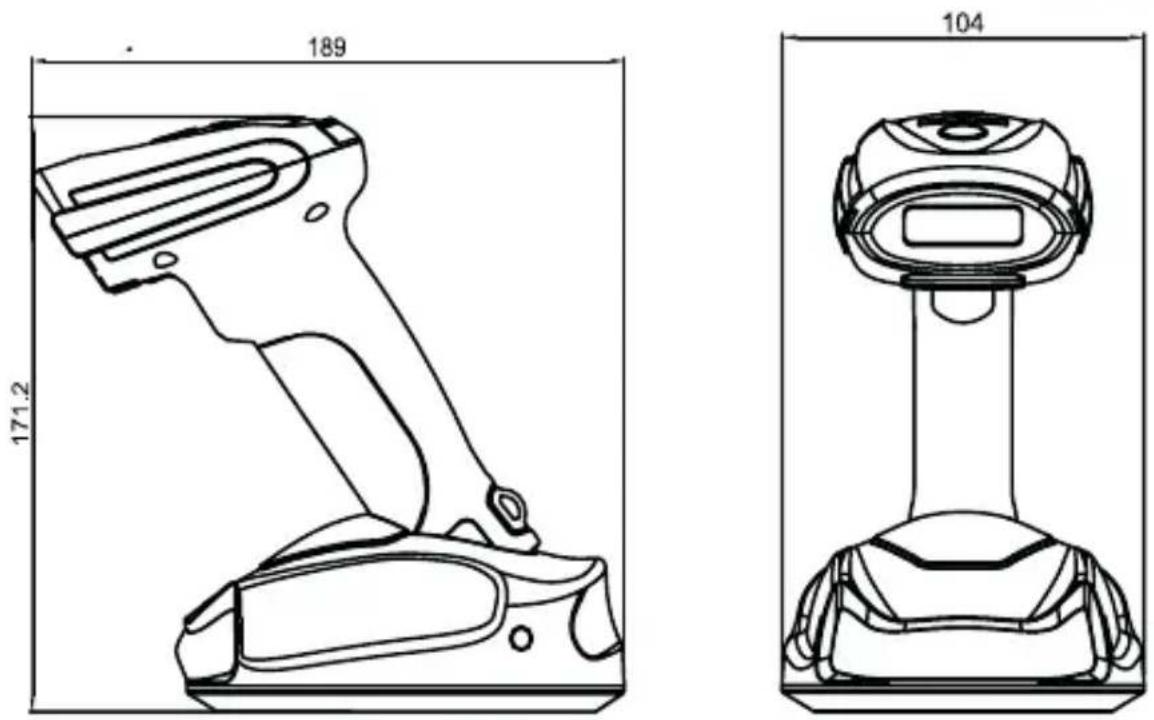
text_image
189 171.2 104How to Use the Barcode Scanner
A. When using 2.4G feature, you can match desktop PCs or PC terminals that do not support Bluetooth. Scanner supports systems such as XP, Win7, Win8, Win10, etc.
B. When using Bluetooth, you can match Android, IOS mobile phones, or PC terminals with bluetooth capabilities.
Barcode menu
This model barcode scanner is designed to change settings by reading some special barcode, which we will give you a detailed introduction and show you all the barcodes for the corresponding setting in this section.
The greatest advantage of this setting method is direct, intelligible and user friendly.
Setting barcodes
Bluetooth HID mode
Match with Android, iOS mobile phone or PC terminal with Bluetooth function (optional).
Method 1: Manually enter the Bluetooth HID mode
A: Start the scanner, press and hold for 8 seconds, enter the Bluetooth HID pairing mode, the blue and green lights flash alternately.
B: Turn on the Bluetooth in the device, search for Barcode Scanner HID.
C: Click on the Bluetooth device to enter the pairing status.
D: The pairing succeeds "Di", the blue light is always on, in Bluetooth mode.
English
Method 2: Scan into Bluetooth HID mode
A: Start scanner, scanning "entering code".

text_image
Black and white barcode image with vertical lines and a small number '1' at the bottom right.Enter setting mode
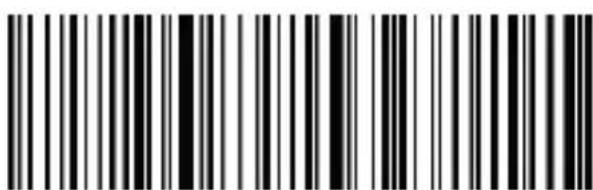
B: Scan the code of "entering bluetooth HID".
text_image
Black and white barcode image with vertical lines and a central barEnter Bluetooth HID mode
C: Scanning the below code to enter pairing mode, blue and green lights flash alternately.

text_image
Barcode image containing machine-readable data, no human-readable text visibleEnter pairing situation
D: Open the bluetooth in the device, search "Bar code Scanner HID".
E: Click this bluetooth device, enter pairing.
F: Pair successfully, "Di" one sound, and green light is on.
Bluetooth SPP/BLE mode
Android device or PC side enterprise or private customized Bluetooth serial port software (optional).
A: Start the scanner, then scanning "enter setting mode" code.

text_image
Barcode image containing machine-readable data, no human-readable text visibleEnter setting mode
B: Scan Bluetooth SPP mode.

text_image
Two identical barcode patterns, each with vertical black and white stripes on white background.Enter SPP mode
Enter BLE mode
C: Enter waiting for pairing status, blue light flashes.
D: Connect Bluetooth to your custom software and search for Barcode Scanner SPP /BLE.
E: The pairing is successful, and the green light is always on.
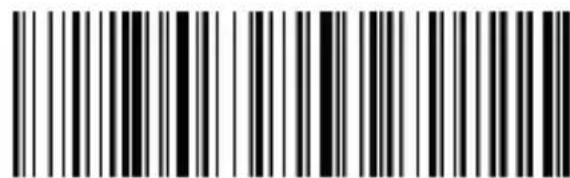
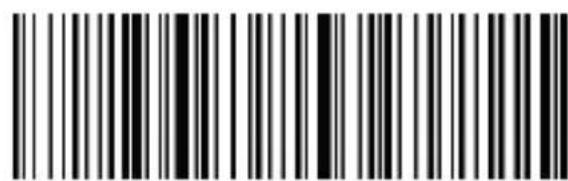
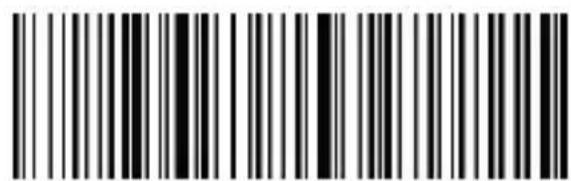
Bluetooth name setting
A: Start the scanner, scan "bluetooth name setting".

text_image
Black and white barcode image with vertical lines and a central barBluetooth name setting
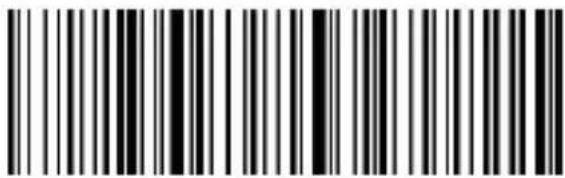
B: Scanning the code "read Bluetooth name"
text_image
Black and white barcode image with vertical lines and a central barRead Bluetooth name
B : Select the required personalized barcode (please be cautious before reading the following instructions, thank you)
How to set the Bluetooth name: first scan the Bluetooth name barcode, then scan a barcode.
This barcode will be set to the name of the Bluetooth.
Note: a) The name can only be set up to 16 bytes. If the name barcode exceeds 16 bytes, the scan code gun only takes the first 16 bytes as the Bluetooth name.
b) Bluetooth full name includes: Bluetooth name + protocol type, only supports modification of Bluetooth name. After modifying the Bluetooth name, the names of all Bluetooth protocols have changed.
For example, if the Bluetooth name is set to: Scanner, the name of the Bluetooth HID is: Scanner HID, the name of the SPP is: Scanner SPP, and the name of the BLE is: Scanner BLE.
2.4G mode (with pairing devices without Bluetooth, support XPI/WIN7/WIN8/WIN10)
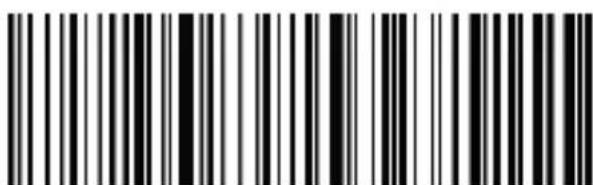
A: Start scanner scanning code entering 2.4G mode.
text_image
Black and white barcode image with vertical lines and a central bar2.4G mode
B: Scanning the code of forcing pairing with receiver, blue and green light flashing alternately.
English

text_image
Barcode image with black and white vertical bars on both sidesForce pairing with receiver
C: After plug the receiver, you will hear "Di" sound, pairing successfully, green light is on.
Real-time mod
In real-time mode, the scanned data is directly transmitted to the computer by wire or wirelessly. After the transmission is successful, the scanner will emit a low-frequency short tone, and the green indicator will flash once. If the transmission fails, 3 low frequency short tones are issued to alert. The green light flashes 3 times.
In real-time mode, if the transmission fails, the scanned barcode will be lost.

text_image
Barcode image containing machine-readable data, no human-readable text visibleEnter real-time mode
Warehousing mode
Warehousing mode is recommended if the scanner is operating outside of the wireless transmission range. In warehousing mode, the scanned data is stored in the scanner's internal storage. In the storage mode, after scanning a bar code, the scanner will emit a short tone (the frequency is low first and then high), and the green light flashes once, and the scanned bar code is automatically stored in the scanner memory. If the internal memory is full, the scanner will emit 3 low-frequency short tones to alarm, at the same time, the green light flashes 3 times.

text_image
Barcode image with black and white vertical bars, no visible text or symbols beyond the patternEnter inventory mode
Check the number of barcodes stored in the warehouse by scanning the "Show Total Storage Items" barcode.

text_image
Black and white barcode image with vertical lines and a small number 'n' in the center.Show count total entries
Upload warehousing data by scanning the "Data Upload" barcode. After the data is uploaded, the barcode stored in the scanner will not be deleted automatically. The user uploads the warehouse data multiple times by scanning the "data upload".

text_image
Barcode image containing encoded digital informationUpload the data
Note: When uploading data, please try to ensure that the wireless signal is well connected.
Upload the data through data line.
By scanning the "Clear Warehousing Data" barcode to clear the barcode data in the storage area, the barcode will not be uploaded after it is cleared. Please confirm whether the data has been uploaded before clearing.

text_image
Barcode image containing machine-readable data, no human-readable text visibleClear count data
Initialization settings
If you accidentally scan other function setting codes during use, the function cannot be used normally, and can be restored to the initialization state by scanning the initialization barcode.

text_image
Barcode image containing machine-readable data, no human-readable text visibleFactory default setting
Communication mode switching
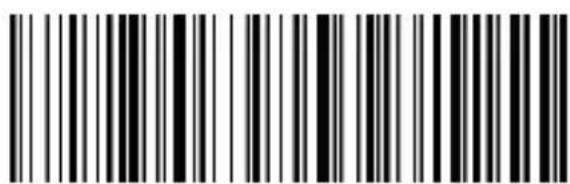
Select the desired communication mode (mode 4 is selected).
text_image
Black and white barcode image with vertical lines and a small number '1' at the bottom center.2.4G mode
text_image
Black and white barcode image with vertical lines and a small 'X' mark at the bottom center.Bluetooth HID mode
text_image
Black and white barcode image with vertical lines and a small number '1' at the bottom right.Bluetooth SPP mode
text_image
Black and white barcode image with vertical lines and a central barBluetooth BLE mode
Battery level display

text_image
Barcode image containing encoded digital informationBattery display

text_image
Barcode image containing encoded digital informationDisplay version information
English
Sleep time setting
Select sleep time interval barcode

text_image
Barcode image with black and white vertical bars, no visible text or symbolsSleep time 30s

text_image
Barcode image with black and white vertical bars on both sidesSleep time 60s

text_image
Barcode image containing encoded digital informationSleep time 5 mins

text_image
Barcode image with black and white vertical bars, no visible text or symbolsSleep time 10 mins

text_image
Barcode image containing machine-readable data, no human-readable text visibleSleep time 30 mins

text_image
Barcode image with black and white vertical bars on both sidesNo sleeping

text_image
Barcode image containing machine-readable data, no human-readable text visibleImmediately sleeping
Language setting
Choose the keyboard language you need

text_image
Black and white barcode image with vertical lines and a central bar patternEnglish

text_image
Barcode image containing encoded digital informationGerman

text_image
Barcode image with black and white vertical bars on white backgroundFrench

text_image
Barcode image with black and white vertical bars on white backgroundSpanish

text_image
Barcode image with black and white vertical bars, no visible text or symbolsItalian

text_image
Barcode image containing encoded digital informationJapanese

text_image
Barcode image containing encoded digital informationInternational keyboard Portuguese

text_image
Black and white barcode image with vertical lines and a central barPrompt one and vibration settings
Select sound and volume on/off adjustment barcode

text_image
Barcode image containing encoded digital informationMute

text_image
Black and white barcode image with vertical lines and patternsLow volume

text_image
Barcode image containing machine-readable data, no human-readable text visibleMedium volume

text_image
Barcode image with black and white vertical bars, no visible text or symbols beyond the patternHigh Volume

text_image
Black and white barcode image with vertical lines and a small number '1' at the bottom right.Close vibration

text_image
Barcode image containing machine-readable data, with vertical black and white bars representing the number 10Open vibration
Transmission speed setting
Select the desired transmission rate (rate selection is related with bar code reading).

text_image
Black and white barcode image with vertical lines representing data fields or digital encoded valuesFast transmission (used in 2.4G mode)
text_image
Black and white barcode image with vertical lines and a small number '1' at the bottom right.Medium speed transmission (recommended IOS system in bluetooth mode)
text_image
Black and white barcode image with vertical lines and a central dotLow speed transmission (recommended for Bluetooth mode in Android)
text_image
Black and white barcode image with vertical lines and a central barUltra low speed transmission (recommended test mode used)
Ending add settings
Select you want to add at the end
text_image
Black and white barcode image with vertical lines and a small number '1' at the bottom right.Add CR at the end
text_image
Black and white barcode image with vertical lines and a small number '1' at the bottom right.Add CR new line at the end
text_image
Black and white barcode image with vertical bars of varying lengthsAdd new line at the end
text_image
Black and white barcode image with vertical lines and a central barAdd Tab at the end
text_image
Black and white barcode image with vertical lines and a central barNo adding at the end
text_image
Black and white barcode image with vertical lines on both sidesForce conversion to lowercase
English
text_image
Black and white barcode image with vertical lines and a central barForce conversion to uppercase
text_image
Black and white barcode image with vertical lines and a small number '1' at the bottom left.Capitalization interchange
text_image
Black and white barcode image with vertical lines on both sidesDo not convert capitalization
Set / Hide suffixes
Scan the "Add Prefix" and "Add Suffix" setting codes.
Hide the barcode method, firstly, scan the front of the hidden barcode or hide the back of the barcode, and then scan the hidden digits. hide up to 4 bytes.
text_image
Black and white barcode image with vertical lines and a central dotAdd prefix
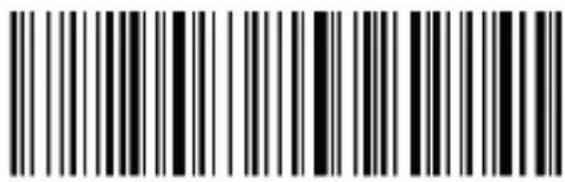
text_image
Black and white barcode image with vertical lines and a central dotAdd suffix
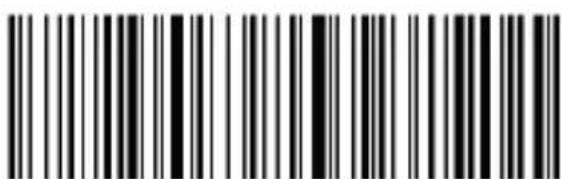
text_image
Black and white barcode image with vertical lines and a central barHide front part of bar code
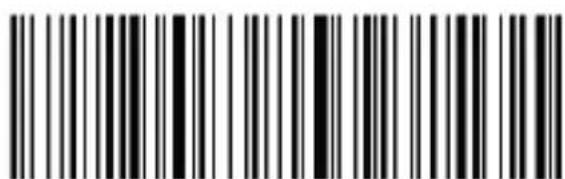
text_image
Black and white barcode image with vertical lines and a central barHide back part of bar code
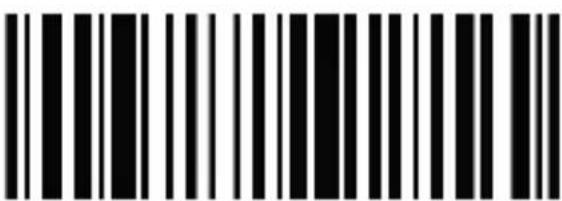
text_image
Black and white barcode image with vertical lines on both sidesHide 1 digits
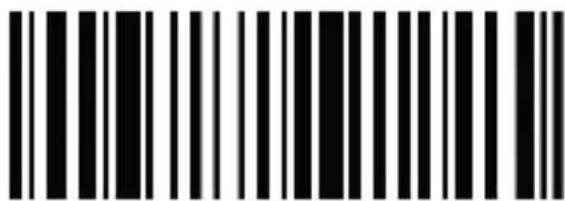
text_image
Black and white barcode image with vertical lines on both sidesHide 2 digits
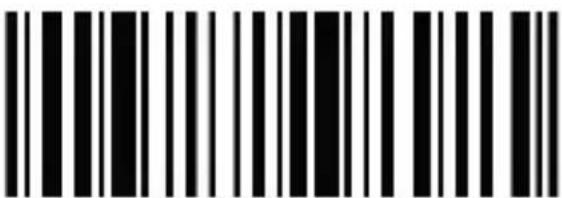
text_image
Black and white barcode image with vertical lines on both sidesHide 3 digits
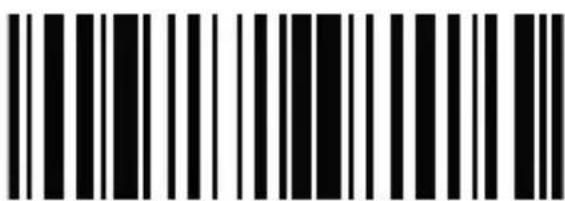
text_image
Black and white barcode image with vertical lines on both sidesHide 4 digits
LED light
- A fixed red indicator light indicates that the driver is charging. When the red indicator is off, it indicates that the charging is complete or the base is not connected.
When the red indicator blinks, it indicates that the battery is no power or the battery is not properly installed.
- The green indicator indicates that the wireless connection is correct. - The blinking blue indicator indicates the pairing status of the 2.4g connection mode.
- The blue and green lights flicker alternately to indicate the pairing state of the Bluetooth HID mode.
- Blinking green indicate the barcode scanner is in The bluetooth SPP/BLE pairing state.
Buzzer
- Long volume (from low to high): indicates that the scanner is on. - Long volume (from high to low): indicates that the player is close.
- Short volume (low frequency): indicates that the barcode is read or that the pairing or wireless connection is successful.
- Short volume (from low to high): indicates that digital data has been recorded or that installation code has been scanned.
- Three short volume (low frequency): indicates that the wireless transmission fails or the storage is full and scanning is stopped.
- Short volume (low frequency): indicates battery has no power.
- Two short volume (low frequency): indicates that the wireless is disconnected.
- Two short volume(high frequency): indicates that scan configuration code does not work.
Common problem
If I can't connect the scanner to my Android Bluetooth phone, what should I do?
Make sure that the phone is Android 3.0 or higher and can connect directly.
Why can't I load the barcode to my computer or phone after pairing?
A. Make sure that if the pairing is successful, the scanner's LED light will be green.
B. If counting function is open, the barcode is not automatically loaded into inventory mode. You must manually scan the corresponding barcode.
If computer or phone can't find the scanner's Bluetooth? What can I do?
A. Ensure that the selected communication mode is Bluetooth HID. Other communication methods require relevant testing tools, please contact the
English
manufacturer if necessary.
B. The Bluetooth scanner has been connected to another phone or computer. Steady green indicates that the pair has been paired.
How do I pair it with a phone or computer again?
Delete paired Bluetooth in the Bluetooth Search interface, and then pairing the Bluetooth again.
Safety, maintenance and recycling instructions
- Caution: Never open the device, the internal parts are danger, electrical shock.
- Do not install this unit near water, for example, in a wet basement, in an unprotected outdoor installation or in any area classified as a wet.
- Do not insert objects of any kind into this unit through openings as they may touch voltage points and short out parts that could result in fire or electric shock.
- Do not spill any liquid on the unit. Danger of explosion!
- Do not crush power cables, danger of short circuit!
- Always connect to the manufacturer's recommended tension.
- Clean the product with a soft and dry cloth.
- Follow local regulations for disposing of the product.
Recycled
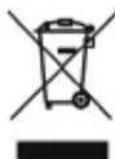
AEE REI-RAEE 5548 In this manual, the container (bin) symbol indicates that the product is subject to the European directive 2002/96 / EC, electrical and electronic products, batteries, and batteries and other accessories must necessarily be subject to a selective collection.
At the end of the life of the device, make use of the recycling bins. This gesture will help reduce the health risks and preserve the environment. Municipalities and distributors, Will provide essential details on recycling your old device. If this device carries an internal battery, it must be removed and deposited separately for proper management.
Introduction
Code39 60mm-120mm (5mil)
text_image
Black and white barcode image with vertical lines and a central barEnter Bluetooth HID mode
Enter pairing situation
Mode Bluetooth SPP/BLE
text_image
Two identical barcode patterns, each with vertical black and white stripes on white background.Enter SPP mode Enter BLE mode
text_image
Black and white barcode image with vertical lines and a small number '1' at the bottom right.- Bluetooth name setting
text_image
Black and white barcode image with vertical lines above and below the bars- Read Bluetooth name
text_image
Black and white barcode image with vertical lines and a central pattern2.4G mode
text_image
Black and white barcode image with vertical lines and a small number 'n' in the center.Force pairing with the receiver
text_image
Black and white barcode image with vertical lines and a central bar patternFactory default setting
text_image
Barcode image containing encoded digital informationBattery display

text_image
Barcode image containing encoded digital informationDisplay version information
Code39 60mm-120mm (5mil)
text_image
Black and white barcode image with vertical lines and a central barEnter Bluetooth HID mode
Enter pairing situation
Modo Bluetooth SPP/BLE
text_image
Two identical barcode patterns, each with vertical black and white stripes on white background.Enter SPP mode Enter BLE mode
text_image
Black and white barcode image with vertical lines and a small number '1' at the bottom- Bluetooth name setting
text_image
Black and white barcode image with vertical lines and a small number '1' at the bottom- Read Bluetooth name
B: Seleccione o código de barras personalizado com o nome que desejar para o leitor.
text_image
Black and white barcode image with vertical lines and a central dot2.4G mode
Force pairing with the receiver
text_image
Barcode image containing encoded digital informationBattery display

text_image
Barcode image containing encoded digital informationDisplay version information