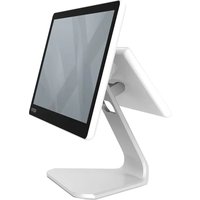
appLS11WS - Barcode scanner Aqprox - Free user manual and instructions
Find the device manual for free appLS11WS Aqprox in PDF.


User questions about appLS11WS Aqprox
0 question about this device. Answer the ones you know or ask your own.
Ask a new question about this device
Download the instructions for your Barcode scanner in PDF format for free! Find your manual appLS11WS - Aqprox and take your electronic device back in hand. On this page are published all the documents necessary for the use of your device. appLS11WS by Aqprox.
USER MANUAL appLS11WS Aqprox
text_image
Black and white barcode image with vertical lines and a small number '1' at the bottomtext_image
Black and white barcode image with vertical lines and a central dotVersion de firmware
- Batería restante
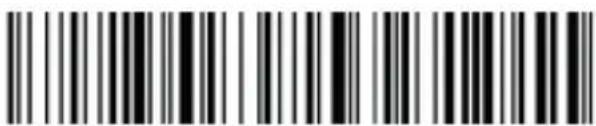
text_image
Black and white barcode image with vertical lines and a central dottext_image
Black and white barcode image with vertical lines and a small number 'n' in the bottom right corner.Bluetooth HID
Pairing setting
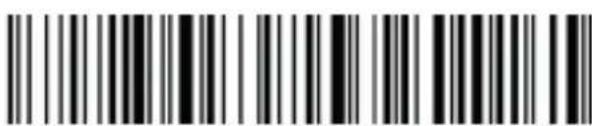
text_image
Black and white barcode image with vertical lines and a small number 'n' in the bottom right corner.5.2. Bluetooth BLE
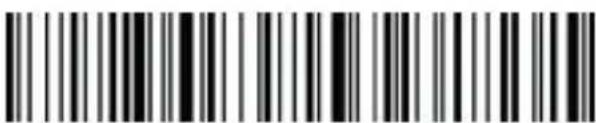
text_image
Black and white barcode image with vertical lines and a small number '1' at the bottomBluetooth BLE
5.3. Bluetooth SPP protocol
text_image
Black and white barcode image with vertical lines and dots, no readable text or symbolsBluetooth SPP
6. 2.4G (dongle)
6.1. Modo receptor 2.4G

text_image
Barcode image with black and white vertical bars on both sides, no additional text or symbols2.4G receiver mode
Pairing setting
6.2. Virtual serial port mode
text_image
Black and white barcode image with vertical lines and a small number '1' at the bottom right.USB virtual com
7. Modo de escaneo

text_image
Barcode image containing machine-readable data, no human-readable text visibletext_image
Barcode image with black and white vertical bars, no visible text or symbols beyond the patterntext_image
Black and white barcode image with vertical lines above and below the barsVolumen
bajo
Mute
Please carefully read all the contents of the manual before using the products described in this manual to ensure that the product is safely and effectively preserved for future use. Do not disassemble the terminal or tear off the seal on the terminal. Otherwise, we will not be responsible for the warranty or replacement of the terminal.
appLS11WS is a high performance wireless barcode reader. It can quickly decode any 1D barcode symbology, perfect for customer-facing applications.
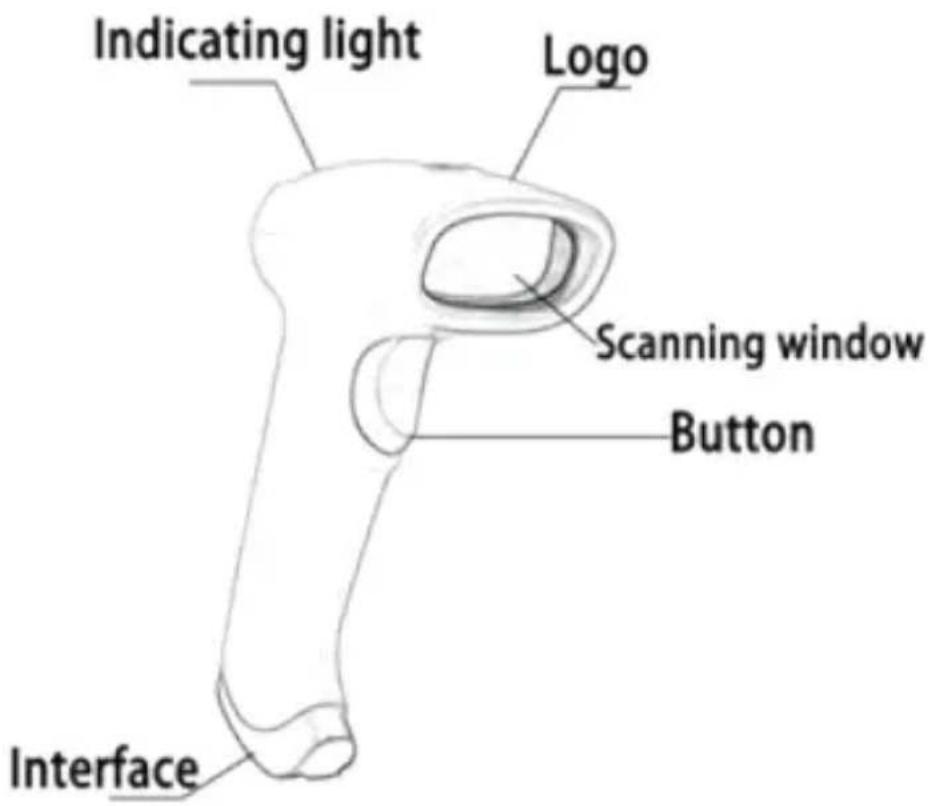
1.1. Product display
text_image
Indicating light Logo Scanning window Button Interface1.2. Maintenance
- The window must be kept clean, the supplier do not bear the guarantee responsibility due to the improper maintenance.
- Avoid the window being wear and tear or scratched by hard object
- Use the hairbrush to remove the stain on the window
- Clean the window with a soft cloth, such as lens cleaning cloth
- Spraying liquid onto the window is prohibited.
• Prohibit any cleaning solvents, except for the cleaning water.
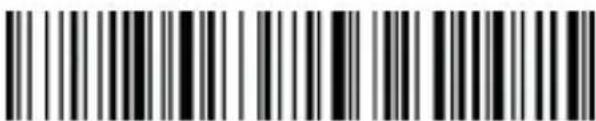
2. Restore factory defaults
text_image
Black and white barcode image with vertical lines and a small number '1' at the bottomFactory default
3. Version info
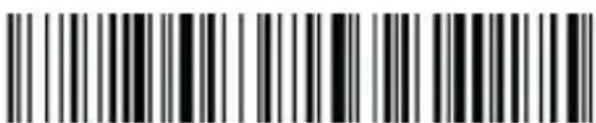
text_image
Black and white barcode image with vertical lines and a small number '1' at the bottom right.Version info
4. Battery capacity
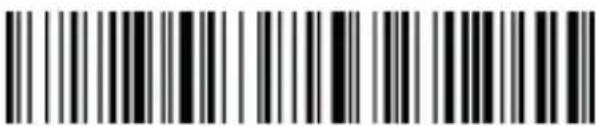
text_image
Black and white barcode image with vertical lines and a central dotBattery capacity
5. Bluetooth
5.1. Bluetooth HID protocol
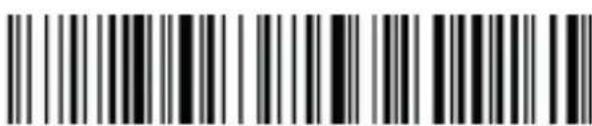
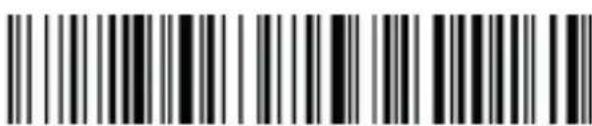
- First scan "Bluetooth HID", then scan "Pairing Setting" to enter Bluetooth searching (Blue&green light will flash once the searching is begun);
- Turn on Bluetooth in your device, search, select and pair "Barcode Scanner HID", if the pairing is successful, you will hear a "beep" sound and green&flash light is always on. (The whole pairing process takes about 1min, if timeout and the pairing failed, it will automatically exit the pairing mode).

text_image
Black and white barcode image with vertical lines and a central bar patternBluetooth HID
Pairing setting
5.2. Bluetooth BLE protocol
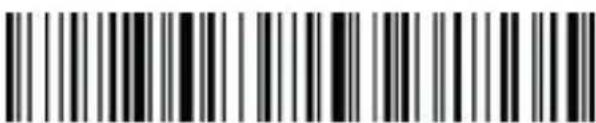
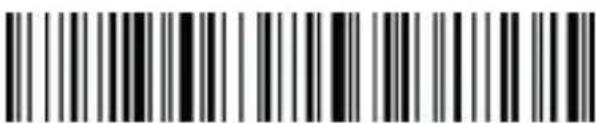
- Scan "Bluetooth BLE" to enter Bluetooth searching (Blue&green light will flash alternately once the searching has begun).
- Turn on Bluetooth in your device, search, select and pair "Barcode Scanner BLE", if the pairing is successful, you will hear a "beep" sound and green&flash light is always on.
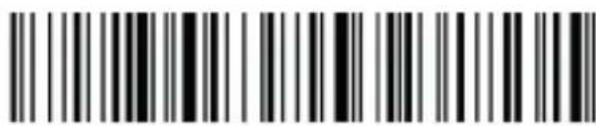
text_image
Black and white barcode image with vertical lines and a central black squareBluetooth BLE
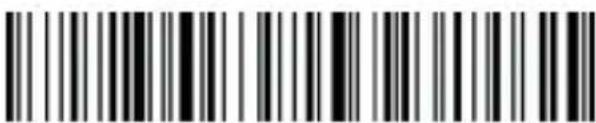
5.3. Bluetooth SPP protocol
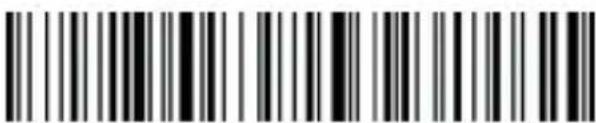
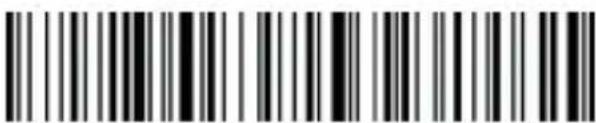
- Scan "Bluetooth SPP" to enter Bluetooth searching (blue light will flash once the searching has begun).
- Turn on the Bluetooth in the customized software, search and select "Barcode Scanner SPP", you will hear a "beep" sound if the pairing is successful, and the blue light is always on.
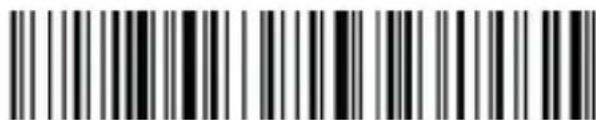
text_image
Black and white barcode image with vertical lines and a central barBluetooth SPP
6. 2.4G (dongle)
6.1. 2.4G receiver mode
- To enter the pairing status, first scan "2.4G Receiver Mode", then scan "Pairing Setting" (the green light will flash).
- Plug the USB dongle into the device, when hearing a "beep" sound, it means the pairing is successful and the blue&green light is always on. (The whole pairing process takes about 1min, if timeout and the pairing failed, it will automatically exit the pairing mode);

text_image
Black and white barcode image with vertical lines and a central vertical bar2.4G receiver mode
Pairing setting
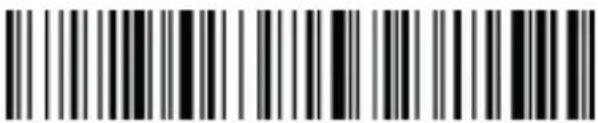
6.2. Virtual serial port mode
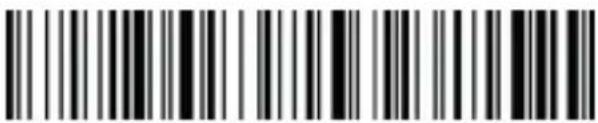
Under the circumstances when application software requires ports, scan "USB Virtual COM" and recognize as USB Virtual COM. (Be advised: An installed driver is require. The default settings of port is: 9600 baud rate, 8 data bits; no check bit; 1 stop bit).
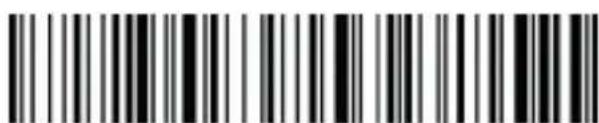
text_image
Black and white barcode image with vertical lines and a small number '1' at the bottomUSB virtual com
7. Scan mode

text_image
Manual Automatic (continuo)8. Immediate mode
In immediate mode, data scanned will be directly transmitted to the receiver, there will be one short sound if the transmission is successful, meanwhile the green indicator light will flash once. If the transmission failed, there will be three short sounds and the green light will flash for three times. The data will be lost under immediate mode if the transmission failed.
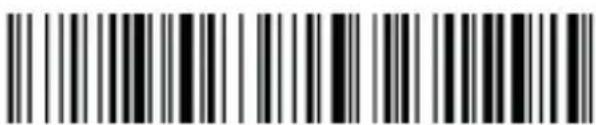
text_image
Black and white barcode image with vertical lines and a central dotImmediate mode
9. Inventory mode Offline inventory mode
In offline inventory mode, scanning the barcode then its data will be automatically saved in the memory chip inside the scanner, later there will be one short sound. If the memory is full, there will be three short sounds as warning sign and the green light will flash three times.
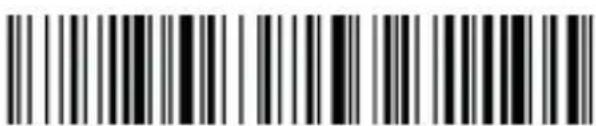
text_image
Black and white barcode image with vertical lines and a central dotOffline inventory
Mixed mode (just for 2.4G)
Mixed mode is the combination of immediate mode and data inventory. When the scanner is within the range of transmission, the data scanned will be immediately sent to the receiver; when the scanner is out of the range of real time transmission, the data scanned will be automatically saved in the memory chip inside the scanner.
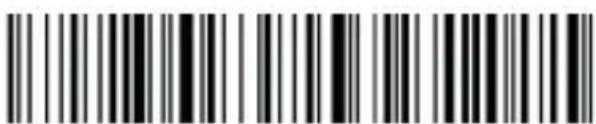
text_image
Black and white barcode image with vertical lines and a central dotMixed mode
Inventory setting
Show total amount of barcode scanned in storage:
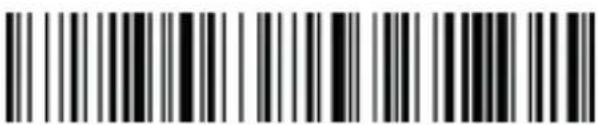
text_image
Black and white barcode image with vertical lines and a small number 'n' in the bottom right corner.Upload statistics
Upload all data in memory chip:
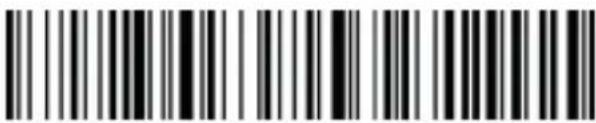
text_image
Black and white barcode image with vertical lines and a small number '1' at the bottomUpload data
Delete all data in memory chip (Warning: All data deleted cannot be restored, make sure you have uploaded all data and made a backup).
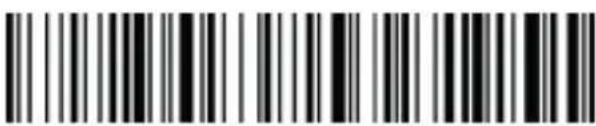
text_image
Black and white barcode image with vertical lines and a small number '1' at the bottom right.Delete all data
- Sleep time setting
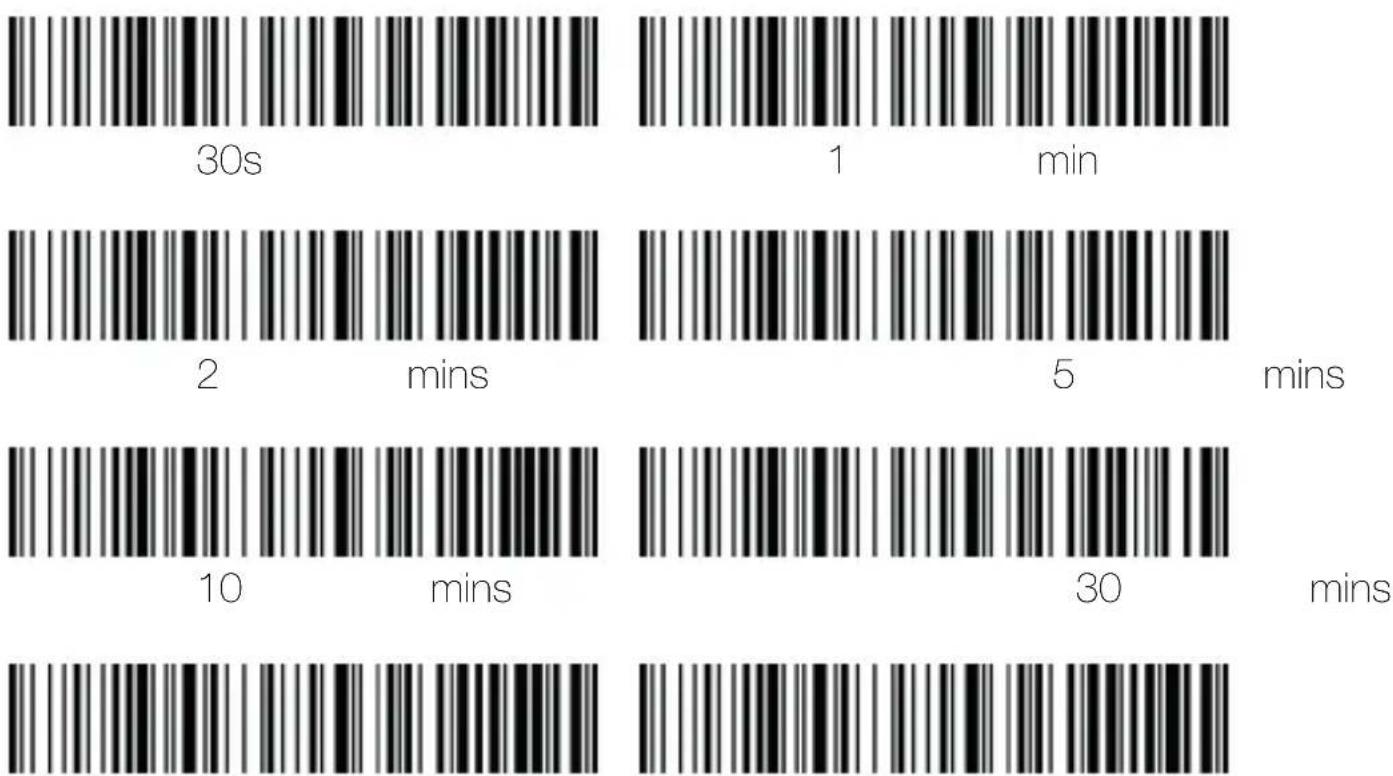
text_image
30s 1 min 2 mins 5 mins 10 mins 30 minsTurn off sleep mode
Initiate sleep mode immediately
- Keyboard language settings
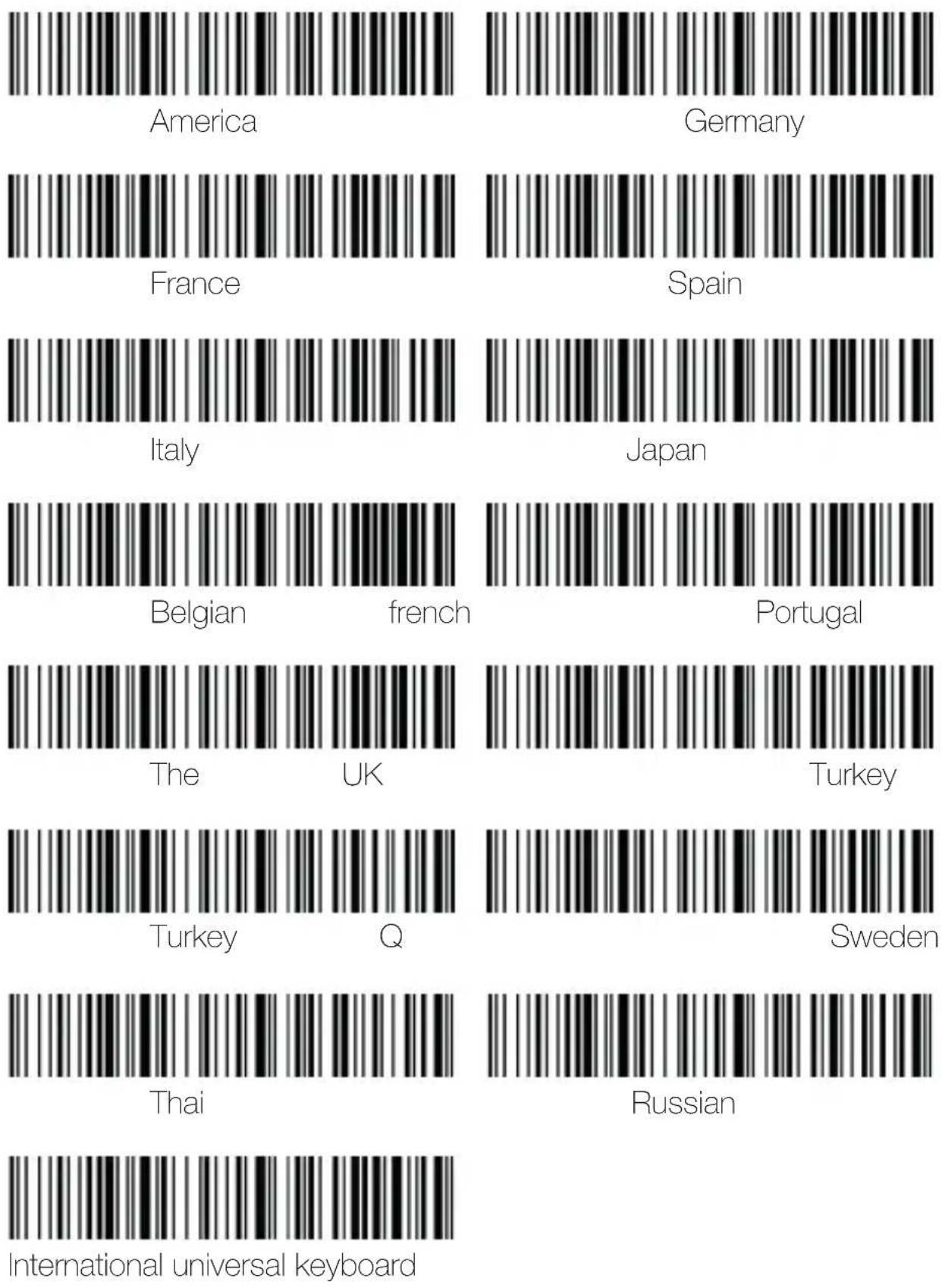
12. Case conversion
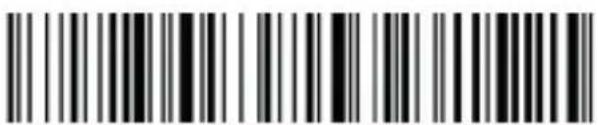
text_image
Black and white barcode image with vertical lines and a small number 'n' in the bottom right corner.Upper case
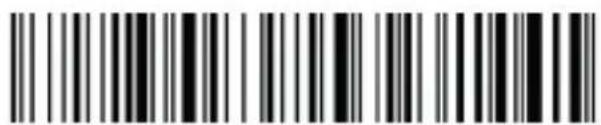
text_image
Black and white barcode image with vertical lines and a central dotLowe case
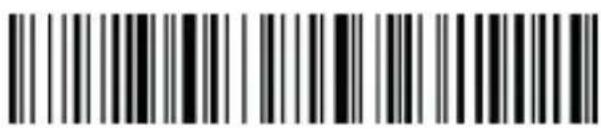
text_image
Black and white barcode image with vertical lines and a small number 'n' in the bottom right corner.Upper&lower case conversion
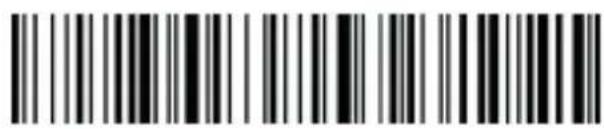
text_image
Black and white barcode image with vertical lines and a central dotUpper&lower case conversion OFF
13. Sound settings
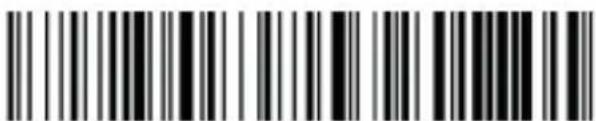
text_image
Barcode image containing machine-readable data, no human-readable text visible*High volume
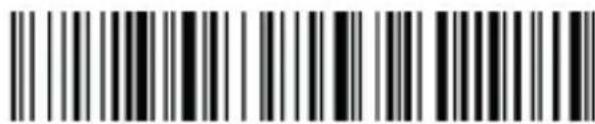
text_image
Barcode image containing encoded digital informationMedium volume
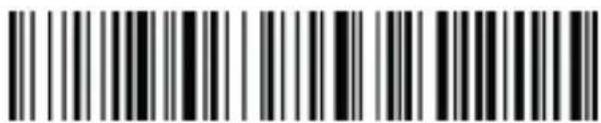
text_image
Barcode image containing encoded digital informationLOW
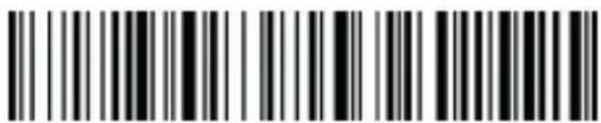
text_image
Black and white barcode image with vertical lines and a central dotvolume
Mute
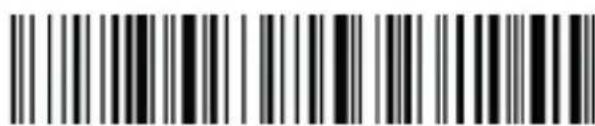
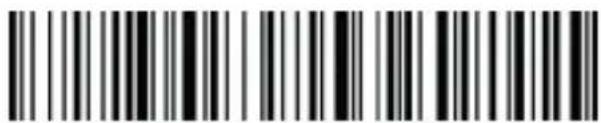
14. Terminator settings
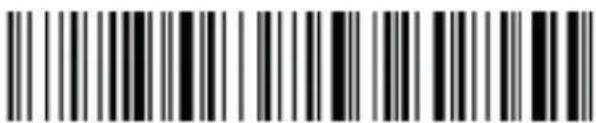
text_image
Black and white barcode image with vertical lines and a central dotEnter
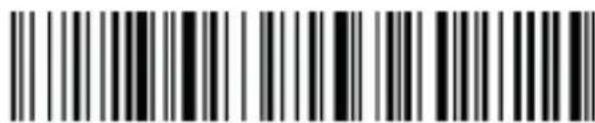
text_image
Black and white barcode image with vertical lines and a central dotLine
feed
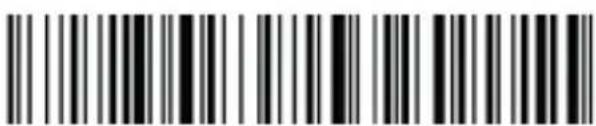
text_image
Barcode image containing encoded digital informationEnter+LF
text_image
Black and white barcode image with vertical lines and a central dotTAB
text_image
Barcode image containing encoded digital informationNo terminator
15. Data edit
15.1. Add prefix/suffix
How to add prefix/suffix: First scan "Set prefix" or "Set suffix", then scan the co-
rresponding barcode (see character table below), you may add up to 32 bytes.
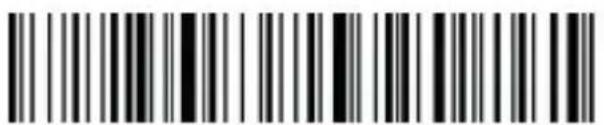
text_image
Black and white barcode image with vertical lines and a central dotSet
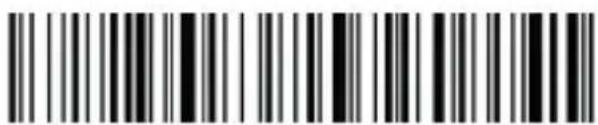
text_image
Black and white barcode image with vertical lines and a small number 'n' in the center.prefix
Set
suffi
15.2. GS character settings
How to set GS character: First scan "Set GS character convert", then scan the corresponding setting barcode. (see character table below)
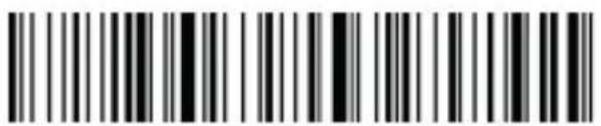
text_image
Barcode image containing encoded digital informationSet GS character convert
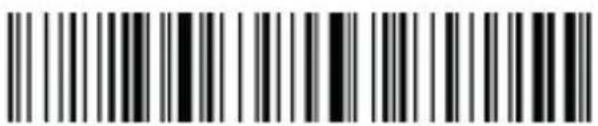
text_image
Barcode image with black and white vertical bars, no visible text or symbols beyond the patternTurn off GS character convert
16. Control character table
| Dec | ASCII | Character Set 0 | Character Set 1 | Character Set 2 | Char. Set 3 | Charact. Set 4 | Programming Barcode |
| 1 | SOH | NULL | Home | Ctrl+A | Alt+001 | Enter numeric keypad | |
| 2 | STX | Ctrl+B | End | Ctrl+B | Alt+002 | Cap Lock | |
| 3 | ETX | Ctrl+C | Up Arrow | Ctrl+C | Alt+003 | Right Arrow | |
| 4 | EOT | NULL | Down Arrow | Ctrl+D | Alt+004 | Up Arrow | |
| 5 | ENQ | NULL | Left Arrow | Ctrl+E | Alt+005 | NULL | |
| 6 | ACK | NULL | Right Arrow | Ctrl+F | Alt+006 | NULL | |
| 7 | BEL | NULL | Shift+Tab | Ctrl+G | Alt+007 | Enter | |
| 8 | BS | Back Space | Back Space | Back Space | Alt+008 | Left Arrow | |
| 9 | HT | Tab | Tab | Tab | Alt+009 | Tab | |
| 10 | LF | Enter | Enter | Ctrl+P | Alt+010 | Down Arrow | |
| 11 | VT | NULL | NULL | Ctrl+Q | Alt+011 | Tab | |
| 12 | FF | NULL | NULL | Ctrl+R | Alt+012 | delete | |
| 13 | CR | Enter | Enter | Enter | Alt+013 | Enter | 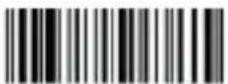 |
| 14 | S0 | F1 | Page Up | Ctrl+N | Alt+014 | Insert | 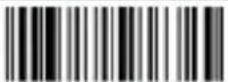 |
| 15 | S1 | F2 | Page Down | Ctrl+O | Alt+015 | Esc | 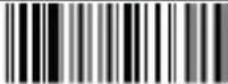 |
| 16 | DLE | F3 | F11 | Ctrl+P | Alt+016 | F11 | 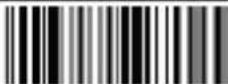 |
| 17 | DC1 | F4 | NULL | Ctrl+Q | Alt+017 | Home | 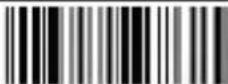 |
| 18 | DC2 | F5 | NULL | Ctrl+R | Alt+018 | Print Screen | 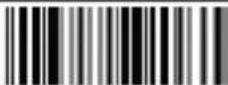 |
| 19 | DC3 | F6 | NULL | Ctrl+S | Alt+019 | Back Space | 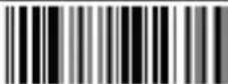 |
| 20 | DC4 | F7 | NULL | Ctrl+T | Alt+020 | Shift tab | 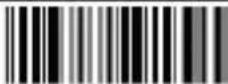 |
| 21 | NAK | F8 | F12 | Ctrl+U | Alt+021 | F12 | 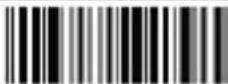 |
| 22 | SYN | F9 | F1 | Ctrl+V | Alt+022 | F1 | 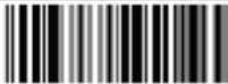 |
| 23 | TB | F10 | F2 | Ctrl+W | Alt+023 | F2 |  |
| 24 | CAN | F11 | F3 | Ctrl+X | Alt+024 | F3 |  |
| 25 | EM | F12 | F4 | Ctrl+Y | Alt+025 | F4 |  |
| 26 | SUB | NULL | F5 | Ctrl+Z | Alt+026 | F5 |  |
| 27 | Esc | Esc | F6 | Ctrl+[ | Alt+027 | F6 |  |
| 28 | FS | ALT+028 | F7 | Ctrl+\ | Alt+028 | F7 |  |
| 29 | GS | ALT+029 | F8 | Ctrl+] | Alt+029 | F8 |  |
| 30 | RS | NULL | F9 | Ctrl+^ | Alt+030 | F9 |  |
| 31 | US | NULL | F10 | Ctrl+_ | Alt+031 | F10 | 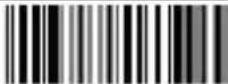 |
- Displayable character table
| Decimal Data | ASCII | Programming Barcode |
| 32 | Space | |
| 33 | ! | |
| 34 | “ | |
| 35 | # | |
| 36 | $ | |
| 37 | % | |
| 38 | & | |
| 39 | ‘ | |
| 40 | ( | |
| 41 | ) | |
| 42 | * | |
| 43 | + | |
| 44 | , | |
| 45 | - | |
| 46 | . |
| Decimal Data | ASCII | Programming Barcode |
| 47 | / | |
| 48 | 0 | |
| 49 | 1 | |
| 50 | 2 | |
| 51 | 3 | |
| 52 | 4 | |
| 53 | 5 | |
| 54 | 6 | |
| 55 | 7 | |
| 56 | 8 | |
| 57 | 9 | |
| 58 | : | |
| 59 | ; | |
| 60 | < | |
| 61 | = | |
| 62 | > | 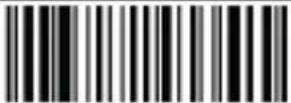 |
| 63 | ? | 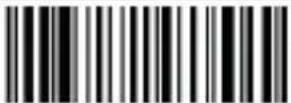 |
| 64 | @ | 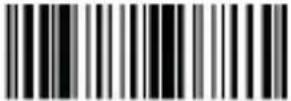 |
| 65 | A | 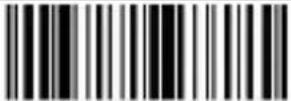 |
| 66 | B | 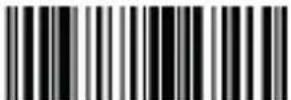 |
| 67 | C | 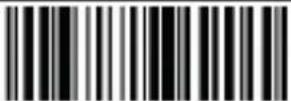 |
| 68 | D | 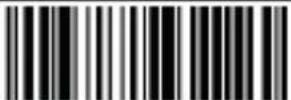 |
| 69 | E | 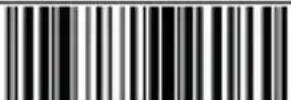 |
| 70 | F | 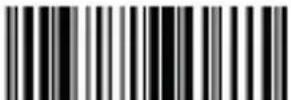 |
| 71 | G | 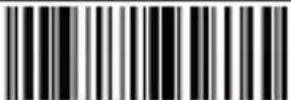 |
| 72 | H | 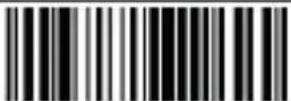 |
| 73 | I | 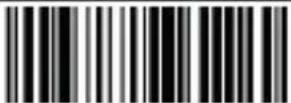 |
| 74 | J | 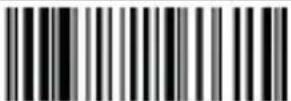 |
| 75 | K | 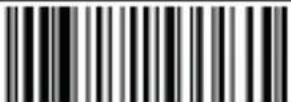 |
| 76 | L | 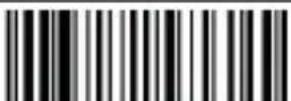 |
| Decimal Data | ASCII | Programming Barcode |
| 77 | M | 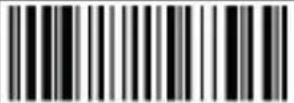 |
| 78 | N | 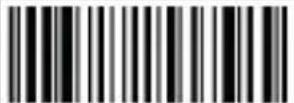 |
| 79 | O | 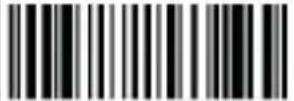 |
| 80 | P | 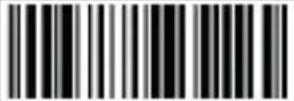 |
| 81 | Q | 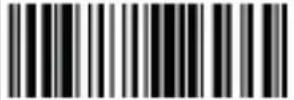 |
| 82 | R | 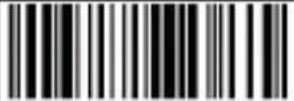 |
| 83 | S | 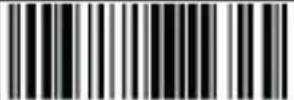 |
| 84 | T | 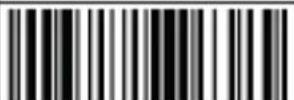 |
| 85 | U | 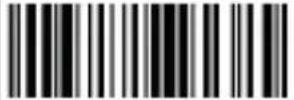 |
| 86 | V | 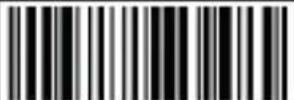 |
| 87 | W | 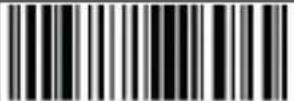 |
| 88 | X | 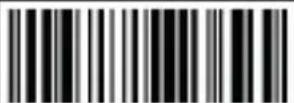 |
| 89 | Y | 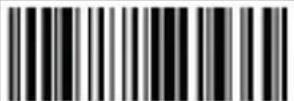 |
| 90 | Z | 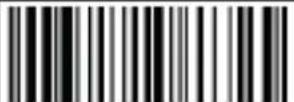 |
| 91 | [ | 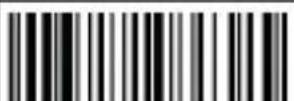 |
| 92 | \ | |
| 93 | ] | |
| 94 | ^ | |
| 95 | - | |
| 96 | ` | |
| 97 | a | |
| 98 | b | |
| 99 | c | |
| 100 | d | |
| 101 | e | |
| 102 | f | |
| 103 | g | |
| 104 | h | |
| 105 | i | |
| 106 | j |
| Decimal Data | ASCII | Programming Barcode |
| 107 | k | |
| 108 | l | |
| 109 | m | |
| 110 | n | |
| 111 | o | |
| 112 | p | |
| 113 | q | |
| 114 | r | |
| 115 | s | |
| 116 | t | |
| 117 | u | |
| 118 | v | |
| 119 | w | |
| 120 | x | |
| 121 | y | |
| 122 | z | 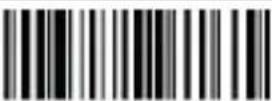 |
| 123 | { | 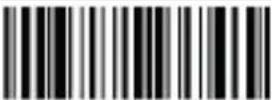 |
| 124 | | |  |
| 125 | } | 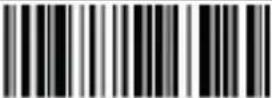 |
| 126 | ~ | 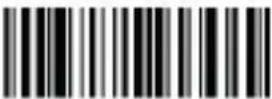 |
| 127 | DEL | 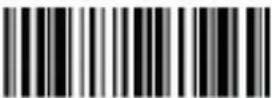 |
| 164 |  | |
| 199 |  | |
| 231 |  |
18. Safety, maintenance and recycling instructions
- Caution: Never open the device, the internal parts are danger, electrical shock.
- Do not install this unit near water, for example, in a wet basement, in an unprotected outdoor installation or in any area classified as a wet.
- Do not insert objects of any kind into this unit through openings as they may touch voltage points and short out parts that could result in fire or electric shock.
- Do not spill any liquid on the unit. Danger of explosion!
- Do not crush power cables, danger of short circuit!
- Always connect to the manufacturer's recommended tension.
- Clean the product with a soft and dry cloth.
- Follow local regulations for disposing of the product.
19. Recycled
AEEREI-RAE 558 - In this manual, the container (bien) symbol indicates that the product is subject to the European directive 2002/96/EC, electrical and electronic products, batteries, and other accessories must necessarily be subject to a selective collection.
At the end of the life of the devise, make use of the recycling bins.
This gesture will help reduce the health risks and preserve the environment. Municipalities and distributor, will provide essential details on recycling your old device. If this device carries an internal battery, it must be removed and deposited separately for proper management.
1. Introdução
text_image
Black and white barcode image with vertical lines and a small number '1' at the bottomtext_image
Black and white barcode image with vertical lines and a central dotVersão do firmware
- Batería restante
text_image
Black and white barcode image with vertical lines and a central dottext_image
Black and white barcode image with vertical lines and a small number 'n' in the bottom right corner.Bluetooth HID
Pairing setting
text_image
Black and white barcode image with vertical lines and a small number 'n' in the bottom right corner.5.2. Bluetooth BLE
text_image
Black and white barcode image with vertical lines and a small number '1' at the bottomBluetooth BLE
5.3. Bluetooth SPP protocol
text_image
Black and white barcode image with vertical lines and dots, no readable text or symbolsBluetooth SPP
6. 2.4G (dongle)
6.1. Modo receptor 2.4G

text_image
Black and white barcode image with vertical lines and patterns2.4G receiver mode
Pairing setting
6.2. Modo de porta serial virtual
text_image
Black and white barcode image with vertical lines and a small number '1' at the bottom right.USB virtual com
text_image
Barcode image with black and white vertical bars, no visible text or symbols beyond the patterntext_image
Barcode image with black and white vertical bars, no visible text or symbols beyond the patterntext_image
Black and white barcode image with vertical lines above and below the barsVolume
baixo
Mute
text_image
Black and white barcode image with vertical lines and a small number '1' at the bottomtext_image
Black and white barcode image with vertical lines and a central dotVersion du firmware
text_image
Black and white barcode image with vertical lines and a central dottext_image
Black and white barcode image with vertical lines and a small number 'n' in the bottom right corner.Bluetooth HID
Pairing setting
text_image
Black and white barcode image with vertical lines and a small number 'n' in the bottom right corner.5.2. Bluetooth BLE
text_image
Black and white barcode image with vertical lines and a small number '1' at the bottomBluetooth BLE
5.3. Bluetooth SPP protocol
text_image
Black and white barcode image with vertical lines and patternsBluetooth SPP
6. 2.4G (dongle)
text_image
Black and white barcode image with vertical lines and patterns, no readable text or symbols2.4G receiver mode
Pairing setting
text_image
Black and white barcode image with vertical lines and a small number '1' at the bottomUSB virtual com
7. Mode de balayage

text_image
Barcode image with black and white vertical bars, no visible text or symbols beyond the patternManuel
Automatique
(contini
8. Son

text_image
Barcode image with black and white vertical bars, no visible text or symbols beyond the patterntext_image
Black and white barcode image with vertical lines and a central vertical barVolume
bas
Mute
The content of this guide is subject to typographical errors
www.approxtpv.es