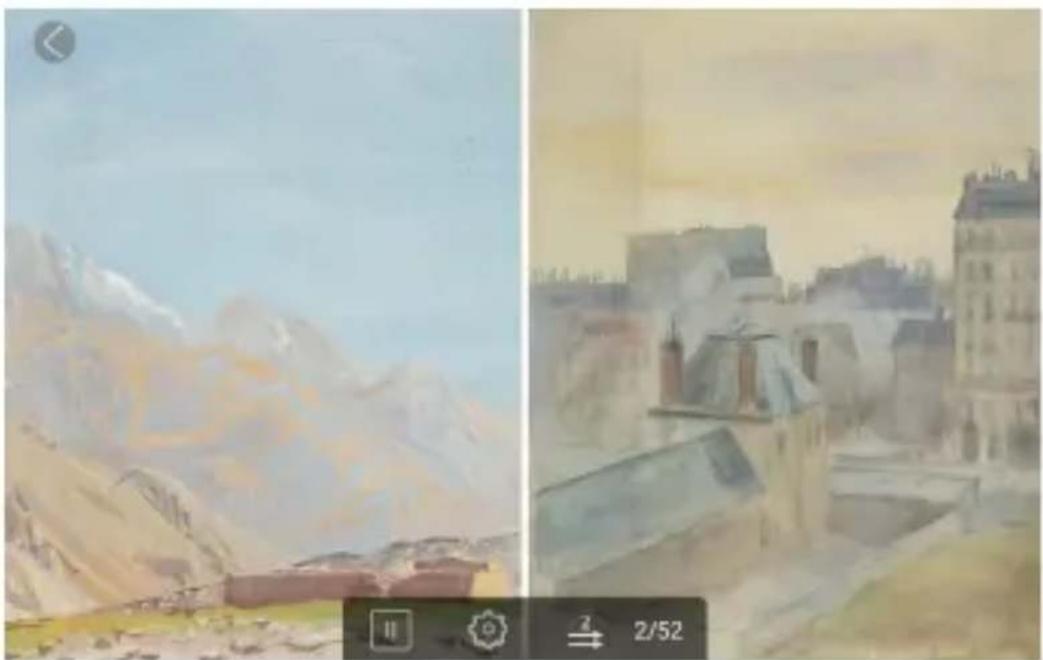
Modern 10 Elite - Digital photo frame Dragon Touch - Free user manual and instructions
Find the device manual for free Modern 10 Elite Dragon Touch in PDF.


User questions about Modern 10 Elite Dragon Touch
0 question about this device. Answer the ones you know or ask your own.
Ask a new question about this device
Download the instructions for your Digital photo frame in PDF format for free! Find your manual Modern 10 Elite - Dragon Touch and take your electronic device back in hand. On this page are published all the documents necessary for the use of your device. Modern 10 Elite by Dragon Touch.
USER MANUAL Modern 10 Elite Dragon Touch
natural_image
Two women interacting in a room with blinds, no visible text or symbolsUSER MANUAL
V1.0
bar
| Category | Value | |---|---| | 01 - 24 | >> | | 25 - 48 | >> | | 49 - 72 | >> | | Nederlands | >> | | Nederlands | 73 - 96 |Welcome to Dragon Touch!
Dragon Touch digital frame is designed to collect & display thousands of your photos privately and safely. It's easy to get connected with all your loved ones around the world. This manual will provide details you need to set up your frame, invite families and friends to share photos with your new Dragon Touch frame. Let's get started!
Content
What's in the Box----03
Frame Features 03
Getting Started----05
Uploading Photos and Videos to the Frame 07
-
Upload Photos and Videos Via the VPhoto App 07
-
Upload Photos and Videos Via Email---- 11
-
Upload Photos and Videos Via USB Drive/TF Card 12
-
Upload Music Via USB Drive/TF Card---- 14
Key Features 15
- Picture Slideshow 15
- Video Slideshow 17
Multiple Functions 18
General Settings 19
Technical Specification 22
Troubleshooting---- 23
Contact Us 24
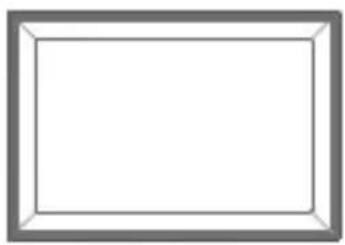
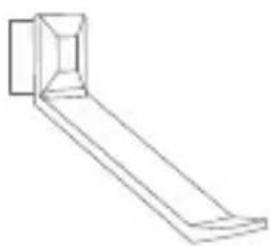
What's in the Box
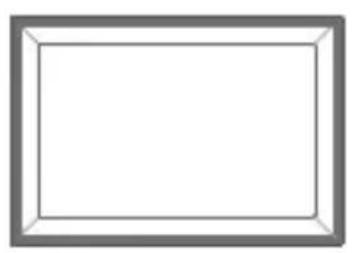
natural_image
Empty rectangular frame with gray border (no text or symbols)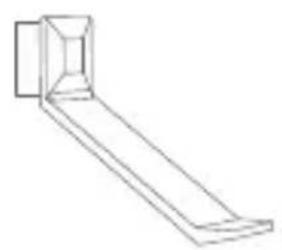
natural_image
Simple line drawing of a rectangular object with a small square cutout on top (no text or symbols)
natural_image
Simple line drawing of a medical or laboratory device with a cylindrical tube and curved tubing (no text or symbols)Modern 10 Elite Power Adapter with Stand
Power Cable
text_image
DRAGON MODERN 10 ELITE DIGITAL PHOTO FRAME
natural_image
Empty white rectangle with a thin gray border (no text or symbols)Quick Start Guide Decorative Frames×2
Frame Features
natural_image
Empty rectangular frame with a blue arrow pointing to the top-left corner (no text or symbols)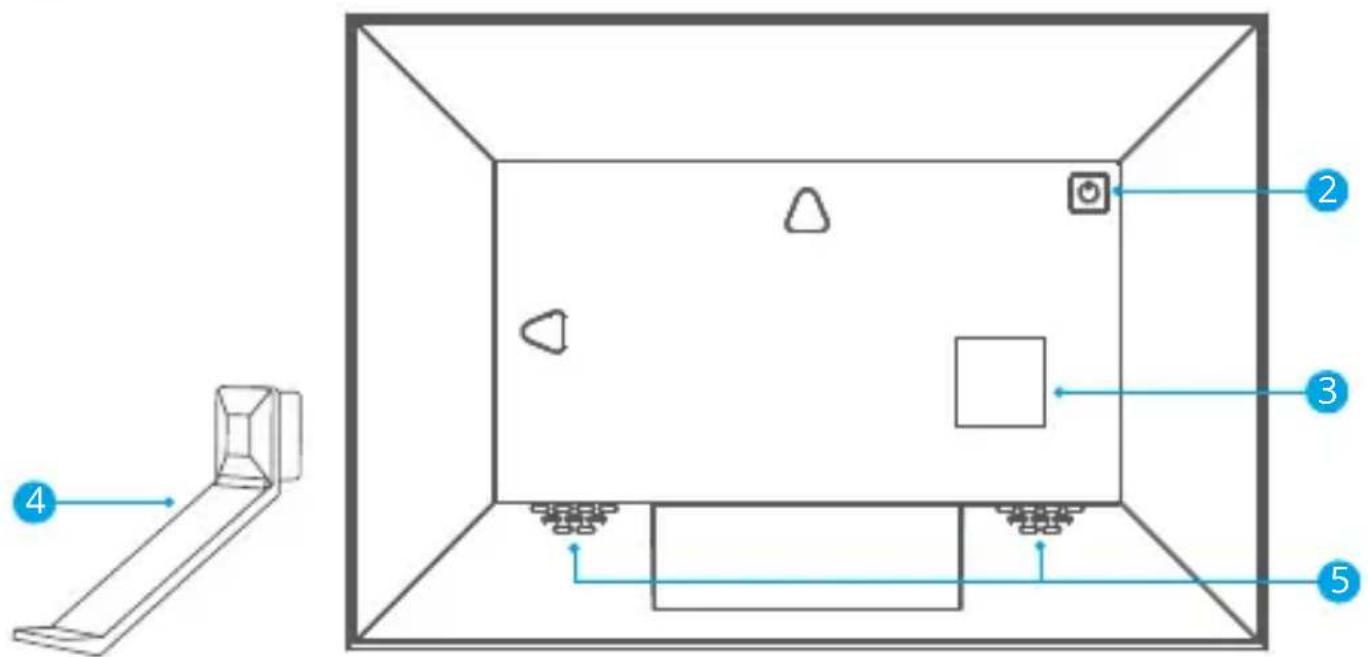
text_image
Diagram of a room layout with numbered annotations pointing to different areas and fixtures.
text_image
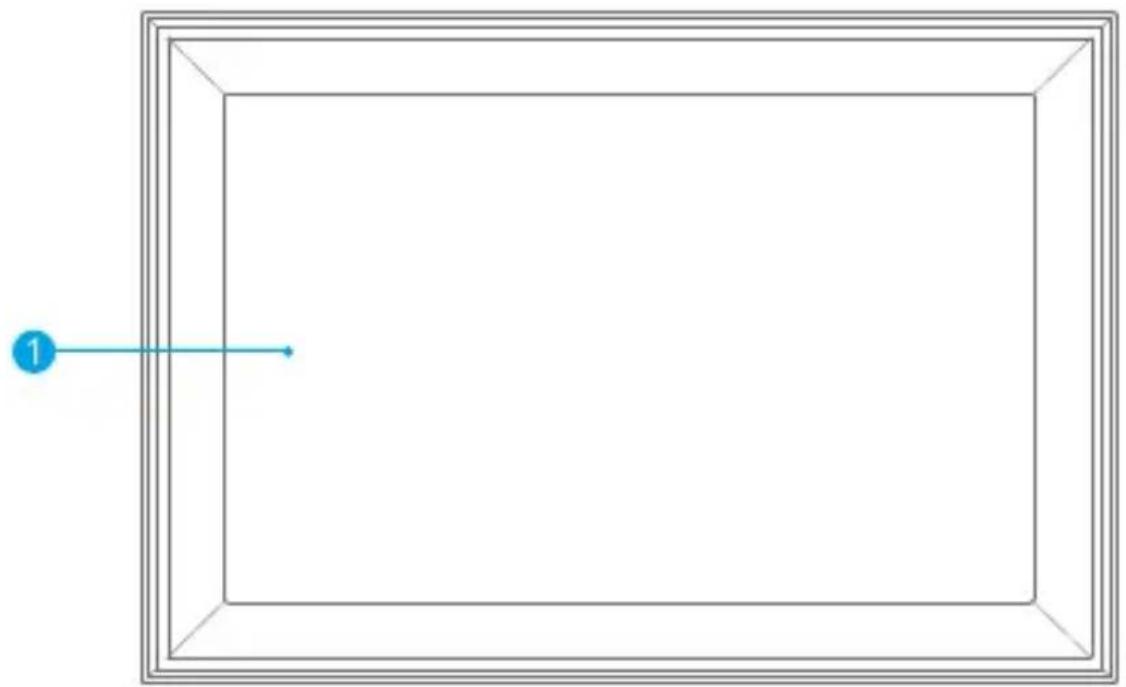
6 8 91 10.1" IPS Touch Screen
2 Power Button
3 Stand Port
4 Stand
5 Speaker
6 USB-C/TYPE-C
7 USB-A Port
8 DC Power Port
9 Memory Card Slot
Getting Started
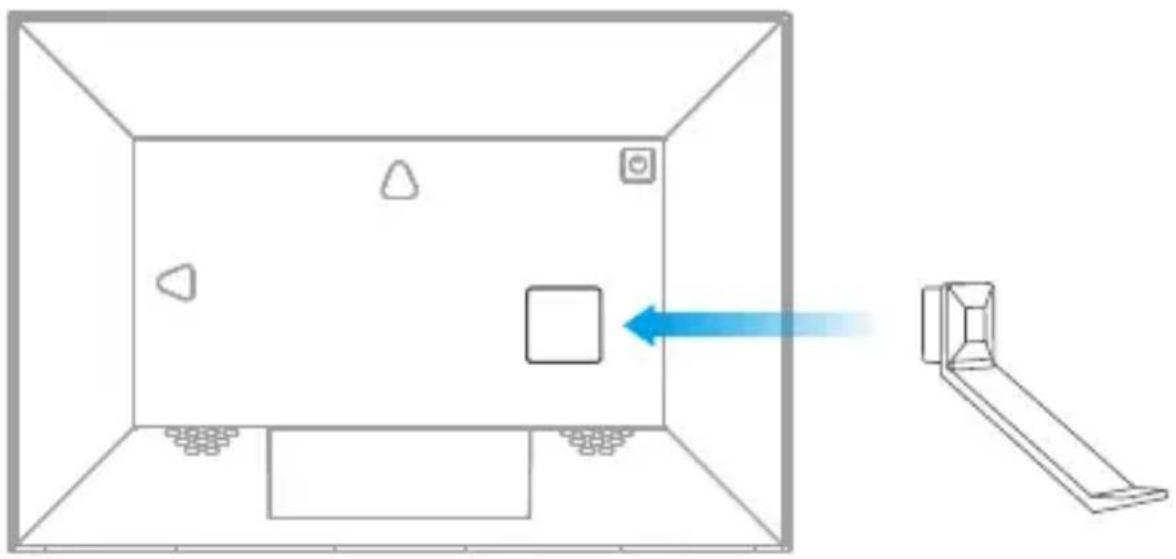
1. Install the Stand
Insert the bracket into the bracket hole on the back of the frame. You can place the frame either in landscape or portrait (we recommend you place it in landscape during the first setup). You can also mount the frame on the wall with the Wall Mount Hole on the back.
natural_image
Diagram showing a room layout with furniture and a directional arrow, no text or symbols present2. Power on
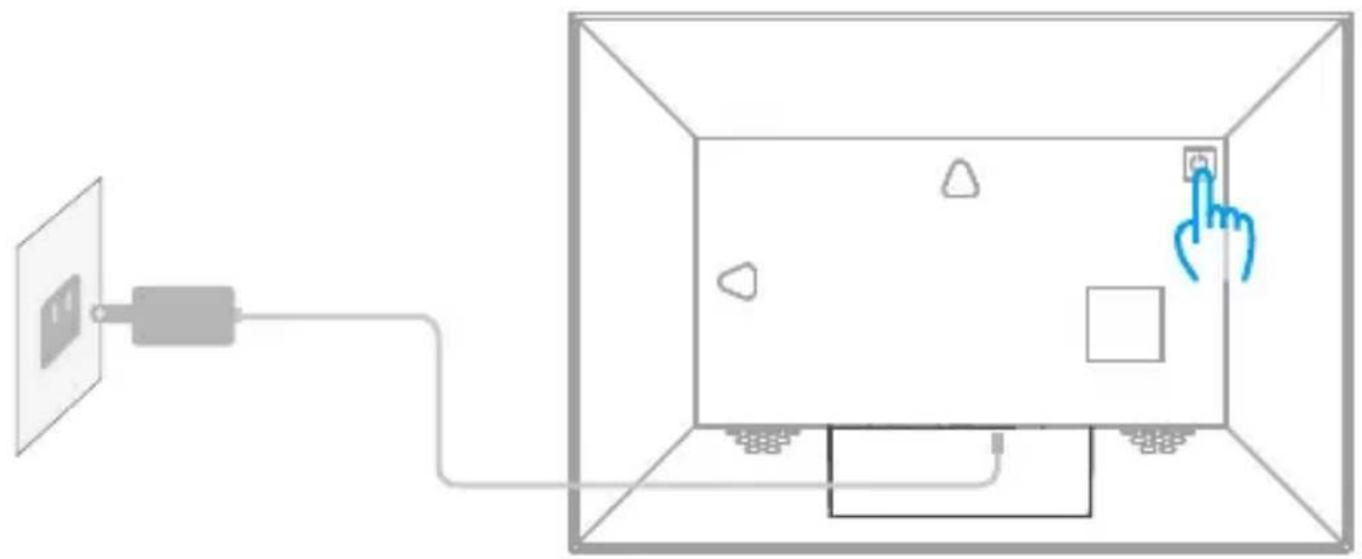
Connect the Power Cable to your frame, then plug the power adapter into the wall socket. The frame will power on in seconds.
natural_image
Diagram showing a device connected to a screen with a hand cursor pointing at the screen (no text or symbols present)3. Initial Settings
There are several initial settings including Language, Wifi, Nickname, City, Time Zone etc. when you enter the system for the first time.
4. Connect to Wifi
You can connect to Wif during the initial setup or later through the Wifi settings. To do this, tap the Settings icon to open the settings menu, find the Wifi option, and tap it to connect. Select the Wifi network you'd like to join and enter the password. If your network doesn't appear, move your device closer to the router, wait a few seconds, and check again.
Note:
① The photo frame supports 2.4GHz Wifi networks.
② A private Wifi network is highly recommended.
Uploading Photos and Videos to the Frame
1. Upload Photos and Videos Via the VPhoto App
1.1 Download the Vphoto App
Please download and install the VPhoto app on your mobile device by searching VPhoto in the App Store or Google Play. Alternatively, use the provided QR code:

text_image
QR code image containing encoded data, no visible human-readable text

text_image
QR code image containing encoded data, no visible human-readable text
1.2 Create an Account
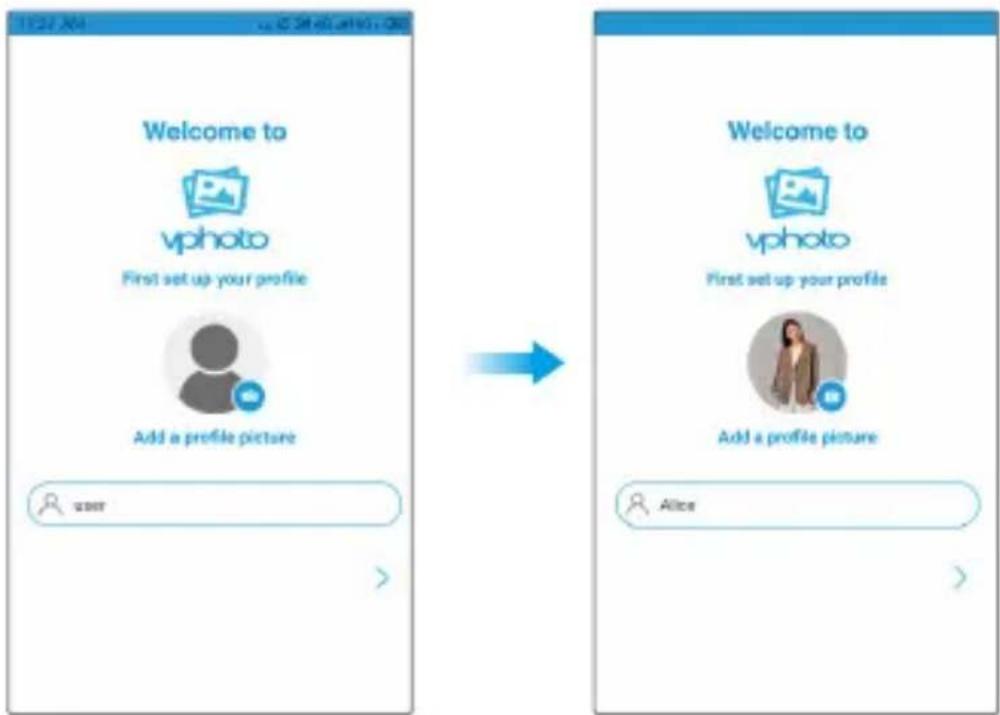
Open the Vphoto app, then set your user name and your profile photo.
text_image
Welcome to vphoto First set up your profile Add a profile picture user Welcome to vphoto First set up your profile Add a profile picture Alice1.3 Pair Your Frame with the App
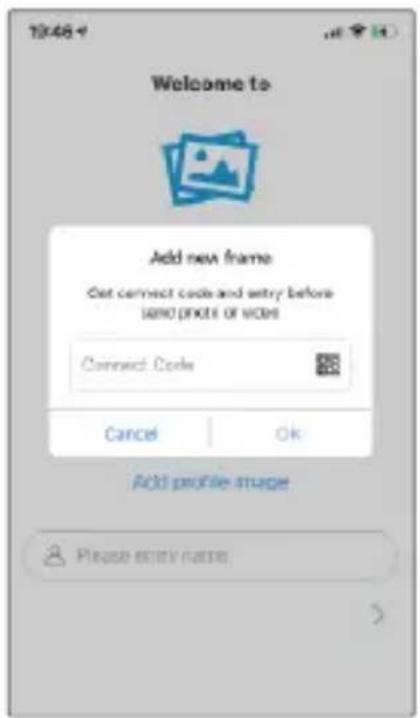
After completing the account setup process, you'll need to enter the connection code or scan the QR code of your frame. Once you've entered the connection code, you will see a pop-up message that says "Bind success". This indicates that your account has been successfully linked to your frame and you're ready to start using it.
Note:
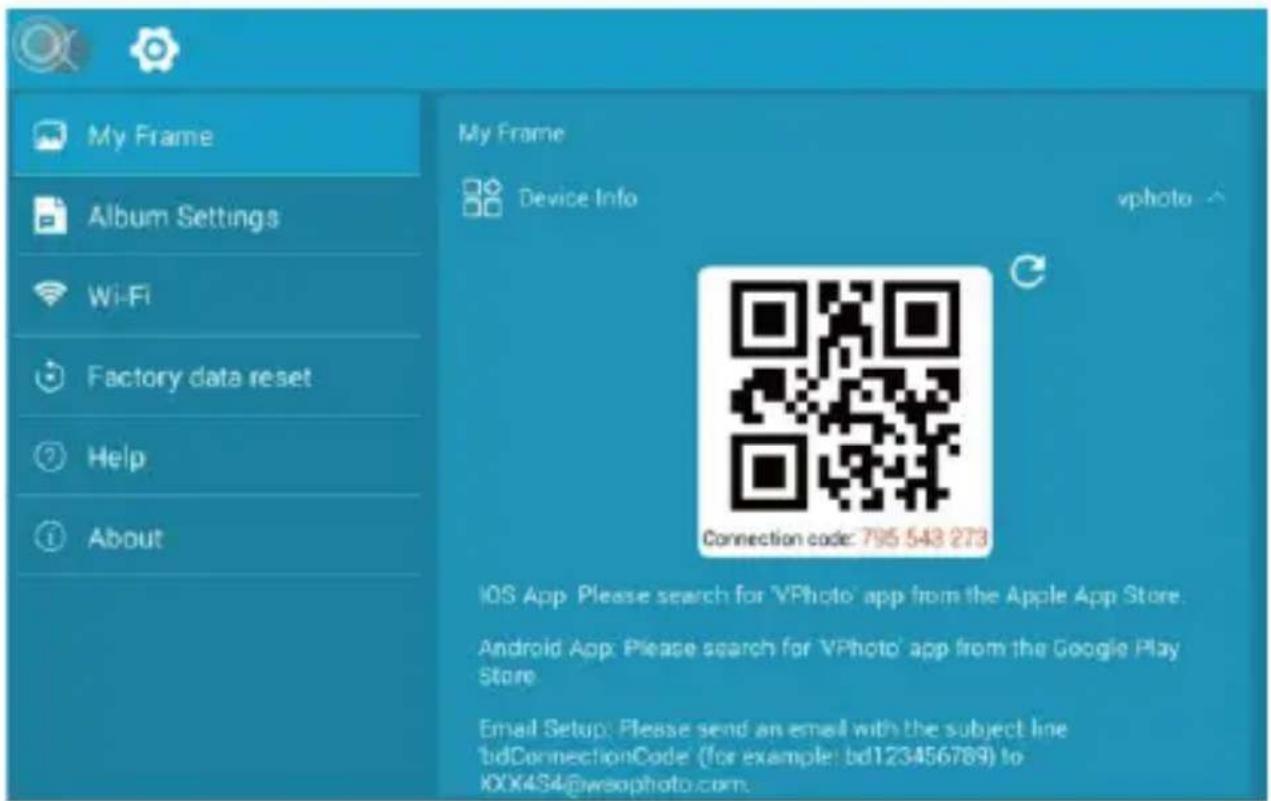
① The Connection code is a 9-digit serial number that is unique to your frame. You can find this code by accessing your frame's settings page and navigating to "My Frame".
text_image
Welcome to Add new frame Get correct code and entry before ADO (FIXED) OF CODE Connect Code Cancel Ok Add profile image Please enter name:② The Connection code and QR code will refresh every 12 hours.
③ To view the connection code and QR code, you need to connect your frame to Wifi first. If you have not done so, the connection code and QR code will not load out.
text_image
My Frame Album Settings Wi-Fi Factory data reset Help About My Frame Device Info vphoto Connection code: 795 548 273 iOS App Please search for VPhoto app from the Apple App Store. Android App Please search for VPhoto app from the Google Play Store Email Setup: Please send an email with the subject line bdConnectionCode (for example: bd123456789) to k00x454@wsophoto.com1.4 Upload Photos and Videos to Your Frame
After pairing the App with your frame, you can start adding photos and videos to your frame anywhere and anytime in the following two ways:
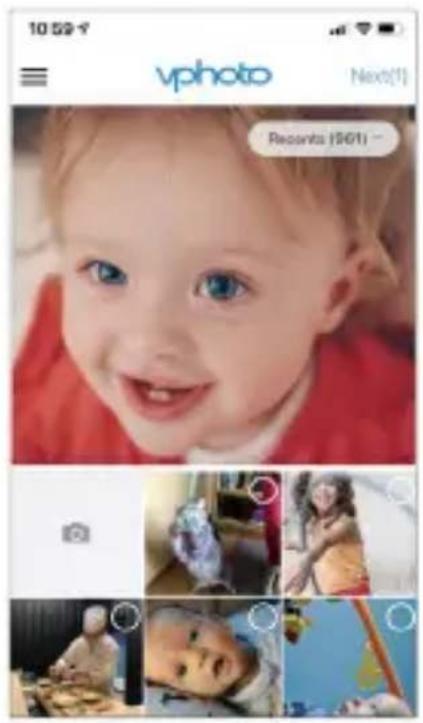
(1) Upload photos or videos from your phone's album.
First, select the photos or videos from your phone's album you would like to upload. Second, tap "Next" to choose the frame you would like to send them to. Last, tap the Arrow icon in the upper right corner to send photos. Your photos or videos are successfully uploaded to your frame.

text_image
11:01-4 vphoto New(5) Recovers 100%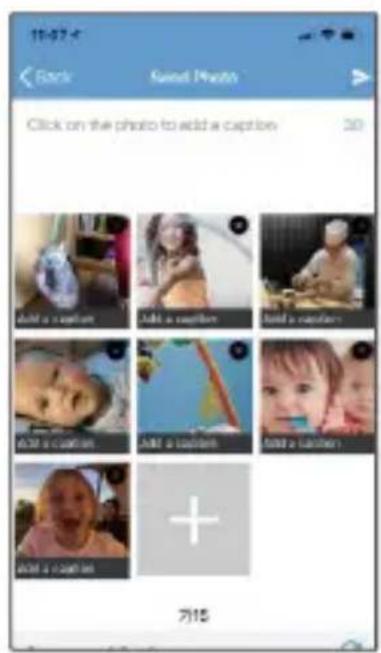
text_image
15:07 Back Rainfall Photo Click on the photo to add a caption 30 Add a caption Add a caption Add a caption Add a caption Add a caption Add a caption Add a caption Add a caption + 가15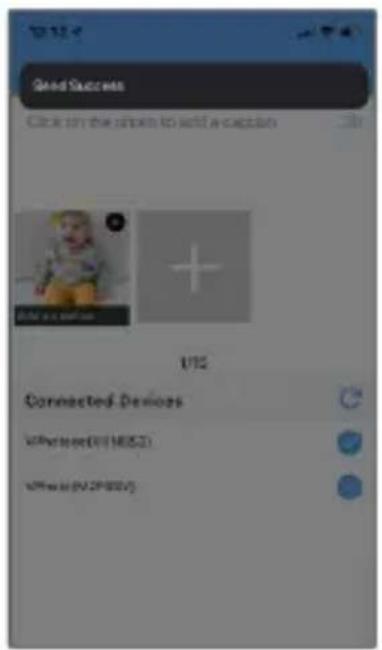
text_image
Good Success Click to the other to start a session Connected Devices With respect (01 M52) With respect (02 P804)Warm tip:
① You can write captions for each photo before uploading. To do this, simply tap on the photo to add descriptions.
② You can't modify the title after uploading the photo to the frame.
(2) Upload new photos or videos.
First, tap the Camera icon to take new photos or videos. Second, choose the frame you would like to send them to. Third, tap the Arrow icon in the upper right corner to confirm. The photo frame will receive the photos or videos in seconds, you can check them on the frame's photo or video library.
Note:
① If the frame didn't receive the photos or videos, please reboot the product or check the Wifi network.
② Each video clip is limited to 200MB.
③ Videos can only be uploaded individually.
1.5 Invite Your Families&Friends to Connect to Your Frame
Your families and friends can share their happy moments to your frame by following the steps below:
① Download and install the Vphoto app.
② Open the app, then set user name and profile photo.
③ Get the connection code from you to connect to your frame. Please make sure your connection code is valid.
④ Start sending the photos and videos to your frame.
There are two ways to share the connection code:
Method 1: Take a picture of the connection code on the frame, then share it with your families or friends.
Method 2: ① Open your VPhoto app and tap the More icon in the upper left corner.
② Choose "Connected Device" from the options provided.
③ Choose the frame you want your friend to connect to, then tap the Share icon.
④ You will receive a picture of the QR code and Connection code.
⑤ Send it to your families or friends.
Note:
① The Connection code is a 9-digit serial number that is unique to your frame. You can find this code by accessing your frame's settings page and navigating to "My Frame".
② The Connection code and QR code will refresh every 12 hours.
③ To view the connection code and QR code, you need to connect your frame to Wifi first. If you have not done so, the connection code and QR code will not load out.
text_image
10:59-1 vphoto Next[1] Recents ($01) ~
text_image
11/12-1 Back Wanghao Add new frame > Connected Devi... Edit user nickina... User Tutorial > History Record > Version 0.2.07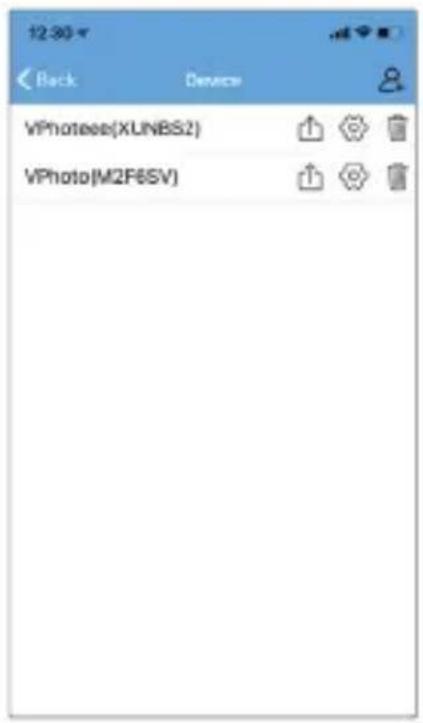
text_image
12:30 Back Device VPhotoee(XUNBS2) VPhoto(M2F6SV)2. Upload Photos and Videos Via Email
You and your friends can also send photos and videos to the frame via Email.
2.1 Connect Your Email Address to the Frame
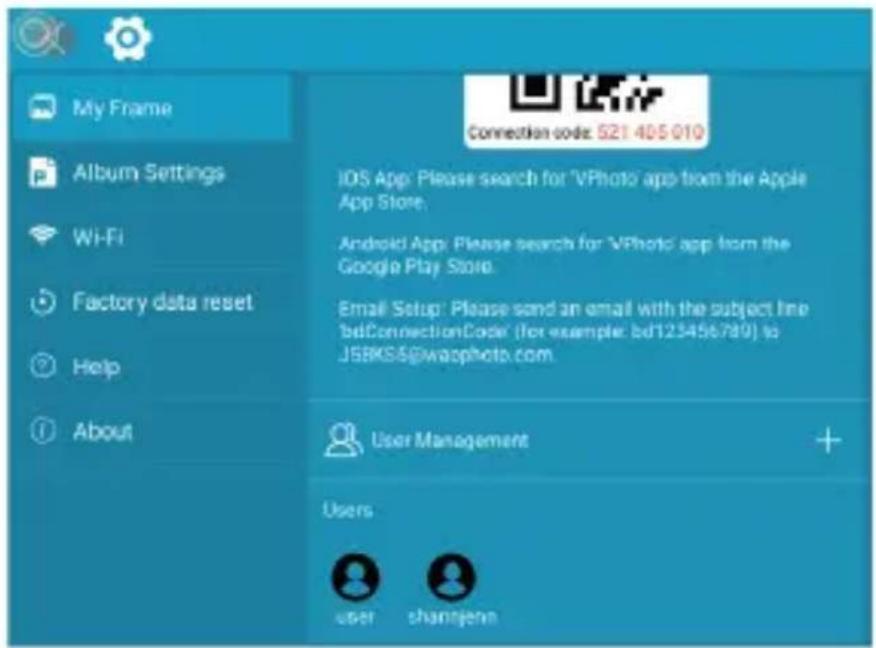
When on the settings screen, tap the "+" icon under the User Management setting, then add your email address. You'll receive an e-mail informing you that your binding request has been completed, with instructions on how to send photos and videos
to the frame.
text_image
My Frame Album Settings Wi-Fi Factory data reset Help About Connection code: 521 405 010 IOS App: Please search for 'VPhoto' app from the Apple App Store. Android App: Please search for 'VPhoto' app from the Google Play Store. Email Setup: Please send an email with the subject line 'bdConnectionCode' (for example: bd123456789) to JSBKS5@gwazphoto.com. User Management Users user shannjenn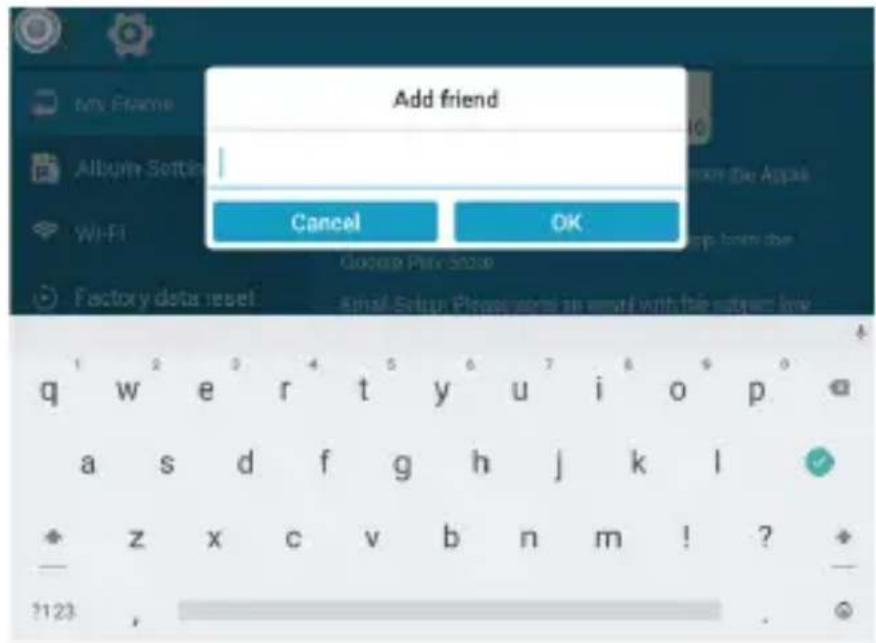
text_image
Add friend Cancel OK2.2 Upload Photos and Videos to Your Frame
After adding your email address to the frame, you can email photos and videos to the mailbox of the frame.
Your photos and videos will be received in minutes. You can check them on the frame's photo or video library.
Note: Each video clip is limited to 200MB.
3. Upload Photos and Videos Via USB Drive/TF Card
You can also add photos and videos via external drives, such as USB drives and TF cards. To do this, follow the simple steps below.
(1) Insert a USB drive or a TF card into the frame, then wait for a few seconds. You will be notified that your frame is successfully connected to the external drive.
(2) Enter the Photo or Video library, and tap on the "USB" or "TF Card" option, you will see all the photos or videos stored in the USB drive or the TF card.
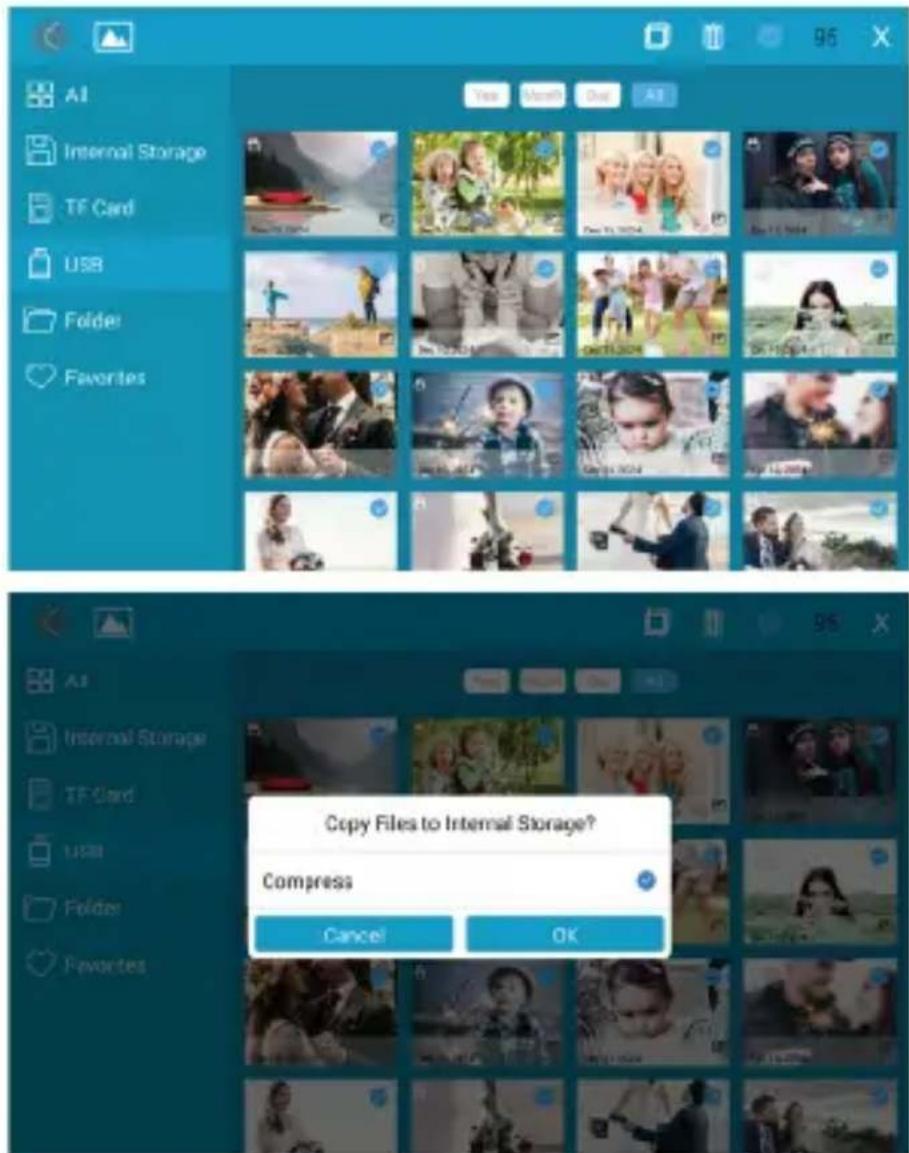
(3) Tap the More icon in the upper right corner, and select the photos or videos you would like to copy to the frame's external storage.
(4) Tap the Copy icon on the top then choose OK to import the photos or videos.
(5) Your photos or videos will be reserved in the frame's external storage in seconds.
You can check them in the "USB" or "TF Card" setting, or on the frame's photo or video library.
Note:
① Max support a 32GB TF Card.
② Please remove all your external devices when you reset the photo frame.
③ If you have too many files stored in the card, it will take more time to read.
④ Not all models support external drives. Please refer to the specific model's capabilities.
⑤ USB drive or TF Card supports the FAT32 format only.
⑥ Imported photos can be viewed by year, month, day, and all categories. (Supports only time-stamped photos.)
text_image
AI Internal Storage TF Card USB Folder Favorites View Month One All Copy Files to Internal Storage? Compress Cancel OK4. Upload Music Via USB Drive/TF Card
The frame also lets you upload music via external drives, such as USB drives and TF cards. To do this, follow the simple steps below.
(1) Insert a USB drive or a TF card into the frame, then wait for a few seconds. You will be notified that your frame is successfully connected to the external drive.
(2) Enter the Photo or Video library, and tap on the "USB" or "TF Card" option, you will see all the music stored in the USB drive or the TF card.
(3) Tap the More icon in the upper right corner, and select the music you would like to copy to the internal memory of the frame.
(4) Tap the Copy icon on the top then choose OK to import the music.
(5) Your music will be reserved in Internal Storage in seconds. You can check them on the frame's music library.
Key Features
1. Picture Slideshow
Tap any photos in the upper left corner on Homepage to enter the photo library.
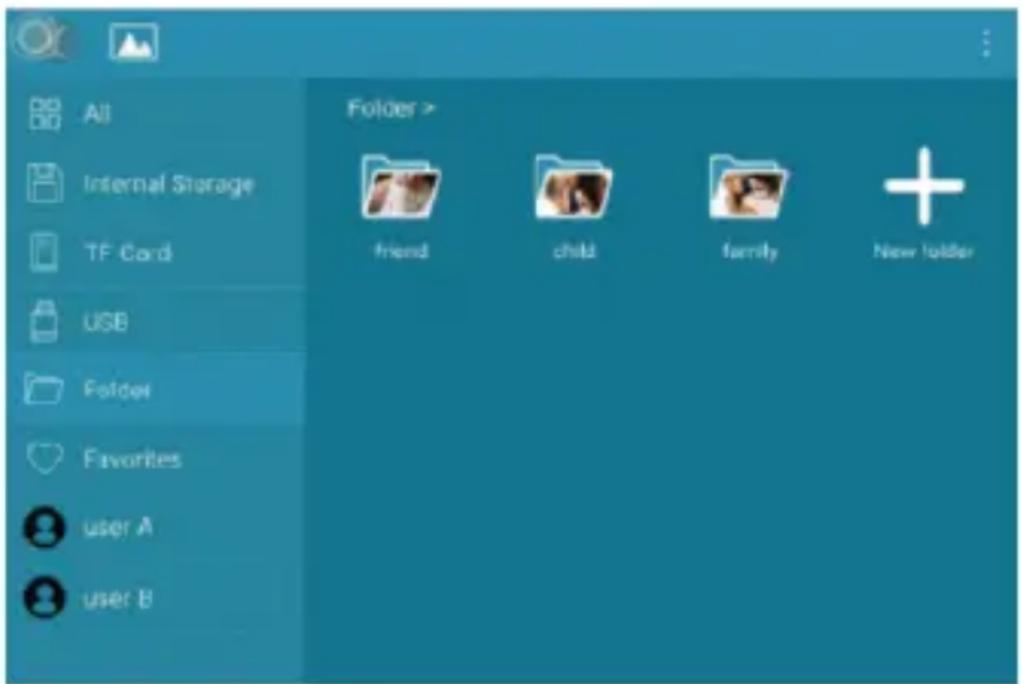
You will find options including All, Internal Storage, TF Card, USB, Folder, Favorites and user list. You can check all photos of each playlist and operate in batch.
- The "All" option includes photos in the internal storage and external devices. The default playlist is "All". You also can choose photos in the Internal Storage to start a slideshow.
- The "Internal Storage" option includes photos sent from the app, email, or copied from external devices.
- The "TF Card" or "USB" option shows photos in external drives like USB drives or TF cards. To add pictures to "Internal Storage" from "TF Card" or "USB", you can tap "☐" in the upper right corner, choose the photos you want to add to the internal storage, then tap "☐" and "OK" to confirm the process; You can also tap "≡" to choose pictures to sort by File Name, Date Received or Date Taken. Note: Supports only time-stamped photos.
- The "Folder" option allows you to create folders and name them. Only pictures in the internal storage can be added.
text_image
All Internal Storage TF Cord USB Folder Favorites user A user B Folder > friend child family New Folder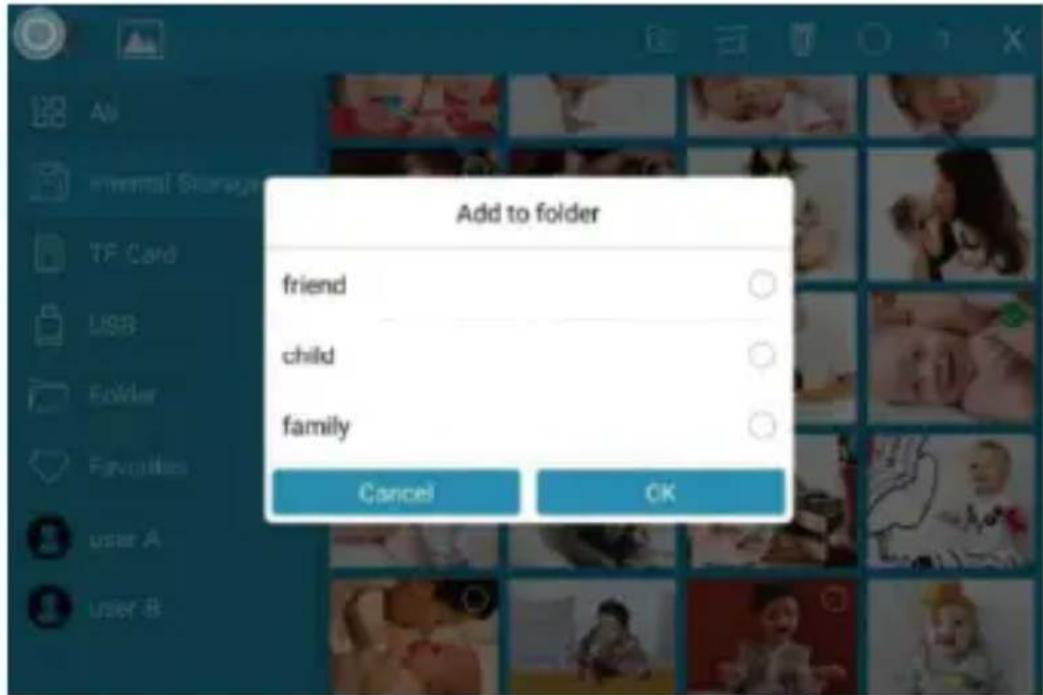
text_image
Add to folder friend child family Cancel OKNote:
① Only pictures in "Internal Storage" can be added into folders and to Favorites.
② To delete some pictures, we highly recommend operating in "Internal Storage" instead of "ALL"; Or please remove the external device while deleting so as to avoid deleting files in "USB" or "TF Card" by mistake.
③ Not all models support external drives. Please refer to the specific model's capabilities.
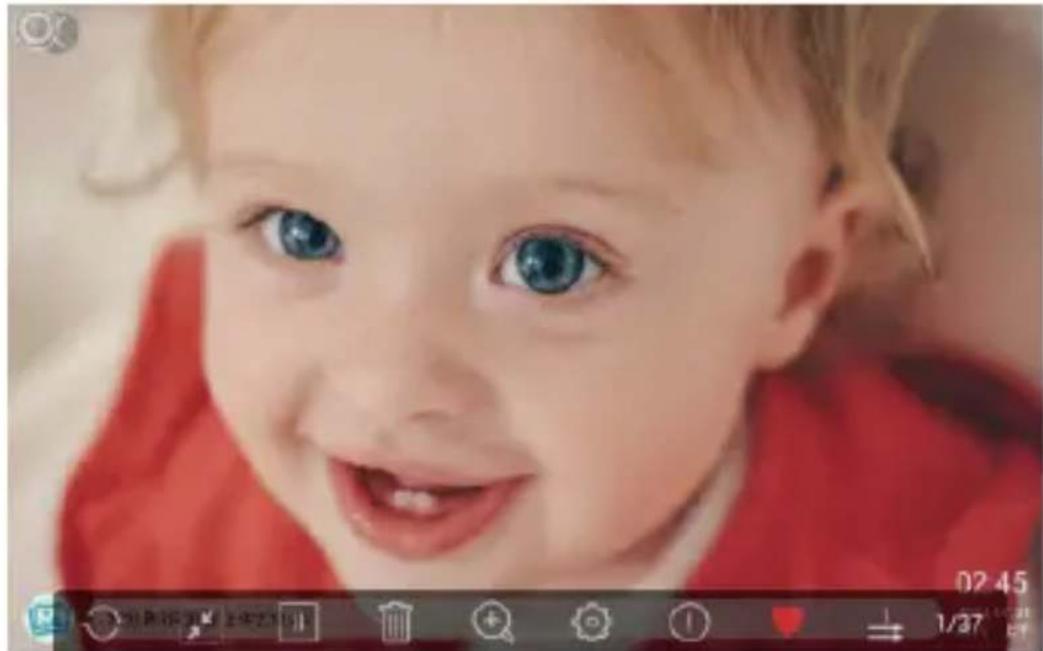
During the slideshow, you will have more tools to customize the slideshow simply by touching the screen. There will be an operation column on the bottom.
The contents are as follows: Rotate, Full screen display, Pause, Delete, Zoom in, Setting, Information, Add to favorites, and Split screen display.
You can tap "♥" to add the picture to your "Favorites" and set multi-display for fun. You can adjust the slideshow transition effect and slideshow interval. You can also pause the slideshow to keep showing the current photo.
natural_image
Close-up of a smiling baby with blue eyes and red clothing (no text or symbols visible)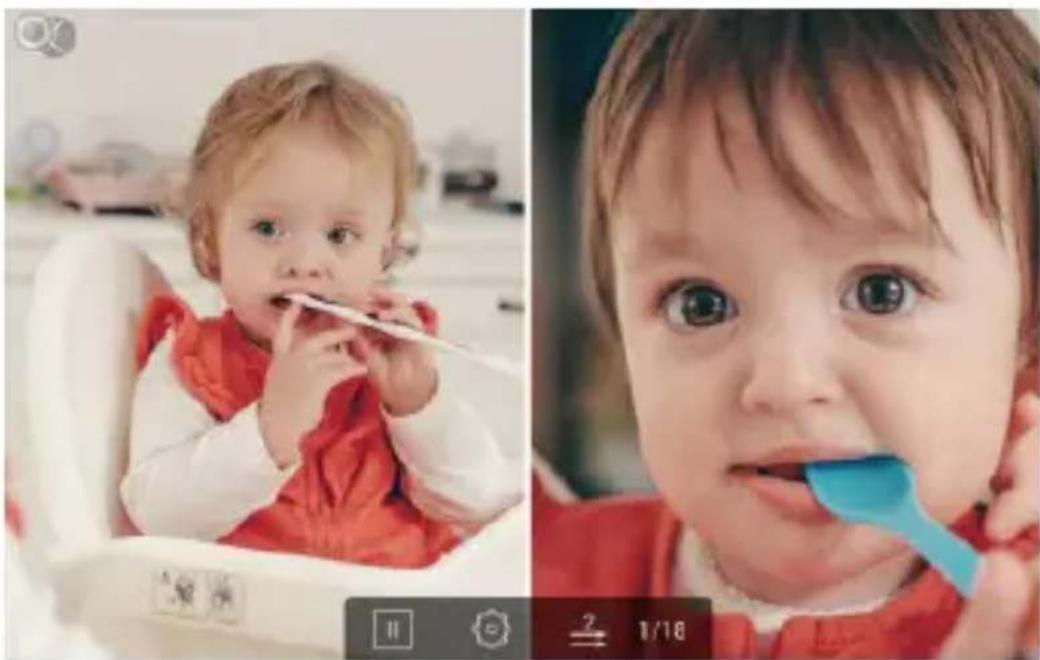
natural_image
Split image showing a baby in a red outfit eating from a toothbrush, and a child holding a blue spatula (no text or symbols visible)2. Video Slideshow
Tap "Video" on the homepage to enter the video library, then select the video you want to watch. And it will play.
Note: Video Clip shared from the app and email will show in the video library.
Multiple Functions
Music
Tap "Music" on the homepage to enter the music library, then select the music you want to listen to. And it will play.
Weather Forecast
Tap "Weather" on the homepage, you can check the weather for the next three days. Both [°C] and [°F] are available. You can switch to the temperature format you want to use. By tapping the "+" icon in the upper left corner to add several cities, you can know the weather of the city you add.
Clock
"Clock" allows you to choose the clock skin you would like to present the time. To do this, double-click the screen after entering the clock interface
Alarm
"Alarm" lets you set up the alarm clock. To do this, tap "Add" to add a new alarm clock. By tapping "Edit", you can set time and delete the set alarm clock.
General Settings
My Frame
Displays the connection code and user management for your frame.
- The Connection code and QR code will refresh every 12 hours. You can also refresh the code manually by tapping 📄.
- To nickname your frame, you can tap the frame name in the upper right corner to edit. The nickname will be shown on the app after you connect the frame to the app.
- To send photos and videos to your frame via email, you can tap the "+" icon under the "User Management" setting to add your email address. Please refer to the section Upload Photos or Videos Via Email for more details.
- The "Users Management" setting allows you to manage the connected account of the frame. By tapping the account name, you can view photos, remark names, delete users, or delete both users and photos.
Album Settings
- Brightness
Adjust the brightness of the screen.
- Sound
Adjust the media volume.
- Touch Sounds
Choose to mute or unmute the sound emitted when you touch the screen.
- Assistive Touch
With this setting enabled, the assistive touch will appear on the screen. It is a quick navigation key that helps you easily go to the Homepage and adjust the volume.
- Language
English (default)/Deutsch/Espanol/Français/Italiano/Pysckii/日本語/简体中文 Set the system language for your digital frame.
- Slideshow
You can set the slideshow duration to make the frame automatically display photos after a period of inactivity. For instance, when you set it to 5 seconds, the screen will automatically switch to the slideshow if no operation is performed within 5 seconds.
- Slideshow Mode
Choose either Sequential or Random mode to display photos.
- Sort by
Choose the picture to be sorted by time or name.
- Caption
With this setting enabled, the captions you write will be displayed on the photo.
- Date and Time
Set the date and time according to your preference. You can select a time zone and use network-provided time.
- Sleep
Set the Auto-On/Off time to make the display automatically turn on and off at a specific time.
- Auto-rotate Screen
When Auto-rotate screen is enabled, you can place the frame in portrait and landscape. The frame will adjust the picture automatically.
- Notification Sounds
Choose whether you want to be notified about new messages with sounds or not.
Wifi
Select the Wifi you want you frame to connect to.
Factory Data Reset
- Tap Factory data reset to reset your frame.
Here are two ways to reset:
1) Choose "Delete all users and restore the device to inactive", device files will be reset and all bound users will be unbound.
2) If you do not choose this option, only device files will be back to default settings and bound users remain.
2. Tap OK to reset your frame.
Help
This option will provide you with a guide for sharing your pictures.
About
You can tap "About" to access your frame's version, frame ID, serial number, etc. The frame version is particularly useful for troubleshooting purposes. Whenever necessary, you can refer to this option to quickly check the frame version.
Technical Specification
- Adapter: Input 100-240V 50/60HZ
• Picture Format: BMP, JPG, GIF, PNG
• Audio Format: Mp3, WMA, OGG, AAC, APE, FLAC, WAV - Video Format: MPEG1, MPEG2, MPEG4, Xvid, AVI, M-JPEG, H.264, MOV, VOB, MKV, DIVX4, DIVX5, DIVX33GP
- External support: Max 32GB USB drive/TF Card
• Support 2.4GHz Wifi network
Troubleshooting
- Does this photo frame need to be plugged in all the time?
Yes, it needs to be plugged into a DC outlet all the time.
- Why can't I connect this frame to Wifi?
The frame supports 2.4GHz/5GHz Wifi networks only. To connect your frame to Wifi, simply select the Wifi network you would like to connect to and enter the password correctly if required. If your Wifi network is not on the list, restart your frame or move it closer to your router, wait for seconds and check it again.
- Does this frame require a Wifi connection for setup only?
This frame needs a Wifi network not only for setup but also for receiving new photos or videos, user requests, and software updates. Without a Wifi connection, the frame only plays photo or video files.
- Why is there no sound from the frame?
Please check if the volume is turned down to 0 and if the player is in Mute mode.
- Can I share photos and videos to the frame?
Yes, you can share both photos and videos (up to 200MB) to the frame.
- Can I cycle pictures and videos together?
You could only play photos or videos separately.
- Can this frame automatically turn on/off at a specific time?
Yes. To make this possible, please go to the Sleep setting and set the auto on /off time.
- Why can't I find uploaded files in the frame after sharing?
Please check if the upload process is completed.
- Why doesn't the frame play the file?
Please confirm if the file format is compatible with the frame.
- Can I change the image transitions and display speed?
Yes, the speed can be adjusted in the bottom column when the picture is being displayed.
Contact Us

(888) 811-1140 (US)

cs@dragontouch.com

www.dragontouch.com
For any inquiries about Dragon Touch products, please feel free to contact us. We will respond within 24 hours.
natural_image
Empty rectangular frame with gray border (no text or symbols)Modern 10 Elite
natural_image
Simple line drawing of a rectangular object with a small protrusion on top (no text or symbols)Ständer
natural_image
Simple line drawing of a medical or electrical device with a bulb, coiled tube, and plug (no text or symbols)natural_image
Empty white rectangle with a thin gray border (no text or symbols)natural_image
Empty rectangular frame with a blue arrow pointing to the left edge (no text or symbols)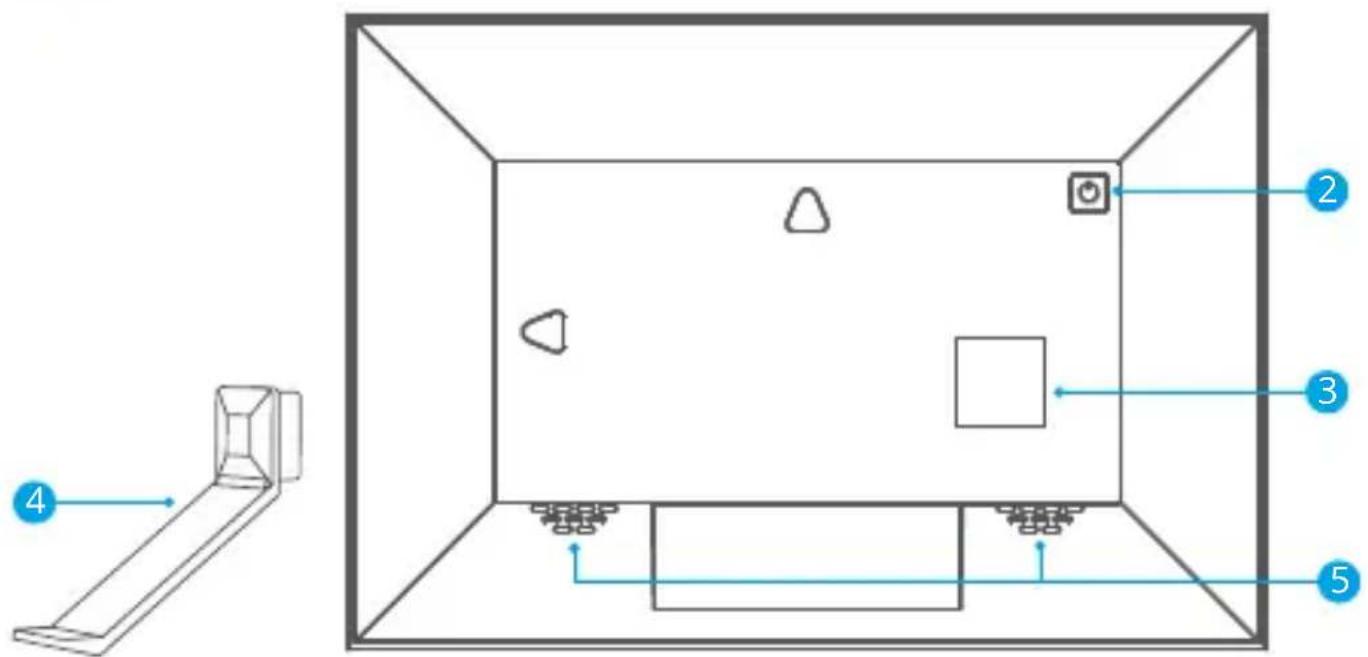
text_image
Diagram of a room layout with numbered annotations pointing to different areas and fixtures.
text_image
6 89natural_image
Diagram showing a room layout with furniture and a directional arrow, no text or symbols present2. Einschalten
natural_image
Diagram showing a device connected to a screen with a hand cursor pointing at the screen (no text or symbols present)text_image
QR code image containing encoded data, no visible human-readable text
natural_image
Grid of nature photos including swans in water, beach scenes, and tropical destinations under a 3D UI element (no text or symbols on the images themselves)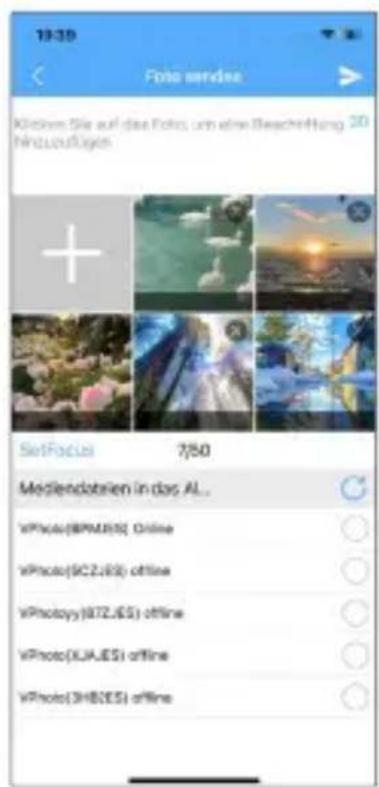
natural_image
Grid of nature photos including yellow autumn trees, autumn foliage, and sunset over water (no text or symbols)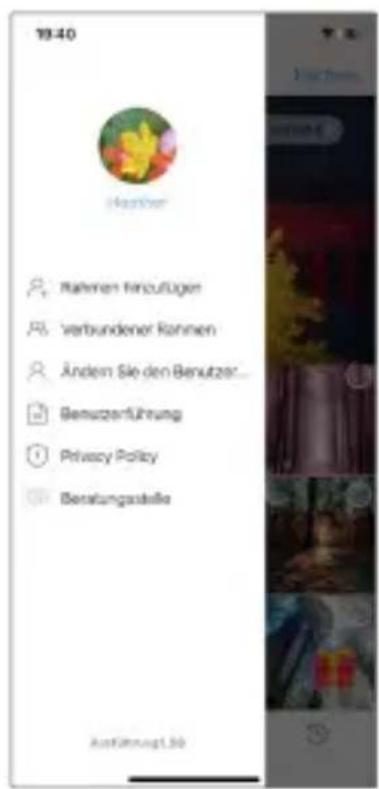
natural_image
Portrait painting of an elderly man with a long white beard, wearing a red robe, seated with open books (no visible text or symbols)
natural_image
Two historical painting scenes: one depicting a group of men in 17th-century attire, the other showing musicians playing traditional instruments (no visible text or symbols)2. Video-Diashow
Specification technique----70
Dépannage 71
Nous contacter 72
Contenu de la boîte
natural_image
Empty rectangular frame with gray border (no text or symbols)Modern 10 Elite
natural_image
Simple line drawing of a rectangular metal bracket with a small square cutout on top (no text or symbols)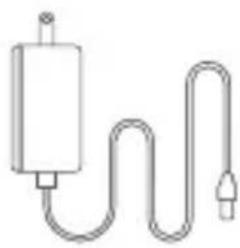
natural_image
Simple line drawing of a medical or electrical device with a bulb, coiled tube, and plug (no text or symbols)natural_image
Empty white rectangle with a thin gray border (no text or symbols)Cadres décoratifs×2
Aperçu du produit

natural_image
Empty rectangular frame with a blue arrow pointing to the top-left corner (no text or symbols)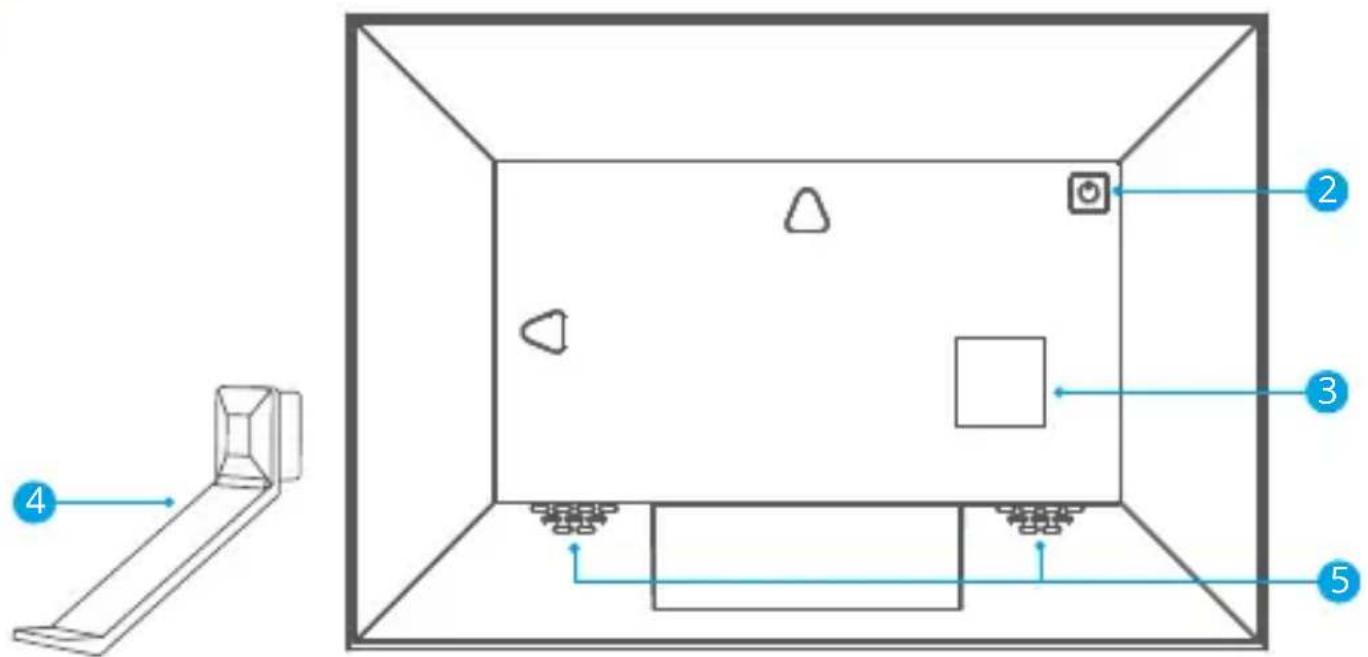
text_image
Diagram of a room layout with numbered annotations pointing to different areas and fixtures.
text_image
6 891. Installer le support
natural_image
Diagram showing a room layout with furniture and a directional arrow, no text or symbols presentnatural_image
Diagram showing a device connected to a room with a hand cursor pointing at a button (no text or symbols present)text_image
QR code image containing encoded data, no visible human-readable text
1.2 Créer un compte
natural_image
Collage of nature photos including swans in water, natural landscapes, and sunset scenes (no text or symbols)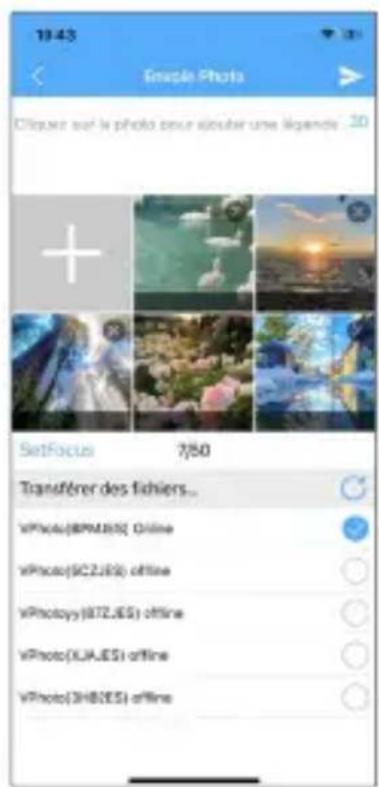
natural_image
Collage of nature photos including swans in water, autumn foliage, sun, and scenic landscapes (no text or symbols)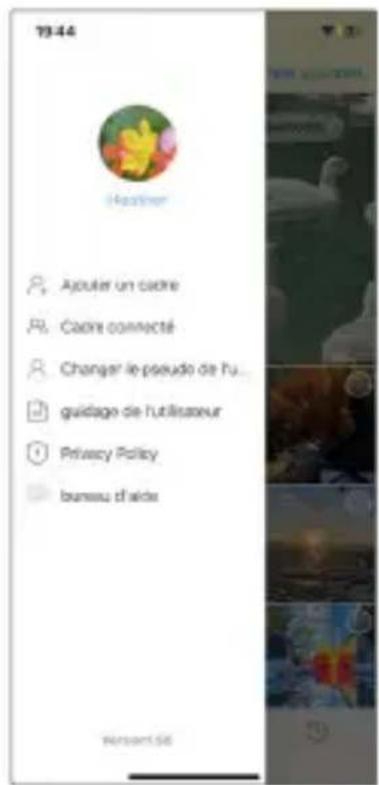
text_image
Ajouter au dossier friend child family Annuler Draccordnatural_image
Portrait of an elderly man with a long white beard, wearing a red robe, seated and reading a book (no visible text or symbols)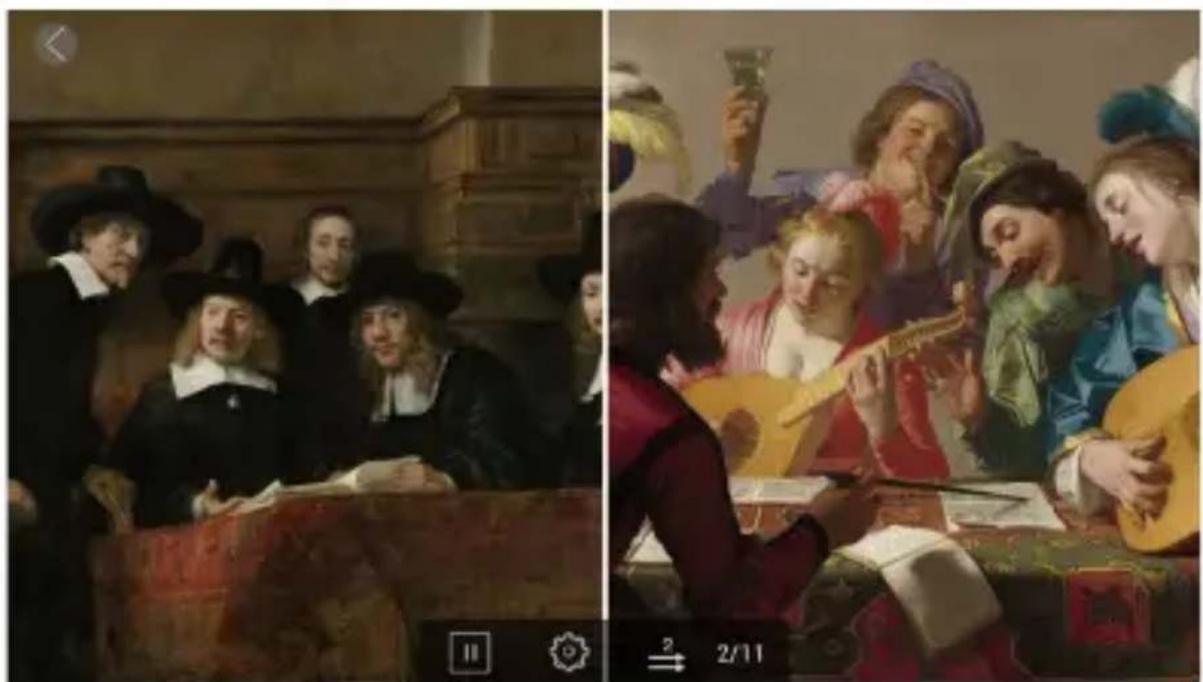
natural_image
Two historical painting scenes: one depicting a group of men in 17th-century attire, the other showing musicians playing traditional instruments (no visible text or symbols)2. Diaporama vidéo
Specification technique
- Adapt: Input 100-240V 50/60HZ
- Format de l'image : BMP, JPG, GIF, PNG
- Format audio : Mp3, WMA, OGG, AAC, APE, FLAC, WAV
- Format vidéo : MPEG1, MPEG2, MPEG4, Xvid, AVI, M-JPEG, H.264, MOV, VOB, MKV, DIVX4, DIVX5, DIVX33GP
- Soutien externe : Max 32GB USB drive/SD Card
• Support 2.4GHz Wifi network
Dépannage
natural_image
Empty rectangular frame with gray border (no text or symbols)Modern 10 Elite Standaard
natural_image
Simple line drawing of a rectangular frame with a small protrusion on the left side (no text or symbols)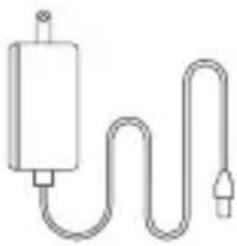
natural_image
Simple line drawing of a medical or electrical device with a bulb, coiled tube, and plug (no text or symbols)natural_image
Empty white rectangle with a thin gray border (no text or symbols)natural_image
Empty rectangular frame with a blue arrow pointing to the top-left corner (no text or symbols)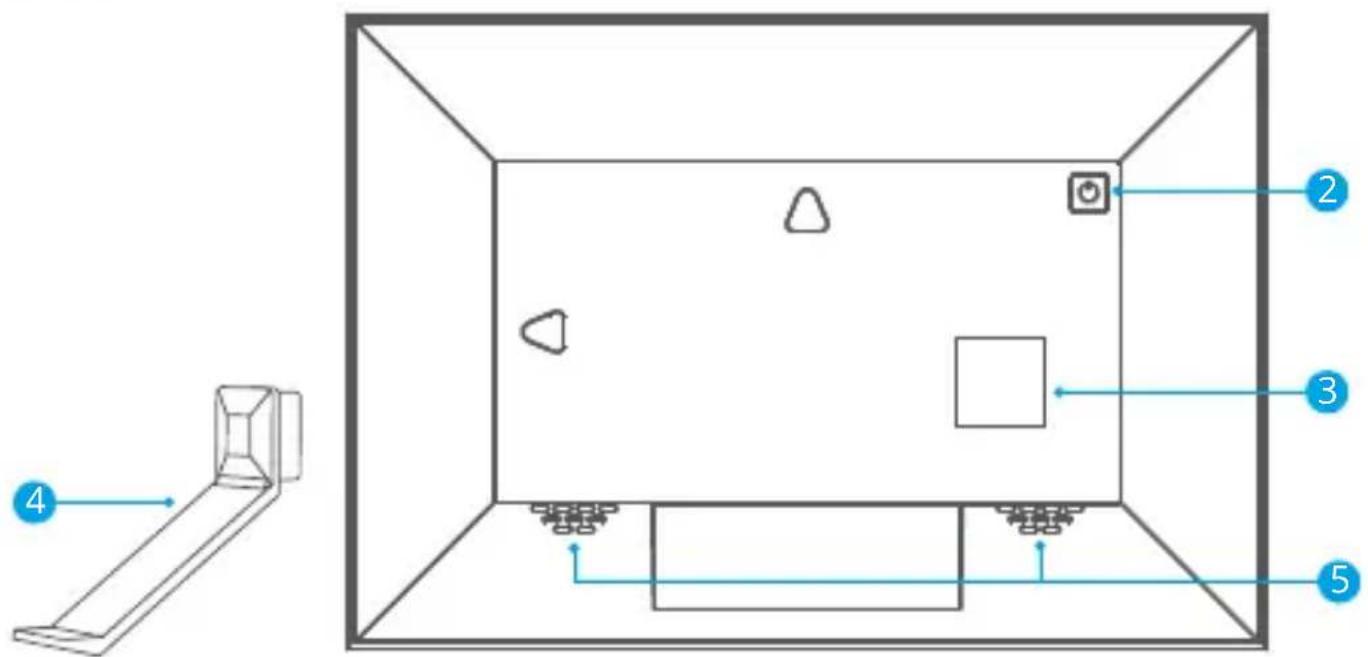
text_image
Diagram of a room layout with numbered annotations pointing to different areas and fixtures.
text_image
6 89natural_image
Diagram showing a room layout with furniture and a directional arrow, no text or symbols present2. Inschakelen
natural_image
Diagram showing a device connected to a screen with a hand cursor pointing at the screen (no text or symbols present)text_image
QR code image containing encoded data, no visible human-readable text

text_image
QR code image containing encoded data, no visible human-readable text
natural_image
Painting of three women in traditional attire gathered outdoors, engaged in a social interaction (no visible text or symbols)