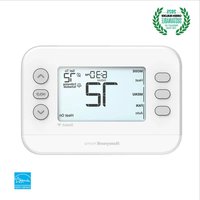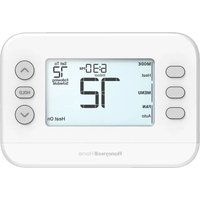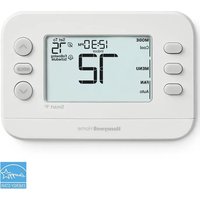
RTH2CWF - Thermostat HONEYWELL - Free user manual and instructions
Find the device manual for free RTH2CWF HONEYWELL in PDF.


User questions about RTH2CWF HONEYWELL
0 question about this device. Answer the ones you know or ask your own.
Ask a new question about this device
Download the instructions for your Thermostat in PDF format for free! Find your manual RTH2CWF - HONEYWELL and take your electronic device back in hand. On this page are published all the documents necessary for the use of your device. RTH2CWF by HONEYWELL.
USER MANUAL RTH2CWF HONEYWELL
Installation and User Guide

text_image
MODE 12:59 PM Set To Heat Indoor 73 MENU 72 FAN Auto Heat On HoldM39487
This document contains the following sections:
1) Installation and Wiring
2) Configuration
3) System Operation
4) Troubleshooting
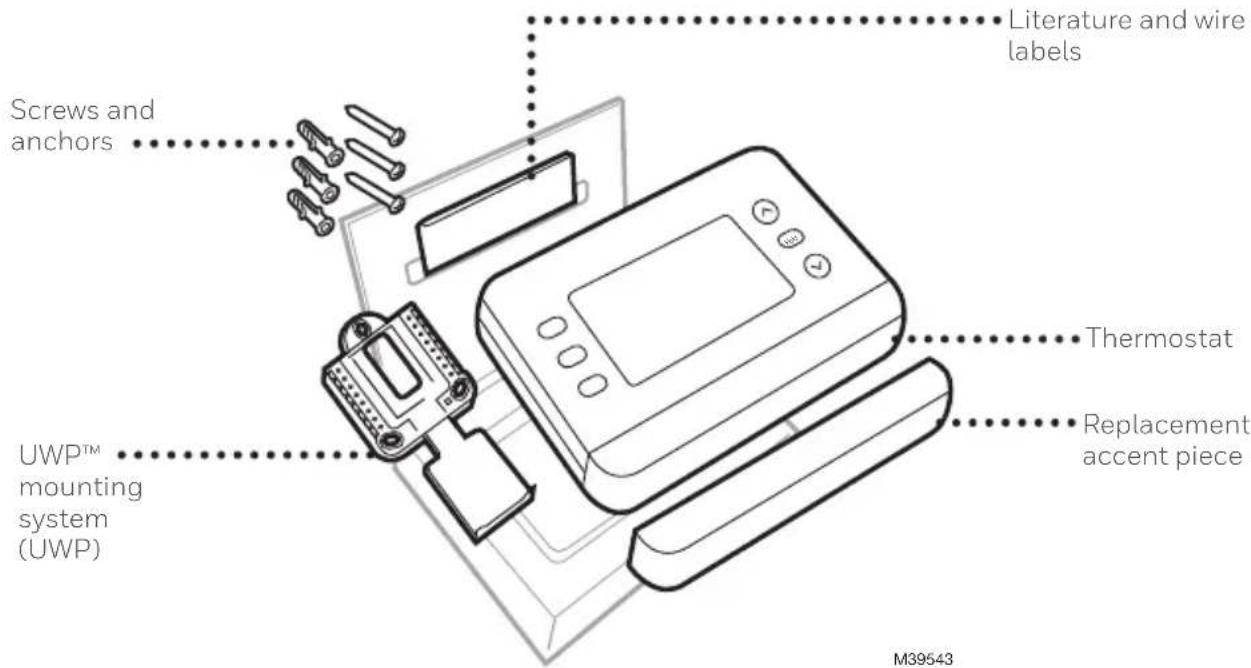
Package includes:
text_image
Screws and anchors Literature and wire labels UWP™ mounting system (UWP) Thermostat Replacement accent piece M39543Get the most from X2S Smart Thermostat
Multiple programming options that fit your lifestyle:

-
Location-Based scheduling (Auto Away) – The thermostat uses your smartphone’s location to know when you’re away, and saves you energy. Through geofence technology, it senses your return and helps make you comfortable upon arrival. You can always manually change your preset Home and Away temperature either on the thermostat or on the First Alert app.
-
Smart scheduling – Use a combination of geofencing and time scheduling to fit your busy, active lifestyle.
3.Time-Based scheduling – Program your thermostat for one week; each day (each day is a different schedule); Mon-Fri, Sat, Sun; or Mon-Fri, Sat-Sun. All days with four adjustable periods per day.

Smart Alerts. Push notifications remind you of filter changes and warn you of extreme indoor temperatures.

Smart Response. Learns your heating and cooling system to deliver the optimal temperature at the right time.

Auto Change From Heat to Cool. Automatically determine if your home needs heating or cooling to provide maximum comfort.
Tools you will need:

Phillips screwdriver
Small flat head screwdriver

Pencil
Level
natural_image
Simple line drawing of a smartphone with a blank screen and rounded top (no text or symbols)
Home WiFi Password
Smartphone
To install your thermostat and photograph existing wiring.
First Alert app
To configure your system and connect to your smartphone.
You may need:
natural_image
Simple line drawing of a three-blade pliers or tools (no text or symbols)Wire stripper
natural_image
Line drawing of a handheld electric drill (no text or symbols)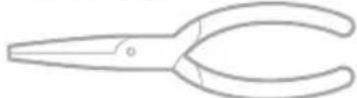
Needle-nose pliers Drill and
drill bit (3/16 in)
Compatibility
- For indoor use only
- Compatible with most heating, cooling, and heat pump systems
- Required: 24 VAC power ("C" wire)
- Does not work with electric baseboard heat (120-240V)
- Does not support input (S terminals) for indoor and outdoor sensors
- Does not support relay (U terminals)
- Android or iOS smartphone, tablet, or device
- Compatible with a 2.4 or 5 GHz WiFi network
For help, contact:
WEB honeywellhome.com
PHONE 1-800-633-3991
SOCIAL Twitter: @Honeywell_Home, Facebook: Honeywell Home
READ AND SAVE THESE INSTRUCTIONS
Installation and Wiring
Removing the old thermostat
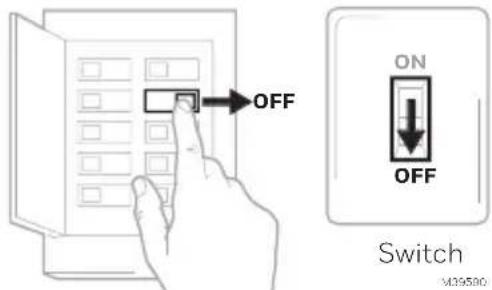
1 Turn power OFF.
To protect yourself and your equipment, turn off the power at the breaker box or switch that controls your heating/ cooling system.
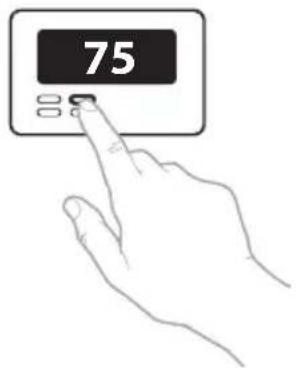
2 Check that your system is off.
Change the temperature on your old thermostat to be above room temperature in heat mode or below it in cool mode. If you don't hear the system turn on within 5 minutes, the power is off. Note: If you have a digital thermostat that has a blank display, skip this step
3 Remove the old thermostat's faceplate.
On most thermostats, you can take off the faceplate by grasping and gently pulling. Some thermostats may have screws, buttons, or clasps.
Do not remove any wires from your thermostat at this time!
text_image
OFF ON OFF Switch M39500Breaker box
text_image
75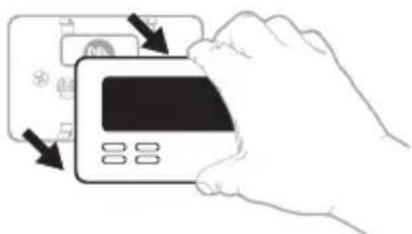
natural_image
Illustration of a hand inserting a card into a digital card (no text or symbols visible)4 Make sure there are no 120/240V wires.
Do you have thick black wires with wire nuts?

Is your thermostat 120V or higher?
If you answered yes to either of these questions, you have a line voltage system and the thermostat will not work.
5 Take a picture of how your wiring looks right now.
Be sure to include the letters next to the terminals where the wires are inserted. This will be a helpful reference when wiring your thermostat.
Tip: If the color of your wires has faded or if 2 terminals have the same wire color, use the wire labels provided in the package to label each wire.
6 Make note of any jumpers
A jumper connects one terminal to another terminal. It may look like a small staple or even a colored wire.
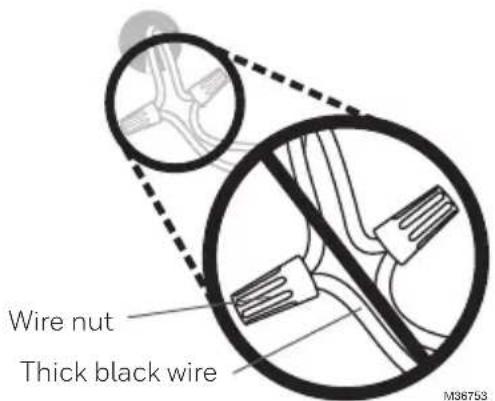
text_image
Wire nut Thick black wire M36753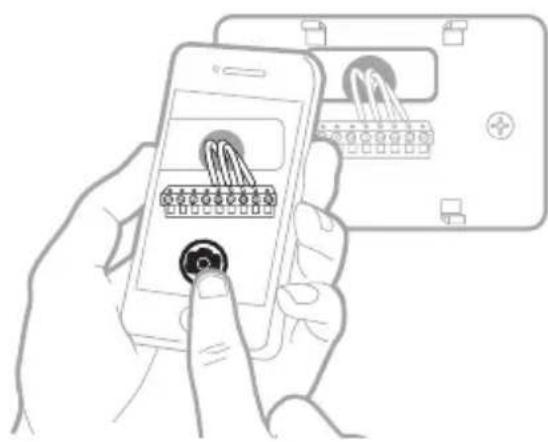
natural_image
Illustration of a hand holding a smartphone displaying a grid-based interface with icons, alongside a device with buttons (no text or symbols visible)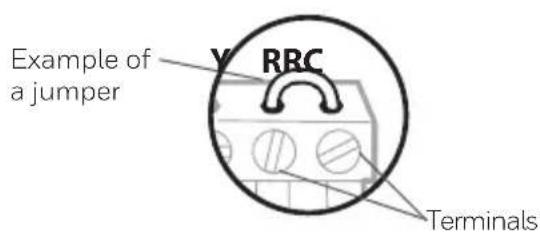
text_image
Example of a jumper Y RRC Terminals7 Record whether you have wires in the following terminals.
Do not include jumpers as a part of your count. The thermostat does not need jumpers.
Terminal Wire Color
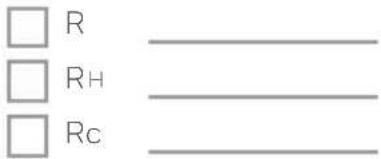
text_image
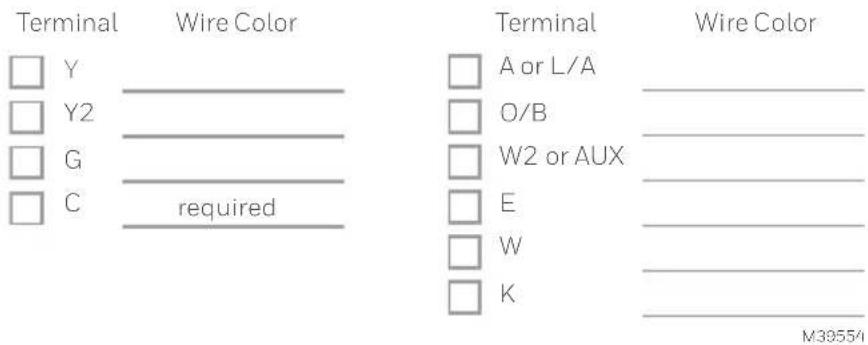
□ R □ RH □ Rc8 Write down the color of the wires.
Check mark the wires that are connected to terminals. Next to the check mark, write down the color of the wire. Do not include jumpers as a part of your count.
Check all that apply (Not all will apply):
text_image
Terminal Wire Color Y Y2 G C required Terminal Wire Color A or L/A O/B W2 or AUX E W K M39554S and U terminals are not supported with this thermostat.
If there are wires in terminals that are not listed, you will need additional wiring support. Visit honeywellhome.com to find out if the thermostat will work for you.
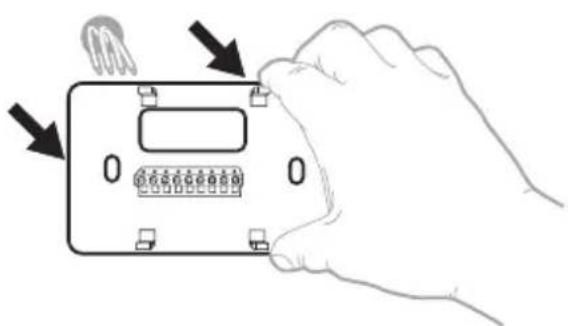
9 Disconnect the wires and remove the old wall plate.
Use a screwdriver to release wires from terminals. Then, use a wire label to identify each wire as it's disconnected. The letter on the wire label should match the letter on the terminal.
Tip: To prevent wires from falling back into the wall, wrap the wires around a pencil.
natural_image
Hand holding a device with buttons and a display panel, no text or symbols visible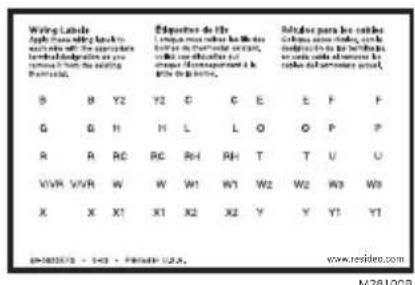
text_image
Wing Labels Apply these writing keys to apply this link with the appropriate written designations as you remains in both the existing registered. B Y2 Y2 C E E F F G H H L L O O P P R R RC RC RH RH T T U U VWR VWR W W1 W1 W2 W2 W3 W3 X X X1 X1 X2 X2 Y Y Y1 Y1 M28100BInstalling your X2S Thermostat
text_image
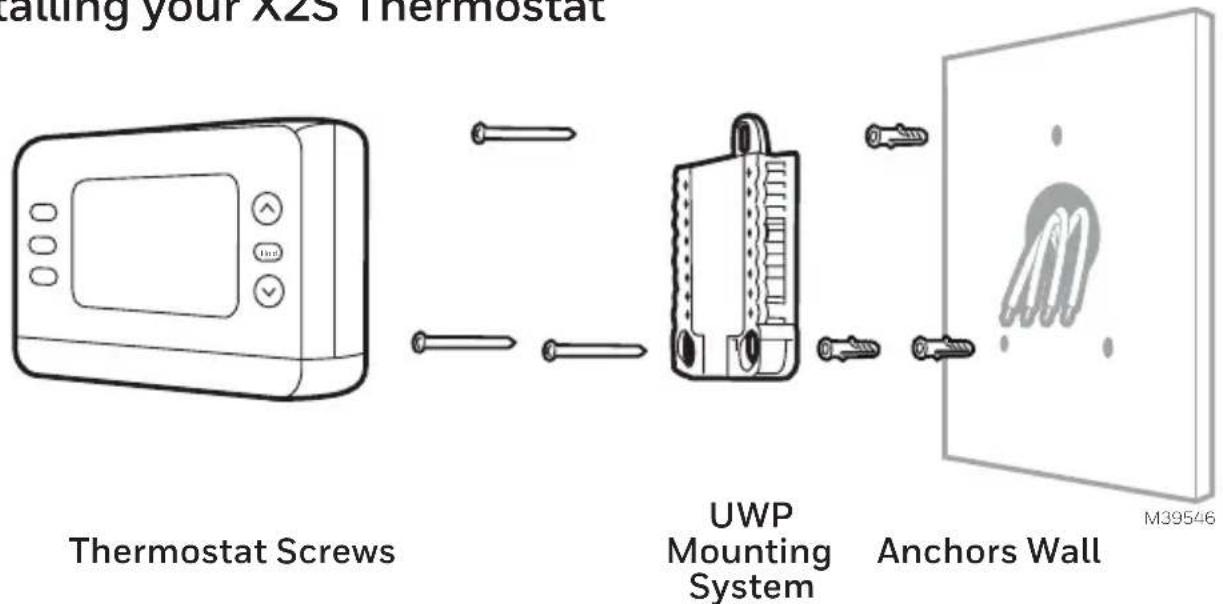
Calling your X2S Thermostat Thermostat Screws UWP Mounting System Anchors Wall M395461 Bundle and insert wires through the UWP.
Pull open the UWP and insert the bundle of wires through the back of the UWP.
Make sure at least 1/4-inch of each wire is exposed for easy insertion into the wire terminals.
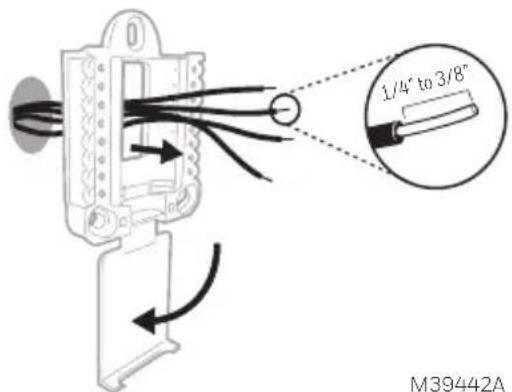
text_image
1/4° to 3/8° M39442A2 Insert the wall anchors.
It is recommended that you use the wall anchors included in the box to mount your thermostat.
You can use the UWP to mark where you want to place the wall anchors.
a) Level the wall plate.
b) Mark the location of the wall anchors using a pencil.
c) Using a 3/16" bit, drill the holes.
d) Insert wall anchors.
e) Make sure anchors are flush with wall.
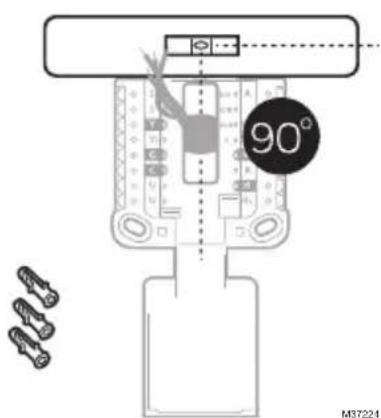
text_image
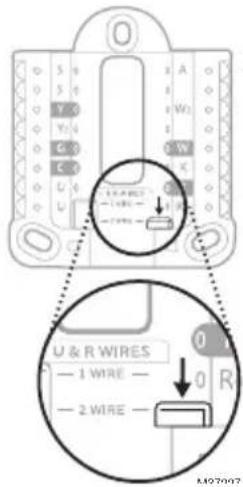
90° M372243 Set R-switch position and insert R-wire or wires. Set the R-switch up or down based on your wiring notes in Step 7
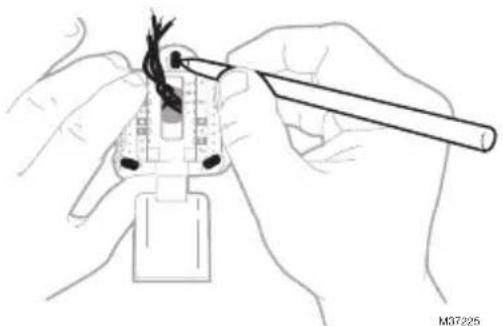
natural_image
Illustration of hands using a tool to draw a cable or wire on a plug (no text or symbols visible)Insert wires into the inner holes of the terminals on the UWP. The tabs will stay down once the wire is inserted.
NOTE: Wiring options are shown on the following pages.
If you have 1 R-wire (R,Rh, or Rc)
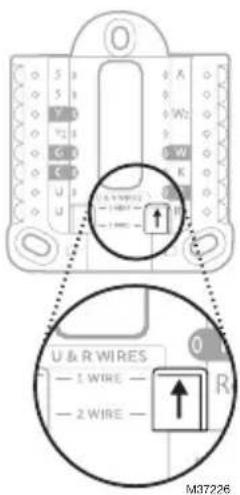
text_image
U & R WIRES — 1 WIRE — — 2 WIRE — M37226- Set R-switch to the up position.
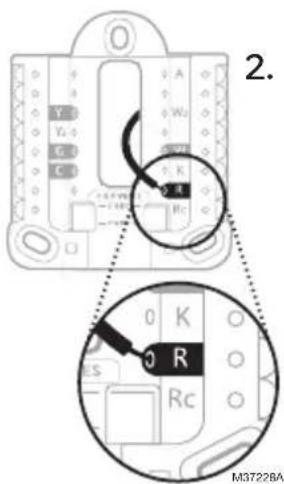
text_image
2. M3722BA- Insert your R-wire (R, Rh or Rc) into R-terminal.
or
If you have 2 R-wires (R or Rh, and Rc)
text_image
U & R WIRES — 1 WIRE — — 2 WIRE — A W1 C W K 0 0 0 0 0 0 0 0 0 0 0 0 0 0 0 0 0 0 0 0 0 0 0 0 0 0 0 0 0 0 0 0 0 0 0 0 0 0 0 0 0 0 0 0 0 0 0 0 0 0 M27607- Set R-switch to the down position.
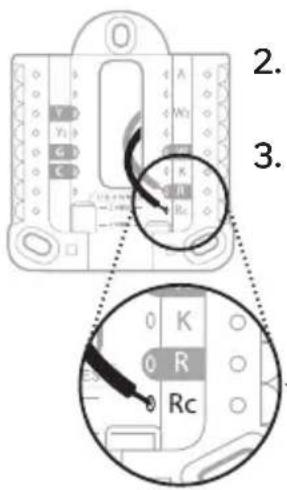
text_image
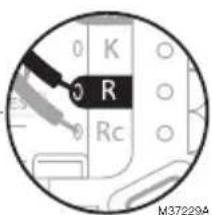
2. 3.- Insert your Rc wire into Rc-terminal
- Insert your R or Rh wire into R-Terminal.
text_image
0 K 0 R 0 Rc M37229AWiring
Conventional Systems
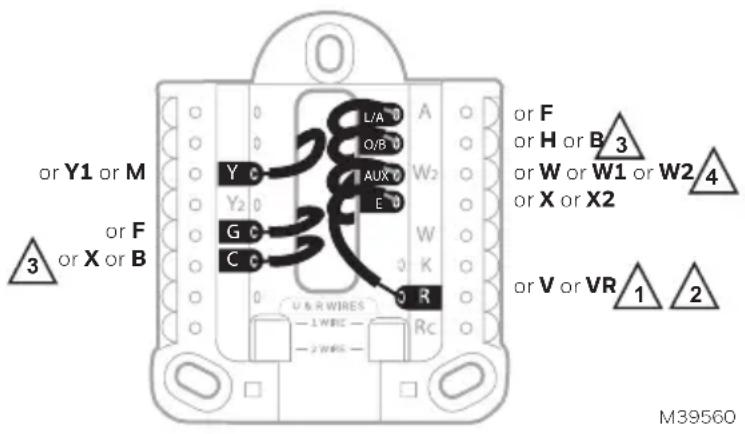
If labels do not match terminals, connect wires as shown below (see notes, below).
WIRING NOTES:
- If you must connect both R and Rc wires, set the R Slider Tab to the down position (2 wires).
- If your old thermostat had both R and RH wires, set the R Slider Tab to the down position (2 wires). Then connect the R wire to the Rc terminal, and the RH wire to the R terminal.
Heat Pumps
WIRING NOTES:
- Keep R Slider Tab in the up position (1 wire).
- If your old thermostat had both V and VR wires, stop now and contact a qualified contractor for help.
- If your old thermostat had separate O and B wires, attach the B wire to the C terminal. If another wire is attached to the C terminal, stop now and contact a qualified contractor for help.
IMPORTANT: Do NOT use W for heat pump applications. Auxiliary heat must wire to AUX or E.
text_image
or Y1 or M 3 or F or X or B or V or VR 1 2 U & R WIRES -1 WBC -2 WBS Y C Y2 G C C C L/A O/B AUX E D W2 W K R Rc or F or H or B 3 or W or W1 or W2 4 or X or X2 or V or VR 1 2 M395604 Connect wires to the UWP.
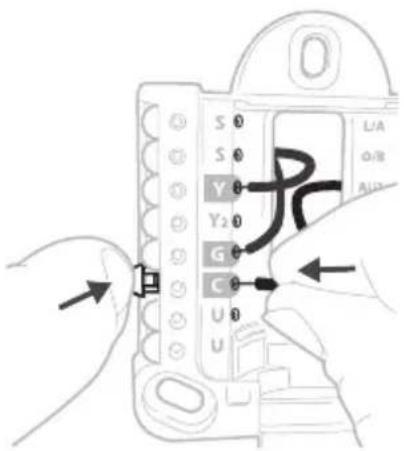
Refer to the notes you recorded on the chart during removal. Depress the tabs to put the wires into the inner holes of their corresponding terminals on the UWP (one wire per terminal) until it is firmly in place.
5 Confirm wiring matches snapshot.
Confirm wiring matches terminals from the photo you took during removal.
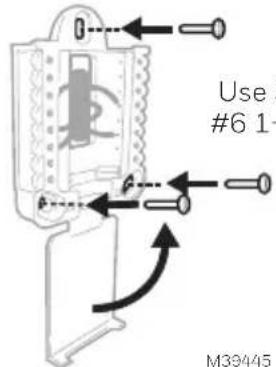
6 Mount the UWP and close the door.
Mount the UWP using the provided screws. Install all three screws for a secure fit on your wall. Close the door after you're finished.
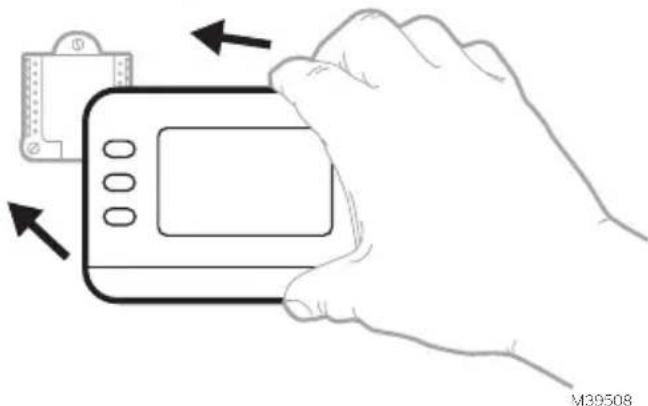
7 Attach your thermostat.
Align the thermostat onto the UWP and firmly snap it into place.
8 Turn your power ON.
Turn on the power at the breaker box or switch that controls the heating/ cooling system.
text_image
S 0 S 0 Y 0 Y2 0 G 0 C 0 U 0 UThis wiring is just an example; yours may vary.
text_image
Use #6 1- M39445Use 3x supplied #6 1-1/2" screws
natural_image
Line drawing of a hand holding a digital camera with an attached device (no text or symbols)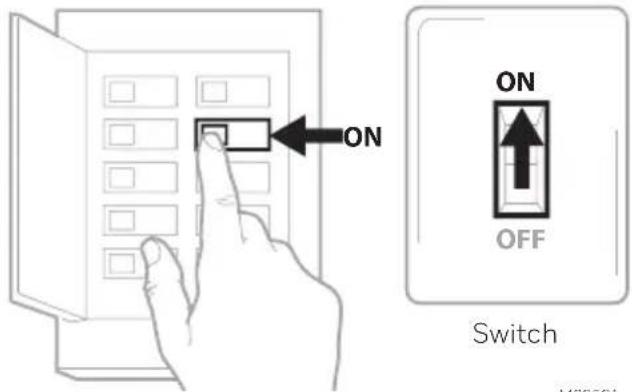
text_image
ON ON OFF Switch M39591Breaker box
9 Return to the thermostat
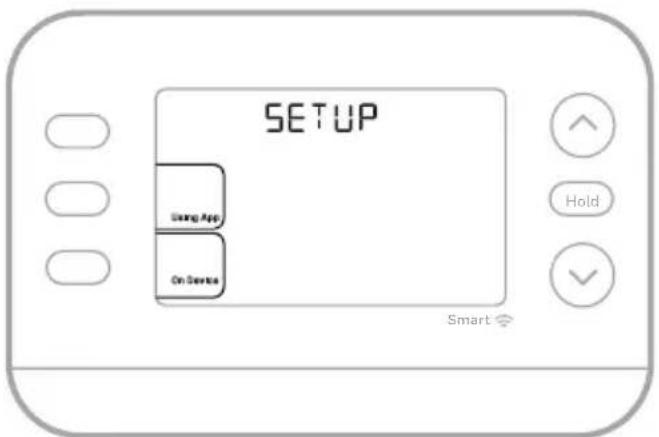
Return to the thermostat. Confirm the screen shows SETUP. If it does, either select USING APP and continue to "Setup Using App" below or select ON DEVICE and continue to "Configuration" on the next page.
text_image
SETUP Swing App On Device SmartM39557
System Setup Setup with First Alert App
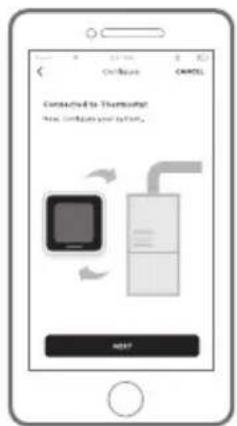
1 Start setup with the app
Touch USING APP on thermostat
2 Your thermostat is ready to be configured using the First Alert app
a) Download the First Alert app from the app store or Google play.
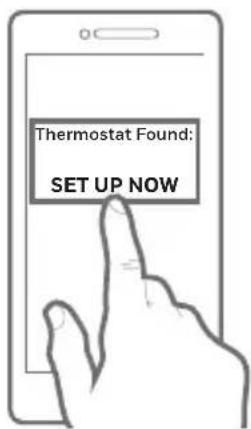
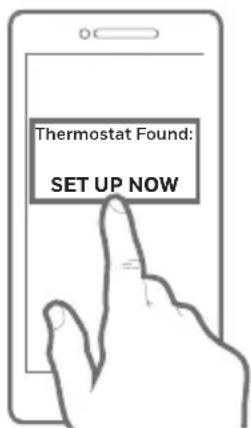
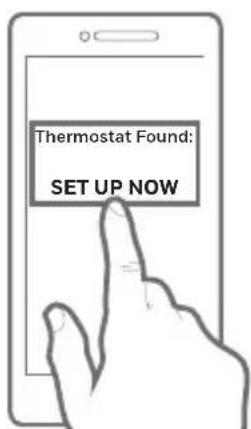
b) Open the First Alert app. Your thermostat should appear under thermostat found. Tap SET UP NOW as shown below to continue. If your thermostat doesn't appear, create an account (if necessary), or sign in to your First Alert account. Then select the X2S thermostat to install.
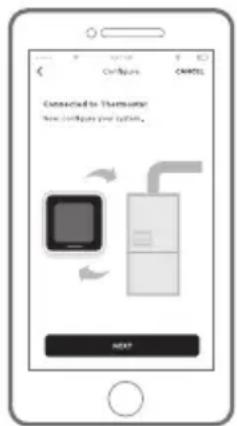
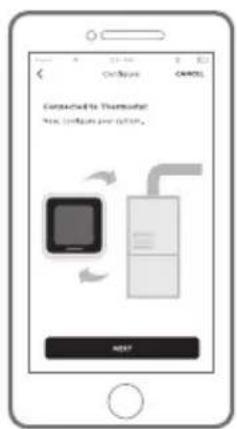
c) The First Alert app will walk you through the rest of setup.
A
text_image
Available on the App Store Get it on Google playB
text_image
Thermostat Found: SET UP NOWC
text_image
Connected to Thermoport How to combine your info. NEXTConfiguration
Set Time and Date
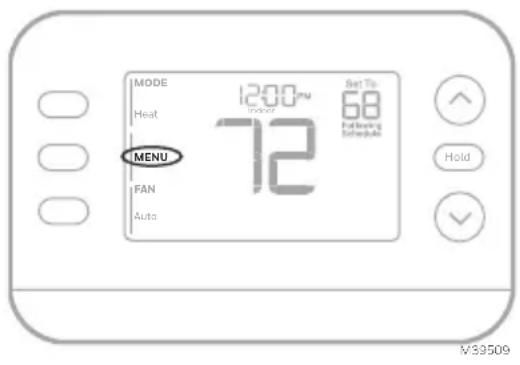
During installation the thermostat will already have the year flashing once you select ON DEVICE.
Time
- Press MENU on the thermostat
- Press ↑ or ↓ to go to TIME and press SELECT
- Press ↑ or ↓ to choose 12 or 24 hour clock format and press NEXT
- Press or to adjust the hour and press NEXT.
Date
- Press MENU on the thermostat
- Press ↑ or ↓ to go to DATE and press SELECT
- Press ↑ or ↓ to choose YEAR and press NEXT
- Press ↑ or ↓ to choose MONTH and press NEXT
- Press ↑ or ↓ to choose DATE and press SAVE and then EXIT
System Setup
On initial setup, the thermostat will enter the ISU menu after setting the time and date. If entering the ISU menu after initial setup, follow the steps below:
-
Press and hold the bottom left button and Up arrow ↑ button for 5 seconds to access the INSTALLER SETUP
-
The display shows the ISU number on the left and the ISU setting on the right.
When an ISU number is displayed, press or to change the setting for that ISU.
-
After choosing the correct setting for an ISU, press NEXT to advance to the next ISU setting.
-
To finish setup, press the SAVE & EXIT button; this will save your settings and return to the Home screen.
text_image
MODE Heat 1200µm 72 Set To: 68 Following Schedule MENU FAN Auto Hold V39509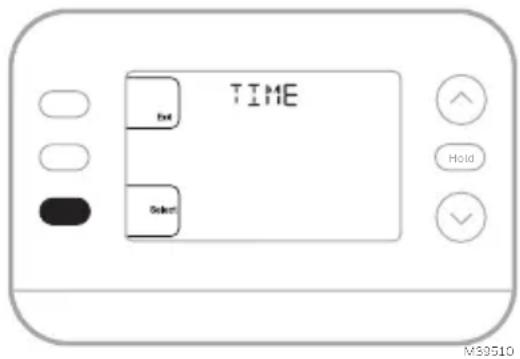
text_image
TIME Set Hold M39510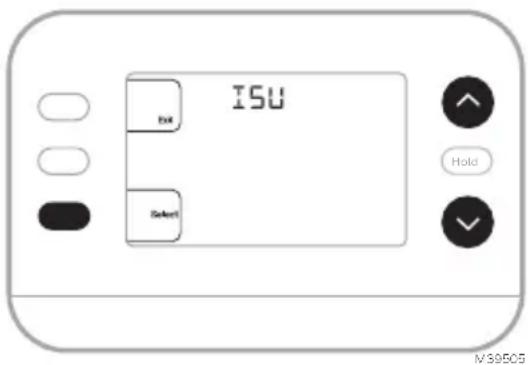
text_image
ISU OK Select Hold IVS9505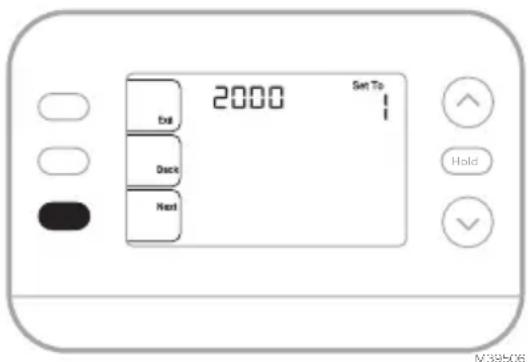
text_image
2000 Set To Exit Back Next Hold V39506Installer Setup Options (ISU)
Depending on system settings, not all options may be available
| ISU ISU Name ISU Options (factory default in bold) | ||
| 1040 | Scheduling Options(Schedule can be turned on or off by user under menu-schedule) | 1 = 1 week (all days the same)2 = 5-2 Programmable (separate weekdays and weekend)3 = 5-1-1 Programmable (separate Saturday and Sunday)4 = 7-Day Programmable (each day separate) |
| 1050 Temperature Indication Scale | F = Fahrenheit (Default varies by model)C = Celsius | |
| 2000 Heating System Type | 1 = Conventional Forced Air Heat2 = Heat Pump3 = Radiant Heat (Boiler)5 = None (Cool Only) | |
| 2010 Heating Equipment Type | Conventional Forced Air Heat.1 = Standard Efficiency Gas Forced Air2 = High Efficiency Gas Forced Air3 = Oil Forced Air4 = Electric Forced Air5 = Hot Water Fan CoilISU 2010 not shown when 2000 = heat pumpRadiant Heat:9 = Hot Water Radiant Heat12 = Steam | |
| 2060 Reversing Valve O/B | 0= 0 (O/B in Cool)1=B (O/B in Heat) | |
| 2070 | Cool Stages/Compressor Stages200 = Conv/200 = HP | 0,1, 2 (1 if 2000 = 2) |
| 2071 | Heat Stages/Backup Heat Stages | Heat Stages: 1, 2Backup Heat Stages: 0, 1 |
| 2180 | Backup Heat Source (Heat Pump with Aux Heat stage only) | 31=Electric Forced Air |
| 3000 System Changeover | 0 = Manual1 = Automatic | |
| 4090 Smart Response | 0=No1=YesSmart Response is a comfort setting. Heating or cooling equipment will turn on earlier, ensuring the indoor temperature will match the setpoint at the scheduled time. | |
| 4103 Minimum Heat Setpoint | 32 °F to 90 °F Default 40°F0 °C to 32.0 °C Default 4.5 °CDo not set this lower than 40F/4.5C unless this is installed in a location where pipes are not at risk of freezing. | |
| Continued on the next page | ||
Installer Setup Options, continued from the previous page
| ISU ISU | Name ISU Options (factory default in bold) | ||
| 7110 Air Filter Replacement Reminder | 0 = Off1 = 10 Run Time Days2 = 20 Run Time Days3 = 30 Run Time Days4 = 45 Run Time Days5 = 60 Run Time Days6 = 90 Run Time Days7 = 120 Run Time Days8 = 150 Run Time Days9 = 30 Calendar Days | 10 =45 Calendar Days11 =60 Calendar Days12 =75 Calendar Days13 =3 Calendar Months14 =4 Calendar Months15 =5 Calendar Months16 =6 Calendar Months17 =9 Calendar Months18 =12 Calendar Months19 =15 Calendar Months | |
| 14005 Idle screen selection | 0 - Minimum Information shown1 - Setpoint shown on idle screen2 - Maximum display information shown | ||
| 14006 Idle screen message center | 1 - Time4 - Indoor Humidity | ||
| 14007 Home screen message center | 1 - Time4 - Indoor Humidity | ||
| 14010 Clock format 12/24 | |||
| 14015 Daylight Saving Time | 0=Off1=On | ||
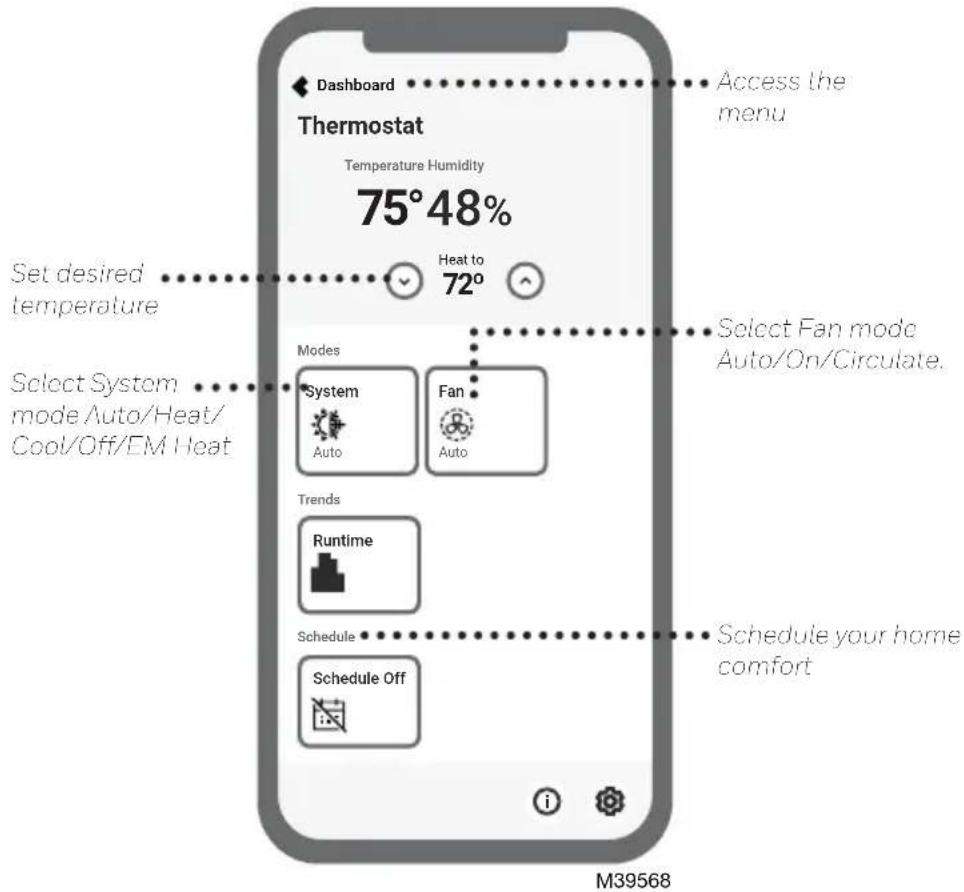
How to use your First Alert App
text_image
Dashboard Thermostat Temperature Humidity 75°48% Heat to 72° Set desired temperature Modes System Auto Fan Auto Select Fan mode Auto/On/Circulate. Trends Runtime Schedule Schedule Off Schedule your home comfort M39568Interested in more Resideo products? Visit honeywellhome.com to learn about all available products connected by the First Alert App.
App is regularly enhanced and may change.
System Operation Settings
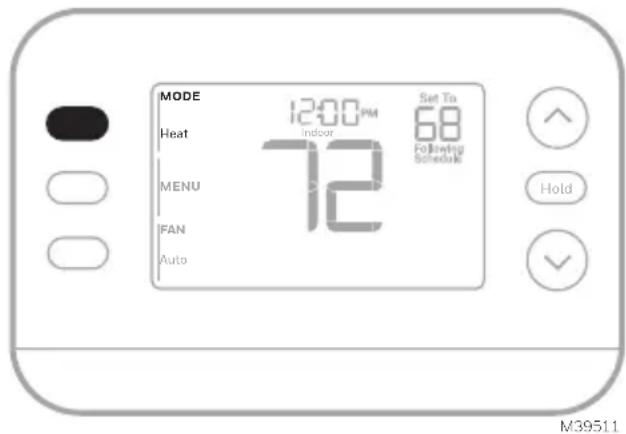
- Press the MODE button to cycle to the next available System mode
- Cycle through the modes until the desired System mode is displayed
Available System modes vary by model and system settings.
System modes:
- AUTO
- HEAT
- COOL
- EM HEAT
- OFF
text_image
MODE 12:00 PM Set To 68 Indoor 72 Following Schedule Heat MENU IFAN Auto Hold M39511Fan Operation Settings
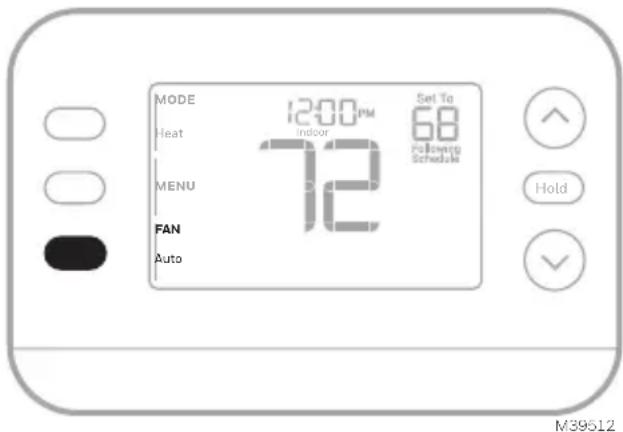
- Press the FAN button to cycle to the next available Fan mode
- Cycle through the modes until the desired Fan mode is displayed
Available Fan modes vary with system settings.
Fan modes:
- AUTO: Fan runs only when the heating or cooling system is on
• ON: Fan is always on
• CIRC: Fan runs randomly about 33% of the time
text_image
MODE 12:00 PM Set To 72 indoor 68 Following Schedule Heat MENU FAN Auto Hold M39512Program Schedule
You can program four time periods each day, with different settings for weekdays and weekends. We recommend using the presets shown in the table at right; these presets are designed to reduce your heating/cooling expenses.
WAKE: Set to the time you wake up and your desired temperature during the morning until you leave for the day.
AWAY: Set to the time you leave home and your desired temperature while you are away (usually an energy-saving temperature).
HOME: Set to the time you return home and your desired evening temperature until bedtime.
SLEEP: Set to your bedtime and your desired overnight temperature (usually an energy-saving temperature).
| HeatCool | ||
| Wake(6:00 am) | 70° | 78° |
| Away(8:00 am) | 62° | 85° |
| Home(6:00 pm) | 70° | 78° |
| Sleep(10:00 pm) | 62° | 82° |
The above table is only an example. M36013A
Adjusting Program Schedules
(This could also be done using the First Alert App)
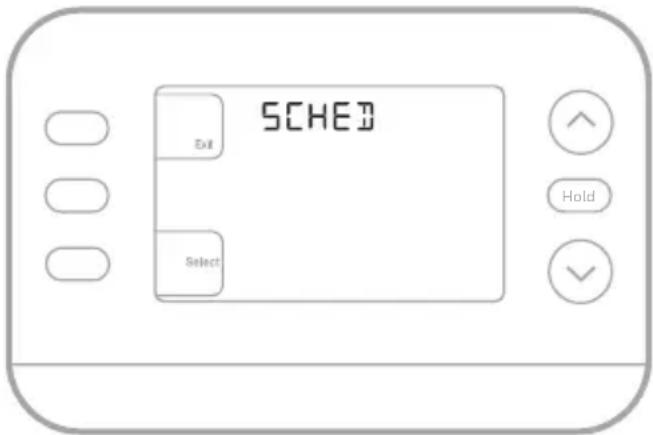
- Press MENU. Press ↑ or ↓ until SCHED is displayed.
- A square appears around ON or OFF in the display. If you want to use a schedule, press or to select ON. Press Select to edit the schedule or press EXIT to exit the menu.
- If editing the schedule, press SELECT to edit the day or days flashing in the display.
- The word Wake should be flashing. Press NEXT. Press ↑ or ↓ to turn this schedule period on or off. Press NEXT.
- If the schedule period was set to ON, the time will be flashing. Press or to adjust the time for this period. Press NEXT.
- The Heat setpoint will be flashing. Press ↑ or ↓ to adjust the Heat setpoint for this period. Press NEXT.
- The Cool setpoint will be flashing. Press ↑ or ↓ to adjust the Cool setpoint for this period. Press NEXT.
text_image
SCHED Exit Select Hold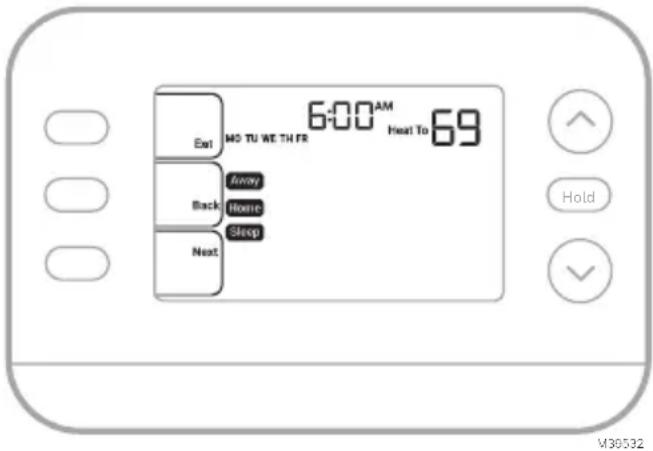
text_image
6:00 AM Heat To 69 Exit MO TU WE TH FR Back Away Home Sleep Next Hold M30532-
The display will show the next schedule period flashing. Repeat steps 4 – 7 for the Away, Home and Sleep schedule settings. After completing all schedule settings for the day(s) selected, repeat these steps for the other days.
-
Press the SAVE & EXIT button at upper left.
When editing an existing schedule, you can advance to the setting you wish to change, edit that setting and press the SAVE & EXIT button to save changes.
Depending on what type of schedule the thermostat was set up for, days may be grouped or set individually.
Smart Response Feature
This feature allows the thermostat to “learn” how long the furnace and air conditioner take to reach programmed temperature settings, so the temperature is reached at the time you set. For example:
Set the Wake time to 6 am and the temperature to 70°. The heat will come on before 6 am, so the temperature is 70° by the time you wake at 6. The message “Active Recovery” is displayed when the system is activated before a scheduled time period.
Program Schedule Override (Temporary)
- Press or to adjust the temperature.
- Once at the desired setpoint temperature, no further action is needed. The new setpoint temperature will be held until the next scheduled time period begins.
- Press the SAVE button or wait for the display to time out and return to the Home screen.
To cancel the Temporary Hold, press and release the HOLD button to cycle through the settings until CANCEL HOLD is selected.
Program Schedule Override (Permanent)
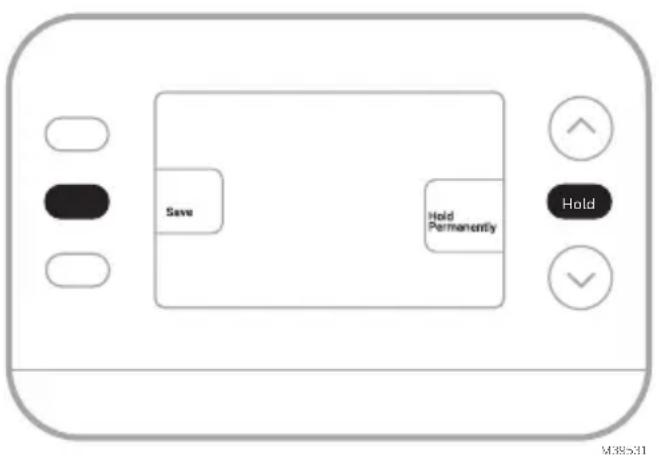
- Press or to adjust the temperature.
- Once at the desired setpoint temperature, press and release the HOLD button to cycle through the settings until HOLD PERMANANTLY is selected.
- Press the SAVE button or wait for the display to time out and return to the Home screen.
To cancel the Permanent Hold, press and release the HOLD button to cycle through the settings until CANCEL HOLD is selected.
text_image
Save Hold Permanently Hold M38531Alerts
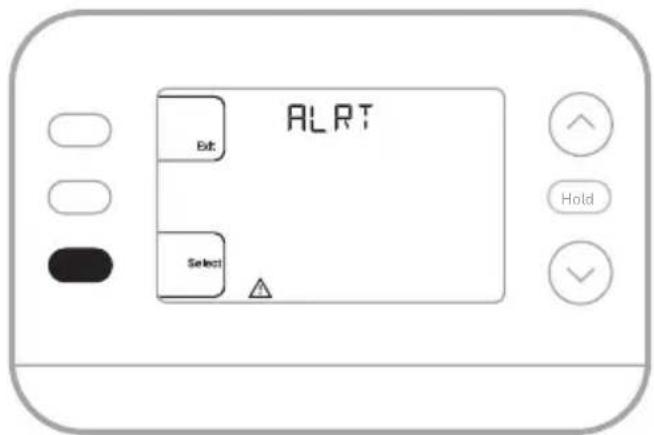
When an alert is active, an A can will appear in the lower part of the display.
- Press MENU and use ↑ or ↓ until the alert is shown. Active alerts will be the first menu items shown.
- Press SELECT to display the alert number.
- An alert cannot be dismissed. If there is more than one active alert, pressing the NEXT button allows you to view any additional alert numbers. Press EXIT to return to the home screen.
Some alerts can be resolved by the homeowner, for example Set Time and Date. Other alerts may require a service call to the professional installer.
text_image
ALRT Exit Select Hold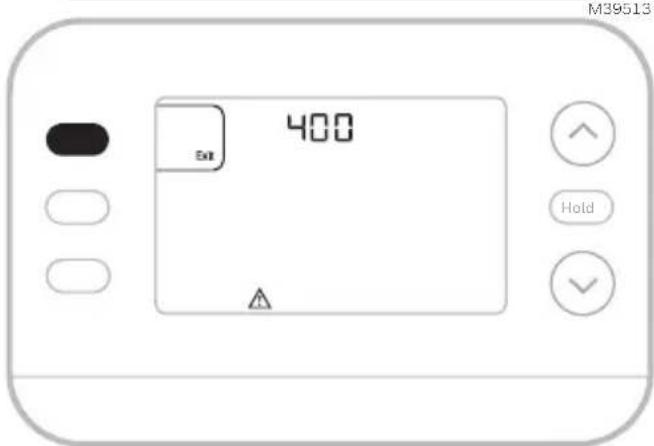
text_image
M39513 400 6x1 HoldM39592
| Alert Number Alert Meaning | ||
| 164 Heat Pump Fault. | Heat pump is energizing L terminal to indicate a fault. | |
| 170 Thermostat Memory Failure. | Internal problem with the thermostat memory. | |
| 171 Set Time and Date. | ||
| 173 Internal Sensor Error. | Issue with the built-in temperature sensor. | |
| 388 Register the Thermostat Online | If not using the app, WiFi and app related messages can be dismissed by going into the WiFi menu and turning WiFi to off. | |
| 399 No Internet Connection | ||
| 400 WiFi Signal Lost | ||
| 602 Humidity Sensor Failure | ||
| 607 WiFi Communication Error | ||
Reminders
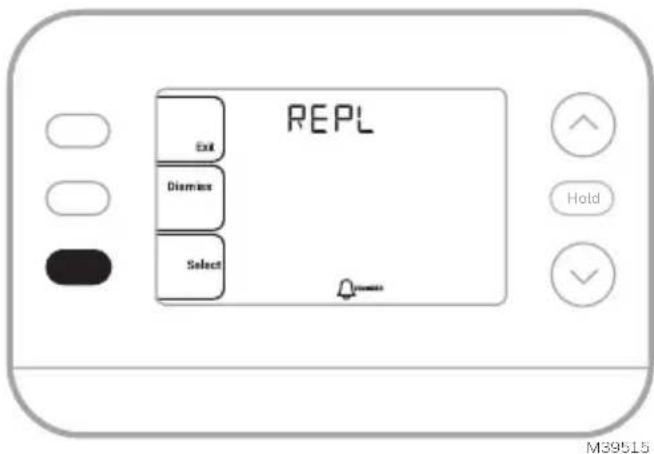
When a reminder is active, a icon will appear in the lower part of the display.
- Press MENU and use ↑ or ↓ until the active reminder is shown. Active alerts and reminders will be the first menu items shown.
- Press SELECT to display the reminder.
- Once selected you will see the reminder message in scrolling text. Press DISMISS to reset the reminder or press EXIT to return to the home screen without resetting the reminder.
If there is more than one active reminder, press the NEXT button to view all reminders which have not been reset.
text_image
REPL Exit Dismiss Select Hold M39515Accent Piece Replacement
One white and one grey accent piece are provided with the X2S thermostats to accommodate different user preferences.
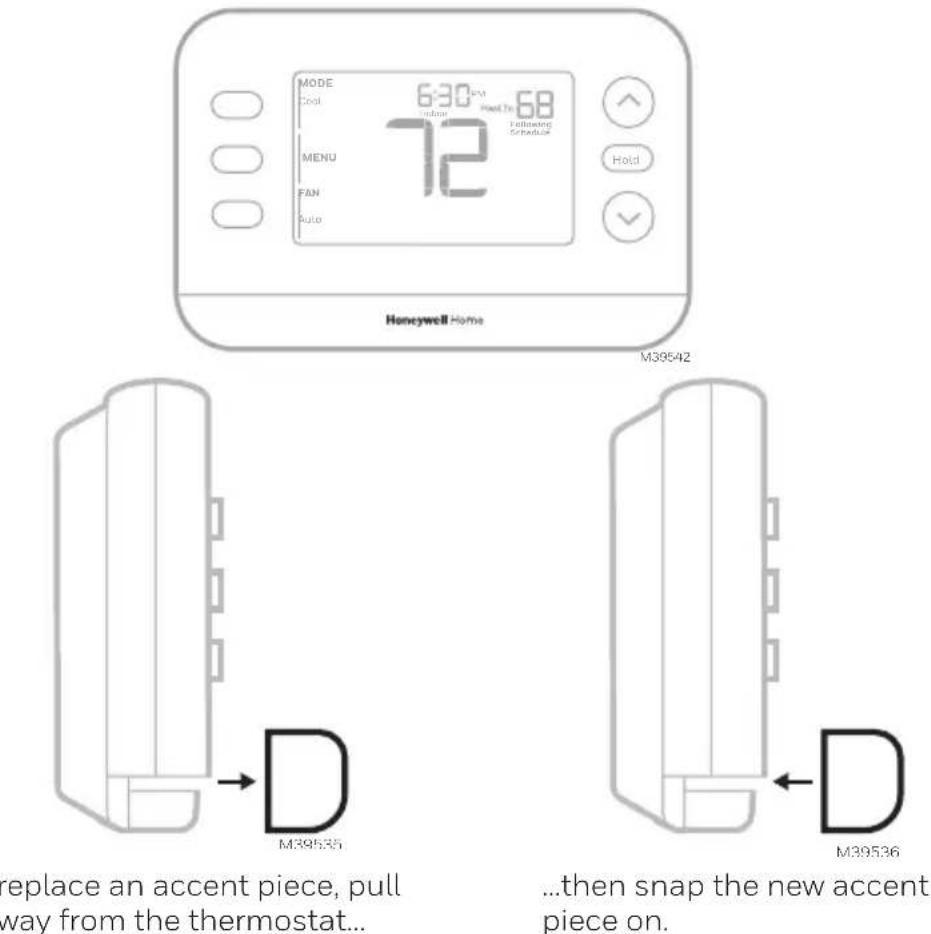
To replace an accent piece, pull it away from the thermostat...
...then snap the new accent piece on.
Troubleshooting
| Display is blank • Check circuit breaker and reset if necessary.Make sure power switch for heating & cooling system is on.Make sure wire connections (especially C wire) are secure.Verify the R/Rc slider switch is set up if Rc doesn’t have a separate wire attached. |
| Heating or cooling does not runWhen running heat, display will show HEAT ON in lower right of displayWhen running cool, display will show COOL ON in lower right of displayIf display shows WAITING FOR EQUIPMENT under temperature reading, it is in compressor delay mode to protect the system. Wait 5 minutes to see if the thermostat makes a Heat or Cool callIf display does not indicate a call for Heat or Cool or WAITING FOR EQUIPMENT, verify the mode setting, temperature setpoint and room temperatureIf the Up or Down arrow is pressedUpper left of display shows mode settingUpper right shows setpointCenter of display shows room temperatureIf the issue persistsCheck circuit breaker and reset if necessaryMake sure power switch at heating & cooling system is onMake sure furnace door is closed securely |
| Heat or Aux Heat runs with CoolingVerify there is not a wire attached to W for heat pump systems. See Wiring sectionFor heat pump applications the reversing valve is energized in Heat on some heat pumps and Cool for other heat pumps. Verify that ISU 2060 is set correctlyVerify that no wires are shorted. Look for exposed sections of wire at the UWP |
| Heat or Aux heat runs with no call for heat or coolingVerify display does not indicate HEAT ON, COOL ON or AUX HEAT ONVerify there is not a wire attached to W for heat pump systems. See Wiring section.Verify that no wires are shorted. Look for exposed sections of wire at the UWP |
| Cannot change setpoint to desired settingVerify the mode setting (Heat, Cool, Auto, or Em Heat in upper left of display)The default setting ranges for these modes are:Heat or Em Heat: 40 °F to 90 °F (4.5 °C to 32.0 °C)-Cool: 50 °F to 99 °F (10.0 °C to 37.0 °C) |
| WAITING FOR EQUIPMENT shown in display under room temperatureThe compressor protection feature is engaged. Wait a few minutes for the system to safely restart to avoid damaging the compressor. |
Frequently Asked Questions
Will the XS2 Smart thermostat still work if WiFi connection is lost?
Yes, the temperature can be adjusted directly at the thermostat. However, some features, including geofencing, are managed only through the First Alert app and will not function while the connection is down. The thermostat will automatically reconnect to WiFi once the network is restored.
A change was made on the First Alert app but it has not shown up on the XS2 Smart thermostat.
There may be a short delay after making temperature and setting changes in the First Alert app.
Can there be multiple users for geofencing?
Yes, there can be multiple users. Geofencing will trigger based on the last person to leave and the first person to return. To properly use geofencing with multiple users:
• Each user needs to create their own account.
• Each user should use their login ID and password across his or her devices, including smartphones and tablets.
- No two users should share the same account.
Can more than one user control the thermostat with the app?
Yes. Use the First Alert app to invite other users to download the app and share control of your thermostats. In the app, start at the Manage Users menu option and follow the prompts.
Note: All individuals with access to a thermostat share the same user privileges. Users added will be able to change the thermostat's settings, as well as add or delete other users.
Is there a way to extend the signal strength?
The range or distance of the WiFi signal is determined by the router. Check the router's manual for additional information.
There is an alert that says WiFi Signal Lost. What does that mean?
The WiFi signal to the thermostat has been lost. Wait for the thermostat to reconnect or select a new network within the First Alert app configuration menu. If the thermostat is unable to reconnect, you will need to troubleshoot the router to determine the cause.
Why is the thermostat showing up as offline (strike-through WiFi icon) on lower part of thermostat display?
If the thermostat displays a strike-through WiFi icon on its screen or shows up as offline on the First Alert app, it has lost connection to the network. Make sure the router is powered and broadcasting. The home's WiFi network may need to be reset by power cycling the router. Consult the router's instruction manual for directions on power cycling. When the network has been restored, the thermostat will automatically reconnect.
An activation email hasn't been received.
An activation email will be sent. An activation email is needed to complete the account setup. If an activation email is not received after five minutes, check the Spam folder of the email account.
If you do not find it in the Spam folder, click on the Resend button and the activation email will be resent. If you still do not receive your activation email, please contact the Technical Support team at 1-800-633-3991 for help.
Regulatory Information
FCC REGULATIONS
47 CFR § 15.19 (a)(3)
This device complies with part 15 of the FCC Rules. Operation is subject to the following two conditions:
1 This device may not cause harmful interference, and
2 This device must accept any interference received, including interference that may cause undesired operation.
47 CFR § 15.21 (USA only)
Changes or modifications not expressly approved by the party responsible for compliance could void the user's authority to operate the equipment.
47 CFR § 15.105 (b)
See https://customer.resideo.com/en-US/support/residential/codes-and-standards/FCC15105/Pages/default.aspx for additional FCC information for this product.
IC REGULATIONS RSS-GEN
This device contains licence-exempt transmitter(s)/receiver(s) that comply with Innovation, Science and Economic Development Canada's licence-exempt RSS(s). Operation is subject to the following two conditions:
1 This device may not cause interference.
2 This device must accept any interference, including interference that may cause undesired operation of the device.
2-year Limited Warranty
For Warranty information go to Honeywellhome.com/support

CAUTION: ELECTRICAL HAZARD
Can cause electrical shock or equipment damage. Disconnect power before beginning installation.

CAUTION: EQUIPMENT DAMAGE HAZARD
Compressor protection is bypassed during testing. To prevent equipment damage, avoid cycling the compressor quickly.

CAUTION: MERCURY NOTICE
If this product is replacing a control that contains mercury in a sealed tube, do not place the old control in the trash. Contact your local waste management authority for instructions regarding recycling and proper disposal.

CAUTION: ELECTRONIC WASTE NOTICE
The product should not be disposed of with other household waste. Check for the nearest authorized collection centers or authorized recyclers. The correct disposal of end-of-life equipment will help prevent negative consequences for the environment and human health.
FCC statement available at: https://customer.resideo.com/en-US/support/residential/codes-and-standards/FCC15105/Pages/default.aspx
Customer Assistance
For assistance with this product, please visit honeywellhome.com
Or call Resideo Customer Care toll-free at 1-800-633-3991

resideo
Resideo Inc., 1985 Douglas Drive North
Golden Valley, MN 55422
www.resideo.com33-00690EFS-01 SA Rev. 08-24
This product is manufactured by Resideo Technologies, Inc., Golden Valley, MN, 1-800-633-3991 ©2024 Resideo Technologies, Inc. The Honeywell Home trademark is used under license from Honeywell International Inc. All rights reserved.

text_image
Black and white barcode image with vertical lines and patterns33-00690EFS-01
Honeywell Home

Thermostat intelligent X2S
RTH2SMC
text_image
MODE 12:59 PM Set To Heat Indoor 73 MENU 72 FAN Auto Heat On HoldM39487
natural_image
Simple line drawing of a smartphone with blank screen and rounded base (no text or symbols)text_image
Diagram showing a hand inserting a card into a card with arrows indicating the process.natural_image
Illustration of a hand holding a smartphone displaying a grid of connector pins, with a separate device on top (no text or symbols visible)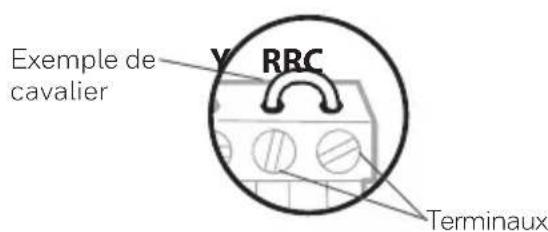
text_image
Exemple de cavalier RRC Terminauxtext_image
□ R □ RH □ Rcnatural_image
Hand holding a device with buttons and a display panel, no text or symbols visible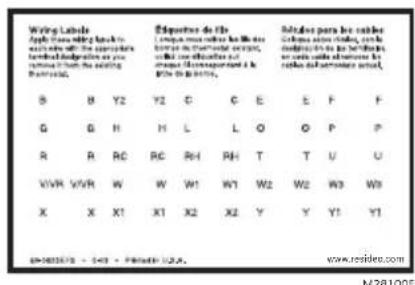
text_image
Wiring Labels Apply these wiring back to apply the following: the appropriate tended designation as you romatic by the existing Boutreac. S B Y2 Y2 C C E E F F G G H H L L O O P P R R RC RC RH RH T T U U VWR VWR W W1 W1 W2 W2 W3 W3 X X X1 X1 X2 X2 Y Y Y1 Y1 #-1022/3 - 543 - Private U.S. M28100E Ratages para les cables Côlimes sont closés, par le métudes de la débêts de la sous des usées les cables les cables d'abordance actual, www.rstidex.comnatural_image
Illustration of hands using a tool to adjust cable or wire on a plug (no text or symbols visible)text_image
U & R WIRES — 1 WIRE — — 2 WIRE — A W3 C W K 0 0 0 0 0 0 0 0 0 0 0 0 0 0 0 0 0 0 0 0 0 0 0 0 0 0 0 0 0 0 0 0 0 0 0 0 0 0 0 0 0 0 0 0 0 0 0 0 0 0 M27607text_image
0 K R 0 Rc M37229ACâblage
text_image
S 0 S 0 Y 0 Y2 0 G 0 C 0 U 0 Unatural_image
Line drawing of a hand holding a digital camera with arrows indicating left-hand movement (no text or symbols)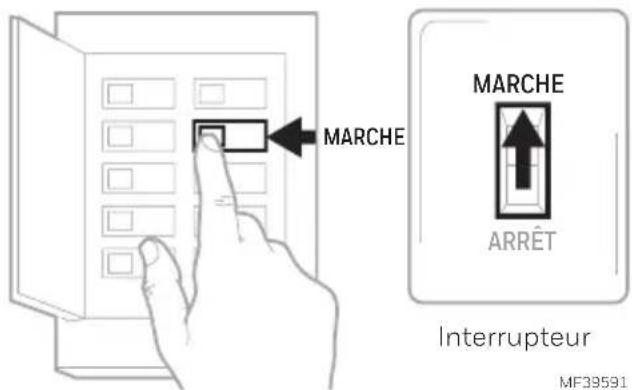
text_image
MARCHÉ MARCHÉ ARRÊT Interrupteur MF39591text_image
SETUP Sung App On Device SmartM39557
text_image
Available on the App Store Get it on Google playB
text_image
Thermostat Found: SET UP NOWC
text_image
Connected to Thermometer New config per option. NEXTConfiguration
text_image
MODE Heat 12:00 PM Index 72 Set To 68 Following Schedule MENU IFAN Auto Hold V38509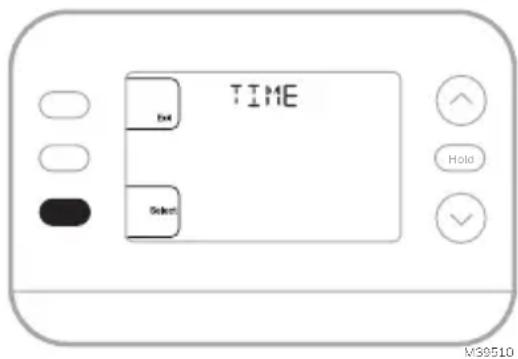
text_image
TIME Hole Select V39510text_image
ISU Exit Select Hold M39605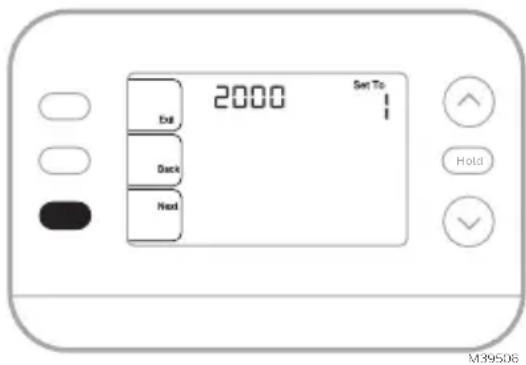
text_image
2000 Set To Exit Deck Next Hold M39506text_image
MODE 12:00 PM Set To 68 Indoor 72 Following Schedule Heat MENU IFAN Auto Hold M39511text_image
MODE Heat MENU FAN Auto 12:00 PM Indoor Set To 68 Following Schedule HoldM39512
text_image
SCHED Exit Select Hold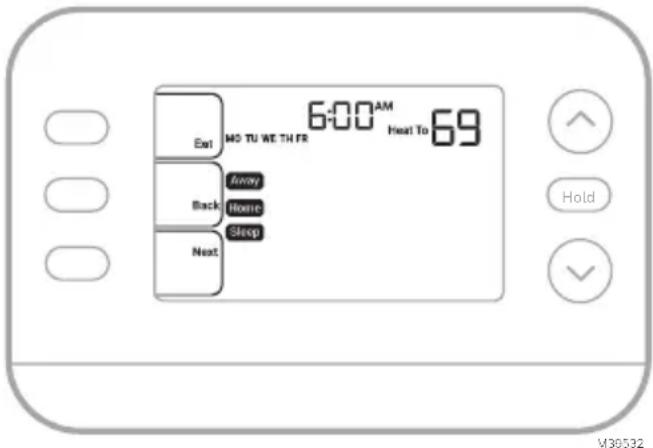
text_image
6:00 AM Heat To 69 Exit MO TU WE TH FR Back Away Home Stop Next Hold M30532text_image
Save Hold Permanently Hold U30531Annulation de la programmation (permanente)
text_image
ALRT Exit Select Hold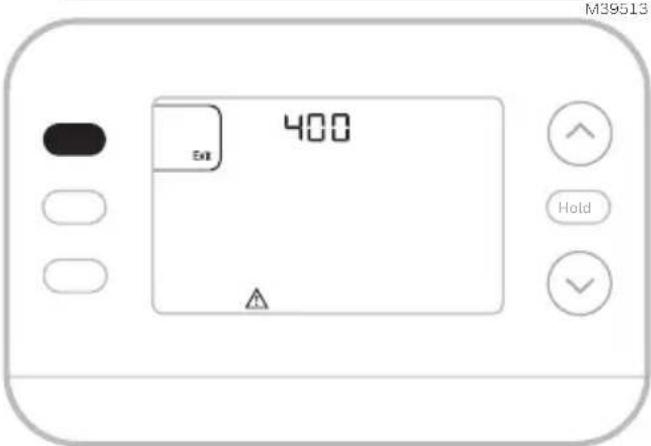
text_image
M39513 400 Exit HoldM39592
text_image
REPL Exit Dismisses Select Hold47 CFR § 15.21 (USA uniquement)
Consultez le site https://customer.resideo.com/en-US/support/residential/codes-and-standards/FCC15105/
Resideo Inc., 1985 Douglas Drive North
Golden Valley, MN 55422
www.resideo.com33-00690EFS-01 SA Rév. 08-24
text_image
Black and white barcode image with vertical lines and patterns33-00690EFS-01
Honeywell Home

text_image
MODE 12:59 PM Set To Heat Indoor 73 MENU 72 FAN Auto Heat On HoldM39487
natural_image
Hand inserting a card into a digital card (no text or symbols visible)natural_image
Illustration of a hand holding a smartphone displaying a device with icons, next to a device with a battery (no text or symbols visible)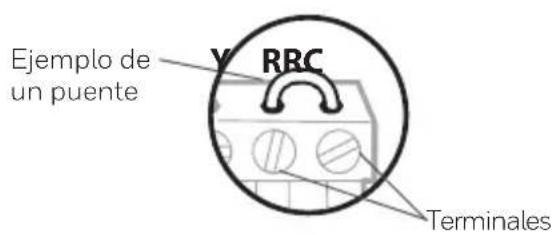
text_image
□ R □ RH □ Rcnatural_image
Hand holding a device with buttons and a display panel, no text or symbols visible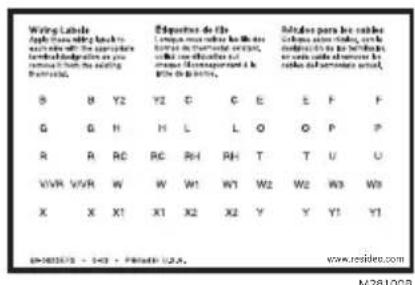
text_image
Wiring Labels Apply these wiring back to such wire with the appropriate tended designation as you remount in both the existing Batteries. S B Y2 Y2 C E E F F G G H H L L O O P P R R RC RC RH RH T T U U VWR VWR W W W1 W1 W2 W2 W3 W3 X X X1 X1 X2 X2 Y Y Y1 Y1 #1-1022/7 - 543 - PR@49.12.2. M281003text_image
1/4" a 3/8" MS39442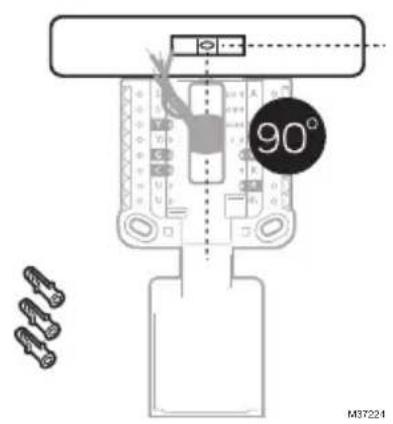
text_image
90° M37224natural_image
Illustration of hands using a tool to adjust cable or wire on a circuit board (no text or symbols visible)text_image
S 0 S 0 Y 0 Y2 0 G 0 C 0 U 0 Unatural_image
Line drawing of a hand holding a digital camera with arrows indicating left-hand movement (no text or symbols)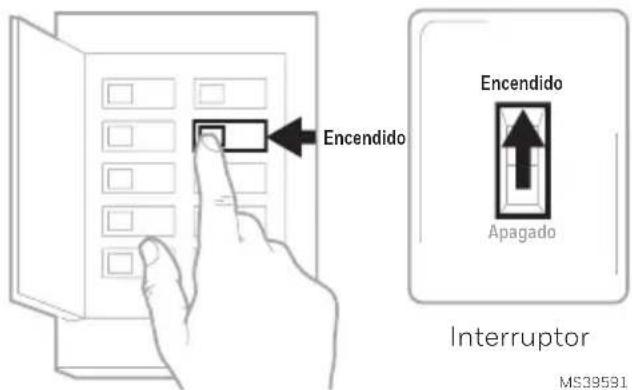
text_image
Encendido Encendido Apagado Interruptor MS39591Caja de disyuntores
9 Vuelva al termostato
text_image
Available on the App Store Get it on Google playB
text_image
Thermostat Found: SET UP NOWC
text_image
On/Next OK/Cancel Connectable Thermostat Yes, Initialize your choice. NO? MAYConfiguración
text_image
MODE 12:00 PM Heat 72 FAN Auto Set To: 68 Following Start Time Hold M39500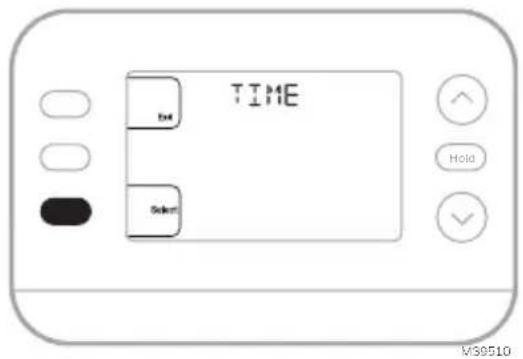
text_image
TIME OK Select Hold M39510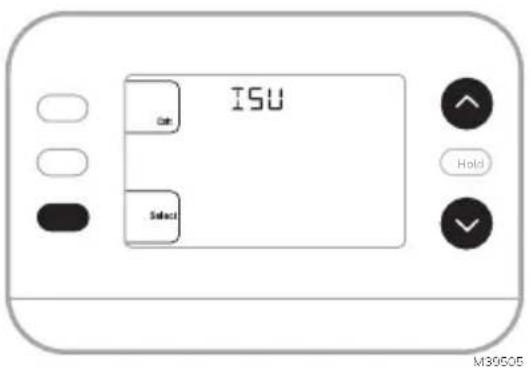
text_image
ISU Get Select Hold M39505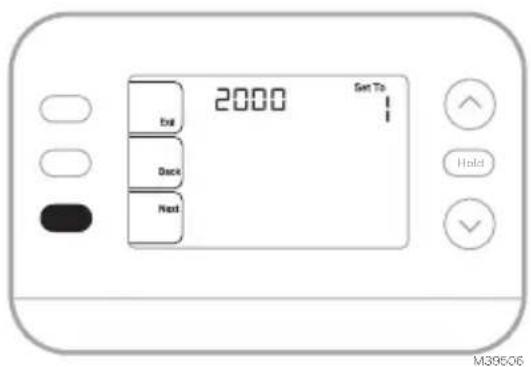
text_image
2000 Set To Exit Back Next Hold M39506text_image
MODE 12:00 PM Set To Indoor 68 Following Schedule Heat MENU 72 FAN Auto HoldM39511
text_image
MODE 12:00 PM Set To Heat Indoor 68 MENU 72 Following Schedule FAN Auto HoldM39512
Programar horario
text_image
SCHED Exit Select Hold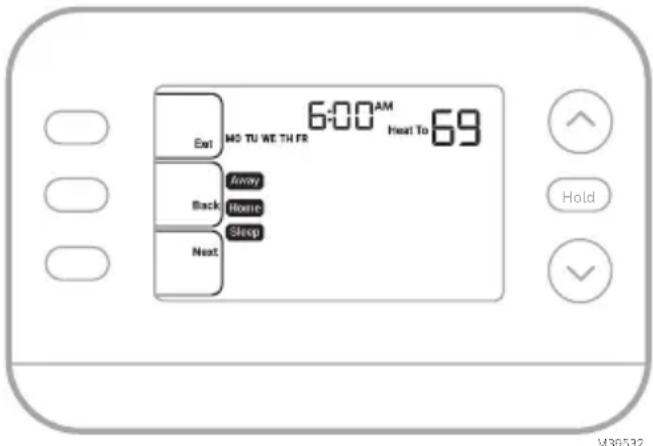
text_image
6:00 AM Heat To 69 Exit MS TU WE TH FR Back Away Home Sleep Next Hold V30532text_image
Save Hold Permanently Hold M38531Alertas
text_image
ALRT Exit Select Hold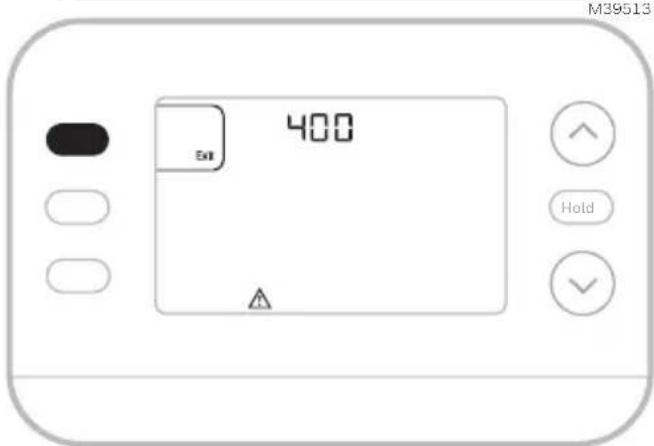
text_image
M39513 400 Exit HoldM39592
text_image
REPL Exit Dismiss Select HoldM39515
natural_image
Pure technical line drawing of a mechanical component with no text or symbolsRegulatory Information
The user shall not make any changes or modifications to the equipment unless authorized by the Installation Instructions or User's Manual. Unauthorized changes or modifications could void the user's authority to operate the equipment
FCC REGULATIONS
47 CFR § 15.19 (a)(3)
This device complies with part 15 of the FCC Rules. Operation is subject to the following two conditions:
1 This device may not cause harmful interference, and
2 This device must accept any interference received, including interference that may cause undesired operation.
47 CFR § 15.21
Changes or modifications not expressly approved by the party responsible for compliance could void the user's authority to operate the equipment.
47 CFR § 15.105 (b)
For additional FCC information for this product, see: https://customer.resideo.com/en-US/support/residential/codes-and-standards/FCC15105/Pages/default.aspx
IC REGULATIONS RSS-GEN
This device contains licence-exempt transmitter(s)/receiver(s) that comply with Innovation, Science and Economic Development Canada's licence-exempt RSS(s). Operation is subject to the following two conditions:
1 This device may not cause interference.
2 This device must accept any interference, including interference that may cause undesired operation of the device.
The operation of this equipment is subject to the following two conditions: (1) this equipment or device may not cause harmful interference, and (2) this equipment or device must accept any interference, including interference that may cause undesired operation.
INFORMATIONS REGLEMENTAIRES
Règlement D'IC RSS-GEN
47 CFR § 15.19 (a)(3)
Resideo Inc., 1985 Douglas Drive North Golden
Valley, MN 55422
www.resideo.com33-00690EFS-01 SA Rev. 08-24
text_image
Black and white barcode image with vertical lines and patterns33-00690EFS-01