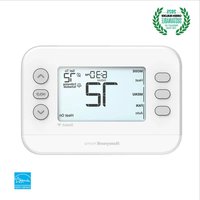
FocusPRO S200 TH2110WF4008/U - Thermostat HONEYWELL - Free user manual and instructions
Find the device manual for free FocusPRO S200 TH2110WF4008/U HONEYWELL in PDF.


| Brand | Honeywell |
| Model | FocusPRO S200 TH2110WF4008/U |
| Category | Thermostat |
| Product Type | Smart Wi-Fi Thermostat |
| Dimensions (approx.) | 95 x 95 x 25 mm |
| Weight (approx.) | 200 g |
| Power Supply | 24 VAC (via HVAC system wiring) |
| Display | Backlit LCD Display |
| Connectivity | Wi-Fi 2.4 GHz (802.11 b/g/n) |
| Mobile App | First Alert by Resideo (iOS and Android) |
| Scheduling | Daily schedules (up to 4 periods/day) or geolocation |
| System Modes | Heat, Cool, Auto, Emergency Heat, Off |
| Fan Mode | Auto, On, Circulate (runs ~33% of the time) |
| Auto Changeover | Yes, with adjustable differential |
| Smart Features | Geolocation (Auto Away), Alerts (filter, extreme temperatures), Adaptive Smart Recovery |
| Compressor Protection | 5-minute restart delay |
| Keypad Lock | Full or partial (default code 1234) |
| Maintenance and Cleaning | Clean with a soft, dry cloth. Do not use abrasive cleaners. |
| Safety and Compliance | FCC Part 15, IC RSS-Gen, RF exposure (min. distance 20 cm) |
| Warranty | Consult the manufacturer (Resideo Technologies, Inc.) |
Frequently Asked Questions - FocusPRO S200 TH2110WF4008/U HONEYWELL
User questions about FocusPRO S200 TH2110WF4008/U HONEYWELL
0 question about this device. Answer the ones you know or ask your own.
Ask a new question about this device
Download the instructions for your Thermostat in PDF format for free! Find your manual FocusPRO S200 TH2110WF4008/U - HONEYWELL and take your electronic device back in hand. On this page are published all the documents necessary for the use of your device. FocusPRO S200 TH2110WF4008/U by HONEYWELL.
USER MANUAL FocusPRO S200 TH2110WF4008/U HONEYWELL
M39593
Introduction
This document discusses the following topics (click to jump to those sections):
• Using the First Alert by Resideo App
- User Settings
• The Auto Changeover feature
- Alerts
- Reminders
• Programming Your Thermostat
• The Adaptive Intelligent Recovery feature
• Built-In Compressor Protection
- Troubleshooting
- Customer Assistance
Get the most from S200 Smart Thermostat
Multiple programming options that fit your lifestyle:

- Location-Based scheduling (Auto Away)—The thermostat uses your smartphone's location to know when you're away and saves you energy. Through geofence technology, it senses your return and helps make you comfortable upon arrival. You can always manually change your preset Home and Away temperature either on the thermostat or on the First Alert by Resideo app.
- Smart scheduling – Use a combination of geofencing and time scheduling to fit your busy, active lifestyle.
- Time-Based scheduling – Program your thermostat for one week; each day (each day is a different schedule); Mon-Fri, Sat, Sun; or Mon-Fri, Sat-Sun. All days with four adjustable periods per day.

Smart Alerts. Push notifications remind you of filter changes and warn you of extreme indoor temperatures.

Adaptive Intelligent Recovery. Learns your heating and cooling system to deliver the optimal temperature at the right time.

Auto Change From Heat to Cool. Automatically determine if your home needs heating or cooling to provide maximum comfort.
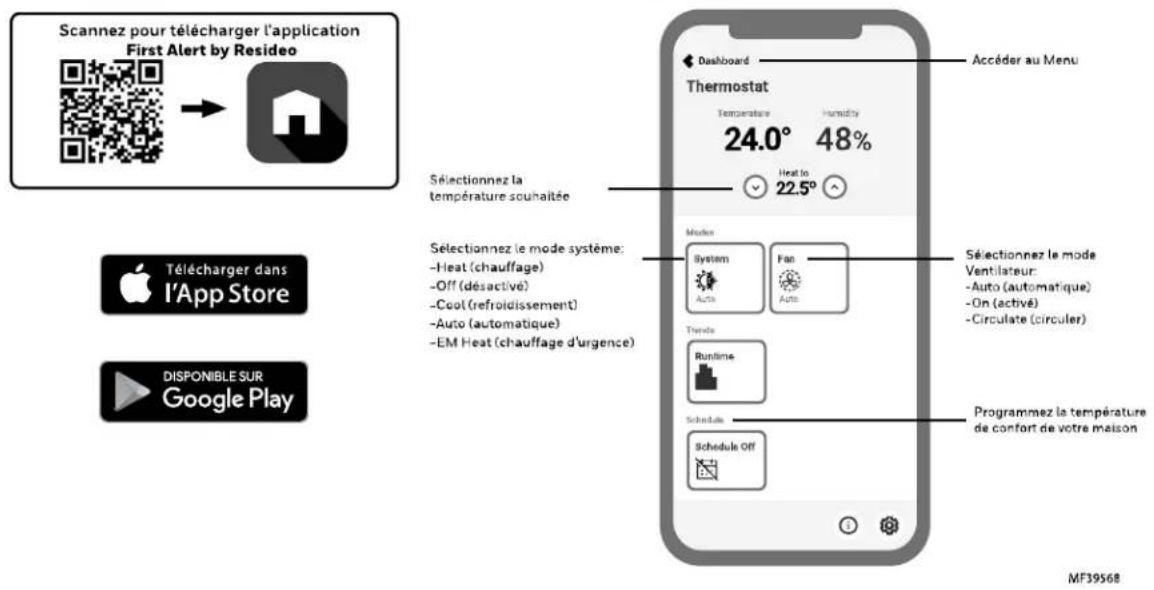
Using the First Alert by Resideo App\*
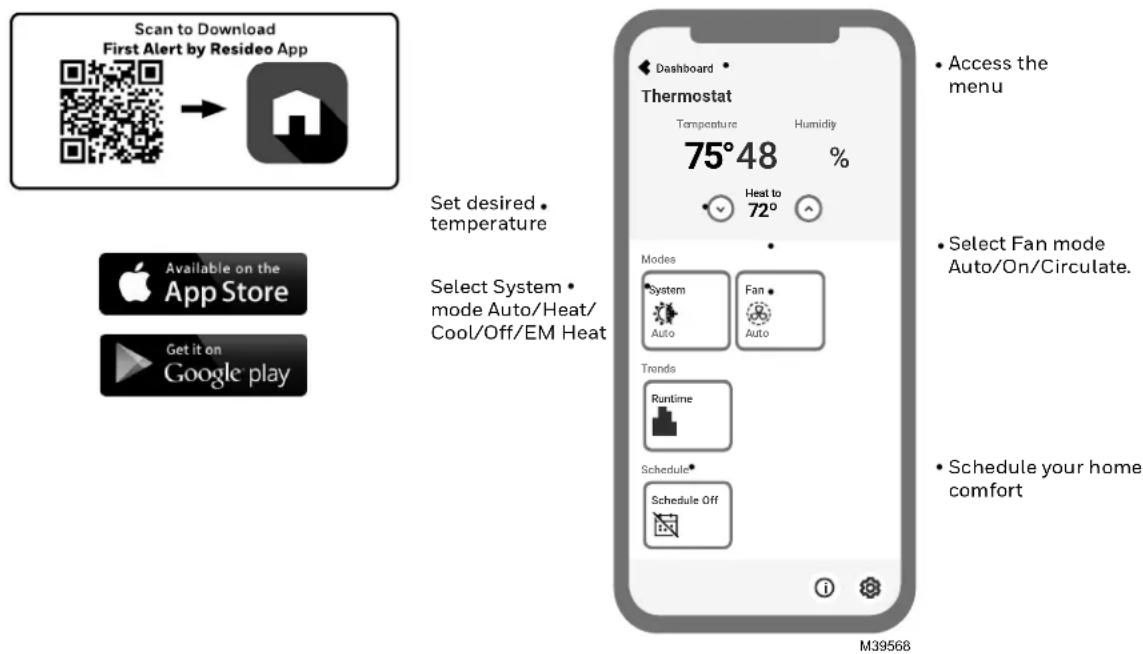
* The First Alert by Resideo App is regularly enhanced and the screen display may differ from that shown.
User Settings
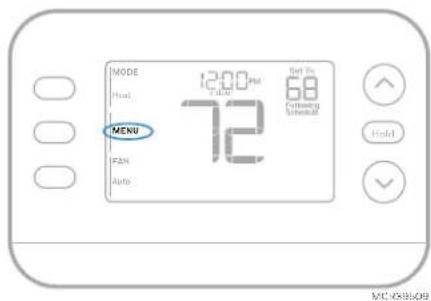
1 Press MENU button.
2 Press ↑ or ↓ to cycle through user menu options. When the menu option you want to use is displayed, press SELECT.
User menu options
- SCHEDULE: Turn schedule on or off or set/edit schedule settings
- APP: Use App
- WiFi: On or Off
• TEMP: Display outdoor or indoor temperature *
- DATE: Set Date)
- TIME: Set Time)
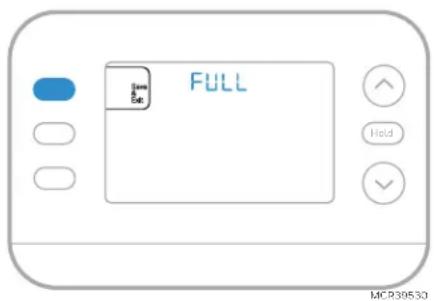
- LOCK**: Change lockout status (OFF, FULL or PART). Partial lockout allows temporary setpoint change only.
3 To EXIT and return to the Home screen, press the EXIT button (upper left) or wait for the thermostat to time out.
*Outdoor option is only shown if Installer set thermostat to use a wired outdoor sensor or internet weather.
** Lockout option only shown if enabled by the installer
Set Time and Date
Time and date are updated automatically when the S200 is registered to the First Alert by Resideo App.
Time
1 Press MENU on the thermostat.
2 Press ↑ or ↓ to go to TIME and press SELECT.
3 Press ↑ or ↓ to choose 12- or 24-hour clock format and press NEXT.
4 Press ↑ or ↓ to adjust the hour and press NEXT.
5 Press ↑ or ↓ to adjust the minute and press SAVE & EXIT.
Date
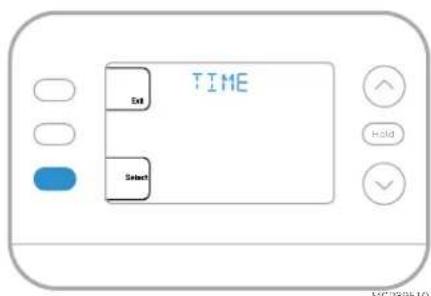
1 Press MENU on the thermostat.
2 Press ↑ or ↓ to go to DATE and press SELECT.
3 Press ↑ or ↓ to choose YEAR and press NEXT.
4 Press ↑ or ↓ to choose MONTH and press NEXT.
5 Press ↑ or ↓ to choose DATE and press SAVE & EXIT.
System Operation Settings
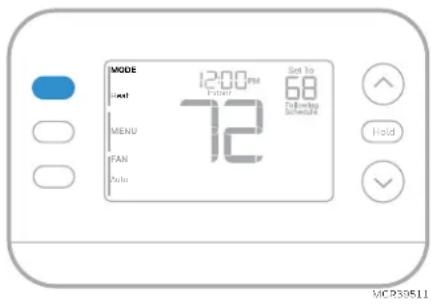
1 Press the MODE button to cycle to the next available System mode.
2 Cycle through the modes until the desired System mode is displayed.
Available System modes vary by model and system settings.
System modes:
• AUTO
• HEAT
• COOL
• EM HEAT
• OFF
Fan Operation Settings
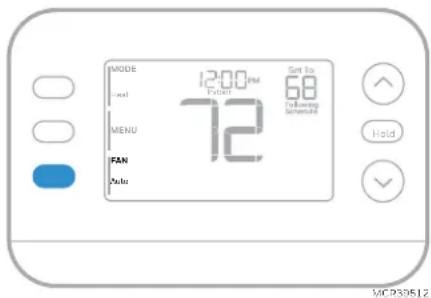
1 Press the FAN button to cycle to the next available Fan mode.
2 Cycle through the modes until the desired Fan mode is displayed.
Available Fan modes vary with system settings.
Fan modes:
- AUTO: Fan runs only when the heating or cooling system is on
• ON: Fan is always on
• CIRC: Fan runs about 33% of the time to circulate air
Auto Changeover
When a thermostat is set to Auto Changeover, the thermostat has a Heat setpoint and a Cool setpoint and can run either Heat or Cool as needed.
1 Verify the thermostat is set to Auto Changeover mode. Press the MODE button in the upper left until AUTO is selected. Press the SAVE button (Center left).
2 Press the ↑ or ↓ button. Upper right shows HEAT TO or COOL TO in flashing text, and the setpoint. Use the ↑ or ↓ button to adjust the setpoint. If the display shows HEAT TO flashing when you want to adjust the Cool setpoint, or vice versa, press the System button. While HEAT TO or COOL TO is flashing, the mode indication at upper left shows either HEAT or COOL flashing. Pressing the MODE button at this time changes the setpoint being adjusted from HEAT to COOL or vice-versa.
Heat and cool set to the same temperature
Most people are comfortable in a 2–3-degree temperature range. Therefore, the heat is usually set a few degrees below the Cool setpoint. When the indoor temperature is between the Heat and Cool setpoints, the system is off.
The Heat and Cool setpoints can be the same. To ensure that the system doesn't cycle back and forth between Heating and Cooling, the thermostat observes a differential setting, set by the installer. If the thermostat last ran in Heat mode, it cycles heat on and off to maintain the setpoint. The indoor temperature must rise to the differential setting before it switches to Cool.
Then cooling will run down to the Cool setpoint and cycle cooling on and off to maintain as needed. The thermostat would then need to drop to the differential setting before switching back to Heat. Typically, a thermostat using Auto Changeover would only need to switch over twice per day as outdoor temperature rises during the day and drops in the evening.
Alerts
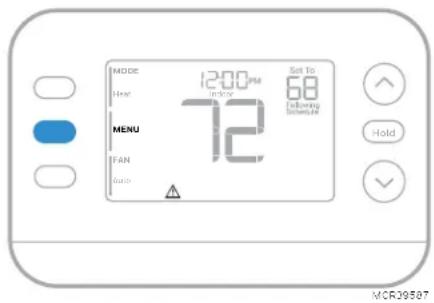
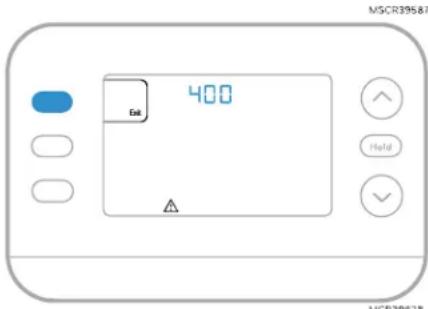
When an alert is active, an ⚠️ icon will appear in the lower part of the display.
1 Press MENU and use ↑ or ↓ until the alert is shown. Active alerts will be the first menu items shown.
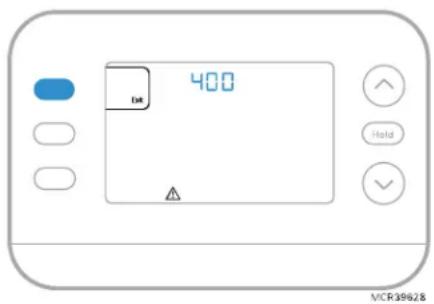
2 Press SELECT to display the alert number.
3 An alert cannot be dismissed. If there is more than one active alert, pressing the NEXT button allows you to view any additional alert numbers. Press EXIT to return to the home screen.
Some alerts can be resolved by the homeowner. Other alerts may require a service call to the professional installer.
| Alert Number | Alert Meaning |
| 164 | Heat Pump Fault. Heat pump is energizing the L terminal to indicate a fault. |
| 170 | Thermostat Memory Failure. Internal problem with the thermostat memory. |
| 171 | Set Time and Date. To clear this alert, enter the Menu, and follow steps listed earlier in this manual to set the time and date. |
| 173 | Internal Sensor Error. Issue with the built-in temperature sensor. |
| 178 | Wired Outdoor Sensor Error. Check wires and connections to outdoor sensor |
| 388 Register online | |
| 399 | Wi-Fi Internet Connection Lost* |
| 400 | Wi-Fi no Signal* |
| 602 Internal humidity sensor error | |
| 607 | Wi-Fi network error* |
* Wi-Fi alerts will not be displayed when Wi-Fi is set to off under the Wi-Fi menu.
Reminders
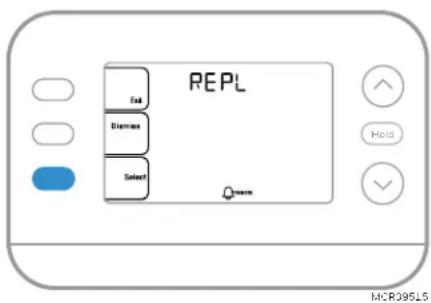
When a replace filter reminder is active, a 📄 icon will appear in the lower part of the display.
1 Press MENU and use ↑ or ↓ until the active reminder is shown. Active alerts and reminders will be the first menu items shown.
2 Press SELECT to display the reminder.
3 Once selected you will see the reminder message in scrolling text. Press DISMISS to reset the reminder or press EXIT to return to the home screen without resetting the reminder.
If there is more than one active reminder, press the NEXT button to view all reminders which have not been reset.
Programming Your Thermostat
Note: If the S200 thermostat is registered to the First Alert by Resideo App, you can choose to use geofencing services rather than a time-based schedule.
You can program four time periods each day, with different settings for weekdays and weekends. We recommend using the presets shown in the table at right; these presets are designed to reduce your heating/cooling expenses.
WAKE: Set to the time you wake up and your desired temperature during the morning until you leave for the day.
AWAY: Set to the time you leave home and your desired temperature while you are away (usually an energy-saving temperature).
HOME: Set to the time you return home and your desired evening temperature until bedtime.
SLEEP: Set to your bedtime and your desired overnight temperature (usually an energy-saving temperature).
Adjusting Program Schedules
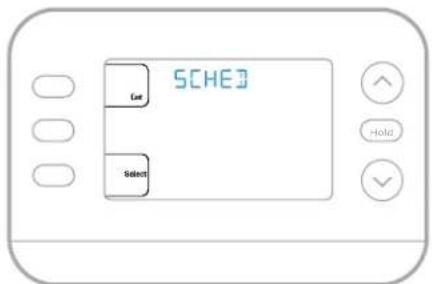
1 Press MENU. Then press ↑ or ↓ until SCHED is displayed.
2 A square appears around ON or OFF in the display. If you want to use a schedule, press ↑ or ↓ to select ON. Press SELECT to edit the schedule or press EXIT to exit the menu.
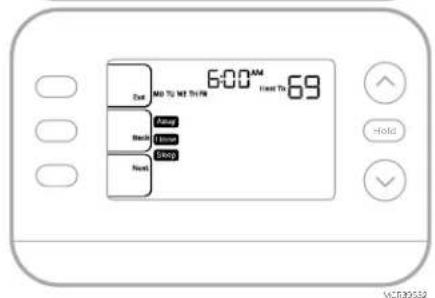
3 If editing the schedule, press SELECT to edit the day or days flashing in the display.
4 The word Wake should be flashing. Press NEXT.
Press ↑ or ↓ to turn this schedule period on or off.
Selecting OFF will disable this schedule period.
Press NEXT.
5 If the schedule period was set to ON, the time will be flashing. Press ↑ or ↓ to adjust the time for this period. Press NEXT.
6 The Heat setpoint will be flashing. Press ↑ or ↓ to adjust the Heat setpoint for this period. Press NEXT.
7 The Cool setpoint will be flashing. Press ↑ or ↓ to adjust the Cool setpoint for this period. Press NEXT.
8 The display will show the next schedule period flashing. Repeat steps 4 – 7 for the Away, Home and Sleep schedule settings. After completing all schedule settings for the day(s) selected, repeat these steps for the other days.
9 Press the SAVE & EXIT button at upper left.
When editing an existing schedule, you can advance to the setting you wish to change, edit that setting and press the SAVE & EXIT button to save changes.
Depending on what type of schedule the thermostat was set up for, days may be grouped or set individually.
| Heat | Cool | |
| Wake(6:00 am) | 70° | 78° |
| Away(8:00 am) | 62° | 85° |
| Home(6:00 pm) | 70° | 78° |
| Sleep(10:00 pm) | 62° | 82° |
Program schedule override (Temporary)
1 Press or to adjust the temperature.
2 Once at the desired setpoint temperature, no further action is needed. The new setpoint temperature will be held until the next scheduled period begins.
3 Press the SAVE button or wait for the display to time out and return to the Home screen.
To cancel the Temporary Hold, press and release the HOLD button to cycle through the settings until CANCEL HOLD is selected.
Program schedule override (Permanent)
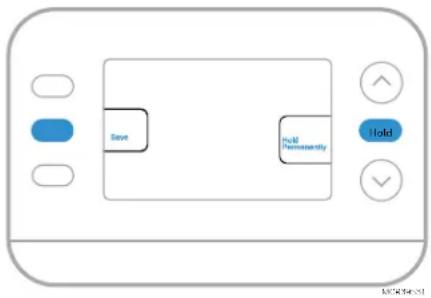
1 Press or to adjust the temperature.
2 Once at the desired setpoint temperature, press and release the HOLD button to cycle through the settings until HOLD PERMANENTLY is selected.
3 Press the SAVE button or wait for the display to time out and return to the Home screen.
To cancel the Permanent Hold, press and release the HOLD button to cycle through the settings until CANCEL HOLD is selected.
flowchart
graph TD
    A["Save"] --> B["Hold"]
    B --> C["Hold"]
    style A fill:#000,stroke:#fff,color:#fff
    style B fill:#fff,stroke:#000,stroke-width:2px
    style C fill:#fff,stroke:#000,stroke-width:2px
Keypad Lockout
1 Press MENU on the thermostat.
2 Press ↑ or ↓ to go to LOCK. Press SELECT.
3 Press ↑ or ↓ to go to OFF, PART or ON and then press SELECT.
OFF: Unlocked, and full access allowed.
PART: Partial lockout, allowing only the temperature to be changed.
ON: No access allowed.
4 Press the SAVE & EXIT button.
Unlocking the Keypad
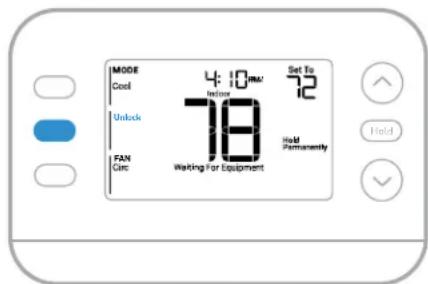
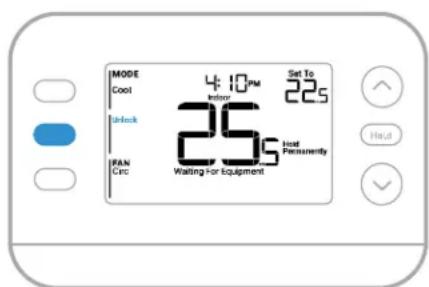
1 If the keypad is locked (partially or fully) the display will show UNLOCK next to the left center button.
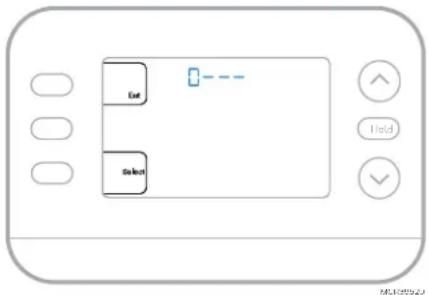
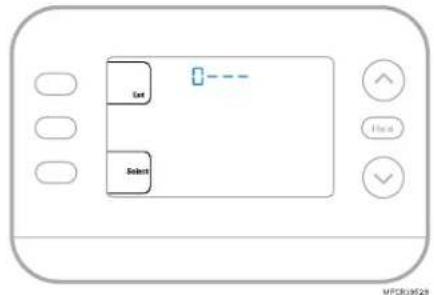
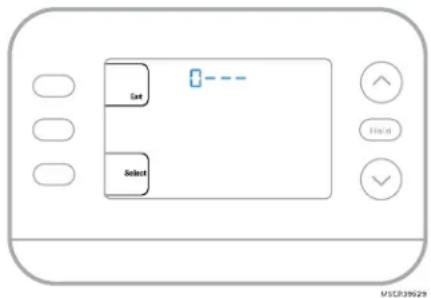
2 To unlock the keypad, press the left center button until the display shows a 0 and three dashes in the upper part of the display.
3 Enter the password "1234". To enter the password, press ↑ or ↓ to change the first digit of the Number.
4 Press SELECT.
5 Repeat this process to enter the second through fourth digits of the number. Once all four numbers have been entered, press SELECT again. This will unlock the keypad.
6 If entered incorrectly, press BACK to go back a step to enter the correct number and press SELECT.
The Keypad Lockout option is available in the user menu ONLY IF the installer has specifically configured the thermostat to allow this option.
Adaptive Intelligent Recovery
Over time, the FocusPRO S200 Thermostat "learns" how long it takes your system to reach your desired temperatures. The thermostat will activate the heating or cooling system as needed to make sure you're comfortable at the times you expect.
The words Active Recovery appear under the room temperature in the display when the thermostat is going from a setback temperature to a comfort temperature.
Built-in Compressor Protection
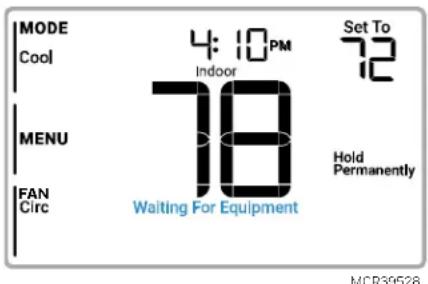
Damage can occur if your system's compressor is restarted too soon after shutdown. This feature forces the compressor to wait for a few minutes before restarting. During the wait time, the display will show the message Waiting For Equipment under the room temperature reading.
When the safe wait time has elapsed, the message disappears, and the thermostat will show "Heat on" or "Cool on".
Troubleshooting
| Display is blank | Check circuit breaker and reset if necessaryMake sure power switch for heating & cooling system is onMake sure furnace door is closed securely |
| Heating or cooling does not run | When running heat, display will showHEAT ONin lower right of displayWhen running cool, display will showCOOL ONin lower right of displayIf display showsWAITING FOR EQUIPMENTunder temperature reading, it isincompressor delay modeto protect the system. Wait 5 minutes to see if the thermostat makes a Heat or Cool callIf display doesn't indicate a call for Heat or Cool orWAITING FOR EQUIPMENT, verify the mode setting, temperature setpoint and room temperatureIf you press the Up or Down arrowUpper left of display shows mode settingUpper right shows setpointCenter of display shows room temperatureIf issue persistsCheck circuit breaker and reset if necessaryMake sure power switch at heating & cooling system is onMake sure furnace door is closed securely |
| Cannot change setpoint to desired setting | If display indicatesUNLOCKnext to the left center button, see Keypad Lockout sectionIf not, verify the mode setting (Heat, Cool, Auto, or Em Heat in upper left of display)The default setting ranges for these modes areHeat or Em Heat: 40 °F to 90 °F (4.5 °C to 32.0 °C)Cool: 50 °F to 99 °F (10.0 °C to 37.0 °C)If the setpoint can be adjusted, but not to the full range shown above, the installer may have configured the thermostat for a maximum heat or minimum cool setpoint to restrict settings that are energy inefficient. |
| WAITING FOR EQUIPMENTShown in display under room temperature | Thecompressor protectionfeature is engaged. Wait a few minutes for the system to safely restart to avoid damaging the compressor. See theBuilt-in Compressor Protectionsection for more information |
Safety and environmental notices

CAUTION: ELECTRICAL HAZARD
Can cause electrical shock or equipment damage. Disconnect power before beginning installation.

CAUTION: EQUIPMENT DAMAGE HAZARD
Compressor protection is bypassed during testing. To prevent equipment damage, avoid cycling the compressor quickly.

CAUTION: MERCURY NOTICE
If this product is replacing a control that contains mercury in a sealed tube, do not place the old control in the trash. Contact your local waste management authority for instructions regarding recycling and proper disposal.

CAUTION: ELECTRONIC WASTE NOTICE
The product should not be disposed of with other household waste. Check for the nearest authorized collection centers or authorized recyclers. The correct disposal of end-of-life equipment will help prevent negative consequences for the environment and human health.
Frequently Asked Questions
Will the S200 Smart thermostat still work if WiFi connection is lost?
Yes, the temperature can be adjusted directly at the thermostat. However, some features, including geofencing, are managed only through the First Alert by Resideo app and will not function while the connection is down. The thermostat will automatically reconnect to WiFi once the network is restored.
A change was made on the First Alert by Resideo app but it has not shown up on the S200 Smart thermostat.
There may be a short delay after making temperature and setting changes in the First Alert by Resideo app.
Can there be multiple users for geofencing?
Yes, there can be multiple users. Geofencing will trigger based on the last person to leave and the first person to return. To properly use geofencing with multiple users:
• Each user needs to create their own account.
• Each user should use their login ID and password across his or her devices, including smartphones and tablets.
- No two users should share the same account.
Can more than one user control the thermostat with the app?
Yes. Use the First Alert by Resideo app to invite other users to download the app and share control of your thermostats. In the app, go to the hamburger menu and select "Users" then select "invite user".
Note: All individuals with access to a thermostat share the same user privileges. Users added will be able to change the thermostat's settings, as well as add or delete other users.
Is there a way to extend the signal strength?
The range or distance of the WiFi signal is determined by the router. Check the router's manual for additional information.
There is an alert that says WiFi Signal Lost. What does that mean?
The WiFi signal to the thermostat has been lost. Wait for the thermostat to reconnect or select a new network within the First Alert by Resideo app configuration menu. If the thermostat is unable to reconnect, you will need to troubleshoot the router to determine the cause.
Why is the thermostat showing up as offline (strike-through WiFi icon) on lower part of thermostat display?
If the thermostat displays a strike-through WiFi icon on its screen or shows up as offline on the First Alert by Resideo app, it is not connected to WiFi. If your thermostat was previously connected to WiFi and has lost connection, make sure the router is powered and broadcasting. The home's WiFi network may need to be reset by power cycling the router. Consult the router's instruction manual for directions on power cycling. When the network has been restored, the thermostat will automatically reconnect.
An activation email hasn't been received.
An activation email will be sent. An activation email is needed to complete the account setup. If an activation email is not received after five minutes, check the Spam folder of the email account.
If you do not find it in the Spam folder, click on the Resend button and the activation email will be resent. If you still do not receive your activation email, please contact the Technical Support team at 1-800-633-3991 for help.
Customer Assistance
For assistance with this product, please visit customer.resideo.com Or call Resideo Customer Care toll-free at 1-800-633-3991
Honeywell Home
Série FocusPRO S200
Thermostats intelligents
Utilisation de l'application First Alert by Resideo*
MFCR39528
Dépannage
MSCR39528
47 CFR § 15.19 (a)(3)
This device complies with Part 15 of the FCC Rules. Operation is subject to the following two conditions:
(1) This device may not cause harmful interference,
(2) This device must accept any interference received, including interference that may cause undesired operation.
47 CFR § 15.21 (USA only)
Changes or modifications not expressly approved by the party responsible for compliance could void the user's authority to operate the equipment.
47 CFR § 15.105 (b)
For additional FCC information for this product, see: https://customer.resideo.com/en-US/support/residential/codes-and-standards/FCC15105/Pages/default.aspx
RF EXPOSURE STATEMENT
WARNING:
The antenna(s) used for these transmitters must be installed to provide a separation distance of at least 20 cm from all persons and must not be co-located or operating in conjunction with any other antenna or transmitter.
Operations in the 5150-5250 MHz band and in the 5250-5350 MHz band are restricted to Indoor use only.
IC REGULATIONS
RSS-GEN
This device contains licence-exempt transmitter(s)/receiver(s) that comply with Innovation, Science and Economic Development Canada's licence-exempt RSS(s).
Operation is subject to the following two conditions:
1 This device may not cause interference.
2 This device must accept any interference, including interference that may cause undesired operation of the device.
RF EXPOSURE STATEMENT
WARNING:
The antenna(s) used for these transmitters must be installed to provide a separation distance of at least 20 cm. from all persons and must not be co-located or operating in conjunction with any other antenna or transmitter. Operations in the bands 5150-5250 MHz and 5250-5330 MHz is only for indoor use to reduce the potential for harmful interference to co-channel mobile satellite systems.
TH2320WF4011
The model TH2320WF4011 Thermostat has not been evaluated for conformance to the FCC, ISED or NOM requirements/standards.
INFORMATIONS RÉGLEMENTAIRES
RÉGLEMENTATION FCC
47 CFR § 15.19 (a)(3)
47 CFR § 15.21 (USA uniquement)
47 CFR § 15.19 (a)(3)
Resideo Technologies Inc.
Scottsdale, AZ 85254
33-00694EFS-01 MB Rev. 12-24
© 2024 Resideo Technologies, Inc.
The Honeywell Home trademark is used under license from Honeywell International, Inc.
This product is manufactured by Resideo Technologies, Inc. and its affiliates.
Apple, iPhone, iPad, iPod touch and iTunes are trademarks of Apple Inc. All other trademarks are the property of their respective owners.
33-00694EFS-01