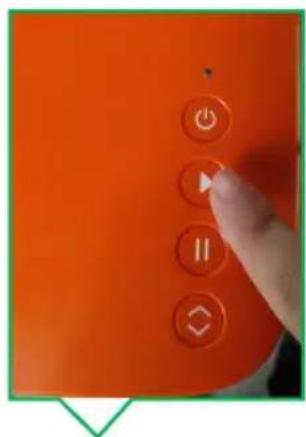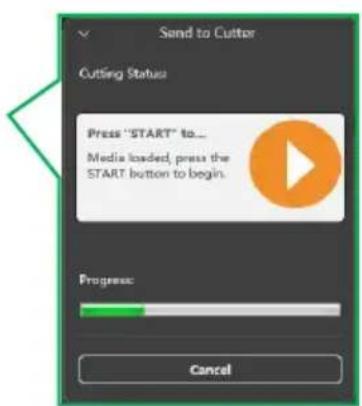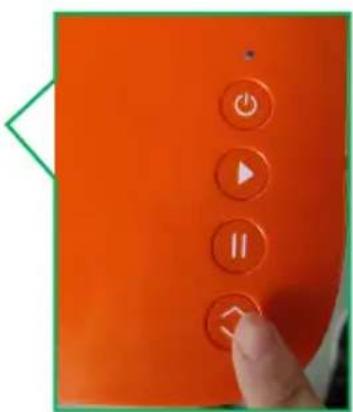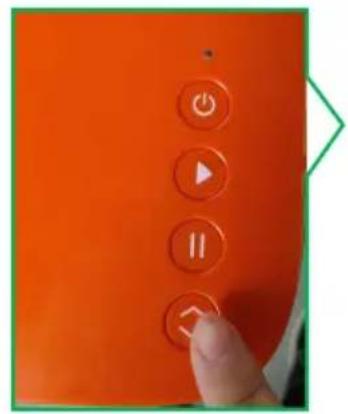
Smart1 - Slicer Vevor - Free user manual and instructions
Find the device manual for free Smart1 Vevor in PDF.
User questions about Smart1 Vevor
0 question about this device. Answer the ones you know or ask your own.
Ask a new question about this device
Download the instructions for your Slicer in PDF format for free! Find your manual Smart1 - Vevor and take your electronic device back in hand. On this page are published all the documents necessary for the use of your device. Smart1 by Vevor.
USER MANUAL Smart1 Vevor
Technical Support and E-Warranty Certificate www.vevor.com/support
DESKTOP VINYL CUTTER
MODEL:SMART1
We continue to be committed to provide you tools with competitive price. "Save Half", "Half Price" or any other similar expressions used by us only represent of savings you might benefit from buying certain tools with us compared top brands and does not necessarily mean to cover all categories of tools offered are kindly reminded to verify carefully when you are placing an order with us actually saving half in comparison with the top major brands.
VEVOR®
TOUGH TOOLS, HALF PRICE
DESKTOP VINYL
Model: Smart1
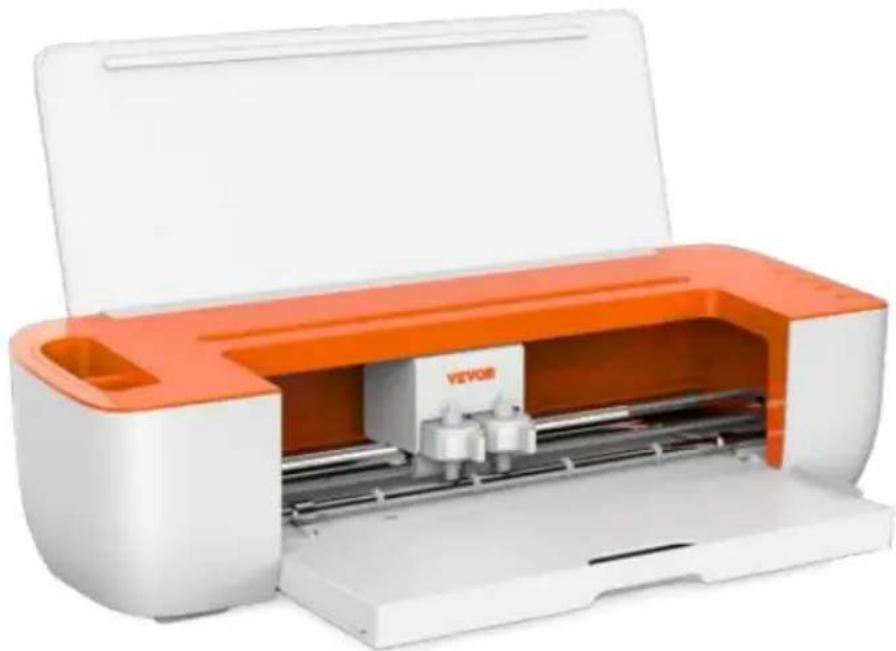
natural_image
White and orange industrial printer with internal components, no visible text or symbols on the device bodyNEED HELP? CONTACT US!
Have product questions? Need technical support? Please feel fr contact us:
Technical Support and E-Warranty Certificate www.vevor.com/support
This is the original instruction, please read all manual instruction carefully before operating. VEVOR reserves a clear interpretation user manual. The appearance of the product shall be subject to product you received. Please forgive us that we won't inform you there are any technology or software updates on our product.
Contents
I. Bacic Safety Rules....3-4
II. Matters Needing Attention....4-6
III. Introduction for Main Parts....7
IV. Technical Parameters......8
V. Product Assembly Steps....8-10
VI. Software Installation....11-12
VII. Software Function Description....13-14
VIII. Software Output Cutting....15-20
IX.APP Installation and Use....21-25
X.Frequently Asked Questions....26-29
XI.Operation Video....29
XII.FCC Information....30
XIII.Correct Disposal....31
I. Bacic Safety Rules

WARNING: Read all safety warnings, instructions, illustrations and specifications provided with this appliance. Failure to follow all instructions listed below may result in electric shock, fire and/or
serious injury.
- Protective material must be removed before turning on the cutting plotter.
-
Check the label on the back side of the plotter to confirm that the rated required by the plotter matches the voltage of the power base.
-
Firstly make sure that the power switch is off, then plug the power supply grounded power outlet.
-
Do not operate any appliance with a damaged cord or plug or after the a malfunctions, or has been damaged in any manner. Return appliance to the nearest authorized service facility for examination, repair or adjustment.
-
Type X attachment: If the supply cord is damaged, it must be replaced by special cord or assembly available from the manufacturer or its service agent.
-
Please do not touch the power cord with wet hands to avoid electric shock
-
Please only use the power cord, data cable provided with this product, or manufacturer-approved replacements.
-
Do not use outdoors. INDOOR USE ONLY
-
Please do not drop metal objects and liquids into the machine to avoid malfunction.
-
After shutting down, you must wait another 5 seconds to turn on the cut plotter again, otherwise it will cause damage to the cutting plotter.
-
In thunderstorms, turn the power switch to OFF and unplug the power cor
-
Please do not privately change the manufacturer's components.
-
Manufacturer reserves the right to change product specifications without pr notice.
-
The manufacturer only bears the legal obligations of the product itself sold the users, and does not bear other losses caused by the malfunction of the products.
-
Without our company's permit, no part of this manual can be copied or
transmitted in any name.
- Do NOT drag the carriage by hand.
- If there is an abnormal sound after powering on the machine, please turn power immediately and contact the after-sales department for feedback.
- This appliance can be used by children aged from 8 years and above an persons with reduced physical, sensory or mental capabilities or lack of experience and knowledge if they have been given supervision or instruction concerning use of the appliance in a safe way and understand the hazards involved. Children shall not play with the appliance. Cleaning and user maintenance shall not be made by children without supervision.
- Close supervision is necessary when any appliance is used by or near ch Children shall not use the appliance. Cleaning and user maintenance shall no made by children.
- To protect against fire, electric shock, or personal injury, do not immerse electric plugs, or appliances in water or other liquids.
21.WARNING:
Blade is very sharp. Please do not touch the blade directly with your hand, otherwise, your finger will be injured and the tip will be blunt. and hold the the blade when you remove it.
II. Matters Needing Attention
To ensure that the operator can correctly use the plotter and prevent damage, please follow the instructions marked with the following indicators.
- Ensure Safe Use Methods
warning | Improper operation can result in injuries. |
| Improper operation may cause damage to the machine. | |

Pay attention to | Improper operation may result in personal injury of damage to other objects. |
- Symbol Description

![]() | warning | |
![]() | Symbol indicates that users need to pay close attention. Th on the left signifies "Beware of electric shock." | |

![]() | Do not use a power supply that does not meet the rated Using an unqualified power supply can cause fire or electric | |

![]() | If the machine emits smoke, unusual odors, noise, or e any other abnormal behavior, please power it off immed and do not continue using it. Using the machine in such conditions can lead to fire or electric shock. | |

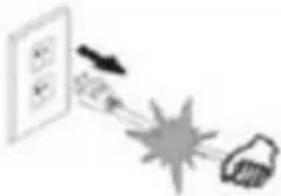
![]() | Do not plug or unplug the power cord while the power Unplugging the power cord while the power is on can dam machine. | |

![]() | Ensure that the machine is properly grounded. Failure to ground it may result in electrical shock or mechanical failure | |

![]() | Do not disassemble, repair, or modify the machine. Doin can result in a fire or electric shock, leading to personal ir | |

![]() | Pay attention to | |
![]() | The machine should not come into contact with liquids, or fall onto me objects, and so on. These objects c cause fires. | ![]() |
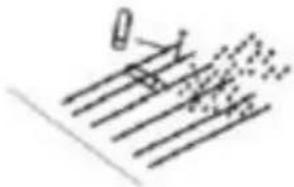
![]() | Do not damage or replace the origin power cord, and avoid excessive bending, pulling, tying, or placing he objects on the power cord. | ![]() |
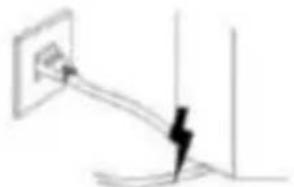
![]() | If the cutting plotter will not be use a long time, please unplug the power cord from the socket. Otherwise it w cause a fire. | ![]() |
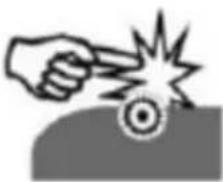
![]() | When operating, do not put your ha on the reel. This may cause injury. | ![]() |
![]() | The machine should be positioned o stable surface. Otherwise, the machine may topple, causing injury. | ![]() |

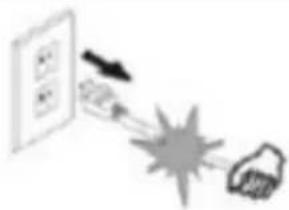
![]() | When disconnecting the power cord from the socket, please pull the plu not the cable. Pulling on the cable c cause electric shock or fire. | ![]() |
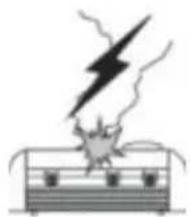
![]() | Using the machine during thunderstorms and lightning weather prohibited to prevent lightning damag to the machine. | ![]() |
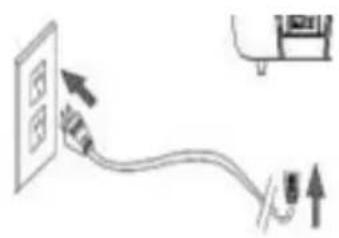
![]() | Before inserting the power plug, che whether the power supply voltage ar power cable are normal. Make sure are no exceptions before you plug in device. | ![]() |
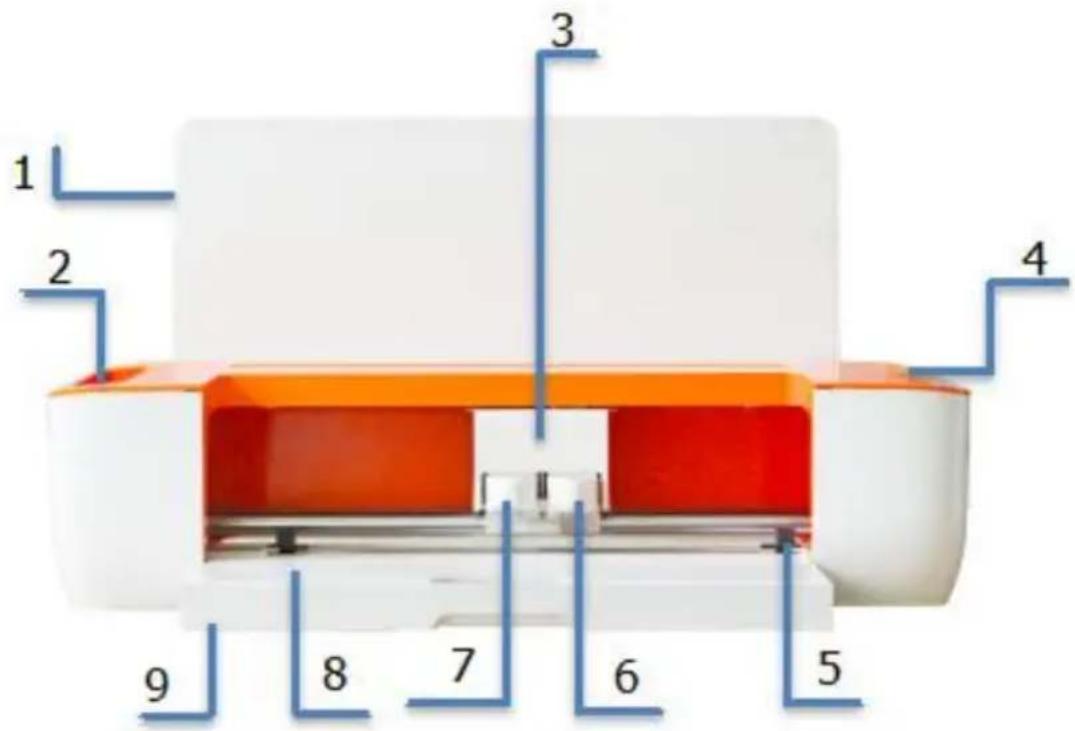
III. Introduction for Main Parts

text_image
1 2 3 4 5 6 7 8 9
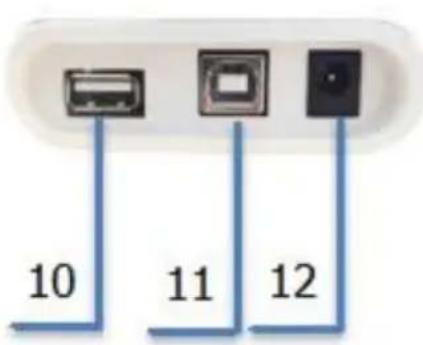
text_image
10 11 12
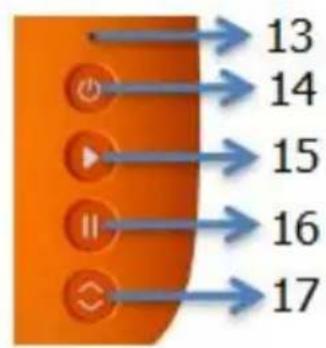
text_image
13 14 15 16 17| 1.Cover plate | 2. Storge cup |
| 3. Carriage | 4.Button |
| 5.Paper roller | 6.Clamp R |
| 7.Clamp L | 8.Cutting platform |
| 9.Storage box | 10.U-DISK port |
| 11.USB Type-B | 12.DC 24V |
| 13.Indicator light | 14.Power button |
| 15.Start button | 16.Pause button |
| 17.Load/unload button |
Light status description
White: Normal
Blue: Bluetooth connected
Red: Machine fault
IV. Technical Parameters
| ModeIItem | Smart1 |
| Max. feeding width | 13inch(330mm) |
| Max. cutting width | 12inch(305mm) |
| Cutting thickness | ≤1mm |
| linear velocity | 10-300mm/s |
| Right tool pressure | 10-500gf |
| Left tool pressure | 50-500gf |
| Buffer | 1M |
| Cutting precision | ±0.1mm |
| Interface | U-DISK/USB /Bluetooth4.2ble |
| Supporting systems | Mac、Windows 、Android 5.1/iOS 11.0 above |
| Adapter | INPUT:AC100-240V,50-60Hz, 48W;OUTPUT:DC24V , 2A |
V.Product Assembly Steps
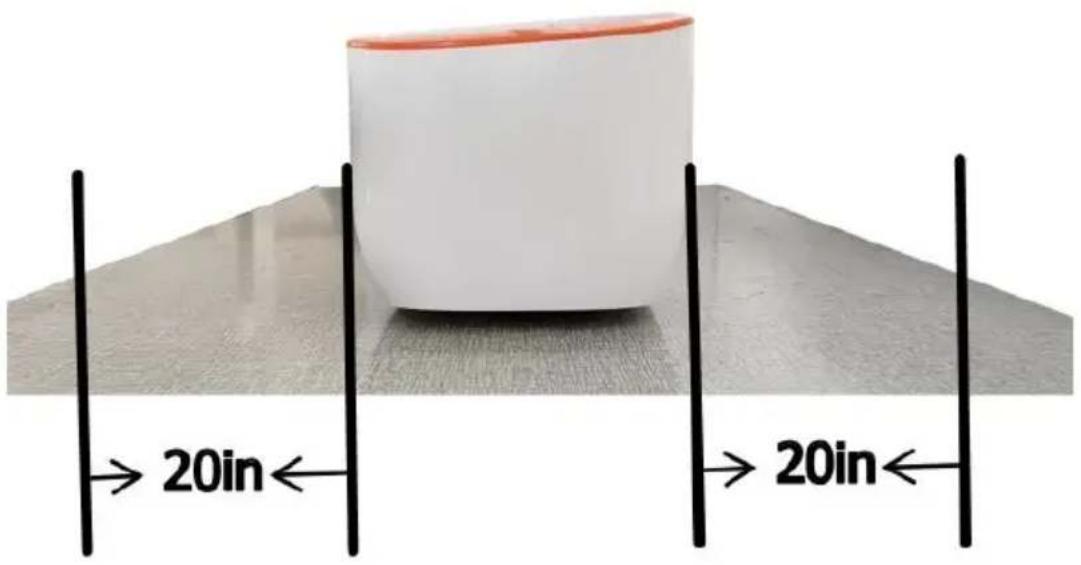
a. Keep the front and rear 20 inches clear of obstructions.
text_image
20in 20in
text_image
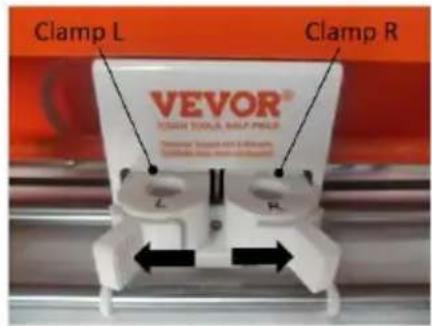
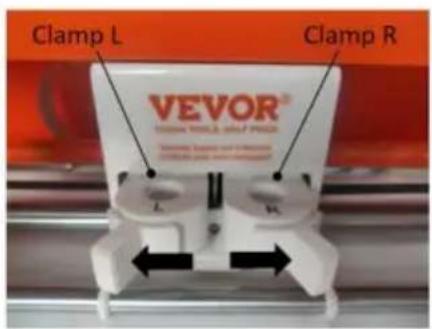
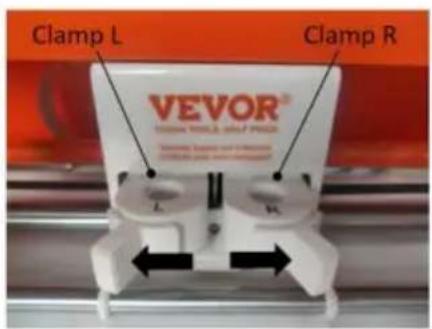
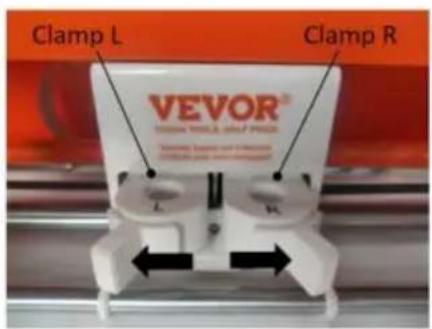
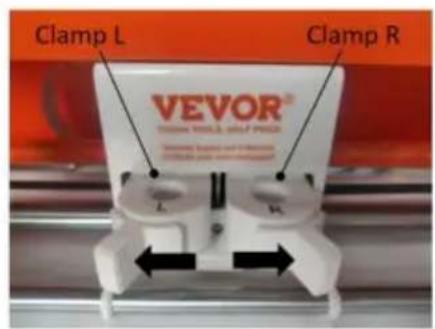
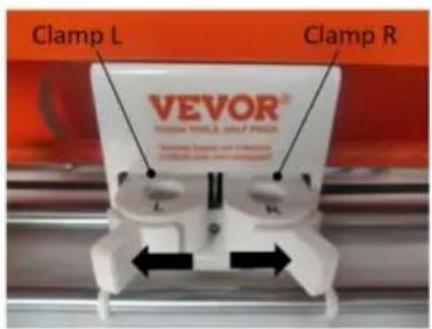
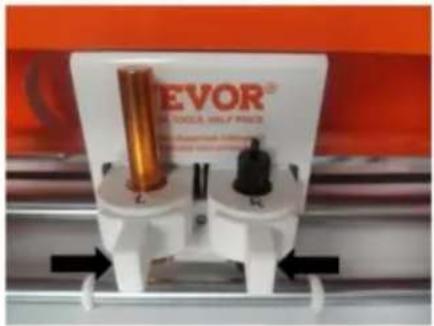
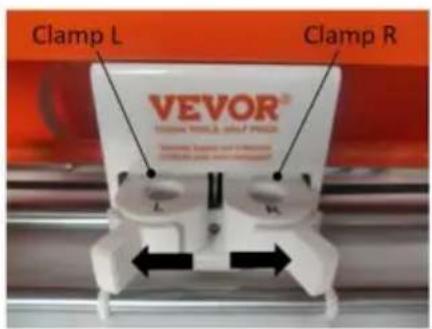
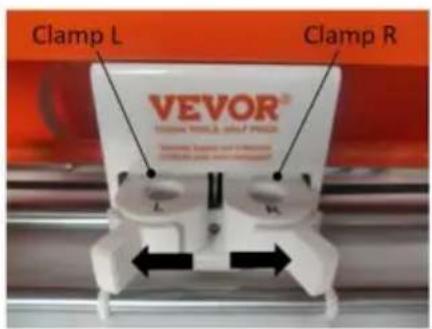
Clamp L Clamp R VEVOR® SHORT SOOLS MILLIPACK- Open the Clamp as shown by the arrow.
text_image
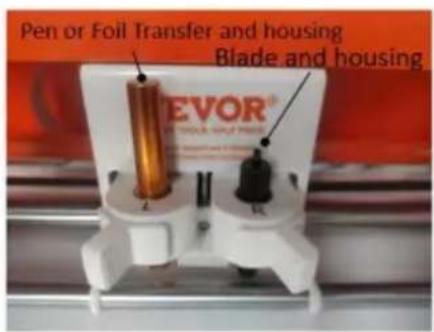
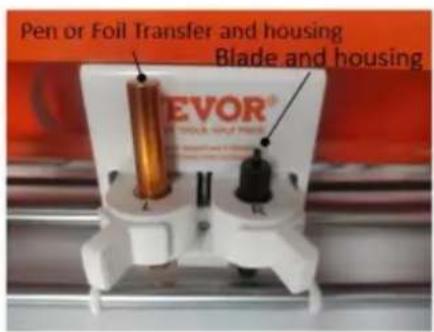
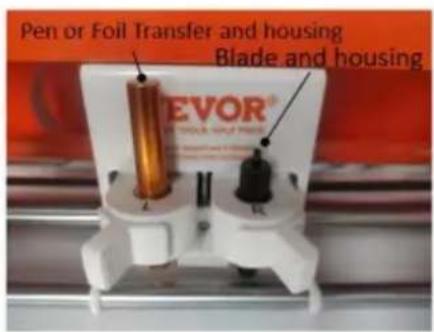
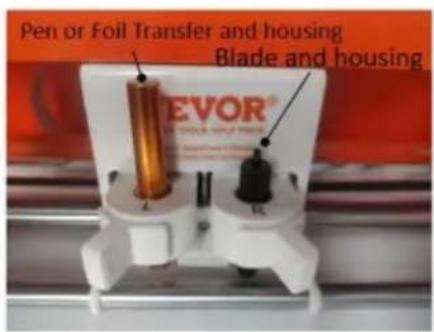
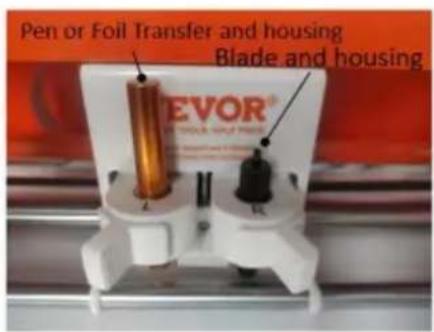
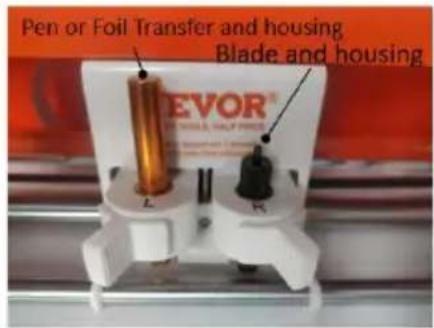
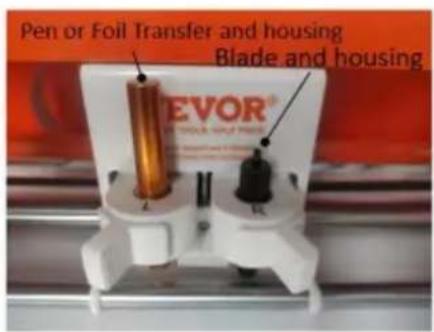
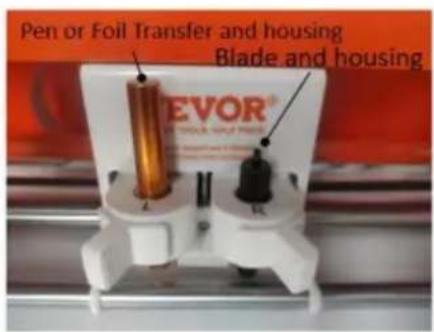
Pen or Foil Transfer and housing Blade and housing Tevor® THE WOIL, HALF PRICE- Place the Blade and housing in Clamp R. Place the pen or the foil transfer and housing in Clamp L.
natural_image
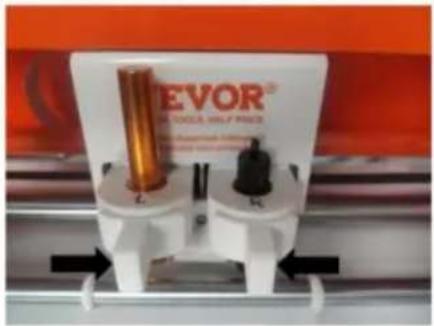
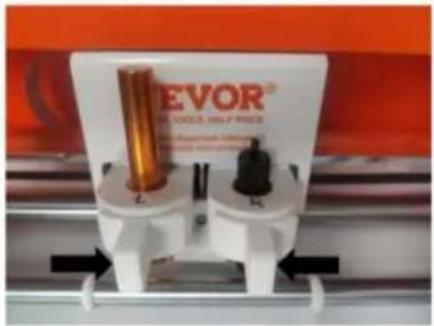
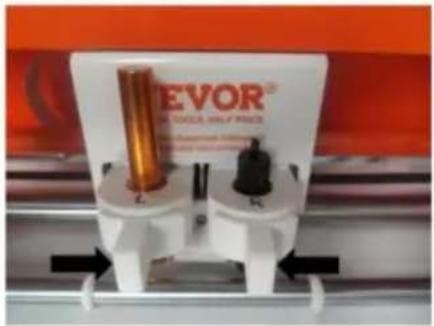
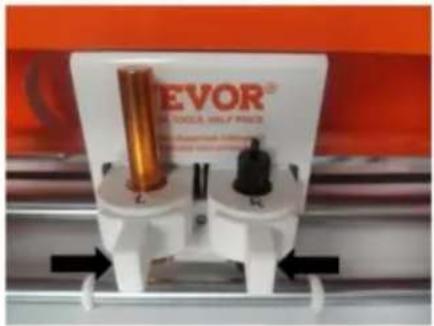
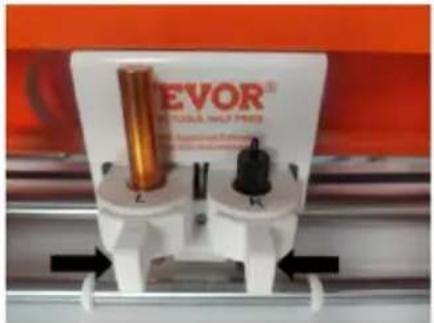
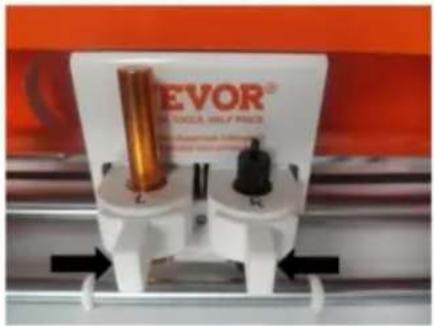
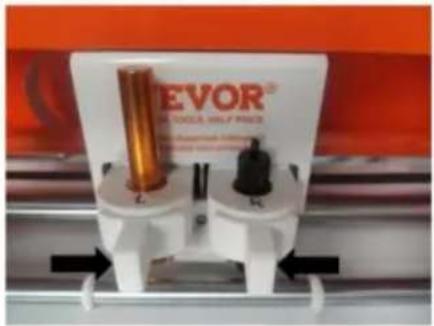
Close-up of a mechanical testing device with two cylindrical components and directional arrows (no readable text or symbols)- Close the Clamp as shown by the arrow.
natural_image
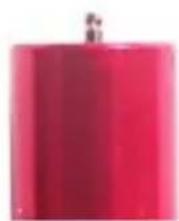
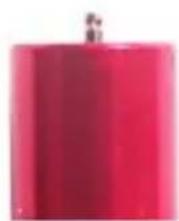
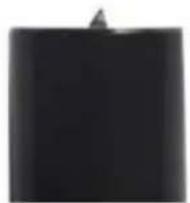
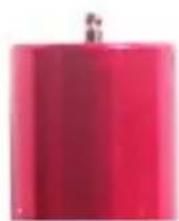
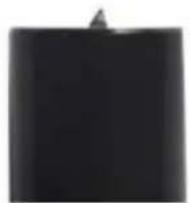
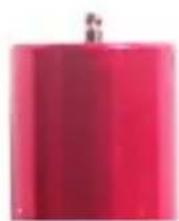
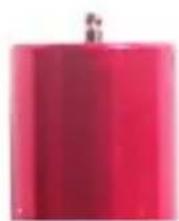
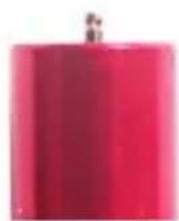
Solid red cylindrical object with a small protrusion at the top (no text or symbols visible)Foil Transfer and housing

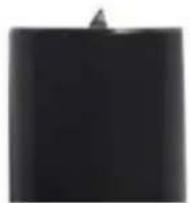
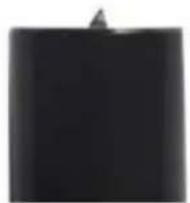
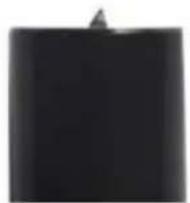
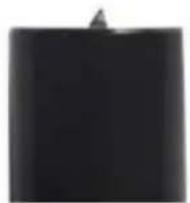
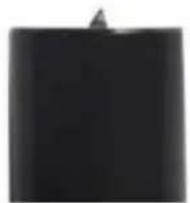
Blade and housing
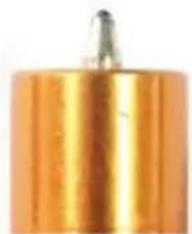
natural_image
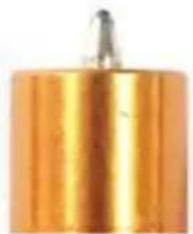
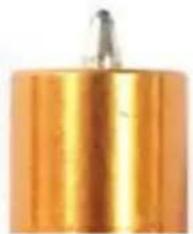
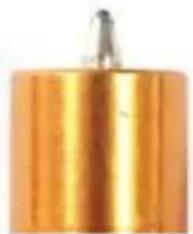
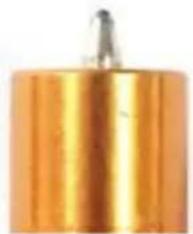
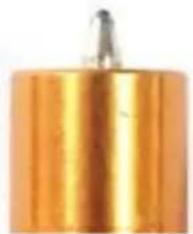
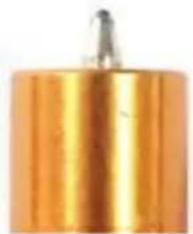
Close-up of a cylindrical metallic object with a small protrusion at the top (no visible text or symbols)Pen
The foil transfer and housing needs to be purchased separately.
Note: Never place the Blade and housing in Clamp L.
Warning:
Do not touch the blade tip with your fingers, as it can result in injury blunting of the tip.
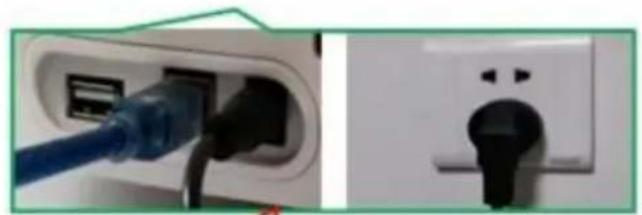
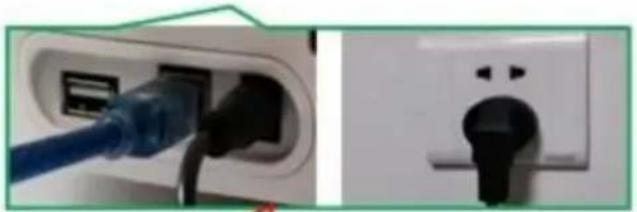
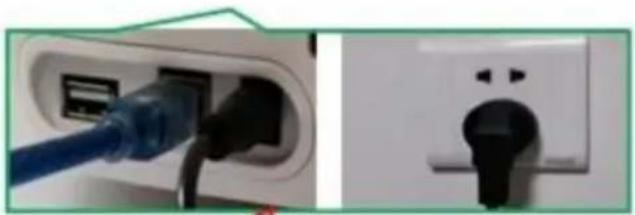
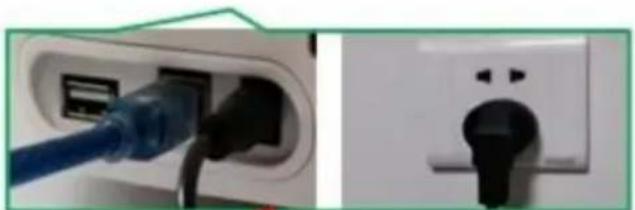
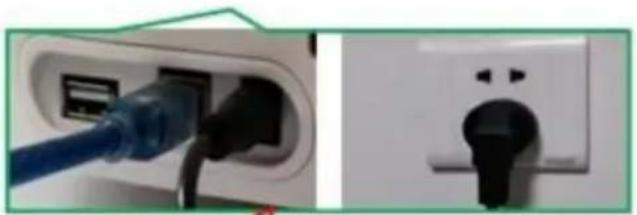
b: The USB cable is used to connect c: Plug in the power supply.
Smart1 to your computer.
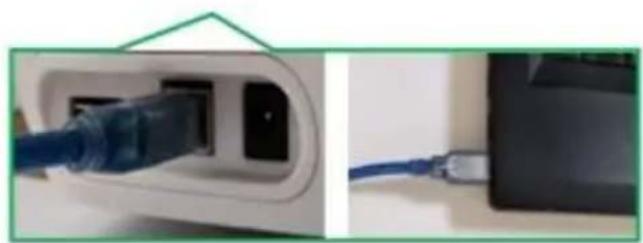
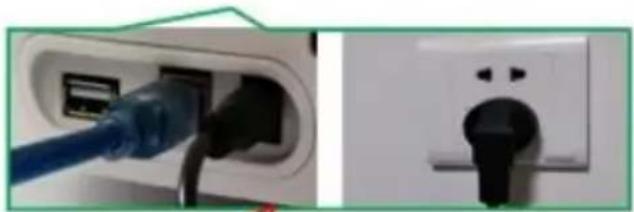
natural_image
Close-up of a blue cable inserted into a white electrical outlet, next to a black electronic device (no visible text or symbols)
natural_image
Close-up of a blue cable inserted into a white socket, showing internal components and a black socket with two handles (no text or symbols visible)Attention: Before powering on, check whether the voltage and current of the machine adapter match the location. Once confirmed, you can proceed to power on to avoid potential hazards.
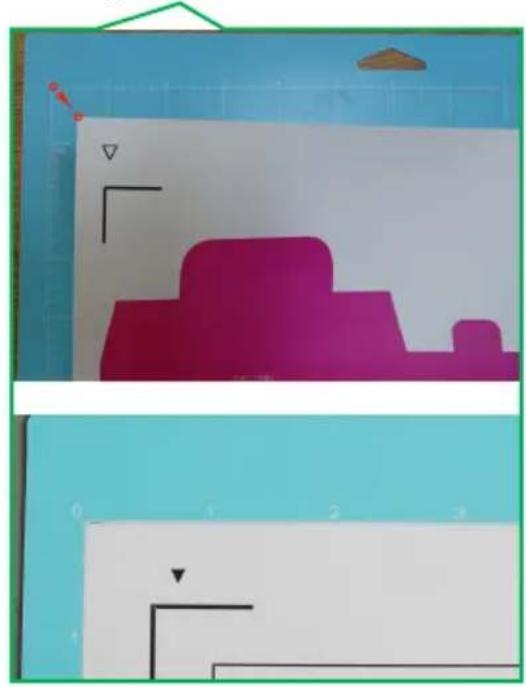
d: Press the power-on button and w f: Align the cutting surface of the for the machine to automatically rese material to be cut upwards with the upper left corner of the cutting pad and paste it onto the cutting pad v backing surface.
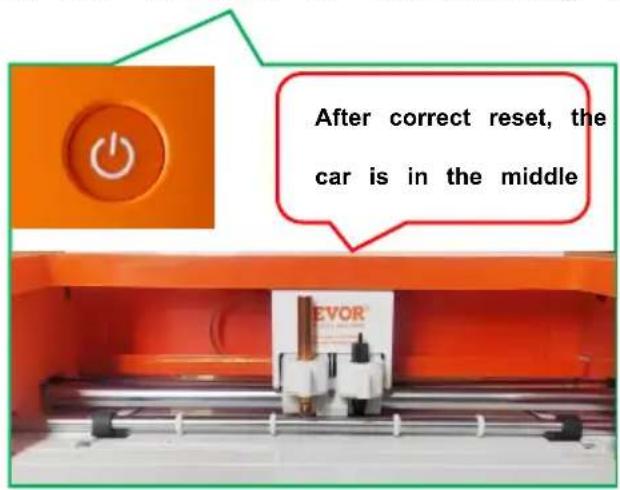
text_image
After correct reset, the car is in the middle
natural_image
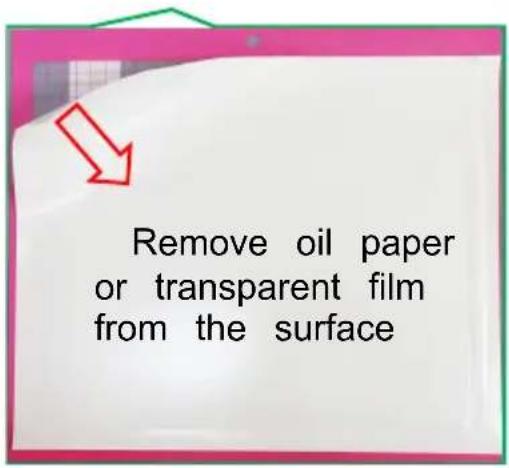
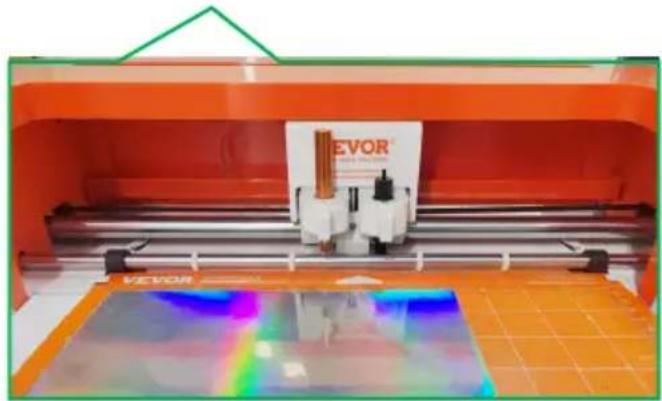
Two-panel diagram showing a magenta 3D shape on a white background with grid lines and arrows, no text or symbols present.e: Remove the cutting pad and tear the white oil paper protective film. g: place material on the mat inside grid, position it underneath the mat guides, and make sure both rollers slightly clamp the top edge of the the same time.
text_image
Remove oil paper or transparent film from the surface
natural_image
Industrial printing machine with orange casing and visible internal components (no readable text or symbols)VI. Software Installation
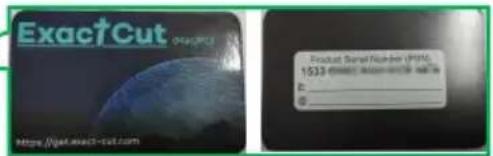
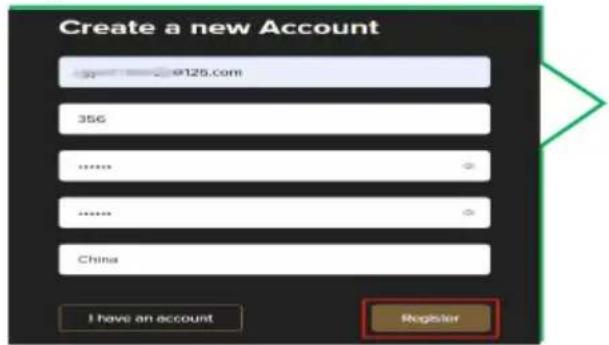
- Download the corresponding version of software installation through the link. https://get.exact-cut.com/
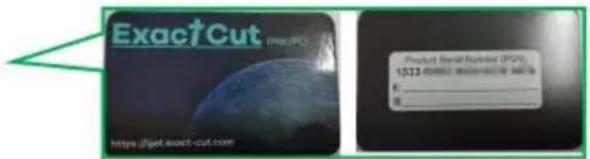
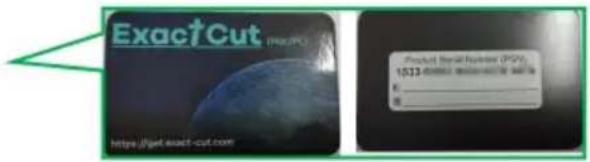
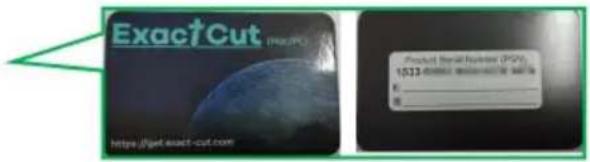
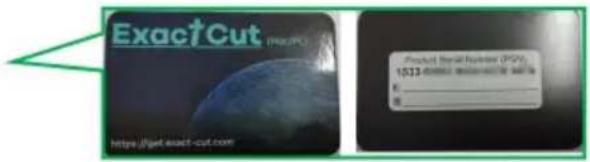
- Before installing the software, find the refrigerator sticker with the software
PSN code in the accessory box.
text_image
ExactCut Product Serial Number (PMT) 1533 (Product Serial Number is not B: ____ ©__- Enter the given link in your browser to access the registration screen.
3.1 Click Register after entering your registration information
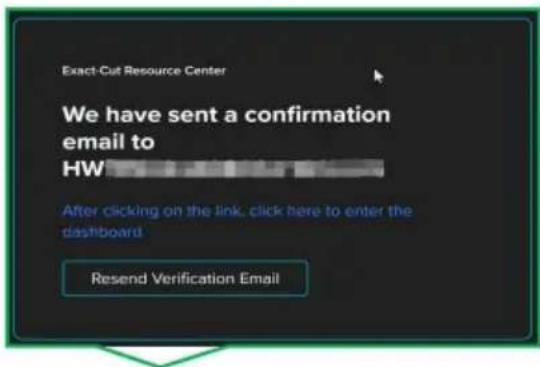
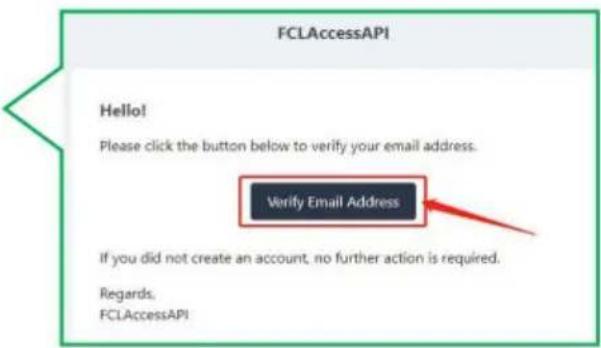
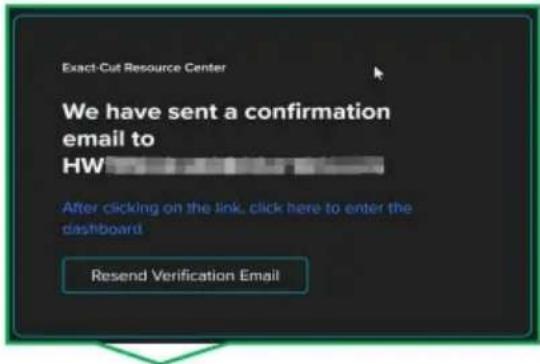
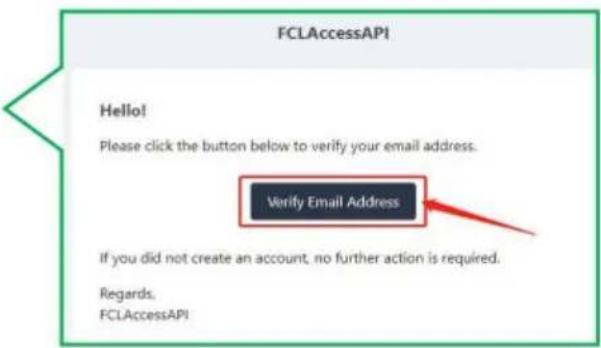
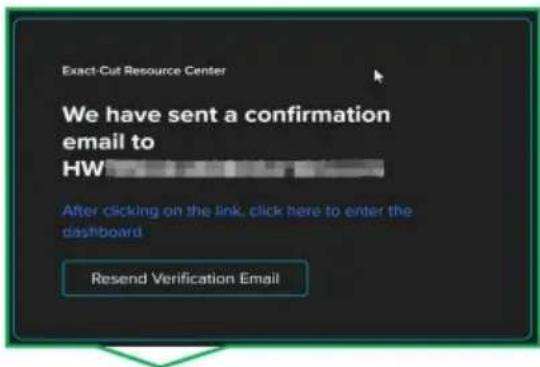
3.2 Proceed to your email address to verify your account.
text_image
Create a new Account 9125.com 356 ****** ****** China I have an account Register
text_image
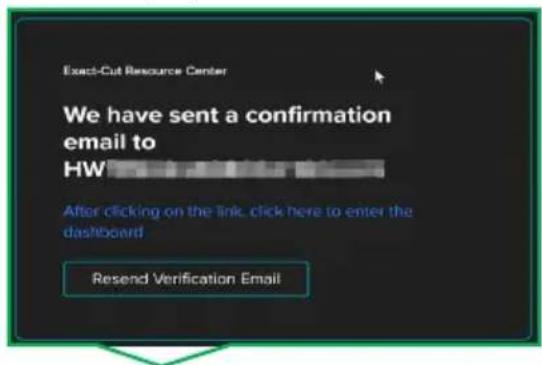
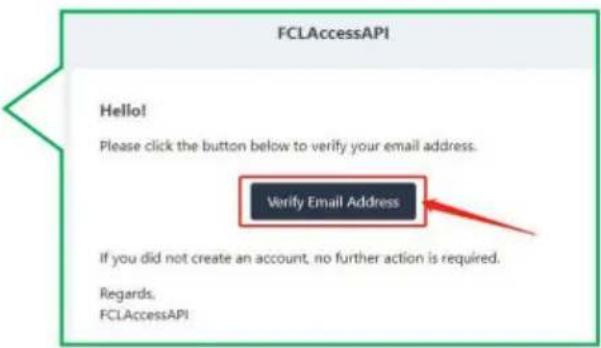
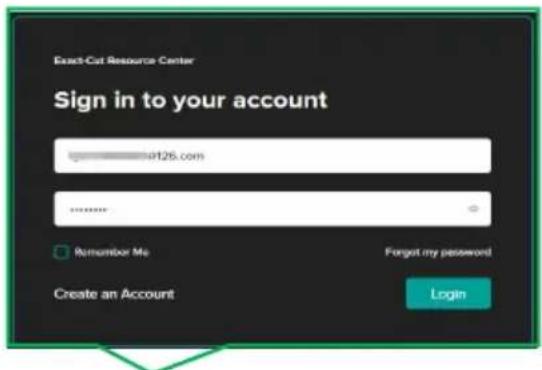
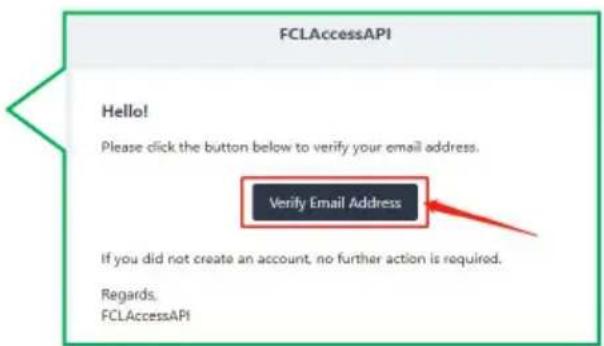
Exact-Cut Resource Center We have sent a confirmation email to HW After clicking on the link, click here to enter the dashboard Resend Verification Email3.4 Please enter the PSN code found ( 3.3 Click here to verify email refrigerator sticker in the accessory box.
text_image
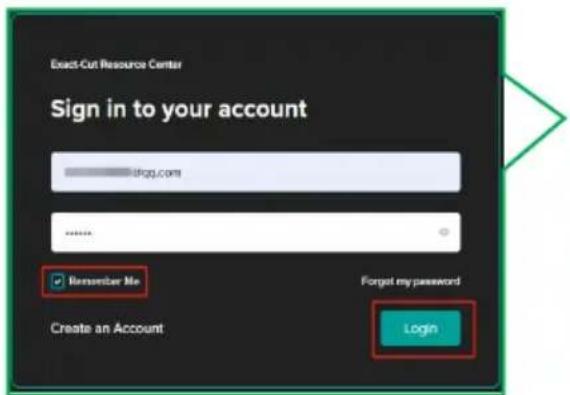
Exact-Cut Resource Center Sign in to your account 19126.com ****** Remember Me Create an Account Forgot my password Login
text_image
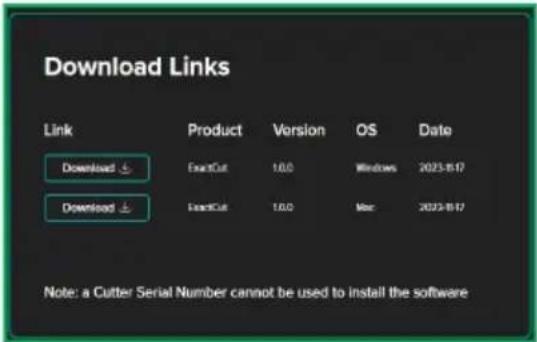
FCLAccessAPI Hello! Please click the button below to verify your email address. Verify Email Address If you did not create an account, no further action is required. Regards. FCLAccessAPI3.5 Download the appropriate software version based on your computer system.
text_image
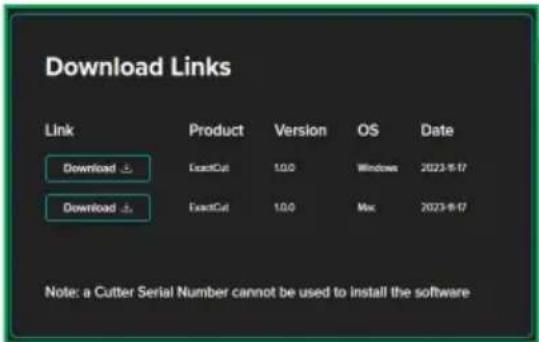
Download Links Link Product Version OS Data Download ExactCut 1.0.0 Windows 2023-8-17 Download ExactCut 1.0.0 Mac 2023-8-17 Note: a Cutter Serial Number cannot be used to install the software- Double click the desktop installation package.
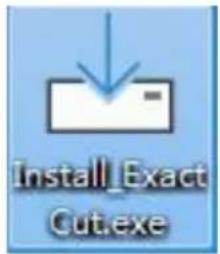
text_image
Install_Exact Cut.exe- Install the program in order.
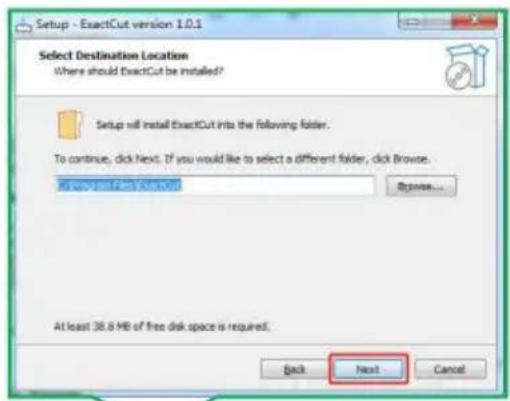
5.1 Agree and click "Next"
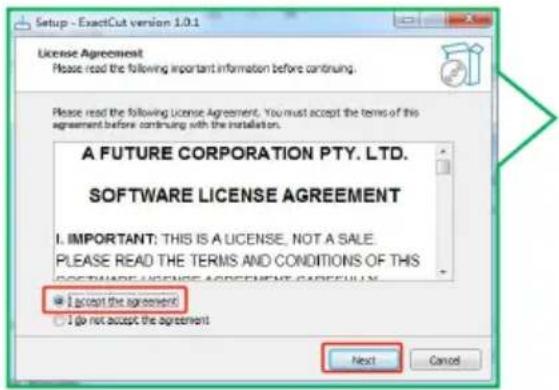
text_image
Setup - ExactCut version 1.0.1 License Agreement Please read the following important information before continuing. Please read the following License Agreement, You must accept the terms of this agreement before continuing with the installation. A FUTURE CORPORATION PTY. LTD. SOFTWARE LICENSE AGREEMENT I. IMPORTANT: THIS IS A LICENSE, NOT A SALE. PLEASE READ THE TERMS AND CONDITIONS OF THIS SOFTWARE LICENSE AGREEMENT CARESULLIN. I accept the agreement I do not accept the agreement Next Cancel5.4 Click "Finish"

text_image
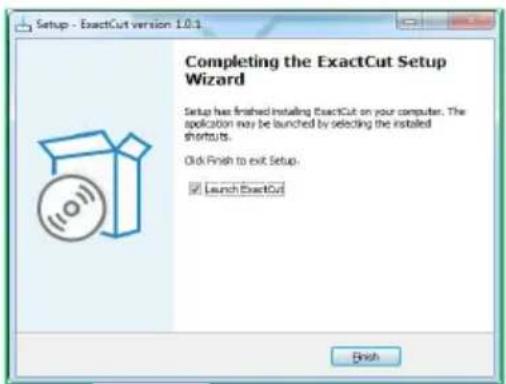
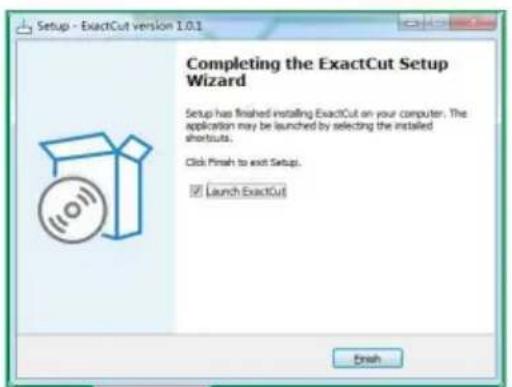
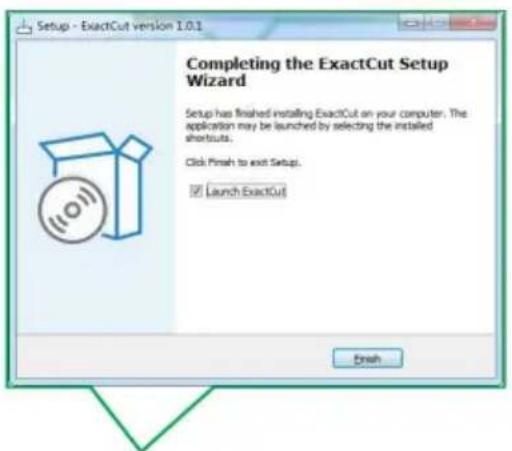
Setup - ExactCut version 1.0.1 Completing the ExactCut Setup Wizard Setup has finished installing ExactCut on your computer. The application may be launched by selecting the installed shortcuts. Click Finish to exit Setup. Launch ExactCut Finish5.2 Click "Next"

text_image
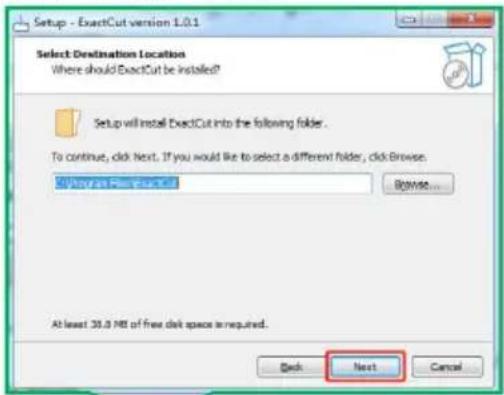
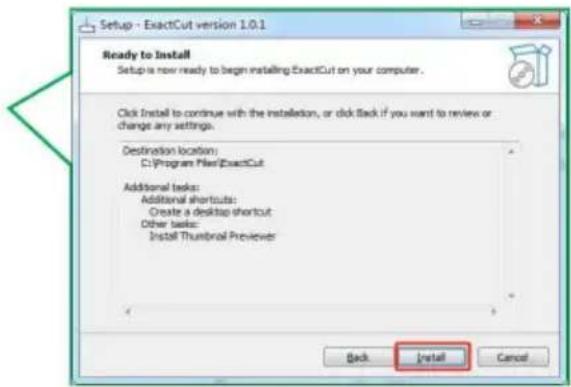
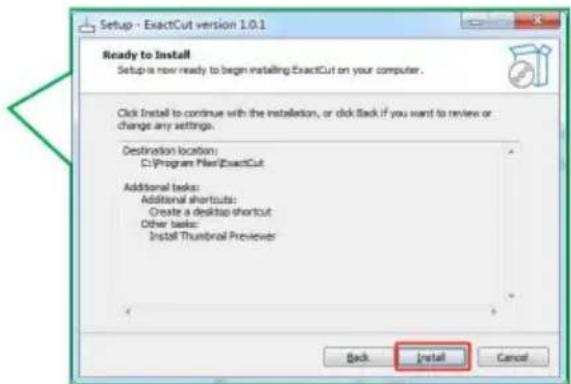
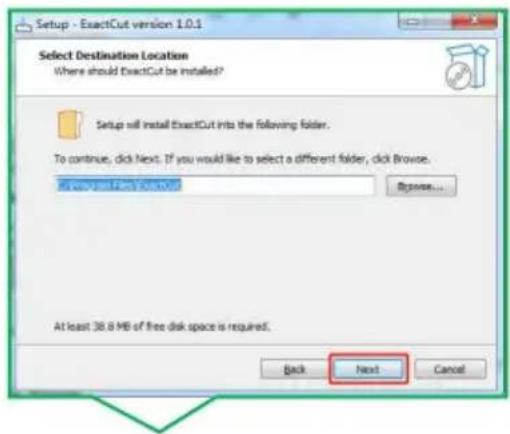
Setup - ExactCut version 1.0.1 Select Destination Location Where should ExactCut be installed? Setup will install ExactCut into the following folder. To continue, click Next. If you would like to select a different folder, click Browse: All rights reserved. Browse... At least 30.0 MB of free disk space is required. Back Next Cancel5.3 Click "Install."

text_image
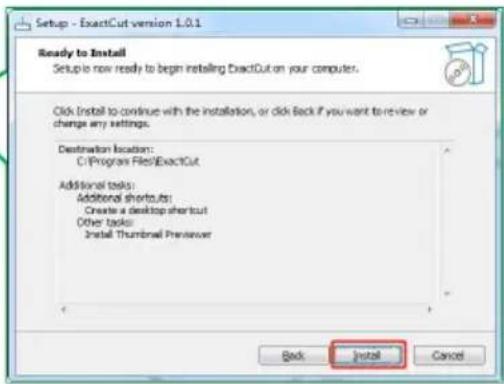
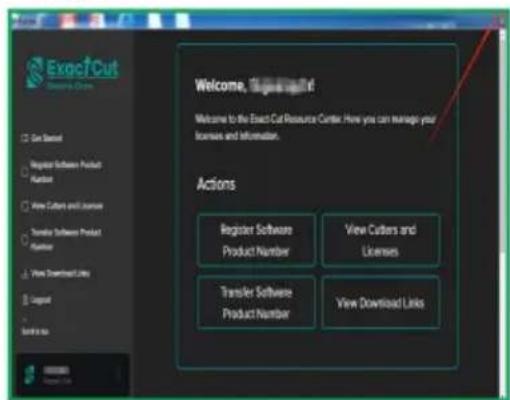
Setup - ExactCut version 1.0.1 Ready to Install Setup is now ready to begin installing ExactCut on your computer. Click Install to continue with the installation, or click Back if you want to review or change any settings. Destination location: C:\Program Files\ExactCut Additional tasks: Additional shortcuts: Create a desktop shortcut Other tasks: Install Thumbnail Preview Back Install Cancel5.5 Enter your email address to log 5.6 After successful login, close this your account. dialog box.

text_image
Exact-Cut Resource Center Sign in to your account ingq.com ****** Remember Me Create an Account Forgot my password Login
text_image
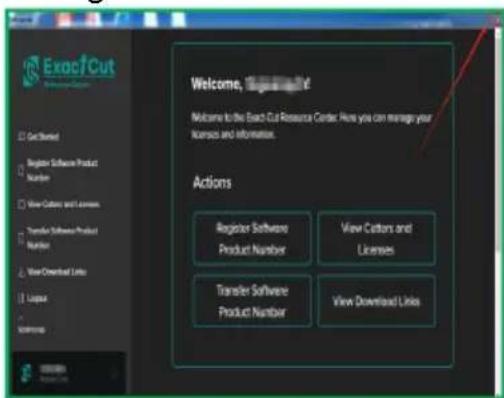
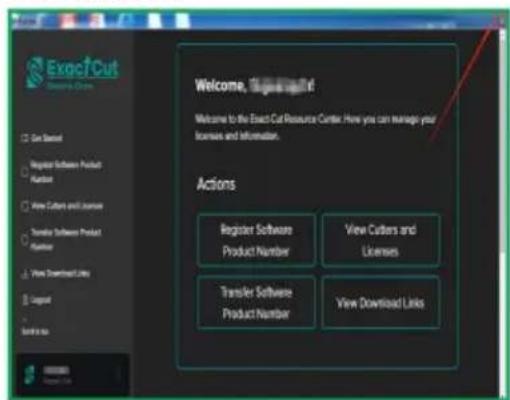
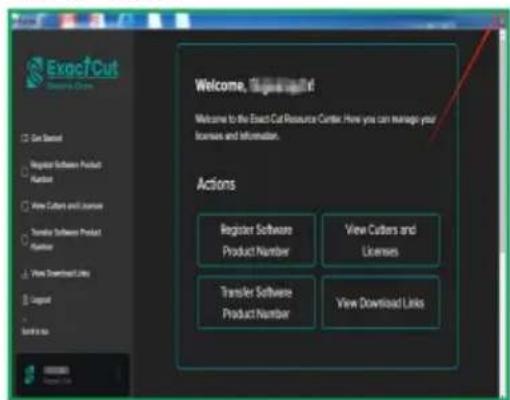
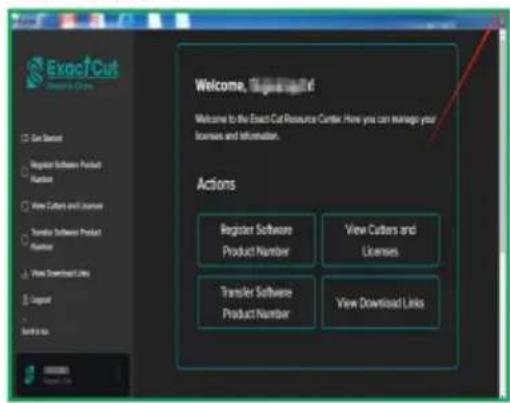
Exoc/Cut Welcome, Exported By Welcome to the Exoc/Cut Resource Center. Here you can manage your licenses and information. Actions Register Software Product Number View Customers and Licenses Transfer Software Product Number View Download LinksVII. Software Function Description
1. Main interface of the software
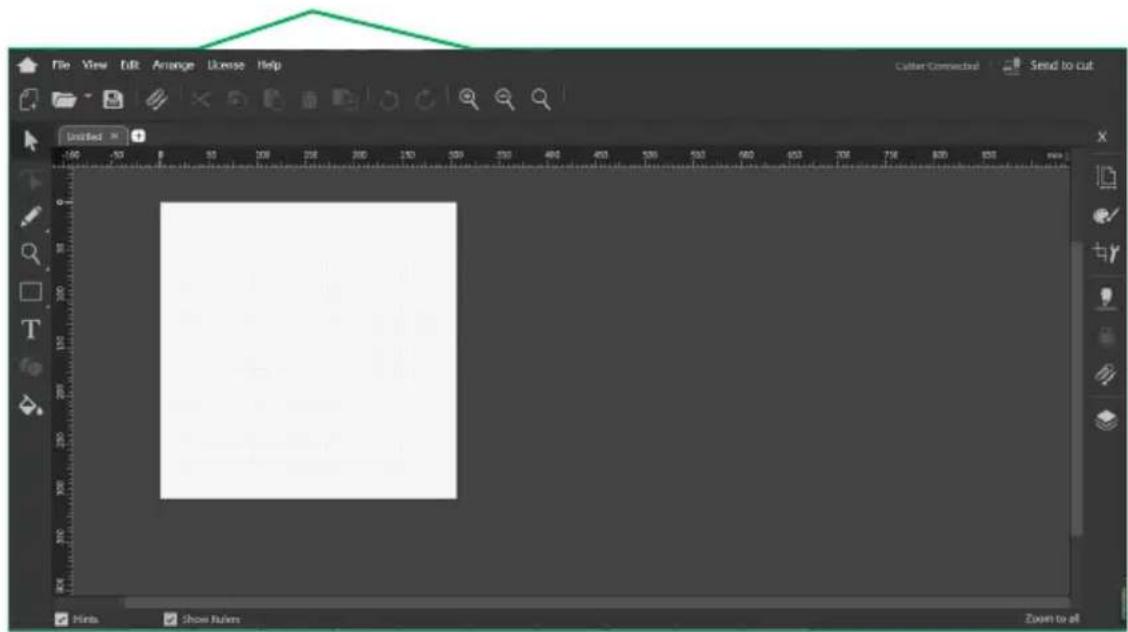
text_image
File View Edit Arrange Access Help Cutter Connected Send to cut Untitled Hindu Show Rulim Zoom to all2. Module Description
a:Menu bar(Includes features such as File, View, Edit, Arrange, License, and Help.)

text_image
File View Edit Arrange License Helpb:Common Options Toolbar (including File Create, Open and Save, File Import Cut, Object Copy, Paste and Delete, Duplicate, Undo and Redo, Zoom In, Zo Out and Zoom mode, and more.)

text_image
Toolbar with icons for file operations, document editing, and search functions
text_image
Vertical toolbar with icons for arrow, triangle, magnifying glass, square, letter 'T', and droplet symbolc:Left toolbar with selection, brush zoom in and out, shapes and me
d: The right toolbar contains feature such as Page Setup, Color, Size, Device Settings, Outline Tool, Galle and Layers

text_image
Vertical toolbar with icons representing file operations and tools, including X, document, brush, and editing functions.e:Canvas interface editing area

natural_image
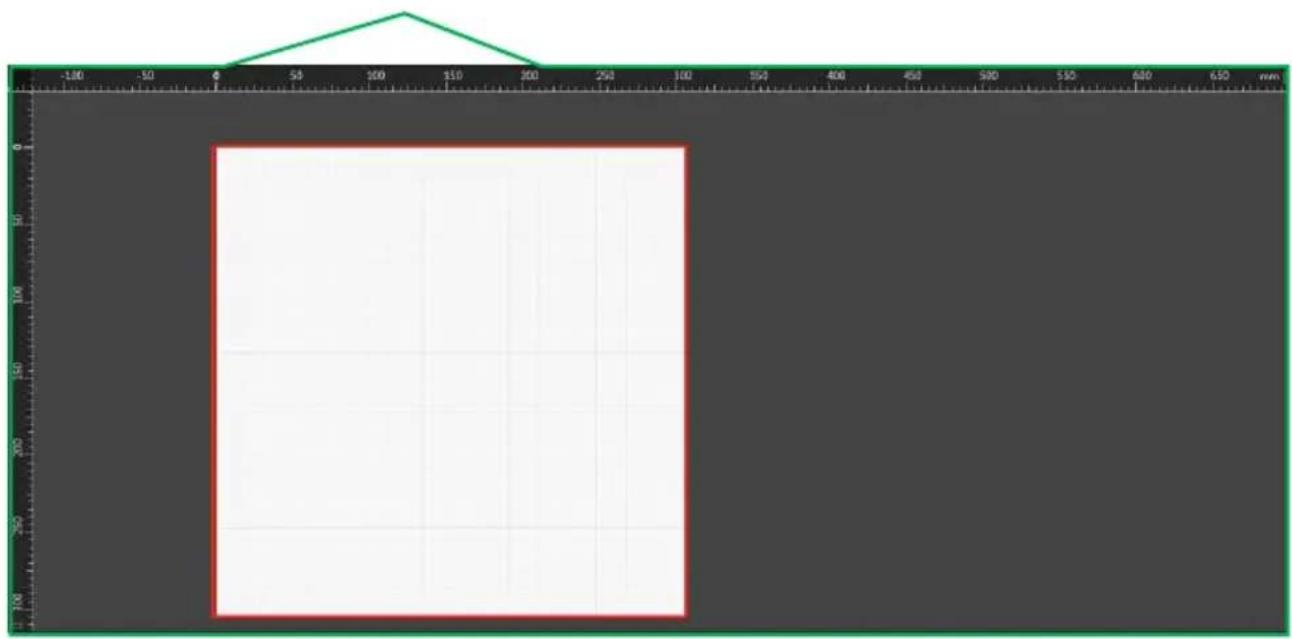
Pure technical diagram with a green triangular shape above a grid, no text or symbols present.VIII. Software Output Cutting
1.Normal Cutting Output
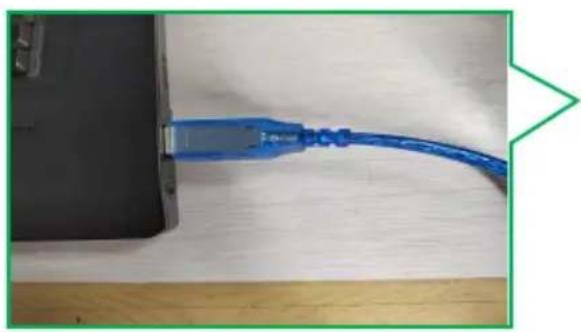
1.1 Plug in the cable that connec 1.2 Check here if the machine is the machine. connected after opening the software.
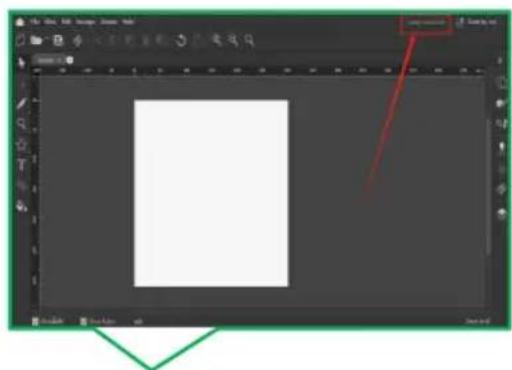
natural_image
Close-up of a blue USB cable attached to a black device on a wooden surface (no text or symbols visible)
natural_image
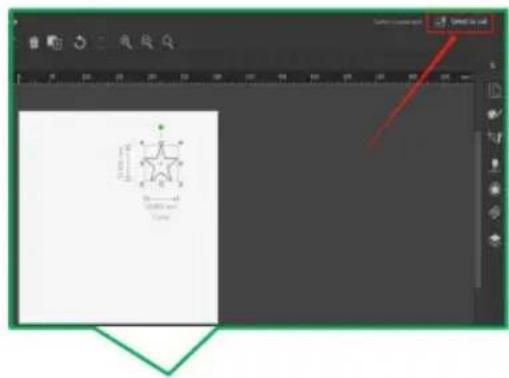
Screenshot of a graphic design software interface showing a blank canvas with toolbars and a red arrow pointing to the top-right corner (no text or symbols on the canvas itself)1.4 Selected shapes can be edited
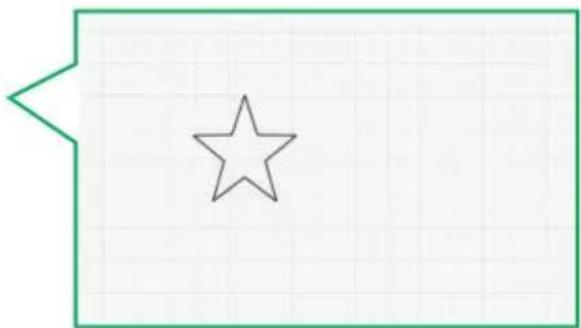
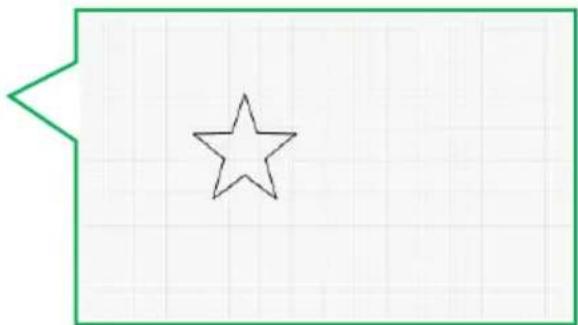
1.3 Design graphics can be created from the software toolbar or imported from file (SVG, PNG and JPG formats are supported for import).
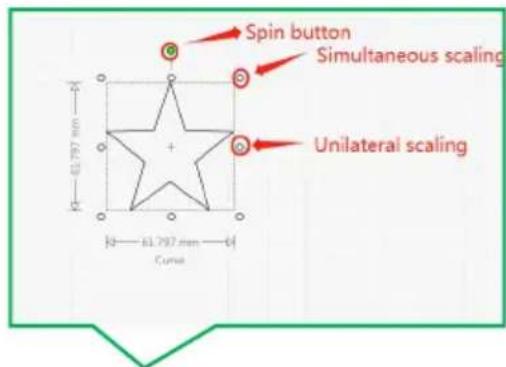
text_image
Spin button Simultaneous scaling Unilateral scaling φ1.797 mm φ1.797 mm φ1 φ1
natural_image
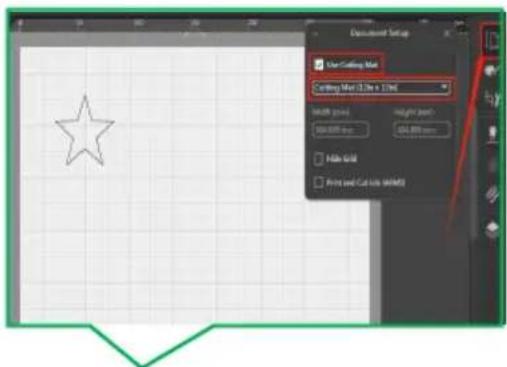
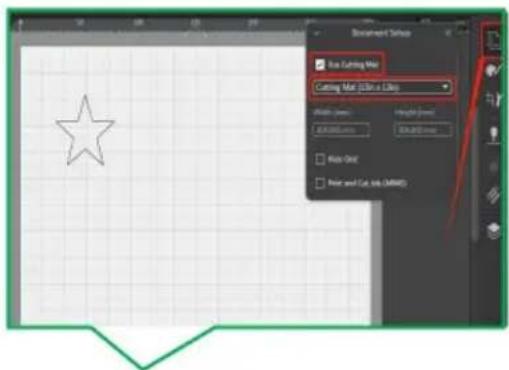
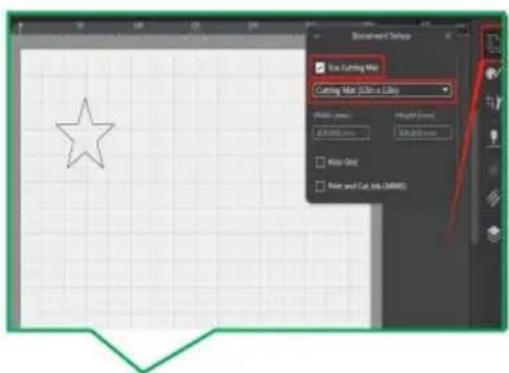
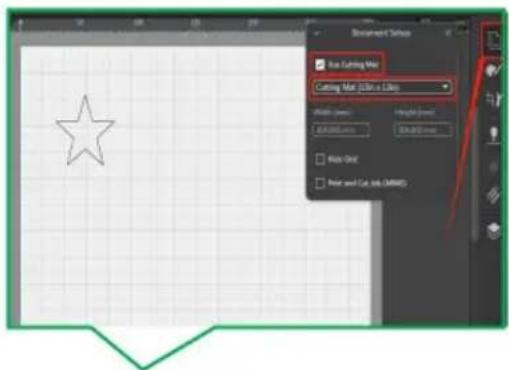
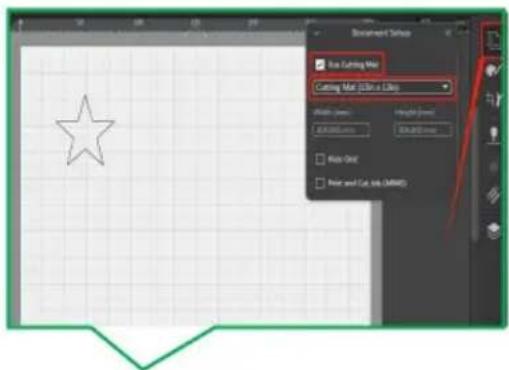
Simple green outline of a five-pointed star on grid paper background (no text or symbols)1.5 Setting the cutting mat

text_image
User Cutting Net Cutting Net 3.0x 1.0x 1.0x Multi-Point Multi-Point Multi-Point Multi-Point Multi-Point Multi-Point Multi-Point Multi-PointTip: Cutting mats must be used when working soft rolls with adhesive backing or single-layer materials (when choosing cutting mats, select appropriate size for the material used), while harder double-layer materials can be used with cutting mats. However, it is recommended to cutting mats for all materials!
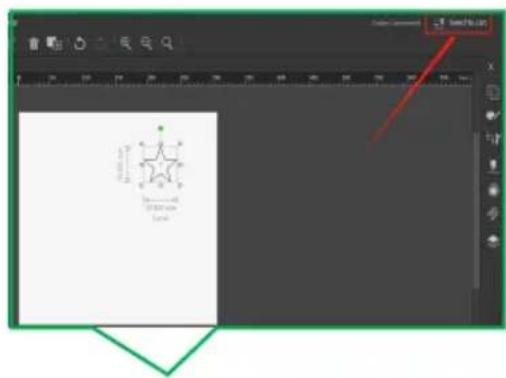
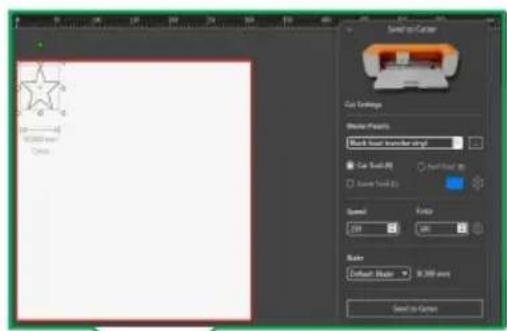
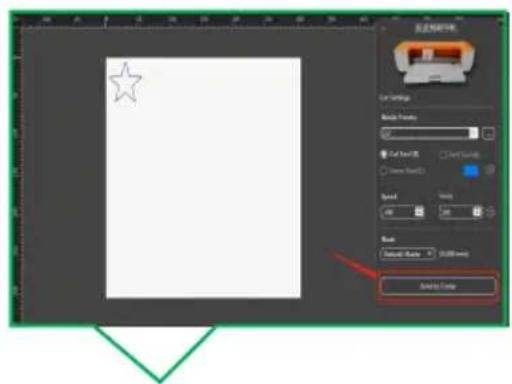
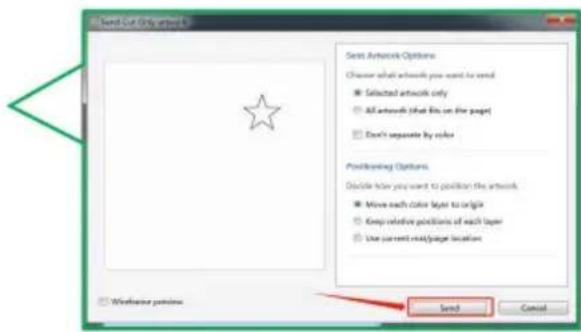
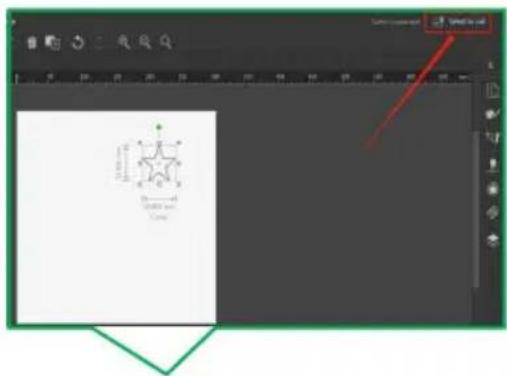
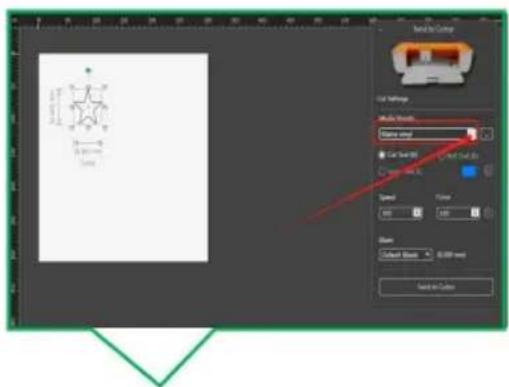
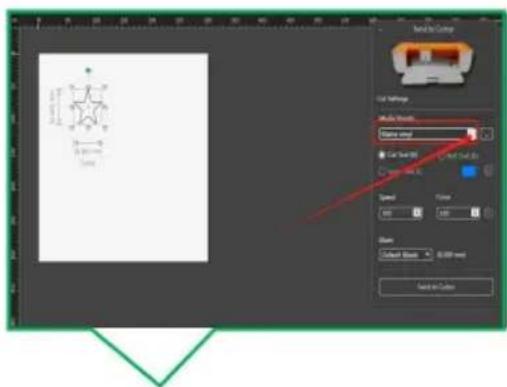
1.6 Select CLAMP L or CLAMP R 1.7 Click "Send to cut" according to the settings in the figur below, the default is CLAMP R, while the cutting tool clamp
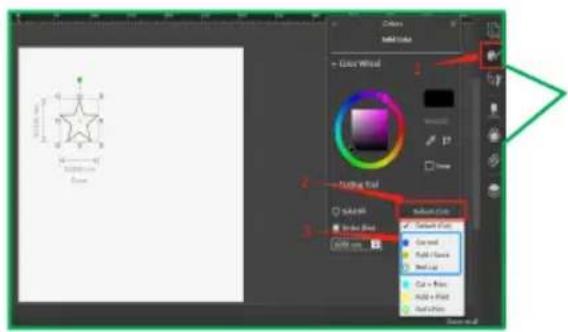
text_image
Colors MIME Color + Color Wristel 17 None Cut off SAMS Show Red SAMS SAMS SAMS SAMS SAMS SAMS SAMS SAMS SAMS SAMS SAMS SAMS SAMS SAMS SAMS SAMS SAMS SAMS SAMS SAMS SAMS SAMS SAMS SAMS SAMS SAMS SAMS SAMS SAMS SAMS SAMS SAMS SAMS SAMS
text_image
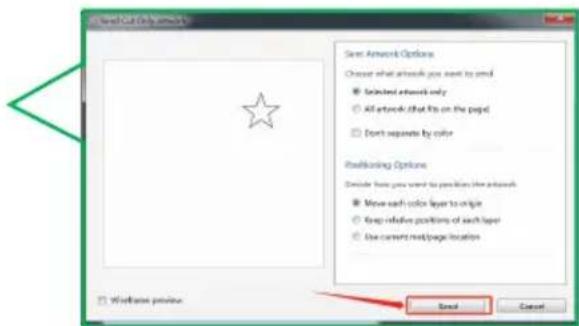
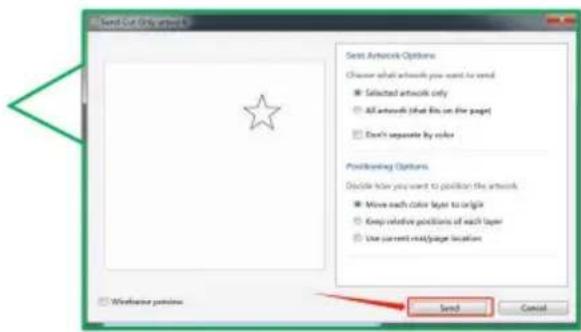
Screenshot of a graphic design software interface showing a star-shaped logo on the canvas and toolbar with Chinese labels.1.9 Move the graph in this screen | 1.8 Click "Send" adjust the cutting position.

text_image
Save to Carton Cut Settings Driver Tools: Block User Transfer origin Car Tool: 0 Auto Tools: 0 Cancel OK Cancel Auto Default Mode: 100% error Cancel to Carton
text_image
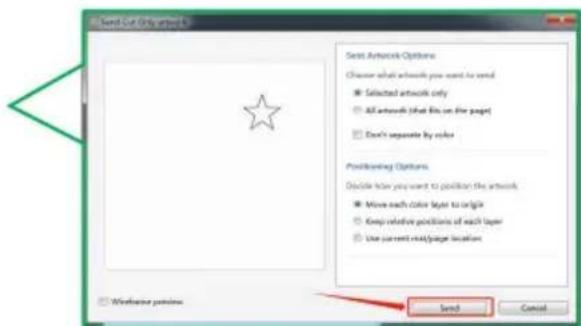
Create a new document Select Article Options Choose what articles you need to send Selected articles only All articles (that is on the page) Don't separate by color Reconfiging Options Decide how you want to position the articles Move each color layer to origin Keep relative positions of each layer Use current next/page location Send Cancel1.10 Select the corresponding material from the material pool here.
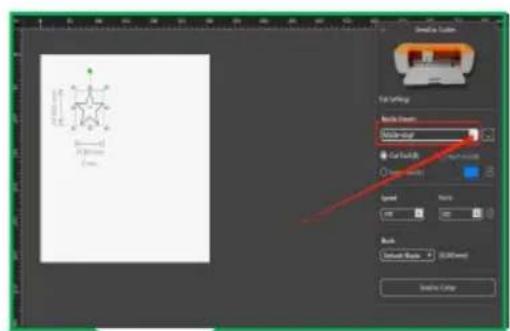
text_image
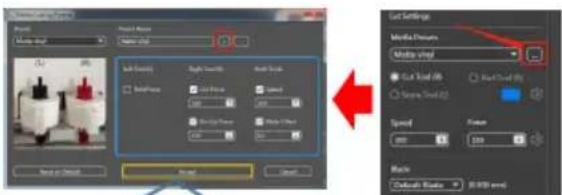
Back Settings Close Image Close Image Close Image Speed Name Back Close Image Close Image Close ImageNote: 1. There is no material in the material that I am using, please click here to add ma

text_image
Audio Vinyl Audio Vinyl Audio Vinyl Audio Vinyl Audio Vinyl Audio Vinyl Audio Vinyl Audio Vinyl Audio Vinyl Audio Vinyl Audio Vinyl Audio Vinyl Audio Vinyl Audio Vinyl Audio Vinyl Audio Vinyl Audio Vinyl Audio Vinyl Audio Vinyl Audio Vinyl Audio Vinyl Audio Vinyl Audio Vinyl Audio Vinyl Audio Vinyl Audio Vinyl Audio Vinyl Audio Vinyl Audio Vinyl Audio Vinyl Audio Vinyl Audio Vinyl Audio Vinyl Audio Vinyl Radio Settings Media Drive Radio Vinyl Gut Vinyl Gut Cloud BV Squeeze Seal (2) Speed Speed Speed Speed Speed Speed Speed Speed Speed Speed Speed Speed Speed Speed Speed Speed Speed Speed Speed Speed Speed Speed Speed Speed Speed Speed Speed SpeedClick on the red area to add the name of the material on the blue area to set the speed pressure of the too on the yellow area to accept, add the material is com
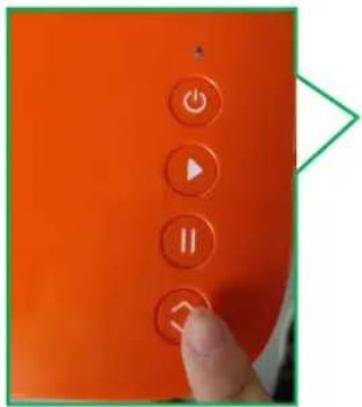
1.11 Click here to send cuts

text_image
AutoCAD File Settings Balance Preview 60% AutoCAD Current Preview 12% Spread: 40% Blue Automatic Blade: 0.000 mm Added Copy
text_image
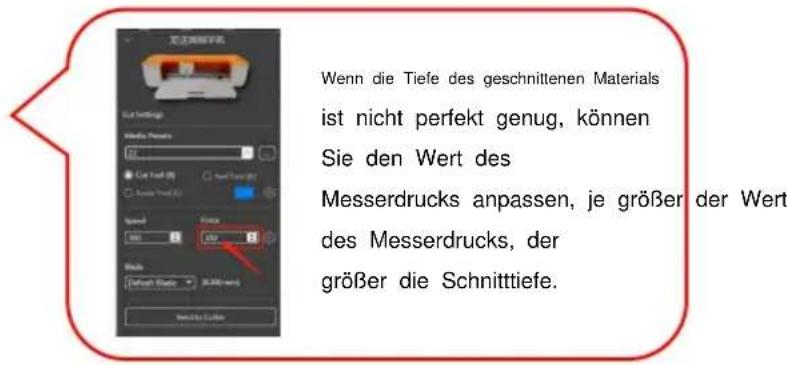
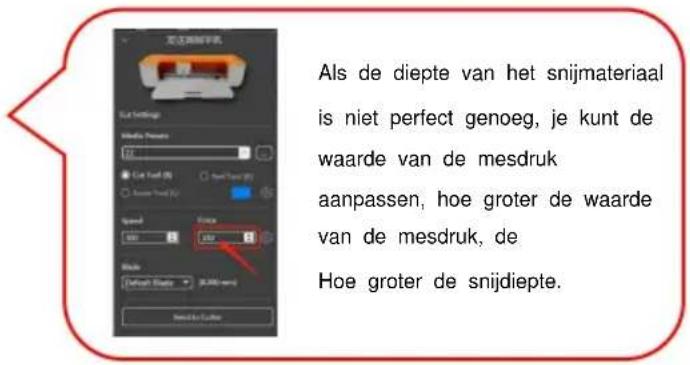
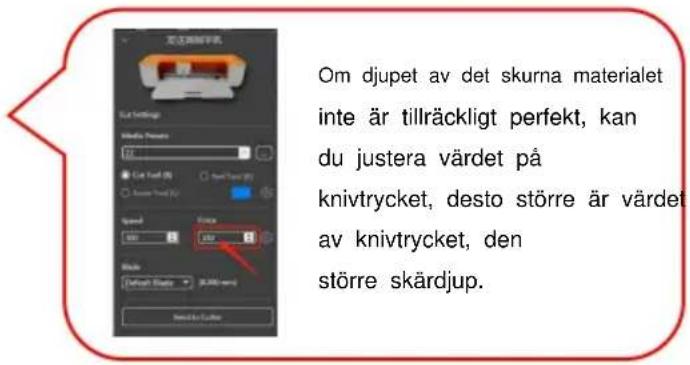
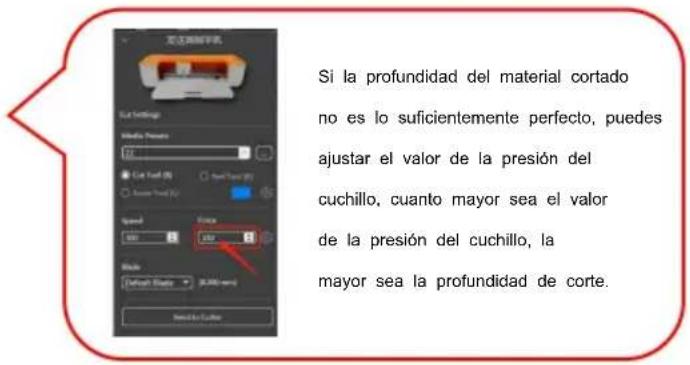
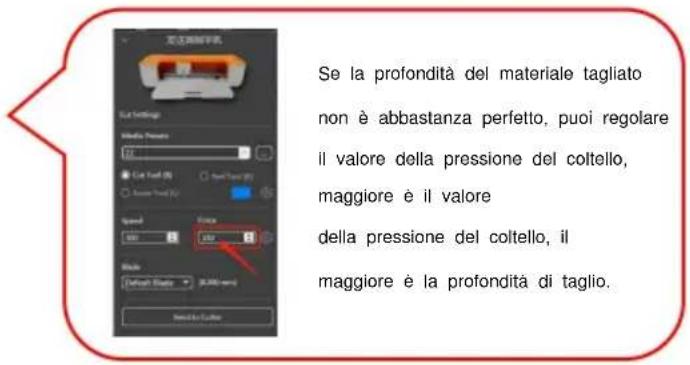
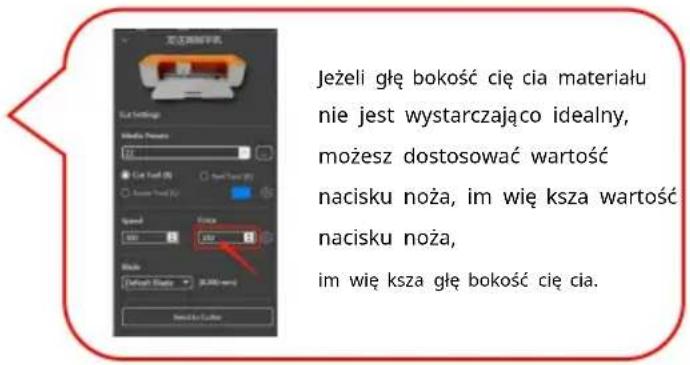
连接网络手机 User Settings Modify Points Speed Size Block Default: Default [100% width] Load to EditIf the depth of the cut mater is not perfect enough, you can adjust the value of the knife pressure, the larger the value of the knife pressure, the greater the cutting depth.
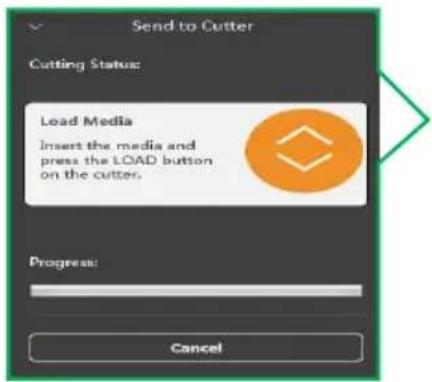
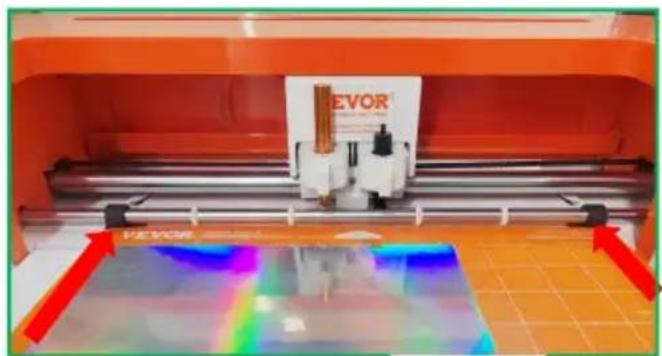
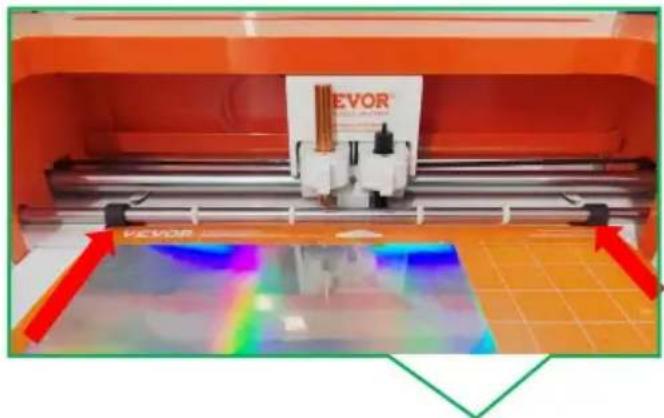
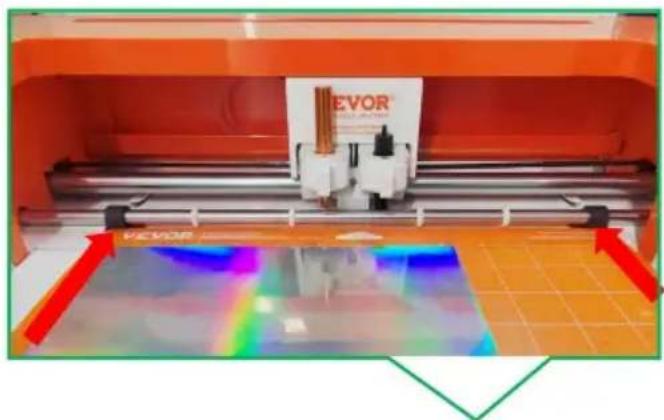
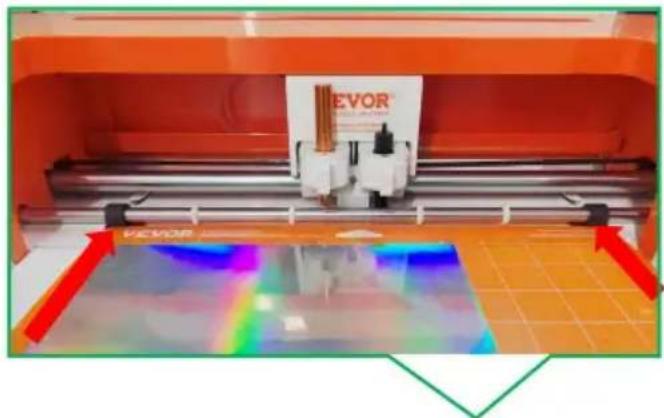
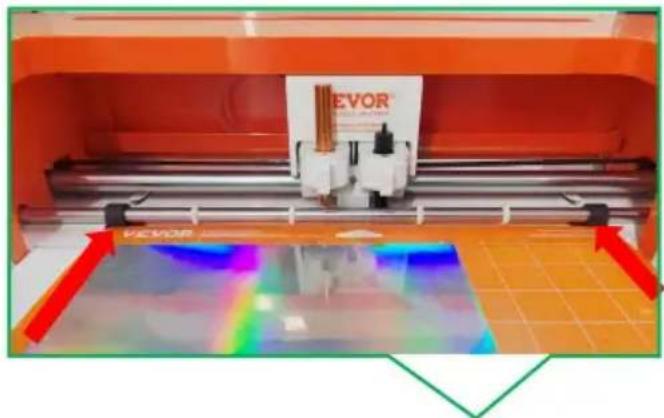
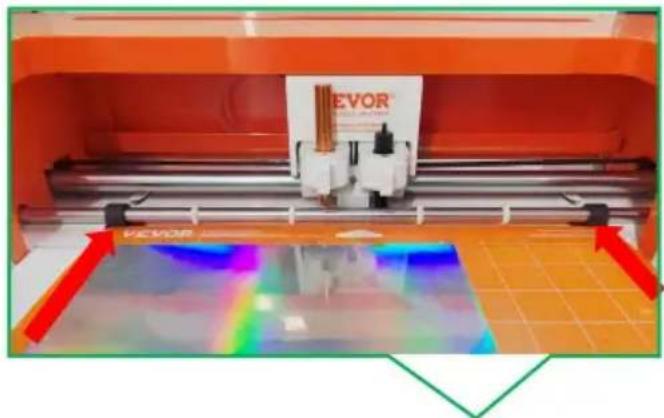
1.12 Prompt to press the paper feed 1.13 Place the material on the mat inside the grid, position the mat underneath the mat guides, and ends that the top edge of the mat is secured by both rollers simultaneous

text_image
Send to Cutter Cutting Status: Load Media Insert the media and press the LOAD button on the cutter. Progress: Cancel
natural_image
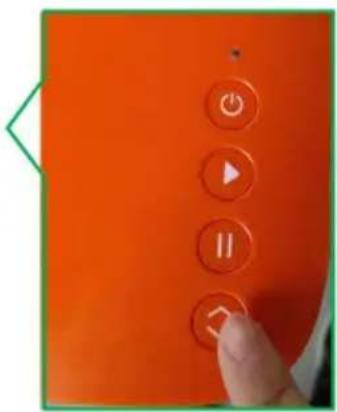
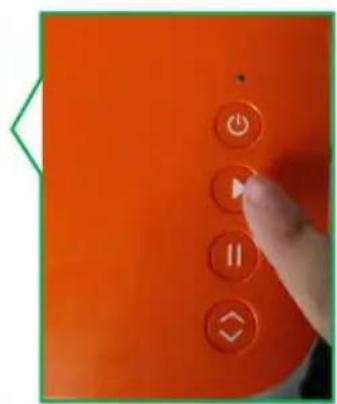
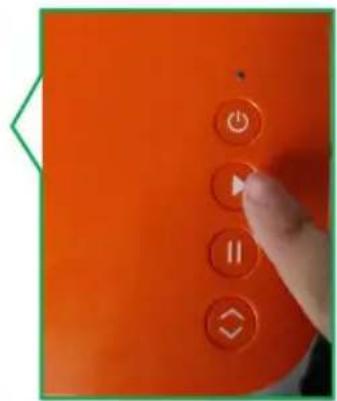
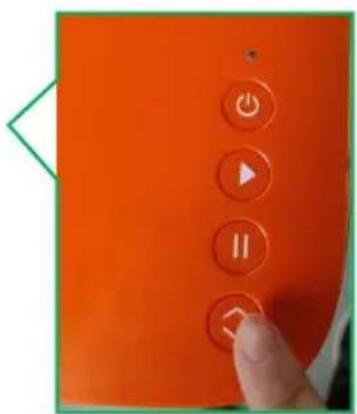
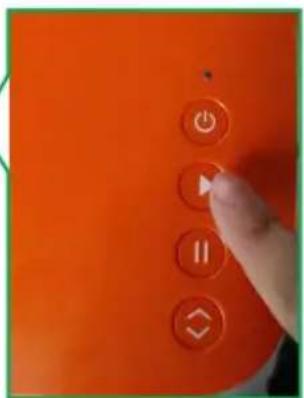
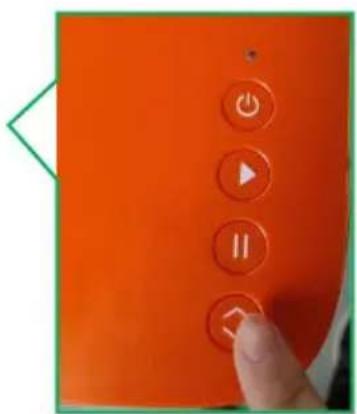
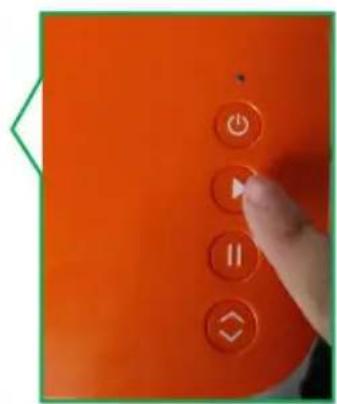
3D printer printing process with VEVOR branding and color calibration overlay (no readable text or symbols)1.16 Press the start 1.15 Prompt to press tl 1.14 Press the LOAD button on the machine. start button. button when the material is ready.

text_image
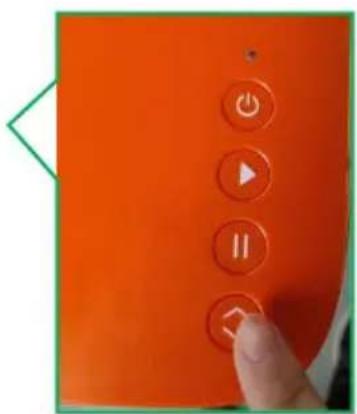
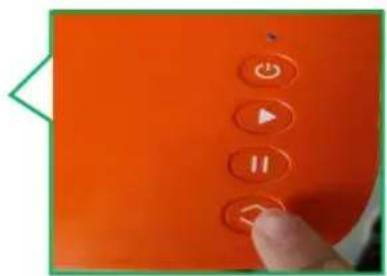
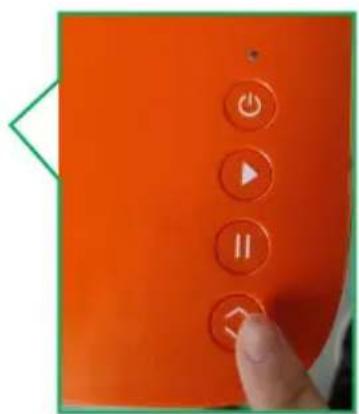
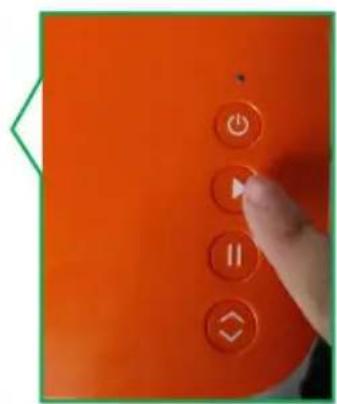
Orange screen control panel with four buttons labeled Power, Pause, Launch, and Delete symbols
text_image
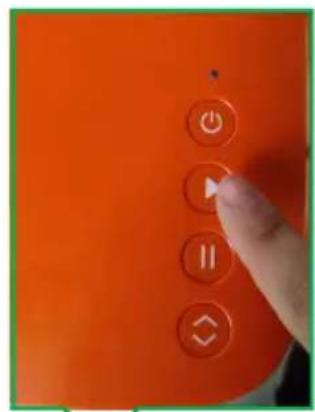
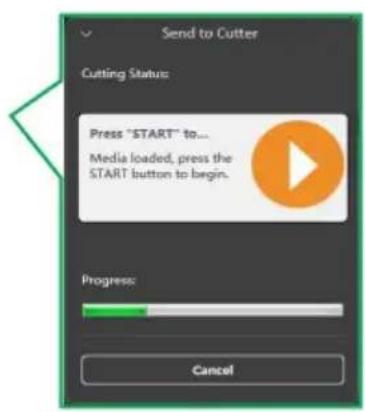
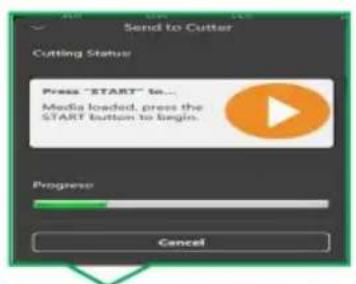
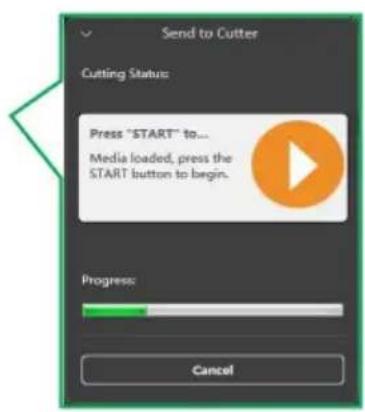
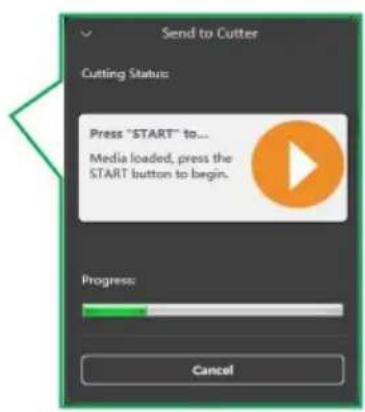
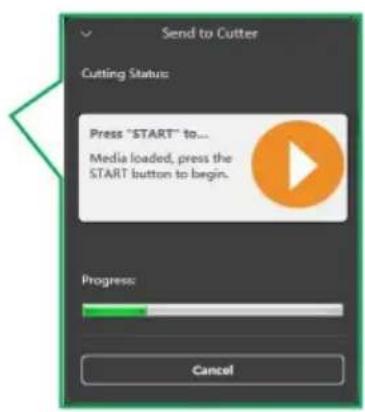
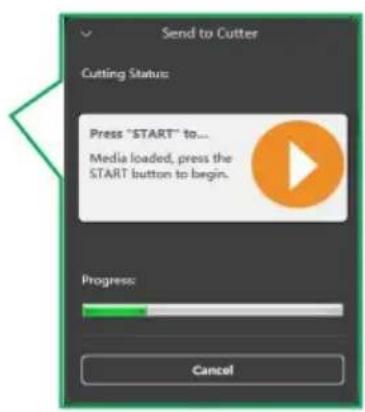
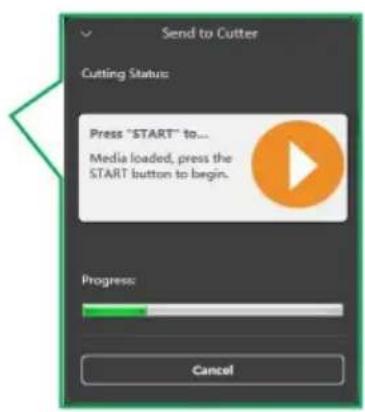
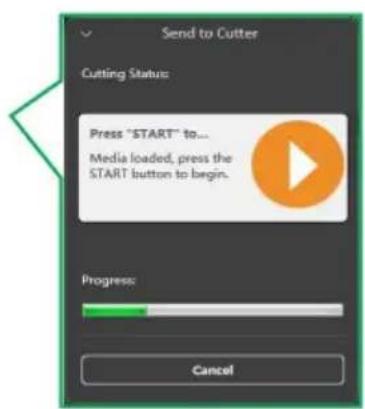
Send to Cutter Cutting Status Press "START" to... Media loaded, press the START button to begin. Progress: Cancel
text_image
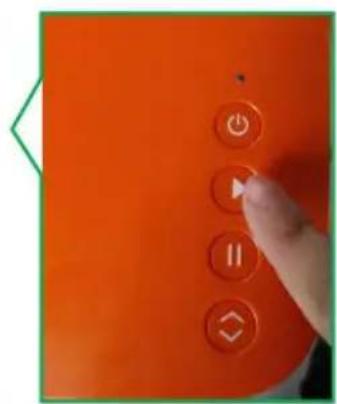
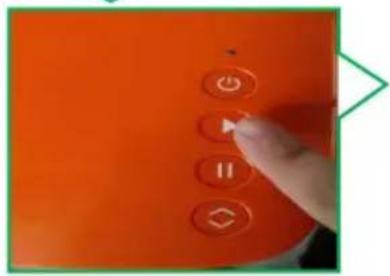
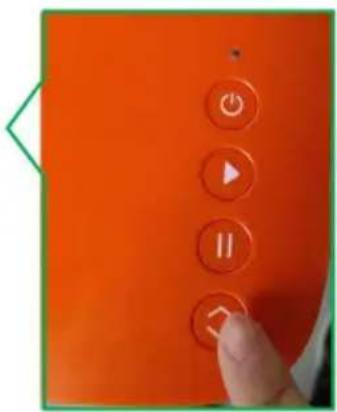
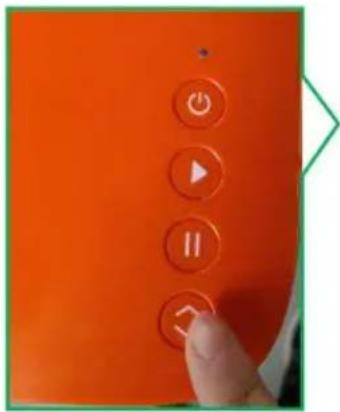
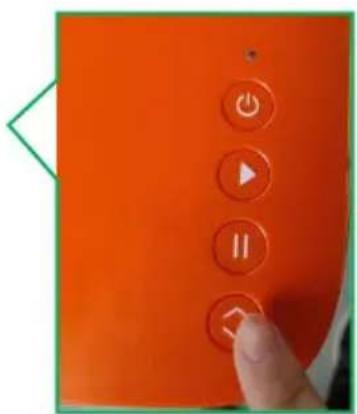
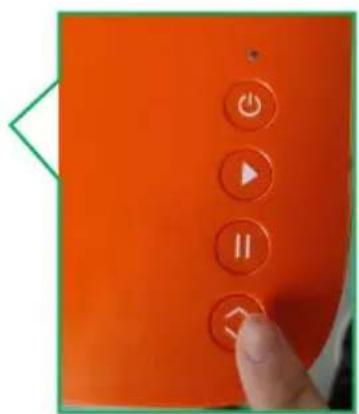
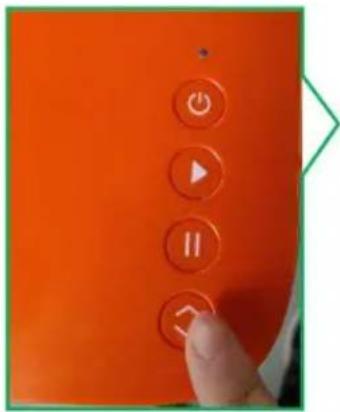
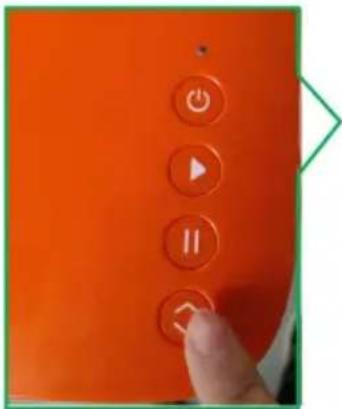
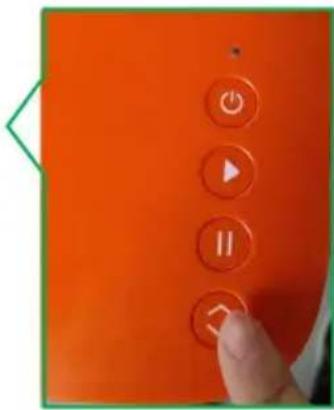
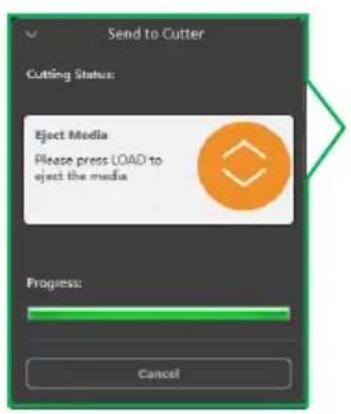
Orange screen control panel with play, pause, and double buttons labeled in Chinese1.17 When processing is 1.18 Press the
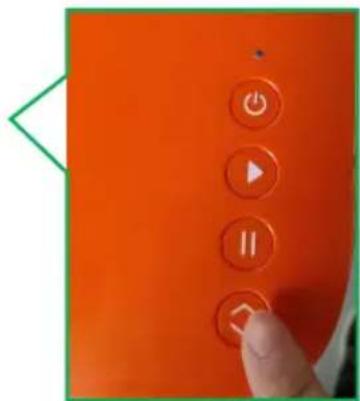
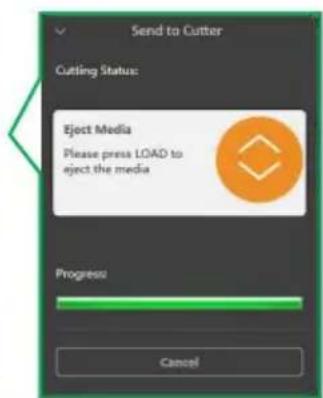
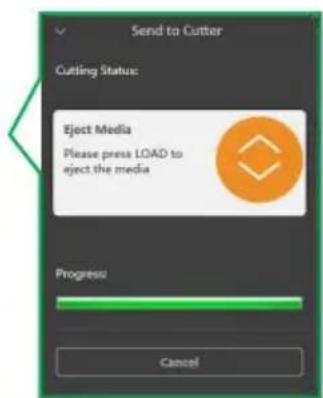
1.19 Cutting Completion.
complete, the software wi machine's
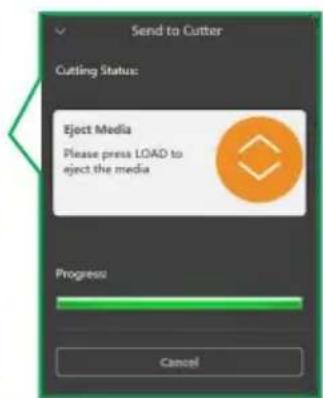
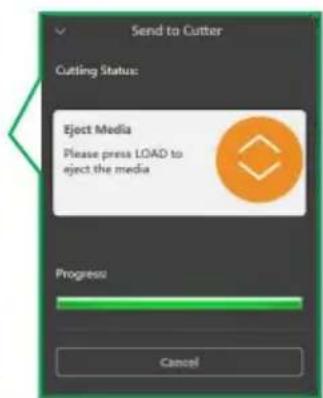
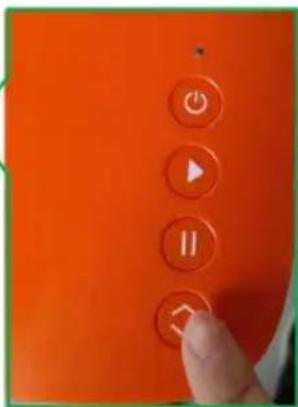
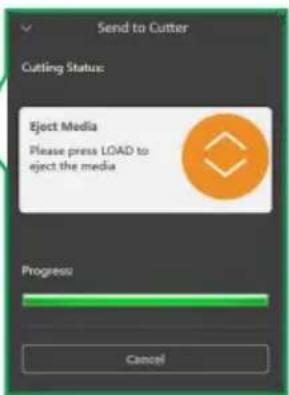
prompt you to press the LOAD/UNLOAD button.
LOAD button.
text_image
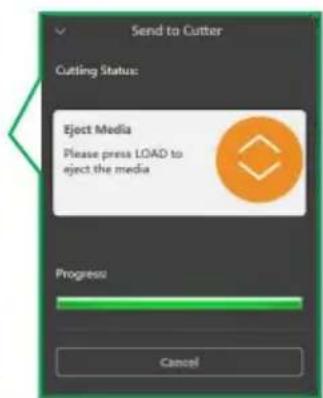
Send to Cutter Cutting Status: Eject Media Please press LOAD to eject the media Progress: Cancel
text_image
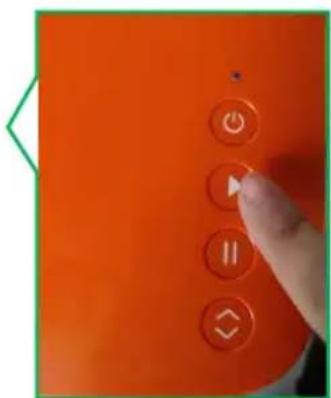
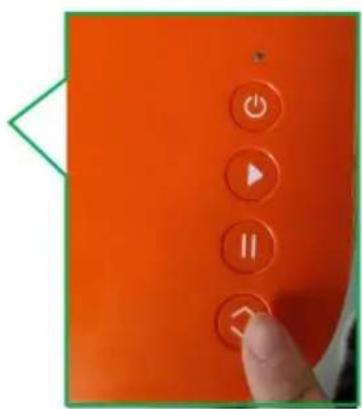
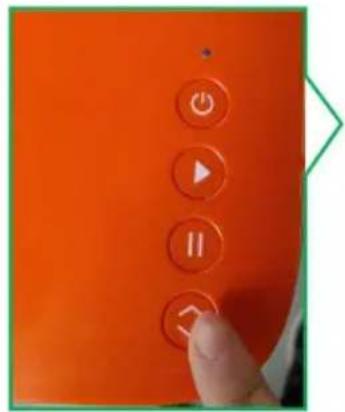
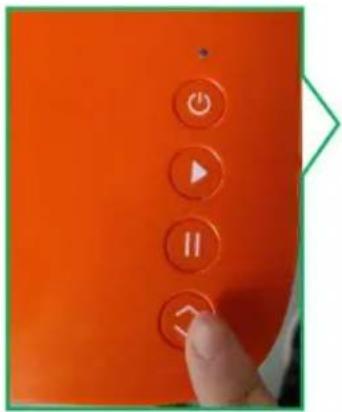
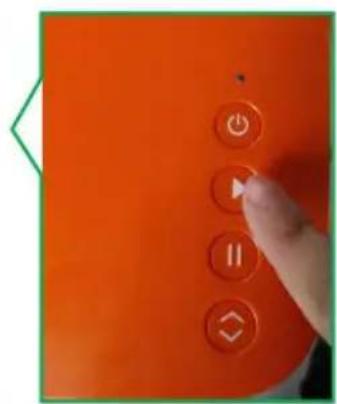
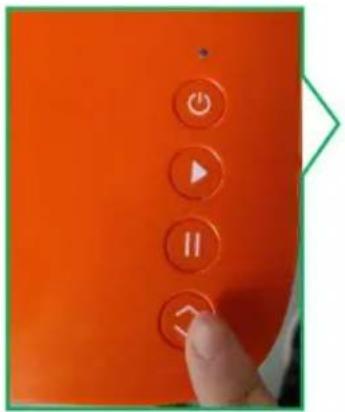
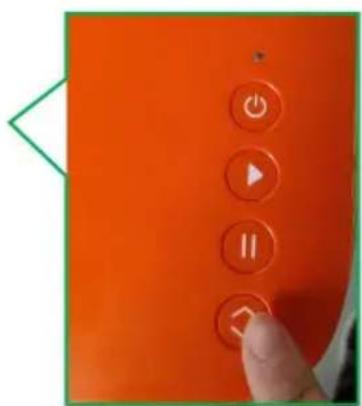
Orange electronic device control panel with play, pause, and stop buttons, plus a finger pressing the button.
natural_image
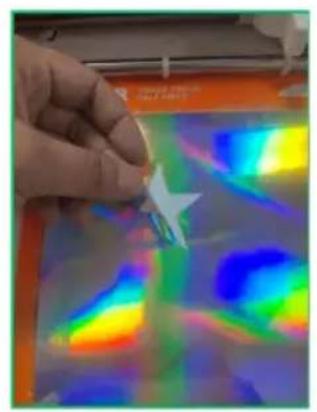
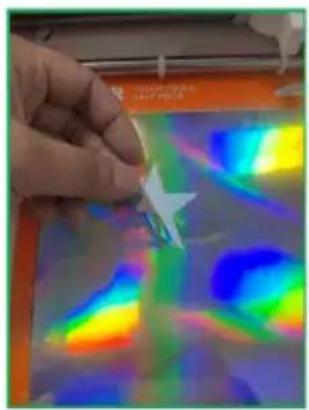
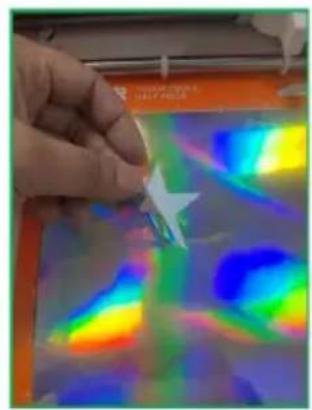
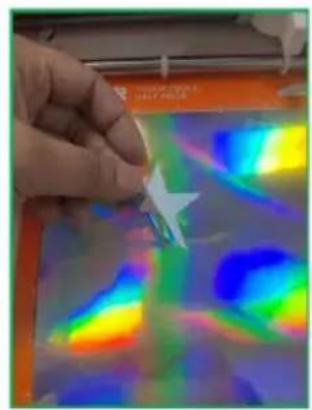
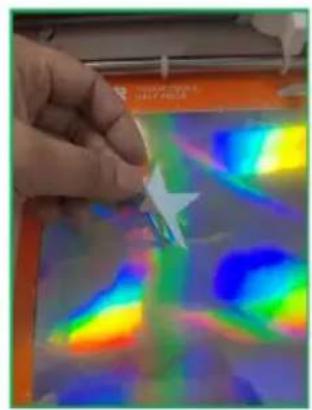
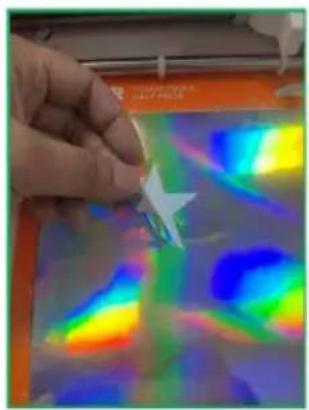
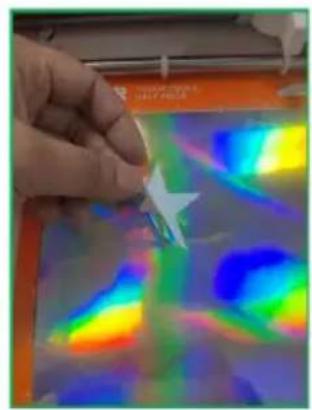
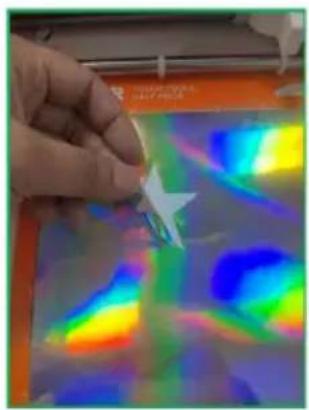
Close-up of a hand holding a small object over a colorful, iridescent heatmap or sky-like pattern (no text or symbols visible)2.Contour Output Cutting
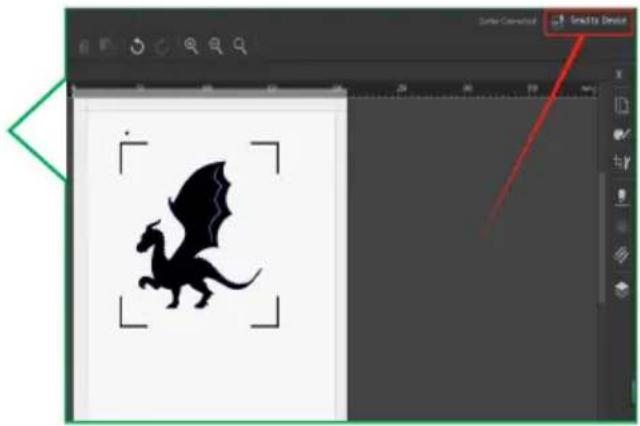
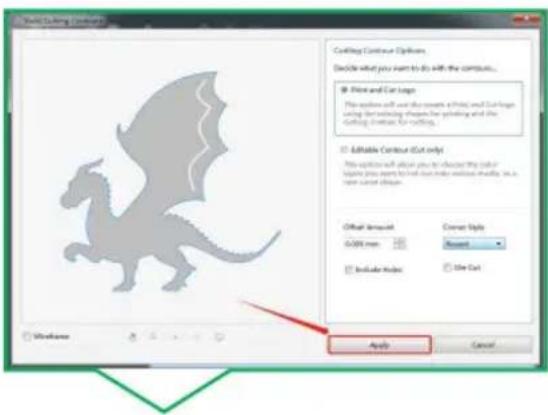
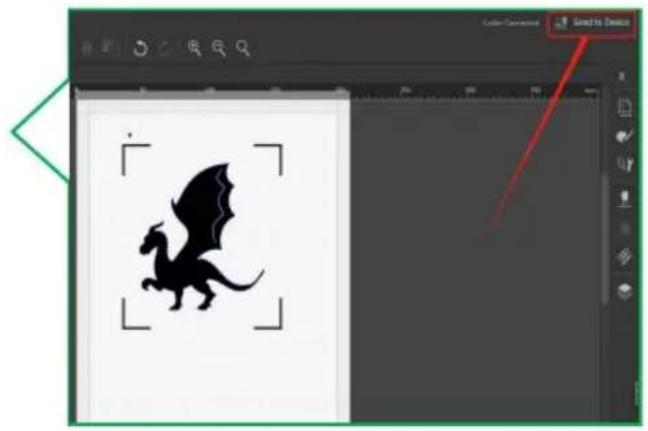
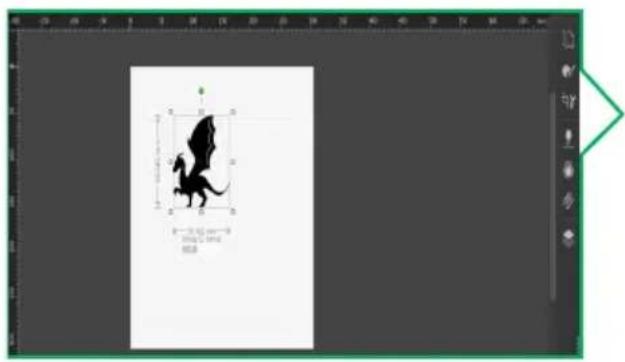
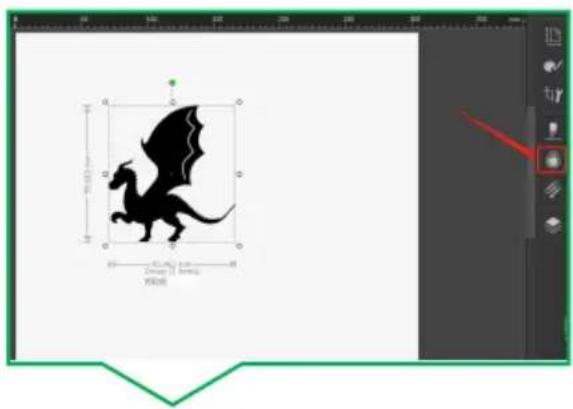
2.1 Design graphics can be created 2.2 Select the drawing and click on from the software toolbar or importe right side to create an outline.
from a file (SVG, PNG and JPG formats are supported for import).
text_image
Screenshot of a graphic design software interface showing a silhouette of a dinosaur and text labels in Chinese.
natural_image
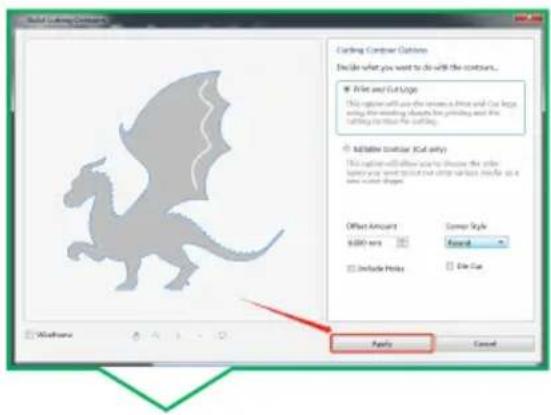
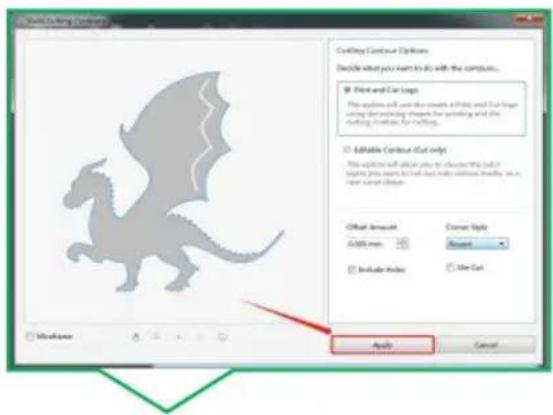
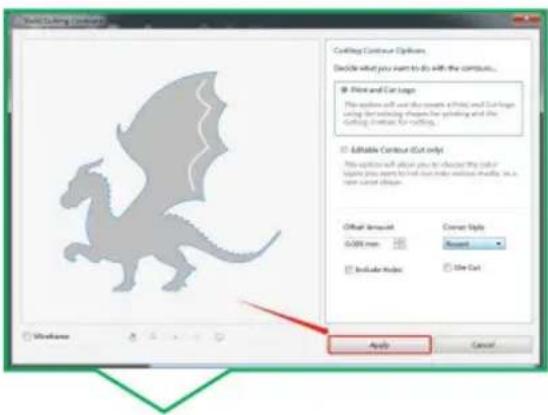
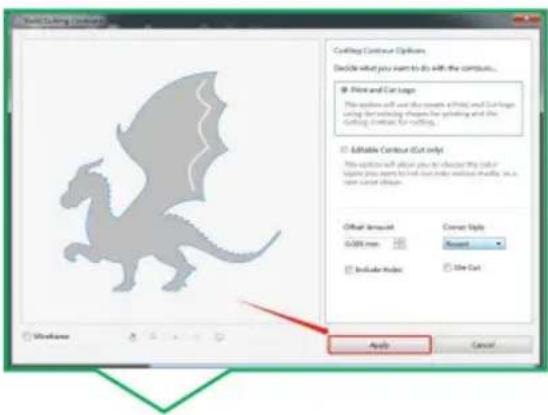
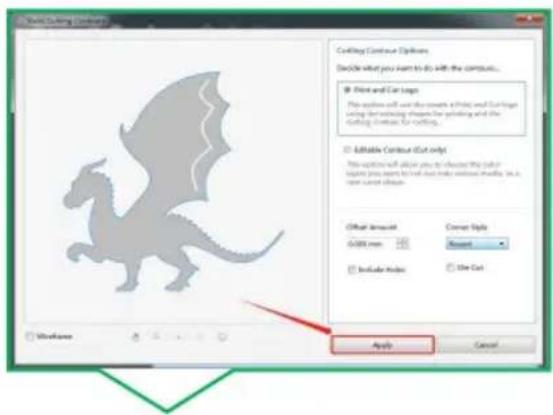
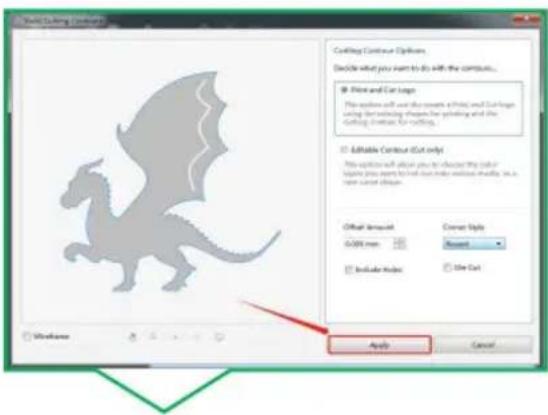
Silhouette of a flying creature inside a square frame, displayed within an image editing software interface (no text or symbols on the drawing itself)2.3 Click "Apply".
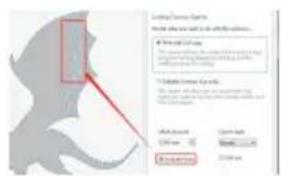
Note: If you need to cut some par the interior of the graph, you need check the skeleton checkbox here

text_image
Logical Server Options Show how to link to other functions... ✓ Select the function ✓ Select the function for a specific function (e.g. Windows, macOS, Linux, Chrome OS) ✓ Select the function for a specific function (e.g. Windows, macOS, Linux, Chrome OS) OK/Cancel OK/Cancel Cancel/Cancel OK/Cancel Cancel/Cancel
text_image
Cutting Contour Options Describe what you want to do with the contours... Print and Cut Style This option will use the reverse arrow and can begin using the printing device for printing and the setting to store the contours. Addable Contour (Cut only) This option will allow you to choose the plot type your view to store the plot areas where it is a new created shape. Other Amount $500 rows Cover Style Forward Include Print File Set Paste Cancel2.5 Click "Send"

text_image
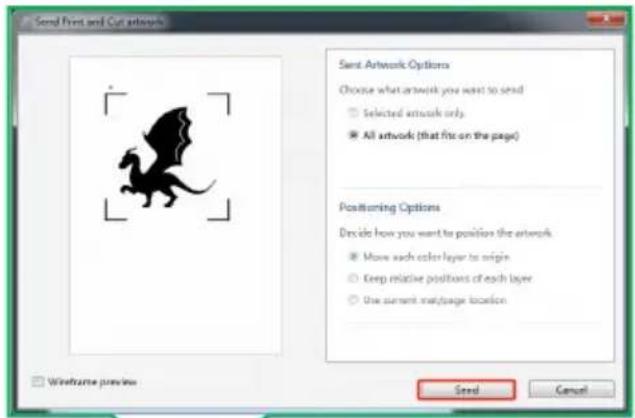
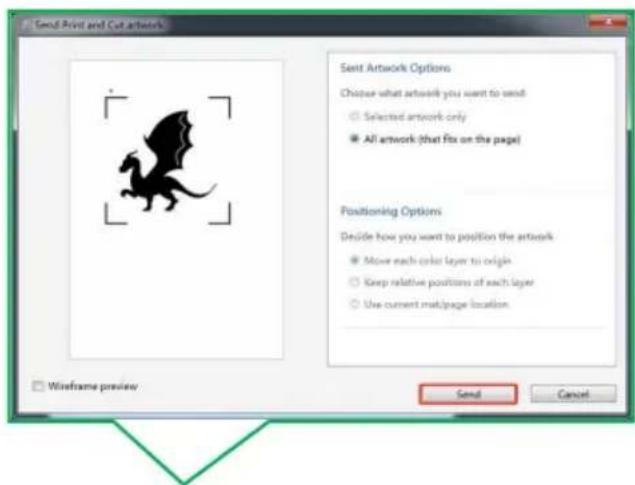
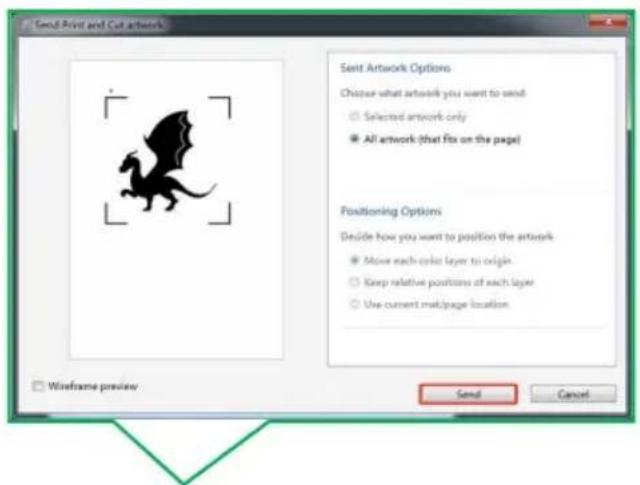
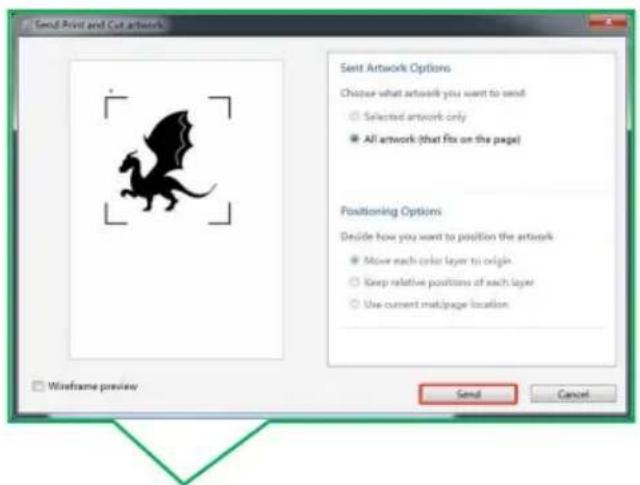
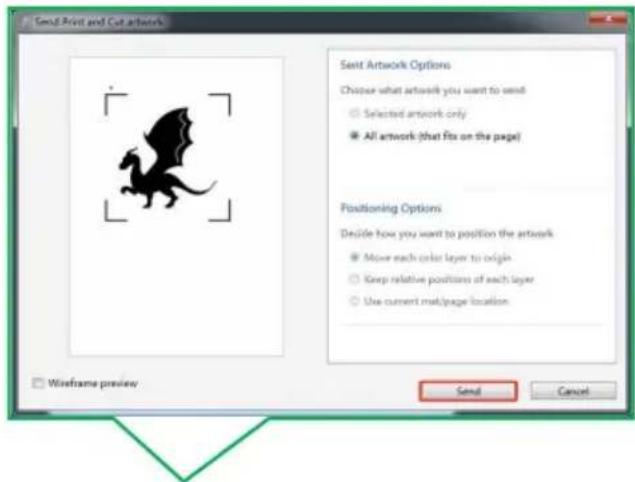
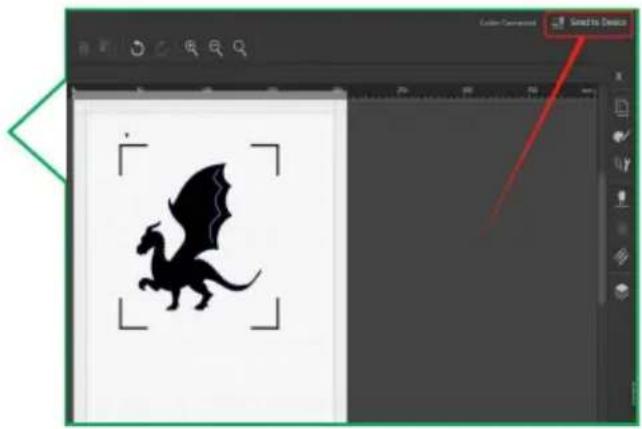
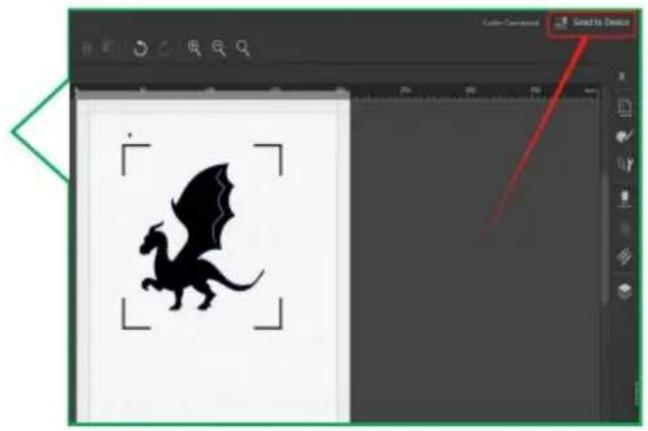
Send Front and Cut artworks Send Artwork Options Choose what artwork you want to send Selected artwork only All artwork (that fix on the page) Positioning Options Decide how you want to position the artwork Move each color layer to origin Keep relative positions of each layer Use current mat/page location Send Cancel Windframe preview2.4 Click "Send to Device"

natural_image
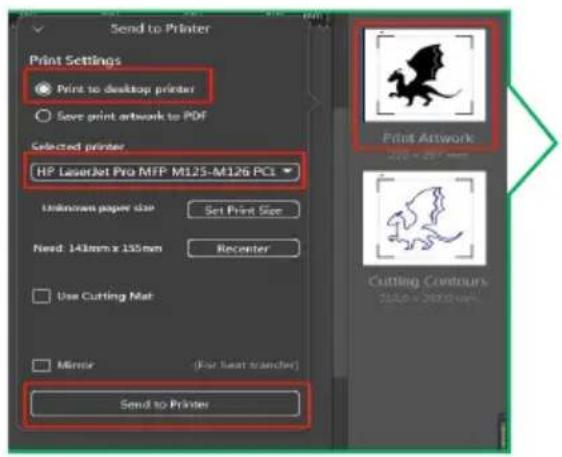
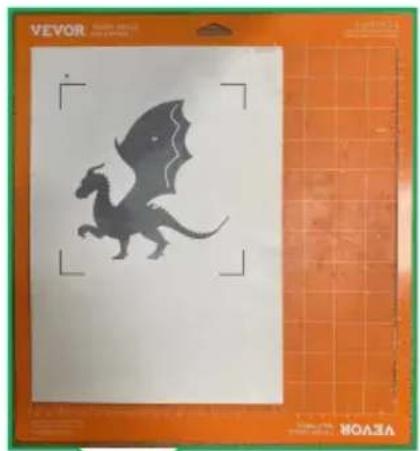
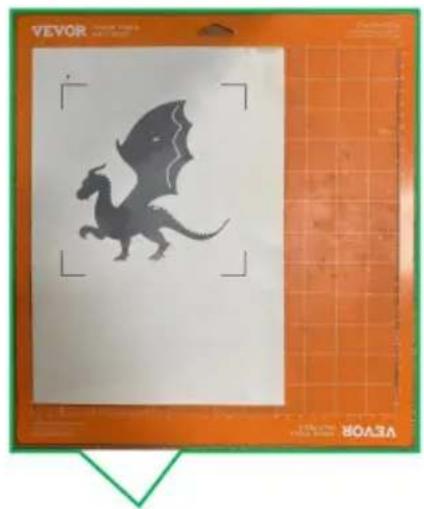
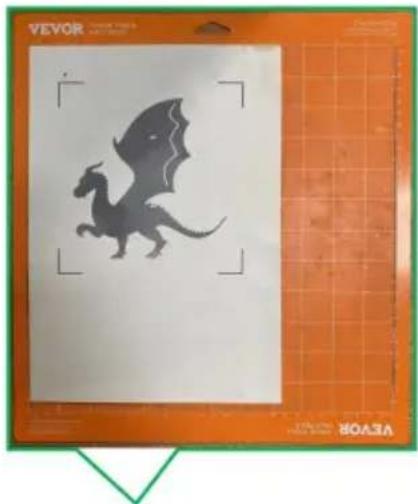
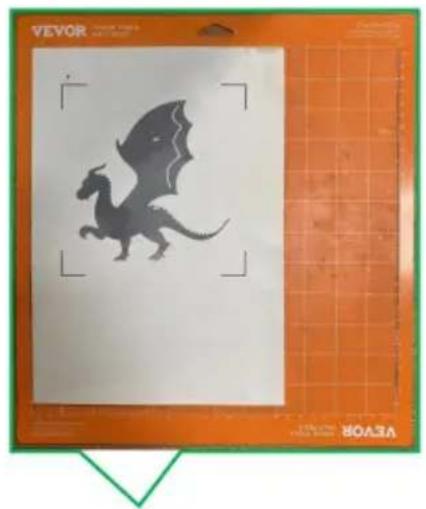
Silhouette of a flying creature inside a design software interface (no text or symbols on the creature itself)2.6 Click on the graphic in the rec 2.7 Attach the printed graphic to the on the right and select a printer tc cutting mat placement machine. the designed graphic.

text_image
Send to Printer Print Settings ● Print to desktop printer ○ Save print artwork to PDF Selected printer HP LaserJet Pro MFP M125-M126 PCI Unknown paper size Set Print Size Need: 141mm x 155mm Receiver Use Cutting Mat Mirror (For heat transfer) Send to Printer Print Artwork Cutting Contours
natural_image
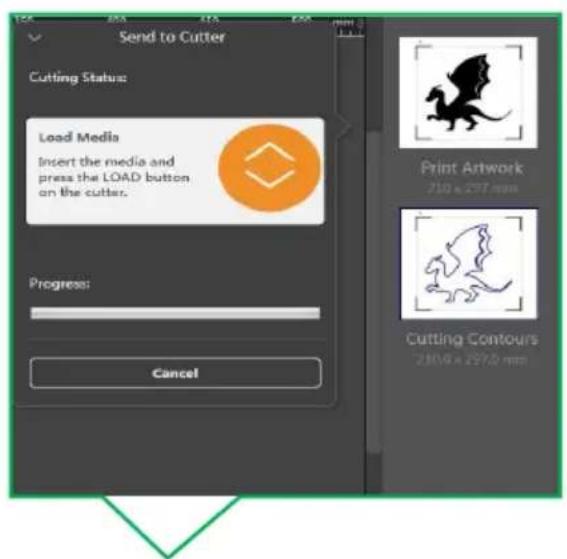
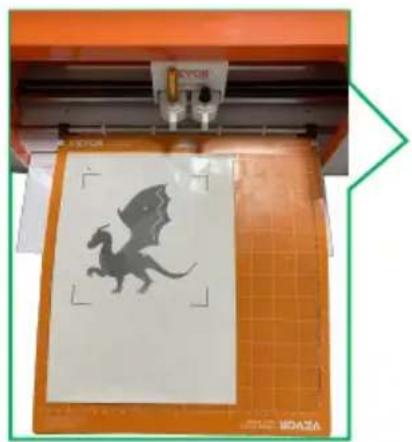
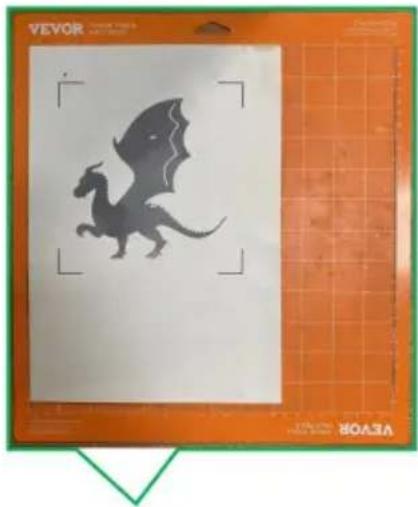
Illustration of a flying creature with wings, displayed on an orange cutting board (no text or symbols)2.9 Follow the software instructions locate this button on the machine.
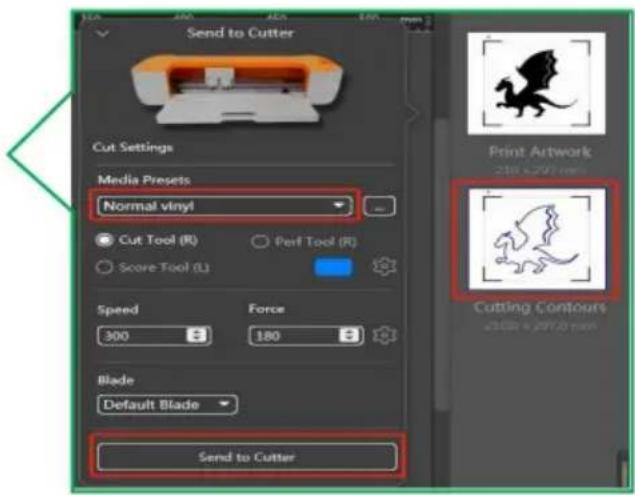
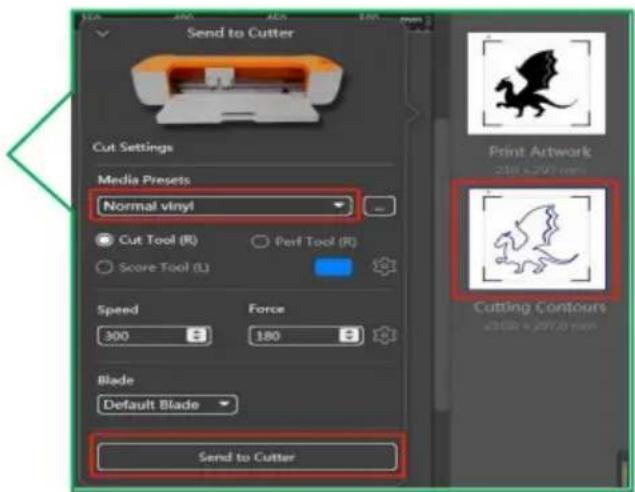
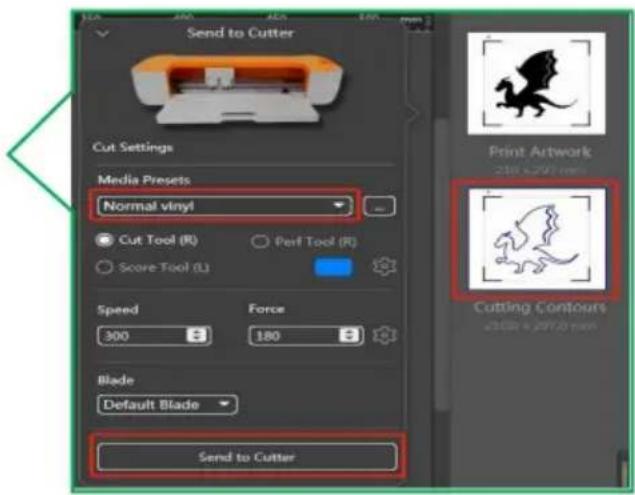
2.8 Click on the graphic in the red on the right to select the cutting ou

text_image
Send to Cutter Cutting Status: Load Media Insert the media and press the LOAD button on the cutter. Progress: Cancel Print Artwork 210 x 277 mm Cutting Contours 210 x 297.0 mm
text_image
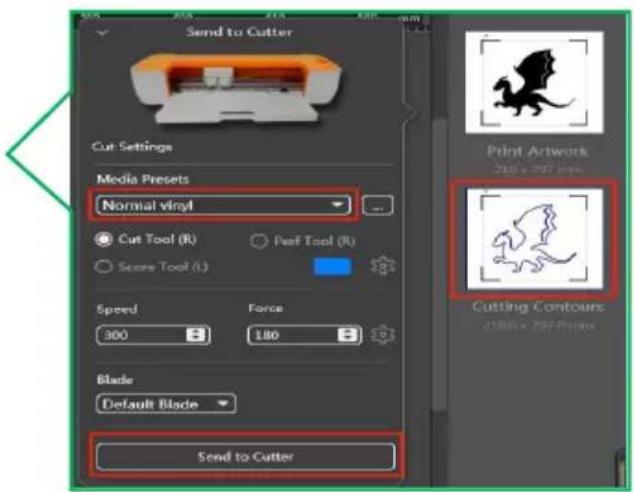
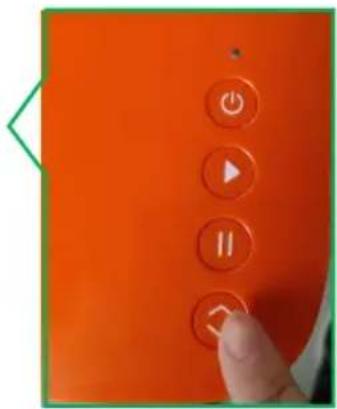
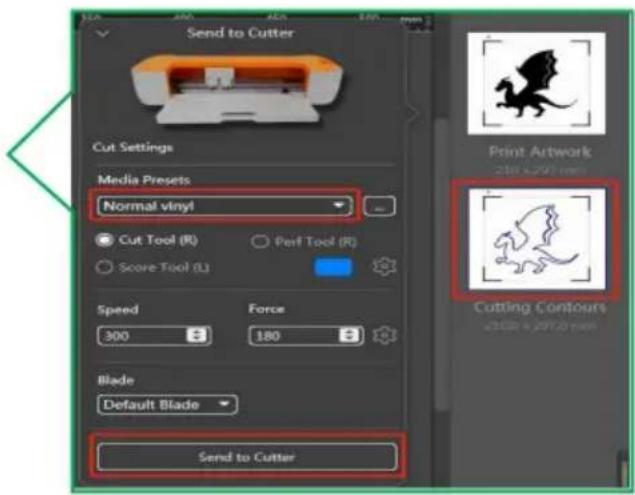
Send to Cutter Cut Settings Media Presets Normal vinyl Cut Tool (R) Perf Tool (R) Score Tool (L) Speed Force 300 180 Blade Default Blade Send to Cutter Print Artwork 210 x 297 pixels Cutting Contours 210x 297 pixels2.10 First, place the pad with tl 2.11 Press the LOAC 2.12 Prompt to adhered material on the edge of button when the press the start press wheel according to the material is ready. button. diagram below.

natural_image
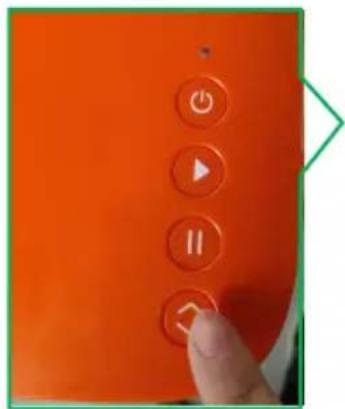
Close-up of a 3D printer with a dinosaur silhouette on its screen, placed on an orange cutting board (no visible text or symbols)2.16 Contour cutting completed.
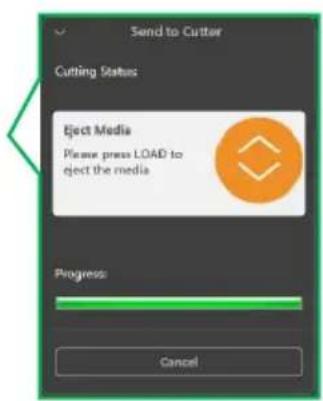
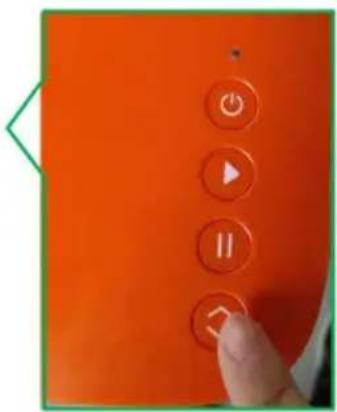
2.15 Press the machine's LOAD/UNLOAD button.
text_image
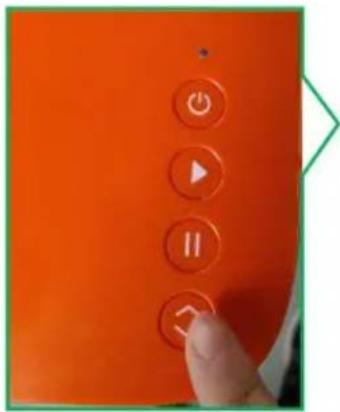
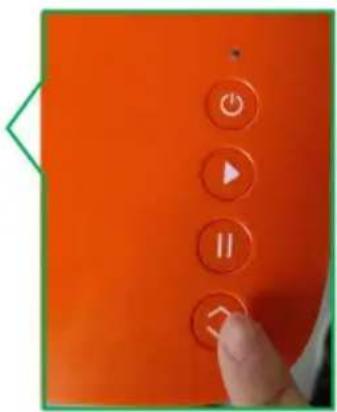
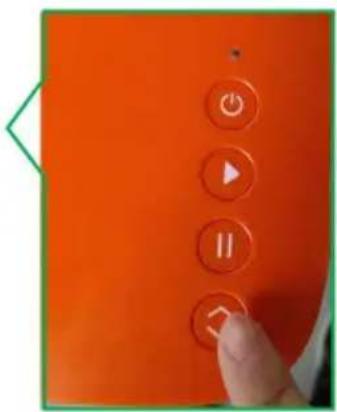
Orange device control panel with play, pause, and double button icons and a finger pointing to the button.2.14 When processing is complete, the software will prompt you to press the LOAD button.
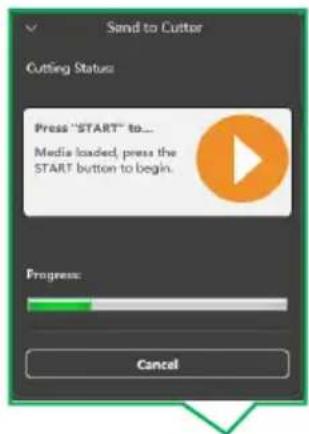
text_image
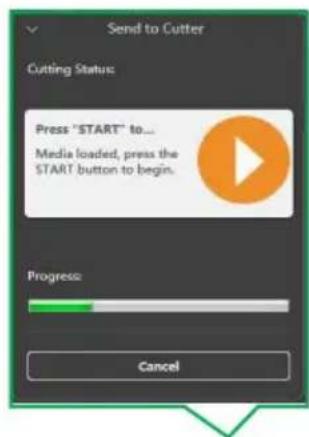
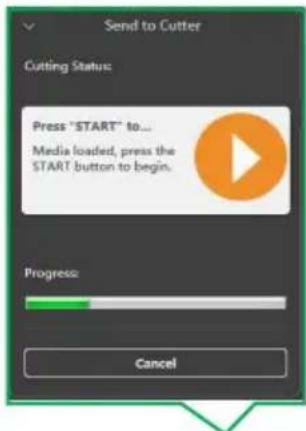
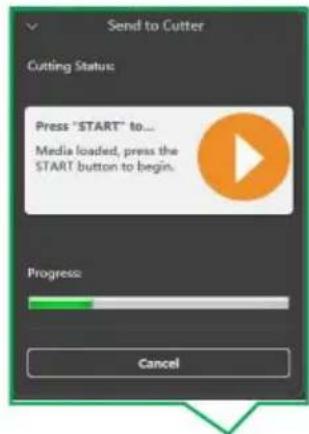
Send to Cutter Cutting Status: Press "START" to... Media loaded, press the START button to begin. Progress: Cancel2.13 Press the start button on the machine.
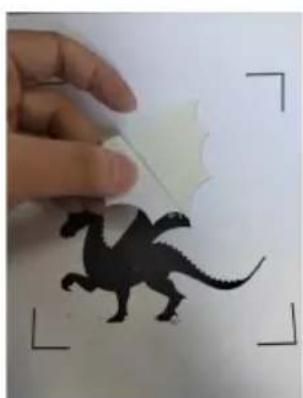
natural_image
Hand holding a white object with a black silhouette of a dinosaur, framed by corner brackets (no text or symbols)
text_image
Orange screen control panel with play, pause, and double button icons and a finger pressing the button
text_image
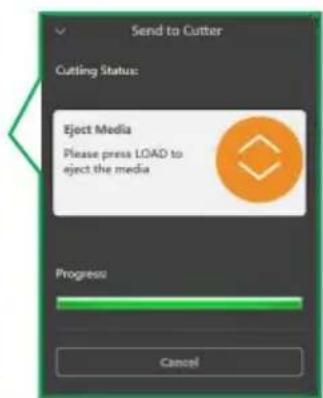
Send to Cutter Cutting Status Eject Media Please press LOAD to eject the media Progress: Cancel
text_image
Close-up of a hand pressing a button on an orange device, with control buttons and play/pause icons visible.For details, please refer to the operation video
Warm tips: The PC version of the software and the Mac version of interface are the same, the use of the method is also the same.
IX.APP Installation and Use
To pair your machine with mobile devices featuring Bluetooth wireless technology, ensure that Smart1 is turned on and within a distance of no more than 15 feet.
Warm tip: The Android and iOS versions of the app have the same inte and are used in the same way.
1. Software Download
You can download the APP software through the following link or scan the code below.
http://api.cutterplotter.cn/index/d

text_image
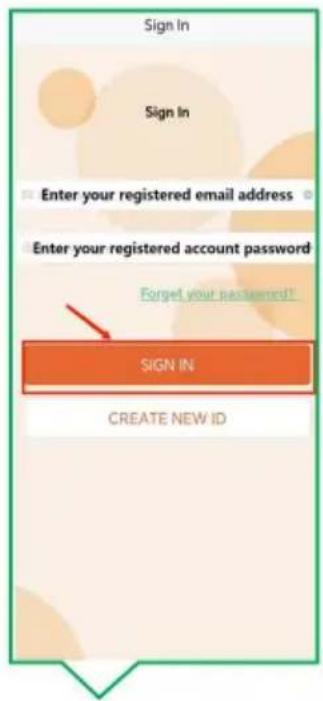
QR code image containing encoded data, no visible human-readable text- Open the app and register for an account, then log in.
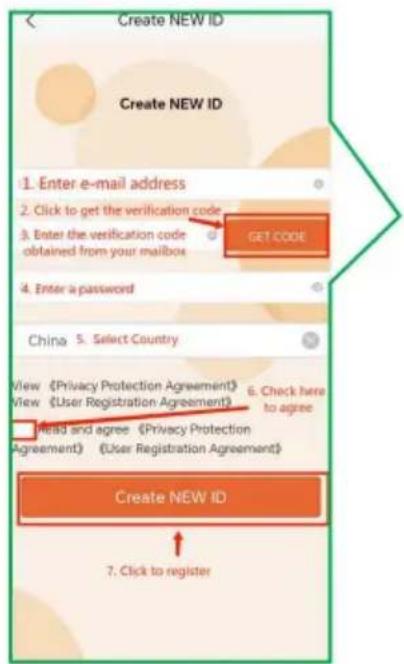
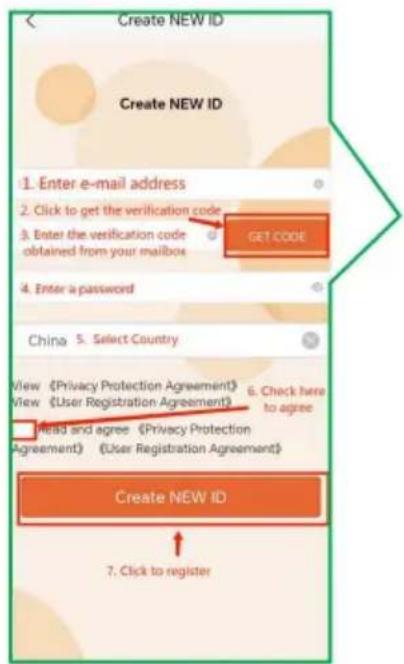
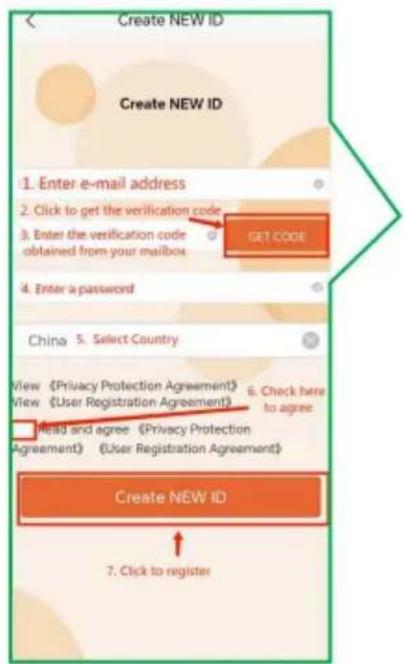
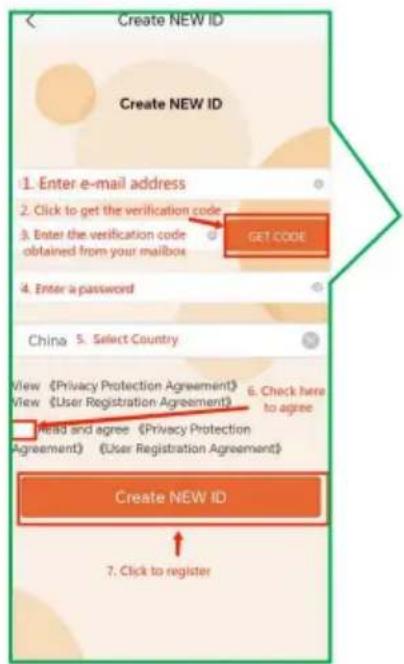
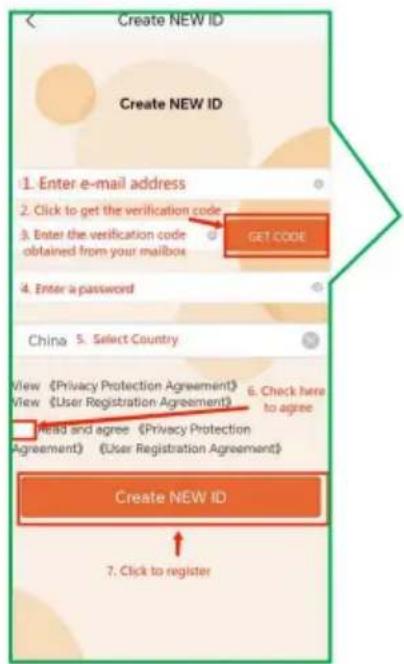
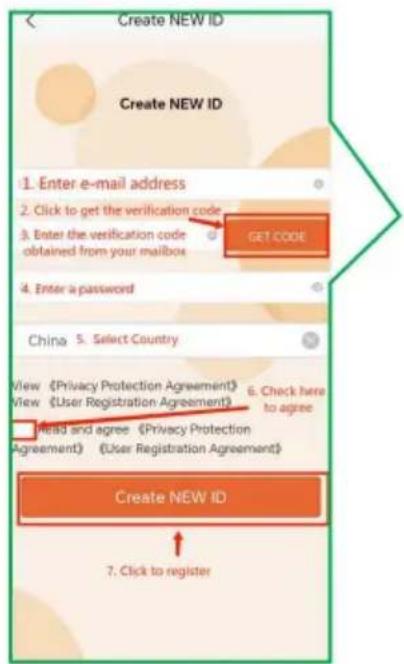
2.1 Create new account 2.2 Fill in the corresponding information in order.
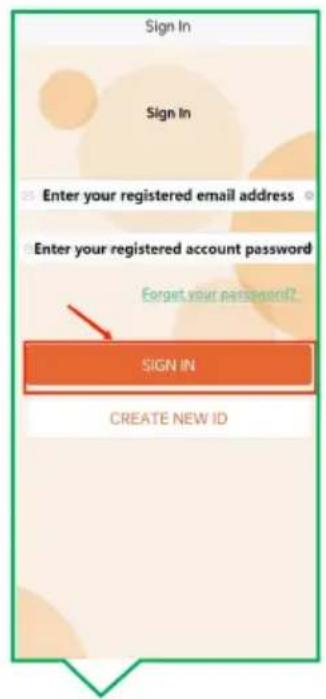
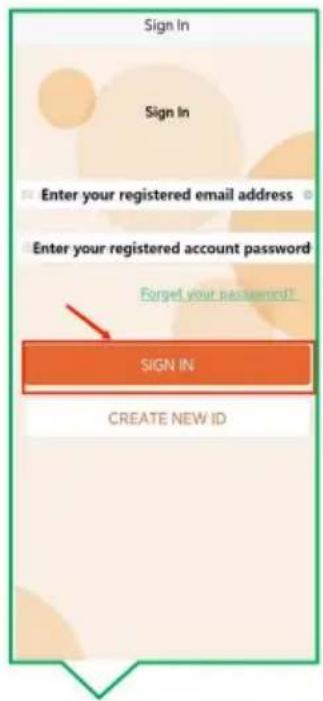
2.3 Enter your account number and click "SIGN IN".
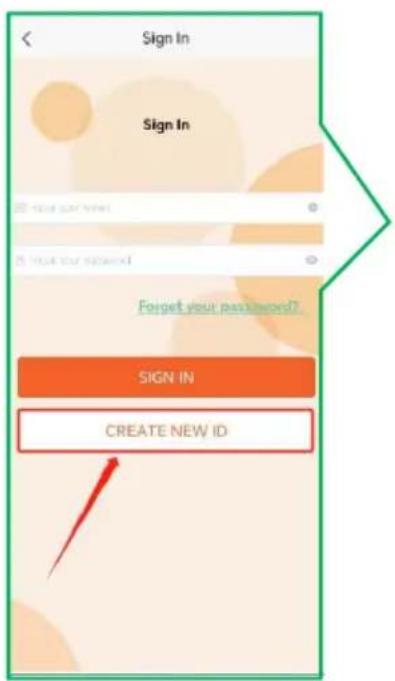
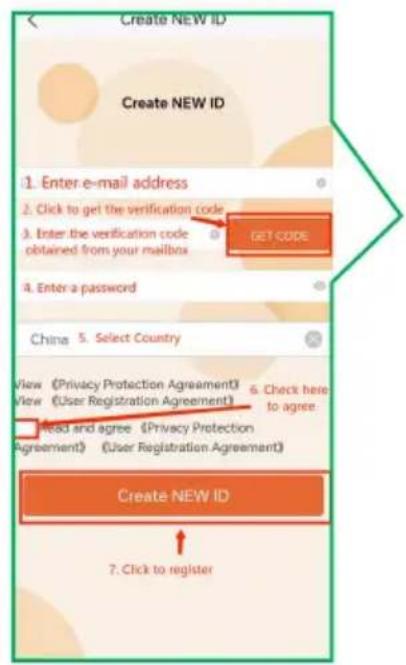
text_image
Sign In Sign In FORGET YOUR PASSWORD? SIGN IN CREATE NEW ID
text_image
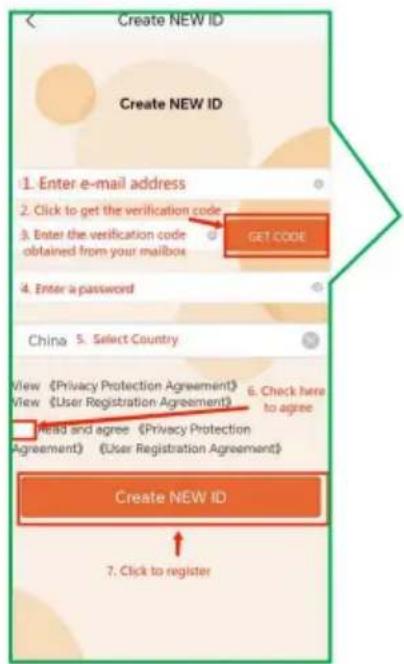
Create NEW ID Create NEW ID 1. Enter e-mail address 2. Click to get the verification code 3. Enter the verification code obtained from your mailbox 4. Enter a password China 5. Select Country View (Privacy Protection Agreement) View (User Registration Agreement) 6. Check here to agree Read and agree (Privacy Protection Agreement) (User Registration Agreement) Create NEW ID 7. Click to register
text_image
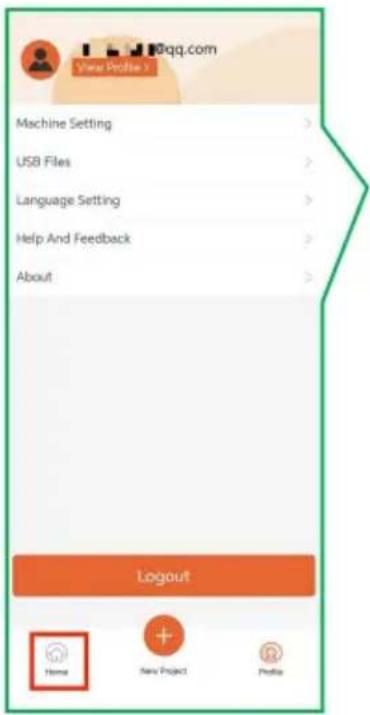
Sign In Sign In Enter your registered email address Enter your registered account password Forget your password? SIGN IN CREATE NEW ID2.6 Click "Machine Setting"
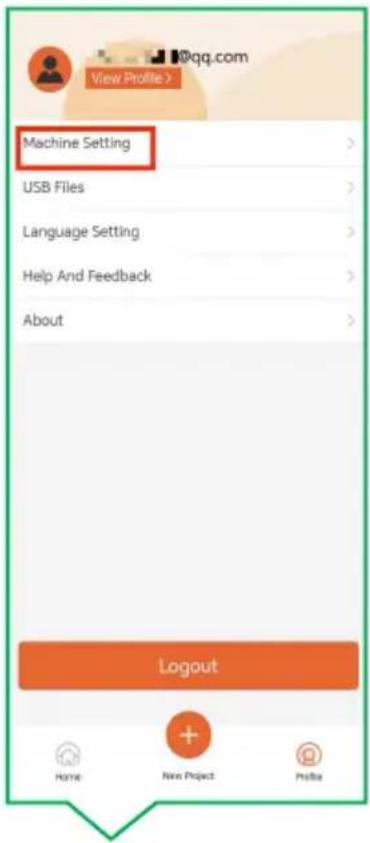
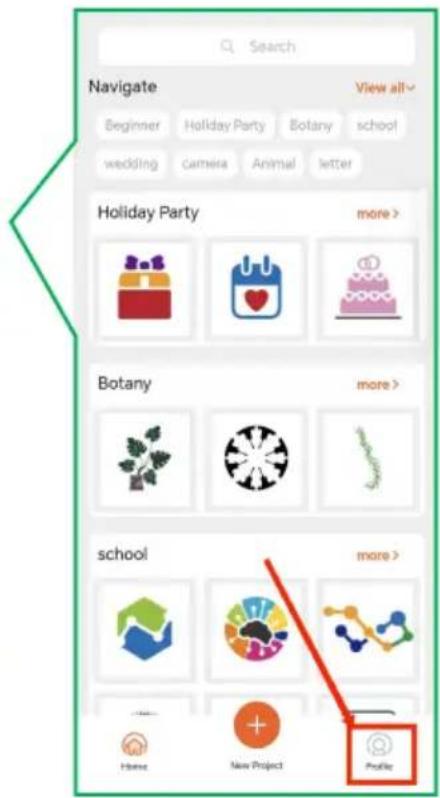
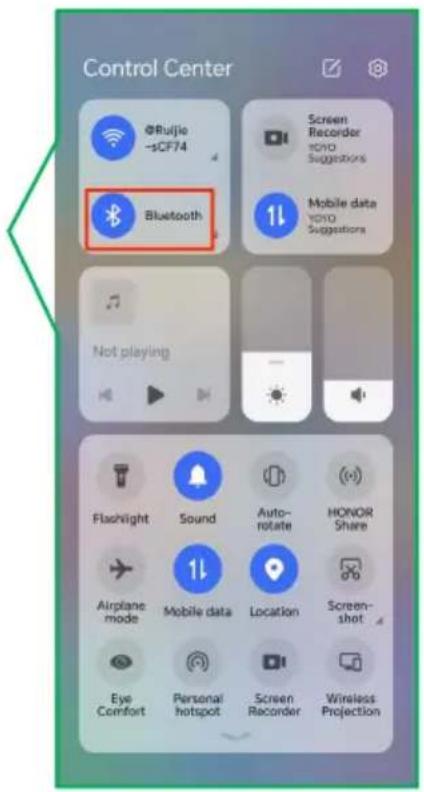
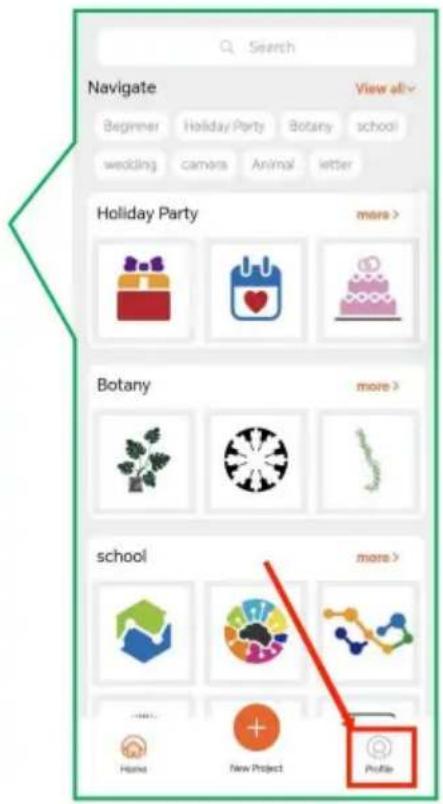
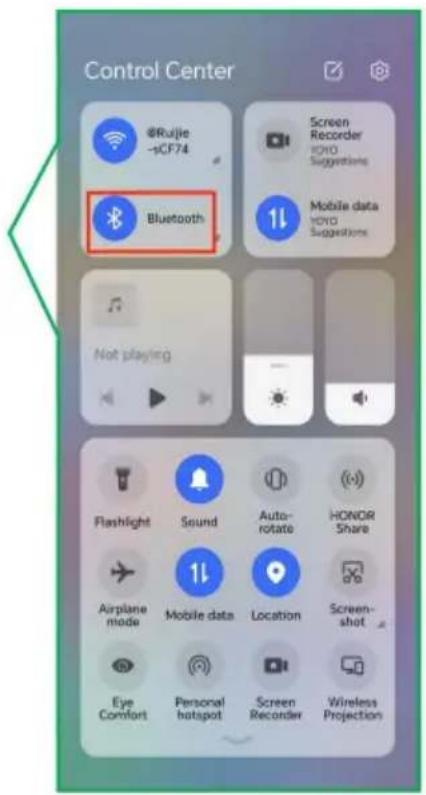
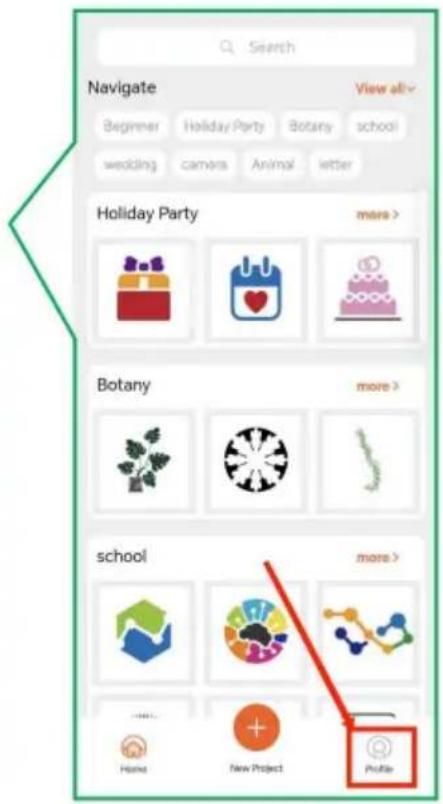
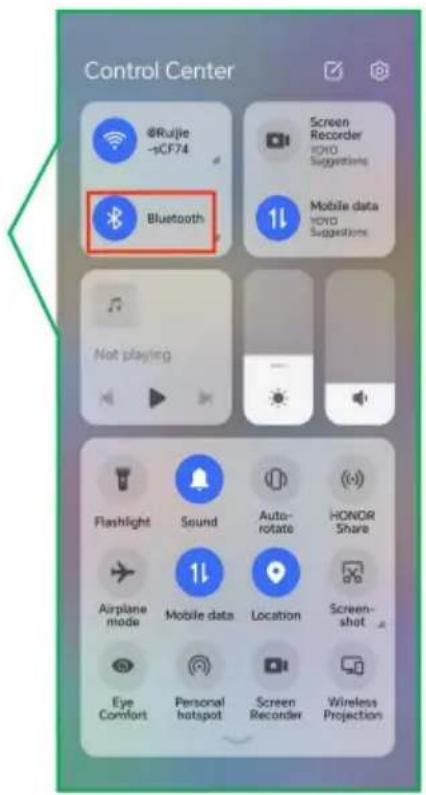
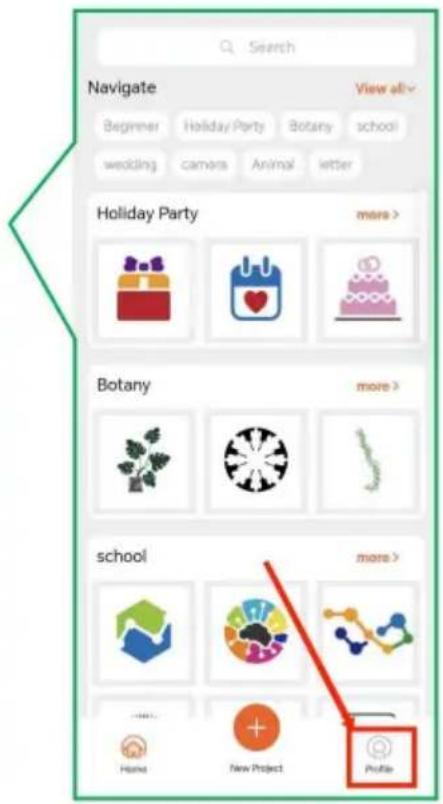
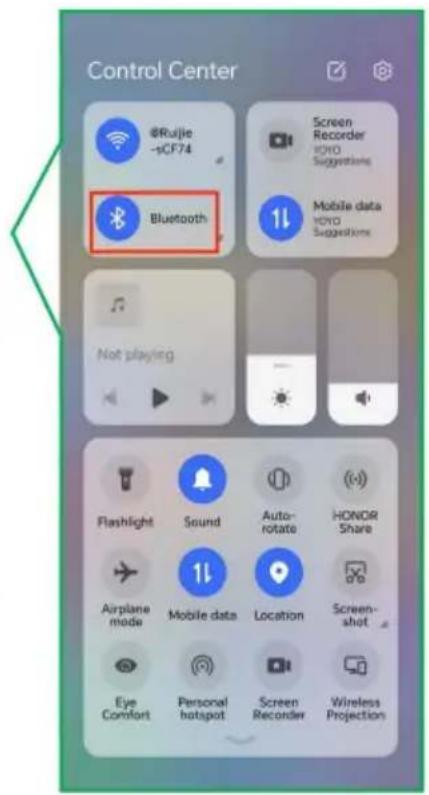
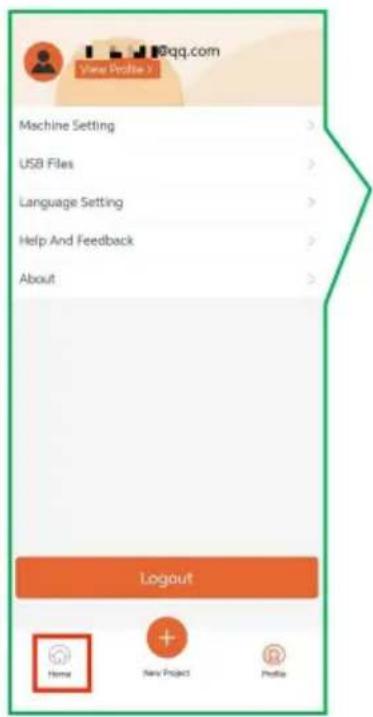
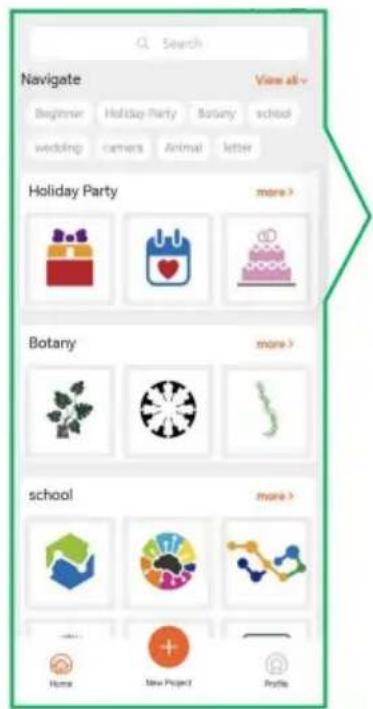
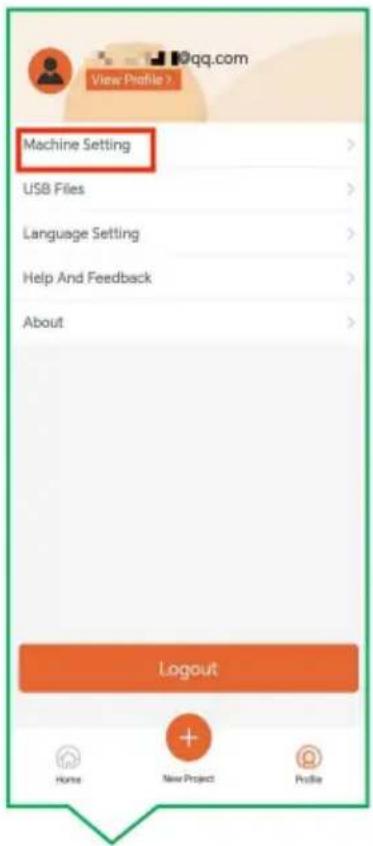
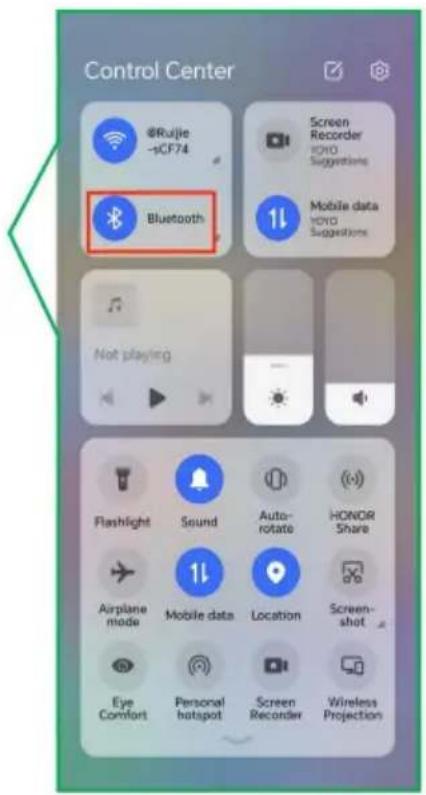
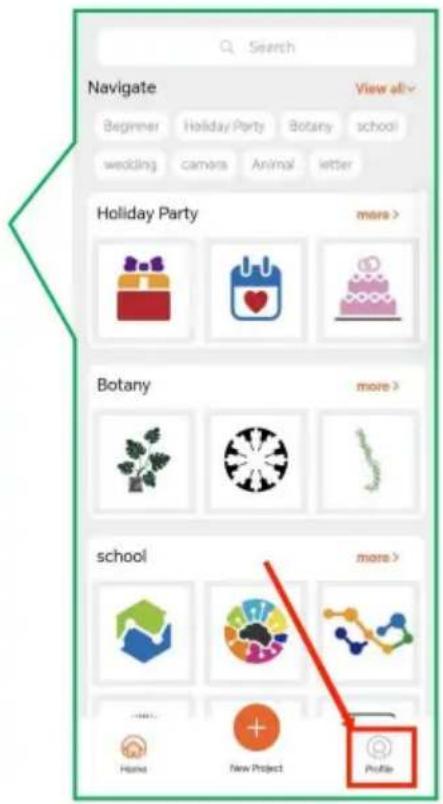
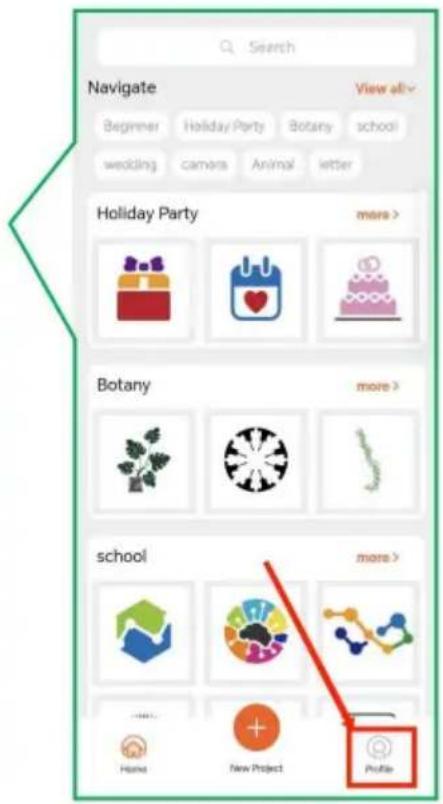
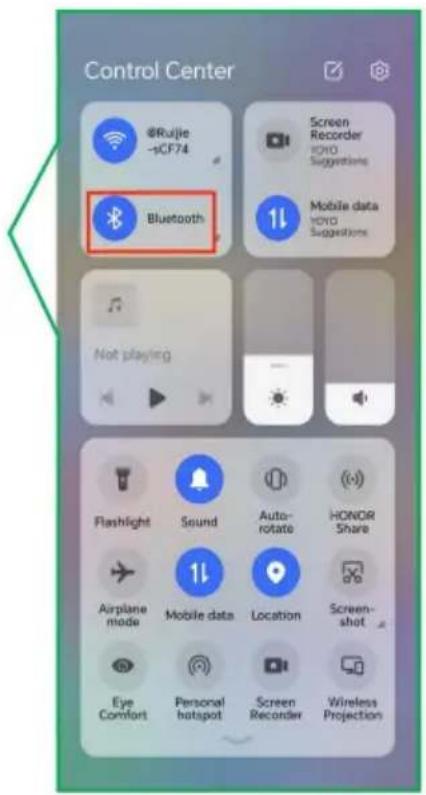
2.5 Navigate to the hor 2.4 Turn on system's page and click "Profile" Bluetooth

text_image
View Profile > Machine Setting USB Files Language Setting Help And Feedback About Logout Home New Project Profile
text_image
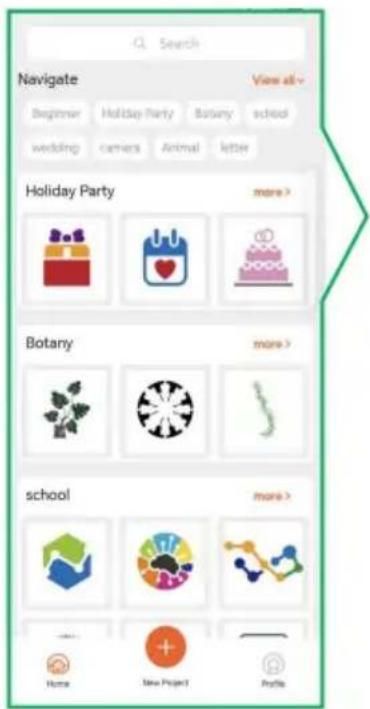
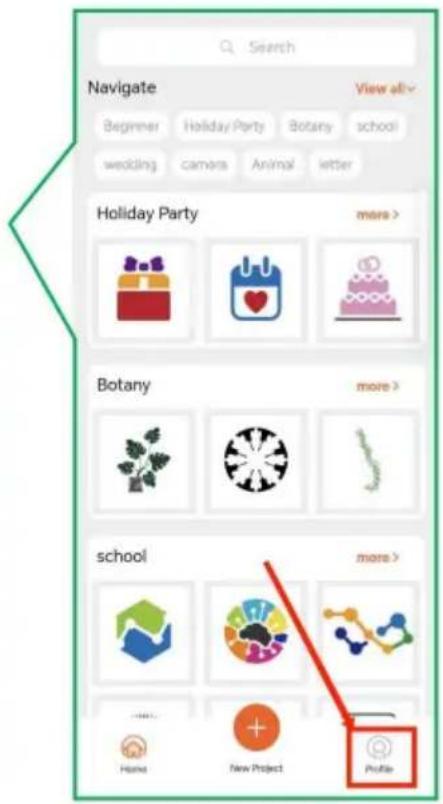
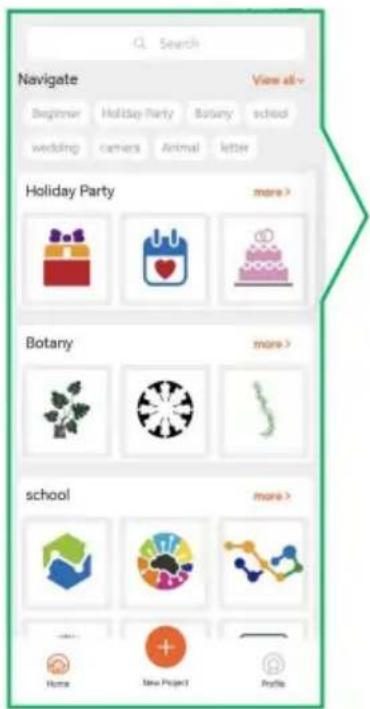
Search Navigate View all- Beginner Holiday Party Botany school wedding Camera Animal Letter Holiday Party more > Botany more > school more > Home New Project Profile
text_image
Control Center @Ruijie -sCF74 Bluetooth Screen Recorder sVIO Suggestions Mobile data sVIO Suggestions Not playing Flashlight Sound Auto- rotate HONOR Share Airplane mode Mobile data Location Screen- shot Eye Comfort Personal hotspot Screen Recorder Wireless Projection2.7 Allow location access when using.
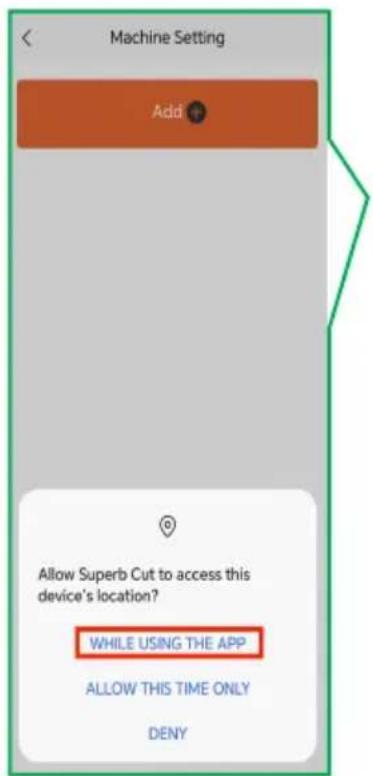
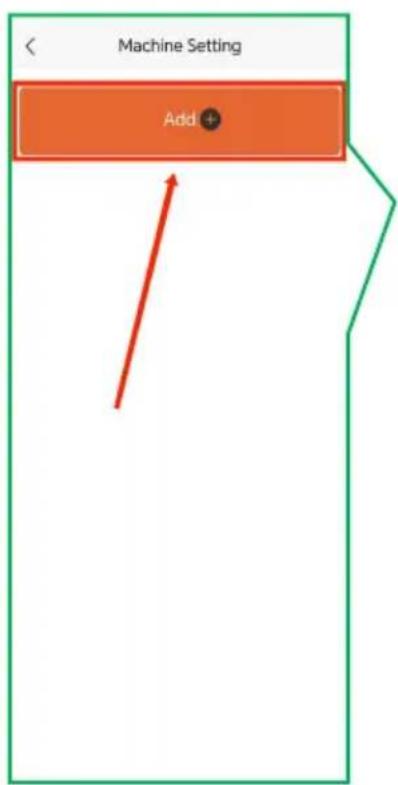
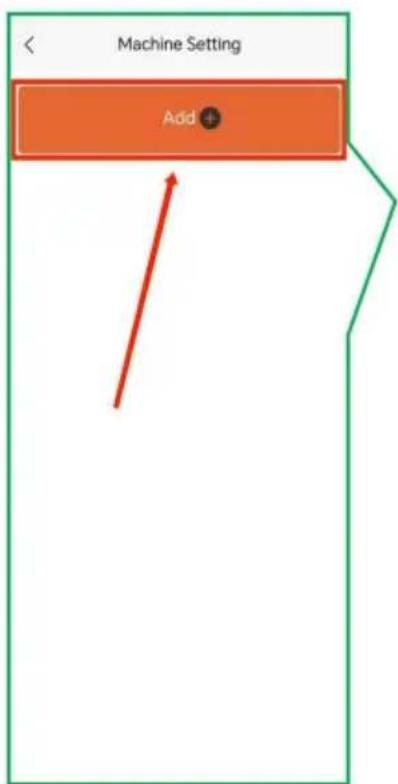
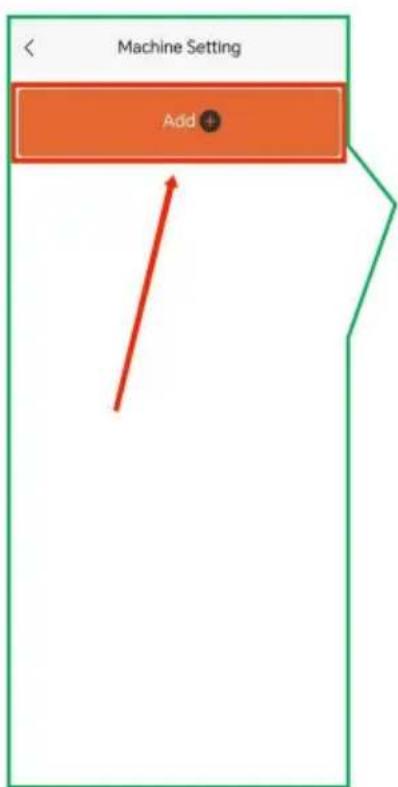
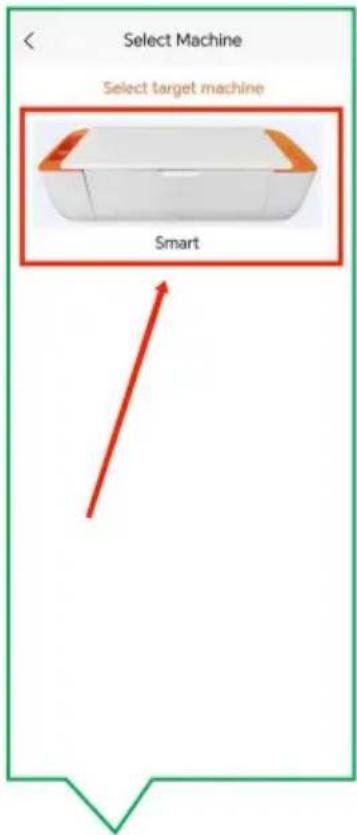
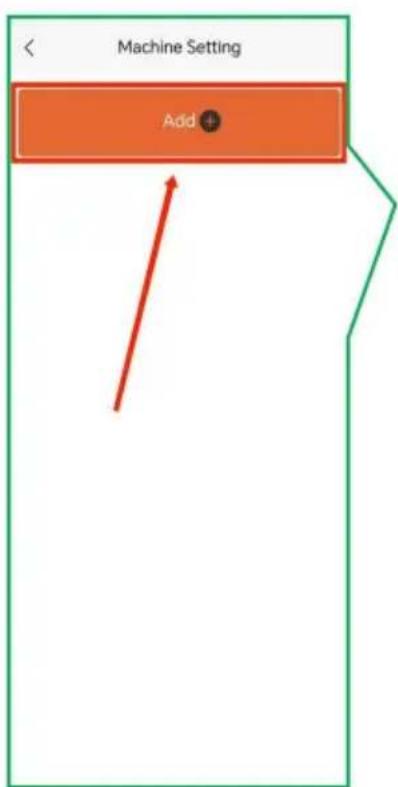
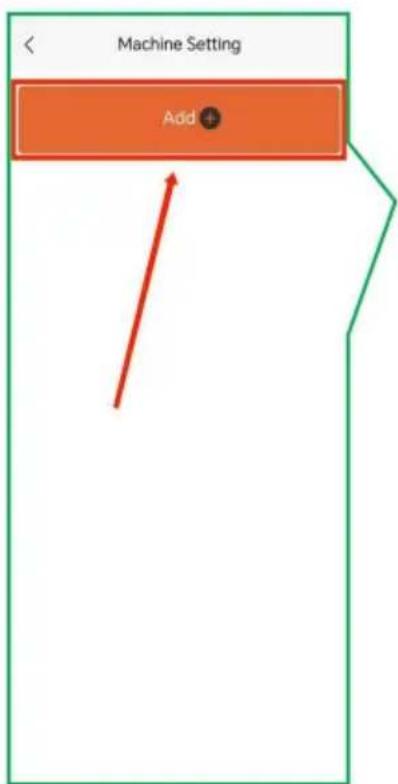
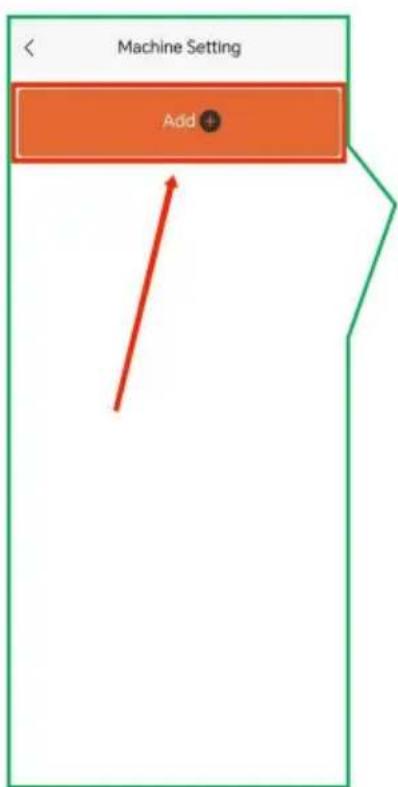
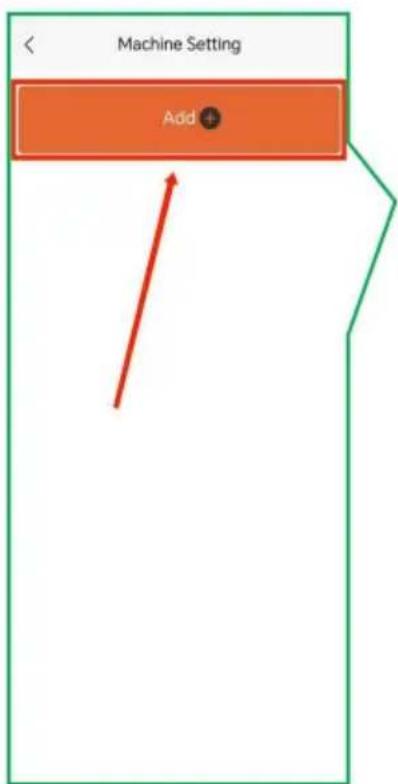
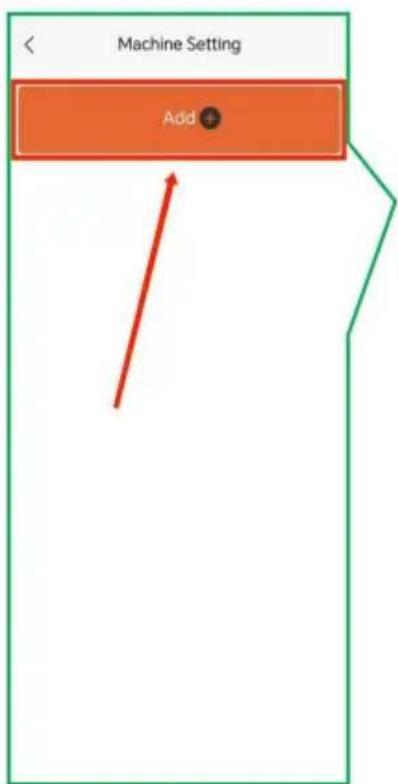
2.8 Click "Add"
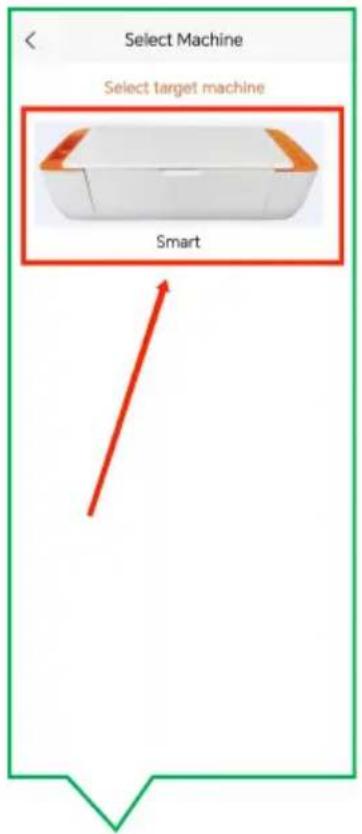
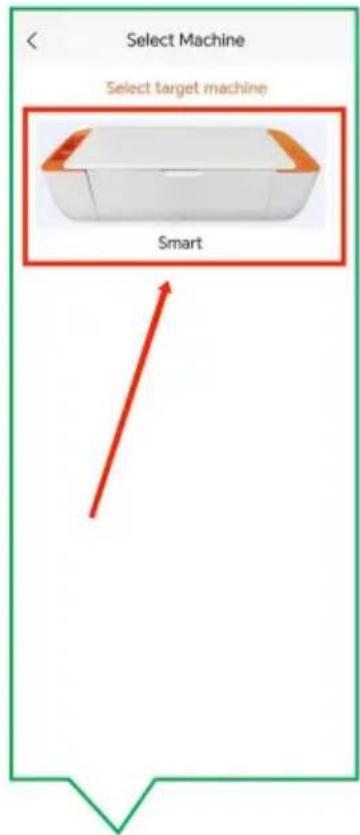
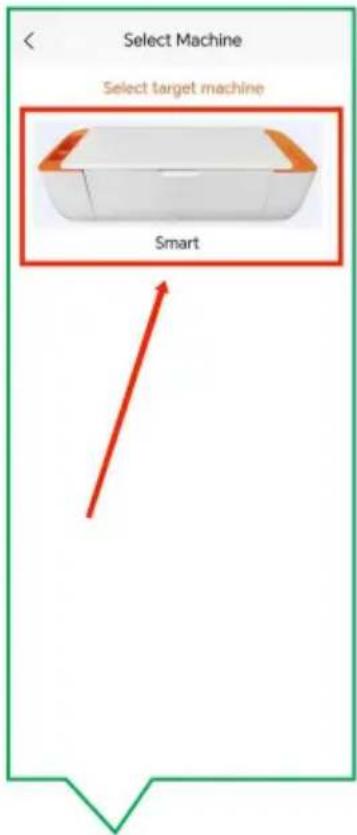
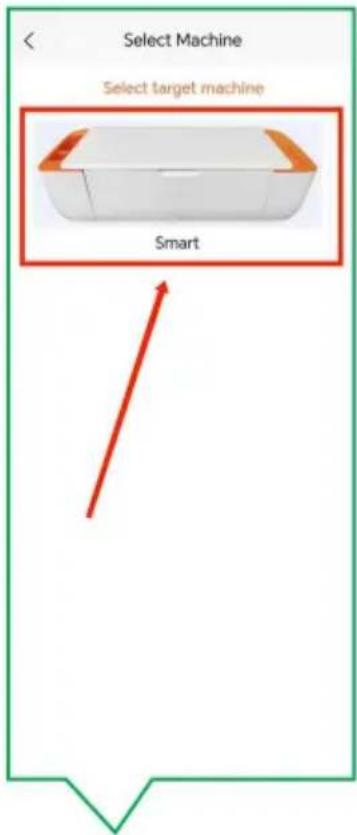
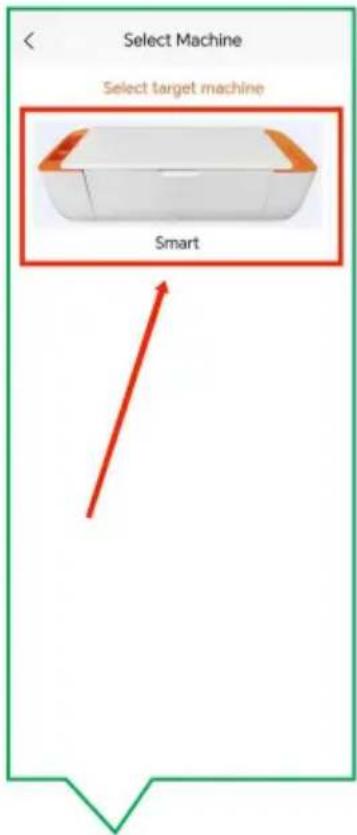
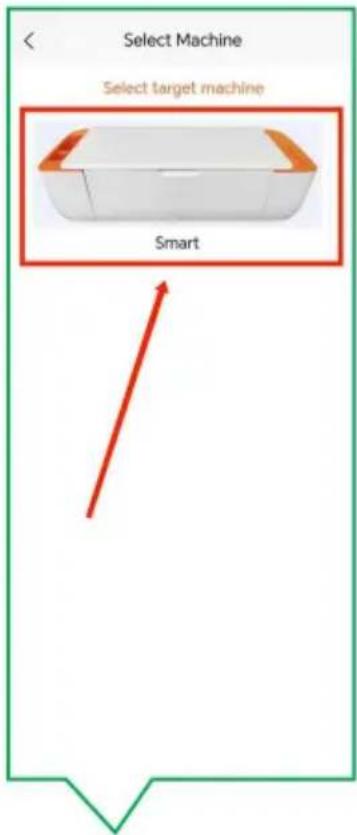
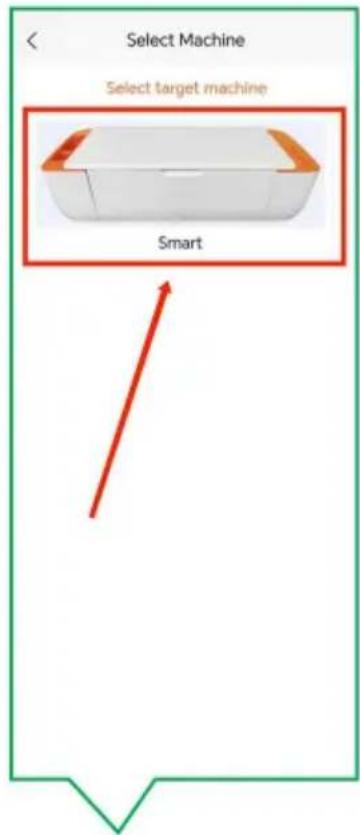
2.9 Click on the Sm cutter icon.

text_image
Machine Setting Add Allow Superb Cut to access this device's location? WHILE USING THE APP ALLOW THIS TIME ONLY DENY
text_image
Machine Setting Add + Red Arrow
text_image
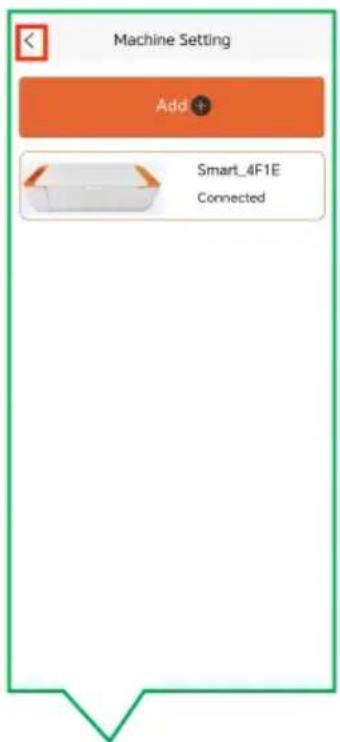
Select Machine Select target machine Smart2.12 Connection successful, click back.
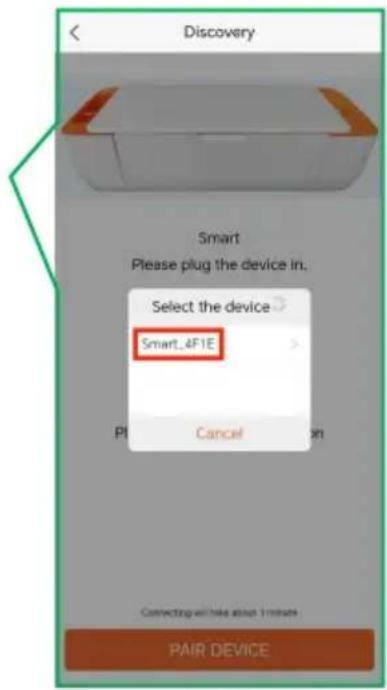
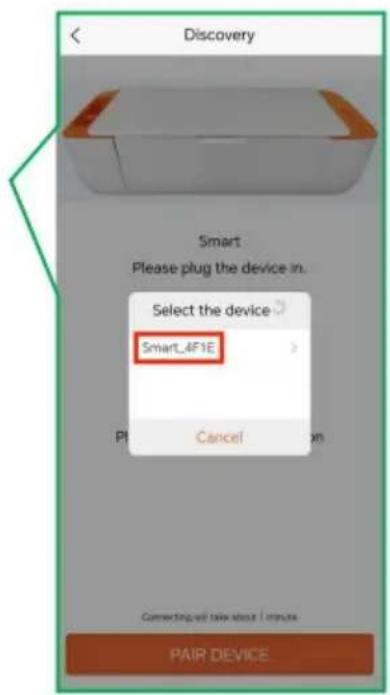
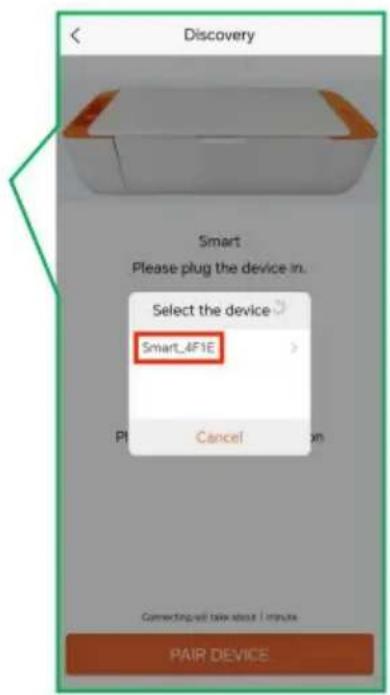
2.11 Select the device 2.10 Click "Pair Devices with the name for connection.

text_image
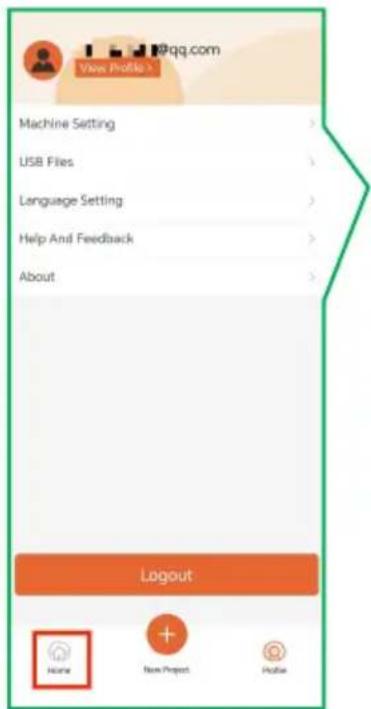
Machine Setting Add + Smart_4F1E Connected2.13 Click "Home"

text_image
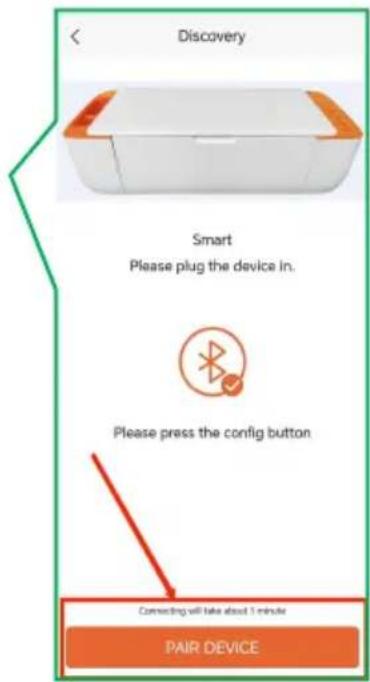
Discovery Smart Please plug the device in. Select the device Smart_4F1E Cancel PI Connecting while about 1 minute PAIR DEVICE2.14 Select a graphic from the gallery list.
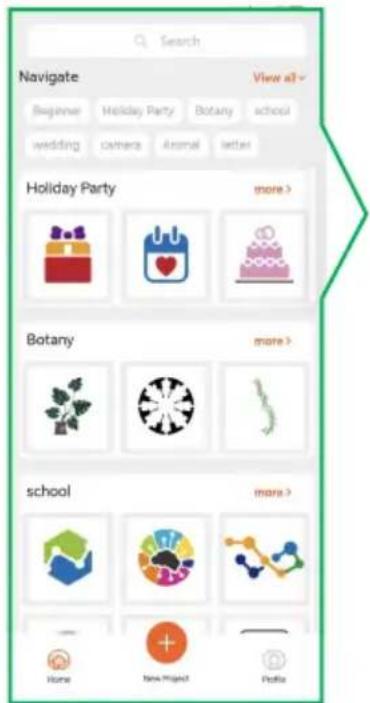
text_image
Discovery Smart Please plug the device in. Please press the config button Connecting will take about 1 minute PAIR DEVICE2.15 Click to create.

text_image
View Profile > @qq.com Machine Setting > USB Files > Language Setting > Help And Feedback > About > Logout None New Project Profile
text_image
Search Navigate View a3~ Beginner Holiday Party Botany school wedding camera Animal letter Holiday Party more > Botany more > school more > Home New Project Podia
text_image
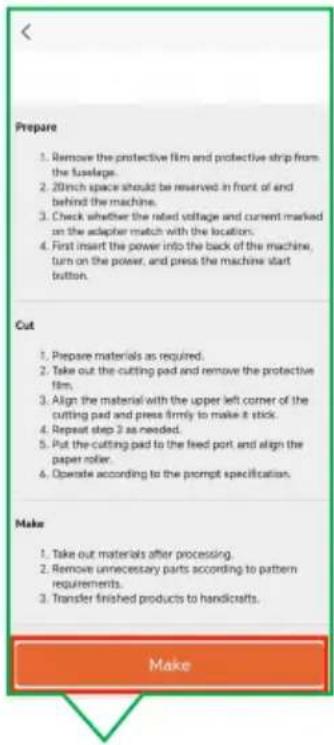
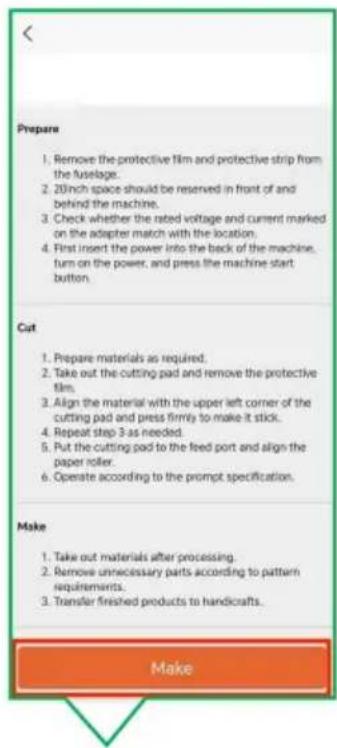
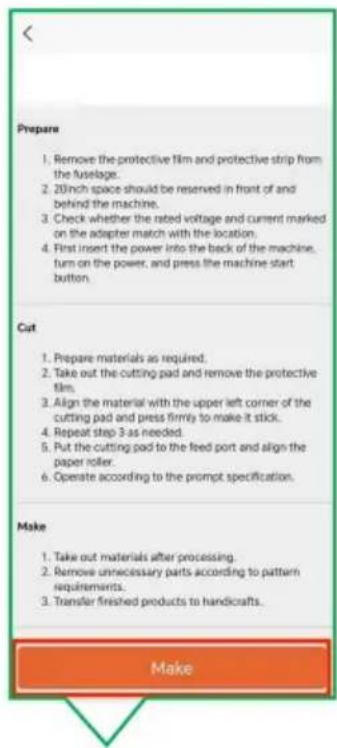
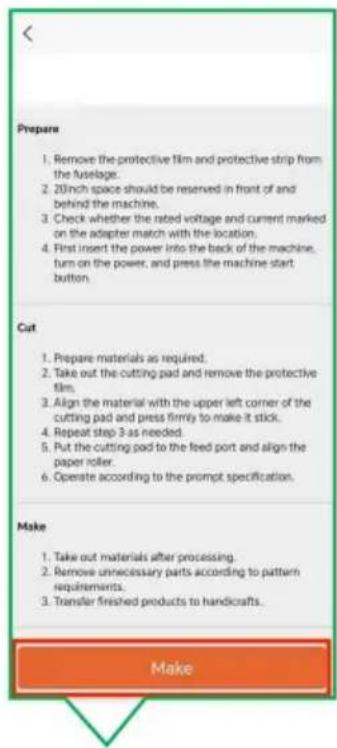
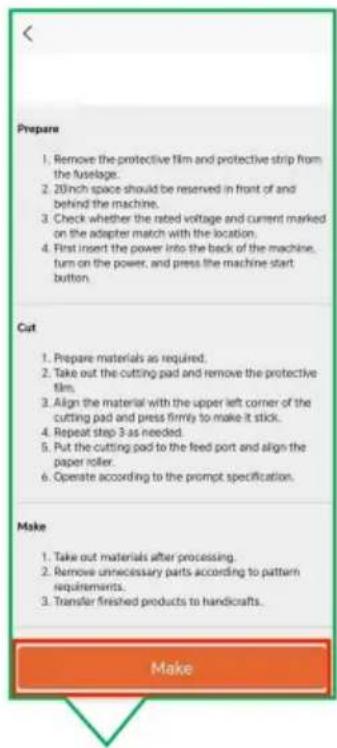
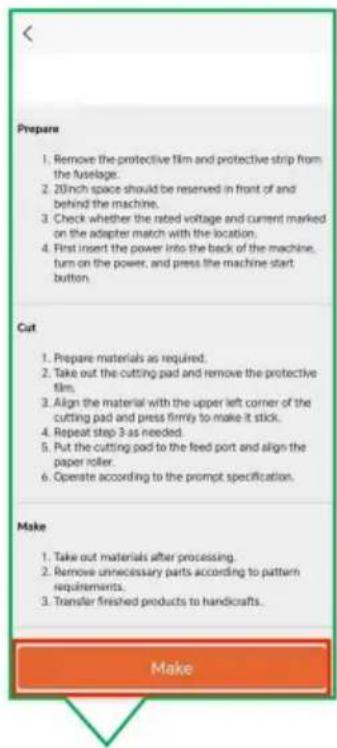
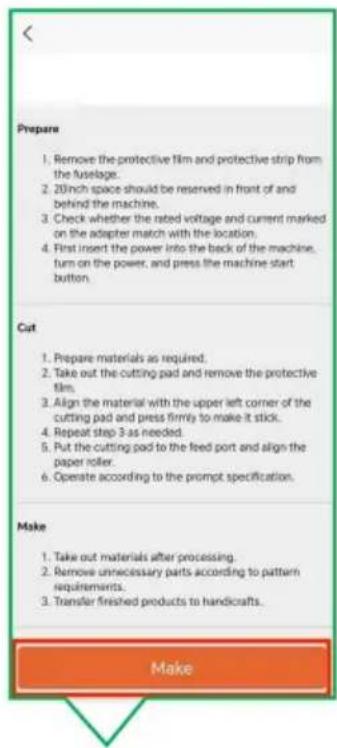
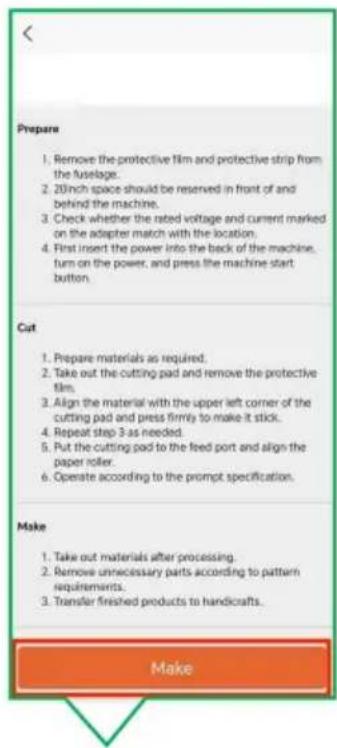
Prepare 1. Remove the protective film and protective strip from the fuselage. 2. 20inch space should be reserved in front of and behind the machine. 3. Check whether the rated voltage and current marked on the adapter match with the location. 4. First insert the power into the back of the machine, turn on the power, and press the machine start button. Cut 1. Prepare materials as required. 2. Take out the cutting pad and remove the protective film. 3. Align the material with the upper left corner of the cutting pad and press firmly to make it stick. 4. Repeat step 2 as needed. 5. Put the cutting pad to the feed port and align the paper roller. 6. Operate according to the prompt specification. Make 1. Take out materials after processing. 2. Remove unnecessary parts according to pattern requirements. 3. Transfer finished products to handicrafts. Make2.18 Click to create.
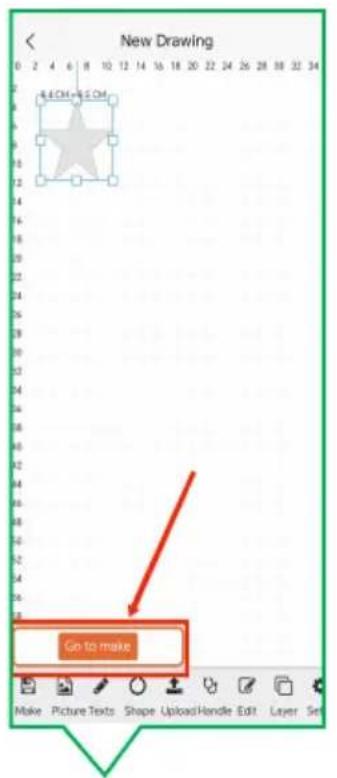
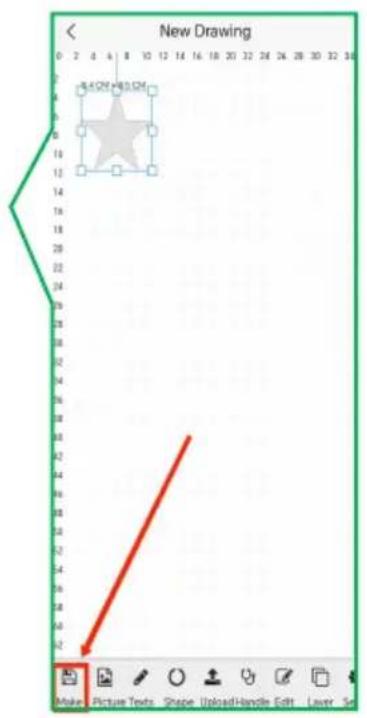
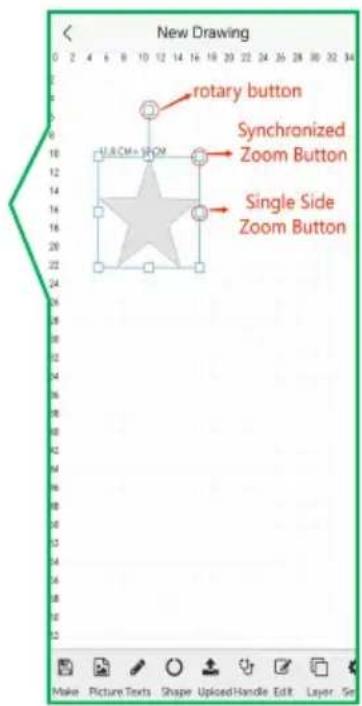
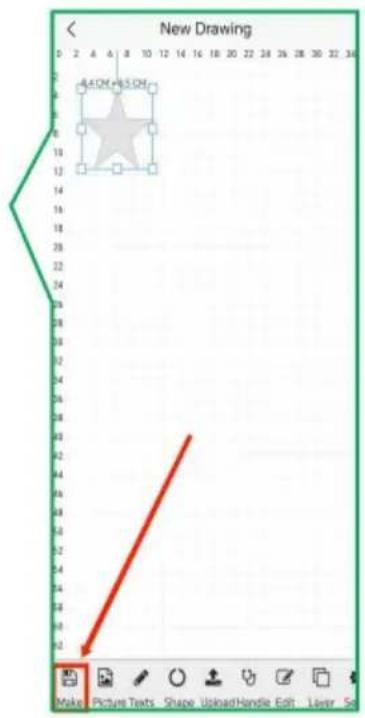
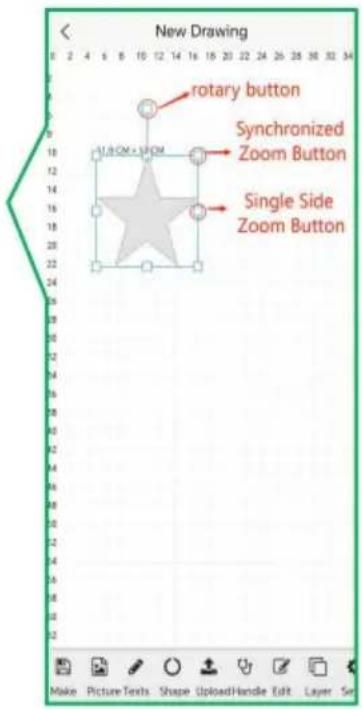
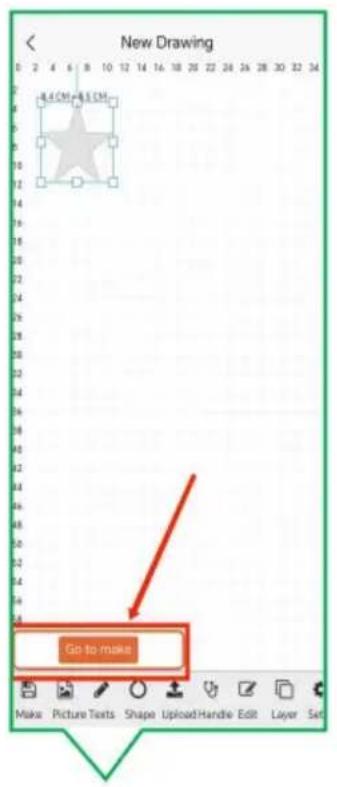
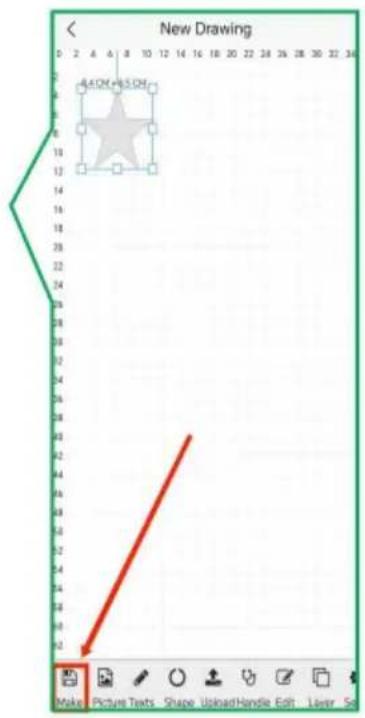
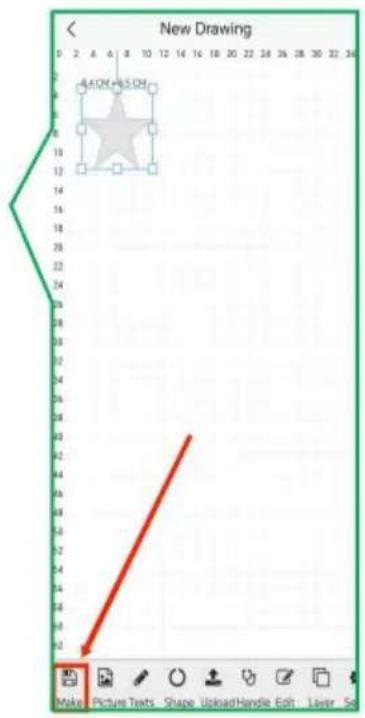
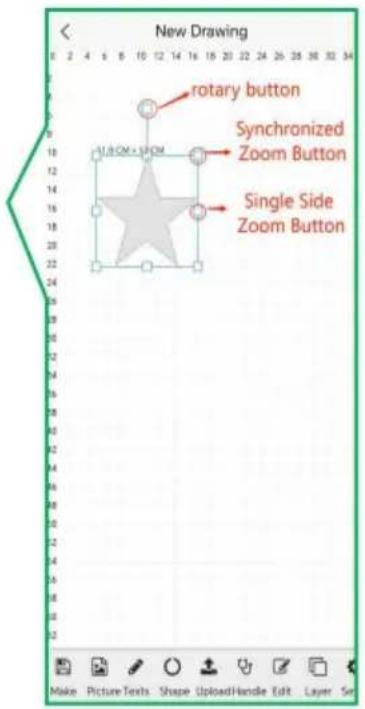
2.17 Confirm editing and 2.16 Graphics can be tap Make. edited in the canvas.

text_image
New Drawing Go to make
text_image
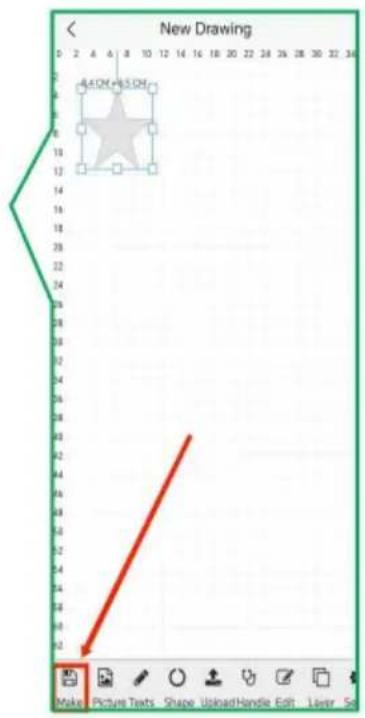
New Drawing 0 2 4 6 8 10 12 14 16 18 20 22 24 26 28 30 32 34 4.4 CM + 6.0 CM Make Picture Texts Shape Upload-Handle Edit Layer Se
text_image
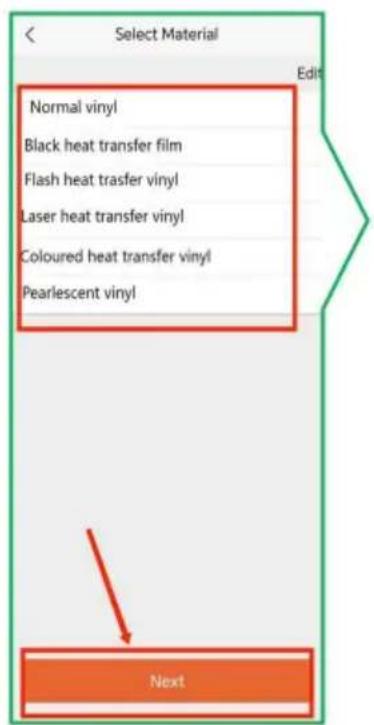
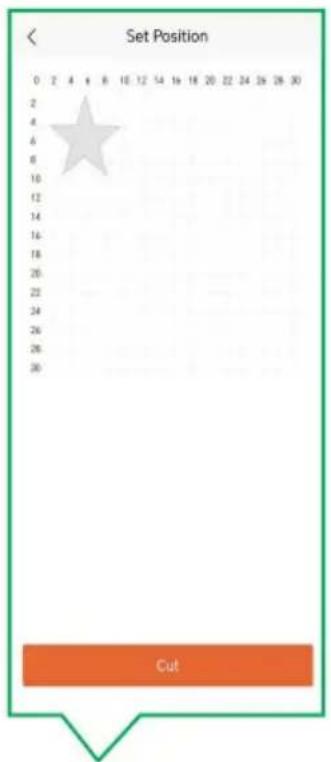
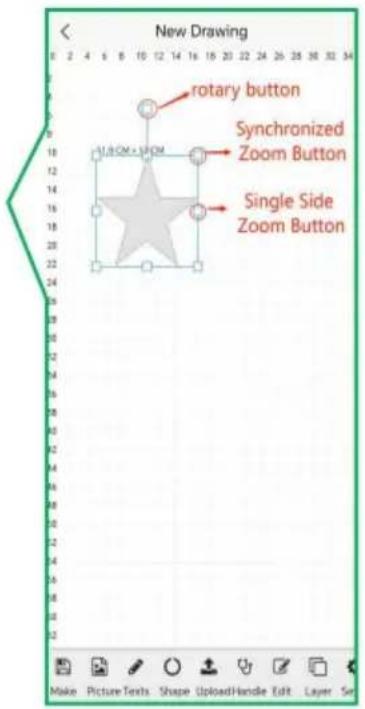
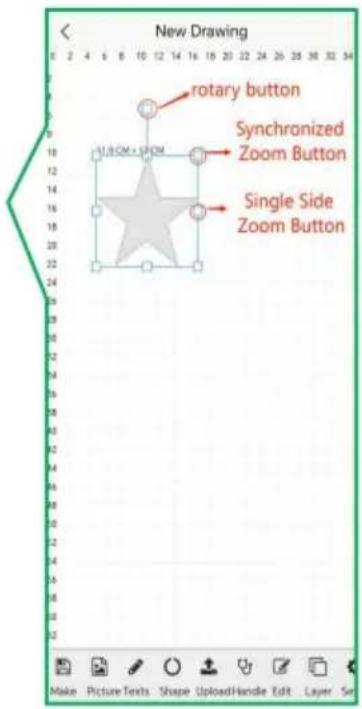
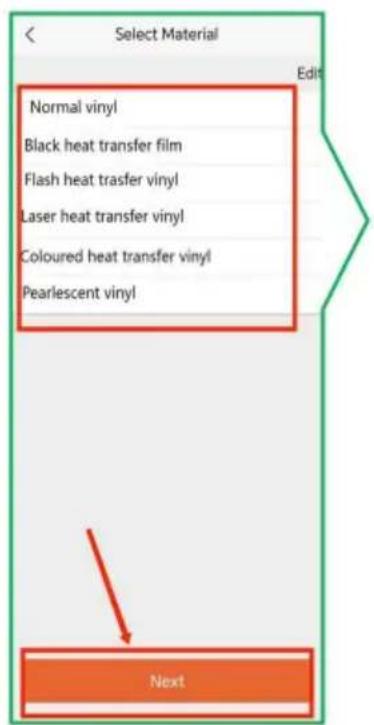
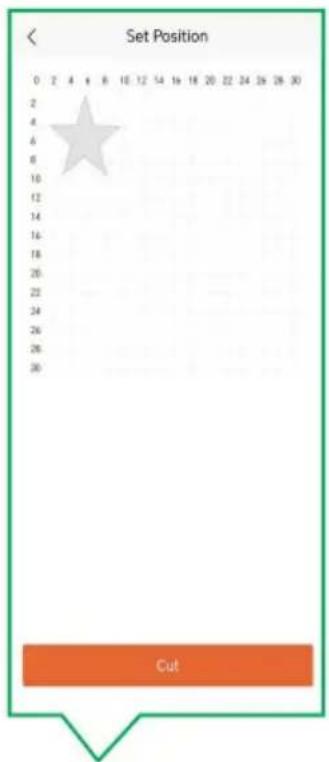
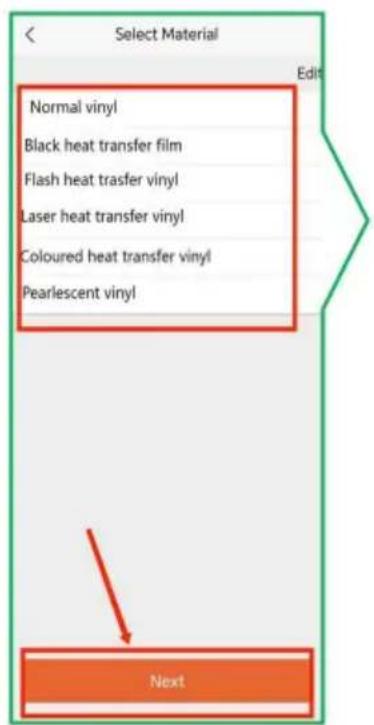
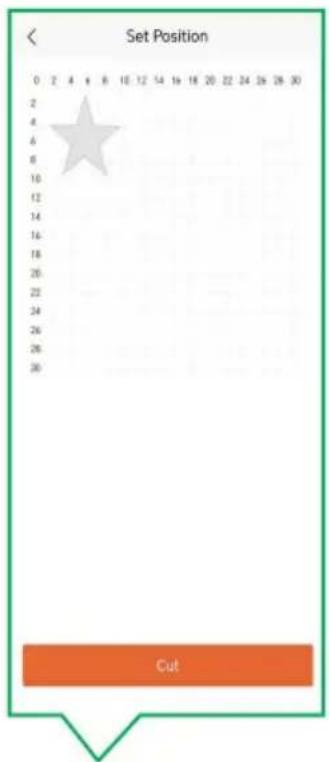
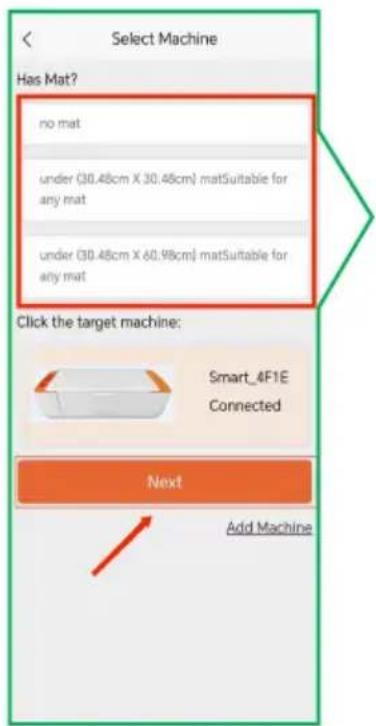
New Drawing rotary button Synchronized Zoom Button Single Side Zoom Button2.19 Select the cutting 2.20 Select materials ar 2.21 Move the graphic mat and click next "Ne; click "Next". this screen to adjust the cutting position.
text_image
Select Machine Has Mat? no mat under (30.48cm X 30.48cm) matSuitable for any mat under (30.48cm X 60.98cm) matSuitable for any mat Click the target machine: Smart_4F1E Connected Next Add Machine
text_image
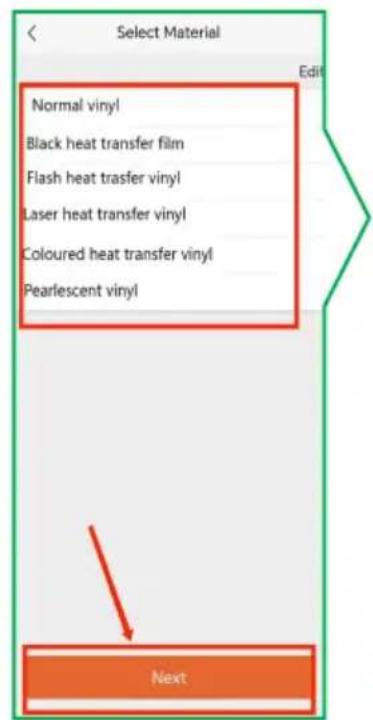
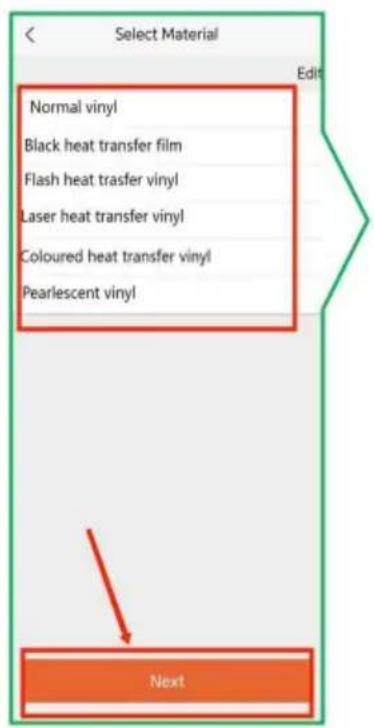
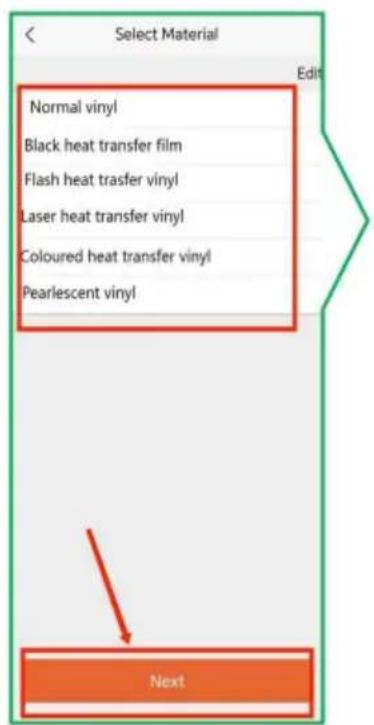
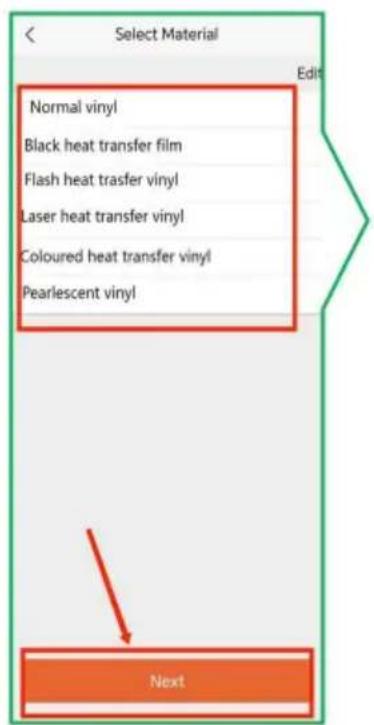
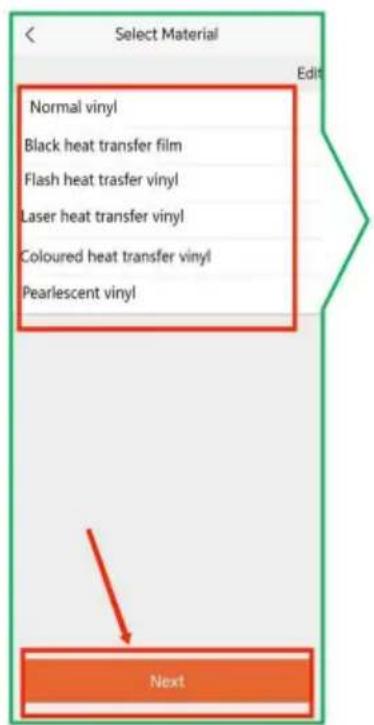
Select Material Normal vinyl Black heat transfer film Flash heat transfer vinyl Laser heat transfer vinyl Coloured heat transfer vinyl Pearlescent vinyl Next
text_image
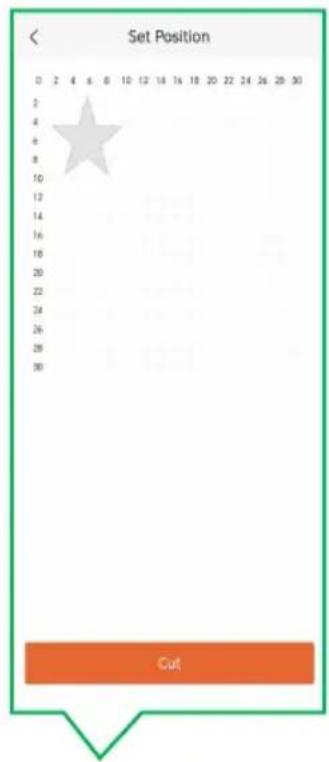
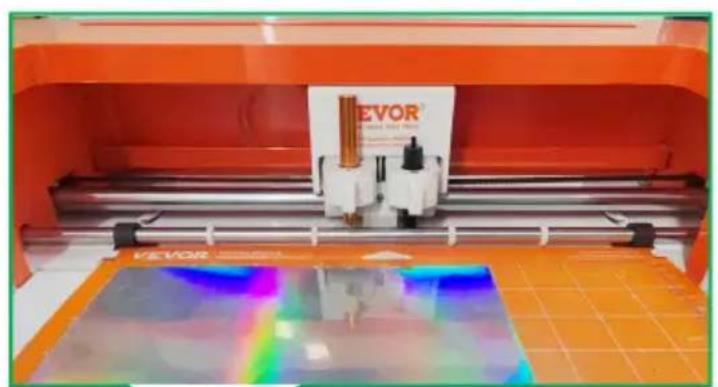
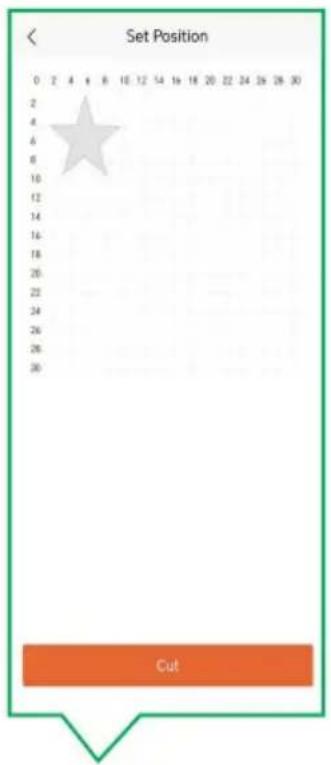
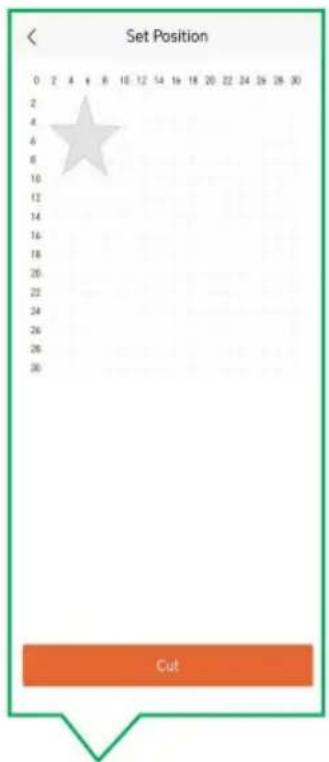
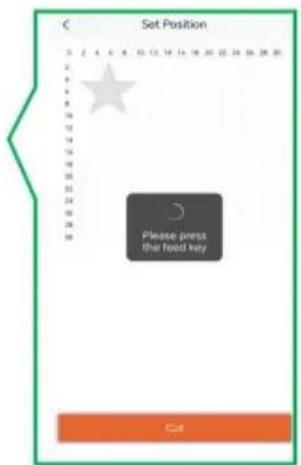
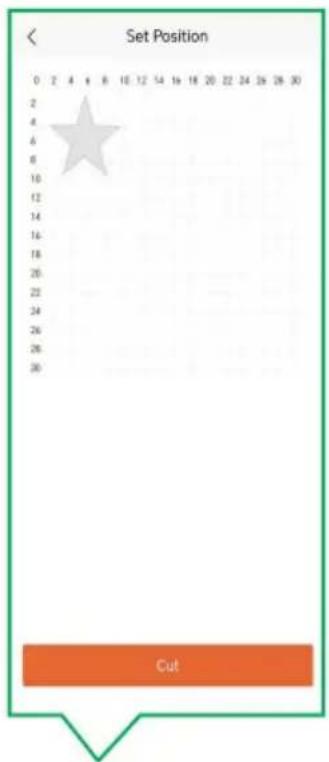
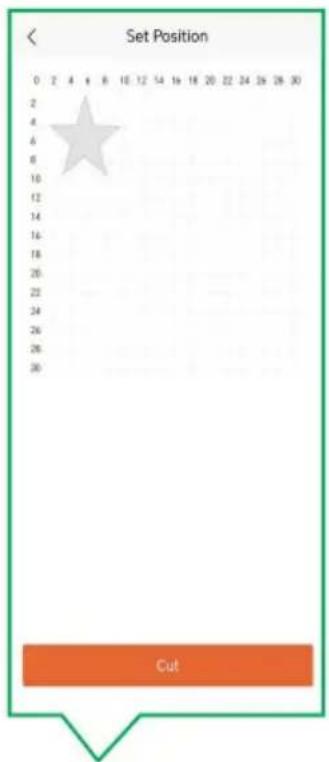
Set Position 0 2 4 6 8 10 12 14 16 18 20 22 24 26 28 30 2 4 6 8 10 12 14 16 18 20 22 24 26 28 30 Cut2.23 First, place the pad with the adhered mate 2.22 Please press the the edge of the press wheel according to the c feed key. below.

natural_image
Industrial printing machine with orange casing and a reflective display showing rainbow-colored filter (no visible text or symbols)
text_image
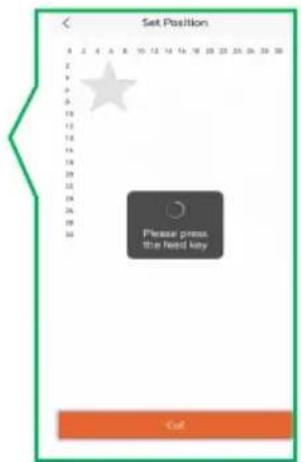
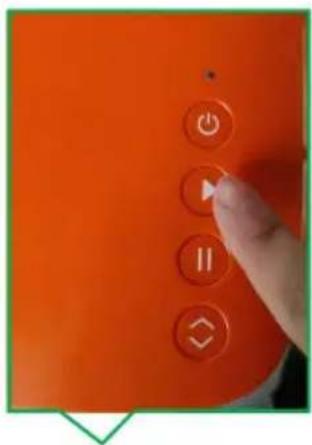
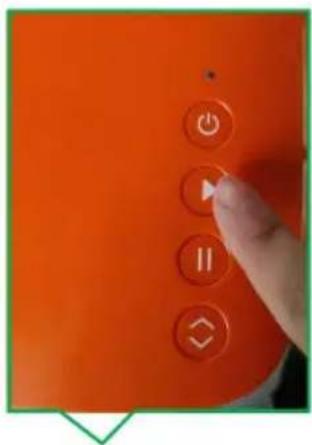
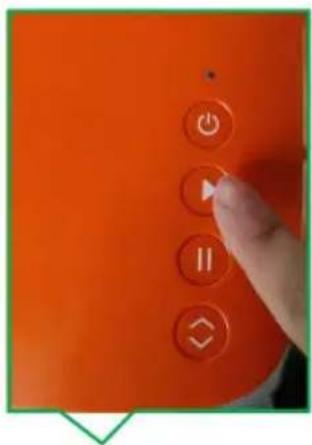
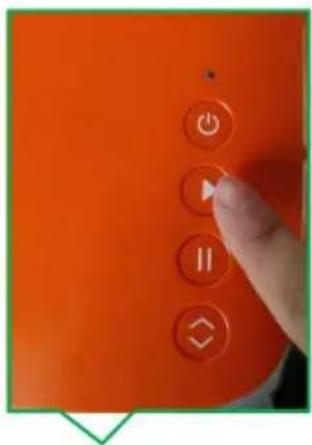
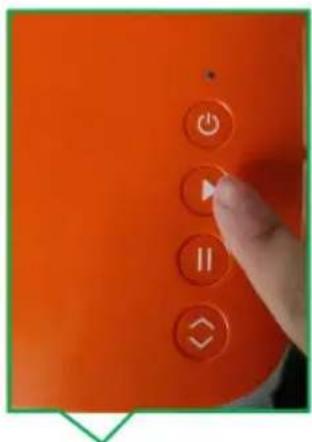
Set Position Please press the next key Cuff2.24 Press the LOAD 2.25 Press the machine 2.26 Press the start button when the material start button. button on the machine. is ready.

text_image
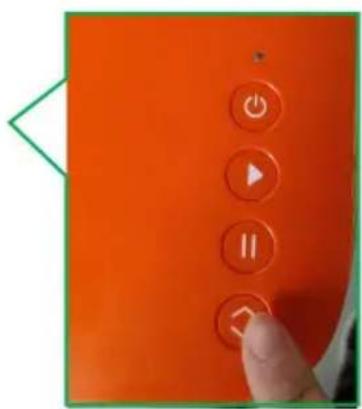
Orange device control panel with play, pause, and stop buttons, plus a finger pointing to the button.
text_image
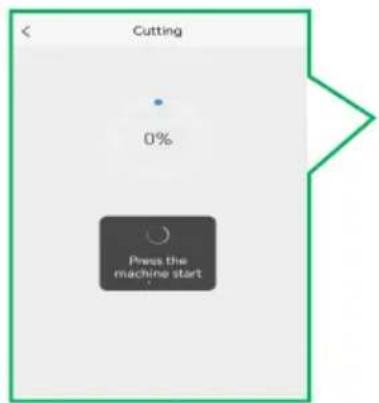
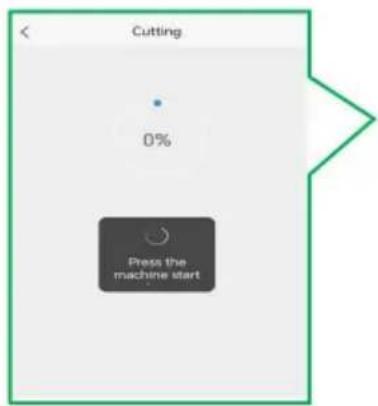
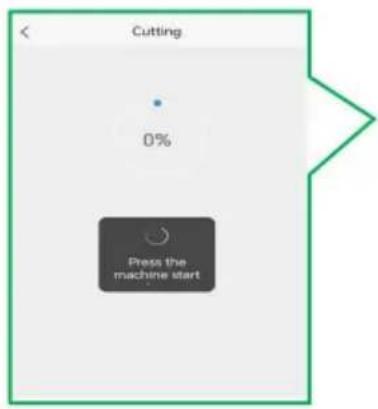
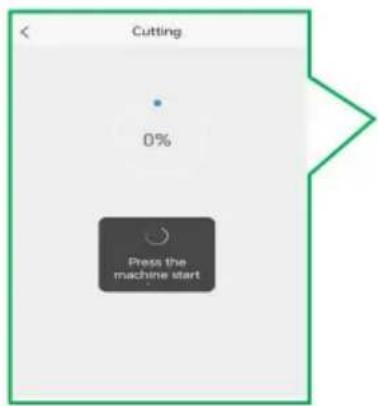
Cutting 0% Press the machine start
text_image
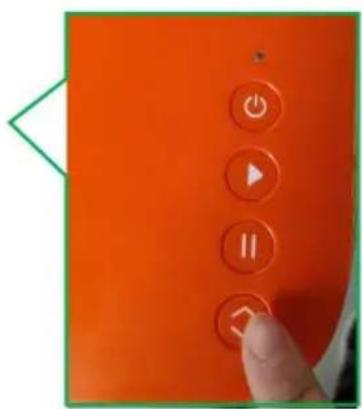
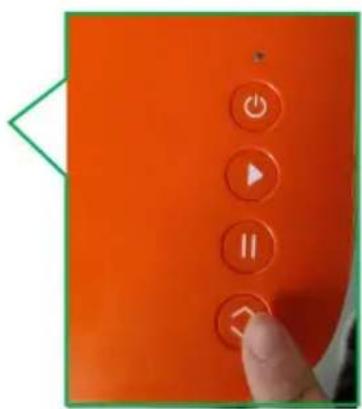
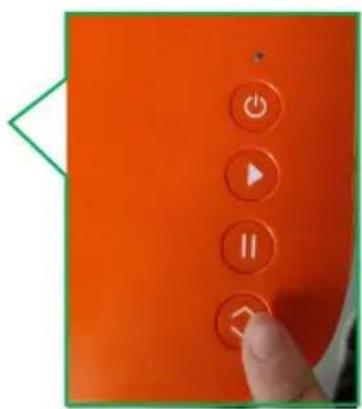
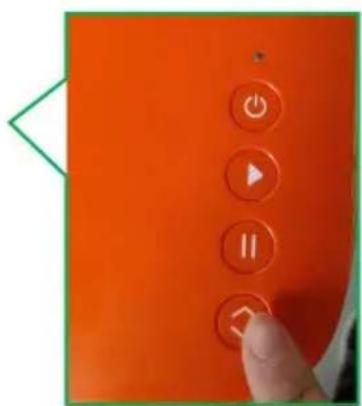
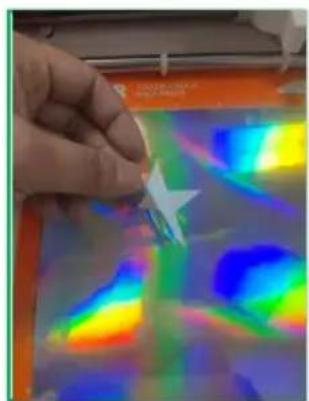
Orange button interface with control buttons including Power, Enable, and Allow symbols, held by a finger pointing to the button.2.29 Cutting Completion. 2.28 Press the machine 2.27 When processing LOAD/UNLOAD button. is complete, the software prompts you to press the eject button.
natural_image
Hand holding a small object with a star-shaped mark, interacting with a colorful, abstract thermal or spectrogram display (no text or symbols visible)
text_image
Orange device control panel with five labeled buttons: Power, Play, Off, and OK
text_image
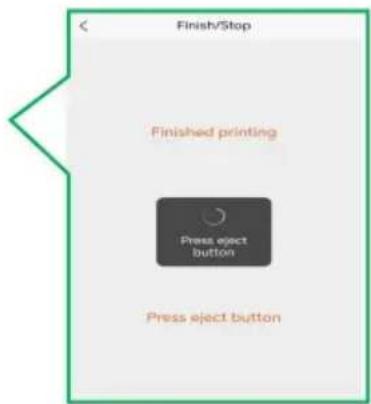
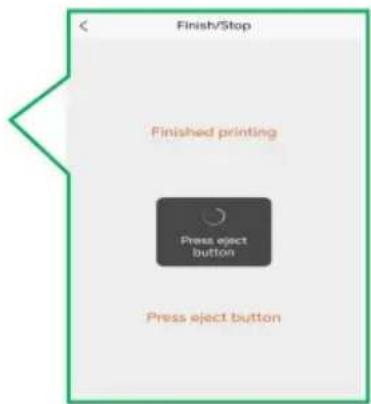
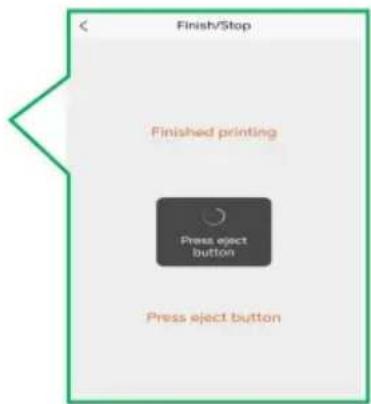
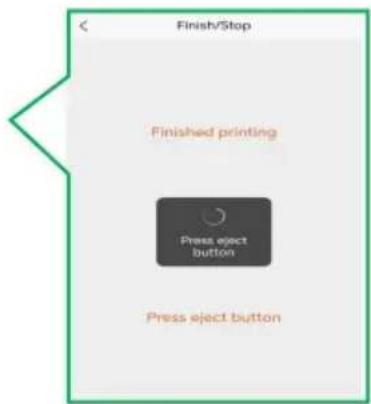
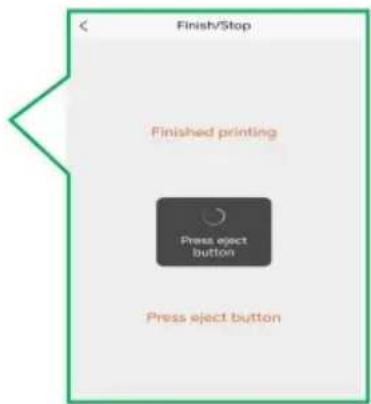
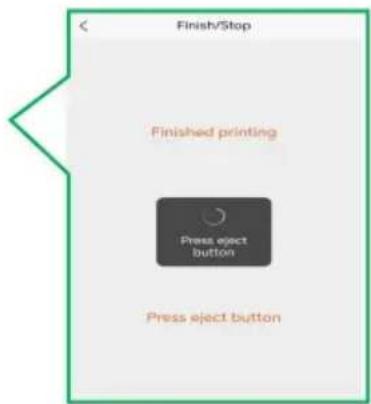
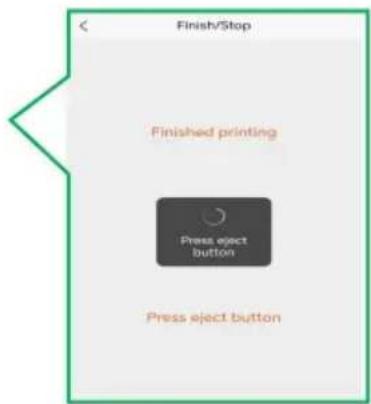
Finish/Stop Finished printing Press eject button Press eject buttonX.Frequently Asked Questions
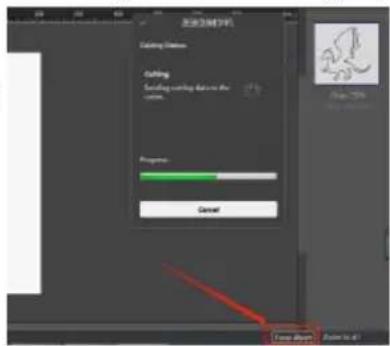
Q: What if the software shuts down during the cutting process and the softw
gets stuck?
A: Click "Force Abort" in the softwa

text_image
Existing Site Existing Site Adding Status Cutting Switch starting distance to the width Properties Cancel Last 100% Open 100%Q: The default knife pressure in the material library has been used for cutting while. How can it no longer cut through the material?
A: It's time to replace the blade, the tip is dull and not sharp enough.
Q: What should I do if there is deviation in contour cutting?
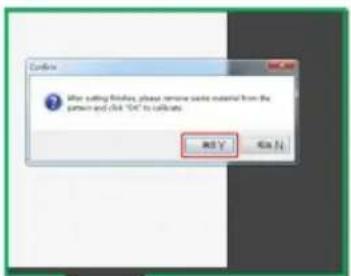
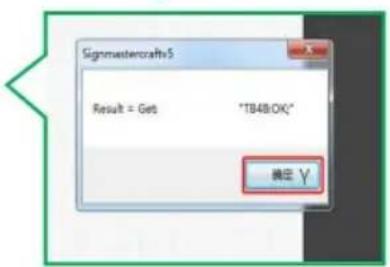
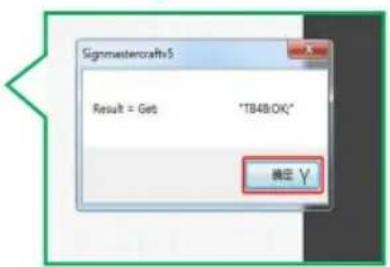
A: Follow the steps below to perform automatic calibration.

flowchart
graph TD
A["Start: Cable Connected"] --> B["Send to Device"]
B --> C["Cut Settings"]
C --> D["Middle Prompts"]
D --> E["Cut Tool (R)"]
E --> F["Part Tool (R)"]
F --> G["Some Tool (R)"]
G --> H["Speed"]
H --> I["Force"]
I --> J["End"]
K["Start: Cable to Cutter"] --> L["Send to Cutter"]
L --> M["Cutting Status"]
M --> N["Press "START" to..."]
N --> O["Middle enclosed press the START button to begin"]
O --> P["Pseudogase"]
P --> Q["Cancel"]
R["Start: Connect Right Tool Position"] --> S["Connect Right Tool Position"]
S --> T["Please load the load in the right tool and not block until for this test."]
T --> U["OK"]
U --> V["Up"]
W["Start: Connect Right Tool Position"] --> X["When load the load is the right tool and not block until for this test."]
X --> Y["OK"]
Y --> Z["Up"]
AA["Start: Connect Right Tool Position"] --> AB["When load the load is the right tool and not block until for this test."]
AB --> AC["OK"]
AC --> AD["Up"]
AE["Start: Connect Right Tool Position"] --> AF["When load the load is the right tool and not block until for this test."]
AF --> AG["OK"]
AG --> AH["Up"]
AI["Start: Connect Right Tool Position"] --> AJ["When load the load is the right tool and not block until for this test."]
AJ --> AK["OK"]
AK --> AL["Up"]
AM["Start: Connect Right Tool Position"] --> AN["When load the load is the right tool and not block until for this test."]
AN --> AO["OK"]
AO --> AP["Up"]
AQ["Start: Connect Right Tool Position"] --> AR["When load the load is the right tool and not block until for this test."]
AR --> AS["OK"]
AS --> AT["Up"]
AU["Start: Connect Right Tool Position"] --> AV["When load the load is the right tool and not block until for this test."]
AV --> AW["OK"]
AW --> AX["Up"]
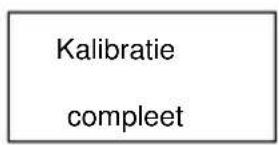
AY["Calibration complete"] --> AZ
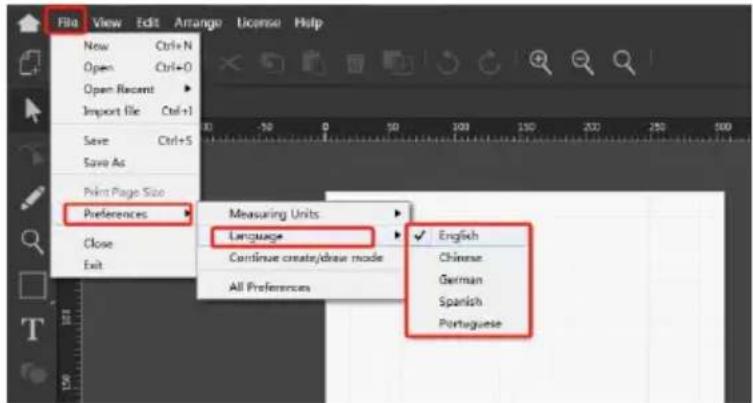
Q: How do I switch the language of the software?
A: Follow the instructions below to switch languages.
text_image
File View Edit Arrange License Help New Ctrl+N Open Ctrl+O Open Recent Import File Ctrl+1 Save Ctrl+S Save As Print Page Size Preferences Measuring Units Language Continue create/draw mode All Preferences English Chinese German Spanish PortugueseQ: How to change the measuring units?
A: Please follow the steps below to switch between units.
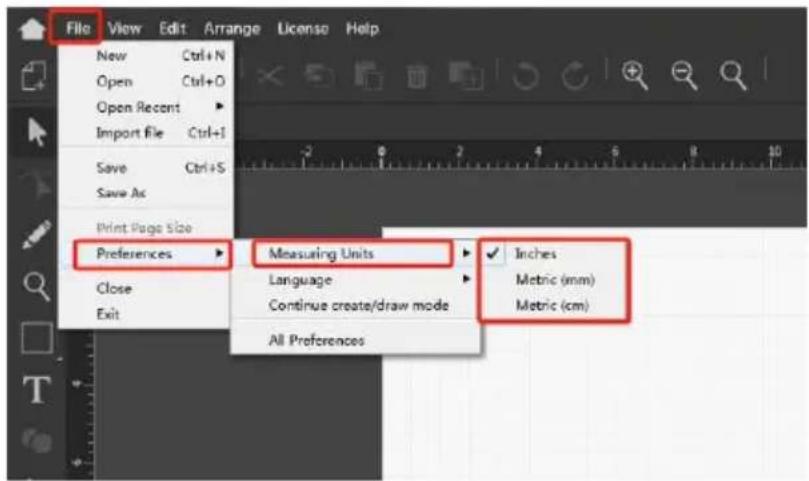
text_image
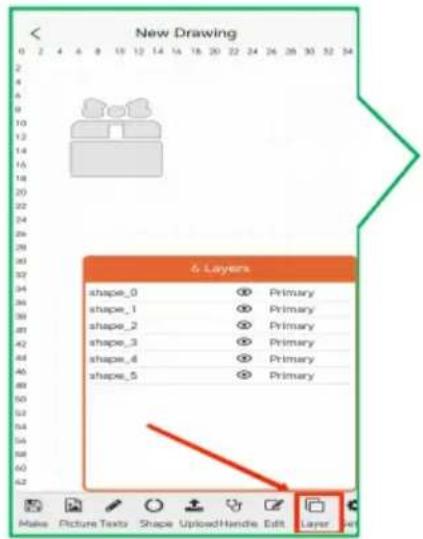
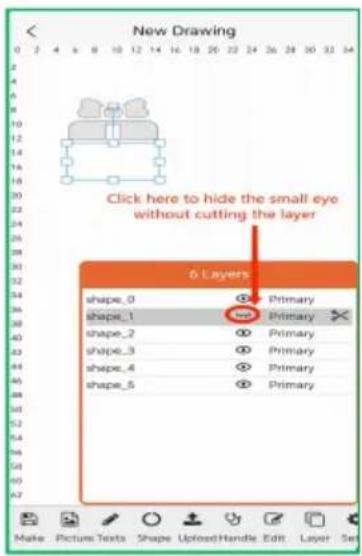
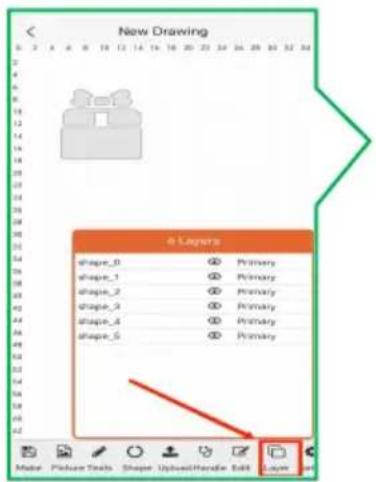
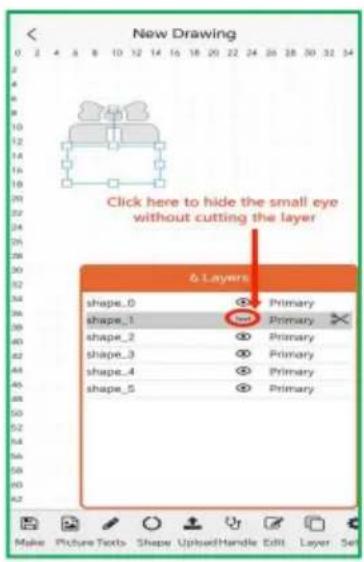
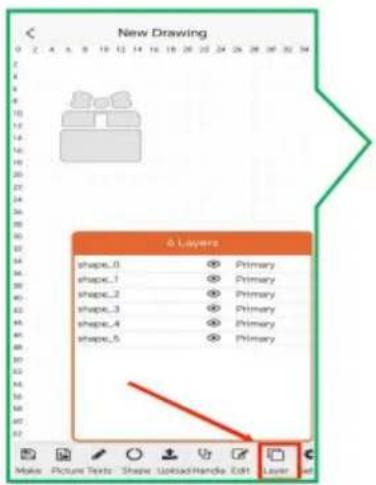
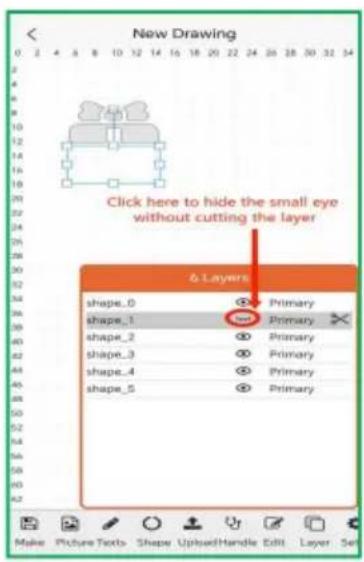
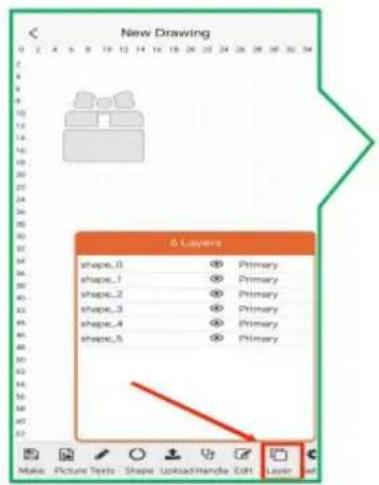
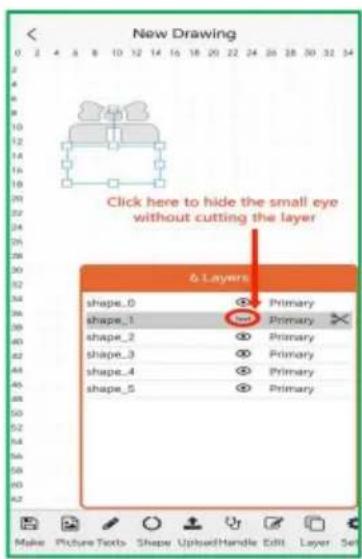
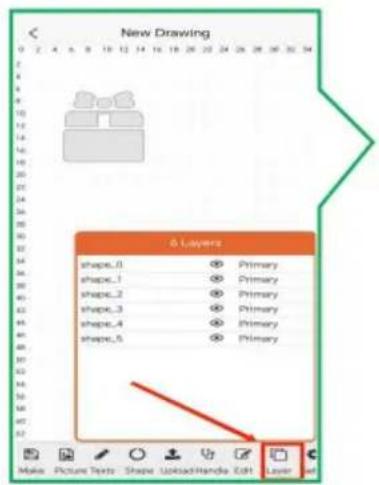
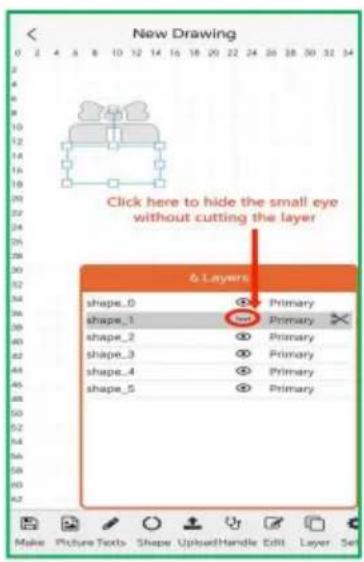
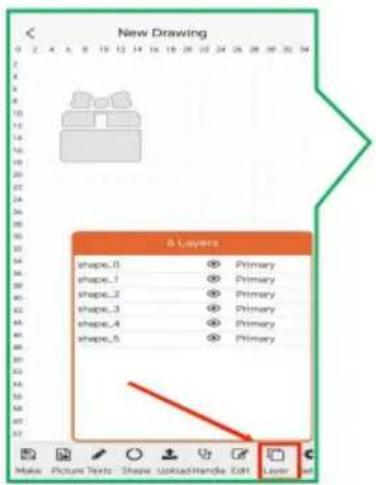
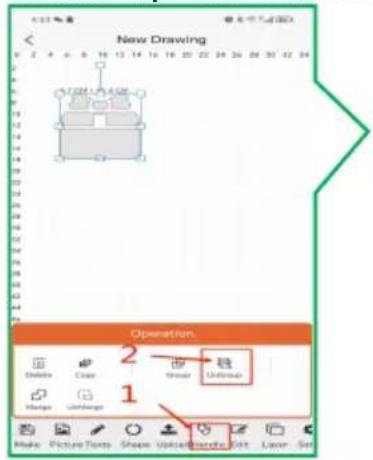
File View Edit Arrange License Help New Ctrl+N Open Ctrl+O Open Recent Import File Ctrl+I Save Ctrl+S Save As Print Page Size Preferences Measuring Units Inches Close Language Metric (mm) Exit Continue create/draw mode Metric (cm) All PreferencesQ: How to cut in layers in APP?
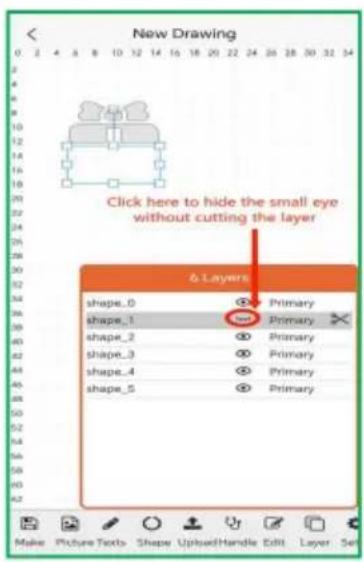
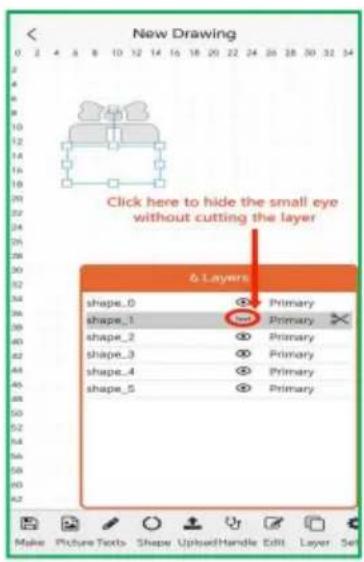
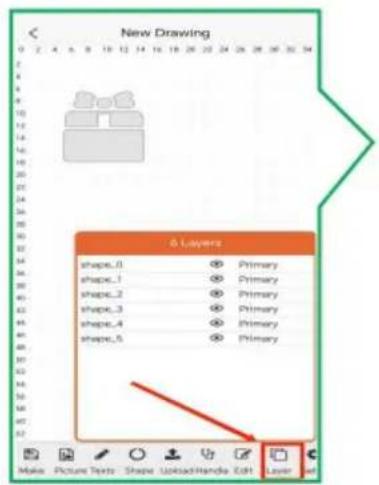
A: Please follow the steps below.
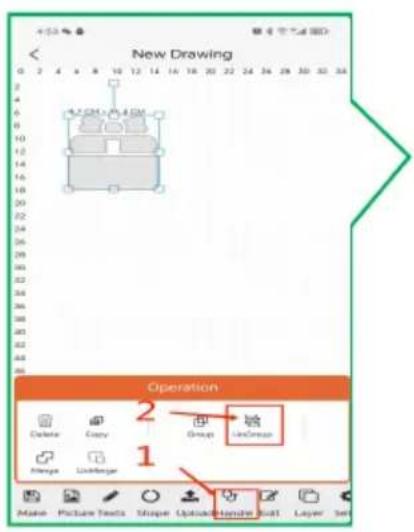
text_image
New Drawing Operation 1 2 3 4 5 6 7 8 9 10 11 12 13 14 15 16 17 18 19 20 21 22 23 24 25 26 27 28 29 30 31 32 33 34 35 36 37 38 Delete Copy Group LinkIcon Merge LinkBanner Make Picture Texts Shape Options/Render Wall Layer Set
text_image
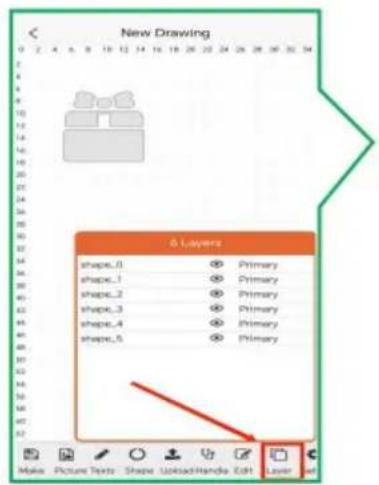
New Drawing shape_0 shape_1 shape_2 shape_3 shape_4 shape_5 Primary Primary Primary Primary Primary Make Picture Texts Shape UploadHandle Edit Layer
text_image
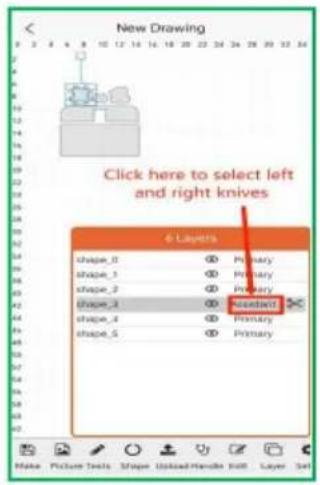
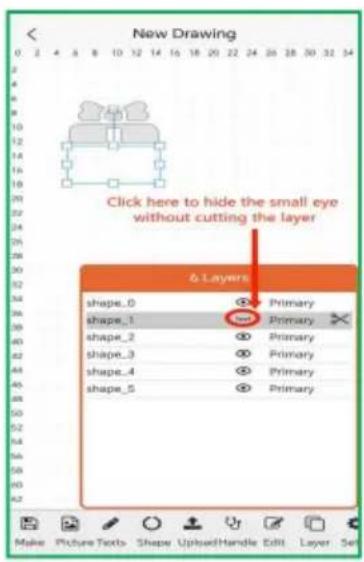
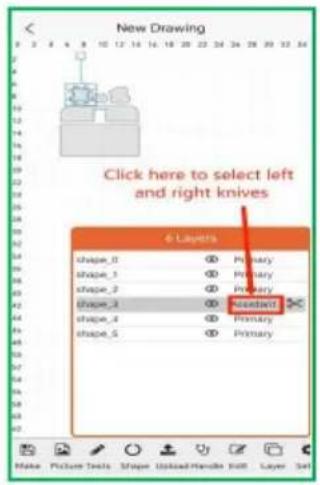
New Drawing Click here to hide the small eye without cutting the layer 6 Layers shape_0 ○ Primary shape_1 ○ Primary shape_2 ○ Primary shape_3 ○ Primary shape_4 ○ Primary shape_5 ○ PrimaryQ: How to switch left and right knives in APP?
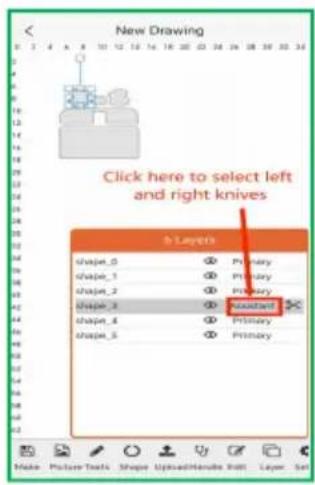
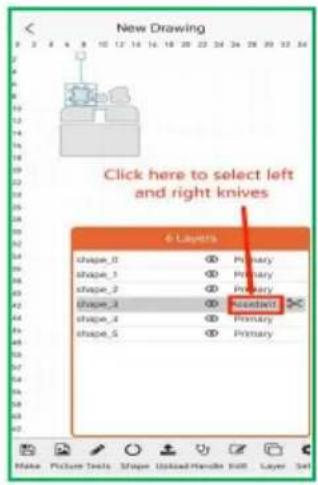
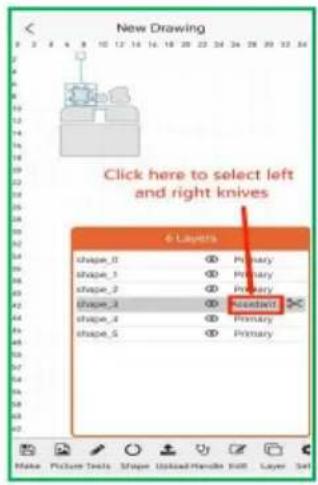
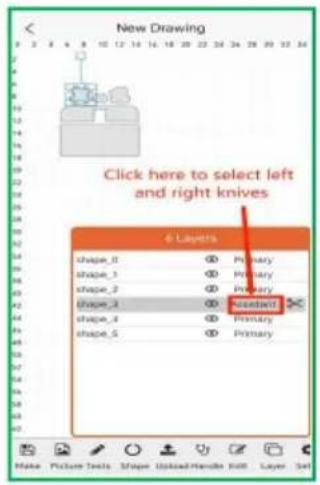
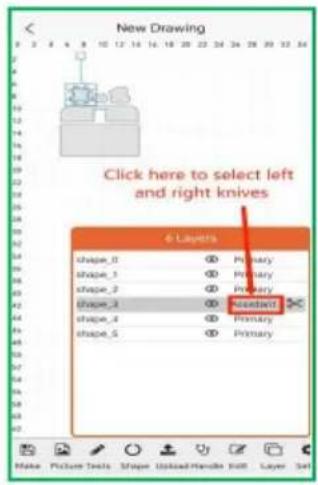
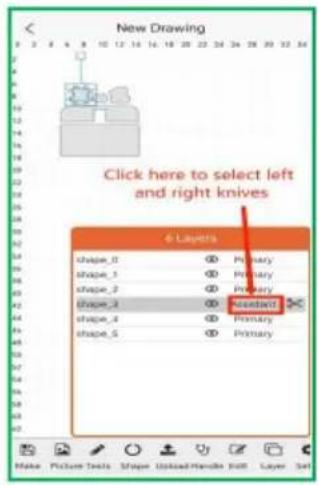
A: Set up as follows.
text_image
New Drawing Operation 1 2 3 4 5 6 7 8 9 10 11 12 13 14 15 16 17 18 19 20 21 22 23 24 25 26 27 28 29 30 31 32 33 34 Delete Copy Spread Unfolded Change Unfolded Make Picture Tools Shape Unfolded Shape Edit Layer - Size
text_image
New Drawing e Layers shape_0 Primary shape_1 Primary shape_2 Primary shape_3 Primary shape_4 Primary shape_5 Primary
text_image
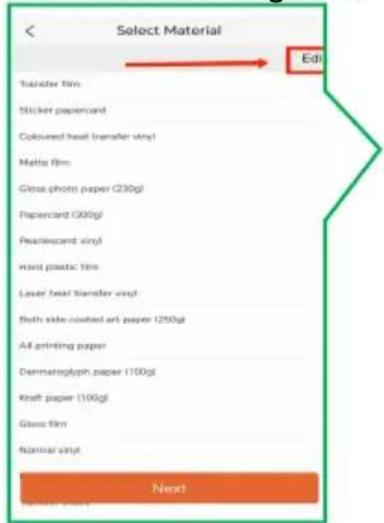
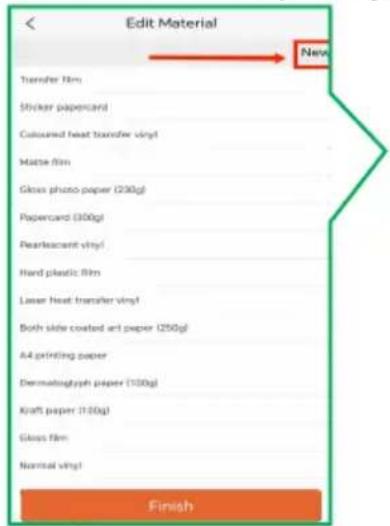
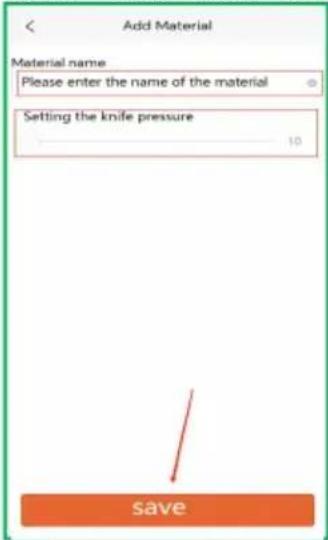
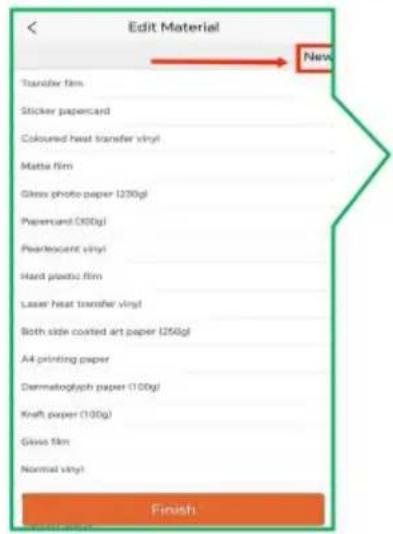
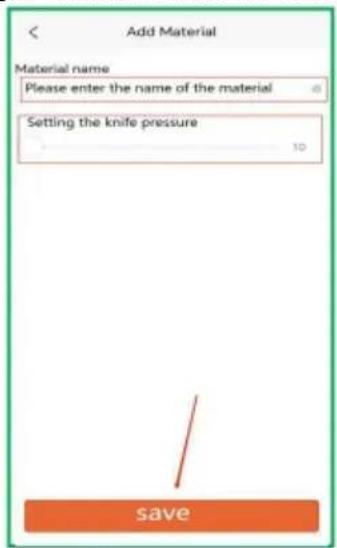
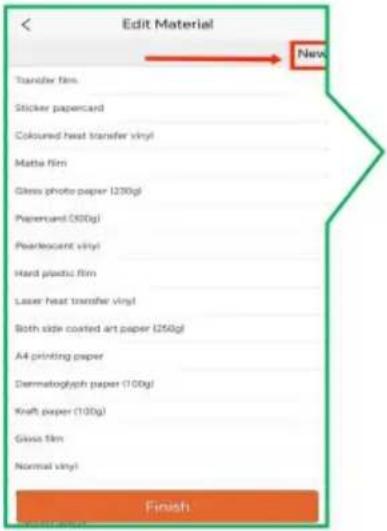
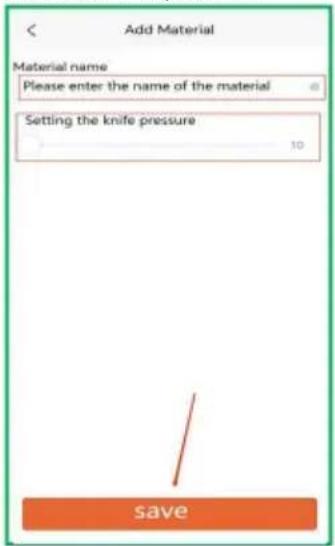
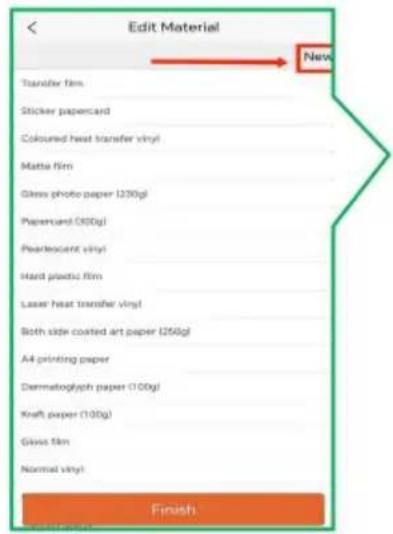
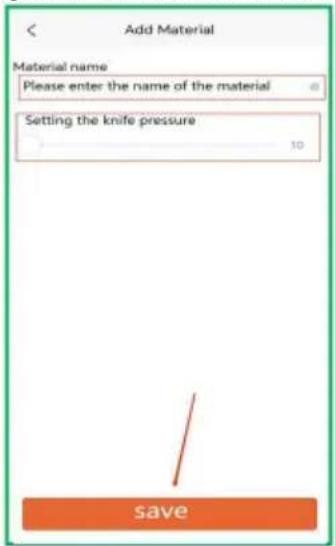
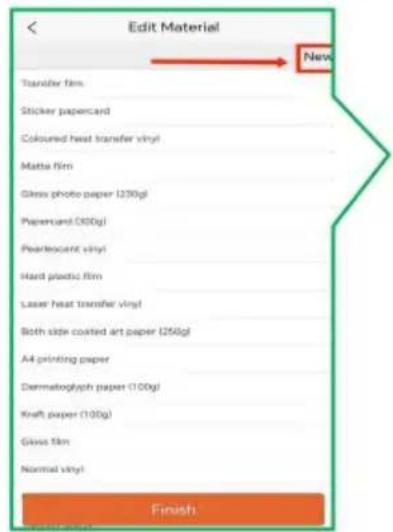
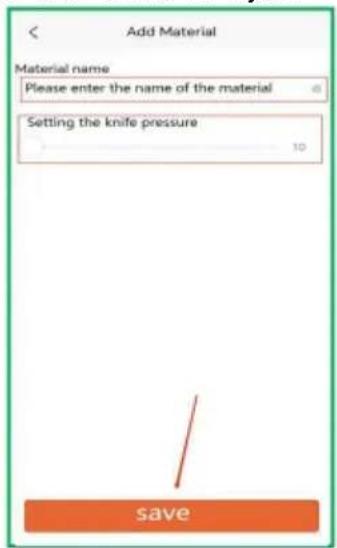
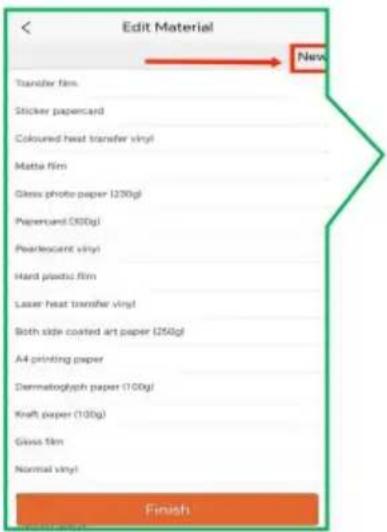
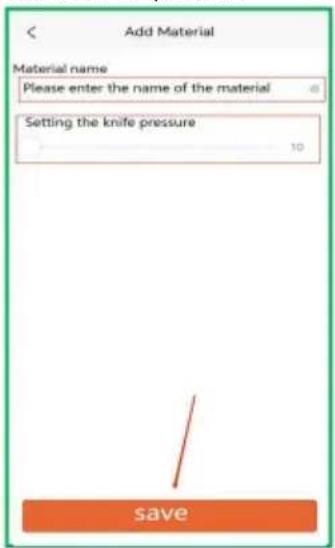
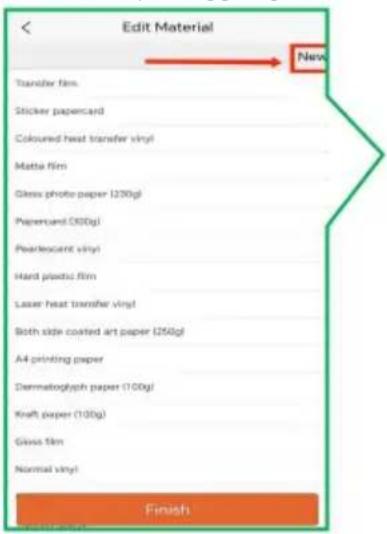
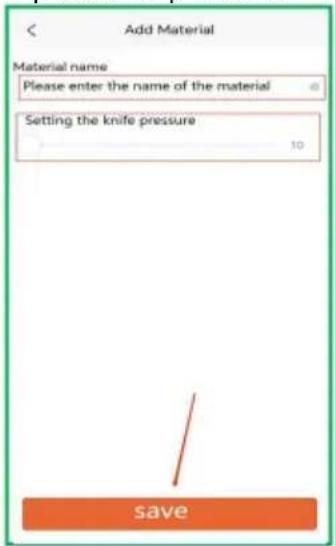
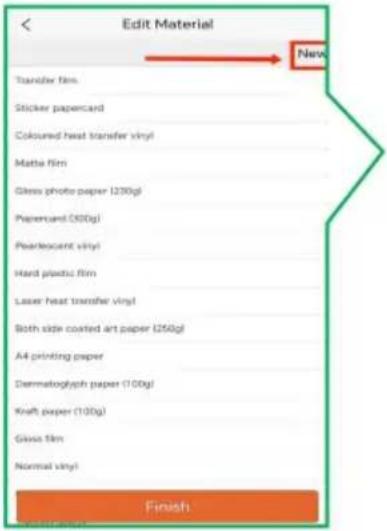
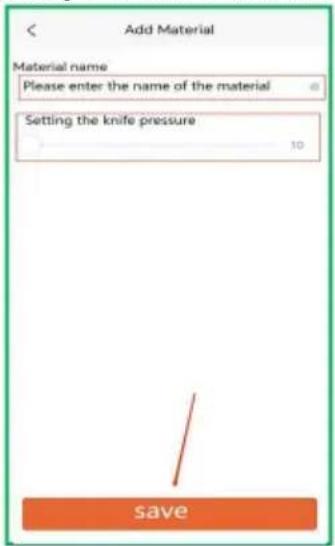
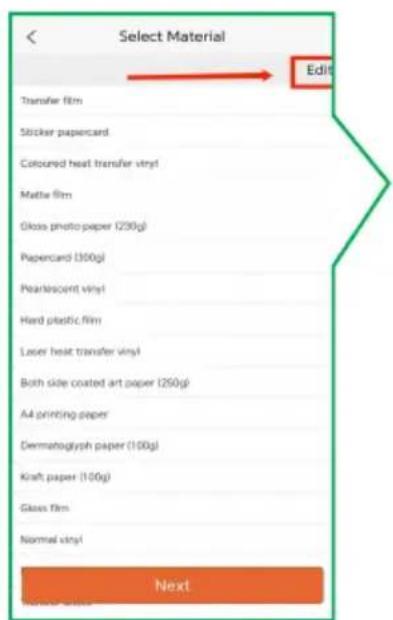
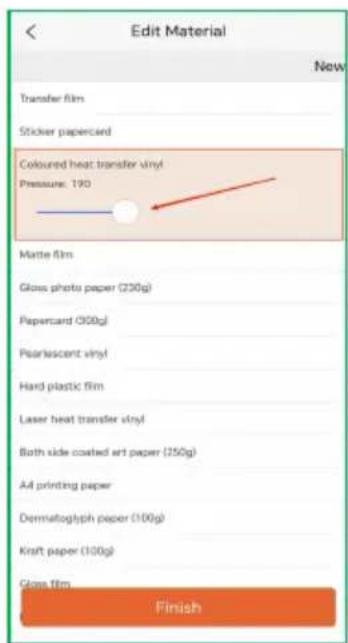
New Drawing Click here to select left and right knives b Layers shape_0 ◎ Primary shape_1 ◎ Primary shape_2 ◎ Primary shape_3 ◎ Rightstart shape_4 ◎ Primary shape_5 ◎ PrimaryQ: What if I don't have the material I want to cut in the APP's material libra A: You can go to the Material Library page to add materials and set pressu

text_image
Select Material Edit Transfer film Sticker papercard Coloured heat transfer vinyl Mamma film Gloss photo paper (230g) Papercard (300g) Pearlencant vinyl Hard plastic film Laser heat transfer vinyl Both slide coated art paper (250g) All printing paper Demmatoglyph paper (1100g) Kraft paper (100g) Glass film Normal vinyl Next
text_image
Edit Material Transfer film Sticker papercard Coloured heat transfer vinyl Mattice film Gloss photo paper (200g) Papercard (300g) Pearleasant vinyl Hard plastic film Laser heat transfer vinyl Both side coated art paper (250g) A4 printing paper Dermatoglyph paper (100g) Kraft paper (150g) Glass film Nominal vinyl Finish
text_image
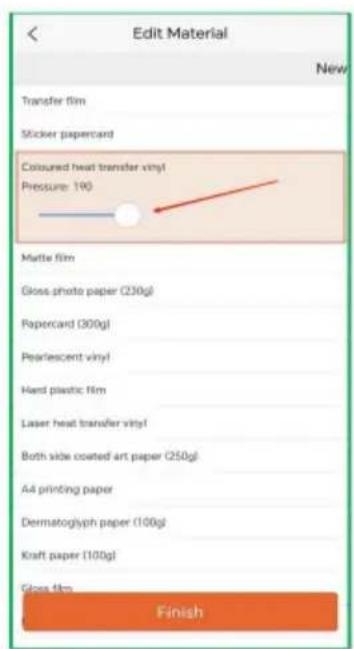
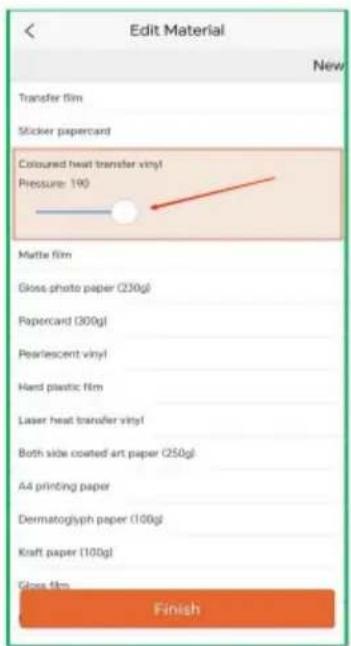
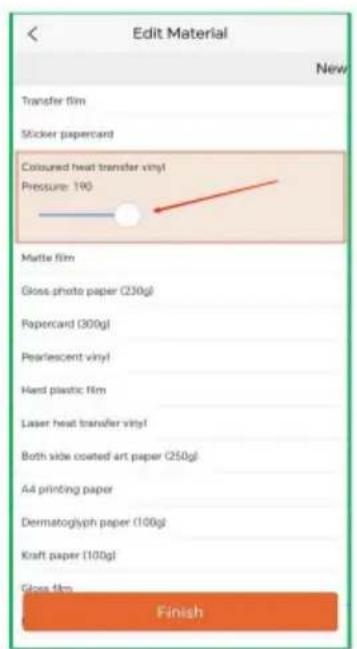
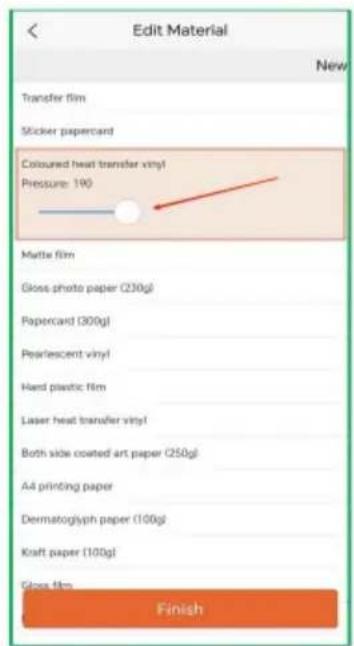
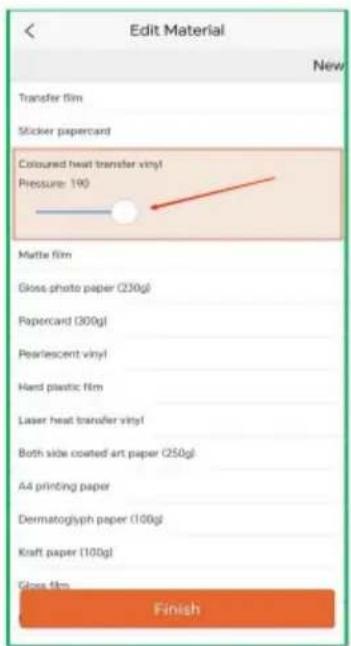
Add Material Material name Please enter the name of the material Setting the knife pressure 10 saveQ: How do I adjust the pressure to increase or decrease?
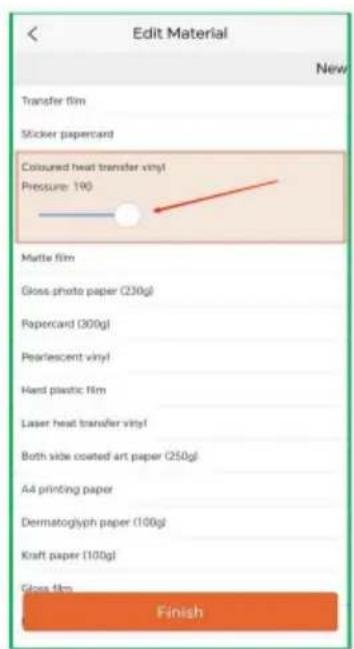
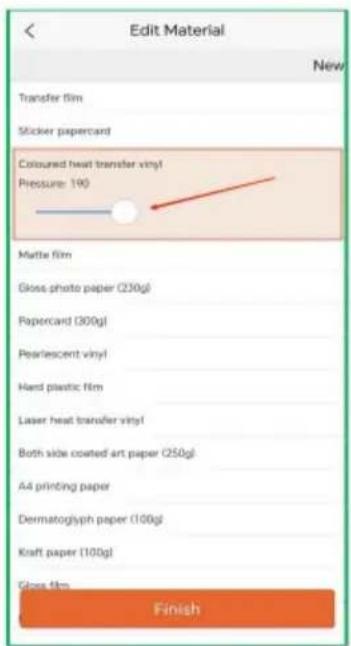
A: You can set it up in the following ways.
text_image
Select Material Transfer film Sticker papercard Coloured heat transfer vinyl Mette film Gloss photo paper (230g) Papercard (300g) Pearlescent vinyl Hard plastic film Laser heat transfer vinyl Both slide coated art paper (250g) A4 printing paper Dermatoglyph paper (100g) Kraft paper (100g) Glass film Normal vinyl Next Edit
text_image
Edit Material New Transfer film Sticker papercard Coloured heat transfer vinyl Pressure: 190 Marte film Gloss photo paper (230g) Papercard (500g) Pearlescent vinyl Hard plastic film Laser heat transfer vinyl Both side coated art paper (250g) All printing paper Dermatoglyph paper (100g) Kraft paper (100g) Glass film FinishQ: Why doesn't it recognize the USB flash disk?
A: The format of your USB flash disk may not be supported.
Support format : FAT and FAT32
Unsupported format: NTFS and exFAT
XI.Operation Video
- https://youtu.be/K7XpFJqkuuA 2. https://youtu.be/6yPM4iy5Ixc

text_image
QR code image containing encoded data, no visible human-readable text
text_image
QR code image containing encoded data, no visible human-readable text- https://youtu.be/Kj-b7WdSCH8 4. https://youtu.be/FqSa51zLvtw

text_image
QR code image containing encoded data, no visible human-readable text
text_image
QR code image containing encoded data, no visible human-readable text- https://youtu.be/-5u-A62vNql 6. https://youtu.be/hMHugAJSWdM

text_image
QR code image containing encoded data, no visible human-readable text
text_image
QR code image containing encoded data, no visible human-readable textXII.FCC Information
CAUTION: Changes or modifications not expressly approved by the party responsible for compliance could void the user's authority to operate the equipment!
This device complies with Part 15 of the FCC Rules. Operation is subject to following two conditions:
1) This product may cause harmful interference.
2) This product must accept any interference received, including interference that may cause undesired operation.
WARNING: Changes or modifications to this product not expressly approved by the party responsible for compliance could void the user's authority to operate product.
Note: This product has been tested and found to comply with the limits for B digital device pursuant to Part 15 of the FCC Rules. These limits are des provide reasonable protection against harmful interference in a residential installation.
This product generates, uses, and can radiate radio frequency energy, and if installed and used in accordance with the instructions, may cause harmful interference to radio communications. However, there is no guarantee that interference will not occur in a particular installation. If this product does cause harmful interference to radio or television reception, which can be determined turning the product off and on, the user is encouraged to try to correct the interference by one or more of the following measures.
- Reorient or relocate the receiving antenna.
- Increase the distance between the product and the receiver.
- Connect the product to an outlet on a circuit different from that to which receiver is connected.
- Consult the dealer or an experienced radio/TV technician for assistance.
XIII.CORRECT DISPOSAL

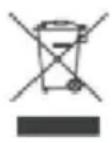
This product is subject to the provision of European Directive 2012/19/EC. The symbol showing a wheelie bin crossed through indicate that the product requires separate refuse collection in the European U
This applies to the product and all accessories marked with this symbol. Pro marked as such may not be discarded with normal domestic waste, but must taken to a collection point for recycling electrical and electronic devices.
Made In China
VEVOR®
TOUGH TOOLS, HALF PRICE
Technical Support and E-Warranty Certificate
www.vevor.com/support
VEVOR®
TOUGH TOOLS, HALF PRICE
natural_image
White and orange HP printer with internal components, no visible text or symbols on the device bodyÿ. Softwareinstallation....11-12
text_image
20in 20in
text_image
Clamp L Clamp R VEVOR® SODDER TOOL SLIP PRICE WATER SCREW AND COOKING COLDING PAUSE WITH REMO ←←→←→- Open the Clamp as shown by the arrow.
text_image
Pen or Foil Transfer and housing Blade and housing EVOR® FOR TOOL, FOIL PRESS- Place the Blade and housing in Clamp R. Place the pen or the foil transfer and housing in Clamp L.
natural_image
Close-up of a white mechanical component with two metallic parts, one labeled 'EVOR' and the other showing 'COCA HALF PRICE', against an orange background (no readable text beyond branding)- Close the Clamp as shown by the arrow.
natural_image
Solid red cylindrical object with a small protrusion at the top (no text or symbols visible)Foil Transfer and housing

Blade and housing
natural_image
Close-up of a metallic cylindrical object with vertical ridges and a small protrusion at the top (no visible text or symbols)Pen
natural_image
Close-up of a blue cable inserted into a white electrical outlet, next to a black electronic device (no visible text or symbols)
natural_image
Close-up of a white electrical outlet plug with a blue cable inserted, alongside a black wall socket (no text or symbols visible)Attention: Before powering on, check whether the voltage and current of the machine adapter match the location. Once confirmed, you can proceed to power on to avoid potential hazards.
natural_image
Two-panel illustration showing a pink abstract shape and a blue background with geometric lines (no text or symbols)natural_image
Exterior view of a red and orange industrial machine with a visible brand logo (no readable text or symbols)ÿ. Softwareinstallation
text_image
Create a new Account e126.com 356 ...... ...... China I have an account Register
text_image
ExactCut (PAC-PC) Product Serial Number (PSV) 1033-8888 000000000000 https://get.exact-cut.com
text_image
Exact-Cut Resource Center We have sent a confirmation email to HW After clicking on the link, click here to enter the dashboard Resend Verification Emailtext_image
Exact-Cut Resource Center Sign in to your account a126.com ****** Remember Me Create an Account Forgot my password Login
text_image
FCLAccessAPI Hello! Please click the button below to verify your email address. Verify Email Address If you did not create an account, no further action is required. Regards. FCLAccessAPItext_image
Download Links Link Product Version OS Data Download ExactCut 1.0.0 Windows 2023-9-17 Download ExactCut 1.0.0 Mic 2023-9-17 Note: a Cutter Serial Number cannot be used to install the softwaretext_image
Install Exact Cut.exetext_image
Setup - ExactCut version 1.0.1 License Agreement Please read the following important information before continuing. Please read the following License Agreement. You must accept the terms of this agreement before continuing with the installation. A FUTURE CORPORATION PTY. LTD. SOFTWARE LICENSE AGREEMENT I. IMPORTANT: THIS IS A LICENSE, NOT A SALE. PLEASE READ THE TERMS AND CONDITIONS OF THIS SOFTWARE LICENSE AGREEMENT (ASSETS). I accept the agreement I do not accept the agreement Next Canceltext_image
Setup - ExactCut version 1.0.1 Completing the ExactCut Setup Wizard Setup has finished installing ExactCut on your computer. The application may be launched by selecting the installed shortcuts. Click Finish to exit Setup. Launch ExactCut Finishtext_image
Setup - ExactCut version 1.0.1 Select Destination Location Where should ExactCut be installed? Setup will install ExactCut into the following folder. To continue, click Next. If you would like to select a different folder, click Browse. At least 38.8 MB of free disk space is required. Back Next Canceltext_image
Setup - ExactCut version 1.0.1 Ready to Install Setup is now ready to begin installing ExactCut on your computer. Click Install to continue with the installation, or click Back if you want to review or change any settings. Destination location: C:\Program Files\ExactCut Additional tasks: Additional shortcuts: Create a desktop shortcut Other tasks: Install Thumbnail Previewer Back Install Canceltext_image
Exact-Cut Resource Center Sign in to your account irqq.com Remember Me Create an Account Forgot my password LoginDialogfeld.

text_image
ExacCut Welcome, Welcome! Welcome to the Exac Cut Resource Center. How you can manage your licenses and information. Actions Register Software Product Number View Cutters and Licenses Transfer Software Product Number View Download Linkstext_image
File View Edit Arrange License Help Cutter Connected Send to cut Untitled 6 10 200 300 350 400 450 500 550 600 650 700 750 800 850 Hindu China rulers Zoom to alltext_image
Toolbar with application icons including folder, document, edit, paste, refresh, add, delete, zoom, and search functions
text_image
Vertical toolbar with icons for arrow, pencil, magnifying glass, square, letter 'T', and droplet symboltext_image
Vertical toolbar with icons representing file operations and tools, including document, brush, gear, and pencil.natural_image
Pure technical diagram with a green triangle on top and a red rectangle below, no text or symbols present.natural_image
Close-up of a blue USB cable attached to a black electronic device on a wooden surface (no text or symbols visible)text_image
Line Session Line Sessiontext_image
Spin button Simultaneous scaling Unilateral scaling 62.797 mm — 6 62.797 mm — 6 Curvenatural_image
Simple green star outline inside a green speech bubble outline on grid paper (no text or symbols)
text_image
Document Style Box Cutting Mix Cutting Mix: Edit in a Liling Width: 100 px Height: 5 px Distance: 5 px View Out Print and Cut Tools (MMS)text_image
Color Add Color + Color Filtered 17 Show Cut off Select All Default Light Solid Light Field Lines Position Use in Shift Format Type Positioning
text_image
Screenshot of a graphic design software interface showing a star-shaped graphic design on the canvas with toolbars and a red arrow pointing to it.text_image
Send to Color Color Settings Media Properties Black Heat, Transporting Strip Heat Shift (R) Noise Shift (S) Speed 500 500 Mode: Default Mode: 100% error Send to Color
text_image
Send Cut Only Create a new file Select Artwork Options Choose what artwork you want to send Selected artwork only All artworks (what files on the page) Don't separate by color Positioning Options Describe how you want to position the artwork Move each color layer to origin Keep relative positions of each layer Use current text/page location Send Canceltext_image
Multi-Clip Cut Settings Multi-Clip Mode Size: 100 Cut Shift: 90 Cut Shift: 80 Speed: 100 Color: 50.000 mm Select to Cut OKtext_image
OK/SPRPG Cut Settings Delete Format: 100% Cut Back 500 New Cut 500 Open Close Paste Default Paste 8.000 mm Send to Copy
text_image
Send to Cutter Cutting Status: Load Media Insert the media and press the LOAD button on the cutter. Progress: Cancel
natural_image
3D printer printing process with VEVOR branding and color calibration overlay (no readable text or symbols)text_image
Orange button interface with control buttons including Power, OK, Off, and Left/Down symbols
text_image
Send to Cutter Cutting Status: Press "START" to... Media loaded, press the START button to begin. Progress: Cancel
text_image
Orange button interface with five control buttons labeled Power, Play, Pause, and Button, held by a finger.Machine Translated by Google
text_image
Send to Cutter Cutting Status: Eject Media Please press LOAD to eject the media Progress: Cancel
text_image
Orange device control panel with five labeled buttons: Power, Play, Off, and OK
natural_image
Hand holding a small white object with a star-shaped mark, interacting with a colorful abstract background (no text or symbols visible)natural_image
Silhouette of a dragon flying inside a square frame, displayed within an image editing software interface (no text or symbols on the dragon itself)text_image
Form 3.0 Current Settings With the next user's name to be the user... A. New user's name 1. To select user (if any) 2. To select user (if any) 3. To select user (if any)
text_image
Workforce Cooling Continue Options Describe what you want to do with the computer... Print and Car logo Print options will use the create a Print and Car logo using the following shapes for printing and the cooling contracts for writing. Editable Continue Cut only Print options will allow you to choose the color space you want to find out more obvious ways, so it is now created close. Offload Amount 0.001 mm Insert Mode Correct Style Record Show Cut Apply Cancel
text_image
Send Print and Cut artwork Send Artwork Options Choose what artwork you want to send Selected artwork only All artwork (that fix on the page) Positioning Options Decide how you want to position the artwork Move each color layer to origin Keep relative positions of each layer Use current mat/page location Send Cancel Wireframe previewtext_image
Send to Printer Print Settings ● Print to desktop printer ○ Save print artwork to PDF Selected printer HP LaserJet Pro MFP M125-M126 PC1 Unknown paper size Set Print Size Need: 141mm x 155mm Recenter Use Cutting Mat Mirror (For heat transfer) Send to Printer Print Artwork Cutting Contourstext_image
Send to Cutter Cutting Status: Load Media Insert the media and press the LOAD button on the cutter. Progress: Cancel Print Artwork 750 x 203 mm Cutting Contours 250 x 203.0 mmnatural_image
Illustration of a black dragon flying on a white background within a software interface (no text or symbols on the dragon itself)natural_image
Orange printed flat with a white canvas featuring a black dragon silhouette and a grid background (no readable text or symbols)text_image
Send to Cutter Cut Settings Media Presets Normal vinyl Cut Tool (R) Perf Tool (R) Score Tool (L) Speed Force 300 180 Blade Default Blade Send to Cutter Print Artwork 210 x 290 mm Cutting Contours 2100 x 290 mmnatural_image
3D printer with a gray dragon silhouette on its cover, placed on an orange cutting board (no visible text or symbols)2.16 Kontur
text_image
Orange screen control panel with play, pause, and double buttons labeled in Chinese
text_image
Send to Cutter Cutting Status: Press "START" to... Media loaded, press the START button to begin. Progress: Cancelnatural_image
Hand holding a black dinosaur silhouette on a white background, framed by corner brackets (no text or symbols)
text_image
Orange device control panel with play and pause buttons, one finger pressing the button
text_image
Send to Cutter Cutting Status: Eject Media Please press LOAD to eject the media Progress Cancel
text_image
Orange screen with control buttons including power, pause, double, and double arrow icons, held by a hand.text_image
QR code image containing encoded data, no visible human-readable texttext_image
Sign In Sign In Read your password Read your password Forget your password? SIGN IN CREATE NEW ID
text_image
Create NEW ID Create NEW ID 1. Enter e-mail address 2. Click to get the verification code 3. Enter the verification code obtained from your mailbox 4. Enter a password China 5. Select Country View (Privacy Protection Agreement) View (User Registration Agreement) 6. Check here to agree Hold and agree (Privacy Protection Agreement) (User Registration Agreement) Create NEW ID 7. Click to register
text_image
Sign In Sign In Enter your registered email address Enter your registered account password Forget your password? SIGN IN CREATE NEW IDtext_image
View Profile > Machine Setting USB Files Language Setting Help And Feedback About Logout Home New Project Profile
text_image
Search Navigate View all- Beginner Holiday Party Botany school wedding camers Animal letter Holiday Party more > Botany more > school more > Home New Project Profile
text_image
Control Center @Ruijie -sCF74 Bluetooth Screen Recorder HONO Suggestions Mobile data HONO Suggestions Not playing Flashlight Sound Auto- rotate HONOR Share Airplane mode Mobile data Location Screen- shot Eye Comfort Personal hotspot Screen Recorder Wireless Projectiontext_image
Machine Setting Add Allow Superb Cut to access this device's location? WHILE USING THE APP ALLOW THIS TIME ONLY DENY
text_image
Machine Setting Add +Cutter-Symbol.

text_image
Select Machine Select target machine Smart2.12 Anschluss
text_image
Machine Setting Add Smart_4F1E Connectedtext_image
Discovery Smart Please plug the device in. Select the device Smart_4F1E Cancel Pair DEVICEtext_image
Discovery Smart Please plug the device in. Please press the config button Connecting will take about 1 minute PAIR DEVICEtext_image
Q Search Navigate View all- Beginner Holiday Party Botany school wedding camers Animal letter Holiday Party more > Botany more > school more > Home New Project Profile
text_image
Prepare 1. Remove the protective film and protective strip from the fuselage. 2. 20inch space should be reserved in front of and behind the machine. 3. Check whether the rated voltage and current marked on the adapter match with the location. 4. First insert the power into the back of the machine, turn on the power, and press the machine start button. Cut 1. Prepare materials as required. 2. Take out the cutting pad and remove the protective film. 3. Align the material with the upper left corner of the cutting pad and press firmly to make it stick. 4. Repeat step 3 as needed. 5. Put the cutting pad to the feed port and align the paper roller. 6. Operate according to the prompt specification. Make 1. Take out materials after processing. 2. Remove unnecessary parts according to pattern requirements. 3. Transfer finished products to handicrafts. Maketext_image
New Drawing Go to maketext_image
New Drawing Make Picture Text Shape Upload Handle Edit Layer Sctext_image
Select Machine Has Mat? no mat under (30.48cm X 30.48cm) matSuitable for any mat under (30.48cm X 60.98cm) matSuitable for any mat Click the target machine: Smart_4F1E Connected Next Add Machine
text_image
Select Material Normal vinyl Black heat transfer film Flash heat transfer vinyl Laser heat transfer vinyl Coloured heat transfer vinyl Pearlescent vinyl Next
text_image
Set Position 0 2 4 6 8 10 12 14 16 18 20 22 24 26 28 30 2 4 6 8 10 12 14 16 18 20 22 24 26 28 30 Cutnatural_image
Industrial printing machine with orange frame and reflective material, no visible text or symbols on the machine itself.text_image
Set Position Please press the feed key Cuttext_image
Orange screen control panel with play, pause, and double button icons, plus a finger pressing the button.text_image
Cutting 0% Press the machine start
text_image
Close-up of a hand pressing a button on an orange device, with control buttons visiblenatural_image
Close-up of a hand holding a small object over a colorful, iridescent heatmap or sky pattern (no text or symbols visible)
text_image
Orange screen with five control buttons labeled Power, Play, Off, and Button, plus a finger pointing to the button.
text_image
Finish/Stop Finished printing Press eject button Press eject buttontext_image
添加选项 Cutting Options Cutting settings on the Programs Cancel Save As Cancel to addtext_image
Cutter Connected Send to Device
text_image
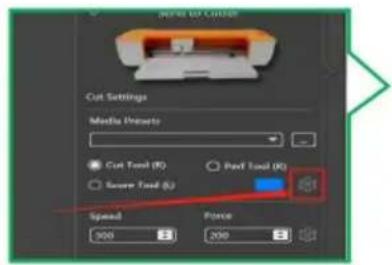
NEW TO COLD Cut Settings Media Properties Cut Tool (R) PavT Tool (R) Save Tool (S) Speed 300 Force 200
natural_image
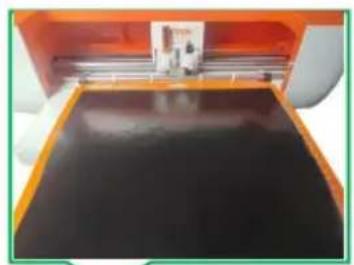
Close-up of a 3D printer or printer with a black cover on its surface, no visible text or symbols.
text_image
Send to Cutter Cutting Status Press "START" to... Media loaded, press the START button to begin. Progress Cancel
text_image
Orange screen with five control buttons labeled Power, Play, Pause, and Left, held by a finger pointing to the button.
text_image
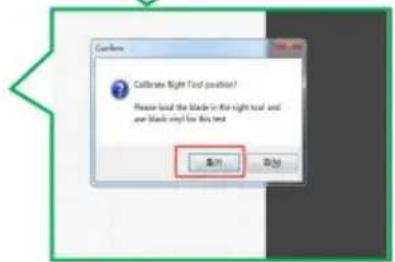
Confine ? Calibrate Right Tool position? Please load the Blade in the right tool and new Blade only for this tool. 取消
text_image
Orange button interface with play button icons and navigation arrows, held by a finger pointing to the button.
natural_image
Close-up of an orange printer with a black cover and paper holder, no visible text or symbols
text_image
After setting flushes, please remove some material from the partner and click "OK" to calculate OK Y OK N
text_image
Orange screen with five playback control buttons labeled Power, Play, Pause, and Delete icons, held by a finger.
text_image
Signmastercrafts5 Result = Get "TB48:OK" 确定 Ytext_image
File View Edit Arrange License Help New Ctrl+N Open Ctrl+O Open Recent Import File Ctrl+I Save Ctrl+S Save As Print Page Size Preferences Close Exit Measuring Units Language Continue create/draw mode All Preferences English Chinese German Spanish Portuguesetext_image
File View Edit Arrange License Help New Ctrl+N Open Ctrl+O Open Recent Import file Ctrl+I Save Ctrl+S Save As Print Page Size Preferences Measuring Units Inches Close Language Metric (mm) Exit Continue create/draw mode Metric (cm) All Preferencestext_image
New Drawing 6 Layers shape_0 ◎ Primary shape_1 ◎ Primary shape_2 ◎ Primary shape_3 ◎ Primary shape_4 ◎ Primary shape_5 ◎ Primary
text_image
New Drawing Click here to hide the small eye without cutting the layer & Layers shape_0 Primary shape_1 Primary shape_2 Primary shape_3 Primary shape_4 Primary shape_5 Primarytext_image
New Drawing Operation 2 1 ① ② ③ ④
text_image
New Drawing 8 Layers shape_0 ● Primary shape_1 ● Primary shape_2 ● Primary shape_3 ● Primary shape_4 ● Primary shape_5 ● Primary
text_image
New Drawing Click here to select left and right knives 6 Layers shape_0 ◎ Primary shape_1 ◎ Primary shape_2 ◎ Primary shape_3 ◎ Assistant shape_4 ◎ Primary shape_5 ◎ Primarytext_image
Select Material Transfer film Sticker papercane Coloured heat transfer vinyl Matter film Oleos photo paper (200g) Papercant (300g) Pearleasant vinyl Hard plastic film Laser heat transfer vinyl Both side coated art paper (500g) Air printing paper Dermatinglyph paper (100g) Kroft paper (100g) Glaze film Normal vinyl Next
text_image
Edit Material Transfer film. Sticker papercard Coloured heat transfer vinyl Matte film Glass photo paper (200g) Papercard (500g) Pearleasant vinyl Hard products film Laser heat transfer vinyl Both side coated art paper (250g) A4 printing paper Dermatoglyph paper (100g) Kraft paper (100g) Glass film Normal vinyl Finish
text_image
Add Material Material name Please enter the name of the material Setting the knife pressure 10 savetext_image
Select Material Transfer film Sticker papercard Coloured heat transfer vinyl Mutter film Gloss photo paper (200g) Papercard (300g) Pearlescent vinyl Hard plastic film Laser heat transfer vinyl Both slide coated art paper (250g) All printing paper Dermatoglyph paper (100g) Kraft paper (100g) Gloss film Normal vinyl Next
text_image
Edit Material New Transfer film Sticker papercard Coloured heat transfer vinyl Pressure: 100 Matte film Gloss photo paper (230g) Papercard (300g) Pearlescent vinyl Hard plastic film Laser heat transfer vinyl Both side coated art paper (250g) A4 printing paper Dermatoglyph paper (100g) Kraft paper (100g) Gloss film Finishtext_image
QR code image containing encoded data, no visible human-readable text- https://youtu.be/Kj-b7WdSCH8

text_image
QR code image containing encoded data, no visible human-readable text5.https://youtu.be/-5u-A62vNql

text_image
QR code image containing encoded data, no visible human-readable text- https://youtu.be/6yPM4iy5Ixc

text_image
QR code image containing encoded data, no visible human-readable text- https://youtu.be/FqSa51zLvtw

text_image
QR code image containing encoded data, no visible human-readable text- https://youtu.be/hMHuqAJSWdM

text_image
QR code image containing encoded data, no visible human-readable textÿ.FCC-Informationen
www.vevor.com/support
VEVOR®
TOUGH TOOLS, HALF PRICE
natural_image
White and orange HP printer with internal components, no visible text or symbols on the device bodyBESOIN D'AIDE? CONTACTEZ-NOUS!
text_image
20in 20in
text_image
Clamp L Clamp R VEVOR® SODDER TOOL SLIP PRICE WATER SCREW AND COOKING COLDING PAUL WMG REDUSTRY ←←→←→- Open the Clamp as shown by the arrow.
text_image
Pen or Foil Transfer and housing Blade and housing EVOR® FOR TOOL, HAIP PRESS- Place the Blade and housing in Clamp R. Place the pen or the foil transfer and housing in Clamp L.
natural_image
Close-up of a white mechanical device with two cylindrical components and directional arrows, no visible text or symbols.- Close the Clamp as shown by the arrow.
natural_image
Solid red cylindrical object with a small protrusion at the top (no text or symbols visible)Foil Transfer and housing

Blade and housing
natural_image
Close-up of a metallic cylindrical object with vertical ridges and a small protrusion at the top (no visible text or symbols)Pen
natural_image
Close-up of a blue cable inserted into a white electrical plug socket, next to a black electronic device (no visible text or symbols)
natural_image
Close-up of a white electrical outlet plug with black connectors, showing internal socket and cable (no text or symbols visible)Attention: Before powering on, check whether the voltage and current of the machine adapter match the location. Once confirmed, you can proceed to power on to avoid potential hazards.
natural_image
Two-panel illustration showing a magenta abstract shape on a light background, with no visible text or symbols.natural_image
Exterior view of a red and orange industrial machine with a visible 'EVOR' branding on its side (no text or symbols on the machine itself)text_image
Create a new Account e126.com 356 ...... ...... China I have an account Registertext_image
Exact-Cut Resource Center We have sent a confirmation email to HW After clicking on the link, click here to enter the dashboard Resend Verification Emailtext_image
Exact-Cut Resource Center Sign in to your account a126.com ****** Remember Me Create an Account Forgot my password Logintext_image
FCLAccessAPI Hello! Please click the button below to verify your email address. Verify Email Address If you did not create an account, no further action is required. Regards. FCLAccessAPI
text_image
Download Links Link Product Version OS Data Download ExactCut 1.0.0 Windows 2023-9-17 Download ExactCut 1.0.0 Mic 2023-9-17 Note: a Cutter Serial Number cannot be used to install the softwaretext_image
Install Exact Cut.exetext_image
Setup - ExactCut version 1.0.1 License Agreement Please read the following important information before continuing. Please read the following License Agreement. You must accept the terms of this agreement before continuing with the installation. A FUTURE CORPORATION PTY. LTD. SOFTWARE LICENSE AGREEMENT I. IMPORTANT: THIS IS A LICENSE, NOT A SALE. PLEASE READ THE TERMS AND CONDITIONS OF THIS SOFTWARE LICENSE AGREEMENT (ASSETS). I accept the agreement I do not accept the agreement Next Canceltext_image
Setup - ExactCut version 1.0.1 Completing the ExactCut Setup Wizard Setup has finished installing ExactCut on your computer. The application may be launched by selecting the installed shortcuts. Click Finish to exit Setup. ✓ Launch ExactCut Finishtext_image
Exact-Cut Resource Center Sign in to your account shzq.com ****** Remember Me Create an Account Forgot my password Logintext_image
Setup - ExactCut version 1.0.1 Select Destination Location Where should ExactCut be installed? Setup will install ExactCut into the following folder. To continue, click Next. If you would like to select a different folder, click Browse. All custom files ExactCut Browse... At least 38.8 MB of free disk space is required. Back Next Canceltext_image
Setup - ExactCut version 1.0.1 Ready to Install Setup is now ready to begin installing ExactCut on your computer. Click Install to continue with the installation, or click Back if you want to review or change any settings. Destination location: C:\Program Files\ExactCut Additional tasks: Additional shortcuts: Create a desktop shortcut Other tasks: Install Thumbnail Previewer Back Install Canceltext_image
ExacCut Welcome, Welcome! Welcome to the Exac Cut Resource Center. How you can manage your licenses and information. Actions Register Software Product Number View Cutters and Licenses Transfer Software Product Number View Download Linkstext_image
File View Edit Arrange License Help Cutter Connected Send to cut Untitled 6 10 200 300 350 400 450 500 550 600 650 700 750 800 850 Hindu China rulers Zoom to alltext_image
File View Edit Arrange License Helptext_image
Toolbar with application icons including folder, document, edit, cross, save, delete, add, refresh, rotate, plus, delete, and magnifying glass
text_image
Vertical toolbar with icons for arrow, pencil, magnifying glass, square, letter 'T', and droplet symboltext_image
Vertical toolbar with icons representing file operations and tools, including document, pen, gear, and pencil.natural_image
Pure technical diagram with a green triangle on a horizontal axis and a red rectangular frame, no text or symbols present.natural_image
Close-up of a blue USB cable attached to a black electronic device on a wooden surface (no text or symbols visible)text_image
Line Session Line Sessiontext_image
Spin button Simultaneous scaling Unilateral scaling 61.797 mm 61.797 mm Curvenatural_image
Simple green outline of a five-pointed star on grid paper (no text or symbols)
text_image
Document Style Star Cutting Mix Cutting Mix (Cut to a Slice) Width: 5 px H Mode: 100% G Alt Rate: 100% Mide Only Print and Cut Use (MIND)text_image
Screenshot of a graphic design software interface showing a blank canvas with a small diagram and a red arrow labeled 'Speed to call'.text_image
Send to Color Color Settings Media Properties Black Heat, Transporting Strip Heat Shift (R) Noise Shift (S) Speed 500 100 Speed Default Mode (LOW mm) Send to Colortext_image
Send Cut Only artwork Select Artwork Options Choose what artwork you want to send Selected artwork only All artworks (what files on the page) Don't separate by color Positioning Options Decide how you want to position the artwork Move each color layer to origin Keep relative positions of each layer Use current text/page location Send Cancel
text_image
Material Settings Material Length Material Length Color Color Color Color Color Color Color Color Color Color Color Color Color Color Color Color Color Color Color Color Color Color Color Color Color Color Color Color Color Color Color Color Color Color Color Color Color Color Color Color Color Color Color Color Color Color Color Color Color Color Cotton Color Cotton Color Cotton Color Cotton Color Cotton Color Cotton Color Cotton Color Cotton Color Cotton Color Cotton Color Cotton Color Cotton Color Cotton Color Cotton Color Cotton Color Cotton Color Cotton Color Cotton Color Cotton Color Cotton Color Cotton Color Cotton Color Cotton Color Cotton Color Cotton Color Cotton Cutstext_image
OK OK OK File Settings Edit Preset: 100 Set Sound New Sound (R) Show Sound (S) Spread: 500 Balance: Onset Sound: 20.000 mm Send to OK
text_image
Send to Cutter Cutting Status: Load Media Insert the media and press the LOAD button on the cutter. Progress: Cancel
natural_image
3D printer printing process with VEVOR branding and color calibration overlay (no readable text or symbols)text_image
Orange button interface with control buttons including Power, OK, Off, and Left/Down symbols
text_image
Send to Cutter Cutting Status: Press "START" to... Media loaded, press the START button to begin. Progress: Cancel
text_image
Orange button interface with five control buttons labeled Power, Play, Pause, and Button, held by a finger.text_image
Send to Cutter Cutting Status: Eject Media Please press LOAD to eject the media Progress: Cancel
text_image
Orange device control panel with play, pause, and double button icons and a finger pointing to the button.
natural_image
Hand holding a small white object with a star-shaped mark, overlaid on a colorful thermal or simulation heatmap (no text or symbols visible)natural_image
Silhouette of a dragon flying inside a square frame, displayed within an image editing software interface (no text or symbols on the dragon itself)text_image
Form: Custom Settings Name: 12.0000000000000000000000000000000000000000000000000000000000000000000000000000000000000000000000000000 A: New Year's Report B: New Year's Report C: New Year's Report D: New Year's Report E: New Year's Report F: New Year's Report G: New Year's Report H: New Year's Report I: New Year's Report
text_image
Cooling Continue Options Describe what you want to do with the computer... Print and Car logo This option will use the create a Print and Car logo using the matching shape for printing and the cooling contact for writing. Editable Continue Cut only This option will allow you to choose the color space you want to find out how much more help us are saved away. Offload amount 0.001 mm Connect Style Record Include Mode Show Cut Apply Cancel
text_image
Send Print and Cut artworks Send Artwork Options Choose what artwork you want to send: ○ Selected artwork only ● All artwork (that fits on the page) Positioning Options Decide how you want to position the artwork ○ Move each color layer to origin. ○ Keep relative positions of each layer ○ Use current multi/page location. Send Cancel Wireframe previewtext_image
Send to Printer Print Settings ● Print to desktop printer ○ Save print artwork to PDF Selected printer HP LaserJet Pro MFP M125-M126 PC1 Unknown paper size Set Print Size Need: 141mm x 155mm Recenter Use Cutting Mat Mirror (For heat transfer) Send to Printer Print Artwork Cutting Contourstext_image
Send to Cutter Cutting Status: Load Media Insert the media and press the LOAD button on the cutter. Progress: Cancel Print Artwork 70% x 203 mm Cutting Contours 20% x 201.0 mmnatural_image
Illustration of a black dragon flying on a white background within a software interface (no text or symbols on the dragon itself)natural_image
Illustration of a flying creature on a cutting board (no text or symbols)text_image
Send to Cutter Cut Settings Media Presets Normal vinyl Cut Tool (R) Perf Tool (R) Score Tool (L) Speed Force 300 180 Blade Default Blade Send to Cutter Print Artwork 210 x 290 mm Cutting Contours 2100 x 290 mmnatural_image
3D printer with a gray dragon silhouette on its cover, placed on an orange cutting board (no visible text or symbols)text_image
Orange electronic device control panel with play, pause, and stop buttons, plus a finger pressing the button.text_image
Send to Cutter Cutting Status: Press "START" to... Media loaded, press the START button to begin. Progress: Cancelnatural_image
Hand holding a white object with a black silhouette of a dinosaur, framed by corner brackets (no text or symbols)
text_image
Orange device control panel with play and pause buttons, one finger pressing the button
text_image
Send to Cutter Cutting Status: Eject Media Please press LOAD to eject the media Progress Cancel
text_image
Orange screen with control buttons including power, pause, double, and double arrow icons, held by a hand.text_image
QR code image containing encoded data, no visible human-readable texttext_image
Sign In Sign In Read your password! Read your password! Forget your password? SIGN IN CREATE NEW ID
text_image
Create NEW ID Create NEW ID 1. Enter e-mail address 2. Click to get the verification code 3. Enter the verification code obtained from your mailbox 4. Enter a password China 5. Select Country View (Privacy Protection Agreement) View (User Registration Agreement) 6. Check here to agree Hold and agree (Privacy Protection Agreement) (User Registration Agreement) Create NEW ID 7. Click to register
text_image
Sign In Sign In Enter your registered email address Enter your registered account password Forget your password? SIGN IN CREATE NEW IDtext_image
View Profile > Machine Setting USB Files Language Setting Help And Feedback About Logout Home New Project Profile
text_image
Search Navigate View all- Beginner Holiday Party Botany school wedding camers Animal letter Holiday Party more > Botany more > school more > Home New Project Profile
text_image
Control Center @Ruijie -sCF74 Bluetooth Screen Recorder HONO Suggestions Mobile data HONO Suggestions Not playing Flashlight Sound Auto- rotate HONOR Share Airplane mode Mobile data Location Screen- shot Eye Comfort Personal hotspot Screen Recorder Wireless Projection2.7 Autoriser la localisation
text_image
Machine Setting Add Allow Superb Cut to access this device's location? WHILE USING THE APP ALLOW THIS TIME ONLY DENY
text_image
Machine Setting Add +icône de coupeur.

text_image
Select Machine Select target machine Smart2.12 Connexion
text_image
Machine Setting Add Smart_4F1E Connectedtext_image
Discovery Smart Please plug the device in. Select the device Smart_4F1E Cancel Pair Devicetext_image
Discovery Smart Please plug the device in. Please press the config button Connecting will take about 1 minute PAIR DEVICEtext_image
Q Search Navigate View all- Beginner Holiday Party Botany school wedding camers Animal letter Holiday Party more > Botany more > school more > Home New Project Profile
text_image
Prepare 1. Remove the protective film and protective strip from the fuselage. 2. 20inch space should be reserved in front of and behind the machine. 3. Check whether the rated voltage and current marked on the adapter match with the location. 4. First insert the power into the back of the machine, turn on the power, and press the machine start button. Cut 1. Prepare materials as required. 2. Take out the cutting pad and remove the protective film. 3. Align the material with the upper left corner of the cutting pad and press firmly to make it stick. 4. Repeat step 3 as needed. 5. Put the cutting pad to the feed port and align the paper roller. 6. Operate according to the prompt specification. Make 1. Take out materials after processing. 2. Remove unnecessary parts according to pattern requirements. 3. Transfer finished products to handicrafts. Maketext_image
New Drawing Go to make
text_image
New Drawing Make Pictures Texts Shape UploadHandle Edit Layer Se
text_image
New Drawing rotary button Synchronized Zoom Button Single Side Zoom Button 1/8 CM + 5 CM Make Picture Texts Shape Upload Handle Edit Layer Sertext_image
Select Machine Has Mat? no mat under (30.48cm X 30.48cm) matSuitable for any mat under (30.48cm X 60.98cm) matSuitable for any mat Click the target machine: Smart_4F1E Connected Next Add Machine
text_image
Select Material Normal vinyl Black heat transfer film Flash heat transfer vinyl Laser heat transfer vinyl Coloured heat transfer vinyl Pearlescent vinyl Next
text_image
Set Position 0 2 4 6 8 10 12 14 16 18 20 22 24 26 28 30 2 4 6 8 10 12 14 16 18 20 22 24 26 28 30 Cutnatural_image
Industrial printing machine with orange frame and reflective material, no visible text or symbols on the machine itself.text_image
Set Position Please press the feed key Cuttext_image
Orange screen control panel with play, pause, and double button icons, plus a finger pressing the button.
text_image
Cutting 0% Press the machine start
text_image
Close-up of a hand pressing a button on an orange device, with control buttons visiblenatural_image
Close-up of a hand holding a small object over a colorful, iridescent heatmap or sky pattern (no text or symbols visible)
text_image
Orange screen control panel with play, pause, and stop buttons labeled in Chinese
text_image
Finish/Stop Finished printing Press eject button Press eject buttontext_image
Auto Player Setting Status Helping Setting setting status on the Programs Cancel Cancel Active Cancel to allflowchart
graph TD
A["Send to Device"] --> B["Cut Settings"]
B --> C["Media Preset"]
C --> D["Cut Tool (R)"]
D --> E["Pad Tool (R)"]
E --> F["Secure Tool (S)"]
F --> G["Speed"]
G --> H["Force"]
H --> I["200"]
I --> J["200"]
K["Send to Cutter"] --> L["Cutting Status"]
L --> M["Press "START" so..."]
M --> N["Media loaded, press the START button to begin."]
N --> O["Progresser"]
O --> P["Cancel"]
Q["Confine"] --> R["Callrate Right Tool position?"]
R --> S["Please load the blade in the right tool and use black vinyl for this test"]
S --> T["8x7"]
T --> U["8x7"]
V["Confine"] --> W["When cutting flasks please remove paste material from the pattern and click "OK" to callrate"]
W --> X["8x7"]
X --> Y["8x7"]
Z["Étalonnage complet"] --> AA["Signmastercrafts5"]
AA --> AB["Result = Get "TB4B:OK""]
AB --> AC["确定 Y"]
text_image
File View Edit Arrange License Help New Ctrl+N Open Ctrl+O Open Recent Import File Ctrl+I Save Ctrl+S Save As Print Page Size Preferences Close Exit Measuring Units Language Continue create/draw mode All Preferences English Chinese German Spanish Portuguesetext_image
File View Edit Arrange License Help New Ctrl+N Open Ctrl+O Open Recent Import file Ctrl+I Save Ctrl+S Save As Print Page Size Preferences Measuring Units Inches Close Language Metric (mm) Exit Continue create/draw mode Metric (cm) All Preferencestext_image
New Drawing 6 Layers shape_0 ○ Primary shape_1 ○ Primary shape_2 ○ Primary shape_3 ○ Primary shape_4 ○ Primary shape_5 ○ Primary Make Picture Texts Shape Uploaded/Handle Edit Layer
text_image
New Drawing Click here to hide the small eye without cutting the layer & Layers shape_0 Primary shape_1 Primary shape_2 Primary shape_3 Primary shape_4 Primary shape_5 Primarytext_image
New Drawing Operation 2 1 ① ② ③ ④
text_image
New Drawing 0 2 4 6 8 10 12 14 16 18 20 22 24 26 28 30 32 34 shape_0 shape_1 shape_2 shape_3 shape_4 shape_5 Primary Primary Primary Primary Primary Primary Primary Layer
text_image
New Drawing Click here to select left and right knives 6 Layers shape_0 ◎ Primary shape_1 ◎ Primary shape_2 ◎ Primary shape_3 ◎ Assistant shape_4 ◎ Primary shape_5 ◎ Primarytext_image
Select Material Transfer film Stocker papercant Coloured heat transfer vinyl Matter film Glass photo paper (200g) Papercant (300g) Pearleasant vinyl Hard plastic film Laser heat transfer vinyl Both side coated art paper (500g) Air printing paper Dermatinglyph paper (100g) Kroft paper (100g) Glaze film Normal vinyl Next Edit
text_image
Edit Material Transfer film Sticker papercard Coloured heat transfer vinyl Matte film Glass photo paper (230g) Papercard (500g) Pearleocent vinyl Hard plastic film Laser heat transfer vinyl Both side coated art paper (250g) All printing paper Dermatoglyph paper (100g) Kraft paper (100g) Glass film Normal vinyl Finish
text_image
Add Material Material name Please enter the name of the material Setting the knife pressure 10 savetext_image
Select Material Transfer film Sticker papercard Coloured heat transfer vinyl Mutter film Gloss photo paper (250g) Papercard (300g) Pearlescent vinyl Hard plastic film Laser heat transfer vinyl Both slide coated art paper (250g) All printing paper Dermatoglyph paper (100g) Knelt paper (100g) Gloss film Normal vinyl Next
text_image
Edit Material New Transfer film Sticker papercard Coloured heat transfer vinyl Pressure: 190 Mutter film Gloss photo paper (230g) Papercard (300g) Pearlescent vinyl Hard plastic film Laser heat transfer vinyl Both side coated art paper (250g) A4 printing paper Dermatoglyph paper (100g) Kraft paper (100g) Gloss film Finishtext_image
QR code image containing encoded data, no visible human-readable text3.https://youtu.be/Kj-b7WdSCH8

text_image
QR code image containing encoded data, no visible human-readable text5.https://youtu.be/-5u-A62vNql

text_image
QR code image containing encoded data, no visible human-readable text- https://youtu.be/6yPM4iy5Ixc

text_image
QR code image containing encoded data, no visible human-readable text- https://youtu.be/FqSa51zLvtw

text_image
QR code image containing encoded data, no visible human-readable text- https://youtu.be/hMHuqAJSWdM

text_image
QR code image containing encoded data, no visible human-readable text.Informations FCC
natural_image
White and orange HP printer with internal components, no visible text or symbols on the device bodyHULP NODIG? NEEM CONTACT MET ONS OP!
text_image
20in 20in
text_image
Clamp L Clamp R VEVOR® Sodium TISSAL SLAST PRICE Reinforcing material used in the Copper wire sample ←←→←→- Open the Clamp as shown by the arrow.

text_image
Pen or Foil Transfer and housing Blade and housing EVOR® FOR TOOL, HAIP PRESS- Place the Blade and housing in Clamp R. Place the pen or the foil transfer and housing in Clamp L.

natural_image
Close-up of a white mechanical device with two cylindrical components and directional arrows, no visible text or symbols.- Close the Clamp as shown by the arrow.

natural_image
Solid red cylindrical object with a small protrusion at the top (no visible text or symbols)Foil Transfer and housing

Blade and housing

natural_image
Close-up of a metallic cylindrical object with vertical ridges and a small protrusion at the top (no visible text or symbols)Pen
natural_image
Two-panel image showing a blue cable inserted into a white plug, next to a black device (no visible text or symbols)
natural_image
Close-up of a white electrical outlet plug with black connectors, showing internal socket and cable (no text or symbols visible)Attention: Before powering on, check whether the voltage and current of the machine adapter match the location. Once confirmed, you can proceed to power on to avoid potential hazards.

natural_image
Two-panel illustration showing a magenta abstract shape on a light background, with no visible text or symbols.natural_image
Exterior view of a red and orange industrial machine with a visible 'EVOR' branding on its side (no text or symbols on the machine itself)ÿ. Software-installatie
text_image
Create a new Account e126.com 356 ...... ...... China I have an account Registertext_image
Exact-Cut Resource Center We have sent a confirmation email to HW After clicking on the link, click here to enter the dashboard Resend Verification Email3.4 Voer de PSN-code in die u op de koelkaststicker in de accessoiredoos.
text_image
Exact-Cut Resource Center Sign in to your account a126.com ****** Remember Me Create an Account Forgot my password Login
text_image
FCLAccessAPI Hello! Please click the button below to verify your email address. Verify Email Address If you did not create an account, no further action is required. Regards. FCLAccessAPItext_image
Download Links Link Product Version OS Data Download ExactCut 1.0.0 Windows 2023-9-17 Download ExactCut 1.0.0 Mic 2023-9-17 Note: a Cutter Serial Number cannot be used to install the softwaretext_image
Install Exact Cut.exetext_image
Setup - ExactCut version 1.0.1 License Agreement Please read the following important information before continuing. Please read the following License Agreement. You must accept the terms of this agreement before continuing with the installation. A FUTURE CORPORATION PTY. LTD. SOFTWARE LICENSE AGREEMENT I. IMPORTANT: THIS IS A LICENSE, NOT A SALE. PLEASE READ THE TERMS AND CONDITIONS OF THIS SOFTWARE LICENSE AGREEMENT (ASSETS). I accept the agreement I do not accept the agreement Next Canceltext_image
Setup - ExactCut version 1.0.1 Completing the ExactCut Setup Wizard Setup has finished installing ExactCut on your computer. The application may be launched by selecting the installed shortcuts. Click Finish to exit Setup. ✓ Launch ExactCut Finishtext_image
Setup - ExactCut version 1.0.1 Select Destination Location Where should ExactCut be installed? Setup will install ExactCut into the following folder. To continue, click Next. If you would like to select a different folder, click Browse. At least 38.8 MB of free disk space is required. Back Next Cancel5.3 Klik op "Installeren".

text_image
Setup - ExactCut version 1.0.1 Ready to Install Setup is now ready to begin installing ExactCut on your computer. Click Install to continue with the installation, or click Back if you want to review or change any settings. Destination location: D:\Program Files\ExactCut Additional tasks: Additional shortcuts: Create a desktop shortcut Other tasks: Install Thumbnail Previewer Back Install Canceltext_image
Exact-Cut Resource Center Sign in to your account irqq.com Remember Me Create an Account Forgot my password Logindialoogvenster.

text_image
ExacCut Welcome, Welcome! Welcome to the Exac Cut Resource Center. How you can manage your licenses and information. Actions Register Software Product Number View Cutters and Licenses Transfer Software Product Number View Download Linkstext_image
File View Edit Arrange License Help Cutter Connected Send to cut Untitled Hindu China rulers Zoom to alltext_image
File View Edit Arrange License Helptext_image
Toolbar with application icons including folder, document, edit, cross, save, refresh, add, delete, rotate, zoom, and search functions
text_image
Vertical toolbar with icons for arrow, pencil, magnifying glass, square, letter 'T', and droplet symbolnatural_image
Pure technical diagram with a green triangle on top and a red rectangle below, no text or symbols present.natural_image
Close-up of a blue USB cable attached to a black electronic device on a wooden surface (no text or symbols visible)text_image
Image 1 Image 2 Image 3 Image 4 Image 5 Image 6 Image 7 Image 8 Image 9 Image 10 Image 11 Image 12 Image 13 Image 14 Image 15 Image 16 Image 17 Image 18 Image 19 Image 20 Image 21 Image 22 Image 23 Image 24 Image 25 Image 26 Image 27 Image 28 Image 29 Image 30 Image 31 Image 32 Image 33 Image 34 Image 35 Image 36 Image 37 Image 38 Image 39 Image 40 Image 41 Image 42 Image 43 Image 44 Image 45 Image 46 Image 47text_image
Spin button Simultaneous scaling Unilateral scaling 61.797 mm 61.797 mm Curve1.5 De snijmat instellen

text_image
Document Style Star Cutting Man Cutting Man (Cut to a Slice) Width: 5 px Height: 0 px Distance: 100% View Only Print and Cut Use (MMS)
natural_image
Simple green speech bubble with a five-pointed star on grid paper (no text or symbols)text_image
Color Add Color + Color Filtered Cut off Cut off Select Shift Select Shift Default Light Solid Light Vertical Lines Horizontal Inner lines Vertical Lines Horizontal Lines Customs 0text_image
Send to Color Color Settings Media Properties Black Heat, Transporting Strip Heat Shift (R) Noise Shift (S) Speed 500 100 Speed Default Mode (LOW mm) Send to Colortext_image
Multi-Clip Cut Settings Multi-Clip Mode Size: 100 Cut Shift: 90 Cut Shift: 80 Speed: 100 Color: 50.000 mm Select to Cut OK
text_image
Screenshot of a graphic design software interface showing a blank canvas with a small diagram and a red arrow labeled 'Speed to call'.1.8 Klik op "Verzenden"

text_image
Send Cut Only artwork Select Artwork Options Choose what artwork you want to send. Selected artwork only All artworks (what files on the page) Don't separate by color Positioning Options Decide how you want to position the artwork Move each color layer to origin Keep relative positions of each layer Use current real/page location Send Canceltext_image
OKUPRPG File Settings Audio Player: 10 Tide Seed ID: 1 Noise Field ID: 0 Spread: 600 Power: 200 Balance: Default: 0.000 mm Send to Color
text_image
Send to Cutter Cutting Status: Load Media Insert the media and press the LOAD button on the cutter. Progress: Cancel
natural_image
3D printer printing process with VEVOR branding and color calibration overlay (no readable text or symbols)text_image
Orange button interface with control buttons including Power, OK, Off, and Left/Down symbols
text_image
Send to Cutter Cutting Status: Press "START" to... Media loaded, press the START button to begin. Progress: Cancel
natural_image
Orange electronic device with five control buttons (Power, Play, Pause, Idle) and a finger pressing the button (no text or symbols visible)text_image
Send to Cutter Cutting Status: Eject Media Please press LOAD to eject the media Progress: Cancel
text_image
Orange device control panel with play, pause, and double button icons and a finger pointing to the button
natural_image
Hand holding a small white object with a star-shaped mark, overlaid on a colorful thermal or simulation visualization (no text or symbols visible)natural_image
Silhouette of a dragon flying inside a square frame, displayed within an image editing software interface (no text or symbols on the dragon itself)text_image
Form 3.0 Current Settings With the next user's name to be a new user... A. New user's name: 1. To select the user's name. 2. Select the user's name. 3. Select the user's name. 4. Select the user's name. 5. Select the user's name. 6. Select the user's name. 7. Select the user's name. 8. Select the user's name. 9. Select the user's name. 10. Select the user's name.
text_image
Cooling Continue Options Check what you want to do with the computer... Print and Car logo Print options will use the create a Print and Car logo using the following shapes for printing and the cooling continue for writing. Editable Continue Cut only Print options will allow you to choose this print image you want to find out more outline only, so it is now created close. Offload Amount 0.001 mm Insert Mode Connect Style Record Show Cut Apply Canceltext_image
Send Print and Cut artworks Send Artwork Options Choose what artwork you want to send: Selected artwork only All artwork (that fix on the page) Positioning Options Decide how you want to position the artwork Move each color layer to origin Keep relative positions of each layer Use current mat/page location. Send Cancel Wireframe preview
natural_image
Silhouette of a flying creature inside a design software interface (no text or symbols on the creature itself)text_image
Send to Printer Print Settings ● Print to desktop printer ○ Save print artwork to PDF Selected printer HP LaserJet Pro MFP M125-M126 PCI Unknown paper size Set Print Size Need: 141mm x 155mm Recenter □ Use Cutting Mat □ Mirror (For heat transfer) Send to Printer Print Artwork Cutting Contours
natural_image
Illustration of a stylized dragon flying on a cutting board (no text or symbols)text_image
Send to Cutter Cutting Status: Load Media Insert the media and press the LOAD button on the cutter. Progress: Cancel Print Artwork 750 x 200 mm Cutting Contours 250 x 200.0 mm
text_image
Send to Cutter Cut Settings Media Presets Normal vinyl Cut Tool (R) Perf Tool (R) Score Tool (L) Speed Force 300 180 Blade Default Blade Send to Cutter Print Artwork 210 x 290 mm Cutting Contours 2100 x 290 mmnatural_image
3D printer with a gray dragon silhouette on its cover, placed on an orange cutting board (no visible text or symbols)text_image
Orange electronic device control panel with play, pause, and stop buttons labeled in Chinese2.14 Wanneer

text_image
Send to Cutter Cutting Status: Press "START" to... Media loaded, press the START button to begin. Progress: Cancelnatural_image
Hand holding a white object with a black silhouette of a dinosaur, framed by corner brackets (no text or symbols)
text_image
Orange device control panel with play and pause buttons, one finger pressing the button
text_image
Send to Cutter Cutting Status: Eject Media Please press LOAD to eject the media Progress Cancel
text_image
Orange screen with control buttons including power, pause, double, and double arrow icons, held by a hand.text_image
QR code image containing encoded data, no visible human-readable texttext_image
Sign In Sign In Read your password Read your password Forget your password? SIGN IN CREATE NEW ID
text_image
Create NEW ID Create NEW ID 1. Enter e-mail address 2. Click to get the verification code 3. Enter the verification code obtained from your mailbox 4. Enter a password China 5. Select Country View (Privacy Protection Agreement) View (User Registration Agreement) 6. Check here to agree Hold and agree (Privacy Protection Agreement) (User Registration Agreement) Create NEW ID 7. Click to register
text_image
Sign In Sign In Enter your registered email address Enter your registered account password Forget your password? SIGN IN CREATE NEW ID2.6 Klik op "Machine
text_image
View Profile > Machine Setting USB Files Language Setting Help And Feedback About Logout Home New Project Profile
text_image
Search Navigate View all- Beginner Holiday Party Botany school wedding camers Animal letter Holiday Party more > Botany more > school more > Home New Project Profile
text_image
Control Center @Ruijie -sCF74 Bluetooth Screen Recorder HONO Suggestions Mobile data HONO Suggestions Not playing Flashlight Sound Auto- rotate HONOR Share Airplane mode Mobile data Location Screen- shot Eye Comfort Personal hotspot Screen Recorder Wireless Projectiontext_image
Machine Setting Add Allow Superb Cut to access this device's location? WHILE USING THE APP ALLOW THIS TIME ONLY DENY
text_image
Machine Setting Add +
text_image
Select Machine Select target machine Smart2.12 Verbinding succesvol, klik terug.
text_image
Machine Setting Add Smart_4F1E Connected2.13 Klik op "Home"

text_image
Discovery Smart Please plug the device in. Select the device > Smart_4F1E Cancel Pair DEVICEtext_image
Discovery Smart Please plug the device in. Please press the config button Connecting will take about 1 minute PAIR DEVICE2.15 Klik om te maken.

text_image
View Profile 1 Machine Setting > USB Files > Language Setting > Help And Feedback > About > Logout Home New Project Profile
text_image
Search Navigate View all- Beginner Holiday Party Botany school wedding camers Animal letter Holiday Party more > Botany more > school more > Home New Project Profile
text_image
Prepare 1. Remove the protective film and protective strip from the fuselage. 2. 20-inch space should be reserved in front of and behind the machine. 3. Check whether the rated voltage and current marked on the adapter match with the location. 4. First insert the power into the back of the machine, turn on the power, and press the machine start button. Cut 1. Prepare materials as required. 2. Take out the cutting pad and remove the protective film. 3. Align the material with the upper left corner of the cutting pad and press firmly to make it stick. 4. Repeat step 3-as needed. 5. Put the cutting pad to the feed port and align the paper roller. 6. Operate according to the prompt specification. Make 1. Take out materials after processing. 2. Remove unnecessary parts according to pattern requirements. 3. Transfer finished products to handicrafts. Make2.18 Klik om te maken.

text_image
New Drawing Go to maketext_image
Select Machine Has Mat? no mat under (30.48cm X 30.48cm) matSuitable for any mat under (30.48cm X 60.98cm) matSuitable for any mat Click the target machine: Smart_4F1E Connected Next Add Machine
text_image
Select Material Normal vinyl Black heat transfer film Flash heat transfer vinyl Laser heat transfer vinyl Coloured heat transfer vinyl Pearlescent vinyl Next
text_image
Set Position 0 2 4 6 8 10 12 14 16 18 20 22 24 26 28 30 2 4 6 8 10 12 14 16 18 20 22 24 26 28 30 Cutnatural_image
Industrial printing machine with orange frame and reflective material, no visible text or symbols on the machine itself.
text_image
Set Position Please press the feed key Cuttext_image
Orange device control panel with play, pause, and stop buttons, plus a finger pressing the button.
text_image
Cutting 0% Press the machine start
text_image
Close-up of a hand pressing a button on an orange device, with control buttons visibleis compleet, de software
natural_image
Close-up of a hand holding a small object over a colorful, iridescent heatmap or sky pattern (no text or symbols visible)
text_image
Orange screen control panel with play, pause, and stop buttons labeled in Chinese
text_image
Finish/Stop Finished printing Press eject button Press eject buttontext_image
Start Menu Cutting Status Cutting Cutting Status on the apiety Programs Cancel Save Asks Cancel as attext_image
Cutter Connected Send to Device
text_image
View to Cut Cut Settings Media Properties Cut Tool (R) Perf Load (R) Secure Tool (S) Speed 300 Force 200
natural_image
Close-up of a 3D printer with orange paper edge and black surface (no visible text or symbols)
text_image
Send to Cutter Cutting Status Press "START" to... Media loaded, press the START button to begin. Progress Cancel
text_image
Orange button interface with play and pause icons, finger pointing at a play button
text_image
Confirm Calibrate Right Foot position? Please load the blade in the right foot and use blank vinyl for this text. OK
text_image
Orange button interface with play and navigation icons, hand pointing at the play button
natural_image
Close-up of an orange printer with a black cover and paper roller, no visible text or symbols
text_image
After setting flushes, please remove some material from the partner and click "OK" to calculate OK Y OK N
text_image
Orange screen with five playback control buttons labeled Power, Play, Pause, and Left
text_image
Signmastercrafts5 Result = Get "TB48:OK" 确定 Ytext_image
File View Edit Arrange License Help New Ctrl+N Open Ctrl+O Open Recent Import File Ctrl+I Save Ctrl+S Save As Print Page Size Preferences Close Exit Measuring Units Language Continue create/draw mode All Preferences English Chinese German Spanish Portuguesetext_image
File View Edit Arrange License Help New Ctrl+N Open Ctrl+O Open Recent Import file Ctrl+I Save Ctrl+S Save As Print Page Size Preferences Measuring Units Inches Close Language Metric (mm) Exit Continue create/draw mode Metric (cm) All Preferencestext_image
New Drawing 6 Layers shape_0 ○ Primary shape_1 ○ Primary shape_2 ○ Primary shape_3 ○ Primary shape_4 ○ Primary shape_5 ○ Primary Make Picture Texts Shape Uploaded/Handle Edit Layer
text_image
New Drawing Click here to hide the small eye without cutting the layer & Layers shape_0 ● Primary shape_1 ● Primary shape_2 ○ Primary shape_3 ○ Primary shape_4 ○ Primary shape_5 ○ Primarytext_image
New Drawing Operation 2 1 ① ② ③ ④
text_image
New Drawing 8 Layers shape_0 ● Primary shape_1 ● Primary shape_2 ● Primary shape_3 ● Primary shape_4 ● Primary shape_5 ● Primary
text_image
New Drawing Click here to select left and right knives 6 Layers shape_0 ◎ Primary shape_1 ◎ Primary shape_2 ◎ Primary shape_3 ◎ Assistant shape_4 ◎ Primary shape_5 ◎ Primarytext_image
Select Material Transfer film Sticker papercard Coloured heat transfer vinyl Matter film Oleos photo paper (200g) Papercant (300g) Pearlescent vinyl Hard plastic film Laser heat transfer vinyl Both side coated art paper (500g) Air printing paper Dermatinglyph paper (100g) Kroft paper (100g) Glaze film Normal vinyl Next Edit
text_image
Edit Material Transfer film. Sticker papercard Coloured heat transfer vinyl Matte film Glass photo paper (200g) Papercard (500g) Pearleasant vinyl Hard products film Laser heat transfer vinyl Both side coated art paper (250g) A4 printing paper Dermatoglyph paper (100g) Kraft paper (100g) Glass film Normal vinyl Finish
text_image
Add Material Material name Please enter the name of the material Setting the knife pressure 10 savetext_image
Select Material Transfer film Sticker papercard Coloured heat transfer vinyl Mutter film Gloss photo paper (200g) Papercard (300g) Pearlescent vinyl Hard plastic film Laser heat transfer vinyl Both side coated art paper (250g) All printing paper Dermatoglyph paper (100g) Kraft paper (150g) Gloss film Normal vinyl Next Edit
text_image
Edit Material New Transfer film Sticker papercard Coloured heat transfer vinyl Pressure: 190 Mattice film Gloss photo paper (230g) Papercard (300g) Pearlescent vinyl Hard plastic film Laser heat transfer vinyl Both side coated art paper (250g) A4 printing paper Dermatoglyph paper (100g) Kraft paper (100g) Gloss film Finishtext_image
QR code image containing encoded data, no visible human-readable text- https://youtu.be/Kj-b7WdSCH8

text_image
QR code image containing encoded data, no visible human-readable text5.https://youtu.be/-5u-A62vNql

text_image
QR code image containing encoded data, no visible human-readable text- https://youtu.be/6yPM4iy5Ixc

text_image
QR code image containing encoded data, no visible human-readable text- https://youtu.be/FqSa51zLvtw

text_image
QR code image containing encoded data, no visible human-readable text- https://youtu.be/hMHuqAJSWdM

text_image
QR code image containing encoded data, no visible human-readable textÿ.FCC-informatie
garantiecertificaat www.vevor.com/support
VEVOR®
TOUGH TOOLS, HALF PRICE
natural_image
White and orange HP printer with internal components, no visible text or symbols on the device bodyBEHÖVER HJÄLP? KONTAKTA OSS!
text_image
20in 20in
text_image
Clamp L Clamp R VEVOR® SODA# TOOL SLIP PAGES Wetting & Damping & Cavity CNCI: 100% pipe with 200mm diameter- Open the Clamp as shown by the arrow.

text_image
Pen or Foil Transfer and housing Blade and housing EVOR® FOR TOOL, HAIP PRESS- Place the Blade and housing in Clamp R. Place the pen or the foil transfer and housing in Clamp L.

natural_image
Close-up of a white mechanical device with two cylindrical components and directional arrows, no visible text or symbols.- Close the Clamp as shown by the arrow.

natural_image
Solid red cylindrical object with a small protrusion at the top (no text or symbols visible)Foil Transfer and housing

Blade and housing

natural_image
Close-up of a metallic cylindrical object with vertical ridges and a small protrusion at the top (no visible text or symbols)Pen
natural_image
Close-up of a blue cable inserted into a white electrical outlet, next to a black electronic device (no visible text or symbols)natural_image
Close-up of a white electrical outlet plug with black connectors, showing internal wiring and a close-up of the socket (no text or symbols visible)Attention: Before powering on, check whether the voltage and current of the machine adapter match the location. Once confirmed, you can proceed to power on to avoid potential hazards.
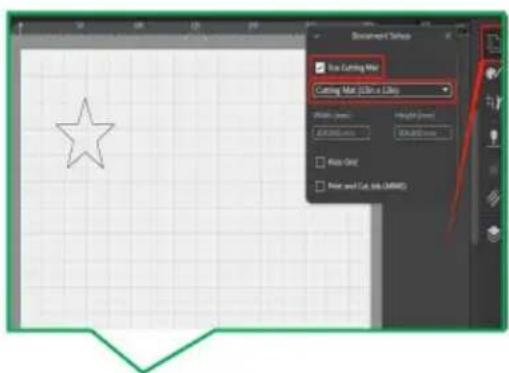
natural_image
Two-panel illustration showing a magenta abstract shape on a light background, with no visible text or symbols.natural_image
Exterior view of a red and orange 3D printer with a visible brand logo (no readable text or symbols on the device itself)ÿ. Programvaruinstallation
text_image
Create a new Account e126.com 356 ...... ...... China I have an account Registertext_image
Exact-Cut Resource Center Sign in to your account a126.com ****** Remember Me Create an Account Forgot my password Logintext_image
Download Links Link Product Version OS Data Download ExactCut 1.0.0 Windows 2023-9-17 Download ExactCut 1.0.0 Mic 2023-9-17 Note: a Cutter Serial Number cannot be used to install the software
text_image
ExactCut (PAC-PC) Product Break-Number (PSY) 1033-00000000000000 https://get.exact-cut.com
text_image
Exact-Cut Resource Center We have sent a confirmation email to HW After clicking on the link, click here to enter the dashboard Resend Verification Emailtext_image
FCLAccessAPI Hello! Please click the button below to verify your email address. Verify Email Address If you did not create an account, no further action is required. Regards, FCLAccessAPItext_image
Install Exact Cut.exetext_image
Setup - ExactCut version 1.0.1 License Agreement Please read the following important information before continuing. Please read the following License Agreement. You must accept the terms of this agreement before continuing with the installation. A FUTURE CORPORATION PTY. LTD. SOFTWARE LICENSE AGREEMENT I. IMPORTANT: THIS IS A LICENSE, NOT A SALE. PLEASE READ THE TERMS AND CONDITIONS OF THIS SOFTWARE LICENSE AGREEMENT (ASSETS). I accept the agreement I do not accept the agreement Next Canceltext_image
Setup - ExactCut version 1.0.1 Completing the ExactCut Setup Wizard Setup has finished installing ExactCut on your computer. The application may be launched by selecting the installed shortcuts. Click Finish to exit Setup. ✓ Launch ExactCut Finishtext_image
Exact-Cut Resource Center Sign in to your account irqq.com Remember Me Create an Account Forgot my password Logintext_image
Setup - ExactCut version 1.0.1 Select Destination Location Where should ExactCut be installed? Setup will install ExactCut into the following folder. To continue, click Next. If you would like to select a different folder, click Browse. All custom files ExactCut Browse... At least 38.8 MB of free disk space is required. Back Next Canceltext_image
Setup - ExactCut version 1.0.1 Ready to Install Setup is now ready to begin installing ExactCut on your computer. Click Install to continue with the installation, or click Back if you want to review or change any settings. Destination location: C:\Program Files\ExactCut Additional tasks: Additional shortcuts: Create a desktop shortcut Other tasks: Install Thumbnail Previewer Back Install Canceltext_image
ExacCut Welcome, Welcome! Welcome to the Exac Cut Resource Center. How you can manage your licenses and information. Actions Register Software Product Number View Cutters and Licenses Transfer Software Product Number View Download Linkstext_image
File View Edit Arrange License Help Cutter Connected Send to cut Untitled 0 10 200 300 400 500 600 700 800 900 Hindu China rulers Zoom to alltext_image
Toolbar with application icons including folder, document, edit, paste, refresh, add, delete, zoom, and search functions
text_image
Vertical toolbar with icons for arrow, pencil, magnifying glass, square, letter 'T', and droplet symboltext_image
Vertical toolbar with icons representing file operations and tools, including document, brush, wrench, gear, pencil, eraser, and book.natural_image
Pure technical diagram with a green triangle on top and a red rectangle below, no text or symbols present.natural_image
Close-up of a blue USB cable attached to a black electronic device on a wooden surface (no text or symbols visible)1.4 Utvalda former kan redigeras.
text_image
Open Window 12.00:00:00text_image
Spin button Simultaneous scaling Unilateral scaling 62.797 mm — 6 62.797 mm — 6 Curvetext_image
Document Style Star Cutting Man Cutting Man (Cut to a Slice) Width: 5 px Height: 0 px Distance: 100% View Only Print and Cut Use (MMS)
natural_image
Simple green speech bubble with a five-pointed star outline on grid paper (no text or symbols)text_image
Screenshot of a graphic design software interface showing a blank canvas with a small diagram and a red arrow labeled 'Speed to call'.text_image
Send to Color Color Settings Media Params Black Heat Transfer Angle Gray Seed (R) Blue Seed (B) Speed 500 500 Mode: Default Mode: 0.000 mm Send to Colortext_image
Send Cut Only artwork Select Artwork Options Choose what artwork you want to send. Selected artwork only All artworks (what files on the page) Don't separate by color Positioning Options Decide how you want to position the artwork Move each color layer to origin Keep relative positions of each layer Use current real/page location Send Cancel
text_image
Audio Connection Size Settings Audio Units Size: 100 Color: 500 Speed: 100 Color: 100 Size: 100 mm Noise to Colorstext_image
OK/SPRPLC Size Settings Alpha: 100% Color: 50% Noise: 100% Effect: Noise: Size: Default: 100% 0.000 mm Send to Colors
text_image
Send to Cutter Cutting Status: Load Media Insert the media and press the LOAD button on the cutter. Progress: Cancel
natural_image
Industrial printing machine with orange casing and white tool, showing a reflective surface (no visible text or symbols)1.16 Tryck på start
text_image
Orange button interface with control buttons including Power, OK, Off, and Left/Down symbols
text_image
Send to Cutter Cutting Status: Press "START" to... Media loaded, press the START button to begin. Progress: Cancel
text_image
Orange button interface with five control buttons labeled Power, Play, Pause, and Button, held by a finger.text_image
Send to Cutter Cutting Status: Eject Media Please press LOAD to eject the media Progress: Cancel
text_image
Orange device control panel with play, pause, and double button icons, plus a finger pressing the button.
natural_image
Hand holding a small white object with a star-shaped mark, overlaid on a colorful thermal or simulation heatmap (no text or symbols visible)2.Konturutskärning 2.1 Designgrafik
natural_image
Silhouette of a dragon flying inside a square frame, displayed within an image editing software interface (no text or symbols on the dragon itself)2.3 Klicka på "Apply".
text_image
Cooling Continue Options Check what you want to do with the computer... Print and Car logo Print options will use the create a Print and Car logo using the following shapes for printing and the cooling continue for writing. Editable Continue Cut only Print options will allow you to choose this print image you want to find out more outline only, so it is now created close. Offload Amount 0.001 mm Insert Mode Connect Style Record Show Cut Apply Cancel
text_image
Send Print and Cut artwork Send Artwork Options Choose what artwork you want to send: ○ Selected artwork only ● All artwork (that fits on the page) Positioning Options Decide how you want to position the artwork ○ Move each color layer to origin. ○ Keep relative positions of each layer ○ Use current multi/page location. Send Cancel Wireframe previewtext_image
Send to Printer Print Settings ● Print to desktop printer ○ Save print artwork to PDF Selected printer HP LaserJet Pro MFP M125-M126 PC1 Unknown paper size Set Print Size Need: 141mm x 155mm Recenter Use Cutting Mat Mirror (For heat transfer) Send to Printer Print Artwork Cutting Contourstext_image
Send to Cutter Cutting Status: Load Media Insert the media and press the LOAD button on the cutter. Progress: Cancel Print Artwork 70% x 203 mm Cutting Contours 20% x 201.0 mmnatural_image
Silhouette of a flying creature inside a design software interface (no text or symbols on the creature itself)natural_image
Illustration of a flying creature on a cutting board (no text or symbols)text_image
Send to Cutter Cut Settings Media Presets Normal vinyl Cut Tool (R) Perf Tool (R) Score Tool (L) Speed Force 300 180 Blade Default Blade Send to Cutter Print Artwork 210 x 290 mm Cutting Contours 2100 x 290 mmnatural_image
3D printer with a gray dragon silhouette on its cover, placed on an orange cutting board (no visible text or symbols)2.16 Kontur
text_image
Orange electronic device control panel with play, pause, and stop buttons, plus a finger pressing the button.2.14 När
text_image
Send to Cutter Cutting Status: Press "START" to... Media loaded, press the START button to begin. Progress: Cancelnatural_image
Hand holding a white object with a black silhouette of a dinosaur, framed by corner brackets (no text or symbols)
text_image
Orange device control panel with play, pause, and double button icons and a finger pointing to the button.
text_image
Send to Cutter Cutting Status: Eject Media Please press LOAD to eject the media Progress Cancel
text_image
Close-up of a hand pressing a button on an orange device, with control buttons including Power, OK, and Delete symbols.text_image
QR code image containing encoded data, no visible human-readable texttext_image
Sign In Sign In Real customer Real not password! Forget your password? SIGN IN CREATE NEW ID
text_image
Create NEW ID Create NEW ID 1. Enter e-mail address 2. Click to get the verification code 3. Enter the verification code obtained from your mailbox 4. Enter a password China 5. Select Country View (Privacy Protection Agreement) View (User Registration Agreement) 6. Check here to agree Hold and agree (Privacy Protection Agreement) (User Registration Agreement) Create NEW ID 7. Click to register
text_image
Sign In Sign In Enter your registered email address Enter your registered account password Forget your password? SIGN IN CREATE NEW ID2.6 Klicka på "Maskin

text_image
View Profile > Machine Setting USB Files Language Setting Help And Feedback About Logout Home New Project Profiletext_image
Search Navigate View all- Beginner Holiday Party Botany school wedding camers Animal letter Holiday Party more > Botany more > school more > Home New Project Profiletext_image
Control Center @Ruijie -sCF74 Bluetooth Screen Recorder HONO Suggestions Mobile data HONO Suggestions Not playing Flashlight Sound Auto- rotate HONOR Share Airplane mode Mobile data Location Screen- shot Eye Comfort Personal hotspot Screen Recorder Wireless Projection2.7 Tillåt plats
text_image
Machine Setting Add Allow Superb Cut to access this device's location? WHILE USING THE APP ALLOW THIS TIME ONLY DENY
text_image
Machine Setting Add +
text_image
Select Machine Select target machine Smart2.12 Anslutning
text_image
Machine Setting Add Smart_4F1E Connectedtext_image
Discovery Smart Please plug the device in. Select the device > Smart_4F1E Cancel PAIR DEVICEtext_image
Discovery Smart Please plug the device in. Please press the config button Connecting will take about 1 minute PAIR DEVICEtext_image
View Profile 3 MACHINE SETTING > USB Files > Language Setting > Help And Feedback > About > Logout Home New Project Profile
text_image
Q Search Navigate View all- Beginner Holiday Party Botany school wedding camers Animal letter Holiday Party more > Botany more > school more > Home New Project Profile
text_image
Prepare 1. Remove the protective film and protective strip from the fuselage. 2. 20inch space should be reserved in front of and behind the machine. 3. Check whether the rated voltage and current marked on the adapter match with the location. 4. First insert the power into the back of the machine, turn on the power, and press the machine start button. Cut 1. Prepare materials as required. 2. Take out the cutting pad and remove the protective film. 3. Align the material with the upper left corner of the cutting pad and press firmly to make it stick. 4. Repeat step 3 as needed. 5. Put the cutting pad to the feed port and align the paper roller. 6. Operate according to the prompt specification. Make 1. Take out materials after processing. 2. Remove unnecessary parts according to pattern requirements. 3. Transfer finished products to handicrafts. Maketext_image
New Drawing Go to make
text_image
New Drawing Make Picture Texts Shape UploadHandle Edit Layer So
text_image
New Drawing 10/CM + 5CM rotary button Synchronized Zoom Button Single Side Zoom Button Make Picture Texts Shape Upload Handle Edit Layer Se2.19 Välj skärning
text_image
Select Machine Has Mat? no mat under (30.48cm X 30.48cm) matSuitable for any mat under (30.48cm X 60.98cm) matSuitable for any mat Click the target machine: Smart_4F1E Connected Next Add Machine
text_image
Select Material Normal vinyl Black heat transfer film Flash heat transfer vinyl Laser heat transfer vinyl Coloured heat transfer vinyl Pearlescent vinyl Next
text_image
Set Position 0 2 4 6 8 10 12 14 16 18 20 22 24 26 28 30 2 4 6 8 10 12 14 16 18 20 22 24 26 28 30 Cutnatural_image
Industrial printing machine with orange frame and reflective material on a grid floor (no visible text or symbols)text_image
Set Position Please press the feed key Cuttext_image
Orange screen control panel with play, pause, and double button icons, plus a finger pressing the button.text_image
Cutting 0% Press the machine start
text_image
Close-up of a hand pressing a button on an orange device, with control buttons visiblenatural_image
Close-up of a hand holding a small object over a colorful, iridescent heatmap or sky pattern (no text or symbols visible)
text_image
Orange screen control panel with play, pause, and double button icons and a finger pointing to the button
text_image
Finish/Stop Finished printing Press eject button Press eject buttonÿ.Vanliga frågor
text_image
File View Edit Arrange License Help New Ctrl+N Open Ctrl+O Open Recent Import File Ctrl+1 Save Ctrl+S Save As Print Page Size Preferences Close Exit Measuring Units Language Continue create/draw mode All Preferences English Chinese German Spanish Portuguesetext_image
File View Edit Arrange License Help New Ctrl+N Open Ctrl+O Open Recent Import file Ctrl+I Save Ctrl+S Save As Print Page Size Preferences Measuring Units Inches Close Language Metric (mm) Exit Continue create/draw mode Metric (cm) All Preferencestext_image
New Drawing 6 Layers shape_0 ○ Primary shape_1 ○ Primary shape_2 ○ Primary shape_3 ○ Primary shape_4 ○ Primary shape_5 ○ Primary Make Picture Texts Shape Uploaded/Handle Edit Layer
text_image
New Drawing Click here to hide the small eye without cutting the layer 6 Layers shape_0 ○ Primary shape_1 ○ Primary shape_2 ○ Primary shape_3 ○ Primary shape_4 ○ Primary shape_5 ○ Primarytext_image
New Drawing Operation 2 1 ② ①
text_image
New Drawing 8 Layers shape_0 ● Primary shape_1 ● Primary shape_2 ● Primary shape_3 ● Primary shape_4 ● Primary shape_5 ● Primary
text_image
New Drawing Click here to select left and right knives 6 Layers shape_0 ◎ Primary shape_1 ◎ Primary shape_2 ◎ Primary shape_3 ◎ Assistant shape_4 ◎ Primary shape_5 ◎ Primarytext_image
Select Material Transfer film Sticker papercane Coloured heat transfer vinyl Matter film Oleos photo paper (200g) Papercant (300g) Pearleasant vinyl Hard plastic film Laser heat transfer vinyl Both side coated art paper (500g) Air printing paper Dermatinglyph paper (100g) Kroft paper (100g) Glaze film Normal vinyl Next Edit
text_image
Edit Material Transfer film. Sticker papercard Coloured heat transfer vinyl Matte film Glass photo paper (200g) Papercard (500g) Pearleacant vinyl Hard product film Laser heat transfer vinyl Both side coated art paper (250g) A4 printing paper Dermatoglyph paper (100g) Kraft paper (100g) Glass film Normal vinyl Finish
text_image
Add Material Material name Please enter the name of the material Setting the knife pressure 10 savetext_image
Select Material Transfer film Sticker papercard Coloured heat transfer vinyl Mutter film Gloss photo paper (200g) Papercard (300g) Pearlescent vinyl Hard plastic film Laser heat transfer vinyl Both slide coated art paper (250g) All printing paper Dermatoglyph paper (100g) Kraft paper (100g) Gloss film Normal vinyl Next
text_image
Edit Material New Transfer film Sticker papercard Coloured heat transfer vinyl Pressure: 100 Matte film Gloss photo paper (230g) Papercard (300g) Pearlescent vinyl Hard plastic film Laser heat transfer vinyl Both side coated art paper (250g) A4 printing paper Dermatoglyph paper (100g) Kraft paper (100g) Gloss film Finishtext_image
QR code image containing encoded data, no visible human-readable text- https://youtu.be/Kj-b7WdSCH8

text_image
QR code image containing encoded data, no visible human-readable text5.https://youtu.be/-5u-A62vNql

text_image
QR code image containing encoded data, no visible human-readable text- https://youtu.be/6yPM4iy5Ixc

text_image
QR code image containing encoded data, no visible human-readable text- https://youtu.be/FqSa51zLvtw

text_image
QR code image containing encoded data, no visible human-readable text- https://youtu.be/hMHuqAJSWdM

text_image
QR code image containing encoded data, no visible human-readable textÿ.FCC-information
www.vevor.com/support
VEVOR®
TOUGH TOOLS, HALF PRICE
natural_image
White and orange HP printer with internal components, no visible text or symbols on the device bodytext_image
20in 20in
text_image
Clamp L Clamp R VEVOR® SODDER TOOL SLIP PRICE WATER SCREW AND COOKING COLDING PAUSE WITH REMO ←←→←→- Open the Clamp as shown by the arrow.

text_image
Pen or Foil Transfer and housing Blade and housing EVOR® FOR TOOL, HAIP PRESS- Place the Blade and housing in Clamp R. Place the pen or the foil transfer and housing in Clamp L.

natural_image
Close-up of a white mechanical device with two cylindrical components and directional arrows, no visible text or symbols.- Close the Clamp as shown by the arrow.

natural_image
Solid red cylindrical object with a small protrusion at the top (no visible text or symbols)Foil Transfer and housing

Blade and housing

natural_image
Close-up of a metallic cylindrical object with vertical ridges and a small protrusion at the top (no visible text or symbols)Pen
natural_image
Close-up of a blue cable inserted into a white plug socket, next to a black electronic device (no visible text or symbols)
natural_image
Close-up of a blue cable inserted into a white electrical outlet socket (no text or symbols visible)Attention: Before powering on, check whether the voltage and current of the machine adapter match the location. Once confirmed, you can proceed to power on to avoid potential hazards.
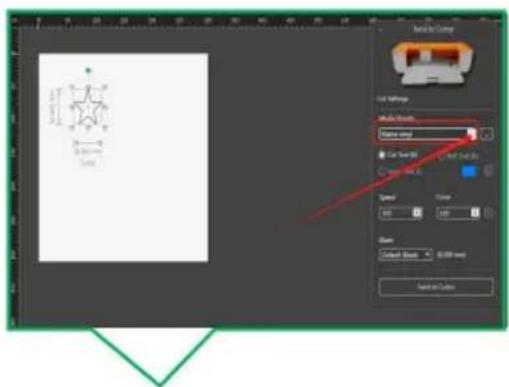
natural_image
Two-panel image showing a magenta abstract shape on a light background, with no visible text or symbols.natural_image
Exterior view of a red and orange 3D printer with a visible brand logo (no readable text or symbols on the device itself)text_image
Create a new Account e126.com 356 ...... ...... China I have an account Registertext_image
Exact-Cut Resource Center We have sent a confirmation email to HW After clicking on the link, click here to enter the dashboard Resend Verification Emailtext_image
Exact-Cut Resource Center Sign in to your account a126.com ****** Remember Me Create an Account Forgot my password Login
text_image
FCLAccessAPI Hello! Please click the button below to verify your email address. Verify Email Address If you did not create an account, no further action is required. Regards. FCLAccessAPItext_image
Download Links Link Product Version OS Data Download ExactCut 1.0.0 Windows 2023-9-17 Download ExactCut 1.0.0 Mic 2023-9-17 Note: a Cutter Serial Number cannot be used to install the softwaretext_image
Install Exact Cut.exetext_image
Setup - ExactCut version 1.0.1 License Agreement Please read the following important information before continuing. Please read the following License Agreement. You must accept the terms of this agreement before continuing with the installation. A FUTURE CORPORATION PTY. LTD. SOFTWARE LICENSE AGREEMENT I. IMPORTANT: THIS IS A LICENSE, NOT A SALE PLEASE READ THE TERMS AND CONDITIONS OF THIS SOFTWARE LICENSE AGREEMENT (ASSETS). I accept the agreement I do not accept the agreement Next Cancel5.4 Haga clic en "Finalizar"

text_image
Setup - ExactCut version 1.0.1 Completing the ExactCut Setup Wizard Setup has finished installing ExactCut on your computer. The application may be launched by selecting the installed shortcuts. Click Finish to exit Setup. Launch ExactCut Finishtext_image
Setup - ExactCut version 1.0.1 Select Destination Location Where should ExactCut be installed? Setup will install ExactCut into the following folder. To continue, click Next. If you would like to select a different folder, click Browse. At least 38.8 MB of free disk space is required. Back Next Cancel5.3 Haga clic en "Instalar".

text_image
Setup - ExactCut version 1.0.1 Ready to Install Setup is now ready to begin installing ExactCut on your computer. Click Install to continue with the installation, or click Back if you want to review or change any settings. Destination location: C:\Program Files\ExactCut Additional tasks: Additional shortcuts: Create a desktop shortcut Other tasks: Install Thumbnail Previewer Back Install Canceltext_image
Exact-Cut Resource Center Sign in to your account irqq.com Remember Me Create an Account Forgot my password Logincaja de diálogo.

text_image
ExacCut Welcome, Welcome! Welcome to the Exac Cut Resource Center. How you can manage your licenses and information. Actions Register Software Product Number View Cutters and Licenses Transfer Software Product Number View Download Linkstext_image
File View Edit Arrange License Help Cutter Connected Send to cut Untitled 6 10 200 300 350 400 450 500 550 600 650 700 750 800 850 Hindu China rulers Zoom to alltext_image
Toolbar with application icons including folder, document, edit, cross, save, delete, refresh, add, rotate, magnifying glass, and search
text_image
Vertical toolbar with icons for arrow, pencil, magnifying glass, square, letter 'T', and droplet symbolnatural_image
Pure technical diagram with grid lines and scale bar, no readable text or symbolsnatural_image
Close-up of a blue USB cable attached to a black electronic device on a wooden surface (no text or symbols visible)text_image
Line Session Line Sessiontext_image
Spin button Simultaneous scaling Unilateral scaling 62.797 mm — 6 62.797 mm — 6 Curvenatural_image
Simple green star outline inside a green speech bubble outline on grid paper (no text or symbols)
text_image
Document Style Box Cutting Mix Cutting Mix: Edit in a Liling Width: 100 px Height: 5 px Distance: 5 px View Out Print and Cut Tools (MMS)text_image
Smelt-Up Cable Cut Settings Close Pixels Block size: transfer width Cut Speed: 0.01 Reset Speed: 0.01 Speed: 500 Speed: 500 Mode: Default Mode: (2.000 mm) Send to Cable:text_image
Screenshot of a graphic design software interface showing a blank canvas with a small diagram and a red arrow labeled 'Speed to call'.1.8 Haga clic en "Enviar"

text_image
Send Cut Only artwork Select Artwork Options Choose what artwork you want to send Selected artwork only All artworks (what files on the page) Don't separate by color Positioning Options Decide how you want to position the artwork Move each color layer to origin Keep relative positions of each layer Use current text/page location Send Canceltext_image
02198745 File Settings Size: 100% Color: 0% Noise: 0% Opacity: 100% Balance: Current Inside 0.000 mm Send to Colors
text_image
Send to Cutter Cutting Status: Load Media Insert the media and press the LOAD button on the cutter. Progress: Cancel
natural_image
3D printer printing process with VEVOR branding and color calibration overlay (no readable text or symbols)text_image
Close-up of a hand pressing a button on an orange device, with icons including power, pause, and double arrow.
text_image
Send to Cutter Cutting Status: Press "START" to... Media loaded, press the START button to begin. Progress: Cancel
text_image
Orange button interface with five control buttons labeled Power, Play, Pause, and Button, held by a finger.text_image
Send to Cutter Cutting Status: Eject Media Please press LOAD to eject the media Progress: Cancel
text_image
Orange electronic device control panel with play, pause, and stop buttons, plus a finger pointing to the button.
natural_image
Hand holding a pen examining a colorful, abstract thermal or heatmap-like visualization (no text or symbols visible)natural_image
Silhouette of a dragon flying inside a square frame, displayed within an image editing software interface (no text or symbols on the dragon itself)2.3 Haga clic en "Aplicar".
text_image
Form: Custom Settings Name: 12.0000000000000000000000000000000000000000000000000000000000000000000000000000000000000000000000000000 A: New Year's Report B: New Year's Report C: New Year's Report D: New Year's Report E: New Year's Report F: New Year's Report G: New Year's Report H: New Year's Report I: New Year's Report
text_image
Cooling Continue Options Check what you want to do with the computer... Print and Car logo Print options will use the create a Print and Car logo using the following shapes for printing and the cooling continue for writing. Editable Continue Cut only Print options will allow you to choose the color space you want to find out more outline my ability, so it is now created close. Offload Amount 0.001 mm Insert Mode Connect Style Record Show Cut Apply Cancel2.5 Haga clic en "Enviar"

text_image
Send Print and Cut artworks Send Artwork Options Choose what artwork you want to send Selected artwork only All artwork (that fix on the page) Positioning Options Decide how you want to position the artwork Move each color layer to origins Keep relative positions of each layer Use current mat/page location. Send Cancel Wireframe preview2.4 Haga clic en "Enviar al dispositivo"

natural_image
Silhouette of a flying creature inside a design software interface (no text or symbols on the creature itself)text_image
Send to Printer Print Settings ● Print to desktop printer ○ Save print artwork to PDF Selected printer HP LaserJet Pro MFP M125-M126 PC1 Unknown paper size Set Print Size Need: 141min x 155mm Recenter □ Use Cutting Mat □ Mirror (For heat transfer) Send to Printer Print Artwork Cutting Contours
natural_image
Illustration of a stylized dragon flying on a whiteboard with orange grid background (no text or symbols)text_image
Send to Cutter Cutting Status: Load Media Insert the media and press the LOAD button on the cutter. Progress: Cancel Print Artwork 750 x 203 mm Cutting Contours 250 x 247.0 mm
text_image
Send to Cutter Cut Settings Media Presets Normal vinyl Cut Tool (R) Perf Tool (R) Score Tool (L) Speed Force 300 180 Blade Default Blade Send to Cutter Print Artwork 210 x 290 mm Cutting Contours 2100 x 290 mmnatural_image
3D printer with a gray dragon silhouette on its cover, placed on an orange cutting board (no visible text or symbols)text_image
Orange electronic device control panel with play, pause, and stop buttons, plus a finger pressing the button.2.14 Cuando

text_image
Send to Cutter Cutting Status: Press "START" to... Media loaded, press the START button to begin. Progress: Cancelnatural_image
Hand holding a white object with a black silhouette of a dinosaur, framed by corner brackets (no text or symbols)
text_image
Orange device control panel with play and pause buttons, one finger pressing the button
text_image
Send to Cutter Cutting Status: Eject Media Please press LOAD to eject the media Progress Cancel
text_image
Orange screen with control buttons including power, pause, double, and double arrow icons, held by a hand.text_image
QR code image containing encoded data, no visible human-readable texttext_image
Sign In Sign In Real customer Real not password! Forget your password? SIGN IN CREATE NEW ID
text_image
Create NEW ID Create NEW ID 1. Enter e-mail address 2. Click to get the verification code 3. Enter the verification code obtained from your mailbox 4. Enter a password China 5. Select Country View (Privacy Protection Agreement) View (User Registration Agreement) 6. Check here to agree Hold and agree (Privacy Protection Agreement) (User Registration Agreement) Create NEW ID 7. Click to register
text_image
Sign In Sign In Enter your registered email address Enter your registered account password Forget your password? SIGN IN CREATE NEW ID2.6 Haga clic en "Máquina
text_image
View Profile > Machine Setting USB Files Language Setting Help And Feedback About Logout Home New Project Profile
text_image
Search Navigate View all- Beginner Holiday Party Botany school wedding camers Animal letter Holiday Party more > Botany more > school more > Home New Project Profile
text_image
Control Center @Ruijie -sCF74 Bluetooth Screen Recorder HONO Suggestions Mobile data HONO Suggestions Not playing Flashlight Sound Auto- rotate HONOR Share Airplane mode Mobile data Location Screen- shot Eye Comfort Personal hotspot Screen Recorder Wireless Projectiontext_image
Machine Setting Add Allow Superb Cut to access this device's location? WHILE USING THE APP ALLOW THIS TIME ONLY DENY
text_image
Machine Setting Add +icono de cortador.

text_image
Select Machine Select target machine Smart2.12 Conexión
exitoso, haga clic atrás.
text_image
Machine Setting Add Smart_4F1E Connectedtext_image
Discovery Smart Please plug the device in. Select the device Smart_4F1E Cancel Pair Devicetext_image
Discovery Smart Please plug the device in. Please press the config button Connecting will take about 1 minute PAIR DEVICE2.15 Haga clic para crear.

text_image
View Profile > Machine Setting > USB Files > Language Setting > Help And Feedback > About > Logout Home New Project Profile
text_image
Q Search Navigate View all- Beginner Holiday Party Botany school wedding camers Animal letter Holiday Party more > Botany more > school more > Home New Project Profile
text_image
Prepare 1. Remove the protective film and protective strip from the fuselage. 2. 20inch space should be reserved in front of and behind the machine. 3. Check whether the rated voltage and current marked on the adapter match with the location. 4. First insert the power into the back of the machine, turn on the power, and press the machine start button. Cut 1. Prepare materials as required. 2. Take out the cutting pad and remove the protective film. 3. Align the material with the upper left corner of the cutting pad and press firmly to make it stick. 4. Repeat step 3 as needed. 5. Put the cutting pad to the feed port and align the paper roller. 6. Operate according to the prompt specification. Make 1. Take out materials after processing. 2. Remove unnecessary parts according to pattern requirements. 3. Transfer finished products to handicrafts. Make2.18 Haga clic para crear.
text_image
New Drawing Go to make
text_image
New Drawing Make Picture Texts Shape UploadHandle Edit Layer So
text_image
New Drawing rotary button Synchronized Zoom Button Single Side Zoom Button 1/8 CM + 5 CM Make Picture Texts Shape Upload Handle Edit Layer Sertext_image
Select Machine Has Mat? no mat under (30.48cm X 30.48cm) matSuitable for any mat under (30.48cm X 60.98cm) matSuitable for any mat Click the target machine: Smart_4F1E Connected Next Add Machine
text_image
Select Material Normal vinyl Black heat transfer film Flash heat transfer vinyl Laser heat transfer vinyl Coloured heat transfer vinyl Pearlescent vinyl Next
text_image
Set Position 0 2 4 6 8 10 12 14 16 18 20 22 24 26 28 30 2 4 6 8 10 12 14 16 18 20 22 24 26 28 30 Cutnatural_image
Industrial printing machine with orange frame and reflective material, no visible text or symbols on the machine itself.text_image
Set Position Please press the feed key Cuttext_image
Orange device control panel with play, pause, and stop buttons, plus a finger pressing the button.
text_image
Cutting 0% Press the machine starttext_image
Close-up of a hand pressing a button on an orange screen, with control buttons visible2.27 Al procesar
natural_image
Close-up of a hand holding a small object over a colorful, iridescent heatmap or sky pattern (no text or symbols visible)
text_image
Orange screen control panel with play, pause, and double button icons and a finger pointing to the button.
text_image
Finish/Stop Finished printing Press eject button Press eject buttontext_image
Auto Player Setting Status Helping Setting setting status on the Programs Cancel Cancel Active Cancel to alltext_image
File View Edit Arrange License Help New Ctrl+N Open Ctrl+O Open Recent Import File Ctrl+I Save Ctrl+S Save As Print Page Size Preferences Close Exit Measuring Units Language Continue create/draw mode All Preferences English Chinese German Spanish Portuguesetext_image
File View Edit Arrange License Help New Ctrl+N Open Ctrl+O Open Recent Import file Ctrl+I Save Ctrl+S Save As Print Page Size Preferences Measuring Units Inches Close Language Metric (mm) Exit Continue create/draw mode Metric (cm) All Preferencestext_image
New Drawing 6 Layers shape_0 ◎ Primary shape_1 ◎ Primary shape_2 ◎ Primary shape_3 ◎ Primary shape_4 ◎ Primary shape_5 ◎ Primary
text_image
New Drawing Click here to hide the small eye without cutting the layer & Layers shape_0 ● Primary shape_1 ● Primary shape_2 ○ Primary shape_3 ○ Primary shape_4 ○ Primary shape_5 ○ Primarytext_image
New Drawing Operation 2 1 ① ② ③ ④
text_image
New Drawing 8 Layers shape_0 ○ Primary shape_1 ○ Primary shape_2 ○ Primary shape_3 ○ Primary shape_4 ○ Primary shape_5 ○ Primary
text_image
New Drawing Click here to select left and right knives 6 Layers shape_0 ◎ Primary shape_1 ◎ Primary shape_2 ◎ Primary shape_3 ◎ Assistant shape_4 ◎ Primary shape_5 ◎ Primarytext_image
Select Material Transfer film Sticker papercane Coloured heat transfer vinyl Matter film Oleos photo paper (200g) Papercant (300g) Pearleasant vinyl Hard plastic film Laser heat transfer vinyl Both side coated art paper (500g) Air printing paper Dermatinglyph paper (100g) Kroft paper (100g) Glaze film Normal vinyl Next Edit
text_image
Edit Material Transfer film Sticker papercard Coloured heat transfer vinyl Matte film Glass photo paper (250g) Papercard (500g) Pearleocent vinyl Hard plastic film Laser heat transfer vinyl Both side coated art paper (250g) All printing paper Dermatoglyph paper (100g) Kraft paper (100g) Gluea film Normal vinyl Finish
text_image
Add Material Material name Please enter the name of the material Setting the knife pressure 10 savetext_image
Select Material Transfer film Sticker papercard Coloured heat transfer vinyl Mutter film Gloss photo paper (250g) Papercard (300g) Pearlescent vinyl Hard plastic film Laser heat transfer vinyl Both slide coated art paper (250g) All printing paper Dermatoglyph paper (100g) Knelt paper (100g) Gloss film Normal vinyl Next Edit
text_image
Edit Material New Transfer film Sticker papercard Coloured heat transfer vinyl Pressure: 190 Mutter film Gloss photo paper (230g) Papercard (300g) Pearlescent vinyl Hard plastic film Laser heat transfer vinyl Both side coated art paper (250g) A4 printing paper Dermatoglyph paper (100g) Kraft paper (100g) Gloss film Finishtext_image
QR code image containing encoded data, no visible human-readable text- https://youtu.be/6yPM4iy5Ixc

text_image
QR code image containing encoded data, no visible human-readable text- https://youtu.be/Kj-b7WdSCH8

text_image
QR code image containing encoded data, no visible human-readable text- https://youtu.be/FqSa51zLvtw

text_image
QR code image containing encoded data, no visible human-readable text- https://youtu.be/-5u-A62vNql

text_image
QR code image containing encoded data, no visible human-readable text- https://youtu.be/hMHuqAJSWdM

text_image
QR code image containing encoded data, no visible human-readable textnatural_image
White and orange HP printer with internal components, no visible text or symbols on the device bodytext_image
20in 20in
text_image
Clamp L Clamp R VEVOR® SODDER TOOL SLIP PRICE WATER SCREW AND COOKING COLDING PAUL WMG REDUSTRY ←←→←→- Open the Clamp as shown by the arrow.

text_image
Pen or Foil Transfer and housing Blade and housing EVOR® FOR TOOL, FOIL PRESS- Place the Blade and housing in Clamp R. Place the pen or the foil transfer and housing in Clamp L.

natural_image
Close-up of a white mechanical component with two metallic parts, one labeled 'EVOR' and the other showing 'COCA HALF PRICE', against an orange background (no readable text beyond branding)- Close the Clamp as shown by the arrow.

natural_image
Solid red cylindrical object with a small protrusion at the top (no visible text or symbols)Foil Transfer and housing

Blade and housing

natural_image
Close-up of a metallic cylindrical object with vertical ridges and a small protrusion at the top (no visible text or symbols)Pen
natural_image
Close-up of a blue cable inserted into a white electrical plug, next to a black electronic device (no visible text or symbols)
natural_image
Close-up of a white electrical outlet plug with black socket, showing cable insertion and power outlet (no text or symbols visible)Attention: Before powering on, check whether the voltage and current of the machine adapter match the location. Once confirmed, you can proceed to power on to avoid potential hazards.
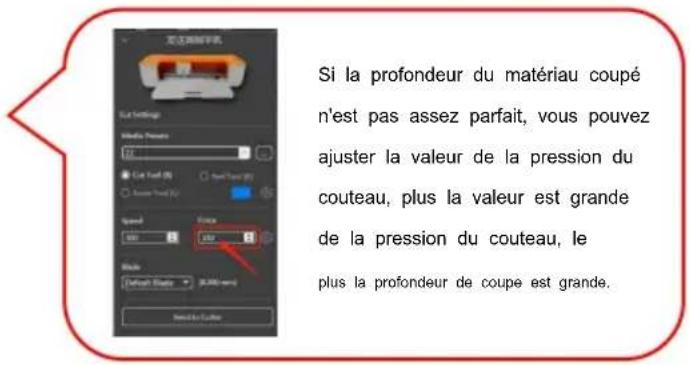
natural_image
Two-panel illustration showing a pink abstract shape on a light background, with no visible text or symbols.natural_image
Exterior view of a red and orange industrial machine with a visible 'EVOR' logo on its side (no text or symbols on the machine itself)text_image
Create a new Account e126.com 356 ...... ...... China I have an account Registertext_image
Exact-Cut Resource Center Sign in to your account a126.com ****** Remember Me Create an Account Forgot my password Logintext_image
Download Links Link Product Version OS Data Download ExactCut 1.0.0 Windows 2023-9-17 Download ExactCut 1.0.0 Mic 2023-9-17 Note: a Cutter Serial Number cannot be used to install the software
text_image
ExactCut (PAC-PC) Product Break-Number (PSY) 1033-000000000000000000000000000000000000000000000 https://get.exact-cut.com
text_image
Exact-Cut Resource Center We have sent a confirmation email to HW After clicking on the link, click here to enter the dashboard Resend Verification Emailtext_image
FCLAccessAPI Hello! Please click the button below to verify your email address. Verify Email Address If you did not create an account, no further action is required. Regards, FCLAccessAPItext_image
Install Exact Cut.exetext_image
Setup - ExactCut version 1.0.1 License Agreement Please read the following important information before continuing. Please read the following License Agreement. You must accept the terms of this agreement before continuing with the installation. A FUTURE CORPORATION PTY. LTD. SOFTWARE LICENSE AGREEMENT I. IMPORTANT: THIS IS A LICENSE, NOT A SALE. PLEASE READ THE TERMS AND CONDITIONS OF THIS SOFTWARE LICENSE AGREEMENT (ASSETS). I accept the agreement I do not accept the agreement Next Cancel5.4 Fare clic su "Fine"

text_image
Setup - ExactCut version 1.0.1 Completing the ExactCut Setup Wizard Setup has finished installing ExactCut on your computer. The application may be launched by selecting the installed shortcuts. Click Finish to exit Setup. ✓ Launch ExactCut Finishtext_image
Exact-Cut Resource Center Sign in to your account irqq.com ****** Remember Me Create an Account Forget my password Login5.2 Fare clic su "Avanti"

text_image
Setup - ExactCut version 1.0.1 Select Destination Location Where should ExactCut be installed? Setup will install ExactCut into the following folder. To continue, click Next. If you would like to select a different folder, click Browse. All options first ExactCut Browse... At least 38.8 MB of free disk space is required. Back Next Canceltext_image
Setup - ExactCut version 1.0.1 Ready to Install Setup is now ready to begin installing ExactCut on your computer. Click Install to continue with the installation, or click Back if you want to review or change any settings. Destination location: C:\Program Files\ExactCut Additional tasks: Additional shortcuts: Create a desktop shortcut Other tasks: Install Thumbnail Previewer Back Install Canceltext_image
ExacCut Welcome, Welcome! Welcome to the Exac Cut Resource Center. How you can manage your licenses and information. Actions Register Software Product Number View Cutters and Licenses Transfer Software Product Number View Download Linkstext_image
Toolbar with application icons including folder, document, edit, cross, save, delete, refresh, add, rotate, magnifying glass, and search
text_image
Vertical toolbar with icons for arrow, pencil, magnifying glass, square, letter 'T', and droplet symboltext_image
Vertical toolbar with icons representing file operations and tools, including document, tool, gear, and pencil.natural_image
Pure technical diagram with a green triangle on top and a red rectangle below, no text or symbols present.natural_image
Close-up of a blue USB cable attached to a black electronic device on a wooden surface (no text or symbols visible)text_image
Line Session Line Sessiontext_image
Spin button Simultaneous scaling Unilateral scaling 61.797 mm 61.797 mm Curvenatural_image
Simple green speech bubble with a five-pointed star outline on grid paper (no text or symbols)
text_image
View Cutting Mode Cutting Mode: Edit in a Liling Width: 100 px Height: 5 px Distance: 5 px View Mode Print and Cut, Info (MMS)text_image
Color Add Color + Color Filtered Cyan: 100% Red: Gray: 100% Black: 100% Red: White: 100% Blue: Red: Purple: 100% Green: Red: White: 100%text_image
Screenshot of a graphic design software interface showing a blank canvas with a small diagram and a red arrow labeled 'Speed to call'.text_image
Send Cut Only artwork Select Artwork Options Choose what artwork you want to send Selected artwork only All artworks (what files on the page) Don't separate by color Positioning Options Decide how you want to position the artwork Move each color layer to origin Keep relative positions of each layer Use current text/page location Send Cancel
text_image
Material Settings Material Length Material Length Color Color Color Color Color Color Color Color Color Color Color Color Color Color Color Color Color Color Color Color Color Color Color Color Color Color Color Color Color Color Color Color Color Color Color Color Color Color Color Color Color Color Color Color Color Color Color Color Color Color Cotton Color Cotton Color Cotton Color Cotton Color Cotton Color Cotton Color Cotton Color Cotton Color Cotton Color Cotton Color Cotton Color Cotton Color Cotton Color Cotton Color Cotton Color Cotton Color Cotton Color Cotton Color Cotton Color Cotton Color Cotton Color Cotton Color Cotton Color Cotton Color Cotton Color Cotton Cutstext_image
OK OK OK File Settings Edit Preset: 100 Set Sound New Sound (R) Show Sound (S) Spread: 300 Balance: Onset Sound: 25.000 mm Send to OK
text_image
Send to Cutter Cutting Status: Load Media Insert the media and press the LOAD button on the cutter. Progress: Cancel
natural_image
3D printer printing process with VEVOR branding and color calibration overlay (no readable text or symbols)text_image
Orange button interface with control buttons including Power, OK, Off, and Left/Down symbols
text_image
Send to Cutter Cutting Status: Press "START" to... Media loaded, press the START button to begin. Progress: Cancel
text_image
Orange button interface with five control buttons labeled Power, Play, Pause, and Button, held by a finger.Machine Translated by Google
Pulsante CARICA/SCARICA.
text_image
Send to Cutter Cutting Status: Eject Media Please press LOAD to eject the media Progress: Cancel
text_image
Orange screen with five control buttons labeled Power, Play, Non-Play, and Button, held by a finger pointing at the button.
natural_image
Hand holding a small white object with a star-shaped mark, overlaid on a colorful thermal or simulation image (no text or symbols visible)natural_image
Silhouette of a dragon flying inside a square frame, displayed within an image editing software interface (no text or symbols on the dragon itself)2.3 Fare clic su "Applica".
text_image
Form: Custom Settings Name: 12.0000000000000000000000000000000000000000000000000000000000000000000000000000000000000000000000000000 A: New Year's Report B: New Year's Report C: New Year's Report D: New Year's Report E: New Year's Report F: New Year's Report G: New Year's Report H: New Year's Report I: New Year's Report
text_image
Cooling Continue Options Describe what you want to do with the computer... Print and Car logo This option will use the create a Print and Car logo using the matching shape for printing and the cooling contact for writing. Editable Continue Cut only This option will allow you to choose the color space you want to find out how much more help us are saved away. Offload amount 0.001 mm Connect Style Record Include Mode Show Cut Apply Canceltext_image
Send Print and Cut artworks Send Artwork Options Choose what artwork you want to send: Selected artwork only All artwork (that fix on the page) Positioning Options Decide how you want to position the artwork Move each color layer to origin Keep relative positions of each layer Use current mat/page location. Send Cancel Wireframe preview
natural_image
Silhouette of a flying creature inside a design software interface (no text or symbols on the creature itself)text_image
Send to Printer Print Settings ● Print to desktop printer ○ Save print artwork to PDF Selected printer HP LaserJet Pro MFP M125-M126 PC1 Unknown paper size Set Print Size Need: 141mm x 155mm Recenter Use Cutting Mat Mirror (For heat transfer) Send to Printer Print Artwork Cutting Contours
natural_image
Silhouette of a flying creature on a whiteboard with orange grid background (no text or symbols)text_image
Send to Cutter Cutting Status: Load Media Insert the media and press the LOAD button on the cutter. Progress: Cancel Print Artwork 750 x 200 mm Cutting Contours 250 x 200.0 mm
text_image
Send to Cutter Cut Settings Media Presets Normal vinyl Cut Tool (R) Perf Tool (R) Score Tool (L) Speed Force 300 180 Blade Default Blade Send to Cutter Print Artwork 210 x 290 mm Cutting Contours 2100 x 290 mmnatural_image
3D printer with a gray dragon silhouette on its cover, placed on an orange cutting board (no visible text or symbols)text_image
Orange electronic device control panel with play, pause, and stop buttons labeled in Chinese2.14 Quando
text_image
Send to Cutter Cutting Status: Press "START" to... Media loaded, press the START button to begin. Progress: Cancelnatural_image
Hand holding a white object with a black silhouette of a dinosaur, framed by corner brackets (no text or symbols)
text_image
Orange device control panel with play and pause buttons, one finger pressing the button
text_image
Send to Cutter Cutting Status: Eject Media Please press LOAD to eject the media Progress Cancel
text_image
Orange screen with control buttons including power, pause, double, and double arrow icons, held by a hand.text_image
QR code image containing encoded data, no visible human-readable texttext_image
Sign In Sign In Read your password Read your password Forget your password? SIGN IN CREATE NEW ID
text_image
Create NEW ID Create NEW ID 1. Enter e-mail address 2. Click to get the verification code 3. Enter the verification code obtained from your mailbox 4. Enter a password China 5. Select Country View (Privacy Protection Agreement) View (User Registration Agreement) 6. Check here to agree Hold and agree (Privacy Protection Agreement) (User Registration Agreement) Create NEW ID 7. Click to register
text_image
Sign In Sign In Enter your registered email address Enter your registered account password Forget your password? SIGN IN CREATE NEW IDtext_image
View Profile > Machine Setting USB Files Language Setting Help And Feedback About Logout Home New Project Profile
text_image
Search Navigate View all- Beginner Holiday Party Botany school wedding camers Animal letter Holiday Party more > Botany more > school more > Home New Project Profiletext_image
Control Center @Ruijie -sCF74 Bluetooth Screen Recorder HONO Suggestions Mobile data HONO Suggestions Not playing Flashlight Sound Auto- rotate HONOR Share Airplane mode Mobile data Location Screen- shot Eye Comfort Personal hotspot Screen Recorder Wireless Projectiontext_image
Machine Setting Add Allow Superb Cut to access this device's location? WHILE USING THE APP ALLOW THIS TIME ONLY DENY
text_image
Machine Setting Add +
text_image
Select Machine Select target machine SmartMachine Translated by Google
2.12 Connessione
text_image
Machine Setting Add Smart_4F1E Connected2.13 Fare clic su "Home"

text_image
Discovery Smart Please plug the device in. Select the device > Smart_4F1E Cancel PAIR DEVICEtext_image
Discovery Smart Please plug the device in. Please press the config button Connecting will take about 1 minute PAIR DEVICEtext_image
Q Search Navigate View all- Beginner Holiday Party Botany school wedding camers Animal letter Holiday Party more > Botany more > school more > Home New Project Profile
text_image
Prepare 1. Remove the protective film and protective strip from the fuselage. 2. 20inch space should be reserved in front of and behind the machine. 3. Check whether the rated voltage and current marked on the adapter match with the location. 4. First insert the power into the back of the machine, turn on the power, and press the machine start button. Cut 1. Prepare materials as required. 2. Take out the cutting pad and remove the protective film. 3. Align the material with the upper left corner of the cutting pad and press firmly to make it stick. 4. Repeat step 3 as needed. 5. Put the cutting pad to the feed port and align the paper roller. 6. Operate according to the prompt specification. Make 1. Take out materials after processing. 2. Remove unnecessary parts according to pattern requirements. 3. Transfer finished products to handicrafts. Maketext_image
New Drawing Go to make
text_image
New Drawing Make Pictures Texts Shape UploadHandle Edit Layer Se
text_image
New Drawing 10/CM + 5CM rotary button Synchronized Zoom Button Single Side Zoom Button Make Picture Texts Shape Upload Handle Edit Layer Setext_image
Select Machine Has Mat? no mat under (30.48cm X 30.48cm) matSuitable for any mat under (30.48cm X 60.98cm) matSuitable for any mat Click the target machine: Smart_4F1E Connected Next Add Machine
text_image
Select Material Normal vinyl Black heat transfer film Flash heat transfer vinyl Laser heat transfer vinyl Coloured heat transfer vinyl Pearlescent vinyl Next
text_image
Set Position 0 2 4 6 8 10 12 14 16 18 20 22 24 26 28 30 2 4 6 8 10 12 14 16 18 20 22 24 26 28 30 Cutnatural_image
Industrial printing machine with orange frame and reflective material, no visible text or symbols on the machine itself.text_image
Set Position Please press the feed key Cuttext_image
Orange screen control panel with play, pause, and double button icons, plus a finger pressing the button.text_image
Cutting 0% Press the machine start
text_image
Close-up of a hand pressing a button on an orange device, with control buttons including Power, Pull, and Shift.natural_image
Close-up of a hand holding a small object over a colorful, iridescent heatmap or sky pattern (no text or symbols visible)
text_image
Orange button interface with play and pause icons, showing navigation buttons and a finger pointing to the button.
text_image
Finish/Stop Finished printing Press eject button Press eject buttonÿ.Domande frequenti
text_image
添加选项 Cutting Options Cutting settings on the option Programs Cancel Paste Method Cancel to addtext_image
File View Edit Arrange License Help New Ctrl+N Open Ctrl+O Import File Ctrl+1 Save Ctrl+S Save As Print Page Size Preferences Close Exit Measuring Units Language Continue create/draw mode All Preferences English Chinese German Spanish Portuguesetext_image
File View Edit Arrange License Help New Ctrl+N Open Ctrl+O Open Recent Import file Ctrl+I Save Ctrl+S Save As Print Page Size Preferences Measuring Units Inches Close Language Metric (mm) Exit Continue create/draw mode Metric (cm) All Preferencestext_image
New Drawing 6 Layers shape_0 ◎ Primary shape_1 ◎ Primary shape_2 ◎ Primary shape_3 ◎ Primary shape_4 ◎ Primary shape_5 ◎ Primary
text_image
New Drawing Click here to hide the small eye without cutting the layer & Layers shape_0 Primary shape_1 Primary shape_2 Primary shape_3 Primary shape_4 Primary shape_5 Primarytext_image
New Drawing Operation 2 1 ① ② ③ ④
text_image
New Drawing 8 Layers shape_0 ○ Primary shape_1 ○ Primary shape_2 ○ Primary shape_3 ○ Primary shape_4 ○ Primary shape_5 ○ Primary
text_image
New Drawing Click here to select left and right knives 6 Layers shape_0 ◎ Primary shape_1 ◎ Primary shape_2 ◎ Primary shape_3 ◎ Assistant shape_4 ◎ Primary shape_5 ◎ Primarytext_image
Select Material Transfer film Sticker papercant Coloured heat transfer vinyl Matte film Oleos photo paper (200g) Papercant (300g) Pearleasant vinyl Hard plastic film Laser heat transfer vinyl Both side coated art paper (500g) Air printing paper Dermatinglyph paper (100g) Kraft paper (100g) Glaze film Normal vinyl Next Edit
text_image
Edit Material Transfer film Sticker papercard Coloured heat transfer vinyl Matte film Glass photo paper (230g) Papercard (500g) Pearleocent vinyl Hard plastic film Laser heat transfer vinyl Both side coated art paper (250g) All printing paper Dermatoglyph paper (100g) Kraft paper (100g) Glass film Normal vinyl Finish
text_image
Add Material Material name Please enter the name of the material Setting the knife pressure 10 savetext_image
Select Material Transfer film Sticker papercard Coloured heat transfer vinyl Mutter film Gloss photo paper (250g) Papercard (300g) Pearlescent vinyl Hard plastic film Laser heat transfer vinyl Both slide coated art paper (250g) All printing paper Dermatoglyph paper (100g) Knelt paper (100g) Gloss film Normal vinyl Next Edit
text_image
Edit Material New Transfer film Sticker papercard Coloured heat transfer vinyl Pressure: 190 Motte film Gloss photo paper (230g) Papercard (300g) Pearlescent vinyl Hard plastic film Laser heat transfer vinyl Both side coated art paper (250g) A4 printing paper Dermatoglyph paper (100g) Kraft paper (100g) Gloss film Finishtext_image
QR code image containing encoded data, no visible human-readable text- https://youtu.be/Kj-b7WdSCH8

text_image
QR code image containing encoded data, no visible human-readable text5.https://youtu.be/-5u-A62vNql

text_image
QR code image containing encoded data, no visible human-readable text- https://youtu.be/6yPM4iy5Ixc

text_image
QR code image containing encoded data, no visible human-readable text- https://youtu.be/FqSa51zLvtw

text_image
QR code image containing encoded data, no visible human-readable text- https://youtu.be/hMHuqAJSWdM

text_image
QR code image containing encoded data, no visible human-readable textÿ.Informazioni FCC
elettronica www.vevor.com/support
VEVOR®
TOUGH TOOLS, HALF PRICE
natural_image
White and orange HP printer with internal components, no visible text or symbols on the device bodyPOTRZEBUJESZ POMOCY? SKONTAKTUJ SIĘ Z NAMI!
text_image
20in 20in
text_image
Clamp L Clamp R VEVOR® SODDER TOOL SLIP PRICE WATER SCOTTER AND COOKING COLDING PAUL WMG REDUSTRY ←←→←→- Open the Clamp as shown by the arrow.

text_image
Pen or Foil Transfer and housing Blade and housing EVOR® FOR TOOL, FOIL PRESS- Place the Blade and housing in Clamp R. Place the pen or the foil transfer and housing in Clamp L.

natural_image
Close-up of a white mechanical component with two metallic parts, one labeled 'EVOR' and the other showing 'COCA HALF PRICE', against an orange background (no readable text beyond branding)- Close the Clamp as shown by the arrow.

natural_image
Solid red cylindrical object with a small protrusion at the top (no visible text or symbols)Foil Transfer and housing

Blade and housing

natural_image
Close-up of a metallic cylindrical object with vertical ridges and a small protrusion at the top (no visible text or symbols)Pen
natural_image
Close-up of a blue cable inserted into a white electrical plug, next to a black electronic device (no visible text or symbols)natural_image
Close-up of a blue cable inserted into a white electrical outlet socket (no text or symbols visible)Attention: Before powering on, check whether the voltage and current of the machine adapter match the location. Once confirmed, you can proceed to power on to avoid potential hazards.
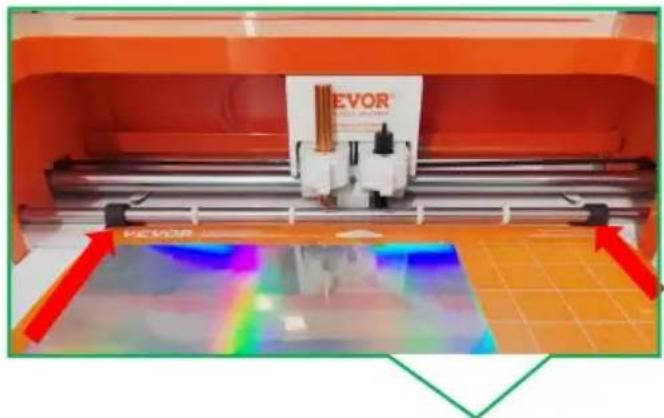
natural_image
Two-panel image showing abstract shapes with no visible text, numbers, or symbols.natural_image
Exterior view of a red and orange 3D printer with a visible brand logo (no readable text or symbols on the device itself)text_image
Create a new Account e126.com 356 ...... ...... China I have an account Registertext_image
Exact-Cut Resource Center Sign in to your account a126.com ****** Remember Me Create an Account Forgot my password Logintext_image
Download Links Link Product Version OS Data Download ExactCut 1.0.0 Windows 2023-9-17 Download ExactCut 1.0.0 Mic 2023-9-17 Note: a Cutter Serial Number cannot be used to install the software
text_image
ExactCut (PAC-PC) Product Break-Number (PSY) 1033-000000000000000000000000000000000000000000000 https://get.exact-cut.comtext_image
Exact-Cut Resource Center We have sent a confirmation email to HW After clicking on the link, click here to enter the dashboard Resend Verification Emailtext_image
FCLAccessAPI Hello! Please click the button below to verify your email address. Verify Email Address If you did not create an account, no further action is required. Regards. FCLAccessAPItext_image
Install Exact Cut.exetext_image
Setup - ExactCut version 1.0.1 License Agreement Please read the following important information before continuing. Please read the following License Agreement. You must accept the terms of this agreement before continuing with the installation. A FUTURE CORPORATION PTY. LTD. SOFTWARE LICENSE AGREEMENT I. IMPORTANT: THIS IS A LICENSE, NOT A SALE. PLEASE READ THE TERMS AND CONDITIONS OF THIS SOFTWARE LICENSE AGREEMENT (ASSETS). I accept the agreement I do not accept the agreement Next Canceltext_image
Setup - ExactCut version 1.0.1 Completing the ExactCut Setup Wizard Setup has finished installing ExactCut on your computer. The application may be launched by selecting the installed shortcuts. Click Finish to exit Setup. Launch ExactCut Finish5.2 Kliknij „Dalej“

text_image
Setup - ExactCut version 1.0.1 Select Destination Location Where should ExactCut be installed? Setup will install ExactCut into the following folder. To continue, click Next. If you would like to select a different folder, click Browse. At least 38.8 MB of free disk space is required. Back Next Canceltext_image
Setup - ExactCut version 1.0.1 Ready to Install Setup is now ready to begin installing ExactCut on your computer. Click Install to continue with the installation, or click Back if you want to review or change any settings. Destination location: C:\Program Files\ExactCut Additional tasks: Additional shortcuts: Create a desktop shortcut Other tasks: Install Thumbnail Previewer Back Install Canceltext_image
Exact-Cut Resource Center Sign in to your account shzq.com ****** Remember Me Create an Account Forgot my password Loginokno dialogowe.

text_image
ExacCut Welcome, Regularly! Welcome to the Exac Cut Resource Center. How you can manage your licenses and information. Actions Register Software Product Number View Cuthers and Licenses Transfer Software Product Number View Download Linkstext_image
File View Edit Arrange License Help Cutter Connected Send to cut Untitled 6 10 200 300 350 400 450 500 550 600 650 700 750 800 850 Hindu China rulers Zoom to alltext_image
Toolbar with application icons including folder, document, edit, paste, refresh, add, delete, zoom, and search functions
natural_image
Pure technical diagram showing a green triangle on a green ruler above a blank white grid, with no text or symbols present.natural_image
Close-up of a blue USB cable attached to a black electronic device on a wooden surface (no text or symbols visible)text_image
Screenshot of a graphic design software interface showing a blank canvas with a red arrow labeled 'Open Window' pointing to it.text_image
Spin button Simultaneous scaling Unilateral scaling 62.797 mm — 6 62.797 mm — 6 Curvetext_image
Document Style Star Cutting Man Cutting Man (Cut to a Litter) Width: 5 px Height: 0 px Distance: 100% View Only Print and Cut Use (MMS)
natural_image
Simple green speech bubble with a five-pointed star outline on grid paper (no text or symbols)text_image
Screenshot of a graphic design software interface showing a blank canvas with a small diagram and a red arrow labeled 'Speed to call'.text_image
Send to Color Color Settings Media Params Black Heat Transfer Angle Gray Seed (R) Blue Seed (B) Speed 500 500 Mode: Default Mode: 0.000 mm Send to Colortext_image
Send Cut Only artwork Select Artwork Options Choose what artwork you want to send Selected artwork only All artworks (what files on the page) Don't separate by color Positioning Options Decide how you want to position the artwork Move each color layer to origin Keep relative positions of each layer Use current text/page location Send Cancel
text_image
Multi-Clip Cut Settings Multi-Clip Mode Size: 100 Cut Shift: 90 Cut Shift: 80 Speed: 100 Distance: 500 mm Color: 0.000 mm Select to Cut: 确定text_image
OK/SPRPLC Size Settings Size: 100% Color: Normal Noise: Normal Effect: Noise: Noise: Default: Normal 0.000 mm Send to Colors
text_image
Send to Cutter Cutting Status: Load Media Insert the media and press the LOAD button on the cutter. Progress: Cancel
natural_image
3D printer printing process with VEVOR branding and color calibration overlay (no readable text or symbols)text_image
Orange button interface with control buttons including Power, OK, Off, and Left/Down symbols
text_image
Send to Cutter Cutting Status: Press "START" to... Media loaded, press the START button to begin. Progress: Cancel
natural_image
Orange electronic device with five control buttons (Power, Play, Pause, Idle) and a finger pressing the button (no text or symbols visible)1.17 Po zakończeniu
text_image
Send to Cutter Cutting Status: Eject Media Please press LOAD to eject the media Progress: Cancel
text_image
Orange device control panel with five labeled buttons: Power, Play, Off, and OK
natural_image
Hand holding a small white object with a star-shaped mark, interacting with a colorful abstract background (no text or symbols visible)natural_image
Silhouette of a dragon flying inside a square frame, displayed within an image editing software interface (no text or symbols on the dragon itself)text_image
Form: Custom Settings Name: 12.0000000000000000000000000000000000000000000000000000000000000000000000000000000000000000000000000000 A: New Year's Report B: New Year's Report C: New Year's Report D: New Year's Report E: New Year's Report F: New Year's Report G: New Year's Report H: New Year's Report I: New Year's Report
text_image
Workforce Cooling Continue Options Check what you want to do with the computer... Print and Car logo Print options will use the create a Print and Car logo using the cooling design for printing and the cooling contracts for writing. Editable Continue Cut only Print options will allow you to choose the color space you want to find out more obvious ways, so it is now created close. Offload Amount 0.001 mm Insert Mode Correct Style Record Show Cut Apply Canceltext_image
Send Print and Cut artworks Send Artwork Options Choose what artwork you want to send Selected artwork only All artwork (that fix on the page) Positioning Options Decide how you want to position the artwork Move each color layer to origins Keep relative positions of each layer Use current mat/page location. Send Cancel Wireframe previewnatural_image
Silhouette of a flying creature inside a design software interface (no text or symbols on the creature itself)text_image
Send to Printer Print Settings ● Print to desktop printer ○ Save print artwork to PDF Selected printer HP LaserJet Pro MFP M125-M126 PC1 Unknown paper size Set Print Size Need: 141mm x 155mm Recenter □ Use Cutting Mat □ Mirror (For heat transfer) Send to Printer Print Artwork Cutting Contours
natural_image
Illustration of a stylized dragon flying inside a whiteboard with orange grid background (no text or symbols)text_image
Send to Cutter Cutting Status: Load Media Insert the media and press the LOAD button on the cutter. Progress: Cancel Print Artwork 750 x 203 mm Cutting Contours 250 x 203.0 mm
text_image
Send to Cutter Cut Settings Media Presets Normal vinyl Cut Tool (R) Perf Tool (R) Score Tool (L) Speed Force 300 180 Blade Default Blade Send to Cutter Print Artwork 210 x 290 mm Cutting Contours 2100 x 290 mmnatural_image
3D printer with a gray dragon silhouette on its cover, placed on an orange cutting board (no visible text or symbols)2.16 Kontur
cie cie zakończone.
2.15 Naciśnij
maszyna
Załaduj/Rozładuj
przycisk.

text_image
Orange electronic device control panel with play, pause, and stop buttons labeled in Chinese2.14 Kiedy
po zakończeniu
przetwarzania
text_image
Send to Cutter Cutting Status: Press "START" to... Media loaded, press the START button to begin. Progress: Cancel2.13 Naciśnij
natural_image
Hand holding a white object with a black silhouette of a dinosaur, framed by corner brackets (no text or symbols)
text_image
Orange button interface with play and pause icons, showing navigation buttons and a finger pointing to the button.
text_image
Send to Cutter Cutting Status: Eject Media Please press LOAD to eject the media Progress Cancel
text_image
Orange screen with control buttons including power, pause, double, and double arrow icons, held by a hand.Wie cej szczegółów
text_image
QR code image containing encoded data, no visible human-readable texttext_image
Sign In Sign In Real customer Real not password! Forget your password? SIGN IN CREATE NEW ID
text_image
Create NEW ID Create NEW ID 1. Enter e-mail address 2. Click to get the verification code 3. Enter the verification code obtained from your mailbox 4. Enter a password China 5. Select Country View (Privacy Protection Agreement) View (User Registration Agreement) 6. Check here to agree Hold and agree (Privacy Protection Agreement) (User Registration Agreement) Create NEW ID 7. Click to register
text_image
Sign In Sign In Enter your registered email address Enter your registered account password Forget your password? SIGN IN CREATE NEW IDtext_image
View Profile > Machine Setting USB Files Language Setting Help And Feedback About Logout Home New Project Profile
text_image
Search Navigate View all- Beginner Holiday Party Botany school wedding camers Animal letter Holiday Party more > Botany more > school more > Home New Project Profile
text_image
Control Center @Ruije -sCF74 Bluetooth Screen Recorder HONO Suggestions Mobile data HONO Suggestions Not playing Flashlight Sound Auto- rotate HONOR Share Airplane mode Mobile data Location Screen- shot Eye Comfort Personal hotspot Screen Recorder Wireless Projectiontext_image
Machine Setting Add Allow Superb Cut to access this device's location? WHILE USING THE APP ALLOW THIS TIME ONLY DENY
text_image
Machine Setting Add +
text_image
Select Machine Select target machine Smarttext_image
Machine Setting Add Smart_4F1E Connectedtext_image
Discovery Smart Please plug the device in. Select the device Smart_4F1E Cancel Pair Devicetext_image
Discovery Smart Please plug the device in. Please press the config button Connecting will take about 1 minute PAIR DEVICEtext_image
Q Search Navigate View all- Beginner Holiday Party Botany school wedding camers Animal letter Holiday Party more > Botany more > school more > Home New Project Profile
text_image
Prepare 1. Remove the protective film and protective strip from the fuselage. 2. 20inch space should be reserved in front of and behind the machine. 3. Check whether the rated voltage and current marked on the adapter match with the location. 4. First insert the power into the back of the machine, turn on the power, and press the machine start button. Cut 1. Prepare materials as required. 2. Take out the cutting pad and remove the protective film. 3. Align the material with the upper left corner of the cutting pad and press firmly to make it stick. 4. Repeat step 3 as needed. 5. Put the cutting pad to the feed port and align the paper roller. 6. Operate according to the prompt specification. Make 1. Take out materials after processing. 2. Remove unnecessary parts according to pattern requirements. 3. Transfer finished products to handicrafts. Maketext_image
New Drawing Go to maketext_image
New Drawing Make Picture Texts Shape UploadHandle Edit Layer Satext_image
Select Machine Has Mat? no mat under (30.48cm X 30.48cm) matSuitable for any mat under (30.48cm X 60.98cm) matSuitable for any mat Click the target machine: Smart_4F1E Connected Next Add Machine
text_image
Select Material Normal vinyl Black heat transfer film Flash heat transfer vinyl Laser heat transfer vinyl Coloured heat transfer vinyl Pearlescent vinyl Next
text_image
Set Position 0 2 4 6 8 10 12 14 16 18 20 22 24 26 28 30 2 4 6 8 10 12 14 16 18 20 22 24 26 28 30 Cutnatural_image
Industrial printing machine with orange frame and reflective material, no visible text or symbols on the machine itself.text_image
Set Position Please press the feed key Cuttext_image
Orange screen control panel with play, pause, and double button icons, plus a finger pressing the button.
text_image
Cutting 0% Press the machine starttext_image
Orange button interface with control buttons including Power, Pull, and Arrow, held by a finger pointing to the button.natural_image
Close-up of a hand holding a small object over a colorful, iridescent heatmap or sky pattern (no text or symbols visible)
text_image
Orange button interface with play and pause icons, showing navigation buttons and a finger pointing to the button.
text_image
Finish/Stop Finished printing Press eject button Press eject buttontext_image
Auto Player Cutting Status Cutting Cutting setting status on the button Programs Cancel Create Style Cancel to addtext_image
File View Edit Arrange License Help New Ctrl+N Open Ctrl+O Open Recent Import File Ctrl+I Save Ctrl+S Save As Print Page Size Preferences Close Exit Measuring Units Language Continue create/draw mode All Preferences English Chinese German Spanish Portuguesetext_image
File View Edit Arrange License Help New Ctrl+N Open Ctrl+O Open Recent Import file Ctrl+I Save Ctrl+S Save As Print Page Size Preferences Measuring Units Inches Close Language Metric (mm) Exit Continue create/draw mode Metric (cm) All Preferencestext_image
New Drawing 6 Layers shape_0 ○ Primary shape_1 ○ Primary shape_2 ○ Primary shape_3 ○ Primary shape_4 ○ Primary shape_5 ○ Primary Make Picture Texts Shape Uploaded/Handle Edit Layer
text_image
New Drawing Click here to hide the small eye without cutting the layer & Layers shape_0 ● Primary shape_1 ● Primary shape_2 ○ Primary shape_3 ○ Primary shape_4 ○ Primary shape_5 ○ Primarytext_image
New Drawing Operation 2 1 ① ② ③ ④
text_image
New Drawing 8 Layers shape_0 ○ Primary shape_1 ○ Primary shape_2 ○ Primary shape_3 ○ Primary shape_4 ○ Primary shape_5 ○ Primary
text_image
New Drawing Click here to select left and right knives 6 Layers shape_0 ◎ Primary shape_1 ◎ Primary shape_2 ◎ Primary shape_3 ◎ Assistant shape_4 ◎ Primary shape_5 ◎ Primarytext_image
Select Material Transfer film Stocker papercant Coloured heat transfer vinyl Matter film Glass photo paper (200g) Papercant (300g) Pearleasant vinyl Hard plastic film Laser heat transfer vinyl Both side coated art paper (500g) Air printing paper Dermatinglyph paper (100g) Kroft paper (100g) Glaze film Normal vinyl Next Edit
text_image
Edit Material Transfer film Sticker papercard Coloured heat transfer vinyl Matte film Glass photo paper (230g) Papercard (500g) Pearleocent vinyl Hard plastic film Laser heat transfer vinyl Both side coated art paper (250g) All printing paper Dermatoglyph paper (100g) Kraft paper (100g) Glass film Normal vinyl Finish
text_image
Add Material Material name Please enter the name of the material Setting the knife pressure 10 savetext_image
Select Material Transfer film Sticker papercard Coloured heat transfer vinyl Mutter film Gloss photo paper (250g) Papercard (300g) Pearlescent vinyl Hard plastic film Laser heat transfer vinyl Both slide coated art paper (250g) All printing paper Dermatoglyph paper (100g) Knelt paper (100g) Gloss film Normal vinyl Next Edit
text_image
Edit Material New Transfer film Sticker papercard Coloured heat transfer vinyl Pressure: 190 Mutter film Gloss photo paper (230g) Papercard (300g) Pearlescent vinyl Hard plastic film Laser heat transfer vinyl Both side coated art paper (250g) A4 printing paper Dermatoglyph paper (100g) Kraft paper (100g) Gloss film Finishtext_image
QR code image containing encoded data, no visible human-readable text- https://youtu.be/Kj-b7WdSCH8

text_image
QR code image containing encoded data, no visible human-readable text5.https://youtu.be/-5u-A62vNqI

text_image
QR code image containing encoded data, no visible human-readable text- https://youtu.be/6yPM4iy5Ixc

text_image
QR code image containing encoded data, no visible human-readable text- https://youtu.be/FqSa51zLvtw

text_image
QR code image containing encoded data, no visible human-readable text- https://youtu.be/hMHuqAJSWdM

warning
Pay attention to