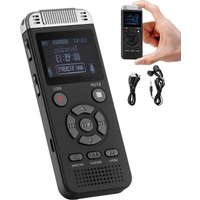
GL-89 - Musical instrument Vevor - Free user manual and instructions
Find the device manual for free GL-89 Vevor in PDF.


| Product Type | Digital Voice Recorder |
| Brand | Vevor |
| Model | GL-89 |
| Dimensions | 105 × 41.5 × 11.5 mm |
| Weight | Approx 94 g |
| Display | HD Digital Screen 1.4 inches |
| Power Supply | Lithium battery 3.7 V / 800 mAh, recharge via micro USB |
| Recording Formats | WAV (512 to 1536 kbps), MP3 (32 to 192 kbps) |
| Supported Audio Formats | MP3, WMA, FLAC, APE, WAV |
| Microphone | Condenser Microphone |
| Speaker | 8 Ω / 1 W |
| Signal-to-Noise Ratio | ≥ 80 dB |
| Interface | Micro USB 2.0 |
| Supported Operating System | Windows |
| Available Languages | 7 languages including Chinese, Japanese, English |
| Main Functions | HD linear recording, voice control, scheduled recording, AB playback, password, noise reduction, segmentation, bookmarks |
| Operating Temperature | -5°C to 50°C |
| Care and Cleaning | Do not immerse, use a dry cloth, avoid solvents |
| Safety | Do not disassemble, do not expose to heat, do not puncture the battery |
| General Information | Manufacturer: Shanghaimuxinmuyeyouxiangongsi, Shanghai. Importers: Australia, USA, EU, UK |
Frequently Asked Questions - GL-89 Vevor
User questions about GL-89 Vevor
0 question about this device. Answer the ones you know or ask your own.
Ask a new question about this device
Download the instructions for your Musical instrument in PDF format for free! Find your manual GL-89 - Vevor and take your electronic device back in hand. On this page are published all the documents necessary for the use of your device. GL-89 by Vevor.
USER MANUAL GL-89 Vevor
Technical Support and E-Warranty Certificate www.vevor.com/support
Digital Voice Recorder
MODEL:GL-89
We continue to be committed to provide you tools with competitive price. "Save Half", "Half Price" or any other similar expressions used by us only represents an estimate of savings you might benefit from buying certain tools with us compared to the major top brands and does not necessarily mean to co all categories of tools offered by us. You are kindly reminded to verify carefully when you are placing an order with us if you are actually Saving Half in comparison with the top major brands.
VEVOR®
TOUGH TOOLS, HALF PRICE
Digital Voice Recorde
MODEL:GL-89
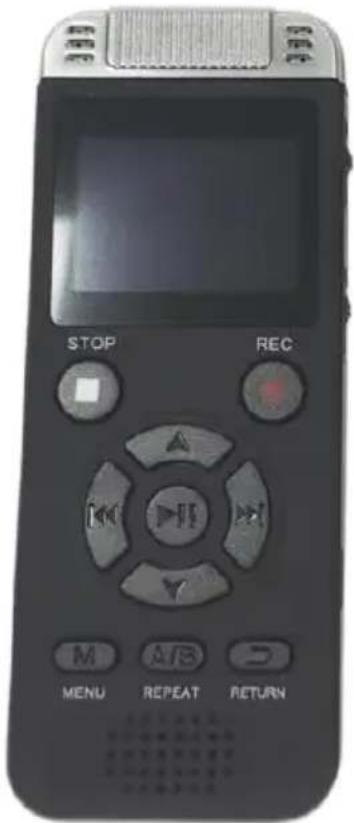
NEED HELP? CONTACT US!
Have product questions? Need technical support? Please feel fr contact us:
Technical Support and E-Warranty Certificate www.vevor.com/support
This is the original instruction, please read all manual instruction carefully before operating. VEVOR reserves a clear interpretation user manual. The appearance of the product shall be subject to product you received. Please forgive us that we won't inform you there are any technology or software updates on our product.
 | Warning-To reduce the risk of injury, user must read instr manual carefully. |
 | This device complies with Part 15 of the FCC Rules. Op subject to the following two conditions:(1)This device may cause harmful interference, and (2)this device must accept interference received, including interference that may cause undesired operation. |
INSTRUCTIONS
Thank you for using our digital voice recorder.
In order for you to operate this machine as soon as possible, we are equipped with a detailed user manual, from which you can obtain knowledge about product introduction, usage, system settings and safety precautions. Before using your digital voice recorder, please be sure to carefully read information distributed randomly, which will help you to use the product book
We are very careful and rigorous in the preparation of this manual, a believe that the information provided in the manual is correct and reliable, there will inevitably be errors and omissions, please bear in mind and wait welcome your correction.
If you find any problems during the use of the product, please tell us. Thank you for your cooperation.
● Safe operation guide
- It is strictly forbidden to contact any liquid. Do not immerse the produce water or get it wet. Do not use the product in rain or humid environment. Corrosion reaction may occur after contact with water inside the product, which may cause the battery to be natural or even explode.
- If a fire occurs, please immediately use water, water mist, sand, fire dry powder, carbon dioxide fire extinguisher to extinguish the fire.
- Please use the product in an environment with a temperature between and 50 °C.
- It is forbidden to disassemble the product in any way. If the battery i
during the disassembly process, it will cause the internal electrolyte of the battery to leak, even cause fire and explosion. Do not replace the battery without permission. If the battery is replaced improperly, it will be dangerous explode. It can only be replaced by the same type or equivalent type of under the operation of professional technicians.
-
It is forbidden to hit, roll or empty the product by the machine, and place heavy objects on the product.
-
Do not put the product near a heat source or in a car in a hot day store the product in an environment exceeding 50^ C.
Product Introduction:
- Professional recording pen chip, support hd lossless linear recording 1536Kbps.
- One key lock button function to prevent misoperation.
- 1.4-inch digital HIGH-DEFINITION display, supporting 23 languages in many countries.
- One button can record, support voice control recording and recording monitoring.
- Support timing recording, recording segmentation, more humanized.
- Support MP3/WMA/FLAC/APE and other lossless music formats.
●Line-in, call recording function.
- One button A-B repeat playback function, support variable speed playba adjustment function.
- Built-in hi-fi speaker, share wonderful sound as you wish.
- With password boot function, protect the machine internal data, prevent leaks.
- Intelligent power detection, automatically save the recording file before running out of power.
- Bookmark positioning function, you can listen to music/voice at any time the middle of a paragraph.
- support USB2.0 computer connection, easy to upload and download voice music.
● Product icon and function:
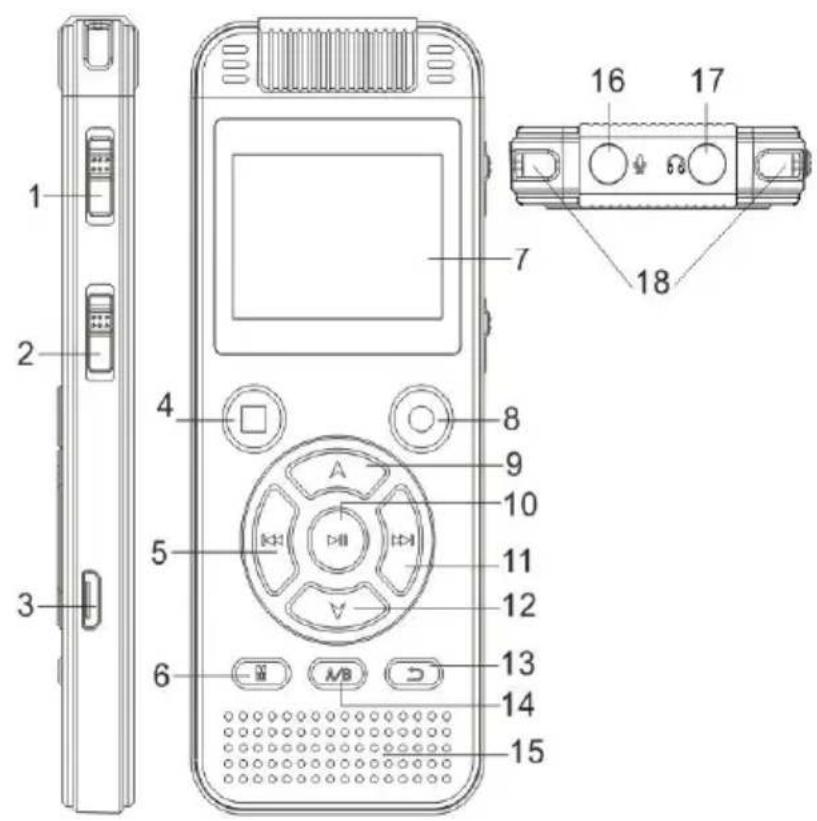
-
Lock key
-
Power switch
-
USB port
-
Stop button
-
Up key
-
Menu key
-
Display window
-
Record button
-
Volume button
-
Play button
-
Next key
-
Volume Down
-
Return key
-
A/B repeat button
-
The speaker
-
Line-in interface
-
Earphone jack
-
The microphone
• Key function:
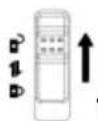
Power switch, lock key
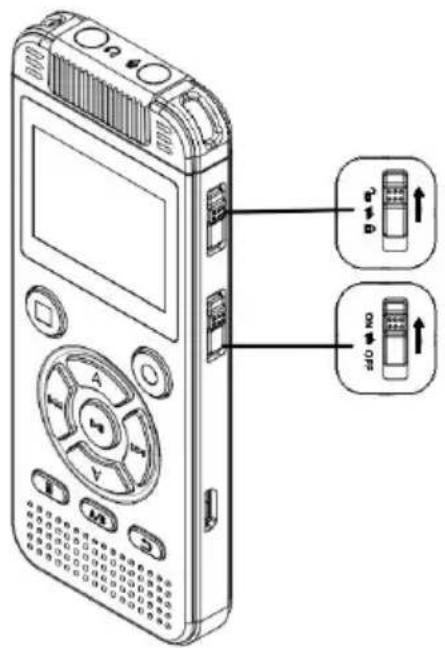
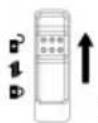
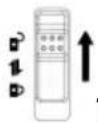
Lock key: push up to unlock, push d
to lock, lock after locking, other key functi except the power key will be invalid.
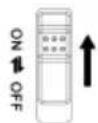
Power switch: push up, turn on the
to start the recording pen, the display will up, and push down to turn off the power is turned on. (In case of abnormality, turn the power switch and start again).
Note: When the machine is in a suspended or stopped state, if there is no operation within 5 minutes, the system will automatically shut down and enter the sleep state.
- Record, save, play
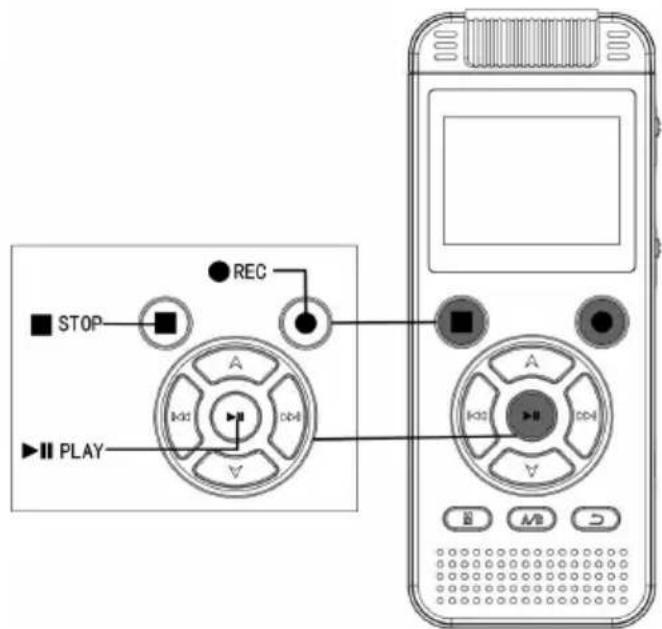
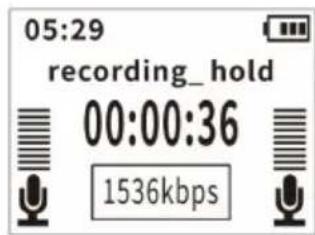

Recording key: open and unlock the state, short press the recording key start recording.
□ Stop key: in the recording state, short press the stop key to save the recording. in the state of playing music file or recording file, short press stop key to stop the playback.
▶II Play key:
- Select the file to be played and short press to start playing.
- Short press in recording or playing audio state will pause the current recording or audio file, and short press again will continue recording or p audio file.
- In the menu settings, recording settings and system settings, short press "play key" to confirm the function.
- When the power switch is turned on, press and hold the play key for seconds to prompt ① ② ③ "Bye-Bye" to turn off the machine and ent sleep state. Press and hold again to turn on the machine.
- Selection, Volume
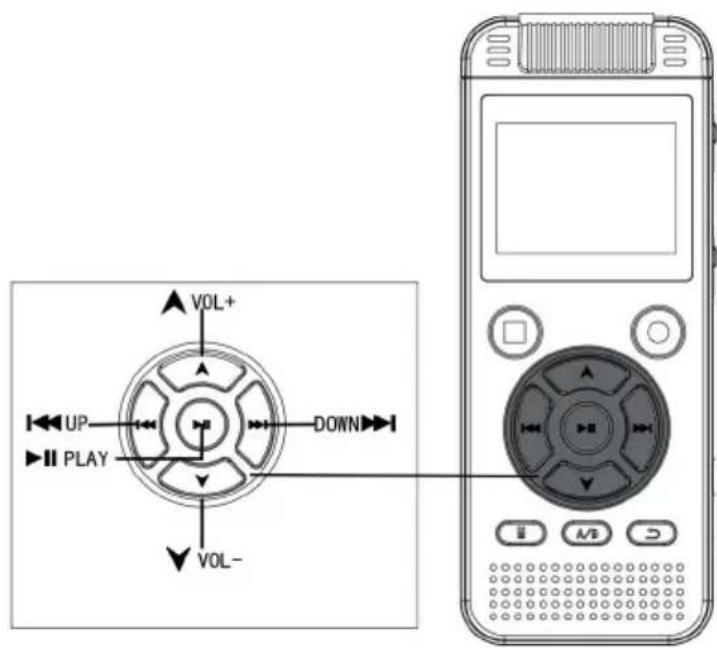
Previous song key: short press once to switch the previous song when playing the file, long press to rewind. Toggle to the in the settings.
▶ Next key: short press once when playing a file to switch the next song, long press to forward. Toggle to the right in settings.
▲ Volume up key: adjust the volume up. In the settings are selection and numerical adjustment.
▼ Volume Minus key: Adjust volume to decrease. In the settings are downward selection and numerical adjustment.
- Menu
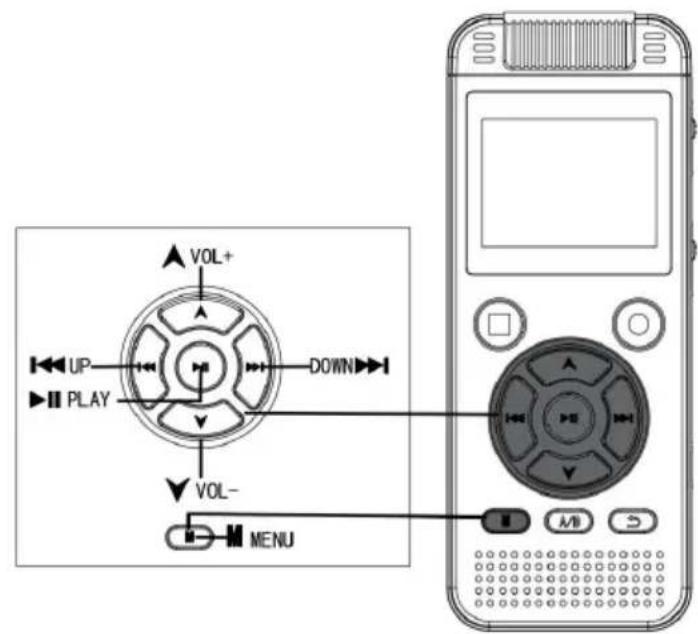
M
Menu key: When playing
recording files or music files, short press the menu key to display the playback setting menu, and long press in the setting to directly return to the main interface.
- Repeat reading

A/B Re-reading key: in the playing state, press the/B key once to set the re-reading start point. at this time, the screen display B flashes. press the/B once again to set the re-reading end point and A/B does not float at this time, the screen display B realize the re-reading function between a and B. cancel A-E re-reading and press the "A/B" key once again to exit re-read
- Return
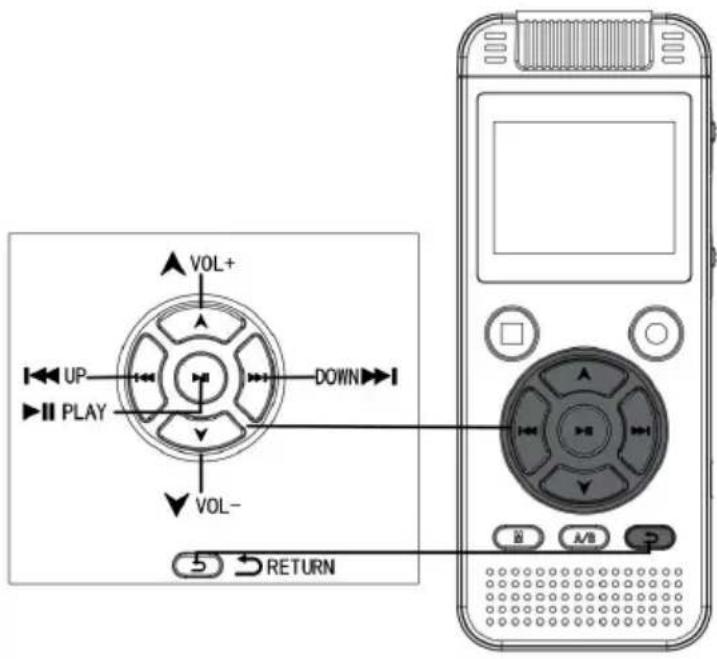
Return key: short press to return level by level. Note: Do not turn off the power switch directly when recording and after setting various settings (menu settings, recording settings, system settings), because directly turning off the power switch may cause damage to recording files, loss, and system settings.
● Recording Settings
(Short press the "play key" to enter the recording interface)
- Recording library: short press the play key to enter the recording file
- Noise reduction switch: After the noise reduction function is turned on part of the environmental noise can be filtered out.
- Bit rate setting: MP3/WAV format has the following six bit rates: MP3 (kbps/128 kbps/192 kbps)
WAV:(512kbps/1024kbps/1536kbps)
Note: If you need to set the bit rate, please turn off noise reduction
- Recording segmentation: 30 minutes, 60 minutes and 90 minutes are optional. If segmented recording is on, the recording file will be automatic saved according to the set time length during recording..
- Voice control setting: off/on, select "on" and turn on the voice control and the voice control icon will be displayed in the lower left and right c
the recording interface.
Voice control sensitivity: 1-7 level optional.
Note: When the "voice control mode" is turned on, the machine will automatically sense the surrounding sound in the recording state, and the machine will automatically record. If the sound is not sensed, the recording will be automatically suspended. In important environments, is recommended not to use this function.
- Gain setting: 1-7 level optional.
- Hearing aid settings: off/on, select "on" and insert the headset to mc the content being recorded.
- Timing recording: on/off, set the required "current time", "start time" and "end time" after opening, and automatically start recording and saving after setting the time.
Start time/end time: short press the play key to enter, you can press the up/down key to switch "time" and "minute" left and right, short press the volume up/down key to adjust the values of "time" and "minute" up and and short press the play key to confirm saving after setting.
Note: When using the timing recording function, you need to set the system time. The power switch cannot be turned off, but must be turned on.
●Settings:
-
Language: This machine has 7 languages, users can choose according their needs.
-
Date and time: time setting: short press the "play key" to enter, you press the "up/down key" to switch between "time" and "minute" left and r short press the "volume up/down key" to adjust the values of "time" and "minute" up and down, and short press the "play key" to confirm saving setting.
-
Date setting: short press the "play key" to enter and then press the "up/down key" to switch left and right "year", "month" and "day". short press the "volume up/down key" to adjust the values of "year", "month" and "day" and down. after setting, short press the "play key" to confirm saving.
-
Password setting: Setting: On/Off. Set password: after entering, you can press the up/down button to switch left and right, press the volume up/do button to adjust the number up and down, and press the play button to the saving.
Note: (The default password of this machine is closed. If you need to open it, please remember the set password. After the password function is opened, if the input password is incorrect, you will not be able to and view the files of this machine or view them through the computer connection. If you need to close it, set the password to 9999 again press "menu key" to close the password function).
-
Backlight time: 30 seconds, 20 seconds, 10 seconds, always bright.
-
Screen brightness: 1-16 level optional.
-
Shutdown settings: automatic shutdown: 1-12 minutes optional. Timing shutdown: 1-60 minutes optional.
-
Disk space: you can view the total capacity of the machine and the remaining available capacity.
-
Factory Settings: Restore the factory settings. Selecting "Yes" will rest all settings to the factory settings.
- Connect a computer
Insert one end of the USB cable into the USB hole of the machine and other end into the USB port of the computer. After the file transfer is co open "My Computer", select the disk letter of the machine, click the right mouse button and then click "Eject" to safely exit the disk. Please remove disk in the normal operation mode to prevent data loss. (Different operating systems may be slightly different, for reference only)
Note: This machine does not support folder playback function, please copy MP3 music files in the removable disk "MUSIC" directory, do n copy other name folders in the removable disk, otherwise, the machin cannot identify the music files in the folder.
- Charging
Please charge when the power indicator " " is empty, insert one end of the USB cable into the USB interface, and insert the other end into the interface of the computer or charger. When it is full, the battery icon will displayed.
Special attention: if you need to use a charger for charging, the selected charger specification must meet the following requirements, otherwise any accident or failure will be regarded as human damage by our company: Input: AC110 \~ 240V 50/60Hz Max:100mA
Output: DC 5.0\~5.5V - - - 500mA \~ 1000mA(USB)
Note: This machine does not provide DC charging port, please use Micro USB cable to charge directly.
Statement
Please be sure to back up the data during use. Our company is not responsible for the loss and damage of personal data caused by misoper of software and hardware, product maintenance, battery replacement or other accidents, nor for other indirect losses caused by this. At the same time, cannot control the misunderstanding that users may cause in this manual.
Therefore, the company will not be responsible for accidental damage that may occur during the use of this manual, and will not be liable for third claims arising from the use of the product.
● Recording Spec Sheet
| Recording format | bit rate | 8GB | 16GB | 32GB |
| WAV format | 1536 Kbps | about 12 hours | about 24 hours | about 48 hours |
| 1024 Kbps | about 18 hours | about 36 hours | about 72 hours | |
| 768 Kbps | about 24 hours | about 48 hours | about 96 hours | |
| 512 Kbps | about 36 hours | about 72 hours | about 144 hours | |
| MP3 format | 192 Kbps | about 96 hours | about 192 hours | about 384 hours |
| 128 Kbps | about 143 hours | about 286 hours | about 572 hours | |
| 64Kbps | about 290 hours | about 580 hours | about 1160 hours | |
| 32Kbps | about 580 hours | about 1160 hours | About 2320 hours |
Note: The above recording time is the maximum recording time of the storage capacity, not the continuous recording time of the battery.
● Technical Specifications
| Volume size | About 105*41.5*11.5mm |
| Display | 1.4-inch digital high-definition screen |
| Battery Specifications | 3.7V/ 800mAh lithium battery |
| Recording format | MP3、WAV |
| Signal to noise ratio | ≥80db |
| Speaker | 8Ω 1W |
| Music format | MP3、WAV、WMA、FLAC、APE |
| Microphone | condenser microphone |
| Recording quality | WAV format: 1536 Kbps, 1024 Kbp768 Kbps, 512 KbpsMP3 format: 192 Kbps, 128 Kbps64 Kbps, 32 Kbps |
| Interface | MICRO 5PIN USB2.0 |
| System language | Chinese, Japanese, English, etc. |
| Support system | WINDOWS |
| Body weight | about 94 grams |
| Recommended use environment | -5 to 40 degrees Celsius |
Manufacturer: Shanghaimuxinmuyeyouxiangongsi
Address: Shuangchenglu 803nong11hao1602A-1609shi, baoshanqu, shanghai 200000 CN.
Imported to AUS: SIHAO PTY LTD. 1 ROKEVA STREETEASTWOOD NS 2122 Australia
Imported to USA: Sanven Technology Ltd. Suite 250, 9166 Anaheim Place Rancho Cucamonga, CA 91730
| EC | REP |
E-CrossStu GmbH
Mainzer Landstr.69, 60329 Frankfurt am Ma
| UK | REP |
YH CONSULTING LIMITED.
C/O YH Consulting Limited Office 147, Centurion H London Road, Staines-upon-Thames, Surrey, TW18 2
VEVOR®
TOUGH TOOLS, HALF PRICE
Technical Support and E-Warranty Certificate www.vevor.com/support
VEVOR®
TOUGH TOOLS, HALF PRICE
NEED HELP? CONTACT US!
Have product questions? Need technical support? Please feel fr contact us:
Technical Support and E-Warranty Certificate www.vevor.com/support
This is the original instruction, please read all manual instruction carefully before operating. VEVOR reserves a clear interpretation user manual. The appearance of the product shall be subject to product you received. Please forgive us that we won't inform you there are any technology or software updates on our product.
C/O YH Consulting Limited Office 147, Centurion H
London Road, Staines-upon-Thames, Surrey, TW18 4
VEVOR®
TOUGH TOOLS, HALF PRICE
NEED HELP? CONTACT US!
Have product questions? Need technical support? Please feel fr contact us:
Technical Support and E-Warranty Certificate www.vevor.com/support
This is the original instruction, please read all manual instruction carefully before operating. VEVOR reserves a clear interpretation user manual. The appearance of the product shall be subject to product you received. Please forgive us that we won't inform you there are any technology or software updates on our product.
WAV: (512 kbit/s/1024 kbit/s/1536 kbit/s)
C/O YH Consulting Limited Office 147, Centurion H London Road, Staines-upon-Thames, Surrey, TW18 2
VEVOR®
TOUGH TOOLS, HALF PRICE
www.vevor.com/support
VEVOR®
TOUGH TOOLS, HALF PRICE
NEED HELP? CONTACT US!
Have product questions? Need technical support? Please feel fr contact us:
Technical Support and E-Warranty Certificate www.vevor.com/support
This is the original instruction, please read all manual instruction carefully before operating. VEVOR reserves a clear interpretation user manual. The appearance of the product shall be subject to product you received. Please forgive us that we won't inform you there are any technology or software updates on our product.
C/O YH Consulting Limited Office 147, Centurion H
London Road, Staines-upon-Thames, Surrey, TW18 4
VEVOR®
TOUGH TOOLS, HALF PRICE
NEED HELP? CONTACT US!
Have product questions? Need technical support? Please feel fr contact us:
Technical Support and E-Warranty Certificate www.vevor.com/support
This is the original instruction, please read all manual instruction carefully before operating. VEVOR reserves a clear interpretation user manual. The appearance of the product shall be subject to product you received. Please forgive us that we won't inform you there are any technology or software updates on our product.
C/O YH Consulting Limited Office 147, Centurion H London Road, Staines-upon-Thames, Surrey, TW18 4
VEVOR®
TOUGH TOOLS, HALF PRICE
NEED HELP? CONTACT US!
Have product questions? Need technical support? Please feel fr contact us:
Technical Support and E-Warranty Certificate www.vevor.com/support
This is the original instruction, please read all manual instruction carefully before operating. VEVOR reserves a clear interpretation user manual. The appearance of the product shall be subject to product you received. Please forgive us that we won't inform you there are any technology or software updates on our product.
C/O YH Consulting Limited Office 147, Centurion H
London Road, Staines-upon-Thames, Surrey, TW18 4
VEVOR®
TOUGH TOOLS, HALF PRICE
www.vevor.com/support
VEVOR®
TOUGH TOOLS, HALF PRICE
Technisch Ondersteuning en E-garantiecertificaat www.vevor.com/support
Digitale spraakrecorder
MODEL: GL-89
NEED HELP? CONTACT US!
Have product questions? Need technical support? Please feel fr contact us:
Technical Support and E-Warranty Certificate www.vevor.com/support
This is the original instruction, please read all manual instruction carefully before operating. VEVOR reserves a clear interpretation user manual. The appearance of the product shall be subject to product you received. Please forgive us that we won't inform you there are any technology or software updates on our product.

C/O YH Consulting Limited Office 147, Centurion H
London Road, Staines-upon-Thames, Surrey, TW18 4
VEVOR®
TOUGH TOOLS, HALF PRICE
Technisch Ondersteuning en E-garantiecertificaat www.vevor.com/support
VEVOR®
TOUGH TOOLS, HALF PRICE
NEED HELP? CONTACT US!
Have product questions? Need technical support? Please feel fr contact us:
Technical Support and E-Warranty Certificate www.vevor.com/support
This is the original instruction, please read all manual instruction carefully before operating. VEVOR reserves a clear interpretation user manual. The appearance of the product shall be subject to product you received. Please forgive us that we won't inform you there are any technology or software updates on our product.
C/O YH Consulting Limited Office 147, Centurion H
London Road, Staines-upon-Thames, Surrey, TW18 4
VEVOR®
TOUGH TOOLS, HALF PRICE
www.vevor.com/support