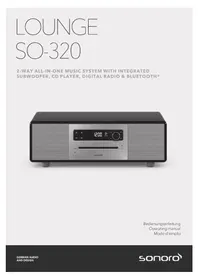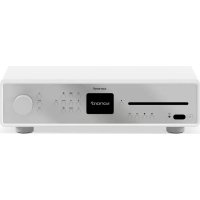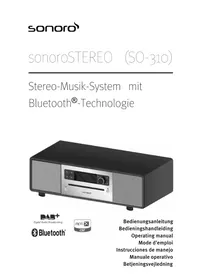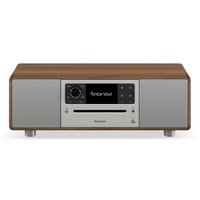
Prestige SO-3310 - Hi-fi system SONORO - Free user manual and instructions
Find the device manual for free Prestige SO-3310 SONORO in PDF.


User questions about Prestige SO-3310 SONORO
0 question about this device. Answer the ones you know or ask your own.
Ask a new question about this device
Download the instructions for your Hi-fi system in PDF format for free! Find your manual Prestige SO-3310 - SONORO and take your electronic device back in hand. On this page are published all the documents necessary for the use of your device. Prestige SO-3310 by SONORO.
USER MANUAL Prestige SO-3310 SONORO
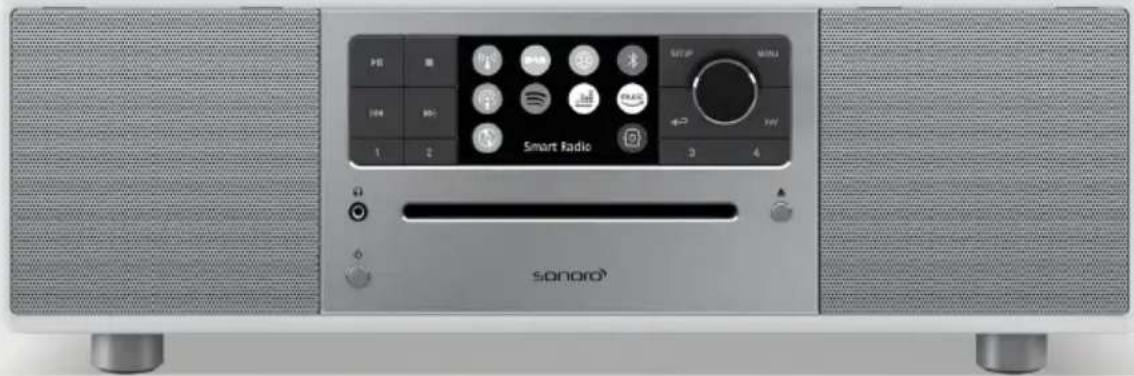
2-WAY ALL-IN-ONE MUSIC SYSTEM WITH INTEGRATED 4" SUBWOOFER, INTERNET RADIO, WIFI, CD PLAYER, DAB+ & BLUETOOTH®
text_image
PSI 104 1 2 Smart Radio SETUP MENU PUD 3 4 SONORO®Bedienungsanleitung
Operating manual
Mode d'emploi
natural_image
Exterior view of a modern audio recording device with two speakers and a digital display (no readable text or symbols)Bedienungsanleitung
Inhaltsverzeichnis
1 Einleitung......6
natural_image
Hand holding a remote control knob with a circular dial indicator (no text or symbols visible)
natural_image
Technical line drawing of a bolt and nut assembly (no text or symbols)text_image
Diagram showing a hand inserting a plug into an electronic device with three labeled components and directional arrows indicating assembly or operation.19.8 Software Update
1 Introduction....62
1.1 Contact data....62
1.2 Intended use 63
2 Getting to know your PRESTIGE.... 63
2.1 Scope of delivery 63
2.2 Controls and ports 64
2.3 Technical data 69
2.4 Marks of approval and certificates 70
3 Getting started 71
3.1 Unpacking PRESTIGE 71
3.2 Inserting and replacing the battery in the remote control 71
3.3 Using the antennas....72
3.4 Performing initial setup 73
4 Basic operation 75
5 Using the menus 77
6 Display icons 78
7 FM Radio mode.... 79
7.1 Operation....79
7.2 Setup menu 80
8 DAB Radio mode 81
8.1 Operation 81
8.2 Setup menu 82
9 Internet Radio mode....84
9.1 Operation 84
9.2 Setup menu 85
9.3 Station List 86
10 Podcast mode 87
10.1 Operation 87
10.2 Setup menu 88
10.3 Podcast List 89
11 Bluetooth mode....90
11.1 Pairing 90
11.2 Operation 90
11.3 Setup menu 91
12 AUX In 1 mode 92
12.1 Operation 92
12.2 Setup menu....92
13 AUX In 2 mode....93
13.1 Operation 93
13.2 Setup menu 93
14 Optical mode 94
14.1 Operation 94
14.2 Setup menu 94
15 CD mode 95
15.1 Operation 95
15.2 Setup menu....96
16 Streaming services.... 97
16.1 Operation 98
16.2 Setup menu....99
17 Alarm.... 100
17.1 Setting alarm....100
17.2 Turning the alarms on or off.... 101
17.3 Turning off an activated alarm....101
17.4 Snooze.... 101
18 Sleep timer 102
19 System Settings.... 103
19.1 Accessing the system settings.... 103
19.2 Equalizer 103
19.3 Network....103
19.4 Time/date....104
19.5 Inactive standby....105
19.6 Language....105
19.7 Factory Reset....105
19.8 Software update 105
19.9 Setup Wizard.... 105
19.10 Info....105
19.11 Privacy policy....105
19.12 Backlight 106
20 Using UNDOK™ app to control PRESTIGE 107
21 Troubleshooting.... 108
22 Cleaning....110
23 Warranty 111
1 Introduction
Thank you for purchasing PRESTIGE. This operating manual and the safety manual provide all the information required for trouble-free and safe operation of PRESTIGE.
- Read the operating manual and the safety manual in their entirety before using PRESTIGE.
- Keep the operating manual and safety manual for future reference.
- If you pass PRESTIGE on to a third party, please provide them with the operating manual and safety manual as well.
- Failure to follow the operating manual and safety manual can result in serious injury or damage to PRESTIGE.
• We assume no liability for damage resulting from failure to observe the instructions in this operating manual and safety manual.
The images in this operating manual are intended to illustrate the actions necessary to operate PRESTIGE.
Enjoy your PRESTIGE!
1.1 Contact data
| Address sonoro audio GmbH, Hammer Landstraße 45, 41460 Neuss, Germany |
| Phone +49 2131 8834-141 |
| Fax +49 2131 7517-599 |
| E-Mail support@sonoro.com |
| Internet www.sonoro.comGermany:https://www.instagram.com/sonoroaudio/https://www.facebook.com/sonorodeutschland/France:https://www.instagram.com/sonorofrance/ |
1.2 Intended use
PRESTIGE is intended for personal use only. It is not intended for commercial use. PRESTIGE is solely intended for the following tasks:
- Playback of FM/DAB+/Internet radio and music streaming services.
- Playback of audio CD and MP3/WMA CD disc.
- Audio playback from external devices connected via AUX In or Optical Input.
- Audio playback from Bluetooth-enabled devices (e.g., mobile phones).
- Streaming music to Bluetooth headphones.
- Charging of external devices that are connected via the USB port.
Any other use is considered improper use and is prohibited. We assume no liability for damages resulting from improper use.
2 Getting to know your PRESTIGE
2.1 Scope of delivery
In addition to the PRESTIGE itself, the following accessories are also included in the scope of delivery:
- Remote control
• One button cell (CR2032, 3 V) - Power cable
• FM/DAB telescopic antenna
• External WiFi antenna - Operating manual
- Safety manual
- Gloves
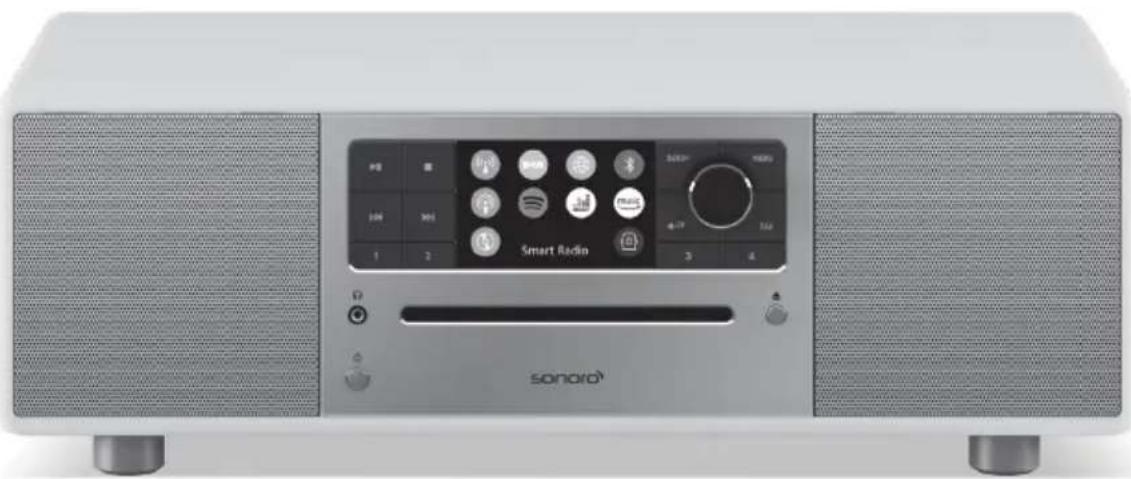
2.2 Controls and ports
Front view
text_image
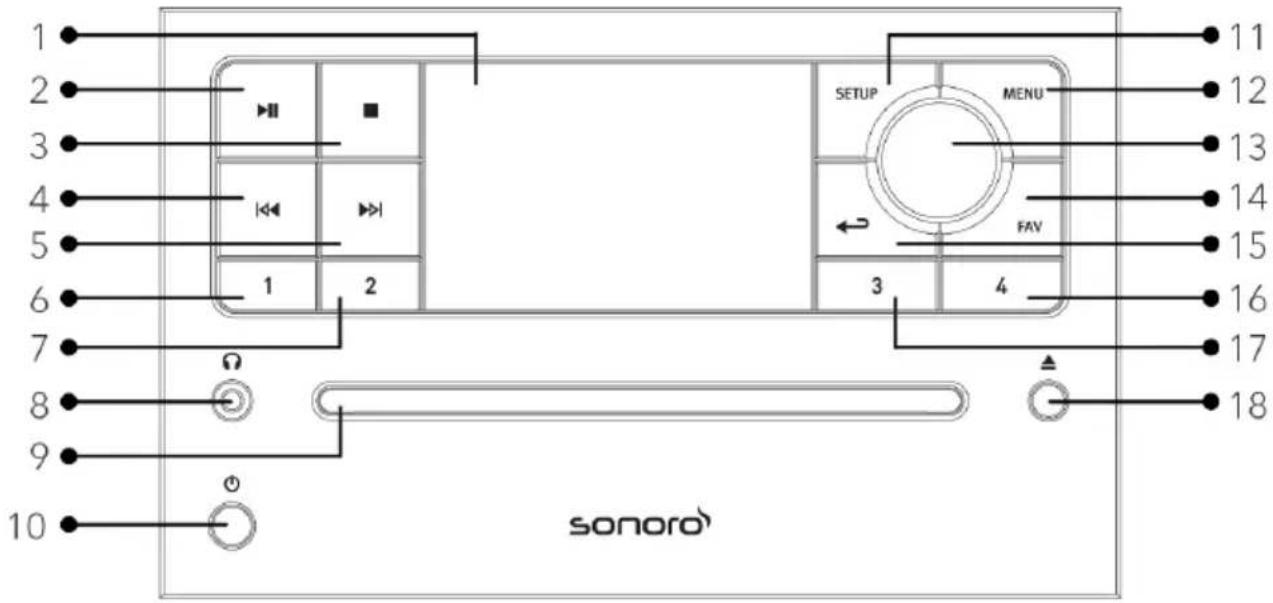
1 2 3 4 5 6 7 8 9 10 sonoro 1 2 SETUP MENU FAV 3 4 11 12 13 14 15 16 17 18- Display
- Play/pause button ( )▶II
- Stop button ( )
- Left button, skip previous ( )
- Right button, skip next ( )▶▶
- Preset 1 button (1)
- Preset 2 button (2)
- Headphone jack ( )
- CD Slot
-
Standby button ( )
-
Setup button (SETUP)
- Menu button (MENU)
- Volume knob, navigation knob, OK button (press the knob)
- Favourite button (FAV)
- Back button (←)
- Preset 4 button (4)
- Preset 3 button (3)
- CD eject button (▲)
Rear view
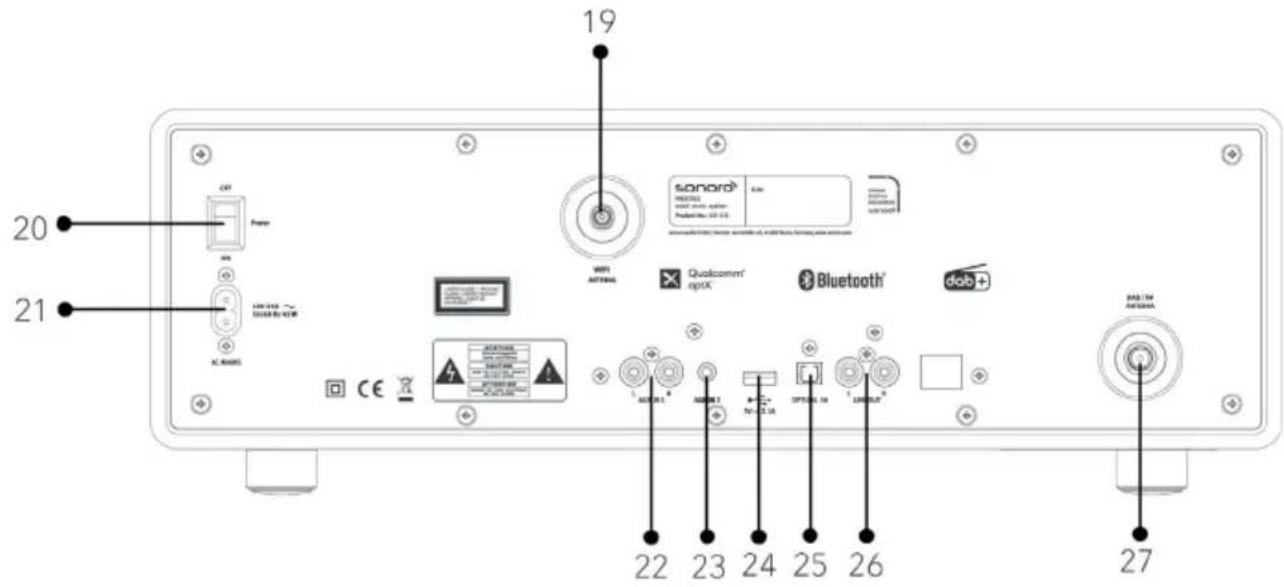
text_image
19 20 21 CAT Power USB AC RAMS 100 x 150 ~ 300000 V/WR CE WiFi AUTO/4 Qualcomm' optC Bluetooth' dab+ 22 23 24 25 26 27 sanora® PROFESSIONAL WIFI version system Professional ID: 100.0.0 www.wasera.com/sanora.com/sanora.com/sanora.com DAB 104 AUTO/4 INTU/R1A INTU/R1B INTU/R1C INTU/R1D INTU/R1E INTU/R1F INTU/R1G INTU/R1H INTU/R1I INTU/R1J INTU/R1K INTU/R1L INTU/R1M INTU/R1N INTU/R1O INTU/R1P INTU/R1Q INTU/R1R INTU/R1S INTU/R1T INTU/R1U INTU/R1V INTU/R1W INTU/R1X INTU/R1Y INTU/R1Z INTU/R1A INTU/R1B INTU/R1C INTU/R1D INTU/R1E INTU/R1F INTU/R1G INTU/R1H INTU/R1I INTU/R1J INTU/R1K INTU/R1L INTU/R1M INTU/R1N INTU/R1O INTU/R1P INTU/T 0.0 0.0 0.0 0.0 0.0 0.0 0.0 0.0 0.0 0.0 0.0 0.0 0.0 0.0 0.0 0.0 0.0 0.0 0.0 0.0 0.0 0.0 0.0 0.0 0.0 0.3GB
- External WiFi antenna jack
- Main ON/OFF switch
- AC socket
- Auxiliary input 1 (RCA)
- Auxiliary input 2 (3.5mm)
- USB port
- Optical port
- Line-output (RCA)
- FM/DAB antenna jack
Bottom view
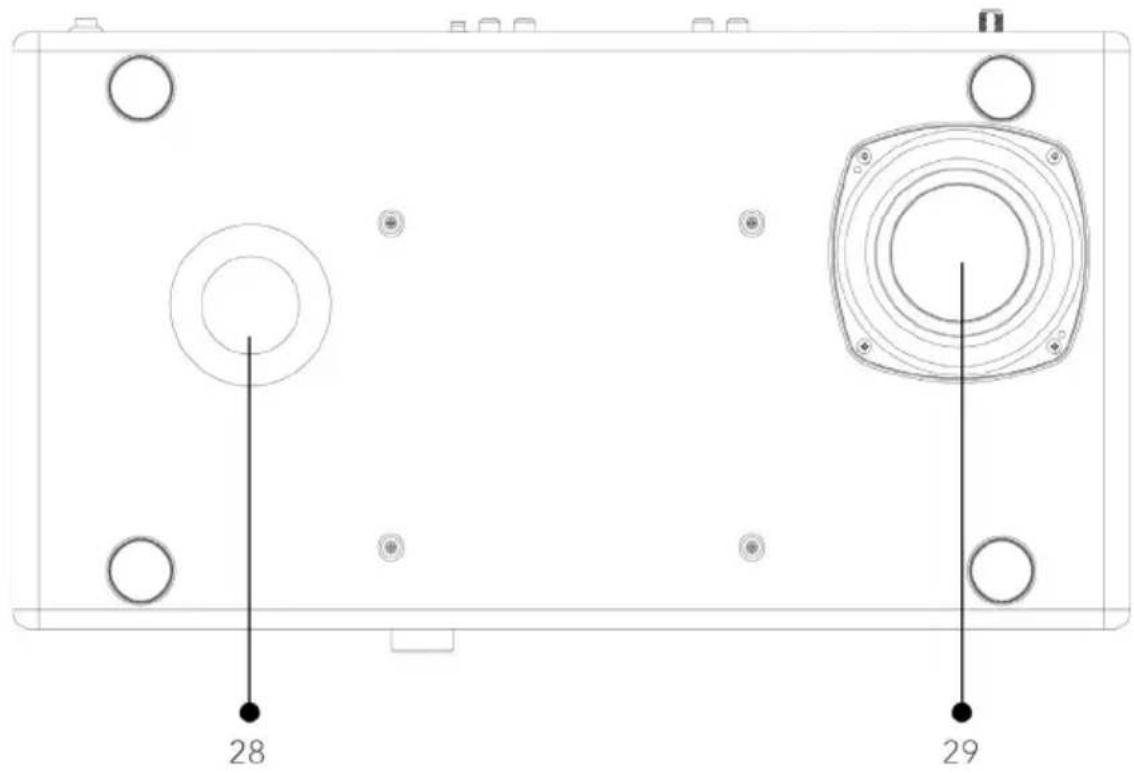
text_image
28 29- Bass reflex opening
- Subwoofer driver
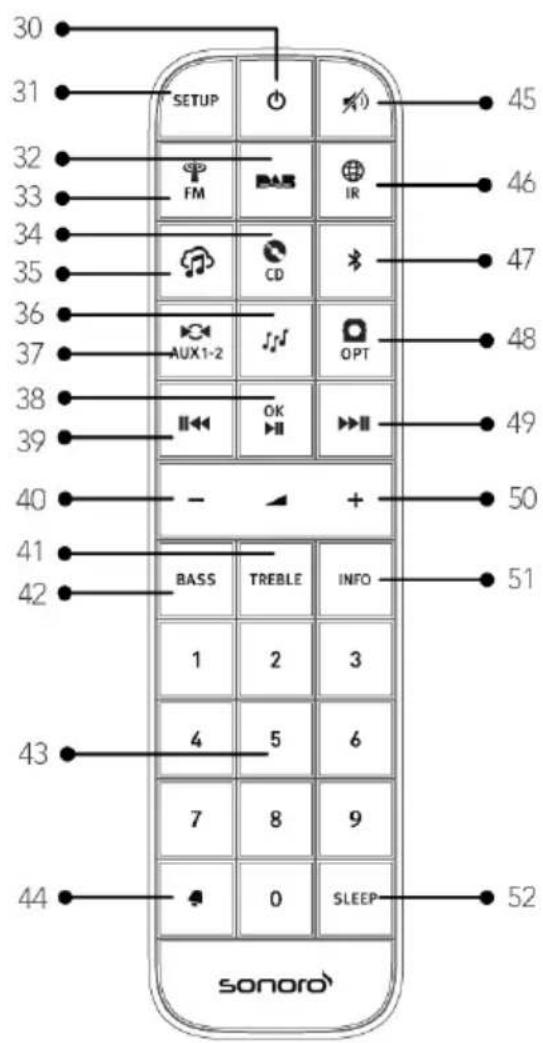
Remote control
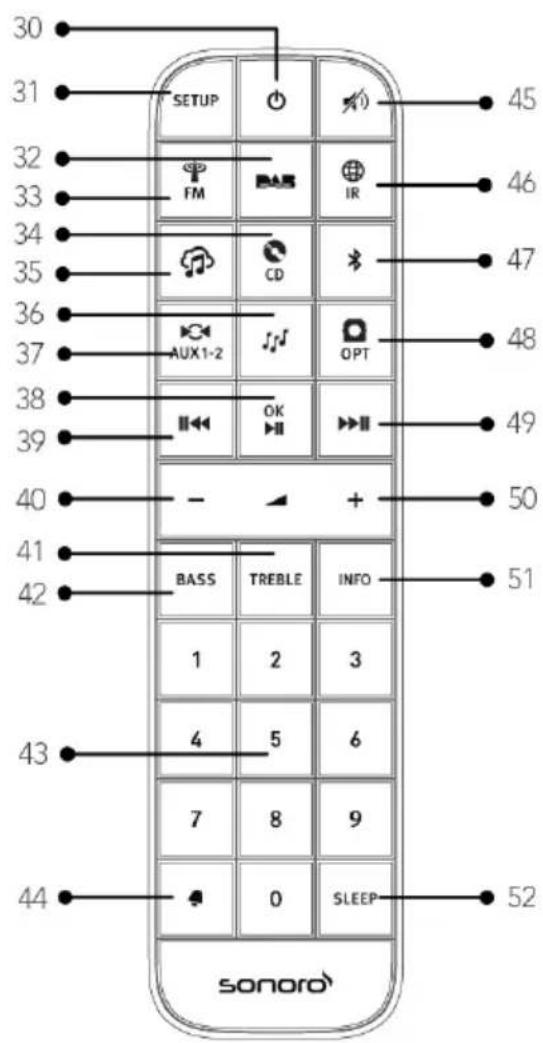
text_image
30 31 32 33 34 35 36 37 38 39 40 41 42 43 44 SETUP FM CD AUX1-2 OK BASS TREBLE INFO 1 2 3 4 5 6 7 8 9 0 SLEEP SONORO 45 46 47 48 49 50 51 52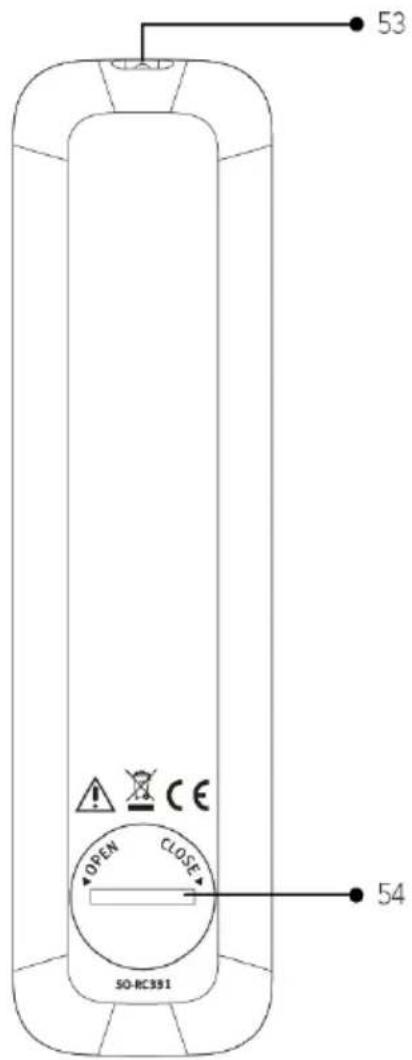
text_image
53 OPEN CLOSE SO-RC391 54- Standby button ( )
- Setup button (SETUP)
- DAB Radio mode ( )
- FM Radio mode (FM)
- CD mode ( )
- Music streaming services (
- Podcasts mode ( )
- Auxiliary input 1/2 mode ( ) AUX1-2
- Play/Pause button (▶II), OK button
-
Left button, skip previous ( )
-
Volume down button (-)^*
- Treble setting button (TREBLE)
- Bass setting button (BASS)
- Preset station buttons (0-9)
- Alarm button ( )
- Mute button ( )
- Internet Radio mode (IR)
- Bluetooth mode ( )
- Optical input mode ( )
-
Right button, skip next (▶▶▶)
-
Volume up button (+)*
- Information button (INFO)
- Sleeper timer button (SLEEP)
- Infra-red transmitter
- Battery compartment
*Navigation buttons (+)
2.3 Technical data
| Specification Value | |
| Dimensions (W×D×H) approx. | 450 x 258 x 153 mm |
| Weight approx. 7.2 kg | |
| Operating temperature 0°C | to +40°C |
| Display 2.8" TFT colour display | |
| Frequency range, FM 87.50 MHz - 108.00 MHz | |
| DAB/DAB+ Band III, 174.928 MHz - 239.200 MHz | |
| Internet radio More than 50,000 stations worldwide | |
| Station presets | 30 for each FM | DAB/DAB+ | Internet radio / Podcasts10 for Spotify8 for each Deezer | Amazon Music |
| CD support formats CD-DA, | CD-R*, CD-RW*Audio CD, MPEG 1 Layer 3 (MP3), Windows Media Audio(WMA, DRM not supported)Sampling rate 16KHz~48KHz, bit rate max. 320kbps(*Playback dependent on quality of recording and medium) |
| USB charging Output: DC 5V | 2.1A --- |
| AUX-IN Port 1 : RCA jack Sensitivity: 800 mVPort 2 : 3.5mm jack Sensitivity: 300 mV | |
| Optical In, TOSLINK Supports linear PCMSample rate: 32KHz/44.1KHz//48KHz/96KHzChannel: Stereo 16 bit, 24bit | |
| Streaming | Bluetooth | Spotify | Deezer | Amazon Music |
| Network supported | IEEE 802.11 a/b/g/n 2.4GHz / 5GHz2.412GHz - 2.472GHz / 5.18GHz - 5.32GHz / 5.50GHz - 5.70GHz |
| Transmitted power | 15dBm for 2.4GHz | 17dBm for 5GHz WiFi |
| Encrypted key | WEP, WPA, WPA2 (PSK), WPS |
| Bluetooth | Version 4.1, Profile : AVRCP v1.5, A2DP 1.32.402GHz - 2.480GHz |
| Transmitted power | 4dBm for BT | 7dBm for BT-LE |
| Battery | CR2032 (remote control) |
| Power supply | AC 100-240V, 50/60Hz |
| Standby Power | < 1.0W |
| Network Standby | < 2.0W |
Specifications are subject to change without notice.
2.4 Marks of approval and certificates

Bluetooth®
The Bluetooth® word mark and logos are registered trademarks owned by the Bluetooth SIG, Inc. and any use of such marks by sonoro audio GmbH is under license. Other trademarks and trade names are those of their respective owners.

Spotify®
The Spotify software is subject to third party licenses found here:
https://www.spotify.com/connect/third-party-licenses

deezer
Deezer and Deezer logo are international trademarks of Deezer S.A., registered in France and other countries.
amazon music
Amazon, Amazon Music Unlimited and all related logos are trademarks of Amazon.com, Inc. or its affiliates.
3 Getting started
3.1 Unpacking PRESTIGE
- Take PRESTIGE out of the packaging and check whether PRESTIGE or the individual parts are damaged. If this is the case, do not use PRESTIGE. Should you detect any damage, contact your dealer or sonoro audio GmbH customer support immediately.
- Check to make sure that the delivery is complete (see chapter "Scope of delivery").
- Place PRESTIGE in a suitable location. If you want to put your PRESTIGE on a natural wood surface, please make sure that it is suitable. Oiled or waxed surfaces may cause stains.
- Remove the protective film from the display.
- Remove the protective card from the subwoofer driver.
3.2 Inserting and replacing the battery in the remote control
- Open the battery compartment cover on the back of the remote control by turning it anticlockwise using a small coin.
- Insert the supplied batteries (CR2032, 3 V) with the label (+) side up.
- Close the battery compartment cover by turning the cover clockwise using a small coin.
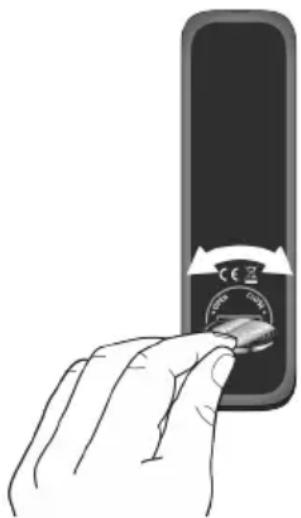
natural_image
Hand inserting a small circular component into a mobile phone case (no text or symbols visible)
Do not block the infra-red sensor on the PRESTIGE and the infra-red transmitter on the remote control during use.
3.3 Using the antennas
- Screw the rod antenna located on the back of PRESTIGE to the FM/DAB antenna connector.
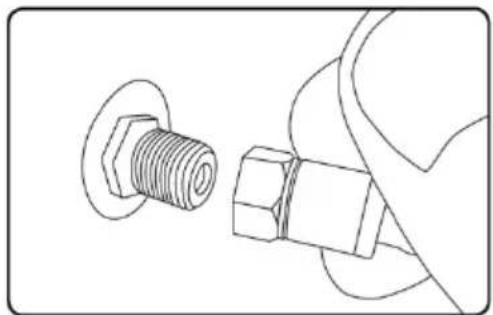
natural_image
Technical line drawing of a bolt and nut assembly (no text or symbols)- If you are using the rod antenna, pull the rods of the antenna apart and align the antenna so that you have the best possible reception.

For even better reception, connect PRESTIGE to a suitable house antenna.
- Screw the desired Wi-Fi antenna located on the back of PRESTIGE to the WiFi antenna connector. Lift Wi-Fi antenna upwards.
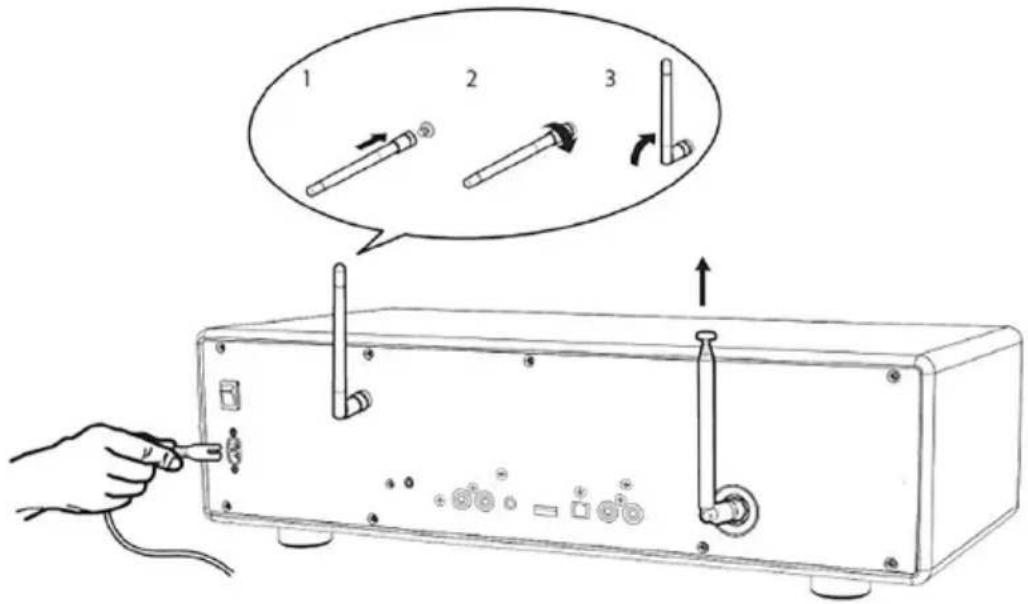
text_image
Diagram showing a hand inserting a plug into an electronic device with three labeled components and directional arrows indicating assembly or operation.- Plug-in the AC power cord.
3.4 Performing initial setup
When PRESTIGE is powered on for the first time, the "Language" (to be used in the display) selection shows on the display. Afterwards, the Privacy policy statement appears and needs to be accepted by pressing (OK) on remote control or navigation knob. Then, the "Setup wizard" appears on the display. Follow the instructions below to configure some initial settings.
- When the "Setup Wizard" is displayed, press + or - on the remote control (or rotate the navigation knob) to select "YES" and then press OK to start the setup.
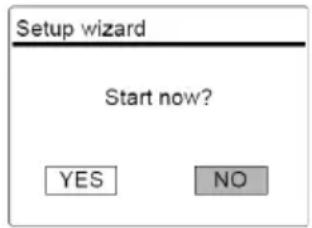
text_image
Setup wizard Start now? YES NO- You are then prompted to select:
• Time format (12 or 24-hour),
- Source of time & date auto update (Update from Radio, Internet or no update).
Depending on the selection you have made, follow the instructions on the display to further set up date and time, time zone, daylight saving or wireless network. Rotate the navigation knob on PRESTIGE or press the navigation buttons on the remote control to make selections and then press OK to confirm (see chapter "Using the menus").
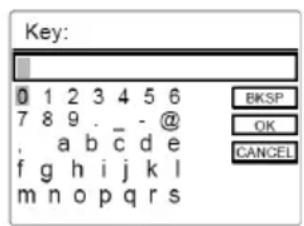
If update from Internet is selected, a Wi-Fi connection must be established. When entering the key of your wireless network, rotate the navigation knob on PRESTIGE or press the navigation buttons on the remote control to select a character and then press OK to confirm. To delete the last entry, select [BKSP]. To cancel entering the key, select [CANCEL]. To confirm the entered key, select [OK].
text_image
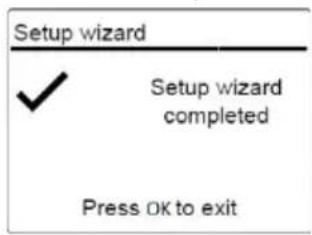
Key: 0 1 2 3 4 5 6 7 8 9 . - @ , a b c d e f g h i j k l m n o p q r s BKSP OK CANCEL- When "Setup wizard completed" appears, press OK to exit the setting.
text_image
Setup wizard ✓ Setup wizard completed Press OK to exit
To run the setup wizard again, go to [System Settings] and then select [Setup Wizard] (See chapter "System Settings").
4 Basic operation
| To turn on Press . | PRESTIGE starts operation from the last selected playback mode. |
| To turn off (standby mode) | PressThe time and date (if set) are displayed.PRESTIGE will automatically change to Standby mode without playback and operation after 15 minutes. |
| To select a playback mode | PressMENU once, then (orotate the navigation knob) to select a playback mode and then pressOKto confirm.Mode sequence: FM Radio > DAB Radio > Internet Radio > Podcasts > Bluetooth > Aux In 1 > Aux In 2 > Optical > CD > Spotify > Deezer > Amazon Music |
| To directly select a playback mode | Press the direct operation mode key on the remote control to directly switching from one operation mode to the other. |
| To playback a CD Insert | CD disc in CD slot and PRESTIGE starts playing the CD. |
| To eject a CD Press the eject button (▲) on PRESTIGE. | |
| To control the volume Press or+on the remote control or rotate the volume knob on PRESTIGE. | |
| Pairing with a Bluetooth headphone, for the first time | In all operation modes except the Bluetooth mode, press and hold key on remote control. Or, pressSETUPonce, then +or -on the remote control (or rotate the navigation knob) to select [Bluetooth headphone], then select [Bluetooth pairing], then [Available devices], and then press OKto confirm.Wait for your Bluetooth device name to be shown on the display and then press OKto select it. |
GB
| When the small Bluetooth headphone icon blinking, PRESTIGE is in pairing mode. The Bluetooth headphone icon stops blinking when the pairing is completed. The paired Bluetooth headphone device name is temporarily shown on the display.Note: Make sure that your Bluetooth headphones are already in discovery mode and ready for pairing.For more details, please refer to your Bluetooth device instruction manual. | |
| Connecting with a paired Bluetooth headphone | In all operation modes except the Bluetooth mode, press and hold key on remote control. Or, press SETUP once, then or on the remote control (or rotate the navigation knob) to select [Bluetooth headphone], then select [Bluetooth pairing], then [Paired devices], and then press OK to confirm. Your paired Bluetooth device names are shown in the display. Select your device and press OK to confirm.When the small Bluetooth headphone icon blinking, PRESTIGE is in pairing mode. The Bluetooth headphone icon stops blinking when the pairing is completed. The paired Bluetooth headphone device name is temporarily shown on the display.Note: Make sure that your Bluetooth headphones are already in discovery mode and ready for pairing. For more details, please refer to your Bluetooth device instruction manual. |
| To disconnect a paired Bluetooth headphone | Press SETUP once, then + or - on the remote control (or rotate the navigation knob) to select [Bluetooth headphone], then select [Bluetooth disconnect] and then press OK to confirm. |
5 Using the menus
There are three types of menus in PRESTIGE.
- Setup menu (For specific settings in a playback mode, e.g. [FM Auto Search] in FM mode)
- System Settings (For general settings, e.g., time/date, language etc.)
- Main menu (For accessing the playback modes and sleep time)
| To access the menus | Press SETUP.Contents of the menus may differ in different playback modes. |
| To select an option in the menus | Rotate the navigation knob on PRESTIGE or press +or -on the remote control. |
| To confirm a selection in the menus | Press OK on the remote control.(On PRESTIGE, press the navigation knob) |
| To go back one level in the menu | Press ←→ |
6 Display icons
Refer to the table below for the meanings of the display icons when they show on the display.
| Wi-Fi connection is established (with signal strength). | |
| Wi-Fi connection is disconnected. | |
| A Bluetooth device is connected. | |
| A Bluetooth headphone is connected. | |
| Alarm is activated. | |
| The radio station is in the preset list. | |
| FM RDS information is received. | |
| Radio signal is being received (with signal strength). | |
| Repeat all playback mode is active. | |
| Repeat one playback mode is active. | |
| Repeat folder playback mode is active. | |
| Shuffle playback mode is active. | |
| Repeat all and shuffle playback mode is active. | |
| Sleep timer is active. | |
| Stereo sound broadcast is available. | |
| Sound output is muted. | |
| Playback is paused. |
7 FM Radio mode
7.1 Operation
| To access the FM Radio mode | Press key on the remote control.Or, press MENU once, then ▶ (or ▶tate the navigation knob) to select the FM Radio mode and then press OK to confirm. |
| To manually tune the frequency | Press ▶ . ▶ Or, press and hold the navigation knob to active the manual tune. |
| To automatically tune to the next available station | Press and hold ▶ . ▶ Or, press the navigation knob to start the automatic tuning. |
| To store a radio station in the preset list | A maximum of 30 radio stations can be stored.1. Press and hold the FAV key on PRESTIGE until the preset list is displayed and [Save to Preset] is displayed.2. Press or on the remote control (or rotate the navigation knob) to select a preset station number and then press OK to confirm. |
| To directly store a radio station in the preset list | 1. Press and hold one of the 4 preset keys (1-4) on PRESTIGE.2. On the remote control: Press and hold one of the preset station button (1-9). |
| To recall a radio station in the preset list | You have 3 options for selecting a saved preset:1. Press FAV.Press for on the remote control (or rotate the navigation knob) to select a radio station in the preset list and then press OK to confirm.2. Press one of the 4 preset keys (1-4) on PRESTIGE.3. Press the preset station button (0-9) on the remote control to access a stored preset station (1-30). |
| To browse the radio station information (if available) | Press INFO on the remote control repeatedly. |
| To mute or restore the sound output | Press /or button. |

To recall 2 digit favourites, press buttons after each other on the remote control.
7.2 Setup menu
Press SETUP in FM mode to access the setup menu (see chapter "Using the menus"). The following options are available and the current settings (if applicable) are marked with an asterisk (*).
• [FM Auto Search]
To auto store all available radio stations in the preset list.*
*All existing preset stations will be erased.
• [FM Scan Setting] To decide if only stations with strong signals are scanned when performing automatic tuning.
• [FM Reception Setting] To listen radio in stereo or mono sound output.
- [Bluetooth headphone] To connect or disconnect to Bluetooth headphones, see chapter "Basic operation".
- [System Settings] See chapter "System Settings".
• [Main menu] To access other playback modes, alarm or sleep timer.
8 DAB Radio mode
8.1 Operation
| To access the DAB Radio mode | Press the ▪▼ on the remote control.Or press MENU once, then ▪◀ (o▶▼itate the navigation knob) select the DAB Radio mode and then press OK to confirm. |
| To search for DAB radio stations | The first time you select the DAB mode, or if the station list is empty, PRESTIGE will automatically perform a full scan and store all available stations in the station list. |
| To tune to a station Press | or . ▪◀ ▶▼ |
| To store a radio station in the preset list | A maximum of 30 radio stations can be stored.1. Press and hold the FAV key on PRESTIGE until the preset list is displayed and [Save to Preset] is displayed.2. Press ▪ or on the remote control (or rotate the navigation knob) to select a preset station number and then press OK to confirm. |
| To directly store a radio station in the preset list | 1. Press and hold one of the 4 preset keys (1-4) on PRESTIGE.2. On the remote control: Press and hold one of the preset station button (1-9). |
| To recall a radio station in the preset list | You have 3 options for selecting a saved preset:1. Press FAV.Press ▪ or ▶ on the remote control (or rotate the navigation knob) to select a radio station in the preset list and then press OK to confirm.2. Press one of the 4 preset keys (1-4) on PRESTIGE.3. Press the preset station button (0-9) on the remote control to access a stored preset station (1-30). |
| To browse the radio station information* (if available) | Press INFO on the remote control repeatedly. |
| To mute or restore the sound output | Press  [Y8SK] [Y8SK] |
*DAB information (if available) includes: Station name, Dynamic Label Segment (DLS), Signal strength, Program type (PTY), Ensemble Name, Frequency, Signal error rate, Bit rate and audio status, Codec, and Time and date.

To recall 2 digit favourites, press buttons after each other on the remote control.
8.2 Setup menu
Press SETUP in the DAB mode to access the setup menu (see chapter "Using the menus"). The following options are available and the current settings (if applicable) are marked with an asterisk (*).
- [Station List]
To display all available stations.
- [Scan]
To scan and store all available stations.
- [Manual Tune]
To manually tune the frequency. The list of available digital radio ensembles is shown.
• [Prune invalid Stations]
To remove all invalid stations from the station list.
• [DRC]
Some DAB broadcasts offer dynamic range compression (DRC). Compressing the dynamic range of a radio signal can increase the volume of quiet sounds and reduce the volume of loud sounds. You can select high, low or off level.
High level is recommended for noisy environment.
- [Station Order]
To define how the stations are listed when browsing the station list. Options are:
- [Alphanumeric]: Arrange the stations in alphabetical order.
- [Ensemble]: List groups of stations that are broadcast together on the same ensemble.
- [Bluetooth headphone]
To connect or disconnect to Bluetooth headphones, see chapter "Basic operation".
- [System Settings]
See chapter "System Settings".
- [Main menu]
To access other playback modes, alarm or sleep timer.
9 Internet Radio mode
9.1 Operation
Wi-Fi connection must be established first to use the Internet radio (see chapters "Performing initial setup" and "Network").
* Station information (if available) includes: Artist and track name, Station description, Station genre and location, Codec and sampling rate, Playback buffer, and date.
| To access the Internet Radio mode | Press the key on the remote control.Or, press MENU once, then (or rotate the navigation knob) to select the Internet Radio mode and then press OK to confirm.PRESTIGE starts connecting to the previously connected network and then the last listened station. |
| To tune to a radio station | See chapter "Station List". |
| To store a radio station in the preset list | A maximum of 30 radio stations and podcasts can be stored.1. Press and hold the FAV key on PRESTIGE until the preset list is displayed and [Save to Preset] is displayed.2. Press or on the remote control (or rotate the navigation knob) to select a preset station number and then press OK to confirm. |
| To directly store a radio station in the preset list | 1. Press and hold one of the 4 preset keys (1-4) on PRESTIGE.2. On the remote control: Press and hold one of the preset station button (1-9). |
| To recall a radio station in the preset list | You have 3 options for selecting a saved preset:1. Press FAV.Press +on the remote control (or rotate the navigation knob) to select a radio station in the preset list and then press OK to confirm.2. Press one of the 4 preset keys (1-4) on PRESTIGE.3. Press the preset station button (0-9) on the remote control to access a stored preset station (1-30). |
| To browse the radio information* (if available) | Press INFO on the remote control repeatedly. |
| To mute or restore the sound output | Press button on the remote control. |

To recall 2 digit favourites, press buttons after each other on the remote control.
9.2 Setup menu
Press SETUP in the Internet Radio mode to access the setup menu (see chapter "Using the menus"). The following options are available and the current settings (if applicable) are marked with an asterisk (*).
- [Last listened] To tune to your last listened radio stations and podcasts.
- [Station List] To tune to any available Internet radio stations (See chapter "Station List").
- [Bluetooth headphone] To connect or disconnect to Bluetooth headphones, see chapter "Basic operation".
- [System Settings] See chapter "System Settings".
- [Main menu] To access other playback modes, alarm or sleep timer.
9.3 Station List
The following menus and sub-menus are available in the [Station List]:
- [Local (name of your location)] To browse and tune to any radio stations available in your area.
- [Search] To search for any available radio by entering keywords.
- [Location] To browse and tune to radio stations by location.
• [Popular] To browse and tune to the most popular Internet radio stations.
- [Discover] To search the station list for stations by Origin, Genre, Language, and see the list of results with "Show stations".
10 Podcast mode
10.1 Operation
Wi-Fi connection must be established first to use the Podcast mode (see chapters "Performing initial setup" and "Network").
*Podcast information (if available) includes: Artist and track name, Podcast description, Codec and sampling rate, Playback buffer and date.
| To access the Podcasts mode | Press the key on the remote control.Or, press MENU once, then (or rotate the navigation knob) to select the Podcasts mode and then press OK to confirm.PRESTIGE starts connecting to the previously connected network and then the last listened podcast. |
| To tune to a podcast | See chapter "Podcast List". |
| To store a podcast in the preset list | A maximum of 30 radio stations and podcasts can be stored.1. Press and hold the FAV key on PRESTIGE until the preset list is displayed and [Save to Preset] is displayed.2. Press or on the remote control (or rotate the navigation knob) to select a preset station number and then press OK to confirm. |
| To directly store a podcast in the preset list | 1. Press and hold one of the 4 preset keys (1-4) on PRESTIGE.2. On the remote control: Press and hold one of the preset station button (1-9). |
| To recall a podcast in the preset list | You have 3 options for selecting a saved preset:1. Press FAV.Press for on the remote control (or rotate the navigation knob) to select a radio station in the preset list and then press OK to confirm.2. Press one of the 4 preset keys (1-4) on PRESTIGE.3. Press the preset station button (0-9) on the remote control to access a stored preset station (1-30). |
| To browse the podcast information* (if available) | Press INFO on the remote control repeatedly. |
| To mute or restore the sound output | Press button on the remote control. |

To recall 2 digit favourites, press buttons after each other on the remote control.
10.2 Setup menu
Press SETUP in the Podcasts mode to access the setup menu (see chapter "Using the menus"). The following options are available and the current settings (if applicable) are marked with an asterisk (*).
- [Last listened]
To tune to your last listened radio stations and podcasts. - [Podcasts List]
To tune to any available podcasts (See chapter "Podcast List"). - [Bluetooth headphone]
To connect or disconnect to Bluetooth headphones, see chapter "Basic operation". - [System Settings]
See chapter "System Settings". - [Main menu]
To access other playback modes, alarm or sleep timer.
10.3 Podcast List
The following menus and sub-menus are available in the [Podcast List]:
- [Local (name of your location)] To browse and tune to any podcasts available in your area.
- [Search] To search for any available podcasts by entering keywords.
- [Location] To browse and tune to podcasts by location.
- [Discover] To search the podcasts by Origin, Genre, Language, and see the list of results with "Show podcasts".
11 Bluetooth mode
PRESTIGE can connect to Bluetooth-enabled players (e.g., mobile phone) within a range of approximately 10 meters (30 feet).

You have to disconnect any existing Bluetooth connection before connecting PRESTIGE to another device!
11.1 Pairing
- Press ✝ key on the remote control. Or, press MENU once, then + or - on the remote control (or rotate the navigation knob) to select the Bluetooth mode and then press OK to confirm.
When the small Bluetooth icon 📋 blinking, indicating that PRESTIGE is ready for pairing. - On your Bluetooth-enabled player, turn on the Bluetooth function and search for available Bluetooth devices.
- Select "PRESTIGE" in the list of available Bluetooth device to start pairing.
The Bluetooth icon stops blinking and is steady when pairing is complete.
11.2 Operation
| To access the Bluetooth audio mode | Press key on the remote control.Or, press MENU once, then ||or (or rotate the navigation knob) to select the Bluetooth mode and then press OK to confirm. |
| To start playback Select an | audio file from your Bluetooth-enabled player and start playback. |
| To pause or resume playback | Press ▶|| |
| To skip to the previous or next audio file | Press ||← . ▶|| |
| To quickly search backward or forward within an audio file | During playback, pressand hold ||of . ▶|| |
| To disconnect the Bluetooth connection | Switch to another playback mode, orSelect [BT disconnect] from the setup menu (see below), orPress and hold on the remote control. |
| To browse the information (if available) of the audio file | Press INFO on the remote control repeatedly. |
| To mute or restore the sound output | Press button on the remote control. |
11.3 Setup menu
Press SETUP in Bluetooth audio mode to access the setup menu (see chapter "Using the menus"). The following options are available and the current settings if applicable) are marked with an asterisk (*).
- [Bluetooth disconnect]
To disconnect the Bluetooth connection.
• [View Details]
- [Bluetooth Info]: To get the existing Bluetooth connection status.
- [Connected Device]: To get the existing connected Bluetooth device name.
- [System Setting] See chapter "System Settings".
- [Main menu] To access other playback modes, alarm or sleep timer.
12 AUX In 1 mode
12.1 Operation
Your external player (e.g., Blu-ray player) must be connected to the auxiliary input jack 1 of PRESTIGE with an audio cable (with RCA connector, not supplied).
| To access the AUX In 1 mode | Press Aukey on the remote control to toggle AUX In. 1 mode.Or, press MENU once, then II or (or rotate the navigation knob) to select the AUX In 1 mode and then press OK to confirm. |
| To start and control playback | Perform all playback operations on the external player. |
| To mute or restore the sound output | Press or button. |
12.2 Setup menu
Press SETUP in AUX In 1 mode to access the setup menu (see chapter "Using the menus"). The following options are available and the current settings (if applicable) are marked with an asterisk (*).
- [Bluetooth headphone] To connect or disconnect to Bluetooth headphones, see chapter "Basic operation".
- [System Settings] See chapter "System Settings".
• [Main menu] To access other playback modes, alarm or sleep timer.
13 AUX In 2 mode
13.1 Operation
Your external player (e.g., mp3 player) must be connected to the auxiliary input jack 2 of PRESTIGE with an audio cable (with 3.5 mm connector, not supplied).
| To access the auxiliary input 2 mode | Press key on the remote control to toggle AUX In. 2 mode.Or, press MENU once, then (or rotate the navigation knob) to select the AUX In 2 mode and then press OK to confirm. |
| To start and control playback | Perform all playback operations on the external player. |
| To mute or restore the sound output | Press or button. |
13.2 Setup menu
Press SETUP in AUX In 2 mode to access the setup menu (see chapter "Using the menus"). The following options are available and the current settings (if applicable) are marked with an asterisk (*).
- [Bluetooth headphone] To connect or disconnect to Bluetooth headphones, see chapter "Basic operation".
- [System Settings]
See chapter "System Settings".
• [Main menu] To access other playback modes, alarm or sleep timer.
14 Optical mode
14.1 Operation
Your external player (e.g., audio amplifier) must be connected to the optical input jack of PRESTIGE with an audio cable (with optical connector, not supplied).
| To access the Optical mode | Press okey on the remote control.Or, press MENU once, then II(○) (○) to select the navigation knob) to select the Optical mode and then press OK to confirm. |
| To start and control playback | Perform all playback operations on the external player. |
| To mute or restore the sound output | Press /or button. |
14.2 Setup menu
Press SETUP in optical input mode to access the setup menu (see chapter "Using the menus"). The following options are available and the current settings (if applicable) are marked with an asterisk (*).
• [Bluetooth headphone]
To connect or disconnect to Bluetooth headphones, see chapter "Basic operation".
- [System Settings]
See chapter "System Settings".
- [Main menu]
To access other playback modes, alarm or sleep timer.

The optical input only supports linear PCM, 2 channels 16 bit or 24bit music sources.
15 CD mode

NOTICE!
Risk of damage!
Improper handling of the PRESTIGE may cause damage. Do not insert unsupported disc formats into the PRESTIGE.
15.1 Operation
PRESTIGE can playback audio files stored on an audio CD, CD-R and CD-RW. Playback can depend on disc quality.
| To access the CD mode | Press key on the remote control.Or press MENU once, then ||(or rotate the navigation knob) to select the CD mode and thenpress OK to confirm. |
| To pause or resume playback | Press ▶II |
| To stop playback Press . | ■ |
| To skip to the previous or next audio file | Press ||<. ▶II |
| To quickly search backward or forward within an audio file | During playback, pressand hold ||<. ▶II |
| To select a playback mode | Press FAV repeatedly.=repeat all=repeat one=shuffle=repeat all & Shuffle |
| To browse the information (if available) of the audio file | Press INFO on the remote control repeatedly. |
| To mute or restore the sound output | Press ▶button on the remote control. |
15.2 Setup menu
Press SETUP in CD mode to access the setup menu (see chapter "Using the menus"). The following options are available and the current settings (if applicable) are marked with an asterisk (*).
- [Resume setting]
The CD will resume playback from the last played position, even if you have switched modes or switched the device to Standby mode. This function is terminated when you eject the CD. This function is intended for audio books, for example. - [Bluetooth headphone]
To connect or disconnect to Bluetooth headphones, see chapter "Basic operation". - [System Settings]
See chapter "System Settings". - [Main menu]
To access other playback modes, alarm or sleep timer.
16 Streaming services
Your PRESTIGE can play content from the following streaming services:

Spotify

deezer
amazon music



You will also find the symbols of these services in the display of your PRESTIGE.

Your device (eg. smartphone) must be connected to the same network as your PRESTIGE!
For tips for the UNDOK™ app please refer to chapter 20.
We recommend that you first install the UNDOK™ app on the device that you want to use to control your PRESTIGE (this can be a smartphone or tablet, for example).

Please note: The use of streaming services requires contracts with the streaming providers; these may incur costs. In particular, free offers often contain advertising. Any changes are the responsibility of the streaming service.
For more information, please visit the streaming service's website.

Services may also be operated directly with the streaming service's app or the PRESTIGE itself. Please check with the streaming service.
16.1 Operation
The procedures described below applies analogously to all available streaming services.
| Selection of a streaming service | Press the key on the remote control and go to the selection of desired streaming service. The symbols of the services listed above will appear accordingly in the display of your PRESTIGE.Or, press MENU once, then (o)itate the navigation knob) to select the desired streaming service and then press OK to confirm. |
| Log into a streaming account (Deezer, Amazon Music) | To use a streaming service on your PRESTIGE, sign in to PRESTIGE or the UNDOKTM app installed on your mobile device with your account. Follow the instructions on the screen. |
| How to use Spotify Connect | Use your phone, tablet or computer as a remote control for Spotify. Go to spotify.com/connect to learn how. |
| To pause or resume playback | Press ▶II |
| To skip to the previous or next playback item | Press ||◀ . ▶▶▶ |
| To store a playback item in the preset list | A maximum of 8 playback items can be stored for Deezer and Amazon Music, and 10 for Spotify.1. Press and hold the FAV key on PRESTIGE until the preset list is displayed and [Save to Preset] is displayed.2. Press or on the remote control (or rotate the navigation knob) to select a preset item and then press OK to confirm. |
| To directly store a playback item in the preset list | 1. Press and hold one of the 4 preset keys (1-4) on PRESTIGE.2. On the remote control: Press and hold one of the preset station button 1-8 (Spotify 0-9). |
| To recall a playback item in the preset list | You have 3 options for selecting a saved preset:1. Press FAV.Press +or -on the remote control (or rotate the navigation knob) to select a radio station in the preset list and then press OK to confirm.2. Press one of the 4 preset keys (1-4) on PRESTIGE.3. Press the preset station button (1-8) on the remote control (Spotify 0-9) to access a stored preset station. |
| To browse the information (if available) of the playback item | Press INFO on the remote control repeatedly. |
| To mute or restore the sound output | Press √button on the remote control. |
16.2 Setup menu
Press SETUP in the Music streaming services to access the setup menu (see chapter "Using the menus"). The following options are available and the current settings (if applicable) are marked with an asterisk (*).
- [Bluetooth headphone] To connect or disconnect to Bluetooth headphones, see chapter "Basic operation".
- [System Settings]
See chapter "System Settings".
• [Main menu] To access other playback modes, alarm or sleep timer.
17 Alarm
17.1 Setting alarm
You can set the alarm.
- Press and hold on the remote control to access the alarm setting mode.
Alternatively, press SETUP in any playback mode and then select [Main menu] and then [Alarm].
You may also access the alarm setting mode when PRESTIGE is in standby (off) mode. To do so, press and hold 📄 on the remote control.
-
Select the alarm you want to set and then press OK.
-
The following options show how to set the alarm. Rotate the navigation knob or press the navigation buttons to perform the settings (see chapter "Using the menus").
- [Enable]
To turn on or off and set frequency of the alarm. The following options are available:
• [Off]: To deactivate the alarm.
• [Daily]: The alarm activates everyday.
- [Once]: The alarm activates once only.
• [Weekends]: The alarm activates on Saturdays and Sundays.
• [Weekdays]: The alarm activates from Monday to Friday.
• [Time]
To set the alarm time.
• [Mode]
To select the alarm sound source. The following options are available:
• [Buzzer]
- [Internet Radio]
• [DAB Radio]
• [FM Radio]
• [Preset]
To select the last listened station or a preset station as the alarm sound source. This only shows when Internet Radio, DAB or FM is selected in [Mode].
• [Volume]
To set the volume of the alarm sound.
- [Save]
To save the current settings.
Once [Save] is selected, the alarm settings will be stored. If an alarm is activated, the alarm icon (☐) will show.
17.2 Turning the alarms on or off
- When PRESTIGE is in operation mode or in standby (off) mode, press 🔔 on the remote control repeatedly to switch on or off the alarm.
- When an alarm is turned on, the alarm icon ( ) will show.
17.3 Turning off an activated alarm
- Press or on the remote control to stop a sounding alarm.
17.4 Snooze
- To temporarily silence (default: 10 min) a sounding alarm, press the navigation knob or on the remote control.
- Press + or - on the remote control (or rotate the navigation knob) to change the snooze period (5, 10, 15 or 30 min).
- During the snooze period, the alarm icon will blink and the remaining snooze time will show.
• To cancel the snooze function, press ⏻ or 🔊 on the remote control.
18 Sleep timer
The sleep timer sets the duration of time before PRESTIGE turns off automatically.
- Press SETUP in any playback mode and then select [Main menu] and then [Sleep].
Or, direct press SLEEP button on the remote to turn the sleep timer on or off. - Press + or - on the remote control (or rotate the navigation knob) to select a sleep timer (15, 30, 45, 60, or 90 min).
- Press OK to confirm the selection.
When the sleep timer is active, the sleep timer icon ( 📊 and the remaining time will be shown. To cancel the sleep timer, select [Sleep OFF].
19 System Settings
19.1 Accessing the system settings
- Press SETUP in any playback mode and then select [System Settings].
- Refer to the chapters below for details of each setting option.
- The current settings (if applicable) are marked with an asterisk (*).
- See chapter "Using the menus" for browsing and making selections in the system settings.
19.2 Equalizer
Select one of the sound equalizer options to adjust the sound according to your taste.
• [3D Sound]
3D Sound on, it extends the stereo area, thus improving the depth of the music playback.
• [Loudness]
Loudness on, it adapts the treble and bass levels to suit the current volume, so that delicate sounds can still be heard clearly when you listen to your music quietly.
• [Bass]
Adjust the bass level to tailor the sound of the audio playback.
• [Treble]
Adjust the treble level to tailor the sound of the audio playback.
- Select one of the pre-defined sound equalizer options including: [Flat], [Pop], [Rock], [Jazz] and [Classic].
19.3 Network
• [Network wizard]
To establish network connection.
- [WPS WLAN Setup]
Select this option if your wireless router supports both WPS and PBC setup methods.
• [View Settings]
To view the current network information.
- [Manual Settings]
Under the [Wireless] option, select [DHCP enable] to allocate IP address automatically or [DHCP disable] to do it manually.
- [NetRemote PIN setup]
To set up a NetRemote PIN.
• [Network Profile]
To display a list of networks saved by PRESTIGE.
• [Clear Network Settings]
To clear all network settings.
- [Keep Network Connected]
To keep the WiFi network connected or not. If [YES] is selected, this allows you to wake PRESTIGE from standby using a remote app. If [NO] is selected, this will switch OFF the WiFi network connection in standby mode.
19.4 Time/date
- [Set Time/Date]
To set time and date.
- [Auto Update]
To select a source (Radio, Internet network or no update) for automatic time and date update.
- If you are updating time from a source (Radio - FM/DAB), the daylight savings setting has no effect.
- If you are updating time from the Internet network, set your time zone.
- [Set Format]
To set 12 or 24-hour time format.
- [Set Timezone]
To set a time zone.
- [Daylight Savings]
To enable or disable daylight savings time.
19.5 Inactive standby
- This option sets the duration of time before PRESTIGE turns off automatically. Options include: Off, 2, 4, 5 and 6 hours.
19.6 Language
- This option sets the menu language. Options include: English, German, Danish, Spanish, French, Italian, Dutch, Norwegian, Polish, Portuguese, Finnish, Swedish and Turkish.
19.7 Factory Reset
- This option clears all user-defined settings and replaces them with the original default settings.
19.8 Software update
• [Auto check] To set to periodically check for update.
- [Check now] To check for update immediately. If a new software is available, PRESTIGE will ask if you want to proceed with an update. Before software upgrade, make sure that PRESTIGE is connected to a stable power connection. Disconnecting power during a software update may damage PRESTIGE.
19.9 Setup Wizard
• To perform initial setup (see chapter "Performing initial setup").
19.10 Info
- This shows the current software version, Spotify version, radio ID and friendly name.
19.11 Privacy policy
- Please visit the following page on a PC or mobile device. www.frontiersmart.com/privacy
19.12 Backlight
To choose the brightness of the display: The sensor in the front of PRESTIGE will automatically adjust the display brightness based on ambient light conditions. You can adjust your settings for bright lightning conditions as well as for low lightning conditions, e.g. in your bedroom.
• [High Ambience]
Level 8 to 15
- [Dark Ambience]
Level 1 to 8
20 Using UNDOK™ app to control PRESTIGE
PRESTIGE is compatible with the Frontier Smart Technologies UNDOK™ app. The app offers comprehensive remote control functionality for FS based audio modules with an iOS or Android smart device.
To install and use the UNDOK™ app:
- Download the UNDOK™ app from "App Store" or "Google play" and install it on your iOS or Android smart device.

-
Connect your smart device to the same Wi-Fi network as PRESTIGE.
-
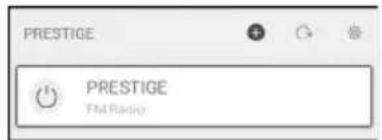
Launch the UNDOK™ app on your smart device. The app will search for compatible audio systems. You may also tap on to start searching for audio systems.
-
Select "PRESTIGE" from the list of available audio systems.
text_image
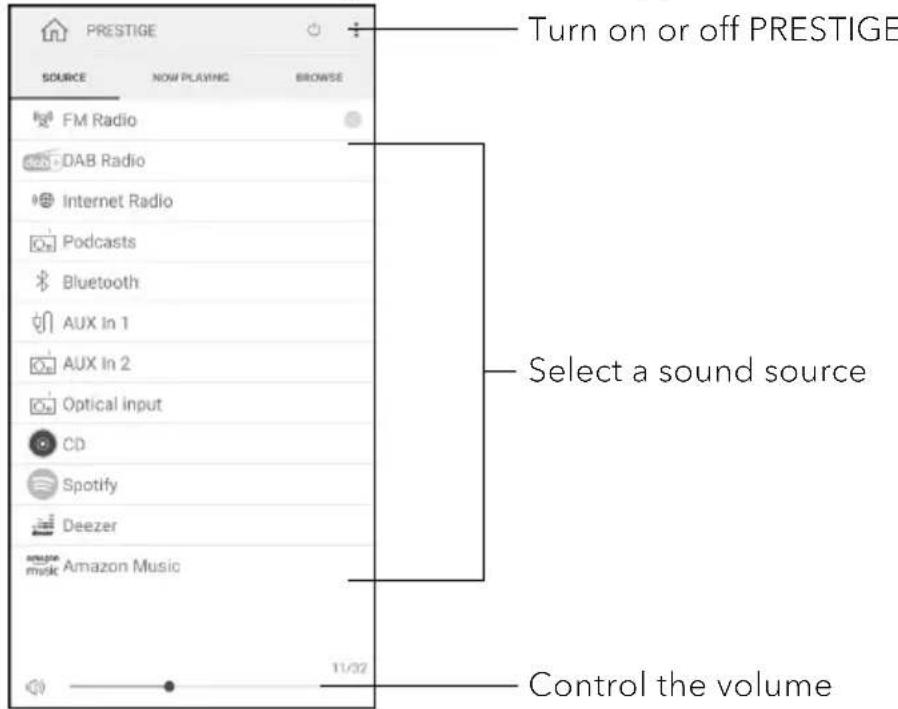
PRESTIGE PRESTIGE FM Radio- Control PRESTIGE through the UNDOK™ app.
text_image
Prestige SOURCE NOW PLAYING BROWSE FM Radio DAB Radio Internet Radio Podcasts Bluetooth AUX in 1 AUX in 2 Optical input CD Spotify Deezer music Amazon Music 11/02 Turn on or off PRESTIGE Select a sound source Control the volume21 Troubleshooting
Malfunctions can occur with any electrical equipment. This is not necessarily due to PRESTIGE defect. Please see the below table for troubleshooting tips.
| Malfunction Possible cause | Solution | |
| No power. Power cable is not properly connected. | Connect the power cable properly. | |
| No response from PRESTIGE. | There is an error in PRESTIGE. | Disconnect and reconnect the power plug. Then turn PRESTIGE on again. |
| Remote control does not work, or only works sporadically. | Distance to PRESTIGE is too large. | Reduce the distance between the remote control and PRESTIGE. |
| Battery is empty. Replace the battery. | ||
| No sound or poor sound. | Sound is turned off. Adjust the volume. | |
| PRESTIGE is not set to the correct playback mode. | Select another playback mode. | |
| Headset is plugged in. Pull the headset out of the jack. | ||
| FM/DAB or Internet reception is poor. | Extend/adjust the FM/DAB antenna or check the Wi-Fi connection. | |
| There is radio interference. | Keep PRESTIGE away from other electronic devices. | |
| Optical Input no sound | Select PCM as output source in the external device. | |
| Insufficient Wi-Fi signal strength. | The router is too far or blocked. | Place PRESTIGE closer to the router or adjust the position of the Wi-Fi antenna. |
| Cannot connect to your Wi-Fi network. | Router is not switched on or working properly. | Switch on your router or check the router conditions. |
| Setup method is incorrect. | Check if your router supports WPS and uses the correct setup method (PBC or PIN). | |
| Configure the Wi-Fi settings again. | ||
| Internet radio station does not work sometimes. | Some stations only support a limited number of listeners. | Try again later. |
| Station is not broadcasting. | Try again later. | |
| Some Internet radio stations disappear from the station list. | The station is removed from the list when it stops broadcasting. | Check again later. If the station broadcasts again, it will be brought back to the list. |
| CD playback does not start. | CD format is not supported. | Insert correct CD format in the CD slot. |
| CD is dirty. Clean the CD. | ||
| CD is damaged. Insert a different CD in the CD slot. | ||
| USB device is not charging. | USB cable is not connected or broken. | Check the USB cable. |
| USB device is not playing music. | USB playback is not supported. | USB port is used for charging. |
22 Cleaning

NOTICE!
Material damage due to improper cleaning!
Improper cleaning can result in damage to PRESTIGE or cause certain functions to stop working.
- Never use abrasive or solvent-based cleaning agents, as these may damage the surface of PRESTIGE.
- Never use hot or compressed air to dry PRESTIGE.
- The edges and corners of PRESTIGE are vulnerable to pressure. Protect these areas to prevent them from being subjected to excessive pressure.
Cleaning off fingerprints and light soiling
- Clean PRESTIGE only from the outside with a soft, dry cloth.
Cleaning off heavy soiling
- Clean PRESTIGE only from the outside with a slightly damp cloth and then dry PRESTIGE with a soft, dry cloth.
23 Warranty
When submitting warranty claims, the following applies without restricting your legal rights:
- Warranty claims can only be asserted within a period of max. 2 years (1 year in North America and Australia), calculated from the date of purchase.
- sonoro audio GmbH shall, at its own discretion, repair or replace PRESTIGE free of charge any defects caused by material or manufacturing defects within the warranty period.
- In case of a complaint, please contact your dealer or our customer service department. You will find our contact data under "Contact data" (Chapter 1.1) or visit our website at www.sonoro.com.
- No new warranty period begins following repair or replacement of PRESTIGE. The warranty period of 2 years (1 year in North America and Australia) from date of purchase remains applicable.
- Excluded from the warranty are batteries, damage caused by improper use, normal wear and tear, as well as defects which only minimally affect the value or usability of PRESTIGE. The warranty also expires in case of any modifications not made by our authorised service centre.
- This guarantee does not restrict or cancel the purchaser's free recourse to the rights set forth under statutory regulations concerning defects.
PRESTIGE
SO-331
FR
SYSTÈME AUDIO STÉRÉO TOUT-EN-UN À 2 VOIES AVEC SUBWOOFER INTÉGRÉ DE 4", RADIO INTERNET, LECTEUR CD, DAB+ & BLUETOOTH®
natural_image
Exterior view of a modern audio recording device with dual speakers and a central Smart Radio control panel (no readable text or symbols beyond branding)Mode d'emploi
Table des matières
1 Introduction....116
10 Mode Podcasts 143
13 Mode AUX In 2....149
- Bass reflex opening
- Subwoofer driver
Télécommande
text_image
30 31 32 33 34 35 36 37 38 39 40 41 42 43 44 SETUP FM CD AUX1-2 OK BASS TREBLE INFO 1 2 3 4 5 6 7 8 9 0 SLEEP SONORO 45 46 47 48 49 50 51 52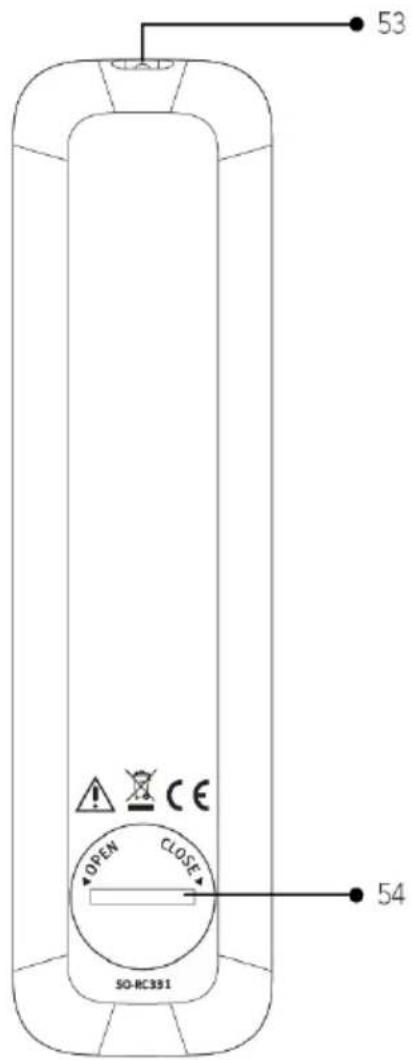
text_image
53 OPEN CLOSE SO-RC391 54FR
natural_image
Hand inserting a small circular dial into a mobile phone (no text or symbols visible)
natural_image
Technical line drawing of a bolt and nut assembly (no text or symbols)text_image
Diagram showing a hand inserting a plug into an electronic device with three labeled components and directional arrows indicating assembly or operation.text_image
19 20 21 Power AC/8600 Wire Wireless Wireless Wireless Wireless Wireless Wireless Wireless Wireless Wireless Wireless Wireless Wireless Wireless Wireless Wireless Wireless Wireless Wireless Wireless Wireless Wireless Wireless Wireless Wireless Wireless Wireless Wireless Wireless Wireless Wireless Wireless Wireless Wireless Wireless 19 Wireless 20 Wireless 21 Wireless 22 Wireless 23 Wireless 24 Wireless 25 Wireless 26 Wireless 27 sanoar® Basic Bluetooth® installed audio system Product No. 20-15 Bluetooth® dab+ Qualcomm® opix Bluetooth® dab+ DAB/TM ARBIWAnatural_image
Hand holding a remote control knob with a circular dial indicator (no text or symbols visible)
natural_image
Technical line drawing of a bolt and nut assembly (no text or symbols)text_image
Diagram showing a hand inserting a plug into an electronic device with three labeled components and directional arrows indicating assembly or operation.natural_image
Exterior view of a modern audio recording device with dual speakers and a central Smart Radio control panel (no readable text or symbols beyond branding)Gebruikshandleiding
Inhoudsopgave
1 Inleiding....228
https://www.spotify.com/connect/third-party-licenses

deezer
natural_image
Hand inserting a small circular component into a black rectangular device (no text or symbols visible)
natural_image
Technical line drawing of a bolt and nut assembly (no text or symbols)text_image
Diagram showing a hand inserting a plug into an electronic device with three labeled components and directional arrows indicating assembly or operation.- [NetRemote PIN setup]
https://www.spotify.com/connect/third-party-licenses

deezer
natural_image
Hand inserting a small component into a device (no text or symbols visible)
natural_image
Technical line drawing of a bolt and nut assembly (no text or symbols)text_image
Diagram showing three-step assembly of a device with labeled parts and directional arrows indicating assembly steps.- [NetRemote PIN setup]
At sonoro we are putting the utmost effort in to developing state-of-the-art products with impeccable quality standards. It is very important to us that you stay satisfied with your sonoro product for the lifetime of the unit. If for any reason you need assistance or have a warranty claim, please do not hesitate to get in touch with our Service Team.