FRITZ!Powerline 540E - Wi-Fi repeater AVM - Free user manual and instructions
Find the device manual for free FRITZ!Powerline 540E AVM in PDF.


User questions about FRITZ!Powerline 540E AVM
0 question about this device. Answer the ones you know or ask your own.
Ask a new question about this device
Download the instructions for your Wi-Fi repeater in PDF format for free! Find your manual FRITZ!Powerline 540E - AVM and take your electronic device back in hand. On this page are published all the documents necessary for the use of your device. FRITZ!Powerline 540E by AVM.
USER MANUAL FRITZ!Powerline 540E AVM
- http://en.avm.de/service/manuals/fritzpowerline/
Support - http://en.avm.de/service/support-request/your-support-request/
en.avm.de
© AVM GmbH · Alt Moabit 95 · D-10559 Berlin · Germany

Installation and Operation
FRITZ!Powerline
540E

412014002
English 4
Deutsch 16
Español 28
Français 40
Italiano 52
Nederlands 64
Package Contents and Device Features
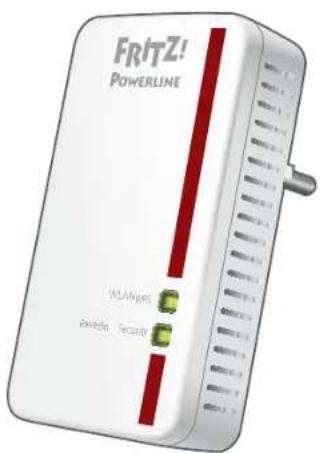
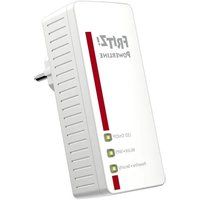
1 FRITZ!Powerline Adapter
Power plug
• Power supply
• Interface to the powerline network
Wireless LAN function
- Wireless access point
- For connecting to the wireless radio network
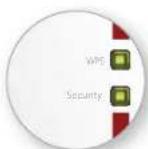
Buttons with LEDs
• Establish a WLAN Connection Using WPS
- Establish a secure powerline connection
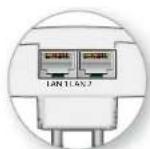
2 LAN ports
• For connecting network devices
• For connecting with an Ethernet home network
1 LAN cable

natural_image
Illustration of two USB connectors with a coiled cable (no text or symbols)This Is FRITZ!Powerline 540E
This quick introduction shows you the possibilities for deploying and operating your FRITZ!Powerline 540E. Comprehensive information and technical details are presented in the PDF manual available on our web site http://en.avm.de/service.
FRITZ!Powerline 540E is a powerline adapter that expands your existing powerline network and can be used with your wireless LAN and network devices as an access point to your home network and your Internet router.
For device settings FRITZ!Powerline 540E has a user interface which you can open in a web browser on all connected devices.
In the user interface you can, among other things, change the operating mode of your FRITZ!Powerline 540E. By changing the operating mode you can transform your powerline adapter into a plain wireless repeater to expand your wireless radio network, or into a LAN bridge to extend your Ethernet home wiring.
Thanks to these properties FRITZ!Powerline 540E is a versatile device with many application possibilities, which can expand the range of your home network over powerline, wireless LAN and over LAN connections.
Have fun with your FRITZ!Powerline 540E!
Security
- Operate FRITZ!Powerline 540E in a dry place that is free of dust and protected from direct sunlight and provide for sufficient ventilation.
- Insert the the FRITZ!Powerline 540E into an electrical outlet that is easy to reach.
- FRITZ!Powerline 540E is intended for indoor use only. Never let liquids get inside the adapter.
● No FRITZ!Powerline adapters can be plugged together. - Do not open FRITZ!Powerline 540E. Opening and/or repairing the device can present a hazard.
- Remove FRITZ!Powerline 540E from the mains before cleaning. Clean the device using a moist cloth.
FRITZ!Powerline 540E Expands Your Powerline Network
-
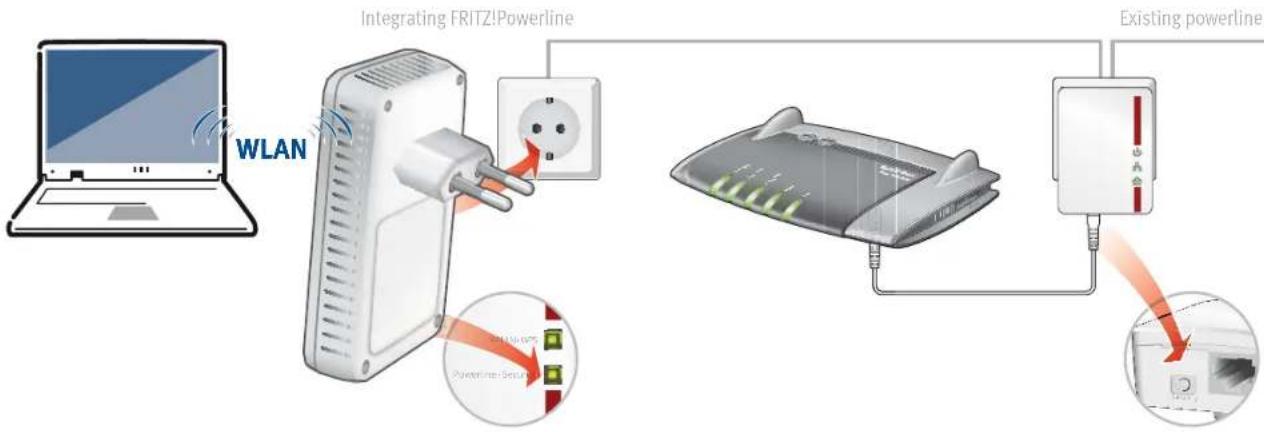
Insert FRITZ!Powerline 540E in an outlet in the vicinity of a powerline adapter that is part of the existing powerline network. Wait until the Powerline • Security LED starts flashing.
-
On an adapter in the existing power-line network, press the button labeled Security, Pair or something similar and hold it down for one second.
-
Within 2 minutes, press the Powerline • Security button on FRITZ!Powerline 540 E. The LED flashes quickly and then remains lit to indicate that the powerline connection is being established.
-
Now you can use FRITZ!Powerline 540E at any outlet in your home.
Connecting Wireless LAN and Network Devices
With your wireless and network devices you can use FRITZ!Powerline 540E as an access point to your home network and your Internet router.
This is how to connect your wireless LAN devices, like smartphones or laptops, which support the fast connection method WPS, with FRITZ!Powerline 540:
- Press the WLAN • WPS button on FRITZ!Powerline 540E for about one second until it starts flashing.
- Start WPS on your wireless LAN device within two minutes.
If your wireless LAN device does not support the quick connection method WPS:
- Remove FRITZ!Powerline 540E from the outlet and take note of the network key printed on the back of the device.
- Start the WLAN software on your wireless LAN device and enter the network key there.
If you would like to use a wired network device:
- Connect your network device to one of the LAN jacks on FRITZ!Powerline 540E using a LAN cable.
![FRITZ-Powerline 5406 Powerline (S) - powerpoint ABCD-EPOR-IJKL-MNOP, Product type (SPA) 3779.8981.1562.8981.1234 Powerline (BAC) Symbol: R40000000000000000000000000000000000000000000000000000000000000000000000000000000000 Symbol: 12.12.12.12.12.12.12.12.12.12.12.12.12.12.12.12.12.12.12.12.12.12.12.12.12.12.12.12.12.12.12.12.12.12. 12.12.12.12.12.12.12.12.12.12.12.12.12.12.12.12.12.12.12.12.12.12.12.12.12.12.12.12.12.12.12.12.12 12.12.12.12.12.12.12.12.12.12.12.12.12.12.12.12.12.12.12.12 12.12.12.12.12.12.12.12.12.12.12.12 12.12.12.12.12.12.12.12 12.12.12.12 12.12.12 12 12 12 12 12 12 12 12 12 12 12 12 12 12 12 12 12 12 12 12 12 12 12 12 12 12 12 12 12 12 12 12 12 54 CE [REDACTED] [MGM] [MGM] [MGM] [MGM] [MGM] [MGM] [MGM] [MGM] [MGM] [MGM] [MGM] [MGM] [MGM] [MGM] [MGM] [MGM] [MGM] [MGM] [MGM] [MGM] [MGA] [MGM] [MGM] [MGM] [MGM] [MGM] [MGM] [MGM] [MGM] [MGM] [MGM] [MGM] [MGM] [MGM] [MGM] [MGM] [MGM] [MGM] [MGM] [MGM] [MCM] [MCM] [MCM] [MCM] [MCM] [MCM] [MCM] [MCM] [MCM] [MCM] [MCM] [MCM] [MCM] [MCM] [MCM] [MCM] [MCM] [MCM] [MCM] [MCM] [MCA] [MCA] [MCA] [MCA] [MCA] [MCA] [MCA] [MCA] [MCA] [MCA] [MCA] [MCA] [MCA] [MCA] [MCA] [MCA] [MCA] [MCA] [MCA] [MCA] [MCM] [MCM] [MCM] [MCM] [MCM] [MCM] [MCM] [MCM] [MCM] [MCM] [MCM] [MCM] [MCM] [MCM] [MCM] CE MGA MGA MGA MGA MGA MGA MGA MGA MGA MGA MGA MGA MGA MGA MGA MGA MGA MGA MGA MGA MGA MGA MGA MGA MGA MGA MGA MGA MGA MGA MGA MGA MGA MGA NMA C E D A G H I L I O U V W X Y Z X X X X X X X X X X X X X X X X X X X X X X X X X X X X X X X X X X X X X X X X X X X X X X X X X X X X X X X X X X X X X X X X X X X X X X X X X X X X X X X X X X X X X X X X X X X X X X X X X X](/content/2026/04/724482/images/e6df09b21ea7cf4dff762c1396273df5394655d12c406c0f57eb3607b8be7103.jpg)
These values are examples. Do not adopt these values in your settings.
User Interface
Open the FRITZ!Powerline 540E user interface in your web browser by entering
- http://fritz.powerline, if FRITZ!Powerline 540E is connected with a FRITZ!Box.
●192.168.178.2,, if FRITZ!Powerline 540E is not connected with a router yet. - thdR address>. The IP address is assigned by your Internet router as soon as one or more FRITZ!Powerline 540E are located in your home network.
In the user interface you can, for instance, configure wireless LAN settings, switch the button LEDs on and off, change the operating mode, or perform a FRITZIOS update.
Expanding an Ethernet Home Network
Here is how to use FRITZ!Powerline 540E as a LAN bridge in your Ethernet home network.
- Start a web browser and enter http://fritz.powerline in the address line. The FRITZ!Powerline 540E user interface opens.
- Open System/Operating Mode and click Change Operating Mode.
- Select LAN Bridge and click Next. A Wizard starts to guide you through the configuration process.
- Click Finish.
- Connect your wireless LAN and network devices with FRITZ!Powerline 540E.
Extending a Wireless LAN Network
Here is how to use FRITZ!Powerline 540E as a WLAN repeater.
- Start a web browser and enter http://fritz.powerline in the address line. The FRITZ!Powerline 540E user interface opens.
- Open System/Operating Mode and click Change Operating Mode.
- Select WLAN Bridge and click Next. A Wizard starts to guide you through the configuration process.
- Click Finish.
- If FRITZ!Powerline 540E is connected with your router via a powerline or LAN connection, clear this connection. FRITZ!Powerline 540E and your router can be connected with only one kind of connection.
- Connect your wireless LAN and network devices with FRITZ!Powerline 540E.

Status Display and Operation
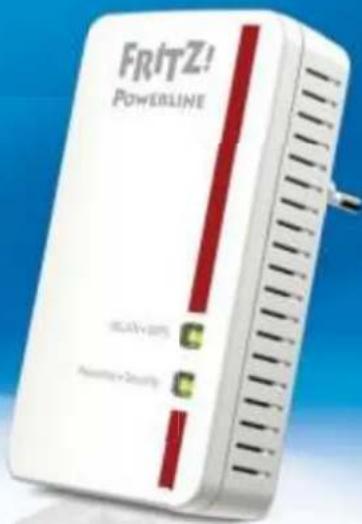
You can operate FRITZ!Powerline 540E manually using the three buttons.

on WLAN function is enabled
flashes WPS quick connection in progress
off WLAN function is switched off
press briefly Starting a WPS quick connection
for factory settings, press and hold at the same time as


on Connected in the powerline network
flashes Connecting or not in the powerline network
off Powerline is switched off on the adapter
press briefly Integrating FRITZ!Powerline safely into an existing powerline network
Properties
- Expands the home network using your house's wiring—without laying any new cables
● Powerline transmission at up to 500 Mbit/s: Photos, music, video in HD and 3-D, VoIP, surfi ng, gaming
● Wireless LAN at up to 300 Mbit/s (2.4 GHz) connects computers, tablet, smartphone, printer and other network devices
● 2 x Fast Ethernet (100 Mbit/s) for connecting TV, Blue-ray, stereo, game consoles - Wireless LAN security with WPA2, simple configuration with WPS at the touch of a button
● Powerline connection at the push of a button; secure encryption with AES 128-bit
● Wireless LAN range extension (repeater function) available as an option
● Compatible with IEEE P1901 - User interface of its own http://fritz.powerline
Disposal
In accordance with the Electrical and Electronic Equipment Act, FRITZ!Powerline 540E and its cable may not be disposed with household waste. Please bring these to your local collection points for disposal.

CE Declaration
AVM declares herewith that the device is compliant with the basic requirements and the relevant rules in directives 1999/5/EC or 2004v/108/EC and 2006/95/EC, 2009/125/EC and 2011/65/EU.
The declaration of CE conformity is available at en.avm.de/en/service/ce.