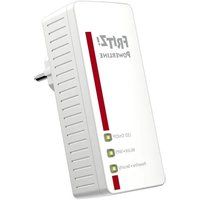
Fritz! Wlan Repeater 300E - Wi-Fi repeater AVM - Free user manual and instructions
Find the device manual for free Fritz! Wlan Repeater 300E AVM in PDF.


User questions about Fritz! Wlan Repeater 300E AVM
0 question about this device. Answer the ones you know or ask your own.
Ask a new question about this device
Download the instructions for your Wi-Fi repeater in PDF format for free! Find your manual Fritz! Wlan Repeater 300E - AVM and take your electronic device back in hand. On this page are published all the documents necessary for the use of your device. Fritz! Wlan Repeater 300E by AVM.
USER MANUAL Fritz! Wlan Repeater 300E AVM
Configuring and Operating

text_image
FRITZ! WLAN REPEATER WPS Power WLAN LANTable of Contents
Symbols and Highlighting 4
1 Getting to Know FRITZ!WLAN Repeater 300E. . . . . . . . . 5
1.1 FRITZ!WLAN Repeater 300E....5
1.2 Button and LEDs 6
1.3 Package Contents 7
2 Before You Connect the FRITZ!WLAN Repeater ..... 8
2.1 Operation Requirements....8
2.2 Security and Handling....9
3 Connecting FRITZ!WLAN Repeater with a WLAN Base Station 10
3.1 Establishing a Connection Using WPS 10
3.2 Establishing a Connection Using the Online Wizard ..... 13
3.3 Establishing a Connection Manually ..... 15
4 Extending the Range of the WLAN Radio Network .... 17
4.1 Prerequisite 17
4.2 Choosing the Best Location for FRITZ!WLAN Repeater.....17
4.3 Integrating WLAN Devices into the Wireless Network ..... 18
5 Connecting Devices to the LAN Port.....19
6 The User Interface of the FRITZ!WLAN Repeater ..... 20
6.1 Opening the User Interface 20
6.2 Protecting the User Interface with a Password.....20
6.3 Performing a Firmware Update 21
7 Help in Case of Errors 23
7.1 LEDs Not On 23
7.2 The User Interface Is Not Displayed 24
7.3 No Connection with the WLAN Base Station 24
7.4 No WLAN Connection with a Computer.....27
7.5 Throughput Too Slow for WLAN N 29
7.6 Cannot Access Devices in the Network....29
8 Technical Specifications....33
8.1 Physical Specifications 33
8.2 User Interface and Display 33
9 Customer Service Guide .... 34
9.1 Documentation on the FRITZ!WLAN Repeater 34
9.2 Information in the Internet 34
9.3 Support from the Support Team 35
Manufacturer's Warranty....36
Legal Notice....37
Legal Notice 37
Declaration of CE Conformity 38
Disposal Information....39
Index 40
Symbols and Highlighting
Symbols and emphasized text are used to designate certain information in this manual.
Symbols

This symbol designates hints and tips that are useful in operating your product.

This symbol indicates important instructions that must be observed to avoid malfunctions.
Highlighting
| Highlighting Function Examples | ||
| Quotation marks | Buttons | “Help” |
| Menus | “System / “Info” Display” | |
| Blue and under-lined text | Address to be entered in the web browser | fritz.repeater |
| Blue text Links and references within this manual | For instructions on connecting the FRITZ!WLAN Repeater with your WLAN base station, see page 10. | |
1 Getting to Know FRITZ!WLAN Repeater 300E
This chapter presents a quick overview of the various functions of your FRITZ!WLAN Repeater 300E.
1.1 FRITZ!WLAN Repeater 300E
The FRITZ!WLAN Repeater extends the range of the radio network of your FRITZ!Box or of another WLAN base station simply and securely.
A WLAN base station connects multiple WLAN devices (for instance computers, printer, television) with each other and with the Internet.
Once the FRITZ!WLAN Repeater is connected with your WLAN base station, you can also register computers and other WLAN devices on the FRITZ!WLAN Repeater instead of on the base station.
WLAN devices located outside the range of the WLAN base station receive access to the radio network and the base station's Internet connection via the FRITZ!WLAN Repeater.

text_image
Diagram illustrating wireless network coverage between a home and a router, showing devices like desktops, computers, and a router with labeled LAN.FRITZ!WLAN Repeater 300E in a radio network
Connecting a Device to the WLAN via the LAN Port
The FRITZ!WLAN Repeater has a gigabit LAN port to which you can connect any network device, for instance blu-ray players, satellite/TV receivers, printers, network storage devices or IP cameras.
The connected device receives access to your WLAN radio network and the Internet over the FRITZ!WLAN Repeater 300E.
1.2 Button and LEDs
The FRITZ!WLAN Repeater has a button and various LEDs on the front panel.

text_image
WPS Power WLAN LANLEDs and button
Button
The following functions are operated using the button:
| Function Press for at least | |
| To switch WLAN on and off 1 second | |
| To initiate WPS quick connection 6 seconds | |
| To reset the repeater to factory settings | 15 seconds |
LEDs
| LED Condition Meaning | ||
| ...... | flashing No connection with WLAN base station or searching for WLAN base station | |
| up to 5 LEDs are lit up | The more LEDs are lit up, the stronger the signal of the WLAN radio connection between the WLAN base station and the FRITZ!WLAN Repeater | |
| Power flashing | • FRITZ!WLAN Repeater starts• Updating the firmware of the FRITZ!WLAN Repeater | |
| on FRITZ!WLAN | Repeater is ready for operation | |
| WLAN flashing | • FRITZ!WLAN Repeater adopts WLAN settings• Switching WLAN radio network on or off• Performing WPS | |
1.3 Package Contents
• FRITZ!WLAN Repeater 300E
• one printed quick guide
• one network cable (LAN cable)
2 Before You Connect the FRITZ!WLAN Repeater
Read this chapter before connecting the FRITZ!WLAN Repeater to the power supply and the WLAN base station.
2.1 Operation Requirements
In order to operate the FRITZ!WLAN Repeater 300E, you must have the following:
- Your WLAN base station (WLAN access point) must support the IEEE 802.11n, 802.11g/a or 802.11b standard and use either the 2.4 or 5 GHz frequency band.
- The WLAN base station must support automatic IP address assignment (DHCP).
- The WLAN base station must support forwarding of IP-based protocols/Address Resolution Protocol.
- For the first configuration of the WLAN: The SSID (radio network name) must be set to “visible” and the MAC address filter must be disabled. For a FRITZ!Box both settings are configured upon delivery.
- For WPS functionality: a WPS-compliant WLAN base station with up-to-date firmware
- For the first configuration of the WLAN without WPS: a WLAN client that supports the WPA encryption standard.
- For the first configuration of the WLAN using the Installation Wizard: Microsoft Windows 7, Windows Vista or Windows XP, Internet access
2.2 Security and Handling

When working with the FRITZ!WLAN Repeater, be sure to observe the following security instructions in order to protect yourself and the FRITZ!WLAN Repeater from harm.
- Never let liquids get inside the FRITZ!WLAN Repeater. Otherwise, electric shocks or short circuits may result.
- The FRITZ!WLAN Repeater is intended for indoor use only.
- Do not open the FRITZ!WLAN Repeater housing. The device contains hazardous components and should only be opened by authorized repair technicians.
- Do not install the FRITZ!WLAN Repeater during an electrical storm.
- Disconnect the FRITZ!WLAN Repeater from the power supply during electrical storms.
- Insert the FRITZ!WLAN Repeater in a socket in a dry location that is free of dust and protected from direct sunlight.
- Make sure to keep sufficient distance from potential sources of interference like microwave devices or electric devices with large metal housings, and from radiators.
3 Connecting FRITZ!WLAN Repeater with a WLAN Base Station
Connect the FRITZ!WLAN Repeater with the FRITZ!Box or another WLAN base station whose radio network the FRITZ!WLAN Repeater is to extend.
You can also register two or more FRITZ!WLAN Repeater at your WLAN base station.
3.1 Establishing a Connection Using WPS
Using WPS (Wi-Fi Protected Setup), you can establish quickly and easily a secure WLAN connection. You can use WPS if the following prerequisites are met:
Prerequisites
- The WLAN base station must support WPS. The following FRITZ!Box models, for instance, support WPS: FRITZ!Box Fon WLAN 7390, 7270 and 7240, FRITZ!Box 6360 Cable, FRITZ!Box WLAN 3370 and 3270.
- WPS must be enabled in the WLAN base station.
WPS is enabled upon delivery in the latest FRITZ!Box models. In older FRITZ!Box models, enable the WPS method in the user interface under “WLAN / Security / WPS Quick Connection”.
- The WLAN base station must support the WPA or WPA2 encryption standard.
- The SSID (radio network name) of the WLAN base station must be set to “visible” (announced). The SSID of a FRITZ!Box is visible upon delivery.
- If a MAC address filter is active in your WLAN base station, the MAC address of the FRITZ!WLAN Repeater must be entered there as an exception. You can also disable the MAC address filter until the connection to the FRITZ!WLAN Repeater is established.
Connecting FRITZ!WLAN Repeater via WPS with FRITZ!Box
This section describes how to connect the FRITZ!WLAN Repeater with a FRITZ!Box using WPS.
You can also connect the FRITZ!WLAN Repeater with any other WLAN base station that supports WPS as described below. In this case, please also take note of the instruction in the documentation of your WLAN base station.
- Connect the FRITZ!WLAN Repeater to an electrical outlet in the vicinity of the FRITZ!Box.

natural_image
Illustration of a wall-mounted electrical outlet with a cable inserted, showing a circular socket and a magnified view (no text or symbols)Connecting the FRITZ!WLAN Repeater to electrical power
- Press the “WPS” button on the FRITZ!WLAN Repeater. Hold the button down until the “WLAN” LED begins flashing. This takes about 6 seconds.

text_image
FRITZ! VR/VR SEPTATO Fusion AVES Lift 6 seconds- Now press the “WLAN” button on the FRITZ!Box within the next two minutes. Hold the “WLAN” button down until the “WLAN” LED of the FRITZ!Box begins flashing. This takes about 6 seconds.

text_image
OFF WAL 6 secondsThe connection between the FRITZ!WLAN Repeater and the FRITZ!Box is established as soon as the “WLAN” LEDs on both devices light constantly.

The FRITZ!WLAN Repeater is preconfigured so that the radio network name (SSID) and WLAN key of the FRITZ!Box are adopted automatically upon connection with the FRITZ!Box.
To find out how to extend the range of your WLAN radio network with the FRITZ!WLAN Repeater, continue reading from page 17.
To find out how to configure the FRITZ!WLAN Repeater using it's user interface, continue reading from page 20.
3.2 Establishing a Connection Using the Online Wizard
If your WLAN base station doesn't support WPS, you can connect the FRITZ!WLAN Repeater with your WLAN base station using the online wizard.
Start the online wizard at your computer. You can use the online wizard if the following prerequisites are met:
Prerequisites
- Windows 7, Windows Vista or Windows XP with Service Pack 2 or higher must be installed on your computer.
- The computer must have access to the Internet.
- The SSID (radio network name) of the WLAN base station must be set to “visible” (announced). The SSID of a FRITZ!Box is visible upon delivery.
- If a MAC address filter is active in your WLAN base station, the MAC address of the FRITZ!WLAN Repeater must be entered there as an exception. You can also disable the MAC address filter until the connection to the FRITZ!WLAN Repeater is established.
Connecting FRITZ!WLAN Repeater with FRITZ!Box
- Connect the FRITZ!WLAN Repeater to an electrical outlet in the vicinity of the FRITZ!Box.

natural_image
Illustration of a wall-mounted electrical outlet with a cable inserted, showing a cartoon-style head and arrow (no text or symbols)Connecting the FRITZ!WLAN Repeater to electrical power
- Start a web browser on your computer.
-
Enter www.avm.de/en/repeater in the address field of the browser.
-
Save the FRITZ!WLAN Repeater 300E online wizard on your computer.
- Start the online wizard by double-clicking the executable “.exe” file.
- Follow the instructions.
A secure WLAN connection is being established between the FRITZ!WLAN Repeater and the FRITZ!Box.

The FRITZ!WLAN Repeater is preconfigured so that the radio network name (SSID) and WLAN key of the FRITZ!Box are adopted automatically upon connection with the FRITZ!Box.
To find out how to extend the range of your WLAN radio network with the FRITZ!WLAN Repeater, continue reading from page 17.
To find out how to configure the FRITZ!WLAN Repeater using it's user interface, continue reading from page 20.
3.3 Establishing a Connection Manually
Using this method, you can connect the FRITZ!WLAN Repeater with your WLAN base station even if the WLAN base station doesn't support WPS and you cannot use the online wizard.
Connecting FRITZ!WLAN Repeater with a Computer
Connect the FRITZ!WLAN Repeater with a computer.
You can connect the FRITZ!WLAN Repeater using the network cable included with delivery or you can establish the connection wirelessly via WLAN.
- Connect the FRITZ!WLAN Repeater to an electrical outlet in the vicinity of the FRITZ!Box.

natural_image
Illustration of a wall-mounted electrical outlet with a cartoon face on the wall (no text or symbols)Connecting the FRITZ!WLAN Repeater to electrical power
- Establish a WLAN connection between your computer and the FRITZ!WLAN Repeater. Open the WLAN software of your computer, select WPA as encryption method and enter the WPA/WPA2 key 00000000 (8 zeros) which is the value preset in the FRITZ!WLAN Repeater.
or
Connect your computer to the LAN port of the FRITZ!WLAN Repeater using the LAN cable included with delivery. Enable the setting “Obtain an IP address automatically” for the computer’s LAN port. See the section Obtaining an IP Address Automatically on page 30 for instructions on how to configure the LAN port.
Starting the Configuration Wizard
- Start a web browser on the computer that is connected with your FRITZ!WLAN Repeater.
- Enter fritz.repeater in the address line of the browser.
- The FRITZ!WLAN Repeater Configuration Wizard is started. Click "Start" and follow the instructions.
A secure WLAN connection is being established between the FRITZ!WLAN Repeater and the FRITZ!Box.

The FRITZ!WLAN Repeater is preconfigured so that the radio network name (SSID) and WLAN key of the FRITZ!Box are adopted automatically upon connection with the FRITZ!Box.
To find out how to extend the range of your WLAN radio network with the FRITZ!WLAN Repeater, continue reading from page 17.
To find out how to configure the FRITZ!WLAN Repeater using it's user interface, continue reading from page 20.
4 Extending the Range of the WLAN Radio Network
This chapter describes how to extend the range of your WLAN radio network using the FRITZ!WLAN Repeater.
4.1 Prerequisite
The FRITZ!WLAN Repeater must be connected with your WLAN base station.

For instructions on connecting the FRITZ!WLAN Repeater with your WLAN base station, see the chapter Connecting FRITZ!WLAN Repeater with a WLAN Base Station from page 10.
4.2 Choosing the Best Location for FRITZ!WLAN Repeater
Choose an appropriate location and plug the FRITZ!WLAN Repeater into an electrical outlet there.
The WLAN connection to your WLAN base station is re-established automatically after connecting the repeater to the outlet. The settings of the FRITZ!WLAN Repeater remain intact if you disconnect the device from the power mains.
Please note the following when choosing a location:
- The best location is halfway between your WLAN base station and the devices the FRITZ!WLAN Repeater should integrate into your wireless network.
If there is no electrical outlet at this location, test different other locations.
- The LEDs display the quality of the radio signal the FRITZ!WLAN Repeater receives from the WLAN base station. The better the received radio signal, the better the radio signal sent by the FRITZ!WLAN Repeater.
- Make sure to keep sufficient distance from potential sources of interference like microwave devices, electric devices with large metal housings, radiators or walls.
4.3 Integrating WLAN Devices into the Wireless Network
FRITZ!WLAN Repeater WLAN Settings
The FRITZ!WLAN Repeater is preconfigured so that the radio network name (SSID) and WLAN key of the WLAN base station are adopted automatically upon connection with the WLAN base station.
This means your FRITZ!WLAN Repeater can be reached in the WLAN radio network with the same radio network name (SSID) as your WLAN base station (for instance, FRITZ!Box).
Establishing a WLAN Connection
- Open the WLAN software of your computer or of another WLAN device.
- Search for WLAN devices in your vicinity.
- Select the SSID (radio network name) of your WLAN base station from the list of WLAN devices found.
If the WLAN device is located within the range of the WLAN base station and within the range of the FRITZ!WLAN Repeater, the SSID of the WLAN base station will appear twice in the search results. Select either of the SSIDs. Your computer will automatically connect with the WLAN device that has the stronger signal.
4. Establish the WLAN connection.
As soon as the WLAN connection has been established, the WLAN device receives access to the radio network and to the Internet connection of the WLAN base station.
5 Connecting Devices to the LAN Port

text_image
FRITZI WAN ELECTRIC WP Front Front LinkConnecting a device to the LAN port (network storage device, for example)
The FRITZ!WLAN Repeater 300E has a LAN port at the underside of the device. You can connect to the LAN port a network device that does not support WLAN. These are computers, blu-ray players, TVs, satellite/TV receivers, printers, IP cameras or network storage devices, for instance.
The connected device is then integrated via the FRITZ!WLAN Repeater into your wireless network and can use the Internet connection of the WLAN base station.
A LAN cable to connect a network device is included in the FRITZ!WLAN Repeater package.
Example: Network Storage
If you would like to use a network storage in your wireless network, you can connect the device to the
FRITZ!WLAN Repeater's LAN port. All computers connected wirelessly with the FRITZ!WLAN Repeater or the WLAN base station then can download files from the network storage or save files to the network storage.
6 The User Interface of the FRITZ!WLAN Repeater
The FRITZ!WLAN Repeater has a user interface you can open in a web browser on your computer.
In the user interface, you can edit the FRITZ!WLAN Repeater's settings, enable or disable features and perform firmware updates.
Detailed descriptions of and instructions for settings and features of the FRITZ!WLAN Repeater are presented in the user interface's Online Help.
6.1 Opening the User Interface
The user interface can be opened on every computer connected with the FRITZ!WLAN Repeater or the WLAN base station.
- Start a web browser on your computer.
- Enter fritz.repeater in the address field of the browser.

text_image
fritz repetitionThe user interface is displayed.
If the user interface is not displayed, please see the instructions in the section The User Interface Is Not Displayed on page 24.
6.2 Protecting the User Interface with a Password
You can protect the user interface with a password. The password will be requested every time the user interface is opened. This protects the settings of your FRITZ!WLAN Repeater from unauthorized access.

We strongly recommend setting up and using password protection for the user interface.
Setting Up Password Protection
As long as no password protection has been set up, every time you open the user interface you will be prompted to enter a password. If you disabled this message, here is how to set password protection:
- Open the FRITZ!WLAN Repeater user interface.
- Go to the "System / Password" menu.
- Enter a password and save the password by clicking "Apply".
Password protection is now enabled.
Logging Off the User Interface
When password protection is enabled, you can log off the user interface at any time. To do so, click . Log off
If you do not click on the user interface for a period of longer than ten minutes, you will be logged off automatically. The only pages excepted from this are those which are constantly updated, like the “Overview” page. No automatic logout will take place on these pages.
6.3 Performing a Firmware Update
AVM provides updates of the firmware for the FRITZ!WLAN Repeater for free downloading over the Internet. The firmware is the software that controls all of the FRITZ!WLAN Repeater's functions.
- Open the FRITZ!WLAN Repeater user interface.
- Click "Wizards" and start the "Update Firmware" Wizard.
The Wizard checks whether new firmware is available for your FRITZ!Box.
If a new firmware is available, the Wizard displays the version number of the firmware. Click the link under the firmware version to view information about the firmware. Read this information before starting the firmware update.
- To transfer new firmware to the FRITZ!WLAN Repeater, click "Start Firmware Update Now".
The firmware update begins and the “Power” LED on the FRITZ!Box starts flashing.

Do not interrupt the power supply to the FRITZ!WLAN Repeater during the firmware update!
The firmware update is complete when the “Power” LED stops flashing.
7 Help in Case of Errors
7.1 LEDs Not On
The LEDs on the FRITZ!WLAN Repeater do not light up.
| Cause |
| The FRITZ!WLAN Repeater has no electricity. |
| Help |
- Make sure that the FRITZ!WLAN Repeater is connected to electrical power.
- Make sure that the electrical outlet is active. Test this by plugging another functioning electrical device into this outlet.
Cause
The display on the FRITZ!WLAN Repeater was switched off completely.
Help
Open the user interface of the FRITZ!WLAN Repeater in the web browser (see page 20). In the “System / Display” menu, enable the “Always show status information” option and click “Apply” to save the setting.
7.2 The User Interface Is Not Displayed
The user interface of the FRITZ!WLAN Repeater is not displayed in the web browser.
Cause
The user interface of the FRITZ!WLAN Repeater cannot be reached under the address “fritz.repeater”.
Help
Open the network overview of your WLAN base station. Note the IP address listed there for your FRITZ!WLAN Repeater. Enter this IP address in the address line of your browser.
If the connection to the WLAN station is interrupted, connect your computer to the FRITZ!WLAN Repeater using the LAN cable included with delivery. Then enter the IP address http://192.168.178.2 in the address line of your browser.
7.3 No Connection with the WLAN Base Station
Cannot establish a WLAN connection between the FRITZ!WLAN Repeater and your WLAN base station.
Cause
The FRITZ!WLAN Repeater is located outside the WLAN range of your base station.
Help
Reduce the distance between the two devices. Connect the FRITZ!WLAN Repeater to an outlet in another location.
Cause
The WLAN function of your WLAN base station is disabled.
Help
Enable the WLAN function.
Cause
Automatic connection via WPS failed.
Help
Start the connection procedure via WPS again (see Establishing a Connection Using WPS on page 10).
Cause
WPS is disabled on the WLAN base station.
Help
Install the latest firmware for your WLAN base station and then enable the WPS function in the base station. Note that for WPS the radio network name (SSID) of the WLAN base station must be set to “visible”.
Cause
You are attempting to register the FRITZ!WLAN Repeater at your WLAN base station using WDS (Wireless Distribution System).
Help
The FRITZ!WLAN Repeater does not support WDS. For instructions on connecting the FRITZ!WLAN Repeater with your WLAN base station, see the chapter Connecting FRITZ!WLAN Repeater with a WLAN Base Station on page 10.
Cause
The MAC address filter of the WLAN base station is enabled and the FRITZ!WLAN Repeater is not entered as an exception in the MAC address list of the WLAN base station.
Help
Enter the MAC address of the FRITZ!WLAN Repeater as an exception in the MAC address filter of the WLAN base station.
Cause
The encryption of your WLAN base station is set to “WEP” or “non-encrypted”. WPS can only be used with WPA/WPA2 encryption.
Help
Set up encryption with WPA/WPA2 in the user interface of your WLAN base station.
Cause
The radio network name (SSID) at your WLAN base station is set to “not announced”.
Help
Set the SSID to "visible".
The SSID must be visible to establish a connection using WPS. Once the connection has been established you can reset the SSID of the WLAN base station back to “not announced”.
Cause
A different WLAN radio network in the vicinity of the FRITZ!WLAN Repeater and the WLAN base station is causing interference.
Help
Test a different radio channel. If possible, set automatic radio channel selection in the WLAN base station. Your FRITZ!WLAN Repeater then will use the same channel automatically.
7.4 No WLAN Connection with a Computer
No WLAN connection can be established between the FRITZ!WLAN Repeater and a computer.
| Cause |
| The computer's WLAN adapter is not ready for operation. |
| Help |
| On some notebooks the WLAN adapter must be activated by flipping a switch on the notebook. Make sure that the WLAN adapter is switched on. |
| Cause |
| The computer is located beyond the WLAN range of the FRITZ!WLAN Repeater. |
| Help |
| Reduce the distance between your computer and the FRITZ!WLAN Repeater. |
| Cause |
| The FRITZ!WLAN Repeater is not yet connected with the WLAN base station. |
| Help |
Connect the FRITZ!WLAN Repeater with your WLAN base station (see Connecting FRITZ!WLAN Repeater with a WLAN Base Station from page 10).
Cause
The encryption method set in the FRITZ!WLAN Repeater is different from the one in your computer's WLAN software.
Help
Set the same encryption method in your computer's WLAN software as in the FRITZ!WLAN Repeater. To find out which encryption method is set in the FRITZ!WLAN Repeater, check the user interface (page 20).
For connections to the WLAN base station the FRITZ!WLAN Repeater applies the encryption method and WLAN key of the base station. If the connection was established using WPS, the base station has WPA/WPA2 encryption configured.
Cause
Only for use of WLAN Services (WZC: Windows Zero Configuration) in Windows XP with Service Pack 2: The Microsoft patch for WPA2 (IEEE 802.11i) is not installed.
Help
Install the current patch for Microsoft Windows XP with Service Pack 2 from the web page http://support.microsoft.com or install Service Pack 3.
Cause
Another WLAN radio network in the vicinity of the FRITZ!WLAN Repeater and the WLAN base station is causing interference.
Help
Test a different radio channel. If possible, set automatic radio channel selection in the WLAN base station. Your FRITZ!WLAN Repeater then will use the same channel automatically.
7.5 Throughput Too Slow for WLAN N
A WLAN device (for instance, a computer) connected with the FRITZ!WLAN Repeater should use the 802.11n (WLAN N) standard for high data transmission speeds. The throughput achieved by this device is too low for WLAN N.
Cause
In the FRITZ!WLAN Repeater, in the WLAN base station, or in both devices, an encryption method other than WPA2 has been configured.
Help
The 802.11n WLAN standard can be used only with the encryption method WPA2. Set the WLAN base station and the FRITZ!WLAN Repeater to WPA2.
You can also use the 802.11n WLAN standard in non-encrypted (open) WLAN networks. However, an open WLAN radio network is a security risk. Therefore we strongly recommend encrypting all WLAN radio networks!
7.6 Cannot Access Devices in the Network
No other devices in the network can be accessed.
Cause
A firewall is running on the devices.
Help
Configure the firewall to allow access to the network.
Cause
The devices are not configured to receive their IP addresses automatically.
Help
Set up the devices as directed in the section Obtaining an IP Address Automatically from page 30.
Cause
The devices are not bound to TCP/IP.
Help
Check the network connection of the network adapter in the device in question. See the documentation of your operating system for more information.
Obtaining an IP Address Automatically
This section describes how to set automatic IP address assignment in the computers in the network.
Obtaining an IP Address Automatically in Windows
- Windows XP: Select "Start / Run", enter "ncpa.cpl" and then click "OK".
Windows 7 and Windows Vista: Click “Start”, enter “ncpa.cpl” in the search line of the start menu, and press “Enter”.

text_image
ncpa.cplEntering "ncpa.cpl" in Windows 7
The network connections are displayed.
- Windows XP: Under "This connection uses the following items", select "Internet Protocol (TCP/IP)" entry.
Windows 7 and Windows Vista: Click the network connection with the right mouse button. Under “This connection uses the following items”, select “Internet Protocol Version 4 (TCP/IPv4)” entry.
-
Click the "Properties" button.
-
On the “General” tab, enable the options “Obtain an IP address automatically” and “Obtain DNS server address automatically”.

text_image
Internet Protocol Version 4 (TCP/IPv4) Properties General Alternate Configuration You can get IP settings assigned automatically if your network supports this capability. Otherwise, you need to ask your network administrator for the appropriate IP settings. Obtain an IP address automatically Use the following IP address: IP address: . Subnet mask: . Default gateway: . Obtain DNS server address automatically Use the following DNS server addresses: Preferred DNS server: . Alternate DNS server: . Validate settings upon exit Advanced... OK CancelProperties of the Internet protocol (TCP/IP)
- Click "OK" to save the settings.
- Only in Windows 7 and Windows Vista: Enable the options "Obtain an IPv6 address automatically" and "Obtain DNS server address automatically" for the Internet Protocol Version 6 (TCP/IPv6) as well.
Now the computer receives an IP address from the WLAN base station.
Obtaining an IP Address Automatically in Mac OS X
- Select the "System Preferences..." in the Apple menu.
- In the “System Preferences” window, click the “Network” icon.
- In the "Network" window, select the "Built-in Ethernet" entry from the list. Click the "Advanced..." button.
- The “TCP/IP” settings page opens. Select the “Using DHCP” option from the “Configure IPv4:” drop-down list.
- Click "OK".
Now the computer receives an IP address from the WLAN base station.
8 Technical Specifications
8.1 Physical Specifications
- Dimensions (w x h x d) approx. 101 x 76 x 76 mm
• Supply voltage: 230 V / 50 Hz
• Total power consumption: approx. 5 W
• Weight: approx. 120 g - Antennae: two dual-band antennas, integrated
- Ethernet: LAN port over RJ45 socket (gigabit Ethernet, 10/100/1000 base-T)
- IEEE 802.11n, compatible with IEEE 802.11a/g/b
• WEP 64/128, WPA, WPA2 (802.11i) - WLAN: 2.4GHz max. 100mW/5GHz max. 200mW
- Transmission rate: up to 300 Mbit/s (gross); the user data rate that can actually be achieved is somewhat below this value
- Operating temperature: 0^ - +40^
8.2 User Interface and Display
- Settings and status messages via a web browser on a connected computer
- “WPS” button to control WLAN, WPS and restore settings
- LED display for information on the connection, activity and status
9 Customer Service Guide
AVM is there to help should any questions or problems arise. Here you will find the important information you need, in the form of frequently asked questions (FAQs), manuals, updates and support.
9.1 Documentation on the FRITZ!WLAN Repeater
Help in the User Interface
In the user interface of the FRITZ!WLAN Repeater, click the "Help" buttons to view detailed information on the settings and features of the FRITZ!WLAN Repeater.
Manual
The manual can be opened and downloaded from the Internet at the following address:
The current Adobe Reader for reading PDF documents can be downloaded from the Internet free of charge at www.adobe.com.
9.2 Information in the Internet
On its web site AVM presents comprehensive information on your AVM products as well as new product announcements and new product versions.
Frequently Asked Questions (FAQs)
We would like to make our products as easy to use as possible. If you still have problems, sometimes you need just a tip to resolve them.
In our FAQs you will find answers to the questions users ask about our products most often. The FAQs can be viewed at the following address:
9.3 Support from the Support Team
Should problems with your FRITZ!WLAN Repeater arise, we recommend taking the following steps:
- If you have any problems, seek first aid by consulting the chapter Help in Case of Errors from page 23.
This chapter also presents tips on problems with establishing connections.
- Read our FAQs in the Internet.
This site contains answers to questions our customers have frequently asked our Support team.

Please take advantage of the information sources described above before contacting AVM support.
Support by E-mail
You can send us an English-language e-mail request at any time using the “Service” area of our web site. The “Service” area can be reached at:
www.avm.de/en/service
- Select the product for which you need support from the "Support" area.
- Click the "Mail Form" link to open the e-mail form.
- Fill out the form in English.
- Send it to AVM by clicking the "Send" button.
Our Support team will respond by e-mail as quickly as possible.
Manufacturer's Warranty
We offer a manufacturer's warranty of 5 years on the hardware of this original product. The warranty period begins with the purchase date from the first end user. Compliance with the warranty period can be proven by submission of the original invoice or comparable documents. This warranty does not restrict your warranty rights based on the contract of sale or other statutory rights.
Within the warranty period, we will remove defects to the product which are demonstrably due to faults in materials or manufacturing. Our warranty does not cover defects which occur due to incorrect installation, improper use, non-observance of instructions in the user manual, normal wear and tear or defects in the environment of the system (third-party hardware or software). We may, at our discretion, repair or replace the defective product. Claims other than the right to the removal of defects which is mentioned in these terms of warranty are not constituted.
We guarantee that the software conforms with general specifications, not, however, that the software meets your individual requirements. Delivery costs will not be reimbursed. Products which have been replaced revert to our ownership. Claims recognized under warranty entail neither an extension or recommencement of the warranty period. If we reject a warranty claim, this claim lapses no later than six months after being rejected by us.
This warranty shall be governed by German substantive law, to the exclusion of the United Nations Convention on Contracts for the International Sale of Goods (CISG).
© AVM GmbH 2011 - 2012. All rights reserved. Documentation release 02/2012
AVM Computersysteme
Vertriebs GmbH
Alt-Moabit 95
D 10559 Berlin
AVM in the Internet:
www.avm.de/en
Legal Notice
Legal Notice
This documentation and the software it describes are protected by copyright. AVM grants the non-exclusive right to use the software, which is supplied exclusively in object code format. The licensee may create only one copy of the software, which may be used exclusively for backup use.
AVM reserves all rights that are not expressly granted to the licensee. Without previous approval in writing, and except for in cases permitted by law, it is particularly prohibited to
- copy, propagate or in any other manner make this documentation or this software publicly accessible, or
- process, disassemble, reverse engineer, translate, decompile or in any other manner open the software and subsequently copy, propagate or make the software publicly accessible in any other manner.
This documentation and software have been produced with all due care and checked for correctness in accordance with the best available technology. AVM GmbH disclaims all liability and warranties, whether express or implied, relating to the AVM product's quality, performance or suitability for any given purpose which deviates from the performance specifications contained in the product description. The licensee bears all risk in regard to hazards and impairments of quality which may arise in connection with the use of this product.
AVM will not be liable for damages arising directly or indirectly from the use of the manual or the software, nor for incidental or consequential damages, except in case of intent or gross negligence. AVM expressly disclaims all liability for the loss of or damage to hardware or software or data as a result of direct or indirect errors or destruction and for any costs (including connection charges) related to the documentation and the software and due to incorrect installations not performed by AVM itself.
The information in this documentation and the software are subject to change without notice for the purpose of technical improvement.
We offer a manufacturer's warranty for this original product. The warranty conditions are presented from page 36 of this manual.
© AVM GmbH 2011 - 2012. All rights reserved. Documentation release 02/2012
| AVM Audiovisuelles Marketingund Computersysteme GmbHAlt-Moabit 9510559 BerlinGermany |
Trademarks: Unless otherwise indicated, all trademarks mentioned are legally protected trademarks owned by AVM, especially product names and logos. Microsoft, Windows and the Windows logo are trademarks owned by Microsoft Corporation in the USA and/or other countries. All other product and company names are trademarks of their respective owners.
Declaration of CE Conformity
The manufac- AVM GmbH
turer Alt-Moabit 95
D 10559 Berlin
herewith declares that the product
FRITZ!WLAN Repeater 300E
Type: WLAN repeater
complies with the following directives:
1999/5/EC R&TTE Directive: Radio Equipment and Telecommunications Terminal Equipment
2009/125/EC EU directive: ecodesign requirements for energy-related products
The following norms were consulted to assess conformity:
- EN 60950-1:2011 - EN 300 328 V1.7.1 (10.2006)
- EN 55024:2010 - EN 301 893 V1.6. (2011)
- EN 301 489-1 V1.9.2 (2011) - EN 50371:2002
- EN 301 489-17 V2.1.1 (2009)


The CE symbol confirms that this product conforms with the above mentioned norms and regulations.
$$ P. \mathcal {F} _ {\mathrm {a x}} l $$
Berlin, 15.02.2012 Peter Faxel, Technical Director
Indication of Countries
The WLAN radio technology of this device is designed for use in all countries of the European Union and in Switzerland, Norway and Iceland. In France only indoor operation is permitted.
Disposal Information
In accordance with European regulations and the Waste Electrical and Electronic Equipment Act (WEEE), the
FRITZ!WLAN Repeater 300E, as well as all devices and electronic components contained in the package, may not be disposed with household waste.
Please bring these to a collection point in your local community for the disposal of electric and electronic appliances.

natural_image
Simple line drawing of a trash bin with crossed lines indicating no waste or discharge (no text or symbols)
Symbol for labeling electrical and electronic scrap

Watch for the symbol designating electrical and electronic scrap. Electrical and electronic equipment must be disposed of separately from household waste.
Index
A
ambient conditions....33
B
base station FRITZ!Box.....10
base station, connecting with ..... 10
button 6
C
cable, LAN 7
CE conformity declaration ..... 38
choosing location 17
configuring with user interface ..... 20
connecting to LAN port ....19 to power mains ....17 using WPS ....10 with WLAN base station ....10 WLAN device ....17
connecting WLAN devices ..... 17
connection, gigabit LAN ..... 19
copyright 37
customer service guide .... 34
D
declaration of CE conformity ..... 38
disposal....39
documentation....34
E
Ethernet interface 19
F
factory settings 6
FAQs....34
firmware update 20, 21
FRITZ!Box, connecting with ..... 10
H
handling 9
hazards 9
help in case of errors .... 23
|
imprint....37
information in the Internet FAQs .... 34
interference....9
IP address Mac OS X.....32 obtaining automatically....30 Windows.....30
L
LAN port....19
LEDs 6
legal notice 37
M
manufacturer's warranty 36
N
name of radio network ..... 18
network cable 7
network key 18
notice legal....37
0
online wizard....13
prerequisites....13
P
package contents 7
password protection....20
physical specifications....33
placing....17
power consumption 33
R
recovery
electrical equipment 39
electronic equipment 39
recycling 39
S
security
operating instructions .....9
security settings 18
SSID 18
support 34
information in the Internet.....34
via E-Mail....35
symbols in the manual .... 4
T
technical specifications .... 33
troubleshooting 23
U
user interface
opening 20
password protection ..... 20
W
warranty....36
WLAN
button....6
establishing connections.....18
extending range 17
network key....18
security settings 18
switching on/off....6
WPS 10
WLAN base station, connecting with .. 10
WPS (Wi-Fi Protected Setup) ..... 10
WPS connection
button 6
prerequisites....10
with FRITZ!Box. 10