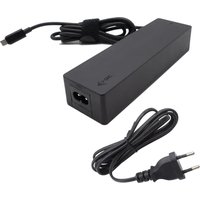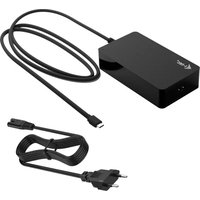
CHARGER-C140W - Battery charger i-TEC - Free user manual and instructions
Find the device manual for free CHARGER-C140W i-TEC in PDF.


| Product type | Universal USB-C charger |
| Brand | i-TEC |
| Model | CHARGER-C140W |
| Power input | 100-240 V AC, 50-60 Hz, max. 1.8 A |
| Max. output power | 140 W (with PD 3.1), 100 W (with PD 3.0) |
| USB-C output voltage | 5 V / 9 V / 12 V / 15 V / 20 V / 28 V |
| Max. USB-C output current | 5 A |
| Efficiency | Over 83% |
| Built-in protections | Overload, overvoltage, short-circuit, overheating |
| Operating temperature | 0 °C to 35 °C |
| Relative humidity | 10% to 100% |
| Dimensions (L x W x H) | 127 x 70.5 x 30 mm |
| Weight | 379 g |
| Required equipment | USB-C, USB4 or Thunderbolt™ 3/4 port with Power Delivery |
| Package contents | Charger, AC power cable (150 cm), USB-C cable (120 cm), quick start guide |
| Maintenance and cleaning | Unplug before cleaning, use a soft dry cloth, no liquid or aerosol products |
| Safety instructions | Use on a flat ventilated surface, do not cover, avoid humidity and heat sources |
| Repairability | Do not open, contact i-TEC support for any issue |
Frequently Asked Questions - CHARGER-C140W i-TEC
User questions about CHARGER-C140W i-TEC
0 question about this device. Answer the ones you know or ask your own.
Ask a new question about this device
Download the instructions for your Battery charger in PDF format for free! Find your manual CHARGER-C140W - i-TEC and take your electronic device back in hand. On this page are published all the documents necessary for the use of your device. CHARGER-C140W by i-TEC.
USER MANUAL CHARGER-C140W i-TEC
natural_image
Black I-TEC device with coiled cable and USB connector (no visible text or symbols)User guide • Gebrauchsanweisung • Mode d'emploi
EN Please read the entire instruction manual carefully. Detailed manual is available on our website www.i-tec.pro/en/ in the tab „Manuals, drivers“. In case of any issues, please contact our technical support at: support@itecproduct.com
ENGLISH....06-10
DEUTSCH....11–15
FRANÇAIS....16-20
ESPAÑOL....21-25
ITALIANO....26-30
ČESKY.... 31–35
POLSKI.... 36-40
SLOVENSKY 41-45
LIETUVOS.... 46-50
NEDERLANDS....51-55
SVENSKA.... 56–60
PORTUGUÊS.... 61-65
WEEE....66-67
Declaration of Conformity.... 68–69
FCC....70
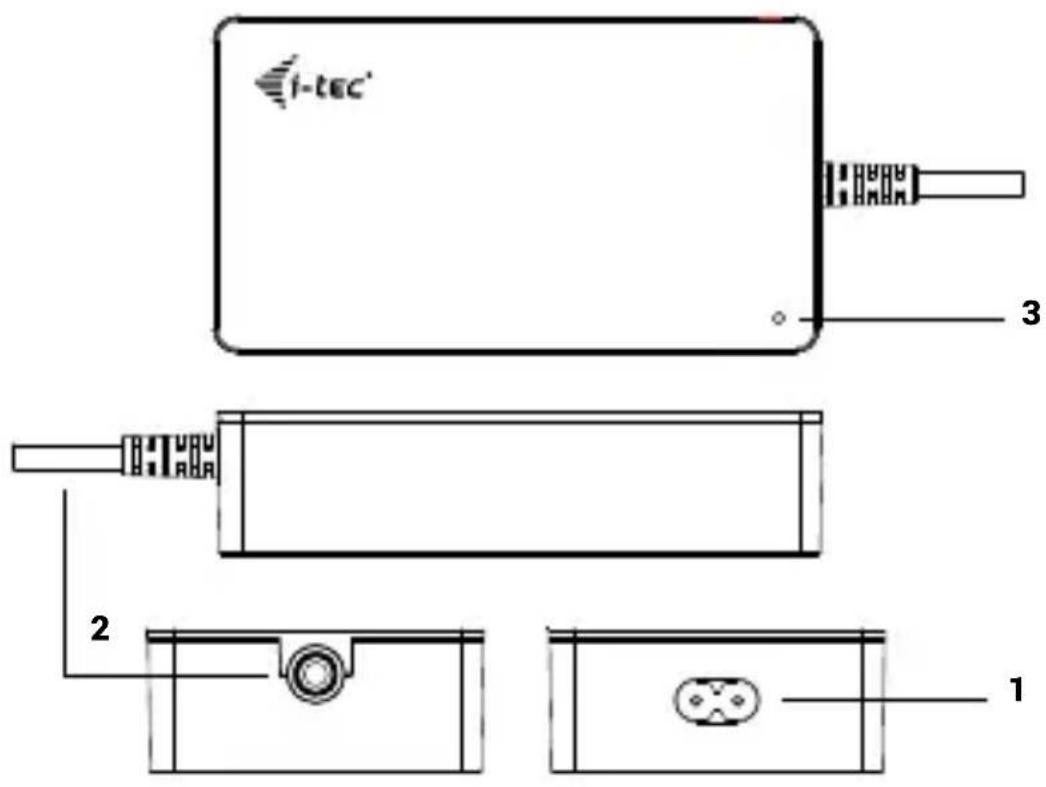
DESCRIPTION
Back side:
1- Power input
Front side:
2- USB-C Built-in Charging cable
Top side:
3- Power LED indication
CONTENTS
• i-tec Universal Charger USB-C PD 3.1 140W
• AC Power Cable (150 cm)
• USB-C power supply cable (120 cm)
- Quick Start
SPECIFICATIONS
- Input voltage AC 100-240 V, 50-60 Hz, max. 1.8 A
- Output power (max.): 140 W (for devices supporting PD 3.1 protocol)
• Efficiency: more than 83 % - USB-C output voltage: DC 5 V / 9 V / 12 V / 15 V / 20 V / 28 V
- USB-C output current: max. 5A
- USB-C Output power (max): 140W *
- Protection against current overload, overvoltage, short circuit and overheating.
- Operating temperature: 0^ - 35^
• Relative humidity: 10 % – 100 %
• Product dimensions: 127 x 70,5 x 30 mm
• Product weight: 379 g
Hardware requirements:
- Device with a free USB-C, USB4, or Thunderbolt™ 3/4 port with Power Delivery support
* If your laptop or tablet supports the new and modern USB-C Power Delivery PD 3.1 charging protocol, the charger will offer charging power up to 140W (if you have PD 3.0, the charging power will be 100W)
USING THE POWER ADAPTER
Connecting the universal adapter to the device:
- Connect the adapter to the 110/230V mains, using the supplied cable.
- Connect the USB-C cable to the USB-C port of the product that you want to charge
SAFETY INSTRUCTIONS FOR USING THE DOCKING STATION
- General safety instructions
1 Follow these safety guidelines to prevent possible damage to your computer and ensure your own safety. Unless otherwise noted, all procedures in this document assume that you have read the safety information that came with your computer. Place the device on a hard, level surface. Leave approximately 10 cm of clearance on all vented sides to allow air to flow for proper ventilation. Restricting airflow may damage the equipment or cause a fire.
2. Do not stack equipment on top of each other or place them so close together that they are exposed to recirculation or preheated air.
3. Make sure that nothing is resting on the equipment cables and that the cables are positioned so that they cannot be tripped over or stepped on.
4. Ensure that all cables are connected to the appropriate connectors. Some connectors look similar and can be easily confused (for example, do not plug the telephone cable into the power connector).
5 Do not place the device in an enclosed wall unit or on a soft fabric surface such as a bed, sofa, or carpet.
6. Keep the equipment away from heat sources.
7. Keep the equipment away from abnormally high or low temperatures so that it can operate within its operating range.
8. Do not insert objects into the vents or openings of the equipment. Failure to do so may result in fire or electric shock due to short circuit of internal components.
9. Do not use the unit in a humid environment, such as near a hot tub, near a sink, near a swimming pool, or in a damp basement.
10. Do not use mains-powered equipment during a storm. Battery-powered devices may be used if all cables are disconnected.
11 Avoid contact of liquids and food with the equipment.
12. Unplug the device from the electrical outlet before cleaning it. Clean the device with a soft cloth dampened with water. Do not use liquid or aerosol products that may contain flammable substances.
13. To avoid potential electrical shock hazards, do not connect or disconnect any cables or perform maintenance or reconfigure the equipment during a storm.
14. Before touching docking station components, ground yourself with a grounding bracelet or periodically touch an unpainted metal surface, such as the metal part on the back of the computer. While working, touch the unpainted metal surface regularly to remove any static electricity that could damage internal components.
15. When unplugging the cable, pull on the connector or grip, not the cable itself. Some cables have connectors with latches or screws that must be loosened before disconnecting the cable. When disconnecting cables, hold them straight to avoid bending the pins. When connecting cables, make sure that the ports and connectors are properly rotated and aligned.
GENERAL SAFETY INSTRUCTIONS REGARDING POWER SUPPLY
- Before connecting the equipment to an electrical outlet, check the rated voltage and make sure that the required voltage and frequency match the available power source.
- Make sure the computer, monitor, and connected devices have the proper rated electrical power to operate with the power adapter connected in your area.
- If the power cord is damaged, do not plug it into an electrical outlet.
- To avoid electric shock, plug the power cords of the equipment into properly grounded electrical outlets. If the equipment is equipped with a three-prong power cord, do not use adapter plugs that bypass the grounding function or remove the grounding element from the plug or adapter.
- If using an extension power cord, make sure that the total rated power of the products connected to it does not exceed the rated current of the extension cord.
- If you must use an extension cord or splitter, make sure that the extension cord or splitter is connected to a wall outlet and not to another extension cord or splitter. The extension cord or splitter must be designed for grounded plugs and plugged into a grounded outlet.
- If you are using a splitter with multiple outlets, be careful when plugging the power cord into the splitter. Some splitters may allow the plug to be connected incorrectly. Incorrect connection of the power plug can cause permanent damage to the equipment and may also cause a risk of electric shock or fire. Make sure that the grounding tip of the power plug is inserted into the grounding contact of the splitter.
- When unplugging the equipment from the power outlet, pull the plug, not the cord.
- Use only a power adapter supplied by i-tec technologies s.r.o. approved for use with this equipment. Use of any other power adapter may cause fire or explosion.
- If you use the power adapter to power a computer or charge a battery, place it in a ventilated area, such as on top of a desk or on the floor. Do not cover the power adapter with paper or other objects that may reduce cooling. Do not use the power adapter in its carrying case.
- The power adapter may become hot during normal operation of the docking station or computer.
- Use caution when handling the adapter during or immediately after operation.
- We recommend placing the adapter on the floor or table so that the indicator light is visible. This way you will know immediately when the adapter shuts down due to external influences. If for some reason the green light goes out, unplug the power cord from the outlet for 10 seconds and then plug it back in.
- Never use a power adapter that shows signs of damage or excessive wear
FREQUENTLY ASKED QUESTIONS
Available on our website www-i-tec.pro under "FAQ" for this product
GLOSSARY OF TERMS
Interface / port / connector / input / slot - the place where two devices are physically connected.
Controller - a semiconductor component (so-called chipset) in a notebook / tablet, ensuring the operation of one of the ports.
Thunderbolt™ - is a fast hardware interface that allows you to connect devices (peripherals) to your computer via an expansion bus. Thunderbolt combines PCI-Express and DisplayPort into a serial data interface. It allows for up to 6 additional Thunderbolt™ devices, and the transfer rate for Thunderbolt™ 3/4 is up to 40Gbit/s.
USB-C / USB Type-C / USB4 / Thunderbolt™ 3/4 - is a symmetrical connector Allows faster charging, power, dual-role (not only host but also guest), support for Alt Mode (DisplayPort, MHL, Thunderbolt 3, Power Delivery) and error notification via Billboard device.
USB-C Power Delivery (USB-C PD) - an optional feature of the USB-C connector. A connector with this support can both charge and be charged, and supports loads from 10W to 240W
USB 3.2 / 3.1 / 3.0 / 2.0 - standard for USB interface / port for connecting various USB devices. Various USB devices can be connected to the docking station or adapter using the USB Type-A interface. The USB type B port is used to connect the docking station or adapter to a laptop/tablet.
HDMI/Display Port - A standard for a digital graphics interface/port used to connect monitors and other graphic display devices.
LAN (Local Area Network) - local area network, now the most common is the so-called Ethernet, which reaches theoretical transfer speeds of up to 2.5 Gbit/s at the docking station.
Audio - a term for an audio input (microphone) or output device (headphones/speakers).
BESCHREIBUNG
Rückseite:
1- Stromeingang
Vorderseite:
This equipment is marked with the above recycling symbol. It means that at the end of the life of the equipment you must dispose of it separately at an appropriate collection point and not place it in the normal domestic unsorted waste stream. This will benefit the environment for all. (European Union only)
DEUTSCH
We declare under our sole responsibility that the above named product is in conformity with the following European Union directives:
Ing. Lumír Kraina
Executive Name and Signature, Geschäftsführer, Exécutif et signature, Nombre y firma del gerente, Amministratore, Jednatel, Konatel, Nazwisko osoby upowaznionej, Vadovas, Zaakvoerder, Chefens namn och underskrift, Nome e assinatura do executivo
FCC COMPLIANCE STATEMENT
This equipment has been tested and found to comply within the limits of a Class B digital device pursuant to Part 15 of the FCC Rules. These limits are designed to provide reasonable protection against harmful interference in a residential installation.