Pro BFG - Game controller Victrix - Free user manual and instructions
Find the device manual for free Pro BFG Victrix in PDF.


User questions about Pro BFG Victrix
0 question about this device. Answer the ones you know or ask your own.
Ask a new question about this device
Download the instructions for your Game controller in PDF format for free! Find your manual Pro BFG - Victrix and take your electronic device back in hand. On this page are published all the documents necessary for the use of your device. Pro BFG by Victrix.
USER MANUAL Pro BFG Victrix
natural_image
Black USB device with X and Y symbols, no visible text or labelsnatural_image
Black and purple handheld game controller with purple cable (no visible text or symbols)natural_image
Black and purple game controller with labeled buttons and a red circular icon (no readable text or symbols beyond branding)natural_image
Black and purple handheld game controller with a purple screwdriver, no visible text or symbols on the main device.:Tournament ∪ ∪ ∪ ∪ ∪ ∪ ∪ ∪ ∪ ∪ ∪ ∪ ∪ ∪ ∪ ∪ ∪ ∪ ∪ ∪ ∪ ∪ ∪ ∪ ∪ ∪ ∪ ∪ ∪ ∪ ∪ ∪ ∪ ∪ ∪ ∪ ∪ ∪ ∪ ∪ ∪ ∪ ∪ ∪ ∪ ∪ ∪ ∪ ∪ ∪ ∸ ∪ ∪ ∪ ∪ ∪ ∪ ∪ ∪ ∪ ∪ ∪ ∪ ∪ ∪ ∪ ∪ ∪ ∪ ∪ ∪ ∪ ∪ ∪ ∪ ∪ ∪ ∪ ∪ ∪ ∪ ∪ ∪ ∪ ∪ ∪ ∪ ∪ ∪ ∪ ∪ ∪ ∪ ∪ ∪ ∪ ∪ ∪ ∪ ∪ ∩
natural_image
Close-up of a mechanical component with a highlighted circular area containing a pink dot (no text or symbols visible)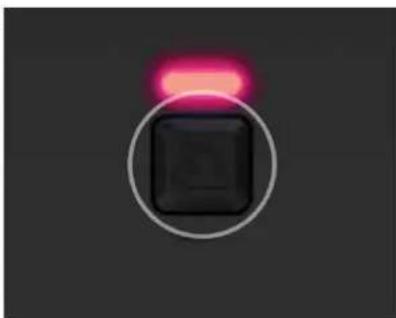
natural_image
Simple black square button with a glowing pink highlight on top, enclosed in a white circle (no text or symbols)- يرمجة أزرار الرجوع:
natural_image
Close-up of a black square button with purple highlight, next to a close-up of its four buttons (no text or symbols visible)natural_image
Three black square buttons with purple, blue, and green gradient lights on a dark background (no text or symbols)natural_image
Black and purple game controller with labeled buttons (X, Y, B, A) and a red circular icon on the left side (no readable text or symbols beyond branding)natural_image
Close-up of a VR headset showing front and side views with purple arrows indicating motion (no text or symbols)natural_image
Black and purple handheld gaming controller with purple handle and control buttons (no visible text or symbols)- : ط إعدادات الصوت
natural_image
Two technical diagrams showing a striped object with a bright orange spot and a cross-shaped component (no text or symbols):Dolby Atmos .13
natural_image
Close-up of a black button with a purple highlight on a gray surface (no text or symbols visible)natural_image
Close-up of a car's seatbelt with visible branding and mounting bracket (no text or symbols)- تغير البوابات:
natural_image
Two metallic gear washers with hexagonal end caps, shown against a black background (no text or symbols)- شحن البطارية
natural_image
Black and purple handheld game controller with purple scroll cable (no text or symbols visible):Victrix Control Hub 18.
natural_image
Black USB device with X-shaped ports and a purple indicator light (no text or symbols visible)natural_image
Black and purple handheld game controller with purple cable (no visible text or symbols)natural_image
Black Sony controller with purple handle and control buttons, no visible text or symbols on the device itselfnatural_image
Black and purple Victrix game controller with a purple screwdriver, no visible text or symbols on the main device.natural_image
Close-up of a mechanical component with a highlighted circular area containing a pink dot, no visible text or symbols.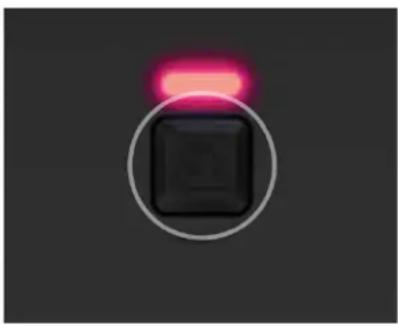
natural_image
Simple black square button with pink highlight on dark background (no text or symbols)natural_image
Close-up of a black square button with purple highlight, next to a close-up of two dark rectangular buttons (no text or symbols visible)natural_image
Three black square buttons with purple, blue, and green gradient lights on a dark background (no text or symbols)natural_image
Black and purple Gaming controller with visible buttons and a red circular mark on the left (no readable text or symbols)natural_image
Close-up of a car interior showing a closed lid and seat, with purple arrows indicating motion or movement (no text or symbols)natural_image
Black and purple handheld gaming controller with purple action buttons and a glowing 'X' logo (no text or symbols on device)natural_image
Close-up of a black padlock with a highlighted orange spot and a plus button (no text or symbols)13. Dolby Atmos:
natural_image
Close-up of a purple action button with glossy effect (no text or symbols visible)natural_image
Close-up of a car's seat with a stylized 'S' logo on the side (no text or symbols visible)natural_image
Two metallic gear washers with hexagonal end caps, shown against a black background (no text or symbols)natural_image
Black and purple handheld game controller with purple scroll cable (no text or symbols visible)18. Victrix Control Hub App:
1. Using the Pro BFG™ in Wireless Mode:
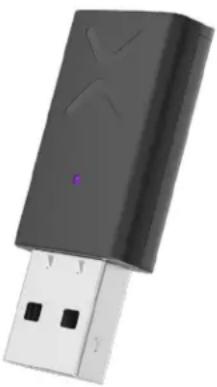
A. To use the Pro BFG™ in Wireless Mode, start by plugging the included Wireless USB Dongle into your Xbox Series X|S, Xbox One, or Windows 10/11 PC. The LED on the dongle will begin flashing purple.
B. To turn the controller on, press the Xbox Button on the front of the Pro BFG.
C. The LED ring around the controller's Xbox button and the LED light on the dongle will be solid purple to indicate the two are paired.
D. To turn off the controller, press and hold the Xbox Button for 6 seconds until the purple LED around the Xbox button turns off.
Note: If the controller becomes unresponsive and cannot be powered off normally, press and hold the Xbox Button for 12 seconds to force a hard reset.
natural_image
Black USB device with X-shaped ports and a purple indicator light (no text or symbols visible)2. Wireless Pairing Troubleshooting
A. If you encounter an issue pairing the controller, start by plugging in the dongle into the USB port on your console/PC
B. Use a paperclip or pin to press and hold the internal connect button, located on the side of the USB dongle, until the LED blinks rapidly.
C. With the Pro BFG controller turned on, press and hold the Profile button on the back of the controller until the dongle LED and LED ring on the controller's Xbox button turns solid purple.
3. Using the Pro BFG in Wired Mode:
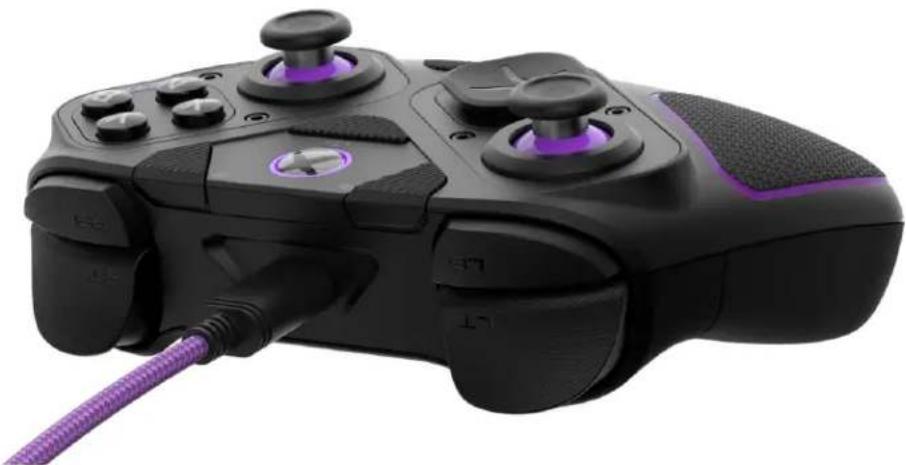
A. To use the Pro BFG in Wired Mode, plug the included USB-C cable into the USB-C port on the top of the controller, and the other end into your Xbox Series X|S, Xbox One, or Windows 10/11 PC.
B. To connect to the console or PC, press the Xbox Button on the front of the controller.
natural_image
Black and purple game controller with purple grip and cable, no visible text or symbols4. Using the Pro BFG in Bluetooth Mode:
A. To use the Pro BFG in Bluetooth Mode, turn on the controller by pressing the Xbox button.
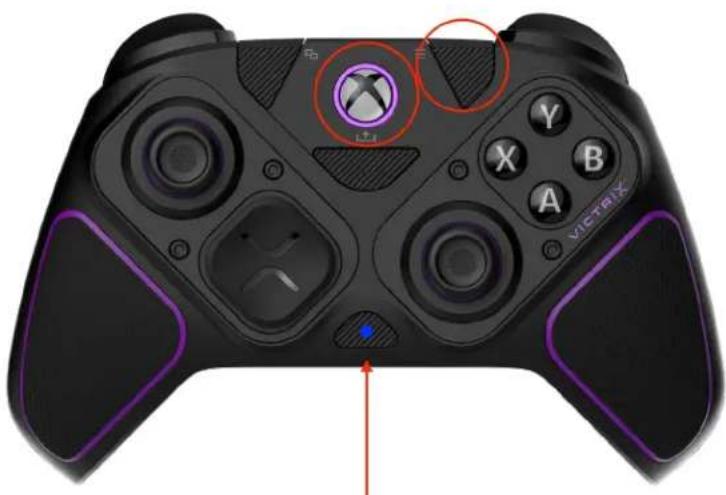
B. Next, press and hold the Xbox and Menu buttons together for 4 seconds until you see the "Function" button LED (located on the front of the controller above the 3.5mm jack) begin flashing Blue.
C. Once the LED is flashing Blue, release the buttons and go to the Bluetooth pairing screen on your supported Bluetooth Device and select "Victrix Pro BFG" to connect.
D. The Function button LED will turn off and the LED ring on the controller's Xbox button will turn solid purple to indicate it has successfully paired to your Bluetooth device.
Note: Your controller will remain in Bluetooth mode until you change it back to Xbox mode by pressing and holding the Xbox and Menu buttons again for 4 seconds until the Function button LED flashes Green.
natural_image
Black and purple game controller with labeled buttons and a red circular icon on the front (no readable text or symbols beyond branding)5. Removing/Swapping Modules:
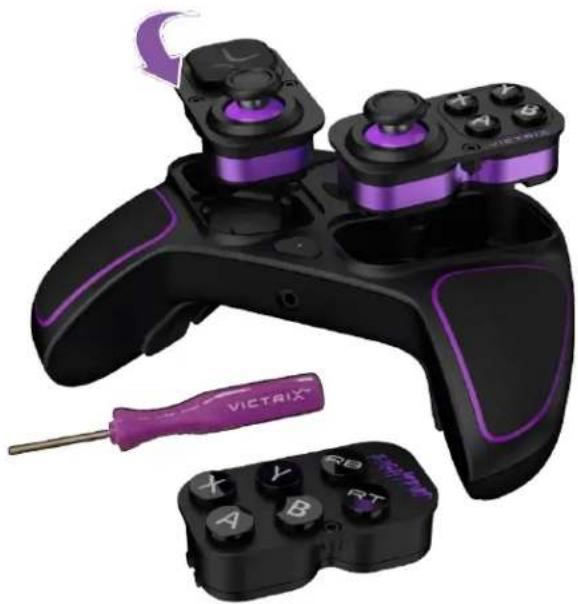
The Pro BFG has a unique design with swappable modules. The controller comes standard with a Reversible D-pad and Left Analog Stick module, a Button & Right Analog Stick module, and a 6-Button Fightpad module. The following instructions can be used to remove and swap any modules including additionally purchased ones:
A. To swap out a module, use the included module swap tool (found inside the carrying case) and turn the hex-screws counterclockwise a few times. Repeat until both sides of the module are unscrewed (Note: The hex-screws are magnetically held into the module and will not fully remove from the unit).
B. Once the hex screws are loose in the module, gently pull the unit out of the controller, or tip the controller over to remove.
C. Place your desired module into the controller, then use the module swap tool to screw the hex-screws in clockwise, until the module is secure.
D. The Left D-Pad and Analog Stick module can be rotated 180° to choose between a standard Xbox offset sticks layout, or side-by-side stick layout (Note: It is recommended to recalibrate your Pro BFG after swapping the Left Module layout. Follow the steps in section 10 for Recalibration).
E. The Right Button and Stick module can be removed and replaced with the 6-button Fightpad module for fighting games.
natural_image
Black and purple Victaix game controller with a screwdriver, no visible text or symbols on the main device.6. Tournament Lock Mode:
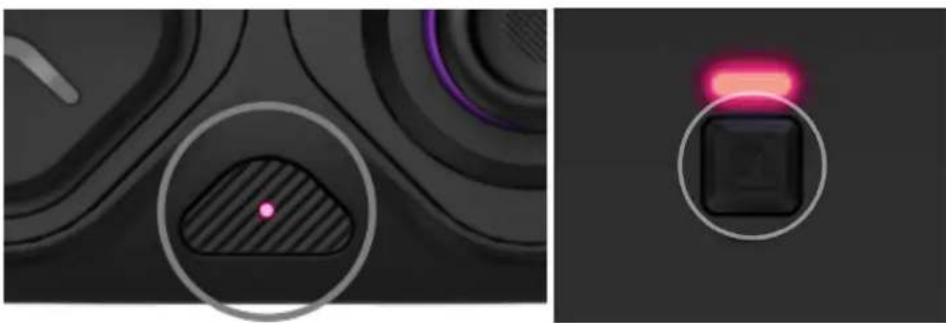
The Pro BFG has a special “Tournament Lock” Mode to prevent accidental presses of system buttons that can disqualify you during tournaments. When Tournament Lock Mode is enabled, the Xbox, View, Menu, Share, Function, and Profile Button inputs will all be disabled.
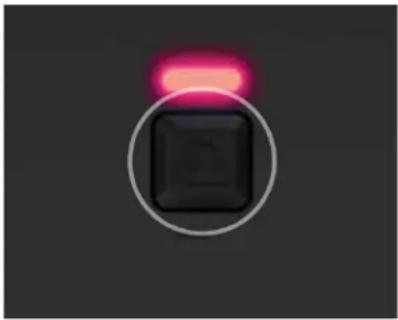
A. To enable Tournament Lock Mode, quickly press and release the "Function" Button (on the front of the controller, above the audio jack) and the "Profile" Button (in the middle on the back of the controller) simultaneously. The Function LED and Profile LED will illuminate dimly in Red and blink every few seconds to indicate it is in Tournament Lock Mode.
B. To deactivate Tournament Lock Mode, quickly press and release the "Function" Button (on the front of the controller, above the audio jack) and the "Profile" Button (in the middle on the back of the controller) simultaneously.
natural_image
Close-up of a black square button with a red highlight and a circular inset showing a striped pattern (no text or symbols)7. Programming the Back Buttons:
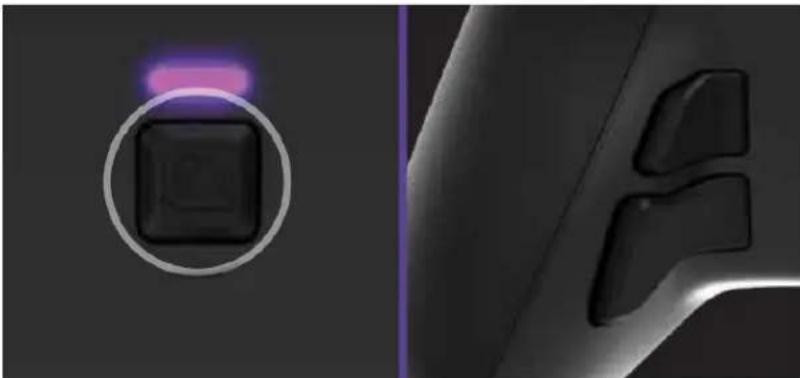
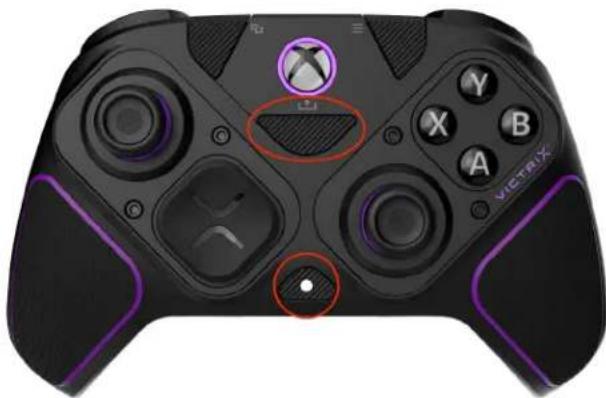
A. To program the back buttons, hold the "Profile" button on the back of the controller and press the back button you would like to map an input to. Once the LED is flashing, press any button on the controller to map that button's function to the selected back button. The LED will blink quickly 3 times indicating successful programming.
B. To clear or disable a back button, hold the "Profile" button and double press the back button you wish to disable. The LED will blink quickly 3 times indicating successful clearing.
C. You can also program the back buttons, as well as other buttons, in the Victrix Control Hub app, available on your console or PC in the Microsoft Store.
natural_image
Close-up of a black square button with purple highlight, next to a close-up of its three button (no text or symbols visible)8. Creating Custom Profiles:
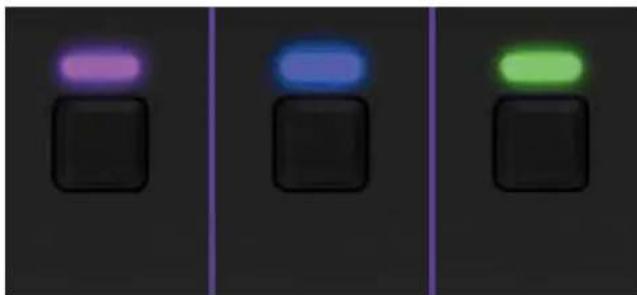
Three custom profiles of back button mappings can be stored on the Pro BFG controller.
A. To save a button mapping profile, follow the steps outline in the Programming the Back Button Section. When mapping inputs to the back buttons, the "Profile" LED will blink in the color of the currently active Profile (either Purple, Blue, or Green).
B. To toggle between your 3 saved profiles, press and release the "Profile" button on the back of the controller. The "Profile" LED will illuminate in Purple, Blue, or Green to indicate which Profile is active.
natural_image
Three black square buttons with purple, blue, and green gradient lights on a dark background (no text or symbols)9. Toggling SOCD Modes
The Pro BFG has a default SOCD mode adhering to the current Capcom® ruleset where UP + DOWN = NEUTRAL.
A. You can toggle to the legacy SOCD Mode where UP + DOWN = UP by pressing and holding the Function and Share buttons for 3 seconds.
natural_image
Black and purple Gaming controller with labeled buttons (X, Y, B) and a red circular highlight on the left side (no readable text or symbols beyond branding)10. Adjusting the Trigger Stops:
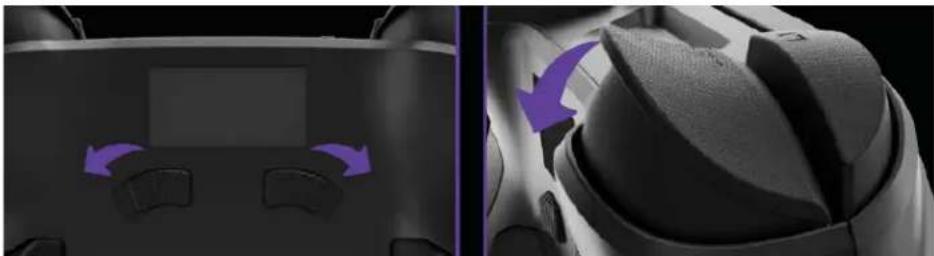
The Pro BFG controller features our patented Clutch Trigger™ mechanism with 5 trigger stop settings, and "Hair Trigger" mode.
A. To adjust the trigger stop, press and hold the Clutch Sliders on the back of the controller, then depress the trigger to the desired stopping position. Release the Clutch Slider to set the trigger stop to your selected position.
B. To set the triggers to "Hair Trigger" mode for the fastest response and minimal travel distance, press and release the Clutch Sliders without touching the triggers. The triggers will now operate as a digital button.
Note: The Function LED will illuminate Yellow when the left clutch trigger is being adjusted, Turquoise for the right clutch trigger, and Green if both left and right are being adjusted simultaneously.
natural_image
Close-up of a VR headset showing front and side views with purple arrows indicating motion (no text or symbols)11. Recalibrating the Controller:
It is recommended to recalibrate your controller after swapping the Left Module layout, or if you are experiencing issues with the Analog Sticks.
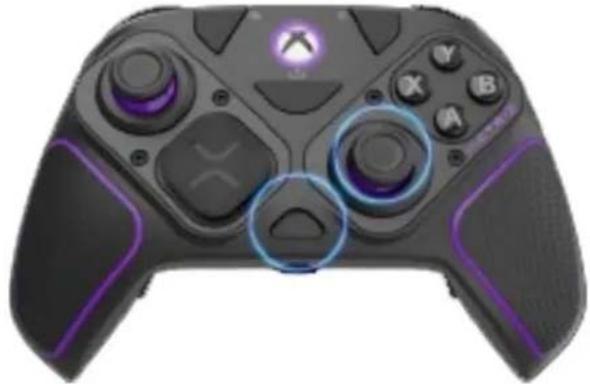
A. To recalibrate your controller, power on and connect your controller to the Xbox Series X|S, Xbox One, or Windows 10/11 PC (either in Wired or Wireless modes).
B. Hold the Function button while simultaneously pressing either the Left Stick Button (LSB) or Right Stick Button (RSB), then releasing. The Function LED will start blinking purple to indicate it is in calibration mode.
C. Rotate the selected Analog Stick 3 times in full 360° circles then release to the idle center position.
D. Press the Function button to complete the calibration. The LED will stop blinking.
E. Recalibrating the controller's sticks can also be done through the Victrix Control Hub app, available on your console or PC in the Microsoft Store.
natural_image
Close-up of a black and purple PlayStation 3.2 controller with glowing buttons and control panels (no visible text or symbols)12. Adjusting Audio Settings:
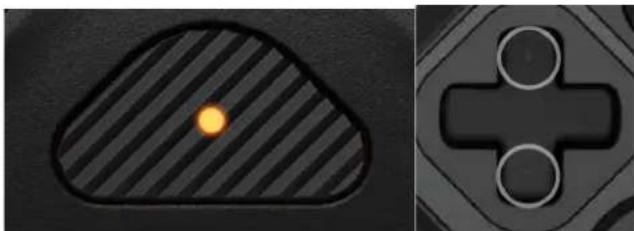
A. To adjust the game volume, hold down the "Function" button and press Up/Down on the D-pad
B. To adjust the Game/Chat balance, hold down the "Function" button and press Left/Right on the D-pad.
C. Cycle through different audio mode profiles by holding down the "Function" button and pressing LB/RB. The LED on the "Function" button will cycle between Purple (Pure Audio), Blue (Bass Boost), or Green (Treble Boost) to indicate the profile.
D. To mute your microphone, press the "Function" button twice; the LED will illuminate Amber.
E. You can make additional audio adjustments with the Victrix Control Hub app, available on your console or PC in the Microsoft Store.
natural_image
Two grayscale images: one showing a striped circular shape with a bright orange dot, the other showing a plus button with three circles (no text or symbols)13. Dolby Atmos:
The Pro BFG controller comes with a lifetime subscription for Dolby Atmos for spatial, surround sound gaming.
A. After connecting your Pro BFG controller to the Xbox console (in Wired or Wireless mode), there will be a popup on the bottom of your screen informing you that Dolby Atmos is available and to hold the Xbox button to activate in settings.
B. Follow the instructions on screen to complete the set up.
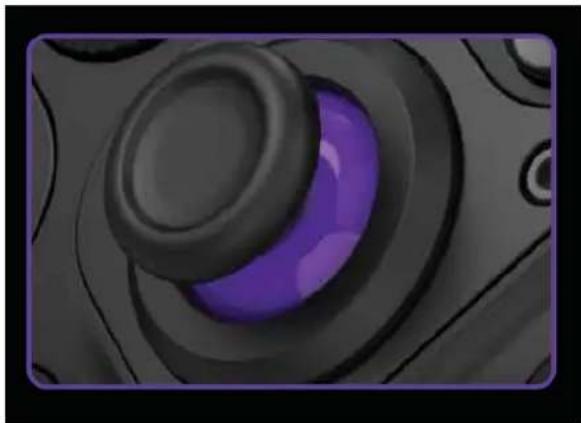
14. Changing the Analog Stick Caps:
The Pro BFG includes 4 analog stick caps (2 standard concave, 1 short convex, 1 tall Sniper Stick).
A. To remove the analog stick cap, firmly pull up on the analog stick to remove it from the controller.
B. To install the analog stick cap, align the mounting neck and press down until it clicks securely into place.
natural_image
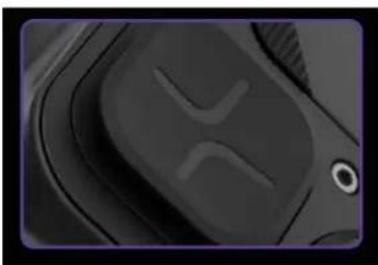
Close-up of a purple action button with glossy finish (no text or symbols visible)- Changing the D-pad:
A. To remove a D-pad, hold it between two fingers and gently pull the D-Pad cover off.
B. To add a D-pad, line it up with the controller and gently push down until you hear a click.
natural_image
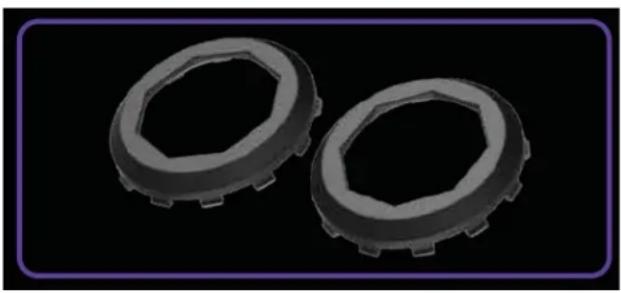
Close-up of a car's seatbelt with a circular button and abstract markings (no text or symbols)- Changing the Gates:
A. Remove the Module you wish to change the analog stick gate on (follow directions for Removing/Swapping Modules).
B. To remove a gate, flip the module plate over (so the back is facing you) and press firmly on the back side of the gate with your thumb: the gate should pop out.
C. When adding a gate, first make sure the front of the module plate is facing you. Then, line up the small alignment dot on the gate to the alignment dot on the module plate (octagonal gate only), and press down firmly until it clicks in around the whole gate.
natural_image
Two metallic gear washers with hexagonal end caps, shown against a black background (no text or symbols)17. Charging the Battery
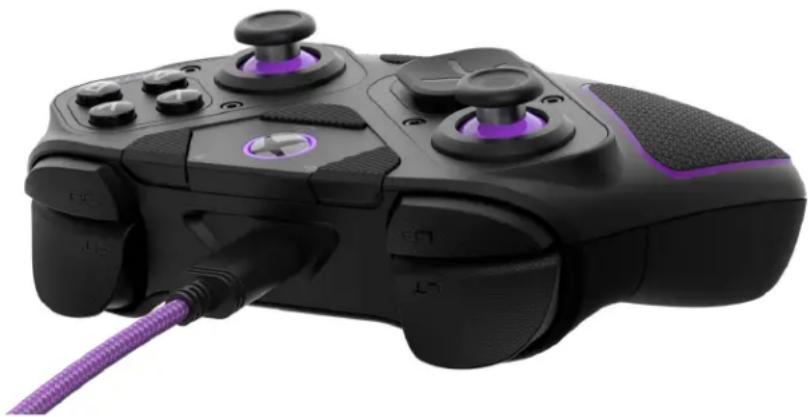
The Pro BFG can be used in both Wired and Wireless/Bluetooth modes and includes a rechargeable Lithium-Ion battery.
A. To recharge your controller, connect the included USB-C Cable to the USB-C port on the controller, and the other end into your Xbox Series X|S, Xbox One, or Windows 10/11 USB Port.
B. The purple LED ring around the Xbox button will light up and begin fading in and out to indicate it is charging.
C. Once fully charged, the LED ring will remain solid and on.
D. When your controller reaches a low battery level, the LED ring will begin flashing quickly to warn you of the low battery.
E. When the battery level is critically low, an audible warning tone will play every minute through a connected headset.
natural_image
Black and purple handheld game controller with purple scroll cable (no text or symbols visible)18. Victrix Control Hub App:
The Pro BFG controller is compatible with the Victrix Control Hub app. With the free app, you can map buttons, recalibrate sticks and triggers, adjust deadzones and EQ settings, run diagnostics, update firmware, and more.
A. To use the Victrix Control Hub app, go to the Microsoft Store on your console or PC and search for "Victrix Control Hub."
B. Once downloaded and open, you will be prompted to plug in a compatible Victrix controller.
C. When you plug in a controller for the first time, you will be required to update your firmware to the latest version available.
D. Once the update is complete, you may use the app to customize your Pro BFG even further.
Español
natural_image
Black USB device with X-shaped ports and a purple indicator light (no text or symbols visible)natural_image
Black and purple handheld game controller with purple cable (no text or symbols visible)natural_image
Black and white game controller with purple handle and control buttons, no visible text or symbols on the device itselfnatural_image
Black and purple game controller with a VICTAIX screwdriver, no visible text or symbols on the main device.natural_image
Close-up of a mechanical component with a highlighted circular area containing a pink dot (no text or symbols visible)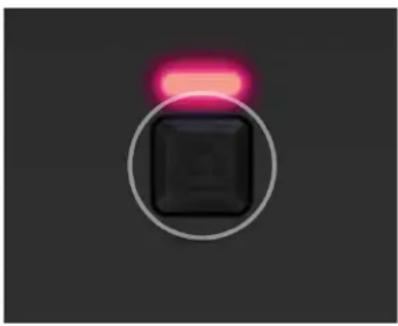
natural_image
Close-up of a black square button with a pink highlight on top, set against a dark background (no text or symbols)natural_image
Close-up of a black square button with purple highlight, next to a close-up of its three button (no text or symbols visible)natural_image
Three black square buttons with purple, blue, and green gradient lights on a dark background (no text or symbols)natural_image
Black and purple Gaming controller with visible buttons and a red circular mark on the left (no readable text or symbols)natural_image
Close-up of a car interior showing a closed lid and seat, with purple arrows indicating motion or movement (no text or symbols)natural_image
Black and purple handheld gaming controller with purple action buttons and a white X/Y key (no text or symbols visible)natural_image
Two technical diagrams showing a shaded irregular shape and a black cross-shaped component with circular holes (no text or symbols)13. Dolby Atmos:
natural_image
Close-up of a black button with a purple highlight on a gray surface (no text or symbols visible)15. Cambio del D-pad:
natural_image
Close-up of a car's seat with a stylized 'S' logo on the side (no text or symbols visible)natural_image
Two metallic gear washers with hexagonal end caps, shown against a black background (no text or symbols)natural_image
Black and purple handheld game controller with purple cable connector (no visible text or symbols)natural_image
Black USB device with X-shaped ports and a purple indicator light (no text or symbols visible)natural_image
Black and purple handheld game controller with purple cable connector (no visible text or symbols)natural_image
Black Viatrix game controller with purple grip and control buttons (no readable text or symbols beyond branding)natural_image
Black and purple game controller with a VICTAIX screwdriver, no visible text or symbols on the main device.natural_image
Close-up of a mechanical component with a highlighted circular area containing a pink dot (no text or symbols visible)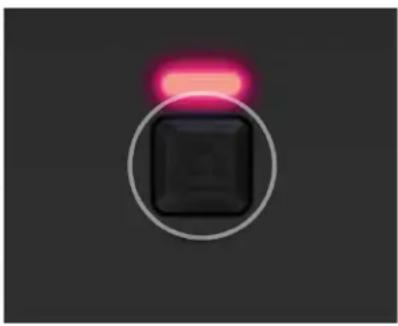
natural_image
Black square button with pink highlight on dark background (no text or symbols)natural_image
Close-up of a black square button with purple highlight, next to a close-up of its three button (no text or symbols visible)natural_image
Three black square buttons with purple, blue, and green gradient lights on a dark background (no text or symbols)natural_image
Black and purple Gaming controller with visible buttons and a red circular highlight on the left side (no readable text or symbols beyond branding)natural_image
Close-up of a VR headset showing front and side views with purple arrows indicating motion (no text or symbols)natural_image
Black and purple handheld gaming controller with control buttons and glowing screen (no visible text or symbols)natural_image
Close-up of a black padlock with a highlighted orange spot and a plus button (no text or symbols)13. Dolby Atmos :
natural_image
Close-up of a purple action button on a black surface, no text or symbols visiblenatural_image
Close-up of a car's seat with a stylized 'S' logo on the side (no text or symbols visible)natural_image
Two metallic gear washers with hexagonal end caps, shown against a black background (no text or symbols)natural_image
Black and purple handheld game controller with purple cable connector (no visible text or symbols)18. Application Victrix Control Hub :
natural_image
Black USB device with X-shaped label and purple indicator lights (no visible text or symbols)natural_image
Black and purple handheld game controller with purple scroll cable (no text or symbols visible)natural_image
Black and purple game controller with no visible text or symbols on the device surfacenatural_image
Black and purple handheld game controller with a purple screwdriver, no visible text or symbols on the main device.natural_image
Close-up of a black square button with a red highlight, alongside a circular inset showing a striped pattern (no text or symbols)natural_image
Close-up of a black square button with purple highlight, next to a close-up of its three button (no text or symbols visible)natural_image
Three vertical panels showing a black square button with purple, blue, and green lights against a dark background (no text or symbols)natural_image
Black and purple game controller with labeled buttons and a red circular highlight (no readable text or symbols beyond branding)natural_image
Close-up of a VR headset showing front and side views with purple arrows indicating motion (no text or symbols)natural_image
Front view of a black and purple PlayStation 8 controller with multiple scroll buttons and a glowing logo (no text or symbols visible)natural_image
Two abstract shapes: a striped rounded rectangle with a bright orange dot and a black plus sign with three circles (no text or symbols)13. Dolby Atmos :
natural_image
Close-up of a black action button with purple highlight, no visible text or symbolsnatural_image
Close-up of a car's seat panel with a stylized 'X' logo (no text or symbols visible)natural_image
Two metallic gear washers with hexagonal cutouts, shown against a black background (no text or symbols)natural_image
Black and purple handheld game controller with purple scroll cable (no text or symbols visible)18. Application victrix control hub :
natural_image
Black USB device with X-shaped ports and a purple indicator light (no text or symbols visible)natural_image
Black and purple handheld game controller with purple scroll cable (no text or symbols visible)natural_image
Black and purple game controller with labeled buttons and a red circular icon on the top (no readable text or symbols beyond branding)natural_image
Black and purple game controller with a VICTRIX screwdriver, no visible text or symbols on the main device.natural_image
Close-up of a mechanical component with a highlighted circular area containing a pink dot (no text or symbols visible)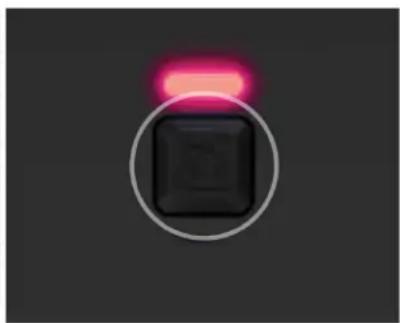
natural_image
Simple black square button with pink highlight on dark background (no text or symbols)natural_image
Close-up of a black square button with purple highlight, next to a close-up of its three button (no text or symbols visible)natural_image
Three black square buttons with purple, blue, and green gradient lights on a dark background (no text or symbols)natural_image
Black and purple game controller with labeled buttons (X, Y, A, B) and a red circular icon on the left side (no readable text or symbols beyond branding)natural_image
Close-up of a black VR headset with purple directional arrows indicating motion or movement (no text or symbols)natural_image
Close-up of a black and purple handheld game controller with multiple scroll buttons and a glowing logo (no readable text or symbols)natural_image
Close-up of a black padlock with a highlighted orange spot and a plus button (no text or symbols)13. Dolby Atmos:
natural_image
Close-up of a purple action button on a black surface, no text or symbols visiblenatural_image
Close-up of a car's seat panel with a stylized 'V' logo (no text or symbols visible)natural_image
Two metallic gear washers with hexagonal end caps, shown against a black background (no text or symbols)natural_image
Black and purple handheld game controller with purple scroll wheel, shown from side profile (no text or symbols visible)18. App Victrix Control Hub:
natural_image
Black USB device with X-shaped label and purple indicator lights (no visible text or symbols)natural_image
Black and purple handheld game controller with purple scroll cable (no text or symbols visible)natural_image
Black Viatrix game controller with purple handle and control buttons, no visible text or symbols on the device itselfnatural_image
Black and purple game controller with a VICTRIX screwdriver, no visible text or symbols on the main device.natural_image
Close-up of a mechanical component with a highlighted circular area containing a pink dot (no text or symbols visible)