Pro KO Leverless Fight Stick - Game controller Victrix - Free user manual and instructions
Find the device manual for free Pro KO Leverless Fight Stick Victrix in PDF.


User questions about Pro KO Leverless Fight Stick Victrix
0 question about this device. Answer the ones you know or ask your own.
Ask a new question about this device
Download the instructions for your Game controller in PDF format for free! Find your manual Pro KO Leverless Fight Stick - Victrix and take your electronic device back in hand. On this page are published all the documents necessary for the use of your device. Pro KO Leverless Fight Stick by Victrix.
USER MANUAL Pro KO Leverless Fight Stick Victrix
Leverless Fight Stick for Xbox
Quick Start Guide
TBF-2001-05

For:
Xbox consoles
"Xbox Series X|S", "Xbox One", and "Windows 10/11"
are trademarks of the Microsoft group of companies.
English
François
Espanol
Deutsch
Japanese
Korean
English
WHAT'S IN THE BOX
- Victrix Pro KO Leverless Fight Stick
- 3m Braided USB-C Cable
- USB Breakaway Cable
- Switch Puller Tool
- Protective Sleeve
CONNECTING THE PRO KO
A. Release the cable lock by sliding the switch on the back of the Pro KO to the unlocked position until the door opens
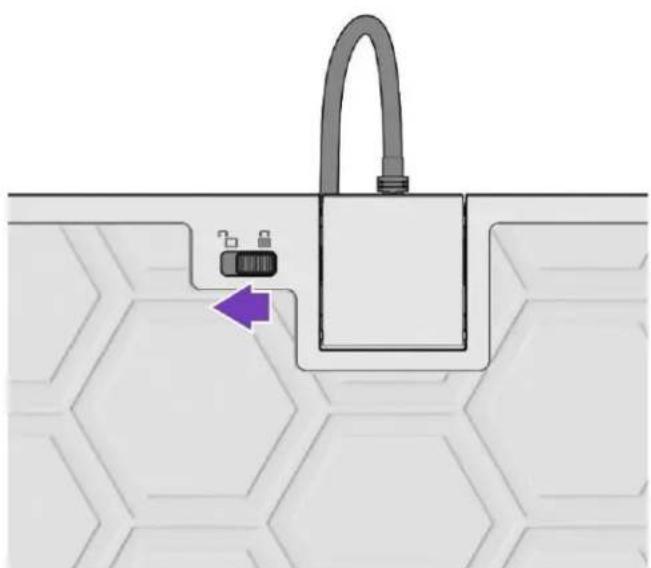
B. Insert the included USB-C Cable into the USB-C port on the Pro KO
C. Close the door to lock your cable in place (you do not need to slide the switch, just close the door)
D. Plug the USB-A end of the cable into your Xbox Console or PC
WARNING: The USB-C Cable is securely locked into place and will not unplug if the cable is pulled or tripped on. You may choose to use the included breakaway cable to allow the USBC Cable to detach from the Pro KO and prevent damage to your Xbox console if the cable gets pulled. To do so, insert the breakaway cable into the USB-C port on the Pro KO, close the door, then insert the 3m USB-C Cable into the end of the breakaway cable.
REMOVING THE TOP COVER
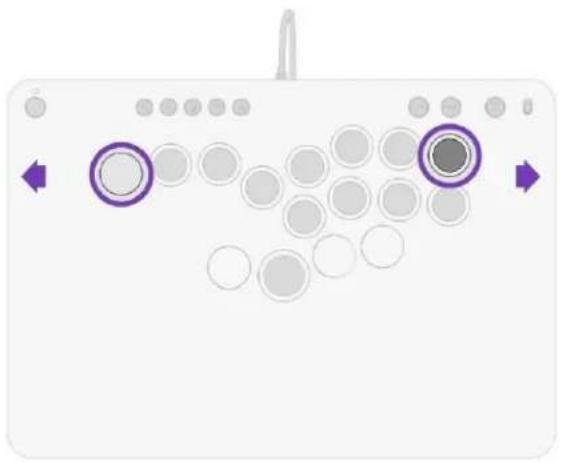
A. Slide all 4 security switches on the back of the Pro KO inward to release the locking tabs
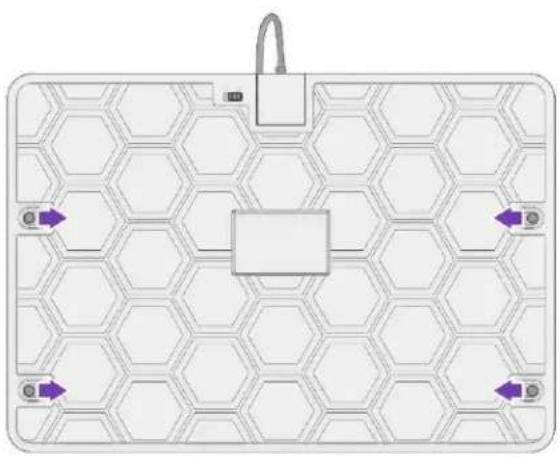
B. Put your thumbs on the 2 outmost buttons on the top of the Pro KO, grab both sides of the top plate with your pointer/middle fingers, and firmly pull up. NOTE: Both the Left and Right side of the top cover need to be pulled up simultaneously to remove the top cover.
REMOVING BUTTONS
A. Remove Top Cover
B. Locate and remove the Switch Puller Tool from its storage location
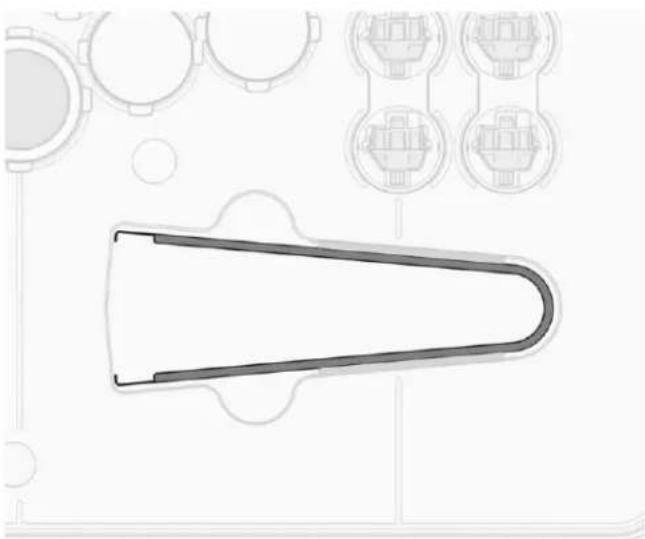
C. Place the Switch Puller around the debossed area of the Light Ring on the button you wish to change, and firmly pull up
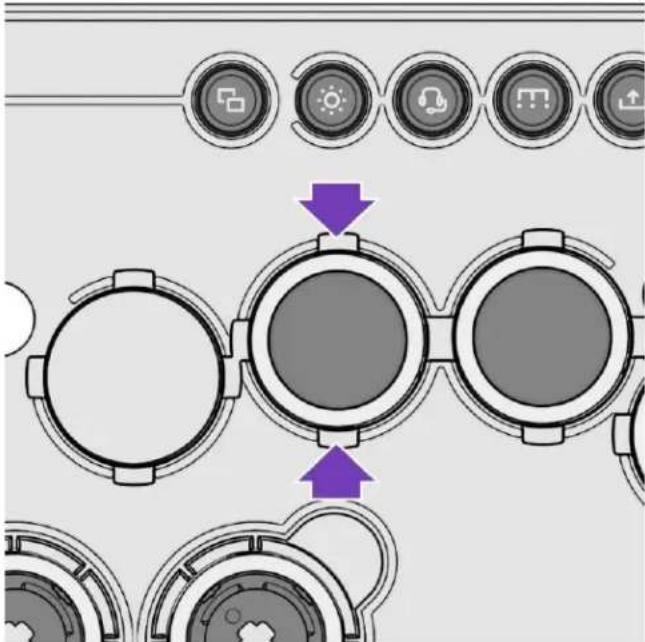
D. Remove the Button Cap with the Switch Puller
E. Remove the Switch by placing the Switch Puller around the debossed area and firmly pull up

F. Place the Switch in the dedicated storage area, being mindful to avoid damaging the metal contact pins under the switch.
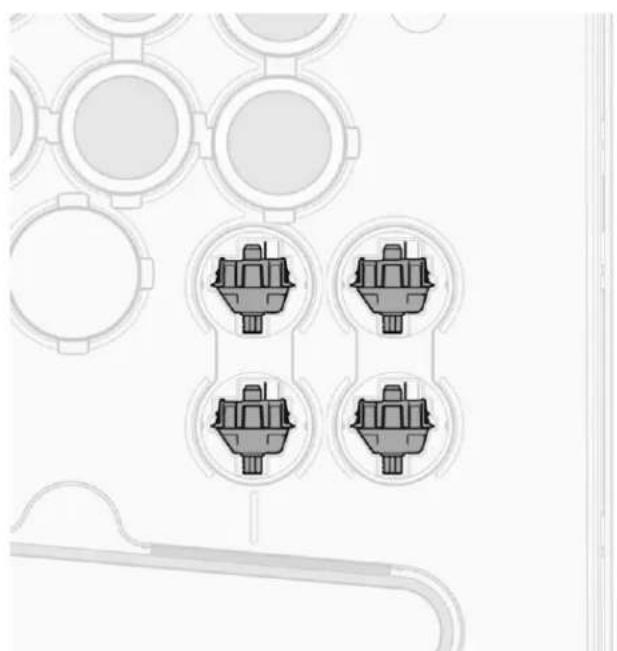
G. Remove the aluminum Button Plug from the storage area and snap it into place of the Switch that was just removed
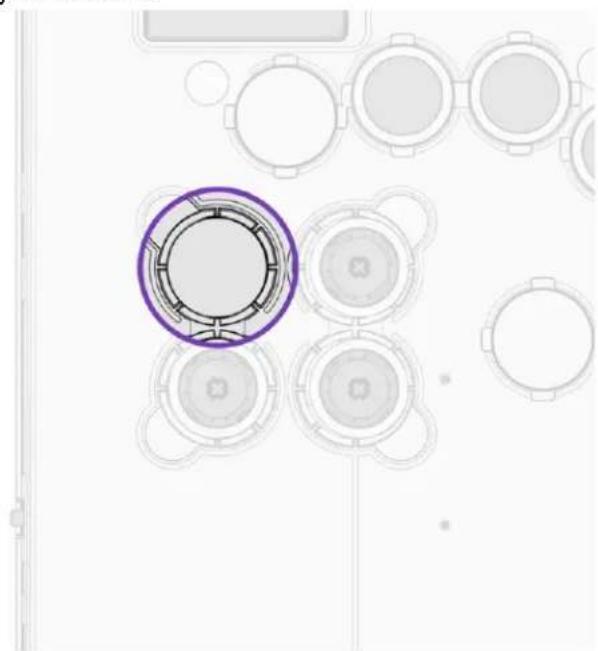
H. Place the Button Cap upside down in the storage area to secure it
I. Place the Light Ring feet into the holes around the upside-down Button Cap to secure in place.
ADDING BUTTONS
A. Remove Top Cover
B. Locate and remove the Switch Puller Tool from its storage location
C. Place the Switch Puller around the aluminum Button Plug you wish to remove, and firmly pull up.
D. Locate the additional Switch from the storage area and take note of the pin placement on the bottom of the Switch to carefully align the pins when inserting into the Pro KO.
E. Locate the Button Cap from the storage area, align and press it onto the Switch.
F. Locate the Light Ring from the storage area, place it over the Button Cap, align the feet and firmly press into place.
AUDIO CONTROLS
A. Plug a headset into the 3.5mm Headset Jack on the left side of the Pro KO
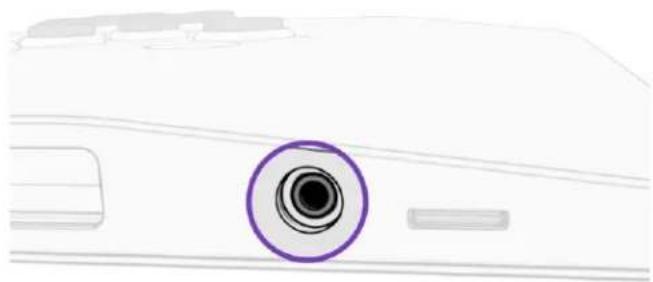
B. Hold the Audio Button and push the UP or DOWN Direction Buttons to adjust the volume Up or Down.
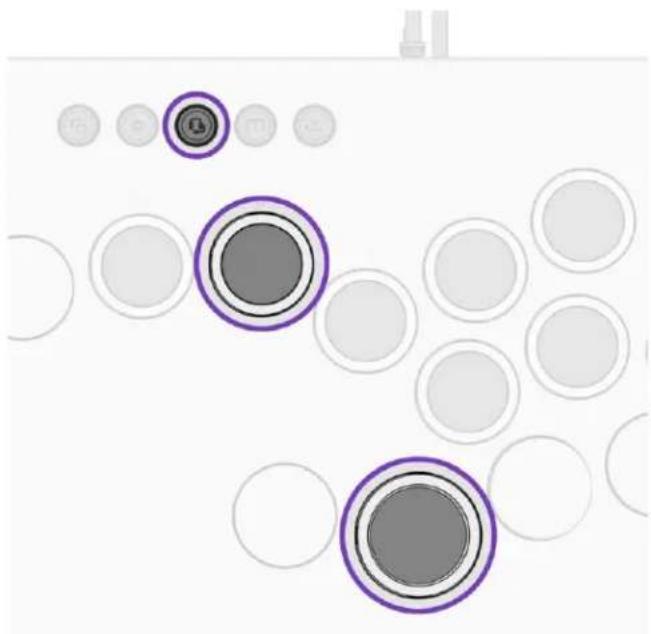
C. Hold the Audio Button and push the LEFT or RIGHT Direction Buttons to adjust the Game/Chat Balance. (More Game = Left, More Chat = Right).
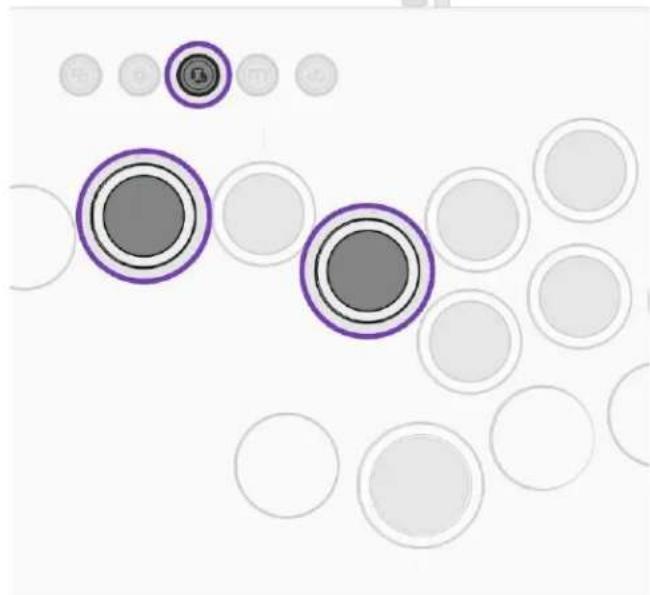
D. Double Tap the Audio Button to Mute/Unmute your mic. An audible tone will play to indicate the mic has been muted or unmuted.
LIGHTING CONTROLS
A. Tap the Ligh5ng Button to cycle between 4 preset Lighting Modes. i. Static Breathing Prismatic OFF
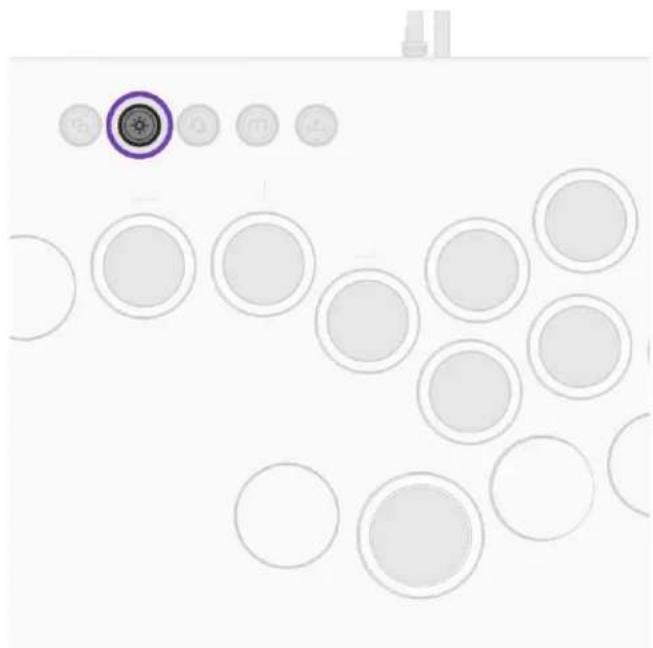
B. Hold the Lightning Button and hold the LEFT or RIGHT Direction Buttons to select the LED color (only when in Static or Breathing Modes).
MAPPING ADDITIONAL BUTTONS
A. Hold the Function Button and press the desired button to be mapped i. The LED on the button being mapped will start blinking white
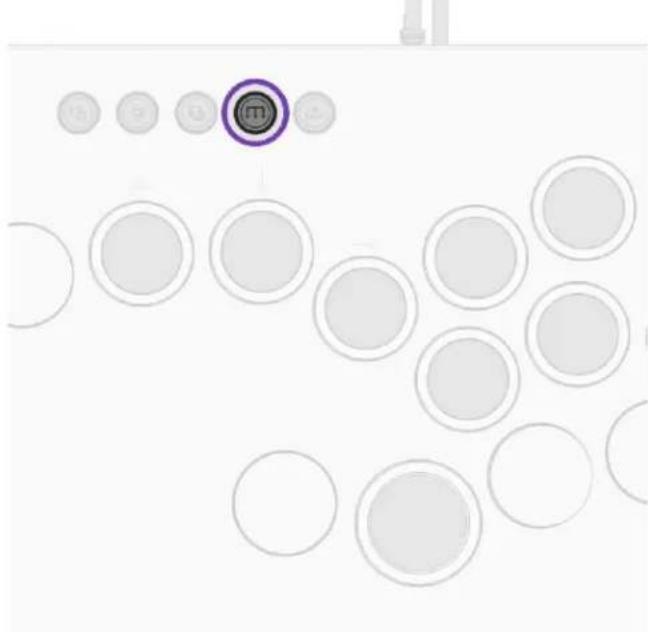
B. Press the button you want the new button to be mapped to
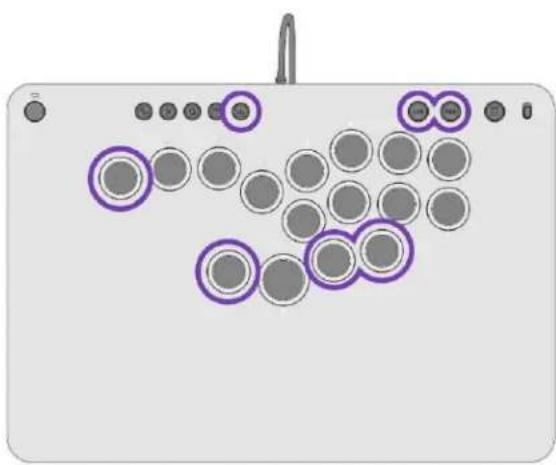
i. The LEDs will blink quickly a few times indicating successful mapping NOTE: Only the 4 additional buttons and the LSB / RSB Buttons can be remapped
DISABLING ADDITIONAL BUTTONS
A. Hold the Function Buttons and double tap the button you wish to disable i. The LEDs will quickly blink a few times indicating it has been disabled ii. Only the 4 additional buttons can be disabled iii. Performing this process on the LSB / RSB Buttons will reset to default (LSB / RSB)
SOCD CLEANING
A. Press and hold the Function Button, then press and release the SHARE Button to toggle between 2 SOCD Modes.
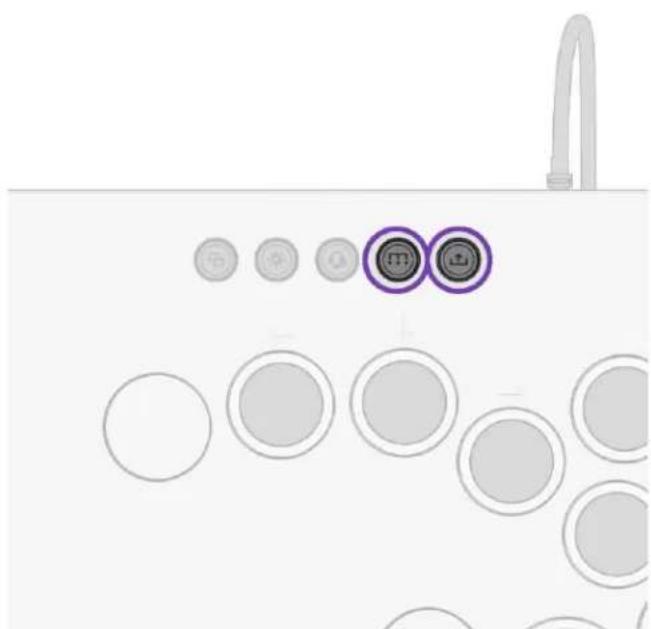
B. The UP and DOWN Direction Button LEDs will quickly blink to indicate the selected mode
i. BLUE LED: Neutral SOCD (UP + DOWN = Neutral, LEFT + RIGHT = Neutral)
a. This is the default mode
ii. RED LED: Up Priority SOCD (UP + DOWN = UP, LEFT + RIGHT = Neutral)
TOURNAMENT LOCK MODE
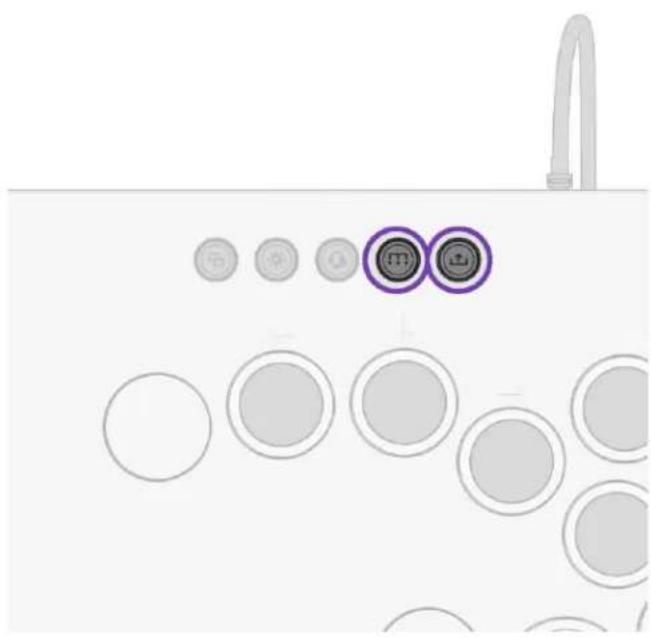
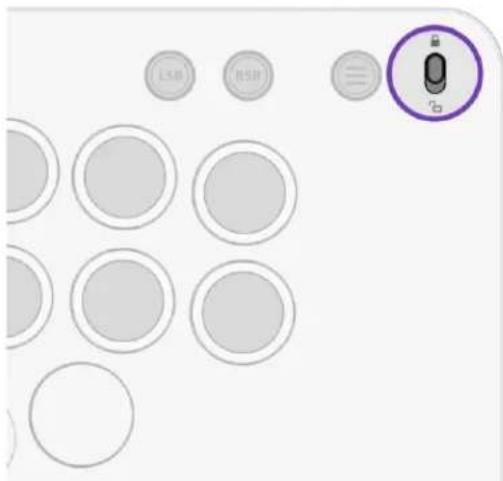
A. The Tournament Lock Switch disables all buttons on the upper menu bar (XBOX Button, VIEW, LIGHTING, AUDIO, FUNCTION, SHARE, LSB, RSB, MENU Buttons) to prevent accidental presses and disqualifica5on during tournaments.
B. Slide the Tournament Lock Switch UP to the lock position to disable the menu bar buttons or slide the switch DOWN to the unlocked position for normal operation.
DIRECTION BUTTON MODE
A. The Direction Buttons are set to D-Pad input by default
B. To change the Direction Buttons to act as Left Analog Stick, hold the Function Button and press the LEFT Direction.
i. The 4 Direction Buttons will flash green to indicate Left Analog Stick Mode
C. To change the Direction Buttons to act as Right Analog Stick, hold the Function Button and press the RIGHT Direction.
i. The 4 Direction Buttons will flash red to indicate Right Analog Stick Mode
D. To change the Direction Buttons back to the default D-Pad input, hold the Function Button and press the UP or DOWN Direction.
i. The 4 Direction Buttons will flash blue to indicate default D-Pad Mode
FACTORY RESET
A. To perform a Factory Reset of your Pro KO, simultaneously press and release the VIEW, FUNCTION, and MENU buttons.
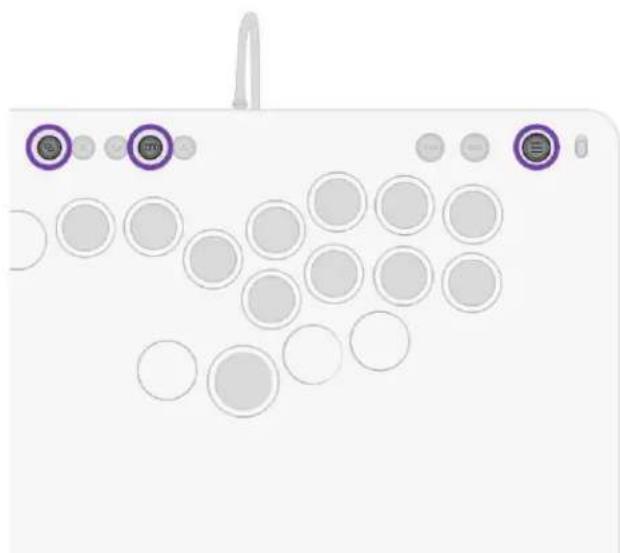
B. The LEDs will flash to Prismatic Mode before returning to default Static Purple to indicate a successful reset
NOTE: Performing the Factory Reset will reset your lighting configuration, audio settings, button mapping, SOCD cleaning mode, and your direction button mode.
François
CONTENU DE LA BOITE
- Victrix Pro KO Leverless Fight Stick
Cable tressé USB-C de 3 m
Cable USB detachable - Outil d'extraction de commutateur
- Manchon de protection
CONNEXION DU PRO KO
i. BLAUE LED: Neutrales SOCD (AUF + RUNTER = Neutral, LINKS + RECHTS = Neutral)
X. USB-A code of the hong kong Xbox Konkung Joint PC
图:USB-C端口的连接情况
- 能用把词到“到”变成“到”,如:The students were happy to take the test.