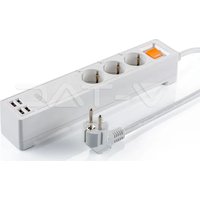
VT-5018 - Smart Home V-TAC - Free user manual and instructions
Find the device manual for free VT-5018 V-TAC in PDF.


| Product Type | Smart plug |
| Brand | V-TAC |
| Model | VT-5018 |
| Connectivity | Wi-Fi 2.4 GHz |
| App | eWeLink (iOS and Android) |
| Voice Assistants | Amazon Alexa, Google Assistant |
| Main Functions | Remote control, scheduling, timer, access sharing, scenes |
| Power Supply | 230 V AC, 50 Hz |
| Maximum Load | 10 A (2,300 W) |
| Dimensions | Approx. 5 x 5 x 5 cm |
| Weight | Approx. 50 g |
| Protection Rating | IP20 (indoor use) |
| Material | Flame-retardant plastic |
| Maintenance and Cleaning | Unplug before cleaning, use a soft dry cloth |
| Safety | Do not immerse in water, use in a dry place, avoid overloads |
| Spare Parts and Repairability | Not user-serviceable, no spare parts available |
| Warranty | 2 years against manufacturing defects |
| General Information | Indoor use only, operating temperature: 0-40 °C |
Frequently Asked Questions - VT-5018 V-TAC
User questions about VT-5018 V-TAC
0 question about this device. Answer the ones you know or ask your own.
Ask a new question about this device
Download the instructions for your Smart Home in PDF format for free! Find your manual VT-5018 - V-TAC and take your electronic device back in hand. On this page are published all the documents necessary for the use of your device. VT-5018 by V-TAC.
USER MANUAL VT-5018 V-TAC
works with amazon alexa
works with the Google Assistant
02 YEAR WARRANTY®
INTRODUCTION & WARRANTY
Thank you for selecting and buying V-TAC Product. V-TAC will serve you the best. Please read these instructions carefully before starting the installation and keep this manual handy for future reference. If you have any other query, please contact our dealer or local vendor from whom you have purchased the product. They are trained and ready to serve you at the best.
The warranty is valid for 2 years from the date of purchase. The warranty does not apply to damage caused by incorrect installation or abnormal wear and tear. The company gives no warranty against damage to any surface due to incorrect removal and installation of the product.
(FR) INTRODUCTION & GARANTIE
(PL) WSTEP I GWARANCJAD
(RO) INTRODUCERE, GARANTIA
Download eWeLink APP by via APP Store Google Play Store (OR) Scan the below QR code to download the eWeLink APP, FAQ

GOOGLE PLAY

IOS

FAQ

MULTI-LANGUAGE MANUAL
INSTALLATION
WARNING!
- Please make sure to turn off the power before starting the installation.
- Must be installed by professional electrician.
This marking indicates that this product should not be disposed of with other household wastes.
Caution, risk of electric shock.
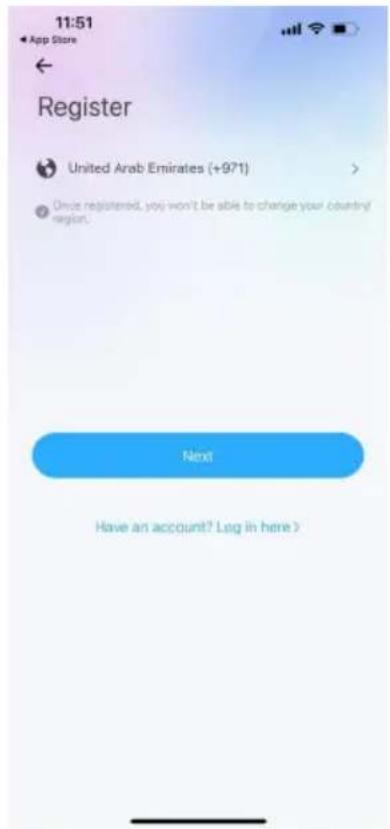
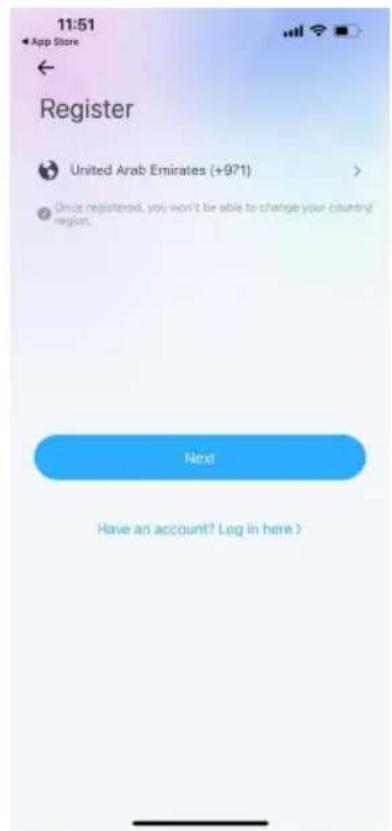
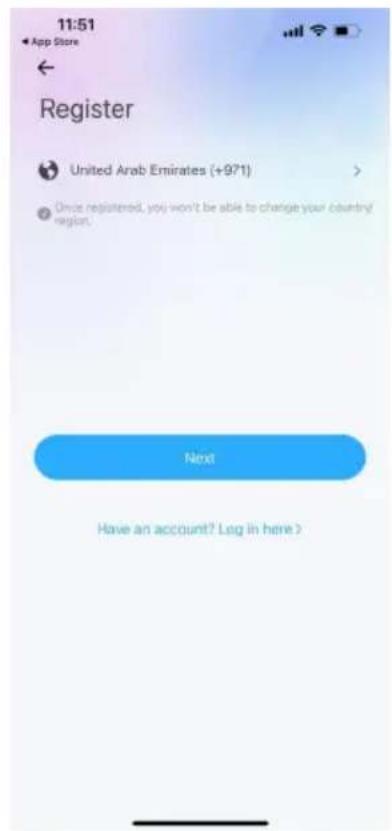
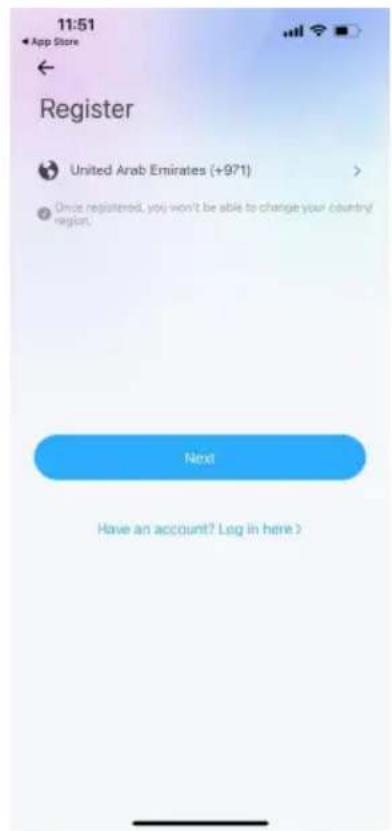
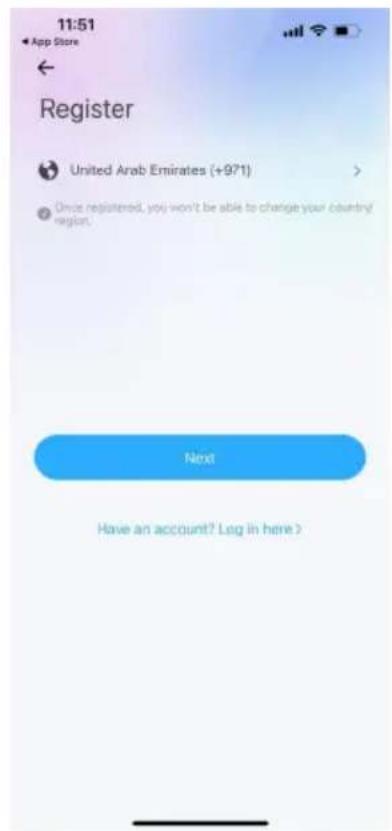
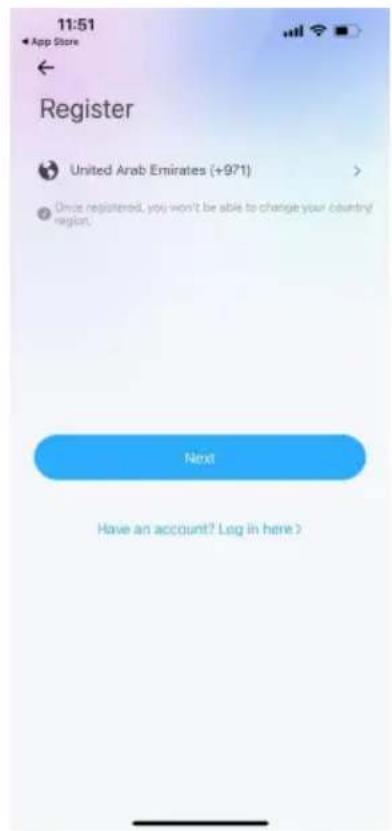
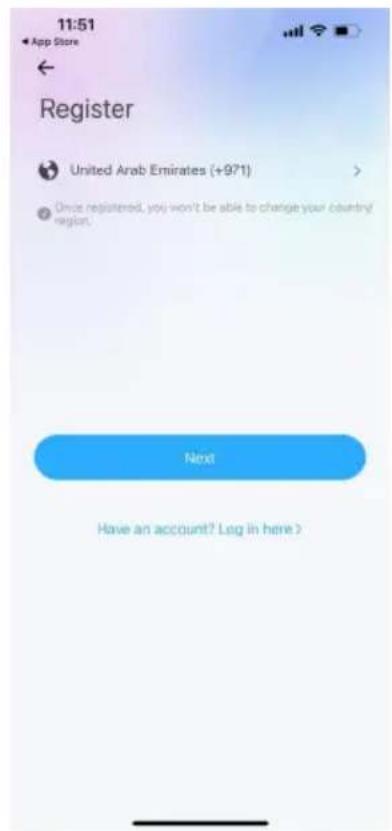
Step 1: Open the eWeLink App and register. If you already have an existing account with eWeLink, please proceed to logging in.
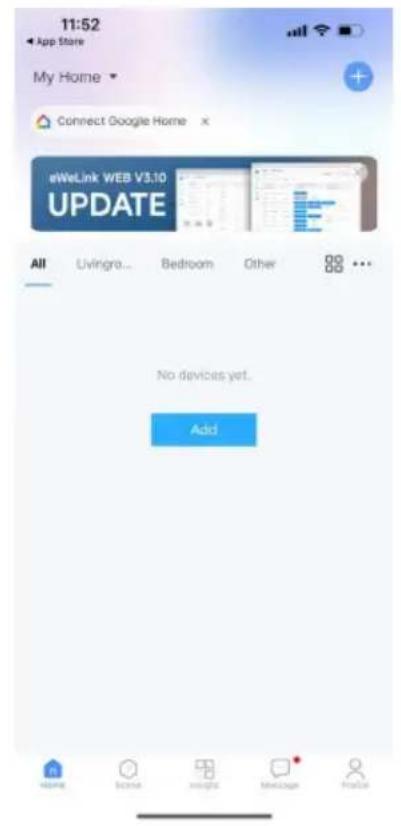
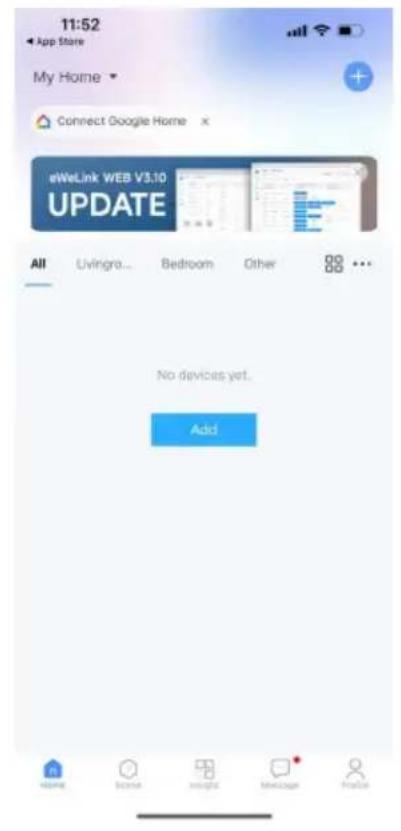
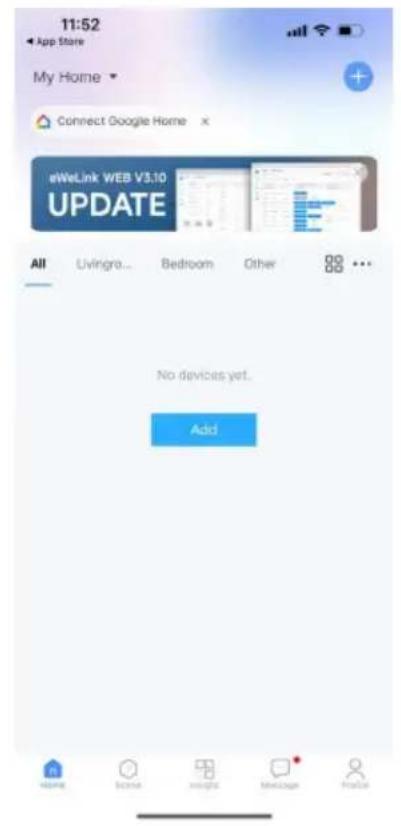
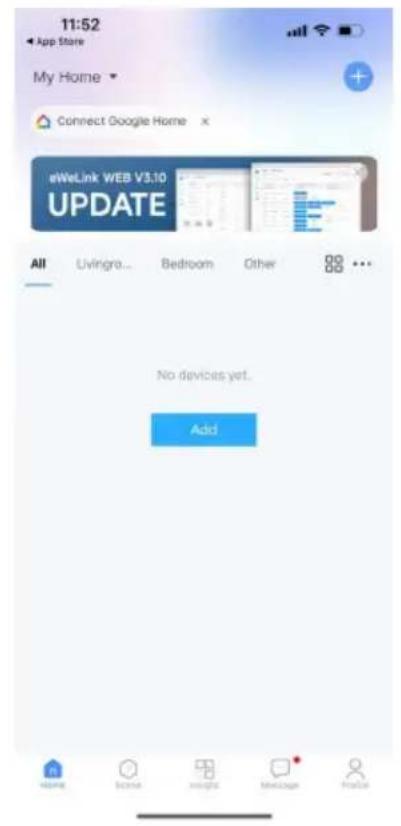
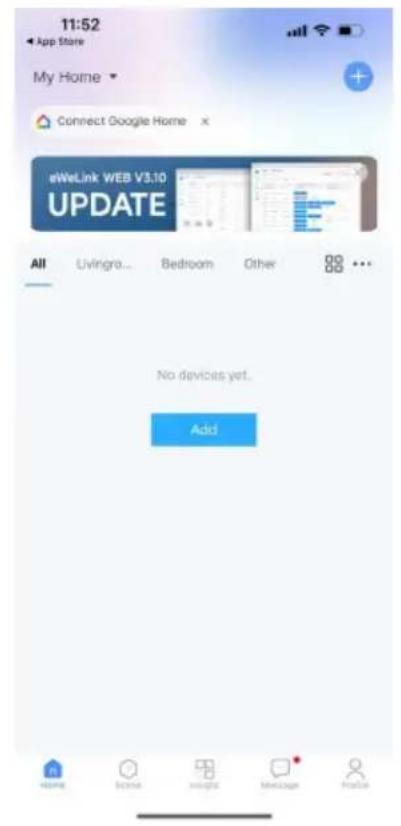
Step 2: To Add a New device tap on the “+” sign(as shown)
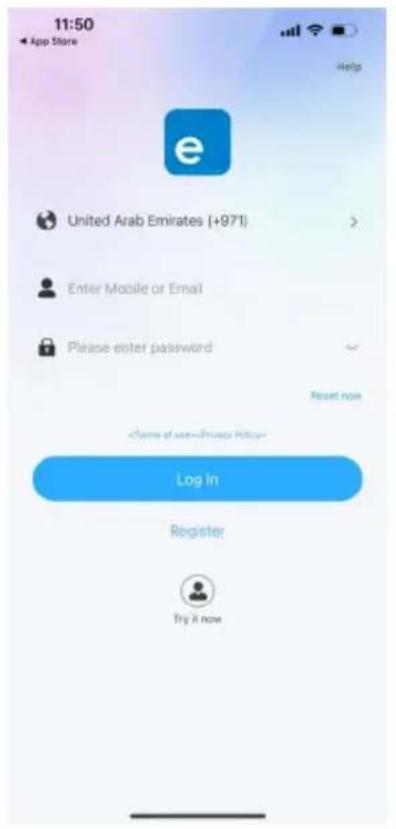
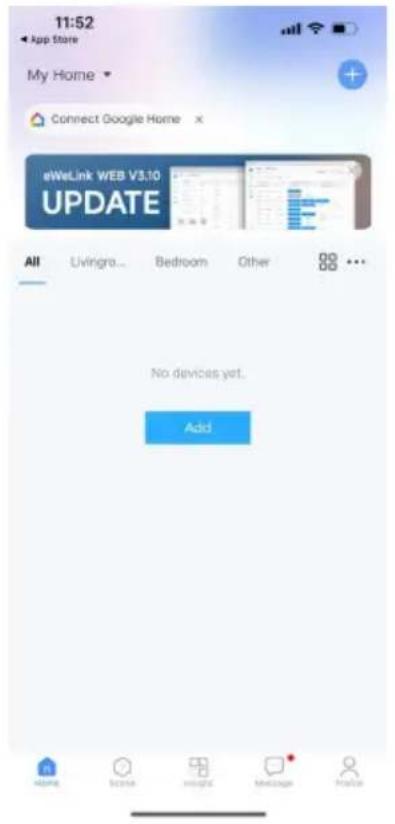
Step 3: Make sure your Smart device is powered ON
1) Tap and hold on the power button for 6 seconds to make the device available in pairing mode.
Once in pairing mode the LED will start blinking 3 times repeatedly.
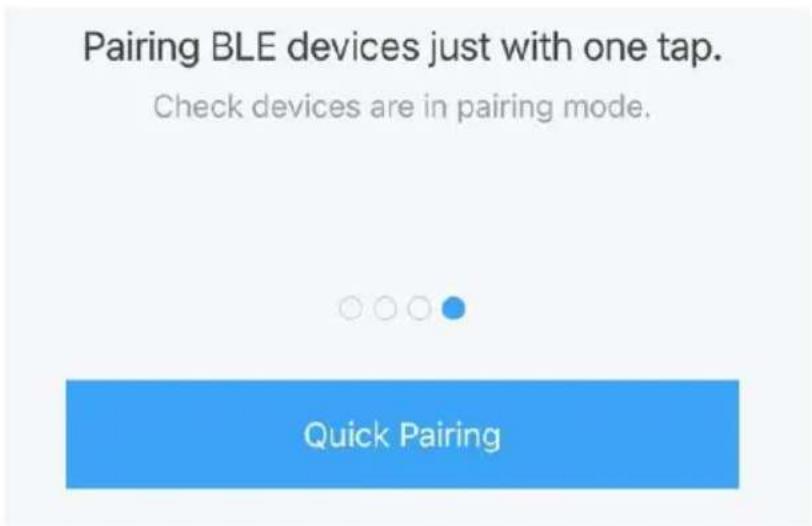
2) Tap on Next to start the pairing of device with the app. (Shown in the image)
Note: If you are facing any trouble while pairing in Quick Pairing mode please try to pair the device in Compatible Pairing Mode (Click on the link as shown on the image).
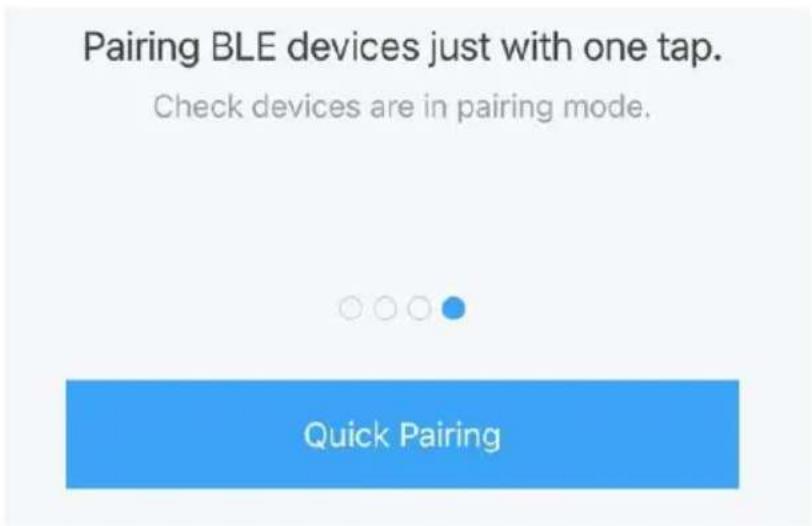
Step 4: Select your Wifi name and enter the password and tap on Next.
Step 5: Give a name to your device (Ex: Smart Plug/ smart switch) & tap on complete.
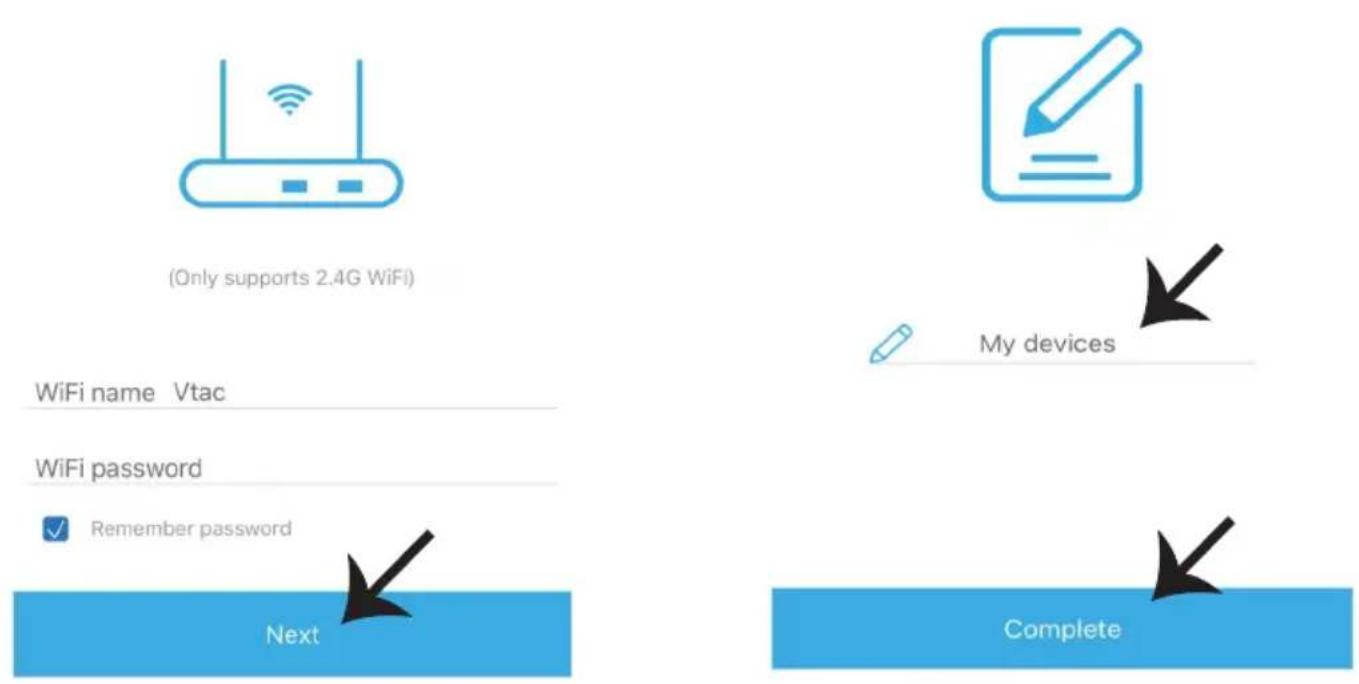
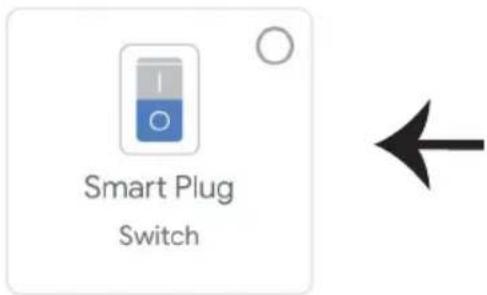
Step 6: Your device is now paired and will appear (Ex: as shown in the below image).
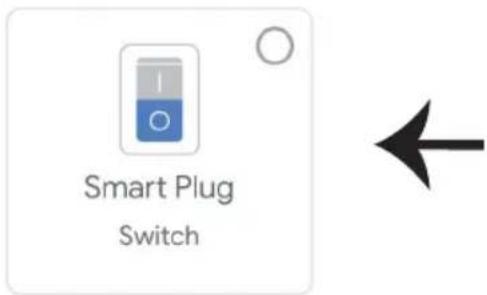
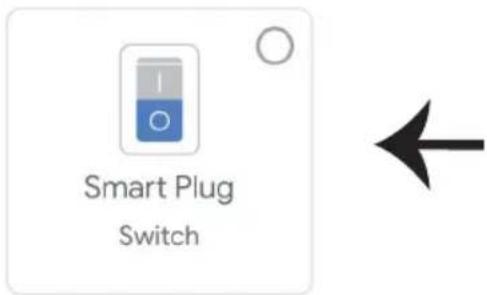
a) To turn the device ON/OFF tap on the ON/OFF icon(as shown in the below image).
b) To enter more settings of the Smart device tap on the Name(Ex: Smart Plug as shown below)
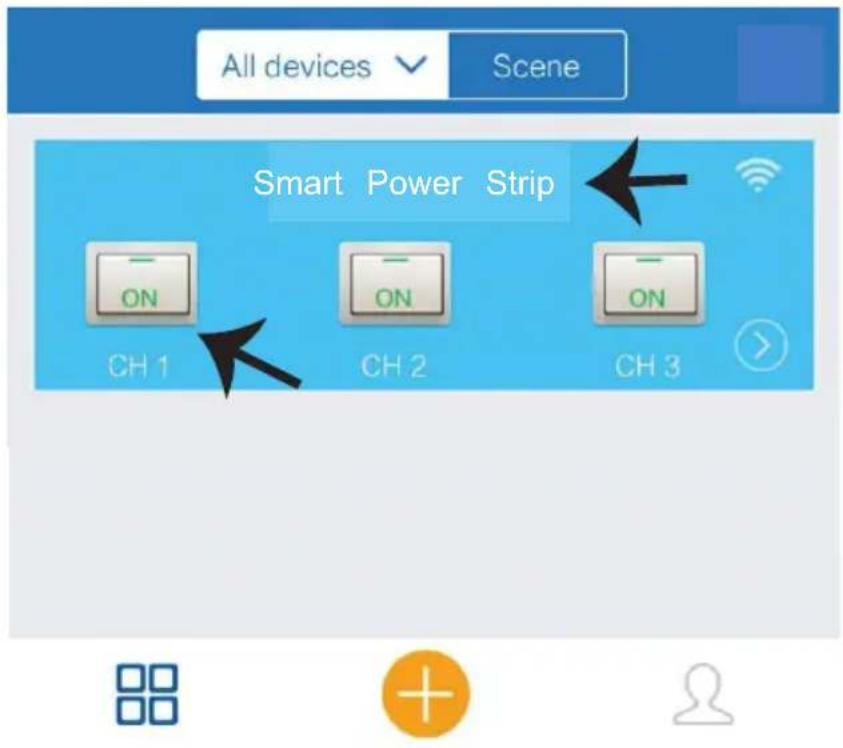
Step 7: eWeLink device is designed to support multiple features:
a) Share: This function allows you to share the access with another user.
b) Schedule: Schedule timer allows you to turn the device ON/OFF with flexibility of choosing date and time. This feature also allows Repeat Mode using which you can set the desired configuration to daily or any day of the week.
c) Timer: Timer function allows you to set "day-hour-minute" using which you can schedule the device to switch the device ON/OFF.
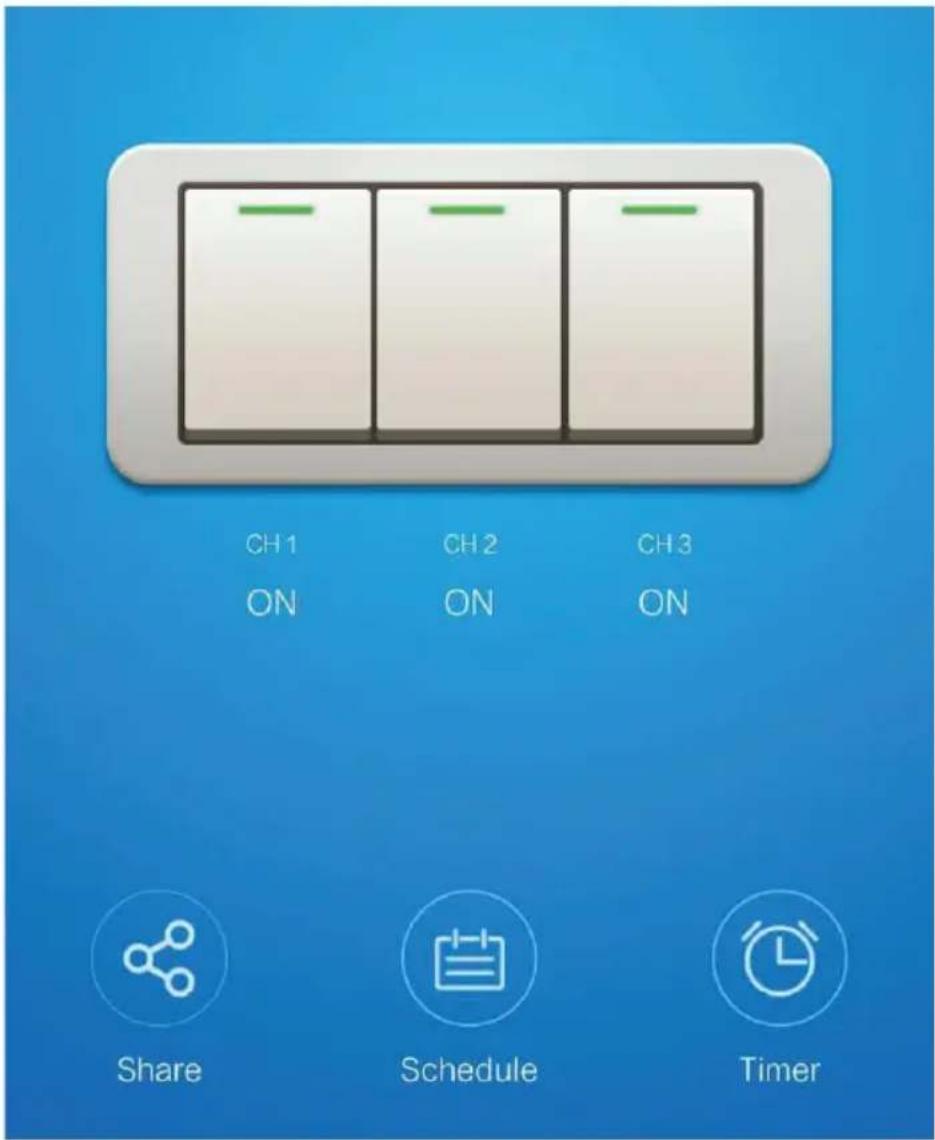
ALEXA SETTINGS
Step 1: Install the Amazon Alexa app via the App Store (iOS) or the Play Store (Android) and register. If you already have an existing account with Amazon Alexa, please proceed to logging in.
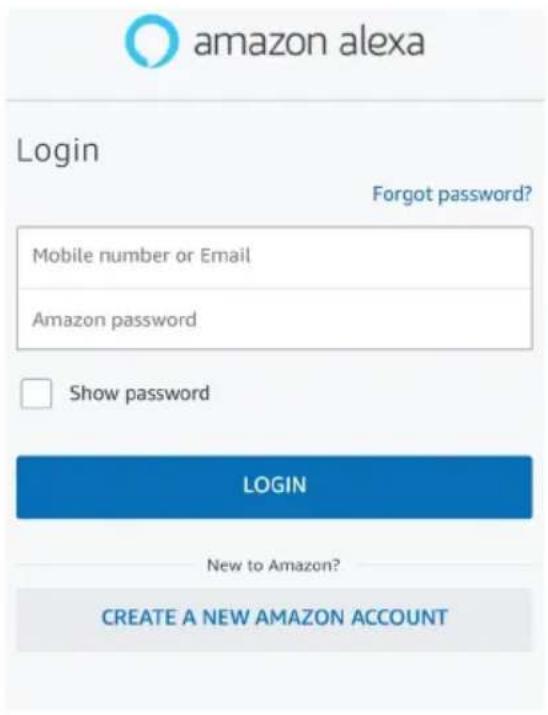
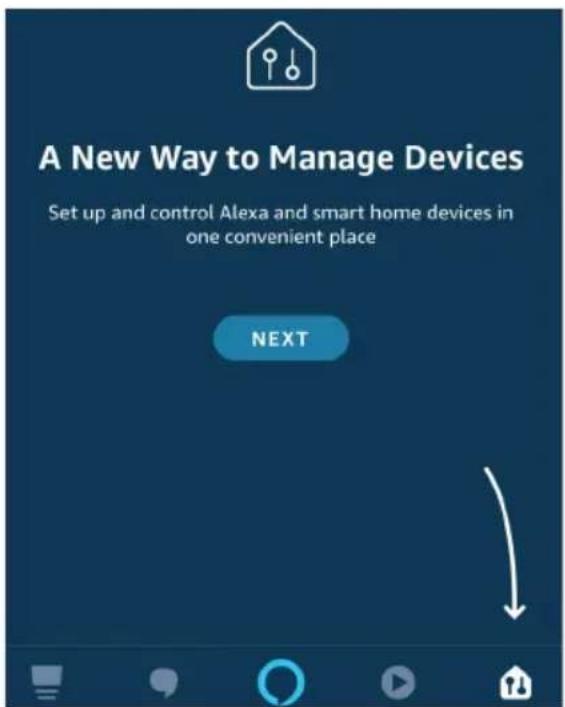
Step 3: On the Home page of Amazon Alexa App, Tap on the icon as shown on the image below.

natural_image
Blue background with a black arrow pointing diagonally downward to the left (no text or symbols)Step 2: Once you are on the Amazon Alexa home page, tap on the lower right icon — where the arrow is pointed— to add a new device and Enable Skills.
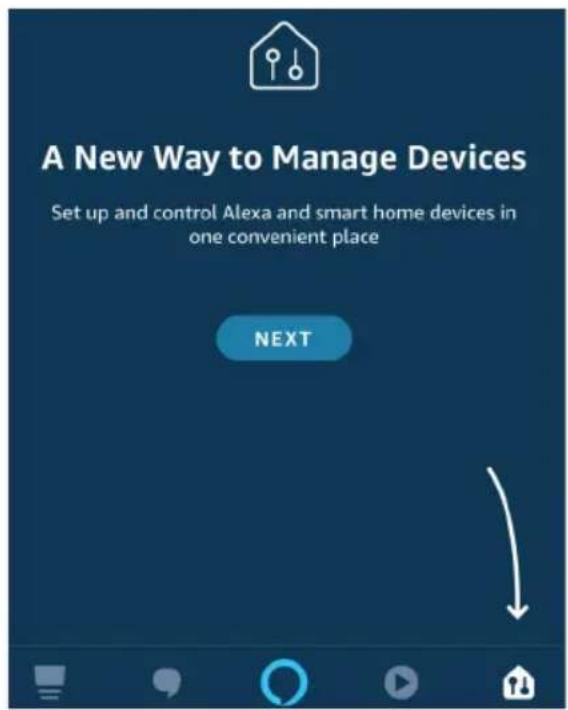
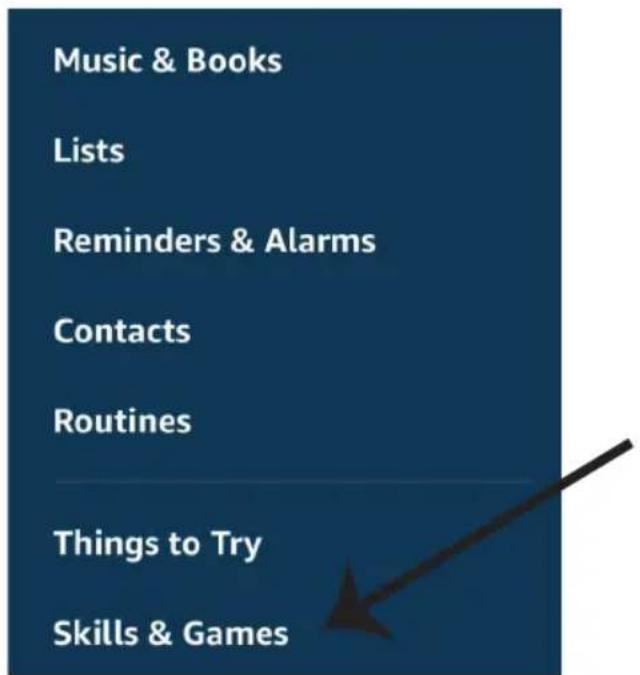
Step 4: Tap on "Skills & Games" as show below
Step 5: On the Search bar as shown type "eWeLink" and tap on the eWeLink skill as shown on the below image.
Search
eWeLink

2 Results
Sort: Relevance


eWeLink
Smart Home

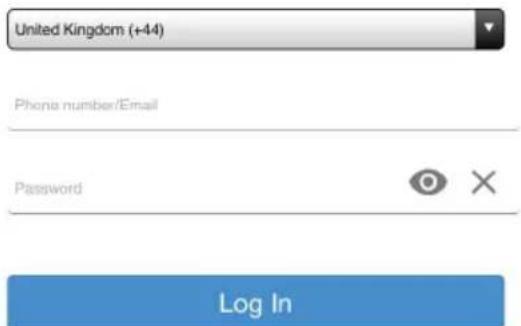
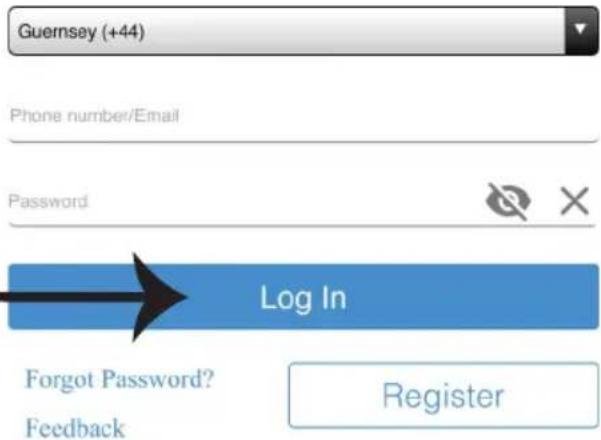
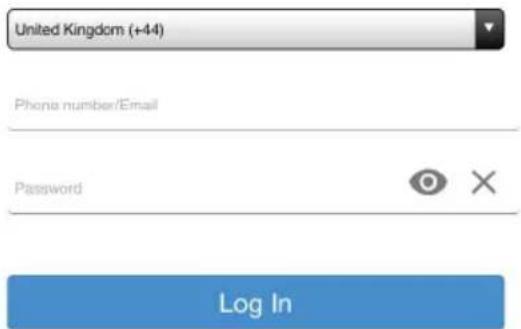
Step 7: Enter Login credentials of eWeLink and then tap on Log In. If you do not have a existing account please register by tapping on the register.

Phone number/Email
Password

Log In
Forgot Password?
Feedback
Register
Step 6: Tap on "ENABLE TO USE" to link eWeLink skill with Amazon Alexa app.
eWeLink
V-TAC Technologies
Rated: Guidance Suggested


natural_image
Blue rectangular shape with a black arrow pointing diagonally upward to the right (no text or symbols)ENABLE TO USE
Account linking required
Step 8: a) Once you have successfully linked V-TAC Skill close the window & (b) tap on Discover device. Make sure Smart device is paired with eWeLink app.
a)
amazon alexa
V-TAC has been successfully linked.
What to do next:
→ Close this window to discover smart-home devices you can control with Alexa.

b)
Discover Devices

Smart Home devices must be discovered before they can be used with Alexa.

Step 9: Discover your smart device on Alexa. Once you have enabled the skill
A) You can use voice command "Alexa discover devices" to the Alexa device which you have.
B) To add device manually on home page tap on which you are adding and tap on discover device.
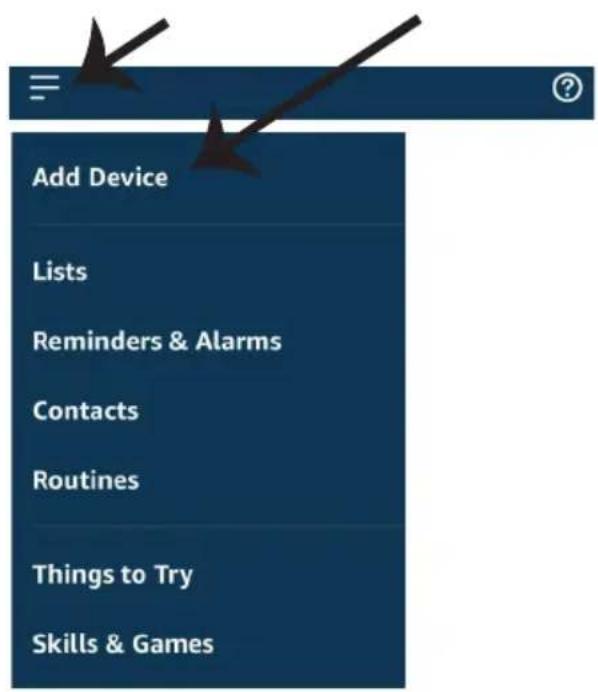
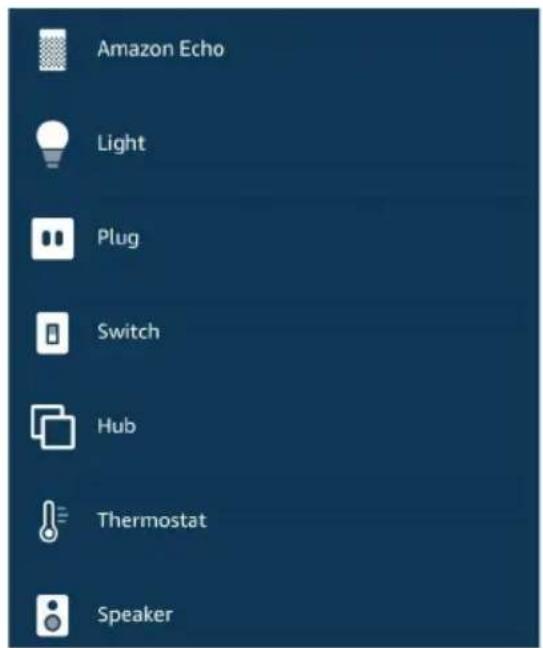
Note: Discovering the device must be done every time the device's name is changed on the app.
ALEXA Commands
Now, you can control your smart device using voice commands on Alexa. Below are few example commands on how to use Alexa device:
➢! Alexa, turn ON Smart Plug
➢! Alexa, turn OFF Smart Plug
THINGS TO REMEMBER BEFORE STARTING INSTALLATION:
- eWeLink App & Amazon Alexa App
- Make sure you have Amazon Alexa Device(including Echo, Echo Tap, or Echo Dot)
- Smart Home Device
- Stable Wifi network
GOOGLE HOME SETTINGS
Step 1:
a&b) Install the Google Home app via the App Store (iOS) or the Play Store (Android) and register. If you already have an existing account with Google Home, please proceed to logging in. c) Create a New Home/choose from the existing home if any. d) Power ON the Google Home device and connect it to the App. (Then Proceed to step 2)
a. Welcome home
Your content and devices all in one place
b. Choose account
This account will be used to personalize your experience
d. Plug in your device
Make sure your device is nearby and connected to power, then try again

natural_image
Abstract geometric shapes including a square, circle, and crescent (no text or symbols)GET STARTED >
c. Choose a home
You will be able to control the devices and services in this home.


Create another home
Step 2: Once you are on the Google home page, tap on the Add "+" icon—to add a new device and skill. And then tap on set up device as shown in below image.
a.

Play
Office

Broadcast


Add

Settings
Office
1 device

Office Speaker
Pause
b.

Add to Home

Set up device

Add home member

Create speaker group

Create new home
Add services

Music and audio

Videos and photos
Step 3: Make sure the Smart device is paired with eWeLink app before starting step 3. Tap on the arrow section as highlighted in the below image.
Set up
Set up new devices or add existing devices and services to your home
New devices

Set up new devices
Google Home, smart displays and devices labelled 'Made for Google' such as C by GE smart bulbs
Works with Google

Have something already set up?
Link your smart home services such as Philips Hue and TP-Link

Step 5: Sign In with your eWeLink Login credentials to Link the Smart Home device
Step 4: Type "eWeLink" on the search bar and tap on eWeLink icon from the drop down options as shown below.

eWeLink

Linked
Add new

eWeLink

Step 6:
a. Account will now be linked, please stay on the page you will be redirected in few seconds to select the device to add to your home. b. Select the device and tap on Next as show in image(b)
a. Done

assistant.google.com

Account is now Linked
b. ×
Choose device
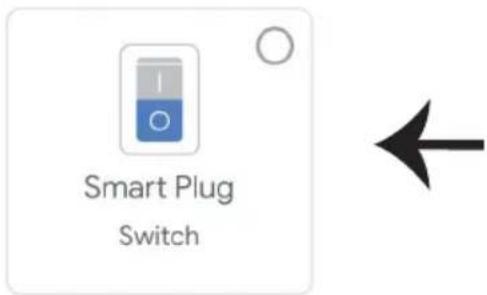
Step 7: Select the Home where you would like to add the Smart Device under. (Or) you can create a New home in order to add the Smart Device to it.
Step 8: You have successfully added V-TAC Smart device to your Google home App.
Choose a home
You will be able to control the devices and services in this home.

Smart-Home

Office

Smart Home

Create another home
Smart-Home

Add

Settings
Master bedroom
1 device
Smart Plug

Off

On
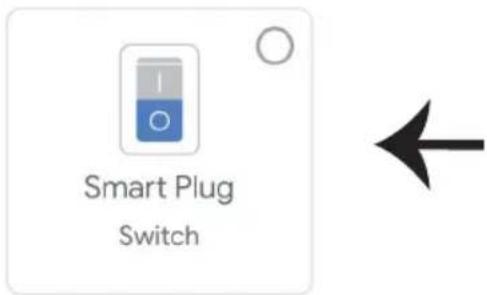
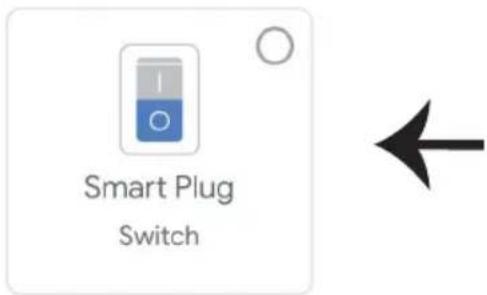
Step 9: You can turn the device On/OFF by taping On/Off options as shown below. (OR) You can tap on the name(Ex:Smart Plug as shown below) to redirect to new page.
Smart-Home

Add

Settings
Master bedroom
1 device

Smart Plug
Off

On

Smart Plug
Master bedroom
On
Google Commands:
Now, you can control your smart device using voice commands on Google Home. Below are a few example voice commands on how to use Google Home device:
➢! OK Google, turn ON Smart Plug
➢! OK Google, turn OFF Smart Plug
THINGS TO REMEMBER BEFORE STARTING INSTALLATION:
- eWeLink App & Google Home App
- Make sure you have Google Home Device
- Smart Home Device
- Stable Wifi network
In case of any query/issue with the product please reach out to us at support@vtacexports.com
V-TAC EUROPE LTD, Bulgaria, Plovdiv 4000, bul.L.Karavelow 9B
Pairing BLE devices just with one tap.
Check devices are in pairing mode.

Quick Pairing
natural_image
Blue background with a black arrow pointing diagonally downward to the left (no text or symbols)Rated: Guidance Suggested


V-TAC has been successfully linked.
What to do next:
→ Close this window to discover smart-home devices you can control with Alexa.

b)
Discover Devices

Smart Home devices must be discovered before they can be used with Alexa.

Your content and devices all in one place
b. Choose account
This account will be used to personalize your experience
d. Plug in your device
Make sure your device is nearby and connected to power, then try again

natural_image
Abstract geometric shapes including a triangle, circle, and rectangle (no text or symbols)GET STARTED >
c. Choose a home
You will be able to control the devices and services in this home.

Office
1 device

Office Speaker
Pause
b.

Add to Home

Set up device

Add home member

Create speaker group

Create new home
Add services

Music and audio

Videos and photos
Set up new devices or add existing devices and services to your home
New devices

Set up new devices
Google Home, smart displays and devices labelled 'Made for Google' such as C by GE smart bulbs
Works with Google

Have something already set up?
Link your smart home services such as Philips Hue and TP-Link

Account is now Linked
b. ×
Choose device
You will be able to control the devices and services in this home.

Smart-Home

Office

Smart Home

Create another home
NEXT >
In case of any query/issue with the product please reach out to us at support@vtacexports.com
V-TAC EUROPE LTD, Bulgaria, Plovdiv 4000, bul.L.Karavelow 9B
natural_image
Blue background with a black arrow pointing diagonally downward to the left (no text or symbols)Rated: Guidance Suggested


V-TAC has been successfully linked.
What to do next:
→ Close this window to discover smart-home devices you can control with Alexa.

b)
Discover Devices

Smart Home devices must be discovered before they can be used with Alexa.

Your content and devices all in one place
b. Choose account
This account will be used to personalize your experience
d. Plug in your device
Make sure your device is nearby and connected to power, then try again

natural_image
Abstract geometric shapes including a square, circle, and crescent (no text or symbols)GET STARTED >
c. Choose a home
You will be able to control the devices and services in this home.


Create another home
Office
1 device

Office Speaker
Pause
b.

Add to Home

Set up device

Add home member

Create speaker group

Create new home
Add services

Music and audio

Videos and photos
Set up new devices or add existing devices and services to your home
New devices

Set up new devices
Google Home, smart displays and devices labelled 'Made for Google' such as C by GE smart bulbs
Works with Google

Have something already set up?
Link your smart home services such as Philips Hue and TP-Link

Account is now Linked
b.

Choose device
You will be able to control the devices and services in this home.

Smart-Home

Office

Smart Home

Create another home
NEXT >
Master bedroom
1 device
Smart Plug
Off

On

Master bedroom
1 device

Smart Plug
Off

On

Smart Plug
Master bedroom
On
GOOGLE-Befehle
In case of any query/issue with the product please reach out to us at support@vtacexports.com
V-TAC EUROPE LTD, Bulgaria, Plovdiv 4000, bul.L.Karavelow 9B
Pairing BLE devices just with one tap.
Check devices are in pairing mode.

Quick Pairing
natural_image
Simple line icon of a wireless router with WiFi signal (no text or symbols)(Only supports 2.4G WiFi)



My devices
WiFi name Vtac
WiFi password

Remember password

Next

Complete
natural_image
Blue background with a black arrow pointing diagonally down-right (no text or symbols)Rated: Guidance Suggested


V-TAC has been successfully linked.
What to do next:
→ Close this window to discover smart-home devices you can control with Alexa.

b)
Discover Devices

Smart Home devices must be discovered before they can be used with Alexa.

Your content and devices all in one place
b. Choose account
This account will be used to personalize your experience
d. Plug in your device
Make sure your device is nearby and connected to power, then try again

natural_image
Abstract geometric shapes including squares, circles, and a crescent (no text or symbols)GET STARTED >
c. Choose a home
You will be able to control the devices and services in this home.


Create another home
Office
1 device

Office Speaker
Pause
b.

Add to Home

Set up device

Add home member

Create speaker group

Create new home
Add services

Music and audio

Videos and photos
Set up new devices or add existing devices and services to your home
New devices

Set up new devices
Google Home, smart displays and devices labelled 'Made for Google' such as C by GE smart bulbs
Works with Google

Have something already set up?
Link your smart home services such as Philips Hue and TP-Link
Account is now Linked


Choose device
You will be able to control the devices and services in this home.

Smart-Home

Office

Smart Home

Create another home
NEXT >
In case of any query/issue with the product please reach out to us at support@vtacexports.com
V-TAC EUROPE LTD, Bulgaria, Plovdiv 4000, bul.L.Karavelow 9B
Korak 1: Otvorite aplikaciju eWeLink App i registrirajte se. Ako već imate otvoren račun za eWeLink, jednostavno se prijavite.
Korak 3: Provjerite da li je Vaš pametni uređaj napunjen.
1) Pritisnite i zadržite gumb Power na 5 sekundi da biste uključili uređaj u Režim za uparivanje. Kada je režim za uparivanje uključen, LED će početi svjetlucati 3 puta uzastopno.
2) Kliknite Quick pairing da biste započeli uparivanje uređaja s aplikacijom.
Napomena: Ako imate bilo kakvih problema za vrijeme uparivanja u režimu Brzog uparivanja (Quick Pairing), molimo pokušajte upariti uređaj u režimu Kompatibilnog uparivanja (Compatible Pairing) (Pritisnite na vezu kao čto je ukazano na slici).
Korak 3: Na domaćoj stranici aplikacije Amazon Alexa, pritisnite na ikonu na način prikazan na slici ispod.

natural_image
Blue background with a black arrow pointing diagonally downward to the left (no text or symbols)Korak 2: Kada ste na domaćoj stranici Amazon Alexa, kliknite na ikonu dolje desno — kuda ukazuje strelica — za dodavanje novog uređaja i vještina.
Korak 5: Na traci za pretraživanje, kao što je prikazano, upišite "V-TAC [p9Smart Home" i kliknite eWeLink, kao što je prikazano na donjoj slici.
Search
eWeLink

2 Results
Sort: Relevance


eWeLink
Smart Home

Korak 7: Unesite vjerodajnice za eWeLink, zatim kliknite na Prijavu (Log In). Ako nemate otvoren račun, registrirajte se na "Registracija" (Register).
Korak 6: Kliknite "ENABLE TO USE" da biste povezali eWeLink s aplikacijom Amazon Alexa.
eWeLink
V-TAC Technologies
Rated: Guidance Suggested


Korak 8: a) Kada ste uspješno povezali V-TAC vještinu, zatvorite prozor te & (b) kliknite na Pronađi uređaj. Provjerite da li je pametni uređaj uparen s eWeLink aplikacijom.
a)

V-TAC has been successfully linked.
What to do next:
→ Close this window to discover smart-home devices you can control with Alexa.

b)
Discover Devices

Smart Home devices must be discovered before they can be used with Alexa.

Korak 9: Otkrijte svoj pametni uređaj u aplikaciji Alexa. Nakon aktiviranja opcije:
A) Možete uputiti glasovnu naredbu "Alexa discover devices" svom uređaju Alexa.
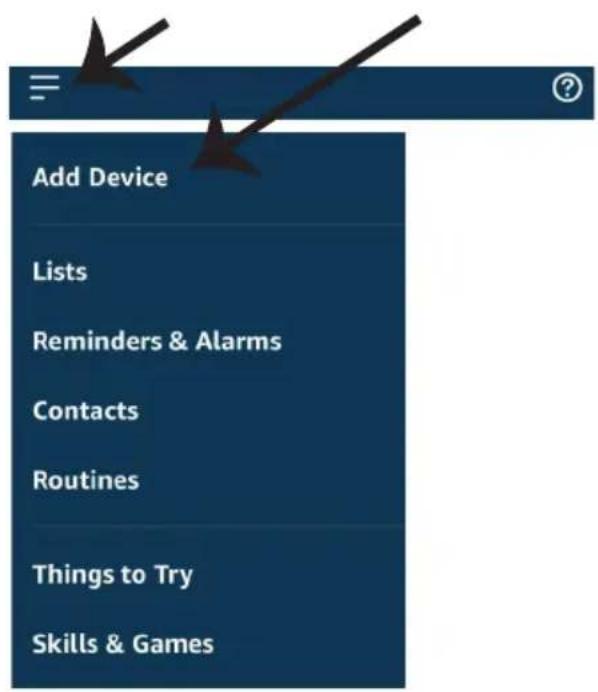
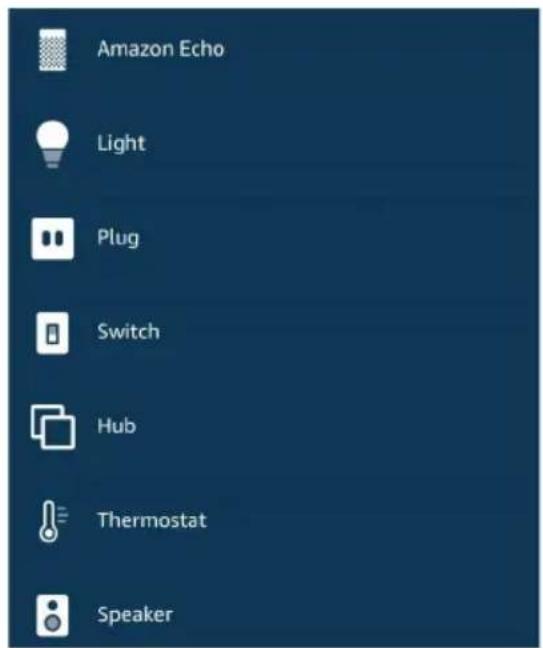
B) Da biste ručno dodali uređaj na početnu stranicu, kliknite Add device, odaberite uređaj koji želite dodati i kliknite Discover device.
Your content and devices all in one place
b. Choose account
This account will be used to personalize your experience
d. Plug in your device
Make sure your device is nearby and connected to power, then try again

natural_image
Abstract geometric shapes including squares, circles, and a crescent (no text or symbols)GET STARTED >
c. Choose a home
You will be able to control the devices and services in this home.


Create another home
Korak 2: Kada uđete u Googlovu domaću stranicu, kliknite na ikonu Dodaj “+”— za dodavanje novog uređaja i vještine. Zatim pritisnite Postavi uređaj kao što je prikazano na slici ispod.
a.

Play
Office

Broadcast


Add

Settings
Office
1 device

Office Speaker
Pause
b.

Add to Home

Set up device

Add home member

Create speaker group

Create new home
Add services

Music and audio

Videos and photos
Korak 3: Provjerite da li je Smart Device uparen s aplikacijom eWeLinkprije nego što napravite korak 3.
Kliknite na strelicu kao što je ukazano na slici ispod.
Set up
Set up new devices or add existing devices and services to your home
New devices

Set up new devices
Google Home, smart displays and devices labelled 'Made for Google' such as C by GE smart bulbs
Works with Google

Have something already set up?
Link your smart home services such as Philips Hue and TP-Link

Korak 5: Prijavite se sa svojim eWeLink Login vjerodajnicama da biste povezali Smart Home uređaj.
- Etapa: U traku za pretraživanje upišite "Vtac" i kliknite ikonu eWeLink na padajućem izborniku opcija, kao što je prikazano u nastavku:

eWeLink

Linked
Add new

eWeLink

Korak 6:
Account is now Linked
b. ×
Choose device
You will be able to control the devices and services in this home.

Smart-Home

Office

Smart Home

Create another home
Smart-Home

Add

Settings
Master bedroom
1 device
Smart Plug

Off

On
In case of any query/issue with the product please reach out to us at support@vtacexports.com
V-TAC EUROPE LTD, Bulgaria, Plovdiv 4000, bul.L.Karavelow 9B

natural_image
Blue background with a black arrow pointing diagonally downward to the left (no text or symbols)Rated: Guidance Suggested
★★★★★ 0

V-TAC has been successfully linked.
What to do next:
→ Close this window to discover smart-home devices you can control with Alexa.

b)
Discover Devices

Smart Home devices must be discovered before they can be used with Alexa.

Your content and devices all in one place
b. Choose account
This account will be used to personalize your experience
d. Plug in your device
Make sure your device is nearby and connected to power, then try again

natural_image
Abstract geometric shapes including a square, circle, and angular shapes (no text or symbols)GET STARTED >
c. Choose a home
You will be able to control the devices and services in this home.

Office
1 device

Office Speaker
Pause
b.

Add to Home

Set up device

Add home member

Create speaker group

Create new home
Add services

Music and audio

Videos and photos
Set up new devices or add existing devices and services to your home
New devices

Set up new devices
Google Home, smart displays and devices labelled 'Made for Google' such as C by GE smart bulbs
Works with Google

Have something already set up?
Link your smart home services such as Philips Hue and TP-Link

Account is now Linked


Choose device
You will be able to control the devices and services in this home.

Smart-Home

Office

Smart Home

Create another home
Smart-Home

Add

Settings
Master bedroom
1 device
Smart Plug

NEXT >
Off

On
In case of any query/issue with the product please reach out to us at support@vtacexports.com
V-TAC EUROPE LTD, Bulgaria, Plovdiv 4000, bul.L.Karavelow 9B
Pairing BLE devices just with one tap.
Check devices are in pairing mode.

Quick Pairing
natural_image
Blue background with a black arrow pointing diagonally down-right (no text or symbols)Rated: Guidance Suggested
★★★★★ 0

V-TAC has been successfully linked.
What to do next:
→ Close this window to discover smart-home devices you can control with Alexa.

b)
Discover Devices

Smart Home devices must be discovered before they can be used with Alexa.

Your content and devices all in one place
b. Choose account
This account will be used to personalize your experience
d. Plug in your device
Make sure your device is nearby and connected to power, then try again

natural_image
Abstract geometric shapes including a triangle, circle, and rectangle (no text or symbols)GET STARTED >
c. Choose a home
You will be able to control the devices and services in this home.

Create another home

Office
1 device

Office Speaker
Pause
b.

Add to Home

Set up device

Add home member

Create speaker group

Create new home
Add services

Music and audio

Videos and photos
Set up new devices or add existing devices and services to your home
New devices

Set up new devices
Google Home, smart displays and devices labelled 'Made for Google' such as C by GE smart bulbs
Works with Google

Have something already set up?
Link your smart home services such as Philips Hue and TP-Link

Account is now Linked


Choose device
Comandos de Google:
In case of any query/issue with the product please reach out to us at support@vtacexports.com
V-TAC EUROPE LTD, Bulgaria, Plovdiv 4000, bul.L.Karavelow 9B

- INTRODUCTION & WARRANTY
- (FR) INTRODUCTION & GARANTIE
- (PL) WSTEP I GWARANCJAD
- (RO) INTRODUCERE, GARANTIA
- INSTALLATION
- WARNING!
- Step 3: Make sure your Smart device is powered ON
- ALEXA SETTINGS
- Search
- eWeLink
- ALEXA Commands
- THINGS TO REMEMBER BEFORE STARTING INSTALLATION:
- GOOGLE HOME SETTINGS
- Step 1:
- a. Welcome home
- b. Choose account
- d. Plug in your device
- c. Choose a home
- Set up
- Step 6:
- Choose a home
- Smart-Home
- Master bedroom
- Smart Plug
- Google Commands:
- GOOGLE-Befehle
- New devices
- Works with Google
- Linked
- Add new
- Korak 6:
- Comandos de Google:
Brand : V-TAC
Model : VT-5018
Category : Smart Home