USER MANUAL Classic 500B Yard Force
Description of the product 1
Installation 2
Operation 10
Technical data 14
Maintenance and storage 15
Troubleshooting 17
Description of product
- STOP button
- Charging port
- Rear wheel
- Height adjustment dial
- Control panel
- USB interface (only for after service centre)
- On/Off switch
- Front wheel
- Cutting blade
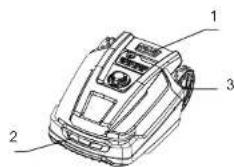
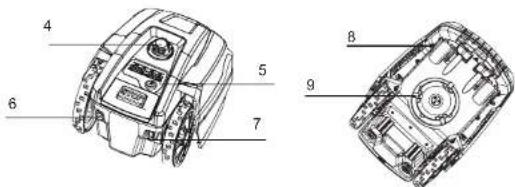
Scope of delivery
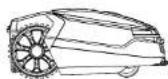
Robotic Mower
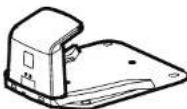
Docking station
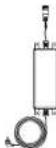
Switching Power Supply

Extension cord

Wire pegs

Spare blades

Connectors
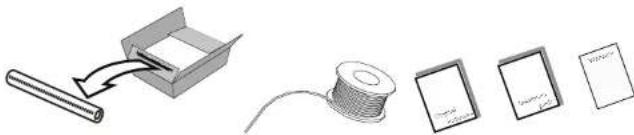
Measurement ruler Boundary wire
Manuals

Installation
Installation Guide
This chapter explains how to install the Robotic Mower. Please read this completely before you start the installation.
Introduction
We recommend creating a drawing of your lawn, including all obstacles and how these should be protected. This makes it easier to find a good position for the docking station and how to correctly place the boundary wire around your garden perimeter protecting bushes, flower beds etc. You will also need some tools, like a hammer and wire cutters, pliers or scissors.
Pre Cut your lawn
Your lawn needs to be prepared correctly, prior to installing the robot lawnmower.
Pre cut your lawn to a height of 60~mm
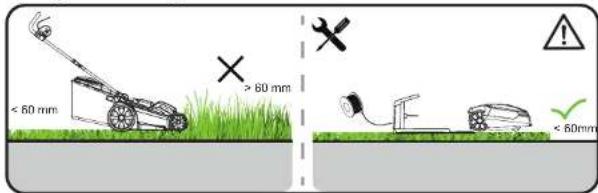
Cutting limitations
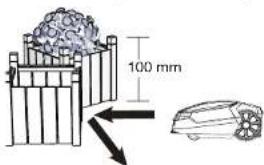
The Robotic Mower is equipped with collision sensors. These detect all rigid and solid obstacles that are higher than 100mm , such as walls, fences and garden furniture.
When the sensors report an obstacle, the Robotic Mower stops, backs up and then mows in a different direction. As a long-term solution, it is recommended to lay the boundary wire accordingly using the ruler to protect obstacles and the device. Lay the boundary wire so that the Robotic Mower is not more than 20 m away from the boundary wire at any point in the mowing area.
Trees
The Robotic Mower treats trees as common obstacles, but if the roots of the tree are exposed and lower than 100mm , this area should be excluded using boundary wire in order to protect the tree root, cutting blades or rear wheels from damage.
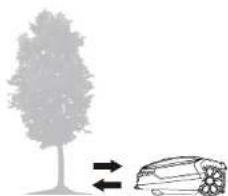
Stones
We recommend clearing the lawn of small (less than 100 mm high) rocks and stones and any stones with a round or sloped edge. The Robotic Mower might try and climb such rocks instead of recognising them as a barrier. The Robotic Mower getting stuck on such a stone requires user intervention to restart mowing. Contact with stones can result in damage to the blades.
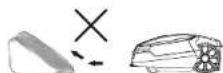
Slopes
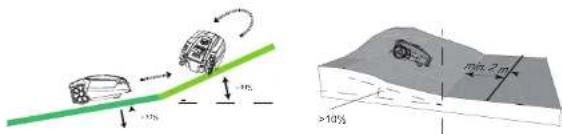
The Robotic Mower can navigate slopes up to a maximum of 30% incline or decline.
The boundary wire should never be perpendicular to an incline of more than 10% . Also, leave strip of at least 2 m between a slope of 10% or sleeper and the boundary wire. Otherwise, the higher speed going down the slope may cause the Robotic Mower to go over the boundary wire, especially on wet and silppery ground.
Paths, Driveways and Roads
If an elevated driveway crosses your lawn, better keep it outside the boundary wire. Please allow a safety distance of 30~cm between driveway and boundary wire.
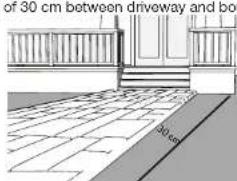
If the driveway and lawn are at the same level, feel free to use the boundary wire to create a corridor. This allows your Robotic Mower to cross the driveway and reach the opposite lawn.

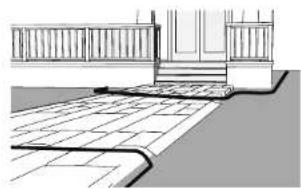
Uneven lawn surfaces
Uneven lawn areas may cause the blades to touch the ground. We recommend leveling the lawn before using your Robotic Mower or excluding uneven areas with the boundary wire.
Placing the docking station
Locate the best position for your docking station. Be aware that it needs a permanent connection to the mains, so take into account the location of the nearest power outlet.
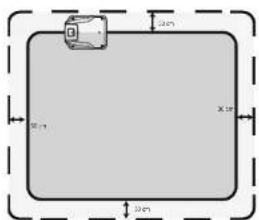
To ensure the Robotic Mower can return to the docking station smoothly, leave 1.5m of straight wire to the front of the docking station and 30~cm to the side facing the cutting area. Use a shaded location for the docking station, as a lower temperature while charging is beneficial to the battery. Important: Place the docking station on an oven, flat surface away from ponds, pools or stairs. We recommend suitable protection from the elements, for example a robot port or garage.
Do not place the docking station too close to a slope, such as at the top of a hill or the bottom of a furrow. Avoid left and right inclination in excess of 5 degrees.
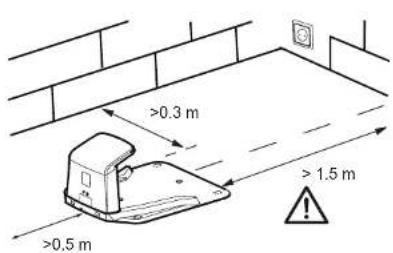
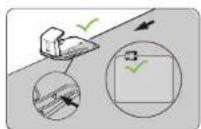
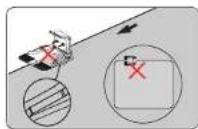
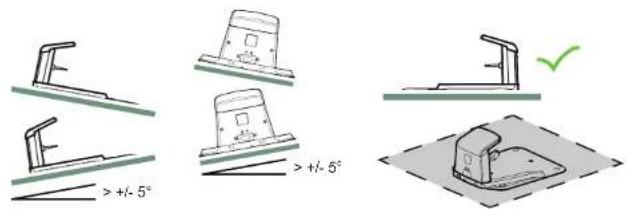
If your lawn has a soft or uneven surface, we recommend fortifying the area around the docking station with a grass protection mesh. Otherwise, the repeated stress of the rear wheels can damage the turf.
Once the position of the docking station is confirmed and mains electrical connection is laid out, please do not connect to main power yet. Finish all boundary layout work before connecting the docking station to the power supply.
Pegging your boundary wire
We strongly recommend mowing the lawn to 60mm or less before laying out the boundary wire. Burrying the boundary wire is entirely optional. Still, the closer to the ground you lay out the boundary wire, the lower the chance of tripping over it or damaging it when mowing the lawn. Use the included ruler to ensure the required 30~cm distance between wire and obstacles.
The recommended distance between two pegs is about 80cm in straight lines, and less in tight curves. Note that the pegs' hook and wire slit always faces the outside of the boundary. Within a short time the cable will be covered with grass. Since the voltage is only 32V , there is no risk of electric shock. Make sure that the hook of the peg and the opening for the cable always face the demarcated.
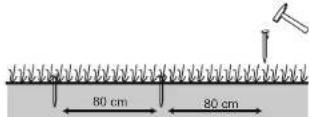
When first planting the pegs, do not drive them fully into the ground. Use a light hammer to drive them in a little bit. Also locate the fixing pegs and lay each one on the lawn at approximately the

correct distance from lawn edges (30 cm) and obstacles.
Flowerbeds
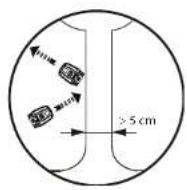
Use the boundary wire to exclude any flowerbeds from the cutting area. There are two options for the two lengths of boundary wire running between the flowerbed and the outer boundary:
1) Keep the distance between the parallel wires above 5cm . This way, the Robotic Mower will recognise the boundary wire as an ordinary obstacle. When cutting, it will "bounce" off it as usual. When following the boundary wire back to the docking station, it will take the detour around the flower bed.
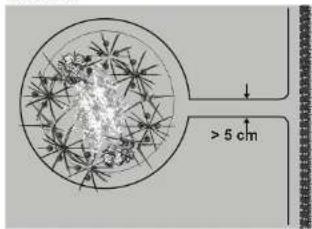
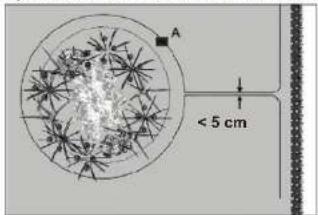
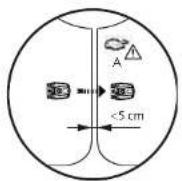
2) Alternatively, keep the distance between the two parallel wires below 5cm . Do not cross the wires - see below. This way, the Robotic Mower will not recognise the wires and travel across them unhindered. This option requires placing an obstacle on the boundary wire around the flowerbed. Place the obstacle, e.g. a large rock or pole, near position A indicated on the below illustration. The obstacle must be surrounded by a flat area of about 1m × 1m , without any slopes. This obstacle will allow the machine to exit the circle.
Ponds and Pools
While the Robotic Mower is protected against rain and spray water, being submerged is likely to cause severe damage to the electronic parts.
Therefore, it is imperative to exclude any pools from the cutting area. For added safety, we recommend placing a fence around the pool.
Inventory and garage
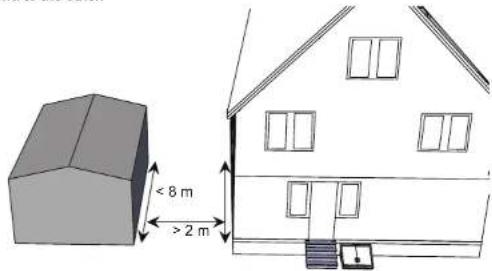
If you have created a boundary corridor inside your working area, the corridor should be at least 2 m wide and a max length of 8 m.
If a corridor is too narrow or too long, the Robotic Mower might not be able to navigate it from one end to the other.
Connect the docking station to the boundary wire
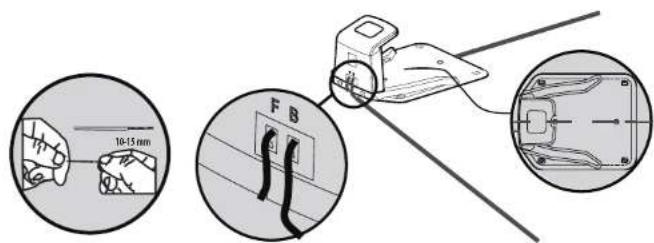
Run the boundary wire underneath the front of the docking station and connect the end of the wire to the left (black) connector marked 'F' (front). After you have placed the wire around the garden then place the other end into right (red) connector marked 'B' (back).
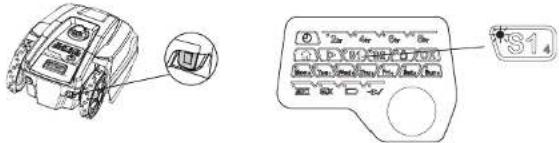
Insert the mains plug into a properly installed socket. Once the blue LED confirms all is OK, test the Robotic Mower's function. Check the LED regularly to ensure fixing the boundary wire has not affected the connection and signal shows S1 on the charging saloon. Then place the Robotic Mower in the working area, a few metres beside the docking station. Set the main power switch to "ON", and then check the S1 signal on the panel is light on, press 4 times to unlock the panel.
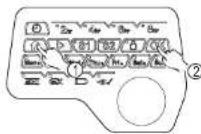
Press the buttons and , a few seconds later, the Robotic Mower should automatically
return to the docking station by locating and following the boundary wire in anti-clockwise direction. If Robotic Mower fails to clock correctly, move the docking station to a more suitable position.

Once the device has docked, the symbol on the panel will start flashing, and the S1&S2 indicators on the docking station will flash alternately. This indicates that the battery is charging correctly.
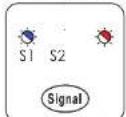
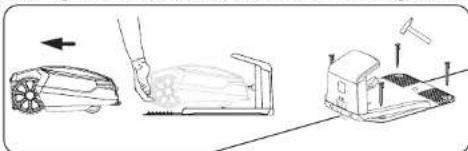
After initial installation, the Robotic Mower will remain in the docking station until the battery is fully charged.
Successful docking and charging indicates that you have found a suitable position for the docking station. You should now drive fixing pegs into ground fully.
Take care not to damage or kink the surplus wire stored under the docking station.
Signal selection
Note: the default signal is S1, no need to change the signal when there isn't a influence signal to form the neighbors.
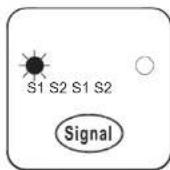
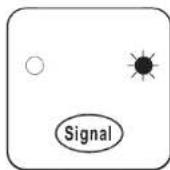
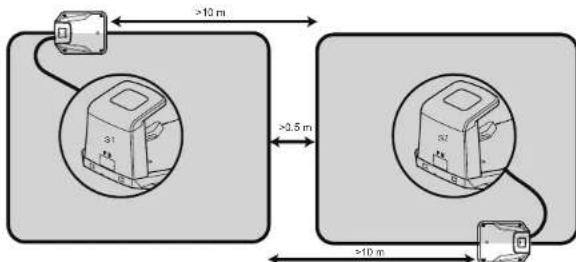
If your neighbour is using the same mower, you will need to keep a distance of 0.5m between you and your neighbour's boundary wires to prevent the two devices interfering with each other. Ensure to position your docking station at least 10m away from your neighbour's boundary wires and that both products are using different signals. Please refer to section "Signal setting" in order to select signal S1 or S2 for your installation.
- Press the "signal" button on the charging station, the indicator will be switched to S2.
- Press the "S2" button on the control panel, the indicator will be switched to S2

Operation
Control panel
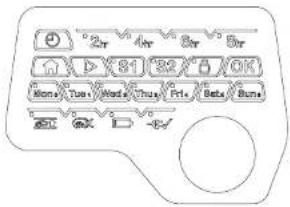
Indicator meaning

Flashing when the Robotic Mower is lifted or climbing an obstacle.

Flashing when there is no correct signal been detected.

Flashing when battery is low.

Flashing when the Robotic Mower charging in the docking station.
Press the button to select the working time, the LED indicator will show under the working time button that has been selected. Robotic Mower will go back to docking station when the selected time is over.

Press the icon, Tux, Wodry, Tux, Date, Tux) button to select the working date, the LED indicator will show under the working date button that has been selected. Robotic Mower will go back to docking station when the working date is not selected.

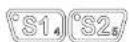
Select either S1 or S2.
NOTE: Signal selection must be same as the on the docking station.

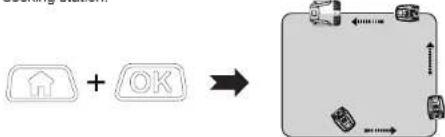
Home button: First press the Home button and the press the OK button, Robotic Mower will return to docking station.

Start button: First press the Start button and then press the OK button, Robotic Mower will start to work.

OK button

Lock/Unlock button:Indicator will show when pressed and will lock the control panel.

Rain sensor: When this sensor been actived while raining, the Robotic Mower will return to the docking station automatically.
NOTE: Rain sensor can be actived/ disactivated manually, press and hold 'Fri' button, then power on the Robotic Mower.
Before starting - Adjust the time setting
NOTE: the Robotic Mower should be out of the docking station when operating the time setting.
Step 1 - hold the button and press the main power switch at same time, the Robotic Mower will power ON, hold the button until all LED lights are ON.

Step 2-Day calibration
Choose the related day button, for example if today is Monday, press (M) and then you would


After 3 seconds all LED would flash, then the day calibration is successfully completed.

Step 3 - Hour calibration
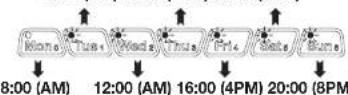
The time cannot be exactly fixed, only roughly. To set the time, you need to follow steps below when you make the hour calibration, please select the most close time from our time range according to your local time. 10:00 (AM) 14:00 (2PM) 18:00 (6PM)
GB
for example:
if now is 08:25, please press , and then you would hear a beep.
If now is 09:45, please press (T), and then you would hear a beep.
If now is 14:25, please press _hu , and then you would hear a beep.
If now is 16:45, please press , and then you would hear a beep.
Three seconds later, all these LED will flash off Nana Tua Wedy Tuu Frt Buns
Congratulations, all calibration have been completed, The mower will restart, now you can enjoy the scheduled mowing in your garden.
Start mowing
After finishing the time settings, now you can start your Robotic Mower
1. Press the button for 4 times to unlock the panel.
2. Press the button and then press the button OK, the Robotic Mower will start to work.
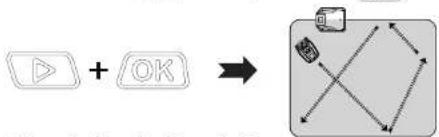
Return to the docking station
- Press the button for 4 times to unlock the panel.
- Press the button and then press the button OK, the Robotic Mower will back to the
docking station.
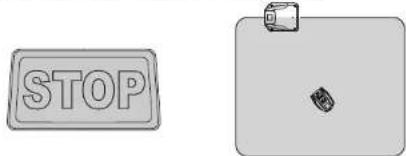
Emergency Stop
Press STOP button to halt the mower at any time.
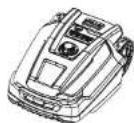
Cutting height adjustment
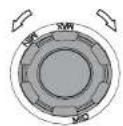
The cutting height can be adjusted by rotating the height adjustment dial located on the top of the machine. Cutting height range from 20mm - 60mm
NOTE!
We recommend using an ordinary lawn mower or trimmer to cut the lawn below 60mm before using the Robotic Mower. This will ensure you get the optimum performance.
Changing the PIN Code
- Switch Off the mains power switch.
- Hold down the lock button while switch ON the main power switch. After few seconds, all indicators on the control panel will start flashing.
- Release the lock button
- Enter you new PIN-Code within 6 seconds, the Robotic Mower will confirm and change PIN with a beep.

- All indicators will turn off and the Robotic Mower will reboot, and the indicator of lock button will flash, confirming that the reboot is complete.
NOTE: if you do not remember your PIN code, please set a new PIN code as described above, but it is not possible to reset the device to the default PIN-code of 4X.

Technical Data
| Model Classic 500B Classic 600B | |
| APP | 2 | 3 |
| Max cutting area 500 m | 2 | 600 m² |
| Battery pack 28 V/ 2000 mAh | 28 V/ 2000 mAh | |
| Switch power supply | Input: 100-240 V~, 50/60 Hz, 56 W
Output: 32V=±C1.5 A | Input: 100-240 V~, 50/60 Hz, 56 W
Output: 32V=±C1.5 A |
| Power supply model* FY3201500S3 | 500S3 FY3201500S3 | |
| Mowing time on one charge | 60 min 60 min | |
| Rated voltage 28 V 28 V | | |
| Rated power 50 W | 50 W | |
| No load speed | 3500 min-1 | 3500 min-1 |
| Cutting width | 18 cm | 18 cm |
| Cutting height | Approx 20-60 mm | Approx 20-60 mm |
| Charging time | 60 min 60 min | |
| Blade model | 846210 | 846210 |
| Weight | 8.8 kg | 8.8 kg |
| Frequency Band | 0-148.5 kHz | 0-148.5 kHz |
| Magnetic Field Strength | 70 dBμA/m | 70 dBμA/m |
| Wireless Frequency Rang/ Power | 2.4-2.4835 GHz/<0 dBm | 2.4-2.4835 GHz/<0 dBm |
| Max sound pressure level | Lw=52 dB, K=3 dB | Lw=52 dB, K=3 dB |
| Max sound power level | Lw=63 dB, K=3 dB | Lw=63 dB, K=3 dB |
| Degree of protection: | |
| Robotic Mower | IP24 IP24 | |
| Switching power supply | IP67, Plug IP44 | IP67, Plug IP44 |
| Spare parts | |
| Spare Blades | 6 Pcs | 6 Pcs |
| Boundary pegs | 150 Pcs 150 Pcs | |
| Boundary wire | 120 m | 120 m |
| Connectors | 3 Pcs | 3 Pcs |
*WARNING: For the purposes of recharging the battery, only use the detachable supply unit provided with this appliance.
Maintenance and storage
Maintenance work that has not been described in these instructions must be carried out by a servicing agency authorised by the manufacturer. Only use original parts.
Maintenance
Check and clean your Robotic Mower regularly and replace worn parts if necessary. Preferably use a dry brush, a damp cloth or a sharpened wooden piece.
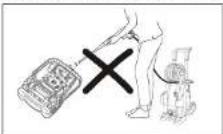
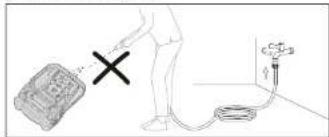
Never use flushing water.
Following these maintenance instructions can extend your Robotic Mower's service life.
Battery Life
The Robotic Mower has a maintenance free Li-ion battery, with an estimated life of more than 2 years (depending on treatment and usage).
Winter Storage
During winter, keep your mower, docking station and power supply in a dry place.
We recommend a shed, garage or preferably store it indoors.
Prepare your device for winter storage as follows:
-
Fully recharge the battery.
-
Set the mains power switch to 'OFF'.
-
Thoroughly clean your Robotic Mower.
-
Unplug the power supply from the mains outlet.
-
Disconnect the power supply from the docking station.
-
Disconnect the boundary wire from the docking station. Lift up the docking station and clean.
The boundary wire can remain outside. However, it is imperative to protect the wire against corrosion. We recommend a water-free grease or suitable sealing tape.
If available, repack the product in the original packaging.
Alternatively, our service centre offers a winter service for your device. This will include a check-up of all parts and - if available - a software upgrade.
Preparing for spring
After winter storage, please clean the charging contacts on both the Robotic Mower and the docking station.
Use a fine abrasion paper or a brass brush; this will help to achieve the best charging efficiency and avoid any charging interference.
Cleaning the mower body
As your Robotic Mower is battery powered you need take care when cleaning. Remove rough dirt with a soft brush. Use a manual water spray with mild household detergent for intensive cleaning. Wipe off any residue after cleaning with a moist rag.
Disposal
To help the environment, please dispose of the product properly when it has reached the end of its useful life and not in the household waste. Information on collection points and their opening hours can be obtained from your local authority.
Li-Ion environmental damage through incorrect disposal of the batteries / rechargeable batteries. Remove the battery pack from the product before disposal. Batteries / rechargeable batteries may not be disposed of with the usual domestic waste. They may contain toxic heavy metals and are subject to hazardous waste treatment rules and regulations. Please dispose of batteries according to the relevant local requirements.

Cleaning the underside
Ensure the main power switch is in OFF position. Wearing protective gloves, turn the Robotic Mower onto its side to expose its underside. Clean the blade disc and frame using a soft brush or damp cloth. Rotate the blade disc to make sure that it can move freely, check that the blades can turn on their pivots and that there is no grass is obstructing them.
Using wire wool, metal cleaner or very fine grade emery paper, clean the contact pins and the charging strips on your mower and docking station. Remove any debris, leaves, or grass clippings around the contact pins and charging strips to ensure efficient charging.
Reversing or replacing the blades
WARNING!
Ensure the Robotic Mover is completely shut off before cleaning, adjusting or replacing the blades. Always wear protective gloves.
WARNING!
To ensure maximum cutting efficiency and safety, always use recommended replacement blades and blade mounting parts when replacing.
Your Robotic Mower has three blades, fixed to the blades disk.
Unless damaged by hard obstacles, these blades can last for up to five months of everyday use. Weekly inspection of the blades and the fixing screws is advised. Note that the blades are double-edged. When the first side becomes blunt, loosen the fixing screw and the blade upside down and re-fix. Check that the blade can move freely.
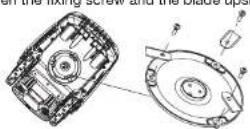
A set of spare blades is included with the Robotic Mower. More blades can be purchased via customer support.
To ensure you get the best performance from your machine, always replace all three blades at the same time. Only use spare parts recommended by manufacturer.
NOTE: if blades have been removed/ changed, please ensure that the screw is firmly secured in place and that the blade is free to move
Spare parts list
In case you need spare parts or any support with your device, please call our after sales centre.


Troubleshooting
Robotic Mower cannot dock with docking station
Robotic Mower runs in circles while mowing or while following boundary wire back to docking station
Verify that no power cable runs parallel and in close proximity the boundary wire. If necessary,
reposition the boundary wire.
- Check if a front wheel is stuck.
If a neighbor has a similar Robotic Mower, the signals may interfere. Try setting your docking
station and Robotic Mower are set to the alternative boundary signal S1 to S2.
- Driving motor may be damaged, please contact customer support.
The Robotic Mower is noisy
- Inspect the blade fixing screws: tighten if necessary.
- Inspect the blades for damage; replace if necessary.
- Grass may be too high. Try increasing the cutting height, or mow the lawn with an ordinary lawn mower first.
Cutting motor failure, please call after sales service.
Mower remains at or returns to docking station when pressing START button
- Check if the mower has already completed the programmed working time for that day.
- Battery is low, the Robotic Mower needs to be charged.
LED signal indicator on docking station
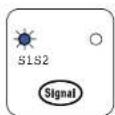
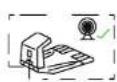
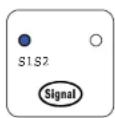
S1/S2 indicator lights on. Boundary wire signal in good condition.
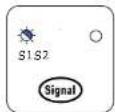
S1/S2 indicator flashes. Boundary wire broken, no signal.
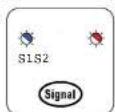

S1/S2 indicator flashing alternately. Mower is charging in the docking station.

Charging trouble shooting
| Problem Possible cause | Corrective action | |
| No light on charge base | Incorrect wire connection Check wire connections "F and B" |
| AC Power has not been switched ON | Switch on AC power |
| S1 or S2 indicator flashes separately | Boundary wire broken, no signal | Repair broken cable with provided connectors |
| Robot not charging | Machine not correctly docked in charge base | Check machine is fully docked in charge base |
| Check charge base is on flat surface |
| Charger pins corroded Clean the charger pins |
Mowing trouble shooting
| Problem Possible cause | Corrective action | |
| No Power to machine | ON/OFF key has not been activated | Switch ON the machine and try again |
| Robotic Mower has low charge | Place machine in the docking station |
| Machine fails to START | Time setting not activated | Select time schedule and then try again |
| Grass build up under deck Clean | under deck with brush |
| Battery power low Place machine | in docking station |
| Grass too long | Mow the lawn to 60mm |
| Cutting height is too low | Mow the lawn to 60mm and raise cutting height |
| Battery temperature too cold /hot | Working condition is between 5 and 45 °C |
| Boundary wire broken | Repair broken boundary wire |
| Mower outside the boundary wire | Boundary wire is on a slope | Modify boundary wire and leave bigger distance on slope |
| Parts of the lawn are uncut | Mower needs more cutting time | Increase scheduled cutting time to 8 hrs |
| Grass too long | Mow the lawn to 60 mm |
| Mower gets stuck in Lawn area | Obstacles on lawn | Remove obstacles from the lawn |
| Boundary wire not correct laid | Modify boundary wire to zone out obstacles |
| Wire in front of docking station incorrect installed | 1.5 m of straight cable to front of docking station needed |
| Excessive vibration/noisy | Blade loose | Tighten screw bolt |
| Blades damaged jammed | Replace damaged blades |
| Grass maybe to high | Increase cutting height, reduce later step by step or mow the lawn with ordinary lawnmower first |
| Cutting motor failure | Please call the after sales service |
| Problem Possible cause | Corrective action | |
| Mower runs in circles | Power cable runs parallel/close to wire | Reposition of boundary wire |
| Front wheel is stuck Clean front with | wheel area |
| Signal interfere with robot in neighborhood | Change to alternative boundary signal (S1/S2) |
| Driving motor failure Please call after sales service |
| Connection issue or broken/cut boundary wire | Repair/check connections on charge base and boundary wire being broken/cut |
Function ON/OFF by key combination
| Function Operation | |
| Pin code reset Press and hold | button, then power on |
| Time calibration Press and hold | button, then power on |
| Boundary mowing * Press and hold | button, then power on |
| Auto multi-zone * Press and hold | button, then power on |
| Rain sensor on/off Press and hold | button, then power on |
Boundary mowing
Function description: the mower will mow along the entire boundary wire with maximum 2 days interval.
Auto multi-zone
The mower will measure the complete boundary value and divide it into several points equally, every time after charging, the mower will go to each point sequentially and then start cutting from this point.

INHALT
LED signal indicator on docking station
Drie seconden later stoppen alle led's met knipperen