USER MANUAL XMOVE Xplora
Bluetooth connected activity tracker
QUICK USER GUIDE • KURZE BEDIENUNGSANLEITUNG • GUIDE D'UTILISATION RAPIDE • GUÍA DE USUARIO RÁPIDA • MANUALE BREVE
EN
1. Product overview
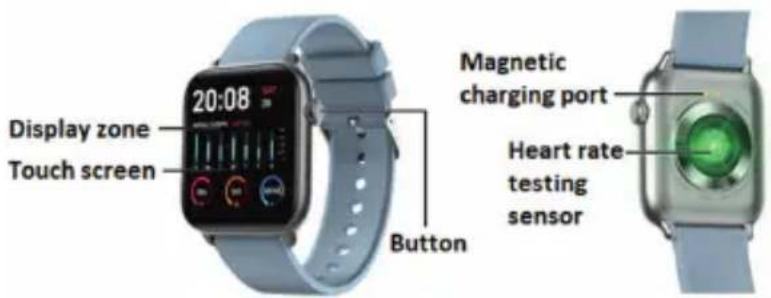
Xplora MOVE can be paired with:
Android: using OS 5.0 and above
iPhone: using OS 9.0 and above
NOTES:
- The company reserves the right to modify the contents of this manual without any further notification. It is normal that some functions may vary in certain versions of software.
- All information on XMOVE and APP is only for reference purpose and maybe not accurate.
- Please charge this product with the configured charger for no less than 2 hours before using it.
- Please connect XMOVE with Xplora App and complete the configuration. When it is paired successfully, it displays the correct time.
- Please use 5V, 1A for the charger. This product does not support fast charging. Do not charge if the product is damp with sweat as this could cause the watch to short circuit and will damage the product.
For more details and the full user guide, please visit https://support.myxplora.com
2. APP download and connection
2.1 Please search by "Xplora" in the App store
Notes:
- For Apple iPhone users: If the watch is in standby or hibernation mode for a long time (for example, for 2 hours or more), the APP may be closed by the phone's iOS system. If this happens the APP and XMOVE may be disconnected, and the features may not be available. You need to re-open the XMOVE to be automatically reconnected.
- For Android phone users: After installing the APP you need to enable the background application launch permission in the settings menu of your smartphone.
2.2 Connections for APP and XMOVE
a) Open the APP and create Xplora account if you don't have one.
b) Ensure your smartphone Bluetooth is on before adding the device.
c) In the available device list from the Bluetooth, select XMOVE.
d) When it's successfully paired, it displays the information about the status.
2.3 APP settings
(functions are only available if the watch and phone have been paired successfully): Call notification, Social Media notifications, Alarm clock, Time to move reminder, Drink water reminder, DND mode (Do not disturb mode), Turn on screen when turning wrist, Heart rate monitoring, Remote camera control, Find device, Firmware update, Device version, Unbind.
EN
3. Main functions
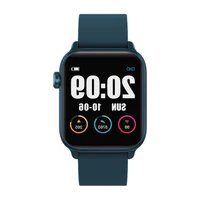
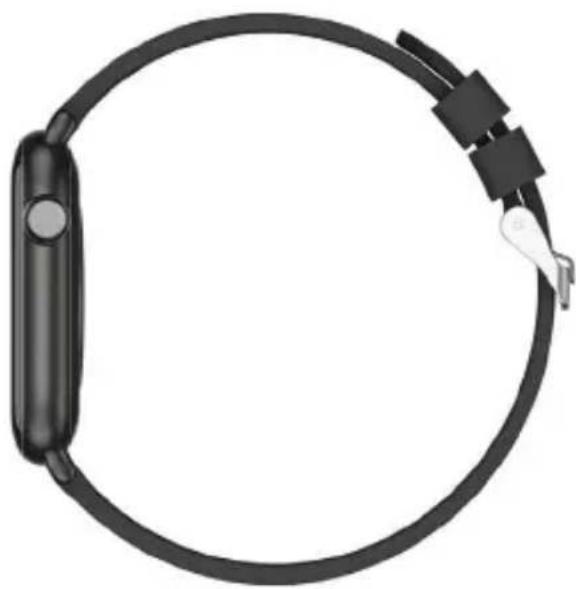
• Power ON: When XMOVE is turned off, long press the side button for 3 seconds to power on. In the standby state, short press the side button to wake it up.
• Power OFF: When XMOVE is turned on, long press the side button for 3 seconds, then press Power Off button on the watch face.
- Main screen selection: Slide from right to left on the main screen to display all the options to choose from, then slide up or down to choose the preferred menu.
natural_image
Black and white photo of a smartwatch with attached strap (no text or symbols visible)
EN
• How to find the different functions from the watch face:
a) Slide from top to bottom on the main screen dial to see the status bar, which includes DND mode, brightness level, settings, connection icon, and battery.
b) Slide from right to left on the main screen to enter the menu.
c) Slide from left to right on the main screen to see step, heart rate, sleep, and QR code.
d) Slide from bottom to top on the main screen to see the messages received.
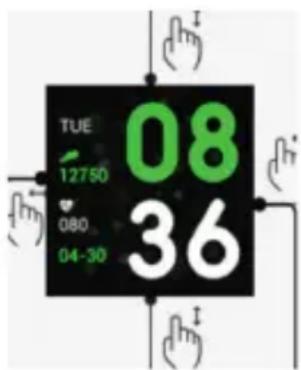
• XMOVE functions include:
Pedometer, Sport mode, Sleep Monitor, Health, Messages, Alarm clock (only set via APP), Remote music player, Timer, Stopwatch, Find phone, Screen brightness setting, Remote camera control, Settings.
EN
4. Correct disposal of this product

This marking on the product, accessories or literature indicates that the product and its electronic accessories (e.g. charger, headset, USB cable) should not be disposed of with other household waste.
To prevent possible harm to the environment or human health from uncontrolled waste disposal, please separate these items from other types of waste and recycle them responsibly to promote the sustainable reuse of material resources.
Household users should contact either the retailer where they purchased this product, or their local government office, for details of where and how they can take these items for environmentally safe recycling.
Business users should contact their supplier and check the terms and conditions of the purchase contract. This product and its electronic accessories should not be mixed with other commercial wastes for disposal. This product is RoHS compliant.
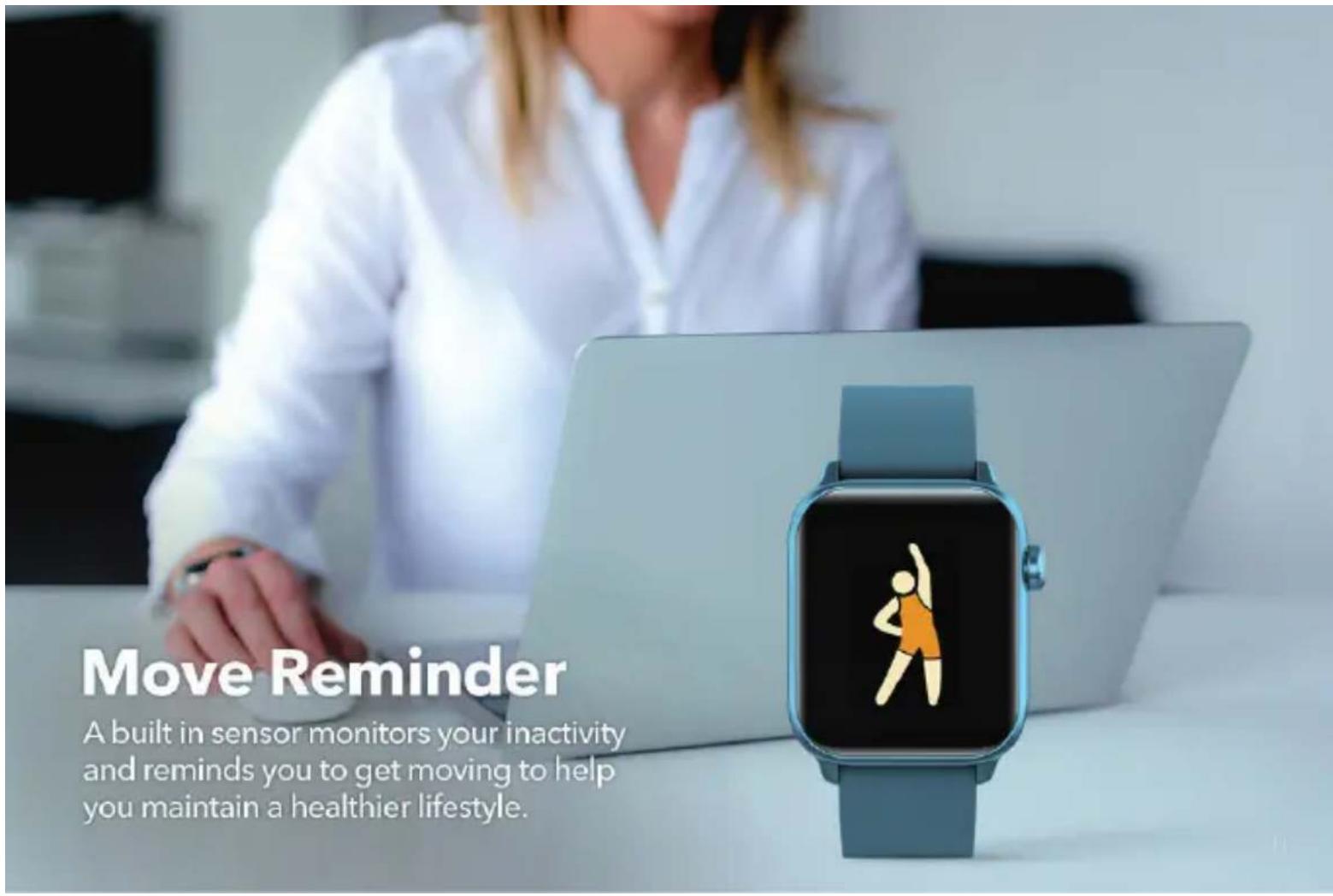
Move Reminder
A built in sensor monitors your inactivity and reminds you to get moving to help you maintain a healthier lifestyle.
DE
natural_image
Black and white photo of a smartwatch strap with attached clips (no text or symbols visible)
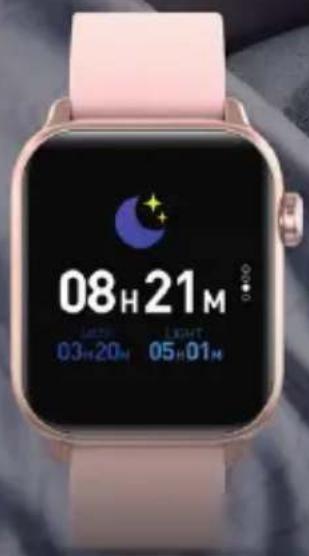
Monitor your activity even whilst sleeping.
The XMOVE measures duration and quality of sleep which can then be assessed in your Xplora App.
FR
natural_image
Black and white photo of a smartwatch with attached strap (no text or symbols visible)
FR
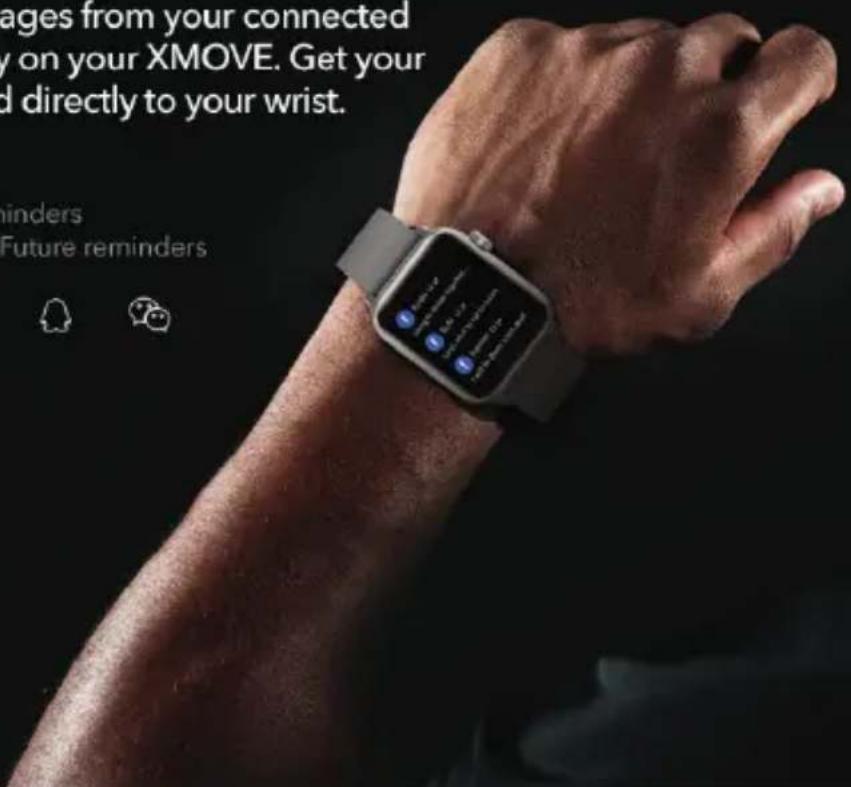
View a range of messages from your connected mobile phone directly on your XMOVE. Get your notifications delivered directly to your wrist.
Notification sync | Call reminders
Application notifications | Future reminders


ES
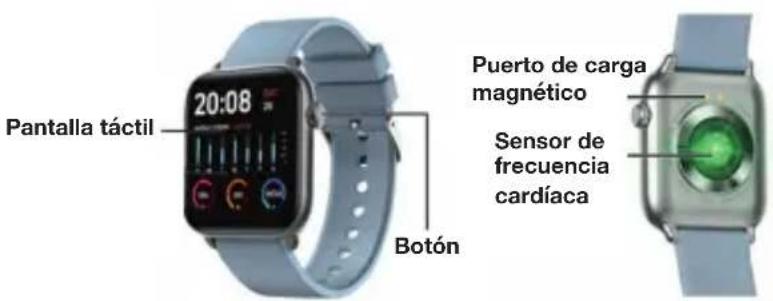
1. El producto
natural_image
Black and white photo of a smartwatch with attached strap (no text or symbols visible)
natural_image
Black and white photo of a swimmer in mid-swing with water droplets, no visible text or symbols
IT
natural_image
Black and white photo of a smartwatch with attached strap (no text or symbols visible)
XPLORA Technologies AS hereby declares that XMOVE is in compliance with the essential requirements and other relevant provisions of Directive 2014/53/EU.
A copy of the original declaration of conformity can be found in https://support.myxplora.com. Alternatively, you may contact XPLORA customer support via support@myxplora.com
FCC Statement
This device complies with part 15 of the FCC rules. Operation is subject to the following two conditions: (1) this device may not cause harmful interference, and (2) this device must accept any interference received, including interference that may cause undesired operation.
NOTE: The manufacturer is not responsible for any radio or TV interference caused by unauthorized modifications to this equipment. Such modifications could void the user's authority to operate the equipment. This equipment has been tested and found to comply with the limits for a Class B digital device, pursuant to part 15 of the FCC Rules.
These limits are designed to provide reasonable protection against harmful interference in a residential installation. This equipment generates uses and can radiate radio frequency energy and, if not installed and used in accordance with the instructions, may cause harmful interference to radio communications.
However, there is no guarantee that interference will not occur in a particular installation. If this equipment does cause harmful interference to radio or television reception, which can be determined by turning the equipment off and on, the user is encouraged to try to correct the interference by one or more of the following measures:
• Reorient or relocate the receiving antenna.
- Increase the separation between the equipment and receiver.
- Connect the equipment into an outlet on a circuit different from that to which the receiver is connected.
- Consult the dealer or an experienced radio/TV technician for help.
- This device and its antenna(s) must not be co-located or operating in conjunction with any other antenna or transmitter.
IC statement
This device complies with RSS-247 of Industry Canada. Operation is subject to the following two conditions: (1) this device may not cause harmful interference, and (2) this device must accept any interference received, including interference that may cause undesired operation.
This Class B digital apparatus complies with Canadian ICES-003.
Excessive sound pressure from earphones and headphones can cause hearing loss.
Note:
IC e-labelling can be seen from the watch's "Setting" menu under "About".
XMOVE
myxplora.com
Xplora.
Xplora Technologies AS ∅vre Slottsgate 27, 0157 Oslo, Norway