32165 - Switch Lindy - Free user manual and instructions
Find the device manual for free 32165 Lindy in PDF.


User questions about 32165 Lindy
0 question about this device. Answer the ones you know or ask your own.
Ask a new question about this device
Download the instructions for your Switch in PDF format for free! Find your manual 32165 - Lindy and take your electronic device back in hand. On this page are published all the documents necessary for the use of your device. 32165 by Lindy.
USER MANUAL 32165 Lindy
natural_image
Close-up of a black HFM Samoa 162 network device with USB port and connector (no visible text or symbols beyond branding)No. 32165
www.lindy.com
CE

Tested to Comply with
FCC Standards
For Home and Office Use!
Introduction
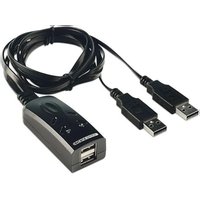
Thank you for purchasing the LINDY 2 Port USB Cable Keyboard & Mouse Switch. This KM Switch is cross compatible with Windows, Mac & Linux OS and allows you to control two PCs with independent displays from a single Keyboard & Mouse. As well as Hotkey switching, unique software allows you switch computers by simply moving your mouse from one monitor to the other*. True Transparent USB emulation technology also allows the KM Switch to recognize specific Keyboard & Mouse models, with access to all of their functions giving the KM Switch near universal compatibility.
Simple to set-up and compatible with a wide rage of LINDY USB Extenders the KM switch is ideal for Education, SME, professional or home use. Helping you make the most of your IT equipment.
Note: Software needs to be installed before using any of the switching features. *Not available on Linux.
Package Contents
■ 2 Port USB Cable Keyboard & Mouse Switch
■ Software Disc
This manual
Features
■ Easily switch between connected PCs
■ Compatible with popular OS platforms
■ True Transparent USB emulation
- Compact size
■ Simple installation
Specification
■ Host Interface USB 2.0
■ PC Port USB Type A (Male) 1.1m cable x 2
■ Device Port USB Type A (Female)
■ Supported OS* Windows 8, Windows 7, Vista, XP, 98
Mac OS 10.8.3
Linux Ubuntu 12.10 - limited to hot key switching
■ Power Bus Powered
■ Dimensions (WxDXH) 28 x 80 x 20mm
■ Power consumption 5V / 105mA (Max)
Installation
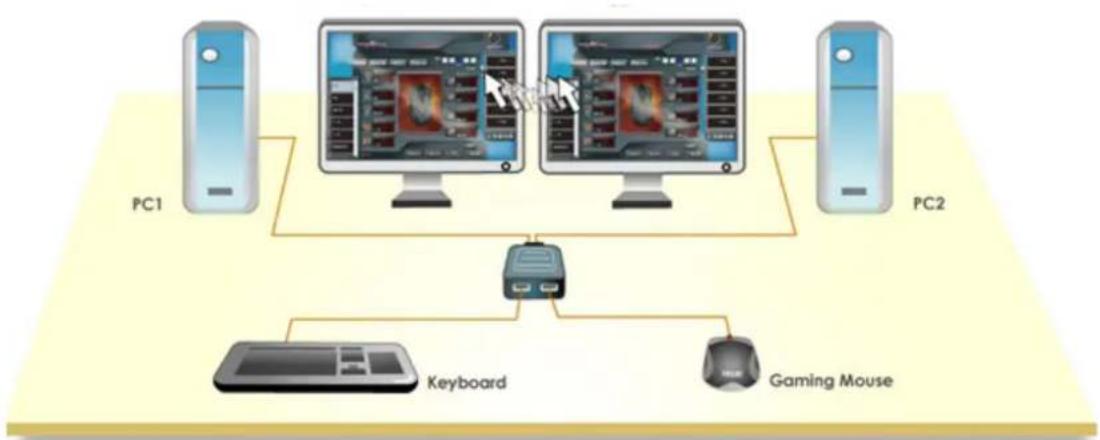
flowchart
graph TD
    PC1["PC1"] -->|Data Flow| PC2["PC2"]
    PC2 -->|Data Flow| Device["Device"]
    Device -->|Control Signals| PC1
    Device -->|Control Signals| PC2
    Device -->|Control Signals| Keyboard["Keyboard"]
    Device -->|Control Signals| GamingMouse["Gaming Mouse"]
The KM Switch allows a cross compatible setup between desktops or laptops running different OS platforms. It can also be used with Windows Tablet PCs.
Installation is a simple process and you do not have to turn off the computer before making connections to the KM switch.
For Windows, Mac & Linux - Quickstart
- Connect the shared USB Keyboard & Mouse to the KM switch via the female USB ports.
- Connect the two computers that will share the Keyboard & Mouse to the KM switch via the USB cables.
- The KM Switch will be ready to use via Hotkeys ONLY.
For Windows and Mac
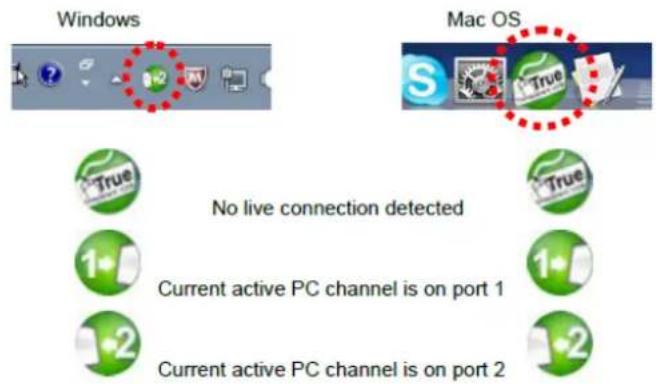
- For both Windows & Mac systems install the KM switch driver software on to both computers from the Software CD. Follow the auto-run instruction to complete the installation. When the installation is complete, you will see a KM switch icon (see below samples) on the system tray of your desktop.
text_image
Windows Mac OS No live connection detected 1 Current active PC channel is on port 1 2 Current active PC channel is on port 2Operation
| Command | Hotkeys | Switching software | Description |
| Select PC port | ScrLk + ScrLk + (1~2) 1~2 for PC port number. | Right-click the KVM Switching icon to open the operation menu and select the computer you wish to use | Selects the active PC port |
| Next lower PC port | ScrLk + ScrLk + Up Arrow | Selects the next lower connected PC port | |
| Next higher PC port | ScrLk + ScrLk + Down Arrow | Selects the next higher connected PC port | |
| Previous PC port | ScrLk + ScrLk + Backspace | Toggle between the last & current port |
Note: Switching by moving the mouse from monitor to monitor is limited to Windows & Mac OS.
Note: For Mac system, if the KM switch does not work after installation locate the KMSwitcher.app file in the application folder and double click on this file to start the program.
Einführung
text_image
Windows Mac OS No live connection detected 1 Current active PC channel is on port 1 2 Current active PC channel is on port 2Utilisation
Installation is a simple process and you do not have to turn off the computer before making connections to the KM switch.
Per Windows, Mac & Linux – Guida rapida
text_image
Windows Mac OS No live connection detected 1 Current active PC channel is on port 1 2 Current active PC channel is on port 2Utilizzo
This equipment complies with the requirements relating to Electromagnetic Compatibility Standards EN55022/EN55024 and the further standards cited therein. It must be used with shielded cables only. It has been manufactured under the scope of RoHS compliance.
This equipment has been tested and found to comply with the limits for a Class B digital device, pursuant to part 15 of the FCC Rules. These limits are designed to provide reasonable protection against harmful interference in a residential installation.
You are cautioned that changes or modification not expressly approved by the party responsible for compliance could void your authority to operate the equipment.
This device complies with part 15 of the FCC Rules.
Operation is subject to the following two conditions:
-
This device may not cause harmful interference, and
-
This device must accept any interference received, including interference that may cause undesired operation.
WEEE (Waste of Electrical and Electronic Equipment), Recycling of Electronic Products
Europe, United Kingdom
In 2006 the European Union introduced regulations (WEEE) for the collection and recycling of all waste electrical and electronic equipment. It is no longer allowable to simply throw away electrical and electronic equipment. Instead, these products must enter the recycling process.
Each individual EU member state has implemented the WEEE regulations into national law in slightly different ways. Please follow your national law when you want to dispose of any electrical or electronic products. More details can be obtained from your national WEEE recycling agency.
^st Edition, September 2013

www.lindy.com
Tested to Comply with
FCC Standards
For Home and Office Use!