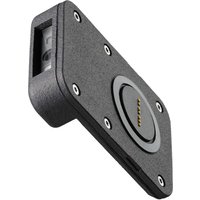
X-SCAN - Smartphone CROSSCALL - Free user manual and instructions
Find the device manual for free X-SCAN CROSSCALL in PDF.


| Product type | Barcode scanner (smartphone accessory) |
| Brand | CROSSCALL |
| Model | X-SCAN |
| Compatibility | CROSSCALL smartphones with X-BLOCKER (not included) |
| Connectivity | X-LINK™ (proprietary connector) |
| Power supply | Via smartphone (through X-LINK connector) |
| Illumination | White LED for illumination |
| Viewfinder | Red laser class 1 |
| Decoding | 1D and 2D codes |
| Associated application | X-TRACK (downloadable from crosscall.com) |
| Operating temperature | -20°C to 60°C |
| Sealing | Ensured only with X-BLOCKER correctly attached (seal at X-LINK level) |
| Maintenance | Slightly damp antistatic soft cloth; no chemicals |
| Safety | Class 1 laser: do not look into beam, do not point towards eyes |
| Compliance | Directive 2014/30/EU (C€) |
| Warranty | According to conditions on crosscall.com |
| Package contents | X-SCAN only (X-BLOCKER not included) |
| Key features | Scan via floating button or programmable physical button; configuration of prefixes/suffixes and code types |
| Usage precautions | Do not immerse, avoid shocks and solvents, do not disassemble |
| Repairability | Do not repair yourself; contact customer service |
Frequently Asked Questions - X-SCAN CROSSCALL
User questions about X-SCAN CROSSCALL
0 question about this device. Answer the ones you know or ask your own.
Ask a new question about this device
Download the instructions for your Smartphone in PDF format for free! Find your manual X-SCAN - CROSSCALL and take your electronic device back in hand. On this page are published all the documents necessary for the use of your device. X-SCAN by CROSSCALL.
USER MANUAL X-SCAN CROSSCALL
X-SCAN
INSTALLATION DE VOTRE X-SCAN
Installing your X-SCAN
![graph TD A["Component A"] --> B["Component B"] B --> C["Component C"]](/content/2026/04/691751/images/ad2dcdcd9ce57983e10e4fa6317a9078eec63c90e3fd64a05a6a091612e8ba1f.jpg)
PRÉSENTATION DU PRODUIT
Product presentation
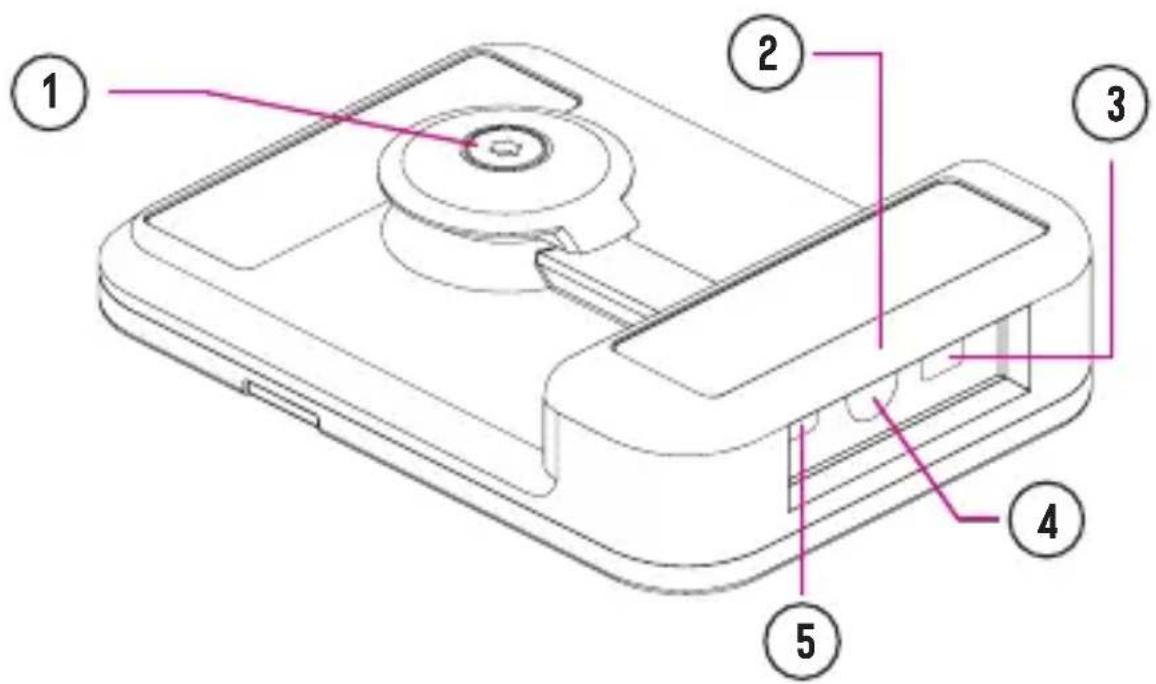
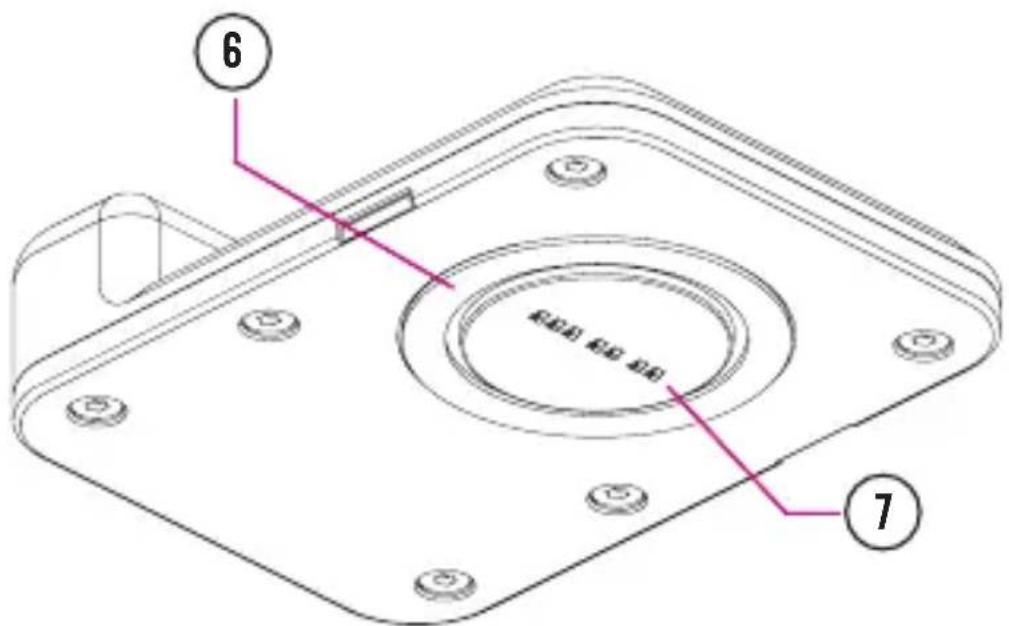
1
FR : Vis de fixation
EN : Mounting screw
ES : Tornillo de sujeción
DE : Befestigungsschrauben
IT : Vite di fissaggio
PT : Parafuso de fixação
NL : Bevestigingsschroeven
HR : Vijci za pričvršćivanje
PL : Śruby mocujące
SL : Pritrditveni vijak
SR: Вијци за причвршћивање
بُرْغي التثبيت : AR
2
FR : Tête de lecture
EN : Scanner head
ES : Cabezal de lectura
DE : Lesekopf
IT : Testina di lettura
PT : Cabeça de leitura
NL : Leeskop
HR : Glava za čitanjee
PL : Głowica czytająca
SL : Bralna glava
SR: Глава за читање
رأس القراءة: AR
3
FR : LED blanche
EN : White LED
ES : LED blanco
DE : Weiße LED
IT : LED bianco
PT : LED branca
NL : Wit ledlicht
HR : Bijela LED dioda
PL : Biała dioda LED
SL : Bela LED
SR: Бела LED диода
الأبيض DEL: AR
4
FR : Scanner
EN : Scanner
ES : Escáner
DE : Scanner
IT : Scanner
PT : Scanner
NL : Scanner
HR : Skener
PL : Skaner
CONDITIONS DE GARANTIE
Thank you for choosing Crosscall and for buying this product!
The quick-start guide will show you how to get started with your new device.
GETTING STARTED
1. APPLICATION
When using your smartphone for the first time, you'll need to install the X-TRACK app. To do this, download it from the crosscall.com website.
Once the app has been installed, you can skip directly to the «PREPARATION» section each time you use the phone.
2. PREPARATION
X-TRACK
Open the «X-TRACK» app installed on your smartphone. When it opens, you'll hear a sound signal.
X-SCAN
Insert and clip in the X-SCAN into the X-BLOCKER of your smartphone (not included with the X-SCAN). The X-SCAN is compatible with all X-BLOCKER products from the CROSSCALL range.
Lock in the clamping screw, then position the X-LINK™ connector* of the X-SCAN over the X-LINK™ connector* of your smartphone (the scanning window should be at the top of the phone), and clip the X-BLOCKER onto your smartphone. To clip in the X-BLOCKER, position one of the ridges into the corresponding notch on your smartphone, then the second. To remove the X-BLOCKER, carry out this operation in reverse, removing the right ridge first.
When connecting or disconnecting the X-LINK™*, you'll hear a triple sound signal.
SETTINGS
The «X-TRACK» app enables you to scan your codes via:
• The X-SCAN (hardware decoding)
• The camera of your CROSSCALL terminal (software decoding)
The «X-TRACK» application enables you to scan your codes via:
• A floating button on the Android interface
- The programmable physical button on your smartphone. To do this, you'll need to pair the programmable button in question with the «X-TRACK» app in your phone settings.
When you open the «X-TRACK» app, you'll be taken by default to the «Trigger» section. To access the other settings, press on the three lines located in the upper-left corner of the screen.
1. TRIGGER
This section enables you to activate or deactivate the floating button and the programmable physical button, and to define the readers (X-SCAN, terminal camera) with which they'll interact. To do this, you'll need to:
- On the first line «Floating button configuration»: Select «None». «Camera» or «Scanner». If you select «None», the floating button will disappear. If the floating button is activated, you'll be able to freely move it around your screen and change its size using the dimension cursor.
- On the second line «Push To Talk physical button configuration»: Select «None». «Camera» or «Scanner».
2. DATA FORMAT
In this section, you can configure the prefixes and suffixes to be added to the codes scanned, as well as the end character. For example, you can add a return at the end of the line after each code scanned to create a list of codes that is easy to exploit.
Just like when you add a suffix, it is imperative that you select the «Activate suffix» option to be able to add an end character.
In this section, you can configure code-reading by defining the 1D and 2D code types that you want to scan. You can also define the minimum and maximum number of characters that you want to decode. So, if you have configured the scanner and camera on different buttons (floating and push to talk), you'll be able to set up 2 different code-reading configurations.
In the scanner section, it is imperative that you click on the scanner icon in the upper-right corner to send it the updated configuration. An «Updated» Scanner confirmation message should appear.
4. PROFILE
In this section, you'll find an overview of your settings (Configuration details), automatically saved whenever you change a setting in the app. You can share your settings, so that other users can replicate your configuration. There are 2 solutions available for this:
Via the QR code
Generated a QR code via the «Generate QR code» option, which can be scanned using the «Scan a QR code» option
OPERATION
Open your application, which should have the code (business application, text processor application, message inbox, etc.), and position the screen of your CROSSCALL smartphone and your cursor in the application field where the code should be entered. Press the floating button and/or the programmable physical button of your terminal to scan the codes. The scanned codes will automatically appear in the selected zone.
X-SCAN
Each time you press the selected trigger, the white LED will be activated to illuminate the scanned area, a red laser sight will appear to help you centre your device over the code, and a sound signal will be triggered when the scan is complete.
CAMERA
Position the cross over the code to scan and a beep will confirm that the code has been detected and decoded.
INDICATORS
- Triple sound signal: Connection and disconnection of the X-LINK™* of the X-SCAN to the X-LINK™* of the terminal
- Single sound signal: Code scanned
- White LED: Press on the floating and/or programmable button
• Red sight: Press on the floating and/or programmable button
PRECAUTIONS FOR USE
• Small parts may be a choking hazard.
- It is recommended that you use the X-SCAN in temperatures between -20 °C and 60 °C.
- Do not expose to dust, direct sunlight, high humidity, heat or any mechanical impacts.
- Avoid impacts.
- If the device overheats, falls or has been damaged, please stop using it immediately.
• Do not allow children or pets to chew or lick the device.
- Do not use harsh cleaning agents or solvents such as petrol or alcohol: risk of damage.
- Be careful with the edges, uneven surfaces, metal parts of this device and its packaging to avoid possible injury or damage.
- Do not modify, repair or disassemble this device. Doing so may result in
fire, electric shock, or complete destruction of the device. None of this is not covered by the warranty.
- Do not attempt to change a part by yourself. If a part needs to be changed, contact your dealer.
- This device is not intended for use by persons (including children) with reduced physical, sensory or mental capacities, or persons without experience or knowledge, unless they are supervised by a person responsible for their safety or have received prior instructions concerning the use of the device. Children should be supervised to ensure that they do not play with the device.

PRECAUTIONS FOR USE AND WATERPROOFING
- The X-SCAN is only waterproof when the product is properly attached to the phone using the dedicated X-BLOCKER
- To guarantee the waterproofing of the X-SCAN, check that it is not damaged and that the seal at the X-LINK™* is in good condition.
- If the device gets wet with salt water or chlorinated water, wipe it with a damp cloth, then dry with a soft, clean cloth.
• If the device gets wet, dry it with a soft, clean cloth. - Do not use the X-SCAN underwater.
- Do not immerse the X-SCAN in water.
- Do not remove any parts of the X-SCAN, and do not use any tools that may damage (sharp, pointed, etc.) and/or compromise its waterproofing.

CLASS 1 LASER: RECOMMENDATIONS FOR USE
- Do not look directly at the source of the laser
- Do not point the laser into your eyes
- Do not direct the laser into the eyes of a person or an animal
- Do not point the laser onto a reflective material
- If the window of the X-SCAN is damaged, do not use the product as the laser trajectory may be changed
ENVIRONMENTAL PROTECTION
Please respect local regulations in terms of waste elimination when you are getting rid of packaging, the battery or the used product. Take them to a collection point so they can be properly recycled. Do not dispose of your used product in ordinary rubbish bins.

This symbol affixed on the product means that it is a device whose treatment as waste is subject to Waste Electrical and Electronic Equipment (WEEE) regulations.
CLEANING AND MAINTENANCE
- Disconnect the X-SCAN from the terminal before carrying out any cleaning or maintenance operations.
- Do not clean the X-SCAN with chemical products (alcohol, benzene), chemical agents or abrasive cleaners so as not to damage the parts or cause a malfunction. The device can be cleaned with a soft, anti-static and slightly damp cloth.
- Do not scratch or tamper with your X-SCAN, as the substances in the paint may cause an allergic reaction. If such a reaction occurs, stop using the X-SCAN immediately and consult a doctor.
• Do not dismantle the X-SCAN yourself.
WARRANTY CONDITIONS
Your X-SCAN in the box is guaranteed against any defect or malfunction that may arise due to their design or manufacture, or an equipment failure, under normal conditions of use, for the duration of the warranty period (available to view with our Product Support T&Cs on www.crosscall.com > Assistance > Warranty) valid from the date of purchase of the product, as shown on your original invoice.
The commercial warranty automatically terminates at the end of this period. For more information on the warranty terms and conditions, go to www.crosscall.com > Assistance > Warranty.
In the event that your X-SCAN has a defect that prevents normal use, you will need to take your device to our Product Support Service. Your product will not be repaired or replaced if the trademarks have been removed or changed, or if your purchase receipt is missing or illegible. If the lack of conformity or defect is confirmed, all or part of your product will be replaced or repaired. This warranty covers the cost of parts as well as labour.
Documents and information to enclose when sending your X-SCAN to our Product Support Service: A copy of the invoice or receipt, showing the date of purchase, the type of product, and the name of the distributor. A description of the fault with the product. We recommend reading the terms and conditions of after-sales service available on the Crosscall website at the following address: www.crosscall.com
COMPLIANCE CE
CROSSCALL declares that this device is in compliance with the essential
requirements and other relevant provisions of Directive 2014/30/EU.
WARNING: Brand names and trade names are the property of their respective owners.
CROSSCALL - 245 RUE PAUL LANGEVIN 13290 AIX-EN-PROVENCE - FRANCE www.crosscall.com



- INSTALLATION DE VOTRE X-SCAN
- PRÉSENTATION DU PRODUIT
- 1
- 2
- 3
- 4
- CONDITIONS DE GARANTIE
- GETTING STARTED
- APPLICATION
- PREPARATION
- X-TRACK
- X-SCAN
- SETTINGS
- TRIGGER
- DATA FORMAT
- PROFILE
- VIA THE QR CODE
- OPERATION
- CAMERA
- INDICATORS
- PRECAUTIONS FOR USE
- PRECAUTIONS FOR USE AND WATERPROOFING
- CLASS 1 LASER: RECOMMENDATIONS FOR USE
- ENVIRONMENTAL PROTECTION
- CLEANING AND MAINTENANCE
- WARRANTY CONDITIONS
- COMPLIANCE CE
Brand : CROSSCALL
Model : X-SCAN
Category : Smartphone