304896 - Printer CSL - Free user manual and instructions
Find the device manual for free 304896 CSL in PDF.


User questions about 304896 CSL
0 question about this device. Answer the ones you know or ask your own.
Ask a new question about this device
Download the instructions for your Printer in PDF format for free! Find your manual 304896 - CSL and take your electronic device back in hand. On this page are published all the documents necessary for the use of your device. 304896 by CSL.
USER MANUAL 304896 CSL
text_image
All_OS_Setup Extract files and install? Yes Notext_image
Network Printer Wizard Welcome to the Network Printer Wizard This wizard helps you connect to a shared printer. Make sure your printer is turned on and connected to your network. To continue, click Next. < Back Enter > Abbranchetext_image
Network Printer Wizard Browse for Network Printer Select the printer you want to use from the list below. Shared printer: Canon LBP3370 (UFR II)-816.19f Printer Information Description: Canon LBP3370 (UFR II) Locations: Networking USB - LPR Print Server-816.19f < Zurich Weiter > Abbrachentext_image
Network Provider Wizard Normal network server The manufacture and model detective which printer software is used. Custom LBP/CBI (49% CI-16) .09 The manual printer installed version that also drives for the server. Naturally, select them the list, or disk. None did if your printer same with an installation file. Manufacturer: Microsoft User this printer as the default printer New Data... < Back Next > Add Now Others Suzuki 8 Name Insidership Number Typ 2.0 percent kioscum C:\CM-BG\G49 [3.67.2011.2.09] Setup.bsh Desktop Bibliotheken Computer Network Database Setup information (7.x) Other Add Nowtext_image
Network Printer Wizard Completing the Network Printer Wizard You are ready to complete the Network Printer Wizard. The printer has the following setting. Name: Canon LBP3370 (LPR II)-8.16 LDF Manufacture: Canon Model: Canon LBP3370 LPR II Protocol: LPR Default: No If you have changed the hardware configuration at the printer side, please run Network Printer Wizard again. To complete the installation, click finish. < Zurück Fertig stellen Abbrevientext_image
Canon 2018 Canon (C) 45364 Microsoft 973 Document Wizard Canon (C) Canon (C) Canon (C) Canon (C) Canon (C) Canon (C) Canon (C) Canon (C) Canon (C) Canon (C) Canon (C) Canon (C) Canon (C) Canon (C) Canon (C) Canon (C) Canon (C) Canon (C) Canon (C) Canon (C) Canon (C) Canon (C) Canon (C) Canon (C) Canon (C) Canon (C)Thank you for having chosen this CSL product and for placing your trust in our company. Please read this manual carefully before installation to ensure your long-term enjoyment of this product. For future reference, please keep this manual.
1. Scope of delivery
• LPR USB 2.0 LAN Print Server
- Installation CD
- Power adapter
- RJ45 network cable
- User manual
2. Technical specifications
| Transfer rate 10/100 Mbit/s | |
| Ports | • 1 x USB 2.0 (downward compatible with USB 1.1)• 1 x RJ45 (LAN) |
3. Properties
Connect a single printer to multiple computers. Ideal for use in homes or offices. The LPR USB 2.0 LAN print server enables you to connect multiple PCs to your network. No printer PCs required The print server is integrated with your network via a network cable connected to the switch or router and in turn is connected to the printer over a USB 2.0 port. Any PC on your network can access the connected printer, at any time. The server can be configured easily and conveniently from your browser, It is also possible to connect to a wireless router or an access point. You can thus access the printer connected to your wireless network without a problem.
4. Putting into operation
Make sure that your network is functioning properly.
Connect the USB cable of the printer to the USB port of the print server.
Connect one end of the RJ45 network cable to the network port of the print server. Connect the other end of the network cable to the desired network via the switch or router, hub or access point.
Connect the power adapter to the print server and plug it into a wall socket.
5. Installation for Microsoft Windows using installation CD
After you have installed the hardware, please insert the included installation CD into your drive. Or download the file from our download portal (https://downloads.ganzeinfach.de/).
The installation programme will open automatically.
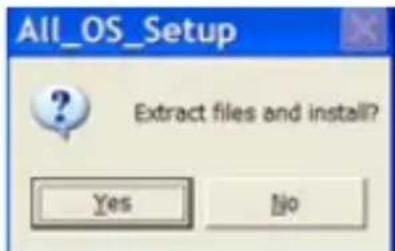
Run the installation file by clicking "Yes".
Then click "Finish" to complete the installation.
text_image
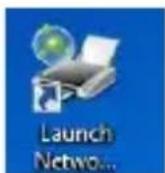
All_OS_Setup Extract files and install? Yes NoOn successful installation of the driver software, the "LaunchNetworkPrinterWizard.exe" icon will appear on your desktop.
6. Setting up the printer
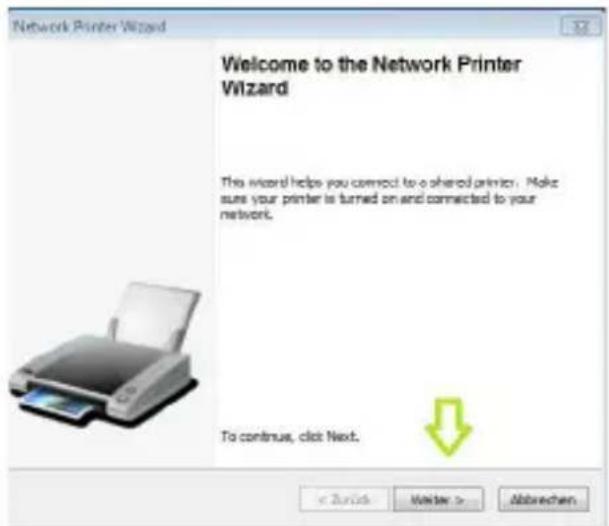
To set up a printer, please click on the "LaunchNetworkPrinterWizard.exe" icon. The setup wizard will be launched. Click on the "Next" tab.
text_image
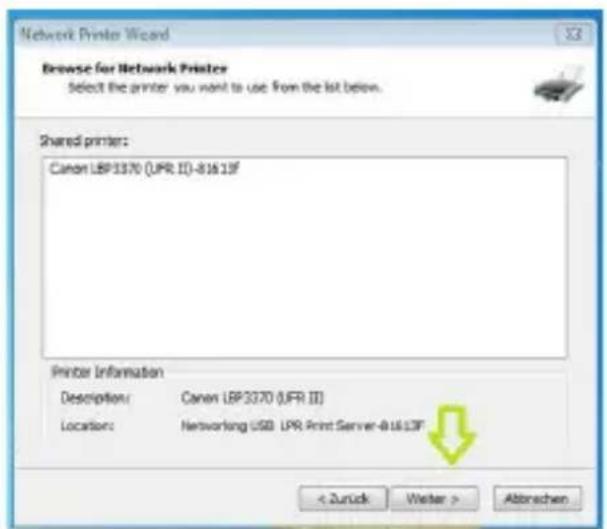
Network Printer Wizard Welcome to the Network Printer Wizard This wizard helps you correct to a shared printer. Make sure your printer is turned on and connected to your network. To continue, click Next. < Back Enter > AbbrechenIn the next step, select the printer model to install the associated printer driver. Continue by clicking the "Next" button.
text_image
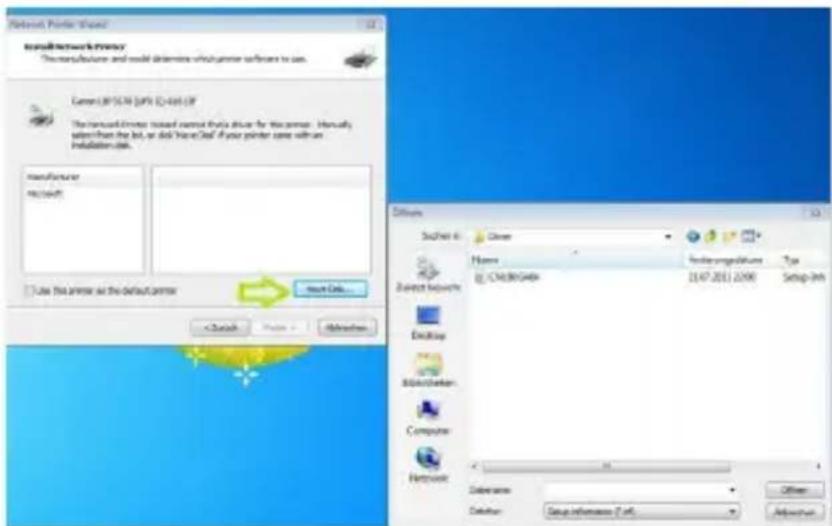
Network Printer Wizard Browse for Network Printer Select the printer you want to use from the list below. Shared printer: Canon LBP3370 (UFR II)-81613F Printer Information Description: Canon LBP3370 (UFR II) Location: Networking USB LPR Print Server-81613F < Zuruck Weiter > AttorneysNote: The number of printers shown in this list depends on the number of printers that are connected to your network. If there is only one printer connected to the network, then one printer will be shown in this list. If you do not see your printer in this list, then insert the installation CD of your printer and click the "Have Disk" button. You must search the folder containing the driver for your printer. Then click on "Open" to use it. Select the driver from the list and click on the "Next" button.
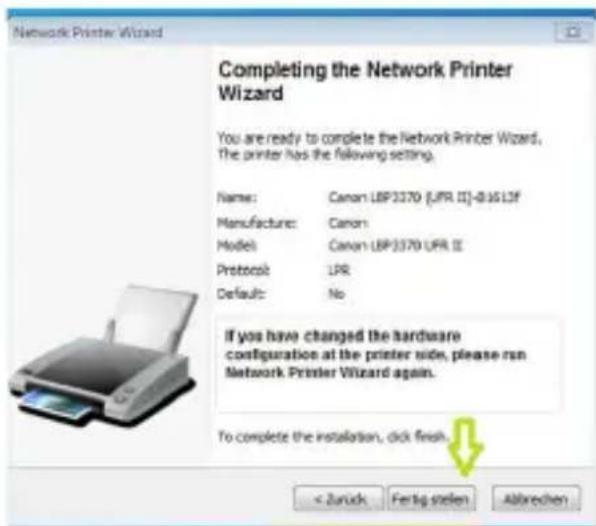
When the appropriate driver has been installed, please click "Finish".
text_image
InstallNetworkFrequency The manufacturing and model determine which printer software is used. Current: 897648 (ePK) E-405 (EF) The manual printer tested cannot directly drive the printer. Internally, also then the bit, or did Your Card if your printer same with an installation code. manufacturer Microsoft Save this printer as the default printer Next Data... Details Start/End: Close Name: Forderungsdatum Type: C:\ch30\g40k 21.07.2011.2098 Setup-Int Device settings: Desktop Bibliotheken: Computer Networks Subsystem: Defuser: Setup information (7 eK) Officer: AdjustmentAfter successful installation, you will find the newly added printer under Control Panel – Printers and Faxes The name may differ depending on your operating system.
text_image
Network Printer Wizard Completing the Network Printer Wizard You are ready to complete the Network Printer Wizard. The printer has the following setting. Name: Canon LBP3370 (LPR II)-01613F Manufacture: Canon Model: Canon LBP3370 LPR II Protocol: LPR Default: No If you have changed the hardware configuration at the printer side, please run Network Printer Wizard again. To complete the installation, click finish. < Zurück Fertig stellen AbbrevchenTo use the printer you just added, you must select it from the list of printers.
7. Setting up the printer without software
text_image
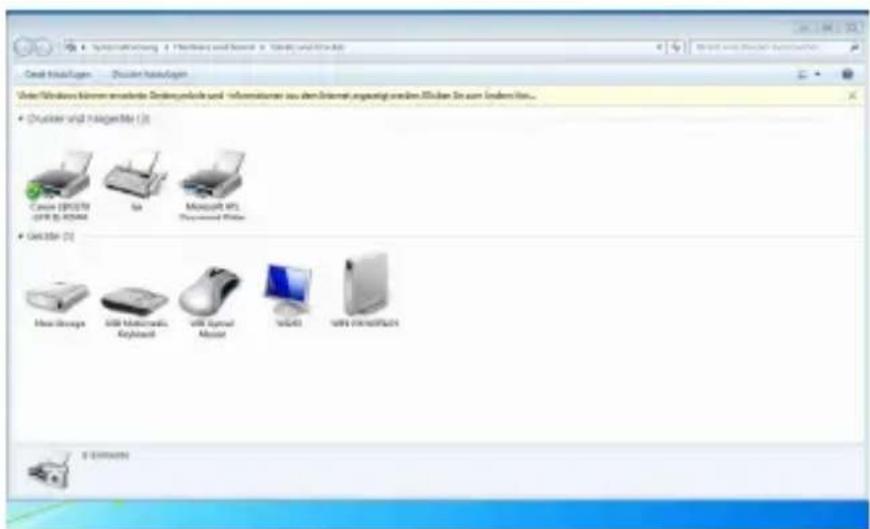
Systematicung / Pharmacy and Book 3. Display and Archive Covid Modulagen - Druster Modulagen Under Windows können erwartete Digital platforms und - informationer aus den Internet, angustigt werden. Edikan Sie am Indemlien... Druster und Analogible (2) Canon (CINIC) 408 (B-408) Sara Microsoft 951 Disordered Video Getable (2) Home Design USB Mathematic Keyboard USB Crystal Mouse WIFI USB Interface/MSI E:\DocumentsAlternatively, you can also manually set up the printer for Windows. To do this, go to Control Panel. Navigate to "Devices and Printers", and then click on "Add Printer". A window now appears. Select "Add a network, wireless or Bluetooth printer".
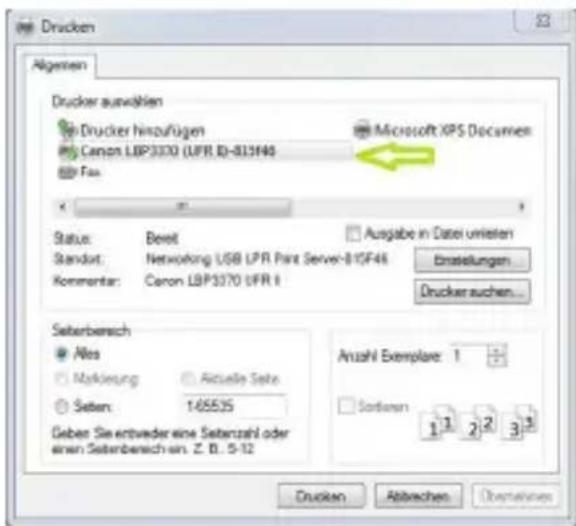
If the printer is not found, click on "The Printer that I want is not listed". Select "Add printer using a TCP / IP address or hostname" and click on the "Next" button.
You must then enter the IP address of the print server in both the available fields. You can find the IP address, for instance, from the menu of your router. After entering the IP address, click "Next".

Drucker hinzufügen
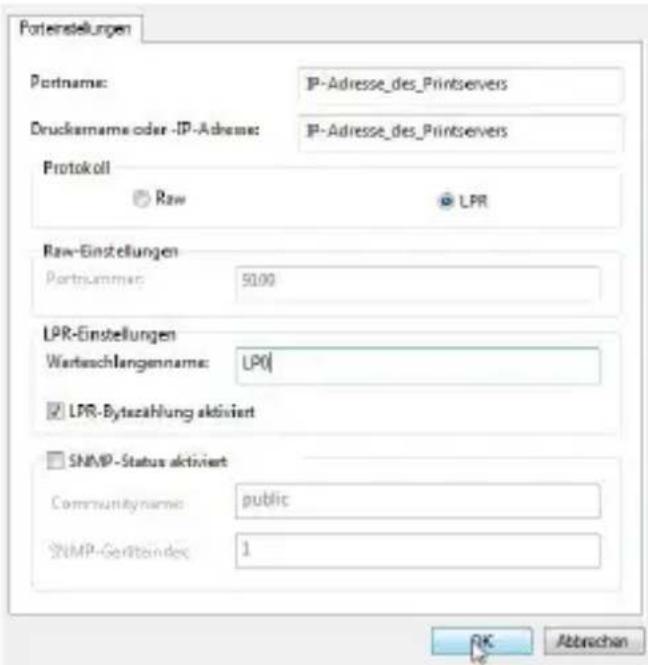
After a few seconds, a new "Additional port information required" window opens. Here, click on "User defined" and open "Settings".
In this menu item, select the protocol "LPR" and enter a "Queue name".
Then click "OK" and "Next". The "Install the printer driver" window opens. Look for your printer in the list and install the driver manually by clicking on "Disk" and specifying the path where the driver is located.
The manual setup of your print server is now complete.
8. Safety instructions and disclaimer
Do not attempt to service this product by yourself as opening or removing covers may result in fire, electric shock or equipment damage. Please avoid any contact to the electric current. This product is only licensed for indoor use and dry areas. Please protect it from water, rain, snow or high humidity and keep it away from high temperatures and direct sunlight.
Do not expose this product to extreme and sudden changes of temperature or heavy vibrations; this may lead to damage of the internal electronic part of this unit. Check this product for signs of damage before putting it in operation. In case the device received any damage, it should not be used. Please contact our customer support.
Please observe the relevant national provisions and legal restrictions. Do not use this product for anything other than intended and as described in the manual. Any attempt of repairs or alterations by someone other than the original supplier will invalidate the guarantee and result in refusal of warranty claims. Persons who are familiar with the operating manual and the applicable regulations concerning working safety and accident prevention may only use the product. This unit is not
intended to be used by persons (including children) with limited physical, sensory or mental aptitude or lack of experience and/or knowledge unless they are supervised by a person responsible for their safety or have received instructions as to how the device is used properly. The technical specifications of this product may change without prior notice.
9. Disposal Instructions
The European Directive (WEEE) requires that old electrical and electronic appliances shall be disposed of separately from normal household garbage for optimal recycling. The component parts must be separated, collected and sent for recycling or disposal in an environment-friendly manner.
Otherwise, toxic and dangerous substances could cause enduring damage to the environment if disposed of incorrectly. As a consumer you are legally obligated (Electrical and Electronic Equipment Act-ElektroG) to return electronic equipment at the end of its lifetime to their manufacturer, point of sale, public collection points or importer free of charge. The relevant local laws apply here. The symbol on the product, in the instructions or on its packing indicates these regulations. The reuse or recycling of materials and old units makes an important contribution towards protecting the environment.

WEEE guideline: 2012/19/EU WEEE register number: DE 67896761
WD Plus GmbH, herewith declares that this product 304896/20200728SZ039 conforms to the principle requirements and other relevant s pula ons. The complete Declara on of Conformity can be obtained from: WD Plus GmbH, Wohlenbergstraße 16, 30179 Hannover