300136 - Printer CSL - Free user manual and instructions
Find the device manual for free 300136 CSL in PDF.



| Technical Features | Inkjet printer, maximum resolution of 4800 x 1200 dpi, printing speed up to 15 pages per minute in black and 10 pages per minute in color. |
|---|---|
| Usage | Ideal for home users and small businesses, compatible with Windows and Mac, USB and Wi-Fi connectivity. |
| Maintenance and Repair | Replaceable ink cartridges, automatic print head cleaning, firmware updates via the manufacturer27s website. |
| Security | Password protection for Wi-Fi connection, data security options when printing wirelessly. |
| General Information | Dimensions: 40 x 30 x 15 cm, weight: 5 kg, 2-year warranty, power consumption: 20 W during operation, 5 W in standby. |
Frequently Asked Questions - 300136 CSL
User questions about 300136 CSL
0 question about this device. Answer the ones you know or ask your own.
Ask a new question about this device
Download the instructions for your Printer in PDF format for free! Find your manual 300136 - CSL and take your electronic device back in hand. On this page are published all the documents necessary for the use of your device. 300136 by CSL.
USER MANUAL 300136 CSL
text_image
QR code image containing encoded data, no visible human-readable textENG: Current drivers, user manuals and other relevant documents for this product can be found on our homepage.
text_image
All_OS_Setup Extract files and install? Yes Notext_image
Network Printer Wizard Welcome to the Network Printer Wizard This wizard helps you correct to a shared printer. Make sure your printer is turned on and connected to your network. To continue, click Next. < Back Enter > Abbranchetext_image
Network Printer Wizard Browse for Network Printer Select the printer you want to use from the list below. Shared printer: Canon LBP3370 (LPR II)-816.19f Printer Information Description: Canon LBP3370 (UFR II) Locations: Networking USB LPR Print Server-816.LDF < Zurich Wieter > Abbrevientext_image
Printed Printer Wizard Printed network server The manufacture and model determine which printer will press to use. Caser: LRF\CMV [0.4%] 32-1061.CF This manual printer is a key parameter that does for the printer. Manuals, select them the list, or click NoneMail. If you print your name with an installation file. Manufacturer: Microsoft Use this printer as the default printer New Date... < Back Next > Refresh... Others Close Web Name C:\M8\BCG49& 13.07.2012.2.099 Setup Inh Zuject Resource Desktop Web/Switchen Computer Network Database Delete Setup Information (T-nf) Add/Remove Add/Removetext_image
Network Printer Wizard Completing the Network Printer Wizard You are ready to complete the Network Printer Wizard. The printer has the following setting. Name: Canon LBP3370 (LPR II)-8.16 LDF Manufacturer: Canon Model: Canon LBP3370 LPR II Protocol: LPR Default: No If you have changed the hardware configuration at the printer side, please run Network Printer Wizard again. To complete the installation, click finish. < Zuruck Fertig stellen AbbredenThank you for having chosen this CSL product and for placing your trust in our company. Please read this manual carefully before installation to ensure your long-term enjoyment of this product. For future reference, please keep this manual.
1 Scope of delivery
• LPR USB 2.0 LAN Print Server
- Installation CD
- Power adapter
- RJ45 network cable
- User manual
2 Technical specifications
| Transfer rate 10/100 Mbit/s | |
| Ports | • 1 x USB 2.0 (downward compatible with USB 1.1)• 1 x RJ45 (LAN) |
3 Properties
Connect a single printer to multiple computers. Ideal for use in homes or offices. The LPR USB 2.0 LAN print server enables you to connect multiple PCs to your network. No printer PCs required The print server is integrated with your network via a network cable connected to the switch or router and in turn is connected to the printer over a USB 2.0 port. Any PC on your network can access the connected printer, at any time. The server can be configured easily and conveniently from your browser, It is also possible to connect to a wireless router or an access point. You can thus access the printer connected to your wireless network without a problem.
4 Putting into operation
Make sure that your network is functioning properly.
Connect the USB cable of the printer to the USB port of the print server.
Connect one end of the RJ45 network cable to the network port of the print server. Connect the other end of the network cable to the desired network via the switch or router, hub or access point.
Connect the power adapter to the print server and plug it into a wall socket.
5 Installation for Microsoft Windows using installation CD
After you have connected the hardware, insert the installation CD in your drive. Or download the ZIP file from this address: https://ftp.csl-computer.com/pub/drivers/printserver/.
The installation programme will open automatically.
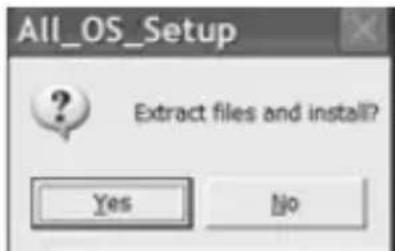
Run the installation file by clicking "Yes".
Then click "Finish" to complete the installation.
text_image
All_OS_Setup Extract files and install? Yes NoOn successful installation of the driver software, the "LaunchNetworkPrinterWizard.exe" icon will appear on your desktop.

6 Setting up the printer
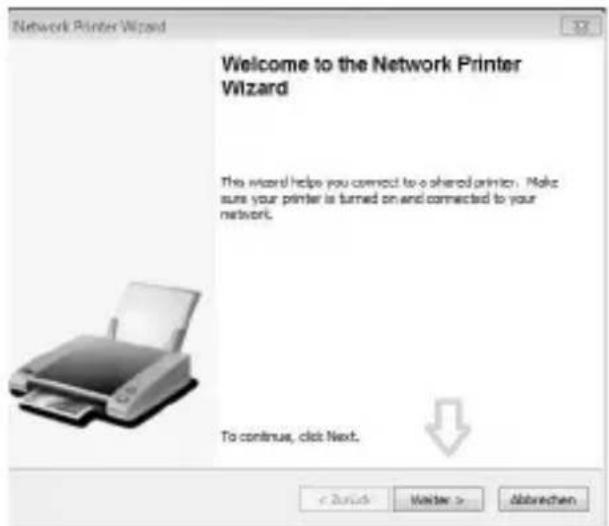
To set up a printer, please click on the "LaunchNetworkPrinterWizard.exe" icon. The setup wizard will be launched. Click on the "Next" tab.
text_image
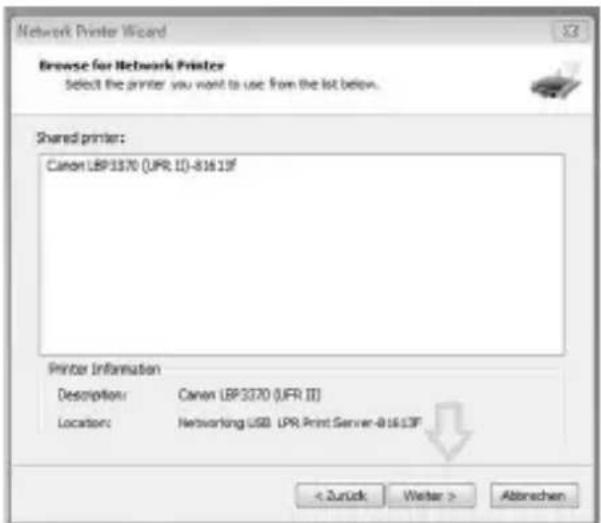
Network Printer Wizard Welcome to the Network Printer Wizard This wizard helps you connect to a shared printer. Make sure your printer is turned on and connected to your network. To continue, click Next.In the next step, select the printer model to install the associated printer driver. Continue by clicking the "Next" button.
text_image
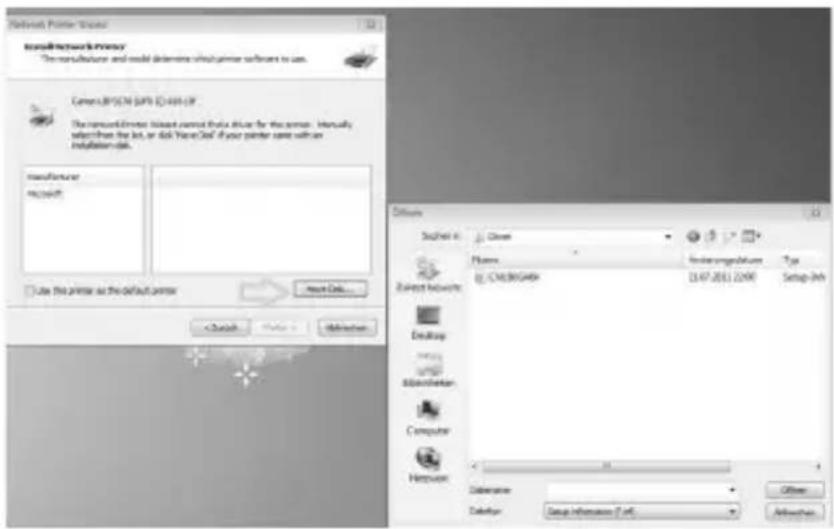
Network Printer Wizard Browse for Network Printer Select the printer you want to use from the list below. Shared printer: Canon LBP3370 (UFR II)-81613F Printer Information Description: Canon LBP3370 (UFR II) Location: Networking USB LPR Print Server-81613F < Zurück Weiter > AltenechenNote: The number of printers shown in this list depends on the number of printers that are connected to your network. If there is only one printer connected to the network, then one printer will be shown in this list. If you do not see your printer in this list, then insert the installation CD of your printer and click the "Have Disk" button. You must search the folder containing the driver for your printer. Then click on "Open" to use it. Select the driver from the list and click on the "Next" button.
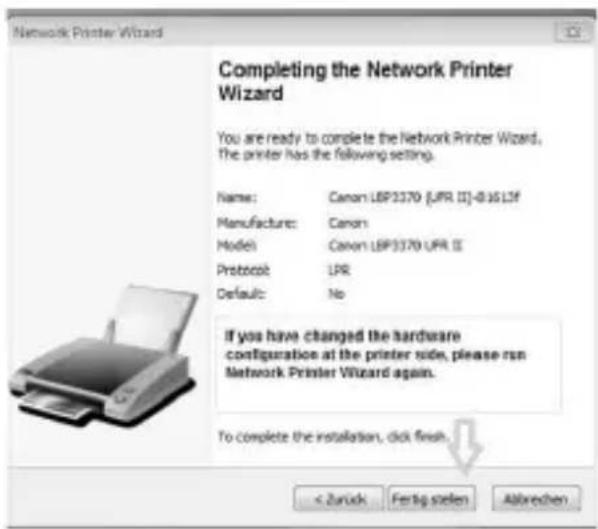
When the appropriate driver has been installed, please click "Finish".
text_image
Retinafter Printer Wizard InstallNetworkPrivacy The manufacturer and model determine which printer software is used. Camera.BY5034 (SPX) © 449-09 The remote projector version cannot directly drive the printer. Internally adjusts from the bit, or disk Yanceool if your printer needs with an installation data. Manufacturer: mcncsft Use this printer as the default printer Next Data... Options Start/End: Close Flares: Inserungsstruktur Type @ CHINOCOATE 13.47.2011.22690 Setup Info Exhibit networks Desktop Bikobichkan Computer Hippocorn Substance Deletion Setup Information (I.e.) Other AdjustmentAfter successful installation, you will find the newly added printer under Control Panel – Printers and Faxes The name may differ depending on your operating system.
text_image
Network Printer Wizard Completing the Network Printer Wizard You are ready to complete the Network Printer Wizard. The printer has the following setting. Name: Canon LBP3370 (UPR II)-0.1615f Manufacture: Canon Model: Canon LBP3370 UPR II Protocol: LPR Default: No If you have changed the hardware configuration at the printer side, please run Network Printer Wizard again. To complete the installation, click finish. < Zurück Fertig stellen AbbrevchenTo use the printer you just added, you must select it from the list of printers.
7 Setting up the printer without software
text_image
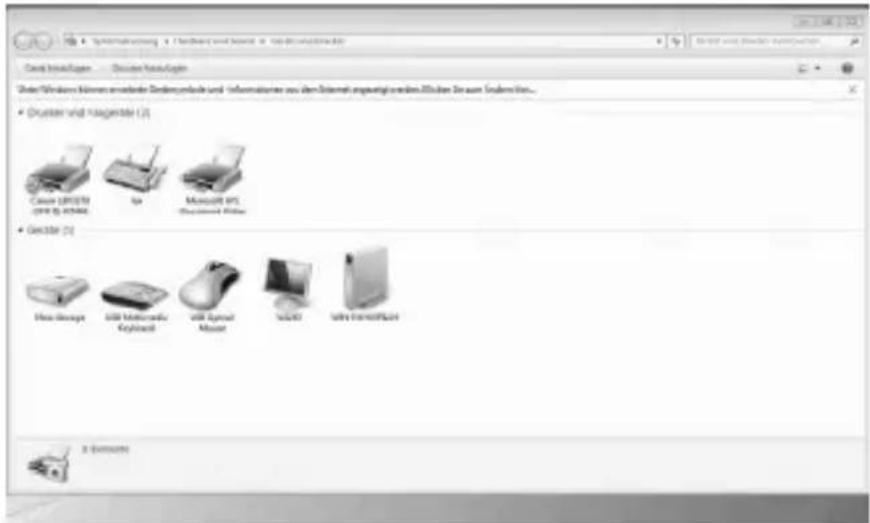
Caser LSP50 Gelator Maxwell PS Gelator Maxlase Gelator Maxlase Gelator Maxlase Gelator Maxlase Gelator Maxlase Gelator Maxlase Gelator Maxlase Gelator Maxlase Gelator Maxlase Gelator Maxlase Gelator Maxlase Gelator Maxlase Gelator Maxlase Gelolor Maxlase Gelator Maxlase Gelator Maxlase Gelator Maxlase Gelator Maxlase Gelator Maxlase Gelator Maxlase Gelator Maxlase Gelator Maxlase Gelator Maxlase Gelator Maxlase Gelator Maxlase Gelator MaxlasseAlternatively, you can also manually set up the printer for Windows. To do this, go to Control Panel. Navigate to "Devices and Printers", and then click on "Add Printer". A window now appears. Select "Add a network, wireless or Bluetooth printer".
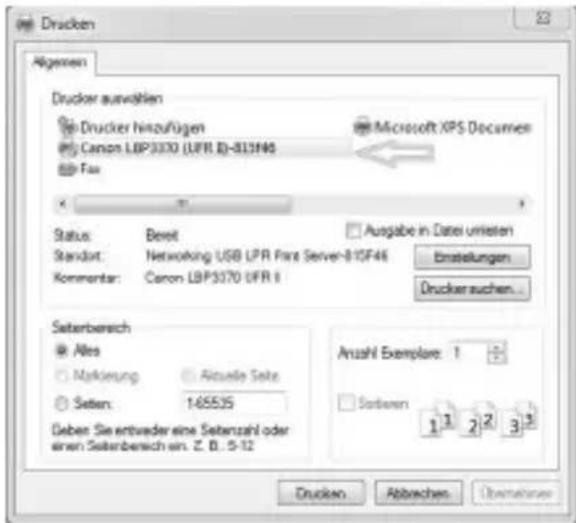
If the printer is not found, click on "The Printer that I want is not listed". Select "Add printer using a TCP / IP address or hostname" and click on the "Next" button.
You must then enter the IP address of the print server in both the available fields. You can find the IP address, for instance, from the menu of your router. After entering the IP address, click "Next".


Drucker hinzufügen
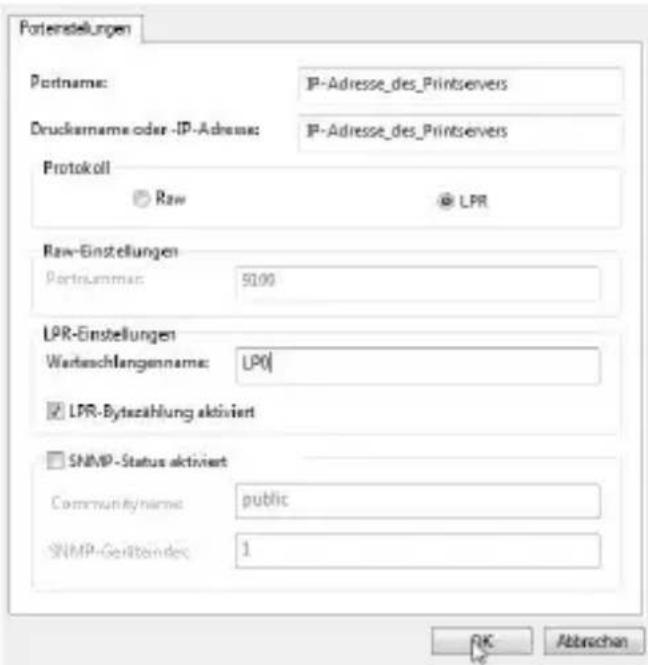
After a few seconds, a new "Additional port information required" window opens. Here, click on "User defined" and open "Settings".
In this menu item, select the protocol "LPR" and enter a "Queue name".
Then click "OK" and "Next". The "Install the printer driver" window opens. Look for your printer in the list and install the driver manually by clicking on "Disk" and specifying the path where the driver is located.
The manual setup of your print server is now complete.
8 List of compatible printers (p. 48)
Note: The LPR USB 2.0 LAN Print-Server is compatible with a wide range of printers that support the LPR standard. The models provide (on site 48 in this user manual) an overview of only those printer models that are already tested.
9 Safety instructions and disclaimer
Do not attempt to service this product by yourself as opening or removing covers may result in fire, electric shock or equipment damage. Please avoid any contact to the electric current. This product is only licensed for indoor use and dry areas. Please protect it from water, rain, snow or high humidity and keep it away from high temperatures and direct sunlight.
Do not expose this product to extreme and sudden changes of temperature or heavy vibrations; this may lead to damage of the internal electronic part of this unit. Check this product for signs of damage before putting it in operation. In case the device received any damage, it should not be used. Please contact our customer support.
Please observe the relevant national provisions and legal restrictions. Do not use this product for anything other than intended and as described in the manual. Any attempt of repairs or alterations by someone other than the original supplier will invalidate the guarantee and result in refusal of warranty claims. Persons who are familiar with the operating manual and the applicable regulations concerning working safety and accident prevention may only use the product. This unit is not intended to be used by persons (including children) with limited physical, sensory or mental aptitude or lack of experience and/or knowledge unless they are supervised by a person responsible for their safety or have received instructions as to how the device is used properly. The technical specifications of this product may change without prior notice.
10 Disposal Instructions
The European Directive (WEEE) requires that old electrical and electronic appliances shall be disposed of separately from normal household garbage for optimal recycling. The component parts must be separated, collected and sent for recycling or disposal in an environment-friendly manner.
Otherwise, toxic and dangerous substances could cause enduring damage to the environment if disposed of incorrectly. As a consumer you are legally obligated (Electrical and Electronic Equipment Act-ElektroG) to return electronic equipment at the end of its lifetime to their manufacturer, point of sale, public collection points or importer free of charge. The relevant local laws apply here. The symbol on the product, in the instructions or on its packing indicates these regulations. The reuse or recycling of materials and old units makes an important contribution towards protecting the environment. For information on authorised collection points in your area, please contact your local city or municipal administration.

WEEE guideline: 2012/19/EU WEEE register number: DE 67896761
WD Plus GmbH, herewith declares that this product 300136 conforms to the principle requirements and other relevant stipulations. The complete Declaration of Conformity can be obtained from: WD Plus GmbH, Wohlenbergstraße 16, 30179 Hannover
text_image
All_OS_Setup Extract files and install? Yes Notext_image
Network Printer Wizard Welcome to the Network Printer Wizard This wizard helps you correct to a shared printer. Make sure your printer is turned on and connected to your network. To continue, click Next. < Back Enter > Abbranchetext_image
Network Printer Wizard Browse for Network Printer Select the printer you want to use from the list below. Shared printer: Canon LBP3370 (UFR II)-816.19F Printer Information Description: Canon LBP3370 (UFR II) Locations: Networking USB LPR Print Server-816.LDF < Zurick Winter > Abbreventext_image
Printed Printer Wizard Printed network server The manufacture and model determine which printer will press to use. Caser: LRF\CMV [0.4%] 32-1061.CF This manual printer is not a version that does for the printer. Manuals, select from the list, or click NoneMail. If you print your name with an installation file. Manufacturer: Microsoft Use this printer as the default printer New Date... < Back Next > Refresh... Others Close Web Name C:\M8\BCG49& 13.07.2012.2.099 Setup Inh Desktop Web/Switchen Computer Network Database Delete Setup Information (E-mail) Add/Removetext_image
Network Printer Wizard Completing the Network Printer Wizard You are ready to complete the Network Printer Wizard. The printer has the following setting. Name: Canon LBP3370 (LPR II)-8.16 LDF Manufacturer: Canon Model: Canon LBP3370 LPR II Protocol: LPR Default: No If you have changed the hardware configuration at the printer side, please run Network Printer Wizard again. To complete the installation, click finish. < Zuruck Fertig stellen Abbredentext_image
All_OS_Setup Extract files and install? Yes Notext_image
Network Printer Wizard Welcome to the Network Printer Wizard This wizard helps you connect to a shared printer. Make sure your printer is turned on and connected to your network. To continue, click Next. < Back Enter > Abbranchetext_image
Network Printer Wizard Browse for Network Printer Select the printer you want to use from the list below. Shared printer: Canon LBP3370 (LPR II)-816.19f Printer Information Description: Canon LBP3370 (UFR II) Locations: Networking USB LPR Print Server-816.LDF < Zurich Wieter > Abbrevientext_image
Printed Printer Wizard Printed network server The manufacture and model determine which printer will press to use. Caser: LRF\CMV (LRF 32-006.09) This manual printer is not a version that does for the printer. Manuals, select from the list, or click NoneMail. If you print your name with an installation file. Manufacturer: Microsoft Use this printer as the default printer New Date... < Back Next > Refresh... Others Close Web Name C:\M8\BCG464& 13.07.2012.2.099 Setup Inh Desktop Web/Switchen Computer Network Database Delete Setup Information (F:etc) Add/Removetext_image
Network Printer Wizard Completing the Network Printer Wizard You are ready to complete the Network Printer Wizard. The printer has the following setting. Name: Canon LBP3370 (LPR II)-8.16 LDF Manufacturer: Canon Model: Canon LBP3370 LPR II Protocol: LPR Default: No If you have changed the hardware configuration at the printer side, please run Network Printer Wizard again. To complete the installation, click finish. < Zuruck Fertig stellen Abbredentext_image
All_OS_Setup Extract files and install? Yes Notext_image
Network Printer Wizard Welcome to the Network Printer Wizard This wizard helps you connect to a shared printer. Make sure your printer is turned on and connected to your network. To continue, click Next.text_image
Network Printer Wizard Browse for Network Printer Select the printer you want to use from the list below. Shared printer: Canon LBP3370 (UFR II)-81613F Printer Information Description: Canon LBP3370 (UFR II) Location: Networking USB LPR Print Server-81613F < Zurück Washer > Abtorechentext_image
Retirent Printer Wizard Install keyworkware The manufacture and model determine which printer software is used. Canon: LRT 5.78 (49% CI) 4.65 (IF) The manual printer installed cannot provide drive for this printer. Internally subject them the list, or disk "Vance32" if you print some with an installation file. manufacturer: microsoft Use this printer as the default printer Next Data... Add Back Delete Edit Status Name InsiderungsNumber Type C:\My32\Gdak 13.07.2011 (2:00) Setup-Inh Desktop Microsoft Microsoft Computer Hewwwat DataPure Deletion Setup Information (7 x 6) Other Add Backtext_image
Network Printer Wizard Completing the Network Printer Wizard You are ready to complete the Network Printer Wizard. The printer has the following setting. Name: Canon LBP3370 [LPR II]-0.16 LDF Manufacture: Canon Model: Canon LBP3370 LPR II Protocol: LPR Default: No If you have changed the hardware configuration at the printer side, please run Network Printer Wizard again. To complete the installation, click finish. < Zuruck Fertig stellen Abbrechen| Printer Compatibility List (USB LPR Printer) Current status: 26.03.2012 | ||||
| Number Brand Model XP Vista/7 | ||||
| LPR* LPR* | ||||
| 1 Brother | HL 2040 Pass Pass | |||
| 2 Brother | MFC 3320CN Pass Pass | |||
| 3 Brother | MFC 3820CN Pass Pass | |||
| 4 Canon | MF3110 Pass Pass | |||
| 5 Canon | MF3112 Pass Pass | |||
| 6 Canon | MF3220 Pass Pass | |||
| 7 Canon | MF3222 Pass Pass | |||
| 8 Canon | iP100 Pass Pass | |||
| 9 Canon | iP2500 Pass Pass | |||
| 10 Canon | iP6700D Pass Pass | |||
| 11 Canon | iP7500 Pass Pass | |||
| 12 Canon | iP90 | Pass Pass | ||
| 13 Canon | iP90v | Pass Pass | ||
| 14 Canon | LBP3200 | Pass Pass | ||
| 15 Canon | MP110 | Pass Pass | ||
| 16 Canon | MP130 | Pass Pass | ||
| 17 Canon | MP145 | Pass Pass | ||
| 18 Canon | MP150 | Pass Pass | ||
| 19 Canon | MP160 | Pass Pass | ||
| 20 Canon | MP170 | Pass Pass | ||
| Number | Brand | Model | XP Vista/7 | ||
| 21 | Canon | MP180 | Pass Pass | ||
| 22 | Canon | MP450 | Pass Pass | ||
| 23 | Canon | MP460 | Pass Pass | ||
| 24 | Canon | MP470 | Pass Pass | ||
| 25 | Canon | MP510 | Pass Pass | ||
| 26 | Canon | MP520 | Pass Pass | ||
| 27 | Canon | MP600 | Pass Pass | ||
| 28 | Canon | MP610 | Pass Pass | ||
| 29 | Canon | MP810 | Pass Pass | ||
| 30 | Canon | MP830 | Pass Pass | ||
| 31 | Canon | MP960 | Pass Pass | ||
| 32 | Canon | MP970 | Pass Pass | ||
| 33 | Canon | MX308 | Pass Pass | ||
| 34 | Canon | MX700 | Pass Pass | ||
| 35 | Canon | MX7600 | Pass Pass | ||
| 36 | Canon | MX850 | Pass Pass | ||
| 37 | Canon | Pro9000 | Pass Pass | ||
| 38 | Canon | Pro9500 | Pass Pass | ||
| 39 | Canon | Satera MF4010 | Pass Pass | ||
| 40 | Canon | Satera MF4150 | Pass Pass | ||
| 41 | Dell Photo 720 | Pass Pass | |||
| 42 | EPSON | AL-C900 | Pass Pass | ||
| 43 | EPSON | EPL-5800 Pass | Pass | ||
| 44 | EPSON | EPL-N2500 Pass | Pass | ||
| 45 | EPSON | PM-100 Pass Pass | |||
| 46 | EPSON | PM-3700C Pass | Pass | ||
| 47 | EPSON | PM-A840 Pass | Pass | ||
| 48 | EPSON | PM-A840S Pass | Pass | ||
| 49 | EPSON | PM-A950 Pass | Pass | ||
| 50 | EPSON | PM-G4500 Pass | Pass | ||
| 51 | EPSON | PM-G5300 Pass | Pass | ||
| 52 | EPSON | PM-G860 Pass | Pass | ||
| 53 | EPSON | PM-T940 Pass | Pass | ||
| 54 | EPSON | PM-T960 Pass | Pass | ||
| 55 | EPSON | PM-T990 Pass | Pass | ||
| 56 | EPSON | PX-501A Pass | Pass | ||
| 57 | EPSON | PX-5600 Pass | Pass | ||
| 58 | EPSON | PX-5800 Pass | Pass | ||
| 59 | EPSON | PX-A640 Pass | Pass | ||
| 60 | EPSON | PX-A740 Pass | Pass | ||
| 61 | EPSON | PX-FA700 Pass | Pass | ||
| 62 | EPSON | PX-V780 Pass | Pass | ||
| 63 | EPSON | Stylus C45 Pass | Pass | ||
| 64 | EPSON | Stylus C61 Pass | Pass | ||
| 65 | EPSON | Stylus C65 Pass | Pass | ||
| 66 | EPSON | Stylus C66 Pass | Pass | ||
| 67 | EPSON | Stylus C67 Pass | Pass | ||
| 68 | EPSON | Stylus C90 Pass | Pass | ||
| 69 | EPSON | Stylus CX3500 | Pass Pass | ||
| 70 | EPSON | Stylus CX3700 | Pass Pass | ||
| 71 | EPSON | Stylus CX3810 | Pass Pass | ||
| 72 | EPSON | Stylus CX4700 | Pass Pass | ||
| 73 | EPSON | Stylus CX4800 | Pass Pass | ||
| 74 | EPSON | Stylus Photo 2200 | Pass Pass | ||
| 75 | EPSON | Stylus Photo 830 | Pass - | ||
| 76 | EPSON | Stylus R320 Pass | Pass | ||
| 77 | EPSON | Stylus R510 Pass - | |||
| 78 | HP Deskjet 3744 Pass | Pass | |||
| 79 | HP Deskjet 3745 Pass | Pass | |||
| 80 | HP Deskjet 640C Pass | Pass | |||
| 81 | HP Deskjet D2360 Pass | Pass | |||
| 82 | HP Deskjet D2460 Pass | Pass | |||
| 83 | HP Deskjet D3745 Pass | Pass | |||
| 84 | HP Deskjet D4160 Pass | Pass | |||
| 85 | HP Deskjet D4260 Pass | Pass | |||
| 86 | HP Deskjet F300 Pass | Pass | |||
| 87 | HP Deskjet | F340 Pass | Pass | ||
| 88 | HP Deskjet | F350 Pass | Pass | ||
| 89 | HP Deskjet | F370 Pass | Pass | ||
| 90 | HP Deskjet | F379 Pass | Pass | ||
| 91 | HP Deskjet | F380 Pass | Pass | ||
| 92 | HP LaserJet | 1010 Pass | N/A | ||
| 93 | HP LaserJet | 1015 Pass | N/A | ||
| 94 | HP LaserJet | 1018 Fail | Fail | ||
| 95 | HP LaserJet | 1020 Fail | Fail | ||
| 96 | HP LaserJet | 2600n Fail | Fail | ||
| 97 | HP LaserJet | 3030 Pass | Pass | ||
| 98 | HP LaserJet | 3050 Pass | Pass | ||
| 99 | HP LaserJet | 3050z Pass | Pass | ||
| 100 | HP LaserJet | 3330 Pass | Fail | ||
| 101 | HP LaserJet | 3380 Pass | Fail | ||
| 102 | HP Officejet | 5510 Pass | Pass | ||
| 103 | HP Officejet | 5610 Pass | Pass | ||
| 104 | HP Photosmart | 3110 | Pass Pass | ||
| 105 | HP Photosmart | 3210 | Pass Pass | ||
| 106 | HP Photosmart | 3310 | Pass Pass | ||
| 107 | HP Photosmart | 335 | Pass Pass | ||
| 108 | HP Photosmart | 8030 | Pass Pass | ||
| Number Brand Model XP Vista/7 | ||||
| 109 HP psc 1210 Pass Pass | ||||
| 110 HP psc 1315 Pass Pass | ||||
| 111 HP psc 1402 Pass Pass | ||||
| 112 HP psc 1410 Pass Pass | ||||
| 113 HP psc 1510 Pass Pass | ||||
| 114 HP psc 1610 Pass Pass | ||||
| 115 HP psc 2410 Pass Pass | ||||
| 116 HP psc 2510 Pass Pass | ||||
| 117 LEXMARK 1270 Fail Fail | ||||
| 118 LEXMARK E120n noink noink | ||||
| 119 LEXMARK p4350 Fail | ||||
| 120 LEXMARK p6250 Fail | ||||
| 121 LEXMARK x2650 Fail | ||||
| 122 LEXMARK x3470 Fail | ||||
| 123 LEXMARK x3550 Fail | ||||
| 124 LEXMARK x4270 Fail | ||||
| 125 LEXMARK x7350 Fail | ||||
| 126 Samsung ML2010 Pass Fail | ||||
| 127 Samsung SCX-4500 | Pass Pass | |||
| N/A: Not Support | ||||
Notes

feedback@ganzeinfach.de

(DE) 0800 72 444 05
+49 511 / 13221 710
(UK) +49 511 / 13221 720
(FR) +49 511 / 13221 730
(IT) +49 511 / 13221 740
(ES) +49 511 / 13221 750
MO-FR 9:30am - 18pm CET