BikePlay Guardian - Dashcam MIDLAND - Free user manual and instructions
Find the device manual for free BikePlay Guardian MIDLAND in PDF.


| Product type | Motorcycle dashcam |
| Brand | Midland |
| Model | BikePlay Guardian |
| Power supply | 12-30V or 5V 2A (USB-C) |
| Maximum consumption | 600 mAh |
| Video resolution | 1080P+1080P or QFHD 1440P+1440P |
| Number of cameras | 2 (front and rear) |
| Screen | 5-inch IPS |
| Waterproof rating | IP67 |
| Connectivity | WiFi, Bluetooth, Apple CarPlay, Android Auto |
| Built-in GPS | Yes |
| Video format | H.264 (TS container) |
| Compatible memory card | Micro TF 32-256 GB Class 10 U3 or higher |
| Mobile app | KYCAM2 (iOS/Android) |
| Main functions | Recording, Apple CarPlay, Android Auto, TPMS, GPS, Shock detection (G-Sensor) |
| Maintenance | Clean screen and lenses with a soft cloth; format the memory card periodically |
| Safety | Do not bend cables; connect the red wire to positive with key; close the protective cover |
| Operating temperature | Not specified |
| Dimensions | Not specified |
| Weight | Not specified |
Frequently Asked Questions - BikePlay Guardian MIDLAND
User questions about BikePlay Guardian MIDLAND
0 question about this device. Answer the ones you know or ask your own.
Ask a new question about this device
Download the instructions for your Dashcam in PDF format for free! Find your manual BikePlay Guardian - MIDLAND and take your electronic device back in hand. On this page are published all the documents necessary for the use of your device. BikePlay Guardian by MIDLAND.
USER MANUAL BikePlay Guardian MIDLAND
natural_image
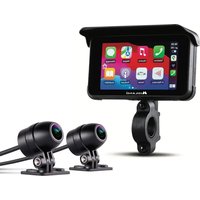
Front view of a Midland navigation device displaying its home screen with app icons, alongside two black camera sensors (no visible text or symbols on the devices themselves)MIDLAND®
ISTRUZIONI
INSTRUCTIONS
BEDIENUNGSANLEITUNG
MANUAL DE USUARIO
MANUEL D'UTILISATION
The equipment is free use in all UE countries.
6 | ISTRUZIONI BIKEPLAY GUARDIAN
Menu Impostazioni
- Please do not use a high-pressure water gun to flush the host and the cameras.
- Please do not use alcohol, stain removal solution and other corrosive solvents to wipe the host and lens to avoid damaging the appearance of the product and waterproofness.
- Please make sure to connect all the units before turning on the power.
- Do not fold the cable lines during installation.
- Please use a certified 32-256 GB MICRO TF memory card with a CLASS 10 U3 classification or above and format the memory card before first use.
• Long-term use of the memory card will cause fragmentation, so it is recommended formatting the memory card regularly. - Press the rubber plugs after inserting to ensure the waterproofness of the product.
- Tyre Pressure Sensors can be paired only after be installed on tyres.
Before Starting
• Before using the device, you have to insert the memory card.
- Unscrew the two screws and remove the cover in the lower side of the screen.
- Insert the memory card into the proper slot.
- Close the cover by tightening the two screws
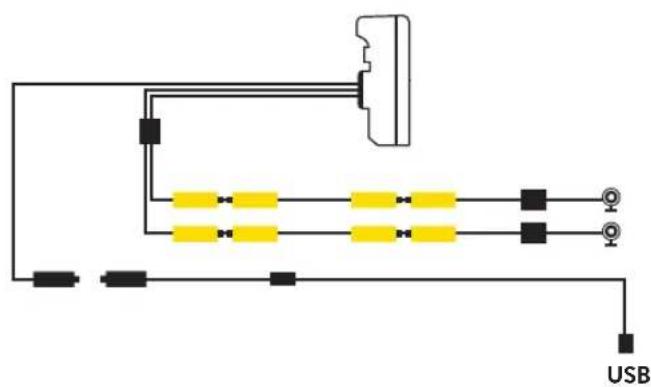
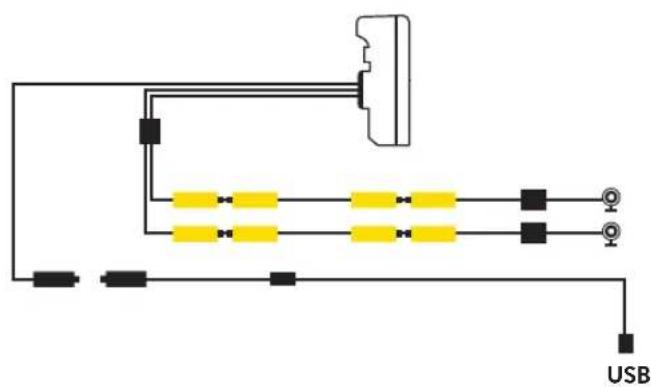
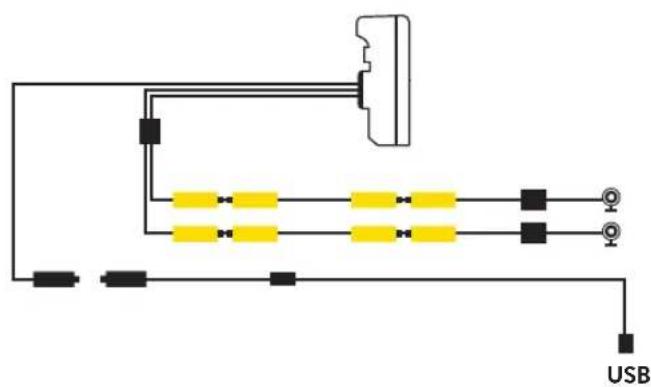
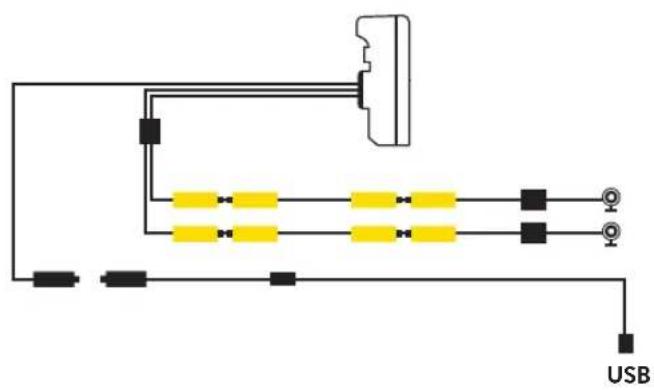
Wiring Diagram
Method 1: Motorbike Battery Method 2: USB
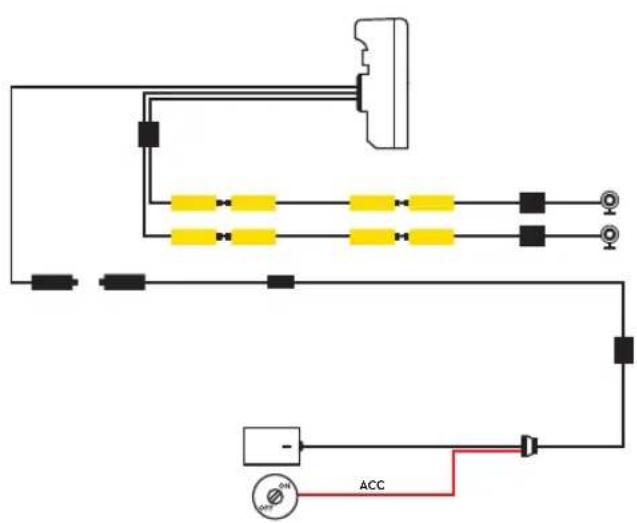
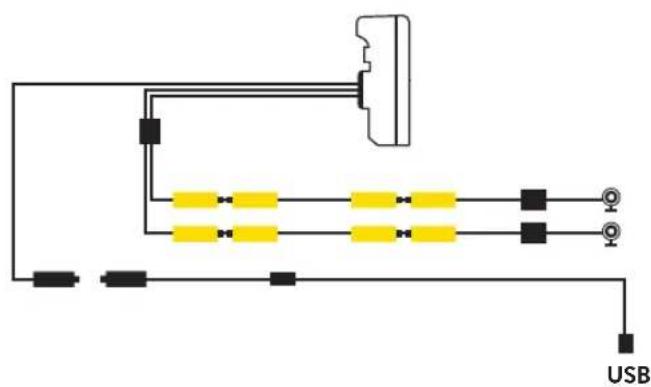
Maximum device current drain is 600 mAh.
We suggest to connect the Red wired (+) to a positive under key, so when the motorbike is off the consumption will be zero.
Apple CarPlay
- Pair your smartphone via Bluetooth
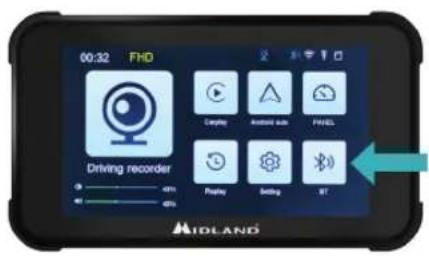
- Select the corresponding OS
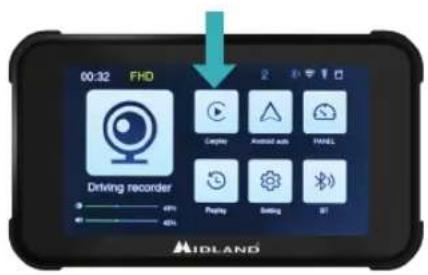
- CarPlay: Allow the use of CarPlay from Your phone.
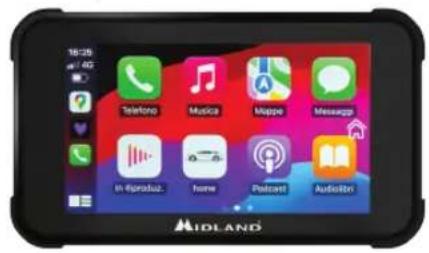
Android auto
- Pair your smartphone via Bluetooth
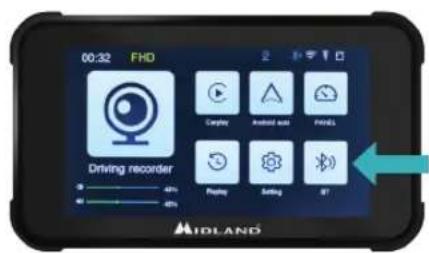
- Select the corresponding OS
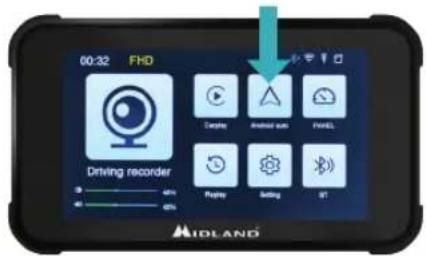
- Android: Should automatically pair
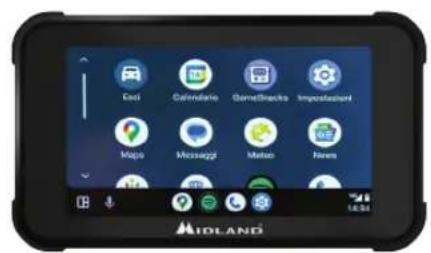
Note: To pair the unit, t he WiFi of the Smartphone must be On. After the initial connection via Bluetooth the display will switch to WiFi.
BIKEPLAY GUARDIAN INSTRUCTIONS
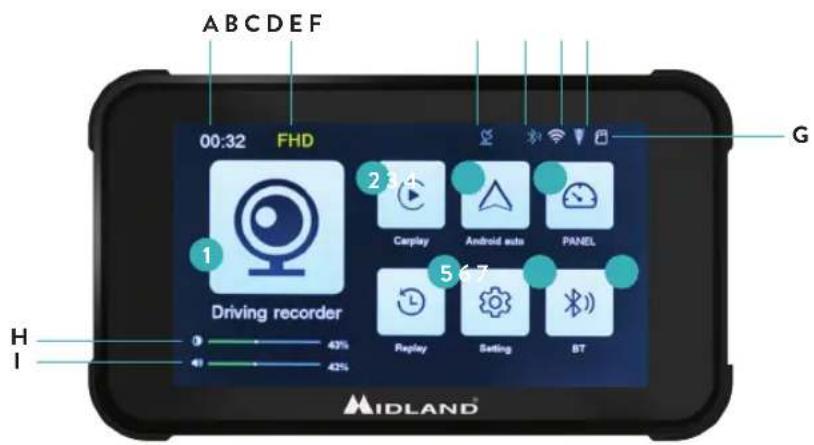
Main Menu
A. Recording time indicator
B. Resolution Indicator
C. GPS indicator
D. Bluetooth activated
E. WiFi activated
F. G-sensor indicator
G. Memory card indicator
H. Display brightness
1. Volume adjustment
- Driving recorder: click to enter cameras views and settings
- CarPlay: connect to CarPlay
- Android auto: click to connect Android auto
- Panel
- Replay: click to enter to view the videos
- Settings: click to enter the menu settings
- Bluetooth: click to connect to the Bluetooth
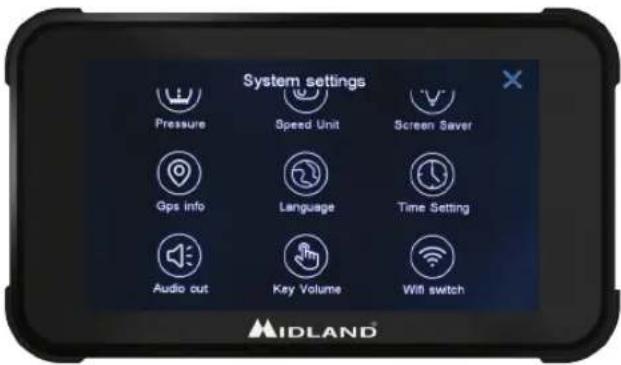
Settings Menu
| Function Explanation |
| Pressure TPMS settings |
| Speed unit Km/h - Mp/h |
| Screen Saver Set Screen Saver delay time |
| Language Select Language |
| GPS info GPS signal information |
| Time Setting Set the device time (after connecting to GPS/WiFi/Bluetooth, the time is set automatically) |
| Key Volume ON/OFF: Turn ON/OFF the touch key tone |
| WiFi Switch ON/OFF: Turn On/OFF the WiFi |
| Format SD Format the memory card |
| Audio Out BikePlay/Smartphone: When switched to «BikePlay» the audio of the phone is played from BikePlay internal speaker. When switched to «Mobile Phone» the audio of the phone is played from the phone or from the connected Bluetooth device.NB Select «Mobile Phone» to use a Bluetooth Intercom Device |
| Reset factory Reset the Midland BikePlay Guardian |
| Version Check the version/Bluetooth name/WiFi name and password |
Connecting to Kycam2 App
With the application KYCAM2 it will be possible to have remote access to the main functionalities of Midland BikePlay Guardian.
- Turn Off Bluetooth in both devices (Midland BikePlay Guardian and Smartphone)
- Enable the WiFi on Midland BikePlay Guardian
- On your Smartphone connect to the WiFi Network "Midland BikePlay"
- Use the password 12345678 to connect
- Open KYCAM2 App

KYCAM2
Troubleshooting
| Question Answer | |
| How to disconnect CarPlay or Android auto? Turn OFF the WiFi or forget the Bluetooth device | |
| How do I reconnect to the Car play/Android auto after a manual disconnection? | Reconnect to Midland BikePlay through Bluetooth |
| How do I reconnect to CarPlay/Android auto after restarting the dash cam? | It will be connected back automatically when Bluetooth and WiFi are both enabled |
| The camera view is Blue Check that cameras are correctly connected | |
| Can I use the BikePlay Guardian without cameras? | Midland BikePlay Guardian can be used with two, one or even no cameras. With no cameras the recorded video will be BLUE screen. |
| The device does not turn On | Check that wire are correctly connected, the integrity of the FUSE and try with the alternative power supply (Battery or USB-C) |
| Tyre Pressure Sensor The Tyre Pressure Sensor can be paired only if they detect tyre pressure | |
Technical Specifications
| Frequency 2.4 GHz | |
| Power ≤10dBm | |
| Protection level IP67 | |
| Screen Mirroring Supports Apple Carplay and Android auto | |
| Video resolution 1080P+1080P - QFHD 1440P + Q FHD 1440P | |
| Numbers of cameras 2 (front and rear) | |
| Display 5.0-inch IPS display | |
| WiFi/APP interface Yes | |
| GPS track Yes | |
| Format H.264: Video format TS, Compression format H.264 | |
| Memory card capacity 32-256GB Class 10 U3 | |
| Voltage Requirement 12-30V or 5V 2A (USB C) |
For information about the warranty, please visit midlandeurope.com
Warnungen
Android auto
Ajustes del menú
Android auto
Menu Réglages
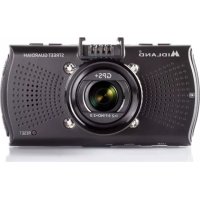
Brand : MIDLAND
Model : BikePlay Guardian
Category : Dashcam