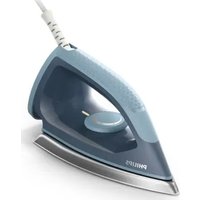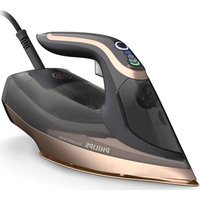
Azur GC4856 - Iron PHILIPS - Free user manual and instructions
Find the device manual for free Azur GC4856 PHILIPS in PDF.


User questions about Azur GC4856 PHILIPS
0 question about this device. Answer the ones you know or ask your own.
Ask a new question about this device
Download the instructions for your Iron in PDF format for free! Find your manual Azur GC4856 - PHILIPS and take your electronic device back in hand. On this page are published all the documents necessary for the use of your device. Azur GC4856 by PHILIPS.
USER MANUAL Azur GC4856 PHILIPS
Always here to help you
Register your product and get support at www.philips.com/welcome
GC4800 series

text_image
Question? Contact Philips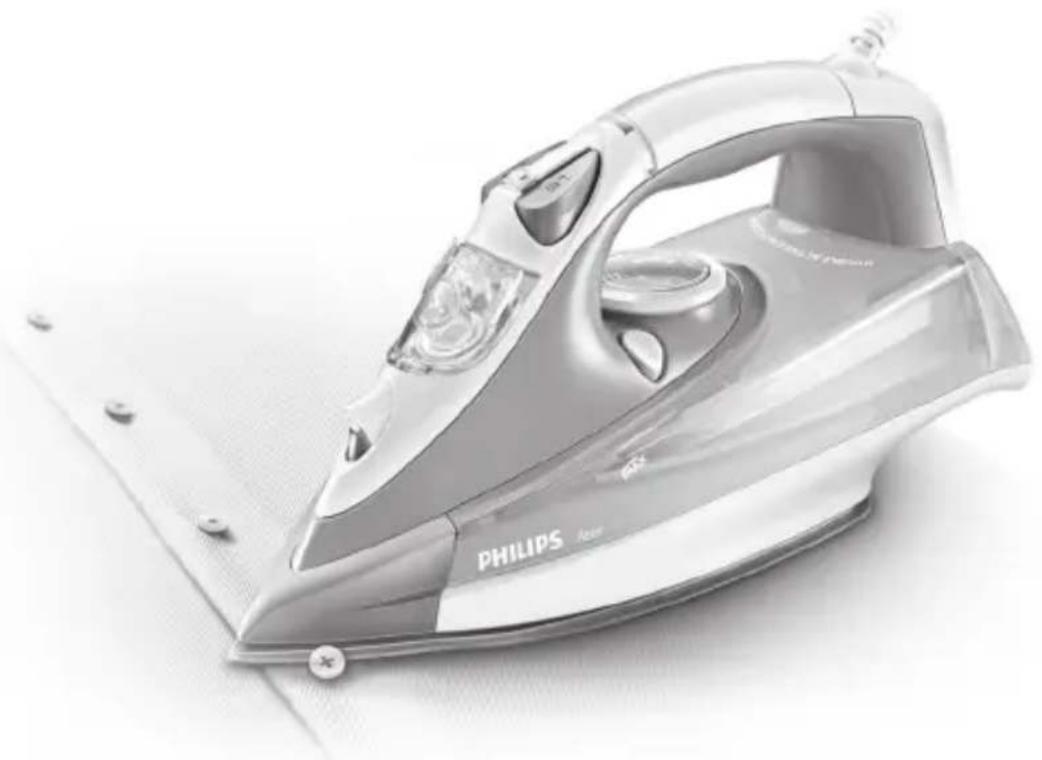
natural_image
Exterior view of a Philips air iron with visible branding and mounting plate (no text or symbols on the device itself)User manual
PHILIPS


natural_image
Simple line drawing of an open book with a grid on the left and a closed page on the right (no text or symbols)1
text_image
Diagram of a steam iron with numbered parts and corresponding close-up photos showing internal components.


ENGLISH 6
DEUTSCH 24
ΕΛΛΗΝΙΚΑ 43
FRANÇAIS 64
NEDERLANDS 82
GC4800 series
6 ENGLISH
Introduction
Congratulations on your purchase and welcome to Philips! To fully benefit from the support that Philips offers, register your product at www.philips.com/welcome.
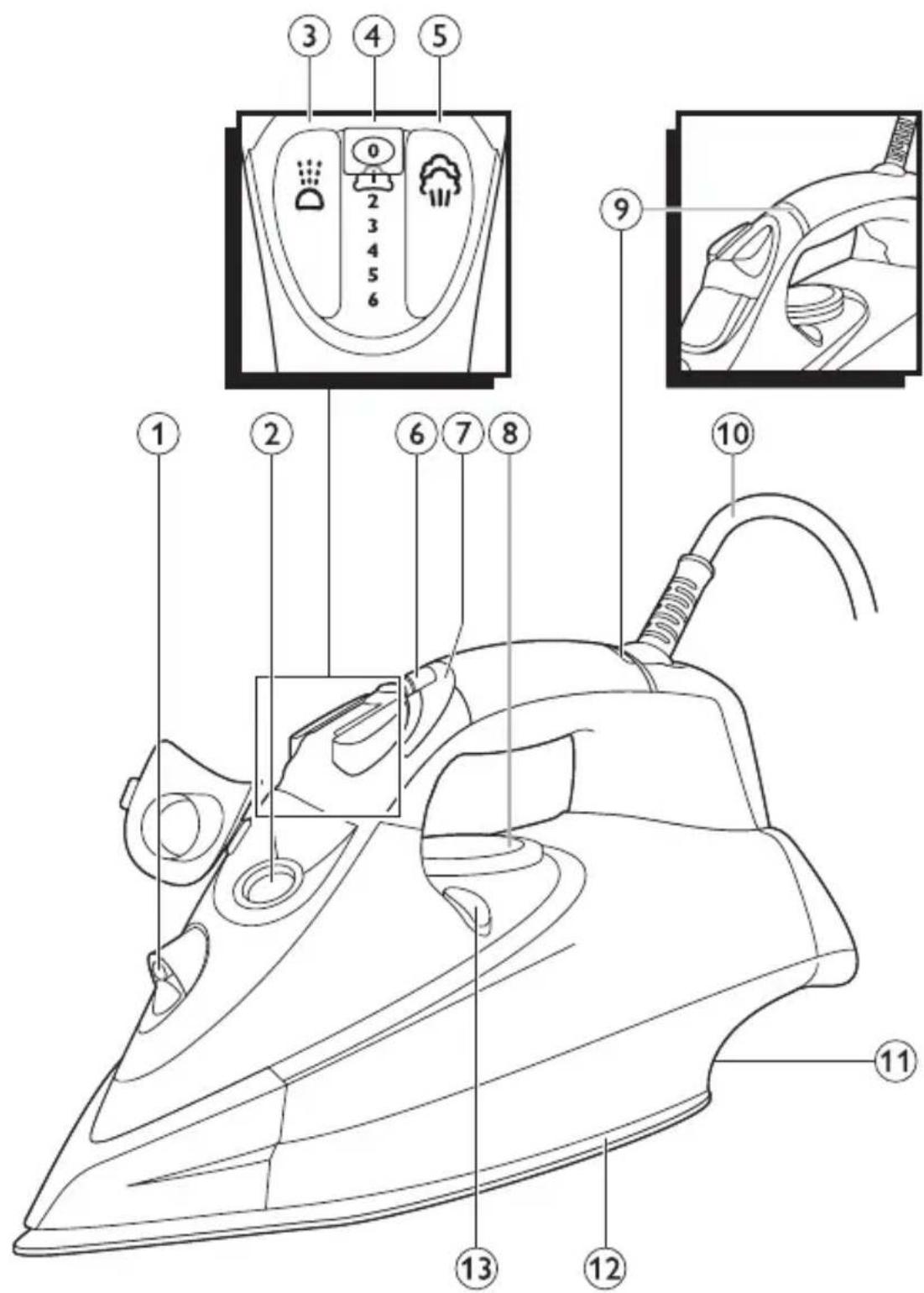
General description (Fig. 1)
1 Spray nozzle
2 Filling opening
3 Spray button
4 Steam control
5 Steam boost button
6 Ionic DeepSteam button (GC4880, GC4875, GC4870 only)
7 Ionic DeepSteam light (GC4880, GC4875, GC4870 only)
8 Temperature dial
9 Amber temperature light (all types)/red auto-off light GC4891/GC4890/GC4880/GC4875/GC4870/GC4865/GC4860/GC4856/GC4855/GC4852/GC4851/GC4850 only).
10 Mains cord
11 Type plate
12 Soleplate
13 Calc-Clean button
Not shown: Heat-resistant protective cover (GC4880 only)
Not shown: filling cup
Important
Read this user manual carefully before you use the appliance and save it for future reference.
Danger
- Never immerse the iron in water.
Warning
- Check if the voltage indicated on the type plate corresponds to the local mains voltage before you connect the appliance.
- Do not use the appliance if the plug, the mains cord or the appliance itself shows visible damage, or if the appliance has been dropped or leaks.
- If the mains cord is damaged, you must have it replaced by Philips, a service centre authorised by Philips or similarly qualified persons in order to avoid a hazard.
- Never leave the appliance unattended when it is connected to the mains.
ENGLISH8
- This appliance is not intended for use by persons (including children) with reduced physical, sensory or mental capabilities, or lack of experience and knowledge, unless they have been given supervision or instruction concerning use of the appliance by a person responsible for their safety.
- Children should be supervised to ensure that they do not play with the appliance.
- Do not let the mains cord come into contact with the hot soleplate of the iron.
Caution
- Only connect the appliance to an earthed wall socket.
- Check the mains cord regularly for possible damage.
- The soleplate of the iron can become extremely hot and may cause burns if touched.
ENGLISH 9
- When you have finished ironing, when you clean the appliance, when you fill or empty the water tank and also when you leave the iron even for a short while: set the steam control to position 0, put the iron on its heel and remove the mains plug from the wall socket.
- Always place and use the iron on a stable, level and horizontal surface.
- Do not put perfume, vinegar, starch, descaling agents, ironing aids or other chemicals in the water tank.
- This appliance is intended for household use only.
Electromagnetic fields (EMF)
This Philips appliance complies with all standards regarding electromagnetic fields (EMF). If handled properly and according to the instructions in this user manual, the appliance is safe to use based on scientific evidence available today.
Before first use
1 Remove any sticker, protective foil or plastic from the soleplate.
2 Rinse and dry the filling cup.
ENGLISH10
Preparing for use
Filling the water tank
Type of water to be used
You can use normal tap water to fill the water tank.
Tip: If the tap water in your area is very hard, we advise you to mix it with an equal amount of distilled water. Do not use distilled water only.
text_image
0 1 2 3 4 5 6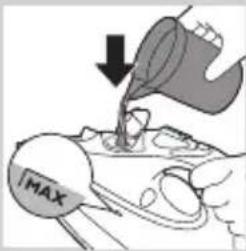
text_image
MAX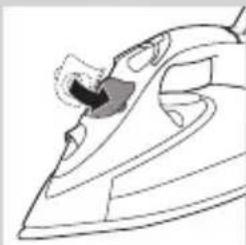
natural_image
Line drawing of a steam iron with a handle and spout (no text or symbols)1 Make sure the appliance is unplugged.
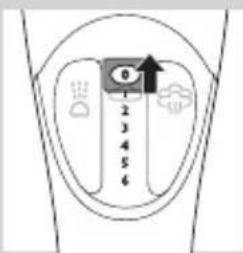
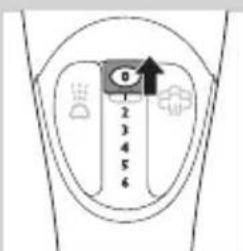
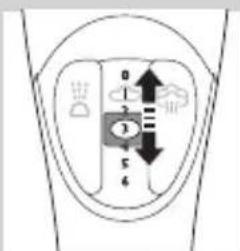
2 Set the steam control to position 0 (= no steam).
3 Open the cap of the filling opening.
4 Tilt the iron backwards and use the filling cup to fill the water tank with tap water up to the maximum level.
Do not fill the water tank beyond the MAX indication.
Do not put perfume, vinegar, starch, descaling agents, ironing aids or other chemicals in the water tank.
5 Close the cap of the filling opening ('click').


Selecting the temperature and steam setting
Temperature and steam settings
| Fabric type Temperature setting | Steam setting | Steam boost | Ionic DeepSteam (specific types only) |
| Linen MAX 5-6 | yes | ||
| Cotton ●●●3-4 | yes |
Wool ●●1-2 N.A. yes
Silk ●0 N.A. N.A.
Synthetic fabrics (e.g. acrylic, nylon, polyamide, polyester)
●0 N.A. N.A.
natural_image
Illustration of hands ironing a steam iron with a downward arrow (no text or symbols)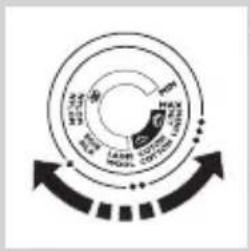
text_image
MAX MAX MAX MAX MAX MAX MAX MAX MAX MAX MAX MAX MAX MAX MAX MAX MAX MAX MAX MAX MAX MAX MAX MAX MAX MAX MAX MAX MAX MAX MAX MAX MAX MAX MAX MAX MAX MAX MAX MAX MAX MAX MAX MAX MAX MAX MAX MAX MAX MAX MAX1 Specific types only: remove the heat-resistant protective cover.
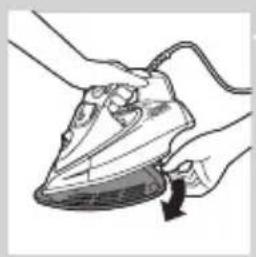
Do not leave the heat-resistant protective cover on the soleplate during ironing.
2 Put the iron on its heel.
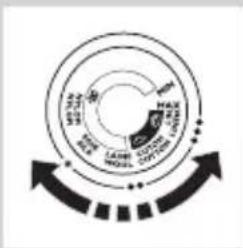
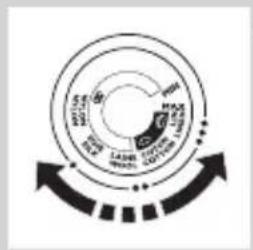
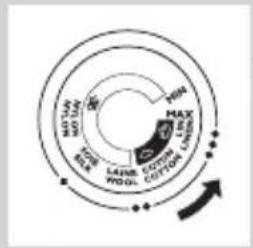
3 To set the required ironing temperature, turn the temperature dial to the appropriate position (see the 'Temperature and steam settings' table above).
Check the laundry care label for the fabric type.
ENGLISH12
text_image
0 1 2 3 4 5 6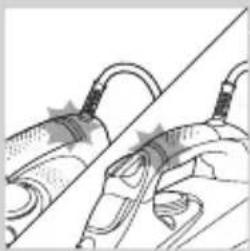
natural_image
Illustration of a hand holding a tool with a diagonal line crossing through it (no text or symbols)If you do not know what kind or kinds of fabric an article is made of, determine the right ironing temperature by ironing a part that is not visible when you wear or use the article.
Silk, woollen and synthetic materials: iron the reverse side of the fabric to prevent shiny patches. To prevent stains, do not use the spray function. Start ironing the articles that require the lowest ironing temperature, such as those made of synthetic fibres.
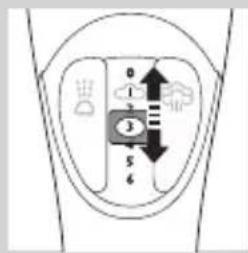
4 Set the appropriate steam setting (see the 'Temperature and steam settings' table above).
Note: Make sure that the steam setting you select is suitable for the set ironing temperature.
5 Put the mains plug in an earthed wall socket.
The amber temperature light goes on.
6 When the amber temperature light has gone out, wait a while before you start ironing.
The temperature light goes on from time to time during ironing.
Using the appliance
Note: The iron may give off some smoke when you use it for the first time. This ceases after a short while.
Ironing without steam
text_image
0 1 2 3 4 5 61 Set the steam control to position 0 (= no steam).
ENGLISH 13
flowchart
graph TD
    A["开始"] --> B["操作1"]
    B --> C["操作2"]
    C --> D["操作3"]
    D --> E["结束"]
    style A fill:#f9f,stroke:#333
    style B fill:#ccf,stroke:#333
    style C fill:#cfc,stroke:#333
    style D fill:#fcc,stroke:#333
    style E fill:#ffc,stroke:#333
2 Set the required ironing temperature (see chapter ‘Preparing for use’, section ‘Selecting the temperature and steam setting’).
Steam ironing
text_image
MAX MAX MAX MAX MAX MAX MAX MAX MAX MAX MAX MAX MAX MAX MAX MAX MAX MAX MAX MAX MAX MAX MAX MAX MAX MAX MAX MAX MAX MAX MAX MAX MAX MAX MAX MAX MAX MAX MAX MAX MAX MAX MAX MAX MAX MAX MAX MAX MAX MAX MAX1 Make sure that there is water in the water tank.
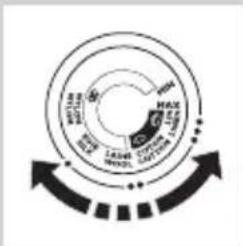
2 Set the required ironing temperature (see chapter 'Preparing for use', section 'Selecting the temperature and steam setting').
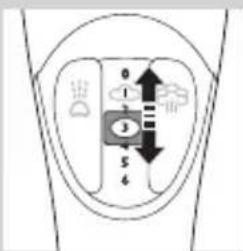
3 Set the appropriate steam setting (see chapter ‘Preparing for use’, section ‘Selecting the temperature and steam setting’).
text_image
0 1 2 3 4Note: The iron starts to produce steam as soon as it reaches the set temperature.
Steam ironing with extra steam
natural_image
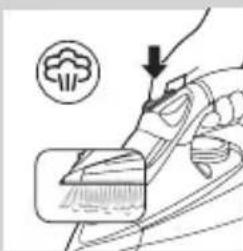
Illustration of a hand using a brush to clean or brush another (no text or symbols)1 For extra steam during ironing, press and hold the steam boost button.
Ironing with Ionic DeepSteam (specific types only)
When you use the Ionic DeepSteam function during steam ironing, the steam produced is finer than during regular steam ironing. Fine steam reaches deeper, especially into thick fabrics. This helps you to remove stubborn creases easily.
ENGLISH14
text_image
100 200 300 400 500 600 700 800 900 1000 1100 1200 1300 1400 1500 1600 1700 1800 1900 2000 2100 2200 2300 2400 2500 2600 2700 2800 2900 3000 3100 3200 3300 3400 3500 3600 3700 3800 3900 4000 4100 4200 4300 4400 4500 4600 4700 4800 4900 5000 5100 5200 5300 5400 5500 5600 5700 5800 5900 6000 6100 6200 6300 6400 6500 6600 6700 6800 6900 7000 7100 7200 7300 7400 7500 7600 7700 7800 7900 8000 8100 8200 8300 8400 8500 8600 8700 8800 8900 9000 9100 9200 9300 9400 9500 9600 9700 9800 9900 100
text_image
0 1 2 3 4 5 6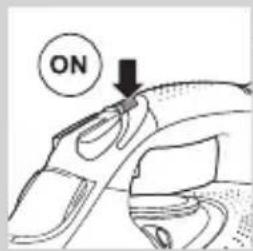
text_image
ON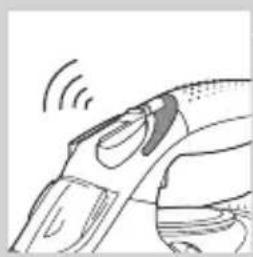
natural_image
Line drawing of a hand holding a device with motion lines indicating sound or vibration (no text or symbols)1 Make sure that there is water in the water tank.
2 Set the required ironing temperature (see chapter 'Preparing for use', section 'Selecting the temperature and steam setting').
3 Set the appropriate steam setting (see chapter 'Preparing for use', section 'Selecting the temperature and steam setting').
4 Press the Ionic DeepSteam button once to switch on the Ionic DeepSteam function.
The blue Ionic DeepSteam light goes on and you hear a humming sound.
The iron now produces Ionic DeepSteam to help you remove even the toughest creases.
5 Press the Ionic DeepSteam button again to switch off the Ionic DeepSteam function.
Note: The Ionic DeepSteam function is only effective when it is used in combination with a steam setting and a temperature setting between ●● and MAX.
Note: Do not use the Ionic DeepSteam function when you iron without steam and/or at low temperature settings. However, ironing at low temperatures without steam with the Ionic DeepSteam function switched on will not damage the iron.
ENGLISH 15
Note: The Ionic DeepSteam output may vary from time to time, depending on the ironing temperature.
Features
Spray function
natural_image
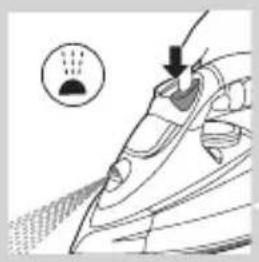
Illustration of a hand using a tool to remove or spray the blade (no text or symbols)You can use the spray function at any temperature to moisten the article to be ironed. This helps remove stubborn creases.
1 Make sure that there is water in the water tank.
2 Press the spray button several times to moisten the article to be ironed.
Steam boost function
natural_image
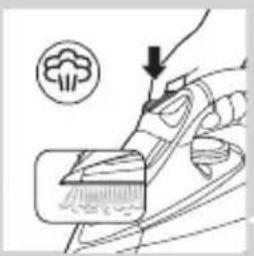
Illustration of a hand using a brush to clean or brush the brush (no text or symbols present)A steam boost from the special Steam Tip soleplate helps remove stubborn creases. The steam boost enhances the distribution of steam into every part of your garment.
The steam boost function can only be used at temperature settings between ●●● and MAX.
1 Press and release the steam boost button.
Vertical steam boost
natural_image
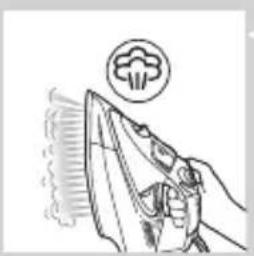
Illustration of a hand using an iron to clean a garment with a circular icon above (no text or symbols)1 You can also use the steam boost function when you hold the iron in vertical position.
This is useful for removing creases from hanging clothes, curtains etc.
Never direct the steam at people.

ENGLISH16
Drip stop
This iron is equipped with a drip-stop function: the iron automatically stops producing steam when the temperature is too low, to prevent water from dripping out of the soleplate. When this happens, you may hear a sound.
Automatic shut-off function (specific types only)
The automatic shut-off function automatically switches off the iron if it has not been moved for a while.
The red auto-off light flashes to indicate that the iron has been switched off by the automatic shut-off function.
To let the iron heat up again:
1 Pick up the iron or move it slightly.
The red auto-off light goes out.
If the temperature of the soleplate has dropped below the set ironing temperature, the amber temperature light goes on.
2 If the amber temperature light goes on after you have moved the iron, wait for it to go out before you start ironing.
Note: If the amber temperature light does not go on after you move the iron, the soleplate still has the right temperature and the iron is ready for use.


Cleaning and maintenance
Cleaning
1 Set the steam control to position 0, remove the plug from the wall socket and let the iron cool down.
2 Wipe flakes and any other deposits off the soleplate with a damp cloth and a non-abrasive (liquid) cleaning agent.
To keep the soleplate smooth, avoid hard contact with metal objects. Never use a scouring pad, vinegar or other chemicals to clean the soleplate.
3 Clean the upper part of the iron with a damp cloth.
4 Regularly rinse the water tank with water. Empty the water tank after you have rinsed it.
Double-Active Calc System
- The Anti-Calc tablet prevents scale from clogging the steam vents. This tablet is constantly active and does not need to be replaced.
- The Calc-Clean function removes the scale particles from the iron.
Using the Calc-Clean function
Use the Calc-Clean function once every two weeks. If the water in your area is very hard (i.e. when flakes come out of the soleplate during ironing), use the Calc-Clean function more frequently.
1 Make sure the appliance is unplugged.
2 Set the steam control to position 0.


ENGLISH18
text_image
MAX LPG COTTON LOME LANE WOOD FETA MINTA WATER RUMBER RAWER RAWER RAWER RAWER RAWER RAWER RAWER RAWER RAWER RAWER RAWER RAWER RAWER RAWER RAWER RAWER RAWER RAWER RAWER RAWER RAWER RAWER RAWER RAWER RAWER RAWER RAWER RAWER RAWER RAWER RAWER RAWER RAWER RAWER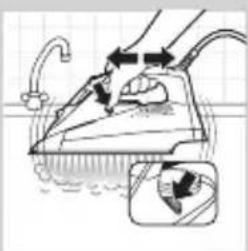
natural_image
Illustration of a hand using an iron on a surface with water spray and a magnified inset showing the process (no text or symbols)3 Fill the water tank to the MAX level.
Do not put vinegar or other descaling agents in the water tank.
4 Set the temperature dial to MAX.
5 Put the plug in an earthed wall socket.
6 Unplug the iron when the temperature light goes out.
7 Hold the iron over the sink, press and hold the Calc-Clean button and gently shake the iron to and fro.
▶Steam and boiling water come out of the soleplate. Impurities and flakes (if any) are flushed out.
8 Release the Calc-Clean button as soon as all the water in the tank has been used up.
9 Repeat the Calc-Clean process if the iron still contains a lot of impurities.
After the Calc-Clean process
1 Put the plug back into the wall socket and let the iron heat up to let the soleplate dry.
2 Unplug the iron when it has reached the set ironing temperature.
3 Move the hot iron gently over a piece of used cloth to remove any water stains that may have formed on the soleplate.
4 Let the iron cool down before you store it.
Storage

natural_image
Diagram of a hand holding a car wheel with a downward arrow indicating a force or pressure point (no text or symbols present)1 Set the steam control to position 0 and unplug the iron.
2 Empty the water tank.
3 Let the iron cool down in a safe place.

natural_image
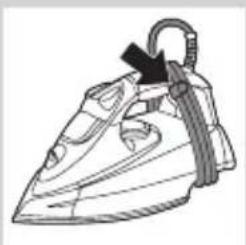
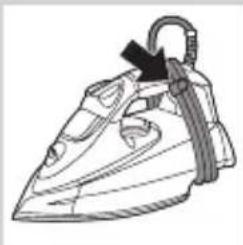
Line drawing of a steam iron with a black arrow indicating the handle (no text or symbols)4 Wind the mains cord around the cord storage facility and fix it with the cord clip.
5 Store the iron on its heel in a dry and safe place.
Heat-resistant protective cover (specific types only)
natural_image
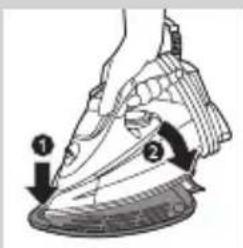
Line drawing of a steam iron with a black arrow indicating the handle (no text or symbols)You can store the iron on the heat-resistant protective cover immediately after ironing. It is not necessary to let the iron cool down first.
text_image
Diagram illustrating a sewing process with labeled steps 1 and 2, showing hand positioning and sewing technique.Do not use the heat-resistant protective cover during ironing.
1 Wind the mains cord around the cord storage facility and fix it with the cord clip.
2 Put the iron on the heat-resistant protective cover.


ENGLISH20
Environment
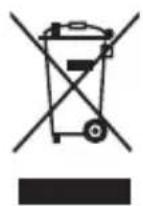
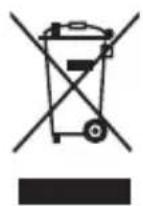
- Do not throw away the appliance with the normal household waste at the end of its life, but hand it in at an official collection point for recycling. By doing this, you help to preserve the environment.
Guarantee and service
If you need information or if you have a problem, please visit the Philips website at www.philips.com or contact the Philips Consumer Care Centre in your country (you find its phone number in the worldwide guarantee leaflet). If there is no Consumer Care Centre in your country, go to your local Philips dealer.
Troubleshooting
If the appliance does not work or does not work properly, first check the list below. If the problem is not mentioned in this list, the appliance probably has a defect. In that case we advise you to take the appliance to your dealer or to an authorised Philips service centre.
Problem Possible cause Solution
The iron is plugged in, but the soleplate is cold.
There is a connection problem.
Check the mains cord, the plug and the wall socket.
The temperature dial is set to MIN.
Set the temperature dial to the required position.
ENGLISH 21
| Problem Possible cause Solution | ||
| The iron does not produce any steam. | There is not enough water in the water tank. | Fill the water tank (see chapter ‘Preparing for use’, section ‘Filling the water tank’). |
| The steam control is set to position 0. | Set the steam control to a position between 1 and 6 (see chapter ‘Using the appliance’, section ‘Steam ironing’). | |
| The iron is not hot enough and/or the drip-stop function has been activated. | Set an ironing temperature that is suitable for steam ironing (●● to MAX). Put the iron on its heel and wait until the temperature light has gone out before you start ironing. | |
| The iron does not produce a steam boost. | You have used the steam boost function too often within a very short period. | Continue ironing in horizontal position and wait a while before you use the steam boost function again. |
| The iron is not hot enough. | Set an ironing temperature at which the steam boost function can be used (●●● to MAX). Put the iron on its heel and wait until the temperature light has gone out before you use the steam boost function. | |
| Water droplets drip onto the fabric during ironing. | You have not closed the cap of the filling opening properly. | Press the cap until you hear a click. |


ENGLISH22
| Problem Possible cause Solution | ||
| You have put an additive in the water tank. | Rinse the water tank and do not put any additive in the water tank. | |
| The set temperature is too low for steam ironing. | Set a temperature of or ●● higher. | |
| You have used the steam boost function at a temperature setting below ●●●. | Set the temperature dial to a setting between ●●● and MAX. | |
| Water drips from the soleplate after the iron has cooled down or has been stored. | You have put the iron in horizontal position with water still left in the water tank. | Empty the water tank. |
| Flakes and impurities come out of the soleplate during ironing. | Hard water forms flakes inside the soleplate. | Use the Calc-Clean function one or more times (see chapter ‘Cleaning and maintenance’, section ‘Using the Calc-Clean function’). |


ENGLISH 23
Problem Possible cause Solution
| The red light flashes (specific types only). | The automatic shut-off function has switched off the iron (see chapter ‘Features’, section ‘Automatic shut-off function’). | Move the iron slightly to deactivate the automatic shut-off function. The red auto-off light goes out. |
| The iron makes a humming sound. | The Ionic DeepSteam function is on. | If you hear the humming sound when you iron without steam, press the Ionic DeepSteam button to switch off the Ionic DeepSteam function. The Ionic DeepSteam function has no effect when you iron without steam. |
| The humming sound stops, although the Ionic DeepSteam function is on. | The sound stopped because you placed the iron on its heel. | The humming sound resumes as soon as you continue to iron. |


24 DEUTSCH
Einführung
natural_image
Line drawing of a hand pressing down on an iron (£) (no text or symbols)

natural_image
Illustration of hands ironing a vintage steam iron (no text or symbols)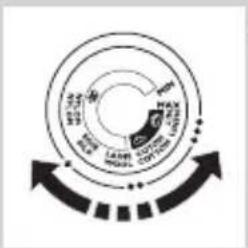
text_image
MAX MAX MAX MAX MAX MAX MAX MAX MAX MAX MAX MAX MAX MAX MAX MAX MAX MAX MAX MAX MAX MAX MAX MAX MAX MAX MAX MAX MAX MAX MAX MAX MAX MAX MAX MAX MAX MAX MAX MAX MAX MAX MAX MAX MAX MAX MAX MAX MAX MAX MAXnatural_image
Illustration of two mechanical components with a diagonal line crossing them (no text or symbols)natural_image
Illustration of a hand using a tool to clean or brush the material (no text or symbols present)natural_image
Line drawing of a mechanical component with motion lines indicating movement (no text or symbols)natural_image
Illustration of a hand holding a tool with a droplet above, no text or symbols presentnatural_image
Illustration of a hand using a tool to clean or brush the brush (no text or symbols present)natural_image
Illustration of a hand using a power iron to clean a garment with a circular logo above (no text or symbols)natural_image
Illustration of a hand using a steam iron to clean water, with a magnified inset showing the process (no text or symbols)

DEUTSCH 37
natural_image
Close-up of a hand holding a car hood with a downward arrow indicating a pull or force (no text or symbols present)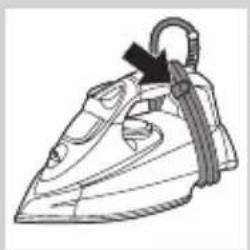
natural_image
Line drawing of a steam iron with a black arrow indicating the handle (no text or symbols)natural_image
Line drawing of a steam iron with a black arrow indicating the handle (no text or symbols)text_image
Diagram illustrating a sewing machine needle with labeled parts and directional arrows indicating measurement or positioning.natural_image
Symbol of a waste bin with no text or labels, including a crossed-out box and a solid rectangle below (no readable text or symbols)natural_image
Line drawing of a hand ironing a shoe with a black arrow indicating the tip (no text or symbols)natural_image
Illustration of hands ironing a steam iron with a downward arrow indicating cooling (no text or symbols)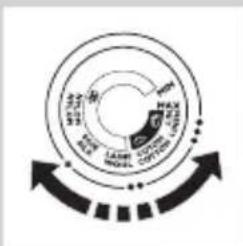
flowchart
graph TD
    A["Outer Ring"] --> B["Inner Ring"]
    B --> C["Bottom Ring"]
    C --> D["Outer Ring"]
    style A fill:#f9f,stroke:#333
    style B fill:#ccf,stroke:#333
    style C fill:#cfc,stroke:#333
    style D fill:#fcc,stroke:#333
text_image
0 1 2 3 4 5natural_image
Illustration of a hand holding a tool with a curved handle, no visible text or symbolsnatural_image
Illustration of a hand using a tool to clean or brush the brush (no text or symbols present)text_image
FRA LAWR GOTCH 100% 100% 100% 100%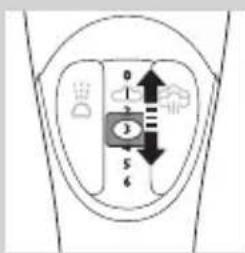
text_image
0 1 2 3 4 5 6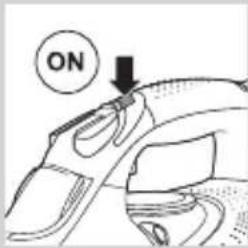
text_image
ON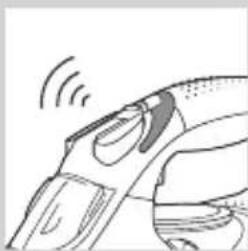
natural_image
Line drawing of a car's head and side profile with motion lines indicating speed (no text or symbols)natural_image
Illustration of a hand holding a tool with a droplet above, showing motion (no text or symbols)natural_image
Illustration of a hand using a tool to apply material, with a circular icon containing a cloud symbol (no text or symbols present)natural_image
Illustration of a hand using a steam iron to clean a surface, with a circular logo above (no text or symbols)natural_image
Illustration of a hand using a steam iron to clean water, with a magnified inset showing the process (no text or symbols)natural_image
Close-up of a hand holding a car wheel with a downward arrow indicating a force or pressure point (no text or symbols present)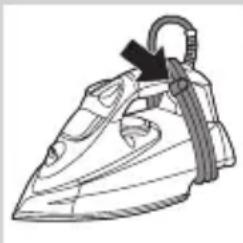
natural_image
Line drawing of a steam iron with a black arrow indicating the handle (no text or symbols)natural_image
Line drawing of a steam iron with a black arrow indicating force application (no text or symbols)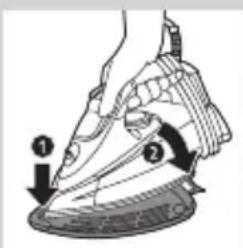
text_image
Diagram illustrating a sewing process with labeled steps 1 and 2, showing hand positioning and sewing instruction.natural_image
Line drawing of a steam iron with a handle and spout (no text or symbols)natural_image
Illustration of hands ironing a steam iron with a downward arrow (no text or symbols)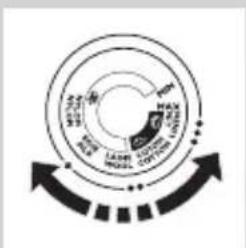
text_image
MAX MAX MAX MAX MAX MAX MAX MAX MAX MAX MAX MAX MAX MAX MAX MAX MAX MAX MAX MAX MAX MAX MAX MAX MAX MAX MAX MAX MAX MAX MAX MAX MAX MAX MAX MAX MAX MAX MAX MAX MAX MAX MAX MAX MAX MAX MAX MAX MAX MAX MAXnatural_image
Illustration of a medical or surgical procedure with no visible text or symbolstext_image
0 1 E 5 4natural_image
Illustration of a hand using a tool to clean or brush the brush (no text or symbols present)text_image
MAX MAX Laser Copper Copper Coppernatural_image
Line drawing of a car's head and side profile with motion lines indicating speed (no text or symbols)natural_image
Illustration of a hand using a power tool to clean or store air, with a circular icon showing a smoke or vapor emission (no text or symbols)natural_image
Illustration of a hand using a brush to apply paint, with a circular icon showing a leaf (no text or symbols)natural_image
Line drawing of a hand ironing an iron with a circular icon above (no text or symbols)text_image
MAX COTTER COTTER LIME LAME ROOT BUTTER ROOT MOTTER ROOT MINI MINI MINI MINI MINI MINI MINI MINI MINI MINI MINI MINI MINI MINI MINI MINI MINI MINI MINI MINI MINI MINI MINI MINI MINI MINI MINI MINI MINI MINI MINI MINI MINI MINI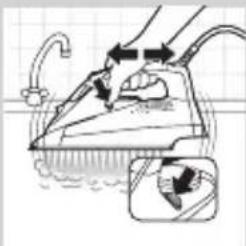
natural_image
Illustration of a hand using a steam iron to clean water, with a magnified inset showing the process (no text or symbols)natural_image
Diagram of a hand turning a car wheel, showing the arrow and base (no text or symbols)natural_image
Line drawing of a steam iron with a black arrow indicating the handle (no text or symbols)natural_image
Line drawing of a steam iron with a black arrow indicating the handle (no text or symbols)text_image
Diagram illustrating a sewing machine needle with labeled parts and directional arrows indicating measurement or positioning.

FRANÇAIS78
Environnement
natural_image
Line drawing of a steam iron with a handle and spout (no text or symbols)natural_image
Illustration of hands ironing a steam iron with a downward arrow (no text or symbols)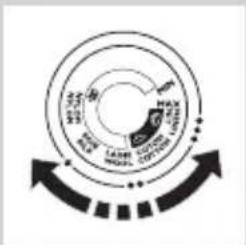
flowchart
graph TD
    A["Start"] --> B{Condition}
    B -->|Yes| C["Process"]
    B -->|No| D["End"]
natural_image
Diagram of a mechanical device with a diagonal line and two curved components (no text or symbols)text_image
100% 50% 20% 10% 6% 4% 2% 0% -5% -10% -15% -20% -25% -30% -35% -40% -45% -50% -55% -60% -65% -70% -75% -80% -85% -90% -95% -100%natural_image
Illustration of a hand using a brush to clean or brush the brush (no text or symbols present)natural_image
Line drawing of a car's head and side profile with motion lines indicating speed (no text or symbols)natural_image
Illustration of a hand holding a tool with a droplet above, showing motion and shading (no text or symbols)natural_image
Illustration of a hand using a brush to clean or brush the brush (no text or symbols present)natural_image
Line drawing of a hand using an iron to clean or brush the power, with a circular icon above (no text or symbols)natural_image
Illustration of a hand using an iron on a water surface, with a magnified inset showing the process (no text or symbols)

NEDERLANDS 95
natural_image
Close-up of a hand holding a car wheel with a downward arrow indicating a pull or force (no text or symbols present)