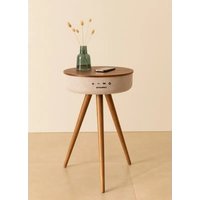
Speaker Table 360 - Speaker Create - Free user manual and instructions
Find the device manual for free Speaker Table 360 Create in PDF.


| Brand | Create |
| Model | Speaker Table 360 |
| Product type | Speaker / Tabletop speaker |
| Power supply | Mains adapter (included) and built-in rechargeable battery |
| Main functions | Bluetooth, hands-free, auxiliary input, USB charger, USB player, wireless charging (Qi), TWS (True Wireless Stereo) |
| Wireless charging | Yes, Qi standard, coil located at the center of the table |
| Bluetooth range | Up to 10 meters |
| Maximum load capacity | 5 kg (do not place heavier objects) |
| Use as seat | Not allowed (do not sit) |
| Safety instructions | Use original adapter, do not exceed 5 kg, do not use as seat, do not expose to moisture |
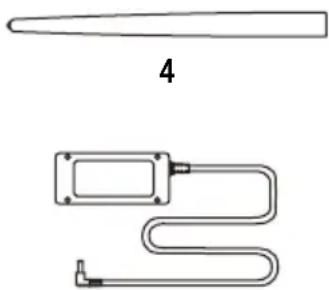
| Included parts | Main body, wireless charging station, wooden legs (x3), power cable, mains adapter, 3.5 mm auxiliary cable, foot pads (x3), microphone |
| Assembly | Screw the three wooden legs into the holes under the speaker |
| Playback modes | Bluetooth, USB, AUX (switch by short press on POWER) |
| Volume control | + and - buttons; progressive adjustment |
| Phone calls | Hands-free via Bluetooth (answer, hang up, reject, redial last number) |
| TWS function | Allows pairing two speakers for wireless stereo sound |
| Automatic power off | After 10 minutes without Bluetooth connection or audio signal |
| LED indicators | Blue, green, red, cyan depending on mode and charging status |
| Maintenance | Wipe with a soft dry cloth. Do not use abrasive products. |
Frequently Asked Questions - Speaker Table 360 Create
User questions about Speaker Table 360 Create
0 question about this device. Answer the ones you know or ask your own.
Ask a new question about this device
Download the instructions for your Speaker in PDF format for free! Find your manual Speaker Table 360 - Create and take your electronic device back in hand. On this page are published all the documents necessary for the use of your device. Speaker Table 360 by Create.
USER MANUAL Speaker Table 360 Create
natural_image
Line drawing of a simple four-legged table with three legs and three tops, no text or symbols present.TABLE-SPEAKER WITH BLUETOOTH
MESA-ALTAVOZ CON BLUETOOTH
CREATE CREATE CREATE ATE CREATE CREATE CRE CREATE CREATE CREATE ATE CREATE CREATE CRE CREATE CREATE CREATE ATE CREATE CREATE CRE CREATE CREATE CREATE ATE CREATE CREATE CRE CREATE CREATE CREATE ATE CREATE CREATE CRE CREATE CREATE CREATE ATE CREATE CREATE CRE CREATE CREATE CREATE ATE CREATE CREATE CRE CREATE CREATE CREATE ATE CREATE CREATE CRE CREATE CREATE CREATE ATE CREATE CREATE CRE CREATE CREATE CREATE ATE CREATE CREATE CRE CREATE CREATE CREATE ATE CREATE CREATE CRE CREATE CREATE CRE CREATE CREATE CRE CREATE CREATE CRE
CREATE CREATE CREATE ATE CREATE CREATE CRE CREATE CREATE CREATE ATE CREATE CREATE CRE CREATE CREATE CREATE ATE CREATE CREATE CRE CREATE CREATE CREATE CREATE CREATE CREATE CREATE CREATE CREATE CREATE CREATE CREATE CREATE CREATE CREATE CREATE CREATE CREATE CREATE CREATE CREATE CREATE CREATE CREATE CREATE CREATE CREATE CREATE CREATE CREATE CREATE CREATE CREATE CREATE CREATE CREATE CREATE CREATE CREATE CREATE CREATE CREATE CREATE CREATE CREATE CREATE CREATE CREATE CREATE CREATE CREATE CREATE CREATE CREATE CREATE CREATE CRE
INDEX
ENGLISH
Security instructions 6
Functions 6
Parts list 6
Control panel 7
Assembly steps 7
Voice reminding messages 8
Power on/off 8
Mode switch 8
Aux auto switch 8
Usb reader 8
Bluetooth connection and play 8
Making phone calls via bluetooth 9
Volume control 9
Usb charging 9
Wireless charging 9
Low battery and charging 10
Tws function 10
Automatic power off 10
PORTUGUÊS
Thank you for choosing our table speaker. Before using the appliance, and to ensure the best use, carefully read these instructions.
The safety precautions enclosed herein reduce the risk of death, injury and electrical shock when correctly adhered to. Keep the manual in a safe place for future reference, along with the completed warranty card, purchase receipt and package. If applicable, pass these instructions on to the next owner of the appliance. Always follow basic safety precautions and accident-prevention measures when using an electrical appliance. We assume no liability for customer failing to comply with these requirements.
SECURITY INSTRUCTIONS
When using any electrical appliance, basic safety precautions should always be observed.
- The maximum bear weight of this product is 5 kg, do not place any item weighing more than 5 kg on this product.
- This product can't be used as a seat.
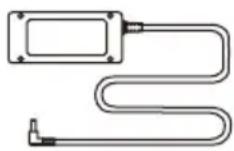
- Please use the original AC adapter for charging, if not, it may cause the speaker to be charged slowly or cannot be charged at all.
FUNCTIONS
- Bluetooth, hands free, aux in, USB charger function, USB reader function, wireless charger function and TWS (True Wireless Stereo).
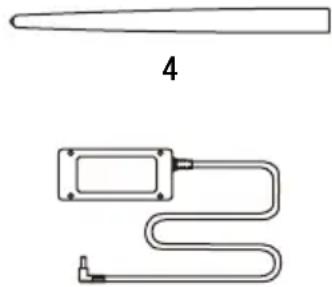
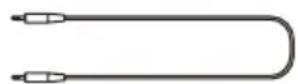
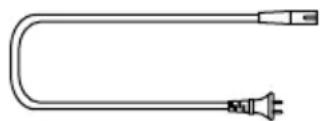
PARTS LIST
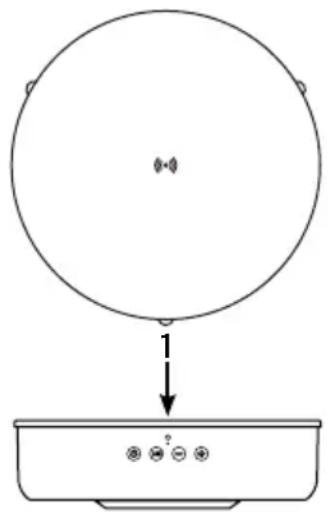
- Wireless charging dock
- Main body
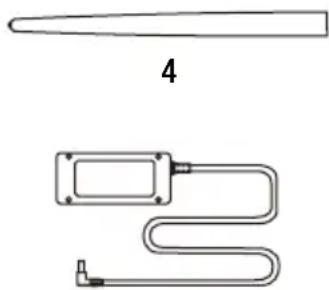
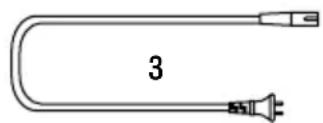
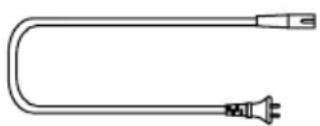
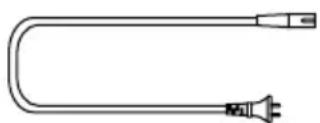
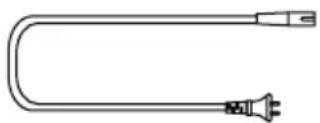
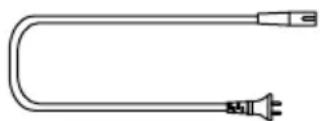
- Power cable
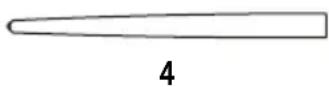
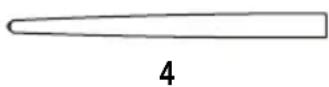
- Legs (x3)
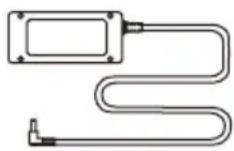
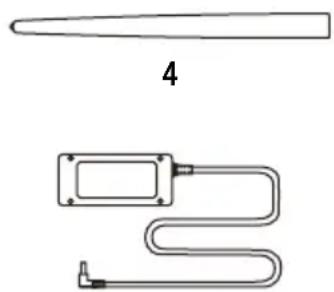
- AC power adapter
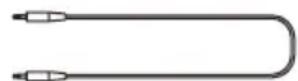
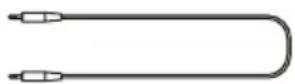
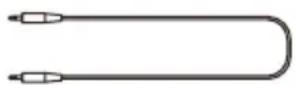
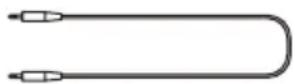
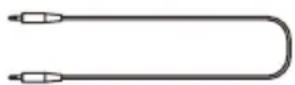
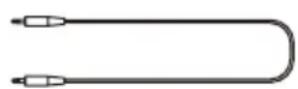
- 3.5 mm auxiliar cable
- EVA pads (x3)
natural_image
Simple line drawing of a circular object above a container with three small icons below (no text or symbols)2
natural_image
Technical line drawing of a tool and a U-shaped component (no text or symbols)5
6
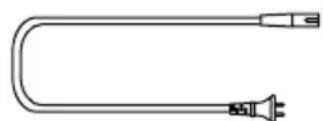
3

7
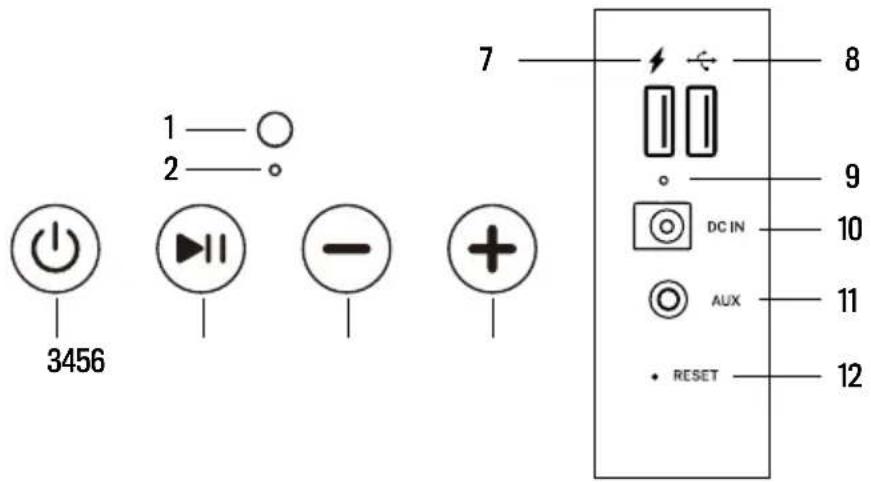
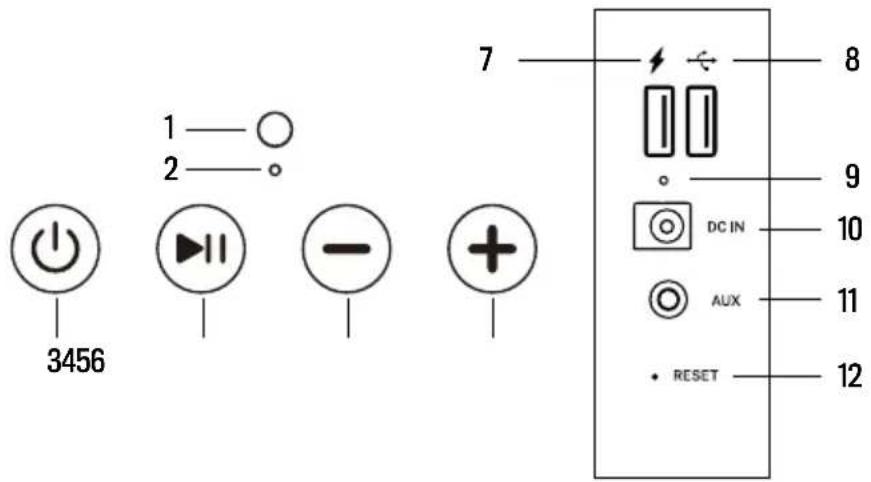
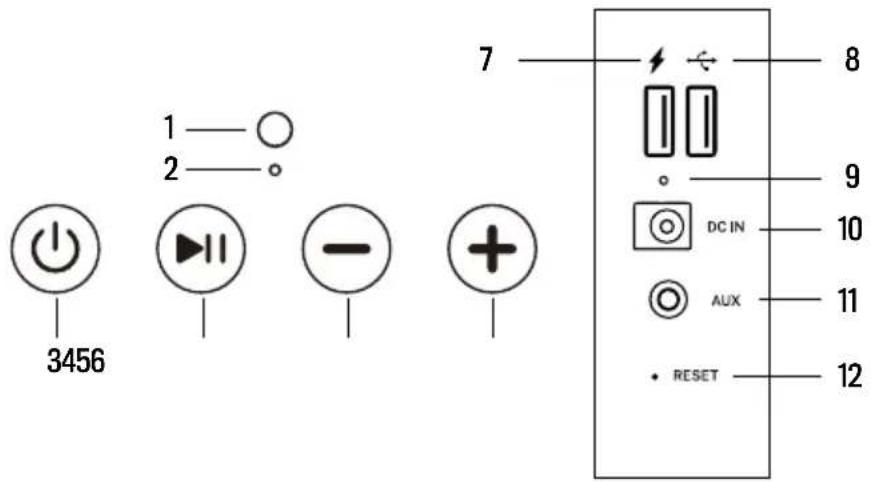
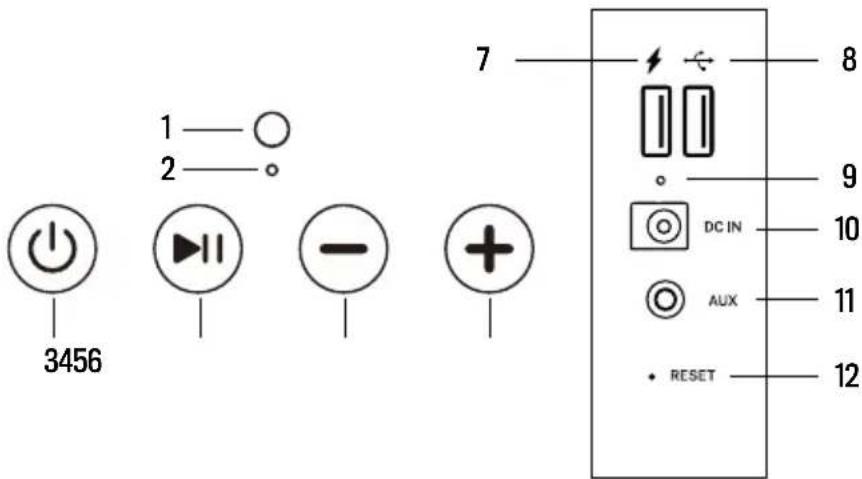
CONTROL PANEL
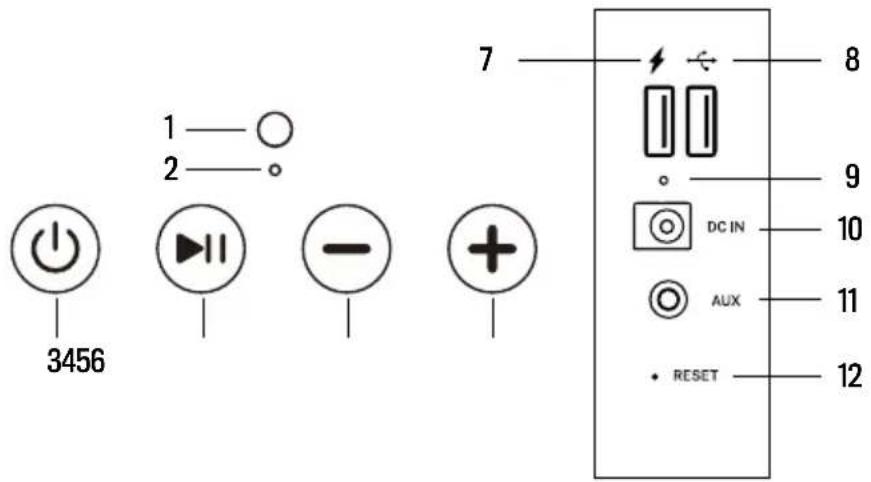
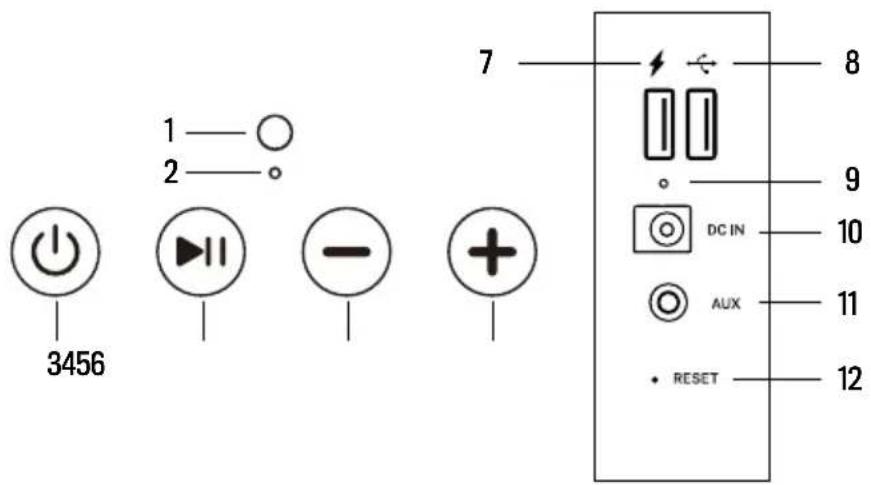
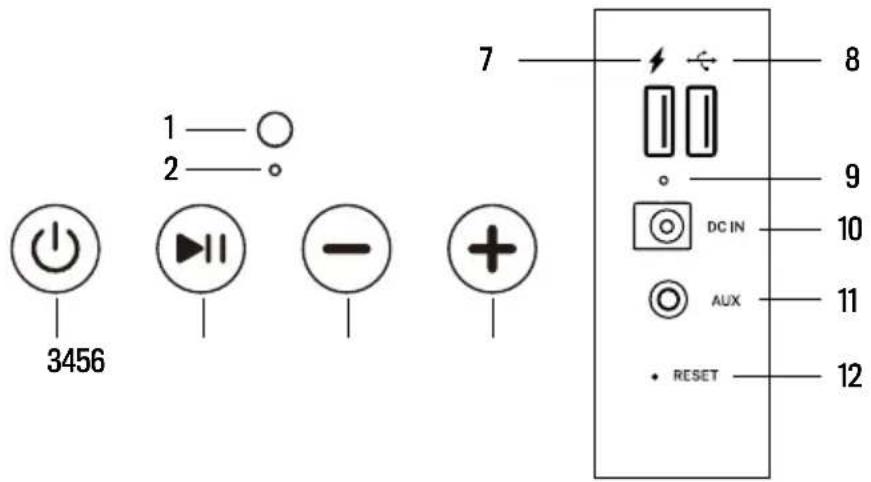
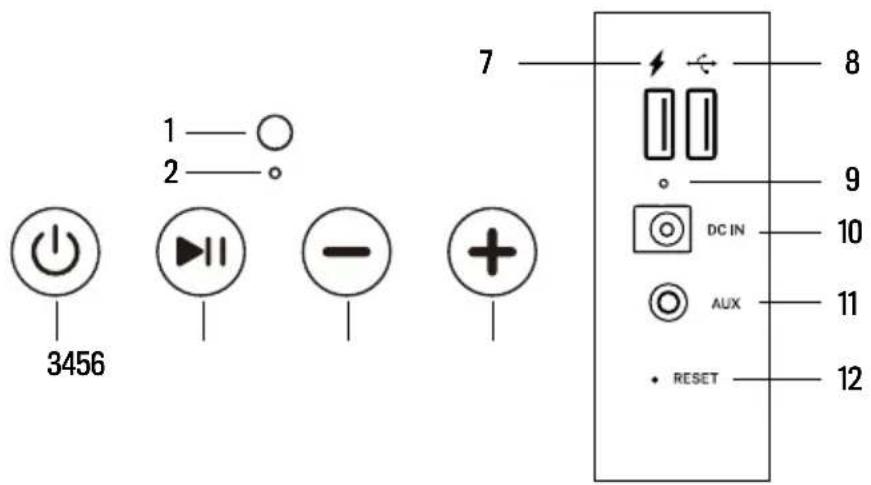
- Mic
- LED
- Power button ON / OFF / TWS
-
Play / Pause / Phone
-
Volume-
- Volume +
- USB charger port
-
USB reader port
-
Charging LED lights
- Power in
- Aux
- Reset
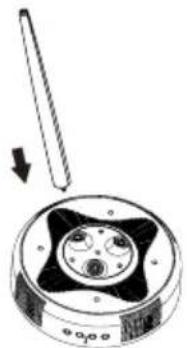
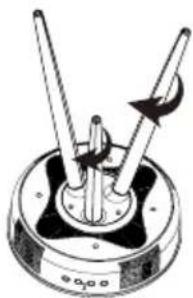
ASSEMBLY STEPS
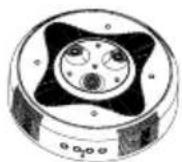
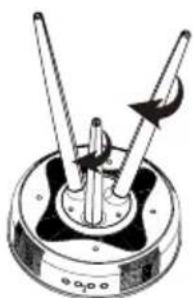
- Open the box, place the speaker on a flat surface with base upwards (showing the screw holes).
- Take one wood leg and insert it into a screw hole.
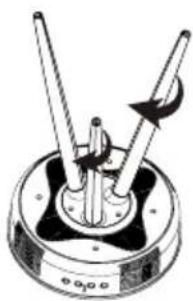
- Rotate the wooden leg clockwise until tightly fastened.
- Repeat Steps 2 and 3 for the remaining 2 wooden legs.
- Turn the speaker right side up after the wooden legs are assembled.
123
natural_image
Diagram of a mechanical device with a pin and circular housing, showing internal components (no text or symbols)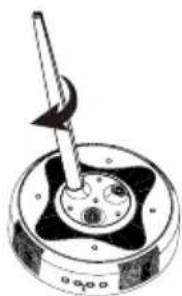
natural_image
Diagram of a mechanical component with a lever and central hub (no text or symbols)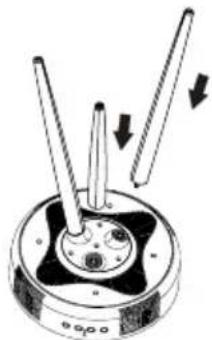
natural_image
Diagram of a mechanical device with three blades and a central hub, showing motion arrows (no text or symbols)4

natural_image
Mechanical component diagram showing two rods rotating around a central hub with an arrow indicating rotational motion (no text or symbols)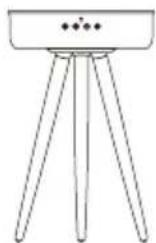
5
VOICE REMINDING MESSAGES
- Power on: Connect the power supply (voice prompt when the speaker turns on).
- Bluetooth: Bluetooth mode
- Power off: Shut off the power supply (voice prompt when the speaker turns off).
- Bluetooth, waiting for connection: Pairing (enter Bluetooth mode / AUX, and back to Bluetooth mode).
- Bluetooth is connected: Pairing successfully, back to Bluetooth Mode successfully again.
- Bluetooth disconnected, waiting for connection: Switch off the connection with the paired mobile phone or other device, long press the Play/Pause/Phone button to disconnect the Bluetooth.
• Maximum volume: Maximum volume level - Low Battery: The built-in battery needs to be charged.
POWER ON/OFF
- Long press POWER/TWS button, you will hear “Power On” from the speaker and the speaker will enter Bluetooth mode as default. Then, you will hear “Bluetooth, waiting for connection”. Now, a smart phone and other devices can be paired with the speaker.
- Long press POWER/TWS button, the speaker will be turned off. You will hear “Power Off” from the speaker.
MODE SWITCH
- Short press the [POWER] button to switch the channel, the channel sequence will be Bluetooth-USB-AUX and then circulation.
- The speaker support the Bluetooth mode by default, but if insert the USB Reader or AUX cable, then will change to the mode accordingly.
AUX AUTO SWITCH
- Insert the AUX cable into the AUX socket at the rear panel of the speaker, the speaker will switch to AUX mode automatically. The blue and green LED light will be on and the Bluetooth mode will be switched off directly. After taking out the AUX cable, the Bluetooth mode will be switched on automatically. Then, you will hear “Bluetooth, waiting for connection” or “Bluetooth”.
USB READER
- Insert the USB reader into the USB reader port at the rear panel of the speaker, then the speaker will reader and play the song automatically, the cyan LED light will be on.
BLUETOOTH CONNECTION AND PLAY
- When the speaker is in Bluetooth mode, it will automatically switch to “pairing status”. The blue LED light will flash slowly and the Bluetooth device name will appear on your smartphone’s Bluetooth settings as “SPEAKER TABLE”.
- The speaker will pair with your smartphone via Bluetooth, you will hear “Bluetooth is connected” after pairing. The blue LED light will be always on. If it fails, the blue LED light will flash slowly.
- When playing music after connecting with your smartphone via Bluetooth, the speaker will pause if you shortly press the Play/Pause/phone button, it will resume playing after shortly pressing the Play/Pause/phone button again.
- When this speaker is connected with your smartphone, long press the Play/Pause/phone button, the speaker will switch off the connection with the paired mobile phone and another smartphone can connect with “SPEAKER TABLE” via Bluetooth.
- The best distance between a smartphone and the speaker is more or less 10 m.
MAKING PHONE CALLS VIA BLUETOOTH
- When a call comes in, shortly press the Play/Pause/phone button to answer the phone, speak to the MIC, it will be a clear call. Short press again to hang up, and long press to declined.
- Double press the Play/Pause/phone button for dialing the phone number of the last call in record.
- The speaker will switch into Bluetooth mode and respond the coming call if there is a call when playing USB reader or AUX music. If you do not need to use the speaker to answer the phone, disconnect the Bluetooth connection between the mobile phone and the speaker, or switch the mobile phone to the speaker / handset status.
VOLUME CONTROL
- Press + button to increase the volume.
- Press - button to decrease the volume.
- Both short press and long press the volume button +/- can adjust the volume level under the Bluetooth and AUX mode. Short press the volume button +/- can adjust to previous or next song. Long press the volume button +/- can adjust the volume level under the USB reader mode.
USB CHARGING
- When the speaker is powered on, or connected with AC adapter, the USB port can charge the smart devices at the same time. When the speaker is powered off, the USB port cannot charge any external devices.
- If the speaker is connected via the AC adapter, even the speaker is powered off, the USB port can charge the smart devices at the same time.
WIRELESS CHARGING
- The charging coil of the wireless charging devices (The mobile phone which can support Qi standard of wireless charging) needs to aim at the wireless charging mark which is in the middle of the table speaker, when the speaker is powered on or connected with the AC adapter. You will see the charging mark on the screen of your mobile phone or you will hear a sound after connecting with the device for wireless charging.
- When the battery capacity is low, you will hear “Low Battery” to remind the user that the speaker needs to be charged. If the user does not connect the speaker to charge it, the speaker will be automatically powered off.
- After connecting the AC adapter to the port on the back of the speaker, the red LED light will be on while charging. The red LED light will turn off when the speaker is fully charged.
- It can display the battery power of the speaker on the phone after connecting Bluetooth (The mobile phone which can support it).
- Caution: The LED light turns red for one second after connecting the AC adapter. Then, the LED light will turn off. It means the built-in battery is fully charged
TWS FUNCTION
TWS feature allows you to link two speakers together. The first table will be the master connected to the Bluetooth device and operate all controls. The second table is a linked speaker giving True Wireless Sound.
- Turn on both table speakers, double click the POWER/TWS button on one of the two table speakers, both speakers will enter team paring mode, you will hear an acoustic signal, both blue LED indicators of both table speakers will flash rapidly at the same time. After the team paring, the LED indicator of the first speaker (Master) will remain flashing slowly. The LED light of the second speaker (Sub-speaker and linked TWS) will be green. After connecting with a phone or other Bluetooth device, the Master speaker LED will be fixed blue, the LED light of the sub-speaker will be fixed green.
- When speakers are team paired successfully, short press POWER/TWS button of the Master speaker or the sub-speaker to switch off the team pairing TWS mode.
- When speakers are team paired TWS mode successfully under Bluetooth, the two speakers can still work as paired speakers by inserting the AUX cable into the AUX socket on the first speaker (Master). The Master speaker will be with green and blue LED light, the sub-speaker with Green LED light only. TWS mode will fail if Aux cable is inserted to the Aux socket on the second speaker (sub-speaker).
- Under TWS status, only the master speaker will be used to pick up the phone. The second speaker is without response.
AUTOMATIC POWER OFF
- After powering on the apearker without Bluetooth connection, or without line in signal, or disconnecting the Bluetooth after 10 minutes, the speaker will power off automatically. You will hear "Power off".
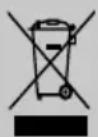
In compliance with Directives: 2012/19/EU and 2015/863/EU on the restriction of the use of dangerous substances in electric and electronic equipment as well as their waste disposal. The symbol with the crossed dustbin shown on the package indicates that the product at the end of its service life shall be collected as separate waste. Therefore, any products that have reached the end of their useful life must be given to waste disposal centres specialising in separate collection of waste electrical and electronic equipment, or given back to the retailer at the time of purchasing new similar equipment, on a one for one basis. The adequate separate collection for the subsequent start-up of the equipment sent to be recycled, treated and disposed of in an environmentally compatible way contributes to preventing possible negative effects on the environment and health and optimises the recycling and reuse of components making up the apparatus. Abusive disposal of the product by the user involves application of the administrative sanctions according to the laws.
2
natural_image
Technical line drawing of a tool and a mechanical component (no text or symbols)5
6
natural_image
Simple line drawing of a U-shaped tube with a plug and label '3' (no text or symbols on the tube itself)
PANEL DE CONTROL
2
natural_image
Simple line drawings of a tool and a U-shaped tube, both without any text or symbols5
6
natural_image
Line drawing of a U-shaped tube with two connectors (no text or symbols)3

7
PAINEL DE CONTROLE
- Microfone
- LED
- Botão liga / desliga / TWS
-
Tocar / Pausar / Telefone
-
Volume-
- Volume +
- Porta de carregamento USB
-
Porta de leitor USB
-
Luzes LED de carregamento
- Entrada de energía
- Cabo AUX
- Reiniciar
ETAPAS DE MONTAGEM
natural_image
Diagram of a mechanical component with a pin and arrow indicating direction (no text or symbols)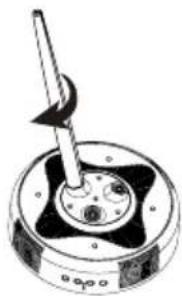
natural_image
Diagram of a mechanical device with a lever and circular base (no text or symbols)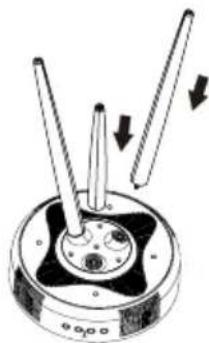
natural_image
Diagram of a mechanical component with three rods and arrows indicating motion (no text or symbols)4
natural_image
Mechanical component diagram showing two blades mounted on a circular base with a central hub (no text or symbols)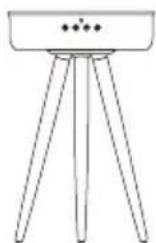
5
2
5
6
natural_image
Line drawing of a U-shaped tube with connectors (no text or symbols)3

7
PANNEAU DE COMMANDE
natural_image
Diagram of a mechanical component with a pin and arrow indicating direction (no text or symbols)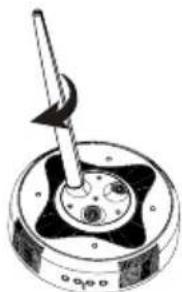
natural_image
Mechanical component diagram showing a rotating shaft and central hub with no visible text or symbols
natural_image
Diagram of a mechanical device with three rods and directional arrows indicating motion (no text or symbols)4
natural_image
Mechanical component diagram showing two blades mounted on a circular base with a central hub (no text or symbols)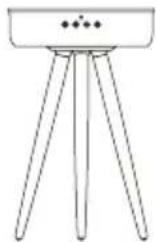
5
MESSAGES VOCAUX DE RAPPEL
natural_image
Simple line drawings of a pen and a U-shaped tube, both without any text or symbols5
6
natural_image
Line drawing of a U-shaped tube with two connectors (no text or symbols)3

7
PANNELLO DI CONTROLLO
natural_image
Simple line drawing of a U-shaped pipe or conduit with a rectangular component and a small protrusion, labeled '5' below (no text or symbols on the diagram itself)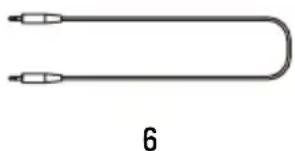
natural_image
Simple U-shaped tube with two connectors, labeled '6' below (no text or symbols on the tube itself)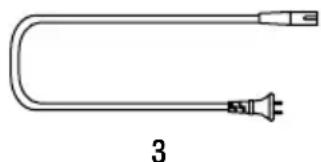
natural_image
Line drawing of a U-shaped tube with a plug and connector, labeled '3' (no text or symbols on the tube itself)
SCHALTTAFEL
natural_image
Diagram of a mechanical component with a tool and arrow indicating direction (no text or symbols)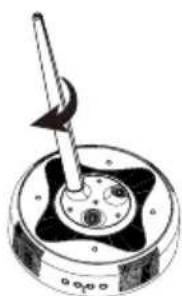
natural_image
Mechanical component diagram showing a rotating shaft and central hub with mounting holes (no text or symbols)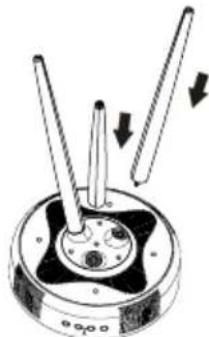
natural_image
Diagram of a mechanical component with two rods and directional arrows indicating motion (no text or symbols)4
natural_image
Mechanical component diagram showing two blades mounted on a circular base with a central hub (no text or symbols)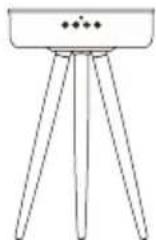
5
2
5
6
natural_image
Simple line drawing of a U-shaped tube with a connector (no text or symbols)3

7
CONTROLEPANEEL
AUX-MODUS INSCHAKELEN
natural_image
Simple line drawing of a circular object above a container with control buttons (no text or symbols)2
natural_image
Two technical diagrams: a conical tool and a U-shaped pipe with a connector, both without any text or symbols.5
6
3

7
PANEL STEROWANIA
- INDEX
- ENGLISH
- PORTUGUÊS
- SECURITY INSTRUCTIONS
- FUNCTIONS
- PARTS LIST
- CONTROL PANEL
- ASSEMBLY STEPS
- VOICE REMINDING MESSAGES
- POWER ON/OFF
- MODE SWITCH
- AUX AUTO SWITCH
- USB READER
- BLUETOOTH CONNECTION AND PLAY
- MAKING PHONE CALLS VIA BLUETOOTH
- VOLUME CONTROL
- USB CHARGING
- WIRELESS CHARGING
- TWS FUNCTION
- AUTOMATIC POWER OFF
- PANEL DE CONTROL
- PAINEL DE CONTROLE
- ETAPAS DE MONTAGEM
- PANNEAU DE COMMANDE
- MESSAGES VOCAUX DE RAPPEL
- PANNELLO DI CONTROLLO
- SCHALTTAFEL
- CONTROLEPANEEL
- AUX-MODUS INSCHAKELEN
- PANEL STEROWANIA
Brand : Create
Model : Speaker Table 360
Category : Speaker