imageRUNNER ADVANCE C3525i III - Printer CANON - Free user manual and instructions
Find the device manual for free imageRUNNER ADVANCE C3525i III CANON in PDF.


User questions about imageRUNNER ADVANCE C3525i III CANON
0 question about this device. Answer the ones you know or ask your own.
Ask a new question about this device
Download the instructions for your Printer in PDF format for free! Find your manual imageRUNNER ADVANCE C3525i III - CANON and take your electronic device back in hand. On this page are published all the documents necessary for the use of your device. imageRUNNER ADVANCE C3525i III by CANON.
USER MANUAL imageRUNNER ADVANCE C3525i III CANON
text_image
Quick Operation Guide| English 3 |
| Français 15 |
| Deutsch 27 |
| Italiano 39 |
| Español 51 |
Quick
Operation Guide
Learning How to Use Your Machine 4
Tips for Copying 6
Tips for Printing 7
Tips for Faxing 8
Tips for Scanning 9
Tips for Registering Destinations 10


You can access canon.com/oip-manual to read the User's Guide that describes all functions of this machine.
Store this guide in a safe place for future reference.
Some functions may not be available, depending on the model of the machine you are using.
The information in this document is subject to change without notice.
If your machine is of the model dedicated to printing only
The machine dedicated to printing only cannot be used for any other functions than printing. Although this Guide contains the descriptions of the functions and operations for copying, faxing, and scanning as well as printing, please read only the necessary descriptions to use your machine.

natural_image
Silhouette of a person in profile with red clothing, no text or symbols visibleLearning How to Use Your Machin
This section contains a brief overview of the basic operations of your machine.
Turning On the Display
natural_image
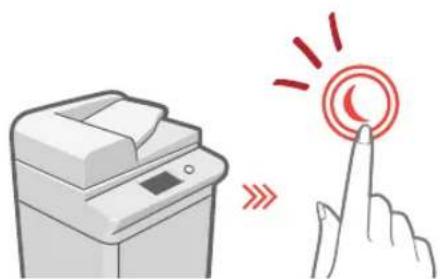
Illustration of a printer and a hand interacting with a circular button (no text or symbols)When the display is turned off, press the Ⓞ button on the control panel to exit the Sleep mode and turn it back on.
The Main Buttons for Operations
natural_image
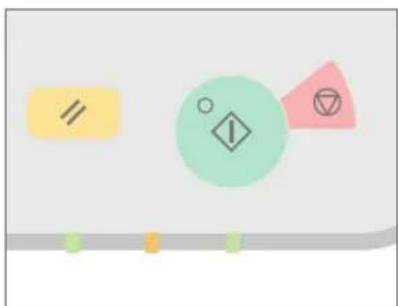
Abstract diagram with geometric shapes and colored circles on a gray background (no text or symbols)Press ☐to execute functions, to □ cancel operations, and ☐ to clear the current settings.
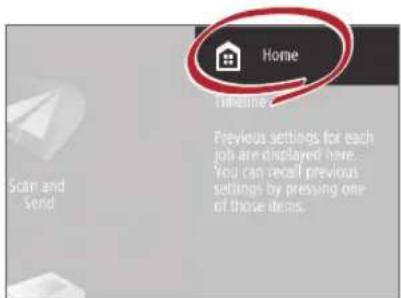
Accessing the Home
text_image
Home Timeline Previous settings for each job are displayed here. You can recall previous settings by pressing one of those items. Scan and SendPerform a wide variety of operations from the Home, displayed from any screen by pressing 📄.
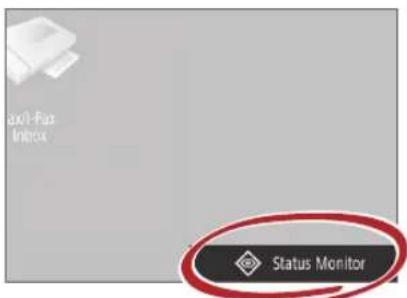
▶ Quickly Checking the Status of Machine
text_image
axl-Fax Inbox Status MonitorAll you need to do to check the machine's status is press. Status Monitor

See "Control Panel" in the User's Guide.

natural_image
Red line drawing of a computer with buttons and a screen (no text or symbols)Two Methods for Setting Original Documents
Placing Original Documents Correctly
Placing Original Documents on the Platen Glass
- Place the side to scan face down.
- Place the original documents so that it fits in the back left corner.
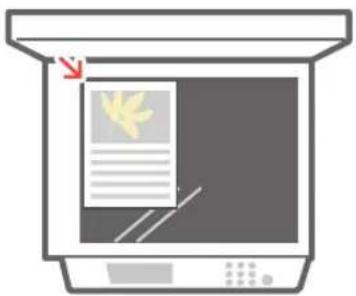
text_image
Diagram of a printer with a paper feed and a yellow leaf symbol, showing text and control buttons.Compatible Types of Original Documents
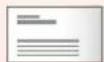
Books, magazines
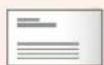
Business cards

Newspaper clippings
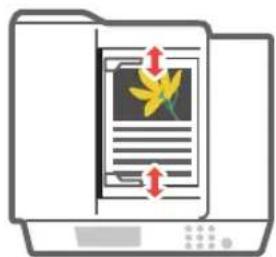
Placing Original Documents in the Feeder
- Place the side to scan face up.
- Adjust the slide guide.
text_image
Icon showing a folder with a document and arrows indicating direction, likely representing file orientation or text flow.Compatible Types of Original Documents
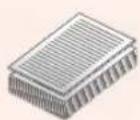

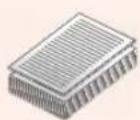
Documents with many pages, quotations, etc.

natural_image
Silhouette of a person in profile against a dotted background (no text or symbols)Tips for Copying
Use helpful functions, such as two-sided printing and N on 1 feature, to make your copies look better while using paper efficiently.
Basic Copy Flow
1 | Set the document.
2 | Press [Copy].
3 | Enter the number of copies.
4 | Set your preferred setting.

text_image
Copy 100% 1 File Edit View Insert Format Folding F Head Dewis Original Type Copy Off Cart5 | Press (Start).
Non 1
The N on 1 feature helps you save paper by combining multiple pages onto one single sheet of paper.
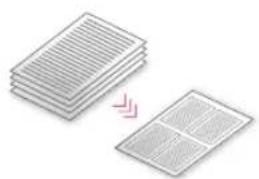
natural_image
Stacked sheets of paper with a magnified inset showing a grid pattern (no text or symbols)Density
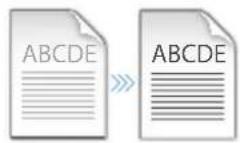
Adjust the text density to make hard to read documents (such as something written in pencil) easier to read.
Recommended Settings
2-Sided
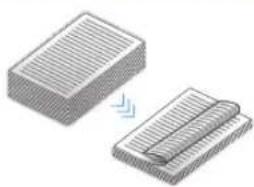
Halve the amount of paper you use by printing on both sides of copied paper.
natural_image
Two 3D rectangular blocks with ribbed texture, one being folded and the other stacked (no text or symbols)Copy Ratio
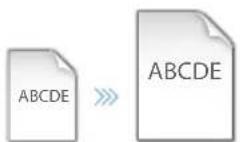
Use "Copy Ratio" when copying to magnify small text for easy reading.
Finishing (Collate)
Output original documents in sets with the Collate mode, convenient for organizing big copy jobs.

natural_image
Illustration of a printer next to three stacked documents labeled A, B, and C (no text or symbols on the devices themselves)Original Type
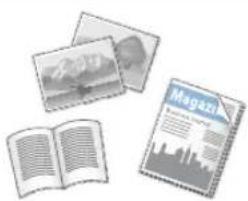
Pick one of a variety of different original types when copying to optimize the settings for that original document.
natural_image
Illustration of an open book, a photo collage, and a magazine with city skyline (no text or symbols visible)For further information about the functions, see "A Variety of Features," on p.12.
Tips for Printing
Don't bother getting up! Specify print settings directly from your computer.

To print from a computer, first install the printer driver. For instructions on installing printer drivers, see the Printer Driver Installation Guide.

natural_image
Silhouette of a person sitting in a chair against a pink background (no text or symbols)Basic Print Flow
1 | Select the print function from the application menu.
2 | Select the machine from [Select Printer].
3 | Select the paper source.
4 | Set your preferred setting.
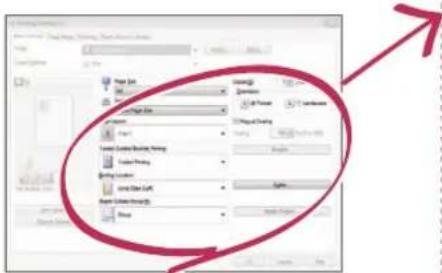
text_image
Import Delete Export Import Data Export Export Data Export Data Export Data Export Data Export Data Export Data Export Data Export Data Export Data Export Data Export Data Export Data Export Data Export Data Export Data Export Data Export Data Export Data Export Data Export Data Export Data Export Data Export Data Export Data Export Data Export Data Export Data Export Data Export Data Export Data Export Data Export Data Export Data Export Data5 | Enter the number of copies, and press [Print].
Recommended Settings
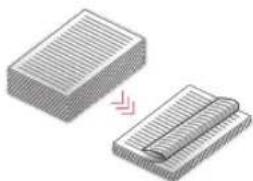
2-Sided
Two-sided printing can save paper, especially for those big copy jobs!
natural_image
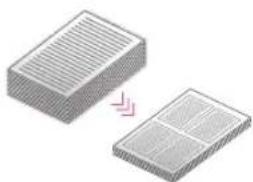
Illustration of two stacked documents with a pink arrow indicating transformation (no text or symbols)Page Layout
Significantly decrease the amount of paper you use by printing a total of four pages on a single sheet of paper.
natural_image
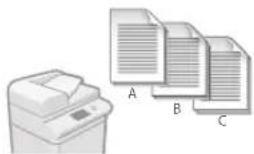
Two 3D rectangular blocks with horizontal grooves, one showing a pink arrow indicating transformation (no text or symbols)Finishing (Collate)
Use [Collate] when printing a large number of copies to sort them for easy distribution.
natural_image
Illustration of a printer and three stacked documents labeled A, B, C (no text or symbols on the devices themselves)For further information about the functions, see "A Variety of Features," on p.12.
Change Print Settings with Just One Easy Click!

text_image
Page Size: A4 Output Size: Match Page Size Page Layout: 1 on 1 1-sided/2-sided/Booklet Printing: 1-sided Printing Binding Location:Change print settings, such as the page layout, by simply clicking the icon on the printer driver screen. The icon changes as you adjust the settings, so you can easily see your changes taking effect.

natural_image
Silhouette of a person standing against a green dotted background (no text or symbols)Tips for Faxing
Faxing is easy with these simple steps! Improve the clarity of your faxes by adjusting settings, such as density or resolution.
Basic Fax Flow
1 | Set the document.
2 | Press [Fax].
3 | Enter the fax number and press [OK].
To send a fax to a registered address, press Address Book
4 | Set your preferred setting.
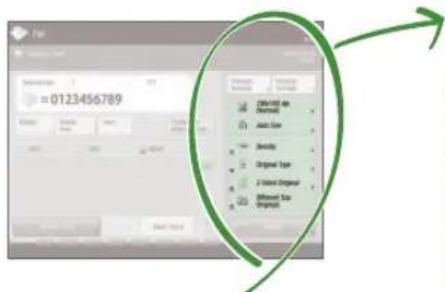
text_image
Subminder 7 0123456789 Output Sample Size Name Description (0123456789) Original Type Original Type 2-Point Original Without Point Original5 | Press (%Start) and once scanning is complete, press [Start Sending].
Recommended Settings
Resolution
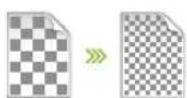
Improve text clarity by increasing the resolution of a document, when sending documents with small text.
Density

Increase the density of thin text when sending (such as text written in pencil) to make it easier to read.
Original Type
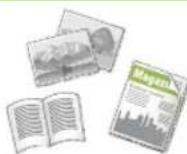
Pick one of a variety of different original types when faxing to optimize the settings for that original document.
For further information about the functions, see "A Variety of Features," on p.12.
Press the Button to Adjust the Fax Volume
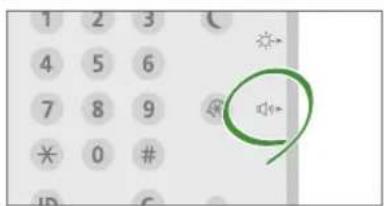
text_image
1 2 3 4 5 6 7 8 9 * 0 # ID CAdjust the volume when sending and receiving faxes by pressing on the control panel.
Previewing Received Faxes Before Printing
text_image
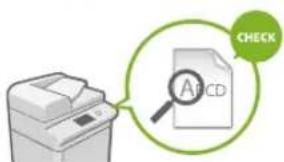
CHECK A1CDCheck received faxes before printing, letting you select which to print while saving paper.

See "Saving Received Documents in the Machine (Memory Reception)" in the User's Guide.
Tips for Scanning
Not enough space for storing mountains of paperwork? You can scan and store them as data on your computer.

natural_image
Silhouette of a person standing against a dotted background (no text or symbols)Basic Scan Flow
1 | Set the document.
2 | Press [Scan and Send].
3 | Press [New Destination] and enter the destination address.
To scan and send to a registered destination, press .
4 | Set your preferred setting.
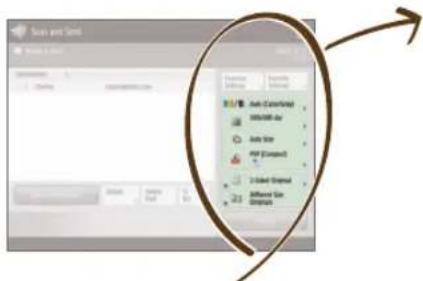
text_image
Sound and Send Sound & Send Auto (Center/Run) 300-000-4x Auto Size MIF (Center) 2 Based Original Different Size Original5 | Press (Start).
Recommended Settings
Resolution
You can adjust the resolution when scanning a magazine or picture to make the image more vivid and clear.
Different Size Originals
Scan a variety of different document sizes in one simple operation.
File Format
Save a scanned original document in the format that best suits your needs, such as contracts as PDFs or presentation materials as PowerPoint documents.

flowchart
graph LR
    A["Input Document"] --> B["Processing"]
    B --> C["Output Text"]
    C --> D["Print Copy"]
    C --> E["PDF"]
    C --> F["EPS"]
    C --> G["TSP"]
    C --> H["JPG"]
For further information about the functions, see "A Variety of Features," on p.12.
Digitize Stacks of Paper Documents to Save Office Space
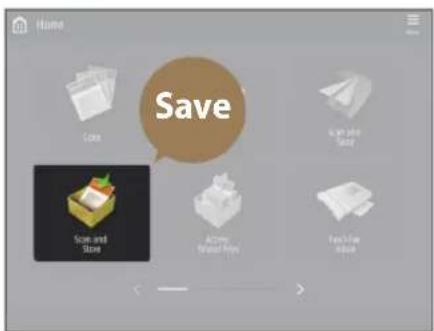
text_image
Home Save Store and Save Store and Store Active Store Textile Store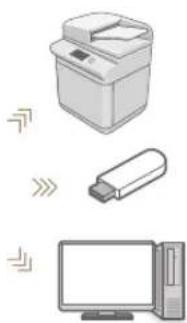
natural_image
Illustration of three electronic devices: printer, USB flash unit, and desktop computer (no text or symbols)Digitize your paper documents by selecting [Scan and Store] when scanning an original document. You can even choose a variety of different destinations to save the data, such as the machine or a file server.

See "Basic Operations for Scanning Originals" in the User's Guide.

natural_image
Silhouette of a walking human figure against a dotted background (no text or symbols)Tips for Registering Destinations
Register destinations in the address book to make sending operation simple. Increase efficiency by using One-Touch Buttons for frequently used destinations!
Basic Flow for Registering Destinations
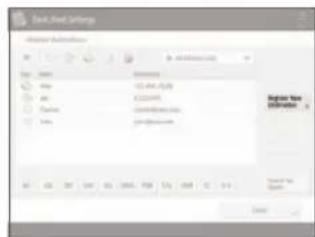
1 | Press [Dest./Fwd. Settings].
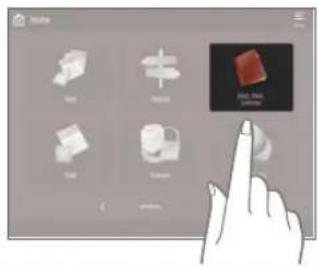
text_image
Screenshot of a software interface with 3D modeling tool icons and a hand pointing to a highlighted 3D object labeled 'High-Value' in Chinese.2 | Press [Register Destinations].
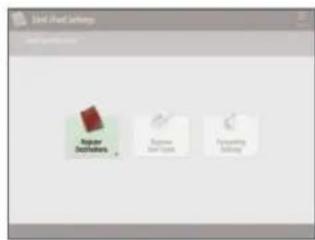
text_image
User Fixed Settings New Order Order Order Ordering Schedule3 | Press [Register New Dest.].
text_image
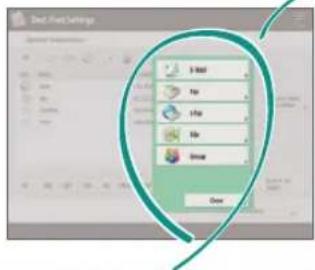
Add New Settings Name: Add New Settings File Edit View Insert View: View: View: View: View: View: View: View: View: View: View: View: View: View: View: View: View: View: View: View: View: View: View: View: View: View: View: View: View: View: View: View: View: View: View: View: View: View: View: View: View: View: View: View: View: View: View: View: View: View: View:4 | Select the type of destination.
text_image
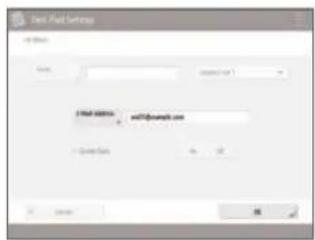
Excel 9.0 Settings New Up Solve Close5 | Enter the address and press [OK].
text_image
Test Fluid Settings Name: Test Fluid Settings Test Fluid Settings testfluid.com
natural_image
Illustration of a hand pointing at a screen with a keypad (no text or symbols)Select the Destination Type
Register e-mail addresses, fax numbers, even servers as destinations! Pick the destination type that is right for you.
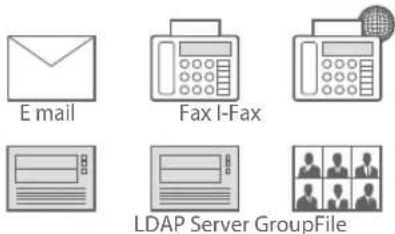

See "Registering Destinations" in the User's Guide.
Using [Group]
You can register multiple destinations to a single group.
![CANON imageRUNNER ADVANCE C3525i III - Using [Group] - 1](/content/2026/04/675999/images/7d95f8c0fa42c535fccd82caa681099bf6b09798fda970849ff769fe7d163b81.jpg)
text_image
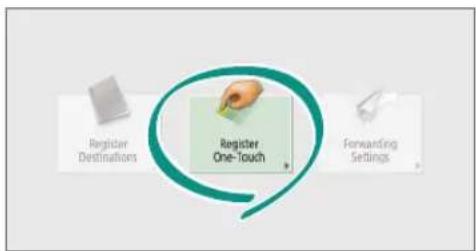
Send documents to everyone in a meeting at once!Send Documents Easily With One-touch Buttons
flowchart
graph TD
    A["Register Destinations"] --> B["Register One-Touch"]
    C["Forwarding Settings"] --> B
    B --> D["Next Step"]
Register an often used destination to a one-touch button with [Register One-Touch], and save time!
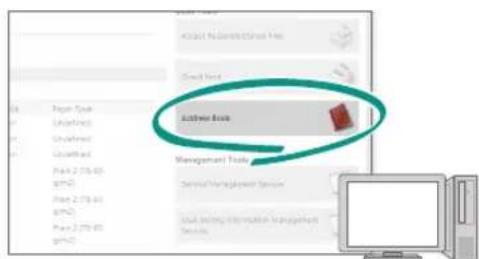
Easy Address Editing from Your Computer
text_image
Address Book Management Tools Access Management ToolsYou can access the machine from your computer with the Remote UI, enabling you to edit addresses easily with the keyboard.

See "Registering Destinations" in the User's Guide.

See "Managing the Machine from a Computer (Remote UI)" in the User's Guide.

natural_image
Silhouette of a person standing against an orange background (no text or symbols)And More! A Variety of Features
There are many more helpful features that are not mentioned in this guide. For details, see the User's Guide.
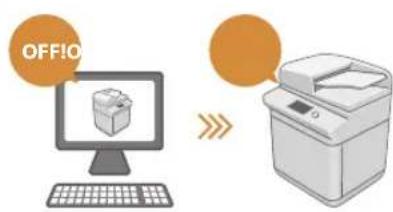
☐ Change Machine Settings Remotely from Your Computer
text_image
OFFIOUse the "Remote UI" function to edit the address book, check consumable status, and more from your computer.

See "Managing the Machine from a Computer (Remote UI)" in the User's Guide.
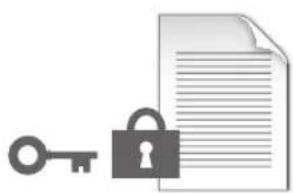
☐ Prevent Security Leaks with Document Security
natural_image
Illustration of a key and padlock next to a document (no text or symbols)Password your documents with the Encrypted Secure Print mode. This feature is perfect for protecting important documents.

See "Advanced Functions for Printing" in the User's Guide.
Professional Documents with Booklet Printing

text_image
Diagram showing document and open book with a double arrow indicating equivalence or transformationMaking booklets is easy with the [Booklet] option. Use staple finishing to give it an even more professional feel.

See "Making Booklets" in the User's Guide.
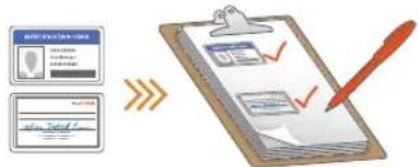
Print Two-Sided ID Cards on One Side of Paper
text_image
Diagram illustrating document review process with clipboard, checklist, and signature checkmarkCheck IDs easily by copying both sides of an ID and printing them to a single piece of paper with [Copy ID Card].

See "Making ID Card Copies" in the User's Guide.
natural_image
Illustration of a hand pressing down on a device with circular components (no text or symbols)Advanced Paper Saving Options
natural_image
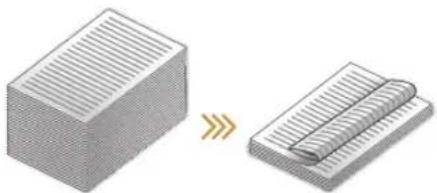
Diagram showing a 3D block being converted to a folded notebook (no text or symbols present)Print up to an incredible 16 pages of original documents on a single sheet of paper with [2-Sided] and [N on 1].

See "Copying" in the User's Guide.
☐ Go Green with Staple-Free Binding
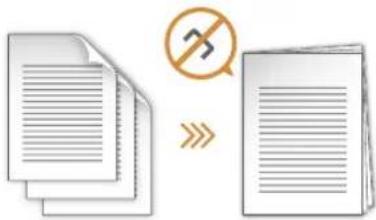
text_image
Diagram showing document processing steps with a crossed-out document and a no-smoking symbolBind paper without using metal staples with the Eco (Staple-Free) mode. Help the environment, and shred documents without a fuss.

See "Optional Equipment" in the User's Guide.
Reorganizing Documents with Staples
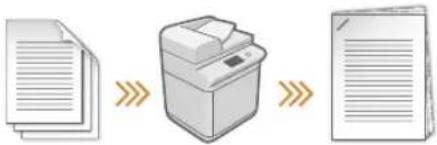
flowchart
graph LR
    A["Document"] --> B["Printer"]
    B --> C["Output"]
Just set "Manual Staple" and pass unstapled original documents through the feeder to staple them. Great for re-stapling!

See "Finishing with the Stapler" in the User's Guide.
One-touch Settings
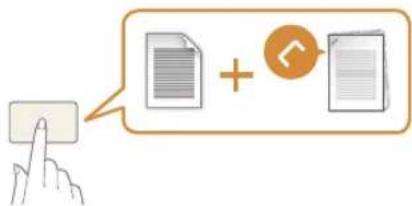
text_image
Illustration showing a hand pressing a button next to two document icons with a plus and minus arrow symbol, suggesting a UI or edit process.Register often used combinations of settings to "Home" to efficiently use them with a single button.

See "Customizing the Touch Panel Display" in the User's Guide.
Guide
natural_image
Silhouette of a person in profile with red clothing, no text or symbols visiblenatural_image
Illustration of a printer with a circular button and finger pointing at it, accompanied by a hand emitting red light beams (no text or symbols)natural_image
Abstract diagram with geometric shapes and colored circles (no text or symbols)natural_image
Red line drawing of a computer with control panel and buttons (no text or symbols)natural_image
Illustration of a printer with a paper feed and a leaf symbol, no text or symbols presentTypes de documents originaux compatibles
Livres, magazines
Cartes
de visite

Coupures
de presse
text_image
Diagram showing a file folder with a document and directional arrows indicating orientation or flow, likely illustrating a document processing or file management interface.Types de documents originaux compatibles
natural_image
Silhouette of a person in profile against a dotted background (no text or symbols)Astuces pour copier
text_image
Screenshot of a software interface showing a toolbar with icons and a blue arrow pointing to the first bar.natural_image
Stacked sheets of paper with a magnified inset showing a grid pattern (no text or symbols)Densité
natural_image
Two 3D isometric diagrams showing a rectangular block and a folded notebook, with no text or symbols present.natural_image
Illustration of a printer and three stacked documents labeled A, B, C (no text or symbols on the devices themselves)Type d'original
natural_image
Illustration of a magazine with open and photo, alongside two other photos (no text or symbols visible)natural_image
Silhouette of a seated person reading a book, rendered in white against a pink background (no text or symbols)text_image
Form1 Delete Form2 Delete to Form1 Form3 Delete Form4 Delete to Form2 Form5 Delete to Form1 Form6 Delete to Form2 Form7 Delete to Form1 Form8 Delete to Form2 Form9 Delete to Form1 Form10 Delete to Form2 Form11 Delete to Form1 Form12 Delete to Form2 Form13 Delete to Form1 Form14 Delete to Form2 Form15 Delete to Form1 Form16 Delete to Form2 Form17 Delete to Form1 Form18 Delete to Form2 Form19 Delete to Form1 Form20 Delete to Form2 Form21 Delete to Form1 Form22 Delete to Form2 Form23 Delete to Form1 Form24 Delete to Form2 Form25 Delete to Form1 Form26 Delete to Form2 Form27 Delete to Form1 Form28 Delete to Form2 Form29 Delete to Form1 Form30 Delete to Form2 Form31 Delete to Form1 Form32 Delete to Form2 Form33 Delete to Form1 Form34 Delete to Form2 Form35 Delete to Form1 Form36 Delete to Form2 Form37 Delete to Form1 Form38 Delete to Form2 Form39 Delete to Form1 Form40 Delete to Form2 Form41 Delete to Form1 Form42 Delete to Form2 Form43 Delete to Form1 Form44 Delete to Form2 Form45 Delete to Form1 Form46 Delete to Form2 Form47 Delete to Form1 Form48 Delete to Form2 Form49 Delete to Form1 Form50 Delete to Form2natural_image
Two 3D rectangular blocks with striped patterns, one being cut with a pink arrow (no text or symbols)Mise en page
natural_image
Two 3D rectangular blocks with horizontal lines, one with a pink arrow indicating transformation or alignment (no text or symbols)natural_image
Illustration of a printer and three stacked documents labeled A, B, C (no text or symbols on the devices themselves)
natural_image
Silhouette of a person standing against a green dotted background (no text or symbols)Astuces pour le fax
natural_image
Silhouette of a person standing against a dotted background (no text or symbols)natural_image
Illustration of a printer, USB flash unit, and desktop computer (no text or symbols)natural_image
Silhouette of a walking person against a teal background (no text or symbols)text_image
Reimbursement Tool Register for medications Remove Closing Remove To Accepttext_image
Nspredited,head File Edit View Insertion Name: Nspredited File Edit View Insertion Name: Nspredited File Edit View Insertion Name: Nspredited File Edit View Insertion Name: Nspredited File Edit View Insertion Name: Nspredited File Edit View Insertion Name: Nspredited File Edit View Insertion Name: Nspredited File Edit View Insertion Name: Nspredited File Edit View Insertion Name: Nspredited File Edit View Insertion Name: Nspredited File Edit View Insertion Name: Nspredited File Edit View Insertion Name: Nspredited File Edit View Insertion Name: Nspredited File Edit View Insertion Name: Nspredited File Edit View Insertion Name: Nspredited File Edit View Insertion Name: Nspredited File Edit View InsertION Name: Nspredited File Edit View InsertION Name: Nspredited File Edit View InsertION Name: Nspredited File Edit View InsertION Name: Nspredited File Edit View InsertION Name: Nspredited File Edit View InsertION Name: Nspredited File Edit View InsertION Name: Nspredited File Edit View InsertION Name: Nspredited Food Edit View Insertion Name: Nspredited File Edit View Insertion Name: Nspredited File Edit View Insertion Name: Nspredited Food Edit View Insertion Name: Nspredited File Edit View Insertion Name: Nspredited Food Edit View Insertion Name: Nspredited Food Edit View Insertion Name: Nspredited Food Edit View Insertion Name: Nspredited Food Edit View Insertion Name: Nspredited Food Edit View Insertion Name: Nspredited Food Edit View Insertion Name: Nspredited Food Edit View Insertion Name: Nspredited Food Edit View Insertion Name: Naspredited Food Edit View Insertion Name: Nspredited Food Edit View Insertion Name: Nspredited Food Edit View Insertion Name: Nspredited Food Edit View Insertion Name: Nspredited Food Edit View Insertion Name: Nspredited Food Edit View Insertion Name: Nspredited Food Edit View Insertion Name: Nspredited Food Edit View Insertiontext_image
MyReport Wizard OK AND SELECT SELECT NAME: + MyReport.com + Password: 0123-0123-0123 Cancel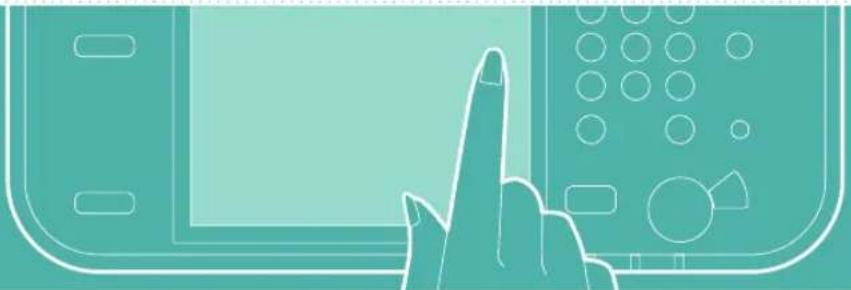
natural_image
Illustration of a hand pointing at a computer interface (no text or symbols)
text_image
Cancel d' admission Options on question Service Management Solution User Setting Tools for Management Servicenatural_image
Silhouette of a person standing against a solid orange background (no text or symbols)text_image
HDRS TENSION HORS TENSIONnatural_image
Illustration of a key, lock, and document (no text or symbols)text_image
Diagram showing document and open book with text lines, indicating a transformation or equivalence between the two formats.text_image
Diagram illustrating document processing workflow with clipboard, checklist, and signature checkmarknatural_image
Illustration of a hand pressing down on a device with circular components (no text or symbols)natural_image
Two 3D block diagrams showing a striped surface and a rolled-up sheet, with no text or symbols present.text_image
Diagram illustrating document processing with a crossed-out document and a no-smoking symbol, suggesting error or rejection.text_image
Illustration showing a hand pointing at a document with a speech bubble containing two documents and an '+' button, indicating a positive interaction or feedback.natural_image
Silhouette of a person in profile with red clothing, no text or symbols visiblenatural_image
Illustration of a printer and a hand interacting with a circular button (no text or symbols)natural_image
Abstract geometric shapes including a yellow rectangle, a green circle with an exclamation mark, and a pink triangle with a symbol (no text or labels)natural_image
Red line drawing of a computer with a keypad and monitor (no text or symbols)natural_image
Illustration of a kitchen appliance with a paper feed and a leaf symbol on the screen (no text or symbols present)text_image
Icon depicting a document with a yellow flower graphic and bidirectional arrows, likely indicating a file or message flow.Kompatible
Originaldokumenttypen
natural_image
Silhouette of a person in profile against a blue dotted background (no text or symbols)natural_image
Stacked sheets of paper with a magnified inset showing a grid pattern (no text or symbols)Dichte
natural_image
Illustration of two stacked documents with a magnified view of the paper (no text or symbols)Kopierfaktor
Verwenden Sie beim
Kopieren den
"Kopierfaktor", um
kleinen Text zwecks
natural_image
Illustration of a printer and three document sheets labeled A, B, C (no text or symbols on the devices themselves)Originaltyp
natural_image
Illustration of an open book, a photo collage, and a magazine with city skyline (no text or symbols)natural_image
Silhouette of a person sitting in a chair against a pink background (no text or symbols)text_image
Importing Export Importing Export Export to Export to Export to Export to Export to Export to Export to Export to Export to Export to Export to Export to Export to Export to Export to Export to Export to Export to Export to Export to Export to Export to Export to Export to Export to Export to Export to Export to Export to Export to Export to Export to Export to Export tonatural_image
Illustration of two paper sheets with striped patterns, one being folded and the other wrapped around it (no text or symbols)Seitenlayout
natural_image
Two 3D rectangular blocks with horizontal grooves, one with a pink arrow indicating transformation or alignment (no text or symbols)natural_image
Silhouette of a person standing against a green dotted background (no text or symbols)Tipps für das Faxen
natural_image
Silhouette of a person standing against a textured background (no text or symbols)natural_image
Illustration of three electronic devices: printer, USB flash unit, and desktop computer (no text or symbols)natural_image
Silhouette of a human figure in walking pose against dotted background (no text or symbols)text_image
Performance Tool for the usenatural_image
Illustration of a hand pointing at a device screen (no text or symbols visible)natural_image
Silhouette of a person standing against a solid orange background (no text or symbols)natural_image
Illustration of a key and padlock next to a document (no text or symbols)text_image
Diagram showing document and open book with a double arrow indicating equivalence or transformationtext_image
Diagram illustrating a workflow involving document verification and approval steps, with icons for user profile, ID card, and clipboard.natural_image
Illustration of a hand pressing down on a device with circular holes (no text or symbols)natural_image
Two 3D block diagrams showing a striped surface and a folded paper sheet, with no text or symbols present.text_image
Diagram showing document processing steps with a crossed-out document and a no-smoking symboltext_image
Illustration showing a hand pressing a button next to two documents with an '+' button, indicating a positive interaction or update.natural_image
Silhouette of a person in profile against a dotted background (no text or symbols)natural_image
Illustration of a printer and a hand interacting with a circular button (no text or symbols)natural_image
Abstract diagram with geometric shapes and colored circles (no text or symbols)text_image
Mailbox back-Fast Monitor.statonatural_image
Red line drawing of a computer with control panel and buttons (no text or symbols)natural_image
Illustration of a printer with a paper feed and a leaf symbol, no text or symbols presenttext_image
Diagram showing a file folder with a document and directional arrows indicating orientation or flow, likely illustrating a file processing or documentation workflow.natural_image
Silhouette of a person in profile against a blue dotted background (no text or symbols)natural_image
Stacked sheets of paper with a magnified inset showing a grid pattern (no text or symbols)Densità
natural_image
Two 3D isometric diagrams showing a rectangular block and a folded paper or sheet, with no text or symbols present.natural_image
Illustration of a printer and three document sheets labeled A, B, C (no text or symbols on the devices themselves)Tipo di originale
natural_image
Illustration of open and closed books, a photo collage, and a magazine (no text or symbols visible)natural_image
Silhouette of a person sitting in a chair, no text or symbols visibletext_image
Current Current Current Current Current Current Current Current Current Current Current Current Current Current Current Current Current Current Current Current Current Current Current Current Current Current Current Current Current Current Current Current Current Current Current Current Current Current Current Current Current Current Current Current Current Current Current Current Current Current Currentnatural_image
Silhouette of a person standing against a green dotted background (no text or symbols)Consigli per il fax
natural_image
Silhouette of a person standing against a textured background (no text or symbols)text_image
Subarray e Info Subarray Edit Delete Edit As Remove As Add As Delete As Save Asnatural_image
Illustration of three electronic devices: a printer, a USB flash unit, and a desktop computer (no text or symbols)natural_image
Silhouette of a walking human figure against a dotted background (no text or symbols)text_image
Main Find Up the apptext_image
Dental Empirical Audio Depertures Impairments Audio Video Depertures Audio Videotext_image
Test information Name: Test File Edit View Insert Browse Share: Share Edit Edit Edit Edit Edit Edit Edit Edit Edit Edit Edit Edit Edit Edit Edit Edit Edit Edit Edit Edit Edit Edit Edit Edit Edit Edit Edit Edit Edit Edit Edit Edit Edit Edit Edit Edit Edit Edit Edit Edit Edit Edit Edit Edit Edit Edit Edit Edit Edit Edit Update Update Update Update Update Update Update Update Update Update Update Update Update Update Update Update Update Update Update Update Update Update Update Update Update Update Update Update Update Update Update Update Update Update Update Update Update Update Update Update Update Update Updatetext_image
Web: New website Name: www.12345.com http://www.12345.com
natural_image
Illustration of a hand pointing at a computer interface (no text or symbols)
text_image
Substrate Description of gentrynatural_image
Silhouette of a person standing against a solid orange background (no text or symbols)E altro ancora!
natural_image
Illustration of a key, lock, and document (no text or symbols)text_image
Diagram showing document and open book with a double arrow indicating equivalence or transformationtext_image
Diagram illustrating a verification process with clipboard, checklist, and red checkmark over documentnatural_image
Illustration of a hand pressing down on a device with circular components (no text or symbols)natural_image
Diagram showing a 3D block being converted to a 2D grid-like structure (no text or symbols)text_image
Diagram showing document processing steps with a crossed-out document and a crossed-out letter 'B' symbol indicating no text or error.text_image
Diagram showing a hand pressing a button next to two document icons, one with a plus sign and the other with a circular arrow.natural_image
Silhouette of a person in profile against a dotted background (no text or symbols)Cómo usar el equipo
natural_image
Illustration of a printer and a hand interacting with a circular button (no text or symbols)natural_image
Abstract diagram with geometric shapes and colors (no text or symbols)natural_image
Red line drawing of a computer with buttons and a screen (no text or symbols)Dos métodos para colocar documentos originales
natural_image
Illustration of a printer with a paper feed and a leaf symbol, no text or symbols presentnatural_image
Illustration of a folder with a document and arrows indicating file orientation (no text or symbols)natural_image
Silhouette of a person in profile against a blue dotted background (no text or symbols)natural_image
Two stacked document sheets with a red arrow indicating transformation or alignment (no text or symbols)Densidad
natural_image
Illustration of two stacked documents with a magnified view of the same items (no text or symbols)Escala de copia
natural_image
Illustration of a printer and three stacked documents labeled A, B, C (no text or symbols on the devices themselves)Tipo original
natural_image
Illustration of three open books and a magazine with a photo, no visible text or symbolsnatural_image
Silhouette of a person sitting in a chair against a pink background (no text or symbols)natural_image
Two 3D rectangular blocks with horizontal lines, one being cut with a pink arrow (no text or symbols)Diseño de página
natural_image
Two 3D rectangular blocks with internal patterns, one with a pink arrow indicating transformation or alignment (no text or symbols)Acabado (Clasificar)
natural_image
Illustration of a printer and three stacked documents labeled A, B, C (no text or symbols on the devices themselves)natural_image
Silhouette of a person standing against a green dotted background (no text or symbols)natural_image
Silhouette of a person standing against a dotted background (no text or symbols)natural_image
Illustration of three electronic devices: a printer, a USB flash unit, and a desktop computer (no text or symbols)natural_image
Silhouette of a walking human figure against a dotted background (no text or symbols)text_image
Screenshot of a software interface with icons and a hand pointing to a button labeled 'Red Box' and 'Blue Box'.2 | Pulse [Guardar destinos].

text_image
Delete Style Edit View Delete3 | Pulse [Guardar nuevo dest.].
text_image
Outserved Items Name: 01234567 Size: 1.0000 Name: 01234567 Size: 1.0000 Name: 01234567 Size: 1.0000 Name: 01234567 Size: 1.0000 Name: 01234567 Size: 1.0000 Name: 01234568 Size: 1.0000 Name: 01234568 Size: 1.0000 Name: 01234568 Size: 1.0000 Name: 01234568 Size: 1.0000 Name: 01234568 Size: 1.0000 Nonetext_image
Email Fax File Athletics Singlenatural_image
Illustration of a hand pointing at a computer interface (no text or symbols)
natural_image
Silhouette of a person standing against a solid orange background (no text or symbols)¡Y mucho más!
natural_image
Illustration of a key, padlock, and document (no text or symbols)text_image
Diagram showing document and open book with a double arrow indicating equivalence or transformationtext_image
Diagram illustrating document review process with clipboard, checklist, and signature iconsnatural_image
Illustration of a hand pressing down on a device with circular components (no text or symbols)natural_image
Two 3D block diagrams showing a striped surface and a folded paper sheet, with no text or symbols present.text_image
Diagram illustrating document processing steps with a crossed-out document and a no-smoking symboltext_image
Diagram showing a hand pressing a button next to two document icons with a plus and minus symbol, likely illustrating a UI or messaging interface.30-2, Shimomaruko 3-chome, Ohta-ku, Tokyo 146-8501, Japan
CANON U.S.A., INC.
One Canon Park, Melville, NY 11747, U.S.A.
CANON CANADA INC.
8000 Mississauga Road Brampton ON L6Y 5Z7, Canada
CANON EUROPA N.V.
Bovenkerkerweg 59, 1185 XB Amstelveen, The Netherlands
(See http://www.canon-europe.com/ for details on your regional dealer)
CANON AUSTRALIA PTY. LTD
Building A, The Park Estate, 5 Talavera Road, Macquarie Park, NSW 2113, Australia
CANON CHINA CO., LTD
2F Jinbao Building No.89 Jinbao Street, Dongcheng District, Beijing 100005, China
CANON SINGAPORE PTE. LTD.
1 Fusionopolis Place, #15-10, Galaxis, Singapore 138522