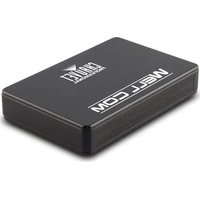
WELL Com - Controller Chauvet - Free user manual and instructions
Find the device manual for free WELL Com Chauvet in PDF.


| Product Type | Wireless DMX Controller |
| Brand | Chauvet |
| Model | WELL Com |
| Power Supply | Universal External Power Supply |
| Input Voltage | 100-240 VAC, 50/60 Hz |
| Rechargeable Battery | Yes, charge time 8h, battery life 8h |
| Connectivity | Built-in Wi-Fi, DMX input (5-pin XLR via included adapter) |
| Charging Port | Micro USB-B |
| Main Function | Wireless control of DMX fixtures via mobile app |
| Mobile App | WELL COM (iOS/Android) |
| LED Indicators | Wi-Fi, DMX, pairing, battery charge |
| Default Access Code | 2323 |
| Max Ambient Temperature | 45 °C |
| Protection Rating | IP20 |
| Package Contents | WELL Com, external power supply, DMX adapter, warranty card, reference manual |
| Safety Instructions | Do not open, use safety cable when mounted overhead, avoid moisture |
| Maintenance | Disconnect when not in use |
Frequently Asked Questions - WELL Com Chauvet
User questions about WELL Com Chauvet
0 question about this device. Answer the ones you know or ask your own.
Ask a new question about this device
Download the instructions for your Controller in PDF format for free! Find your manual WELL Com - Chauvet and take your electronic device back in hand. On this page are published all the documents necessary for the use of your device. WELL Com by Chauvet.
USER MANUAL WELL Com Chauvet
natural_image
Line drawing of a rectangular electronic device with ventilation slots and ports (no text or symbols)About This Guide
The WELL COM Quick Reference Guide (QRG) has basic product information such as connection, mounting, menu options, and DMX values. Download the User Manual from www.chauvetprofessional.com for more details.
Disclaimer
The information and specifications contained in this QRG are subject to change without notice.
Safety Notes
- DO NOT open this product. It contains no user-serviceable parts.
- To eliminate unnecessary wear and improve its lifespan, during periods of non-use completely disconnect the product from power via breaker or by unplugging it.
- DO NOT look at the light source when the product is on.
- CAUTION: This product's housing may be hot when lights are operating. Mount this product in a location with adequate ventilation, at least 20 in (50 cm) from adjacent surfaces.
• DO NOT leave any flammable material within 50 cm of this product while operating or connected to power. - CAUTION: When transferring product from extreme temperature environments, (e.g., cold truck to warm humid ballroom) condensation may form on the internal electronics of the product. To avoid causing a failure, allow product to fully acclimate to the surrounding environment before connecting it to power.
-
Not for permanent outdoor installation in locations with extreme environmental conditions. This includes, but is not limited to:
-
Exposure to a marine/saline environment (within 3 miles of a saltwater body of water).
• Where the normal high or low temperatures of the location exceed the temperature ranges in this manual. -
Locations that are prone to flooding or being buried in snow.
• Other areas where the product will be subject to extreme radiation or caustic substances. -
USE a safety cable when mounting this product overhead.
- DO NOT operate this product outdoors or in any location where dust, excessive heat, water, or humidity may affect it. (IP20)
- DO NOT operate this product if the housing, lenses, or cables appear damaged.
- DO NOT connect this product to a dimmer or rheostat.
- ONLY connect this product to a grounded and protected circuit.
- ONLY use the hanging/mounting bracket to carry this product.
- In the event of a serious operating problem, stop using immediately.
• The maximum ambient temperature is 113 °F (45 °C). Do not operate this product at higher temperatures.
Contact
Use the information in Contact Us at the end of this QRG. Outside the U.S., United Kingdom, Ireland, Mexico, or Benelux, contact your distributor to request support or return a product.
What is Included
• W E L L C O M
• External Power Supply
- Warranty Card
• Quick Reference Guide
AC Power
This product has an external auto-ranging power supply that can work with an input voltage range of 100–240 VAC, 50/60 Hz.

To eliminate unnecessary wear and improve its lifespan, during periods of non-use completely disconnect the product from power via breaker or by unplugging it.
Overview
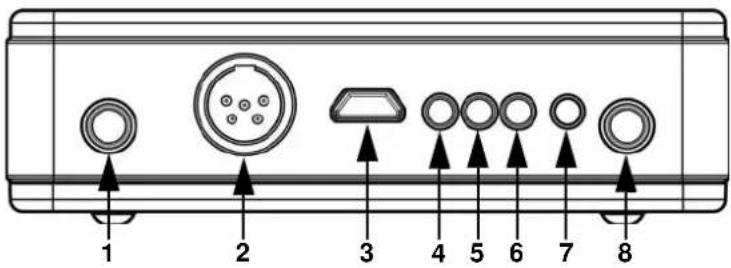
Description Function
| 1 | < | L | I | N | K | > | Press to reset wireless fixture |
| 2 | D | M | X | DMX in port (adapter included) | |||
| 3 | P | o | W | Micro USB B port for charging the batteryExternal power supply includedBattery Charge Time - 8 hoursBattery Life - 8 hours | |||
| 4 Wi-fi Pairing | Blinks for 5 seconds after pressing, and then intermittently while connected to products | ||||||
| 5 DMX Signal | Blinking - No DMX signal detectedSolid - DMX signal detected | ||||||
| 6 | W | i | Blinking - No Wi-Fi signal detectedSolid - Wi-Fi signal detected | ||||
| 7 Battery Life | Green - Power is currently 50–100%Orange - Power is currently 25–50%Red - Power is currently less than 20%Blinking - Battery is charging | ||||||
| 8 | < | P | W | R | > | Press to power on/off the device | |

The default password for the WELL COM is 2323.
Setting Up Products with WELL COM
The WELL COM is ready to use straight out of the box.
To configure your products with WELL COM you must perform the following steps:
- Connect WELL COM to power.
- Turn on Wi-Fi™ on your mobile device.

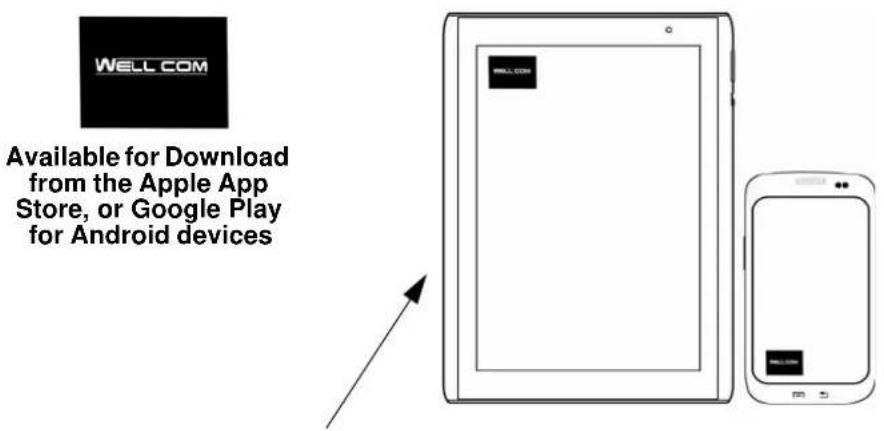
If you have not already done so, download and install the WELL COM app onto your mobile device.
- Go to the Wi-Fi™ settings on your mobile device and connect to WELL COM's default Wi-Fi™ (SSID) WIFI-WELL COM. To avoid interference with other wireless signals in the immediate area, manually select the Wi-Fi™ channel (CH 2 or CH11) on the WELL COM within the app settings.
- Set your products to receive signal input from WELL COM. For details, refer to the User Manuals for the products in your setup.
a. Set products to receive signals on the same channel as was set on WELL COM in the previous step.
b. Set products to their most basic DMX personality.

Make sure the DMX starting address is set to 001.
- Select whether WELL COM receives signals wirelessly or via a DMX cable.

For DMX products, be sure to use a DMX cable to connect from DMX Out of the product transmitting the DMX signal to the DMX In of the product receiving the DMX signal. An adapter has been included for this purpose.
- Once your products are properly connected to WELL COM, and WELL COM is properly connected to the WELL COM app, open the WELL COM app on your mobile device.
Using your mobile device, you can now select the colors emitted by your lights. For more details or further information, refer to the WELL COM User Manual located within the app or online at www.chauvetprofessional.com.

Acerca de Esta Guía
General Information Technical Support
Address: 5200 NW 108th Ave. Voice: (844) 393-7575
Sunrise, FL 33351 Fax: (954) 756-8015
Voice: (954) 577-4455 Email: chauvetcs@chauvetlighting.com
Fax: (954) 929-5560
Website
Toll Free: (800) 762-1084 www.chauvetlighting.com
EUROPE
General Information Technical Support
Address: Stokstraat 18 Email: eutech@chauvetlighting.eu
9770 Kruishoutem
Website
Belgium www.chauvetlighting.eu
Voice: +32 9 388 93 97
General Information Technical Support
Address: Unit 1C Email: uktech@chauvetlighting.com
Brookhill Road Industrial Estate
Pinxton, Nottingham, UK
Website
NG16 6NT www.chauvetlighting.co.uk
Voice: +44 (0) 1773 511115
Fax: +44 (0) 1773 511110
MEXICO
General Information Technical Support
(Entrance by Calle 2)
Zona Industrial Lerma
Visit the applicable website above to verify our contact information and instructions to request support. Outside the U.S., United Kingdom, Ireland, Mexico or Benelux, contact the dealer of record.

®
us
UL 1573
CSA C22.2 No. 166
E113093



Brand : Chauvet
Model : WELL Com
Category : Controller