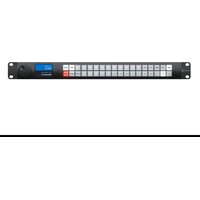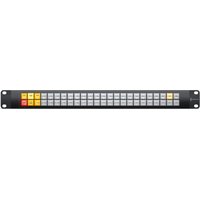
Videohub Smart Control Pro - Controller Blackmagic Design - Free user manual and instructions
Find the device manual for free Videohub Smart Control Pro Blackmagic Design in PDF.


| Product Type | Video Switching Grid Control Panel |
| Brand | Blackmagic Design |
| Model | Videohub Smart Control Pro |
| Form Factor | 1 rack unit (1RU) |
| Buttons | 48 customizable backlit buttons |
| Network Connectivity | 2 RJ45 Ethernet ports (1 with PoE+) |
| Serial Connectivity | RS-422 input and output |
| Configuration Port | USB-C |
| Power | Power over Ethernet+ (PoE+) on Ethernet port 1 |
| Compatibility | All Videohub and Universal Videohub models |
| Routing Modes | Cut-Bus and XY |
| Functions | Source/destination routing, macros, locking, label filtering |
| LCD Screen | Not integrated (display via buttons) |
| Chassis Material | Metal, rack mount |
| Maintenance | Clean with a soft, dry cloth. Do not use solvents. |
| Safety | Do not expose to moisture. No user-serviceable parts. Disconnect before maintenance. |
| Warranty | 12 months for the control panel |
Frequently Asked Questions - Videohub Smart Control Pro Blackmagic Design
User questions about Videohub Smart Control Pro Blackmagic Design
0 question about this device. Answer the ones you know or ask your own.
Ask a new question about this device
Download the instructions for your Controller in PDF format for free! Find your manual Videohub Smart Control Pro - Blackmagic Design and take your electronic device back in hand. On this page are published all the documents necessary for the use of your device. Videohub Smart Control Pro by Blackmagic Design.
USER MANUAL Videohub Smart Control Pro Blackmagic Design
natural_image
Profile view of a man in a gray shirt and blue tie, looking out from the side window (no text or symbols visible)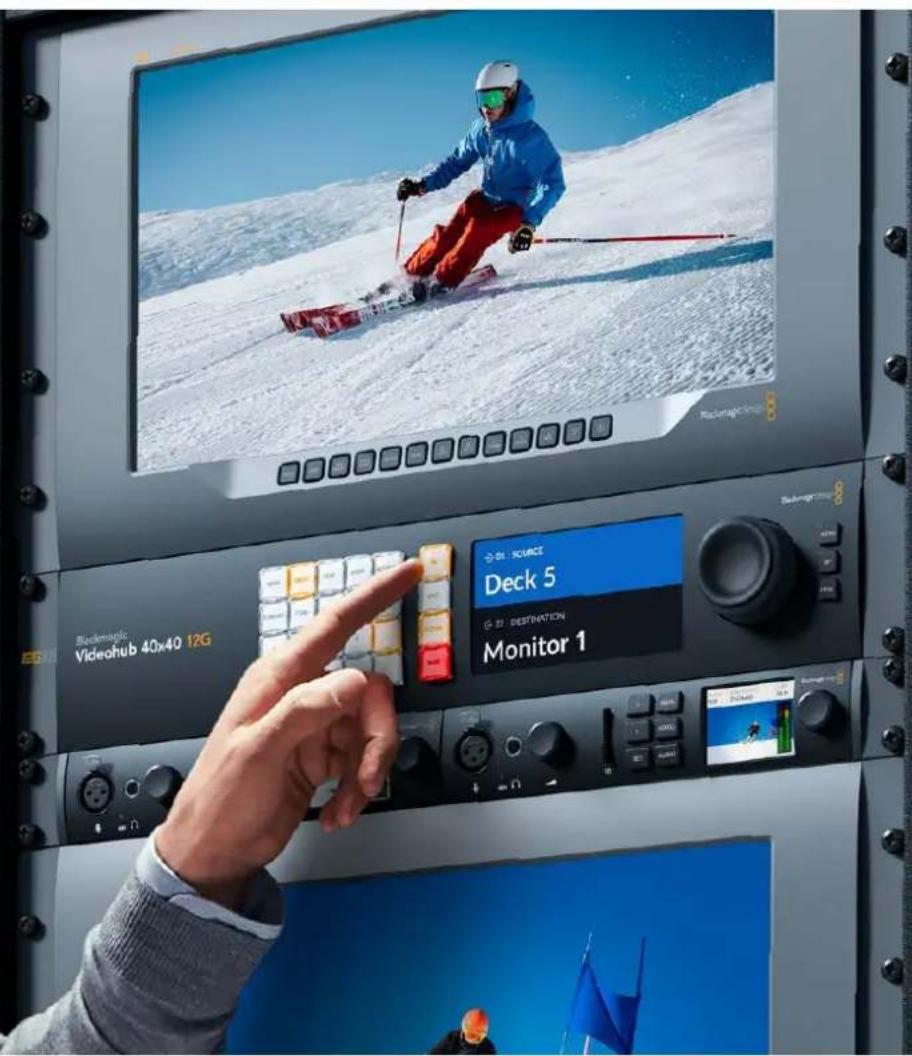
Languages
To go directly to your preferred language, simply click on the hyperlinks listed in the contents below.
Contents
English 3
日本語 94
Français 186
Deutsch 278
Español 370
中文 462
한국어 554
Русский 646
Italiano 738
Português 830
Türkçe 922
Polski 1014
Українська 1106

natural_image
Circular portrait photo of a smiling man in a dark shirt against a gray background (no text or symbols)Welcome
Thank you for purchasing Videohub!
We hope you share our dream for the television industry to become truly creative by allowing anyone to have access to the highest quality video.
Previously, high end television and post production required investing in millions of dollars of hardware, and professional SDI routers have always been way too costly for most people to afford. HD-SDI is even more expensive and, until now, only the largest post production and television facilities could afford HD-SDI routing. Videohub changes all that! Some Videohub models not only give you HD-SDI, but also the latest Ultra HD format, enabling you to pipe 4K 60p video around your studio using 12G SDI.
This instruction manual contains all the information you'll need to install your Videohub, although it's always a good idea to ask a technical assistant for help if you are not sure what IP addresses are, or if you don't know much about computer networks. Videohub is easy to install, however there are a few slightly technical preferences you will need to set after you install it.
Please check our website at www.blackmagicdesign.com and click the support page to download the latest updates to this manual and Videohub software. Lastly, please register your Videohub when downloading software updates so we can keep you updated when new software is released. We are constantly working on new features and improvements, so we would love to hear from you!
We hope you get years of use from your Videohub and have lots of fun connecting everyone in your facility together!
Grant Petty
Grant Petty
CEO Blackmagic Design
Contents
Introducing Blackmagic Videohub 5
Getting Started 8
Connecting Power 8
Connecting Video 8
Controlling your Videohub 8
Switching a Route using the Built in Control Panel 9
Shortcut Buttons 10
Using the Shortcut Buttons 11
Locking and Unlocking Routes 13
Connecting Videohub to a Network 14
Configuring Network Settings 15
Universal Videohub Routers 15
Universal Videohub 288 15
Building Universal Videohub 288 17
Universal Videohub 72 23
Building Universal Videohub 72 24
SDI Interface Card 28
Universal Videohub Interface Cards 29
Universal Videohub Deck Control Cable 30
Smart Videohub CleanSwitch 12x12 31
Videohub Hardware Control Panels 31
Videohub Master Control Pro 31
Videohub Smart Control Pro 32
Configuring the Control Panel 32
Connecting to an Ethernet Network 33
Control Panel Button Diagnostics 34
About Routing Levels 35
How to Select Sources and Destinations 36
Using Videohub Smart Control Pro as a Cut-Bus Controller 41
Using Videohub Smart Control Pro as an XY Controller 42
Labeling Pushbuttons 43
Blackmagic MultiView 16 43
Using the Control Panel 44
GPI and Tally Interface 46
Blackmagic Videohub Software 47
Blackmagic Videohub Setup 47
Labeling Inputs and Outputs 48
Setting Outputs to Cut Bus Mode 49
Creating Macros 49
Button Mapping 50
Setup Settings 51
Updating your Videohub 52
Blackmagic Videohub Control 53
Selecting a Videohub 53
Adding Pushbuttons 54
Viewing Routes 54
Switching Routes 54
Blackmagic Videohub Control at a Glance 55
Controlling Blackmagic MultiView 16 64
Videohub Hardware Panel Setup 66
Network Settings 66
Configuring Videohub Master Control Pro 68
Configuring Videohub Smart Control Pro 69
Configuring GPIs 72
Configuring Tally 73
Developer Information 77
Blackmagic Videohub Ethernet Protocol v2.3 77
Videohub RS-422 Protocol 83
Saving and Loading Labels with Telnet in Mac OS 86
Saving and Loading Labels with Telnet in Windows 87
Replacing a fan in Universal Videohub 89
Help 90
Regulatory Notices 91
Safety Information 92
Warranty 93
Introducing Blackmagic Videohub
Your Blackmagic Videohub is part of a family of Videohubs designed for studios and facilities of any size. All Videohub models can be connected to an Ethernet network for external hardware control or by using Videohub Control software.
Blackmagic Videohub 10x10 12G, 20x20 12G and 40x40 12G are 12G-SDI routers with a built in control panel and support Ultra HD 2160p60. These units can be mounted on a desk or installed in a rack using the supplied rack ears.
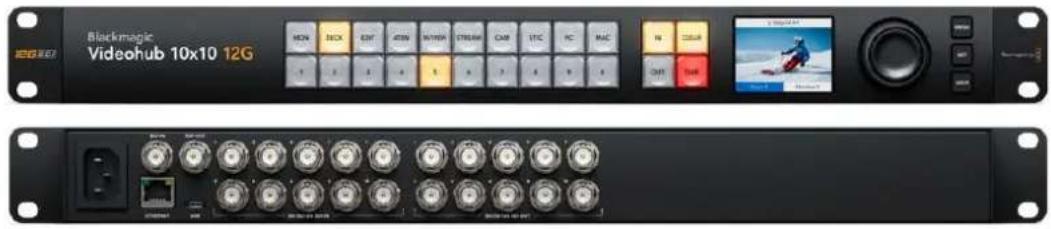
Blackmagic Videohub 10x10 12G
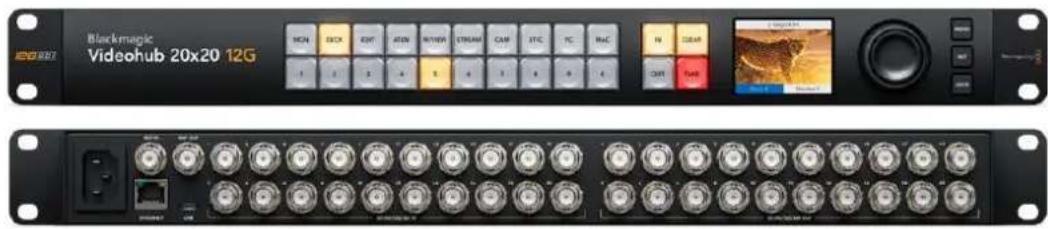
Blackmagic Videohub 20x20 12G
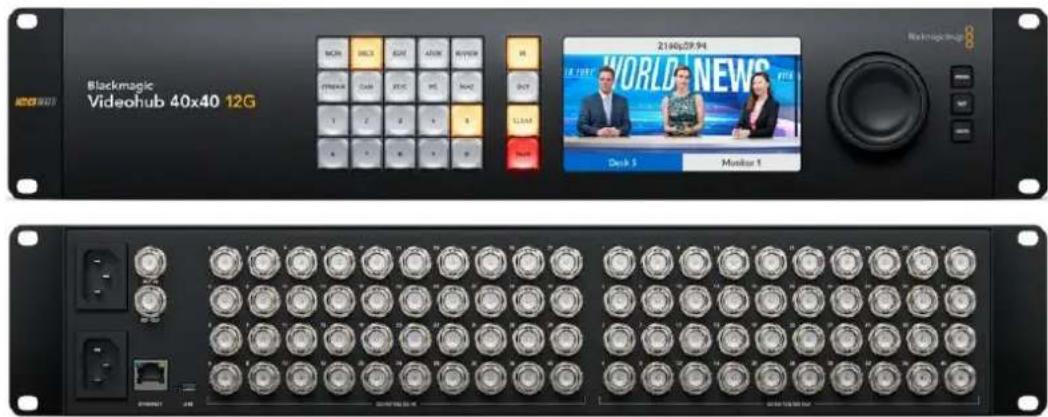
Blackmagic Videohub 40x40 12G
Universal Videohub 288 and 72 are rack mounted modular 3G-SDI routers for larger studios and facilities where a greater amount of HD equipment is connected.
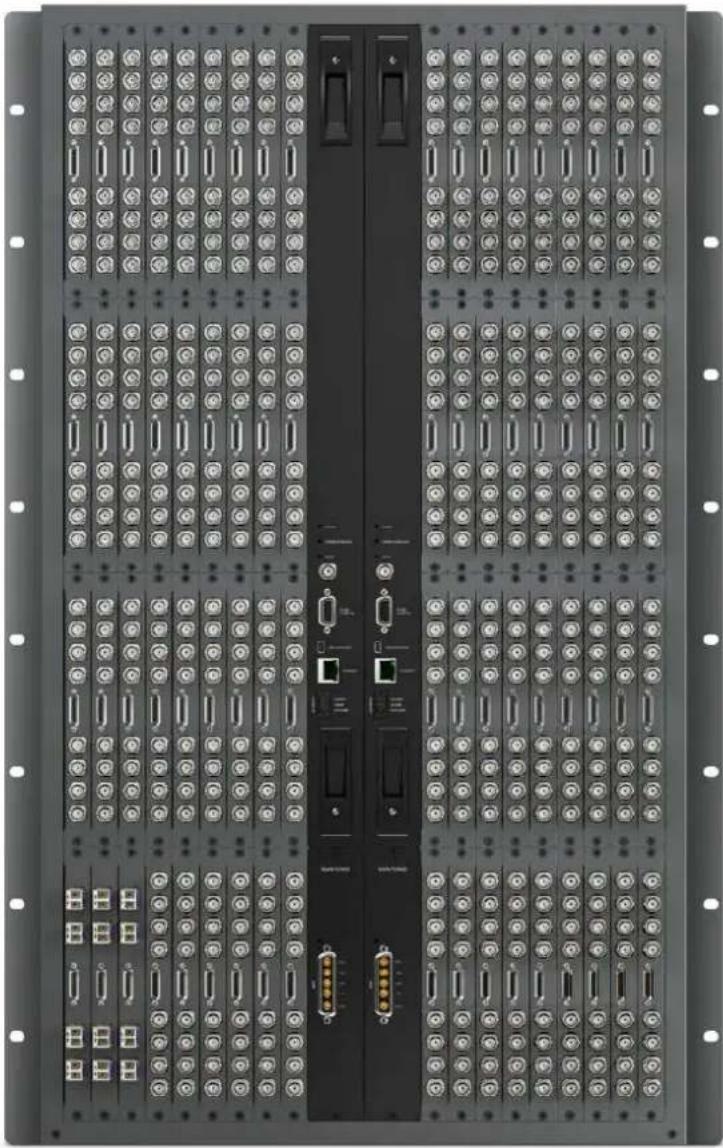
natural_image
Front view of a black rack-mounted server rack with multiple ports and connectors (no visible text or labels)Universal Videohub 288
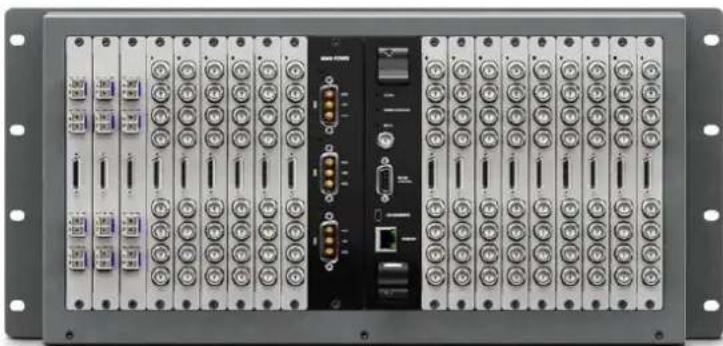
natural_image
Front view of a rack-mounted electronic device with multiple ports and connectors (no visible text or labels)Universal Videohub 72
Smart Videohub CleanSwitch 12x12 is a 6G-SDI rack mountable Videohub with a built in resynchronizer on each input so you can switch routes cleanly to monitors or directly to air.
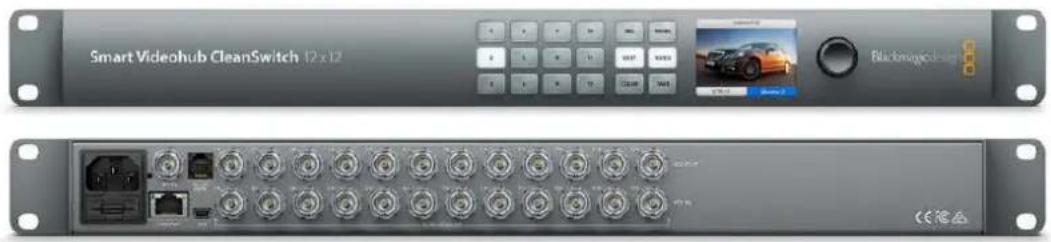
Smart Videohub CleanSwitch 12x12
Videohub Master Control Pro and Smart Control Pro are external hardware control panels that use the same filtering control available in Blackmagic Videohub 12G models. These units are designed to work with Universal Videohub 72 and 288, but can also be used to control any Videohub connected to the same Ethernet network.
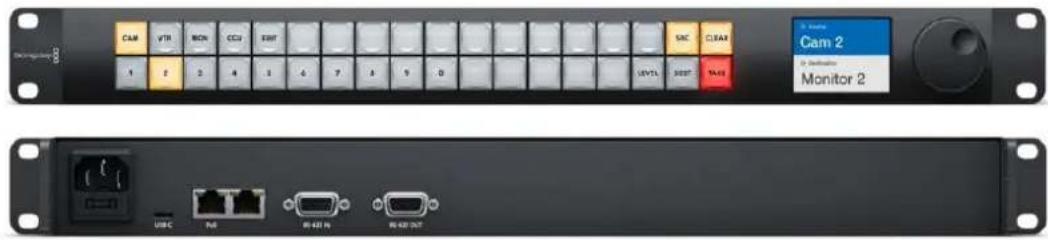
Videohub Master Control Pro
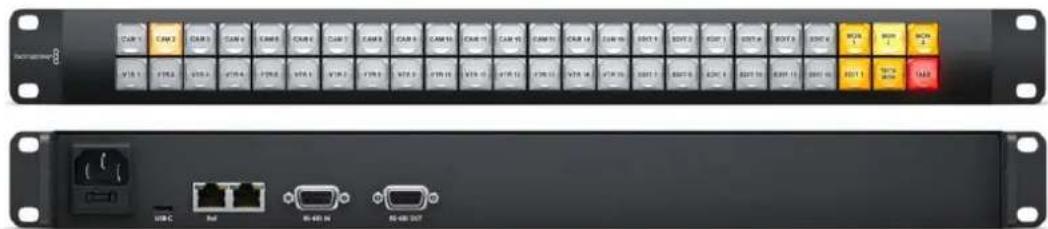
Videohub Smart Control Pro
Getting Started
Getting started with Videohub is as simple as connecting power and plugging in your video sources and destination equipment.
Creating an IP Videohub with Teranex Mini IP Video 12G
If you are looking for information on the creation of an IP Videohub for routing Blackmagic Teranex Mini IP Video 12G units, refer to the Teranex Mini IP Video 12G manual which can be downloaded from www.blackmagicdesign.com/support.
Connecting Power
Connect power to the unit's power input via a standard IEC power connector.

natural_image
Front panel of a network equipment unit with multiple circular ports and indicator lights (no visible text or symbols)When you first turn on a Videohub 12G model, the LCD will ask you to select your chosen language. Scroll through the languages using the spin knob and press the 'set' button to confirm your selection.
Connecting Video
1Connect your video sources to your Videohub's SDI inputs.
2Connect your destination equipment to your Videohub's SDI outputs.
The SDI connections will auto detect all supported video formats.

Connect your sources and destination equipment to your Videohub's SDI inputs and outputs
Controlling your Videohub
The fastest, most convenient way to control your Videohub is by using the unit's built in control panel. However, you can also change routes and settings remotely via USB or over Ethernet using an external Videohub hardware panel or by using the Blackmagic Videohub Control software. You can find more information about how to use the control software later in the manual.

The built in control panel lets you change routes and settings using the buttons, LCD and spin knob
Switching a Route using the Built in Control Panel
Switching a route is as simple as selecting the destination output and then selecting a source input to route to it.
Selecting the Source and Destination
1Press the 'out' button to enable the destination output selection.
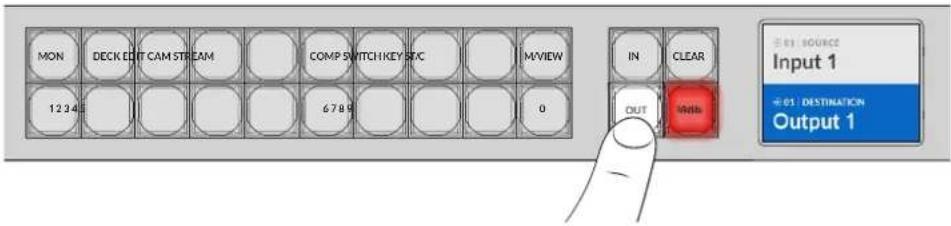
2Press a numbered pushbutton to select a destination output. Alternatively, you can use the spin knob to scroll through the destinations.
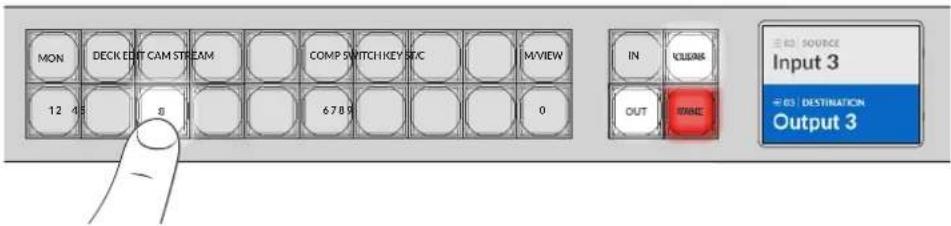
3 Now press the 'in' button to enable the source input selection.
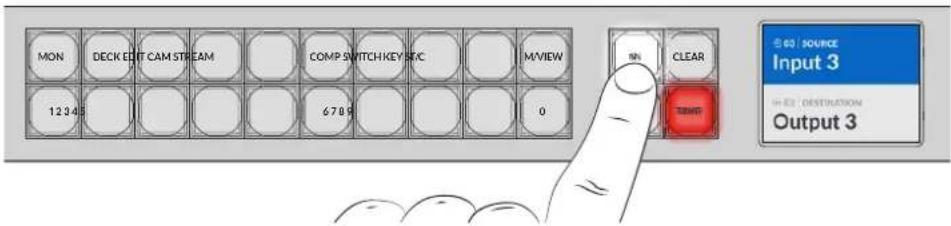
4 Press a numbered pushbutton to select a source input. Alternatively, you can also use the spin knob. When the source is selected, the 'clear' and 'take' buttons will flash indicating that you can confirm the route by pressing take, or cancel the route by pressing clear.
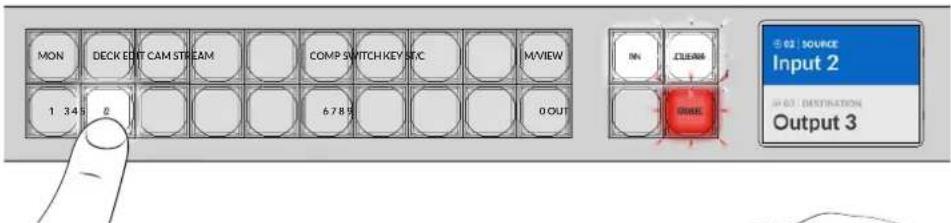
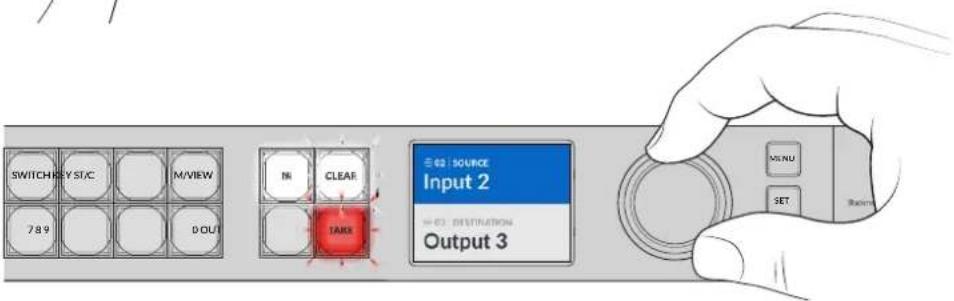
You can also use the spin knob to select your source and destination
5Press 'take'.
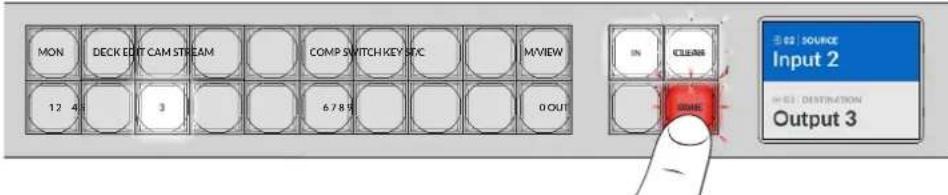
We have now completed a basic routing workflow using the source input and destination output buttons, plus the spin knob.
TIP To turn the 'in' button off, simply press it again to deselect it.
That's all there is to getting started with your Videohub! The next section of the manual will describe how to use the shortcut buttons.
Shortcut Buttons
The labeled shortcut buttons above the numbered buttons let you make more specific selections using Videohub's built in filtering system.
Your Videohub is shipped with shortcut buttons already labeled to match common sources and destinations that are used in production facilities and studios. For example, 'DECK' for recording and playback decks, 'CAM' for cameras, 'EDIT' for edit bays, etc. When changing a route, you can narrow down your selection by pressing a shortcut button. This reduces the options to a smaller set, which can make the process faster when using larger Videohubs with a lot of equipment connected.
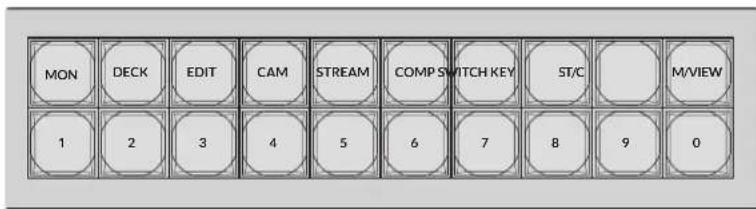
Use the shortcut buttons to take advantage of Videohub's alpha numeric filtering
A Note about Shortcut Buttons
Before you can use the shortcut buttons, you will need to label the inputs and outputs so the Videohub filtering system has labels to work with.
Labeling inputs and outputs is performed using Blackmagic Videohub Setup software. This utility is included in the free Videohub software available for download at the Blackmagic Support Center at www.blackmagicdesign.com/support
We recommend installing the setup software and labeling your Videohub's inputs and outputs, then returning to this section for information on how to use the shortcut buttons. If you have already labeled the inputs and outputs, please continue reading this section.
For all information regarding Videohub software refer to the 'Blackmagic Videohub Software' section.
Using the Shortcut Buttons
After the inputs and outputs have been labeled, the shortcut buttons can use Videohub's filtering to make faster selections.
To use the shortcut buttons:
Select the Destination
1Press the 'out' button to enable the destination selection.
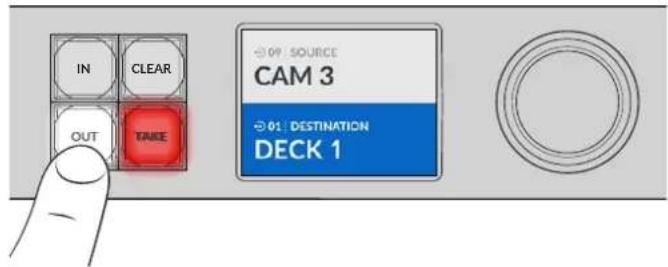
2Press the shortcut button labeled 'DECK'.
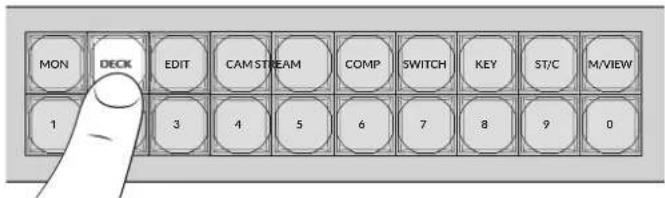
Your Videohub now makes all outputs available that include DECK in their label, filters out other destinations and then arranges them for selection on the numbered pushbuttons in numerical order.
3Press button '2' to select 'DECK 2'.
Button '2' will illuminate and you can see the selected output and destination on the LCD.
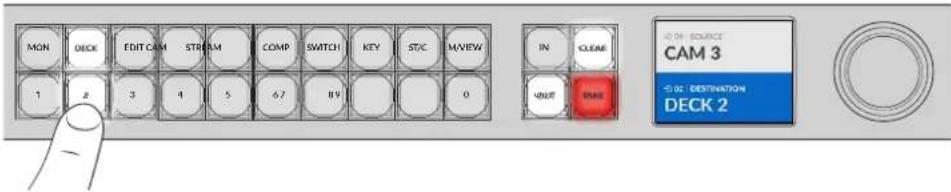
TIP If you have the LCD set to video monitoring you can see the video image currently routed to that destination plus the new source as you select it. Confirm the selection by pressing the 'take' button. Video monitoring can be enabled using the LCD menu or Blackmagic Videohub Setup.
Select the Source
1Press the 'in' button to enable the source selection.
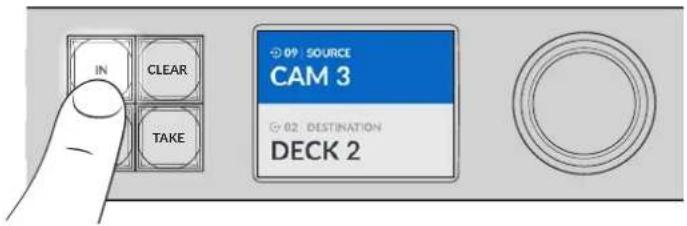
2Press the shortcut button labeled 'CAM'.
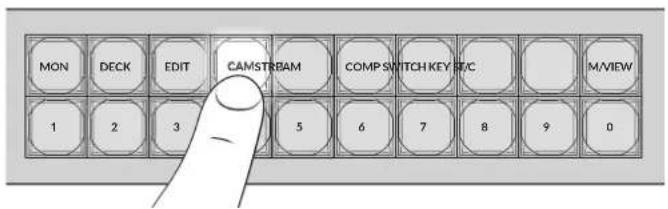
The filter now makes all inputs available that includes CAM in their label, filtering out other equipment and then arranges them on the numbered pushbuttons in numerical order.
3Press button '2' to select 'CAM 2'.
Button '2' will illuminate and you can see the selected source and input on the LCD.
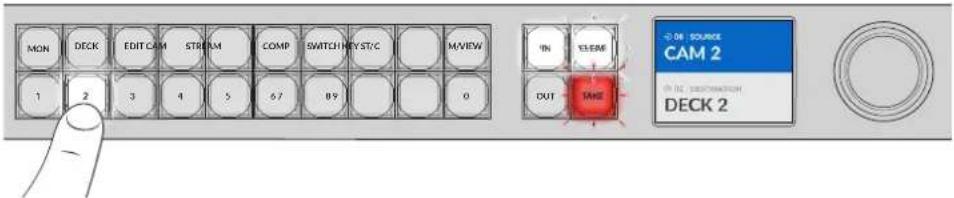
4Press the 'take' button to confirm and complete the routing change.
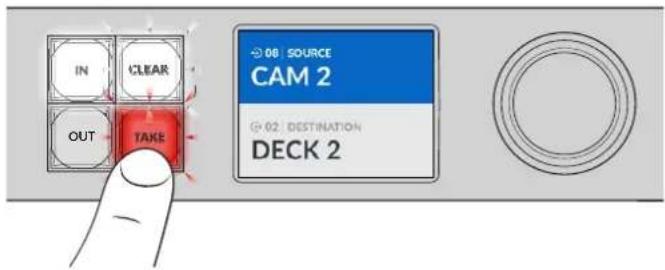
Locking and Unlocking Routes
Locking and unlocking routes with your Blackmagic Videohub can be set easily using the integrated front panel. Press the 'lock' button to lock the currently selected output and you will see a lock indicator appear next to its name on the LCD.
If you want to lock a different output:
1Press the destination button marked 'OUT'.
2Now select a new destination by pressing the numbered and shortcut pushbuttons or by using the spin knob.
3Press the 'lock' button.
You will see the lock indicator appear next to the output's name on the LCD. The lock button will also illuminate whenever that destination is selected to show that destination is locked and will not allow any new routes to be switched until it is unlocked.
To unlock the output, simply press the 'lock' button again.
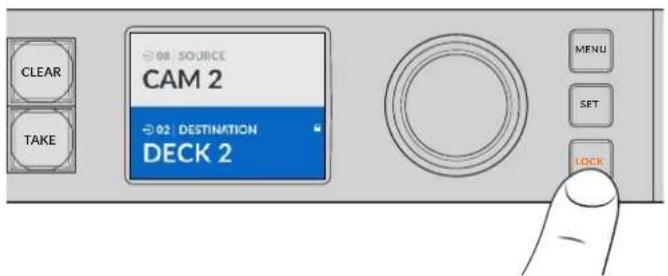
To prevent routes from being switched on a specific output, press the lock button to lock the output
Another way to lock an output is to hold the 'out' button down for 2 seconds until you see the lock indicator appear on the LCD. To unlock the output, simply hold the output button down for another 2 seconds.
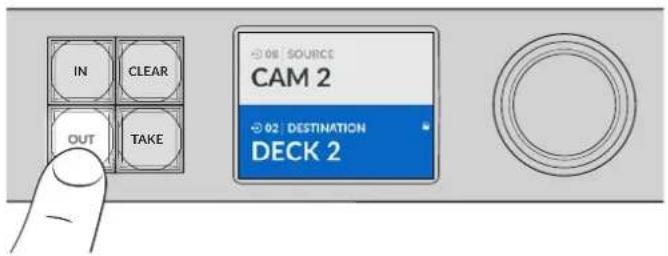
When a destination is locked a lock icon will appear on the LCD
TIP If a locked destination is selected, the source or input buttons will no longer select a source.
Connecting Videohub to a Network
All Videohub models have an Ethernet port and can connect directly to your Ethernet network switch or a computer on your local area IP based network. This lets you control your videohub using Blackmagic Videohub Control software on a computer connected to the same network, or by using an external Videohub hardware control panel.
To connect Videohub to a network:
1Connect power to your Videohub. On Universal Videohub models, make sure all power supplies are turned on.
2Connect your Videohub router to the network switch or computer Ethernet port with a standard RJ45 Ethernet cable.
For Videohub models with a built in control panel, you can use the spin knob and buttons to configure IP address in the LCD menu, or use Blackmagic Videohub Setup. For Universal Videohub models, set your network settings using Blackmagic Videohub Setup.
If you have a Universal Videohub 288 populated with two crosspoint cards, connect Ethernet cables to both for network failover redundancy. Your Universal Videohub 288 will have a single IP address, despite having two Ethernet connections to the network switch.
Network settings adjustments using Blackmagic Videohub Setup can only be adjusted when connected to your Videohub via USB. The next section of the manual will describe how to change network settings using the built in control panel.
Connecting to an Ethernet Network
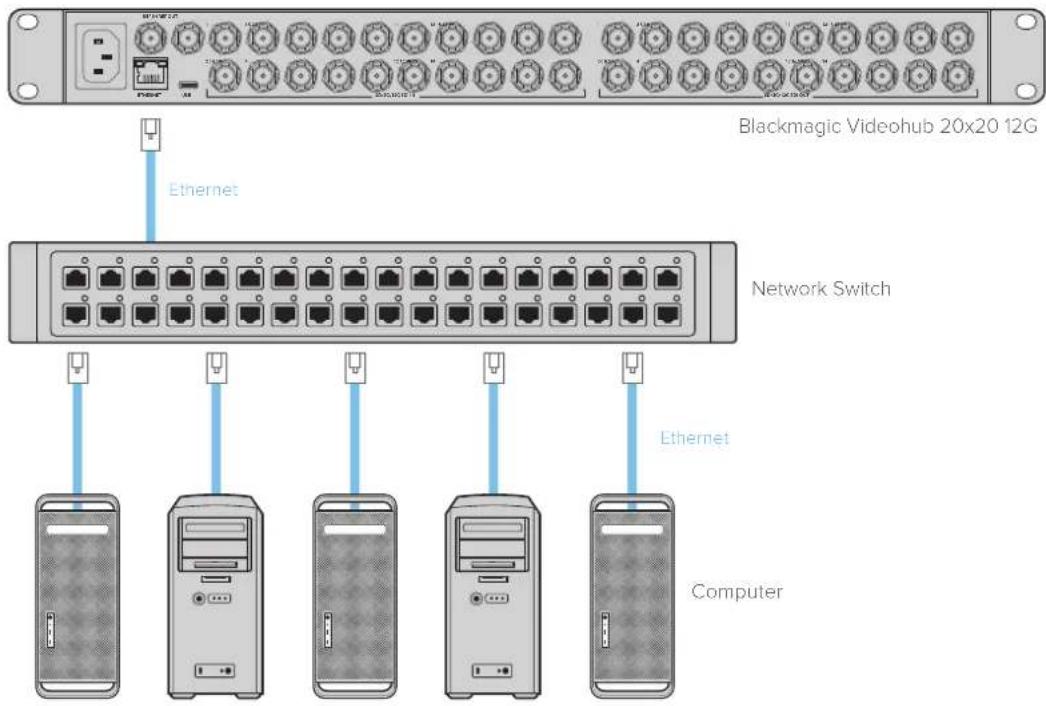
NOTE For information on how to connect Videohub hardware control panels to a Videohub unit on the network, refer to Videohub Hardware Panel Setup.
Configuring Network Settings
Use your Videohub's built in control panel and LCD to configure network settings. Your router will be visible to other computers and hardware panels and these devices can then control the unit remotely and make routing changes.
To set the IP address using the front control panel:
1Press the 'menu' button to open the 'settings' menu.
2Use the spin knob to scroll down to 'network' settings. Press the 'set' button.
3 Rotate the spin knob to select the entry you want to change and press 'set' to confirm.
4 Use the spin knob to change a number field. Press the 'set' button to confirm the change and move through the fields.
5Make sure you confirm the last change by pressing the 'set' button. You will know your settings are confirmed when the field entries are no longer highlighted.
6Press the 'menu' button to exit the settings menu and return to your source and destination status.
If required, the subnet and gateway address can be set using the same method.
| Network | |
| Protocol | Static IP |
| IP Address | 192.168.24.100 |
| Subnet Mask | 255.255.255.0 |
| Gateway | 192.168.24.1 |
Press MENU to enter the network page and use the 'set' button and spin knob to set the IP address
Universal Videohub Routers
Universal Videohub 288
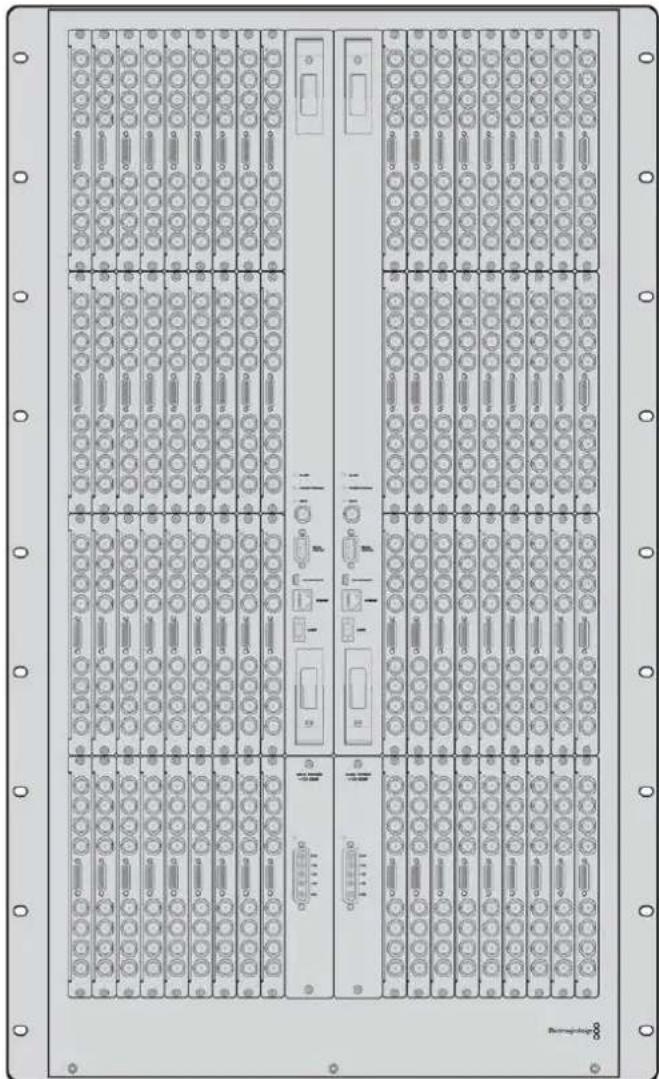
Universal Videohub 288 is a large, modular router ideally suited to very large facilities and broadcasters. It features a 72 card rack frame that can be filled with any combination of BNC SDI or optical fiber SDI interface cards.
When fully populated with two Universal Videohub 288 Crosspoint cards, two power cards, 72 interface cards and 72 deck control cables, Universal Videohub 288 provides 288 SDI inputs, 288 SDI outputs, 288 bidirectional RS-422 deck control ports, reference input, redundant crosspoint processor, redundant Ethernet networking, redundant power and powerful Videohub routing control software for Mac and Windows.
Occasionally, the internal software of the Universal Videohub 288 will need to be updated. Videohub Setup will prompt you if an update is required. The utility uses the USB 2.0 connection and you will need to provide a USB 2.0 type A to mini B male cable.
Universal Videohub 288 ships as an empty rack frame, except for a removable fan tray and fans. All other hardware components, such as SDI interface cards and power supplies, must be purchased and installed separately. Read the following section to help you decide which components you will need before you build your Universal Videohub 288.
See the 'SDI Interface Card' and 'Universal Videohub Interface Cards' sections for more information on the different interface cards available for your Universal Videohub.
natural_image
Front view of a server rack with rows of circular components and indicator lights (no visible text or labels)Universal Videohub 288
Universal Videohub 288 Crosspoint Card
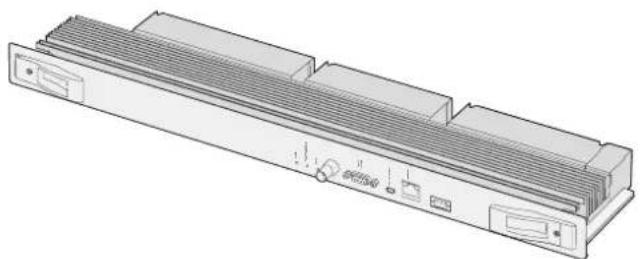
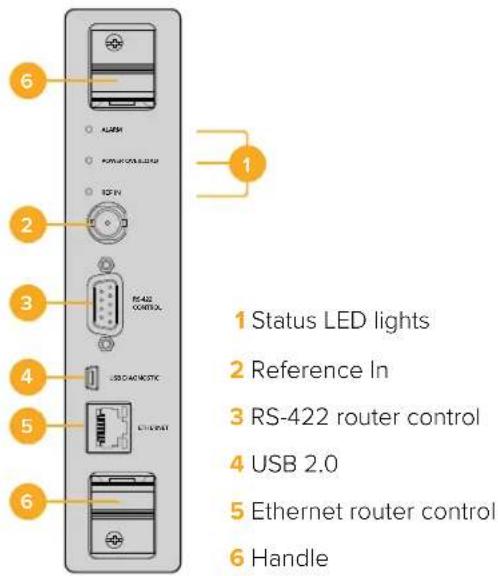
This module contains the crosspoint processor for switching video routes and changing deck control ports. Ethernet, USB and serial ports are located on the card for router control,
A Reference input is located on the card for connection to a tri-level sync or black burst genlock signal.
An Alarm light will illuminate on the card if user intervention is required, e.g., if inadequate cooling has caused Videohub to overheat. Alarm notification is supplied by the GPI (General Purpose Interface) output to other devices.
A Power Overload light will illuminate on the card if inadequate power is being supplied to the unit for the number of cards installed.
You will need a number 01 size Pozidriv screwdriver to install the Universal Videohub 288 Crosspoint card.
Router Control Cable
Remote router control is performed via 10/100Base-T Ethernet or serial. If router control is performed via Ethernet, the integrated Videohub Server is used. This means you only need to provide an Ethernet cable to connect Universal Videohub 288 to your Ethernet network switch.
Third party router controllers can control Universal Videohub 288 via Ethernet, or as an RS-422 slave device, for router crosspoint switching. Please refer to the Developer Information section of this manual for Videohub and RS-422 protocols.
Power Supply
When fully populated and running at maximum power consumption, Universal Videohub 288 can be powered by a single Universal Videohub Power Supply.
The Universal Videohub Power Supply package includes a power card with a single connection to a 1 RU size rack mount chassis which contains the power supply.
The Universal Videohub Power Supply chassis contains a universal power supply for use in all countries. You will need to provide a standard IEC cord with a C13 connector.
natural_image
Technical line drawing of a computer drive chassis with cooling fins and ports (no text or symbols)
Universal Videohub 288 Crosspoint card Serial Cable
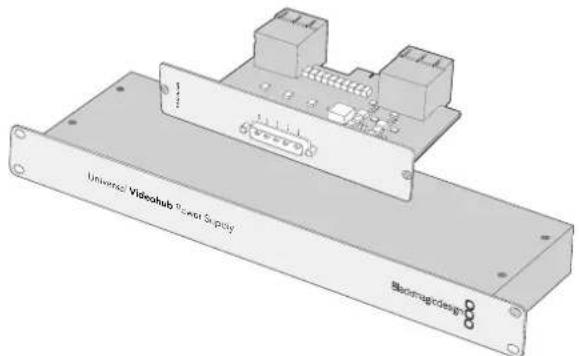
Universal Videohub Power Supply includes a power card, 1 RU chassis and connecting power cable.
Standard RJ45
Ethernet Cable
Building Universal Videohub 288
25 rack units of space should be reserved for the installation of Universal Videohub 288 and two rack mount power supply chassis, allowing free space for heat dissipation. Only 23 RU is required if Universal Videohub 288 is mounted at the top of an open rack as heat can be dissipated from the top.
Universal Videohub 288 is 18 RU high and 6 inches thick. You can rack mount Universal Videohub 288 facing forwards or reversed, or even mount it in the rear of the rack to leave space for other equipment.
Universal Videohub 288 contains electrostatic sensitive devices. It is essential to discharge yourself of static electricity before handling any of these devices, just as you would when installing devices into a computer. We recommend the use of an antistatic wrist strap when handling any of these devices.
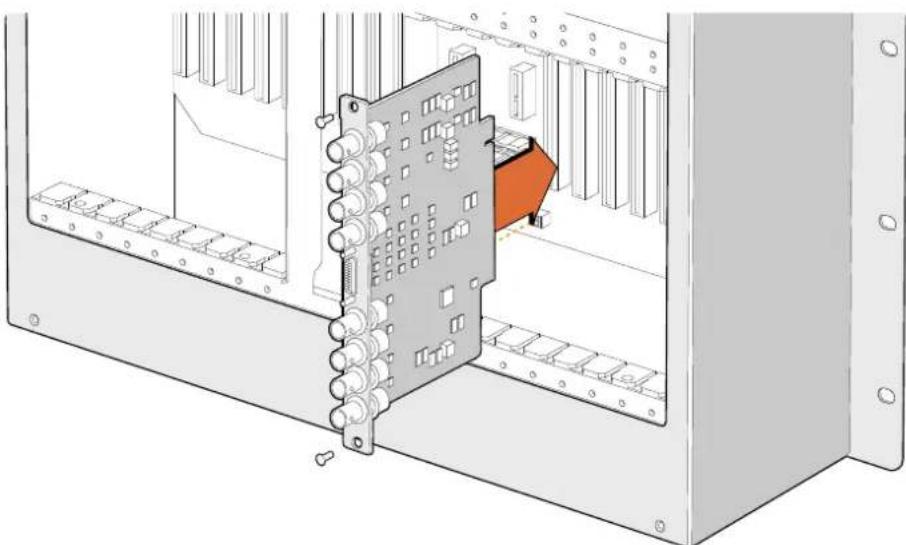
Installing a Universal Videohub 288 Crosspoint Card
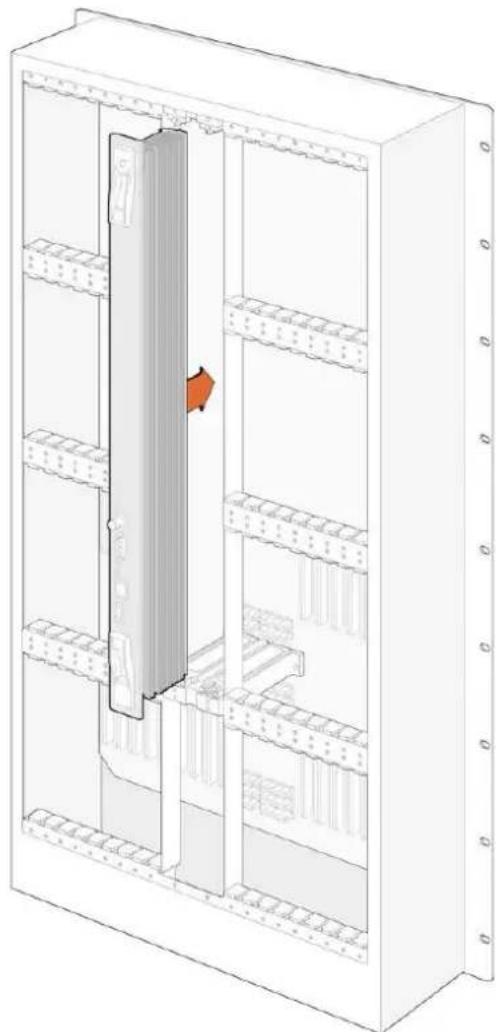
Now that your Universal Videohub 288 has been mounted in a rack, it needs to be fitted with a crosspoint card. The crosspoint card is the brains of Universal Videohub and performs video route and deck control switching. Universal Videohub 288 Crosspoint cards are hot-swappable, meaning they are designed to be installed and removed while the Universal Videohub is running.
natural_image
3D diagram of a storage unit with shelves and a central panel, showing internal structure and a directional arrow (no text or symbols)1 Hold the crosspoint card in a vertical orientation by its two levers. The BNC, Ethernet and other ports should be towards the bottom end of the card.
2Gently insert the card into its slot, ensuring the top and bottom edges follow the black guides.
3 Firmly push both levers flat to fully engage the multi-pin connectors with the motherboard. Mating pins ensure that the card precisely engages with the motherboard without damaging the multi-pin connectors.
4 Use a number 01 size Pozidriv screwdriver to secure the two levers on the crosspoint card.
It is common to install a second crosspoint card for failover redundancy and we recommend doing this. If two crosspoint cards are installed, all video routes and port labels will be safely retained even if one card becomes faulty and has to be replaced. To remove the blanking plate from the right crosspoint card slot, you will need to use a number 02 size Pozidriv screwdriver.
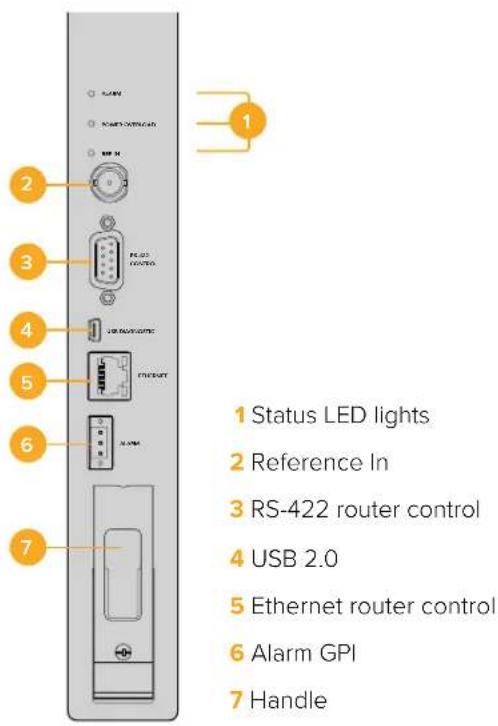
Universal Videohub Status LEDs
The status LEDs marked 'alarm', 'power overload' and 'ref in' provide you with an indication of the current state of the Blackmagic Universal Videohub 288 Crosspoint. The following LED conditions provide specific information about the status of the unit.
| Red ‘alarm’ LED | |
| Off No error. Normal operation. | |
| On Error condition. Other error. Telnet into device to get error code. | |
| 1 flash Error condition. Fan failure. | |
| 3 flashes Error condition. No redundant power supply. | |
| Red ‘power overload’ LED | ||
| Off | Normal operation. Inactive / Slave mode. This should only be seen on a Blackmagic Universal Videohub 288 with 2 crosspoints. | |
| Slowly blinking Normal operation. Active / Master mode. | ||
| On Error condition. Power overload. Not enough power is being supplied. | ||
| White ‘ref in’ LED | ||
| ● | Off Normal operation. | No reference connected. |
| ○ | On Normal operation. | Reference connected. |
TIP Blackmagic Universal Videohub 288 Crosspoint has amber colored LEDs mounted inside the device that should only be visible when the heatsink is removed for development purposes. However, in some cases a dim amber light may be visible through the hole that has been drilled for the 'alarm' LED. This is not an error condition.
A healthy Universal Videohub 288 Crosspoint should display the following:
| Red ‘alarm’ LED Off. | ||
| Red ‘power overload’ LED Slowly blinking or off. | ||
| White ‘ref in’ LED Solid white or off. |
Installing Interface cards
Installing a Universal Videohub SDI Interface or Universal Videohub Optical Interface is easy and the steps are the same for installing each type of interface card.
1 Hold the card in a vertical orientation with the identification LED at the top of the card. The identification LED looks like a pin hole near the top left of the top connector.
2 Gently insert the card along its guides until it plugs firmly into the PCI slot on the motherboard.
3 Use a number 02 size Pozidriv screwdriver to secure the card to the Universal Videohub frame.
See the 'SDI Interface Card' and 'Universal Videohub Interface Cards' sections for more information on the different interface cards available for your Universal Videohub.
Installing a Universal Videohub Power Supply
The Universal Videohub Power Supply package consists of a power card, a power cable and a 1 RU chassis containing the power supply. A second Universal Videohub Power Supply can be installed under the first power supply for failover redundancy. You will need to provide a standard IEC cord with a C13 connector for each power supply.
1 Ensure that any new power supplies are disconnected from any electrical source. Orient the power card so that the MAIN POWER label appears at the top of the card.
2 Insert the power card into either of the two power card slots.
3 Use a number 02 size Pozidriv screwdriver to secure the power card with its two screws. If you have a second power card, install it now into the spare power card slot.
4 Connect the power cable from the power card to the power supply. Tighten the thumb screws on both power connectors. Repeat this step if you have a second power card and second power supply. It does not matter which power card connects to which power supply.
5 Connect an IEC cord from each power supply to a mains wall socket and turn on the power.
Congratulations! Your Universal Videohub 288 is now ready to start routing video!
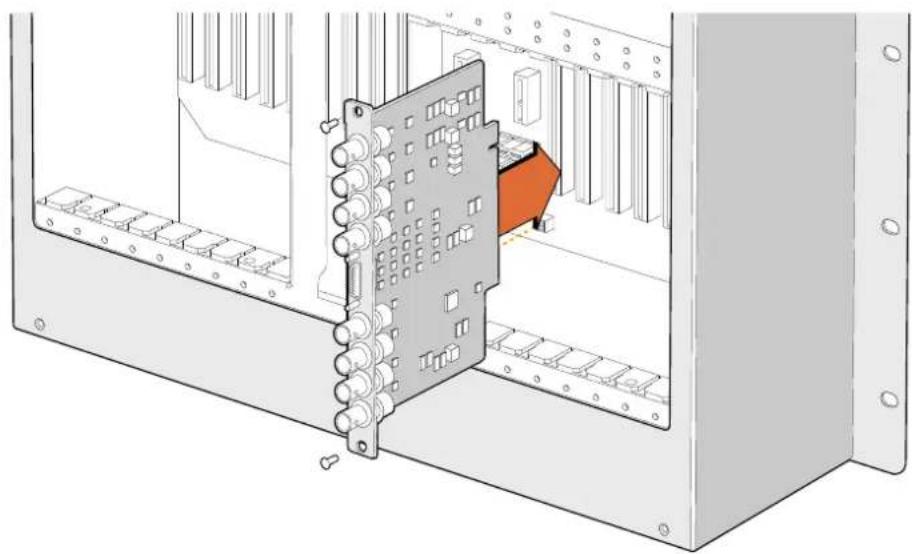
natural_image
Technical diagram of an electrical panel assembly with a highlighted component (no text or symbols present)Installing a Universal Videohub SDI Interface Card
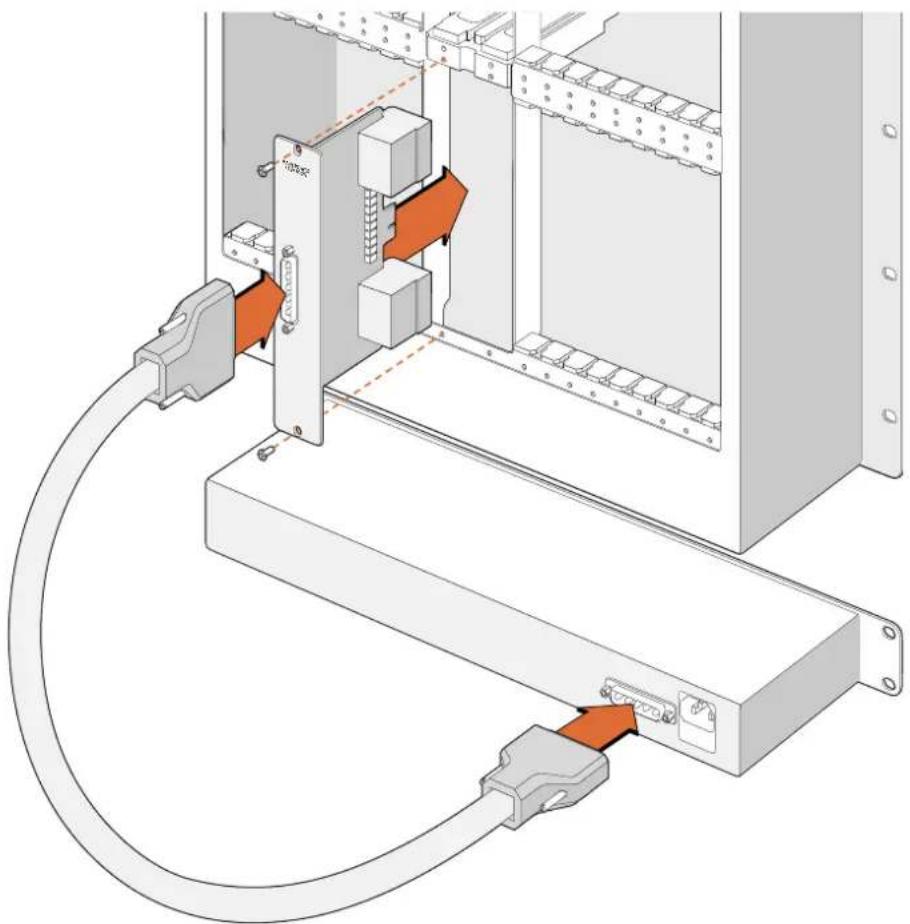
natural_image
Technical diagram of an electrical connector assembly with orange arrows indicating connection points (no text or symbols present)The Universal Videohub Power Supply consists of a power card which is inserted into the Universal Videohub 288 and then connected to a 1 RU chassis located under the Universal Videohub 288
Installing a second Power Supply while Universal Videohub 288 is running
If you wish to install a redundant or replacement power supply while Universal Videohub 288 is already running from a power supply, please carry out the installation procedure in the following order:
1 Ensure that the new power supply is disconnected from any electrical source.
2 Orient the new power card so that the MAIN POWER label appears at the top of the card. Now insert the power card into the spare power card slot.
3Use a number 02 size Pozidriv screwdriver to secure the power card with its two screws.
4 If you are installing a redundant power supply for the first time, install the 1 RU chassis below the first power supply, leaving 1 RU of clearance between the two power supplies for heat dissipation. If you are installing a replacement power supply, install the replacement 1 RU chassis where the faulty unit was previously located.
5Connect the new power cable between the connectors on the new power card and the new power supply. Tighten the thumb screws on both power connectors.
6Connect an IEC cord from the new power supply to the wall socket and turn on the power.
Removing a Power Supply while Universal Videohub 288 is running
If you need to remove a faulty power supply while Universal Videohub 288 is running from another power supply, please carry out the removal procedure in the following order:
1Switch off the power to the faulty power supply and unplug its IEC cord.
2 Disconnect the power cable between the power card and the faulty power supply.
3 Remove the faulty 1 RU chassis and associated power card. Ensure all components from the faulty unit are placed somewhere where they will not be confused with a new replacement unit.
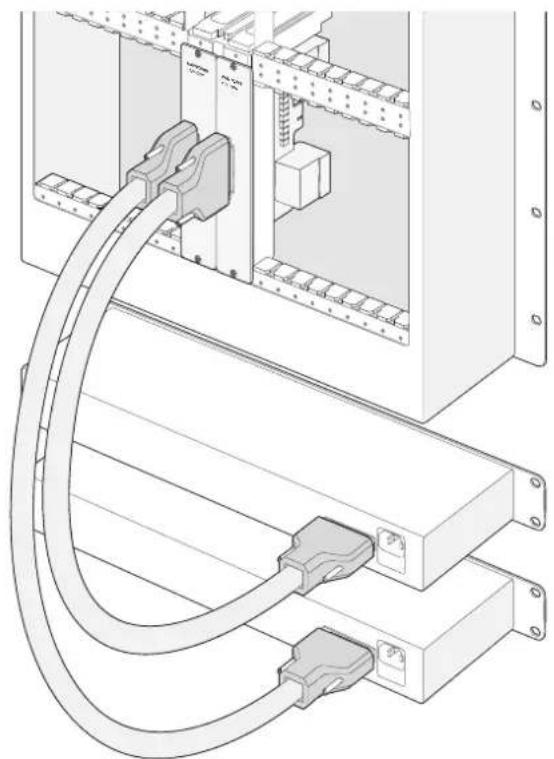
natural_image
Technical line drawing of a cable connector assembly inside an electrical enclosure (no text or symbols)Two Universal Videohub Power Supplies can be installed for power redundancy with the Universal Videohub 288
Universal Videohub 72
natural_image
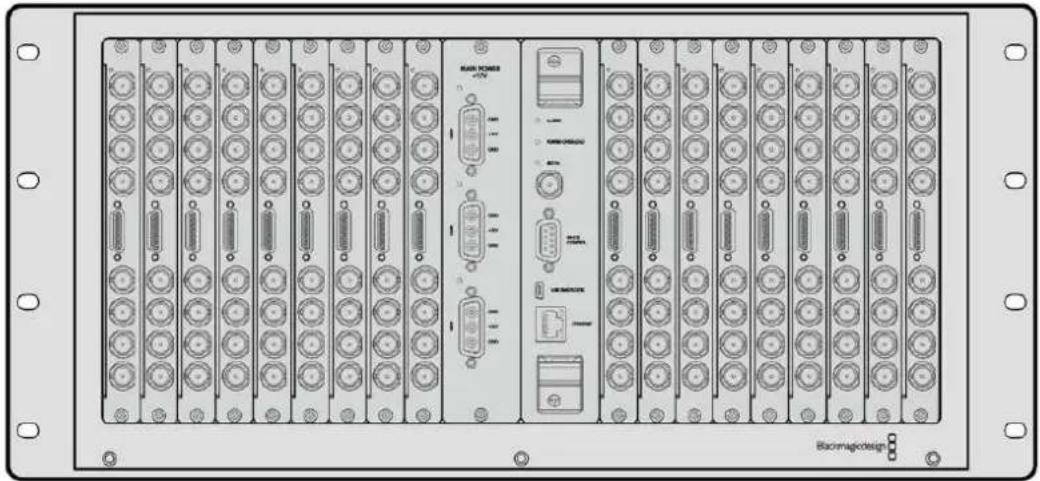
Front panel of a rack-mounted industrial control unit with multiple ports and connectors (no visible text or labels)Universal Videohub 72 is a medium-sized modular router ideal for growing facilities. It features an 18 card rack frame that can be filled with any combination of BNC SDI or optical fiber SDI interface cards. When fully populated with a crosspoint card, a power card, 18 SDI interface cards and 18 deck control cables, Universal Videohub 72 provides 72 SDI inputs, 72 SDI outputs, 72 bidirectional RS-422 deck control ports, reference input, redundant power supply options and powerful Videohub routing control software for Mac and Windows.
Occasionally, the internal software of the Universal Videohub 72 will need to be updated. Videohub Setup will prompt you if an update is required. The utility uses the USB 2.0 connection and you will need to provide a USB 2.0 type A to mini B male cable.
Universal Videohub 72 ships as an empty rack frame, except for a removable fan tray and fans. All other hardware components, including SDI interface cards, deck control cables, crosspoint card and power supplies must be purchased and installed separately. SDI interface cards can be purchased as your facility grows and don't need to be installed all at once. This section is designed to help you decide which components you will need before you build your Universal Videohub 72.
See the 'SDI Interface Card' and 'Universal Videohub Interface Cards' sections for more information on the different interface cards available for your Universal Videohub.
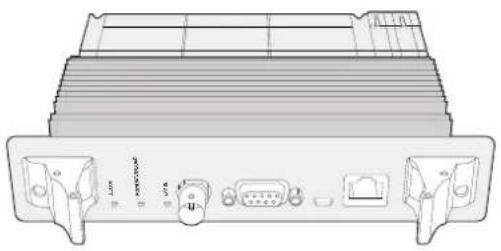
Universal Videohub 72 Crosspoint Card
This module contains the crosspoint processor for switching video routes and changing deck control ports. Ethernet, USB and serial ports are located on the card for router control.
A Reference input is located on the card for connection to a tri-level sync or black burst genlock signal.
An Alarm light will illuminate on the card if user intervention is required, e.g., if inadequate cooling has caused Videohub to overheat. Alarm notification is supplied by the GPI (General Purpose Interface) output to other devices.
A Power Overload light will illuminate on the card if inadequate power is being supplied to the unit for the number of cards installed.
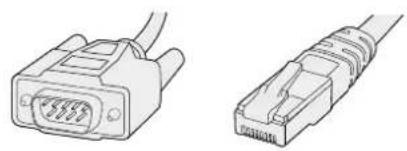
Router Control Cable
Remote router control is performed via 10/100Base-T Ethernet or serial. If router control is performed via Ethernet, the integrated Videohub Server is used. This means you only need to provide an Ethernet cable to connect Universal Videohub 72 to your Ethernet network switch.
Third party router controllers can control Universal Videohub 72 via Ethernet, or as an RS-422 slave device, for router crosspoint switching. Please refer to the Developer Information section of this manual for Videohub and RS-422 protocols.
natural_image
Technical line drawing of a computer chassis rear panel with ports and connectors (no text or symbols)Universal Videohub Power Supply includes a power card, 1 RU chassis and connecting power cable.
natural_image
Two technical line drawings of a USB connector, one with internal ports and the other with a cable (no text or symbols)Serial Cable Standard RJ45 Ethernet Cable
Power Supply
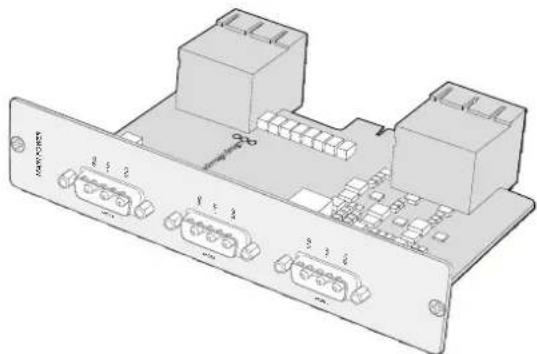
The Universal Videohub 450W Power Card provides connections for up to three 150W brick-style power supplies, which must be purchased separately.
When fully populated and running at maximum power consumption, Universal Videohub 72 can be powered by two 150W brick power supplies. A third power supply can be connected to ensure continued operation should one power supply fail. The 150W power supplies are universal power supplies for use in all countries. You will need to provide a standard IEC cord with a C13 connector for each power supply. When fully populated with three power supplies, three mains power sockets will be required.
Building Universal Videohub 72
9 rack units of space should be reserved for the installation of Universal Videohub 72 including access space for the drop-down fan tray as well as free space for heat dissipation. Only 7 RU is required if Universal Videohub 72 is mounted at the top of an open rack. Universal Videohub 72 is 5 rack units high and 6 inches thick. You can rack-mount Universal Videohub 72 facing forwards or reversed, or even mount it in the rear of the rack to leave space for other equipment. 2 RU of space should be left above Universal Videohub 72 for heat dissipation unless mounted at the top of an open rack where there is no obstruction to airflow above.
Universal Videohub 72 contains electrostatic sensitive devices. It is essential to discharge yourself of static electricity before handling any of these devices, just as you would when installing devices into a computer. We recommend the use of an antistatic wrist strap when handling any of these devices.
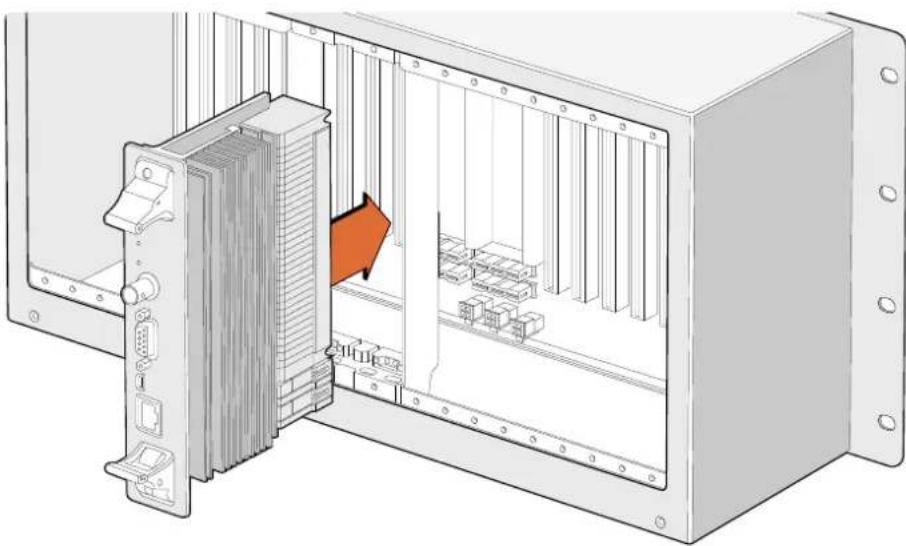
Installing a Universal Videohub 72 Crosspoint Card
Now that your Universal Videohub 72 has been mounted in a rack, it needs to be fitted with a crosspoint card. The crosspoint card is the brains of any Universal Videohub and performs video route and deck control switching. Universal Videohub 72 Crosspoint cards are hot-swappable, meaning they are designed to be installed and removed while the Universal Videohub is running.
natural_image
Technical illustration of an internal rack-mounted server unit with a highlighted orange arrow indicating a component (no text or symbols present)Installing a Universal Videohub 72 Crosspoint Card
1 Hold the crosspoint card in a vertical orientation by its two levers. The Ethernet port should be towards the bottom end of the card.
2Gently insert the card into its slot, ensuring the top and bottom edges follow the black guides.
3 Firmly push both levers flat to fully engage the multi-pin connectors with the motherboard. Mating pins ensure that the card precisely engages with the motherboard without damaging the multi-pin connectors.
4 Use a number 01 size Pozidriv screwdriver to secure the two levers on the crosspoint card.
natural_image
Technical diagram of an electrical panel assembly with a highlighted component (no text or symbols present)Installing a Universal Videohub SDI Interface
Universal Videohub 72 Crosspoint
Universal Videohub Status LEDs
The status LEDs marked 'alarm', 'power overload' and 'ref in' provide you with an indication of the current state of the Blackmagic Universal Videohub 72 Crosspoint. The following LED conditions provide specific information about the status of the unit.
| Red ‘alarm’ LED | ||
| Off No error. Normal operation | ||
| On Error condition. Other error. Telnet into device to get error code. | ||
| 1 | 1 flash Error condition. Fan failure. | |
| 3 | 3 flashes Error condition. No redundant power supply. | |
| Red ‘power overload’ LED | ||
| Off | Normal operation. Inactive / Slave mode. This should only be seen on a Blackmagic Universal Videohub 288 with 2 crosspoints | |
| Slowly blinking Normal operation. Active / Master mode. | ||
| On Error condition. Power overload. Not enough power is being supplied | ||
| White ‘ref in’ LED | ||
| ● | Off Normal operation. | No reference connected. |
| ○ | On Normal operation. | Reference connected. |
TIP Blackmagic Universal Videohub 72 Crosspoint has amber colored LEDs mounted inside the device that should only be visible when the heatsink is removed for development purposes. However, in some cases a dim amber light may be visible through the hole that has been drilled for the 'alarm' LED. This is not an error condition.
A healthy Universal Videohub 72 Crosspoint should display the following:
| Red ‘alarm’ LED Off | ||
| Red ‘power overload’ LED Slowly blinking or off. | ||
| White ‘ref in’ LED Solid white or off | ||
Installing Interface cards
Installing a Universal Videohub SDI Interface or Universal Videohub Optical Interface is easy and the steps are the same for installing each type of interface card.
1 Hold the card in a vertical orientation with the identification LED at the top of the card. The identification LED looks like a pin hole near the top left of the top connector.
2 Gently but firmly insert the card so that it follows its guides and plugs into the PCI slot in the motherboard. Use a number 02 size Pozidriv screwdriver to secure the interface card to the Universal Videohub frame.
See the 'SDI Interface Card' and 'Universal Videohub Interface Cards' sections for more information on the different interface cards available for your Universal Videohub.
Installing a Universal Videohub 450W Power Card
The Universal Videohub 450W Power Card features three power connectors, which can be connected to 150W power supply bricks for up to 450W of power. This power card is suitable for powering a fully populated Universal Videohub 72 with two power supplies connected.
A third connected power supply provides failover redundancy should one power supply fail.
1 Ensure that the power supply is disconnected from any electrical source.
2 Orient the power card so that the MAIN POWER label appears at the top of the card.
3 Insert the power card into its slot on the motherboard. Use a number 02 size Pozidriv screwdriver to secure the power card with its two screws.
4 Connect three Universal Videohub 150W Power Supplies.
If you need to remove or replace the power card, power off and disconnect all connected power supplies before removing the power card.
If you have only partially populated your Universal Videohub 72 with interface cards, you might be able to power it with a single 150W power supply and preferably use a second power supply for failover redundancy. If you choose this option:
1 Temporarily disconnect the second power supply and then check the Power Overload light on the crosspoint card after installing any cards.
2 If the Power Overload light illuminates, you will have to add a 150W brick power supply or remove some cards to ensure that all cards are receiving power.
3Reconnect the second power supply when you have finished checking the Power Overload light.
natural_image
Diagram of a rack-mounted device with multiple ports and connectors (no text or labels visible)Universal Videohub 450W Power Card can be connected to three 150W power bricks
For peace of mind, we recommend connecting and powering the three power supplies at all times to ensure sufficient power, and power redundancy, with all card combinations.
If you need to remove or replace a 150W Power Supply while Universal Videohub 72 is still running, power off the brick while being careful to avoid switching off power to the remaining power supplies. Unplug the IEC cord and then unscrew and disconnect the power supply from the Universal Videohub 450W Power Card.
Congratulations! Your Universal Videohub 72 is now ready to start routing video!
SDI Interface Card
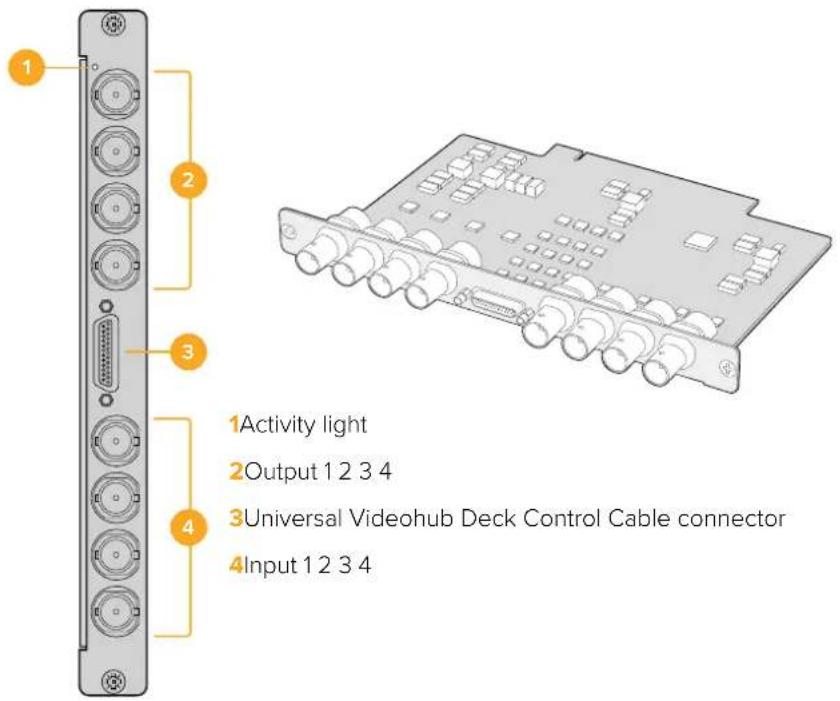
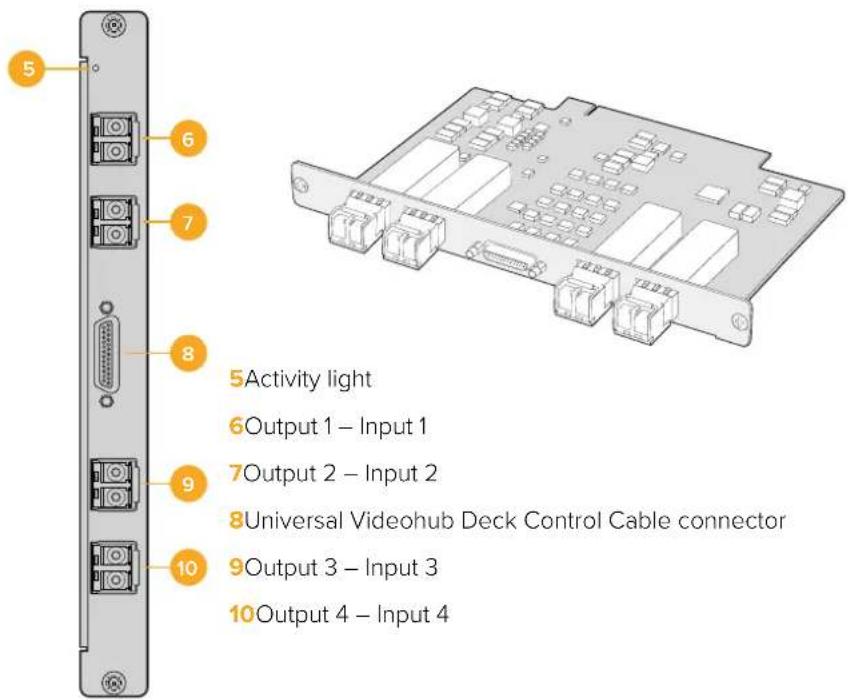
SDI interface cards feature 4 SDI inputs, 4 SDI outputs and a connector for a Universal Videohub Deck Control Cable. All SDI connections support auto detection of SD, HD or 3G-SDI, and reclocking on all SDI outputs. Simultaneous routing of 2K, HD, SD video and DVB-ASI are supported with Universal Videohub. SDI interface cards are designed to be installed while Videohub is running and become active immediately. They do not require Videohub to be power cycled. You will need a number 01 and a number 02 size Pozidriv screwdriver to install the various cards.
There are two models of SDI interface cards that can be used with Universal Videohub:
■ Universal Videohub SDI Interface card with BNC connectors.
- Universal Videohub Optical Interface card has standard SFP transceiver modules with 1310 nm laser drivers and receivers. Each module includes an LC connector port to be used with single-mode optical fiber cables.
Universal Videohub Interface Cards
Universal Videohub SDI Interface Card
Universal Videohub Optical Interface Card
Tips for Connecting SDI cables
The weight of copper-based SDI cables quickly adds up so it is advisable to use your rack to support the cables so that the full cable weight does not place undue stress on the BNC ports of your Videohub. This is particularly important with larger models of Videohub due to the weight of many SDI cables. Tying cable harnesses to the rack frame can provide support for large volumes of cabling.
It is also good practice to attach cables to the lowest BNC and optical fiber connectors first and then work upwards. This will avoid having to push lots of cables out of the way as you attach more cables in the future.
All Videohub models feature regular sized BNC ports, which make it easy to connect to other SDI equipment using regular SDI cables.
If you're connecting Videohub to SDI equipment that has miniature SDI connectors, such as DIN 1.0/2.3, we recommend using SDI cables that are terminated with a miniature connector at one end and a regular BNC at the other. Alternatively, an adapter cable can be connected to a regular SDI cable but this could prevent you from running long cables due to some loss of signal quality.
It's easy to connect and disconnect SDI cables to and from your Videohub. However as you attach more SDI cables, you might find it tricky to fit your fingers between the BNC connectors. You can use an inexpensive BNC removal tool, from third party vendors, to help make this task easy even when your Videohub has many cables connected.
Universal Videohub Deck Control Cable
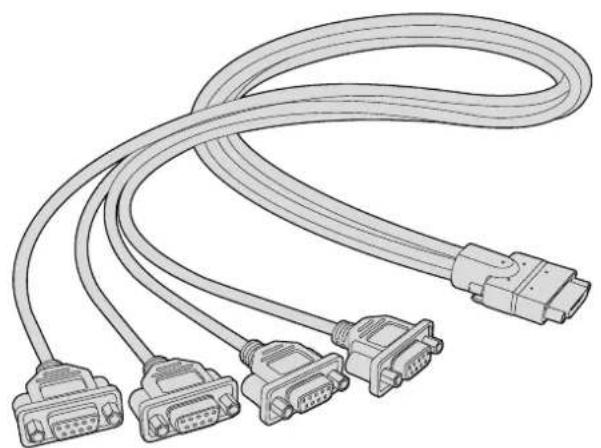
This cable features a single serial port at one end, for connection to both types of SDI interface cards, and four RS-422 deck control ports at the other end.
natural_image
Illustration of multiple Ethernet connectors with male and female labels (no text or symbols)Universal Videohub Deck Control Cable
Smart Videohub CleanSwitch 12x12
When you need to cleanly switch between video sources to monitors or directly to air, you will need timed or genlocked signals. If you cannot guarantee perfectly timed source signals but you still need to clean switch, then you can use Smart Videohub CleanSwitch 12x12 as this model features resynchronization on all inputs so you get perfect clean feeds.

Smart Videohub CleanSwitch 12x12 includes full resynchronization on every input so the router automatically re times all inputs to ensure clean, glitch free switching between router cross points. Sources of the same resolutions and the same frame rate can even be output directly to air for smooth, cuts only production. The Smart Videohub CleanSwitch 12x12 will lock to the reference input or to Input 1 if no reference signal is connected. The video format of the reference signal and all inputs need to be identical for glitch free switching. You can still switch between mixed video formats, however they will not be synced.
Videohub Hardware Control Panels
Videohub hardware control panels are external panels designed to let you control Universal Videohub and any Videohub that is connected to the same network. Both panels support power over Ethernet plus on compatible network switches, which means you can power the panels using the same connection via Ethernet port 1 and you don't need to connect a separate power cable. The second Ethernet port does not support PoE but can be used to loop other equipment to the network.
Videohub Master Control Pro
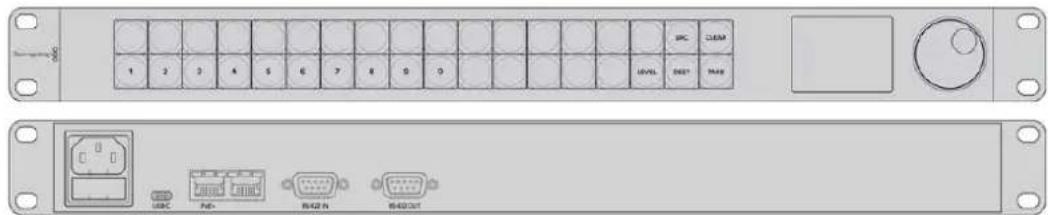
Videohub Master Control Pro is a 1 rack unit mountable control panel with 36 backlit pushbuttons, LCD, scroll wheel and Ethernet connectivity designed to perform Videohub crosspoint switching without using a computer. Videohub Master Control Pro can control all sources and destinations for any size of Videohub router, as well as RS-422 deck control.
Videohub Master Control Pro uses port labels to aid in fast selection of equipment using software. Pushbuttons can be configured and labeled to provide fast selection of common equipment types, e.g., cameras, decks and monitors. It also includes a loop through Ethernet port for connecting to additional control panels, Videohub routers or other network devices. Macro buttons illuminate green when enabled and each one can be configured to perform up to 16 simultaneous crosspoint switches.
Videohub Master Control Pro
Videohub Smart Control Pro
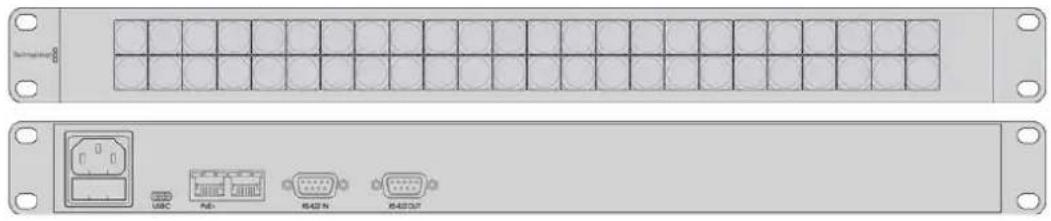
Videohub Smart Control Pro is a 1 rack unit mountable control panel with 48 backlit pushbuttons and Ethernet connectivity.
When configured for a single SDI destination, such as a monitor or deck, the pushbuttons can instantly switch between 48 different SDI sources on the same Videohub router. When configured for multiple SDI destinations, destination buttons become gold, source buttons become white and the lower right button can be configured as a take button and illuminates red. Macro buttons illuminate green when enabled and each one can be configured to perform up to 16 simultaneous crosspoint switches.
natural_image
Front and back view of a rack-mounted server interface with labeled ports (no text or symbols on the panel itself)Videohub Smart Control Pro
Configuring the Control Panel
A USB connection to a computer is used to configure the network settings of the Videohub Controller.

Plug the unit into a computer via USB-C to configure network settings
Connecting to an Ethernet Network
In most facilities, Videohub is usually shared via an Ethernet network switch so it can be controlled by computers on the network as well as by Videohub control panels. Connect the control panel to the network as you would any Videohub router.
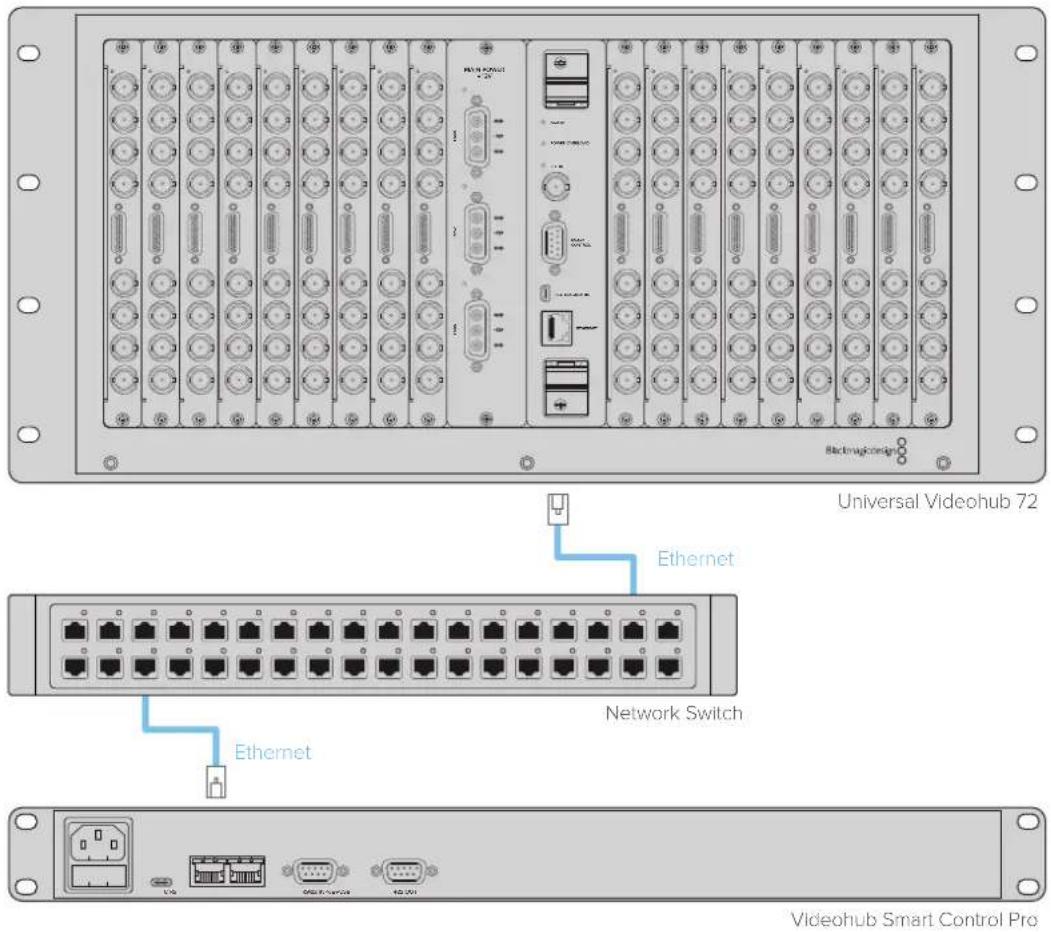
Videohub Smart Control Pro connected to a Universal Videohub 72 via an Ethernet network switch
NOTE The second Ethernet port does not support PoE+ so a unit connected to the second port will require its own power supply.
Control Panel Button Diagnostics
When power is first connected to a Videohub control panel, all the buttons will display their test lights in the following sequence: red, green, blue and white. The top left button of a Videohub control panel indicates its network status using the following diagnostic display:
Pink Flashing Light
Unit is attempting to acquire an IP address. The button should quickly become red if the unit is set to use a static IP address, or if the unit successfully acquires an IP address from the DHCP server.

Videohub control panel is attempting to acquire an IP address
Red Flashing Light
Unit has acquired an IP address and is attempting to connect to the Videohub Server. Make sure the Videohub or Videohub server is powered on and connected via Ethernet.

IP address has been acquired and control panel is attempting to connect to the Videohub server
Yellow Flashing Light
Unit has connected to a Videohub server computer but the Videohub server is running an incompatible software or firmware version. Update Videohub with the latest version of the Videohub software and firmware and then power cycle the Videohub control panel.

Videohub Server is running an incompatible software or firmware version
No Flashing Light
Unit has successfully connected to the Videohub server and is ready to control the Videohub if solid white, or solid white and gold, lights can be seen.

Control panel has successfully connected to the Videohub server
If the top left button took several minutes to turn red, the unit has failed to acquire an IP address and has eventually provided itself with a self-assigned AutoIP address in the 169.254.xxx.xxx format. Unless you wish to use an AutoIP address, disconnect and firmly reconnect the network cables to ensure they are properly connected, check for faulty network cables and make sure the DHCP server has spare IP addresses available. Unplug and reconnect all power sources from the Videohub control panel so it will request a new IP address from the DHCP server. The button should quickly become red. The unit will only perform these diagnostics when it is not selected in Videohub Hardware Panel Setup software.
About Routing Levels
If your Videohub does not feature RS-422 remote deck control, Videohub Master Control will always show 'SDI' on its LCD and you don't need to read anything more about routing levels.
If your Videohub does include RS-422 remote deck control ports, you can use the LEVEL button on Videohub Master Control to reduce the list of sources and destinations by routing level.
Start by pressing the DEST button. Now press the LEVEL button to cycle through the routing levels:
SDI 422
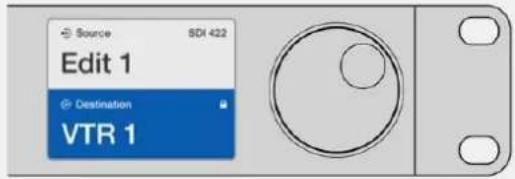
Choose this routing level to reduce the list of video equipment to devices with matching labels for their remote and SDI ports. This level is commonly used with SDI capture cards and VTR decks but cannot be used with cameras and monitors as they do not have RS-422 remote ports.

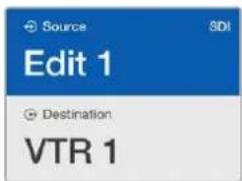
Choose the SDI 422 routing level if you only want to see SDI video equipment with RS-422 deck control. In this example, the capture card (Edit 1) and the deck (VTR 1) are listed because they both have SDI and RS-422 ports.
SDI
Lists all SDI sources and destinations. Choose this routing level if you want to see all SDI video equipment, i.e., cameras, monitors, capture cards and VTR decks, regardless of RS-422 connections.

Choose the SDI routing level if you want to see all SDI video equipment. In this example, the capture card (Edit 1) and the deck (VTR 1) are listed because they both have SDI ports.
422
Choose this routing level if you want to reduce the list of video equipment to all devices with RS-422 deck control. This will list sources and destinations by the names of their RS-422 remote ports, regardless of whether there are any associated SDI ports and regardless of whether any associated SDI ports have matching labels or not. This level is commonly used with SDI capture cards and VTR decks but also lists remote control panels and servers used to control decks.
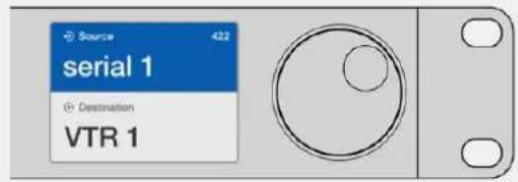
Choose the 422 routing level if you want to see all equipment with RS-422 remote deck control, including equipment with mismatched labels and also remote controllers. In this example, the capture card (Edit 1) has a mismatched label for its remote port (serial 1) and is only listed when the routing level is set to 422.

Front panel showing a new source has been selected.
How to Select Sources and Destinations
Videohub Master Control Pro provides several ways to select and switch your destinations and sources quickly, depending upon whether you have customized the port labels on your Videohub router or if you just want to enter port numbers directly.
Videohub Master Control Pro works in the same conceptual way as any other router control.
1Press the destination button marked 'DEST' to display a destination on the LCD. Use the pushbuttons or the scroll wheel to select the desired destination.
2Press the 'take' button to confirm.
3 Press the source button marked 'SRC' and use the pushbuttons or scroll wheel to change the source.
4Press TAKE to confirm the route change.
Selecting units by typing the Videohub port numbers
If you've chosen to keep the default labels for all Videohub SDI and remote ports, you can simply type the port numbers to make a routing change. This method is fast but requires that you remember port numbers or have devised a system for knowing what equipment is connected to each Videohub port.
1 Press the destination button marked 'DEST'. The destination field will be highlighted blue on the LCD.
2If your Videohub router has RS-422 remote control, press the LEVEL button until you have set the appropriate routing level for your equipment. Otherwise you can skip this step.
3 Type in the destination port number using the numeric pushbuttons. Each button will flash gold once as you press it. The destination will be displayed on the LCD. If you make a mistake, press the white 'clear' button and retype the port number.
4 Press the source button marked 'SRC'. The source field will be highlighted blue on the LCD.
5 Type in the source port number using the numeric pushbuttons. Each button will flash white once as you press it. The source will be displayed on the LCD. If you make a mistake, press the white 'clear' button and retype the port number.
6 The 'take' button will flash red, awaiting your confirmation of the route change. Press 'take' and the route will change immediately. Otherwise, press 'clear' and no route change will take place. Videohub Master Control returns to its idle state with the latest route displayed on the LCD.
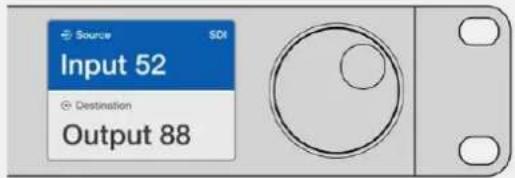
If you've chosen to keep the default labels for all Videohub SDI and remote ports, you can simply type the port numbers to make a routing change. In this example, press the destination button marked 'DEST' and then type the port number 88. Then press source button and type the port number 52. Press 'take' to confirm the route change.
Selecting Units using the Scroll Wheel
Regardless of whether or not you've customized the Videohub port labels, you can always use the scroll wheel to browse through a list of sources and destinations. This is the slowest method but is useful if you want to see the list of all available equipment and ports.
1 Press the destination button marked 'DEST'. The destination field will be highlighted blue on the LCD.
2 If your Videohub router has RS-422 remote control, press the 'level' button until you have set the appropriate routing level for your equipment. Otherwise you can skip this step.
3 Scroll the wheel forwards or backwards until the desired destination is found. The destination will be displayed on the LCD.
4 Press the source button marked 'SRC' so it illuminates white. The source field will be highlighted blue on the LCD.
5 Scroll the wheel until the desired source is found. The source will be displayed on the LCD.
6 The 'take' button will flash red, awaiting your confirmation of the route change. Press 'take' and the route will change immediately. Or press 'clear' and no route change will take place. Videohub Master Control returns to its idle state with the latest route displayed on the LCD.
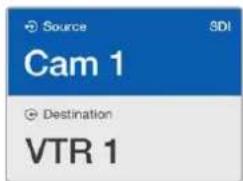
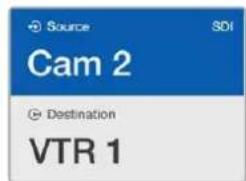
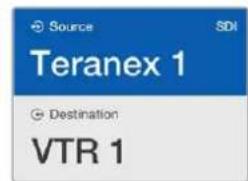
In this example, the scroll wheel is being used to list all sources that can be routed to the destination VTR 1, based upon the SDI routing level. When the scroll wheel is rotated, the names of source equipment are progressively displayed to make it very easy to find the desired video source.
Selecting Units using Customizable Buttons and the Scroll Wheel
If you have customized the Videohub port labels, you can use the customizable buttons and scroll wheel together to find a short list of sources and destinations. This method is fast and intuitive because you only have to scroll through a short list of equipment and you don't have to remember any port numbers. This method is very helpful if you label types of equipment together by name, e.g., VTR, Cam and Mon.
1 Press the destination button marked 'DEST'. The destination field will be highlighted blue on the LCD.
2If your Videohub router has RS-422 remote control, press the LEVEL button until you have set the appropriate routing level for your equipment. Otherwise you can skip this step.
3Press a button you have customized for a type of destination equipment, e.g., VTR. The button should light up gold.
4 Scroll the wheel forwards or backwards until the desired destination is found. In this example, the destination VTR will be displayed on the LCD. If you make a mistake, press the white 'clear' button and scroll until the correct destination is displayed.
5 Press the source button marked 'SRC'. The source field will be highlighted blue on the LCD.
6Press a button you have customized for a type of source equipment, e.g., a capture card. The button should light up white.
7 Scroll the wheel forwards or backwards until the desired source is found. In this example, the source capture card will be displayed on the LCD. If you make a mistake, press the white 'clear' button and scroll until the correct destination is displayed.
8 The 'take' button will flash red, awaiting your confirmation of the route change. Press 'take' and the route will change immediately. Otherwise, press 'clear' and no route change will take place. Videohub Master Control will then return to its idle state with the latest route displayed on the LCD.
If any button you have customized for either a source or destination flashes but does not stay lit, Videohub Master Control is preventing you from selecting the button because the equipment type has not been labeled as a source or destination device or does not match the current routing level. For example, cameras should not usually be set as destination devices, monitors should not be set as source devices and won't match the RS-422 routing level. Refer to Configuring Videohub Master Control Pro for steps on how to change this.
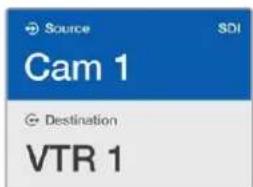
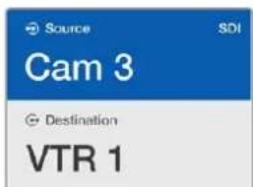
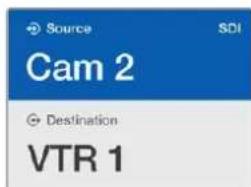
In this example, a customized Cam button has been selected so only cameras will be listed as sources, on the LCD, when the scroll wheel is rotated. This provides a fast way to find a video source because you only have to scroll through a short list of equipment.
Selecting Units using Numeric Buttons and the Scroll Wheel
If you have customized the Videohub port labels with numbers, you can use the numeric buttons and scroll wheel together to find a short list of sources and destinations. This method is fast and intuitive because you only have to scroll through a short list of equipment and you don't have to remember any port numbers. This method is very helpful if you label groups of equipment together by numbers, perhaps to represent locations. For example, all the equipment in Studio 3 could be labeled VTR3, Edit 3, Cam 3A, Cam 3B, Mon 3A and Mon 3B etc.
1 Press the destination button marked 'DEST'. The destination field will be highlighted blue on the LCD.
2 If your Videohub router has RS-422 remote control, press the 'level' button until you have set the appropriate routing level for your equipment. Otherwise you can skip this step.
3 Using the numeric pushbuttons, type the destination number, e.g., 3 for Studio 3. Each numeric button will flash gold as you press it.
4 Scroll the wheel forwards or backwards until the desired destination is found. In this example, any of VTR 3, Edit 3, Mon 3A or Mon 3B could be displayed on the LCD. If you make a mistake, press the white 'clear' button and select another destination number.
5 Press the source button marked 'SRC'. The source field will be highlighted blue on the LCD.
6 Using the numeric pushbuttons, type the source number, e.g., 3 for Studio 3. Each numeric button will flash white as you press it.
7 Scroll the wheel forwards or backwards until the desired source is found. In this example, any of VTR 3, Edit 3, Cam 3A or Cam 3B could be displayed on the LCD. If you make a mistake, press the white 'clear' button and select another source number.
8 The 'take' button will flash red, awaiting your confirmation of the route change. Press 'take' and the route will change immediately. Otherwise, press 'clear' and no route change will take place. Videohub Master Control will then return to its idle state with the latest route displayed on the LCD.
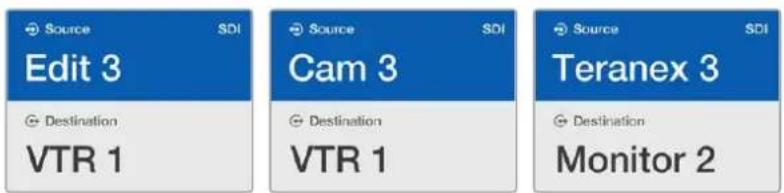
In this example, the numeric button "3" has been selected so only video sources with a "3" in their label will be listed, on the LCD, when the scroll wheel is rotated. This provides a fast way to find a video source because you only have to scroll through a short list of equipment based upon a group number, e.g. only list the equipment in Studio 3.
Selecting Units using Both Customizable and Numeric Buttons
If you have customized the Videohub port labels with names and numbers, you can use the customizable buttons and numeric buttons together to directly select sources and destinations. This method is very fast and intuitive because you don't have to scroll through a list of equipment and you only have to remember how many of each type of equipment you have, e.g., two VTRs and four monitors.
This method is very helpful if you label types of equipment by name and number, e.g., VTR 01, VTR 02, Cam 01, Cam 02, Cam 03, Mon 01, Mon 02, Mon 03 and Mon 04.
1 Press the destination button marked 'DEST'. The destination field will be highlighted blue on the LCD.
2If your Videohub router has RS-422 remote control, press the LEVEL button until you have set the appropriate routing level for your equipment. Otherwise you can skip this step.
3Press a button you have customized for a type of destination equipment, e.g., VTR. The button should light gold.
4Type in the destination equipment number using the numeric pushbuttons, e.g., 07 for VTR 07. Each numeric button will flash gold as you press it.
5 Press the source button marked 'SRC'. The source field will be highlighted blue on the LCD.
6Press a button you have customized for a type of source equipment, e.g., a capture card. The button should light white.
7Type in the source equipment number using the numeric pushbuttons, e.g., 03 for the capture card Edit 03. Each numeric button will flash white as you press it.
8 The 'take' button will flash red, awaiting your confirmation of the route change. Press 'take' and the route will change immediately. Otherwise, press 'clear' and no route change will take place. Videohub Master Control will then return to its idle state with the latest route displayed on the LCD.
If any button you have customized for either a source or destination flashes but does not stay lit, Videohub Master Control is preventing you from selecting the button because the equipment type has not been labeled as a source or destination device or does not match the current routing level. For example, cameras should not usually be set as destination devices, monitors should not be set as source devices and won't match the RS-422 routing level. Refer back to Creating Button Labels in Configuring Videohub Master Control Pro for steps on how to change this.
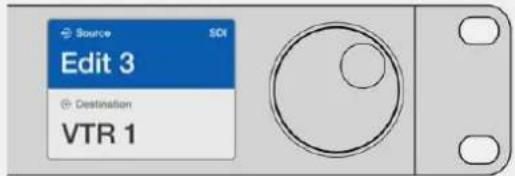
If you know that you want Edit 3 as the source, and VTR 1 as the destination, you can select the route directly without any scrolling being necessary. In this example, press the destination button marked 'DEST', press the customized VTR button and then press 1. VTR 1 will be shown in the destination field. Now press the source button marked 'SRC', press the customized Edit button and then press 3. "Edit 3" will be shown in the source field. Finally, press 'take' to confirm the route change.
Locking and Unlocking Routes
To lock a destination using Videohub Master Control:
1 Set the destination and source using whichever method you prefer. Once the route has been set, Videohub Master Control will return to its idle state.
2 Press the destination button marked 'DEST'. The destination field will highlight blue on the LCD.
3 If the desired route is not already displayed on the LCD, use the pushbuttons and/or scroll wheel to find the destination to be locked.
4 Press and hold the gold destination button until a lock icon appears in the destination field of the LCD.
5Press 'destination' again to return Videohub Master Control to its idle state and the destination field will revert to gray.
The destination field shows a lock icon if the destination is locked.
To unlock a destination using Videohub Master Control:
1Press the destination button marked 'DEST'. The destination field will highlight blue on the LCD.
2 If the desired route is not already displayed on the LCD, use the pushbuttons and/or scroll wheel to find the destination to be unlocked. The destination field will show a lock icon for the locked destination.
3Press and hold the gold DEST button until the lock icon disappears from the destination field of the LCD.
4Press DEST again to return Videohub Master Control to its idle state and the destination field will revert to gray.
Using Macros
If you press a green macro button, it will simultaneously make the crosspoint changes you have previously configured in Videohub Hardware Panel Setup. Each button can be configured with up to 16 crosspoint routes. If you have the Take button enabled, the simultaneous change of routes will only take place when you confirm by pressing the Take button. If for any reason the macro cannot be performed, the button will flash.
Using Videohub Smart Control Pro as a Cut-Bus Controller
If Videohub Smart Control Pro has been configured as a Cut-Bus controller, the destination device has already been chosen and you only need to choose a video source.
1 Select a white video source button. The button will light up to distinguish it from the other sources. The video source will immediately connect and be viewable on the destination device.
2 If the Take button has been enabled, the new source button and the Take button will flash. The route change will only take place when you confirm by pressing the Take button.

natural_image
Front panel of a computer interface with a red highlighted button (no text or symbols visible)Videohub Smart Control Pro configured as a Cut-Bus controller and with a Take button
Using Videohub Smart Control Pro as an XY Controller
If Videohub Smart Control Pro has been configured as an XY controller, destination buttons light up gold and source buttons light up white. When working with multiple destinations, always select a destination button before selecting a source button.
To change routes:
1 Select a gold destination button and it will light up brightly to distinguish itself from the other destination buttons. If a video source has previously been connected to this destination, its button will light up white.
2To connect a new source to the destination, press the desired video source button. The video source will immediately be connected and viewable on the destination device. The new source button will be brightly lit and the previous source button will dim to normal. To change another route, select another destination button and then select a new source button.
3 If the 'take' button has been enabled, the new source button and the 'take' button will flash. The route change will only take place when you confirm by pressing the 'take' button.
Locking and Unlocking Routes
To lock a destination, press and hold the desired destination button until it turns blue. The corresponding source button will illuminate. If you attempt to change sources for a locked destination, the destination button will flash blue. To unlock a destination, press and hold the button until it returns to the standard gold color.
Using Macros
If you press a green macro button, it will simultaneously make the crosspoint changes you have previously configured in Videohub Hardware Panel Setup. Each button can be configured with up to 16 crosspoint routes. If you have the Take button enabled, the simultaneous change of routes will only take place when you confirm by pressing the Take button. If for any reason the macro cannot be performed, the button will flash.

natural_image
Diagram of a rack-mounted device with yellow and red indicator lights, no text or symbols presentVideohub Smart Control Pro configured as an XY controller and with a Take button
Labeling Pushbuttons
Videohub Master Control Pro, Videohub Smart Control Pro and Videohub 12G models have removable pushbuttons that provide access for labeling.
Included with the software installer is a 'Videohub control labels' folder containing a PDF template file. Fill out and print the PDF file labels, then cut out the squares to be inserted into the buttons.
To remove the buttons:
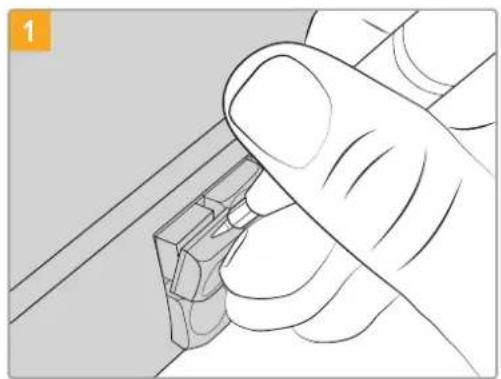
natural_image
Hand holding a small mechanical component, no visible text or symbolsThe button keycaps can be easily removed using a small flathead screwdriver.
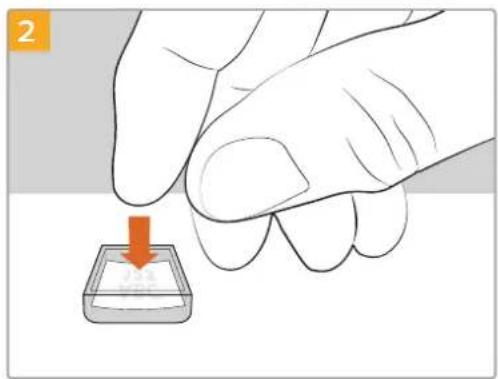
natural_image
Illustration of a hand pressing down on a small object with an orange arrow (no text or symbols)Loosely place your new printed label into the upturned clear keycap.
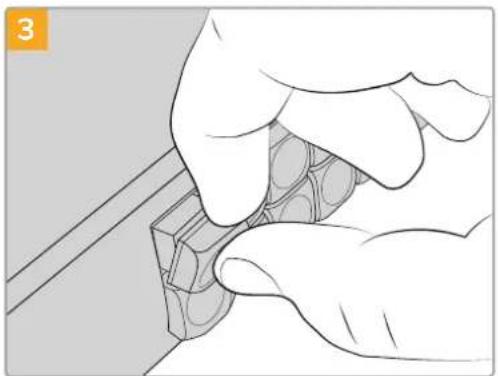
natural_image
Illustration of hands assembling or securing a mechanical component (no text or symbols visible)Replace the keycap by aligning it onto the button and gently pushing until you feel it click into place.
Blackmagic MultiView 16
MultiView 16 is a single rack SDI multi viewer for simultaneously displaying up to 16 different SDI signals in a variety of formats on a single monitor. With Ultra HD support and remote control using the intuitive Videohub software, you get the ultimate monitoring solution for your Blackmagic Videohub routers!
Each of the Blackmagic MultiView 16's SDI inputs has its own loop output so you can feed each signal to other SDI equipment. Two 6G-SDI outputs and two down converted HD-SDI outputs let you connect HD or Ultra HD monitors. The HDMI output switches between HD and Ultra HD based on the format that your connected monitor supports. All SDI connections support auto detection of SD, HD, 3G-SDI and 6G-SDI, reclocking on all SDI outputs, and a reference input for connecting to switchers and other broadcast video equipment.
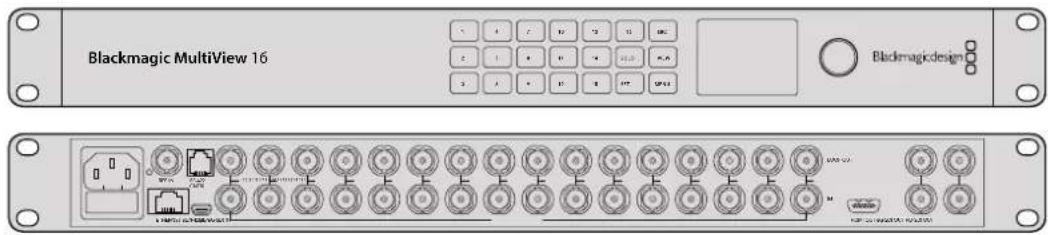
You can operate Blackmagic MultiView 16 using the built in control panel, or remotely via Ethernet or serial connections if mounted in a rack where you don't have access to the front panel. Third party router controllers can control the unit via Ethernet, or as an RS-422 slave device for router switching.
The multi view output can be switched between different layouts, such as 1x1, 2x2, 3x3, or you can see all your inputs together using 4x4 view. Blackmagic MultiView 16 can even be used to distribute four independent native HD signals in one Ultra HD picture!
Blackmagic MultiView 16 is AC powered.
Using the Control Panel
Blackmagic MultiView 16's control panel provides fast access to settings, sources and views.
LCD and Home Screen
The built in LCD provides a fast and intuitive way to view and adjust your settings. The 'home' screen is the default screen when first powering your Blackmagic MultiView 16 and displays a convenient overview of settings, which includes the following information:
HD video output format
This information is located in the upper left corner and displays the 1080i59.94 or 1080i50 HD format setting via the HD-SDI outputs.
Audio input
This information is located next to the HD-SDI video output format and displays which SDI input is being used to embed audio into the HDMI and SDI multi view output signals.
Multiview layout
This displays the arrangement of your views. You can optimize the display depending on the number of inputs connected.
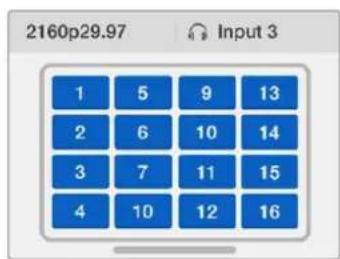
The home screen is the default display on the control panel LCD. If you have adjusted a setting, you can always return to the home screen by pressing the 'menu' button.
Control Buttons

SRC and VIEW
Use the 'src' and 'view' buttons to open the 'source' and 'view' settings. These buttons let you select which input source you want to display on a desired view.
1 Press the 'view' button to open the view screen. The view section on the lower half of the LCD will be active.
2 Press a numbered button on the control panel to select your desired view, or alternatively you can use the rotary knob to scroll through the views. Confirm your setting by pressing the 'set' button.
3 Press the src button. The source section on the upper half of the LCD will become active.
4 Press a numbered button on the control panel to select your desired input, or alternatively you can use the rotary knob to scroll through your inputs on the LCD. If you have customized your input labels, they will be displayed accordingly in the upper half of the LCD.
5 Press the 'set' button to confirm the setting.

SOLO
You can monitor a view in fullscreen mode by pressing the 'solo' button. With solo enabled, press the number buttons on the control panel to select which view to monitor, or you can use the rotary knob to scroll through your views. Press 'solo' again to return to the multi view layout.

SET
Press the 'set' button to select and confirm settings. When you press the set button to select a menu item, the adjustable setting field will become underlined and both the 'set' and 'menu' buttons will flash. After changing a setting, press the set button again to confirm the change.

MENU
Press the 'menu' button to open the settings screen. After adjusting a setting, you can also press the 'menu' button to return to the home screen.

NUMBERS
The number buttons are used to select your inputs and views for the source and view settings.
The buttons can also be used to select which SDI input you want to use for the 'audio in' setting.

SRC, VIEW and SET
Press the source and view buttons on the control panel to open the source and view settings. To adjust settings, use the number buttons or the rotary knob, then press 'set' to confirm.
The source and view settings screen highlights which setting you are currently adjusting. Any customized input labels will be displayed accordingly.

SOLO and MENU
Press the 'solo' button to enter fullscreen mode. Press the 'menu' button to enter the settings page and to return to the home screen.

GPI and Tally Interface
The Blackmagic Design GPI and Tally Interface is a low cost alternative for multi-camera productions where a camera control unit, or CCU, operator needs to switch video from one of several cameras being controlled to a single monitor. It features 8 configurable GPIs and 8 configurable GPOs.
Under certain crosspoint conditions, the GPIs send commands to your Videohub via Ethernet to switch the selected camera to the operator's monitor and the GPOs send a tally signal to your cameras or other equipment.

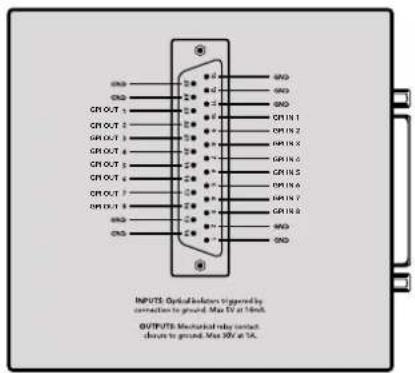
GPI and Tally Interface Pinout diagram of the DB25 connector
Refer to the pinout diagram on the back of the unit when fabricating your custom cable.
For information on how to configure your GPI and Tally Interface using Blackmagic Videohub Setup, refer to the 'Blackmagic Videohub Software' section of this manual.
Blackmagic Videohub Software
Blackmagic software includes three important software applications used to configure and control your Videohub and Videohub hardware panels. Download the Blackmagic Videohub Software from the Blackmagic Support Center at www.blackmagicdesign.com/support
Blackmagic Videohub software includes the following applications:
Blackmagic Videohub Setup. This is an administration utility for changing settings, configuring your Videohub and updating the unit's internal software.
Blackmagic Videohub Hardware Panel Setup. This utility is used to configure Videohub Master Control Pro and Smart Control Pro hardware panels.
Blackmagic Videohub Control. This application is a software control panel that lets you control your Videohub remotely via USB or over an Ethernet network.
Blackmagic Videohub Setup
Using Blackmagic Videohub Setup, you can label the inputs and outputs to identify sources and destinations, plus maximize the results of your Videohub's filtering system when using the shortcut buttons. You can also create macros, map shortcut buttons and more.
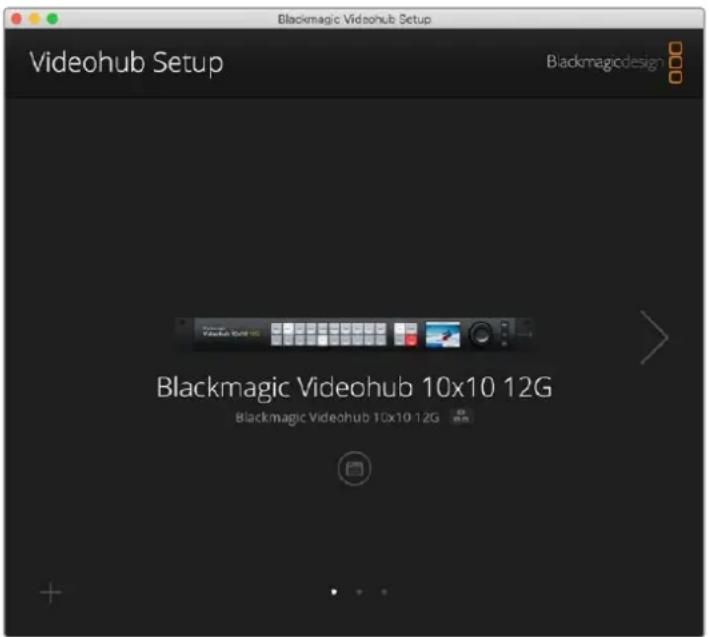
The first step is to download and install the Videohub software onto your Mac or Windows PC. The software is freely available at www.blackmagicdesign.com/support
Once installed on your computer, connect your Videohub via USB then go to your applications folder and launch Blackmagic Videohub Setup.
The first screen you will see is the home screen. This is where you can select your Videohub if you have more than one unit connected. Simply click on the left and right arrows to move through the units.
To open your Videohub's settings, click on the settings icon under the image of your Videohub.
Labeling Inputs and Outputs
The ‘inputs’ and ‘outputs’ tab lets you change the labels for all your source inputs and destination outputs.
To label a source and output:
1Click in a source or destination's text field.
2Type a new name. Press the return key on your computer keyboard to move to the next field, or simply click in the next text field to select it.
3When you have entered all the labels, click 'save'.
It's important to label them so they match the shortcut button labels on the unit, for example DECK for playback and recording decks, MON for monitor destinations, etc. If you want to change them to something else, you should also change the physical shortcut button labels on the unit to make sure they correspond. You can find information on how to change the pushbutton labels in the 'labeling pushbuttons' section.
TIP Videohub text filtering is case sensitive.
Once you have labeled your source inputs and destination outputs, you can also save them as a label set. This means if you need to change the labels for a new project, you can always reload the previous set you saved earlier.
To save a label set:
1Click on the gear icon at the bottom of the inputs or outputs settings and select 'save label set'.
2Type a name for the label set and choose the save location. Click 'save'.
To load a label set:
1Click on the gear icon at the bottom of the inputs or outputs settings and select 'load label set'.
2Choose the label set you have previously saved and click 'open'.
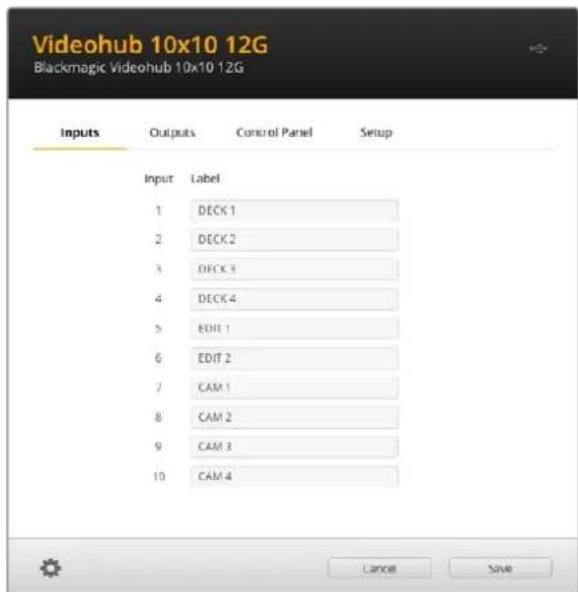
NOTE Port labels on an IP Videohub cannot be edited as these labels derive from the connected IP Video devices. The labels are stored on the connected Videohub and are also visible on the other control panels connected to your network.
Setting Outputs to Cut Bus Mode
In the output settings you will notice checkboxes next to each output. These let you set them to cut bus mode. When an output is set to use cut bus mode, it will change the route the moment a source is selected without using the take button to confirm it.
You can select which destinations use cut bus mode individually, or enable and disable cut bus mode on all outputs by clicking 'all on' or 'all off' buttons.
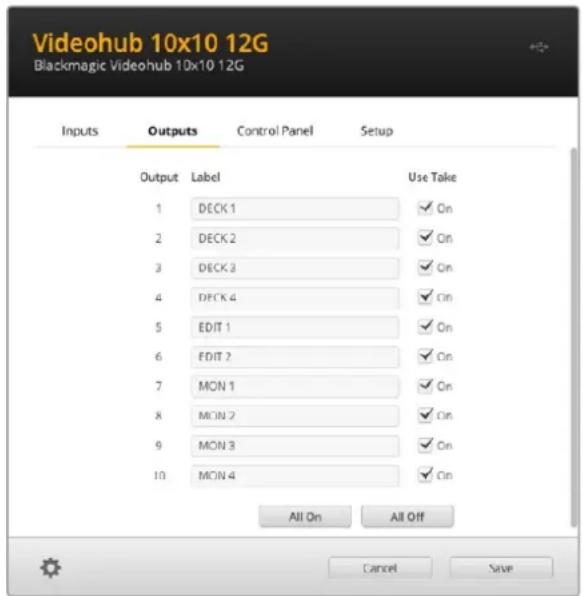
Cut bus mode will switch a route without using the take button
Creating Macros
The control panel tab also lets you create macro buttons and assign their functions.
Click and drag the 'number of macros' slider to the right to add macro buttons and drag left to remove them. As you add macro buttons you will see the buttons in the utility illuminate white.
To assign a macro to a macro button:
1 Click on a white macro button in the 'button mapping' section. You will see a menu appear underneath with rows from A to P. Each row represents a routing action.
2In the 'A' row's 'source' menu, select the input source and then select the destination output.
3Click 'save'.
The macro is now assigned to a macro button.
The macro assigned in steps 1 to 3 assigns a single routing action to the macro button, but you can also add a range of other actions to happen simultaneously when that macro is performed. For example, you may have a project setup that contains a complex sequence of routing changes. In this case, the entire sequence can be assigned to a single macro button. It's very powerful!
To activate a macro, simply press the macro button on the panel and then press 'take' to confirm the switch.
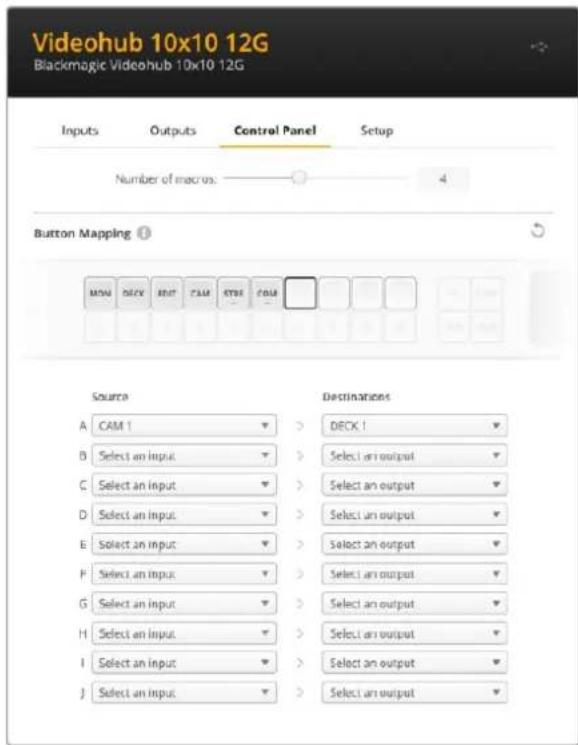
Macros let you perform multiple simultaneous routes
Button Mapping
The labeled shortcut buttons on your Videohub's control panel are used to select groups of equipment when changing routes. For example, if you have 3 HyperDeck sources with their inputs labeled DECK 1, DECK 2 and DECK 3, you can press the DECK shortcut button to reduce the selection to only those 3 sources. The reduced sources can then be selected using the spin knob or by pressing pushbuttons 1, 2, or 3. This is especially helpful when using larger Videohubs with many types of equipment connected.
If you want to create a new shortcut button label, it's important to also change the corresponding physical button label on the unit. Refer to the 'labeling pushbuttons' section for more information.
To map a shortcut button label:
1 Click on a labeled shortcut button and type a label in the text field. It's important to keep the label consistent with the corresponding input and output labels. For example, if your HyperDeck sources are labeled DECK 1, DECK 2, DECK 3, etc, they will be recognized by a shortcut button mapped with the label 'DECK'.
2Click 'save'.
Refer to the 'shortcut buttons' section for information on how to use mapped shortcut buttons when switching a route.
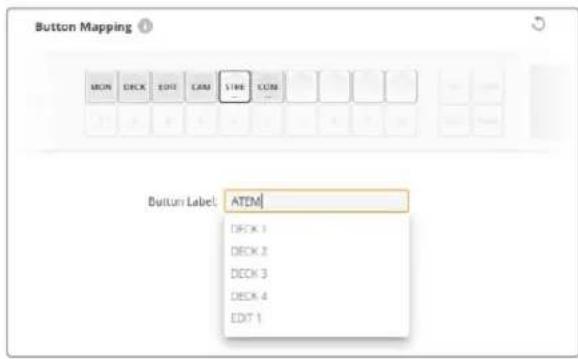
Type a new name for the shortcut button and click 'save'
Setup Settings
The setup settings tab lets you name your Videohub so you can identify it on a network. Simply type in a name and then click on the 'set' button.
To change the language used on your Videohub's LCD, click in the language menu, select your language and click 'save'.
The software version is displayed so you can check it against the latest version on the Blackmagic Design support center at www.blackmagicdesign.com/support
Video Monitoring
When video monitoring is enabled, the LCD will show a preview of the source currently routed to a destination. For example, if you press the destination button and select an output, you will see the source currently routed to that output.
Additionally, you can also check the source video before switching the route. For example, scrolling through the sources using the spin knob lets you visually confirm the desired video feed.
If you want to disable the video preview mode, deselect the 'video monitoring' setting in the 'setup' settings tab. This returns the LCD to the home screen, displaying the standard source and destination text view.
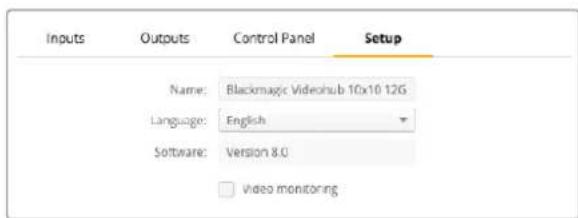
Deselect the 'video monitoring' checkbox to disable the source and destination video preview mode on the LCD
Network
The network settings let you set the unit to use DHCP for automatic network connection, or static IP if you need to manually set an IP address.
The network settings can be changed when your Videohub is connected to a computer via USB.
To help limit the potential for accidental administration changes, Blackmagic Videohub Setup can be set to only allow users to make settings changes via USB. To enable, select 'via USB'.
Network settings are important for controlling your Videohub over a network using Videohub Control software or an external hardware control panel, for example controlling a Universal Videohub 288 using Videohub Master Control Pro. Refer to the 'connecting Videohub to a network' section for more information about network settings.
Reset
The factory reset button deletes all assigned macros and labels and restores the unit to its original factory settings.

Updating your Videohub
Occasionally, the internal software in your Videohub will need to be updated. Updates to internal software can provide new features, compatibility with new hardware and support for new formats.
Please follow these steps to update your Videohub's internal software:
1Connect your computer to the Videohub's USB 2.0 connector.
2 Launch Blackmagic Videohub Setup and it will automatically display any Videohubs that are connected to your network.
3Select your Videohub by clicking on either the picture or the configuration icon.
4The utility will inform you if an update is required.
5 If an update is required, click the Update button and allow the software to install. Make sure not to unplug the Videohub while the update is in progress.
6Click the Close button when the update is finished.
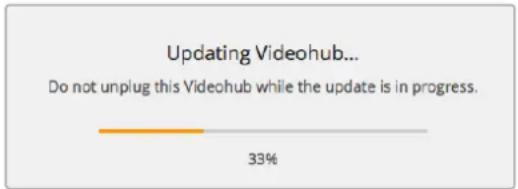
Do not unplug the Videohub while the update is in progress
Blackmagic Videohub Control
Using Blackmagic Videohub Control provides a fast and intuitive way to view and switch between multiple sources and destinations remotely. Videohub Control is easy to use because it operates on a single video output at a time. Selecting a destination or output pushbutton shows which source or input is connected to it by illuminating the source pushbutton. To change the source, simply click on a different source pushbutton. It's that easy!
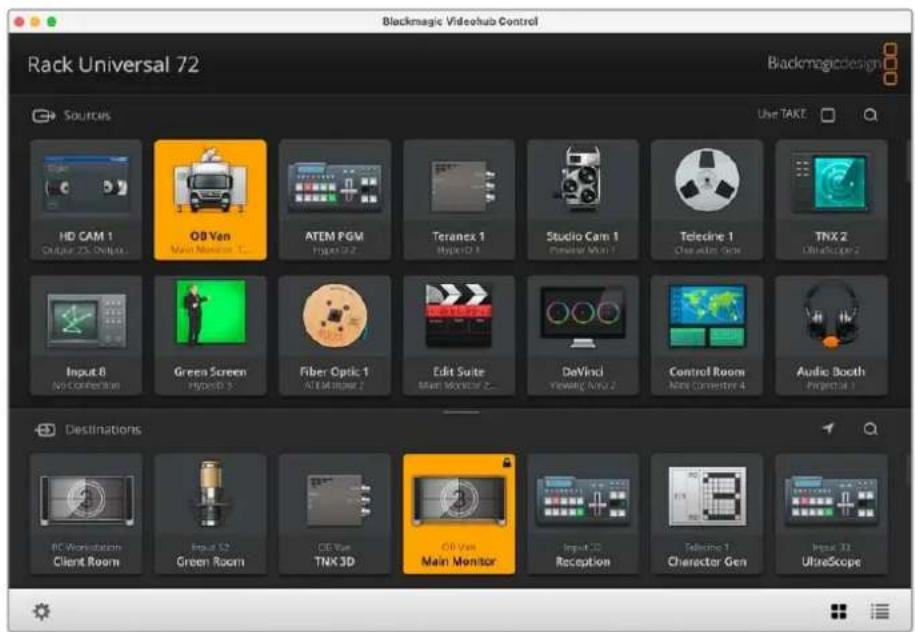
Videohub Control provides an intuitive, icon driven representation of the Videohub connections
Selecting a Videohub
Launch Blackmagic Videohub Control, click on the settings gear icon and choose 'select Videohub'. Click on the Videohub that you wish to control. If you have customized your labels, the names you assigned will appear within the software. All Videohubs on the network, including IP Videohubs, will appear in this list.
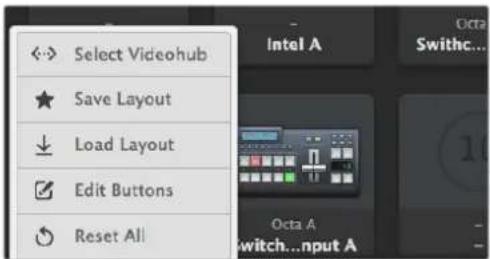
Click on the 'select Videohub' option and then select the Videohub you wish to control
Adding Pushbuttons
Click on the settings gear icon and then select 'edit buttons'. Click on the 'add' button and choose whether to add a source or destination pushbutton. The 'set button' window appears and allows you to set the SDI source or destination, RS-422 deck control and icon for the pushbutton. In most cases, deck control is grouped with the associated SDI connections.
Viewing Routes
In order to see which video source has been routed to a video destination, such as a monitor, press the button in the destinations panel to make the button illuminate. The associated video source button will illuminate in the sources panel, making it immediately obvious which source is connected to the monitor.
Switching Routes
In order to change the video source from a tape deck to a video camera, press a camera pushbutton in the sources panel to immediately illuminate the camera pushbutton and route video to the video monitor. The tape deck button is no longer illuminated and is disconnected from the video monitor.
| Resizing the Interface | Click and drag the bottom right hand corner to proportionally resize the interface to best fit your screen size. Alternatively, drag a window edge to resize either vertically or horizontally. |
| Resizing the Sources and Destinations Areas | Drag the divider bar up and down and use the scroll bars to scroll the respective areas. |
| Switching Views You can switch between pushbutton view and list view by clicking the icons in the bottom right corner. | |
| Using the Dynamic Search | Both the sources and destinations areas contain a search icon, which allows you to search for text dynamically. This is useful if you have many pushbuttons and quickly want to locate a pushbutton with a specific name. Begin by typing the name you wish to search for. As you type each letter, the pushbuttons that are displayed will be dynamically filtered. |
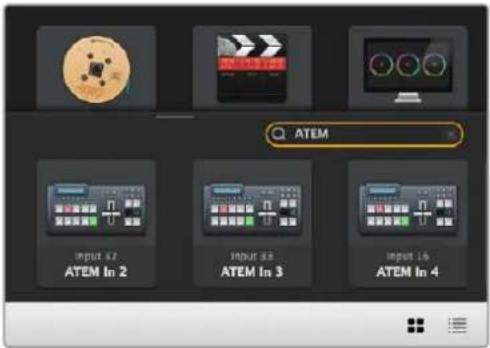
The word 'ATEM' is entered into the destinations search box and the filtered results are displayed
Blackmagic Videohub Control at a Glance
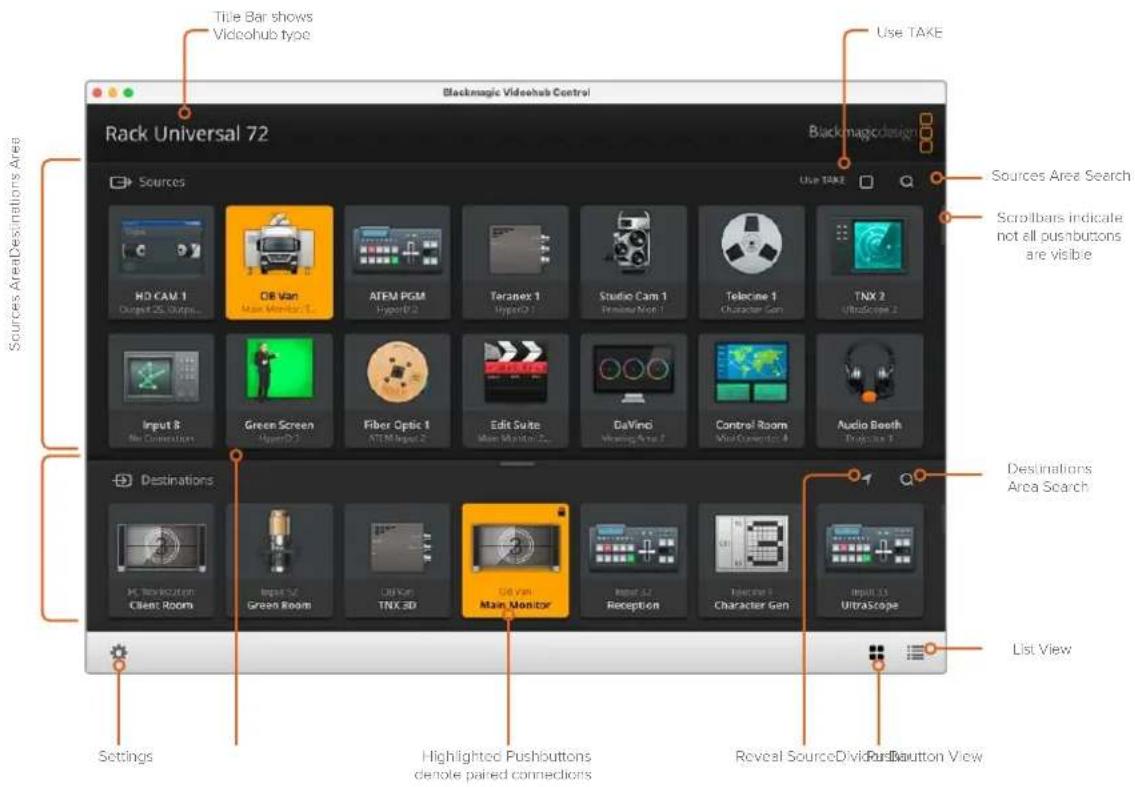
Click and drag the window edges to resize Blackmagic Videohub Control to fit your screen size. Drag the Divider Bar up or down to reveal more or less of the "Sources" and "Destinations" areas and use the Scroll Bars to scroll the areas.
Settings Menu
| Select Videohub |  | Select from a list of Videohubs that are currently connected to your network. |
| Save Layout |  | Save customized pushbutton layouts for the different environments in which you use your Videohub. |
| Load Layout |  | Load previously saved pushbutton layouts. |
| Edit Buttons |  | Displays the Edit Buttons for editing the pushbuttons. |
| Reset All |  | Displays all of the inputs and outputs of the connected Videohub and replaces customized icons with the default icon. Source, destination and deck control settings are maintained. |
Edit Buttons
| Add Add a source or destination pushbutton. | ||
| Edit | [52YY] | Allows you to set the SDI source or destination, deck control and the icon for the selected pushbutton. |
| Lock and Unlock | [CT40] | Lock a destination to avoid accidentally changing the video source which is routed to that destination. If you click on a pushbutton that's locked, the Lock button changes into an Unlock button. Simply click the Unlock button to unlock the destination pushbutton. |
| Clear | [50KC] | Deletes source, destination and deck control settings as well as the icon for the selected pushbutton. |
| Remove | [7965] | Removes the selected pushbutton. |
| Done | Done | Click the Done button to exit the edit mode. |
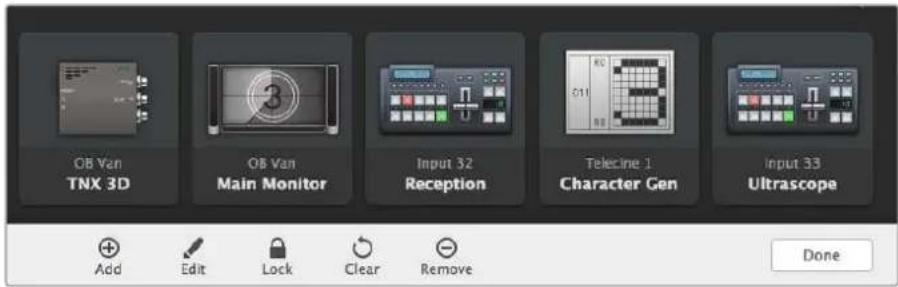
Click 'edit buttons' Buttons to choose a thumbnail image for a source or destination
Using Pushbuttons
| Adding Pushbuttons | Select the Settings button and then select “Edit Buttons”. Click on the Add button and choose whether to add a source or destination pushbutton.The Set Button window appears and allows you to set the SDI source or destination, RS-422 deck control and the icon for the pushbutton. In most cases, deck control is grouped with the associated SDI connections, e.g., SDI Input 1 would be associated with the corresponding Remote 1. |
| Editing Pushbuttons | Select “Edit Buttons” and click the pushbutton you wish to edit. Click on the Edit button and modify the source or destination, deck control settings and the icon as required. |
| Set Button The Set Button window allows icon selection, source or destination selection and deck control configuration. | |
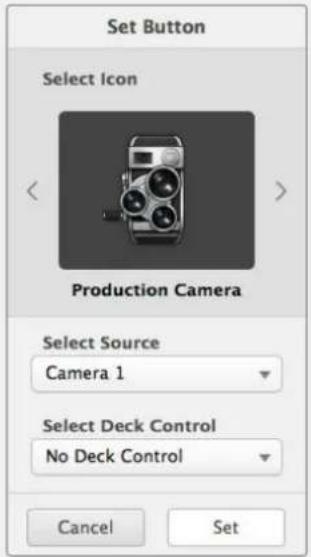 | |
| Moving Pushbuttons | Select the Settings button and then select "Edit Buttons". Click and drag the pushbutton to a new position. |
Viewing and Switching Routes
| Viewing Routes In order to see which video source has been routed to a video destination, such as a monitor, press the button in the destinations panel to make the button illuminate. The associated video source button will illuminate in the sources panel, making it immediately obvious which source is connected to the monitor. |
| Reveal Source If you select a destination but the source is currently positioned offscreen, clicking the Reveal Source button will scroll the Sources area to display the source pushbutton. |
| Switching Routes Select the destination icon followed by the source icon. |
Use TAKE Confirmation before Switching Routes
You may wish to enable the 'use take' feature to help prevent unintentional changes to video routes. Once enabled, any attempt to change a video route using a pushbutton will cause a red 'take' button to appear. Click the button to confirm or click the current source or destination pushbutton to cancel.
Locking and Unlocking Routes
Locking a destination will avoid accidentally changing the video source which is routed to that destination. To lock a route, select the destination pushbutton and double click. A padlock icon will appear in the top-right corner of the destination pushbutton and will prevent anyone else from using the destination device until it is unlocked from your computer. Locking a destination still leaves the associated video source available for routing to multiple destinations simultaneously.
Double click the pushbutton to unlock the destination.
You can also lock one or multiple destinations via the edit buttons page. Shift click the destination pushbuttons you wish to lock and click the lock button. If you select a mixture of locked and unlocked pushbuttons, you will have the option to lock the unlocked pushbuttons.
Locking a route between an input and an output also locks the RS-422 deck control connection between the two devices to avoid other users accidentally seizing the deck control belonging to the video source. The RS-422 connection between the video source and video destination will remain locked until the destination pushbutton is unlocked.
TIP To toggle the lock status of a destination, simply double click the destination pushbutton.
A black padlock icon with a curved line above will appear on any destination pushbuttons locked by other Videohub devices. The video destination devices will not be available to you until the destination pushbuttons have been unlocked from the other users' computers and iPads.
If you need to unlock a route set by another user, launch Videohub Setup, select the Outputs tab and click the destination's lock icon.
NOTE It is important to note which routing level is selected, as it will affect the locking of routes. Universal Videohub consists of an SDI video level and an RS-422 deck control level. These levels can be switched together or can be separated for individual switching.
If you have selected SDI 422 on the level controls, it will lock both ports, however, if you select SDI or RS422 it will only lock the selected port. When the RS-422 port is locked you can still switch to SDI video, and when the SDI port is locked you can still switch to RS-422. This means that you can still route video signals even if the RS-422 port is locked, and still have deck control even if the SDI port is locked.
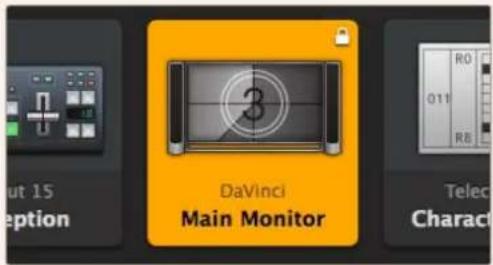
Locally locked destinations display a white padlock icon
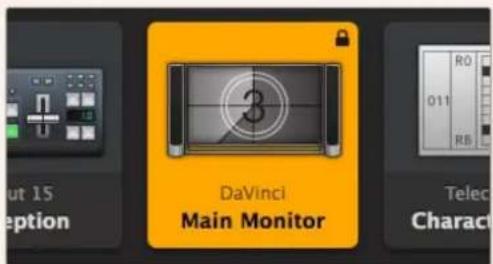
Remotely locked destinations display a black padlock icon
Serial Control Settings
Third party router controllers can control Videohub with RS-422 serial connections.
If controlling Videohub via RS-422, set the 'Leitch protocol' switch to:
- 'Leitch client' if the Videohub is to act as a client of a connected control panel and to listen and respond to the control panel button presses.
- 'Leitch server' if the Videohub is to be controlled from an automation system or third party router control system.
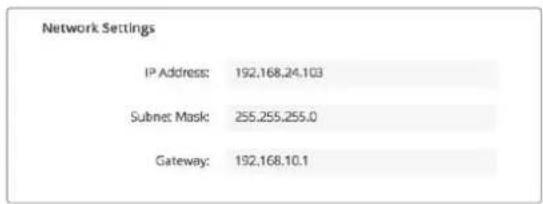
The Videohub Server Configuration options will become active when a Videohub is connected via USB
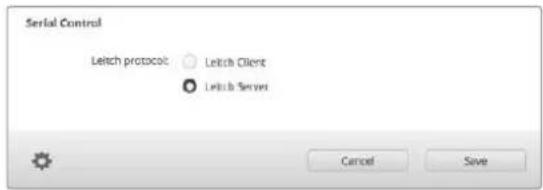
Select either Client or Server when using RS-422 serial control
Touchscreen Computers
Pushbutton View is designed to be easy to use and look beautiful on a large, touchscreen display. Dedicating a touchscreen computer to the Pushbutton View within the Videohub Control software makes it incredibly easy for users to switch connections between multiple SDI devices without having to see every connected device all of the time.
Using a touchscreen computer provides the fastest way to switch connections which is perfect for a master control room. Both desktop and laptop touchscreen computers can be used.
While touchscreens are perfect for rapidly selecting and routing inputs and outputs, they can be cumbersome for configuring pushbuttons. The width of a human fingertip is much wider than a mouse pointer and is less accurate when tapping on menu options and small icons.
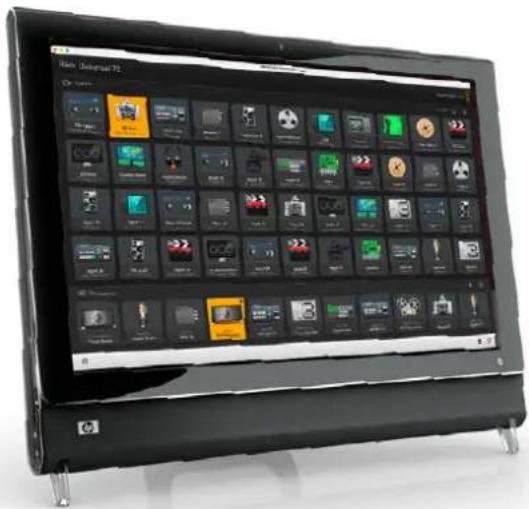
natural_image
Black electronic device display with multiple app icons arranged in a grid (no readable text or symbols)For this reason, we recommend configuring the pushbuttons with a mouse. Once the Videohub pushbuttons have been configured, it will be easy to use a finger to select and route, inputs and outputs, by tapping on Videohub pushbuttons.
Touchscreens work a little differently to a computer mouse but provide the fastest and easiest way to work with the Videohub Control interface and so are highly recommended. When using a touchscreen computer, you can enable the Use Take option to help avoid unintentional routing changes.
Apple iPad
The Videohub Pushbutton controller interface looks stunning on the high resolution Apple iPad display. Aside from looking great, it also provides the convenience of portable router control anywhere in your facility or even over the Internet via a wireless or cellular connection! If you are already familiar with the Videohub Pushbutton interface on a computer, then there is almost nothing new you need to learn and you'll only notice slight differences between computer mouse control and touchscreen control on the iPad. For information on how to download and install the application, refer to 'installing the Videohub Software on iPad' immediately after this section.
Up to 40 sources and 8 destinations can be displayed in a single Videohub Pushbutton screen on the iPad. Even more sources and destinations can be displayed by flicking the iPad left or right, or tapping to the left or right of the row of dots, to move through multiple Pushbutton screens.
The initial Pushbutton interface
Upon launching the Videohub app on your iPad for the first time, all pushbuttons initially show the generic BNC connector icon, which you can then replace from a selection of icons. If the connections have not yet been labeled, then the source pushbuttons will appear as Input 1 to Input 40 and the destination pushbuttons will appear as Output 1 to Output 8.
If the connections have already been labeled, their names will appear under each of the respective pushbuttons in place of the connector numbers.
Configuring Videohub Pushbuttons on the iPad
Configuring Videohub Pushbuttons on the iPad is easy. Press and hold any Videohub pushbutton to open the Videohub Button Setup window. This window allows you to set the SDI input or output connection, RS-422 deck control and the icon for the pushbutton.
The Clear button will delete all settings for the pushbutton. In most cases, deck control is grouped with the associated SDI connections, meaning an SDI connection named Input 1 would usually be associated with the corresponding Remote 1.
The bottom right source button is reserved by the Videohub app itself and cannot be configured. This is because if a destination pushbutton is connected to a source that does not appear in the sources panel, the source will automatically appear in the bottom right pushbutton.
When configuring pushbuttons, only select a deck control connection for those devices that have RS-422 deck control. It makes no sense to assign a deck control connection to a video monitor or camera.
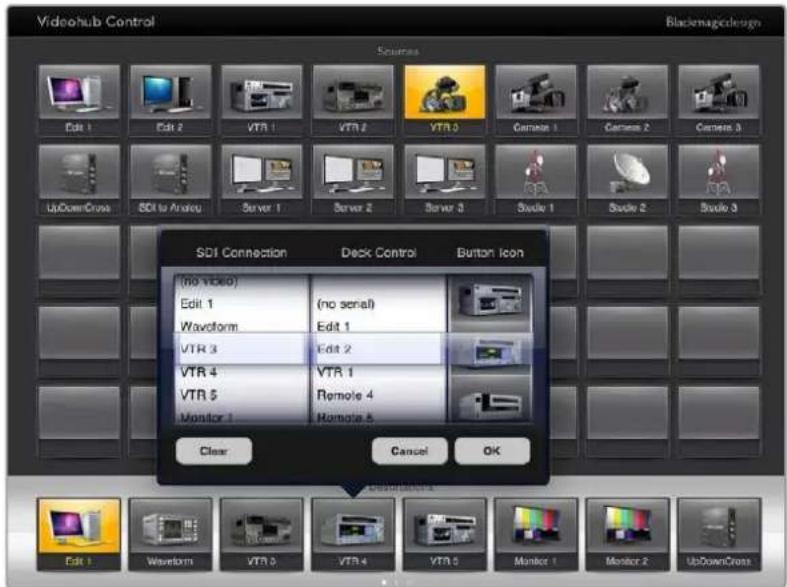
The Videohub Button Setup window allows you to set the SDI input or output connection, RS-422 deck control and the icon for the pushbutton
While all icons are available to any pushbutton, it doesn't make sense to choose the icon of a video monitor or transmitter for a source pushbutton unless the source device happens to have a loop through output.
You may choose to show a particular source or destination pushbutton several times within the one Pushbutton screen or on multiple Pushbutton screens. If a destination pushbutton is routed from a source that appears multiple times in the Sources panel, selecting the destination pushbutton will illuminate all instances of the source pushbutton, regardless of how deck control has been configured for each source pushbutton. Similarly if multiple instances of an output pushbutton appear in the Destinations panel, they will illuminate together when any one has been selected.
Viewing and Changing Routes
In order to see which video source has been routed to a particular destination, such as a monitor, press the monitor's pushbutton in the destinations panel. The monitor button and the associated video source button will simultaneously illuminate, making it immediately obvious which video source is connected to the video monitor, e.g., a HyperDeck Studio HD Pro.
In order to change the video source from a HyperDeck Studio HD Pro to a video camera, press a camera pushbutton in the sources panel to immediately illuminate the camera pushbutton and route video to the video monitor. The HyperDeck Studio HD Pro pushbutton will no longer be illuminated and will be disconnected from the video monitor.
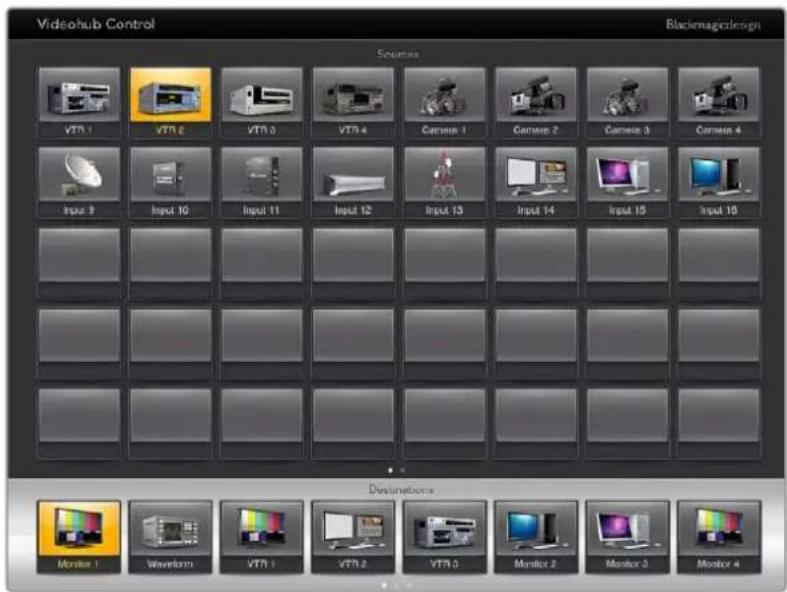
In order to see which video source has been routed to a video destination, tap a destination button and the associated video source button will illuminate
Locking and Unlocking Routes
Locking a destination avoids accidental changes of the video source being routed to that destination. To lock a route between an input and an output, double-tap the destination pushbutton. A yellow padlock icon will appear in the top left corner of the destination pushbutton and will prevent anyone else from using the destination device until it is unlocked from your iPad. Double tap the destination pushbutton again to unlock. Locking a destination still leaves the associated video source available for routing to multiple destinations simultaneously.
Locking a route between an input and an output also locks the RS-422 deck control connection between the two devices. This is to avoid other users accidentally seizing the deck control belonging to the video source.
The RS-422 connection between the video source and video destination will remain locked until the destination pushbutton is unlocked.
A gray padlock icon will appear on any destination pushbuttons that other users have locked. The video destination devices will not be available to you until the destination pushbuttons have been unlocked from the other users' computers and iPads.
If you encounter a gray padlock icon and do not know who locked the video device you can override the lock using the Videohub software on a Mac or Windows computer. When a route is unlocked, the padlock icon will disappear.
A yellow padlock icon will appear in the top-left corner of the destination pushbutton and will prevent anyone else from using the destination device until it is unlocked from your iPad. A gray padlock icon will appear on any destination pushbuttons that other users have locked.
Installing the Videohub Software on iPad
The Videohub software for iPad can be downloaded using your Apple ID account.
To download the Videohub iPad software through your iPad:
1Tap the 'app store' icon.
2 Tap the 'search' field at the top of the screen and enter 'Videohub'.
3 Tap on the 'get' button next to the 'Blackmagic Videohub app' icon and tap 'install'.
Setting up the IP address in Videohub for iPad:
1Tap the 'settings' icon.
2In the 'apps' section, select 'Videohub' and enter your Videohub IP address in the 'Videohub IP address' field.
3 You can now start using your Videohub software by tapping on the Videohub icon on the 'home' screen.
For more information on controlling your Videohub using iPad, see the 'Apple iPad' section in this manual.
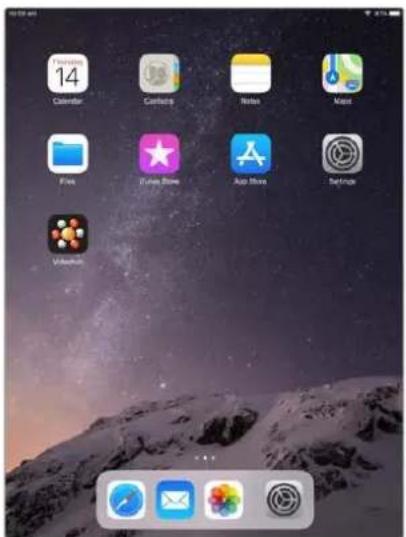
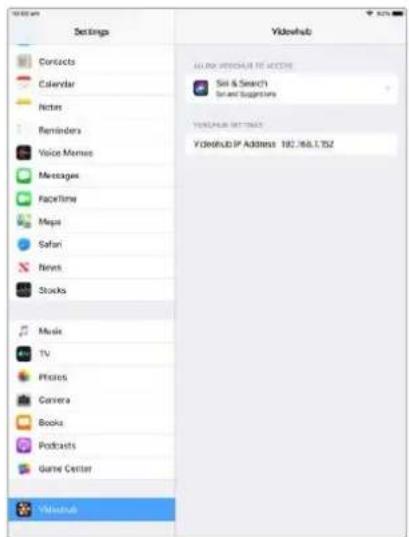
Videohub settings on iPad
Controlling Blackmagic MultiView 16
Blackmagic MultiView 16 can also be controlled using Videohub Control software. Blackmagic Multiview 16 is a single rack SDI monitoring solution capable of simultaneously displaying up to 16 Ultra HD, HD and SD SDI signals in a variety of formats on a single monitor. With Videohub Control you get the ability to route Blackmagic MultiView 16's multi view sources and views, and arrange them on a display the way you want, so is the perfect monitoring choice for your Videohub router workflow.
Up to 16 video signals can be displayed using the maximum 4x4 grid, or you can select 3x3, 2x2, or view each input in full screen mode by selecting solo. When connected to an Ultra HD monitor, Blackmagic MultiView 16 can even display four HD signals in their native 1080 HD resolution.
Connecting Blackmagic MultiView 16 to Videohub Control Software
Ensure Blackmagic MultiView 16 has the latest internal software installed and you are running the latest version of Videohub Control. You can download the latest updates from the Blackmagic Design support center at: www.blackmagicdesign.com/support
1Power your Blackmagic MultiView 16.
2Plug Blackmagic MultiView 16 into your computer via Ethernet.
3Launch Blackmagic Videohub Control.
4Click on the 'select a Videohub' button on the Videohub Control home page and select your Blackmagic MultiView 16 from the list.
Controlling your Blackmagic MultiView 16 using Videohub Control software is an easy and convenient way to change sources and views, and arrange your view displays remotely, while monitoring multiple inputs at the highest video resolution available.
If you can't see your Blackmagic MultiView 16 in the list of Videohubs available, you may need to configure the IP address for your network.
For more information, refer to 'Configuring Network Settings on Blackmagic MultiView 16' below.
Configuring Network Settings on Blackmagic MultiView 16
Use Blackmagic MultiView 16's integrated control panel and LCD to set the IP address and network settings. Once these settings are set correctly, your Blackmagic MultiView 16 will be visible to other computers and hardware panels. These devices can then control the unit remotely and make routing changes using the Blackmagic Vldeohub Control software.
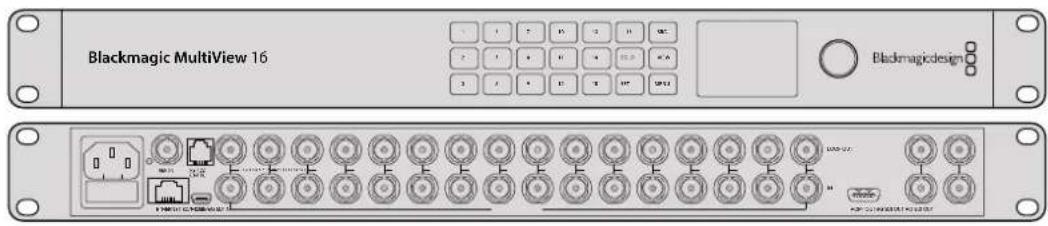
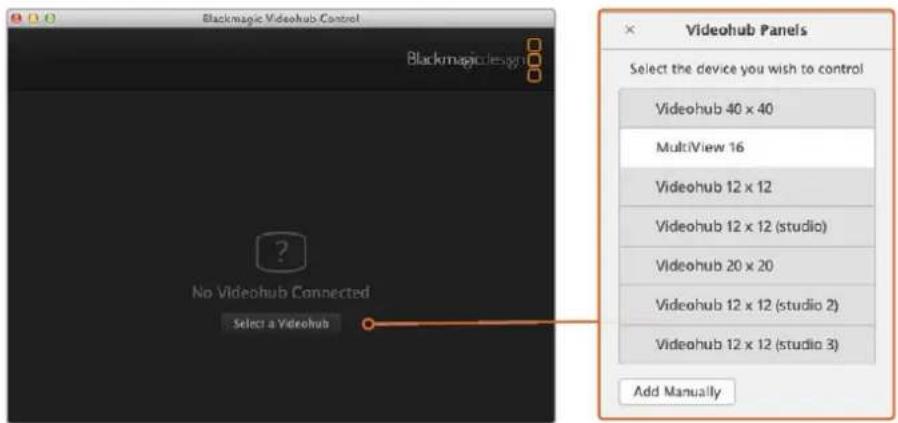
Connect to Blackmagic Videohub Control software by clicking on the 'select a Videohub' button, then select your Blackmagic MultiView 16 from the list
To configure your network settings:
1 Press the 'menu' button and turn the rotary knob to highlight the 'networking' tab.
2 Press the 'set' button to enter the 'network settings' page.
3 Turn the rotary knob to select the 'IP address' tab.
4 Press the 'set' button to highlight the first field of the IP address. You can use either the rotary knob or numbered pushbuttons to enter values.
5 Press 'set' to confirm the first field of the IP address, then repeat the above step for the next three fields until you have set the desired IP address. If you need to assign the Subnet and Gateway address, they can be set using the same method.
6 Press the 'menu' button twice to return to the home screen.
For more information on how to use Blackmagic MultiView 16 with Blackmagic Videohub Control software, refer to the Blackmagic MultiView instruction manual. You can find the latest manual and product updates at the Blackmagic Design support center at: www.blackmagicdesign.com/support
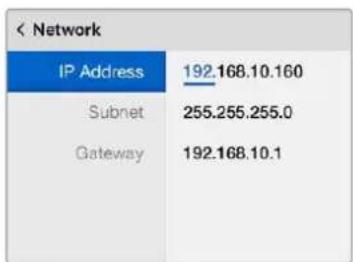
Use the rotary knob or the number buttons on Blackmagic MultiView 16's control panel to assign values to your network settings
Videohub Hardware Panel Setup
When you launch Blackmagic Videohub Hardware Panel Setup, any Videohub control panels discovered on the network will be listed in the Videohub Control Panels pane next to an Ethernet network icon. If several Videohub control panels are listed, but you don't know which one is which, select one of them and then press identify. This will cause all the buttons of the selected Videohub control panel to flash white.
Select the desired Videohub control panel and you will be able to change its name and control settings. Network settings will remain grayed out and can only be changed via USB.
If the desired Videohub control panel is not found on the network, the unit might not have received an IP address via DHCP. To manually configure the unit with appropriate network settings:
1Connect the Videohub control panel to your computer via a USB 2.0 cable.
2Launch Blackmagic Videohub Hardware Panel Setup. If the utility prompts you to update the software, follow the prompts to complete the update.
3The USB connected panel will be automatically selected in the Videohub Control Panels pane and will display a USB icon next to its name. You can change all name, network and control settings for the USB connected unit. When you are finished, the USB cable can be removed.
If your Videohub control panel is selected in the control utility, the pushbuttons on the unit will light up to match what is displayed in the software interface.
Network Settings
Each Videohub control panel requires an IP address to communicate with Videohub via your IP network.
When configuring a Videohub control panel via USB, you can choose DHCP or Static IP. DHCP automatically obtains all the network settings for your Videohub control panel and is the easier choice.
If you decide to use a static IP address, please ask your system administrator for a spare IP address to avoid creating a conflict on your network. You will then need to complete the IP address, subnet mask and gateway details for your Videohub control panel. You must use a static IP address if you are connecting directly to a Videohub without using a network switch.
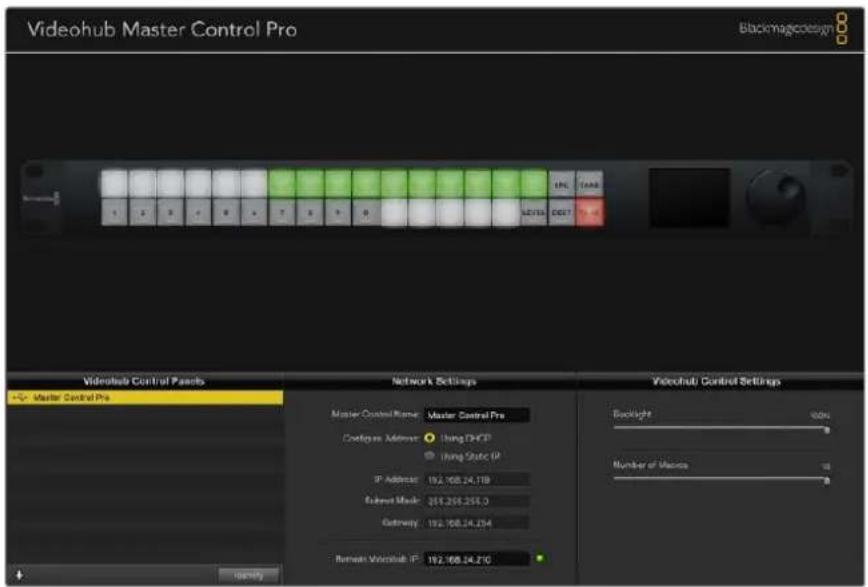
The Blackmagic Videohub Hardware Panel Setup automatically searches your network for any Videohub control panels
You will also need to complete the IP details for the remote Videohub that you wish to control with your Videohub control panel. The remote Videohub is the Videohub Server. This could refer to a Videohub Server computer or an integrated Videohub Server onboard a Videohub model such as Smart Videohub 20x20.
Any Ethernet or USB connected control units will be listed in the Videohub Control Panels pane with a corresponding icon
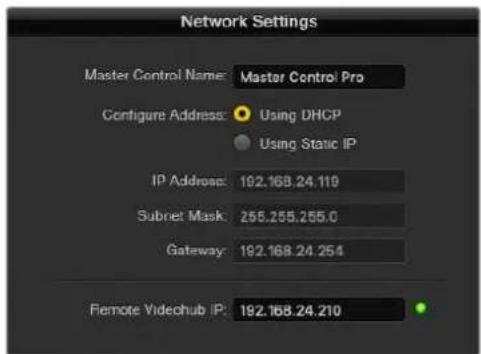
Blackmagic Videohub Hardware Panel Setup network settings
If you are setting up hardware panel control for an IP Videohub, enter the host computer's IP address in the 'remote Videohub IP' setting field. The Videohub server shares the same IP address with the host computer.
Add Videohub Control
If you already know the IP address of a Videohub control panel but it hasn't automatically appeared in the Videohub Control Panels pane, you can add the unit manually.
1 Press the + (add device) button at the bottom of the Videohub Control Panels pane.
2 Type in the IP address of the Videohub Control Panel and press OK.
3 The Videohub Control Panel will appear in the list with any other devices that are connected to the Videohub.
If the Blackmagic Videohub Hardware Panel Setup does not find a Videohub control panel at the specified address, you can use the Utility to manually add a Videohub control panel when connected via Ethernet or USB.
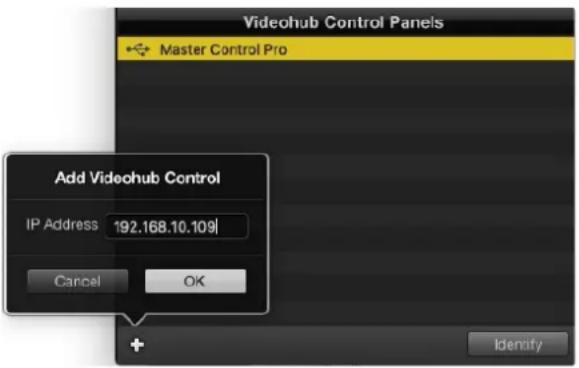
You can manually add a Videohub control panel, by IP address, to the list of Videohub Control Panels
Load/Save Settings
You can apply settings from an already configured Videohub control panel to other units.
Once you have set up your Videohub Control Panel's settings, choose File>Save Settings. This is useful if you want to set up several units the same way, or keep a back up of your settings.
After loading preconfigured settings on another control panel, you only need to update network settings, including the control panel name.
Configuring Videohub Master Control Pro
Videohub Hardware Panel Setup software lets you customize the hardware features of each Videohub control panel.
Backlight
Adjust the backlight slider as desired to vary the brightness of all backlit buttons.
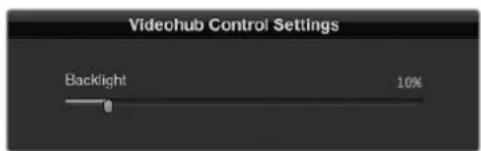
You can adjust the brightness of all backlit buttons in Videohub Master Control
Creating Button Labels
21 of the buttons can be labeled within the control utility to provide fast selection of common equipment types such as cameras, VTRs and monitors. Any of these 21 buttons can also be configured as macro buttons.
If you haven't done so already, you should standardize the port labels on your Videohub router before labeling any buttons on your Videohub control unit.
Please refer to the 'labeling pushbuttons' section for detailed information on customizing your labels.
You are now ready to label the Videohub Master Control Pro buttons.
1 Launch the Videohub Hardware Panel Setup and select your Videohub Master Control Pro from the Panels pane.
2 Click one of the 21 buttons in the picture of the panel. Enter a text label so it partially matches the labels of SDI and deck control ports that you previously entered for your router.
3Click OK and continue labeling the other buttons as desired.
4 You can immediately test the buttons as you program them and verify the SDI routes are valid.
Refer to the 'labeling pushbuttons' section for instructions on how to label the physical pushbuttons.
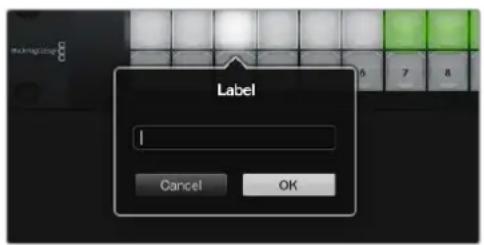
Click on the desired button to edit its label
Configuring Videohub Smart Control Pro
Videohub Hardware Panel Setup lets you customize the hardware features of each Videohub control panel.
Number of Destinations
Videohub Smart Control can be configured as a cut bus controller or as an XY controller. When configured as a cut bus controller, every button represents an SDI source and there is only one destination.
When configured as an XY controller, Videohub Smart Control Pro can work with up to 24 destinations. The source buttons will illuminate white and the destination buttons will illuminate gold. Use this configuration if you don't intend to dedicate a Videohub Smart Control Pro unit to each destination device.
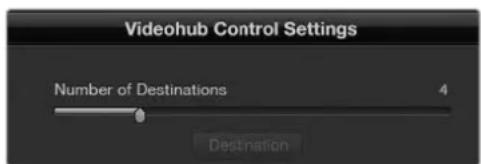
Videohub Smart Control Pro configured with multiple destinations
Cut Bus Configuration
1Drag the Number of Destinations slider to 1.
2Click on the Destination button. In the Router SDI Out A field, enter the number of the Videohub output port to which the destination device is connected. If your destination device requires dual link SDI, you will need to enter an output port number in the Router SDI Out A & B fields. For quad link SDI, you will need to enter numbers in all four 'out' fields. There is a Router Remote field if your Videohub is also routing RS-422 deck control to the destination device.
3 Click OK to confirm. All the buttons will become white, indicating that they are all sources.
4Click on each white button in the software interface to configure the source buttons.
5In the Router SDI In A field, enter the number of the Videohub input port to which the source device is connected. For dual link SDI destinations you will need to enter port numbers for fields A and B, or fields A through D for quad link SDI. There is a Router Remote field if your Videohub is also routing RS-422 deck control from the source device.
6Click OK to confirm.
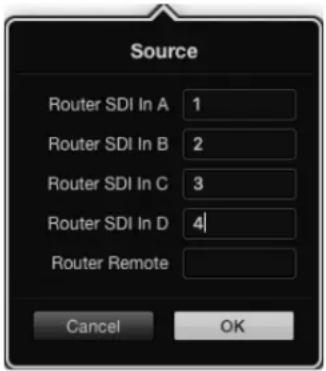
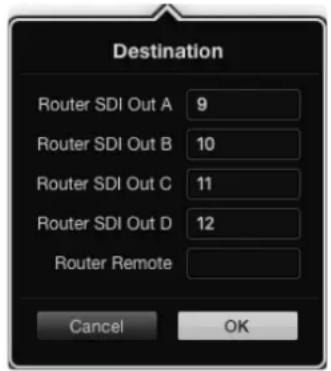
Add a port number for all SDI fields when using quad link SDI destinations
XY Controller Configuration
1Drag the Number of Destinations slider to the desired number.
2 You can now configure the destination buttons by clicking on each gold button in the software interface. In the Router SDI Out A field, enter the number of the Videohub output port to which the destination device is connected. For dual link SDI destinations you will need to enter port numbers for fields A and B, or fields A through D for quad link SDI. There is also a Router Remote field if your Videohub is also routing RS-422 deck control to the destination device.
3Click OK to confirm. If you increase the number of destination buttons, there will be a matching decrease in the number of available source buttons.
4Click on each white button in the software interface to configure the source buttons.
5In the Router SDI In A field, enter the number of the Videohub input port to which the source device is connected. For dual link SDI destinations you will need to enter port numbers for fields A and B, or fields A through D for quad link SDI. There is also a Router Remote field if your Videohub is also routing RS-422 deck control from the source device.
6Click OK to confirm.
Number of Macros
Macros allow you to make up to 16 crosspoint routing changes simultaneously with a single button press.
1Drag the Number of Macros slider to enable up to 10 macro buttons. As you increase the number of macro buttons, there will be a matching decrease in the number of available source buttons.
2Click a green macro button to reveal the corresponding Macro window and enter up to 16 pairs of sources and destinations.
3 When finished, click OK to save the routes and close the window.
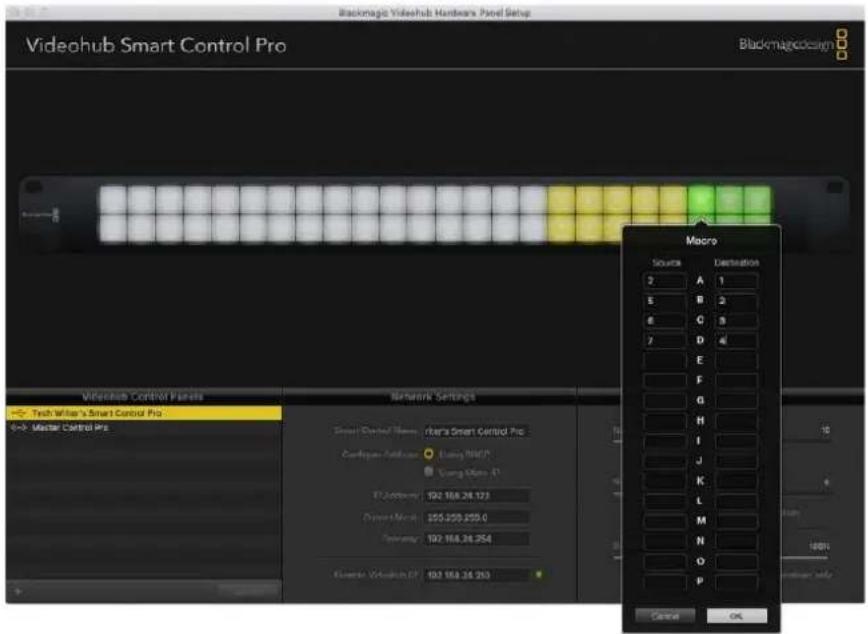
Up to 16 crosspoint routes can be changed by a single macro
Take Button
When the Enable Take Button checkbox is active, the lower right button on the control interface turns red. Use this if you want a confirmation option to come up before your route change takes place. Press the red take button to confirm your route change. The take button can be used with both Cut-Bus and XY controller configurations and can also be used with macros.
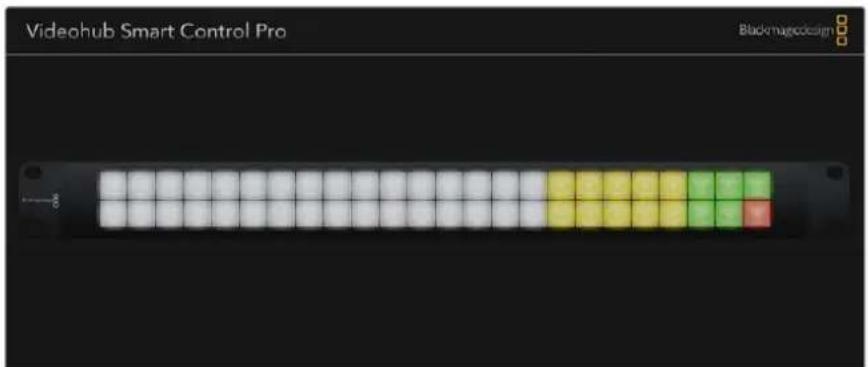
The Take button illuminates red in the lower right corner
Backlight
Adjust the backlight slider to vary the brightness of the backlit buttons as desired. Enable Backlight Destinations Only if you wish to disable the backlighting of the white source buttons.
Configuring GPIs
The GPI and Tally Interface has 8 GPIs that provide crosspoint switching. In the example on the left, if GPI 1 detects a contact closure it will switch Input 12 on your Videohub to Output 1. This means when you switch the joystick control on your CCU, video going to Input 12 of your Videohub will be previewed on your monitor.
The crosspoints can be configured in the Videohub Hardware Panel Setup simply by clicking inside the Input and Output fields on the diagram and typing in the Input or Output number.
The Videohub Control Settings pane offers two ways to preview the output from your Videohub.
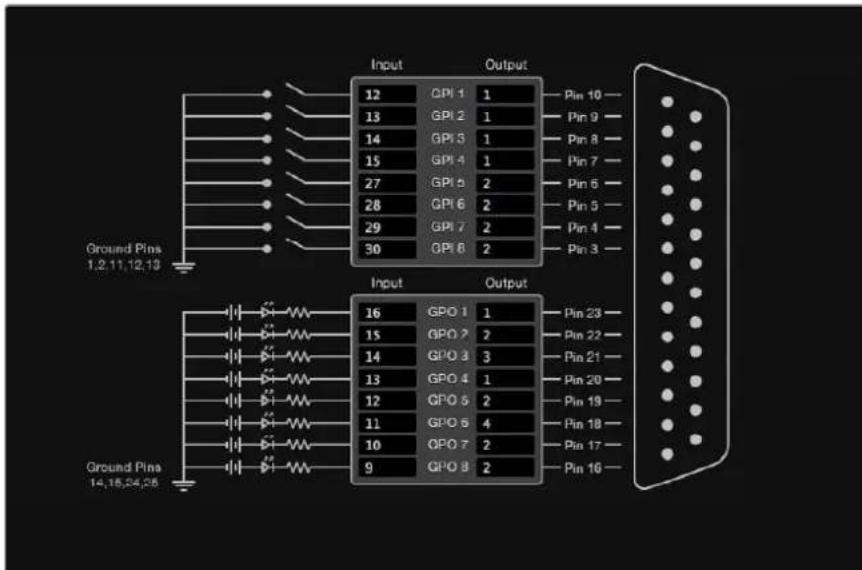
Click inside the diagram to change inputs and outputs for GPI crosspoint switching and Tally
Latch Video
If you want the output to stay as selected, choose Latch Video. This means you can press the switch once on your CCU and the input from the selected crosspoint will stay on your monitor until another crosspoint is selected.
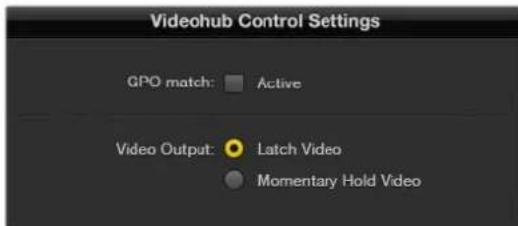
Select Latch Video if you want your preview to hold until another crosspoint is selected. Choose Momentary Hold Video if you want your preview to revert back to the previous crosspoint when you release the control switch.
Momentary Hold Video
Select this option if you want the output to return to the previous input after you let go of the switch or joystick control on your CCU. For example, when you press and hold your switch, Input 13 might be previewed, but will return to displaying Input 12 on your monitor once you release the switch.
Configuring Tally
Tally is usually a lamp on the front of a camera to indicate that it is on air, but it's a useful visual indicator and can be used on any equipment to indicate activity and doesn't have to be used specifically with cameras.
The GPI and Tally Interface has 8 configurable GPOs, which send a tally signal to your cameras or other devices under certain crosspoint conditions. In the example on the left, GPO 1 is configured so that when Input 16 on the Videohub is routed to Output 1, GPO 1 will be activated.
The crosspoints can be configured in Videohub Hardware Panel Setup simply by clicking inside the Input and Output fields on the diagram.
GPO Match
Enable the GPO match checkbox to replicate the configuration of your crosspoints from GPIs to GPOs. This can be useful if you want to see a tally light activate when changing routes for your GPIs.
When this checkbox is enabled, the GPO half of the diagram will be grayed out and cannot be edited until the GPO match checkbox is disabled.
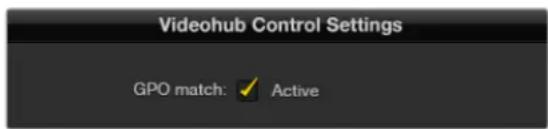
Enable the GPO match checkbox to replicate the crosspoint configuration of your GPIs
Daisy Chaining Multiple GPI and Tally Interfaces
The GPI and Tally Interface supports 8 GPIs and 8 GPOs at a time, which should be enough for most live television situations. However, if you have more than 8 cameras then you may want to daisy chain a second or third GPI and Tally Interface.
The GPI and Tally Interface has two Ethernet ports so that you can connect one port to a Videohub and use the other port to link other GPI and Tally Interfaces together.
1Connect power to the first GPI and Tally Interface.
2Connect a standard RJ45 Ethernet cable from your Videohub or network to the Ethernet IN port on the GPI and Tally Interface.
3Connect power to the second GPI and Tally Interface.
4Connect a standard RJ45 Ethernet cable from the Ethernet OUT of the first GPI and Tally Interface to the Ethernet IN port on the second GPI and Tally Interface.
This can be repeated for as many GPI and Tally Interfaces as you need as long as power is supplied to all units in the chain.
Sometimes it can get confusing to know which GPI and Tally Interface you are working with when you have several connected. Select the GPI and Tally Interface in the Videohub Control Panels pane and click the Identify button. The LED next to the Ethernet IN port on the selected device will light up.

Daisy chain multiple GPI and Tally Interfaces using Ethernet. Power must be supplied to each individual unit in the chain.
Adding a GPI and Tally Interface Over a Network
You may want to configure a second GPI and Tally Interface but it may be in another location and only accessible over a network. You can add it to your list manually by entering its IP address into Videohub Hardware Panel Setup.
If you do not know the IP address of the GPI and Tally Interface you want to add, connect it to a computer with USB, open Videohub Hardware Panel Setup and note down the IP address in the Network Settings tab.
If you do not have access to the unit because it is in another location, you can find it on the network using the Bonjour browser. This application will show you all the devices on your network and will give you the IP address of the GPI and Tally Interface you wish to add.
1Press the + (add device) button at the bottom of the Videohub Control Panels pane.
2Type in the IP address of the GPI and Tally Interface and press OK.
3 The second GPI and Tally Interface will appear in the list with any other devices that are connected to the Videohub.
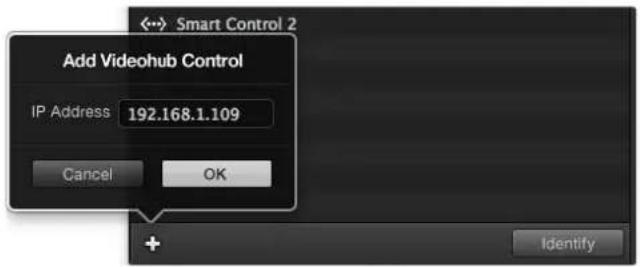
Press the + (add device) button and enter the IP address of a GPI and Tally Device you want to add. Press the Identify button to activate the LED on a selected GPI and Tally Interface.
Setting up the GPI and Tally Interface
The GPI and Tally Interface is configured using the Videohub Hardware Panel Setup. Before you can use the GPI and Tally Interface, you may need to install the latest version of the software.
1Connect the power adapter to the GPI and Tally Interface.
2Connect the GPI and Tally Interface to your computer with a USB Type A to B cable.
3Open the software and it will detect whether your GPI and Tally Interface has been configured for a Videohub before. If it has the software will open without any need for changes. Otherwise a message will tell you your GPI and Tally Interface has been configured for use with an ATEM Switcher and will need to be reconfigured for use with Videohub. Click Yes. After a few moments the GPI and Tally Interface will be reconfigured as a Videohub client.
Configuring the GPI and Tally Interface
If your Videohub does not have an Ethernet port, or if it is only accessible over a network:
1Connect a USB type A to B cable from your GPI and Tally Interface to your computer.
2 Connect an Ethernet cable from the Ethernet IN port on your GPI and Tally Interface to your Ethernet switcher.
3Open Videohub Hardware Panel Setup.
4 You should see your GPI and Tally Interface with a USB icon next to it in the Videohub Control Panels pane. Give your GPI and Tally Interface a unique name so it can be easily recognized. To do so, click inside the GPI and Tally Name field and type a name.
5 Check the option to configure your IP address as 'using DHCP' or 'static IP'. Depending on your setup, you may choose either so it's probably a good idea to check with your network administrator to see which is the better option.
6 In the Remote Videohub IP field, enter the IP address of the Videohub you want to connect to. A red light next to the field will turn green and the LED on the GPI and Tally interface will illuminate when a connection has been established.
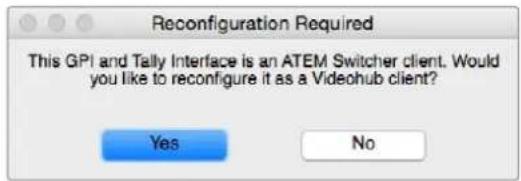
You will need to reconfigure your GPI and Tally Interface to work with Videohub
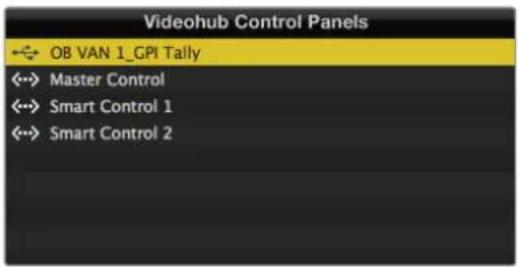
GPI and Tally Interface connected via USB
If you do not know the IP address of your Videohub:
1Connect the Videohub to your computer via USB.
2 Launch the Videohub software and click on Videohub Server Preferences.
3 Note down the IP address in the Remote Videohub IP address field.
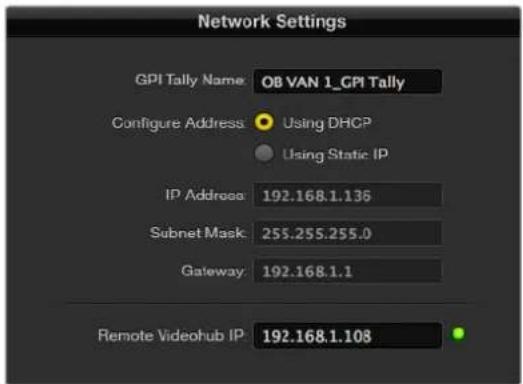
Enter a GPI and Tally Name and the IP address of the Videohub you want to connect to
Developer Information
Blackmagic Videohub Ethernet Protocol v2.3
Summary
The Blackmagic Videohub Ethernet Protocol is a text based protocol that is accessed by connecting to TCP port 9990 on a Videohub Server. Integrated Videohub Servers and Videohub Server computers are supported by the protocol.
The Videohub Server sends information in blocks which each have an identifying header in all-caps, followed by a full-colon. A block spans multiple lines and is terminated by a blank line. Each line in the protocol is terminated by a newline character.
Upon connection, the Videohub Server sends a complete dump of the state of the device. After the initial status dump, status updates are sent every time the Videohub status changes.
To be resilient to future protocol changes, clients should ignore blocks they do not recognize, up to the trailing blank line. Within existing blocks, clients should ignore lines they do not recognize.
LEGEND
← line feed or carriage return ... and so on
Version 2.3 of the Blackmagic Videohub Ethernet Protocol was released with Videohub 4.9.1 software.
Protocol Preamble
The first block sent by the Videohub Server is always the protocol preamble:
PROTOCOL PREAMBLE:
Version: 2.3
←
The version field indicates the protocol version. When the protocol is changed in a compatible way, the minor version number will be updated. If incompatible changes are made, the major version number will be updated.
Device Information
The next block contains general information about the connected Videohub device. If a device is connected, the Videohub Server will report the attributes of the Videohub:
VIDEOHUB DEVICE:←
Device present: true←
Model name: Blackmagic Smart Videohub←
Video inputs: 16←
Video processing units: 0←
Video outputs: 16←
Video monitoring outputs: 0←
Serial ports: 0←
This example is for the Smart Videohub which is a 16x16 router.
If the Videohub Server has no device connected, the block will simply be:
VIDEOHUB DEVICE:
Device present: false
←
If a device is present, but has an incompatible firmware, the status reported will be:
VIDEOHUB DEVICE:
Device present: needs _ update
←
In the last two situations, no further information will be sent, unless the situation is rectified.
If the Videohub Server detects a new Videohub attached, it will resend all blocks except the protocol preamble to indicate the device has changed, and allow the client to update its cache of server state.
Initial Status Dump
The next four blocks enumerate the labels assigned to the input, output, monitoring and serial ports.
Videohubs that do not have monitoring or serial ports do not send the corresponding blocks.
INPUT LABELS:
0 VTR 1
1 VTR 2
...
←
OUTPUT LABELS:
0 Output feed 1←
1 Output feed 2
***
←
MONITORING OUTPUT LABELS:
0 Monitor feed 1
1 Monitor feed 2
...
←
SERIAL PORT LABELS:
0 Deck 1
1 Deck 2
←
NOTE Ports are always numbered starting at zero in the protocol which matches port one on the chassis.
The next three blocks describe the routing of the output, monitoring and serial ports.
VIDEO OUTPUT ROUTING:←
0 5←
1 3←
...
←
VIDEO MONITORING OUTPUT ROUTING:←
0 7←
1 8←
...
←
SERIAL PORT ROUTING:←
0 12←
1 11←
...
←
Videohubs with processing units (only the Workgroup Videohub) send an extra routing block:
PROCESSING UNIT ROUTING:←
0 5←
1 3←
...
←
Videohubs with frame buffers (only the Workgroup Videohub) send two extra blocks:
FRAME LABELS:←
0 Frame one←
1 Frame two←
...
←
FRAME BUFFER ROUTING:←
0 7←
1 8←
...
←
The next three blocks describe the locking status of the output, monitoring and serial ports. Each port has a lock status of "O" for ports that are owned by the current client (i.e., locked from the same IP address), "L" for ports that are locked from a different client, or "U" for unlocked. Note that Videohubs that do not have monitoring ports or serial ports do not send the corresponding blocks.
VIDEO OUTPUT LOCKS:←
0 U←
1 U←
...
←
MONITORING OUTPUT LOCKS:←
0 U←
1 U←
...
←
SERIAL PORT LOCKS:←
0 U←
1 U←
...
←
Videohubs with processing units (only the Workgroup Videohub) send an extra lock block:
PROCESSING UNIT LOCKS:←
0 U←
1 U←
...
←
Videohubs with frame buffers (only the Workgroup Videohub) send an extra lock block:
FRAME BUFFER LOCKS:←
0 U←
1 U←
...
←
Videohubs with serial ports next send a block which describes the direction of each serial port. Each port has a direction of either “control” for the “In (Workstation)” setting, “slave” for “Out (Deck)”, or “auto” for “Automatic”.
SERIAL PORT DIRECTIONS:←
0 control←
1 slave←
2 auto←
...
←
Videohubs with pluggable cards (only Universal Videohubs) send three more blocks that describe the hardware status of the ports. Missing video or serial ports have a status of "None"; input and output video ports will be "BNC" or "Optical" if they are present; serial ports will be "RS422" if they are present.
VIDEO INPUT STATUS:←
0 BNC←
1 BNC←
...
←
VIDEO OUTPUT STATUS:←
0 BNC←
1 BNC←
...
←
SERIAL PORT STATUS:←
0 RS422←
1 RS422←
...
←
Status Updates
When any route, label, or lock is changed on the Videohub Server by any client, the Videohub Server resends the applicable status block, containing only the items that have changed. For example, if serial port 6 has been unlocked, the following block will be sent:
SERIAL PORT LOCKS:←
5 U←
←
If multiple items are changed, multiple items may be present in the update:
OUTPUT LABELS:←
7 New output 8 label←
10 New output 11 label←
←
If a card is plugged into or removed from the Universal Videohub, it will send hardware status blocks for the video inputs, video outputs, and serial ports on that card.
Requesting Changes
To update a label, lock or route, the client should send a block of the same form the Videohub Server sends when its status changes. For example, to change the route of output port 8 to input port 3, the client should send the following block:
VIDEO OUTPUT ROUTING:←
7 2←
←
The block must be terminated by a blank line. On receipt of a blank line, the Videohub Server will either acknowledge the request by responding:
ACK←
or indicate that the request was not understood by responding:
NAK
After a positive response, the client should expect to see a status update from the Videohub Server showing the status change. This is likely to be the same as the command that was sent, but if the request could not be performed, or other changes were made simultaneously by other clients, there may be more updates in the block, or more blocks. Simultaneous updates could cancel each other out, leading to a response that is different to that expected.
In the absence of simultaneous updates, the dialog expected for a simple label change is as follows:
OUTPUT LABELS:←
6 new output label seven←
←
ACK←
←
OUTPUT LABELS:←
6 new output label seven←
←
The asynchronous nature of the responses means that a client should never rely on the desired update actually occurring and must simply watch for status updates from the Videohub Server and use only these to update its local representation of the server state.
To lock a port, send an update to the port with the character "O" indicating that you wish to lock the port for example:
SERIAL PORT LOCKS:
7 0←
←
ACK←
←
SERIAL PORT LOCKS:
7 0←
←
To forcibly unlock a port that has been locked by another client, send an update to the port with the character "F" instead of using the usual unlock character "U". For example, to override a lock on port 7:
SERIAL PORT LOCKS:←
7 F←
←
ACK←
←
SERIAL PORT LOCKS:←
7 U←
←
Hardware status blocks can only be sent by the Videohub Server. If a client sends hardware status blocks, they will be ignored.
Requesting a Status Dump
The client may request that the Videohub Server resend the complete state of any status block by sending the header of the block, followed by a blank line. In the following example, the client requests the Videohub Server resend the output labels:
OUTPUT LABELS:←
ACK←
OUTPUT LABELS:←
0 output label 1←
1 output label 2←
2 output label 3←
...
Checking the Connection
While the connection to the Videohub Server is established, a client may send a special no-operation command to check that the Videohub Server is still responding:
PING:
If the Videohub Server is responding, it will respond with an ACK message as for any other recognized command.
Videohub RS-422 Protocol
General
The RS-422 protocol can be used to control many Videohub models as RS-422 slave devices, for router crosspoint switching. This feature is available on any Videohub model with an "RS-422 Control" port.
Depending on your model of Videohub, the RS-422 port may be either a DB9 or RJ11 connector. DB9 cables are commonly available in electrical stores. The RJ11 connector is the same used in many landline telephone connections. By modifying an RS-422 to USB adapter cable terminated with an RJ11 connector you can control Videohub using external controllers via USB.
In “Leitch Server” mode, these Videohub models implement the router (server) side of the Leitch Serial Pass-Through Protocol as specified in section 4 of Leitch document SPR-MAN revision D. In “Leitch Client” mode, the Videohub implements the controller (client) side of the Leitch terminal protocol.
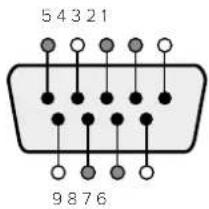
| Pin Function | |
| 1 Ground | |
| 2 Tx- (Data sent by router) | |
| 3 Rx+ (Data received by router) | |
| 4 Ground | |
| 5 NC (No connect) | |
| 6 Ground | |
| 7 Tx+ (Data sent by router) | |
| 8 Rx- (Data received by router) | |
| 9 Ground |
Videohub RS-422 Router Control DB9 pin connections.
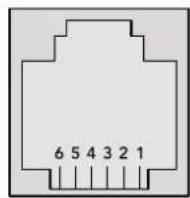
| Pin No. Function | |
| Pin 1 | TX + |
| Pin 2 | TX - |
| Pin 3 | GND |
| Pin 4 | GND |
| Pin 5 | RX - |
| Pin 6 | RX + |
Videohub RS-422 Router Control RJ11 pinout diagram.
This document describes the commands and parameters in the protocol that are relevant and supported by Videohub. Other commands and parameters specified in the Leitch protocol are accepted but ignored.
The RS-422 serial port is configured as 9600 N81.
The protocol is line-oriented, with a maximum length of 250 characters per command. Each command from the client should be terminated with a carriage-return (r). Each response from the server will be terminated with a carriage-return and line-feed (r\n).
Sources, destinations and levels are always specified in base-16, numbered from zero. Levels are always between 0 and 15 ("F"). Videohubs only have one valid level - level zero.
On connecting to the serial port, the client should send a carriage-return. The Videohub Server will respond with a > character prompt, which is not followed by a carriage-return or line-feed. Receiving the prompt indicates that a connection has been established. The same prompt will be issued after each command received by the Videohub Server.
In the following documentation, commands in orange and values in blue must be typed literally, including any spaces. In the following example of an immediate command using destination port 7 and source port 3, @ X:0/destination, source would be entered as: @ X:0/6,2
Notifications
Once connected, if status reporting is enabled, the client will receive a notification message when a route changes on the Videohub Server. The notifications take one of two forms:
S:0destination,source Routing change
This message indicates that the specified source port is now routed to the specified destination.
V:0destination,source Preset routing notification
This message indicates that the current preset includes a route from the specified source to the specified destination.
Global Commands
All pass-through commands are preceded by an Ⓞ symbol and a space.
The following client commands are supported:
@ ! disable status reporting
Status reporting is disabled by default.
@ ? enable status reporting
Status reporting is enabled.
@ Z: reset routing table
Routing is reset so that the first source is routed to all destinations.
Immediate Commands
@ X:0/destination,source change route
@ X:0/destination, source/destination-2, source-2... change multiple routes
The specified source ports are routed to the specified destinations.
Any routing changes will trigger S: notifications
@ X?0destination request individual route status
The source routed to a the specified destination will be returned as an s: notification.
@ S?0 request all ports route status
Each source & destination port pair will be returned as S: notifications
Salvo Commands
@ P:0/destination,source queue route change
@ P:0/destination,source/destination-2,source-2... queue multiple route changes The specified routing changes are added to the current salvo for later execution.
@ P?0destination request individual port status in salvo
If a routing change for the specified destination port is queued, the route will be returned as a V: notification.
@ V?0 request all ports status in salvo
Each queued routing change in the salvo is reported as a V: notification.
@ B:C clear salvo
@ B:R clear salvo
Any queued changes are discarded and the salvo is reset.
@ B:E execute salvo
Any queued changes are executed and each routing change will be returned as an notification.
Saving and Loading Labels with Telnet in Mac OS
Normally you would use Blackmagic Videohub Setup to save and load labels between different Videohub routers and to backup your videohub settings. However, if for any reason you wish to use the Terminal, the instructions below let you save and load router label configurations via the Terminal.
![Blackmagics-iMac:~ timf$ telnet 192.168.25.253 9990 Trying 192.168.25.253... Connected to 192.168.25.253. Escape character is '^]'. PROTOCOL PREAMBLE: Version: 2.4 VIDEOHUB DEVICE: Device present: true Model name: Blackmagic Smart Videohub Unique ID: 7c2e0d0106df Video inputs: 16 Video processing units: 0 Video outputs: 16 Video monitoring outputs: 0 Serial ports: 0 INPUT LABELS: 0 Camera 1 1 Mini Converter 1 2 Hyperdeck 1 3 VTR 1 4 Teranex 1 5 PC Workstation 6 ATEM PGM 7 Camera 2 8 Mini Converter 2 9 Mac Workstation 10 Hyperdeck 2 11 VTR 2 12 Teranex 3 13 Hyperdeck 3 14 Hyperdeck 3 15 Input 16 OUTPUT LABELS: 0 Main Monitor 1 1 Main Monitor 2 2 Audio Monitor 1 3 Audio Monitor 2 4 ATEM Input 1 5 ATEM Input 2 6 ATEM Input 3 7 Hyperdeck 4 8 Hyperdeck 5 9 Hyperdeck 3 10 VTR 3 11 VTR 4 12 Teranex 4 13 Ultrascope 1 14 Ultrascope 2 15 Ultrascope 3](/content/2026/04/672773/images/aadee34c445d6ad35156ffd13d947324acf142dd653bdc505ce483d97359a298.jpg)
Saving Labels
1 Open the Terminal application which is located within the Applications > Utilities folder.
2Type in "telnet" and a space followed by the IP of your Videohub, then another space and "9990", which is the default port number. For example type: telnet 192.168.25.253 9990. The Protocol Preamble screen will appear.
3Copy the INPUT LABELS: text including the heading and paste into a word processor or simple text editor. Name this file "input labels" and save to your favorite location.
4 Copy the OUTPUT LABELS: text including the heading and paste into a word processor or simple text editor. Name this file "output labels" and save to your favorite location.
5 Close the telnet session by exiting the terminal window.
Loading Labels
1 Open the Terminal application with is located within the Applications > Utilities folder.
2Type in "telnet" and a space followed by the IP of your Videohub, then another space and "9990", which is the default port number. For example type: telnet 192.168.25.253 9990. The Protocol Preamble screen will appear.
3Open the "input labels" text file in your text editing program and copy the INPUT LABELS: text.
4 Paste this into the telnet session and press "return" twice. Telnet will respond with "ACK" and Videohub will update the input labels.
5Open the "output labels" text file in your text editing program and copy the OUTPUT LABELS; text.
6 Paste this into the telnet session and press "return" twice. Telnet will respond with "ACK" and Videohub will update the output labels.
7 Close the telnet session by exiting the terminal window.
Saving and Loading Labels with Telnet in Windows
While you can save and load labels within Blackmagic Videohub Setup, you may also download and use PuTTY which is a free telnet client.
Setting up PuTTY
1 Start the application and in the "Host Name" field, type the IP of your Videohub and in the "Port" field type "9990", which is the default port number.
2From the Connection type options select the "Telnet" radio button.
3Select the "Terminal" tab and tick the "Implicit CR in every LF" checkbox.
4 Click the "Session" tab and save your session parameters by entering a name in the "Saved Sessions" field and clicking the "Save" button.
Saving Labels
1 Double click the PuTTY icon to start the application. Select your saved session from the list and click the "Load" button followed by the "Open" button. The Protocol Preamble screen will appear.
2Copy the INPUT LABELS: text including the heading and paste into a word processor or simple text editor. Name this file "input labels" and save to your favorite location.
3Copy the OUTPUT LABELS: text including the heading and paste into a word processor or simple text editor. Name this file "output labels" and save to your favorite location.
4 Exit the telnet session by closing the PuTTY window.
Loading Labels
1 Double click the PuTTY icon to start the application. Select your saved session from the list and click the "Load" button followed by the "Open" button. The Protocol Preamble screen will appear.
2Open the "input labels" text file in your text editing program and copy the INPUT LABELS: text.
3 Right click in the PuTTY session to paste the copied section and press "Enter" twice. PuTTY will respond with "ACK" and Videohub will update the input labels.
4Open the "output labels" text file in your text editing program and copy the OUTPUT LABELS: text.
5 Right click in the PuTTY session to paste the copied section and press "Enter" twice. PuTTY will respond with "ACK" and Videohub will update the output labels.
6Exit the telnet session by closing the PuTTY window.
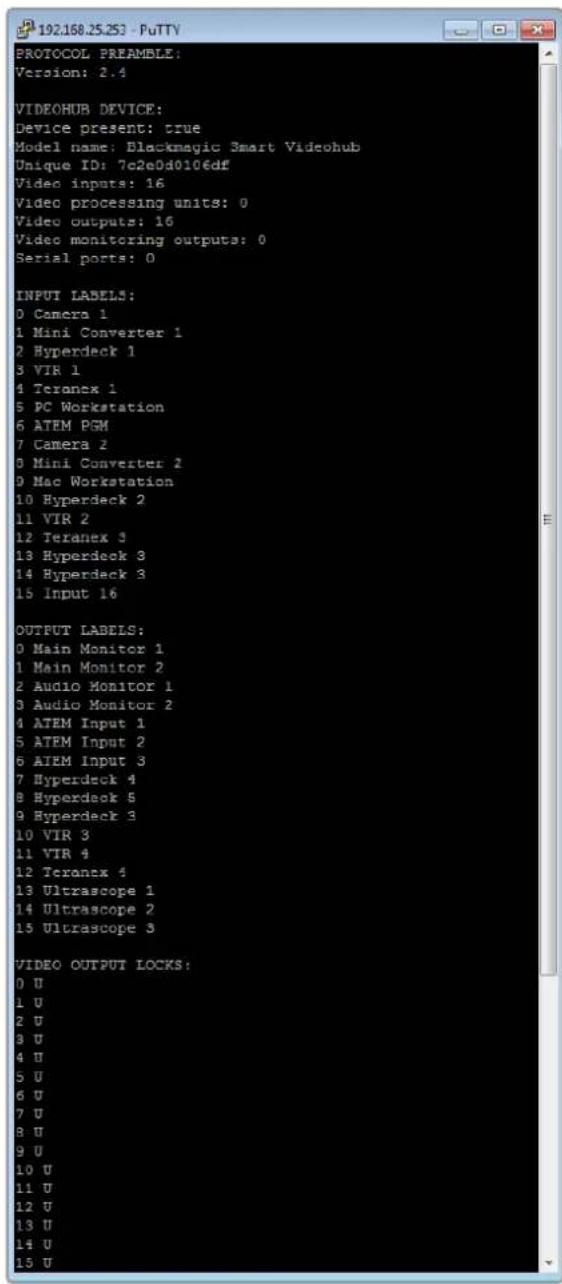
Replacing a fan in Universal Videohub
Each fan is designed to be replaced without needing to switch off power to Videohub.
1 Locate the fan tray at the base of the unit.
2 Using a number 01 Phillips head screwdriver, remove the left and right screws from the fan tray.
3While supporting the tray, remove the center screw.
4 Having removed all three screws, slowly allow the fan tray to swing open until you see the black plastic dust filter on top of each fan.
5 Gently pull the tray towards you while continuing to swing it down until you feel the rear of the tray detach from the Universal Videohub chassis. Note which fan is faulty.
6You will see the colored power cables connected to each fan. Each fan power cable connects to the Videohub motherboard with a plastic connector. While supporting the fan tray, unplug the plastic power connectors of all three fans. The fan tray can now be fully removed.
7 Place the fan tray on a flat surface and unclip the top of the dust-filter housing using the four clips.
8 Remove the top of the housing and the filter. Four screws will be revealed. Remove the four screws around the faulty fan. Then remove the base of the dust filter housing and also the faulty fan.
9 Replace the fan with a spare unit and then reinstate the base of the dust filter housing. Secure the housing and fan with the four screws and ensure the heads of the screws recess into the dust filter housing. If the screws fail to recess, flip over the housing and try again.
10 Place the dust filter over the base of the housing and then snap on the top of the dust filter housing.
11 Position the fan tray underneath the base of the Universal Videohub chassis and connect all three fan power cables to the motherboard. All three fans should immediately start running.
12 Gently dock the rear of the fan tray with the Universal Videohub chassis. Swing up the front of the fan tray and simultaneously push the tray towards the Videohub motherboard until the rear of the fan tray slides into place and the front swings shut.
13Reinstall the three screws.
Help
Getting Help
The fastest way to obtain help is to go to the Blackmagic Design online support pages and check the latest support material available for your Blackmagic Design Videohub.
Blackmagic Design online support pages
The latest manual, software and support notes can be found at the Blackmagic Design support center at www.blackmagicdesign.com/support.
Blackmagic Design Forum
Another useful resource is the Blackmagic Design Forum. The forum is a place to find similar questions and quick solutions from either Blackmagic staff or fellow customers with extensive knowledge.
Contacting Blackmagic Design support
If you can't find the help you need in our support material, please use the "Send us an email" button to email a support request. Alternatively, click on the "Find your local support team" button and call your nearest Blackmagic Design support office.
Checking the version currently installed
To check which version of Videohub Control is installed on your computer, open the Blackmagic Videohub Control application. From the Blackmagic Videohub Control menu, select About Blackmagic Videohub and note the version number.
How to get the latest updates
After checking the version of your Blackmagic Videohub Control on your computer, please visit the Blackmagic Design support center at www.blackmagicdesign.com/support to check for the latest updates. While it is usually a good idea to run the latest updates, it is a wise practice to avoid updating any software if you are in the middle of an important project.
Regulatory Notices

Disposal of Waste of Electrical and Electronic Equipment Within the European Union.
The symbol on the product indicates that this equipment must not be disposed of with other waste materials. In order to dispose of your waste equipment, it must be handed over to a designated collection point for recycling. The separate collection and recycling of your waste equipment at the time of disposal will help conserve natural resources and ensure that it is recycled in a manner that protects human health and the environment. For more information about where you can drop off your waste equipment for recycling, please contact your local city recycling office or the dealer from whom you purchased the product.

This equipment has been tested and found to comply with the limits for a Class A digital device, pursuant to Part 15 of the FCC rules. These limits are designed to provide reasonable protection against harmful interference when the equipment is operated in a commercial environment. This equipment generates, uses, and can radiate radio frequency energy and, if not installed and used in accordance with the instructions, may cause harmful interference to radio communications. Operation of this product in a residential area is likely to cause harmful interference, in which case the user will be required to correct the interference at personal expense.
Operation is subject to the following two conditions:
1 This device may not cause harmful interference.
2 This device must accept any interference received, including interference that may cause undesired operation.

R-R-BMD-20221109001
R-R-BMD-20221109002
R-R-BMD-20221109003
MSIP-REM-BMD-201509007
MSIP-REM-BMD-201503026
MSIP-REM-BMD-201410007
MSIP-REM-BMD-201410008
MSIP-REM-BMD-201410009
MSIP-REM-BMD-201410010
MSIP-REM-BMD-201410011
MSIP-REM-BMD-201410012
MSIP-REM-BMD-201410013
MSIP-REM-BMD-201410014
R-R-BMD-201912002
R-R-BMD-201912003

ISED Canada Statement
This device complies with Canadian standards for Class A digital apparatus.
Any modifications or use of this product outside its intended use could void compliance to these standards.
Connection to HDMI interfaces must be made with high quality shielded HDMI cables.
This equipment has been tested for compliance with the intended use in a commercial environment. If the equipment is used in a domestic environment, it may cause radio interference.
Safety Information
For protection against electric shock, the equipment must be connected to a mains socket outlet with a protective earth connection. In case of doubt contact a qualified electrician.
To reduce the risk of electric shock, do not expose this equipment to dripping or splashing.
Product is suitable for use in tropical locations with an ambient temperature of up to 40 °C.
Ensure that adequate ventilation is provided around the product and that it is not restricted.
When rack mounting, ensure that the ventilation is not restricted by adjacent equipment.
No operator serviceable parts inside product. Refer servicing to your local Blackmagic Design service center.
Some products have the facility to connect small form-factor transceiver (SFP) optical fibre modules. Only use Laser class 1 optical SFP modules.
Recommended Blackmagic Design SFP modules:
- 3G-SDI: PL-4F20-311C

Use only at altitudes not more than 2000m above sea level.
State of California statement
This product can expose you to chemicals such as trace amounts of polybrominated biphenyls within plastic parts, which is known to the state of California to cause cancer and birth defects or other reproductive harm.
For more information go to www.P65Warnings.ca.gov.
Warning for Authorized Service Personnel

Disconnect power from both power inlets before servicing!
Caution — Double Pole/Neutral Fusing
The power supply contained in this equipment has a fuse in both line and neutral conductors and is suitable for connection to the IT power distribution system in Norway.
Warranty
Limited Warranty
Blackmagic Design warrants that Videohub routers will be free from defects in materials and workmanship for a period of 36 months from the date of purchase excluding connectors, cables, cooling fans, fiber optic modules, fuses, keyboards and batteries which will be free from defects in materials and workmanship for a period of 12 months from the date of purchase. Blackmagic Design warrants that Videohub Master Control and Videohub Smart Control will be free from defects in materials and workmanship for a period of 12 months from the date of purchase. If a product proves to be defective during this warranty period, Blackmagic Design, at its option, either will repair the defective product without charge for parts and labor, or will provide a replacement in exchange for the defective product.
In order to obtain service under this warranty, you the Customer, must notify Blackmagic Design of the defect before the expiration of the warranty period and make suitable arrangements for the performance of service. The Customer shall be responsible for packaging and shipping the defective product to a designated service center nominated by Blackmagic Design, with shipping charges pre paid. Customer shall be responsible for paying all shipping changes, insurance, duties, taxes, and any other charges for products returned to us for any reason.
This warranty shall not apply to any defect, failure or damage caused by improper use or improper or inadequate maintenance and care. Blackmagic Design shall not be obligated to furnish service under this warranty: a) to repair damage resulting from attempts by personnel other than Blackmagic Design representatives to install, repair or service the product, b) to repair damage resulting from improper use or connection to incompatible equipment, c) to repair any damage or malfunction caused by the use of non Blackmagic Design parts or supplies, or d) to service a product that has been modified or integrated with other products when the effect of such a modification or integration increases the time or difficulty of servicing the product. THIS WARRANTY IS GIVEN BY BLACKMAGIC DESIGN IN LIEU OF ANY OTHER WARRANTIES, EXPRESS OR IMPLIED. BLACKMAGIC DESIGN AND ITS VENDORS DISCLAIM ANY IMPLIED WARRANTIES OF MERCHANTABILITY OR FITNESS FOR A PARTICULAR PURPOSE. BLACKMAGIC DESIGN'S RESPONSIBILITY TO REPAIR OR REPLACE DEFECTIVE PRODUCTS IS THE WHOLE AND EXCLUSIVE REMEDY PROVIDED TO THE CUSTOMER FOR ANY INDIRECT, SPECIAL, INCIDENTAL OR CONSEQUENTIAL DAMAGES IRRESPECTIVE OF WHETHER BLACKMAGIC DESIGN OR THE VENDOR HAS ADVANCE NOTICE OF THE POSSIBILITY OF SUCH DAMAGES. BLACKMAGIC DESIGN IS NOT LIABLE FOR ANY ILLEGAL USE OF EQUIPMENT BY CUSTOMER. BLACKMAGIC IS NOT LIABLE FOR ANY DAMAGES RESULTING FROM USE OF THIS PRODUCT. USER OPERATES THIS PRODUCT AT OWN RISK.
© Copyright 2023 Blackmagic Design. All rights reserved. 'Blackmagic Design', 'DeckLink', 'HDLink', 'Workgroup Videohub', 'Multibridge Pro', 'Multibridge Extreme', 'Intensity' and 'Leading the creative video revolution' are registered trademarks in the US and other countries. All other company and product names may be trademarks of their respective companies with which they are associated.
Blackmagic
Videohub

natural_image
Profile view of a man in a gray shirt and blue tie, looking out from the side window (no text or symbols visible)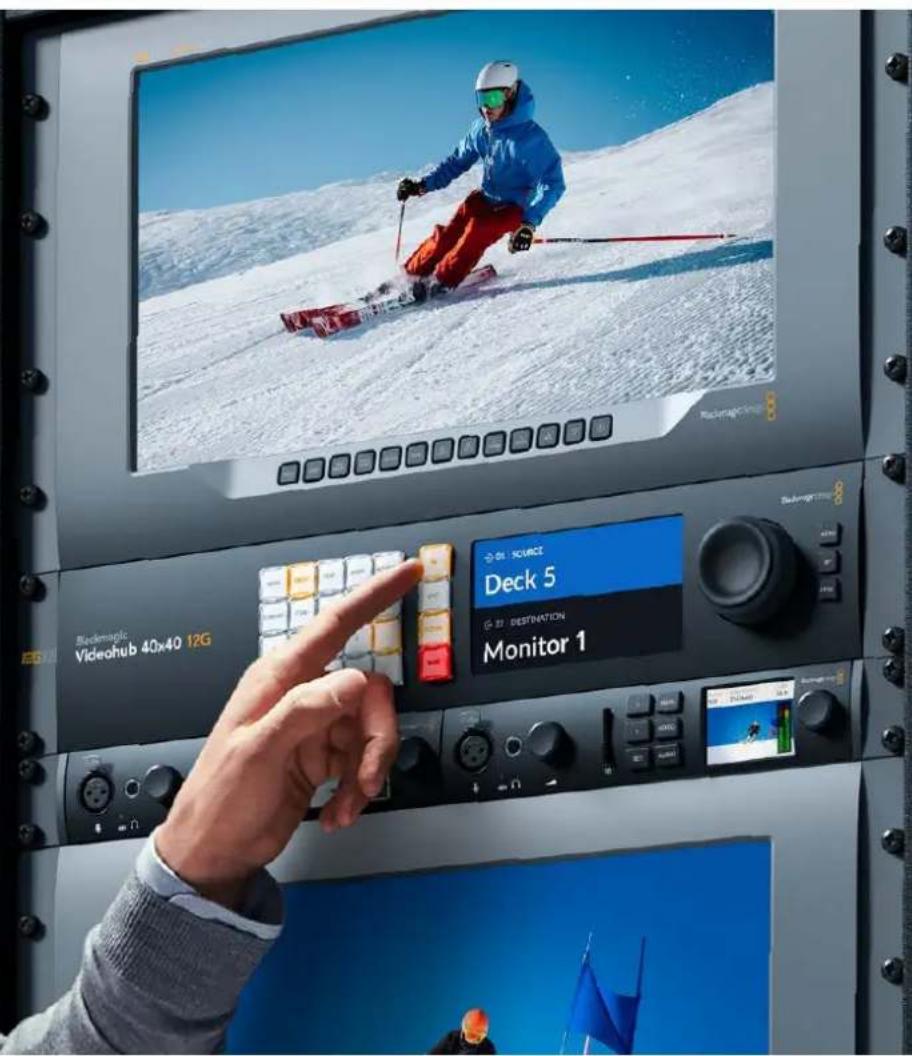

natural_image
Circular portrait photo of a smiling man in a dark shirt against a gray background (no text or symbols)ようこそ
GPI and Tally Interface 138
127 Saving and Loading Labels
with Telnet in Mac OS 178
Saving and Loading Labels
with Telnet in Windows 179
natural_image
Front view of a black rack-mounted server rack with multiple ports and connectors (no visible text or labels)UniversalVideohub288
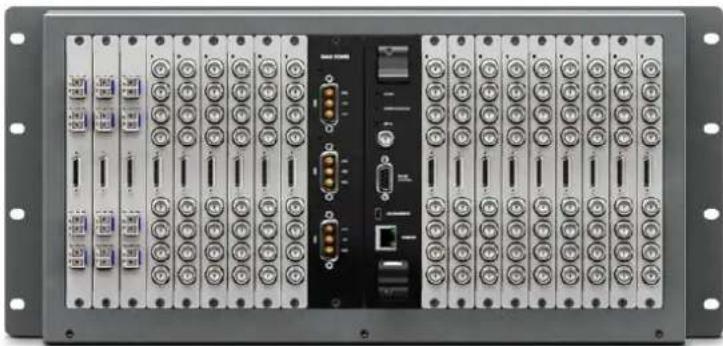
natural_image
Front view of a rack-mounted electronic device with multiple ports and connectors (no visible text or labels)UniversalVideohub72
natural_image
Front view of a network switch device with multiple ports and connectors (no visible text or labels)Smart Videohub CleanSwitch 12x12
natural_image
Front view of a black network device rear panel with ports and connectors (no visible text or symbols)Videohub Master Control Pro


natural_image
Back panel of a network device showing ports and connectors (no visible text or symbols)Videohub Smart Control Pro
はじめに
natural_image
Front view of a rack-mounted network device with multiple circular ports and indicator lights (no visible text or labels)natural_image
Front view of a server rack with rows of connectors and indicator lights (no visible text or labels)UniversalVideohub288
natural_image
Technical line drawing of a rectangular electronic device with heat sinks and ports (no text or symbols)natural_image
3D architectural diagram of a multi-level storage unit with shelves and a central vertical structure, showing no text or symbols.natural_image
Technical diagram of an electrical panel assembly with a highlighted component (no text or symbols present)natural_image
Technical diagram of an electrical connector assembly with orange arrows indicating connection points (no text or symbols present)natural_image
Technical diagram of a cable connector assembly with two connectors and mounting brackets (no text or symbols)natural_image
Front panel of a rack-mounted industrial control unit with multiple ports and connectors (no visible text or labels)natural_image
Technical line drawing of a computer chassis rear panel with ports and connectors (no text or symbols)natural_image
Technical diagram of an internal server rack with a highlighted orange arrow indicating a component (no text or symbols present)natural_image
Technical diagram of an electrical panel assembly with a highlighted component (no text or symbols visible)natural_image
3D diagram of a multi-pin electronic device with ports and connectors (no text or symbols)natural_image
Illustration of multiple Ethernet connectors with male and female labels (no text or symbols)UniversalVideohubDeckControlCable
Smart Videohub CleanSwitch 12x12
natural_image
Front and back view of a rack-mounted server interface with ports and connectors (no text or symbols visible)Videohub Smart Control Pro
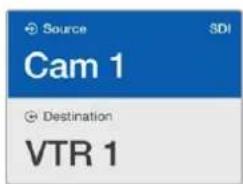
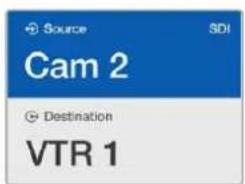
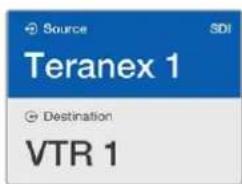
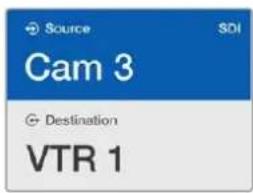
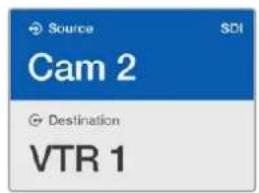
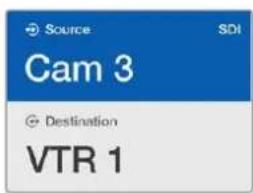
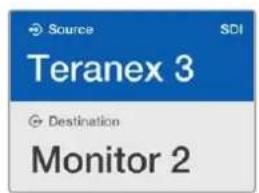
natural_image
Pure electrical circuit lines without any symbolsnatural_image
Front panel of a rack-mounted device showing a grid of white circular units and a row of yellow and red square buttons (no text or symbols)natural_image
Hand holding a small object with a ruler, no visible text or symbolsnatural_image
Illustration of hands assembling or securing a mechanical component (no text or symbols visible)SRC
SRC/VIEW
SRC/VIEW/SET
SOLO/MENU
GPI and Tally Interface
GPI and Tally Interface
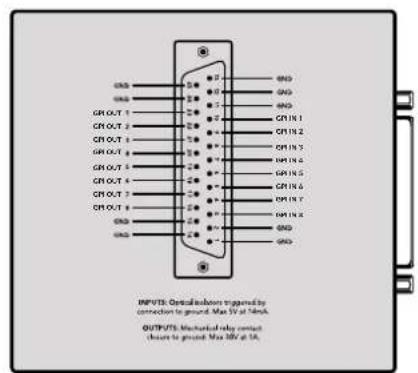
DB25コネクターのピン配列
natural_image
Black electronic device with grid of app icons on a stand (no readable text or symbols)Blackmagic Videohub Hardware Panel Setupのネットワーク設定
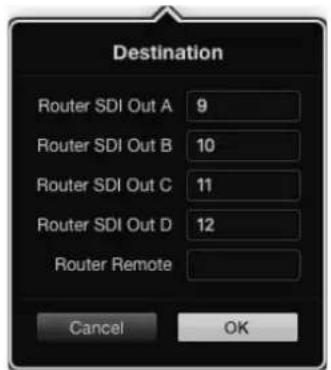
The Blackmagic Videohub Ethernet Protocol is a text based protocol that is accessed by connecting to TCP port 9990 on a Videohub Server. Integrated Videohub Servers and Videohub Server computers are supported by the protocol.
The Videohub Server sends information in blocks which each have an identifying header in all-caps, followed by a full-colon. A block spans multiple lines and is terminated by a blank line. Each line in the protocol is terminated by a newline character.
Upon connection, the Videohub Server sends a complete dump of the state of the device. After the initial status dump, status updates are sent every time the Videohub status changes.
To be resilient to future protocol changes, clients should ignore blocks they do not recognize, up to the trailing blank line. Within existing blocks, clients should ignore lines they do not recognize.
LEGEND

Version 2.3 of the Blackmagic Videohub Ethernet Protocol was released with Videohub 4.9.1 software.
ProtocolPreamble
The first block sent by the Videohub Server is always the protocol preamble:
PROTOCOL PREAMBLE:
Version: 2.3
←
The version field indicates the protocol version. When the protocol is changed in a compatible way, the minor version number will be updated. If incompatible changes are made, the major version number will be updated.
Device Information
The next block contains general information about the connected Videohub device. If a device is connected, the Videohub Server will report the attributes of the Videohub:
VIDEOHUB DEVICE:←
Device present: true←
Model name: Blackmagic Smart Videohub←
Video inputs: 16←
Video processing units: 0←
Video outputs: 16←
Video monitoring outputs: 0←
Serial ports: 0←
This example is for the Smart Videohub which is a 16x16 router.
If the Videohub Server has no device connected, the block will simply be:
VIDEOHUB DEVICE:
Device present: false
←
If a device is present, but has an incompatible firmware, the status reported will be:
VIDEOHUB DEVICE:
Device present: needs _ update
←
In the last two situations, no further information will be sent, unless the situation is rectified.
If the Videohub Server detects a new Videohub attached, it will resend all blocks except the protocol preamble to indicate the device has changed, and allow the client to update its cache of server state.
Initial StatusDump
The next four blocks enumerate the labels assigned to the input, output, monitoring and serial ports.
Videohubs that do not have monitoring or serial ports do not send the corresponding blocks.
INPUT LABELS:
0 VTR 1
1 VTR 2
...
←
OUTPUT LABELS:
0 Output feed 1←
1 Output feed 2
***
←
MONITORING OUTPUT LABELS:
0 Monitor feed 1
1 Monitor feed 2
...
←
SERIAL PORT LABELS:
0 Deck 1
1 Deck 2
←
NOTE Ports are always numbered starting at zero in the protocol which matches port one on the chassis.
The next three blocks describe the routing of the output, monitoring and serial ports.
VIDEO OUTPUT ROUTING:←
0 5←
1 3←
...
←
VIDEO MONITORING OUTPUT ROUTING:←
0 7←
1 8←
...
←
SERIAL PORT ROUTING:←
0 12←
1 11←
...
←
Videohubs with processing units (only the Workgroup Videohub) send an extra routing block:
PROCESSING UNIT ROUTING:←
0 5←
1 3←
...
←
Videohubs with frame buffers (only the Workgroup Videohub) send two extra blocks:
FRAME LABELS:←
0 Frame one←
1 Frame two←
...
←
FRAME BUFFER ROUTING:←
0 7←
1 8←
...
←
The next three blocks describe the locking status of the output, monitoring and serial ports. Each port has a lock status of "O" for ports that are owned by the current client (i.e., locked from the same IP address), "L" for ports that are locked from a different client, or "U" for unlocked. Note that Videohubs that do not have monitoring ports or serial ports do not send the corresponding blocks.
VIDEO OUTPUT LOCKS:←
0 U←
1 U←
...
←
MONITORING OUTPUT LOCKS:←
0 U←
1 U←
...
←
SERIAL PORT LOCKS:←
0 U←
1 U←
...
←
Videohubs with processing units (only the Workgroup Videohub) send an extra lock block:
PROCESSING UNIT LOCKS:←
0 U←
1 U←
...
←
Videohubs with frame buffers (only the Workgroup Videohub) send an extra lock block:
FRAME BUFFER LOCKS:←
0 U←
1 U←
...
←
Videohubs with serial ports next send a block which describes the direction of each serial port. Each port has a direction of either “control” for the “In (Workstation)” setting, “slave” for “Out (Deck)”, or “auto” for “Automatic”.
SERIAL PORT DIRECTIONS:←
0 control←
1 slave←
2 auto←
...
←
Videohubs with pluggable cards (only Universal Videohubs) send three more blocks that describe the hardware status of the ports. Missing video or serial ports have a status of "None"; input and output video ports will be "BNC" or "Optical" if they are present; serial ports will be "RS422" if they are present.
VIDEO INPUT STATUS:←
0 BNC←
1 BNC←
...
←
VIDEO OUTPUT STATUS:←
0 BNC←
1 BNC←
...
←
SERIAL PORT STATUS:←
0 RS422←
1 RS422←
...
←
StatusUpdates
When any route, label, or lock is changed on the Videohub Server by any client, the Videohub Server resends the applicable status block, containing only the items that have changed. For example, if serial port 6 has been unlocked, the following block will be sent:
SERIAL PORT LOCKS:←
5 U←
←
If multiple items are changed, multiple items may be present in the update:
OUTPUT LABELS:←
7 New output 8 label←
10 New output 11 label←
←
If a card is plugged into or removed from the Universal Videohub, it will send hardware status blocks for the video inputs, video outputs, and serial ports on that card.
Requesting Changes
To update a label, lock or route, the client should send a block of the same form the Videohub Server sends when its status changes. For example, to change the route of output port 8 to input port 3, the client should send the following block:
VIDEO OUTPUT ROUTING:←
7 2←
←
The block must be terminated by a blank line. On receipt of a blank line, the Videohub Server will either acknowledge the request by responding:
ACK←
or indicate that the request was not understood by responding:
NAK
After a positive response, the client should expect to see a status update from the Videohub Server showing the status change. This is likely to be the same as the command that was sent, but if the request could not be performed, or other changes were made simultaneously by other clients, there may be more updates in the block, or more blocks. Simultaneous updates could cancel each other out, leading to a response that is different to that expected.
In the absence of simultaneous updates, the dialog expected for a simple label change is as follows:
OUTPUT LABELS:←
6 new output label seven←
←
ACK←
←
OUTPUT LABELS:←
6 new output label seven←
←
The asynchronous nature of the responses means that a client should never rely on the desired update actually occurring and must simply watch for status updates from the Videohub Server and use only these to update its local representation of the server state.
To lock a port, send an update to the port with the character "O" indicating that you wish to lock the port for example:
SERIAL PORT LOCKS:
7 0←
←
ACK←
←
SERIAL PORT LOCKS:
7 0←
←
To forcibly unlock a port that has been locked by another client, send an update to the port with the character "F" instead of using the usual unlock character "U". For example, to override a lock on port 7:
SERIAL PORT LOCKS:←
7 F←
←
ACK←
←
SERIAL PORT LOCKS:←
7 U←
←
Hardware status blocks can only be sent by the Videohub Server. If a client sends hardware status blocks, they will be ignored.
RequestingaStatusDump
The client may request that the Videohub Server resend the complete state of any status block by sending the header of the block, followed by a blank line. In the following example, the client requests the Videohub Server resend the output labels:
OUTPUT LABELS:←
ACK←
OUTPUT LABELS:←
0 output label 1←
1 output label 2←
2 output label 3←
...
CheckingtheConnection
While the connection to the Videohub Server is established, a client may send a special no-operation command to check that the Videohub Server is still responding:
PING:
If the Videohub Server is responding, it will respond with an ACK message as for any other recognized command.
VideohubRS -422Protocol
General
The RS-422 protocol can be used to control many Videohub models as RS-422 slave devices, for router crosspoint switching. This feature is available on any Videohub model with an "RS-422 Control" port.
Depending on your model of Videohub, the RS-422 port may be either a DB9 or RJ11 connector. DB9 cables are commonly available in electrical stores. The RJ11 connector is the same used in many landline telephone connections. By modifying an RS-422 to USB adapter cable terminated with an RJ11 connector you can control Videohub using external controllers via USB.
In “Leitch Server” mode, these Videohub models implement the router (server) side of the Leitch Serial Pass-Through Protocol as specified in section 4 of Leitch document SPR-MAN revision D. In “Leitch Client” mode, the Videohub implements the controller (client) side of the Leitch terminal protocol.
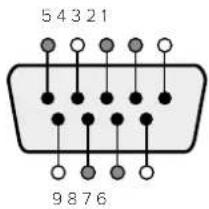
| Pin Function | |
| 1 Ground | |
| 2 Tx- (Data sent by router) | |
| 3 Rx+ (Data received by router) | |
| 4 Ground | |
| 5 NC (No connect) | |
| 6 Ground | |
| 7 Tx+ (Data sent by router) | |
| 8 Rx- (Data received by router) | |
| 9 Ground | |
Videohub RS-422 Router Control DB9 pin connections.
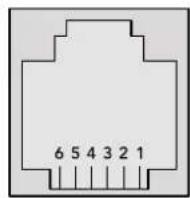
| Pin No. Function | |
| Pin 1 | TX + |
| Pin 2 | TX - |
| Pin 3 | GND |
| Pin 4 | GND |
| Pin 5 | RX - |
| Pin 6 | RX + |
Videohub RS-422 Router Control RJ11 pinout diagram.
This document describes the commands and parameters in the protocol that are relevant and supported by Videohub. Other commands and parameters specified in the Leitch protocol are accepted but ignored.
The RS-422 serial port is configured as 9600 N81.
The protocol is line-oriented, with a maximum length of 250 characters per command. Each command from the client should be terminated with a carriage-return (r). Each response from the server will be terminated with a carriage-return and line-feed (r\n).
Sources, destinations and levels are always specified in base-16, numbered from zero. Levels are always between 0 and 15 ("F"). Videohubs only have one valid level - level zero.
On connecting to the serial port, the client should send a carriage-return. The Videohub Server will respond with a > character prompt, which is not followed by a carriage-return or line-feed. Receiving the prompt indicates that a connection has been established. The same prompt will be issued after each command received by the Videohub Server.
In the following documentation, commands in orange and values in blue must be typed literally, including any spaces. In the following example of an immediate command using destination port 7 and source port 3, @ X:0/destination, source would be entered as: @ X:0/6, 2
Notifications
Once connected, if status reporting is enabled, the client will receive a notification message when a route changes on the Videohub Server. The notifications take one of two forms:
S:0destination,source Routing change
This message indicates that the specified source port is now routed to the specified destination.
V:0destination,source Preset routing notification
This message indicates that the current preset includes a route from the specified source to the specified destination.
GlobalCommands
All pass-through commands are preceded by an @ symbol and a space.
The following client commands are supported:
@ ! disable status reporting
Status reporting is disabled by default.
@ ? enable status reporting
Status reporting is enabled.
@ Z: reset routing table
Routing is reset so that the first source is routed to all destinations.
ImmediateCommands
@ X:0/destination,source change route
@ X:0/destination, source/destination-2, source-2... change multiple routes
The specified source ports are routed to the specified destinations.
Any routing changes will trigger S: notifications
@ X?0destination request individual route status
The source routed to a the specified destination will be returned as an s: notification.
@ S?0 request all ports route status
Each source & destination port pair will be returned as S: notifications
SalvoCommands
@ P:0/destination,source queue route change
@ P:0/destination,source/destination-2,source-2... queue multiple route changes The specified routing changes are added to the current salvo for later execution.
@ P?0destination request individual port status in salvo
If a routing change for the specified destination port is queued, the route will be returned as a V: notification.
@ V?0 request all ports status in salvo
Each queued routing change in the salvo is reported as a V: notification.
@ B:C clear salvo
@ B:R clear salvo
Any queued changes are discarded and the salvo is reset.
@ B:E execute salvo
Any queued changes are executed and each routing change will be returned as an notification.
Saving and Loading Labels with Telnet in Mac OS
Normally you would use Blackmagic Videohub Setup to save and load labels between different Videohub routers and to backup your videohub settings. However, if for any reason you wish to use the Terminal, the instructions below let you save and load router label configurations via the Terminal.
![Blackmagics-iMac:~ timf$ telnet 192.168.25.253 9990 Trying 192.168.25.253... Connected to 192.168.25.253. Escape character is '^]'. PROTOCOL PREAMBLE: Version: 2.4 VIDEOHUB DEVICE: Device present: true Model name: Blackmagic Smart Videohub Unique ID: 7c2e0d0106df Video inputs: 16 Video processing units: 0 Video outputs: 16 Video monitoring outputs: 0 Serial ports: 0 INPUT LABELS: 0 Camera 1 1 Mini Converter 1 2 Hyperdeck 1 3 VTR 1 4 Teranex 1 5 PC Workstation 6 ATEM PGM 7 Camera 2 8 Mini Converter 2 9 Mac Workstation 10 Hyperdeck 2 11 VTR 2 12 Teranex 3 13 Hyperdeck 3 14 Hyperdeck 3 15 Input 16 OUTPUT LABELS: 0 Main Monitor 1 1 Main Monitor 2 2 Audio Monitor 1 3 Audio Monitor 2 4 ATEM Input 1 5 ATEM Input 2 6 ATEM Input 3 7 Hyperdeck 4 8 Hyperdeck 5 9 Hyperdeck 3 10 VTR 3 11 VTR 4 12 Teranex 4 13 Ultrascope 1 14 Ultrascope 2 15 Ultrascope 3](/content/2026/04/672773/images/c3c17246419cc69c7fee2530f83ef59216f6ad8c6cabbd1941d2227e634a4853.jpg)
SavingLabels
1 Open the Terminal application which is located within the Applications > Utilities folder.
2Type in "telnet" and a space followed by the IP of your Videohub, then another space and "9990", which is the default port number. For example type: telnet 192.168.25.253 9990. The Protocol Preamble screen will appear.
3Copy the INPUT LABELS: text including the heading and paste into a word processor or simple text editor. Name this file "input labels" and save to your favorite location.
4Copy the OUTPUT LABELS: text including the heading and paste into a word processor or simple text editor. Name this file "output labels" and save to your favorite location.
5 Close the telnet session by exiting the terminal window.
LoadingLabels
1 Open the Terminal application with is located within the Applications > Utilities folder.
2Type in "telnet" and a space followed by the IP of your Videohub, then another space and "9990", which is the default port number. For example type: telnet 192.168.25.253 9990. The Protocol Preamble screen will appear.
3 Open the "input labels" text file in your text editing program and copy the INPUT LABELS: text.
4 Paste this into the telnet session and press "return" twice. Telnet will respond with "ACK" and Videohub will update the input labels.
5Open the "output labels" text file in your text editing program and copy the OUTPUT LABELS: text.
6 Paste this into the telnet session and press "return" twice. Telnet will respond with "ACK" and Videohub will update the output labels.
7 Close the telnet session by exiting the terminal window.
Saving and Loading Labels with Telnet in Windows
While you can save and load labels within Blackmagic Videohub Setup, you may also download and use PuTTY which is a free telnet client.
SettingupPuTTY
1 Start the application and in the "Host Name" field, type the IP of your Videohub and in the "Port" field type "9990", which is the default port number.
2From the Connection type options select the "Telnet" radio button.
3Select the "Terminal" tab and tick the "Implicit CR in every LF" checkbox.
4 Click the "Session" tab and save your session parameters by entering a name in the "Saved Sessions" field and clicking the "Save" button.
SavingLabels
1 Double click the PuTTY icon to start the application. Select your saved session from the list and click the "Load" button followed by the "Open" button. The Protocol Preamble screen will appear.
2Copy the INPUT LABELS: text including the heading and paste into a word processor or simple text editor. Name this file "input labels" and save to your favorite location.
3Copy the OUTPUT LABELS: text including the heading and paste into a word processor or simple text editor. Name this file "output labels" and save to your favorite location.
4 Exit the telnet session by closing the PuTTY window.
LoadingLabels
1 Double click the PuTTY icon to start the application. Select your saved session from the list and click the "Load" button followed by the "Open" button. The Protocol Preamble screen will appear.
2 Open the "input labels" text file in your text editing program and copy the INPUT LABELS: text.
3 Right click in the PuTTY session to paste the copied section and press "Enter" twice. PuTTY will respond with "ACK" and Videohub will update the input labels.
4Open the "output labels" text file in your text editing program and copy the OUTPUT LABELS: text.
5 Right click in the PuTTY session to paste the copied section and press "Enter" twice. PuTTY will respond with "ACK" and Videohub will update the output labels.
6Exit the telnet session by closing the PuTTY window.
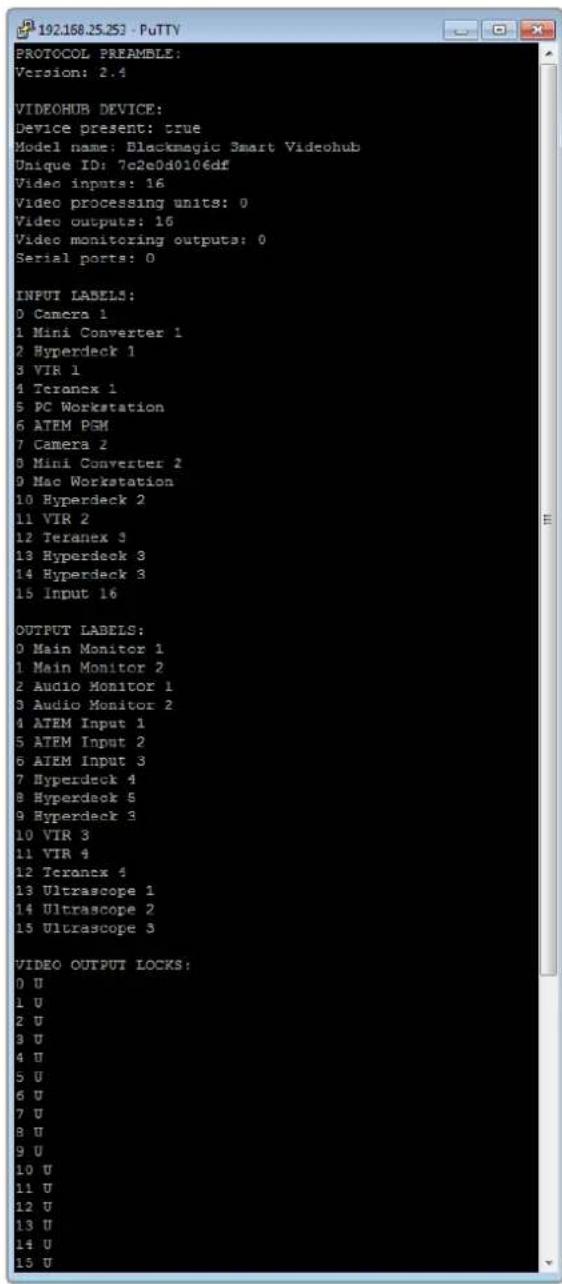
Blackmagic GPI and Tally Interface

natural_image
Circular portrait photo of a smiling man in a dark shirt against a gray background (no text or symbols)Chère cliente, cher client,
GPI and Tally Interface 230
Saving and Loading Labels with Telnet in Mac OS 270
Saving and Loading Labels with Telnet in Windows 271
natural_image
Front view of a black rack-mounted server rack with multiple ports and connectors (no visible text or labels)Universal Videohub 288
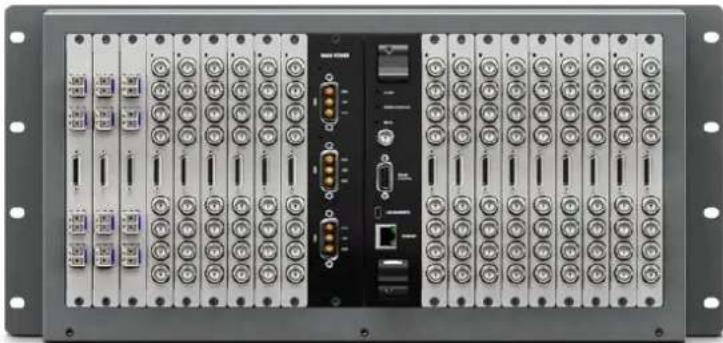
natural_image
Front view of a rack-mounted electronic device with multiple ports and connectors (no visible text or labels)Universal Videohub 72
Videohub Master Control Pro
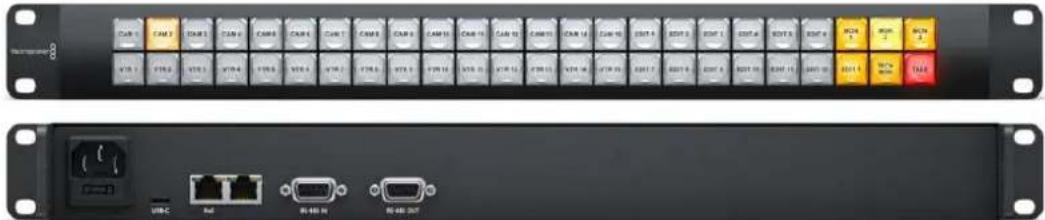
Videohub Smart Control Pro
Mise en route
natural_image
Front panel of a network equipment unit with multiple ports and connectors (no visible text or labels)natural_image
Front view of a server rack with rows of circular components and indicator lights (no visible text or labels)Universal Videohub 288
natural_image
Technical line drawing of a computer drive chassis with cooling fins and ports (no text or symbols)
natural_image
3D architectural diagram of a multi-level storage unit with internal structure and storage compartments (no text or symbols)natural_image
Technical diagram of an electrical panel assembly with a highlighted component (no text or symbols present)natural_image
Technical diagram of an electrical connector assembly with orange arrows indicating connection points (no text or symbols present)natural_image
Technical diagram of a cable connector assembly with two connectors and a panel, no text or symbols present.natural_image
Front panel of a rack-mounted electronic device with multiple ports and connectors (no visible text or labels)natural_image
Technical line drawing of a device rear panel with ports and connectors (no text or symbols)natural_image
Technical illustration of an industrial rack unit with a highlighted internal panel and directional arrow (no text or symbols)natural_image
Technical diagram of an electrical panel assembly with a highlighted component (no text or symbols present)natural_image
3D diagram of a rack-mounted electronic device with multiple ports and connectors (no text or symbols visible)natural_image
Line drawing of multiple Ethernet connectors with I/O port labels (no text or symbols)natural_image
Front panel of a network device showing ports labeled UBC, N2, B2B, and B423T (no text or symbols beyond labels)Videohub Master Control Pro
Videohub Smart Control Pro
natural_image
Front and back view of a rack-mounted server interface with labeled ports (UAC, PAD, RS427N, RS430UT) and mounting holes (no text or symbols on the main components)Videohub Smart Control Pro
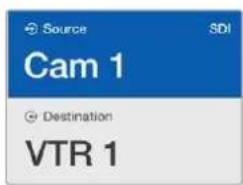
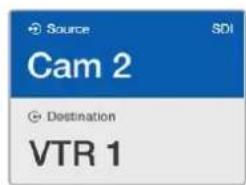
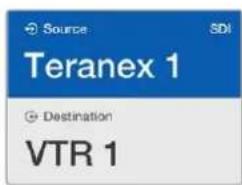
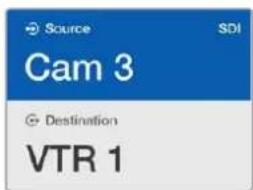
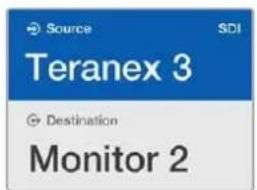
natural_image
Pure electrical circuit lines without any symbolsnatural_image
Diagram of a rack-mounted device with yellow and red indicator lights, no text or symbols presentnatural_image
Hand holding a small mechanical component, no visible text or symbolsnatural_image
Illustration of a hand pressing a small object with an orange arrow (no text or symbols)natural_image
Illustration of hands holding a small object with circular patterns, no text or symbols presentSRC
SRC et VIEW
SRC, VIEW et SET
SOLO et MENU
GPI and Tally Interface
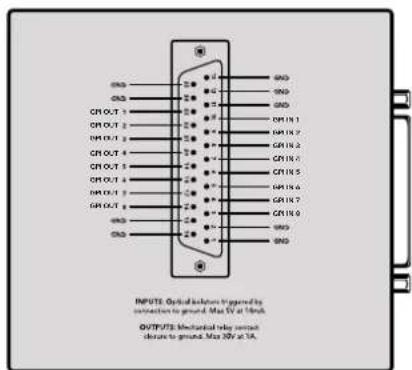
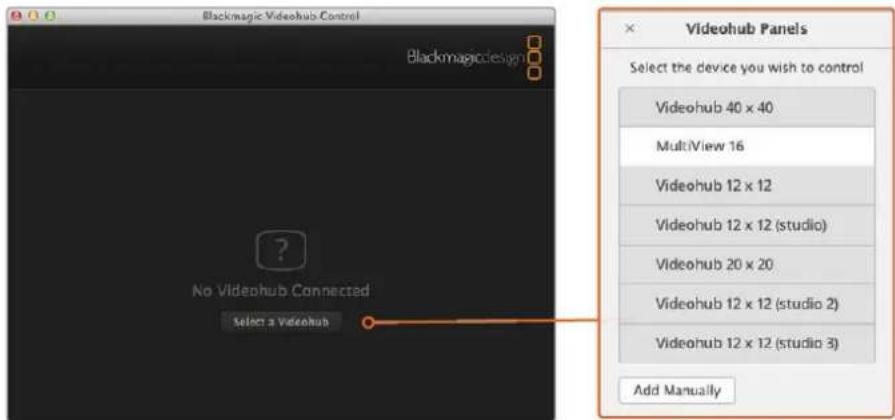
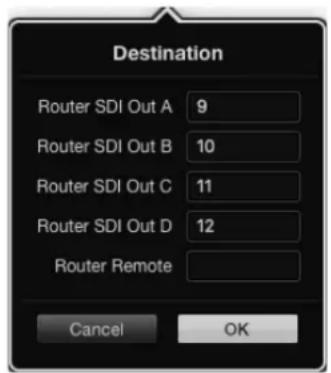
Momentary Hold Video
The Blackmagic Videohub Ethernet Protocol is a text based protocol that is accessed by connecting to TCP port 9990 on a Videohub Server. Integrated Videohub Servers and Videohub Server computers are supported by the protocol.
The Videohub Server sends information in blocks which each have an identifying header in all-caps, followed by a full-colon. A block spans multiple lines and is terminated by a blank line. Each line in the protocol is terminated by a newline character.
Upon connection, the Videohub Server sends a complete dump of the state of the device. After the initial status dump, status updates are sent every time the Videohub status changes.
To be resilient to future protocol changes, clients should ignore blocks they do not recognize, up to the trailing blank line. Within existing blocks, clients should ignore lines they do not recognize.
LEGEND
← line feed or carriage return
... and so on
Version 2.3 of the Blackmagic Videohub Ethernet Protocol was released with Videohub 4.9.1 software.
Protocol Preamble
The first block sent by the Videohub Server is always the protocol preamble:
PROTOCOL PREAMBLE:
Version: 2.3
←
The version field indicates the protocol version. When the protocol is changed in a compatible way, the minor version number will be updated. If incompatible changes are made, the major version number will be updated.
Device Information
The next block contains general information about the connected Videohub device. If a device is connected, the Videohub Server will report the attributes of the Videohub:
VIDEOHUB DEVICE:←
Device present: true←
Model name: Blackmagic Smart Videohub←
Video inputs: 16←
Video processing units: 0←
Video outputs: 16←
Video monitoring outputs: 0←
Serial ports: 0←
©
The next three blocks describe the routing of the output, monitoring and serial ports.
VIDEO OUTPUT ROUTING:←
0 5←
1 3←
...
←
VIDEO MONITORING OUTPUT ROUTING:←
0 7←
1 8←
...
←
SERIAL PORT ROUTING:←
0 12←
1 11←
...
←
Videohubs with processing units (only the Workgroup Videohub) send an extra routing block:
PROCESSING UNIT ROUTING:←
0 5←
1 3←
...
←
Videohubs with frame buffers (only the Workgroup Videohub) send two extra blocks:
FRAME LABELS:←
0 Frame one←
1 Frame two←
...
←
FRAME BUFFER ROUTING:←
0 7←
1 8←
...
←
The next three blocks describe the locking status of the output, monitoring and serial ports. Each port has a lock status of "O" for ports that are owned by the current client (i.e., locked from the same IP address), "L" for ports that are locked from a different client, or "U" for unlocked. Note that Videohubs that do not have monitoring ports or serial ports do not send the corresponding blocks.
VIDEO OUTPUT LOCKS:←
0 U←
1 U←
...
←
MONITORING OUTPUT LOCKS:←
0 U←
1 U←
...
←
SERIAL PORT LOCKS:←
0 U←
1 U←
...
←
Videohubs with processing units (only the Workgroup Videohub) send an extra lock block:
PROCESSING UNIT LOCKS:←
0 U←
1 U←
...
←
Videohubs with frame buffers (only the Workgroup Videohub) send an extra lock block:
FRAME BUFFER LOCKS:←
0 U←
1 U←
...
←
Videohubs with serial ports next send a block which describes the direction of each serial port. Each port has a direction of either “control” for the “In (Workstation)” setting, “slave” for “Out (Deck)”, or “auto” for “Automatic”.
SERIAL PORT DIRECTIONS:←
0 control←
1 slave←
2 auto←
...
←
Videohubs with pluggable cards (only Universal Videohubs) send three more blocks that describe the hardware status of the ports. Missing video or serial ports have a status of "None"; input and output video ports will be "BNC" or "Optical" if they are present; serial ports will be "RS422" if they are present.
VIDEO INPUT STATUS:←
0 BNC←
1 BNC←
...
VIDEO OUTPUT STATUS:←
0 BNC←
1 BNC←
...
SERIAL PORT STATUS:←
0 RS422←
1 RS422←
...
Status Updates
When any route, label, or lock is changed on the Videohub Server by any client, the Videohub Server resends the applicable status block, containing only the items that have changed. For example, if serial port 6 has been unlocked, the following block will be sent:
SERIAL PORT LOCKS:
5 U
←
If multiple items are changed, multiple items may be present in the update:
OUTPUT LABELS:
7 New output 8 label
10 New output 11 label
←
If a card is plugged into or removed from the Universal Videohub, it will send hardware status blocks for the video inputs, video outputs, and serial ports on that card.
Requesting Changes
To update a label, lock or route, the client should send a block of the same form the Videohub Server sends when its status changes. For example, to change the route of output port 8 to input port 3, the client should send the following block:
VIDEO OUTPUT ROUTING:
7 2
←
The block must be terminated by a blank line. On receipt of a blank line, the Videohub Server will either acknowledge the request by responding:
ACK←
←
or indicate that the request was not understood by responding:
NAK
←
After a positive response, the client should expect to see a status update from the Videohub Server showing the status change. This is likely to be the same as the command that was sent, but if the request could not be performed, or other changes were made simultaneously by other clients, there may be more updates in the block, or more blocks. Simultaneous updates could cancel each other out, leading to a response that is different to that expected.
In the absence of simultaneous updates, the dialog expected for a simple label change is as follows:
OUTPUT LABELS:←
6 new output label seven←
←
ACK←
←
OUTPUT LABELS:←
6 new output label seven←
←
The asynchronous nature of the responses means that a client should never rely on the desired update actually occurring and must simply watch for status updates from the Videohub Server and use only these to update its local representation of the server state.
To lock a port, send an update to the port with the character "O" indicating that you wish to lock the port for example:
SERIAL PORT LOCKS:←
7 0←
←
ACK←
←
SERIAL PORT LOCKS:←
7 0←
←
To forcibly unlock a port that has been locked by another client, send an update to the port with the character "F" instead of using the usual unlock character "U". For example, to override a lock on port 7:
SERIAL PORT LOCKS:←
7 F←
←
ACK←
←
SERIAL PORT LOCKS:←
7 U←
←
Hardware status blocks can only be sent by the Videohub Server. If a client sends hardware status blocks, they will be ignored.
Requesting a Status Dump
The client may request that the Videohub Server resend the complete state of any status block by sending the header of the block, followed by a blank line. In the following example, the client requests the Videohub Server resend the output labels:
OUTPUT LABELS:
ACK
OUTPUT LABELS:
0 output label 1
1 output label 2
2 output label 3
...
Checking the Connection
While the connection to the Videohub Server is established, a client may send a special no-operation command to check that the Videohub Server is still responding:
PING:
←
If the Videohub Server is responding, it will respond with an ACK message as for any other recognized command.
Videohub RS-422 Protocol
General
The RS-422 protocol can be used to control many Videohub models as RS-422 slave devices, for router crosspoint switching. This feature is available on any Videohub model with an “RS-422 Control” port.
Depending on your model of Videohub, the RS-422 port may be either a DB9 or RJ11 connector. DB9 cables are commonly available in electrical stores. The RJ11 connector is the same used in many landline telephone connections. By modifying an RS-422 to USB adapter cable terminated with an RJ11 connector you can control Videohub using external controllers via USB.
In “Leitch Server” mode, these Videohub models implement the router (server) side of the Leitch Serial Pass-Through Protocol as specified in section 4 of Leitch document SPR-MAN revision D. In “Leitch Client” mode, the Videohub implements the controller (client) side of the Leitch terminal protocol.
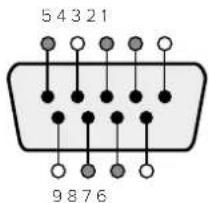
| Pin Function | |
| 1 Ground | |
| 2 Tx- (Data sent by router) | |
| 3 Rx+ (Data received by router) | |
| 4 Ground | |
| 5 NC (No connect) | |
| 6 Ground | |
| 7 Tx+ (Data sent by router) | |
| 8 Rx- (Data received by router) | |
| 9 Ground | |
Videohub RS-422 Router Control DB9 pin connections.
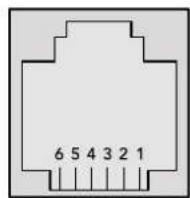
| Pin No. Function | |
| Pin 1 | TX + |
| Pin 2 | TX - |
| Pin 3 | GND |
| Pin 4 | GND |
| Pin 5 | RX - |
| Pin 6 | RX + |
Videohub RS-422 Router Control RJ11 pinout diagram.
This document describes the commands and parameters in the protocol that are relevant and supported by Videohub. Other commands and parameters specified in the Leitch protocol are accepted but ignored.
The RS-422 serial port is configured as 9600 N81.
The protocol is line-oriented, with a maximum length of 250 characters per command. Each command from the client should be terminated with a carriage-return (\r). Each response from the server will be terminated with a carriage-return and line-feed (\r\n).
Sources, destinations and levels are always specified in base-16, numbered from zero. Levels are always between 0 and 15 ("F"). Videohubs only have one valid level - level zero.
On connecting to the serial port, the client should send a carriage-return. The Videohub Server will respond with a > character prompt, which is not followed by a carriage-return or line-feed. Receiving the prompt indicates that a connection has been established. The same prompt will be issued after each command received by the Videohub Server.
In the following documentation, commands in orange and values in blue must be typed literally, including any spaces. In the following example of an immediate command using destination port 7 and source port 3, @ X:0/destination, source would be entered as: @ X:0/6,2
Notifications
Once connected, if status reporting is enabled, the client will receive a notification message when a route changes on the Videohub Server. The notifications take one of two forms:
S:0destination, source Routing change
This message indicates that the specified source port is now routed to the specified destination.
V:0destination,source Preset routing notification
This message indicates that the current preset includes a route from the specified source to the specified destination.
Global Commands
All pass-through commands are preceded by an @ symbol and a space.
The following client commands are supported:
@ ! disable status reporting Status reporting is disabled by default.
@ ? enable status reporting Status reporting is enabled.
@ Z: reset routing table
Routing is reset so that the first source is routed to all destinations.
Immediate Commands
@ X:0/destination,source change route
@ X:0/destination, source/destination-2, source-2... change multiple routes The specified source ports are routed to the specified destinations. Any routing changes will trigger S: notifications
@ X?0destination request individual route status The source routed to a the specified destination will be returned as an S: notification.
@ S?0 request all ports route status Each source & destination port pair will be returned as S: notifications
Salvo Commands
@ P:0/destination,source queue route change
@ P:0/destination,source/destination-2,source-2... queue multiple route changes The specified routing changes are added to the current salvo for later execution.
@ P?0destination request individual port status in salvo If a routing change for the specified destination port is queued, the route will be returned as a V: notification.
@ V?0 request all ports status in salvo Each queued routing change in the salvo is reported as a V: notification.
@ B:C clear salvo
@ B:R clear salvo Any queued changes are discarded and the salvo is reset.
@ B:E execute salvo Any queued changes are executed and each routing change will be returned as an S: notification.
Saving and Loading Labels with Telnet in Mac OS
Normally you would use Blackmagic Videohub Setup to save and load labels between different Videohub routers and to backup your videohub settings. However, if for any reason you wish to use the Terminal, the instructions below let you save and load router label configurations via the Terminal.
![Blackmagics-iMac:~ timf$ telnet 192.168.25.253 9990 Trying 192.168.25.253... Connected to 192.168.25.253. Escape character is '^]'. PROTOCOL PREAMBLE: Version: 2.4 VIDEOHUB DEVICE: Device present: true Model name: Blackmagic Smart Videohub Unique ID: 7c2e0d0106df Video inputs: 16 Video processing units: 0 Video outputs: 16 Video monitoring outputs: 0 Serial ports: 0 INPUT LABELS: 0 Camera 1 1 Mini Converter 1 2 Hyperdeck 1 3 VTR 1 4 Teranex 1 5 PC Workstation 6 ATEM PGM 7 Camera 2 8 Mini Converter 2 9 Mac Workstation 10 Hyperdeck 2 11 VTR 2 12 Teranex 3 13 Hyperdeck 3 14 Hyperdeck 3 15 Input 16 OUTPUT LABELS: 0 Main Monitor 1 1 Main Monitor 2 2 Audio Monitor 1 3 Audio Monitor 2 4 ATEM Input 1 5 ATEM Input 2 6 ATEM Input 3 7 Hyperdeck 4 8 Hyperdeck 5 9 Hyperdeck 3 10 VTR 3 11 VTR 4 12 Teranex 4 13 Ultrascope 1 14 Ultrascope 2 15 Ultrascope 3](/content/2026/04/672773/images/595e721be176dd455c54e93f5830f75b0d225a9c44b07c87ca8e5a1f50825ff0.jpg)
Saving Labels
1 Open the Terminal application which is located within the Applications > Utilities folder.
2Type in "telnet" and a space followed by the IP of your Videohub, then another space and "9990", which is the default port number. For example type: telnet 192.168.25.253 9990. The Protocol Preamble screen will appear.
3 Copy the INPUT LABELS: text including the heading and paste into a word processor or simple text editor. Name this file "input labels" and save to your favorite location.
4 Copy the OUTPUT LABELS: text including the heading and paste into a word processor or simple text editor. Name this file "output labels" and save to your favorite location.
5Close the telnet session by exiting the terminal window.
Loading Labels
1 Open the Terminal application with is located within the Applications > Utilities folder.
2Type in "telnet" and a space followed by the IP of your Videohub, then another space and "9990", which is the default port number. For example type: telnet 192.168.25.253 9990. The Protocol Preamble screen will appear.
3 Open the "input labels" text file in your text editing program and copy the INPUT LABELS: text.
4 Paste this into the telnet session and press "return" twice. Telnet will respond with "ACK" and Videohub will update the input labels.
5Open the "output labels" text file in your text editing program and copy the OUTPUT LABELS: text.
6 Paste this into the telnet session and press "return" twice. Telnet will respond with "ACK" and Videohub will update the output labels.
7 Close the telnet session by exiting the terminal window.
Saving and Loading Labels with Telnet in Windows
While you can save and load labels within Blackmagic Videohub Setup, you may also download and use PuTTY which is a free telnet client.
Setting up PuTTY
1 Start the application and in the "Host Name" field, type the IP of your Videohub and in the "Port" field type "9990", which is the default port number.
2From the Connection type options select the "Telnet" radio button.
3Select the "Terminal" tab and tick the "Implicit CR in every LF" checkbox.
4 Click the "Session" tab and save your session parameters by entering a name in the "Saved Sessions" field and clicking the "Save" button.
Saving Labels
1 Double click the PuTTY icon to start the application. Select your saved session from the list and click the "Load" button followed by the "Open" button. The Protocol Preamble screen will appear.
2 Copy the INPUT LABELS: text including the heading and paste into a word processor or simple text editor. Name this file "input labels" and save to your favorite location.
3Copy the OUTPUT LABELS: text including the heading and paste into a word processor or simple text editor. Name this file "output labels" and save to your favorite location.
4 Exit the telnet session by closing the PuTTY window.
Loading Labels
1 Double click the PuTTY icon to start the application. Select your saved session from the list and click the "Load" button followed by the "Open" button. The Protocol Preamble screen will appear.
2 Open the "input labels" text file in your text editing program and copy the INPUT LABELS: text.
3 Right click in the PuTTY session to paste the copied section and press "Enter" twice. PuTTY will respond with "ACK" and Videohub will update the input labels.
4 Open the "output labels" text file in your text editing program and copy the OUTPUT LABELS: text.
5 Right click in the PuTTY session to paste the copied section and press "Enter" twice. PuTTY will respond with "ACK" and Videohub will update the output labels.
6 Exit the telnet session by closing the PuTTY window.
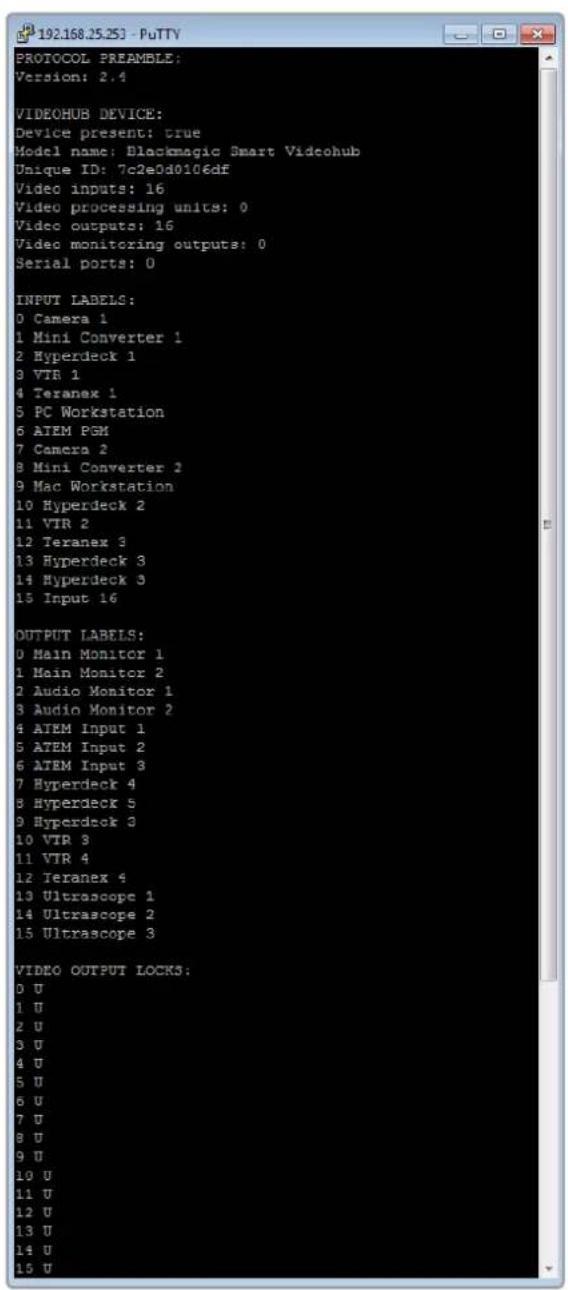
Blackmagic GPI and Tally Interface

natural_image
Circular portrait photo of a smiling man with short hair, wearing a dark collared shirt (no text or symbols visible)Willkommen
CEO Blackmagic Design
Inhaltsverzeichnis
GPI and Tally Interface 322
Blackmagic Videohub Software 323
Blackmagic Videohub Setup 323
Saving and Loading Labels with Telnet in Mac OS 362
Saving and Loading Labels with Telnet in Windows 363
natural_image
Front view of a black rack-mounted server rack with multiple ports and connectors (no visible text or labels)Universal Videohub 288
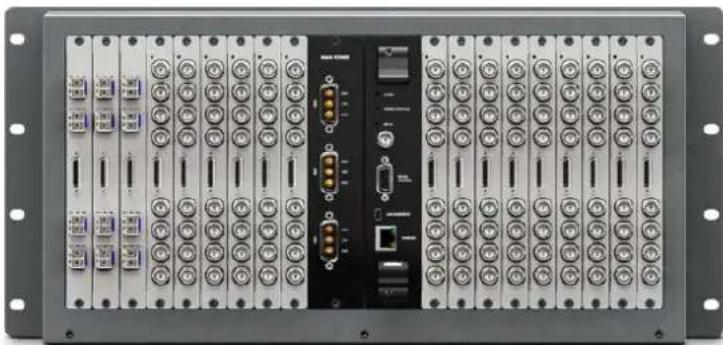
natural_image
Front view of a rack-mounted electronic device with multiple ports and connectors (no visible text or labels)Universal Videohub 72
Smart Videohub CleanSwitch 12x12
Videohub Master Control Pro

Videohub Smart Control Pro
Erste Schritte
natural_image
Front panel of a network equipment rack with multiple circular ports and indicator lights (no visible text or labels)natural_image
Front view of a server rack with rows of connectors and indicator lights (no visible text or labels)Universal Videohub 288
natural_image
Technical line drawing of a computer drive chassis with cooling fins and ports (no text or symbols)
natural_image
3D architectural diagram of a multi-level storage unit with internal structure and storage compartments (no text or symbols)natural_image
Technical diagram of an electrical panel assembly with a highlighted component (no text or symbols present)natural_image
Technical diagram of an electrical connector assembly with orange arrows indicating connection points (no text or symbols present)natural_image
Technical diagram of a cable connector assembly with connectors and wiring (no text or symbols)natural_image
Front panel of a rack-mounted industrial control unit with multiple ports and connectors (no visible text or labels)natural_image
Technical line drawing of a computer chassis with ports and connectors (no text or symbols)natural_image
Two types of electronic connectors: a USB drive and a USB cable, shown without any text or symbols.natural_image
Technical illustration of an internal server rack unit with a highlighted orange arrow indicating a component (no text or symbols present)natural_image
Technical diagram of an electrical panel assembly with a highlighted component (no text or symbols present)natural_image
Diagram of an electronic device rear panel with multiple ports and connectors (no text or labels visible)natural_image
Illustration of multiple connected VGA connectors (no text or symbols)Universal Videohub Deck Control Cable
Smart Videohub CleanSwitch 12x12
natural_image
Front and back view of a rack-mounted server interface with labeled ports (no text or symbols on the main components)Videohub Smart Control Pro
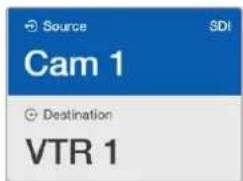
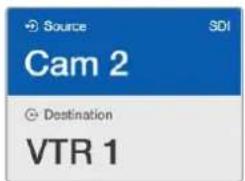
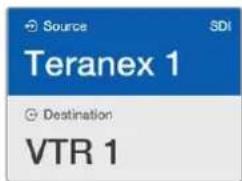
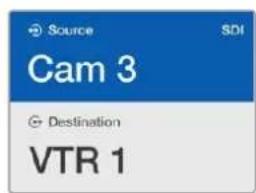
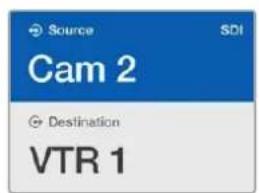
natural_image
Front panel of a computer RAM module with a highlighted red indicator (no text or symbols)natural_image
Pure electrical circuit lines without any symbolsnatural_image
Hand holding a small object with a pointed tip, no visible text or symbolsnatural_image
Illustration of hands using a tool to cut or sample material in a mechanical component (no text or symbols visible)
SRC und VIEW
SRC, VIEW und SET
GPI and Tally Interface
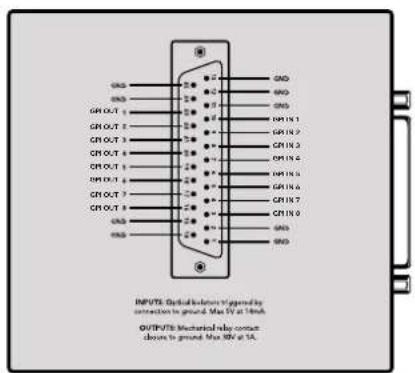
natural_image
Large black electronic device with a grid of app icons displayed on its screen (no readable text or symbols)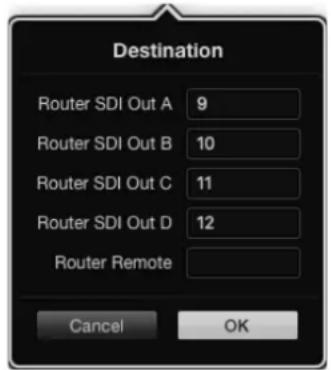
Momentary Hold Video
The Blackmagic Videohub Ethernet Protocol is a text based protocol that is accessed by connecting to TCP port 9990 on a Videohub Server. Integrated Videohub Servers and Videohub Server computers are supported by the protocol.
The Videohub Server sends information in blocks which each have an identifying header in all-caps, followed by a full-colon. A block spans multiple lines and is terminated by a blank line. Each line in the protocol is terminated by a newline character.
Upon connection, the Videohub Server sends a complete dump of the state of the device. After the initial status dump, status updates are sent every time the Videohub status changes.
To be resilient to future protocol changes, clients should ignore blocks they do not recognize, up to the trailing blank line. Within existing blocks, clients should ignore lines they do not recognize.
LEGEND
← line feed or carriage return ... and so on
Version 2.3 of the Blackmagic Videohub Ethernet Protocol was released with Videohub 4.9.1 software.
Protocol Preamble
The first block sent by the Videohub Server is always the protocol preamble:
PROTOCOL PREAMBLE:
Version: 2.3
←
The version field indicates the protocol version. When the protocol is changed in a compatible way, the minor version number will be updated. If incompatible changes are made, the major version number will be updated.
Device Information
The next block contains general information about the connected Videohub device. If a device is connected, the Videohub Server will report the attributes of the Videohub:
VIDEOHUB DEVICE:←
Device present: true←
Model name: Blackmagic Smart Videohub←
Video inputs: 16←
Video processing units: 0←
Video outputs: 16←
Video monitoring outputs: 0←
Serial ports: 0←
This example is for the Smart Videohub which is a 16x16 router.
If the Videohub Server has no device connected, the block will simply be:
VIDEOHUB DEVICE:
Device present: false
←
If a device is present, but has an incompatible firmware, the status reported will be:
VIDEOHUB DEVICE:
Device present: needs _ update
←
In the last two situations, no further information will be sent, unless the situation is rectified.
If the Videohub Server detects a new Videohub attached, it will resend all blocks except the protocol preamble to indicate the device has changed, and allow the client to update its cache of server state.
Initial Status Dump
The next four blocks enumerate the labels assigned to the input, output, monitoring and serial ports.
Videohubs that do not have monitoring or serial ports do not send the corresponding blocks.
INPUT LABELS:
0 VTR 1
1 VTR 2
...
←
OUTPUT LABELS:
0 Output feed 1←
1 Output feed 2
***
←
MONITORING OUTPUT LABELS:
0 Monitor feed 1
1 Monitor feed 2
...
←
SERIAL PORT LABELS:
0 Deck 1
1 Deck 2
←
NOTE Ports are always numbered starting at zero in the protocol which matches port one on the chassis.
The next three blocks describe the routing of the output, monitoring and serial ports.
VIDEO OUTPUT ROUTING:←
0 5←
1 3←
...
←
VIDEO MONITORING OUTPUT ROUTING:←
0 7←
1 8←
...
←
SERIAL PORT ROUTING:←
0 12←
1 11←
...
←
Videohubs with processing units (only the Workgroup Videohub) send an extra routing block:
PROCESSING UNIT ROUTING:←
0 5←
1 3←
...
←
Videohubs with frame buffers (only the Workgroup Videohub) send two extra blocks:
FRAME LABELS:←
0 Frame one←
1 Frame two←
...
←
FRAME BUFFER ROUTING:←
0 7←
1 8←
...
←
The next three blocks describe the locking status of the output, monitoring and serial ports. Each port has a lock status of "O" for ports that are owned by the current client (i.e., locked from the same IP address), "L" for ports that are locked from a different client, or "U" for unlocked. Note that Videohubs that do not have monitoring ports or serial ports do not send the corresponding blocks.
VIDEO OUTPUT LOCKS:←
0 U←
1 U←
...
←
MONITORING OUTPUT LOCKS:←
0 U←
1 U←
...
←
SERIAL PORT LOCKS:←
0 U←
1 U←
...
←
Videohubs with processing units (only the Workgroup Videohub) send an extra lock block:
PROCESSING UNIT LOCKS:←
0 U←
1 U←
...
←
Videohubs with frame buffers (only the Workgroup Videohub) send an extra lock block:
FRAME BUFFER LOCKS:←
0 U←
1 U←
...
←
Videohubs with serial ports next send a block which describes the direction of each serial port. Each port has a direction of either "control" for the "In (Workstation)" setting, "slave" for "Out (Deck)", or "auto" for "Automatic".
SERIAL PORT DIRECTIONS:←
0 control←
1 slave←
2 auto←
...
←
Videohubs with pluggable cards (only Universal Videohubs) send three more blocks that describe the hardware status of the ports. Missing video or serial ports have a status of "None"; input and output video ports will be "BNC" or "Optical" if they are present; serial ports will be "RS422" if they are present.
VIDEO INPUT STATUS:←
0 BNC←
1 BNC←
...
←
VIDEO OUTPUT STATUS:←
0 BNC←
1 BNC←
...
←
SERIAL PORT STATUS:←
0 RS422←
1 RS422←
...
←
Status Updates
When any route, label, or lock is changed on the Videohub Server by any client, the Videohub Server resends the applicable status block, containing only the items that have changed. For example, if serial port 6 has been unlocked, the following block will be sent:
SERIAL PORT LOCKS:←
5 U←
←
If multiple items are changed, multiple items may be present in the update:
OUTPUT LABELS:←
7 New output 8 label←
10 New output 11 label←
←
If a card is plugged into or removed from the Universal Videohub, it will send hardware status blocks for the video inputs, video outputs, and serial ports on that card.
Requesting Changes
To update a label, lock or route, the client should send a block of the same form the Videohub Server sends when its status changes. For example, to change the route of output port 8 to input port 3, the client should send the following block:
VIDEO OUTPUT ROUTING:←
7 2←
←
The block must be terminated by a blank line. On receipt of a blank line, the Videohub Server will either acknowledge the request by responding:
ACK
or indicate that the request was not understood by responding:
NAK
After a positive response, the client should expect to see a status update from the Videohub Server showing the status change. This is likely to be the same as the command that was sent, but if the request could not be performed, or other changes were made simultaneously by other clients, there may be more updates in the block, or more blocks. Simultaneous updates could cancel each other out, leading to a response that is different to that expected.
In the absence of simultaneous updates, the dialog expected for a simple label change is as follows:
OUTPUT LABELS:←
6 new output label seven←
←
ACK←
←
OUTPUT LABELS:←
6 new output label seven←
←
The asynchronous nature of the responses means that a client should never rely on the desired update actually occurring and must simply watch for status updates from the Videohub Server and use only these to update its local representation of the server state.
To lock a port, send an update to the port with the character "O" indicating that you wish to lock the port for example:
SERIAL PORT LOCKS:
7 0←
←
ACK←
←
SERIAL PORT LOCKS:
7 0←
←
To forcibly unlock a port that has been locked by another client, send an update to the port with the character "F" instead of using the usual unlock character "U". For example, to override a lock on port 7:
SERIAL PORT LOCKS:←
7 F←
←
ACK←
←
SERIAL PORT LOCKS:←
7 U←
←
Hardware status blocks can only be sent by the Videohub Server. If a client sends hardware status blocks, they will be ignored.
Requesting a Status Dump
The client may request that the Videohub Server resend the complete state of any status block by sending the header of the block, followed by a blank line. In the following example, the client requests the Videohub Server resend the output labels:
OUTPUT LABELS:←
ACK←
OUTPUT LABELS:←
0 output label 1←
1 output label 2←
2 output label 3←
...
Checking the Connection
While the connection to the Videohub Server is established, a client may send a special no-operation command to check that the Videohub Server is still responding:
PING:
If the Videohub Server is responding, it will respond with an ACK message as for any other recognized command.
Videohub RS-422 Protocol
General
The RS-422 protocol can be used to control many Videohub models as RS-422 slave devices, for router crosspoint switching. This feature is available on any Videohub model with an "RS-422 Control" port.
Depending on your model of Videohub, the RS-422 port may be either a DB9 or RJ11 connector. DB9 cables are commonly available in electrical stores. The RJ11 connector is the same used in many landline telephone connections. By modifying an RS-422 to USB adapter cable terminated with an RJ11 connector you can control Videohub using external controllers via USB.
In “Leitch Server” mode, these Videohub models implement the router (server) side of the Leitch Serial Pass-Through Protocol as specified in section 4 of Leitch document SPR-MAN revision D. In “Leitch Client” mode, the Videohub implements the controller (client) side of the Leitch terminal protocol.
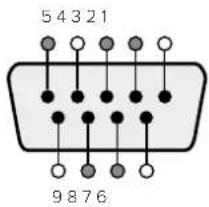
| Pin Function | |
| 1 Ground | |
| 2 Tx- (Data sent by router) | |
| 3 Rx+ (Data received by router) | |
| 4 Ground | |
| 5 NC (No connect) | |
| 6 Ground | |
| 7 Tx+ (Data sent by router) | |
| 8 Rx- (Data received by router) | |
| 9 Ground | |
Videohub RS-422 Router Control DB9 pin connections.
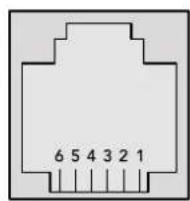
| Pin No. Function | |
| Pin 1 | TX + |
| Pin 2 | TX - |
| Pin 3 | GND |
| Pin 4 | GND |
| Pin 5 | RX - |
| Pin 6 | RX + |
Videohub RS-422 Router Control RJ11 pinout diagram.
This document describes the commands and parameters in the protocol that are relevant and supported by Videohub. Other commands and parameters specified in the Leitch protocol are accepted but ignored.
The RS-422 serial port is configured as 9600 N81.
The protocol is line-oriented, with a maximum length of 250 characters per command. Each command from the client should be terminated with a carriage-return ( r ). Each response from the server will be terminated with a carriage-return and line-feed ( r n ).
Sources, destinations and levels are always specified in base-16, numbered from zero. Levels are always between 0 and 15 ("F"). Videohubs only have one valid level - level zero.
On connecting to the serial port, the client should send a carriage-return. The Videohub Server will respond with a > character prompt, which is not followed by a carriage-return or line-feed. Receiving the prompt indicates that a connection has been established. The same prompt will be issued after each command received by the Videohub Server.
In the following documentation, commands in orange and values in blue must be typed literally, including any spaces. In the following example of an immediate command using destination port 7 and source port 3, @ X:0/destination, source would be entered
as: @ X:0/6,2
Notifications
Once connected, if status reporting is enabled, the client will receive a notification message when a route changes on the Videohub Server. The notifications take one of two forms:
S:0destination,source Routing change
This message indicates that the specified source port is now routed to the specified destination.
V:0destination,source Preset routing notification
This message indicates that the current preset includes a route from the specified source to the specified destination.
Global Commands
All pass-through commands are preceded by an Ⓞ symbol and a space.
The following client commands are supported:
@ ! disable status reporting
Status reporting is disabled by default.
@ ? enable status reporting
Status reporting is enabled.
@ Z: reset routing table
Routing is reset so that the first source is routed to all destinations.
Immediate Commands
@ X:0/destination,source change route
@ X:0/destination, source/destination-2, source-2... change multiple routes
The specified source ports are routed to the specified destinations.
Any routing changes will trigger S: notifications
@ X?0destination request individual route status
The source routed to a the specified destination will be returned as an s: notification.
@ S?0 request all ports route status
Each source & destination port pair will be returned as S: notifications
Salvo Commands
@ P:0/destination,source queue route change
@ P:0/destination,source/destination-2,source-2... queue multiple route changes The specified routing changes are added to the current salvo for later execution.
@ P?0destination request individual port status in salvo
If a routing change for the specified destination port is queued, the route will be returned as a V: notification.
@ V?0 request all ports status in salvo
Each queued routing change in the salvo is reported as a V: notification.
@ B:C clear salvo
@ B:R clear salvo
Any queued changes are discarded and the salvo is reset.
@ B:E execute salvo
Any queued changes are executed and each routing change will be returned as an notification.
Saving and Loading Labels with Telnet in Mac OS
Normally you would use Blackmagic Videohub Setup to save and load labels between different Videohub routers and to backup your videohub settings. However, if for any reason you wish to use the Terminal, the instructions below let you save and load router label configurations via the Terminal.
![Blackmagics-iMac:~ timf$ telnet 192.168.25.253 9990 Trying 192.168.25.253... Connected to 192.168.25.253. Escape character is '^]'. PROTOCOL PREAMBLE: Version: 2.4 VIDEOHUB DEVICE: Device present: true Model name: Blackmagic Smart Videohub Unique ID: 7c2e0d0106df Video inputs: 16 Video processing units: 0 Video outputs: 16 Video monitoring outputs: 0 Serial ports: 0 INPUT LABELS: 0 Camera 1 1 Mini Converter 1 2 Hyperdeck 1 3 VTR 1 4 Teranex 1 5 PC Workstation 6 ATEM PGM 7 Camera 2 8 Mini Converter 2 9 Mac Workstation 10 Hyperdeck 2 11 VTR 2 12 Teranex 3 13 Hyperdeck 3 14 Hyperdeck 3 15 Input 16 OUTPUT LABELS: 0 Main Monitor 1 1 Main Monitor 2 2 Audio Monitor 1 3 Audio Monitor 2 4 ATEM Input 1 5 ATEM Input 2 6 ATEM Input 3 7 Hyperdeck 4 8 Hyperdeck 5 9 Hyperdeck 3 10 VTR 3 11 VTR 4 12 Teranex 4 13 Ultrascope 1 14 Ultrascope 2 15 Ultrascope 3](/content/2026/04/672773/images/ae5d5b7d5e398225afaacad85cdd8db0479282afaf1f1dd7d2ca9d12ea79255a.jpg)
Saving Labels
1 Open the Terminal application which is located within the Applications > Utilities folder.
2Type in "telnet" and a space followed by the IP of your Videohub, then another space and "9990", which is the default port number. For example type: telnet 192.168.25.253 9990. The Protocol Preamble screen will appear.
3Copy the INPUT LABELS: text including the heading and paste into a word processor or simple text editor. Name this file "input labels" and save to your favorite location.
4 Copy the OUTPUT LABELS: text including the heading and paste into a word processor or simple text editor. Name this file "output labels" and save to your favorite location.
5 Close the telnet session by exiting the terminal window.
Loading Labels
1 Open the Terminal application with is located within the Applications > Utilities folder.
2Type in "telnet" and a space followed by the IP of your Videohub, then another space and "9990", which is the default port number. For example type: telnet 192.168.25.253 9990. The Protocol Preamble screen will appear.
3Open the "input labels" text file in your text editing program and copy the INPUT LABELS: text.
4 Paste this into the telnet session and press "return" twice. Telnet will respond with "ACK" and Videohub will update the input labels.
5Open the "output labels" text file in your text editing program and copy the OUTPUT LABELS; text.
6 Paste this into the telnet session and press "return" twice. Telnet will respond with "ACK" and Videohub will update the output labels.
7 Close the telnet session by exiting the terminal window.
Saving and Loading Labels with Telnet in Windows
While you can save and load labels within Blackmagic Videohub Setup, you may also download and use PuTTY which is a free telnet client.
Setting up PuTTY
1 Start the application and in the "Host Name" field, type the IP of your Videohub and in the "Port" field type "9990", which is the default port number.
2From the Connection type options select the "Telnet" radio button.
3Select the "Terminal" tab and tick the "Implicit CR in every LF" checkbox.
4 Click the "Session" tab and save your session parameters by entering a name in the "Saved Sessions" field and clicking the "Save" button.
Saving Labels
1 Double click the PuTTY icon to start the application. Select your saved session from the list and click the "Load" button followed by the "Open" button. The Protocol Preamble screen will appear.
2Copy the INPUT LABELS: text including the heading and paste into a word processor or simple text editor. Name this file "input labels" and save to your favorite location.
3Copy the OUTPUT LABELS: text including the heading and paste into a word processor or simple text editor. Name this file "output labels" and save to your favorite location.
4 Exit the telnet session by closing the PuTTY window.
Loading Labels
1 Double click the PuTTY icon to start the application. Select your saved session from the list and click the "Load" button followed by the "Open" button. The Protocol Preamble screen will appear.
2Open the "input labels" text file in your text editing program and copy the INPUT LABELS: text.
3 Right click in the PuTTY session to paste the copied section and press "Enter" twice. PuTTY will respond with "ACK" and Videohub will update the input labels.
4Open the "output labels" text file in your text editing program and copy the OUTPUT LABELS: text.
5 Right click in the PuTTY session to paste the copied section and press "Enter" twice. PuTTY will respond with "ACK" and Videohub will update the output labels.
6Exit the telnet session by closing the PuTTY window.
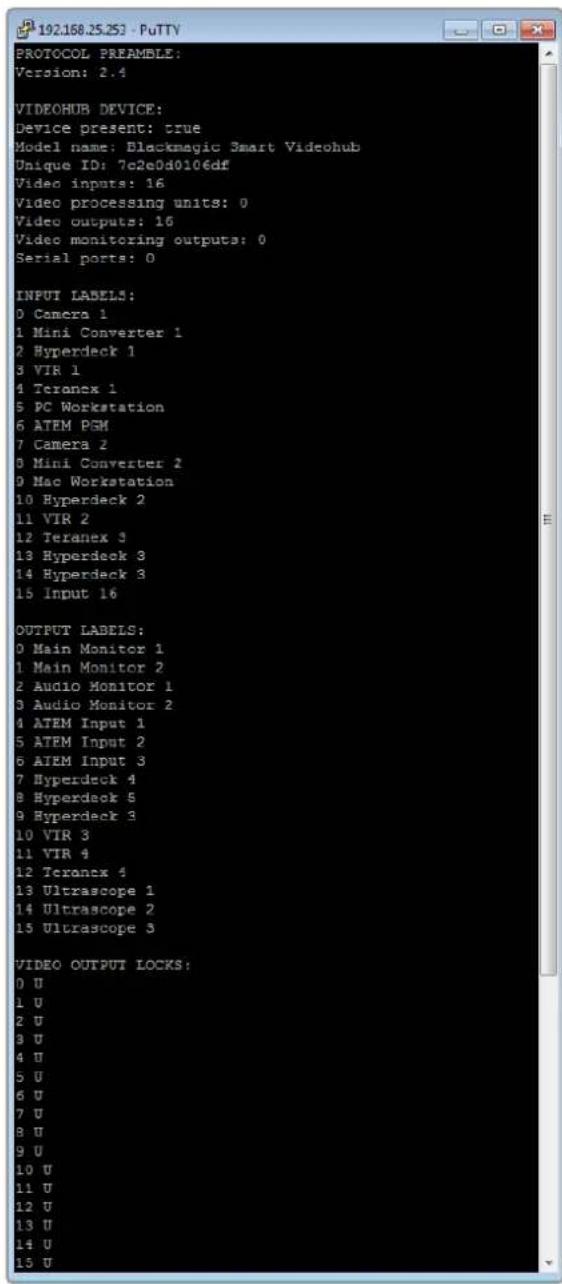
Blackmagic Design Online-Support
California Proposition 65
Blackmagic GPI and Tally Interface

natural_image
Circular portrait photo of a smiling man in a dark shirt against a gray background (no text or symbols)Bienvenido
GPI and Tally Interface 414
Programas Blackmagic Videohub 415
Blackmagic Videohub Setup 415
Saving and Loading Labels with Telnet in Mac OS 454
Saving and Loading Labels with Telnet in Windows 455
natural_image
Front view of a black rack-mounted server rack with multiple ports and connectors (no visible text or labels)Universal Videohub 288
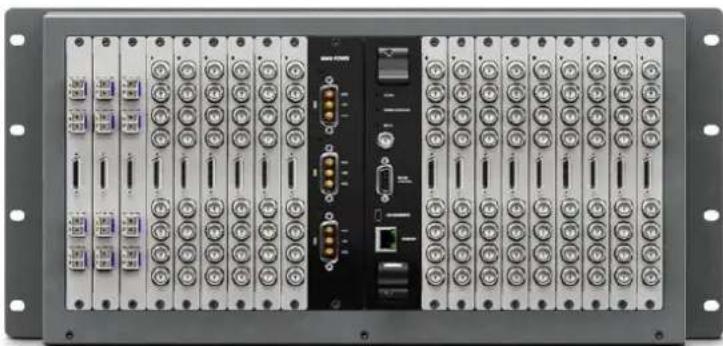
natural_image
Front view of a rack-mounted electronic device with multiple ports and connectors (no visible text or labels)Universal Videohub 72
natural_image
Front view of a rack-mounted network device with multiple ports and indicator lights (no visible text or labels)natural_image
Front view of a server rack with rows of circular components and indicator lights (no visible text or labels)Universal Videohub 288
Universal Videohub 288 Crosspoint
natural_image
Technical line drawing of a computer drive chassis with cooling fins and ports (no text or symbols)
Universal Videohub 288 Crosspoint Cable serial
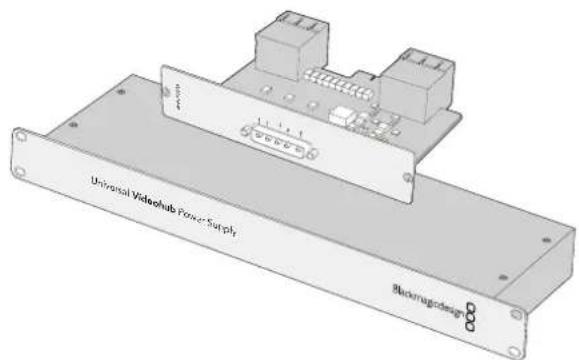
natural_image
3D architectural diagram of a multi-level storage unit with shelves and a central panel, showing no text or symbols.natural_image
Technical diagram of an electrical panel assembly with a highlighted component (no text or symbols present)natural_image
Technical diagram of an electrical connector assembly with orange arrows indicating connection points (no text or symbols present)natural_image
Technical diagram of a cable connector assembly with connectors and components (no text or symbols visible)natural_image
Front panel of a rack-mounted industrial control unit with multiple ports and connectors (no visible text or labels)natural_image
Technical line drawing of a computer chassis rear panel with ports and connectors (no text or symbols)natural_image
Technical illustration of an internal server rack with a highlighted orange arrow indicating a component (no text or symbols present)natural_image
Technical diagram of an electrical panel assembly with a highlighted component (no text or symbols present)natural_image
Diagram of a multi-pin electronic device with labeled ports and connectors (no text or symbols beyond labels)natural_image
Line drawing of multiple Ethernet connectors with I/O ports (no text or symbols)Cable Universal Videohub Deck Control
Smart Videohub CleanSwitch 12x12
natural_image
Front and back view of a network device chassis showing front panel, internal connectors, and terminal blocks (no text or symbols visible)Videohub Smart Control Pro
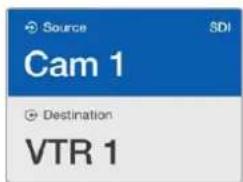
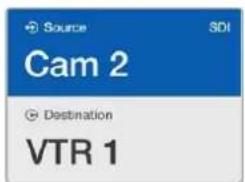
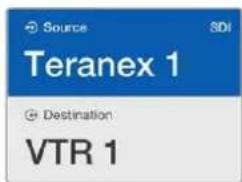
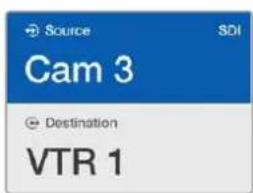
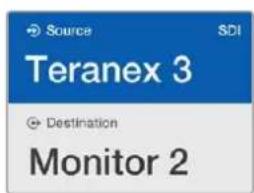
natural_image
Front panel of a computer interface showing a grid of square buttons and a highlighted red button (no text or symbols visible)natural_image
Front panel of a rack-mounted device showing rows of circular components and a highlighted yellow square (no text or symbols)natural_image
Hand holding a small mechanical component, no visible text or symbolsnatural_image
Illustration of hands assembling or securing a mechanical component (no text or symbols visible)
SRC y VIEW
SOLO y MENU
GPI and Tally Interface
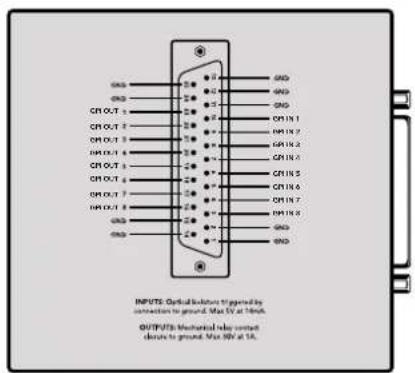
GPI and Tally Interface Diagrama de pines del conector DB25
natural_image
Black electronic device with grid of app icons displayed on its screen (no readable text or symbols)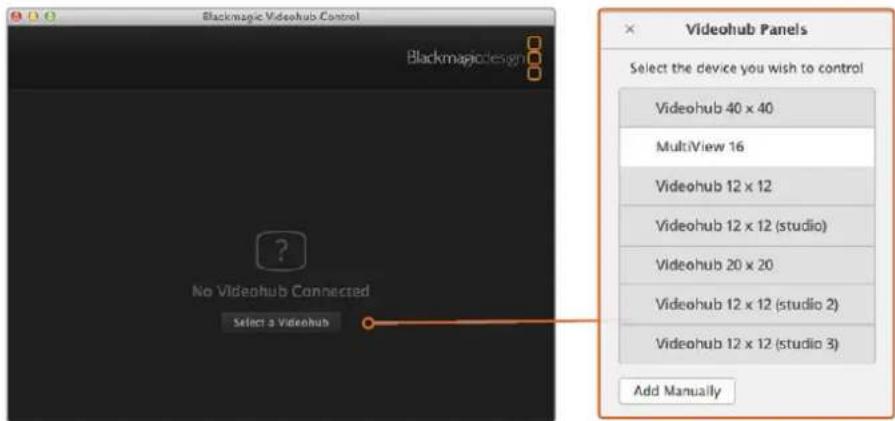
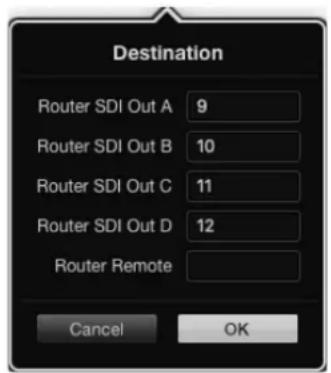
The Blackmagic Videohub Ethernet Protocol is a text based protocol that is accessed by connecting to TCP port 9990 on a Videohub Server. Integrated Videohub Servers and Videohub Server computers are supported by the protocol.
The Videohub Server sends information in blocks which each have an identifying header in all-caps, followed by a full-colon. A block spans multiple lines and is terminated by a blank line. Each line in the protocol is terminated by a newline character.
Upon connection, the Videohub Server sends a complete dump of the state of the device. After the initial status dump, status updates are sent every time the Videohub status changes.
To be resilient to future protocol changes, clients should ignore blocks they do not recognize, up to the trailing blank line. Within existing blocks, clients should ignore lines they do not recognize.
LEGEND

Version 2.3 of the Blackmagic Videohub Ethernet Protocol was released with Videohub 4.9.1 software.
Protocol Preamble
The first block sent by the Videohub Server is always the protocol preamble:
PROTOCOL PREAMBLE:
Version: 2.3
←
The version field indicates the protocol version. When the protocol is changed in a compatible way, the minor version number will be updated. If incompatible changes are made, the major version number will be updated.
Device Information
The next block contains general information about the connected Videohub device. If a device is connected, the Videohub Server will report the attributes of the Videohub:
VIDEOHUB DEVICE:←
Device present: true←
Model name: Blackmagic Smart Videohub←
Video inputs: 16←
Video processing units: 0←
Video outputs: 16←
Video monitoring outputs: 0←
Serial ports: 0←
This example is for the Smart Videohub which is a 16x16 router.
If the Videohub Server has no device connected, the block will simply be:
VIDEOHUB DEVICE:
Device present: false
←
If a device is present, but has an incompatible firmware, the status reported will be:
VIDEOHUB DEVICE:
Device present: needs _ update
←
In the last two situations, no further information will be sent, unless the situation is rectified.
If the Videohub Server detects a new Videohub attached, it will resend all blocks except the protocol preamble to indicate the device has changed, and allow the client to update its cache of server state.
Initial Status Dump
The next four blocks enumerate the labels assigned to the input, output, monitoring and serial ports.
Videohubs that do not have monitoring or serial ports do not send the corresponding blocks.
INPUT LABELS:
0 VTR 1
1 VTR 2
...
←
OUTPUT LABELS:
0 Output feed 1
1 Output feed 2
...
←
MONITORING OUTPUT LABELS:
0 Monitor feed 1
1 Monitor feed 2←
***
←
SERIAL PORT LABELS:
0 Deck 1
1 Deck 2
←
NOTE Ports are always numbered starting at zero in the protocol which matches port one on the chassis.
The next three blocks describe the routing of the output, monitoring and serial ports.
VIDEO OUTPUT ROUTING:←
0 5←
1 3←
...
←
VIDEO MONITORING OUTPUT ROUTING:←
0 7←
1 8←
...
←
SERIAL PORT ROUTING:←
0 12←
1 11←
...
←
Videohubs with processing units (only the Workgroup Videohub) send an extra routing block:
PROCESSING UNIT ROUTING:←
0 5←
1 3←
...
←
Videohubs with frame buffers (only the Workgroup Videohub) send two extra blocks:
FRAME LABELS:←
0 Frame one←
1 Frame two←
...
←
FRAME BUFFER ROUTING:←
0 7←
1 8←
...
←
The next three blocks describe the locking status of the output, monitoring and serial ports. Each port has a lock status of "O" for ports that are owned by the current client (i.e., locked from the same IP address), "L" for ports that are locked from a different client, or "U" for unlocked. Note that Videohubs that do not have monitoring ports or serial ports do not send the corresponding blocks.
VIDEO OUTPUT LOCKS:←
0 U←
1 U←
...
←
MONITORING OUTPUT LOCKS:←
0 U←
1 U←
...
←
SERIAL PORT LOCKS:←
0 U←
1 U←
...
←
Videohubs with processing units (only the Workgroup Videohub) send an extra lock block:
PROCESSING UNIT LOCKS:←
0 U←
1 U←
...
←
Videohubs with frame buffers (only the Workgroup Videohub) send an extra lock block:
FRAME BUFFER LOCKS:←
0 U←
1 U←
...
←
Videohubs with serial ports next send a block which describes the direction of each serial port. Each port has a direction of either "control" for the "In (Workstation)" setting, "slave" for "Out (Deck)", or "auto" for "Automatic".
SERIAL PORT DIRECTIONS:←
0 control←
1 slave←
2 auto←
...
←
Videohubs with pluggable cards (only Universal Videohubs) send three more blocks that describe the hardware status of the ports. Missing video or serial ports have a status of "None"; input and output video ports will be "BNC" or "Optical" if they are present; serial ports will be "RS422" if they are present.
VIDEO INPUT STATUS:←
0 BNC←
1 BNC←
...
←
VIDEO OUTPUT STATUS:←
0 BNC←
1 BNC←
...
←
SERIAL PORT STATUS:←
0 RS422←
1 RS422←
...
←
Status Updates
When any route, label, or lock is changed on the Videohub Server by any client, the Videohub Server resends the applicable status block, containing only the items that have changed. For example, if serial port 6 has been unlocked, the following block will be sent:
SERIAL PORT LOCKS:←
5 U←
←
If multiple items are changed, multiple items may be present in the update:
OUTPUT LABELS:
7 New output 8 label
10 New output 11 label
←
If a card is plugged into or removed from the Universal Videohub, it will send hardware status blocks for the video inputs, video outputs, and serial ports on that card.
Requesting Changes
To update a label, lock or route, the client should send a block of the same form the Videohub Server sends when its status changes. For example, to change the route of output port 8 to input port 3, the client should send the following block:
VIDEO OUTPUT ROUTING:←
7 2←
←
The block must be terminated by a blank line. On receipt of a blank line, the Videohub Server will either acknowledge the request by responding:
ACK←
←
or indicate that the request was not understood by responding:
NAK
After a positive response, the client should expect to see a status update from the Videohub Server showing the status change. This is likely to be the same as the command that was sent, but if the request could not be performed, or other changes were made simultaneously by other clients, there may be more updates in the block, or more blocks. Simultaneous updates could cancel each other out, leading to a response that is different to that expected.
In the absence of simultaneous updates, the dialog expected for a simple label change is as follows:
OUTPUT LABELS:←
6 new output label seven←
←
ACK←
←
OUTPUT LABELS:←
6 new output label seven←
←
The asynchronous nature of the responses means that a client should never rely on the desired update actually occurring and must simply watch for status updates from the Videohub Server and use only these to update its local representation of the server state.
To lock a port, send an update to the port with the character "O" indicating that you wish to lock the port for example:
SERIAL PORT LOCKS:←
7 0←
←
ACK←
←
SERIAL PORT LOCKS:←
7 0←
←
To forcibly unlock a port that has been locked by another client, send an update to the port with the character "F" instead of using the usual unlock character "U". For example, to override a lock on port 7:
SERIAL PORT LOCKS:←
7 F←
←
ACK←
←
SERIAL PORT LOCKS:←
7 U←
←
Hardware status blocks can only be sent by the Videohub Server. If a client sends hardware status blocks, they will be ignored.
Requesting a Status Dump
The client may request that the Videohub Server resend the complete state of any status block by sending the header of the block, followed by a blank line. In the following example, the client requests the Videohub Server resend the output labels:
OUTPUT LABELS:←
ACK←
OUTPUT LABELS:←
0 output label 1←
1 output label 2←
2 output label 3←
...
Checking the Connection
While the connection to the Videohub Server is established, a client may send a special no-operation command to check that the Videohub Server is still responding:
PING:
If the Videohub Server is responding, it will respond with an ACK message as for any other recognized command.
Videohub RS-422 Protocol
General
The RS-422 protocol can be used to control many Videohub models as RS-422 slave devices, for router crosspoint switching. This feature is available on any Videohub model with an “RS-422 Control” port.
Depending on your model of Videohub, the RS-422 port may be either a DB9 or RJ11 connector. DB9 cables are commonly available in electrical stores. The RJ11 connector is the same used in many landline telephone connections. By modifying an RS-422 to USB adapter cable terminated with an RJ11 connector you can control Videohub using external controllers via USB.
In “Leitch Server” mode, these Videohub models implement the router (server) side of the Leitch Serial Pass-Through Protocol as specified in section 4 of Leitch document SPR-MAN revision D. In “Leitch Client” mode, the Videohub implements the controller (client) side of the Leitch terminal protocol.
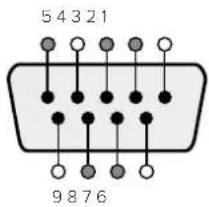
| Pin Function | |
| 1 Ground | |
| 2 Tx- (Data sent by router) | |
| 3 Rx+ (Data received by router) | |
| 4 Ground | |
| 5 NC (No connect) | |
| 6 Ground | |
| 7 Tx+ (Data sent by router) | |
| 8 Rx- (Data received by router) | |
| 9 Ground | |
Videohub RS-422 Router Control DB9 pin connections.
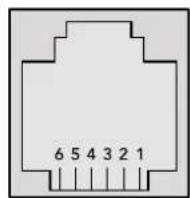
| Pin No. Function | |
| Pin 1 | TX + |
| Pin 2 | TX - |
| Pin 3 | GND |
| Pin 4 | GND |
| Pin 5 | RX - |
| Pin 6 | RX + |
Videohub RS-422 Router Control RJ11 pinout diagram.
This document describes the commands and parameters in the protocol that are relevant and supported by Videohub. Other commands and parameters specified in the Leitch protocol are accepted but ignored.
The RS-422 serial port is configured as 9600 N81.
The protocol is line-oriented, with a maximum length of 250 characters per command. Each command from the client should be terminated with a carriage-return (\r). Each response from the server will be terminated with a carriage-return and line-feed (\r\n).
Sources, destinations and levels are always specified in base-16, numbered from zero. Levels are always between 0 and 15 ("F"). Videohubs only have one valid level - level zero.
On connecting to the serial port, the client should send a carriage-return. The Videohub Server will respond with a > character prompt, which is not followed by a carriage-return or line-feed. Receiving the prompt indicates that a connection has been established. The same prompt will be issued after each command received by the Videohub Server.
In the following documentation, commands in orange and values in blue must be typed literally, including any spaces. In the following example of an immediate command using destination port 7 and source port 3, @ X:0/destination, source would be entered as: @ X:0/6,2
Notifications
Once connected, if status reporting is enabled, the client will receive a notification message when a route changes on the Videohub Server. The notifications take one of two forms:
S:0destination,source Routing change
This message indicates that the specified source port is now routed to the specified destination.
V:0destination,source Preset routing notification
This message indicates that the current preset includes a route from the specified source to the specified destination.
Global Commands
All pass-through commands are preceded by an @ symbol and a space.
The following client commands are supported:
@ ! disable status reporting Status reporting is disabled by default.
@ ? enable status reporting Status reporting is enabled.
@ Z: reset routing table
Routing is reset so that the first source is routed to all destinations.
Immediate Commands
@ X:0/destination,source change route
@ X:0/destination, source/destination-2, source-2... change multiple routes The specified source ports are routed to the specified destinations. Any routing changes will trigger S: notifications
@ X?0destination request individual route status The source routed to a the specified destination will be returned as an S: notification.
@ S?0 request all ports route status Each source & destination port pair will be returned as S: notifications
Salvo Commands
@ P:0/destination,source queue route change
@ P:0/destination, source/destination-2, source-2... queue multiple route changes The specified routing changes are added to the current salvo for later execution.
@ P?0destination request individual port status in salvo If a routing change for the specified destination port is queued, the route will be returned as a V: notification.
@ V?0 request all ports status in salvo Each queued routing change in the salvo is reported as a v: notification.
@ B:C clear salvo
@ B:R clear salvo Any queued changes are discarded and the salvo is reset.
@ B:E execute salvo Any queued changes are executed and each routing change will be returned as an S: notification.
Saving and Loading Labels with Telnet in Mac OS
Normally you would use Blackmagic Videohub Setup to save and load labels between different Videohub routers and to backup your videohub settings. However, if for any reason you wish to use the Terminal, the instructions below let you save and load router label configurations via the Terminal.
![Blackmagics-iMac:~ timf$ telnet 192.168.25.253 9990 Trying 192.168.25.253... Connected to 192.168.25.253. Escape character is '^]'. PROTOCOL PREAMBLE: Version: 2.4 VIDEOHUB DEVICE: Device present: true Model name: Blackmagic Smart Videohub Unique ID: 7c2e0d0106df Video inputs: 16 Video processing units: 0 Video outputs: 16 Video monitoring outputs: 0 Serial ports: 0 INPUT LABELS: 0 Camera 1 1 Mini Converter 1 2 Hyperdeck 1 3 VTR 1 4 Teranex 1 5 PC Workstation 6 ATEM PGM 7 Camera 2 8 Mini Converter 2 9 Mac Workstation 10 Hyperdeck 2 11 VTR 2 12 Teranex 3 13 Hyperdeck 3 14 Hyperdeck 3 15 Input 16 OUTPUT LABELS: 0 Main Monitor 1 1 Main Monitor 2 2 Audio Monitor 1 3 Audio Monitor 2 4 ATEM Input 1 5 ATEM Input 2 6 ATEM Input 3 7 Hyperdeck 4 8 Hyperdeck 5 9 Hyperdeck 3 10 VTR 3 11 VTR 4 12 Teranex 4 13 Ultrascope 1 14 Ultrascope 2 15 Ultrascope 3](/content/2026/04/672773/images/ab534929382333d51c03ba46e702a647cc0d08b22993cb2659f2b896e78b2bee.jpg)
Saving Labels
1 Open the Terminal application which is located within the Applications > Utilities folder.
2Type in "telnet" and a space followed by the IP of your Videohub, then another space and "9990", which is the default port number. For example type: telnet 192.168.25.253 9990. The Protocol Preamble screen will appear.
3 Copy the INPUT LABELS: text including the heading and paste into a word processor or simple text editor. Name this file "input labels" and save to your favorite location.
4 Copy the OUTPUT LABELS: text including the heading and paste into a word processor or simple text editor. Name this file "output labels" and save to your favorite location.
5 Close the telnet session by exiting the terminal window.
Loading Labels
1 Open the Terminal application with is located within the Applications > Utilities folder.
2Type in "telnet" and a space followed by the IP of your Videohub, then another space and "9990", which is the default port number. For example type: telnet 192.168.25.253 9990. The Protocol Preamble screen will appear.
3 Open the "input labels" text file in your text editing program and copy the INPUT LABELS: text.
4 Paste this into the telnet session and press "return" twice. Telnet will respond with "ACK" and Videohub will update the input labels.
5Open the "output labels" text file in your text editing program and copy the OUTPUT LABELS: text.
6 Paste this into the telnet session and press "return" twice. Telnet will respond with "ACK" and Videohub will update the output labels.
7 Close the telnet session by exiting the terminal window.
Saving and Loading Labels with Telnet in Windows
While you can save and load labels within Blackmagic Videohub Setup, you may also download and use PuTTY which is a free telnet client.
Setting up PuTTY
1 Start the application and in the "Host Name" field, type the IP of your Videohub and in the "Port" field type "9990", which is the default port number.
2From the Connection type options select the "Telnet" radio button.
3Select the "Terminal" tab and tick the "Implicit CR in every LF" checkbox.
4 Click the "Session" tab and save your session parameters by entering a name in the "Saved Sessions" field and clicking the "Save" button.
Saving Labels
1 Double click the PuTTY icon to start the application. Select your saved session from the list and click the "Load" button followed by the "Open" button. The Protocol Preamble screen will appear.
2 Copy the INPUT LABELS: text including the heading and paste into a word processor or simple text editor. Name this file "input labels" and save to your favorite location.
3Copy the OUTPUT LABELS: text including the heading and paste into a word processor or simple text editor. Name this file "output labels" and save to your favorite location.
4 Exit the telnet session by closing the PuTTY window.
Loading Labels
1 Double click the PuTTY icon to start the application. Select your saved session from the list and click the "Load" button followed by the "Open" button. The Protocol Preamble screen will appear.
2 Open the "input labels" text file in your text editing program and copy the INPUT LABELS: text.
3 Right click in the PuTTY session to paste the copied section and press "Enter" twice. PuTTY will respond with "ACK" and Videohub will update the input labels.
4 Open the "output labels" text file in your text editing program and copy the OUTPUT LABELS: text.
5 Right click in the PuTTY session to paste the copied section and press "Enter" twice. PuTTY will respond with "ACK" and Videohub will update the output labels.
6 Exit the telnet session by closing the PuTTY window.
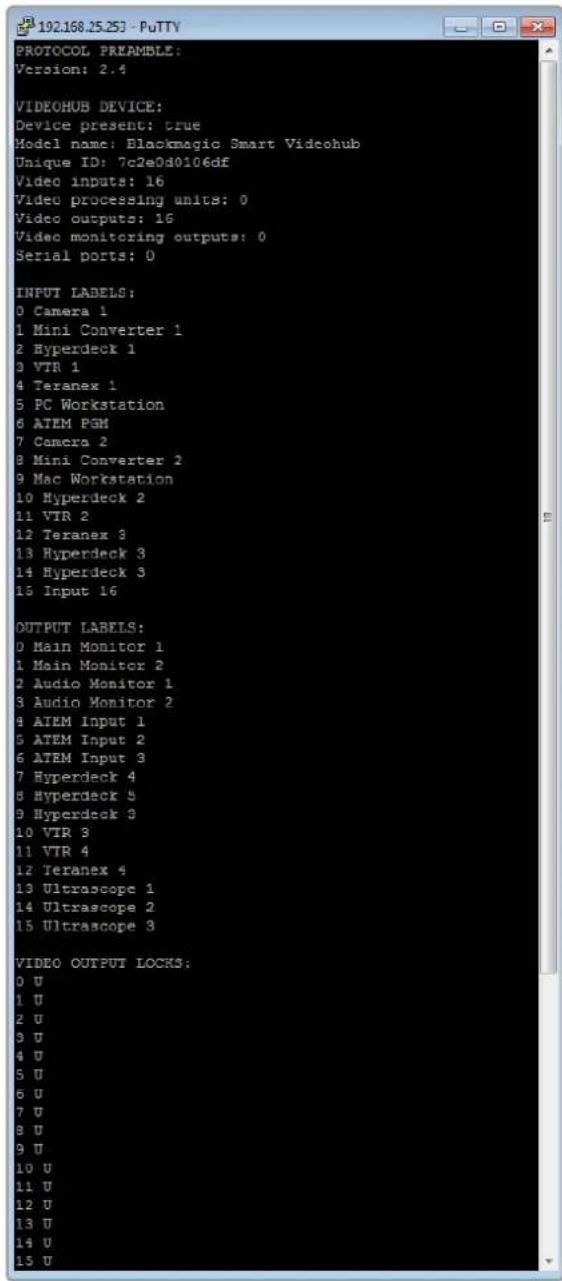
- SDI 3G: PL-4F20-311C

natural_image
Profile view of a man in a gray shirt and blue tie, looking out from the side window (no text or symbols visible)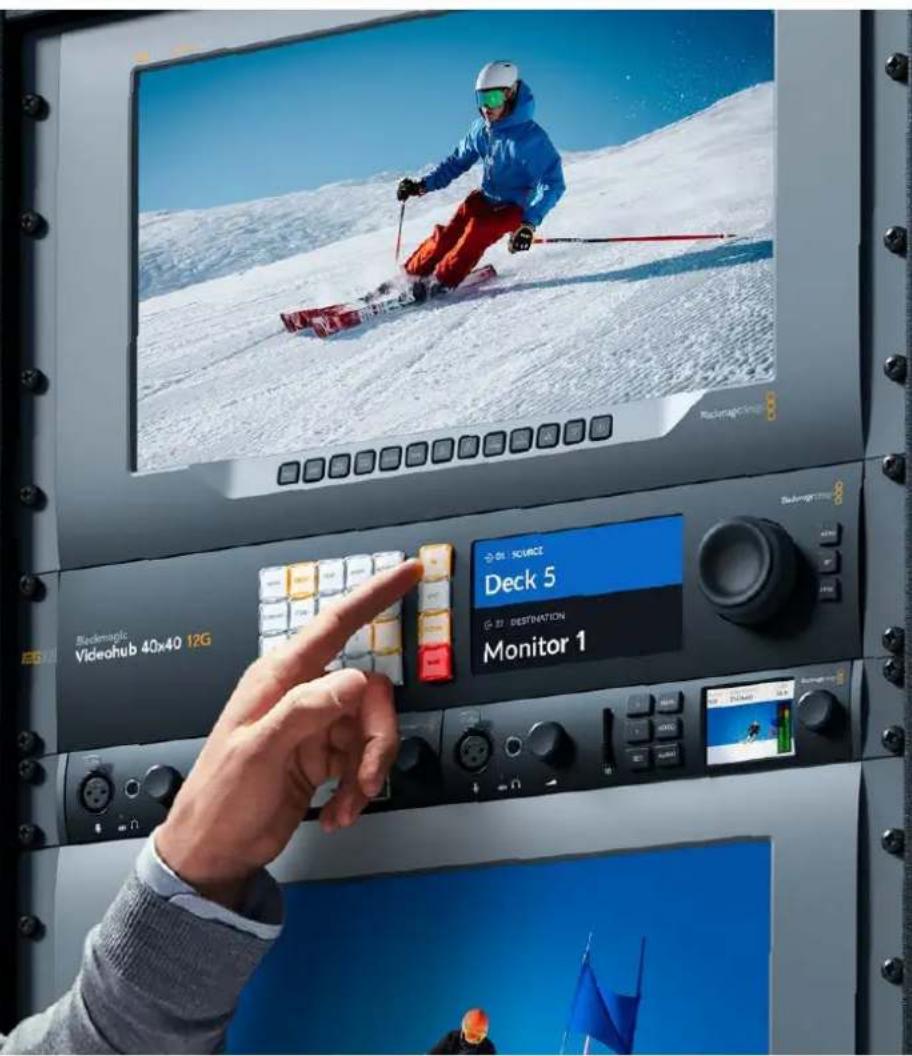

natural_image
Circular portrait photo of a smiling man in a dark shirt against a gray textured background (no text or symbols)致用户
感谢您购买Videohub产品!
GPI and Tally Interface 506
Saving and Loading Labels with Telnet in Mac OS 546
Saving and Loading Labels with Telnet in Windows 547
更换Universal Videohub的风扇 549
帮助 550
监管告知 551
安全信息 552
保修 553
BlackmagicVideohub简介

natural_image
Front view of a black rack-mounted network device with multiple ports and connectors (no visible text or labels)Blackmagic Videohub 10x10 12G


natural_image
Front view of a black rack-mounted network device with multiple Ethernet ports and connectors (no visible text or labels)Blackmagic Videohub 20x20 12G


natural_image
Front view of a black rack-mounted network interface with multiple ports and connectors (no visible text or labels)Blackmagic Videohub 40x40 12G
natural_image
Front view of a black rack-mounted server rack with multiple ports and connectors (no visible text or labels)UniversalVideohub288
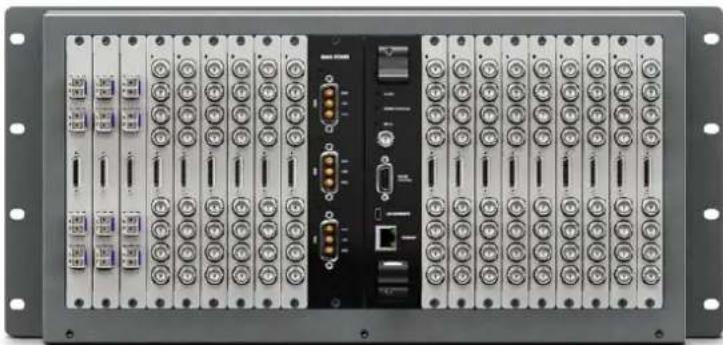
natural_image
Front view of a rack-mounted electronic device with multiple ports and connectors (no visible text or labels)UniversalVideohub72
Smart Videohub CleanSwitch 12x12
VideohubMasterControlPro
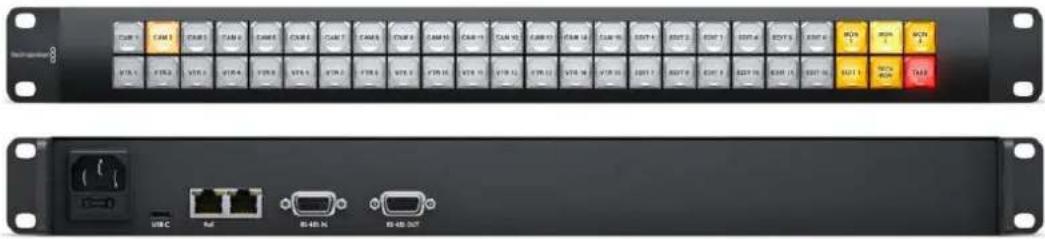
VideohubSmartControlPro
开始使用
natural_image
Front view of a rack-mounted network device with multiple circular ports and indicator lights (no visible text or labels)natural_image
Front view of a server rack with rows of circular components and indicator lights (no visible text or labels)UniversalVideohub288
Universal Videohub 288交叉点插卡
natural_image
Technical line drawing of a mechanical or electronic component with no visible text or symbols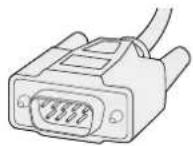
串行电缆
UniversalVideohub288 交叉点插卡
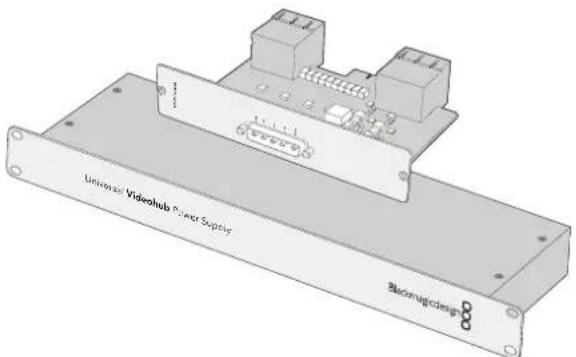
natural_image
Technical diagram of a multi-level storage unit with internal components and a highlighted section (no text or symbols)natural_image
Technical diagram of an electrical panel assembly with a highlighted component (no text or symbols present)natural_image
Technical diagram of an electrical connector assembly with orange arrows indicating connection points (no text or symbols present)natural_image
Technical line drawing of a cable connector assembly inside an electrical enclosure (no text or symbols)natural_image
Front panel of a rack-mounted industrial control unit with multiple ports and connectors (no visible text or labels)natural_image
Technical line drawing of a computer chassis rear panel with ports and connectors (no text or symbols)natural_image
Technical diagram of an internal server rack with a highlighted orange arrow indicating a component (no text or symbols present)natural_image
Technical diagram of an electrical panel assembly with a highlighted component (no text or symbols present)natural_image
3D diagram of a network device with multiple ports and connectors (no text or symbols visible)Universal Videohub 450W Power Card 电源插卡可连接三个150W电源模块
natural_image
Illustration of multiple Ethernet connectors with male and female labels (no text or symbols)UniversalVideohubDeckControlCable
SmartVideohubCleanSwitch12x12
前面板显示了所选的新源。
如何选择源信号和目标信号
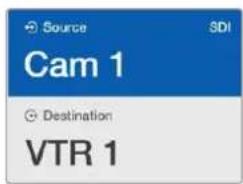
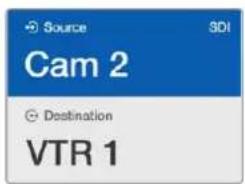
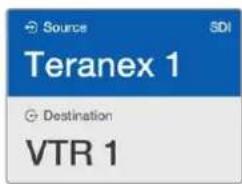
目标锁定后,目标栏将出现锁定图标。
通过Videohub Master Control解锁目标:
natural_image
Pure electrical circuit lines without any symbolsnatural_image
Front panel of a server rack with rows of circular and square units, highlighted by a red square (no text or symbols)natural_image
Hand holding a small mechanical component, no visible text or symbols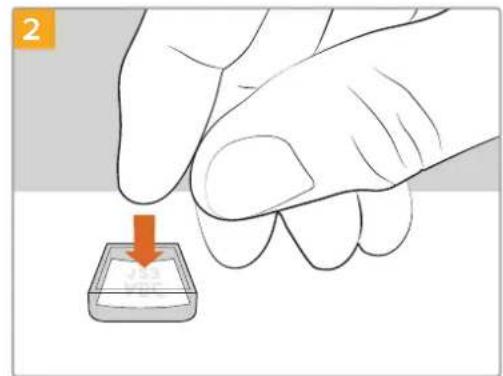
natural_image
Illustration of hands holding a small object with circular patterns, no text or symbols present
natural_image
Front panel of a network device with multiple ports and connectors (no visible text or labels)
SRC和VIEW
SRC, VIEW和SET
SOLO与MENU
GPI and Tally Interface
GPI and Tally Interface
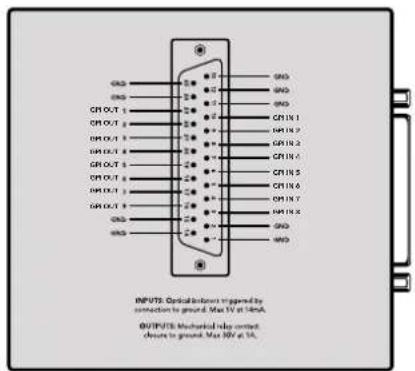
DB25接口引脚图
natural_image
Black electronic device with a grid of app icons displayed on its screen (no readable text or symbols)iPad上的Videohub设置
控制BlackmagicMultiView16
BlackmagicVideohubHardwarePanelSetup的网络设置
点击相应按钮来编辑它的标签
配置VideohubSmartControlPro
设置GPI and Tally Interface
配置GPI and Tally Interface
The Blackmagic Videohub Ethernet Protocol is a text based protocol that is accessed by connecting to TCP port 9990 on a Videohub Server. Integrated Videohub Servers and Videohub Server computers are supported by the protocol.
The Videohub Server sends information in blocks which each have an identifying header in all-caps, followed by a full-colon. A block spans multiple lines and is terminated by a blank line. Each line in the protocol is terminated by a newline character.
Upon connection, the Videohub Server sends a complete dump of the state of the device. After the initial status dump, status updates are sent every time the Videohub status changes.
To be resilient to future protocol changes, clients should ignore blocks they do not recognize, up to the trailing blank line. Within existing blocks, clients should ignore lines they do not recognize.
LEGEND

Version 2.3 of the Blackmagic Videohub Ethernet Protocol was released with Videohub 4.9.1 software.
Protocol Preamble
The first block sent by the Videohub Server is always the protocol preamble:
PROTOCOL PREAMBLE:
Version: 2.3
←
The version field indicates the protocol version. When the protocol is changed in a compatible way, the minor version number will be updated. If incompatible changes are made, the major version number will be updated.
Device Information
The next block contains general information about the connected Videohub device. If a device is connected, the Videohub Server will report the attributes of the Videohub:
VIDEOHUB DEVICE:←
Device present: true←
Model name: Blackmagic Smart Videohub←
Video inputs: 16←
Video processing units: 0←
Video outputs: 16←
Video monitoring outputs: 0←
Serial ports: 0←
This example is for the Smart Videohub which is a 16x16 router.
If the Videohub Server has no device connected, the block will simply be:
VIDEOHUB DEVICE:
Device present: false
←
If a device is present, but has an incompatible firmware, the status reported will be:
VIDEOHUB DEVICE:
Device present: needs _ update
←
In the last two situations, no further information will be sent, unless the situation is rectified.
If the Videohub Server detects a new Videohub attached, it will resend all blocks except the protocol preamble to indicate the device has changed, and allow the client to update its cache of server state.
Initial Status Dump
The next four blocks enumerate the labels assigned to the input, output, monitoring and serial ports.
Videohubs that do not have monitoring or serial ports do not send the corresponding blocks.
INPUT LABELS:
0 VTR 1
1 VTR 2
...
←
OUTPUT LABELS:
0 Output feed 1←
1 Output feed 2
***
←
MONITORING OUTPUT LABELS:
0 Monitor feed 1
1 Monitor feed 2
...
←
SERIAL PORT LABELS:
0 Deck 1
1 Deck 2
←
NOTE Ports are always numbered starting at zero in the protocol which matches port one on the chassis.
The next three blocks describe the routing of the output, monitoring and serial ports.
VIDEO OUTPUT ROUTING:←
0 5←
1 3←
...
←
VIDEO MONITORING OUTPUT ROUTING:←
0 7←
1 8←
...
←
SERIAL PORT ROUTING:←
0 12←
1 11←
...
←
Videohubs with processing units (only the Workgroup Videohub) send an extra routing block:
PROCESSING UNIT ROUTING:←
0 5←
1 3←
...
←
Videohubs with frame buffers (only the Workgroup Videohub) send two extra blocks:
FRAME LABELS:←
0 Frame one←
1 Frame two←
...
←
FRAME BUFFER ROUTING:←
0 7←
1 8←
...
←
The next three blocks describe the locking status of the output, monitoring and serial ports.
Each port has a lock status of "O" for ports that are owned by the current client (i.e., locked from the same IP address), "L" for ports that are locked from a different client, or "U" for unlocked.
Note that Videohubs that do not have monitoring ports or serial ports do not send the corresponding blocks.
VIDEO OUTPUT LOCKS:←
0 U←
1 U←
...
←
MONITORING OUTPUT LOCKS:←
0 U←
1 U←
...
←
SERIAL PORT LOCKS:←
0 U←
1 U←
...
←
Videohubs with processing units (only the Workgroup Videohub) send an extra lock block:
PROCESSING UNIT LOCKS:←
0 U←
1 U←
...
←
Videohubs with frame buffers (only the Workgroup Videohub) send an extra lock block:
FRAME BUFFER LOCKS:←
0 U←
1 U←
...
←
Videohubs with serial ports next send a block which describes the direction of each serial port. Each port has a direction of either “control” for the “In (Workstation)” setting, “slave” for “Out (Deck)”, or “auto” for “Automatic”.
SERIAL PORT DIRECTIONS:←
0 control←
1 slave←
2 auto←
...
←
Videohubs with pluggable cards (only Universal Videohubs) send three more blocks that describe the hardware status of the ports. Missing video or serial ports have a status of "None"; input and output video ports will be "BNC" or "Optical" if they are present; serial ports will be "RS422" if they are present.
VIDEO INPUT STATUS:←
0 BNC←
1 BNC←
...
←
VIDEO OUTPUT STATUS:←
0 BNC←
1 BNC←
...
←
SERIAL PORT STATUS:←
0 RS422←
1 RS422←
...
←
Status Updates
When any route, label, or lock is changed on the Videohub Server by any client, the Videohub Server resends the applicable status block, containing only the items that have changed. For example, if serial port 6 has been unlocked, the following block will be sent:
SERIAL PORT LOCKS:←
5 U←
←
If multiple items are changed, multiple items may be present in the update:
OUTPUT LABELS:←
7 New output 8 label←
10 New output 11 label←
←
If a card is plugged into or removed from the Universal Videohub, it will send hardware status blocks for the video inputs, video outputs, and serial ports on that card.
Requesting Changes
To update a label, lock or route, the client should send a block of the same form the Videohub Server sends when its status changes. For example, to change the route of output port 8 to input port 3, the client should send the following block:
VIDEO OUTPUT ROUTING:←
7 2←
←
The block must be terminated by a blank line. On receipt of a blank line, the Videohub Server will either acknowledge the request by responding:
ACK←
or indicate that the request was not understood by responding:
NAK
After a positive response, the client should expect to see a status update from the Videohub Server showing the status change. This is likely to be the same as the command that was sent, but if the request could not be performed, or other changes were made simultaneously by other clients, there may be more updates in the block, or more blocks. Simultaneous updates could cancel each other out, leading to a response that is different to that expected.
In the absence of simultaneous updates, the dialog expected for a simple label change is as follows:
OUTPUT LABELS:←
6 new output label seven←
←
ACK←
←
OUTPUT LABELS:←
6 new output label seven←
←
The asynchronous nature of the responses means that a client should never rely on the desired update actually occurring and must simply watch for status updates from the Videohub Server and use only these to update its local representation of the server state.
To lock a port, send an update to the port with the character "O" indicating that you wish to lock the port for example:
SERIAL PORT LOCKS:
7 0←
←
ACK←
←
SERIAL PORT LOCKS:
7 0←
←
To forcibly unlock a port that has been locked by another client, send an update to the port with the character "F" instead of using the usual unlock character "U". For example, to override a lock on port 7:
SERIAL PORT LOCKS:←
7 F←
←
ACK←
←
SERIAL PORT LOCKS:←
7 U←
←
Hardware status blocks can only be sent by the Videohub Server. If a client sends hardware status blocks, they will be ignored.
Requesting a Status Dump
The client may request that the Videohub Server resend the complete state of any status block by sending the header of the block, followed by a blank line. In the following example, the client requests the Videohub Server resend the output labels:
OUTPUT LABELS:←
ACK←
OUTPUT LABELS:←
0 output label 1←
1 output label 2←
2 output label 3←
...
Checking the Connection
While the connection to the Videohub Server is established, a client may send a special no-operation command to check that the Videohub Server is still responding:
PING:
If the Videohub Server is responding, it will respond with an ACK message as for any other recognized command.
VideohubRS -422Protocol
General
The RS-422 protocol can be used to control many Videohub models as RS-422 slave devices, for router crosspoint switching. This feature is available on any Videohub model with an "RS-422 Control" port.
Depending on your model of Videohub, the RS-422 port may be either a DB9 or RJ11 connector. DB9 cables are commonly available in electrical stores. The RJ11 connector is the same used in many landline telephone connections. By modifying an RS-422 to USB adapter cable terminated with an RJ11 connector you can control Videohub using external controllers via USB.
In “Leitch Server” mode, these Videohub models implement the router (server) side of the Leitch Serial Pass-Through Protocol as specified in section 4 of Leitch document SPR-MAN revision D. In “Leitch Client” mode, the Videohub implements the controller (client) side of the Leitch terminal protocol.
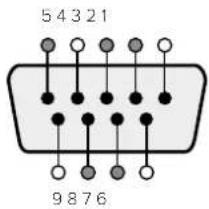
| Pin Function | |
| 1 Ground | |
| 2 Tx- (Data sent by router) | |
| 3 Rx+ (Data received by router) | |
| 4 Ground | |
| 5 NC (No connect) | |
| 6 Ground | |
| 7 Tx+ (Data sent by router) | |
| 8 Rx- (Data received by router) | |
| 9 Ground | |
Videohub RS-422 Router Control DB9 pin connections.
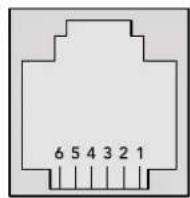
| Pin No. Function | |
| Pin 1 | TX + |
| Pin 2 | TX - |
| Pin 3 | GND |
| Pin 4 | GND |
| Pin 5 | RX - |
| Pin 6 | RX + |
Videohub RS-422 Router Control RJ11 pinout diagram.
This document describes the commands and parameters in the protocol that are relevant and supported by Videohub. Other commands and parameters specified in the Leitch protocol are accepted but ignored.
The RS-422 serial port is configured as 9600 N81.
The protocol is line-oriented, with a maximum length of 250 characters per command. Each command from the client should be terminated with a carriage-return (r). Each response from the server will be terminated with a carriage-return and line-feed (r\n).
Sources, destinations and levels are always specified in base-16, numbered from zero. Levels are always between 0 and 15 ("F"). Videohubs only have one valid level - level zero.
On connecting to the serial port, the client should send a carriage-return. The Videohub Server will respond with a > character prompt, which is not followed by a carriage-return or line-feed. Receiving the prompt indicates that a connection has been established. The same prompt will be issued after each command received by the Videohub Server.
In the following documentation, commands in orange and values in blue must be typed literally, including any spaces. In the following example of an immediate command using destination port 7 and source port 3, @ X:0/destination, source would be entered as: @ X:0/6,2
Notifications
Once connected, if status reporting is enabled, the client will receive a notification message when a route changes on the Videohub Server. The notifications take one of two forms:
S:0destination,source Routing change
This message indicates that the specified source port is now routed to the specified destination.
V:0destination,source Preset routing notification
This message indicates that the current preset includes a route from the specified source to the specified destination.
Global Commands
All pass-through commands are preceded by an Ⓞ symbol and a space.
The following client commands are supported:
@ ! disable status reporting
Status reporting is disabled by default.
@ ? enable status reporting
Status reporting is enabled.
@ Z: reset routing table
Routing is reset so that the first source is routed to all destinations.
Immediate Commands
@ X:0/destination,source change route
@ X:0/destination, source/destination-2, source-2... change multiple routes
The specified source ports are routed to the specified destinations.
Any routing changes will trigger S: notifications
@ X?0destination request individual route status
The source routed to a the specified destination will be returned as an s: notification.
@ S?0 request all ports route status
Each source & destination port pair will be returned as S: notifications
Salvo Commands
@ P:0/destination,source queue route change
@ P:0/destination,source/destination-2,source-2... queue multiple route changes The specified routing changes are added to the current salvo for later execution.
@ P?0destination request individual port status in salvo
If a routing change for the specified destination port is queued, the route will be returned as a V: notification.
@ V?0 request all ports status in salvo
Each queued routing change in the salvo is reported as a V: notification.
@ B:C clear salvo
@ B:R clear salvo
Any queued changes are discarded and the salvo is reset.
@ B:E execute salvo
Any queued changes are executed and each routing change will be returned as an notification.
Saving and Loading Labels with Telnet in Mac OS
Normally you would use Blackmagic Videohub Setup to save and load labels between different Videohub routers and to backup your videohub settings. However, if for any reason you wish to use the Terminal, the instructions below let you save and load router label configurations via the Terminal.
![Blackmagics-iMac:~ timf$ telnet 192.168.25.253 9990 Trying 192.168.25.253... Connected to 192.168.25.253. Escape character is '^]'. PROTOCOL PREAMBLE: Version: 2.4 VIDEOHUB DEVICE: Device present: true Model name: Blackmagic Smart Videohub Unique ID: 7c2e0d0106df Video inputs: 16 Video processing units: 0 Video outputs: 16 Video monitoring outputs: 0 Serial ports: 0 INPUT LABELS: 0 Camera 1 1 Mini Converter 1 2 Hyperdeck 1 3 VTR 1 4 Teranex 1 5 PC Workstation 6 ATEM PGM 7 Camera 2 8 Mini Converter 2 9 Mac Workstation 10 Hyperdeck 2 11 VTR 2 12 Teranex 3 13 Hyperdeck 3 14 Hyperdeck 3 15 Input 16 OUTPUT LABELS: 0 Main Monitor 1 1 Main Monitor 2 2 Audio Monitor 1 3 Audio Monitor 2 4 ATEM Input 1 5 ATEM Input 2 6 ATEM Input 3 7 Hyperdeck 4 8 Hyperdeck 5 9 Hyperdeck 3 10 VTR 3 11 VTR 4 12 Teranex 4 13 Ultrascope 1 14 Ultrascope 2 15 Ultrascope 3](/content/2026/04/672773/images/27d5be8d5641f9aee83f3ff8c11dd0caa439d2c61fd745826503991c4bd785e2.jpg)
Saving Labels
1 Open the Terminal application which is located within the Applications > Utilities folder.
2Type in "telnet" and a space followed by the IP of your Videohub, then another space and "9990", which is the default port number. For example type: telnet 192.168.25.253 9990. The Protocol Preamble screen will appear.
3Copy the INPUT LABELS: text including the heading and paste into a word processor or simple text editor. Name this file "input labels" and save to your favorite location.
4Copy the OUTPUT LABELS: text including the heading and paste into a word processor or simple text editor. Name this file "output labels" and save to your favorite location.
5 Close the telnet session by exiting the terminal window.
Loading Labels
1 Open the Terminal application with is located within the Applications > Utilities folder.
2Type in "telnet" and a space followed by the IP of your Videohub, then another space and "9990", which is the default port number. For example type: telnet 192.168.25.253 9990. The Protocol Preamble screen will appear.
3Open the "input labels" text file in your text editing program and copy the INPUT LABELS: text.
4 Paste this into the telnet session and press "return" twice. Telnet will respond with "ACK" and Videohub will update the input labels.
5Open the "output labels" text file in your text editing program and copy the OUTPUT LABELS; text.
6 Paste this into the telnet session and press "return" twice. Telnet will respond with "ACK" and Videohub will update the output labels.
7 Close the telnet session by exiting the terminal window.
Saving and Loading Labels with Telnet in Windows
While you can save and load labels within Blackmagic Videohub Setup, you may also download and use PuTTY which is a free telnet client.
Setting up PuTTY
1 Start the application and in the "Host Name" field, type the IP of your Videohub and in the "Port" field type "9990", which is the default port number.
2From the Connection type options select the "Telnet" radio button.
3Select the "Terminal" tab and tick the "Implicit CR in every LF" checkbox.
4 Click the "Session" tab and save your session parameters by entering a name in the "Saved Sessions" field and clicking the "Save" button.
Saving Labels
1 Double click the PuTTY icon to start the application. Select your saved session from the list and click the "Load" button followed by the "Open" button. The Protocol Preamble screen will appear.
2Copy the INPUT LABELS: text including the heading and paste into a word processor or simple text editor. Name this file "input labels" and save to your favorite location.
3Copy the OUTPUT LABELS: text including the heading and paste into a word processor or simple text editor. Name this file "output labels" and save to your favorite location.
4 Exit the telnet session by closing the PuTTY window.
Loading Labels
1 Double click the PuTTY icon to start the application. Select your saved session from the list and click the "Load" button followed by the "Open" button. The Protocol Preamble screen will appear.
2 Open the "input labels" text file in your text editing program and copy the INPUT LABELS: text.
3 Right click in the PuTTY session to paste the copied section and press "Enter" twice. PuTTY will respond with "ACK" and Videohub will update the input labels.
4Open the "output labels" text file in your text editing program and copy the OUTPUT LABELS: text.
5 Right click in the PuTTY session to paste the copied section and press "Enter" twice. PuTTY will respond with "ACK" and Videohub will update the output labels.
6Exit the telnet session by closing the PuTTY window.
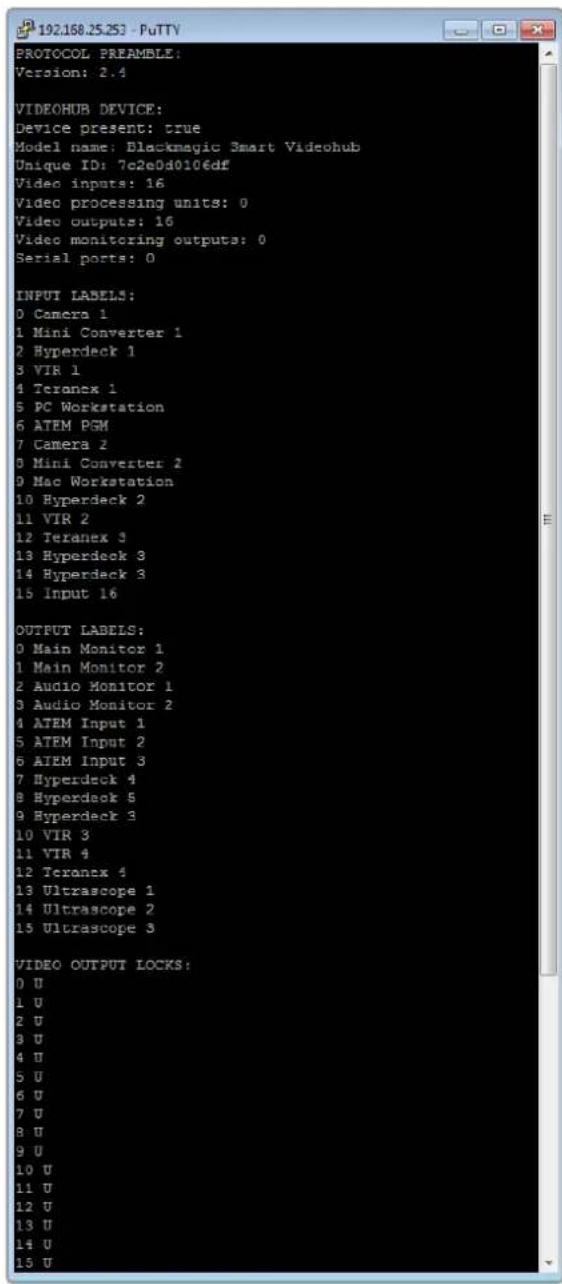
更换Universal Videohub的风扇
natural_image
Profile view of a man in a gray shirt and blue tie, looking out from behind a window (no text or symbols visible)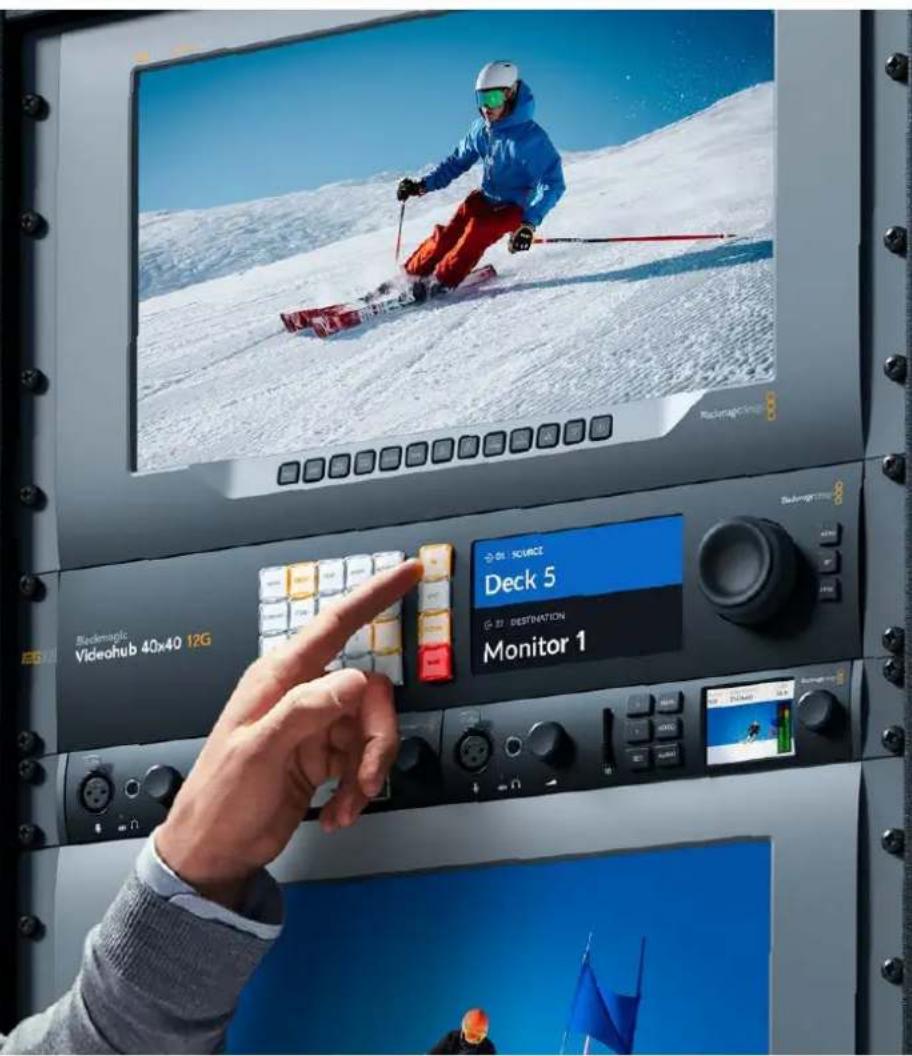

natural_image
Circular portrait photo of a smiling man in a dark shirt against a gray background (no text or symbols)환영합니다
GPI and Tally Interface 598
Saving and Loading Labels
with Telnet in Mac OS 638
Saving and Loading Labels
with Telnet in Windows 639
Universal Videohub 팬 교체하기 641
지원 642
규제 사항 643
안전 정보 644
보증 645
natural_image
Front view of a black rack-mounted network device with multiple ports and connectors (no visible text or labels)BlackmagicVideohub40x4012G
natural_image
Front view of a black rack-mounted server rack with multiple ports and connectors (no visible text or labels)UniversalVideohub288
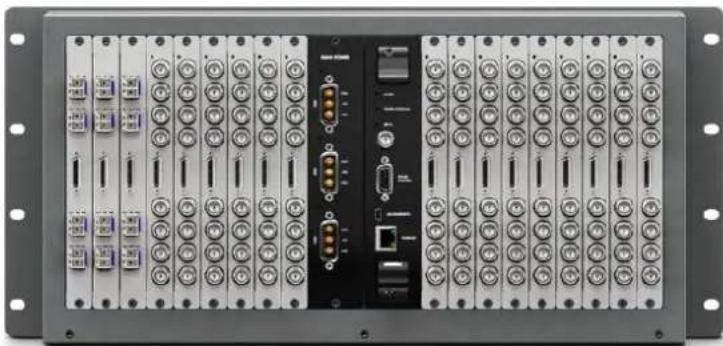
natural_image
Front view of a rack-mounted electronic device with multiple ports and connectors (no visible text or labels)UniversalVideohub72
Videohub Master Control Pro
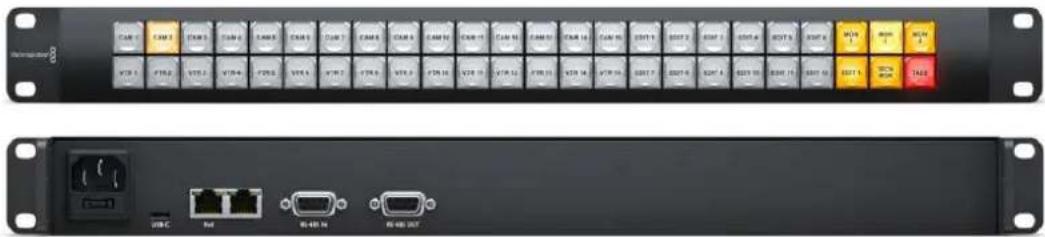
VideohubSmartControlPro
시작하기
natural_image
Front view of a rack-mounted network device with multiple circular ports and indicator lights (no visible text or labels)natural_image
Technical schematic of a server rack with multiple rows of circular components and indicator lights (no text or labels visible)UniversalVideohub288
natural_image
Technical line drawing of a mechanical or electronic component with heat sinks and ports (no text or symbols)natural_image
3D architectural diagram of a multi-level storage unit with internal structure and storage compartments (no text or symbols)natural_image
Technical diagram of an electrical panel assembly with a highlighted component (no text or symbols present)natural_image
Technical diagram of an electrical connector assembly with orange arrows indicating connection points (no text or symbols present)natural_image
Technical line drawing of a cable connector assembly inside an electrical enclosure (no text or symbols)natural_image
Front view of a rack-mounted industrial control unit with multiple ports and connectors (no visible text or labels)natural_image
Technical line drawing of a computer chassis rear panel with ports and connectors (no text or symbols)natural_image
Technical diagram of an industrial rack unit with a highlighted internal component and directional arrow (no text or symbols)natural_image
Technical diagram of an electrical panel assembly with a highlighted component (no text or symbols present)natural_image
Diagram of a network device rear panel with multiple ports and connectors (no text or labels visible)natural_image
Line drawing of four connected VGA connectors (no text or symbols)Universal Videohub Deck Control 케이블
SmartVideohubCleanSwitch12x12
natural_image
Front and back view of a dual-chamber network device with ports and connectors (no text or symbols visible)VideohubSmartControlPro
컨트롤 패널 설정하기
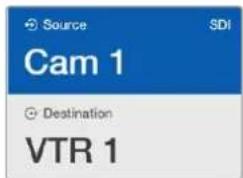
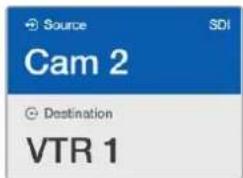
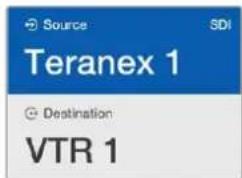
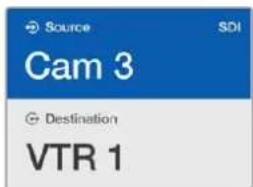
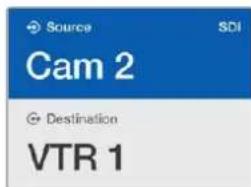
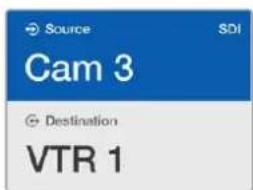
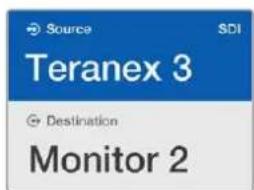
natural_image
Front panel of a computer RAM module showing 24 slots and one highlighted slot (no text or symbols)natural_image
Front panel of a computer mouse with a highlighted yellow and red button (no text or symbols)natural_image
Hand holding a small object with a pen, no visible text or symbolsnatural_image
Illustration of hands assembling or securing a mechanical component (no text or symbols visible)
SRC 및 VIEW
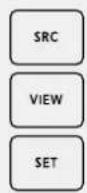
SRC 및 VIEW, SET
GPIandTallyInterface
GPI and Tally Interface
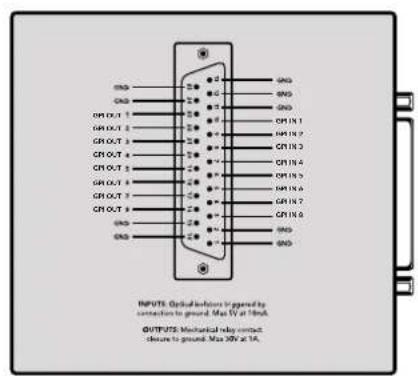
DB25 커넥터의 핀 배치도
iPad의 Videohub 설정
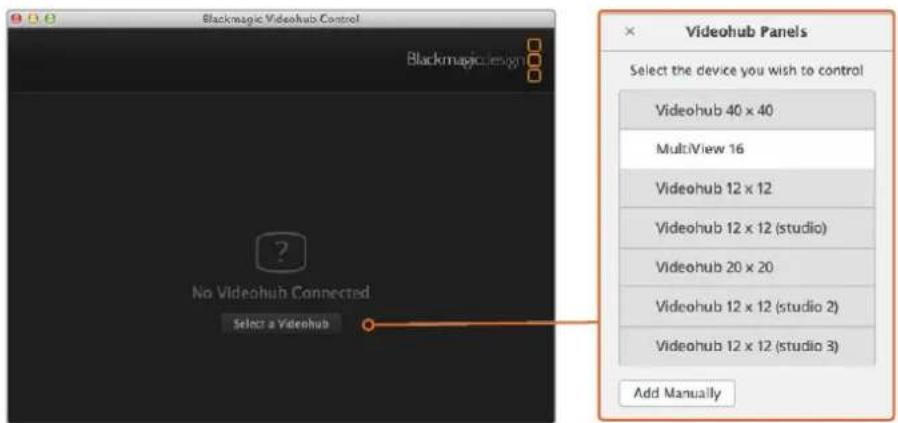
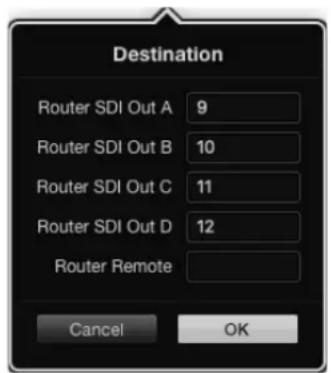
The Blackmagic Videohub Ethernet Protocol is a text based protocol that is accessed by connecting to TCP port 9990 on a Videohub Server. Integrated Videohub Servers and Videohub Server computers are supported by the protocol.
The Videohub Server sends information in blocks which each have an identifying header in all-caps, followed by a full-colon. A block spans multiple lines and is terminated by a blank line. Each line in the protocol is terminated by a newline character.
Upon connection, the Videohub Server sends a complete dump of the state of the device. After the initial status dump, status updates are sent every time the Videohub status changes.
To be resilient to future protocol changes, clients should ignore blocks they do not recognize, up to the trailing blank line. Within existing blocks, clients should ignore lines they do not recognize.
LEGEND
← line feed or carriage return
... and so on
Version 2.3 of the Blackmagic Videohub Ethernet Protocol was released with Videohub 4.9.1 software.
ProtocolPreamble
The first block sent by the Videohub Server is always the protocol preamble:
PROTOCOL PREAMBLE:
Version: 2.3
←
The version field indicates the protocol version. When the protocol is changed in a compatible way, the minor version number will be updated. If incompatible changes are made, the major version number will be updated.
Device Information
The next block contains general information about the connected Videohub device. If a device is connected, the Videohub Server will report the attributes of the Videohub:
VIDEOHUB DEVICE:←
Device present: true←
Model name: Blackmagic Smart Videohub←
Video inputs: 16←
Video processing units: 0←
Video outputs: 16←
Video monitoring outputs: 0←
Serial ports: 0←
This example is for the Smart Videohub which is a 16x16 router.
If the Videohub Server has no device connected, the block will simply be:
VIDEOHUB DEVICE:
Device present: false
←
If a device is present, but has an incompatible firmware, the status reported will be:
VIDEOHUB DEVICE:
Device present: needs _ update
←
In the last two situations, no further information will be sent, unless the situation is rectified.
If the Videohub Server detects a new Videohub attached, it will resend all blocks except the protocol preamble to indicate the device has changed, and allow the client to update its cache of server state.
Initial StatusDump
The next four blocks enumerate the labels assigned to the input, output, monitoring and serial ports.
Videohubs that do not have monitoring or serial ports do not send the corresponding blocks.
INPUT LABELS:
0 VTR 1
1 VTR 2
***
←
OUTPUT LABELS:
0 Output feed 1
1 Output feed 2
...
←
MONITORING OUTPUT LABELS:
0 Monitor feed 1
1 Monitor feed 2
...
←
SERIAL PORT LABELS:
0 Deck 1
1 Deck 2
←
NOTE Ports are always numbered starting at zero in the protocol which matches port one on the chassis.
The next three blocks describe the routing of the output, monitoring and serial ports.
VIDEO OUTPUT ROUTING:←
0 5←
1 3←
...
←
VIDEO MONITORING OUTPUT ROUTING:←
0 7←
1 8←
...
←
SERIAL PORT ROUTING:←
0 12←
1 11←
...
←
Videohubs with processing units (only the Workgroup Videohub) send an extra routing block:
PROCESSING UNIT ROUTING:←
0 5←
1 3←
...
←
Videohubs with frame buffers (only the Workgroup Videohub) send two extra blocks:
FRAME LABELS:←
0 Frame one←
1 Frame two←
...
←
FRAME BUFFER ROUTING:←
0 7←
1 8←
...
←
The next three blocks describe the locking status of the output, monitoring and serial ports. Each port has a lock status of "O" for ports that are owned by the current client (i.e., locked from the same IP address), "L" for ports that are locked from a different client, or "U" for unlocked. Note that Videohubs that do not have monitoring ports or serial ports do not send the corresponding blocks.
VIDEO OUTPUT LOCKS:←
0 U←
1 U←
...
←
MONITORING OUTPUT LOCKS:←
0 U←
1 U←
...
←
SERIAL PORT LOCKS:←
0 U←
1 U←
...
←
Videohubs with processing units (only the Workgroup Videohub) send an extra lock block:
PROCESSING UNIT LOCKS:←
0 U←
1 U←
...
←
Videohubs with frame buffers (only the Workgroup Videohub) send an extra lock block:
FRAME BUFFER LOCKS:←
0 U←
1 U←
...
←
Videohubs with serial ports next send a block which describes the direction of each serial port. Each port has a direction of either “control” for the “In (Workstation)” setting, “slave” for “Out (Deck)”, or “auto” for “Automatic”.
SERIAL PORT DIRECTIONS:←
0 control←
1 slave←
2 auto←
...
←
Videohubs with pluggable cards (only Universal Videohubs) send three more blocks that describe the hardware status of the ports. Missing video or serial ports have a status of "None"; input and output video ports will be "BNC" or "Optical" if they are present; serial ports will be "RS422" if they are present.
VIDEO INPUT STATUS:←
0 BNC←
1 BNC←
...
←
VIDEO OUTPUT STATUS:←
0 BNC←
1 BNC←
...
←
SERIAL PORT STATUS:←
0 RS422←
1 RS422←
...
←
StatusUpdates
When any route, label, or lock is changed on the Videohub Server by any client, the Videohub Server resends the applicable status block, containing only the items that have changed. For example, if serial port 6 has been unlocked, the following block will be sent:
SERIAL PORT LOCKS:
5 U←
←
If multiple items are changed, multiple items may be present in the update:
OUTPUT LABELS:
7 New output 8 label
10 New output 11 label
←
If a card is plugged into or removed from the Universal Videohub, it will send hardware status blocks for the video inputs, video outputs, and serial ports on that card.
Requesting Changes
To update a label, lock or route, the client should send a block of the same form the Videohub Server sends when its status changes. For example, to change the route of output port 8 to input port 3, the client should send the following block:
VIDEO OUTPUT ROUTING:
7 2
←
The block must be terminated by a blank line. On receipt of a blank line, the Videohub Server will either acknowledge the request by responding:
ACK←
←
or indicate that the request was not understood by responding:
NAK
←
After a positive response, the client should expect to see a status update from the Videohub Server showing the status change. This is likely to be the same as the command that was sent, but if the request could not be performed, or other changes were made simultaneously by other clients, there may be more updates in the block, or more blocks. Simultaneous updates could cancel each other out, leading to a response that is different to that expected.
In the absence of simultaneous updates, the dialog expected for a simple label change is as follows:
OUTPUT LABELS:←
6 new output label seven←
←
ACK←
←
OUTPUT LABELS:←
6 new output label seven←
←
The asynchronous nature of the responses means that a client should never rely on the desired update actually occurring and must simply watch for status updates from the Videohub Server and use only these to update its local representation of the server state.
To lock a port, send an update to the port with the character "O" indicating that you wish to lock the port for example:
SERIAL PORT LOCKS:
7 0←
←
ACK←
←
SERIAL PORT LOCKS:
7 0←
←
To forcibly unlock a port that has been locked by another client, send an update to the port with the character "F" instead of using the usual unlock character "U". For example, to override a lock on port 7:
SERIAL PORT LOCKS:←
7 F←
←
ACK←
←
SERIAL PORT LOCKS:←
7 U←
←
Hardware status blocks can only be sent by the Videohub Server. If a client sends hardware status blocks, they will be ignored.
RequestingaStatusDump
The client may request that the Videohub Server resend the complete state of any status block by sending the header of the block, followed by a blank line. In the following example, the client requests the Videohub Server resend the output labels:
OUTPUT LABELS:←
ACK←
OUTPUT LABELS:←
0 output label 1←
1 output label 2←
2 output label 3←
...
CheckingtheConnection
While the connection to the Videohub Server is established, a client may send a special no-operation command to check that the Videohub Server is still responding:
PING:
If the Videohub Server is responding, it will respond with an ACK message as for any other recognized command.
VideohubRS -422Protocol
General
The RS-422 protocol can be used to control many Videohub models as RS-422 slave devices, for router crosspoint switching. This feature is available on any Videohub model with an "RS-422 Control" port.
Depending on your model of Videohub, the RS-422 port may be either a DB9 or RJ11 connector. DB9 cables are commonly available in electrical stores. The RJ11 connector is the same used in many landline telephone connections. By modifying an RS-422 to USB adapter cable terminated with an RJ11 connector you can control Videohub using external controllers via USB.
In “Leitch Server” mode, these Videohub models implement the router (server) side of the Leitch Serial Pass-Through Protocol as specified in section 4 of Leitch document SPR-MAN revision D. In “Leitch Client” mode, the Videohub implements the controller (client) side of the Leitch terminal protocol.
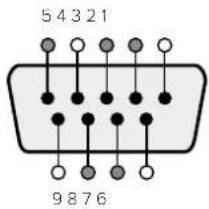
| Pin Function | |
| 1 Ground | |
| 2 Tx- (Data sent by router) | |
| 3 Rx+ (Data received by router) | |
| 4 Ground | |
| 5 NC (No connect) | |
| 6 Ground | |
| 7 Tx+ (Data sent by router) | |
| 8 Rx- (Data received by router) | |
| 9 Ground | |
Videohub RS-422 Router Control DB9 pin connections.
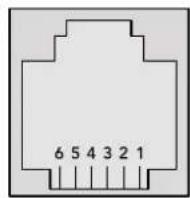
| Pin No. Function | |
| Pin 1 | TX + |
| Pin 2 | TX - |
| Pin 3 | GND |
| Pin 4 | GND |
| Pin 5 | RX - |
| Pin 6 | RX + |
Videohub RS-422 Router Control RJ11 pinout diagram.
This document describes the commands and parameters in the protocol that are relevant and supported by Videohub. Other commands and parameters specified in the Leitch protocol are accepted but ignored.
The RS-422 serial port is configured as 9600 N81.
The protocol is line-oriented, with a maximum length of 250 characters per command. Each command from the client should be terminated with a carriage-return (r). Each response from the server will be terminated with a carriage-return and line-feed (r\n).
Sources, destinations and levels are always specified in base-16, numbered from zero. Levels are always between 0 and 15 ("F"). Videohubs only have one valid level - level zero.
On connecting to the serial port, the client should send a carriage-return. The Videohub Server will respond with a > character prompt, which is not followed by a carriage-return or line-feed. Receiving the prompt indicates that a connection has been established. The same prompt will be issued after each command received by the Videohub Server.
In the following documentation, commands in orange and values in blue must be typed literally, including any spaces. In the following example of an immediate command using destination port 7 and source port 3, @ X:0/destination, source would be entered as: @ X:0/6, 2
Notifications
Once connected, if status reporting is enabled, the client will receive a notification message when a route changes on the Videohub Server. The notifications take one of two forms:
S:0destination,source Routing change
This message indicates that the specified source port is now routed to the specified destination.
V:0destination,source Preset routing notification
This message indicates that the current preset includes a route from the specified source to the specified destination.
GlobalCommands
All pass-through commands are preceded by an Ⓞ symbol and a space.
The following client commands are supported:
@ ! disable status reporting
Status reporting is disabled by default.
@ ? enable status reporting
Status reporting is enabled.
@ Z: reset routing table
Routing is reset so that the first source is routed to all destinations.
ImmediateCommands
@ X:0/destination, source change route
@ X:0/destination, source/destination-2, source-2... change multiple routes
The specified source ports are routed to the specified destinations.
Any routing changes will trigger S: notifications
@ X?0destination request individual route status
The source routed to a the specified destination will be returned as an s: notification.
@ S?0 request all ports route status
Each source & destination port pair will be returned as s: notifications
SalvoCommands
@ P:0/destination,source queue route change
@ P:0/destination,source/destination-2,source-2... queue multiple route changes
The specified routing changes are added to the current salvo for later execution.
@ P?0destination request individual port status in salvo
If a routing change for the specified destination port is queued, the route will be returned as a V: notification.
@ V?0 request all ports status in salvo
Each queued routing change in the salvo is reported as a v: notification.
@ B:C clear salvo
@ B:R clear salvo
Any queued changes are discarded and the salvo is reset.
@ B:E execute salvo
Any queued changes are executed and each routing change will be returned as an notification.
Saving and Loading Labels with Telnet in Mac OS
Normally you would use Blackmagic Videohub Setup to save and load labels between different Videohub routers and to backup your videohub settings. However, if for any reason you wish to use the Terminal, the instructions below let you save and load router label configurations via the Terminal.
![Blackmagics-iMac:~ timf$ telnet 192.168.25.253 9990 Trying 192.168.25.253... Connected to 192.168.25.253. Escape character is '^]'. PROTOCOL PREAMBLE: Version: 2.4 VIDEOHUB DEVICE: Device present: true Model name: Blackmagic Smart Videohub Unique ID: 7c2e0d0106df Video inputs: 16 Video processing units: 0 Video outputs: 16 Video monitoring outputs: 0 Serial ports: 0 INPUT LABELS: 0 Camera 1 1 Mini Converter 1 2 Hyperdeck 1 3 VTR 1 4 Teranex 1 5 PC Workstation 6 ATEM PGM 7 Camera 2 8 Mini Converter 2 9 Mac Workstation 10 Hyperdeck 2 11 VTR 2 12 Teranex 3 13 Hyperdeck 3 14 Hyperdeck 3 15 Input 16 OUTPUT LABELS: 0 Main Monitor 1 1 Main Monitor 2 2 Audio Monitor 1 3 Audio Monitor 2 4 ATEM Input 1 5 ATEM Input 2 6 ATEM Input 3 7 Hyperdeck 4 8 Hyperdeck 5 9 Hyperdeck 3 10 VTR 3 11 VTR 4 12 Teranex 4 13 Ultrascope 1 14 Ultrascope 2 15 Ultrascope 3](/content/2026/04/672773/images/41a5b486af5aceb6efd1699b92e75cf15bc8bbca39ba55c36d21d1e9811df830.jpg)
SavingLabels
1 Open the Terminal application which is located within the Applications > Utilities folder.
2Type in "telnet" and a space followed by the IP of your Videohub, then another space and "9990", which is the default port number. For example type: telnet 192.168.25.253 9990. The Protocol Preamble screen will appear.
3Copy the INPUT LABELS: text including the heading and paste into a word processor or simple text editor. Name this file "input labels" and save to your favorite location.
4Copy the OUTPUT LABELS: text including the heading and paste into a word processor or simple text editor. Name this file "output labels" and save to your favorite location.
5Close the telnet session by exiting the terminal window.
LoadingLabels
1 Open the Terminal application with is located within the Applications > Utilities folder.
2Type in "telnet" and a space followed by the IP of your Videohub, then another space and "9990", which is the default port number. For example type: telnet 192.168.25.253 9990. The Protocol Preamble screen will appear.
3 Open the "input labels" text file in your text editing program and copy the INPUT LABELS: text.
4 Paste this into the telnet session and press "return" twice. Telnet will respond with "ACK" and Videohub will update the input labels.
5Open the "output labels" text file in your text editing program and copy the OUTPUT LABELS: text.
6 Paste this into the telnet session and press "return" twice. Telnet will respond with "ACK" and Videohub will update the output labels.
7 Close the telnet session by exiting the terminal window.
Saving and Loading Labels with Telnet in Windows
While you can save and load labels within Blackmagic Videohub Setup, you may also download and use PuTTY which is a free telnet client.
SettingupPuTTY
1 Start the application and in the "Host Name" field, type the IP of your Videohub and in the "Port" field type "9990", which is the default port number.
2From the Connection type options select the "Telnet" radio button.
3Select the "Terminal" tab and tick the "Implicit CR in every LF" checkbox.
4 Click the "Session" tab and save your session parameters by entering a name in the "Saved Sessions" field and clicking the "Save" button.
SavingLabels
1 Double click the PuTTY icon to start the application. Select your saved session from the list and click the "Load" button followed by the "Open" button. The Protocol Preamble screen will appear.
2Copy the INPUT LABELS: text including the heading and paste into a word processor or simple text editor. Name this file "input labels" and save to your favorite location.
3Copy the OUTPUT LABELS: text including the heading and paste into a word processor or simple text editor. Name this file "output labels" and save to your favorite location.
4 Exit the telnet session by closing the PuTTY window.
LoadingLabels
1 Double click the PuTTY icon to start the application. Select your saved session from the list and click the "Load" button followed by the "Open" button. The Protocol Preamble screen will appear.
2 Open the "input labels" text file in your text editing program and copy the INPUT LABELS: text.
3 Right click in the PuTTY session to paste the copied section and press "Enter" twice. PuTTY will respond with "ACK" and Videohub will update the input labels.
4Open the "output labels" text file in your text editing program and copy the OUTPUT LABELS: text.
5 Right click in the PuTTY session to paste the copied section and press "Enter" twice. PuTTY will respond with "ACK" and Videohub will update the output labels.
6Exit the telnet session by closing the PuTTY window.
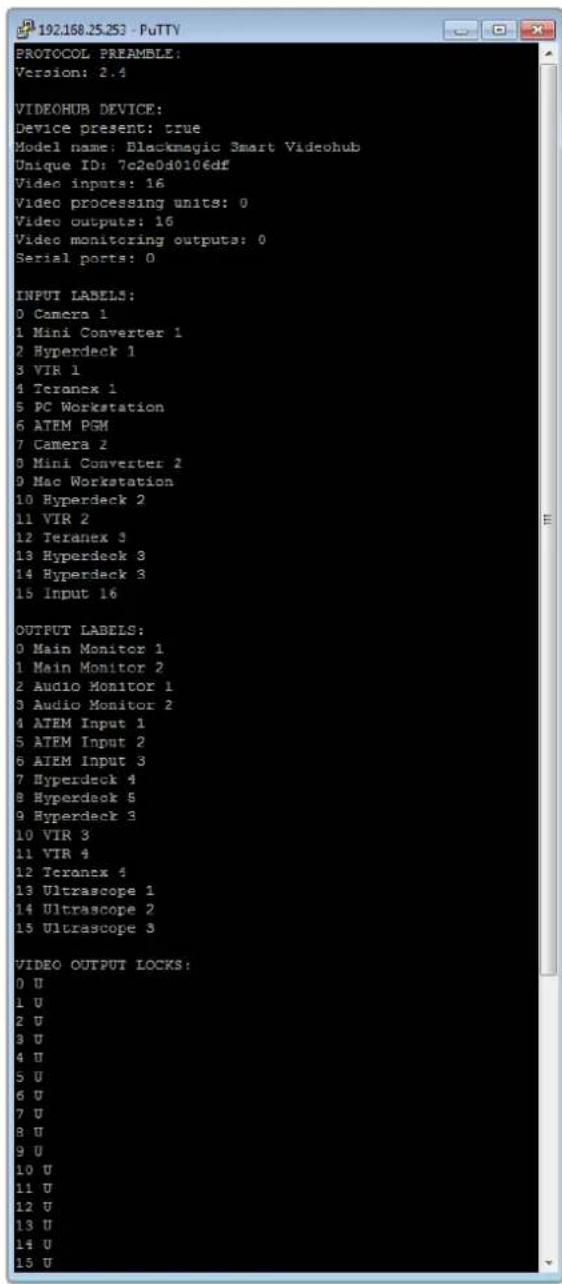
natural_image
Profile view of a man in a gray shirt and blue tie, looking out from the side window (no text or symbols visible)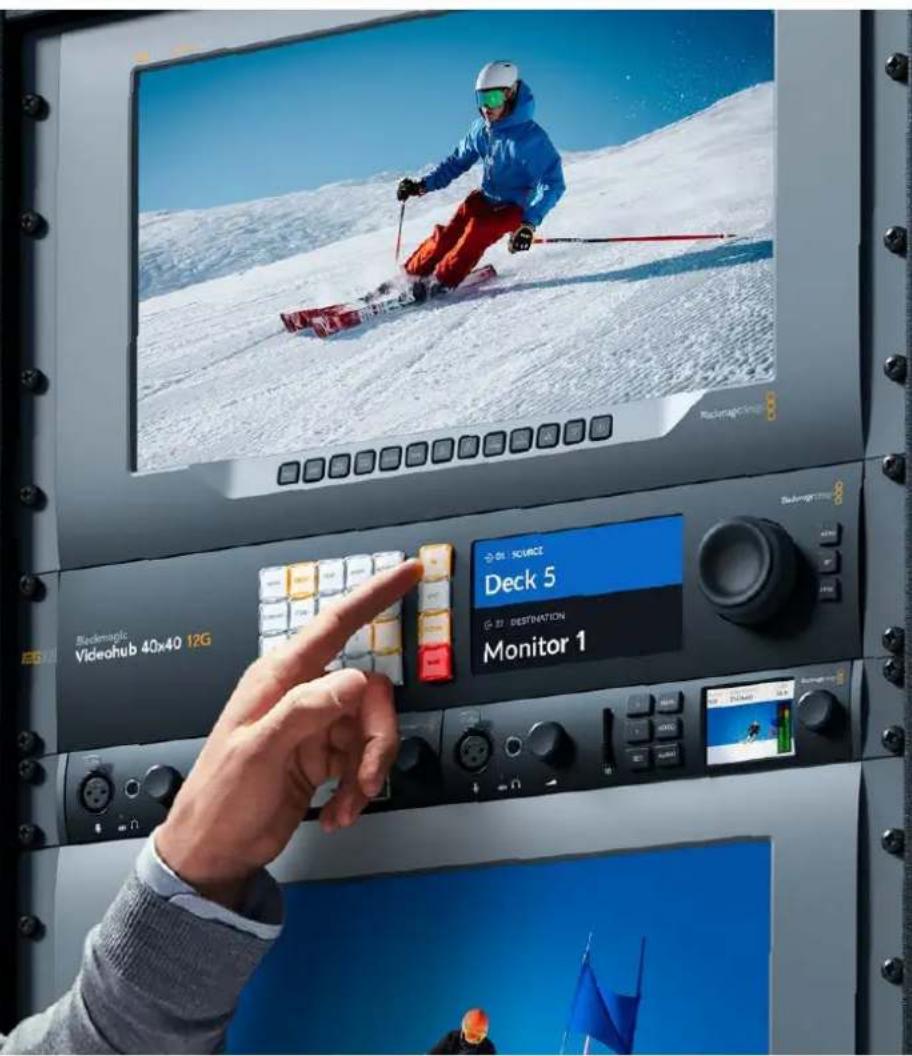

natural_image
Circular portrait photo of a smiling man in a black shirt against a gray textured background (no text or symbols)GPI and Tally Interface 690
ПО Blackmagic Videohub 691
Blackmagic Videohub Setup 691
Saving and Loading Labels
with Telnet in Mac OS 730
Saving and Loading Labels
with Telnet in Windows 731
natural_image
Front view of a black rack-mounted network device with multiple ports and connectors (no visible text or labels)Blackmagic Videohub 10x10 12G


natural_image
Front view of a black rack-mounted network device with multiple Ethernet connectors and ports (no visible text or labels)Blackmagic Videohub 20x20 12G


natural_image
Front view of a black rack-mounted network interface with multiple ports and connectors (no visible text or labels)Blackmagic Videohub 40x40 12G
natural_image
Front view of a black rack-mounted server rack with multiple ports and connectors (no visible text or labels)Universal Videohub 288
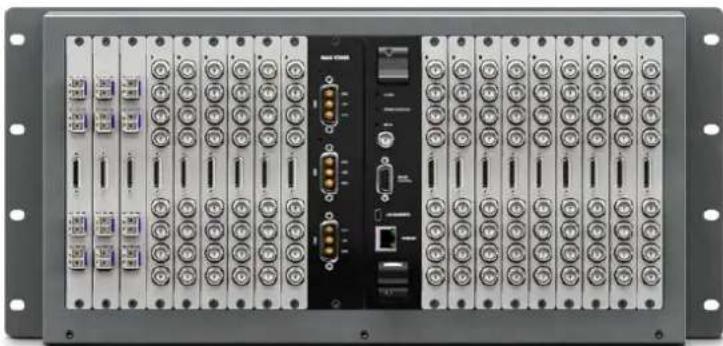
natural_image
Front view of a rack-mounted network equipment unit with multiple ports and connectors (no visible text or labels)Universal Videohub 72
Videohub Master Control Pro
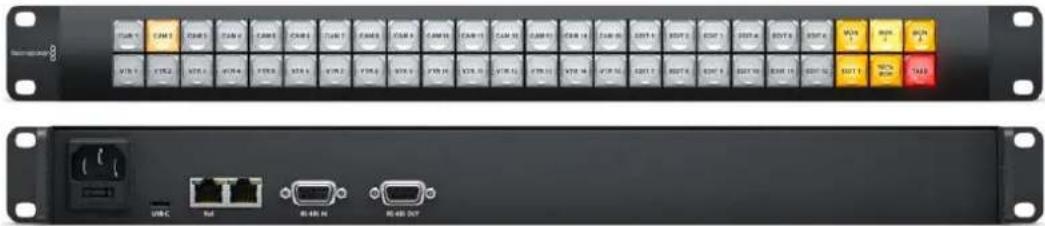
Videohub Smart Control Pro
Подготовка к работе
natural_image
Front view of a rack-mounted network device with multiple Ethernet ports and a central indicator (no visible text or labels)natural_image
Front view of a server rack with rows of circular components and indicator lights (no visible text or labels)Universal Videohub 288
natural_image
Technical line drawing of a computer drive chassis with ventilation slots and ports (no text or symbols)
natural_image
3D schematic of a multi-level storage unit with internal components and a highlighted section (no text or symbols)natural_image
Technical diagram of an electrical panel assembly with a highlighted component (no text or symbols present)Установка платы Universal Videohub SDI Interface
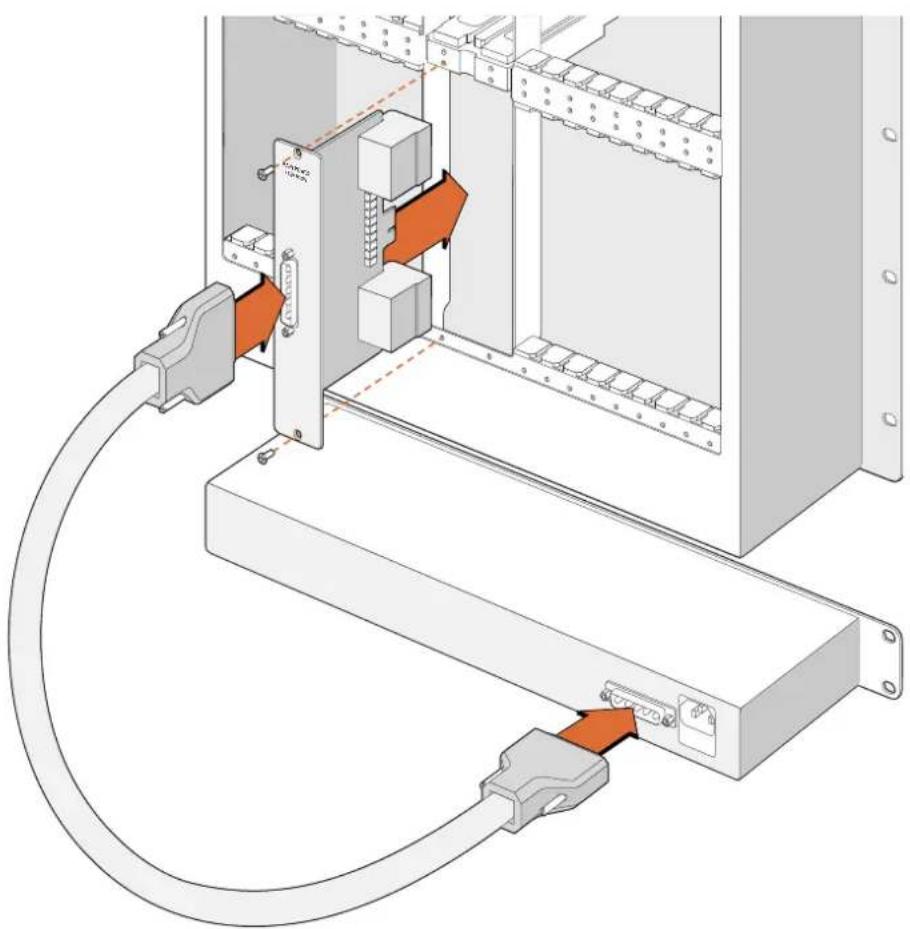
natural_image
Diagram of an electrical connector assembly showing cable routing and orange directional arrows (no text or symbols)natural_image
Technical diagram of a cable connector assembly with mounting brackets and connectors (no text or symbols)natural_image
Front panel of a rack-mounted industrial control unit with multiple ports and connectors (no visible text or labels)natural_image
Technical line drawing of a computer chassis rear panel with ports and connectors (no text or symbols)natural_image
Technical diagram of an internal server rack with a highlighted orange arrow indicating a component (no text or symbols present)natural_image
Technical diagram of an electrical panel assembly with a highlighted component (no text or symbols present)Установка платы Universal Videohub SDI Interface
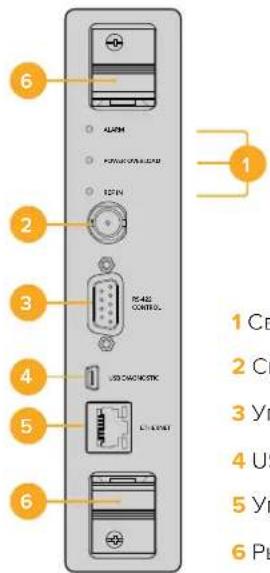
natural_image
Illustration of a rack-mounted electronic device with multiple ports and connectors (no text or symbols visible)natural_image
Illustration of four connected VGA connectors (no text or symbols)Universal Videohub Deck Control Cable
Smart Videohub CleanSwitch 12x12
Videohub Master Control Pro
Videohub Smart Control Pro
natural_image
Front and back view of a rack-mounted server interface with labeled ports (no text or symbols on the main body)Videohub Smart Control Pro
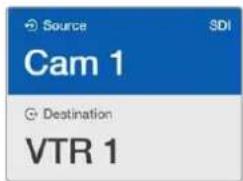
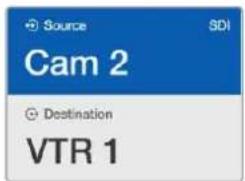
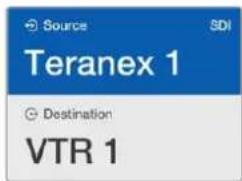
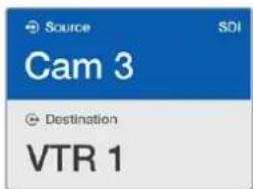
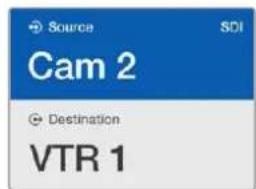
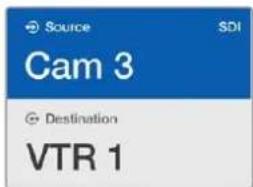
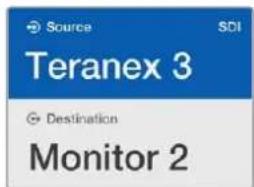
natural_image
Front panel of a dual-chamber electronic device with grid and indicator lights (no readable text or symbols)natural_image
Pure electrical panel layout with grid and color-coded indicators (no text or symbols)natural_image
Hand holding a small electronic component, no visible text or symbolsnatural_image
Illustration of hands holding a small object with circular patterns, no text or symbols present
natural_image
Front panel of a network device rack with multiple ports and connectors (no visible text or labels)
GPI and Tally Interface
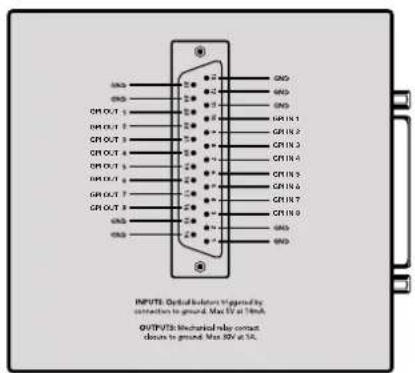
Настройки приложения Videohub на планшете iPad
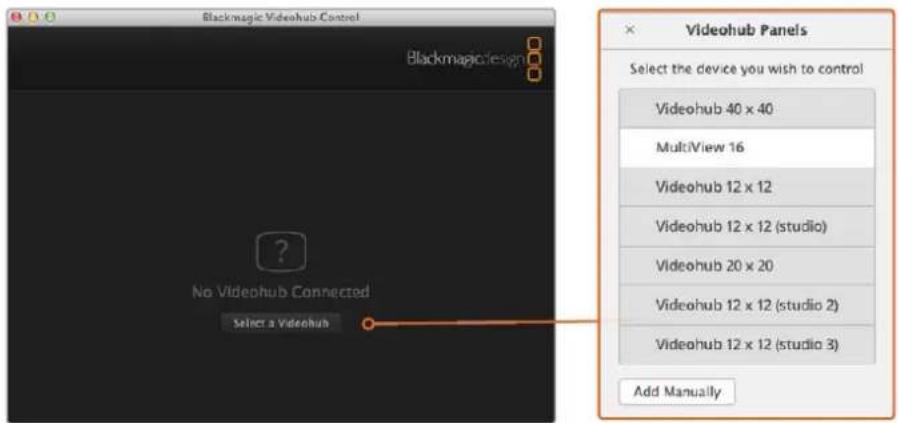
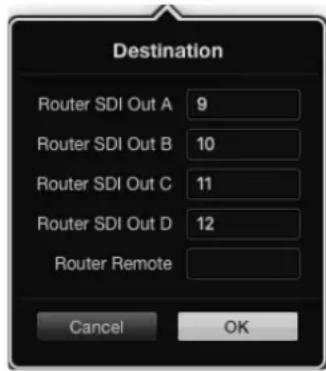
The Blackmagic Videohub Ethernet Protocol is a text based protocol that is accessed by connecting to TCP port 9990 on a Videohub Server. Integrated Videohub Servers and Videohub Server computers are supported by the protocol.
The Videohub Server sends information in blocks which each have an identifying header in all-caps, followed by a full-colon. A block spans multiple lines and is terminated by a blank line. Each line in the protocol is terminated by a newline character.
Upon connection, the Videohub Server sends a complete dump of the state of the device. After the initial status dump, status updates are sent every time the Videohub status changes.
To be resilient to future protocol changes, clients should ignore blocks they do not recognize, up to the trailing blank line. Within existing blocks, clients should ignore lines they do not recognize.
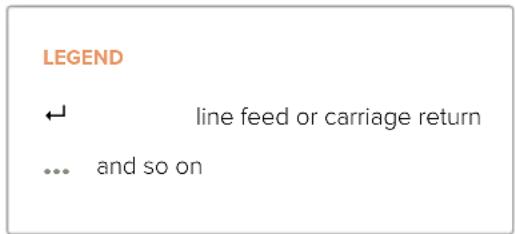
Version 2.3 of the Blackmagic Videohub Ethernet Protocol was released with Videohub 4.9.1 software.
Protocol Preamble
The first block sent by the Videohub Server is always the protocol preamble:
PROTOCOL PREAMBLE:
Version: 2.3
←
The version field indicates the protocol version. When the protocol is changed in a compatible way, the minor version number will be updated. If incompatible changes are made, the major version number will be updated.
Device Information
The next block contains general information about the connected Videohub device. If a device is connected, the Videohub Server will report the attributes of the Videohub:
VIDEOHUB DEVICE:
Device present: true
Model name: Blackmagic Smart Videohub
Video inputs: 16
Video processing units: 0
Video outputs: 16
Video monitoring outputs: 0
Serial ports: 0
←
This example is for the Smart Videohub which is a 16x16 router.
If the Videohub Server has no device connected, the block will simply be:
VIDEOHUB DEVICE:
Device present: false
←
If a device is present, but has an incompatible firmware, the status reported will be:
VIDEOHUB DEVICE:
Device present: needs _ update
←
In the last two situations, no further information will be sent, unless the situation is rectified.
If the Videohub Server detects a new Videohub attached, it will resend all blocks except the protocol preamble to indicate the device has changed, and allow the client to update its cache of server state.
Initial Status Dump
The next four blocks enumerate the labels assigned to the input, output, monitoring and serial ports.
Videohubs that do not have monitoring or serial ports do not send the corresponding blocks.
INPUT LABELS:
0 VTR 1
1 VTR 2
...
←
OUTPUT LABELS:
0 Output feed 1
1 Output feed 2
***
←
MONITORING OUTPUT LABELS:
0 Monitor feed 1
1 Monitor feed 2
...
←
SERIAL PORT LABELS:
0 Deck 1
1 Deck 2
←
NOTE Ports are always numbered starting at zero in the protocol which matches port one on the chassis.
The next three blocks describe the routing of the output, monitoring and serial ports.
VIDEO OUTPUT ROUTING:←
0 5←
1 3←
...
←
VIDEO MONITORING OUTPUT ROUTING:←
0 7←
1 8←
...
←
SERIAL PORT ROUTING:←
0 12←
1 11←
...
←
Videohubs with processing units (only the Workgroup Videohub) send an extra routing block:
PROCESSING UNIT ROUTING:←
0 5←
1 3←
...
←
Videohubs with frame buffers (only the Workgroup Videohub) send two extra blocks:
FRAME LABELS:←
0 Frame one←
1 Frame two←
...
←
FRAME BUFFER ROUTING:←
0 7←
1 8←
...
←
The next three blocks describe the locking status of the output, monitoring and serial ports. Each port has a lock status of "O" for ports that are owned by the current client (i.e., locked from the same IP address), "L" for ports that are locked from a different client, or "U" for unlocked. Note that Videohubs that do not have monitoring ports or serial ports do not send the corresponding blocks.
VIDEO OUTPUT LOCKS:←
0 U←
1 U←
...
←
MONITORING OUTPUT LOCKS:←
0 U←
1 U←
...
←
SERIAL PORT LOCKS:←
0 U←
1 U←
...
←
Videohubs with processing units (only the Workgroup Videohub) send an extra lock block:
PROCESSING UNIT LOCKS:←
0 U←
1 U←
...
←
Videohubs with frame buffers (only the Workgroup Videohub) send an extra lock block:
FRAME BUFFER LOCKS:←
0 U←
1 U←
...
←
Videohubs with serial ports next send a block which describes the direction of each serial port. Each port has a direction of either “control” for the “In (Workstation)” setting, “slave” for “Out (Deck)”, or “auto” for “Automatic”.
SERIAL PORT DIRECTIONS:←
0 control←
1 slave←
2 auto←
...
←
Videohubs with pluggable cards (only Universal Videohubs) send three more blocks that describe the hardware status of the ports. Missing video or serial ports have a status of "None"; input and output video ports will be "BNC" or "Optical" if they are present; serial ports will be "RS422" if they are present.
VIDEO INPUT STATUS:←
0 BNC←
1 BNC←
...
VIDEO OUTPUT STATUS:←
0 BNC←
1 BNC←
...
SERIAL PORT STATUS:←
0 RS422←
1 RS422←
...
Status Updates
When any route, label, or lock is changed on the Videohub Server by any client, the Videohub Server resends the applicable status block, containing only the items that have changed. For example, if serial port 6 has been unlocked, the following block will be sent:
SERIAL PORT LOCKS:
5 U
←
If multiple items are changed, multiple items may be present in the update:
OUTPUT LABELS:
7 New output 8 label
10 New output 11 label
←
If a card is plugged into or removed from the Universal Videohub, it will send hardware status blocks for the video inputs, video outputs, and serial ports on that card.
Requesting Changes
To update a label, lock or route, the client should send a block of the same form the Videohub Server sends when its status changes. For example, to change the route of output port 8 to input port 3, the client should send the following block:
VIDEO OUTPUT ROUTING:
7 2
←
The block must be terminated by a blank line. On receipt of a blank line, the Videohub Server will either acknowledge the request by responding:
ACK←
←
or indicate that the request was not understood by responding:
NAK
←
After a positive response, the client should expect to see a status update from the Videohub Server showing the status change. This is likely to be the same as the command that was sent, but if the request could not be performed, or other changes were made simultaneously by other clients, there may be more updates in the block, or more blocks. Simultaneous updates could cancel each other out, leading to a response that is different to that expected.
In the absence of simultaneous updates, the dialog expected for a simple label change is as follows:
OUTPUT LABELS:←
6 new output label seven←
←
ACK←
←
OUTPUT LABELS:←
6 new output label seven←
←
The asynchronous nature of the responses means that a client should never rely on the desired update actually occurring and must simply watch for status updates from the Videohub Server and use only these to update its local representation of the server state.
To lock a port, send an update to the port with the character "O" indicating that you wish to lock the port for example:
SERIAL PORT LOCKS:
7 0←
←
ACK←
←
SERIAL PORT LOCKS:
7 0←
←
To forcibly unlock a port that has been locked by another client, send an update to the port with the character "F" instead of using the usual unlock character "U". For example, to override a lock on port 7:
SERIAL PORT LOCKS:←
7 F←
←
ACK←
←
SERIAL PORT LOCKS:←
7 U←
←
Hardware status blocks can only be sent by the Videohub Server. If a client sends hardware status blocks, they will be ignored.
Requesting a Status Dump
The client may request that the Videohub Server resend the complete state of any status block by sending the header of the block, followed by a blank line. In the following example, the client requests the Videohub Server resend the output labels:
OUTPUT LABELS:←
ACK←
OUTPUT LABELS:←
0 output label 1←
1 output label 2←
2 output label 3←
...
Checking the Connection
While the connection to the Videohub Server is established, a client may send a special no-operation command to check that the Videohub Server is still responding:
PING:
If the Videohub Server is responding, it will respond with an ACK message as for any other recognized command.
Videohub RS-422 Protocol
General
The RS-422 protocol can be used to control many Videohub models as RS-422 slave devices, for router crosspoint switching. This feature is available on any Videohub model with an "RS-422 Control" port.
Depending on your model of Videohub, the RS-422 port may be either a DB9 or RJ11 connector. DB9 cables are commonly available in electrical stores. The RJ11 connector is the same used in many landline telephone connections. By modifying an RS-422 to USB adapter cable terminated with an RJ11 connector you can control Videohub using external controllers via USB.
In "Leitch Server" mode, these Videohub models implement the router (server) side of the Leitch Serial Pass-Through Protocol as specified in section 4 of Leitch document SPR-MAN revision D. In "Leitch Client" mode, the Videohub implements the controller (client) side of the Leitch terminal protocol.
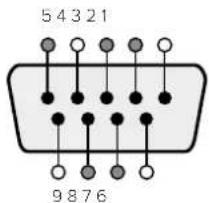
| Pin Function | |
| 1 Ground | |
| 2 Tx- (Data sent by router) | |
| 3 Rx+ (Data received by router) | |
| 4 Ground | |
| 5 NC (No connect) | |
| 6 Ground | |
| 7 Tx+ (Data sent by router) | |
| 8 Rx- (Data received by router) | |
| 9 Ground |
Videohub RS-422 Router Control DB9 pin connections.
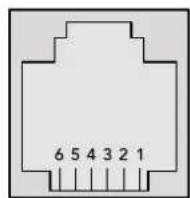
| Pin No. Function | |
| Pin 1 | TX + |
| Pin 2 | TX - |
| Pin 3 | GND |
| Pin 4 | GND |
| Pin 5 | RX - |
| Pin 6 | RX + |
Videohub RS-422 Router Control RJ11 pinout diagram.
This document describes the commands and parameters in the protocol that are relevant and supported by Videohub. Other commands and parameters specified in the Leitch protocol are accepted but ignored.
The RS-422 serial port is configured as 9600 N81.
The protocol is line-oriented, with a maximum length of 250 characters per command. Each command from the client should be terminated with a carriage-return ( r ). Each response from the server will be terminated with a carriage-return and line-feed ( r n ).
Sources, destinations and levels are always specified in base-16, numbered from zero. Levels are always between 0 and 15 ("F"). Videohubs only have one valid level - level zero.
On connecting to the serial port, the client should send a carriage-return. The Videohub Server will respond with a > character prompt, which is not followed by a carriage-return or line-feed. Receiving the prompt indicates that a connection has been established. The same prompt will be issued after each command received by the Videohub Server.
In the following documentation, commands in orange and values in blue must be typed literally, including any spaces. In the following example of an immediate command using destination port 7 and source port 3, @ X:0/destination, source would be entered as: @ X:0/6,2
Notifications
Once connected, if status reporting is enabled, the client will receive a notification message when a route changes on the Videohub Server. The notifications take one of two forms:
S:0destination, source Routing change
This message indicates that the specified source port is now routed to the specified destination.
V:0destination,source Preset routing notification
This message indicates that the current preset includes a route from the specified source to the specified destination.
Global Commands
All pass-through commands are preceded by an @ symbol and a space.
The following client commands are supported:
@ ! disable status reporting Status reporting is disabled by default.
@ ? enable status reporting Status reporting is enabled.
@ Z: reset routing table
Routing is reset so that the first source is routed to all destinations.
Immediate Commands
@ X:0/destination,source change route
@ X:0/destination, source/destination-2, source-2... change multiple routes
The specified source ports are routed to the specified destinations.
Any routing changes will trigger S: notifications
@ X?0destination request individual route status
The source routed to a the specified destination will be returned as an S: notification.
@ S?0 request all ports route status
Each source & destination port pair will be returned as S: notifications
Salvo Commands
@ P:0/destination,source queue route change
@ P:0/destination, source/destination-2, source-2... queue multiple route changes
The specified routing changes are added to the current salvo for later execution.
@ P?0destination request individual port status in salvo
If a routing change for the specified destination port is queued, the route will be returned as a V: notification.
@ V?0 request all ports status in salvo
Each queued routing change in the salvo is reported as a V: notification.
@ B:C clear salvo
@ B:R clear salvo Any queued changes are discarded and the salvo is reset.
@ B:E execute salvo Any queued changes are executed and each routing change will be returned as an S: notification.
Saving and Loading Labels with Telnet in Mac OS
Normally you would use Blackmagic Videohub Setup to save and load labels between different Videohub routers and to backup your videohub settings. However, if for any reason you wish to use the Terminal, the instructions below let you save and load router label configurations via the Terminal.
![Blackmagics-iMac:~ timf$ telnet 192.168.25.253 9990 Trying 192.168.25.253... Connected to 192.168.25.253. Escape character is '^]'. PROTOCOL PREAMBLE: Version: 2.4 VIDEOHUB DEVICE: Device present: true Model name: Blackmagic Smart Videohub Unique ID: 7c2e0d0106df Video inputs: 16 Video processing units: 0 Video outputs: 16 Video monitoring outputs: 0 Serial ports: 0 INPUT LABELS: 0 Camera 1 1 Mini Converter 1 2 Hyperdeck 1 3 VTR 1 4 Teranex 1 5 PC Workstation 6 ATEM PGM 7 Camera 2 8 Mini Converter 2 9 Mac Workstation 10 Hyperdeck 2 11 VTR 2 12 Teranex 3 13 Hyperdeck 3 14 Hyperdeck 3 15 Input 16 OUTPUT LABELS: 0 Main Monitor 1 1 Main Monitor 2 2 Audio Monitor 1 3 Audio Monitor 2 4 ATEM Input 1 5 ATEM Input 2 6 ATEM Input 3 7 Hyperdeck 4 8 Hyperdeck 5 9 Hyperdeck 3 10 VTR 3 11 VTR 4 12 Teranex 4 13 Ultrascope 1 14 Ultrascope 2 15 Ultrascope 3](/content/2026/04/672773/images/92f4b0946b2805137a62af1f51e372f06b999aa277f49279376cbfc71c3b00e9.jpg)
Saving Labels
1 Open the Terminal application which is located within the Applications > Utilities folder.
2Type in "telnet" and a space followed by the IP of your Videohub, then another space and "9990", which is the default port number. For example type: telnet 192.168.25.253 9990. The Protocol Preamble screen will appear.
3 Copy the INPUT LABELS: text including the heading and paste into a word processor or simple text editor. Name this file "input labels" and save to your favorite location.
4 Copy the OUTPUT LABELS: text including the heading and paste into a word processor or simple text editor. Name this file "output labels" and save to your favorite location.
5 Close the telnet session by exiting the terminal window.
Loading Labels
1 Open the Terminal application with is located within the Applications > Utilities folder.
2Type in "telnet" and a space followed by the IP of your Videohub, then another space and "9990", which is the default port number. For example type: telnet 192.168.25.253 9990. The Protocol Preamble screen will appear.
3 Open the "input labels" text file in your text editing program and copy the INPUT LABELS: text.
4 Paste this into the telnet session and press "return" twice. Telnet will respond with "ACK" and Videohub will update the input labels.
5Open the "output labels" text file in your text editing program and copy the OUTPUT LABELS: text.
6 Paste this into the telnet session and press "return" twice. Telnet will respond with "ACK" and Videohub will update the output labels.
7 Close the telnet session by exiting the terminal window.
Saving and Loading Labels with Telnet in Windows
While you can save and load labels within Blackmagic Videohub Setup, you may also download and use PuTTY which is a free telnet client.
Setting up PuTTY
1 Start the application and in the "Host Name" field, type the IP of your Videohub and in the "Port" field type "9990", which is the default port number.
2From the Connection type options select the "Telnet" radio button.
3Select the "Terminal" tab and tick the "Implicit CR in every LF" checkbox.
4 Click the "Session" tab and save your session parameters by entering a name in the "Saved Sessions" field and clicking the "Save" button.
Saving Labels
1 Double click the PuTTY icon to start the application. Select your saved session from the list and click the "Load" button followed by the "Open" button. The Protocol Preamble screen will appear.
2 Copy the INPUT LABELS: text including the heading and paste into a word processor or simple text editor. Name this file "input labels" and save to your favorite location.
3Copy the OUTPUT LABELS: text including the heading and paste into a word processor or simple text editor. Name this file "output labels" and save to your favorite location.
4 Exit the telnet session by closing the PuTTY window.
Loading Labels
1 Double click the PuTTY icon to start the application. Select your saved session from the list and click the "Load" button followed by the "Open" button. The Protocol Preamble screen will appear.
2 Open the "input labels" text file in your text editing program and copy the INPUT LABELS: text.
3 Right click in the PuTTY session to paste the copied section and press "Enter" twice. PuTTY will respond with "ACK" and Videohub will update the input labels.
4 Open the "output labels" text file in your text editing program and copy the OUTPUT LABELS: text.
5 Right click in the PuTTY session to paste the copied section and press "Enter" twice. PuTTY will respond with "ACK" and Videohub will update the output labels.
6Exit the telnet session by closing the PuTTY window.
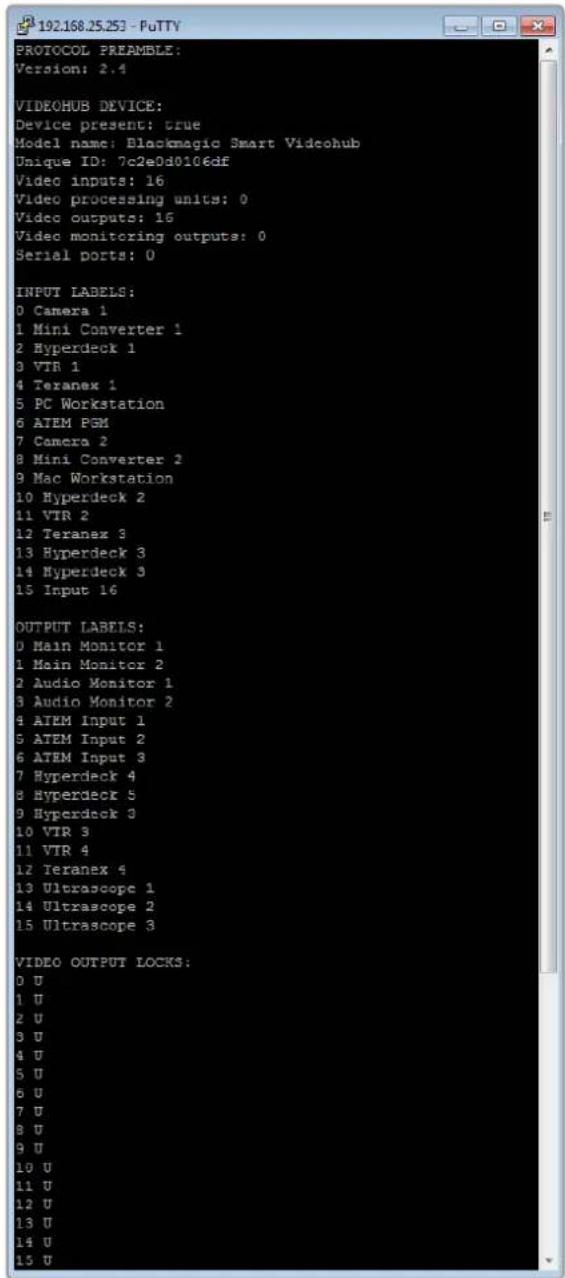
natural_image
Profile view of a man in a gray shirt and blue tie, looking out from the side window (no text or symbols visible)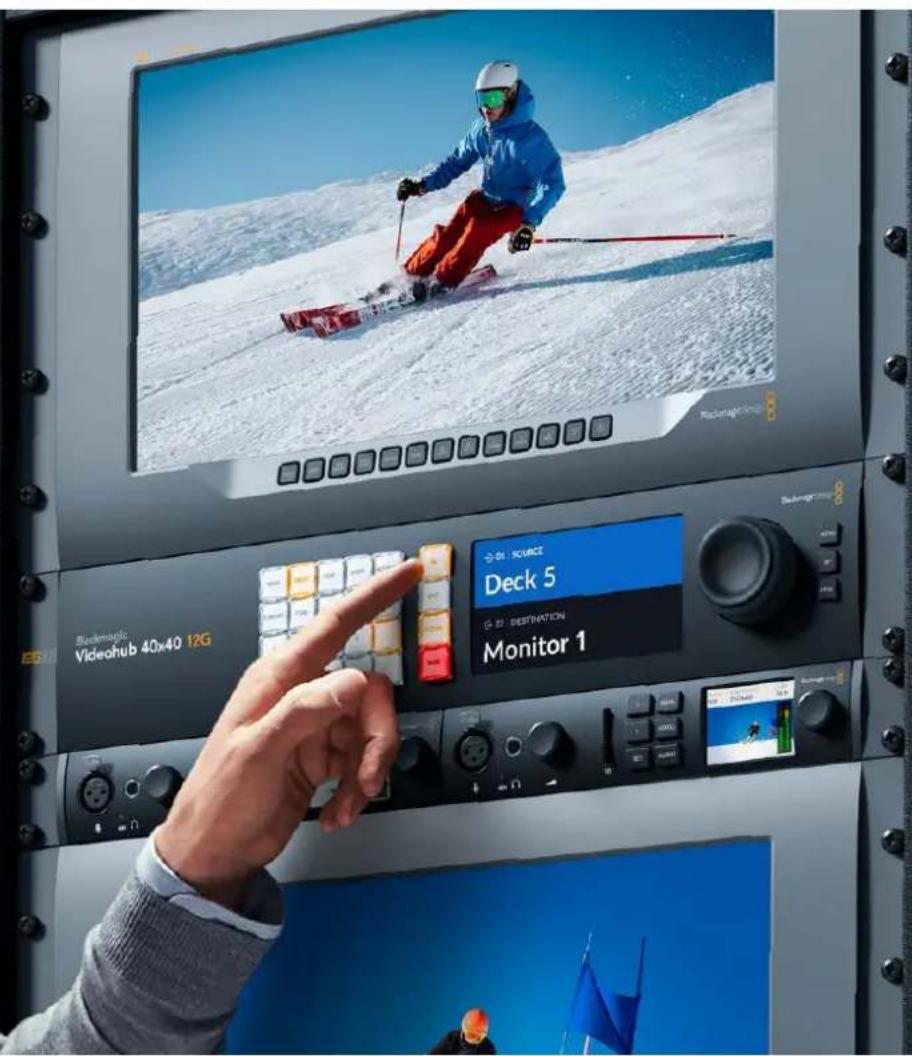

natural_image
Circular portrait photo of a smiling man in a black shirt against a gray background (no text or symbols)Gentile utente
CEO Blackmagic Design
Indice
La linea Blackmagic Videohub 741
GPI and Tally Interface 782
II software Blackmagic Videohub 783
Blackmagic Videohub Setup 783
Saving and Loading Labels
with Telnet in Mac OS 822
Saving and Loading Labels
with Telnet in Windows 823
natural_image
Front view of a black rack-mounted server rack with multiple ports and connectors (no visible text or labels)Universal Videohub 288
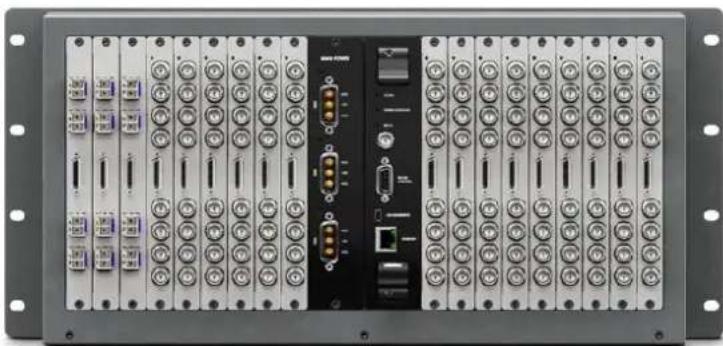
natural_image
Front view of a rack-mounted electronic device with multiple ports and connectors (no visible text or labels)Universal Videohub 72
natural_image
Front panel of a network equipment unit with multiple Ethernet ports and indicator lights (no visible text or labels)natural_image
Front view of a server rack with rows of circular components and indicator lights (no visible text or labels)Universal Videohub 288
Scheda crosspoint
natural_image
3D diagram of a storage unit with internal components and a highlighted section, showing no text or symbols.natural_image
Technical diagram of an electrical panel assembly with a highlighted component (no text or symbols present)natural_image
Technical diagram of an electrical connector assembly with orange arrows indicating connection points (no text or symbols present)natural_image
Technical line drawing of a cable connector assembly with mounting brackets and connectors (no text or symbols)natural_image
Front panel of a rack-mounted industrial control unit with multiple ports and connectors (no visible text or labels)natural_image
Technical line drawing of a computer chassis rear panel with ports and connectors (no text or symbols)natural_image
Two types of connected VGA connectors shown in line drawings (no text or symbols)Cavo seriale Cavo ethernet RJ45 standard
Alimentazione
natural_image
Technical illustration of an internal rack-mounted server unit with a highlighted orange arrow indicating a component (no text or symbols present)natural_image
Technical diagram of an electrical panel assembly with a highlighted component (no text or symbols present)natural_image
3D diagram of a device rear panel with labeled ports and connectors (no readable text or symbols)natural_image
Line drawing of multiple connected VGA connectors (no text or symbols)Universal Videohub Deck Control Cable
Smart Videohub CleanSwitch 12x12
natural_image
Front and back view of a rack-mounted server interface with labeled ports (no text or symbols on the panel itself)Videohub Smart Control Pro
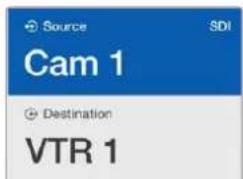
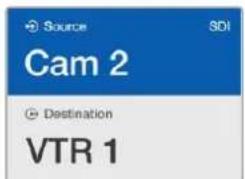
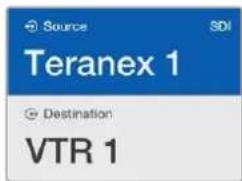
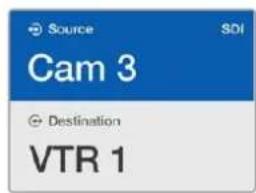
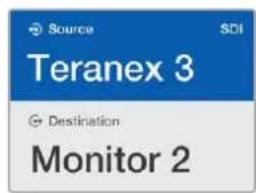
natural_image
Pure electrical circuit lines without any symbolsnatural_image
Diagram of a 24-pin industrial control panel with yellow and red indicators (no text or symbols)natural_image
Hand holding a small mechanical component, no visible text or symbolsnatural_image
Illustration of hands holding a small object with circular patterns, no text or symbols present
SRC e VIEW
SRC, VIEW e SET
SOLO e MENU
GPI and Tally Interface
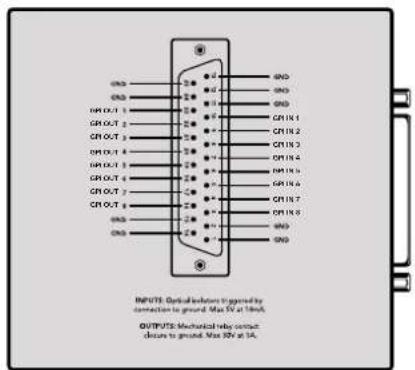
GPI and Tally Interface Piedinatura del connettore DB25
natural_image
Black electronic device with a grid of app icons displayed on its screen (no readable text or symbols)natural_image
Tablet displaying a grid of app icons on its screen, no visible text or symbols on the devices themselves.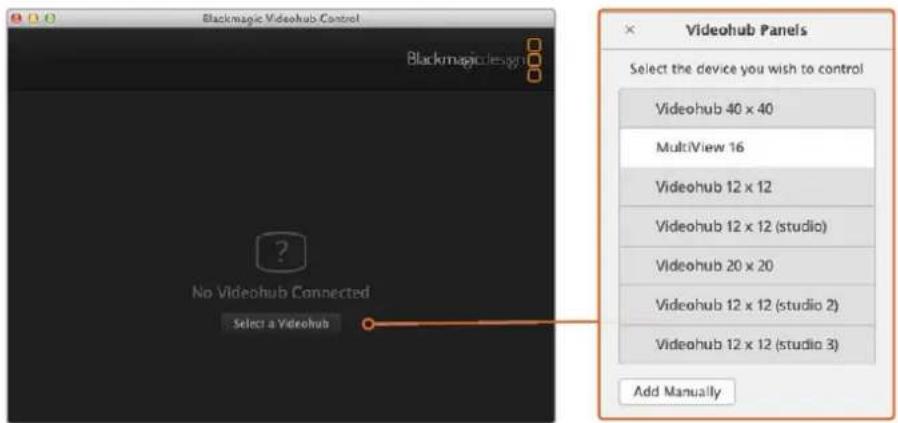
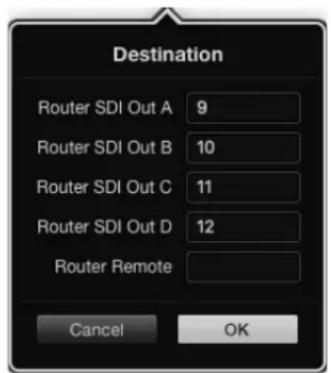
Momentary Hold Video
Configurare GPI and Tally Interface
GPI and Tally Interface collegato tramite USB
The Blackmagic Videohub Ethernet Protocol is a text based protocol that is accessed by connecting to TCP port 9990 on a Videohub Server. Integrated Videohub Servers and Videohub Server computers are supported by the protocol.
The Videohub Server sends information in blocks which each have an identifying header in all-caps, followed by a full-colon. A block spans multiple lines and is terminated by a blank line. Each line in the protocol is terminated by a newline character.
Upon connection, the Videohub Server sends a complete dump of the state of the device. After the initial status dump, status updates are sent every time the Videohub status changes.
To be resilient to future protocol changes, clients should ignore blocks they do not recognize, up to the trailing blank line. Within existing blocks, clients should ignore lines they do not recognize.
LEGEND
← line feed or carriage return ... and so on
Version 2.3 of the Blackmagic Videohub Ethernet Protocol was released with Videohub 4.9.1 software.
Protocol Preamble
The first block sent by the Videohub Server is always the protocol preamble:
PROTOCOL PREAMBLE:
Version: 2.3
←
The version field indicates the protocol version. When the protocol is changed in a compatible way, the minor version number will be updated. If incompatible changes are made, the major version number will be updated.
Device Information
The next block contains general information about the connected Videohub device. If a device is connected, the Videohub Server will report the attributes of the Videohub:
VIDEOHUB DEVICE:←
Device present: true←
Model name: Blackmagic Smart Videohub←
Video inputs: 16←
Video processing units: 0←
Video outputs: 16←
Video monitoring outputs: 0←
Serial ports: 0←
This example is for the Smart Videohub which is a 16x16 router.
If the Videohub Server has no device connected, the block will simply be:
VIDEOHUB DEVICE:
Device present: false
←
If a device is present, but has an incompatible firmware, the status reported will be:
VIDEOHUB DEVICE:
Device present: needs _ update
←
In the last two situations, no further information will be sent, unless the situation is rectified.
If the Videohub Server detects a new Videohub attached, it will resend all blocks except the protocol preamble to indicate the device has changed, and allow the client to update its cache of server state.
Initial Status Dump
The next four blocks enumerate the labels assigned to the input, output, monitoring and serial ports.
Videohubs that do not have monitoring or serial ports do not send the corresponding blocks.
INPUT LABELS:
0 VTR 1
1 VTR 2
...
←
OUTPUT LABELS:
0 Output feed 1←
1 Output feed 2
***
←
MONITORING OUTPUT LABELS:
0 Monitor feed 1
1 Monitor feed 2
...
←
SERIAL PORT LABELS:
0 Deck 1
1 Deck 2
←
NOTE Ports are always numbered starting at zero in the protocol which matches port one on the chassis.
The next three blocks describe the routing of the output, monitoring and serial ports.
VIDEO OUTPUT ROUTING:←
0 5←
1 3←
...
←
VIDEO MONITORING OUTPUT ROUTING:←
0 7←
1 8←
...
←
SERIAL PORT ROUTING:←
0 12←
1 11←
...
←
Videohubs with processing units (only the Workgroup Videohub) send an extra routing block:
PROCESSING UNIT ROUTING:←
0 5←
1 3←
...
←
Videohubs with frame buffers (only the Workgroup Videohub) send two extra blocks:
FRAME LABELS:←
0 Frame one←
1 Frame two←
...
←
FRAME BUFFER ROUTING:←
0 7←
1 8←
...
←
The next three blocks describe the locking status of the output, monitoring and serial ports. Each port has a lock status of "O" for ports that are owned by the current client (i.e., locked from the same IP address), "L" for ports that are locked from a different client, or "U" for unlocked. Note that Videohubs that do not have monitoring ports or serial ports do not send the corresponding blocks.
VIDEO OUTPUT LOCKS:←
0 U←
1 U←
...
←
MONITORING OUTPUT LOCKS:←
0 U←
1 U←
...
←
SERIAL PORT LOCKS:←
0 U←
1 U←
...
←
Videohubs with processing units (only the Workgroup Videohub) send an extra lock block:
PROCESSING UNIT LOCKS:←
0 U←
1 U←
...
←
Videohubs with frame buffers (only the Workgroup Videohub) send an extra lock block:
FRAME BUFFER LOCKS:←
0 U←
1 U←
...
←
Videohubs with serial ports next send a block which describes the direction of each serial port. Each port has a direction of either “control” for the “In (Workstation)” setting, “slave” for “Out (Deck)”, or “auto” for “Automatic”.
SERIAL PORT DIRECTIONS:←
0 control←
1 slave←
2 auto←
...
←
Videohubs with pluggable cards (only Universal Videohubs) send three more blocks that describe the hardware status of the ports. Missing video or serial ports have a status of "None"; input and output video ports will be "BNC" or "Optical" if they are present; serial ports will be "RS422" if they are present.
VIDEO INPUT STATUS:←
0 BNC←
1 BNC←
...
←
VIDEO OUTPUT STATUS:←
0 BNC←
1 BNC←
...
←
SERIAL PORT STATUS:←
0 RS422←
1 RS422←
...
←
Status Updates
When any route, label, or lock is changed on the Videohub Server by any client, the Videohub Server resends the applicable status block, containing only the items that have changed. For example, if serial port 6 has been unlocked, the following block will be sent:
SERIAL PORT LOCKS:←
5 U←
←
If multiple items are changed, multiple items may be present in the update:
OUTPUT LABELS:←
7 New output 8 label←
10 New output 11 label←
←
If a card is plugged into or removed from the Universal Videohub, it will send hardware status blocks for the video inputs, video outputs, and serial ports on that card.
Requesting Changes
To update a label, lock or route, the client should send a block of the same form the Videohub Server sends when its status changes. For example, to change the route of output port 8 to input port 3, the client should send the following block:
VIDEO OUTPUT ROUTING:←
7 2←
←
The block must be terminated by a blank line. On receipt of a blank line, the Videohub Server will either acknowledge the request by responding:
ACK←
or indicate that the request was not understood by responding:
NAK←
After a positive response, the client should expect to see a status update from the Videohub Server showing the status change. This is likely to be the same as the command that was sent, but if the request could not be performed, or other changes were made simultaneously by other clients, there may be more updates in the block, or more blocks. Simultaneous updates could cancel each other out, leading to a response that is different to that expected.
In the absence of simultaneous updates, the dialog expected for a simple label change is as follows:
OUTPUT LABELS:←
6 new output label seven←
←
ACK←
←
OUTPUT LABELS:←
6 new output label seven←
←
The asynchronous nature of the responses means that a client should never rely on the desired update actually occurring and must simply watch for status updates from the Videohub Server and use only these to update its local representation of the server state.
To lock a port, send an update to the port with the character "O" indicating that you wish to lock the port for example:
SERIAL PORT LOCKS:
7 0←
←
ACK←
←
SERIAL PORT LOCKS:
7 0←
←
To forcibly unlock a port that has been locked by another client, send an update to the port with the character "F" instead of using the usual unlock character "U". For example, to override a lock on port 7:
SERIAL PORT LOCKS:←
7 F←
←
ACK←
←
SERIAL PORT LOCKS:←
7 U←
←
Hardware status blocks can only be sent by the Videohub Server. If a client sends hardware status blocks, they will be ignored.
Requesting a Status Dump
The client may request that the Videohub Server resend the complete state of any status block by sending the header of the block, followed by a blank line. In the following example, the client requests the Videohub Server resend the output labels:
OUTPUT LABELS:←
ACK←
OUTPUT LABELS:←
0 output label 1←
1 output label 2←
2 output label 3←
...
Checking the Connection
While the connection to the Videohub Server is established, a client may send a special no-operation command to check that the Videohub Server is still responding:
PING:
If the Videohub Server is responding, it will respond with an ACK message as for any other recognized command.
Videohub RS-422 Protocol
General
The RS-422 protocol can be used to control many Videohub models as RS-422 slave devices, for router crosspoint switching. This feature is available on any Videohub model with an “RS-422 Control” port.
Depending on your model of Videohub, the RS-422 port may be either a DB9 or RJ11 connector. DB9 cables are commonly available in electrical stores. The RJ11 connector is the same used in many landline telephone connections. By modifying an RS-422 to USB adapter cable terminated with an RJ11 connector you can control Videohub using external controllers via USB.
In “Leitch Server” mode, these Videohub models implement the router (server) side of the Leitch Serial Pass-Through Protocol as specified in section 4 of Leitch document SPR-MAN revision D. In “Leitch Client” mode, the Videohub implements the controller (client) side of the Leitch terminal protocol.
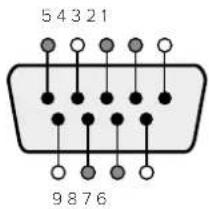
| Pin Function | |
| 1 Ground | |
| 2 Tx- (Data sent by router) | |
| 3 Rx+ (Data received by router) | |
| 4 Ground | |
| 5 NC (No connect) | |
| 6 Ground | |
| 7 Tx+ (Data sent by router) | |
| 8 Rx- (Data received by router) | |
| 9 Ground |
Videohub RS-422 Router Control DB9 pin connections.
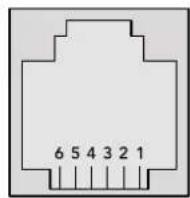
| Pin No. Function | |
| Pin 1 | TX + |
| Pin 2 | TX - |
| Pin 3 | GND |
| Pin 4 | GND |
| Pin 5 | RX - |
| Pin 6 | RX + |
Videohub RS-422 Router Control RJ11 pinout diagram.
This document describes the commands and parameters in the protocol that are relevant and supported by Videohub. Other commands and parameters specified in the Leitch protocol are accepted but ignored.
The RS-422 serial port is configured as 9600 N81.
The protocol is line-oriented, with a maximum length of 250 characters per command. Each command from the client should be terminated with a carriage-return (r). Each response from the server will be terminated with a carriage-return and line-feed (r\n).
Sources, destinations and levels are always specified in base-16, numbered from zero. Levels are always between 0 and 15 ("F"). Videohubs only have one valid level - level zero.
On connecting to the serial port, the client should send a carriage-return. The Videohub Server will respond with a > character prompt, which is not followed by a carriage-return or line-feed. Receiving the prompt indicates that a connection has been established. The same prompt will be issued after each command received by the Videohub Server.
In the following documentation, commands in orange and values in blue must be typed literally, including any spaces. In the following example of an immediate command using destination port 7 and source port 3, @ X:0/destination, source would be entered as: @ X:0/6,2
Notifications
Once connected, if status reporting is enabled, the client will receive a notification message when a route changes on the Videohub Server. The notifications take one of two forms:
S:0destination,source Routing change
This message indicates that the specified source port is now routed to the specified destination.
V:0destination,source Preset routing notification
This message indicates that the current preset includes a route from the specified source to the specified destination.
Global Commands
All pass-through commands are preceded by an Ⓞ symbol and a space.
The following client commands are supported:
@ ! disable status reporting
Status reporting is disabled by default.
@ ? enable status reporting
Status reporting is enabled.
@ Z: reset routing table
Routing is reset so that the first source is routed to all destinations.
Immediate Commands
@ X:0/destination,source change route
@ X:0/destination, source/destination-2, source-2... change multiple routes
The specified source ports are routed to the specified destinations.
Any routing changes will trigger S: notifications
@ X?0destination request individual route status
The source routed to a the specified destination will be returned as an s: notification.
@ S?0 request all ports route status
Each source & destination port pair will be returned as S: notifications
Salvo Commands
@ P:0/destination,source queue route change
@ P:0/destination,source/destination-2,source-2... queue multiple route changes The specified routing changes are added to the current salvo for later execution.
@ P?0destination request individual port status in salvo
If a routing change for the specified destination port is queued, the route will be returned as a V: notification.
@ V?0 request all ports status in salvo
Each queued routing change in the salvo is reported as a V: notification.
@ B:C clear salvo
@ B:R clear salvo
Any queued changes are discarded and the salvo is reset.
@ B:E execute salvo
Any queued changes are executed and each routing change will be returned as an notification.
Saving and Loading Labels with Telnet in Mac OS
Normally you would use Blackmagic Videohub Setup to save and load labels between different Videohub routers and to backup your videohub settings. However, if for any reason you wish to use the Terminal, the instructions below let you save and load router label configurations via the Terminal.
![Blackmagics-iMac:~ timf$ telnet 192.168.25.253 9990 Trying 192.168.25.253... Connected to 192.168.25.253. Escape character is '^]'. PROTOCOL PREAMBLE: Version: 2.4 VIDEOHUB DEVICE: Device present: true Model name: Blackmagic Smart Videohub Unique ID: 7c2e0d0106df Video inputs: 16 Video processing units: 0 Video outputs: 16 Video monitoring outputs: 0 Serial ports: 0 INPUT LABELS: 0 Camera 1 1 Mini Converter 1 2 Hyperdeck 1 3 VTR 1 4 Teranex 1 5 PC Workstation 6 ATEM PGM 7 Camera 2 8 Mini Converter 2 9 Mac Workstation 10 Hyperdeck 2 11 VTR 2 12 Teranex 3 13 Hyperdeck 3 14 Hyperdeck 3 15 Input 16 OUTPUT LABELS: 0 Main Monitor 1 1 Main Monitor 2 2 Audio Monitor 1 3 Audio Monitor 2 4 ATEM Input 1 5 ATEM Input 2 6 ATEM Input 3 7 Hyperdeck 4 8 Hyperdeck 5 9 Hyperdeck 3 10 VTR 3 11 VTR 4 12 Teranex 4 13 Ultrascope 1 14 Ultrascope 2 15 Ultrascope 3](/content/2026/04/672773/images/7fb0650f335dbdce6f4fa904d33a053dffd43d288aca05aa7752d4910ff8ae7a.jpg)
Saving Labels
1 Open the Terminal application which is located within the Applications > Utilities folder.
2Type in "telnet" and a space followed by the IP of your Videohub, then another space and "9990", which is the default port number. For example type: telnet 192.168.25.253 9990. The Protocol Preamble screen will appear.
3Copy the INPUT LABELS: text including the heading and paste into a word processor or simple text editor. Name this file "input labels" and save to your favorite location.
4 Copy the OUTPUT LABELS: text including the heading and paste into a word processor or simple text editor. Name this file "output labels" and save to your favorite location.
5 Close the telnet session by exiting the terminal window.
Loading Labels
1 Open the Terminal application with is located within the Applications > Utilities folder.
2Type in "telnet" and a space followed by the IP of your Videohub, then another space and "9990", which is the default port number. For example type: telnet 192.168.25.253 9990. The Protocol Preamble screen will appear.
3Open the "input labels" text file in your text editing program and copy the INPUT LABELS: text.
4 Paste this into the telnet session and press "return" twice. Telnet will respond with "ACK" and Videohub will update the input labels.
5Open the "output labels" text file in your text editing program and copy the OUTPUT LABELS; text.
6 Paste this into the telnet session and press "return" twice. Telnet will respond with "ACK" and Videohub will update the output labels.
7 Close the telnet session by exiting the terminal window.
Saving and Loading Labels with Telnet in Windows
While you can save and load labels within Blackmagic Videohub Setup, you may also download and use PuTTY which is a free telnet client.
Setting up PuTTY
1 Start the application and in the "Host Name" field, type the IP of your Videohub and in the "Port" field type "9990", which is the default port number.
2From the Connection type options select the "Telnet" radio button.
3Select the "Terminal" tab and tick the "Implicit CR in every LF" checkbox.
4 Click the "Session" tab and save your session parameters by entering a name in the "Saved Sessions" field and clicking the "Save" button.
Saving Labels
1 Double click the PuTTY icon to start the application. Select your saved session from the list and click the "Load" button followed by the "Open" button. The Protocol Preamble screen will appear.
2Copy the INPUT LABELS: text including the heading and paste into a word processor or simple text editor. Name this file "input labels" and save to your favorite location.
3Copy the OUTPUT LABELS: text including the heading and paste into a word processor or simple text editor. Name this file "output labels" and save to your favorite location.
4 Exit the telnet session by closing the PuTTY window.
Loading Labels
1 Double click the PuTTY icon to start the application. Select your saved session from the list and click the "Load" button followed by the "Open" button. The Protocol Preamble screen will appear.
2Open the "input labels" text file in your text editing program and copy the INPUT LABELS: text.
3 Right click in the PuTTY session to paste the copied section and press "Enter" twice. PuTTY will respond with "ACK" and Videohub will update the input labels.
4Open the "output labels" text file in your text editing program and copy the OUTPUT LABELS: text.
5 Right click in the PuTTY session to paste the copied section and press "Enter" twice. PuTTY will respond with "ACK" and Videohub will update the output labels.
6Exit the telnet session by closing the PuTTY window.
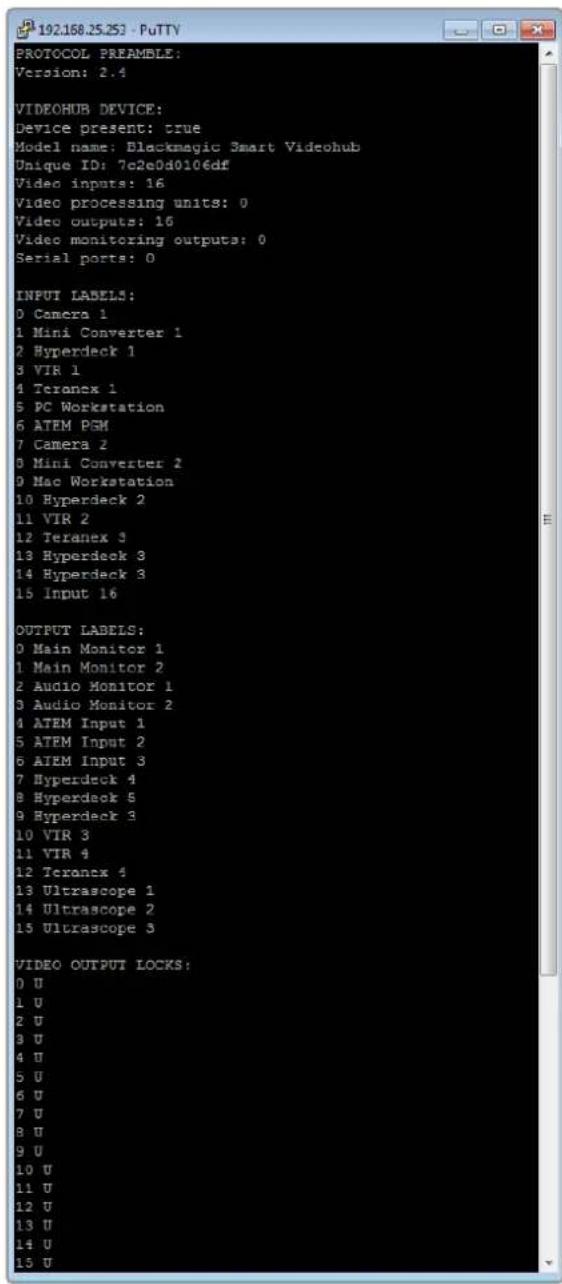
natural_image
Profile view of a man in a gray shirt and blue tie, looking out from the side window (no text or symbols visible)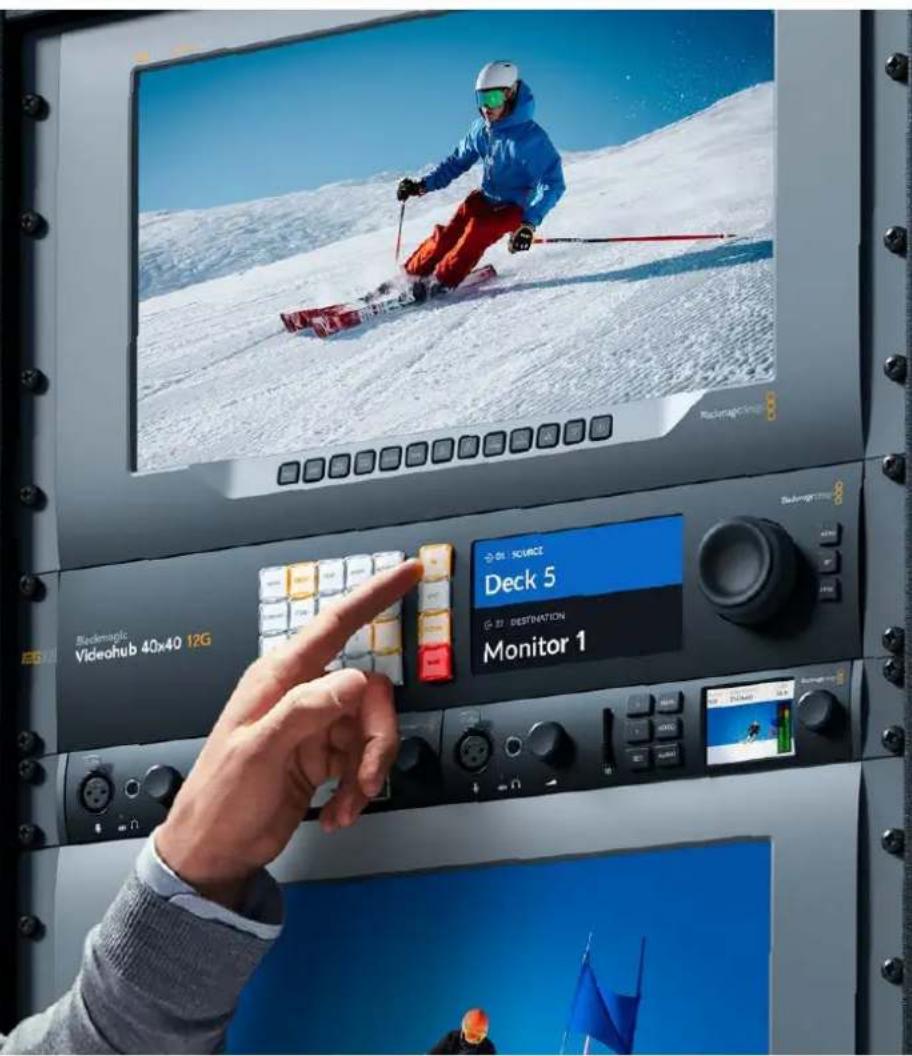

natural_image
Circular portrait photo of a smiling man in a dark shirt against a gray background (no text or symbols)Prezado cliente,
Obrigado por adquirir o Videohub!
GPI and Tally Interface 874
Software Blackmagic Videohub 875
Blackmagic Videohub Setup 875
Saving and Loading Labels
with Telnet in Mac OS 914
Saving and Loading Labels
with Telnet in Windows 915
natural_image
Front view of a black rack-mounted server rack with multiple ports and connectors (no visible text or labels)Universal Videohub 288
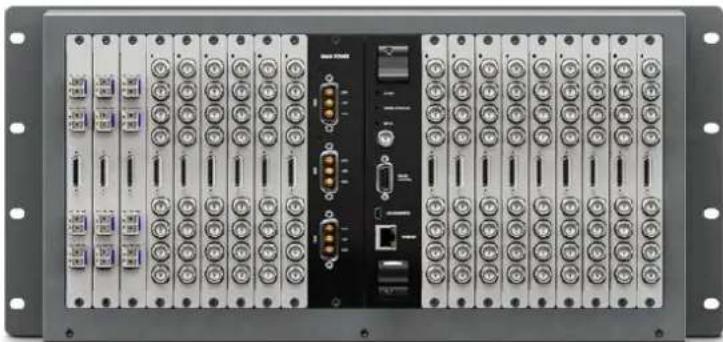
natural_image
Front view of a rack-mounted electronic device with multiple ports and connectors (no visible text or labels)Universal Videohub 72
Videohub Master Control Pro
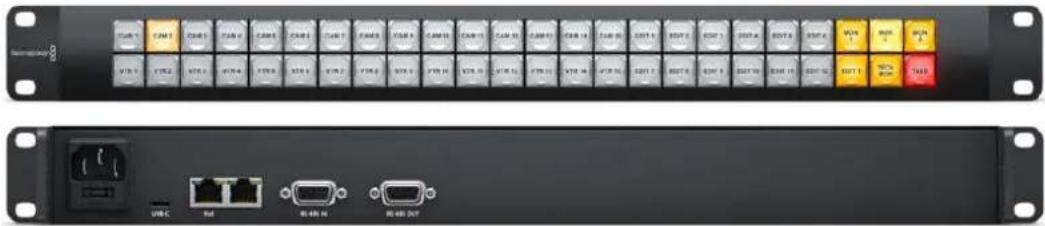
Videohub Smart Control Pro
Primeiros Passos
natural_image
Front panel of a network equipment rack with multiple circular ports and indicator lights (no visible text or labels)natural_image
Front view of a server rack with rows of circular components and indicator lights (no visible text or labels)Universal Videohub 288.
Universal Videohub 288 Crosspoint Card
natural_image
Technical line drawing of a computer drive chassis with ventilation slots and ports (no text or symbols)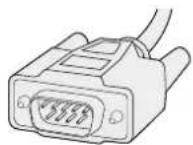
Universal Videohub 288 Crosspoint Card Cabo Serial
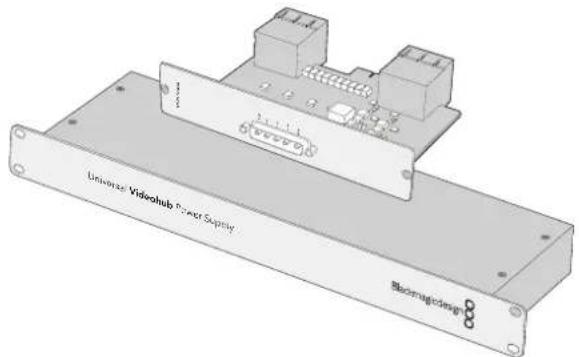
natural_image
3D architectural diagram of a multi-level storage unit with internal structural components and a highlighted section (no text or symbols)natural_image
Technical diagram of an electrical panel assembly with a highlighted component (no text or symbols present)natural_image
Diagram of an electrical connector assembly showing cable routing and orange directional arrows (no text or symbols)natural_image
Technical diagram of a cable connector assembly with mounting brackets and connectors (no text or symbols)natural_image
Front panel of a rack-mounted industrial control unit with multiple ports and connectors (no visible text or labels)natural_image
Front view diagram of a computer chassis showing ports and connectors (no text or labels)natural_image
Technical diagram of an industrial rack unit with a highlighted internal structure and directional arrow (no text or symbols)natural_image
Technical diagram of an electrical panel assembly with a highlighted component (no text or symbols present)natural_image
Diagram of a network device rear panel with multiple ports and connectors (no text or labels visible)natural_image
Line drawing of multiple connected VGA connectors (no text or symbols)Universal Videohub Deck Control Cable
Smart Videohub CleanSwitch 12x12
natural_image
Front and back view of a server rack unit with front panel, internal ports, and indicator lights (no text or symbols visible)Videohub Smart Control Pro
Configurar o Painel de Controle
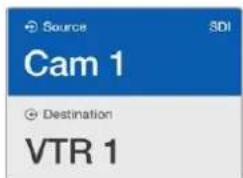
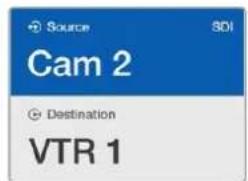
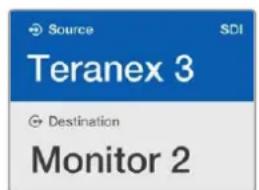
O campo de destino exibe um ícone de cadeado se o destino estiver bloqueado.
natural_image
Pure electrical circuit lines without any symbolsnatural_image
Pure electrical panel layout with grid and color-coded indicators (no text or symbols)natural_image
Hand holding a small electronic component, no visible text or symbolsnatural_image
Illustration of hands holding a small object with circular patterns, no text or symbols present
natural_image
Front panel of a network device showing multiple Ethernet ports and connectors (no visible text or labels)
SRC e VIEW
SRC, VIEW e SET

SOLO e MENU
GPI and Tally Interface
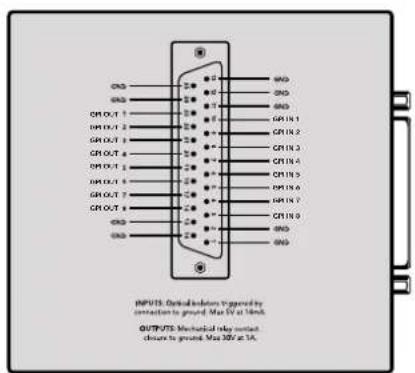
GPI and Tally Interface. Diagrama de pinagem do conector DB25.
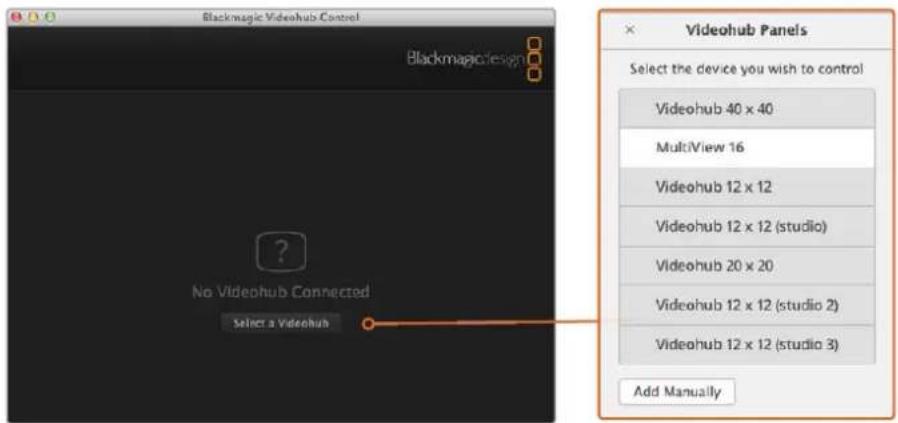
Number of Destinations
Videohub Smart Control Pro configurado com múltiplos destinos.
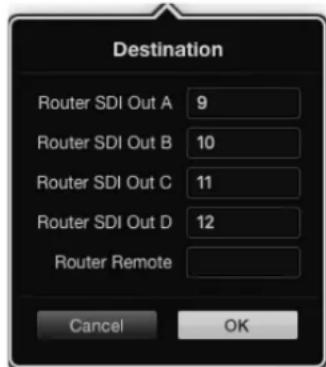
Adicione um número de porta a todos os campos SDI ao utilizar destinos SDI de enlace quádruplo.
Momentary Hold Video
Instalar a GPI and Tally Interface
Configurar a GPI and Tally Interface
GPI and Tally Interface conectada via USB.
The Blackmagic Videohub Ethernet Protocol is a text based protocol that is accessed by connecting to TCP port 9990 on a Videohub Server. Integrated Videohub Servers and Videohub Server computers are supported by the protocol.
The Videohub Server sends information in blocks which each have an identifying header in all-caps, followed by a full-colon. A block spans multiple lines and is terminated by a blank line. Each line in the protocol is terminated by a newline character.
Upon connection, the Videohub Server sends a complete dump of the state of the device. After the initial status dump, status updates are sent every time the Videohub status changes.
To be resilient to future protocol changes, clients should ignore blocks they do not recognize, up to the trailing blank line. Within existing blocks, clients should ignore lines they do not recognize.
LEGEND
← line feed or carriage return
... and so on
Version 2.3 of the Blackmagic Videohub Ethernet Protocol was released with Videohub 4.9.1 software.
Protocol Preamble
The first block sent by the Videohub Server is always the protocol preamble:
PROTOCOL PREAMBLE:←
Version: 2.3←
←
The version field indicates the protocol version. When the protocol is changed in a compatible way, the minor version number will be updated. If incompatible changes are made, the major version number will be updated.
Device Information
The next block contains general information about the connected Videohub device. If a device is connected, the Videohub Server will report the attributes of the Videohub:
VIDEOHUB DEVICE:←
Device present: true←
Model name: Blackmagic Smart Videohub←
Video inputs: 16←
Video processing units: 0←
Video outputs: 16←
Video monitoring outputs: 0←
Serial ports: 0←
This example is for the Smart Videohub which is a 16x16 router.
If the Videohub Server has no device connected, the block will simply be:
VIDEOHUB DEVICE:
Device present: false
←
If a device is present, but has an incompatible firmware, the status reported will be:
VIDEOHUB DEVICE:
Device present: needs _ update
←
In the last two situations, no further information will be sent, unless the situation is rectified.
If the Videohub Server detects a new Videohub attached, it will resend all blocks except the protocol preamble to indicate the device has changed, and allow the client to update its cache of server state.
Initial Status Dump
The next four blocks enumerate the labels assigned to the input, output, monitoring and serial ports.
Videohubs that do not have monitoring or serial ports do not send the corresponding blocks.
INPUT LABELS:
0 VTR 1
1 VTR 2
...
←
OUTPUT LABELS:
0 Output feed 1
1 Output feed 2←
...
←
MONITORING OUTPUT LABELS:
0 Monitor feed 1
1 Monitor feed 2
...
←
SERIAL PORT LABELS:
0 Deck 1
1 Deck 2
←
NOTE Ports are always numbered starting at zero in the protocol which matches port one on the chassis.
The next three blocks describe the routing of the output, monitoring and serial ports.
VIDEO OUTPUT ROUTING:←
0 5←
1 3←
...
←
VIDEO MONITORING OUTPUT ROUTING:←
0 7←
1 8←
...
←
SERIAL PORT ROUTING:←
0 12←
1 11←
...
←
Videohubs with processing units (only the Workgroup Videohub) send an extra routing block:
PROCESSING UNIT ROUTING:←
0 5←
1 3←
...
←
Videohubs with frame buffers (only the Workgroup Videohub) send two extra blocks:
FRAME LABELS:←
0 Frame one←
1 Frame two←
...
←
FRAME BUFFER ROUTING:←
0 7←
1 8←
...
←
The next three blocks describe the locking status of the output, monitoring and serial ports. Each port has a lock status of "O" for ports that are owned by the current client (i.e., locked from the same IP address), "L" for ports that are locked from a different client, or "U" for unlocked. Note that Videohubs that do not have monitoring ports or serial ports do not send the corresponding blocks.
VIDEO OUTPUT LOCKS:←
0 U←
1 U←
...
←
MONITORING OUTPUT LOCKS:←
0 U←
1 U←
...
←
SERIAL PORT LOCKS:←
0 U←
1 U←
...
←
Videohubs with processing units (only the Workgroup Videohub) send an extra lock block:
PROCESSING UNIT LOCKS:←
0 U←
1 U←
...
←
Videohubs with frame buffers (only the Workgroup Videohub) send an extra lock block:
FRAME BUFFER LOCKS:←
0 U←
1 U←
...
←
Videohubs with serial ports next send a block which describes the direction of each serial port. Each port has a direction of either “control” for the “In (Workstation)” setting, “slave” for “Out (Deck)”, or “auto” for “Automatic”.
SERIAL PORT DIRECTIONS:←
0 control←
1 slave←
2 auto←
...
←
Videohubs with pluggable cards (only Universal Videohubs) send three more blocks that describe the hardware status of the ports. Missing video or serial ports have a status of "None"; input and output video ports will be "BNC" or "Optical" if they are present; serial ports will be "RS422" if they are present.
VIDEO INPUT STATUS:←
0 BNC←
1 BNC←
...
VIDEO OUTPUT STATUS:←
0 BNC←
1 BNC←
...
SERIAL PORT STATUS:←
0 RS422←
1 RS422←
...
Status Updates
When any route, label, or lock is changed on the Videohub Server by any client, the Videohub Server resends the applicable status block, containing only the items that have changed. For example, if serial port 6 has been unlocked, the following block will be sent:
SERIAL PORT LOCKS:
5 U
←
If multiple items are changed, multiple items may be present in the update:
OUTPUT LABELS:
7 New output 8 label
10 New output 11 label
←
If a card is plugged into or removed from the Universal Videohub, it will send hardware status blocks for the video inputs, video outputs, and serial ports on that card.
Requesting Changes
To update a label, lock or route, the client should send a block of the same form the Videohub Server sends when its status changes. For example, to change the route of output port 8 to input port 3, the client should send the following block:
VIDEO OUTPUT ROUTING:
7 2
←
The block must be terminated by a blank line. On receipt of a blank line, the Videohub Server will either acknowledge the request by responding:
ACK←
←
or indicate that the request was not understood by responding:
NAK
←
After a positive response, the client should expect to see a status update from the Videohub Server showing the status change. This is likely to be the same as the command that was sent, but if the request could not be performed, or other changes were made simultaneously by other clients, there may be more updates in the block, or more blocks. Simultaneous updates could cancel each other out, leading to a response that is different to that expected.
In the absence of simultaneous updates, the dialog expected for a simple label change is as follows:
OUTPUT LABELS:←
6 new output label seven←
←
ACK←
←
OUTPUT LABELS:←
6 new output label seven←
←
The asynchronous nature of the responses means that a client should never rely on the desired update actually occurring and must simply watch for status updates from the Videohub Server and use only these to update its local representation of the server state.
To lock a port, send an update to the port with the character "O" indicating that you wish to lock the port for example:
SERIAL PORT LOCKS:
7 0←
←
ACK←
←
SERIAL PORT LOCKS:
7 0←
←
To forcibly unlock a port that has been locked by another client, send an update to the port with the character "F" instead of using the usual unlock character "U". For example, to override a lock on port 7:
SERIAL PORT LOCKS:←
7 F←
←
ACK←
←
SERIAL PORT LOCKS:←
7 U←
←
Hardware status blocks can only be sent by the Videohub Server. If a client sends hardware status blocks, they will be ignored.
Requesting a Status Dump
The client may request that the Videohub Server resend the complete state of any status block by sending the header of the block, followed by a blank line. In the following example, the client requests the Videohub Server resend the output labels:
OUTPUT LABELS:←
←
ACK←
←
OUTPUT LABELS:←
0 output label 1←
1 output label 2←
2 output label 3←
...
←
Checking the Connection
While the connection to the Videohub Server is established, a client may send a special no-operation command to check that the Videohub Server is still responding:
PING:
If the Videohub Server is responding, it will respond with an ACK message as for any other recognized command.
Videohub RS-422 Protocol
General
The RS-422 protocol can be used to control many Videohub models as RS-422 slave devices, for router crosspoint switching. This feature is available on any Videohub model with an "RS-422 Control" port.
Depending on your model of Videohub, the RS-422 port may be either a DB9 or RJ11 connector. DB9 cables are commonly available in electrical stores. The RJ11 connector is the same used in many landline telephone connections. By modifying an RS-422 to USB adapter cable terminated with an RJ11 connector you can control Videohub using external controllers via USB.
In "Leitch Server" mode, these Videohub models implement the router (server) side of the Leitch Serial Pass-Through Protocol as specified in section 4 of Leitch document SPR-MAN revision D. In "Leitch Client" mode, the Videohub implements the controller (client) side of the Leitch terminal protocol.
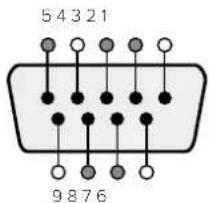
| Pin Function | |
| 1 Ground | |
| 2 Tx- (Data sent by router) | |
| 3 Rx+ (Data received by router) | |
| 4 Ground | |
| 5 NC (No connect) | |
| 6 Ground | |
| 7 Tx+ (Data sent by router) | |
| 8 Rx- (Data received by router) | |
| 9 Ground | |
Videohub RS-422 Router Control DB9 pin connections.
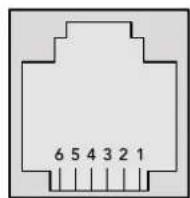
| Pin No. Function | |
| Pin 1 | TX + |
| Pin 2 | TX - |
| Pin 3 | GND |
| Pin 4 | GND |
| Pin 5 | RX - |
| Pin 6 | RX + |
Videohub RS-422 Router Control RJ11 pinout diagram.
This document describes the commands and parameters in the protocol that are relevant and supported by Videohub. Other commands and parameters specified in the Leitch protocol are accepted but ignored.
The RS-422 serial port is configured as 9600 N81.
The protocol is line-oriented, with a maximum length of 250 characters per command. Each command from the client should be terminated with a carriage-return ( r ). Each response from the server will be terminated with a carriage-return and line-feed ( r n ).
Sources, destinations and levels are always specified in base-16, numbered from zero. Levels are always between 0 and 15 ("F"). Videohubs only have one valid level - level zero.
On connecting to the serial port, the client should send a carriage-return. The Videohub Server will respond with a > character prompt, which is not followed by a carriage-return or line-feed. Receiving the prompt indicates that a connection has been established. The same prompt will be issued after each command received by the Videohub Server.
In the following documentation, commands in orange and values in blue must be typed literally, including any spaces. In the following example of an immediate command using destination port 7 and source port 3, @ X:0/destination, source would be entered as: @ X:0/6,2
Notifications
Once connected, if status reporting is enabled, the client will receive a notification message when a route changes on the Videohub Server. The notifications take one of two forms:
S:0destination, source Routing change
This message indicates that the specified source port is now routed to the specified destination.
V:0destination,source Preset routing notification
This message indicates that the current preset includes a route from the specified source to the specified destination.
Global Commands
All pass-through commands are preceded by an @ symbol and a space.
The following client commands are supported:
@ ! disable status reporting Status reporting is disabled by default.
@ ? enable status reporting Status reporting is enabled.
@ Z: reset routing table
Routing is reset so that the first source is routed to all destinations.
Immediate Commands
@ X:0/destination,source change route
@ X:0/destination, source/destination-2, source-2... change multiple routes
The specified source ports are routed to the specified destinations.
Any routing changes will trigger S: notifications
@ X?0destination request individual route status
The source routed to a the specified destination will be returned as an S: notification.
@ S?0 request all ports route status
Each source & destination port pair will be returned as S: notifications
Salvo Commands
@ P:0/destination,source queue route change
@ P:0/destination, source/destination-2, source-2... queue multiple route changes
The specified routing changes are added to the current salvo for later execution.
@ P?0destination request individual port status in salvo
If a routing change for the specified destination port is queued, the route will be returned as a V: notification.
@ V?0 request all ports status in salvo
Each queued routing change in the salvo is reported as a V: notification.
@ B:C clear salvo
@ B:R clear salvo
Any queued changes are discarded and the salvo is reset.
@ B:E execute salvo
Any queued changes are executed and each routing change will be returned as an S: notification.
Saving and Loading Labels with Telnet in Mac OS
Normally you would use Blackmagic Videohub Setup to save and load labels between different Videohub routers and to backup your videohub settings. However, if for any reason you wish to use the Terminal, the instructions below let you save and load router label configurations via the Terminal.
![Blackmagics-iMac:~ timf$ telnet 192.168.25.253 9990 Trying 192.168.25.253... Connected to 192.168.25.253. Escape character is '^]'. PROTOCOL PREAMBLE: Version: 2.4 VIDEOHUB DEVICE: Device present: true Model name: Blackmagic Smart Videohub Unique ID: 7c2e0d0106df Video inputs: 16 Video processing units: 0 Video outputs: 16 Video monitoring outputs: 0 Serial ports: 0 INPUT LABELS: 0 Camera 1 1 Mini Converter 1 2 Hyperdeck 1 3 VTR 1 4 Teranex 1 5 PC Workstation 6 ATEM PGM 7 Camera 2 8 Mini Converter 2 9 Mac Workstation 10 Hyperdeck 2 11 VTR 2 12 Teranex 3 13 Hyperdeck 3 14 Hyperdeck 3 15 Input 16 OUTPUT LABELS: 0 Main Monitor 1 1 Main Monitor 2 2 Audio Monitor 1 3 Audio Monitor 2 4 ATEM Input 1 5 ATEM Input 2 6 ATEM Input 3 7 Hyperdeck 4 8 Hyperdeck 5 9 Hyperdeck 3 10 VTR 3 11 VTR 4 12 Teranex 4 13 Ultrascope 1 14 Ultrascope 2 15 Ultrascope 3](/content/2026/04/672773/images/d29972fabaf4ddcb72f4f4b18fa3a7db598c906a98a57e5bbbbd41dc70a82250.jpg)
Saving Labels
1 Open the Terminal application which is located within the Applications > Utilities folder.
2Type in "telnet" and a space followed by the IP of your Videohub, then another space and "9990", which is the default port number. For example type: telnet 192.168.25.253 9990. The Protocol Preamble screen will appear.
3 Copy the INPUT LABELS: text including the heading and paste into a word processor or simple text editor. Name this file "input labels" and save to your favorite location.
4 Copy the OUTPUT LABELS: text including the heading and paste into a word processor or simple text editor. Name this file "output labels" and save to your favorite location.
5 Close the telnet session by exiting the terminal window.
Loading Labels
1 Open the Terminal application with is located within the Applications > Utilities folder.
2Type in "telnet" and a space followed by the IP of your Videohub, then another space and "9990", which is the default port number. For example type: telnet 192.168.25.253 9990. The Protocol Preamble screen will appear.
3 Open the "input labels" text file in your text editing program and copy the INPUT LABELS: text.
4 Paste this into the telnet session and press "return" twice. Telnet will respond with "ACK" and Videohub will update the input labels.
5Open the "output labels" text file in your text editing program and copy the OUTPUT LABELS: text.
6 Paste this into the telnet session and press "return" twice. Telnet will respond with "ACK" and Videohub will update the output labels.
7 Close the telnet session by exiting the terminal window.
Saving and Loading Labels with Telnet in Windows
While you can save and load labels within Blackmagic Videohub Setup, you may also download and use PuTTY which is a free telnet client.
Setting up PuTTY
1 Start the application and in the "Host Name" field, type the IP of your Videohub and in the "Port" field type "9990", which is the default port number.
2From the Connection type options select the "Telnet" radio button.
3Select the "Terminal" tab and tick the "Implicit CR in every LF" checkbox.
4 Click the "Session" tab and save your session parameters by entering a name in the "Saved Sessions" field and clicking the "Save" button.
Saving Labels
1 Double click the PuTTY icon to start the application. Select your saved session from the list and click the "Load" button followed by the "Open" button. The Protocol Preamble screen will appear.
2 Copy the INPUT LABELS: text including the heading and paste into a word processor or simple text editor. Name this file "input labels" and save to your favorite location.
3Copy the OUTPUT LABELS: text including the heading and paste into a word processor or simple text editor. Name this file "output labels" and save to your favorite location.
4 Exit the telnet session by closing the PuTTY window.
Loading Labels
1 Double click the PuTTY icon to start the application. Select your saved session from the list and click the "Load" button followed by the "Open" button. The Protocol Preamble screen will appear.
2 Open the "input labels" text file in your text editing program and copy the INPUT LABELS: text.
3 Right click in the PuTTY session to paste the copied section and press "Enter" twice. PuTTY will respond with "ACK" and Videohub will update the input labels.
4 Open the "output labels" text file in your text editing program and copy the OUTPUT LABELS: text.
5 Right click in the PuTTY session to paste the copied section and press "Enter" twice. PuTTY will respond with "ACK" and Videohub will update the output labels.
6 Exit the telnet session by closing the PuTTY window.
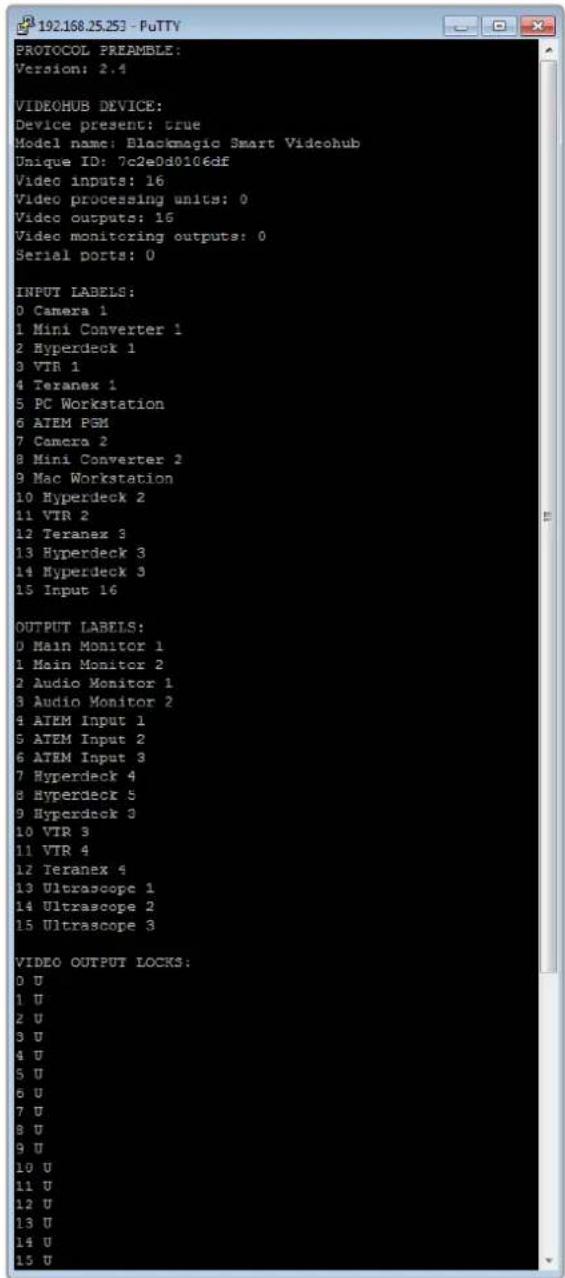
Blackmagic Videohub 12G
Universal Videohub
Smart Videohub CleanSwitch 12x12
Videohub Master Control Pro
Videohub Smart Control Pro
Blackmagic GPI and Tally Interface

natural_image
Circular portrait photo of a smiling man in a dark shirt against a gray textured background (no text or symbols)Hoş Geldiniz
Blackmagic Design CEO
İçindekiler
Saving and Loading Labels
with Telnet in Mac OS 1006
Saving and Loading Labels
with Telnet in Windows 1007
natural_image
Front view of a black rack-mounted server rack with multiple ports and connectors (no visible text or labels)Universal Videohub 288
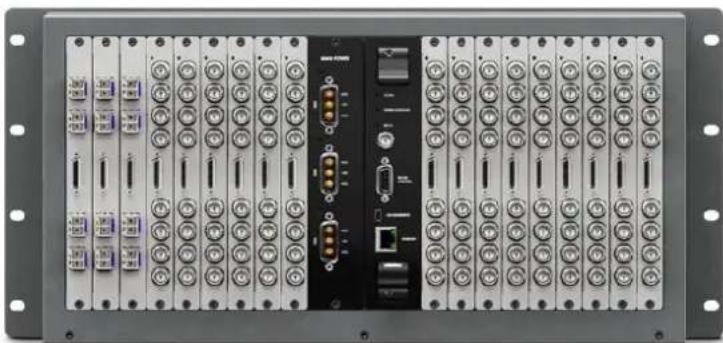
natural_image
Front view of a rack-mounted electronic device with multiple ports and connectors (no visible text or labels)Universal Videohub 72
natural_image
Front view of a server rack with rows of circular components and indicator lights (no visible text or labels)Universal Videohub 288
Universal Videohub 288 Crosspoint Card
natural_image
Technical line drawing of a rectangular electronic device with heat sinks and ports (no text or symbols)
Universal Videohub 288 Crosspoint Card Seri Kablo
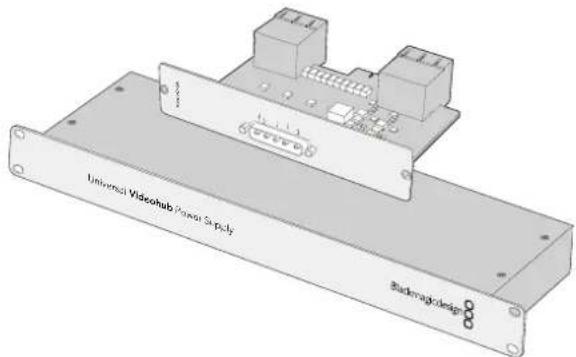
natural_image
3D diagram of a storage unit with shelves and a central panel, showing internal structure and a directional arrow (no text or symbols)natural_image
Technical diagram of an electrical panel assembly with a highlighted component (no text or symbols present)natural_image
Technical diagram of an electrical connector assembly with orange arrows indicating connection points (no text or symbols present)natural_image
Technical diagram of a cable connector assembly with two connectors and a panel, no text or symbols presentnatural_image
Front panel of a rack-mounted industrial control unit with multiple ports and connectors (no visible text or labels)natural_image
Technical line drawing of a computer chassis rear panel with ports and connectors (no text or symbols)natural_image
Technical illustration of an internal server rack with a highlighted internal component (no text or symbols)natural_image
Technical diagram of an electrical panel assembly with a highlighted component (no text or symbols present)natural_image
Diagram of a multi-pin electronic device with labeled ports and connectors (no text or symbols beyond component labels)natural_image
Illustration of multiple Ethernet connectors with male and female labels (no text or symbols)Universal Videohub Deck Control Cable
Smart Videohub CleanSwitch 12x12
Videohub Master Control Pro
Videohub Smart Control Pro
natural_image
Front and back view of a rack-mounted server interface with labeled ports (no text or symbols on the panel itself)Videohub Smart Control Pro

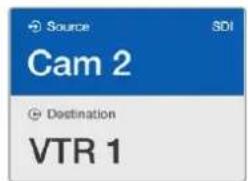

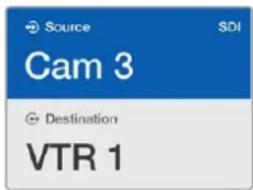
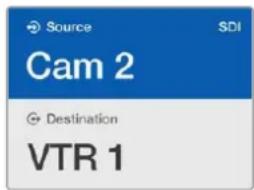
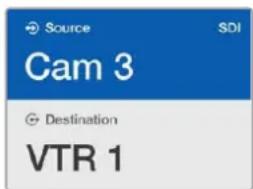
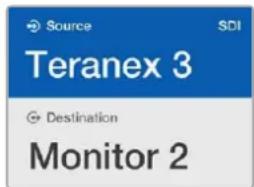
natural_image
Front panel of a server rack with a highlighted red square on the side (no text or symbols visible)natural_image
Front panel of a computer interface showing a grid of white and yellow buttons with one red button (no text or symbols)natural_image
Hand holding a small mechanical component, no visible text or symbolsnatural_image
Illustration of hands assembling or securing a mechanical component (no text or symbols visible)
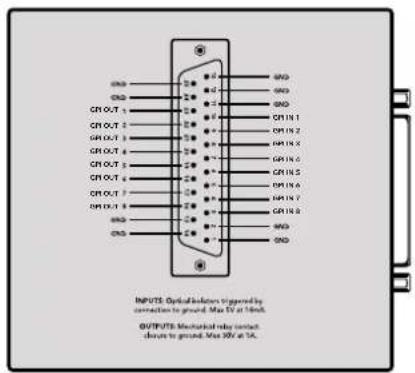
natural_image
Black electronic device with a grid of app icons displayed on its screen (no readable text or symbols)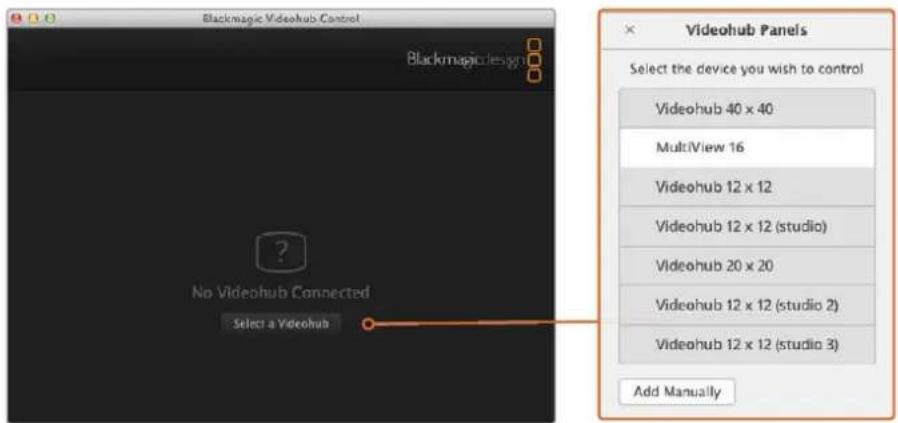
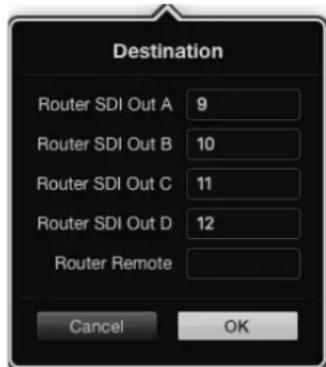
The Blackmagic Videohub Ethernet Protocol is a text based protocol that is accessed by connecting to TCP port 9990 on a Videohub Server. Integrated Videohub Servers and Videohub Server computers are supported by the protocol.
The Videohub Server sends information in blocks which each have an identifying header in all-caps, followed by a full-colon. A block spans multiple lines and is terminated by a blank line. Each line in the protocol is terminated by a newline character.
Upon connection, the Videohub Server sends a complete dump of the state of the device. After the initial status dump, status updates are sent every time the Videohub status changes.
To be resilient to future protocol changes, clients should ignore blocks they do not recognize, up to the trailing blank line. Within existing blocks, clients should ignore lines they do not recognize.
LEGEND
← line feed or carriage return ... and so on
Version 2.3 of the Blackmagic Videohub Ethernet Protocol was released with Videohub 4.9.1 software.
Protocol Preamble
The first block sent by the Videohub Server is always the protocol preamble:
PROTOCOL PREAMBLE:
Version: 2.3
←
The version field indicates the protocol version. When the protocol is changed in a compatible way, the minor version number will be updated. If incompatible changes are made, the major version number will be updated.
Device Information
The next block contains general information about the connected Videohub device. If a device is connected, the Videohub Server will report the attributes of the Videohub:
VIDEOHUB DEVICE:←
Device present: true←
Model name: Blackmagic Smart Videohub←
Video inputs: 16←
Video processing units: 0←
Video outputs: 16←
Video monitoring outputs: 0←
Serial ports: 0←
This example is for the Smart Videohub which is a 16x16 router.
If the Videohub Server has no device connected, the block will simply be:
VIDEOHUB DEVICE:
Device present: false
←
If a device is present, but has an incompatible firmware, the status reported will be:
VIDEOHUB DEVICE:
Device present: needs _ update
←
In the last two situations, no further information will be sent, unless the situation is rectified.
If the Videohub Server detects a new Videohub attached, it will resend all blocks except the protocol preamble to indicate the device has changed, and allow the client to update its cache of server state.
Initial Status Dump
The next four blocks enumerate the labels assigned to the input, output, monitoring and serial ports.
Videohubs that do not have monitoring or serial ports do not send the corresponding blocks.
INPUT LABELS:
0 VTR 1
1 VTR 2
...
←
OUTPUT LABELS:
0 Output feed 1←
1 Output feed 2
***
←
MONITORING OUTPUT LABELS:
0 Monitor feed 1
1 Monitor feed 2
...
←
SERIAL PORT LABELS:
0 Deck 1
1 Deck 2
←
NOTE Ports are always numbered starting at zero in the protocol which matches port one on the chassis.
The next three blocks describe the routing of the output, monitoring and serial ports.
VIDEO OUTPUT ROUTING:←
0 5←
1 3←
...
←
VIDEO MONITORING OUTPUT ROUTING:←
0 7←
1 8←
...
←
SERIAL PORT ROUTING:←
0 12←
1 11←
...
←
Videohubs with processing units (only the Workgroup Videohub) send an extra routing block:
PROCESSING UNIT ROUTING:←
0 5←
1 3←
...
←
Videohubs with frame buffers (only the Workgroup Videohub) send two extra blocks:
FRAME LABELS:←
0 Frame one←
1 Frame two←
...
←
FRAME BUFFER ROUTING:←
0 7←
1 8←
...
←
The next three blocks describe the locking status of the output, monitoring and serial ports. Each port has a lock status of "O" for ports that are owned by the current client (i.e., locked from the same IP address), "L" for ports that are locked from a different client, or "U" for unlocked. Note that Videohubs that do not have monitoring ports or serial ports do not send the corresponding blocks.
VIDEO OUTPUT LOCKS:←
0 U←