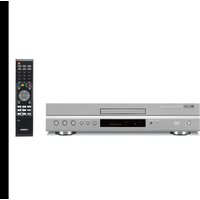
BD-S1900 - Blu-ray player YAMAHA - Free user manual and instructions
Find the device manual for free BD-S1900 YAMAHA in PDF.


| Product Type | Blu-ray Player |
| Brand | Yamaha |
| Model | BD-S1900 |
| Dimensions (W x H x D) | 435 x 96 x 315.5 mm |
| Weight | 4.6 kg |
| Power Supply | AC 110-240 V, 50/60 Hz |
| Power Consumption (Normal) | 25 W |
| Power Consumption (Standby) | 1 W |
| Supported Disc Formats | BD, DVD, CD, CD-R/RW, DVD-R/RW, DVD+R/RW, BD-RE, BD-R |
| Image File Formats | JPEG (up to 7680x4320 pixels) |
| Video Outputs | HDMI, Component (Y/Pb/Pr), S-Video, Composite Video |
| Audio Outputs | HDMI, Digital Coaxial and Optical, Discrete 7.1-Channel Analog, Mixed 2-Channel Analog |
| Other Connectors | Ethernet (RJ-45), USB (for BD-LIVE and firmware update), Remote IN/OUT, RS-232C |
| Special Features | BD-LIVE, BONUSVIEW (Picture-in-Picture), Pure Direct, HDMI Control, Firmware Update via USB |
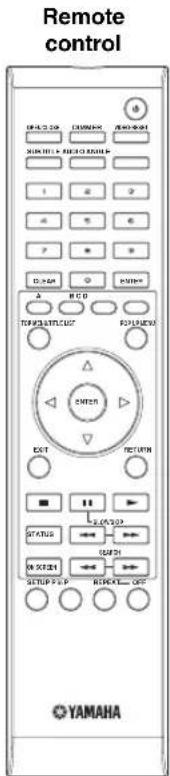
| Supplied Accessories | Remote control, RCA/phono video cable, power cord, batteries |
| Maintenance and Cleaning | Use a soft, dry cloth. Do not use solvents. |
| Safety | Class 1 laser. Do not open the casing. Avoid exposure to rain or moisture. |
| Warranty | 2 years (EEA and Switzerland) |
Frequently Asked Questions - BD-S1900 YAMAHA
User questions about BD-S1900 YAMAHA
0 question about this device. Answer the ones you know or ask your own.
Ask a new question about this device
Download the instructions for your Blu-ray player in PDF format for free! Find your manual BD-S1900 - YAMAHA and take your electronic device back in hand. On this page are published all the documents necessary for the use of your device. BD-S1900 by YAMAHA.
USER MANUAL BD-S1900 YAMAHA
Important notes for users in the U.K.
Mains plug
This apparatus is fitted with an approved 13 Amp plug. To change a fuse in this type of plug proceed as follows:
1 Remove fuse cover and fuse.
2 Fix new fuse which should be a BS1362 5 Amp, A.S.T.
3 Refit the fuse cover.
If the fitted plug is not suitable for your jack outlets, it should be cut off and an appropriate plug fitted in its place.
If the mains plug contains a fuse, this should have a value of 5 Amp. If a plug without a fuse is used, the fuse at the distribution board should not be greater than 5 Amp.
Note: The severed plug must be disposed to avoid a possible shock hazard should it be inserted into a 13 Amp jack elsewhere.
How to connect a plug
The wires in the mains lead are coloured with the following code: blue = neutral (N), brown = live (L).
- As these colours may not correspond with the colour markings identifying the terminals in your plug, proceed as follows:
- Connect the blue wire to the terminal marked N or coloured black
- Connect the brown wire to the terminal marked L or coloured red.
- Do not connect either wire to the earth terminal in the plug, marked E (or e) or coloured green (or green and yellow).
Before replacing the plug cover, make certain that the cord grip is clamped over the sheath of the lead - not simply over the two wires.
Copyright in the U.K.
Recording and playback of material may require consent. See Copyright Act 1956 and The Performer's Protection Acts 1958 to 1972.
VAROITUS
CAUTION: READ THIS BEFORE OPERATING YOUR UNIT.
1 To assure the finest performance, please read this manual carefully. Keep it in a safe place for future reference.
2 Install this sound system in a well ventilated, cool, dry, clean place – away from direct sunlight, heat sources, vibration, dust, moisture, and/or cold. For proper ventilation, allow the following minimum clearances.
Top: 10 cm (3-7/8 in)
Rear: 10 cm (3-7/8 in)
Sides: 10 cm (3-7/8 in)
3 Locate this unit away from other electrical appliances, motors, or transformers to avoid humming sounds.
4 Do not expose this unit to sudden temperature changes from cold to hot, and do not locate this unit in an environment with high humidity (i.e. a room with a humidifier) to prevent condensation inside this unit, which may cause an electrical shock, fire, damage to this unit, and/or personal injury.
5 Avoid installing this unit where foreign object may fall onto this unit and/or this unit may be exposed to liquid dripping or splashing. On the top of this unit, do not place:
- Other components, as they may cause damage and/or discoloration on the surface of this unit.
- Burning objects (i.e. candles), as they may cause fire, damage to this unit, and/or personal injury.
- Containers with liquid in them, as they may fall and liquid may cause electrical shock to the user and/or damage to this unit.
- Other components, as they may cause damage and/or discoloration on the surface of this unit.
- Burning objects (i.e. candles), as they may cause fire, damage to this unit, and/or personal injury.
- Containers with liquid in them, as they may fall and liquid may cause electrical shock to the user and/or damage to this unit.
6 Do not cover this unit with a newspaper, tablecloth, curtain, etc. in order not to obstruct heat radiation. If the temperature inside this unit rises, it may cause fire, damage to this unit, and/or personal injury.
7 Do not plug in this unit to a wall outlet until all connections are complete.
8 Do not operate this unit upside-down. It may overheat, possibly causing damage.
9 Do not use force on switches, knobs and/or cords.
10 When disconnecting the power cord from the wall outlet, grasp the plug; do not pull the cord.
11 Do not clean this unit with chemical solvents; this might damage the finish. Use a clean, dry cloth.
12 Only voltage specified on this unit must be used. Using this unit with a higher voltage than specified is dangerous and may cause fire, damage to this unit, and/or personal injury. Yamaha will not be held responsible for any damage resulting from use of this unit with a voltage other than specified.
13 To prevent damage by lightning, keep the power cord disconnected from a wall outlet or this unit during a lightning storm.
14 Do not attempt to modify or fix this unit. Contact qualified Yamaha service personnel when any service is needed. The cabinet should never be opened for any reasons.
15 When not planning to use this unit for long periods of time (i.e. vacation), disconnect the AC power plug from the wall outlet.
16 Be sure to read the “Troubleshooting” section on common operating errors before concluding that this unit is faulty.
17 Before moving this unit, press ⏻ to set this unit to the standby mode, and disconnect the AC power plug from the wall outlet.
18 Condensation will form when the surrounding temperature changes suddenly. Disconnect the power cable from the outlet, then leave this unit alone.
19 When using this unit for a long time, this unit may become warm. Turn the power off, then leave this unit alone for cooling.
20 Install this unit near the AC outlet and where the AC power plug can be reached easily.
21 The batteries shall not be exposed to excessive heat such as sunshine, fire or the like.
This unit is not disconnected from the AC power source as long as it is connected to the wall outlet, even if this unit itself is turned off by ⏻. This state is called the standby mode. In this state, this unit is designed to consume a very small quantity of power.
WARNING
TO REDUCE THE RISK OF FIRE OR ELECTRIC SHOCK, DO NOT EXPOSE THIS UNIT TO RAIN OR MOISTURE.
The laser component in this product is capable of emitting radiation exceeding the limit for Class 1.
LASER Specification:
Class 1 LASER Product
Wave length: 788 nm (CDs)/654 nm (DVDs)/405 nm (BDs)
Laser power: No hazardous radiation is emitted with the safety protection
LASER SAFETY
This unit employs a laser. Due to possible eye injury, only a qualified service person should remove the cover or attempt to service this device.
DANGER
This unit emits visible laser radiation when open. Avoid direct eye exposure to beam. When this unit is plugged into the wall outlet, do not place your eyes close to the opening of the disc tray and other openings to look into inside.
Contents
1. INTRODUCTION
About Discs 2
Types of Discs that Can Be Used with This Player..... 2
Discs that Cannot Be Used with This Player.... 3
Disc Precautions 4
Getting Started 5
Supplied accessories 5
The Icons Used in This Operation Manual.... 5
Copyright 5
Controls and Functions.... 6
Front panel.... 6
Rear panel 6
Remote Control.... 7
2. CONNECTION
Introduction to Connections 8
Video/audio terminal on this Player 8
Video jacks on this Player (Connect ①, ②, or ③) ..... 8
Audio terminals/jacks on this Player (Connect ①, ②, or ③)....8
Broadband Internet connection.... 8
USB device connection 8
HDMI Connection 9
Connecting to the HDMI Terminal 9
Video Connections.... 10
Connecting to the Component Jacks 10
Connecting to the S Video or Video Jack.... 11
Audio Connections 12
Connecting to the Digital Audio Jack/Terminal..... 12
Connecting to the Audio Jacks 13
Broadband Internet Connection 14
Connecting to the NETWORK terminal and USB BD STORAGE/SERVICE terminal 14
Other Connections.... 15
Connecting to the REMOTE CONTROL jacks ..... 15
Connecting the power cable 15
3. DISC PLAYBACK
Before Starting Playback.... 16
Loading the Batteries in the Remote Control 16
Turning the Power On 16
Indicators on the front panel display 16
Setting the on-screen display language 17
Updating the software of this unit 17
Setting the audio output.... 18
Preparing for BD-LIVE 18
Activating the Secondary Audio.... 18
Controlling the Blu-ray disc player using the HDMITM control function 18
BD/DVD/CD Playback.... 20
Loading a Disc.... 20
Basic playback operation.... 20
Enjoying pure hi-fi sound (Pure Direct function)...... 21
Repeat Playback 21
Using BD/DVD Menus 22
Using DVD-R/-RW Menu.... 22
Using the Audio CD Playback Menu 24
Enjoying BONUSVIEW or BD-LIVE 24
Function Control Screen.... 25
Displaying the disc information 27
JPEG File Playback 28
Playing back still images in sequence.... 28
Playing back still images in a selected folder 28
Playing back Slide Show.... 28
Setting slide show speed/repeat playback.... 28
4. SETTINGS
Settings 29
Common operations 29
Audio Video Settings 30
Speaker Settings.... 32
Quick Start 33
Auto Power Off.... 33
HDMI Control.... 33
Playback Setting.... 33
Version.... 34
System Reset.... 34
Communication Setup.... 34
USB Memory Management 36
Software Update.... 37
5. ADDITIONAL INFORMATION
Troubleshooting 39
Power 39
Basic Operation.... 39
Disc Playback.... 39
Picture 39
Sound 40
Network....40
Other....41
Messages Relating to BD disc and DVD disc.... 41
Glossary 42
Specifications 43
General....43
Audio Performance 43
Input/Output 43
(at the end of this manual)
Information about software ....i
1
2
3
4
5
About Discs
■Types of Discs that Can Be Used with This Player
- The following discs can be played back in this Player. Do not use an 8 cm (3") to 12 cm (5") adapter.
- Use discs that conform to compatible standards as indicated by the presence of official logos on the disc label. Playback of discs not complying with these standards is not guaranteed. In addition, the image quality or sound quality is not guaranteed even if the discs can be played back.
| Disc Type | Recording Format | Contents Disc Size |
| BD video -- Audio + Video | (Movic) 12 cm (5") | |
| BD-RE DL BD-R DL | BDMV format | |
| DVD Video Video format Audio + | Video (Movie) 12 cm (5") 8 cm (3") | |
| DVD+RW/ DVD+R DVD+R DL DVD-R DL DVD-RW/ DVD-R | Video/VR/ AVCHD format (finalized disc only) | Audio + Video (Movie) 12 cm (5") 8 cm (3") |
| Audio CD*1 | Audio CD (CD-DA) | Audio 12 cm (5") 8 cm (3") |
| CD-RW/CD-R Audio CD (CD-DA) | Audio | |
*1 This Player has been designed on the premise of playing back Audio CDs that comply with CD (Compact Disc) standards. CDs containing a signal for the purpose of protecting copyrights (copy control signal) may not be able to be played back with this Player.
*2 Refer to "About the JPEG file format" on page 3.
| Region management information | ||
| Model BD-Video | video DVD-Video | |
U.S.A Region code “A” or “ALL” | “ALL” | Region number “1” or “ALL” |
| South America Region | code “A” or “ALL” | Region number “4” or “ALL” |
Europe Region code “B” or “ALL” | “ALL” | Region number “2” or “ALL”[IMAGE] |
| Region management information | ||
| Model | BD-Video DVD | -Video |
| Australia Region code | “B” or “ALL” | Region number “4” or “ALL”[IMAGE] |
Russia Region code “C” or “ALL” | Region number “5” or “ALL”[IMAGE] | |
| Asia | Region code “A” or “ALL” | Region number “3” or “ALL”[IMAGE] |
- BD/DVD video players and discs have region codes, which dictate the regions in which a disc can be played. For the region codes, refer to “Region management information”. (p. 2)
- BD/DVD Video operations and functions may be different from the explanations in this manual and some operations may be prohibited due to disc manufacturer's settings.
- If a menu screen or operating instructions are displayed during playback of a disc, follow the operating procedure displayed.
- The audio component of a DVD video recorded at 96 kHz (Linear PCM) will be output as 48 kHz audio during playback.
Notes
- Playback for some of the discs in the left side column tables may not be possible depending on the disc.
- “Finalize” refers to a recorder processing a recorded disc so that it will play in other DVD players/ recorders as well as this Player. Only finalized DVD discs will play back in this Player. (This Player does not have a function to finalize discs.)
■Discs that Cannot Be Used with This Player
The following discs cannot be played back or will not play back properly on this Player. If such a disc is mistakenly played back, speaker damage may occur.
CDG, Video CD, Photo CD, CD-ROM, CD-TEXT, SVCD, SA-CD, PD, CDV, CVD, DVD-RAM, DVD-Audio, BD-RE with the cartridge, CD-MP3, CD-WMA
Discs with unusual shapes cannot be played.
– Discs with unusual shapes (heart-shaped or hexagonal discs, etc.) cannot be used. The use of such discs will cause malfunction.
The following BD/DVD video discs cannot be played.
- Discs not match the region code/number of this Player (“Region management information”, p. 2).
– Discs produced illegally.
– Discs recorded for commercial use.
About the JPEG file format
JPEG is a type of file format for storing still-image files (photos, illustrations, etc.). The Player lets you play JPEG format still-image files.
File formats that are not compatible.
- Still images in formats other than JPEG (such as TIFF) cannot be played.
- There may be some files that cannot be played even if they are in JPEG format.
– Progressive JPEG files cannot be played. - Moving image files and audio files as well as Motion JPEG format files cannot be played, even though they are JPEG files.
Other files that cannot be played back.
- You may not be able to play some still images which you have created, touched up, copied or otherwise edited on your computer.
You may experience one or more of the following symptoms when playing files.
– It may take some time to play files depending on the number of folders, number of files and volume of data involved.
– EXIF information will not be displayed. EXIF stands for Exchangeable Image File Format, and is a standard for storing interchange information in image files, especially those using JPEG compression. (Refer to http://exif.org for more information.)
When using the unit to play a CD-RW/R disc with still images stored (recorded)
- With CD-RW/R discs on which still images are mixed in with music or movies, you will be able to play only the still images. You may not be able to play some of these discs at all.
– Multi-session discs cannot be played. - You may not be able to play some still images you have processed (rotated or saved by overwriting other images) using image processing software or some still images you have imported from the Internet or e-mail.
- The discs which this Player can play back (recognize) are limited to the following properties: Contains EXIF format files Picture resolution: Between 32x32 and 7680x4320 pixels
Maximum number of folders: 256
Maximum number of files: 256 per folder
File size: 20MB or less
Structure of still images (JPEG) folders
- You can play still images (JPEG) with this unit by making folder on disc as shown below. Images situated on the root directly cannot be played back.
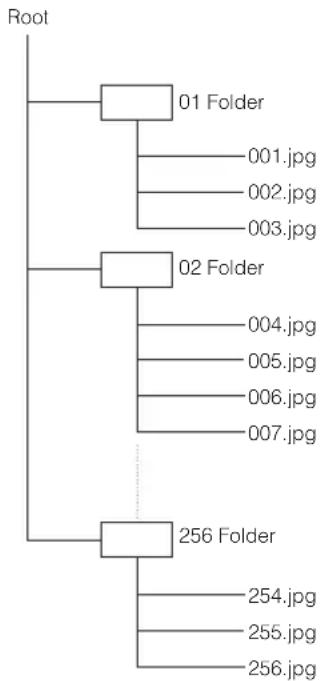
flowchart
graph TD
    A["Root"] --> B["01 Folder"]
    A --> C["02 Folder"]
    A --> D["256 Folder"]
    B --> E["001.jpg"]
    B --> F["002.jpg"]
    B --> G["003.jpg"]
    C --> H["004.jpg"]
    C --> I["005.jpg"]
    C --> J["006.jpg"]
    C --> K["007.jpg"]
    D --> L["254.jpg"]
    D --> M["255.jpg"]
    D --> N["256.jpg"]
■Disc Precautions
Be Careful of Scratches and Dust
- BD, DVD and CD discs are sensitive to dust, fingerprints and especially scratches. A scratched disc may not be able to be played back. Handle discs with care and store them in a safe place.
Proper Disc Storage
| Place the disc in the center of the disc case and store the case and disc upright. |  |
| Avoid storing discs in locations subject to direct sunlight, close to heating appliances or in locations of high humidity. | 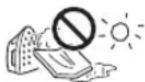 |
| Do not drop discs or subject them to strong vibrations or impacts. |  |
| Avoid storing discs in locations where there are large amounts of dust or moisture. |  |
Handling Precautions
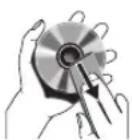
- If the surface is soiled, wipe gently with a soft, damp (water only) cloth. When wiping discs, always move the cloth from the center hole toward the outer edge.

- Do not use record cleaning sprays, benzene, thinner, static electricity prevention liquids or any other solvent.
- Do not touch the surface.
- Do not stick paper or adhesive labels to the disc.
- If the playing surface of a disc is soiled or scratched, the Player may decide that the disc is incompatible and eject the disc tray, or it may fail to play the disc correctly. Wipe any dirt off the playing surface with a soft cloth.
Cleaning the Pick Up Lens
- Never use commercially available cleaning discs. The use of these discs can damage the lens.
- Request the nearest service center approved by Yamaha to clean the lens.
Warnings about dew formation
- Condensation may form on pick up lens or disc in the following conditions:
- Immediately after a heater has been turned on.
– In a steamy or very humid room. - When the Player is suddenly moved from a cold environment to a warm one.
When condensation forms:
– It becomes difficult for the Player to read the signals on the disc and prevents the Player from operating properly.
To remove condensation:
- Take out the disc and leave the Player with the power off until the condensation disappears. Using the Player when there is condensation may cause malfunction.
Getting Started
■Supplied accessories
Make sure the following accessories are provided with the product.
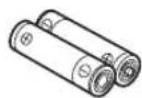
Batteries (x2)
(AAA, R03, UM-4)
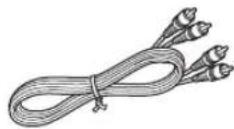
Audio pin cable
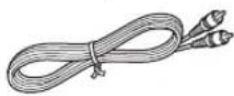
Video pin cable
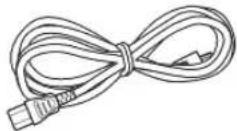
Power cable
■The Icons Used in This Operation Manual
| BD-V | Indicates the functions that can be performed for BD Video discs. |
| BD-RE | Indicates the functions that can be performed for BD-RE discs. |
| BD-R | Indicates the functions that can be performed for BD-R discs. |
| DVD-V | Indicates the functions that can be performed for DVD Video discs. |
| DVD-RW | Indicates the functions that can be performed for DVD-RW discs. |
| DVD-R | Indicates the functions that can be performed for DVD-R discs. |
| AUDIO CD | Indicates the functions that can be performed for Audio CDs. |
| CD-RJPEG | Indicates the functions that can be performed for CD-R discs in JPEG format. |
| CD-RWJPEG | Indicates the functions that can be performed for CD-RW discs in JPEG format. |
Copyright
- Audio-visual material may consist of copyrighted works which must not be recorded without the authority of the owner of the copyright. Refer to relevant laws in your country. - This product incorporates copyright protection technology that is protected by U.S. patents and other intellectual property rights. Use of this copyright protection technology must be authorized by Macrovision, and is intended for home and other limited viewing uses only unless otherwise authorized by Macrovision. Reverse engineering or disassembly is prohibited.
U.S. Patent Nos. 6,836,549; 6,381,747; 7,050,698; 6,516,132; and 5,583,936
- Manufactured under license from Dolby Laboratories. "Dolby" and the double-D symbol are trademarks of Dolby Laboratories.
- Manufactured under license under U.S. Patent #'s: 5,451,942; 5,956,674; 5,974,380; 5,978,762; 6,226,616; 6,487,535; 7,392,195; 7,272,567; 7,333,929; 7,212,872 & other U.S. and worldwide patents issued & pending. DTS is a registered trademark and the DTS logos, Symbol, DTS-HD and DTS-HD Master Audio | Essential are trademarks of DTS, Inc. ©1996-2008 DTS, Inc. All Rights Reserved.
- is a trademark.
- “BD-LIVE” logo is a trademark of Blu-ray Disc Association.
- “BONUSVIEW” is a trademark of Blu-ray Disc Association.
- is a trademark of DVD Format/Logo Licensing Corporation.
– HDMI, the HDMI logo and High-Definition Multimedia Interface are trademarks or registered trademarks of HDMI Licensing LLC. - "x.v.Color" and "x.v.Color" logo are trademarks.
- “AVCHD” and the “AVCHD” logo are trademarks of Panasonic Corporation and Sony Corporation.
– Java and all Java-based trademarks and logos are trademarks or registered trademarks of Sun Microsystems, Inc. in the United States and/or other countries. - This product is licensed under the AVC patent portfolio license and VC-1 patent portfolio license for the personal and non-commercial use of a consumer to (i) encode video in compliance with the AVC Standard and VC-1 Standard (“AVC/VC-1 Video”) and/or (ii) decode AVC/VC-1 Video that was encoded by a consumer engaged in a personal and non-commercial activity and/or was obtained from a video provider licensed to provide AVC/VC-1 Video. No license is granted or shall be implied for any other use. Additional information may be obtained from MPEG LA, LLC. See http://www.mpegla.com.
Controls and Functions
■Front panel
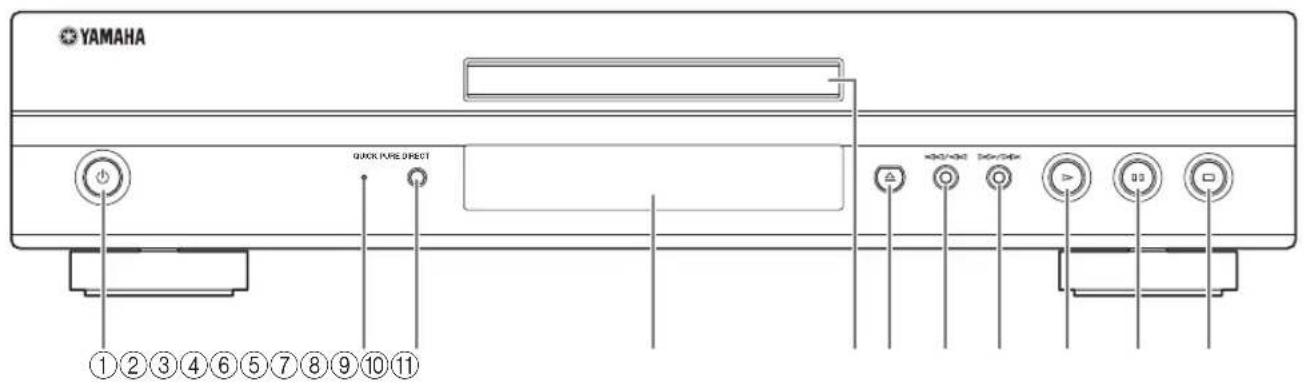
①(Power) (p. 20)
②QUICK indicator (p. 33)
③PURE DIRECT (p. 21)
④Front panel display (p. 16)
⑤Disc tray (p. 20)
⑥ (Eject) (p. 20)
⑦ (Search backward/Skip backward) (p. 20)
⑧ (Search forward/Skip forward) (p. 20)
⑨ (Play) (p. 20)
⑩ (Pause) (p. 20)
⑪ (Stop) (p. 20)
■Rear panel
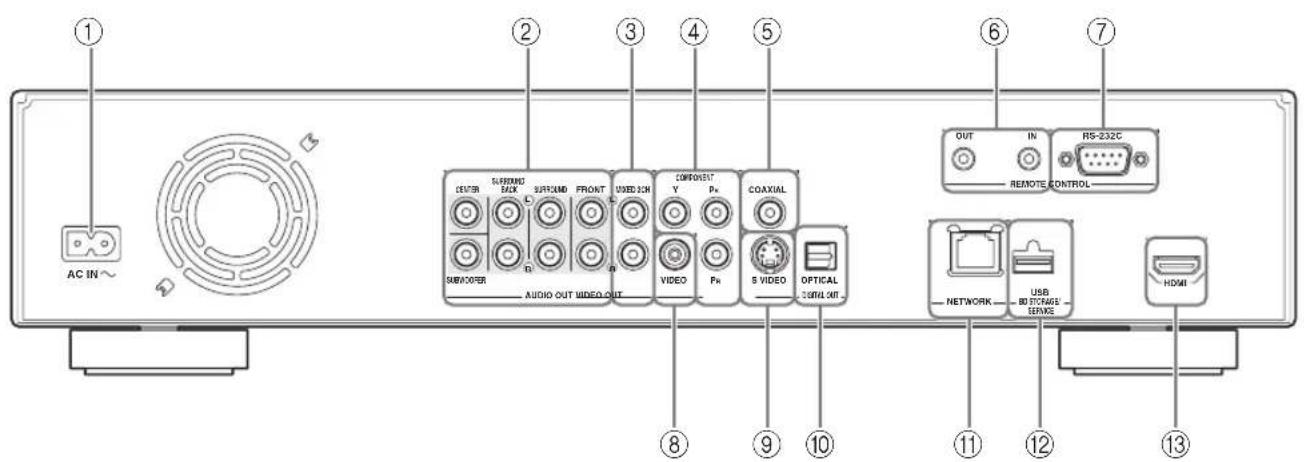
①AC IN (p. 15)
②AUDIO OUT (8ch discrete) (p. 13)
③AUDIO OUT (MIXED 2CH) (p. 13)
④COMPONENT (p. 10)
⑤ DIGITAL OUT (COAXIAL) (p. 12)
⑥REMOTE CONTROL (IN/OUT) (p. 15)
⑦REMOTE CONTROL (RS- 232C) (p. 15)
⑧VIDEO (p. 11)
⑨S VIDEO (p. 11)
⑩ DIGITAL OUT (OPTICAL) (p. 12)
⑪NETWORK (p. 14)
⑫USB BD STORAGE/SERVICE (p. 14)
⑬HDMI (p. 9)
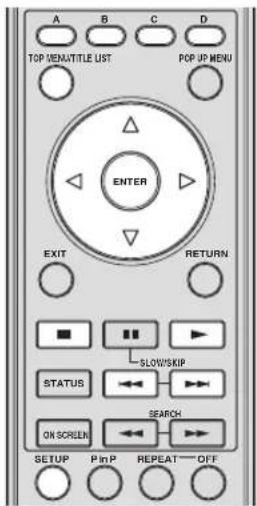
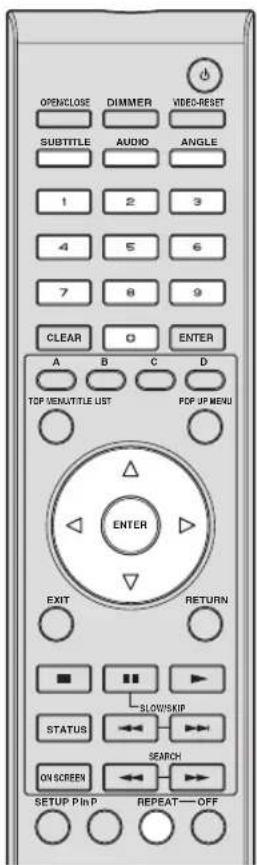
■Remote Control
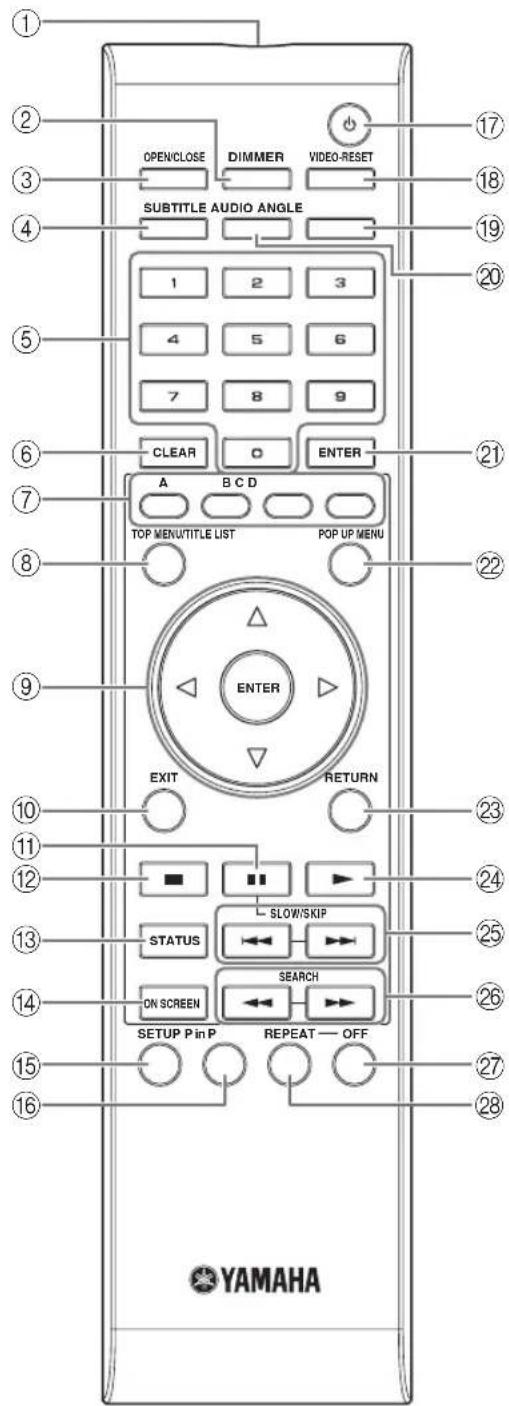
①Infrared signal transmitter (p. 16)
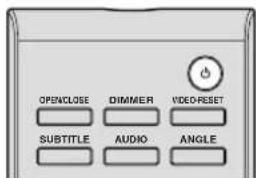
②DIMMER (p. 16)
③OPEN/CLOSE (p. 20)
④SUBTITLE (p. 26)
⑤Number buttons (p. 26)
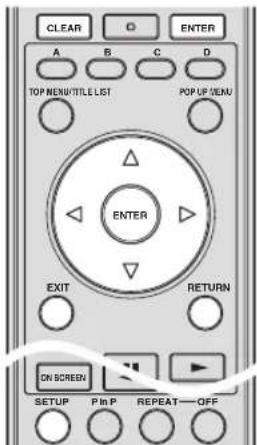
⑥CLEAR (p. 29)
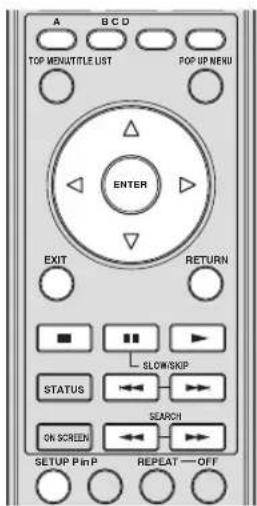
⑦A, B, C, D (p. 23, 24, 28, 35)
⑧TOP MENU/TITLE LIST (p. 22, 23)
⑨ Cursor buttons (△ / ▽ / ◁/ ▷), ENTER (p. 17, 30)
⑩EXIT (p. 28, 29, 30)
⑪ (Pause) (p. 20)
⑫ (Stop) (p. 20)
⑬STATUS (p. 21, 27)
⑭ ON SCREEN (p. 26)
⑮SETUP (p. 17, 28, 29)
⑯P in P (p. 25)
⑰ (Power) (p. 16)
⑱VIDEO-RESET (p. 30, 31)
⑲ANGLE (p. 26)
⑳AUDIO (p. 26)
②1 ENTER (p. 30, 37)
②POP UP MENU (p. 22)
⑳RETURN (p. 21, 24, 26, 28, 29)
⑳ (Play) (p. 20)
⑳ / (SLOW/SKIP) (p. 20)
⑳ / (SEARCH) (p. 20)
⑳OFF (p. 21)
⑳REPEAT (p. 21, 26)
ID function
You can change the remote control ID to prevent unwanted operation of the other Yamaha player such as DVD player. If you have changed the remote control ID, make sure that you select the same ID for the main unit. The default setting is ID1.
① Remote control setting
To change the ID from ID1 to ID2, press and hold A and 2 simultaneously for 3 seconds.
To change the ID from ID2 to ID1, press and hold A and 1 simultaneously for 3 seconds.
②Main unit setting
Press and hold and on the front panel simultaneously for 2 seconds while no disc is inserted in this Player and the disc tray is closed (current ID is displayed). Keep pressing and holding the keys for another 2 seconds to change the ID between ID1 and ID2.
Note
- If the remote control is without batteries for a few minutes or if exhausted batteries remain in the remote control, the remote control ID is automatically set to ID1. If you want to use the remote control in ID2 setting, install new batteries and set the remote control ID again.
Introduction to Connections
This Player is equipped with the terminals/jacks listed below. Find the corresponding terminal/jack on your video/audio equipment. We recommend that you use the HDMI terminal which provides high quality digital audio and video on a single connection. If you use the other terminals/jacks, connect the video first. Then connect the audio.
■Video/audio terminal on this Player
| 1HDMI terminal | HDMI | Page 9 |
■ Video jacks on this Player (Connect ①, ②, or ③)
| Higher Quality | 1VIDEO OUT (COMPONENT) jacks | Y Pn | Page 10 |
| 2VIDEO OUT (S VIDEO) jack | S VIDEO | Page 11 | |
| 3VIDEO OUT (VIDEO) jack | VIDEO | Page 11 |
■ Audio terminals/jacks on this Player (Connect ①, ②, or ③)
| 1DIGITAL OUT (COAXIAL/OPTICAL) jack/terminal | COAXIALOPTICAL | Page 12 | |
| 2AUDIO OUT (8ch discrete) jacks | CENTER SURROUND BACK SURROUND FRONTSUBMOOFER | Page 13 | |
| 3AUDIO OUT (MIXED 2CH) jacks | R NIKED/ICH | Page 13 |
■Broadband Internet connection
| NETWORK terminal | NETWORK | Page 14 |
■USB device connection
| USB BD STORAGE/SERVICE terminal | USB BD STORAGE SERVICE | Page 14 |
HDMI Connection
■Connecting to the HDMI Terminal
- You can enjoy high quality digital picture and sound through the HDMI terminal.
- Firmly connect an HDMI cable (commercially available) to the HDMI terminals (① and ②).
– See page 38 for information on the audio output formats. - Use HIGH SPEED HDMI cables that have the HDMI logo (as shown on the cover).
Caution!
Be sure to turn off this Player and the equipment before making any connections.
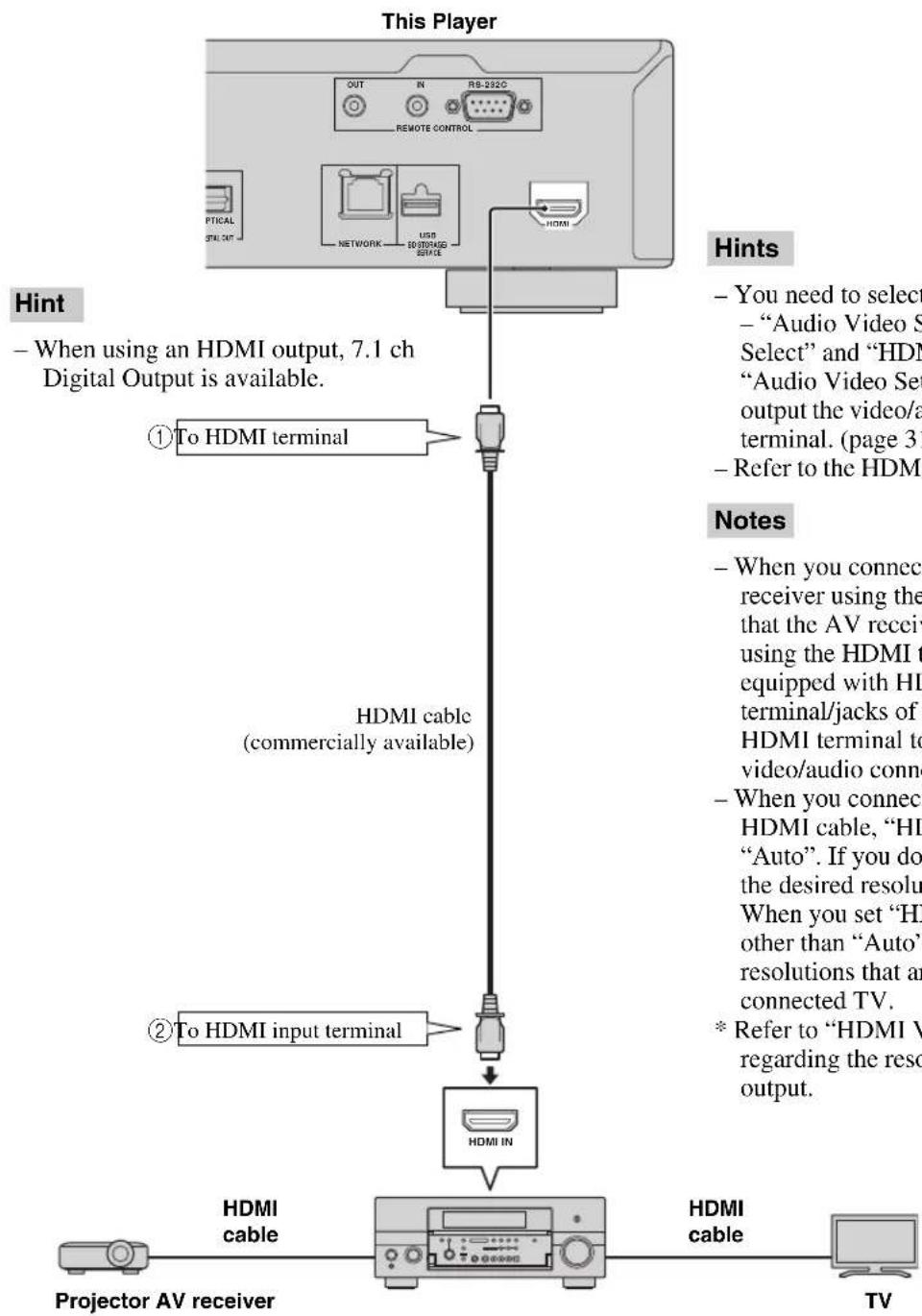
flowchart
graph TD
    A["Projector AV receiver"] --> B["Projector AV receiver"]
    B --> C["HDMI cable"]
    C --> D["Projector AV receiver"]
    D --> E["HDMI cable (commercially available)"]
    E --> F["To HDMI input terminal"]
    F --> G["HDMI cable (commercially available)"]
    G --> H["To HDMI terminal"]
    H --> I["Output: 7.1 ch Digital Output is available"]
    style A fill:#f9f,stroke:#333
    style B fill:#ccf,stroke:#333
    style C fill:#cfc,stroke:#333
    style D fill:#fcc,stroke:#333
    style E fill:#cff,stroke:#333
    style F fill:#ffc,stroke:#333
    style G fill:#cfc,stroke:#333
    style H fill:#fcc,stroke:#333
    style I fill:#ffc,stroke:#333
Video Connections
■Connecting to the Component Jacks
- You can enjoy accurate color reproduction and high quality images through the component jacks.
- Firmly connect a component video cable (commercially available) to the component jacks (① and ②).
Caution!
Be sure to turn off this Player and the equipment before making any connections.
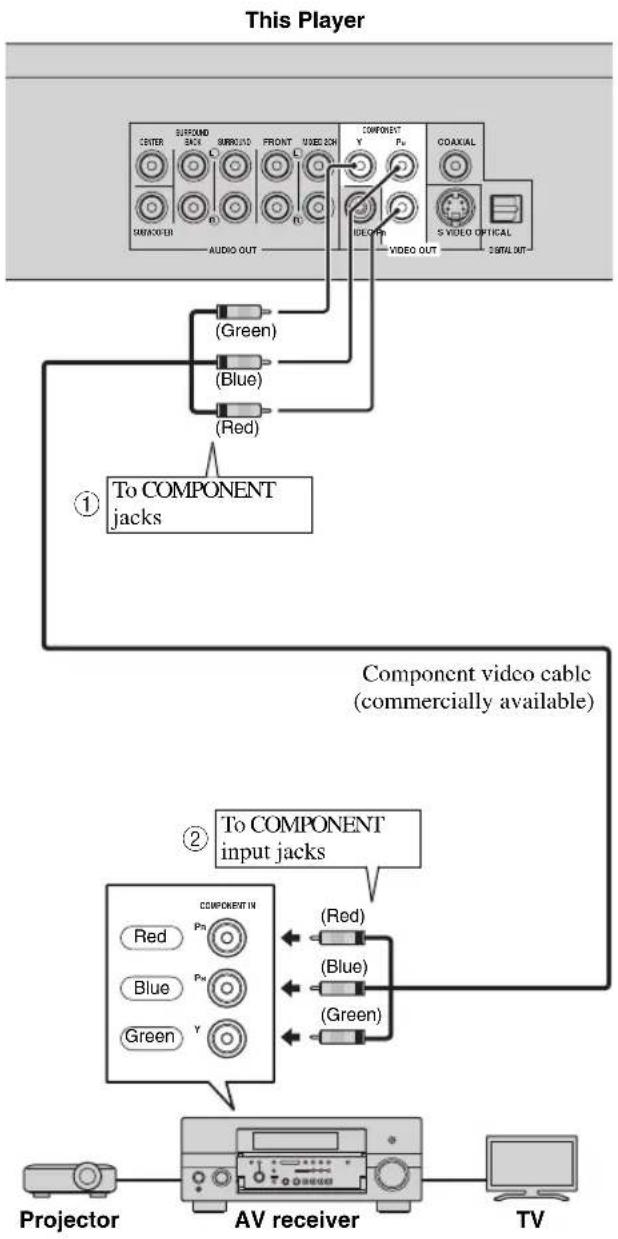
flowchart
graph TD
    A["This Player"] --> B["Component Cable"]
    B --> C["Component jack 1: To COMPONENT"]
    B --> D["Component jack 2: To COMPONENT input"]
    C --> E["Component jack 1: Red, Blue, Green"]
    D --> F["Component jack 2: Red, Blue, Green"]
    E --> G["AV Receiver"]
    F --> G
    G --> H["TV"]
Notes
- You need to select "Component" in "Settings" - "Audio Video Settings" - "Video Out Select" to output the video signal from the component jacks. (See page 31.)
- When the priority video output is set to "HDMI" in "Video Out Select", the video resolution which is output from the COMPONENT jacks is the one set in "HDMI Video Out".
- When the output from the COMPONENT jacks is prioritized, set the priority video output to "Component".
- If you play back the image via VCR, the image may deteriorate due to the copy guard function.
- When you watch the program where copyright is protected, we recommend that the Blu-ray disc player be connected to LCD TV directly or via AV receiver.
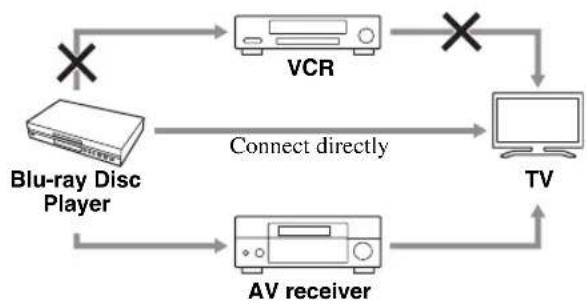
flowchart
graph TD
    A["Blu-ray Disc Player"] -->|Connect directly| B["VCR"]
    B -->|X| C["TV"]
    C --> D["AV receiver"]
    D -->|X| B
    B -->|X| E["×"]
    E --> A
■Connecting to the S Video or Video Jack
- Connect either the S-video jack or video jack.
- Firmly connect a S-video cable (commercially available) to the S-video jacks or a video pin cable (supplied) to the video jacks (① and ②, or ③ and ④).
Caution!
Be sure to turn off this Player and the equipment before making any connections.

flowchart
graph TD
    A["Projector"] --> B["AV receiver"]
    B --> C["TV"]
    D["Projector"] --> E["AV receiver"]
    E --> F["TV"]

    G["Projector"] --> H["AV receiver"]
    H --> I["TV"]

    J["Projector"] --> K["AV receiver"]
    K --> L["TV"]

    M["Projector"] --> N["AV receiver"]
    N --> O["TV"]

    P["S-video cable (commercially available)"]
    Q["To S VIDEO jack"] --> R["S-video cable"]
    R --> S["To S VIDEO input jack"]

    T["Video pin cable (supplied)"]
    U["To VIDEO jack"] --> V["(Yellow)"]
    W["To VIDEO input jack"] --> X["(Yellow)"]

    Y["Video pin cable"] --> Z["(Yellow)"]
    AA["Video pin cable"] --> AB["(Yellow)"]
Notes
- You need to select "Component" in "Settings" - "Audio Video Settings" - "Video Out Select" to output the video signal from the S-video/video jack. (See page 31.)
- If you play back the image via VCR, the image may deteriorate due to the copy guard function.
- When you watch the program where copyright is protected, we recommend that the Blu-ray disc player be connected to LCD TV directly or via AV receiver.
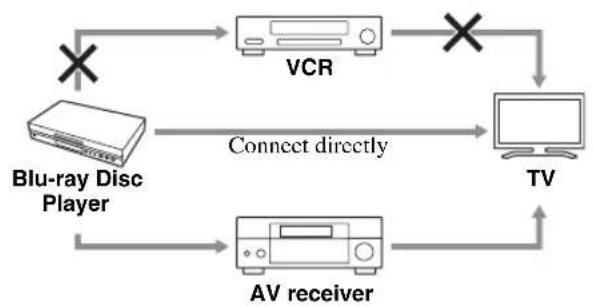
flowchart
graph TD
    A["Blu-ray Disc Player"] -->|Connect directly| B["VCR"]
    B -->|X| C["TV"]
    C --> D["AV receiver"]
    D -->|X| B
    B -->|X| E["×"]
    E --> A
Audio Connections
■Connecting to the Digital Audio Jack/Terminal
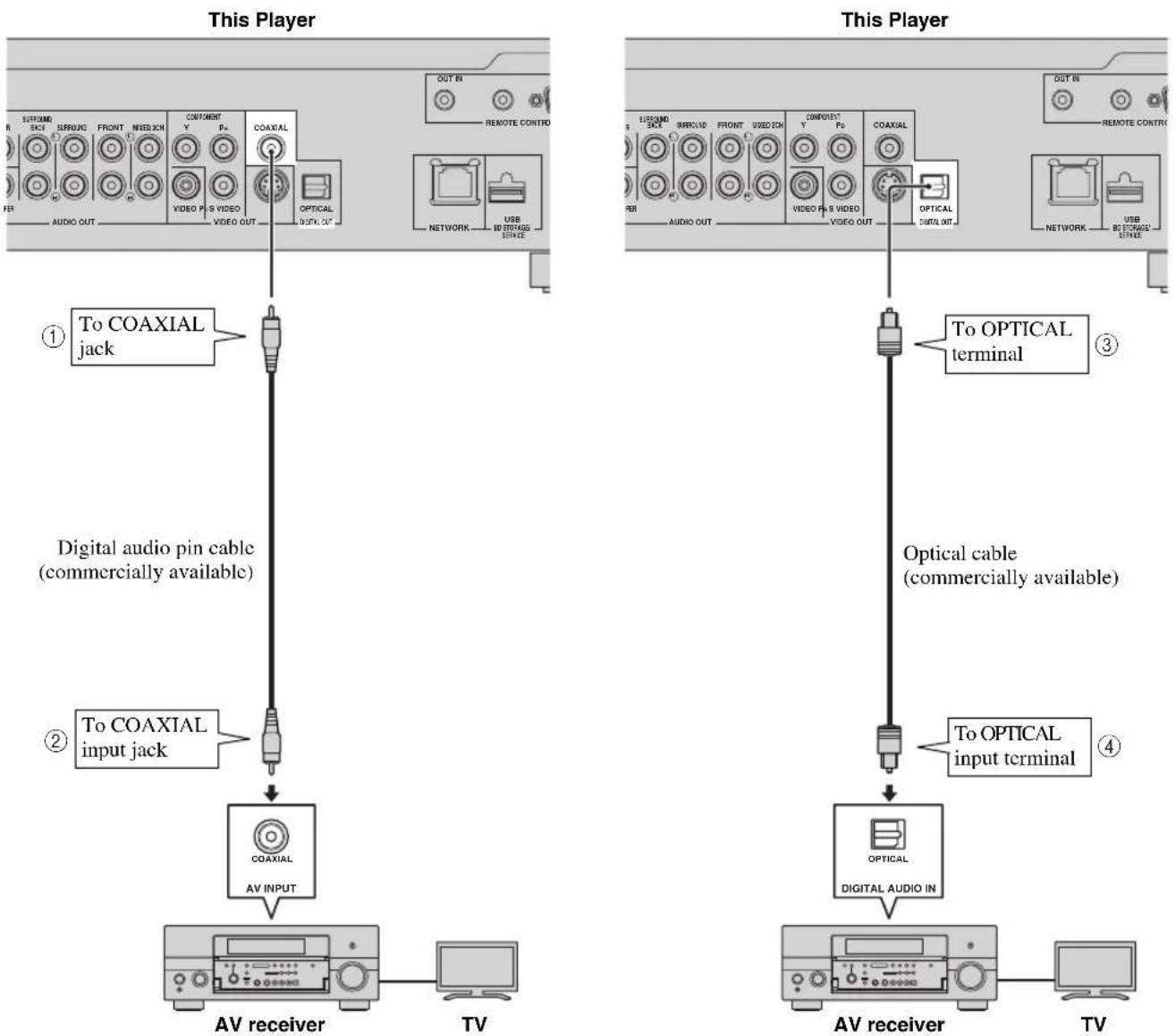
- You can connect audio equipment or the TV to the DIGITAL OUT Jack/terminal.
- Firmly connect a digital audio pin cable (commercially available) or optical cable (commercially available) to the coaxial digital audio jack or optical digital audio terminal (① and ②, or ③ and ④).
– See page 38 for information on the audio output formats.
Caution!
Be sure to turn off this Player and the equipment before making any connections.
flowchart
graph TD
    A["This Player"] -->|To COAXIAL jack| B["TV"]
    C["This Player"] -->|To OPTICAL terminal| D["TV"]
    B --> E["AV receiver"]
    D --> F["AV receiver"]
    E --> G["TV"]
    F --> H["TV"]
    style A fill:#f9f,stroke:#333
    style C fill:#f9f,stroke:#333
    style B fill:#ccf,stroke:#333
    style D fill:#ccf,stroke:#333
    style E fill:#cfc,stroke:#333
    style F fill:#cfc,stroke:#333
Hints
- When using COAXIAL/OPTICAL output, 5.1 ch Digital Output is available. 7.1 ch Digital Output is not available.
- You need to select "Digital Output" in "Settings" - "Audio Video Settings" - "Audio Out" to output the audio signal from the coaxial or optical jack/terminal. (See page 31.)
Note
- 7.1 ch Audio is available via the HDMI terminal or the 8ch discrete audio jacks.
■Connecting to the Audio Jacks
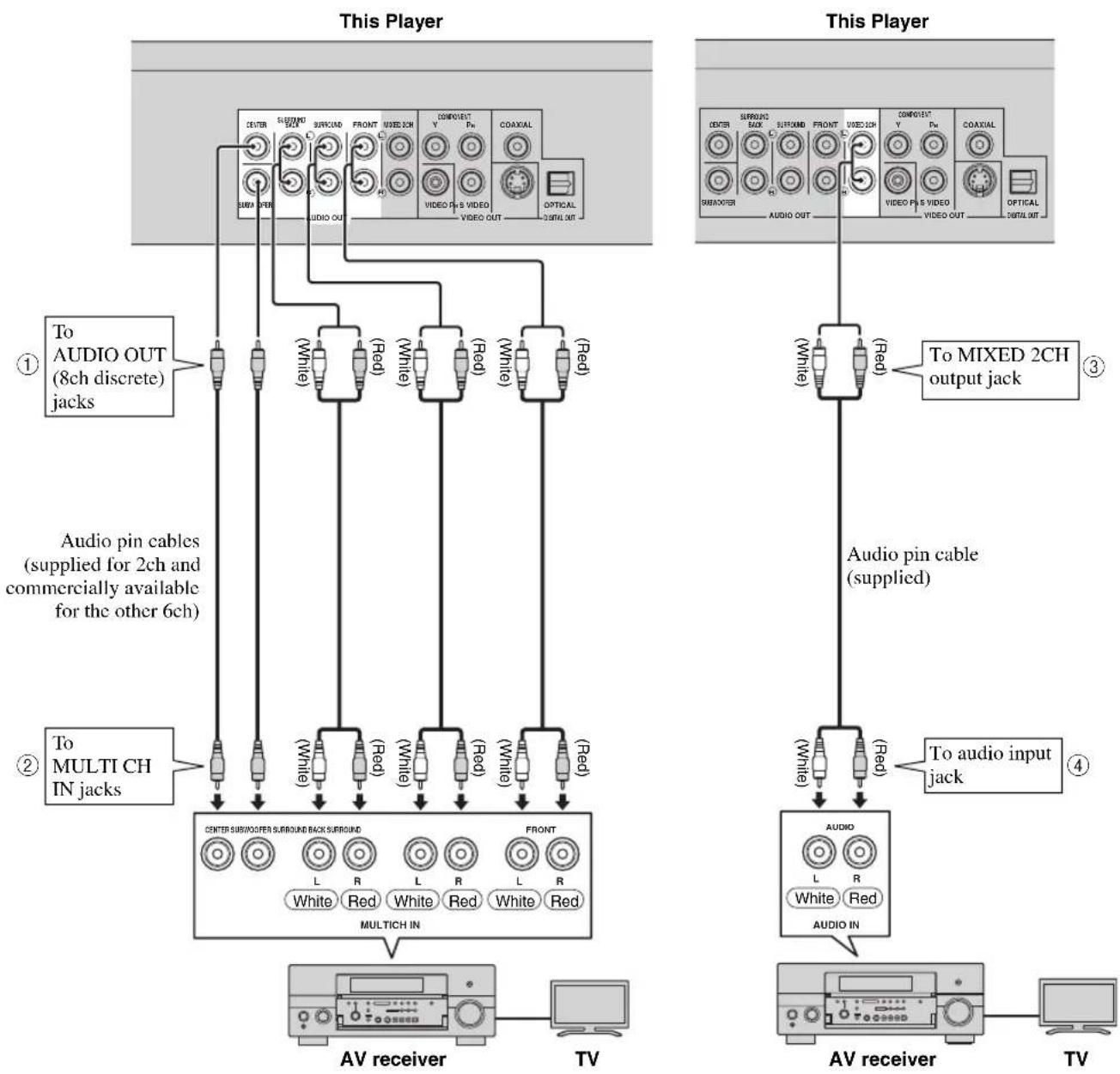
- You can connect audio equipment or the TV to the AUDIO OUT Jacks.
- Firmly connect an audio pin cable (supplied) or audio pin cables (supplied for 2ch and commercially available for the other 6ch) to the 2ch audio jacks or 8ch discrete audio jacks (① and ②, or ③ and ④).
– See page 38 for information on the audio output formats.
Caution!
Be sure to turn off this Player and the equipment before making any connections.
flowchart
graph TD
    A["This Player"] --> B["To AUDIO OUT (8ch discrete) jacks"]
    A --> C["To MULTI CH IN jacks"]
    D["This Player"] --> E["To MIXED 2CH output jack"]
    D --> F["Audio pin cable (supplied)"]
    D --> G["To audio input jack"]

    B --> H["Center SUBPOCER SURROUND BACK SURROUND"]
    C --> I["Central SubPOCER SURROUND BACK SURROUND"]
    D --> J["Central SubPOCER SURROUND BACK SURROUND"]
    E --> K["Central SubPOCER SURROUND BACK SURROUND"]
    F --> L["Central SubPOCER SURROUND BACK SURROUND"]
    G --> M["Central SubPOCER SURROUND BACK SURROUND"]
    H --> N["MULTICH IN"]
    I --> O["MULTICH IN"]
    J --> P["MULTICH IN"]
    K --> Q["MULTICH IN"]
    L --> R["MULTICH IN"]
    M --> S["MULTICH IN"]
    N --> T["AV receiver"]
    O --> U["TV"]
    P --> V["TV"]
    Q --> W["TV"]
    R --> X["TV"]
Hints
- You can connect a subwoofer to the SUBWOOFER jack directly. When you connect TV to this Player directly, connect an active subwoofer such as Yamaha Active Servo Processing Subwoofer System to this jack.
- You need to select "7.1ch Audio Output" in "Settings" - "Audio Video Settings" - "Audio Out" to output the audio signal from the 8ch discrete jacks. (See page 31.)
- You need to select “2ch Audio Output” in “Settings” - “Audio Video Settings” - “Audio Out” to output the audio signal from the 2ch audio jacks. (See page 31.)
Broadband Internet Connection
■ Connecting to the NETWORK terminal and USB BD STORAGE/SERVICE terminal
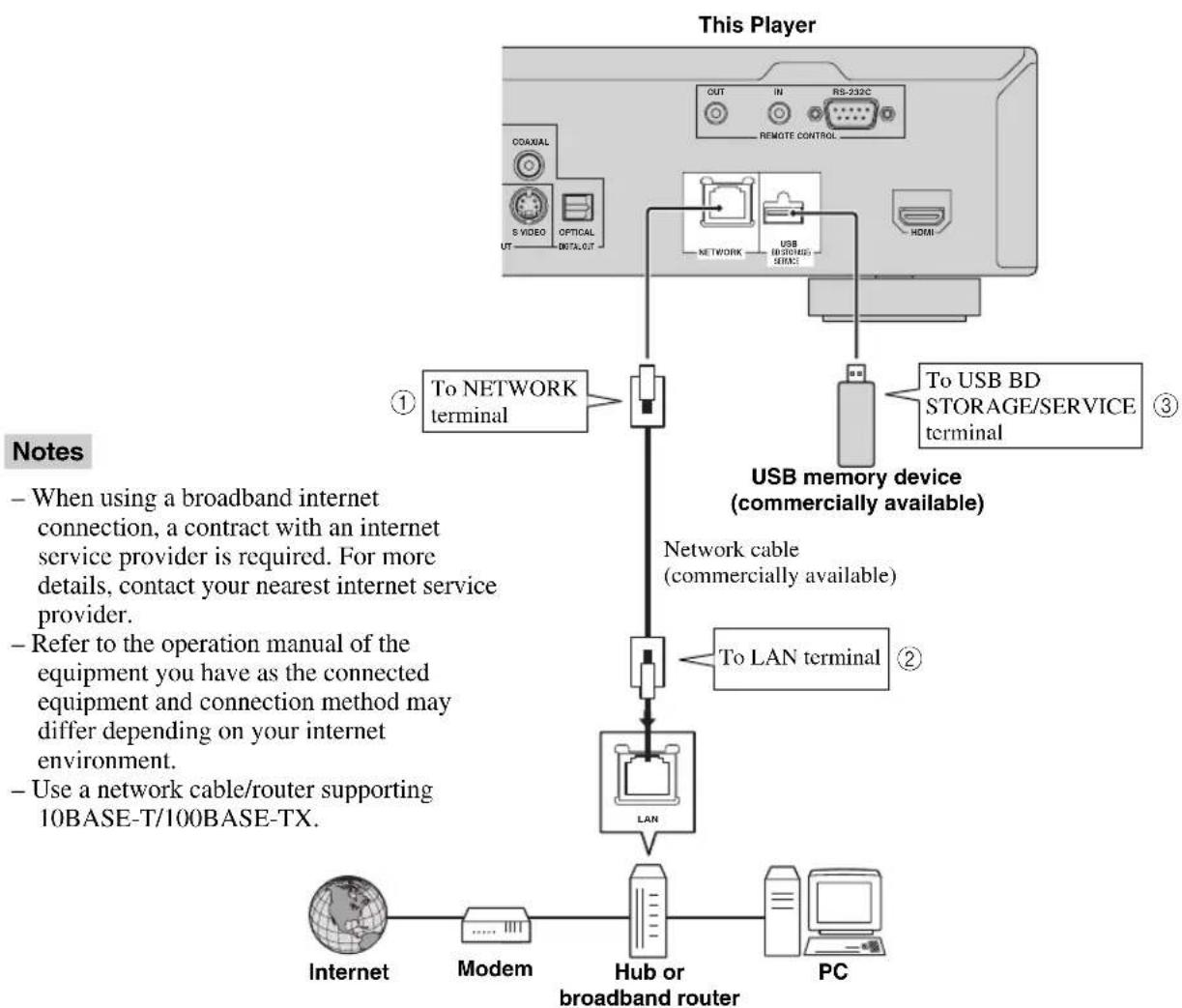
- You can enjoy a variety of contents with interactive functions by connecting to the internet when playing BD-LIVE compatible discs. Refer to pages 24 and 25 regarding further information on BD-LIVE functions.
- You can connect a USB memory device (2GB or greater and formatted with FAT 32/16) to the USB BD STORAGE/SERVICE terminal to save the Virtual Package/BD-LIVE data or to update the software of this Player.
- Firmly connect a network cable (commercially available) and a USB memory device (commercially available) to the NETWORK terminal and USB BD STORAGE/SERVICE terminal (① and ②, and ③).
- Use only an STP (shielded twisted pair) network cable.
- When using the internet, a broadband internet connection as shown below is required.
Caution!
Be sure to turn off this Player and the equipment before making any connections.
flowchart
graph TD
    A["This Player"] --> B["To NETWORK terminal"]
    B --> C["USB memory device (commercially available)"]
    C --> D["To LAN terminal"]
    D --> E["LAN"]
    E --> F["Hub or broadband router"]
    F --> G["PC"]
    H["Internet"] --> I["Modem"]
    I --> J["Hub or broadband router"]
    K["To USB BD STORAGE/SERVICE terminal"] --> C
    L["COAXIAL S VIDEO OUT"] --> M["OPTICAL DATA/OUT"]
    N["OUT"] --> O["RES-232C Remote Control"]
    P["Network cable (commercially available)"] --> D
    Q["Refer to the operation manual of the equipment you have as the connected equipment and connection method may differ depending on your internet environment."] --> D
    R["Use a network cable/router supporting 10BASE-T/100BASE-TX."] --> D
After connecting
- Perform the communication setting. (Page 34–36)
- Load a BD-LIVE compatible disc and play back the contents. (Page 20–24)
Other Connections
■Connecting to the REMOTE CONTROL jacks
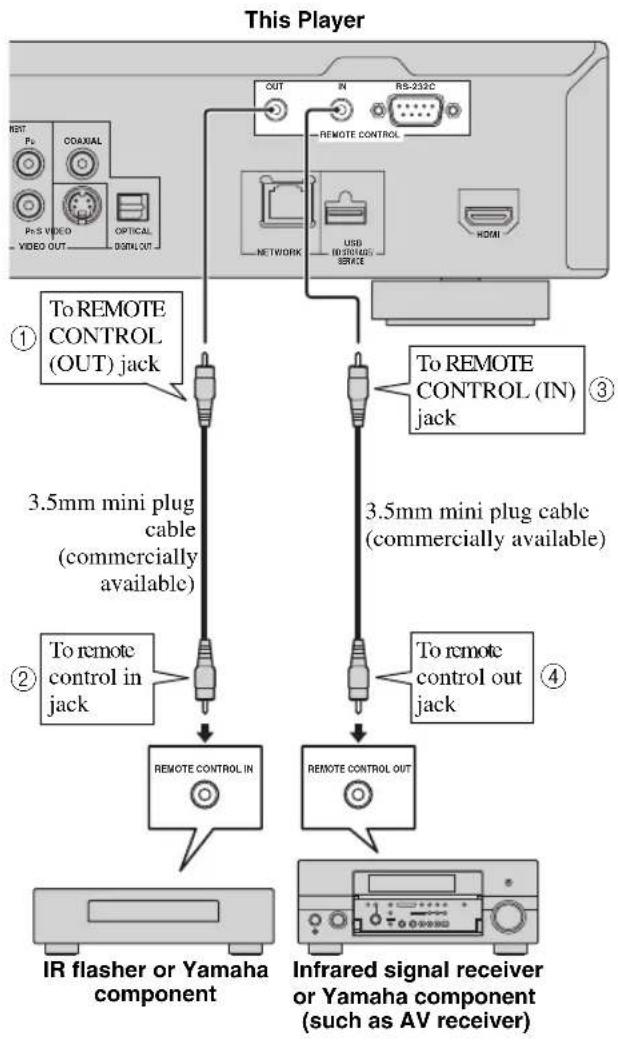
- You can transmit the remote control signals by connecting to the REMOTE CONTROL (OUT/IN) jacks.
- Firmly connect 3.5mm mini plug cables (commercially available) to the REMOTE CONTROL (OUT/IN) jacks (① and ②, or ③ and ④).
Caution!
Be sure to turn off this Player and the equipment before making any connections.
flowchart
graph TD
    A["This Player"] --> B["To REMOTE CONTROL (OUT) jack"]
    A --> C["To REMOTE CONTROL (IN) jack"]
    B --> D["3.5mm mini plug cable (commercially available)"]
    C --> E["3.5mm mini plug cable (commercially available)"]
    D --> F["To remote control in jack"]
    E --> G["To remote control out jack"]
    F --> H["IR flasher or Yamaha component"]
    G --> I["Infrared signal receiver or Yamaha component (such as AV receiver)"]
Hint
- The RS-232C terminal is a control expansion terminal for commercial use. Consult your dealer for details.
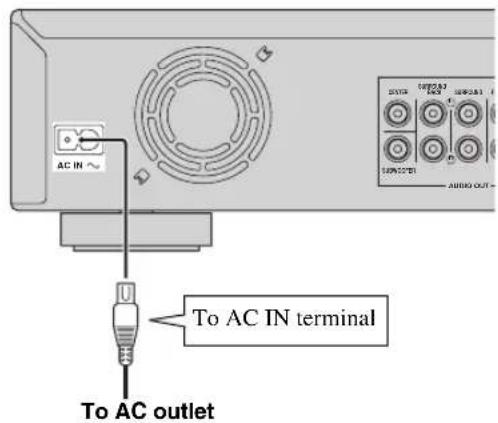
■Connecting the power cable
- Plug the supplied power cable into the AC IN terminal on the rear of the Player. Then plug into AC outlet.
Note
- TO PREVENT RISK OF ELECTRIC SHOCK, DO NOT TOUCH THE UN-INSULATED PARTS OF ANY CABLES WHILE THE POWER CABLE IS CONNECTED.
Before Starting Playback
■Loading the Batteries in the Remote Control
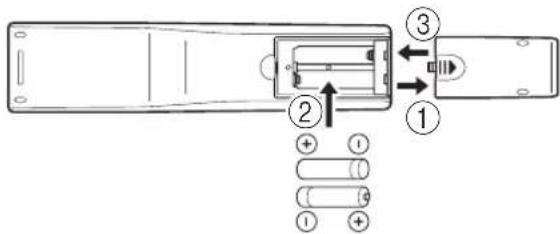
①Press the part and slide the battery compartment cover off.
②Insert the two supplied batteries (AAA, R03, UM-4), following the indications (+/-) on the inside of the compartment.
③Slide the cover back until it snaps into place.
Notes
- Do not subject the remote control unit to shock, water or excessive humidity.
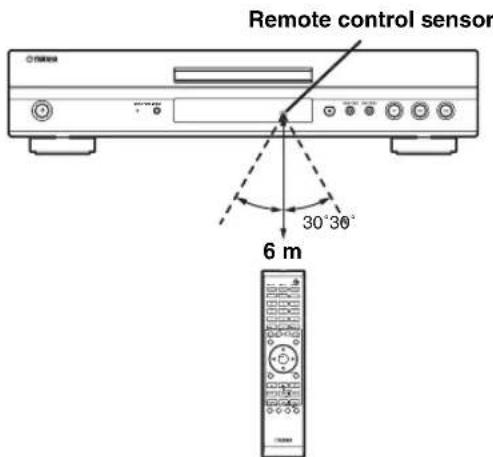
- The remote control unit may not function if the Player's remote sensor is in direct sunlight or any other strong light.
- Incorrect use of batteries may cause them to leak or burst. Read the battery warnings and use the batteries properly.
- Do not mix old and new batteries, or mix different brands.
- Remove the batteries if you will not use the remote control unit for an extended period of time.
Approximate operating range of remote control
■Turning the Power On
natural_image
Front view of a CD-ROM drive with buttons and indicator lights (no text or symbols visible)Turning the power on
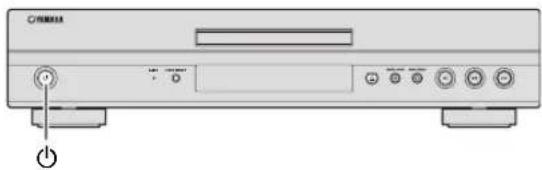
Press ⏻ on the remote control or on the Player to turn on the power of the Player.
POWER ON
Entering standby
Press ⏻ on the remote control or on the Player to enter standby.
BYE
Note
- If you press ⏻ again immediately after entering standby, the Player may not turn on. If this happens, wait for 10 seconds or more and then turn on the power again.
■Indicators on the front panel display
| indicator Descriptions | |
| BD | Lights up when playing back a BD disc. |
| DVD | Lights up when playing back a DVD-Video disc. |
| CD | Lights up when playing back a CD. |
| Lights up when playing back. | |
| Lights up when pausing. | |
| TITLE | Lights up when playing back a BD disc or DVD. |
| CHP/TRK | Lights up when playing back a BD disc, DVD, or CD. |
| REP S | Lights up when playing back track or chapter repeatedly. |
| REP ALL | Lights up when playing back disc or title repeatedly. |
| REP A-B | Lights up when playing back a section repeatedly. |
Adjusting the brightness of the front panel display
If you feel that the front panel display is too bright when watching movies, you can adjust the brightness by pressing DIMMER repeatedly on the remote control.
■Setting the on-screen display language
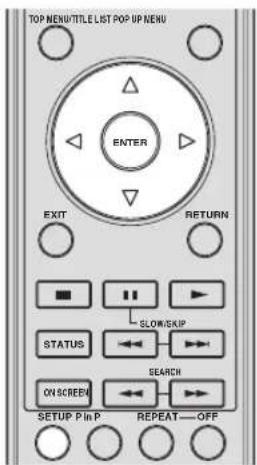
① Press SETUP to display the Setup Menu screen.
SETUP
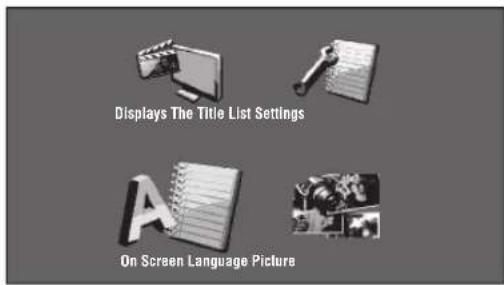
②Press △/▽ to select “On Screen Language”, then press ENTER.
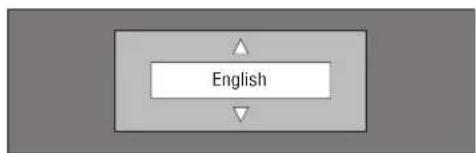
③Press △ to select the language you want to display on the screen, then press ENTER.
Notes
- To select the DVD disc language, such as subtitle language, etc., see page 26.
■Updating the software of this unit
Some of the newly released BD video discs cannot be played back unless you update this Player software to the latest version. We recommend updating the software of this unit with "Software Update" so that this Player is operated based on the latest software.
The USB memory device must be clear of all files except software update data to allow new software uploading.
To check for the availability of a software update, visit http://www.yamaha.co.jp/english/product/av/down/agreement.html.
When a software update is performed, the software update data must be written onto the USB memory device in advance using a PC. When software update data is released, copy the data onto a USB memory device after downloading it to a PC. Delete unneeded software update data using a PC after the software update process is completed.
① Insert the USB memory device with the update file into the USB BD STORAGE/SERVICE terminal on rear of this Player.
② Press SETUP to display the Setup Menu screen.
③Press △ / ▽ to select "Settings", then press ENTER.
④Press △ to select "Software Update", then ENTER.
- If you have not yet set the password, go to step 6.
⑤Enter the 4-digit number using 0-9.

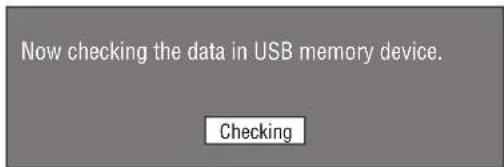
⑥ Press ENTER to start checking data in the USB memory device.
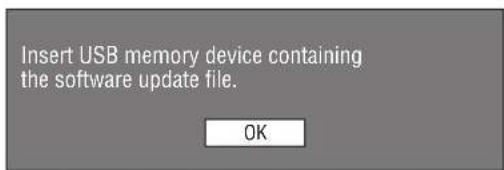
⑦During the data checking, “Checking” blinks.
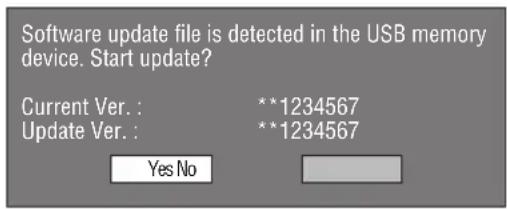
- The current version of this unit software and the version of the update file on the USB memory device are displayed. To update this Player software with update file, select "Yes", and press ENTER.
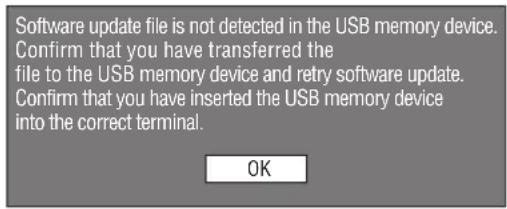
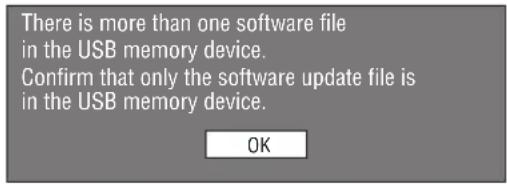
- If the USB memory device is not properly installed or the correct update file cannot be found on the USB memory device, an error message is displayed. Check the file on the USB memory device, and then reinsert the USB memory device correctly.
⑧Press ENTER to start updating.
- The screen becomes dark for a while until the update screen can be displayed. Please wait for the update screen to appear. Do not unplug the power cable.
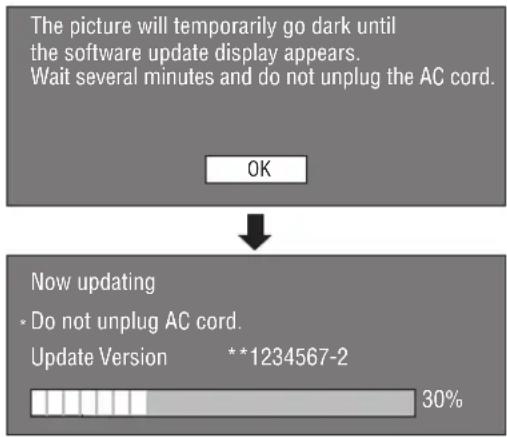
⑨ When the software is successfully updated, a screen is displayed indicating that the update process is completed.
- If the update has failed, check the file in the USB device and try Software Update again.
⑩ Press ⏻ to turn off the Player.
⑪Remove the USB memory device.
Hint
- You can clear the 4-digit number by pressing CLEAR.
- You can use ENTER on the lower right of the Number buttons instead of ENTER in the Cursor buttons.
- You can also update the software by inserting a CD-ROM with the update file.
■Setting the audio output
To output audio correctly, set the audio output suited for your playback environment with “Audio Out”. Refer to “Common operations” and “Audio Out” on page 29 and 31.
■Preparing for BD-LIVE
BD-LIVE is a new feature of Blu-ray Disc that allows you to download and enjoy movie trailers or bonus features by using the internet.
① Connect this player to the internet. (Page 14.)
②Insert a USB memory device (2GB or greater and formatted with FAT 32/16) supporting USB High Speed (480Mbit/s) to the USB BD STORAGE/SERVICE terminal on the back of this Player. (Page 14.)
③Prepare a BD-Video disc compatible with BD-LIVE. ("Enjoying BONUSVIEW or BD-LIVE" on page 24.)
■Activating the Secondary Audio
When you set “Secondary Audio” in the “Setup Menu” to “On”, you can enjoy audio of the picture in picture or audio commentaries of BD-LIVE compatible Blu-ray discs. Refer to “Common operations” and “Secondary Audio” on page 29 and 31.
■Controlling the Blu-ray disc player using the HDMI™ control function
Using the HDMI control function, you can interactively operate this Player with your TV (HDMI control function supported).
When you connect this Player to the TV compatible with the HDMI control function using an HDMI cable and set "HDMI Control" in the "Setup Menu" to "Yes", you can perform the function listed below. (See page 9 and 33 for connecting to the HDMI terminal and "HDMI Control".)
- Automatic input select function When you start playback of this Player, the input selector of the TV (and an AV receiver if this Player is connected to the TV via the AV receiver) is switched to this Player automatically. TV Power may be turned on automatically depending on the TV.
- Automatic power off function When you turn off the TV while this Player is in stop mode and the Setup Menu screen is not displayed, the power of this Player is also turned off automatically.
Notes
– HDMI control function may not work properly depending on the TV.
– Functions other than ones shown above may work depending on the TV or AV receiver.
- In order to make the HDMI control function available, set up settings for the HDMI control function on ALL the components (this Player, TV, and AV receiver). Certain operation may also be required.
– Each function may be set independently to activate/deactivate depending on the TV.
– Refer to the operation manuals supplied with the TV and/or AV receiver for details regarding setup.
BD/DVD/CD Playback
This section explains playback of commercially available BD Video and DVD Video discs (like movies), CDs, and recorded DVD-RW/R discs.
■Loading a Disc
natural_image
Front view of a computer monitor with buttons and a power button (no visible text or symbols)①Press ⏻ to turn on the power.
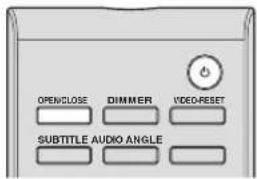
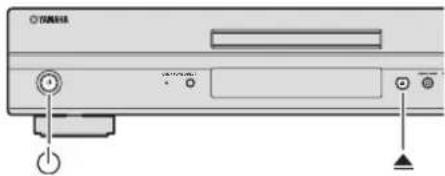
② Press OPEN/CLOSE or ▲ to open the disc tray.
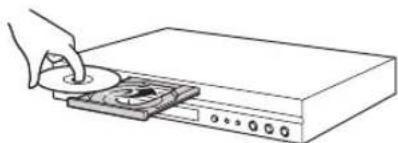
③Load a disc on the disc tray.
- Insert the disc with the label face up.
– In case of disc recorded on both sides, face down the side to play back.
natural_image
Line drawing of a hand inserting a CD into a device (no text or symbols)④ Press OPEN/CLOSE or ▲ to close the disc tray.
Notes
- Playback may begin automatically, depending on the disc.
- Playback begins from the first title.
- The menu may be displayed first, depending on the disc. Perform playback operation by following the directions on the screen.
- The disc load time may vary depending on the disc.
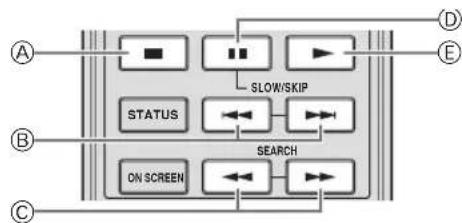
■Basic playback operation
BD-V D-RE BI-R
DVD-V DVD-R D D-RW AU I O CD
flowchart
graph TD
    A["A"] --> B["■"]
    B --> C["■"]
    C --> D["▶"]
    D --> E["E"]
    E --> F["D"]
    G["B"] --> H["STATUS"]
    H --> I["◀"]
    I --> J["◀"]
    J --> K["▶"]
    K --> L["▶"]
    L --> M["ON SCREEN"]
    M --> N["◀"]
    N --> O["▶"]
    O --> P["SEARCH"]
    P --> Q["▶"]
    Q --> R["▶"]
    R --> S["C"]
| Buttons | Functions | |
| A | ■ | Pauses or stops playback |
| B | ◀◀/▶▶ | Skips backward/Skips forward |
| C | ◀◀/▶▶ | Search backward/Search forward (search) *1 |
| D | ■■ | Pauses playback |
| E | ▶ | Playback *2 |
*1 The search speed will change each time you press the button.
*2 The Player resumes playback from the point that where the Player was previously stopped. To playback from the beginning, press and then ▶
Notes
- This player supports DVD upscaling during DVD playback.
- Some of the newly released BD video discs cannot be played back unless you update this Player software to the latest version. Therefore, it may be required to update the software of this Player. Refer to page 37 for more information regarding software updates for this Player.
Frame Advance Playback
Frame Advance Playback functions when is pressed during Pause.
Notes
- Frame Advance Playback may not function properly with discs other than DVD-RW/R (VR format).
- Some BD/DVD Video discs are not compatible with Frame Advance Playback.
- Frame Advance/Reverse Playback can be performed for DVD discs by pressing ▶ during pause.
Slow Playback
Slow Playback functions when ▶ is pressed for more than 2 seconds during pause.
- Press to return to normal playback.
Notes
- This doesn't work for audio CDs.
- Reverse Slow Playback cannot be performed for BD video.
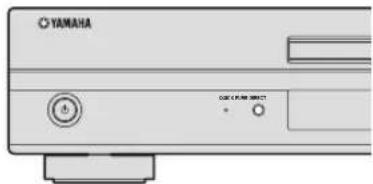
■Enjoying pure hi-fi sound (Pure Direct function)
This Player is compatible with Pure Direct mode which enables you to enjoy analog signals output at the 2ch audio jacks and 8ch discrete audio jacks in pure high fidelity sound. When Pure Direct mode is activated, this Player plays back discs with the least circuitry.
natural_image
Front view of a Yamaha electronic device with control buttons and indicator lights (no readable text or symbols beyond branding)Press PURE DIRECT to turn the Pure Direct mode on or off.
- PURE DIRECT lights up when you set the Pure Direct mode on.
Hint
- The front panel display automatically turns off, and the analog video (component, S-video, and video) and the digital audio (optical and coaxial) are not output while this Player is in the Pure Direct mode.
■Repeat Playback
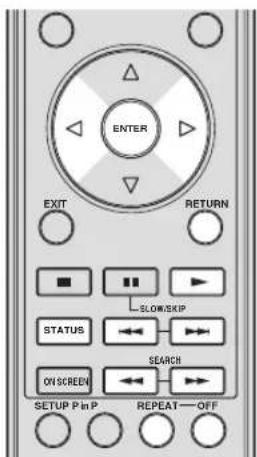
Repeat Playback of a Title or Chapter
①Play back the title or chapter you want to repeat.
②Press REPEAT.
③Press ◀ to select the type of Repeat Playback.
- Playback Title: Repeats the title currently being played back.
– Playback Chapter: Repeats the chapter currently being played back.
– Scene Selection: Repeats the specified scene of title or chapter.

- Press RETURN to cancel without setting the type of Repeat Playback.
- For Audio CD, you can select "Playing Disc", "Playing Track" and "Specify The Part" as Repeat Playback options.
④Press ENTER.
Example: Repeat playback of a title (TITLE)
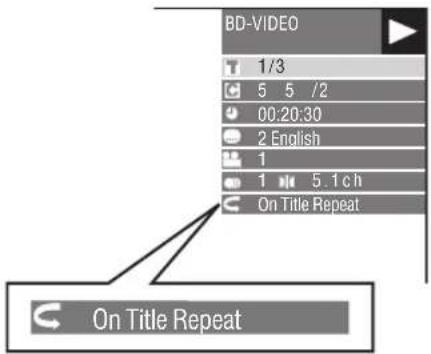
⑤ Press OFF to return to normal playback.
Repeat Playback of a Specified Part
DVD-V DVD-R DVD-RW
AUDIO CD
Note
- Some operations in the following playback function cannot be performed depending on the specifications of the disc.
①Press REPEAT during playback.
②Press ▶ to select “Scene Selection”, then press ENTER.
- “Set Start Point” displays.
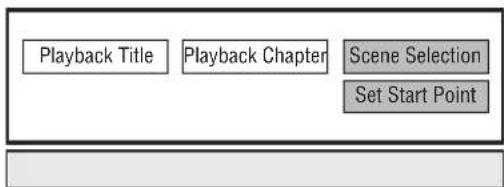
③ Press ENTER at the scene where you want to set the start point.
- "Set End Point" displays.
④ Press ENTER at the scene where you want to set the end point.
- You can press the fast forward to the scene where you want to set the end point. When you reach the desired scene, simply press and then ENTER to set the end point. To cancel Repeat Playback, press OFF.
Notes
- Press the Repeat Playback is cancelled and the next chapter being play back.
-
Press once, the Repeat Playback is cancelled and the player returns to the start of current chapter (track).
-
If you press again (within about 5 seconds) the player will skip to the beginning of the previous chapter (track).
- For Repeat Playback of a Specified Part, set the start and end points within the same title.
- Repeat Playback may be forbidden depending on the disc.
- Repeat Playback of a Specified Part may not work in multi-angle scenes.
- If you press STATUS, you can confirm the Repeat Playback status.
■Using BD/DVD Menus
This section explains how to play back a BD/DVD video disc with a top menu, disc menu or pop-up menu. The titles listed in the top menu and a disc guide (for options like subtitles and audio languages) are given in the disc menu.

| Buttons Functions | ||
| A | TOP MENU/TITLE LIST | Displays the top menu screen |
| B/ | Moves the highlight in the menu screen | |
| ©POP UP MENU Displays the pop-up menu screen | ||
| DENTER Selects the highlighted menu item | ||
Notes
- The procedure explained on this page is the basic operation procedure. Procedures vary depending on the BD/DVD video disc, so you may need to follow the instructions in the BD/DVD video disc manual or the instructions displayed on the screen.
- With some BD/DVD discs, the top menu may be referred to as the "Title Menu". Use TOP MENU/TITLE LIST on the remote control when the instructions refer to "Title Menu".
- If no top menu is available, the TOP MENU/TITLE LIST button will have no effect.
- The top menu screen may be displayed by pressing POP UP MENU depending on the DVD.
Using the pop-up menu
BD-V
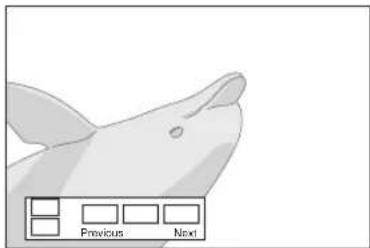
① Press POP UP MENU during playback.
– The pop up menu screen is displayed.
- The menu contents displayed vary depending on the disc. For details on how to see and operate the pop-up menu, refer to the manual for the disc.
natural_image
Illustration of a stylized animal head with no visible text or symbols②Press △/▽ to select the desired item, then press ENTER.
③ Press POP UP MENU to exit.
- The pop-up menu will automatically disappear for some discs.
■Using DVD-R/-RW Menu
DVD-R DVD-RW
You can play back a recorded disc (VR format finalized disc only).
Note
- “Finalize” refers to a recorder processing a recorded disc so that it will play in other DVD players/ recorders as well as this player. Only finalized DVD discs will play back in this player. (This player does not have a function to finalize discs.)
Playback by selecting a title
①Load a recorded disc.
– The Title List screen is displayed.
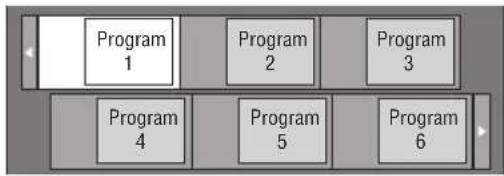
flowchart
graph TD
    A["Program 1"] --> B["Program 2"]
    B --> C["Program 3"]
    D["Program 4"] --> E["Program 5"]
    E --> F["Program 6"]
- If the Title List screen is not displayed, press TOP MENU/TITLE LIST.
②Press △ / ▽ to select the desired title, then press ENTER.
- When seven or more titles exist, switch pages by pressing ▶▶▶.
- Playback of the selected title will begin. You can playback by pressing instead of pressing ENTER.
③Press to stop playback.
Note
- The Title List screen also can be displayed by pressing TOP MENU/TITLE LIST when playback is stopped or by pressing ENTER after choosing "Displays The Title List" in Setup Menu when playback is stopped.
About Title List
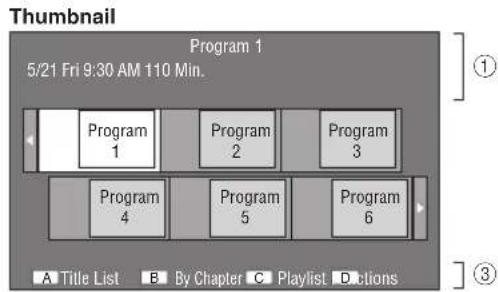
- The Title List can be displayed in two types, Thumbnail and Title List.
– Each time you press A, the screen changes between Thumbnail and Title List.
![Title List Program 1 5/21 Fri 9:30 AM 110 Min. [From Old] 1 Program 1 5/21 Fri 110 Min. 2 Program 2 6/15 Fri 110 Min. 3 Program 3 7/3 Mon 56 Min. 4 Program 4 9/18 Thu 40 Min. A Thumbnail B Sorting P C 1st Functid D](/content/2026/04/671282/images/73297c1f03e81e3263086127b905079025532eba2f97d30693a897aa39760612.jpg)
①Information of selected title
②Title Name Recording Date Recording Duration
③Caption for Color Button
Playback by selecting a chapter
① Press B while the Thumbnail screen is displayed. - The chapter screen is displayed.
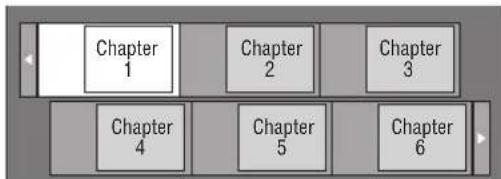
- When seven or more chapters exist, switch pages by pressing ▶▶▶.
- To return to the Thumbnail screen, press B.
②Press △ / ∇ to select the desired chapter, then press ENTER.
- Playback of the selected chapter will begin. You can playback by pressing instead of pressing ENTER.
③Press to stop playback.
Sorting the titles
Each time you press B while the Title List screen is displayed, the Title List display changes between displaying the newest title first and the oldest title first.
Playback by selecting a Playlist
① Press C while the Thumbnail or Title List screen is displayed.
– The Playlist screen is displayed.
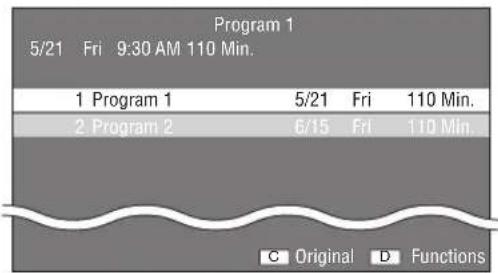
② Press / to select the title, then press ENTER. – Playback of the selected title will begin.
③Press to stop playback.
Playing back the title you stopped while being played
① Press D while the Thumbnail or Title List screen is displayed.
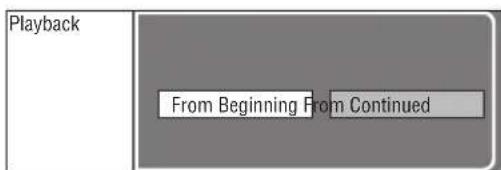
② Press ◀/▷ to select the type of Playback, then press ENTER.
- Playback of the title will begin.
③Press to stop playback.
■Using the Audio CD Playback Menu
AUDIO CD
When you load an audio CD, following screen is displayed.
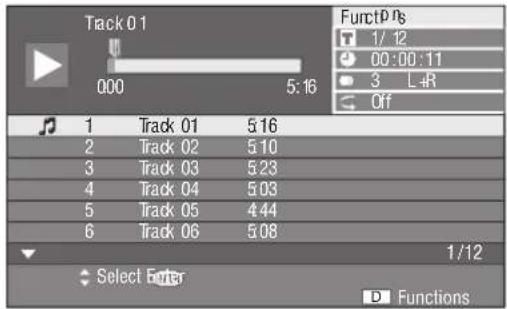
Note
- The CD screen is displayed only when a compact disc recorded in the CD-DA format is inserted.
Playback by selecting a track
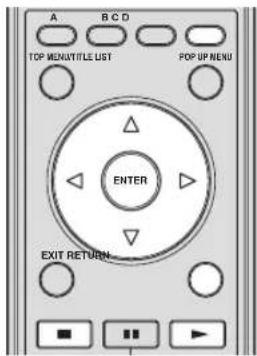
① Press / to select the track, then press ENTER during playback or when playback is stopped. - Playback of the selected track will begin.
②Press once to pause playback (resume stop).
③To stop playback completely, press again.
Using the Function menu
① Press D when the CD screen is displayed.
- The "Functions" menu is activated.
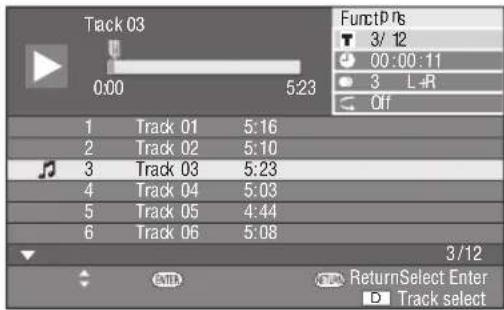
② Press / to select the desired setting, then press ENTER.
- When playback is stopped, only "Track" can be selected.
- For a description of each setting, see "Functions which can be set" (page 26).
③ Press /// to set, then press ENTER.
– Operations vary depending on the setting. Follow the operation instructions on the screen.
④ Press RETURN or D to exit the “Functions” menu.
Note
– The displayed items vary depending on the disc.
■Enjoying BONUSVIEW or BD-LIVE
BD-V
This Player is compatible with additional functions of BD-Video, BONUSVIEW (BD-ROM Profile 1 Version 1.1) and BD-LIVE.
For BD-Video discs compatible with BONUSVIEW, the functions of Picture in Picture and Virtual Package are available. For BD-LIVE compatible discs, you can enjoy a variety of functions via the internet in addition to the BONUSVIEW functions.
Virtual Package/BD-LIVE data is saved in Local Storage (USB memory device connected to this Player). To enjoy these functions, connect a USB memory device (2GB or greater and formatted with FAT 32/16) supporting USB 2.0 High Speed (480Mbit/s) to the USB BD STORAGE/SERVICE terminal (page 14) on the back of this player.
- If there is insufficient storage space, the data will not be copied/downloaded. Delete unneeded data or use a new USB memory device.
- If a USB memory device containing other data (previously recorded) is used, the video and audio may not play back properly.
- If the USB memory device is disconnected from this player during playback of Virtual Package/BD-LIVE data, playback of the disc will stop.
- Some time may be required for the data to load (read/write).
- Refer to "USB Memory Management" on page 36 for erasing the Virtual Package data and the BD-LIVE data in the USB memory device.
Notes
– Yamaha cannot guarantee that all brands' USB memory devices will operate with this player.
- Do not use a USB extension cable when connecting a USB memory device to the USB BD STORAGE/SERVICE terminal of the player. Using a USB extension cable may prevent the player from performing correctly.
Use of Picture in Picture function (secondary audio/video playback)
BD-Video that includes secondary audio and video compatible with Picture in Picture can be played back with secondary audio and video simultaneously as a small video in the corner.
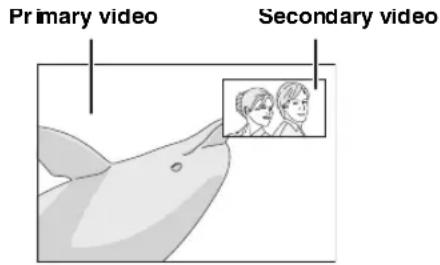
Press P in P to turn the Picture in Picture function on or off.
Notes
- To listen to secondary audio, make sure that "Secondary Audio" is set to "On". (See page 31.)
- The secondary audio and video for Picture In Picture may automatically play back and be removed depending on the content. Also, playable areas may be restricted.
Virtual Package
For BD-Video discs compatible with Virtual Package, data is copied from the discs or internet to local storage. It is automatically copied to the local storage prior to playback. You can enjoy a variety of additional functions including secondary video, secondary audio, subtitles, movie trailers, etc.
- The playback methods vary depending on the disc. For details, refer to the disc manual.
BD-LIVE
In this Player, a variety of contents with interactive functions are available through BD-LIVE compatible Blu-ray discs by connecting to the internet. You can enjoy the download of bonus features such as latest movie trailers to the USB memory device, communication compatible BD-J interactive games, etc.
- The available functions differ depending on the disc.
- The BD-LIVE operation methods and contents displayed vary depending on the programs provided through the internet. Operate by following the directions on the screen.
Notes
- Regarding playback method of BD-LIVE contents, etc., perform the operations in accordance with the instructions in the BD disc manual.
– To enjoy BD-LIVE functions, perform the broadband internet connection (page 14) and communication settings (pages 34–36).
– Refer to page 33 regarding the setup to restrict access to BD-LIVE contents. - The time required to download the provided programs into the USB memory device connected to this player varies depending on the internet connection speeds and the data volume of the programs.
- BD-LIVE programs provided through the internet may not be able to display the connection depending on the status (updating) of the provider. In such cases, take out the disc and try again.
- If the BD-LIVE screen does not appear for a while after you select the BD-LIVE function in the BD disc menu, the USB memory device may not have enough free space. In such cases, eject the disc from the player, and then erase the data in the USB memory device using the Data Erase menu in the “USB Memory Management” menu. (See the operation manual on page 36.)
■Function Control Screen
This allows you to adjust various settings at once, like subtitles, angle settings and the title selection for Direct Playback. You can adjust the video and audio to suit your preferences. The operations are the same for BD and DVD.
Function control screen
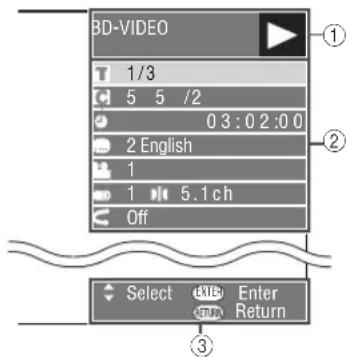
①Playback status display
Shows the operation status and the disc type.
②Setting items
Selects a title (or track) or chapter for playback, or performs video/audio settings.
③Operation guide display
Provides help on remote control button operations.
Function control operation procedure
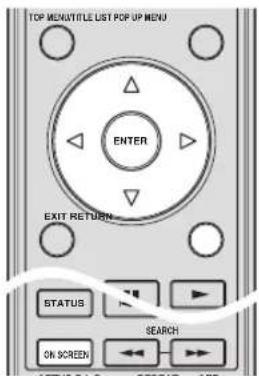
① Press ON SCREEN during playback.
– The Function Control screen is displayed on the TV.
②Press △ to select the desired setting, then press ENTER.
- For a description of each setting, see “Functions which can be set” (page 26).
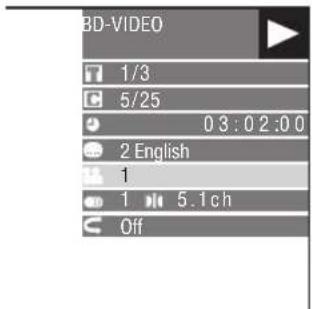
③ Press /// to set, then press ENTER.
– Operations vary depending on the setting. Follow the operation instructions on the screen.
④ Press RETURN or ON SCREEN to close the Function Control screen.
Notes
- If “--” is displayed for an option like title number or subtitles, the disc has no titles or subtitles which can be selected.
- The displayed items vary depending on the disc.
- If you access the Function Control screen during playback of a BD/DVD video, it may be impossible to operate the BD/DVD video playback. In cases like this, close the Function Control screen.
Functions which can be set
| Icons | Functions | Descriptions |
| Title/Track Number (Direct Title/Track Skip) | - Shows the title number being played back (or track number when playing back an audio CD). You can skip to the start of the title (or track).- To skip to the start of a selected title (or track), press theNumberbuttons to enter the title (or track) number when this option is highlighted. | |
| Chapter Number (Direct Chapter Skip) | - Shows the chapter number being played back. You can skip to the start of the chapter.- To skip to the start of a selected chapter, press theNumberbuttons to enter the chapter number when this option is highlighted. | |
| Playback Elapsed Time (Direct Time Skip) | - Shows the time elapsed from the beginning of the current disc title (or track). This lets you skip to a specific time.- Press ◀/▷ to select the Hour, Minute or Second, then press △/▽ or theNumberbuttons to set the time. Press ENTERto start playback at the set time. | |
| Icons | Functions Descriptions | |
 | SubtitleLanguage | - Shows the currently selected subtitle language. If subtitles are provided in other languages, you can switch to your preferred language.You can also select the subtitle language by pressing SUBTITLE. |
 | Angle Number | - Shows the currently selected angle number. If the video is recorded with multiple angles, you can switch the angle.You can also switch the angle by pressing ANGLE. |
  | Audio | - Shows the currently selected type of audio. You can select the desired type of audio.You can also select the type of audio by pressing AUDIO. |
 | Repeat | - The current Title (or Chapter) or partial segments can be repeatedly played back. Repeat Playback is also possible with the REPEAT button on the remote control. |
Notes
- These functions may not work with all discs.
- For DVD-RW and DVD-R, when a recorded broadcast with stereo or monaural audio is played back, "Stereo" is displayed. (Audio cannot be switched.)
- When you play a program recorded in stereo or monaural, and if you are listening to the Bitstream sound via the digital output jack, you cannot select the audio channel. Set “Audio Out” to “PCM” (Page 31), or if you want to change the audio channel, listen via the analog output jacks.
■Displaying the disc information
Press STATUS during playback.
– Each time you press STATUS, the display switches as follows.
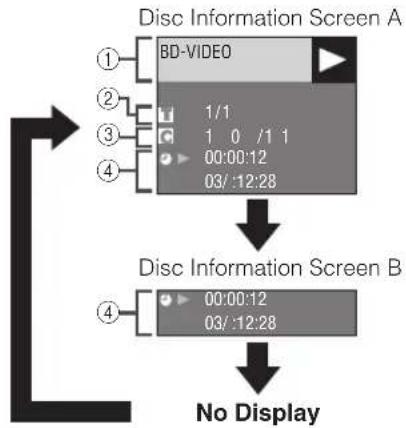
flowchart
graph TD
    A["① BD-VIDEO"] --> B["② 1/1 1 0 /1 1 00:00:12 03/12:28"]
    B --> C["③"]
    C --> D["④"]
    D --> E["Disc Information Screen B"]
    E --> F["④ 00:00:12 03/12:28"]
    F --> G["No Display"]
①Type of disc
②Title number being played / Total number of Titles
③Chapter number being played / Total number of Chapters
④ Elapsed playback time / Total playback time for the Title
Notes
– Disc Information Screen A disappears after about 1 minute elapses without performing any operations.
- For some commercially-released BD VIDEO discs, the total playback time display for the Chapter/Title may not appear.
JPEG File Playback
CD-R
JPEG
CD-RW
JPEG
Notes
- This Player can play still images (JPEG files) that have been recorded on CD-RW/R discs. For details on the still images that you can play using this player, refer to “About the JPEG file format” on page 3.
- During “Normal play”, still images are played one by one while during “Slide show”, they are automatically replaced one after another.
■Playing back still images in sequence
Load the disc containing the still images, and press ▶
– The first still image appears on the screen.
- Press or to proceed to the next or previous still image.
– The same operation can be performed by pressing


■Playing back still images in a selected folder
①Load the disc containing still images, then press SETUP.
②Press △/▽ to select “Picture”, then press ENTER.
③Use △/▽ to select the folder whose still images are to be played, then press ENTER.
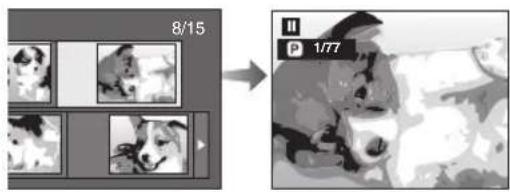
④Press or to replace one image with another.
- The same operation can be performed by pressing
- Press RETURN if you wish to return to the folder selection screen.

⑤ To stop the still image playback at any time, press ■.
■Playing back Slide Show
①In Step 2 of the left side "Playing back still images in a selected folder", press ▶ (Slide Show).
- The still images inside the selected folder are played as a slide show.
②To pause the playback at any time, press.
- Press to resume playback.
③To stop the play at any time, press ■
- Press RETURN to play a slide show of still images in another folder.
■Setting slide show speed/repeat playback
① Press C (Slide Show Menu) during the folder selection screen.
- The setting screen for "Slide Show Speed"/"Repeat Mode Setting" appears.
②Press △ ∇ to select “Slide Show Speed”, then press ENTER.
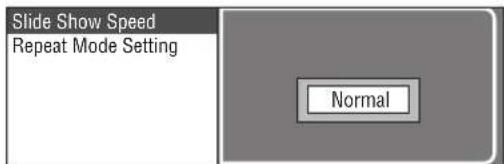
③Press △ to select the desired speed, then press ENTER.
- The slide show speed may be selected from "Fast", "Normal", "Slow1" and "Slow2".
④Press △ to select "Repeat Mode Setting", then press ENTER.
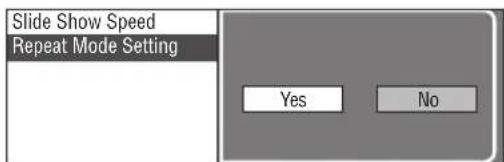
⑤Press ↕ to select the desired item, then press ENTER.
⑥Press EXIT to exit.
Settings
The “Menu” enables various audio/visual settings and adjustments on the functions using the remote control unit.
| Menu/Submenu Function Page | |||
| Audio Video Settings | TV Aspect Ratio | Sets the screen aspect ratio of the connected TV, and adjust the video output. | 30 |
| Component Video Out | Sets the resolution of the component video output. | 30 | |
| HDMI Video Out Sets the resolution of the HDMI video output. 31 | |||
| Video Out Select Selects the priority of the video output. 31 | |||
| Secondary Audio Sets the audio of the picture in picture or audio commentaries. 31 | |||
| Audio Out Sets the audio output suited for your playback environment. 31 | |||
| Dynamic Range Control | Adjusts the dynamic range for playback at average volume. | 32 | |
| Speaker Settings | Sets the speakers connected to this Player via the 8ch discrete jacks. | 32 | |
| Quick Start | Sets the startup time of this Player to be reduced. | 33 | |
| Auto Power Off | Sets the power of this Player to be turned off automatically. | 33 | |
| HDMI Control | Sets this Player to receive the control signal from the remote control of your TV. | 33 | |
| Playback Setting | Parental Control | Sets the Parental Control depending on the disc content. | 33 |
| Disc Language | Selects the language for subtitles, audio, and menus displayed on the screen. | 33 | |
| Angle Mark Display | Sets to display the Angle Mark when BD/DVD with multiple angles is played back. | 33 | |
| Password Setting | Sets the password. | 33 | |
| BD Internet Access | Sets access restriction to BD-LIVE contents. | 33 | |
| Communication Setup | Changes the communication settings. | 34 | |
| Version | Displays the system software version. | 34 | |
| USB Memory Management | Deletes data in a USB memory. | 36 | |
| Software Update | Updates the software of this Player. | 17, 37 | |
| System Reset | Resets all settings to the factory presets. | 34 | |
■Common operations
You need to call up the Setup Menu screen to perform settings for this player. The following is the explanation for the basic operations of the "Menu".
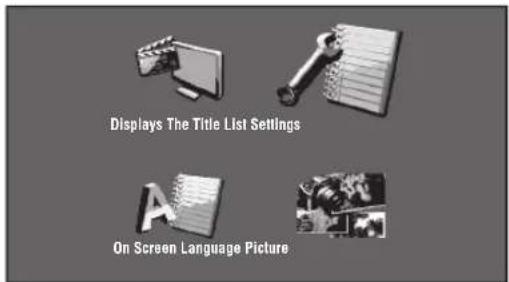
Example: Setting "Auto Power Off"
1. Display the Menu screen
Press SETUP to display the Setup Menu screen. Press △ / ▽ to select "Settings", then press ENTER.
2. Select a menu item
Press △ to select "Auto Power Off", then press ENTER.
Settings
| Audio Video Settings |
| Speaker Settings |
| Quick Start |
| Auto Power Off |
| HDMI Control |
| Playback Setting |
| Communication Setup |
| Version |
| USB Memory Management |
| Software Update |
| System Reset |
3. Select the next item
Press ↗ to select the desired item, then press ENTER.

Press RETURN to return to the previous "Menu" page.
4. Exit the Menu screen
Press SETUP or EXIT to exit.
Example of the Setup Menu operation
Example: Setting "Parental Control" under "Playback Setting"
① Press SETUP to display the Setup Menu screen.
②Press △/▽ to select "Settings", then press ENTER.
③Press △ to select "Playback Setting", then press ENTER.
④Press △ to select “Parental Control”, then press ENTER.
- When you operate this Player for the first time, the password setting screen will be displayed. See "When setting the password for the first time" below.
⑤Enter your 4-digit password.
- You cannot move to the next setting screen until you can input the correct password.
When setting the password for the first time.
- To set the password for the first time, press /ʌto/ ▷ select "Yes" to enter the password setting menu, then press ENTER.
- Enter a 4-digit number for the password, then the same 4-digit number for confirmation.
- Press ENTER to complete the password setting procedure and move to the next setting screen.
Hints
- You can clear the 4-digit number by pressing CLEAR.
- You can use ENTER on the lower right of the Number buttons instead of ENTER in the Cursor buttons.
⑥Press △to select the parental control level for DVD VIDEO, BD-ROM, and then select the country code. Press ENTER after making each selection.
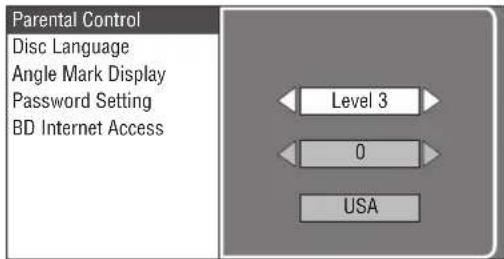
⑦ Press SETUP or EXIT to exit.
■Audio Video Settings
Hint
- The default settings are marked with “*”.
TV Aspect Ratio
You can set the screen aspect ratio of the connected TV, and adjust the video output.
If you switch your TV (i.e. because you have bought a new one) and the screen aspect ratio of the connected TV changes, you will have to change the “TV Aspect Ratio” setting.
Wide 16:9*: Select this when connecting to a TV with a 16:9 screen aspect ratio.
Normal 4:3: Select this when connecting to a TV with a 4:3 screen aspect ratio.
When selecting Normal 4:3
Letter Box*: If you playback a DVD with 16:9 video, the video will be played back with black bands at the top and bottom while maintaining the 16:9 ratio.
Pan Scan: If you playback a DVD with 16:9 video, the video will be played back with the left and right sides of the image cut off to display in 4:3 screen aspect ratio. (This function works if the disc is labelled for 4:3PS.)
Component Video Out
This sets the resolution of the component video output. Some TV are not fully compatible with the Blu-ray disc player, which may cause the image distortion. In this case, press VIDEO-RESET on the remote control for five seconds. "Component Video Out" will be reset to "480i/576i" (factory preset value).
1080i, 720p, 480p/576p, 480i/576i*
Note
- Some discs prohibit high definition video output from the COMPONENT jacks. In this case, the video resolution is converted to 480p/576p or 480i/576i.
HDMI Video Out
This sets the resolution of the HDMI video output. Some TV are not fully compatible with the Blu-ray disc player, which may cause the image distortion. In this case, press VIDEO-RESET on the remote control for five seconds. “HDMI Video Out” will be reset to “Auto” (factory preset value).
Auto*, 1080p, 1080i, 720p, 480p/576p
Note
- When the BD player is connected to a 1080p/24Hz compatible TV and the “HDMI Video Out” is set to “Auto”, 1080p/24Hz will automatically be displayed when compatible discs are played back. At 1080p/24Hz, 1080p/50Hz, or 1080p/60Hz, there is no output from the COMPONENT jacks and VIDEO jack.
Video Out Select
Dual video output is possible simultaneously from the analog video jacks (component, S-video, and video) and the HDMI terminal with the following settings. Select the video output which you want to have priority according to the following chart.
HDMI*: Select this to give priority to HDMI output. You can set the resolution of the HDMI video output in "Settings" - "Audio Video Settings" - "HDMI Video Out". (See page 31.)
Component: Select this to give priority to analog (component, S-video, and video) output. You can set the resolution of the component video output in "Settings" - "Audio Video Settings" - "Component Video Out". (See page 30.)
Notes
- 1080p is only available in HDMI.
| Settings on this Player Out | Output Resolution | ||
| Video Out Select | HDMI Video Out | Component Out | S/CVBS Out |
| HDMI Auto | *1 *2 | 480i/576i *3 | |
| 1080p | No Output No Output | ||
| 1080i | 1080i *1 | ||
| 720p | 720p *1 | ||
| 480p/576p | 480p/576p *1 | ||
| Settings on this Player Output Resolution | |||
| Video Out Select | Component Video Out | HDMI Out S/CVBS Out | |
| Component | 1080i *1 | 1080i *1 | 480i/576i |
| 720p *1 | 720p *1 | 480i/576i | |
| 480p/576p | 480p/576p 480i/576i | ||
| 480i/576i | 480i/576i 480i/576i | ||
*1 Some discs prohibit high definition video output from COMPONENT jacks. In this case, video resolution is converted to 480p/576p (when “Video Out Select” is set to “Component”) or 480i/576i (when “Video Out Select” is set to “HDMI”).
*2 Depends on the TV connected. No video output when 1080p signal is output from the HDMI terminal.
*3 No video output when 1080p signal is output from the HDMI terminal.
- If the video equipment connected to each of the terminals is not compatible with the resolution of the priority video output, abnormalities in images on the screen may appear.
Hint
- This function can also be performed by the front panel buttons. Press and hold and on the front panel (or press and hold DIMMER on the remote control) for more than 4 seconds while no disc is inserted in this Player and the disc tray is closed.
Secondary Audio
You can turn on and off the audio of the picture in picture or audio commentaries.
- Select "On" to output the audio of the picture in picture.
- Select "Off" to enjoy the high-quality sounds of BD-Video.
Hint
- When you set “Secondary Audio” to “Off”, this unit does not output the clicking sound on the menu.
On, Off*
Audio Out
You can set the audio output suited for your playback environment.
①Select the audio output connected to a TV or AV receiver.
HDMI Output*: Select this when you connect using HDMI terminal.
Digital Output: Select this when you connect using DIGITAL OUT terminal (COAXIAL/OPTICAL).
7.1ch Audio Select this when you connect using AUDIO OUT Output: (8ch discrete) jacks.
2ch Audio Select this when you do not use SURROUND Output: sound equipment.
②Select the output mode.
When you selected "HDMI Output"
Bitstream*: - Select this when connecting to HDMI equipment with a built-in decoder for DOLBY DIGITAL, etc.
- Setting to Bitstream will output each audio signal by Bitstream.
PCM (Surround): - Select this when connecting to multi-channel HDMI equipment (without a built-in decoder for DOLBY DIGITAL, etc.) or 2ch HDMI equipment such as TV.
- Setting to PCM (Surround) will output by LINEAR PCM by decoding audio signals recorded in each audio output mode such as DOLBY DIGITAL, DTS.
Settings
Note
- When "Secondary Audio" is set to "On", PCM is automatically selected as the audio output mode.
When you selected "Digital Output"
Bitstream*: - Select this when connecting to SURROUND equipment with a built-in decoder for DOLBY DIGITAL, etc.
- Setting to Bitstream will output each audio signal by Bitstream.
PCM: - Select this when connecting to 2 channel stereo audio equipment.
- Setting to PCM will output by converting each audio signal into PCM 2 channel audio signal.
Note
– See page 38 for information on the audio output formats.
Dynamic Range Control
This lets you adjust the range between the loudest and softest sounds (dynamic range) for playback at average volume. Use this when it is hard to hear dialog.
Normal: The same audio output range is played as the original recorded audio output range.
Shift: When Dolby Digital audio is played back, the dynamic range of the audio is adjusted so that the dialog portion can be heard easily. (If the audio sounds abnormal, set to "Normal".)
Auto*: When you play back audio in the Dolby TrueHD format, the dynamic range is automatically adjusted.
* Lower the audio volume before setting. If you do not do so, the speakers may emit a loud sound or excessive output may be applied to the speakers.
■Speaker Settings
This sets size, distance, and volume levels for individual speakers when you connect using AUDIO OUT (8ch discrete) jacks.
① Press SETUP to display the Setup Menu screen.
②Press △/▽ to select "Settings", then press ENTER.
③Press △ to select "Speaker Settings", then press ENTER.
④ Press ◀/▷ to select "Yes", then press ENTER.
- Select "No" to cancel without configuring the Speaker Settings.
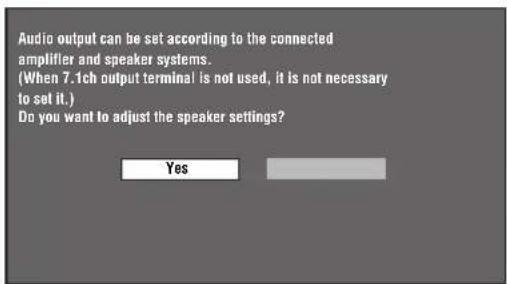
⑤Press △/▽ to select a speaker you want to configure, then press ENTER. L (Front Left), C (Center), R (Front Right), RS (Surround Right), RB (Surround Back Right), LB (Surround Back Left), LS (Surround Left), SW (Subwoofer)
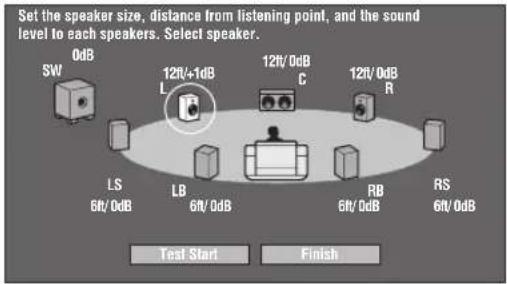
⑥Press △ to select "Size", "Distance", and "Level", then press △ to set the value for the selected item.
Size: You can set the sizes from "Small", "Large*" and "No".
Distance: You can set the distances from "0.3m (1 ft)" - "3.0m (10 ft)*" - "9m (29 ft)".
Level: You can set the volume levels from “-12 dB” - “0 dB*”.
Notes
- When "SW" is set to "No", the speakers cannot be set to "Small".
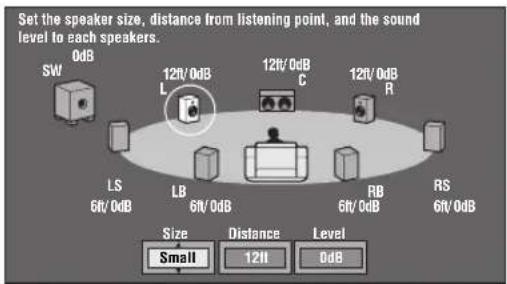
- To set the other items, repeat step 6.
- To set the other speakers, repeat step 5 - 6.
⑦ Press ▽ to select "Test Start", then press ENTER. The test tone is output from each speaker to help you judge the volume levels.
⑧Press to select "Test Tone Stop", then press ENTER.
The test tone stops.
⑨ Press ▷ to select "Finish", then press ENTER.
Quick Start
This turns the Quick Start function on and off.
When the Quick Start function is on:
– The startup time of the Player is reduced.
- However, power consumption will increase.
– The QUICK indicator lights up.
When the Quick Start function is off:
- The player will enter the low power consumption mode when in standby condition.
Yes, No*
Note
- When “Quick Start” is set to “Yes”, the Player requires some time to turn off.
■Auto Power Off
This sets the Player so that power is automatically shut off if playback is stopped for about 10 minutes.
Yes, No*
■HDMI Control
This lets you set the Player to receive the control signal from the remote control of the TV compatible with the HDMI control function via the HDMI cable.
Yes, No*
Notes
- For details, refer to “Controlling the Blu-ray disc player using the HDMI control function” (page 18) and the operation manual of AV receiver and TV.
- If "Component" is selected in "Video Out Select", HDMI Control function is not available. Select "HDMI" if you want to use HDMI Control features.
■Playback Setting
Parental Control
In some digital broadcasts and BD/DVD video discs, a control level for disc viewing is set depending on the age of the viewer. This lets you set the Parental Control depending on the disc content. The available Parental Control Levels are shown below.
The 4-digit password number needs to be entered before the Parental Control Levels and the Country Code are set. The Parental Control Levels and the Country Code cannot be set if a password has not been created or the password is not entered.
For DVD-VIDEO
8 and Off*: All DVD-video can be played.
1-7: Prohibits play of DVD-video with corresponding ratings recorded on them.
For BD-ROM
No Limit*: All BD-video can be played.
0-99 year(s): Prohibits play of BD-video with corresponding ratings recorded on them.
Country code
Sets the country code. Refer to the Country Code List (page 38) because the ratings differ according to the country.
Note
- Refer to "Example of the Setup Menu operation" on page 30 for details.
Disc Language
This lets you select the language for subtitles, audio and menus displayed on the screen.
Subtitle
Refer to the Language List. (page 38)
Audio
Refer to the Language List. (page 38)
Menu
Refer to the Language List and Language Code List. (page 38)
Angle Mark Display
This lets you turn the Angle Mark Display on or off when BD/DVD video recorded with multiple angles is played back. (The Angle Mark is displayed in the lower right screen.)
Yes, No*
Password Setting
This sets the password for setting or changing the Parental Control Level.
Yes: Enter the 4-digit number.
No: Cancels the password setting.
Notes
- When you forget the password, you can reset the current password using "System Reset" under "Settings". (page 34)
- You can also set the new password if desired.
BD Internet Access
This allows you to set access restriction to BD-LIVE contents.
Permit: Allow all BD-LIVE discs.
Limit*: Allow only discs with owner certification.
Prohibit: Prohibit all BD-LIVE discs.
Notes
- The available functions differ depending on the disc.
- Regarding playback method of BD-LIVE contents, etc., perform the operations in accordance with the instructions in the BD disc manual.
– To enjoy BD-LIVE functions, perform the broadband internet connection (page 14) and communication settings (pages 34–36).
Settings
■Version
When you select "Version", the system software version is displayed.
■System Reset
You can reset all settings to the factory presets.
Reset, Not Reset
■Communication Setup
This allows you to perform and/or change the communication setting. This setting is required to use BD-LIVE functions that connect to the internet.
Notes
- Make sure that the LAN cable is connected to this Player. (See page 14.)
- For manually performing the setting, the following information of the connected router or modem is required. Confirm the information prior to the setting.
- IP address, netmask, gateway, DNS IP address
- Besides, if specifying a proxy server, the following information specified from your internet service provider is also required. Confirm the information prior to the setting.
- IP address and port number of the proxy server
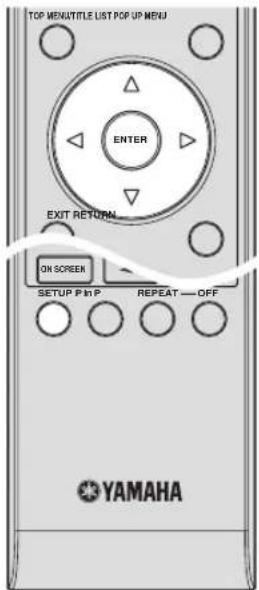
① Press SETUP to display the Setup Menu screen.
②Press △/▽ to select "Settings", then press ENTER.
③Press △ to select "Communication Setup", then press ENTER.
④Select "Ethernet Setup (BD-LIVE)", then press ENTER.
⑤ Press ◀/▷ to select “Change”, then press ENTER.
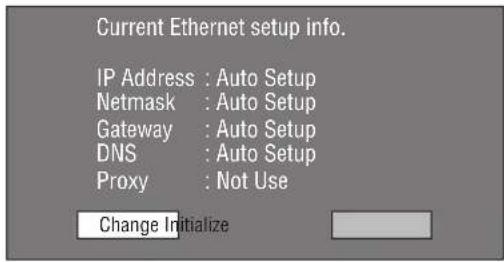
- For initializing the current setting, select "Initialize", then press ENTER.
⑥For setting the IP address, press ↗ to select "Yes" or "No", then press ENTER.
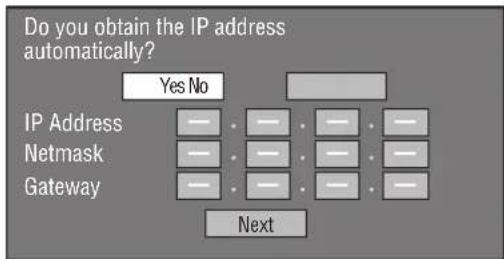
flowchart
graph TD
    A["Do you obtain the IP address automatically?"] --> B{Yes No}
    B --> C["IP Address"]
    C --> D["Netmask"]
    D --> E["Gateway"]
    E --> F["Next"]
- If selecting "Yes": The IP address is automatically obtained.
- If selecting "No": The IP address, netmask and gateway are manually entered using the screen for inputting characters. (See page 36.)
Regarding each of the setup values, confirm the specifications of your broadband router.
⑦ Select "Next", then press ENTER.
⑧For setting the DNS IP address, enter the primary and secondary IP addresses using the screen for inputting characters. (See page 36.)
Regarding each of the setup values, confirm the specifications of your broadband router.
⑨ Select "Next", then press ENTER.
⑩For setting the proxy server, press / to select "Yes" or "No", then press ENTER.
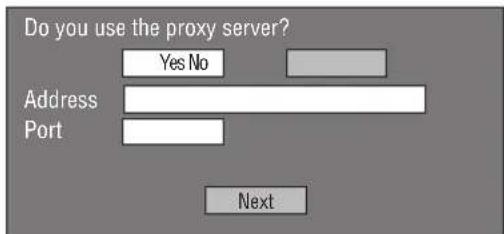
- If selecting "Yes": The IP address or proxy server name and port number for the proxy server specified from your internet service provider are entered using the screen for inputting characters. (See page 36.)
- If selecting "No": Go to the next step.
⑪ Select "Next", then press ENTER.
⑫For the advanced setting (the setting of the Ethernet connection speeds), press 🔑 to select "Yes" or "No", then press ENTER.
- Normally select "No", then press ENTER.
- The Ethernet connection speeds can be set when you select "Yes", then press ENTER.
- As automatic detection is made (factory preset mode), this setting is not normally necessary. If a situation occurs in which the Ethernet connection fails, etc., change the setting and confirm if the Ethernet connection successfully works. When the connection speed is set, select "Next", then press ENTER.
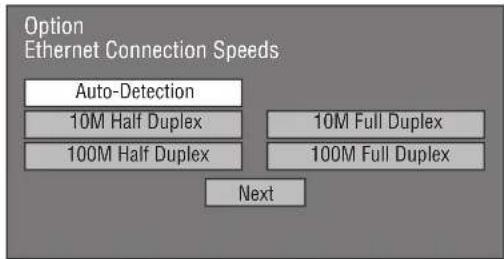
⑬For testing the connection to the internet, after confirming the settings, press △ to select "Test", then press ENTER.
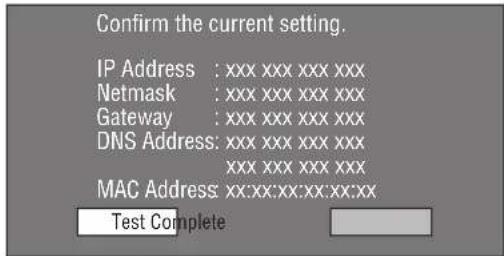
- As a result of the test, if the internet connection fails, enter the setup values manually.
⑭Press / to select "Complete", then press ENTER.
The operation procedure for inputting characters manually
Note
- Numeric characters such as IP address can be entered on the input screen either by selecting each of the characters in the "Numeric" mode or using the Number buttons on the remote control.
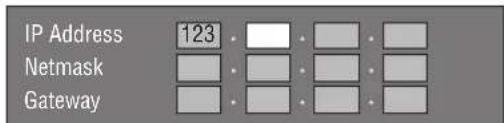
① Press ENTER at the boxes in which characters are to be entered, and the input screen will appear.
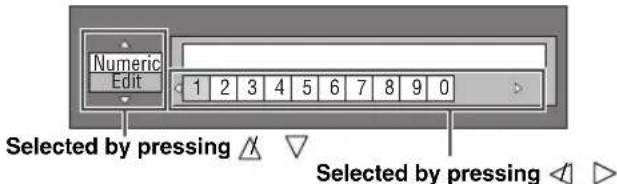
②Press △ to select the desired input mode. - When inputting the address of the proxy server; "1ABC" (Alphabet/numeric character) / "Sign" / "Edit"
- When inputting other values (IP address, etc.); "Numeric" / "Edit"
③Press △ to select a number/character, then press ENTER.
④Repeat step 3 to display all of the desired characters/numbers in the input field.
Example: The screen for inputting numeric characters
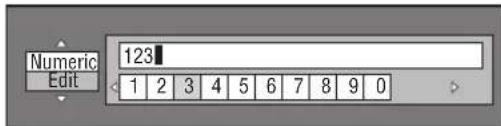
Note
- Press RETURN (Del.Char.) to delete a number/character you have input. To change a number/character you have input, press B (Left) or C (Right) to select the number/character you want to change, and press RETURN (Del.Char.). Then, press 🔊 to select a new number/character you want to input, and press ENTER.
⑤ Press D (Complete) to fix the numbers which have been input.
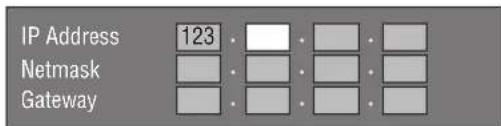
⑥ Repeat step 1 to 5 to finish inputting all the required characters.
Input character list
| 1ABC (Alphabet/numeric character) | Num. ABC DEF GHI JKL | ||||
| MON | PQRS | TUV | WXYZ | Spc. | |
| Num. | 1234567890 | ||||
| ABC | A B C a b c | ||||
| DEF | DE F d e f | ||||
| GHI | G H I g h i | ||||
| JKL | J K L j k l | ||||
| M N O | M N O m n o | ||||
| P Q R S | P Q R S p q r s | ||||
| T U V | T U V t u v | ||||
| WXYZ | W X Y Z w x y z | ||||
| Spc. | (space) | ||||
| Numeric | 1234567890 | ||||
| Sign | @ . , : | ; _ - \ | % ! ? | & # + * | = / | ~ |
| “ ‘ ^ ” | ( ) < > | [ ] | Spc. | ||
| @ . , : | @ . , : | ||||
| ; _ - \ | ; _ - \ | ||||
| % ! ? | $ % ! ? | ||||
| & # + * | & # + * | ||||
| = / | ~ | = / | ~ | ||||
| “ ‘ ^ ” | “ ‘ ^ ” | ||||
| ( ) < > | ( ) < > | ||||
| [ ] { } | [ ] { } | ||||
| Spc. | (space) | ||||
| Edit | Cancel | Left | Right | ||
| Complete | Del.Char | ||||
| * The same operation as the colored buttons and RETURN can be performed by selecting each of the items and pressing ENTER.“Del.Char.” stands for deleting characters. | |||||
Before using the USB memory device
CAUTION:
- Do not remove the USB memory device or unplug the power cable while the operations for “USB Memory Management” or “Software Update” are being performed.
- Do not use a USB extension cable when connecting a USB memory device to the USB BD STORAGE/SERVICE terminal of the Player. Using a USB extension cable may prevent the Player from performing correctly.
Note
– Yamaha cannot guarantee that all brands' USB memory devices will operate with this Player.
■USB Memory Management
The following instructions explain how to delete data such as the Virtual Package data and the BD-LIVE data in a USB memory device.
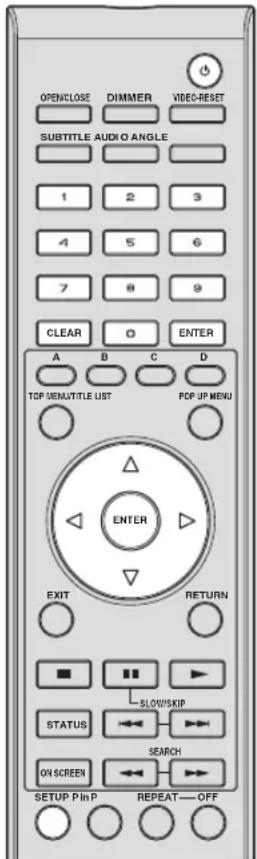
①Insert the USB memory device into the USB BD STORAGE/SERVICE terminal on rear of this Player.
② Press SETUP to display the Setup Menu screen.
③Press △ / ∇ to select "Settings", then press ENTER.
④Press △ to select “USB Memory Management”, then press ENTER.
- “No USB Memory” appears when no USB memory is inserted.
⑤Press △, select “Erase” or “Format”, then press ENTER.
Erase: Deletes only BD-VIDEO data written on the USB memory device such as BD-LIVE data.
Format: Be aware that all data including BD-VIDEO data and software update data will be deleted. If you want to delete only the unneeded software update data after the software is updated, delete the data on the USB memory device using a PC.
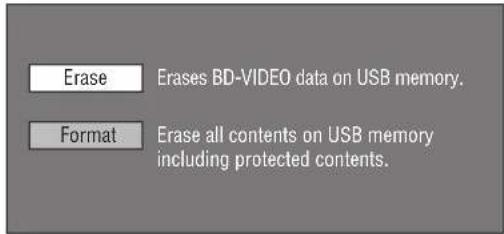
Note
- Data which has been saved to the Player's internal memory (game score, etc.) will also be deleted.
⑥ Press ◀/▷, select "Yes", and press ENTER.

⑦Start the process.
- The screen for the current operation will display.

⑧Press ENTER.
■Software Update
This function allows software updates by inserting a USB memory device with the update file into the USB BD STORAGE/SERVICE terminal on this Player. Refer to page 17 for details.
Country Code List
USA / CANADA / JAPAN / GERMANY / FRANCE / UK / ITALY / SPAIN / SWISS / SWEDEN / HOLLAND / NORWAY / DENMARK / FINLAND / BELGIUM / HONG KONG / SINGAPORE / THAILAND / MALAYSIA / INDONESIA / TAIWAN / PHILIPPINE / AUSTRALIA / RUSSIA / CHINA
Language List
English / Français / Deutsch / Italiano / Español / Japanese / Svenska / Nederlands
Language Code List
AA Afar / AB Abkhazian / AF Afrikaans / AM Ameharic / AR Arabic / AS Assamese / AY Aymara / AZ Azerbaijani / BA Bashkir / BE Byelorussian / BG Bulgarian / BH Bihari / BI Bislama / BN Bengali, Bangla / BO Tibetan / BR Breton / CA Catalan / CO Corsican / CS Czech / CY Welsh / DA Danish / DE German / DZ Bhutani / EL Greek / EN English / EO Esperanto / ES Spanish / ET Estonian / EU Basque / FA Persian / FI Finnish / FJ Fiji / FO Faroese / FR French / FY Frisian / GA Irish / GD Scots Gaelic / GL Galician / GN Guarani / GU Gujarati / HA Hausa / HI Hindi / HR Croatian / HU Hungarian / HY Armenian / IA Interlingua / IE Interlingue / IK Inupiak / IN Indonesian / IS Icelandic/ IT Italian / IW Hebrew / JA Japanese / JI Yiddish / JW Javanese / KA Georgian / KK Kazakh / KL Greenlandic / KM Cambodian / KN Kannada / KO Korean / KS Kashmiri / KU Kurdish / KY Kirghiz / LA Latin / LN Lingala / LO Laothian / LT Lithuanian / LV Latvian, Lettish / MG Malagasy / MI Maori / MK Macedonian / ML Malayalam / MN Mongolian / MO Moldavian / MR Marathi / MS Malay / MT Maltese / MY Burmese / NA Nauru / NE Nepali / NL Dutch / NO Norwegian / OC Occitan / OM Afan (Oromo) / OR Oriya / PA Panjabi / PL Polish / PS Pashto, Pushto / PT Portuguese/ QU Quechua / RM Rhaeto-Romance / RN Kirundi / RO Romanian / RU Russian / RW Kinyarwanda / SA Sanskrit / SD Sindhi / SG Sangho / SH Serbo-Croatian / SI Singhalese / SK Slovak / SL Slovenian / SM Samoan / SN Shona / SO Somali / SQ Albanian / SR Serbian / SS Siswat / ST Sesotho / SU Sundanese / SV Swedish / SW Swahili / TA Tamil / TE Telugu / TG Tajik / TH Thai / TI Tigrinya / TK Turkmen / TL Tagalog / TN Setswana / TO Tonga / TR Turkish / TS Tsonga / TT Tatar / TW Twi / UK Ukrainian / UR Urdu / UZ Uzbek / VI Vietnamese / VO Volapuk / WO Wolof / XH Xhosa / YO Yoruba / ZH Chinese / ZU Zulu
About the audio output formats
| Settings on this Player Audio Output Format from Each Audio Terminals | ||||||
| Audio Out Secondary Audio | Output format (Audio Out) | HDMI Out | Optical/Coaxial Out | 8ch discrete out | 2ch mixed out | |
| HDMI Output On Bitstream | Cannot select this mode | |||||
| PCM | Max 7.1ch PCM (48KHz) * ^1 | 2ch PCM (48KHz) 2ch | 2ch | |||
| Off Bitstream | Max 7.1ch Bitstream (Max 192Kz) | 2ch PCM (48KHz) 2ch | 2ch | |||
| PCM | Max 7.1ch PCM (Max 192KHz) * ^2 | 2ch PCM (48KHz) 2ch | 2ch | |||
| Digital Output On Bitstream | 2ch PCM (48KHz) Max | 5.1ch Bitstream (48KHz) | 2ch 2ch | |||
| PCM | 2ch PCM (48KHz) 2ch | PCM (48KHz) 2ch 2ch | ||||
| Off Bitstream | 2ch PCM (48KHz) Max | 5.1ch Bitstream (48KHz) * ^3 | 2ch 2ch | |||
| PCM | 2ch PCM (48KHz) 2ch | PCM (48KHz) * ^3 | 2ch 2ch | |||
| 7.1ch Audio Output On — | 2ch PCM (48KHz) 2ch | PCM (48KHz) Max 7.1ch | *1 | 2ch | ||
| Off — | 2ch PCM (48KHz) 2ch | PCM (48KHz) Max 7.1ch | 2ch | |||
| 2ch Audio Output On — | 2ch PCM (48KHz) 2ch | PCM (48KHz) 2ch 2ch | ||||
| Off — | 2ch PCM (48KHz) 2ch | PCM (48KHz) 2ch 2ch | ||||
*1 Max 5.1ch PCM in case of playing DTS audio stream (including DTS-HD).
*2 DTS-HD Master Audio with Multi channel 192kHz is output in "Multi channel 96kHz" format.
*3 96kHz signal is output when the playing content is recorded in 96kHz, and is not copy protected.
*4 MPEG Audio is output in 2ch PCM format.
Troubleshooting
Refer to the table below when this unit does not function properly. If the problem you are experiencing is not listed below or if the instruction below does not help, turn off this unit, disconnect the power cable, and contact the nearest authorized Yamaha dealer or service center.
Power
| Problem Possible causes and solutions | |
| The Player power cannot be turned on. | – Is the power cable firmly plugged into the AC outlet? (Page 15)– When the power cable is plugged into an AC outlet, press and hold ⏻ on the Player until “RESET” appears on the front panel display. Then, turn on the power. (Page 16) |
| The Player power is turned off. | – Is “Auto Power Off” set to “Yes”? When “Auto Power Off” is set to “Yes”, the power will be automatically turned off after 10 continuous minutes of inactivity (no playback). (Page 33) |
■Basic Operation
| Problem Possible causes and solutions | |
| The remote control does not work. | - Use the remote control within its operating range. (Page 16)- Replace the batteries. (Page 16)- Check the ID settings for the main unit and the remote control. (Page 7.) |
| Cannot operate the Player. | - Are you operating the Player within the specified operating temperature range?(Page 43) |
■Disc Playback
| Problem Possible causes and solutions | |
| The Player cannot play a disc. | - Take out the disc and clean it. (Page 4)- Make sure that the disc is loaded properly (aligned in disc tray and label-side up). (Page 4)- Make sure that region code on the disc matches that of this Player. (Page 2)- Allow any condensation in or near the Player to dry. (Page 4)- Check that the disc is recorded in the compatible TV system (PAL or NTSC).- The Player cannot play back video which was not recorded normally. (Page 3)- Proper playback may be impossible due to the state of the disc recording, a scratched, warped or dirty disc, the state of the pick-up, or compatibility issues between this Player and the disc being used. (Pages 3, 4)- When the recorded time of a disc is unusually short, playback may not be possible.- BD-RE/R discs recorded in a format other than BDMV cannot be played back. (Page 2) |
| The disc is automatically ejected after closing the disc tray. | - Make sure that the disc is loaded properly (aligned in disc tray and label-side up). (Page 20)- Take out the disc and clean it. (Page 4)- Make sure that region code on the disc matches that of this Player. (Page 2)- Make sure that the disc is playable. (Page 2) |
| Video stops. | - Has the Player been subjected to shock or impact? Are you using it in an unstable location? The Player will stop if it senses shock or vibration. |
| The Player makes a snapping sound when starting playback or loading a disc. | - The player may sometimes make a snapping sound when starting playback if it has not been operated in a while. These sounds are not malfunctions of the Player but are normal operating conditions. |
■Picture
| Problem Possible causes and solutions | |
| No picture. | – Make sure that the cables are connected correctly. (Page 8)– Make sure that the connected TV or the AV receiver is set to the correct input. (Page 8)– Take out the disc and clean it. (Page 4)– Make sure that region code on the disc matches that of this Player. (Page 2)– There is no picture from the HDMI output.– Are the settings performed correctly? Please check the settings. (Page 30)– There is no picture from the component video output.– Are the settings performed correctly? Please check the settings. (Page 30) |
Troubleshooting
| Screen freezes and operation buttons do not work. | - Press ,■en restart playback.- Turn off the power and turn on the power again.- If the power is not turned off, perform a reset. (Page 41)- Is the disc damaged or dirty? Check the condition of the disc. (Page 4) |
| There is just audio with no video. | - Is the connection cable for video output connected properly? (Pages 9–11) |
| Video is not output with the desired resolution. | - Is “Video Out Select” set correctly? (Page 31).- Is “Component Video Out” or “HDMI Video Out” set to the desired resolution? (Pages 30-31). |
| Widescreen video appears vertically stretched, or black bands appear at the top and bottom of the screen. | - Is “TV Aspect Ratio” set to match the connected TV? (Page 30)- If you are using a widescreen TV, is the “TV Aspect Ratio” set to “Wide”? (Page 30)- If you are using a 4:3 TV, is the “Video Out Select” set to “Component”? (Page 31) |
| 4:3 video appears horizontally stretched | |
| Square noise (mosaic) appears on the screen. | - Blocks in images may be visible in scenes with rapid movement due to the characteristics of digital image compression technology. |
| The playback screen will be disturbed if DVD video is recorded to a VCR, or played back through a VCR. | - This Player complies with analog copy protection. Some discs contain a copy prohibiting signal. If you try to play back such discs through a VCR, or record to a VCR and play back the signal, the copy protection will prevent normal playback. (Pages 10–11) |
| Audio is not output, or images are not played back properly. | - The audio may not be output or the images may not be played back properly for some discs in which copyright-protected contents are recorded. |
Sound
| Problem Possible causes and solutions | |
| No sound, or sound is distorted. | - If the volume of the TV or amplifier is set to minimum, turn the volume up.- There is no sound during still mode, slow motion playback, fast forward and fast reverse. (Page 20)- Check that the audio cable is connected correctly. (Page 12)- Check that the cable plugs are clean.- Take out the disc and clean it. (Page 4)- Audio may not be output depending on the audio recording status, such as when audio other than an audio signal or non-standard audio is recorded for the audio content of the disc. (Page 3) |
| Left and right channels of audio are reversed, or sound comes out of only one side. | - Are left and right audio cables connected to the opposite terminal, or is one side disconnected? (Page 13) |
| Audio is not output, or images are not played back properly. | - The audio may not be output or the images may not be played back properly for some discs in which copyright-protected contents are recorded. |
| Cannot hear the desired audio type and/or number of channels. | - Refer to “Audio Out” setting (Page 31) and “About the audio output formats”. (Page 38) |
■Network
| Problem Possible causes and solutions | |
| Cannot connect to the Internet. – Is the Network cable connected properly?– Is the wrong cable such as a modular cable used? Connect a Network cable to the NETWORK terminal. (Page 14)– Is the power for the connected equipment, such as broadband router or modem turned on?– Is the broadband router and/or modem properly connected?– Is the proper value(s) set in the network setting? Check “Communication Setup”. (Pages 34–36) | |
| Cannot download BD-LIVE contents. – Is the LAN cable connected properly?– Is the USB memory device properly connected? Check that the USB memory device is connected to the USB BD STORAGE/SERVICE terminal of this Player.– Check if the BD disc supports BD-LIVE.– Check the setting for “BD Internet Access”. (Page 33) |
■Other
| Problem Possible causes and solutions | |
| The TV operates incorrectly. | - Some TVs with wireless remote control capability may operate incorrectly when using the remote control of this Player. Use such TVs away from this Player. |
| The Player heats up during use. | - When using this Player, the console cabinet may heat up depending on the usage environment. This is not a malfunction. |
■Messages Relating to BD disc and DVD disc
- The following messages appear on the TV screen in case the disc you tried to playback is not appropriate or the operation is not correct.
| Error message Possible Error | Error Possible Error | |
| Cannot play. | - The disc cannot be played back with this Player. | - Check the disc, and load it correctly. |
| Incompatible disc. - If you load a disc which cannot be played with this Player (i.e. a scratched disc), or if you load a disc upside down, this message will appear, and the disc tray will automatically pop out. | ||
| - Occurs if the loaded disc cannot be played because it is a non-standard disc or scratched, etc. | - Remove the disc. | |
| Cannot operate. | - Occurs if an operation is incorrect. | |
| This USB memory is not formatted properly. Please format the memory in USB memory management. | - Occurs if there is a formatting error. | - Format the USB memory again. |
| - Occurs if the USB memory is not formatted with FAT 32/16. | - Format the USB memory with your PC. | |
| The Connected USB Memory cannot be used. It should be compliant with USB 2.0 | - Occurs if USB memory not compliant with USB 2.0 High Speed (480Mbit/s) is used (i.e. USB 1.0/USB 1.1). | - Connect USB 2.0 High Speed (480Mbit/s) compliant USB memory. |
To Reset this Player
If this Player receives strong interference from a source such as excessive static electricity, strong external noise, malfunction of power supply, or voltage caused by lightning during use or a wrong operation is sent to the Player, errors like the Player not accepting an operation may occur.
① Press and hold ⏻ on the Player until “RESET” appears on the front panel display when the Player does not operate properly even after the power has been turned off.
②Turn on the power.
Notes
- When a reset is performed while the power is on, the Player will turn off. Turn the power on again. At this point, it may take a few moments for the system processing to finish before the Player is ready for use.
- When the problem persists even after performing a reset, unplug the power cable and plug it in again. If this does not solve the problem, contact the nearest service center approved by Yamaha.
Keylock function
You can set the keylock to prevent accidental operations. Press and hold ■ and ▶▶/▶▶ on the front panel for more than 4 seconds while no disc is inserted in this Player and the disc tray is closed.
– Each time you perform this operation, the function is activated or deactivated.
- If you try to operate the Player while the keylock function is set, "Lock" blinks on the front panel display to indicate that the keylock function is set.
Glossary
AVCHD
AVCHD is a new format (standard) for high definition video cameras that can be used to record and play high-resolution HD images.
BD-J application
The BD-ROM format supports Java for interactive functions. “BD-J” offers content providers almost unlimited functionality when creating interactive BD-ROM titles.
BDMV (Page 2)
BDMV (Blu-ray Disc Movie, BD-MV) refers to one of the application formats used for BD-ROM which is one of the Blu-ray Disc specifications. BDMV is a recording format equivalent to DVD-video of the DVD specification.
Dolby Digital
A sound system developed by Dolby Laboratories Inc. that gives movie theater ambience to audio output when the product is connected to a Dolby Digital processor or amplifier.
Dolby Digital Plus
A sound system developed as an extension to Dolby Digital. This audio coding technology supports 7.1 multi-channel surround sound.
Dolby TrueHD
Dolby TrueHD is a lossless coding technology that supports up to 8 channels of multi-channel surround sound for the next generation optical discs. The reproduced sound is true to the original source bit-for-bit.
DTS
This is a digital sound system developed by DTS, Inc. for use in cinemas.
DTS-HD High Resolution Audio
DTS-HD High Resolution Audio is a new technology developed for the next generation high definition optical disc format.
DTS-HD Master Audio
DTS-HD Master Audio is a lossless audio compression technology developed for the next generation high definition optical disc format.
DTS-HD Master Audio | Essential
DTS-HD Master Audio | Essential is a lossless audio compression technology developed for the next generation high definition optical disc format.
DVD upscaling (page 20)
Upscaling (upconverting) refers to a function of various players and devices that enlarge the image size to fit the size of the screen of video equipments such as a TV.
HDMI (page 9)
HDMI (High-Definition Multimedia Interface) is an interface that supports both video and audio on a single digital connection. The HDMI connection carries standard to high definition video signals and multi-channel audio signals to AV components such as HDMI equipped TVs, in digital form without degradation.
Interlace format
Interlace format shows every other line of an image as a single “field” and is the standard method for displaying images on television. The even numbered field shows the even numbered lines of an image, and the odd numbered field shows the odd numbered lines of an image.
Letter Box (LB 4:3) (page 30)
A screen size with black bars on the top and bottom of the image to allow viewing of wide-screen (16:9) material on a connected 4:3 TV.
Linear PCM Sound
Linear PCM is a signal recording format used for Audio CDs and on some DVD and Blu-ray discs. The sound on Audio CDs is recorded at 44.1 kHz with 16 bits. (Sound is recorded between 48 kHz with 16 bits and 96 kHz with 24 bits on DVD video discs and between 48 kHz with 16 bits and 192 kHz with 24 bits on BD video discs.)
MPEG-2
MPEG-2 (Moving Picture Experts Group phase 2) is one of the video data compression schemes, which is adopted for DVD videos and digital broadcasts worldwide. Some Blu-ray Discs also use high bitrate MPEG-2.
Pan Scan (PS 4:3) (page 30)
A screen size that cuts off the sides of the image to allow viewing of wide-screen (16:9) material on a connected 4:3 TV.
Progressive format
Compared to the Interlace format that alternately shows every other line of an image (field) to create one frame, the Progressive format shows the entire image at once as a single frame. This means that while the Interlace format can show 30 frames/60 fields in one second, the Progressive format can show 60 frames in one second. The overall picture quality increases and still images, text, and horizontal lines appear sharper.
Subtitles (page 26)
These are the lines of text appearing at the bottom of the screen which translate or transcribe the dialog. They are recorded on many DVD and BD video discs.
Top menu (page 22)
In a BD/DVD video, this is the menu for selecting things like the chapter to be played back and the subtitle language. In some DVD videos, the top menu may be called the “Title Menu”.
x.v.Color
x.v.Color reproduces a greater range of color than before, showing almost all of the colors that the human eye can detect. (Applicable for JPEG files only with this system)
Specifications
General
Power Supply
[U.S.A. model] AC 120 V, 60 Hz
[South America model]....AC 110–120 V, 50/60 Hz
[Australia model] AC 240 V, 50 Hz
[Europe and Russia models]......AC 230 V, 50 Hz
[Asia model]......AC 220–240 V, 50/60 Hz
Power consumption (Normal) 25 W
Power consumption (Standby) 1 W
Dimensions (W x H x D) 435 x 96 x 315.5 mm
(17-1/8 x 3-3/4 x 12-1/2 in)
Weight 4.6 kg. (10.1 lbs)
■Audio Performance
Audio output level (1 kHz, 0 dB, BD/DVD/CD-DA) ....2 ± 0.3 V
Signal to nose ratio (BD/DVD/CD-DA) 115 dB or more
Dynamic range
BD/DVD 105 dB or more
CD-DA 100 dB or more
Harmonic distortion (1 kHz)
BD/DVD 0.0028 % or less
CD-DA 0.003 % or less
Frequency response
BD/DVD 2 Hz to 22 kHz (48 kHz Sampling)
2 Hz to 44 kHz (96 kHz Sampling)
CD-DA 2 Hz to 20 kHz
■Input/Output
HDMI output
[U.S.A. and South America models]..... Type A Connector x 1
480p/720p/1080i/1080p/1080p@24Hz,
Deep Color, x.v. Color support
[Australia, Europe and Russia models].... Type A Connector x 1
480p/576p/720p/1080i/1080p/1080p@24Hz,
Deep Color, x.v. Color support
Component video output Y: 1 Vp-p (75 ohms)
P_B,Pr:0.7Vp - p(75ohms)
S video output
[U.S.A. and South America models].....Y: 1 Vp-p (75 ohms)
C: 0.286 Vp-p (75 ohms)(NTSC)
[Australia, Europe and Russia models].....Y: 1 Vp-p (75 ohms)
C: 0.3 Vp-p (75 ohms)(PAL)
Video output....1 Vp-p (75 ohms)
Digital output....Optical x 1, Coaxial x 1
Analog audio output.... 7.1ch x 1, Mixed 2ch x 1
USB ....Used for:
1) Playback BD-LIVE/BonusView contents
2) Firmware Update
Other output equipments .... Remote IN/OUT x 1,
RS-232C x 1 (for custom installer),
Ethernet x 1 (for BD-LIVE)
Specifications are subject to change without notice.
Information on the Software License for This Product
Software composition
The software included in this product is comprised of various software components whose individual copyrights are held by Yamaha or by third parties.
Software developed by Yamaha and open source software
The copyrights for the software components and various relevant documents included with this product that were developed or written by Yamaha are owned by Yamaha and are protected by the Copyright Act, international treaties, and other relevant laws. This product also makes use of freely distributed software and software components whose copyrights are held by third parties. These include software components covered by a GNU General Public License (hereafter GPL), a GNU Lesser General Public License (hereafter LGPL) or other license agreement.
Note on source code distribution
This product includes software code subject to the GNU General Public License (GPL) or the GNU Lesser General Public License (LGPL). The copy, distribution, or change of this software code is licensed under the terms of the GPL or the LGPL. The source code is available at the following website: http://www.global.yamaha.com/download/
The source code is also available on a physical media (such as a CD-ROM) at actual cost.
Contact: AV products division, YAMÁHA CORPORATION.
10-1 Nakazawa-cho, Naka-ku, Hamamatsu 430-8650,
Japan
In principle, the source code is offered for 3 years from the day of purchase.
Acknowledgements
The following open source software components are included in this product:
- linux kernel • glibc • OpenSSL • modutils • DirectFB • zlib
Software License Notice
Software License Notice Requirements
The software components incorporated into this product include components whose copyright holders require license notices. The license notices for these software components are shown below.
OpenSSL License
This product includes software developed by the OpenSSL Project for use in the OpenSSL Toolkit.
(http://www.openssl.org)
Original SSLeay License
This product includes cryptographic software written by Eric Young (eay@cryptsoft.com).
BSD License
This product includes software developed by the University of California, Berkeley and its contributors.
ATTENTION: VEUILLEZ LIRE CE QUI SUIT AVANT D'UTILISER L'APPAREIL.
Raccordements audio.... 12
Performances audio.... 43
Piles (x2)
(AAA, R03, UM-4)
Câble audio RCA/Cinch
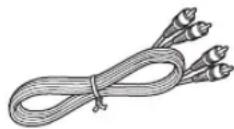
⑩ DIGITAL OUT (OPTICAL) (p. 12)
⑪NETWORK (p. 14)
⑫USB BD STORAGE/SERVICE (p. 14)
⑬HDMI (p. 9)
⑩EXIT (p. 28, 29, 30)
⑪ (pause) (p. 20)
⑫ (arrêt) (p. 20)
⑬STATUS (p. 21, 27)
⑭ ON SCREEN (p. 26)
⑮SETUP (p. 17, 28, 29)
⑯P in P (p. 25)
⑰ (alimentation) (p. 16)
⑱VIDEO-RESET (p. 30, 31)
⑲ANGLE (p. 26)
⑳AUDIO (p. 26)
② ENTER (p. 30, 37)
②POP UP MENU (p. 22)
⑳RETURN (p. 21, 24, 26, 28, 29)
⑳ (lecture) (p. 20)
⑳ / (SLOW/SKIP) (p. 20)
⑳ / (SEARCH) (p. 20)
⑳OFF (p. 21)
⑳REPEAT (p. 21, 26)
natural_image
Front view of a CD-ROM drive with buttons and indicator lights (no text or symbols visible)natural_image
Front view of a computer monitor with buttons and indicator lights (no visible text or symbols)natural_image
Illustration of a hand inserting a CD into a device (no text or symbols visible)natural_image
Illustration of a whale head with no text or symbols on the graphic itselfnatural_image
Illustration of a whale tail with two inset images showing two people (no text or symbols)1080i, 720p, 480p/576p, 480i/576i*
Note
480p/720p/1080i/1080p/1080p@24Hz,
Compatible Deep Color, x.v. Color
480p/576p/720p/1080i/1080p/1080p@24Hz,
Compatible Deep Color, x.v. Color
⑤ DIGITAL OUT (COAXIAL) (S. 12)
⑥REMOTE CONTROL (IN/OUT) (S. 15)
⑦REMOTE CONTROL (RS- 232C) (S. 15)
⑧VIDEO (S. 11)
⑨S VIDEO (S. 11)
⑩ DIGITAL OUT (OPTICAL) (S. 12)
⑪ NETWORK (S. 14)
⑫USB BD STORAGE/SERVICE (S. 14)
⑬HDMI (S. 9)
■Fernbedienung
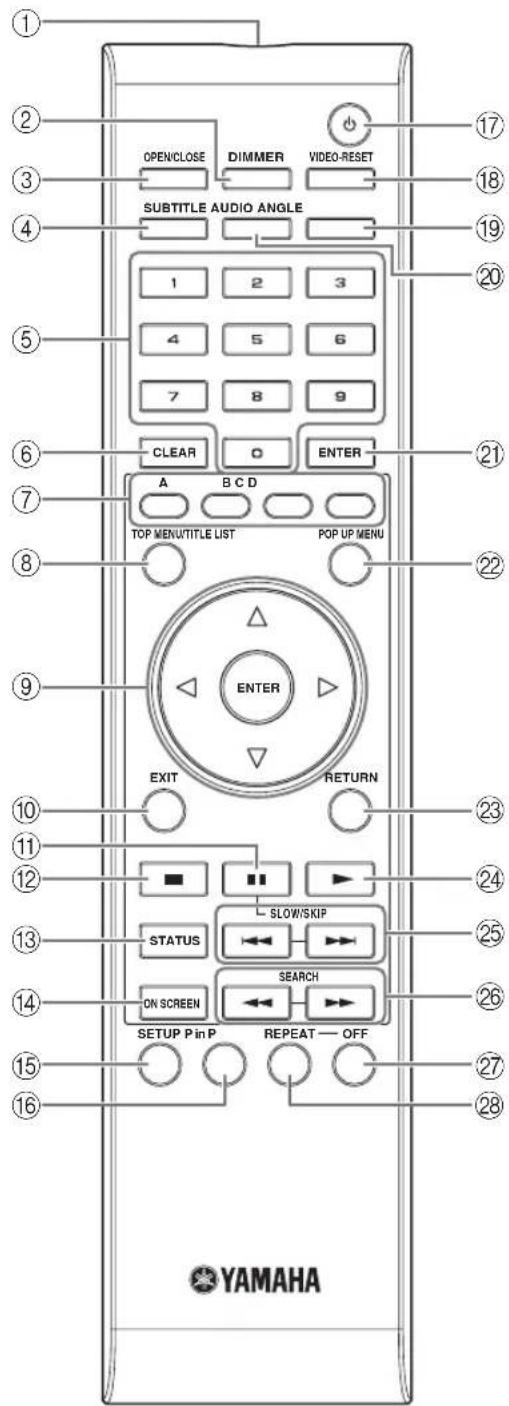
①Infrarotsender (S. 16)
②DIMMER (S. 16)
③OPEN/CLOSE (S. 20)
④SUBTITLE (S. 26)
⑤Zifferntasten (S. 26)
⑥CLEAR (S. 29)
⑦A, B, C, D (S. 23, 24, 28, 35)
⑧TOP MENU/TITLE LIST (S. 22, 23)
⑨ Cursortasten (△ / ▽ / ◁/ ▷), ENTER (S. 17, 30)
⑩EXIT (S. 28, 29, 30)
⑪ (Pause) (S. 20)
⑫ (Stopp) (S. 20)
⑬STATUS (S. 21, 27)
⑭ ON SCREEN (S. 26)
⑮SETUP (S. 17, 28, 29)
⑯P in P (S. 25)
⑰ (Ein/Aus) (S. 16)
⑱VIDEO-RESET (S. 30, 31)
⑲ANGLE (S. 26)
⑳AUDIO (S. 26)
②1 ENTER (S. 30, 37)
②POP UP MENU (S. 22)
⑳RETURN (S. 21, 24, 26, 28, 29)
⑳ (Wiedergabe) (S. 20)
⑳ / (SLOW/SKIP) (S. 20)
②6 / (SEARCH) (S. 20)
⑳OFF (S. 21)
⑳REPEAT (S. 21, 26)
ID-Funktion
natural_image
Front view of a CD-ROM drive with buttons and indicator lights (no text or symbols visible)Einschalten
natural_image
Front view of a computer monitor with buttons and a power button (no visible text or labels)natural_image
Line drawing of a hand inserting a CD into a device (no text or symbols)natural_image
Front view of a YAMAHA electronic device with control buttons and indicator lights (no readable text or symbols beyond branding)natural_image
Illustration of a whale head with no text or symbols on the graphic itselfKontakt: AV products division, YAMAHA CORPORATION,
10-1 Nakazawa-cho, Naka-ku, Hamamatsu 430-8650, Japan
natural_image
Front view of a CD-ROM drive with buttons and indicator lights (no text or symbols visible)Att slå på strömmen
natural_image
Front view of a beige electronic device with indicator lights and ports (no visible text or symbols)natural_image
Line drawing of a hand inserting a CD into a rectangular device (no text or symbols)natural_image
Front view of a YAMAHA electronic device with control buttons and indicator lights (no readable text or symbols beyond branding)natural_image
Illustration of a whale head with no visible text or symbols on the graphic itself1080i, 720p, 480p/576p, 480i/576i*
Anmärkning
480p/720p/1080i/1080p/1080p@24Hz,
480p/576p/720p/1080i/1080p/1080p@24Hz,
Kontakt: AV products division, YAMAHA CORPORATION, 10-1 Nakazawa-cho, Naka-ku, Hamamatsu 430-8650, Japan
U.S. Patent Nos. 6,836,549; 6,381,747; 7,050,698; 6,516,132; e 5,583,936
①AC IN (p. 15)
②AUDIO OUT (8ch discrete) (p. 13)
③AUDIO OUT (MIXED 2CH) (p. 13)
④COMPONENT (p. 10)
⑤ DIGITAL OUT (COAXIAL) (p. 12)
⑥REMOTE CONTROL (IN/OUT) (p. 15)
⑦REMOTE CONTROL (RS- 232C) (p. 15)
⑧VIDEO (p. 11)
⑨S VIDEO (p. 11)
⑩ DIGITAL OUT (OPTICAL) (p. 12)
⑪NETWORK (p. 14)
⑫USB BD STORAGE/SERVICE (p. 14)
⑬HDMI (p. 9)
Telecomando
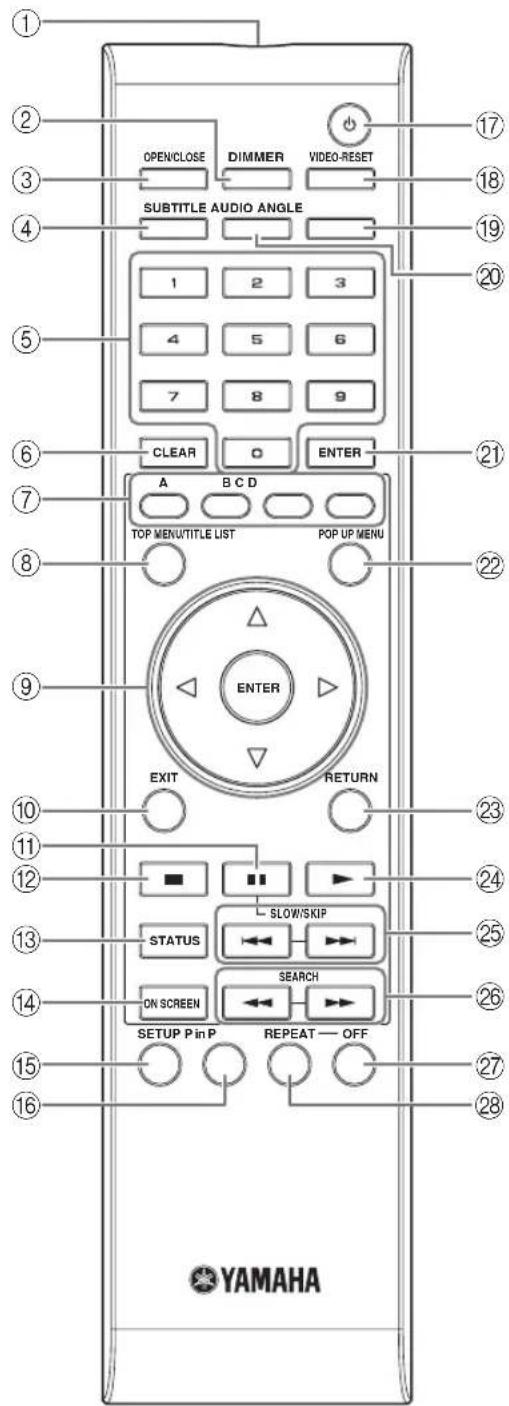
⑦A, B, C, D (p. 23, 24, 28, 35)
⑧TOP MENU/TITLE LIST (p. 22, 23)
⑨ Cursore (△ / ▽ / ◁/ ▷), ENTER (p. 17, 30)
⑩EXIT (p. 28, 29, 30)
⑪ (Pausa) (p. 20)
⑫ (Stop) (p. 20)
⑬STATUS (p. 21, 27)
⑭ ON SCREEN (p. 26)
⑮SETUP (p. 17, 28, 29)
⑯P in P (p. 25)
⑱VIDEO-RESET (p. 30, 31)
⑲ANGLE (p. 26)
⑳AUDIO (p. 26)
② ENTER (p. 30, 37)
②POP UP MENU (p. 22)
⑳RETURN (p. 21, 24, 26, 28, 29)
⑳ (Play) (p. 20)
⑳ / (SLOW/SKIP) (p. 20)
⑳ / (SEARCH) (p. 20)
⑳OFF (p. 21)
⑳REPEAT (p. 21, 26)
Funzione ID
flowchart
Audio and cavo audio system wiring diagram showing connections between TV, radio, and audio modules with labeled components.Suggerimenti
■Accensione
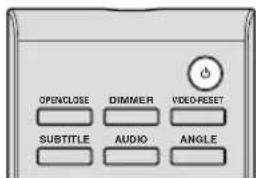
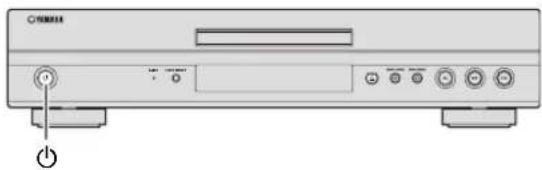
natural_image
Front view of a CD-ROM drive with buttons and indicator lights (no text or symbols visible)Accensione
natural_image
Front view of a beige electronic device with indicator lights and ports (no visible text or symbols)natural_image
Line drawing of a hand inserting a CD into a device (no text or symbols)natural_image
Illustration of a whale head with no text or symbols on the graphic itself1080i, 720p, 480p/576p, 480i/576i*
Nota
Dynamic Range Control
480p/720p/1080i/1080p/1080p@24Hz,
Deep Color, x.v. Color support
[Modelli per Australia, Europa e Russia]...... Type A Connector x 1
480p/576p/720p/1080i/1080p/1080p@24Hz,
Deep Color, x.v. Color support
Uscita componente video ....Y: 1 Vp-p (75 ohms)
P_B,Pr:0,7Vp - p(75ohms)
Uscita S video
[Modelli per U.S.A. e Sud America] ....Y: 1 Vp-p (75 ohms)
C: 0.286 Vp-p (75 ohms)(NTSC)
[Modelli per Australia, Europa e Russia].....Y: 1 Vp-p (75 ohms)
C: 0.3 Vp-p (75 ohms)(PAL)
Uscita video....1 Vp-p (75 ohms)
Contatto: AV Products Division, YAMAHA CORPORATION, 10-1 Nakazawa-cho, Naka-ku, Hamamatsu 430-8650, Giappone
Pilas (x2)
(AAA, R03, UM-4)
natural_image
Front view of a CD-ROM drive with buttons and indicator lights (no text or symbols visible)natural_image
Front view of a computer monitor with buttons and a power button (no visible text or symbols)natural_image
Line drawing of a hand inserting a CD into a device (no text or symbols)DVD-V DVD-R D D-RW AU I O CD
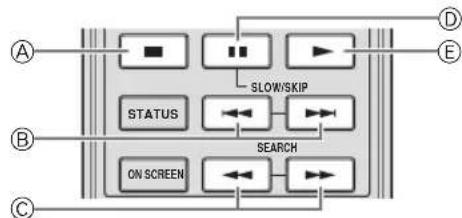
flowchart
graph TD
    A["A"] --> B["■"]
    B --> C["■"]
    C --> D["▶"]
    D --> E["E"]
    E --> F["D"]
    G["B"] --> H["STATUS"]
    H --> I["◀"]
    I --> J["◀"]
    J --> K["▶"]
    K --> L["SEARCH"]
    M["C"] --> N["ON SCREEN"]
    N --> O["◀"]
    O --> P["◀"]
    P --> Q["▶"]
1080i, 720p, 480p/576p, 480i/576i*
Nota
Restablecer, No restablecer
⑧Pulse ENTER.
■Actualiz. Software
DTŠ-HD High Resolution Audio
480p/720p/1080i/1080p/1080p a 24 Hz,
480p/576p/720p/1080i/1080p/1080p a 24Hz,
| Regiobeheerinformatie | ||
| Model | BD-Video DVD | video |
Australië Regiocode “3” of “ALL” | Regionummer “4” of “ALL”[IMAGE] | |
| Rusland | Regiocode “C” of “ALL” | Regionummer “5” of “ALL”[IMAGE] |
| Azië | Regiocode “A” of “ALL” | Regionummer “3” of “ALL”[IMAGE] |
- is can handelsmerk van DVD Format/Logo Licensing Corporation.
natural_image
Front view of a CD-ROM drive with buttons and indicator lights (no text or symbols visible)natural_image
Front view of a computer monitor with buttons and a power button (no visible text or labels)natural_image
Line drawing of a hand inserting a CD into a device (no text or symbols)1080i, 720p, 480p8/576p, 480i/576i*
Opmerking
L (links voor), C (midden), R (rechts voor), RS (rechts surround), RB (rechts surround achter), LB (links surround achter), LS (links surround), SW (subwoofer)
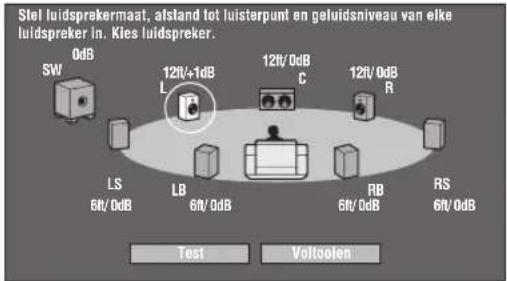
⑧Druk op ENTER.
■Software-Update
480p/720p/1080i/1080p/1080p@24Hz,
Deep Color, x.v. Color ondersteuning
480p/576p/720p/1080i/1080p/1080p@24Hz,
Deep Color, x.v. Color ondersteuning
Component video-uitgang..... Y: 1 Vp-p (75 Ohm)
P_B,Pr:0,7Vp - p(75Ohm)
S-video uitgang
This product uses the following software.
For information (copyright, etc) about each software, read the original sentences stated below.
■About linux and busybox
GNU GENERAL PUBLIC LICENSE
Version 2, June 1991
Copyright (C) 1989, 1991 Free Software Foundation, Inc.
51 Franklin St, Fifth Floor, Boston, MA 02110-1301 USA
Everyone is permitted to copy and distribute verbatim copies of this license document, but changing it is not allowed.
Preamble
The licenses for most software are designed to take away your freedom to share and change it. By contrast, the GNU General Public License is intended to guarantee your freedom to share and change free software--to make sure the software is free for all its users. This General Public License applies to most of the Free Software Foundation's software and to any other program whose authors commit to using it. (Some other Free Software Foundation software is covered by the GNU Library General Public License instead.) You can apply it to your programs, too.
When we speak of free software, we are referring to freedom, not price. Our General Public Licenses are designed to make sure that you have the freedom to distribute copies of free software (and charge for this service if you wish), that you receive source code or can get it if you want it, that you can change the software or use pieces of it in new free programs; and that you know you can do these things.
To protect your rights, we need to make restrictions that forbid anyone to deny you these rights or to ask you to surrender the rights.
These restrictions translate to certain responsibilities for you if you distribute copies of the software, or if you modify it.
For example, if you distribute copies of such a program, whether gratis or for a fee, you must give the recipients all the rights that you have. You must make sure that they, too, receive or can get the source code. And you must show them these terms so they know their rights.
We project your rights with two steps: (1) copyright the software, and (2) offer you this license which gives you legal permission to copy, distribute and/or modify the software. Also, for each author's protection and ours, we want to make certain that everyone understands that there is no warranty for this free software. If the software is modified by someone else and passed on, we want its recipients to know that what they have is not the original, so that any problems introduced by others will not reflect on the original authors' reputations.
Finally, any free program is threatened constantly by software patents. We wish to avoid the danger that redistributors of a free program will individually obtain patent licenses, in effect making the program proprietary. To prevent this, we have made it clear that any patent must be licensed for everyone's free use or not licensed at all. The precise terms and conditions for copying, distribution and modification follow.
GNU GENERAL PUBLIC LICENSE
TERMS AND CONDITIONS FOR COPYING, DISTRIBUTION AND MODIFICATION
-
This License applies to any program or other work which contains a notice placed by the copyright holder saying it may be distributed under the terms of this General Public License. The "Program", below, refers to any such program or work, and a "work based on the Program" means either the Program or any derivative work under copyright law: that is to say, a work containing the Program or a portion of it, either verbatim or with modifications and/or translated into another language. (Hereinafter, translation is included without limitation in the term "modification".) Each licensee is addressed as "you".
Activities other than copying, distribution and modification are not covered by this License; they are outside its scope. The act of running the Program is not restricted, and the output from the Program is covered only if its contents constitute a work based on the Program (independent of having been made by running the Program). Whether that is true depends on what the Program does. -
You may copy and distribute verbatim copies of the Program's source code as you receive it, in any medium, provided that you conspicuously and appropriately publish on each copy an appropriate copyright notice and disclaimer of warranty; keep intact all the notices that refer to this License and to the absence of any warranty; and give any other recipients of the Program a copy of this License along with the Program. You may charge a fee for the physical act of transferring a copy, and you may at your option offer warranty protection in exchange for a fee.
-
You may modify your copy or copies of the Program or any portion of it, thus forming a work based on the Program, and copy and distribute such modifications or work under the terms of Section 1 above, provided that you also meet all of these conditions:
a) You must cause the modified files to carry prominent notices stating that you changed the files and the date of any change.
b) You must cause any work that you distribute or publish, that in whole or in part contains or is derived from the Program or any part thereof, to be licensed as a whole at no charge to all third parties under the terms of this License.
c) If the modified program normally reads commands interactively when run, you must cause it, when started running for such interactive use in the most ordinary way, to print or display an announcement including an appropriate copyright notice and a notice that there is no warranty (or else, saying that you provide a warranty) and that users may redistribute the program under these conditions, and telling the user how to view a copy of this License. (Exception: if the Program itself is interactive but does not normally print such an announcement, your work based on the Program is not required to print an announcement.)
These requirements apply to the modified work as a whole. If identifiable sections of that work are not derived from the Program, and can be reasonably considered independent and separate works in themselves, then this License, and its terms, do not apply to those sections when you distribute them as separate works. But when you distribute the same sections as part of a whole which is a work based on the Program, the distribution of the whole must be on the terms of this License, whose permissions for other licensees extend to the entire whole, and thus to each and every part regardless of who wrote it.
Thus, it is not the intent of this section to claim rights or contest your rights to work written entirely by you; rather, the intent is to exercise the right to control the distribution of derivative or collective works based on the Program.
In addition, mere aggregation of another work not based on the Program with the Program (or with a work based on the Program) on a volume of a storage or distribution medium does not bring the other work under the scope of this License.
- You may copy and distribute the Program (or a work based on it, under Section 2) in object code or executable form under the terms of Sections 1 and 2 above provided that you also do one of the following:
a) Accompany it with the complete corresponding machine-readable source code, which must be distributed under the terms of Sections 1 and 2 above on a medium customarily used for software interchange; or,
b) Accompany it with a written offer, valid for at least three years, to give any third party, for a charge no more than your cost of physically performing source distribution, a complete machine-readable copy of the corresponding source code, to be distributed under the terms of Sections 1 and 2 above on a medium customarily used for software interchange; or,
c) Accompany it with the information you received as to the offer to distribute corresponding source code. (This alternative is allowed only for noncommercial distribution and only if you received the program in object code or executable form with such an offer, in accord with Subsection b above.)
The source code for a work means the preferred form of the work for making modifications to it. For an executable work, complete source code means all the source code for all modules it contains, plus any associated interface definition files, plus the scripts used to control compilation and installation of the executable. However, as a special exception, the source code distributed need not include anything that is normally distributed (in either source or binary form) with the major components (compiler, kernel, and so on) of the operating system on which the executable runs, unless that component itself accompanies the executable.
If distribution of executable or object code is made by offering access to copy from a designated place, then offering equivalent access to copy the source code from the same place counts as distribution of the source code, even though third parties are not compelled to copy the source along with the object code.
-
You may not copy, modify, sublicense, or distribute the Program except as expressly provided under this License. Any attempt otherwise to copy, modify, sublicense or distribute the Program is void, and will automatically terminate your rights under this License. However, parties who have received copies, or rights, from you under this License will not have their licenses terminated so long as such parties remain in full compliance.
-
You are not required to accept this License, since you have not signed it. However, nothing else grants you permission to modify or distribute the Program or its derivative works. These actions are prohibited by law if you do not accept this License. Therefore, by modifying or distributing the Program (or any work based on the Program), you indicate your acceptance of this License to do so, and all its terms and conditions for copying, distributing or modifying the Program or works based on it.
-
Each time you redistribute the Program (or any work based on the Program), the recipient automatically receives a license from the original licensor to copy, distribute or modify the Program subject to these terms and conditions. You may not impose any further restrictions on the recipients' exercise of the rights granted herein. You are not responsible for enforcing compliance by third parties to this License.
- If, as a consequence of a court judgment or allegation of patent infringement or for any other reason (not limited to patent issues), conditions are imposed on you (whether by court order, agreement or otherwise) that contradict the conditions of this License, they do not excuse you from the conditions of this License. If you cannot distribute so as to satisfy simultaneously your obligations under this License and any other pertinent obligations, then as a consequence you may not distribute the Program at all. For example, if a patent license would not permit royalty-free redistribution of the Program by all those who receive copies directly or indirectly through you, then the only way you could satisfy both it and this License would be to refrain entirely from distribution of the Program.
If any portion of this section is held invalid or unenforceable under any particular circumstance, the balance of the section is intended to apply and the section as a whole is intended to apply in other circumstances.
It is not the purpose of this section to induce you to infringe any patents or other property right claims or to contest validity of any such claims; this section has the sole purpose of protecting the integrity of the free software distribution system, which is implemented by public license practices. Many people have made generous contributions to the wide range of software distributed through that system in reliance on consistent application of that system; it is up to the author/donor to decide if he or she is willing to distribute software through any other system and a licensee cannot impose that choice.
This section is intended to make thoroughly clear what is believed to be a consequence of the rest of this License.
- If the distribution and/or use of the Program is restricted in certain countries either by patents or by copyrighted interfaces, the original copyright holder who places the Program under this License may add an explicit geographical distribution limitation excluding those countries, so that distribution is permitted only in or among countries not thus excluded. In such case, this License incorporates the limitation as if written in the body of this License.
- The Free Software Foundation may publish revised and/or new versions of the General Public License from time to time. Such new versions will be similar in spirit to the present version, but may differ in detail to address new problems or concerns.
Each version is given a distinguishing version number. If the Program specifies a version number of this License which applies to it and "any later version", you have the option of following the terms and conditions either of that version or of any later version published by the Free Software Foundation. If the Program does not specify a version number of this License, you may choose any version ever published by the Free Software Foundation.
- If you wish to incorporate parts of the Program into other free programs whose distribution conditions are different, write to the author to ask for permission. For software which is copyrighted by the Free Software Foundation, write to the Free Software Foundation; we sometimes make exceptions for this. Our decision will be guided by the two goals of preserving the free status of all derivatives of our free software and of promoting the sharing and reuse of software generally.
NO WARRANTY
- BECAUSE THE PROGRAM IS LICENSED FREE OF CHARGE, THERE IS NO WARRANTY FOR THE PROGRAM, TO THE EXTENT PERMITTED BY APPLICABLE LAW. EXCEPT WHEN OTHERWISE STATED IN WRITING THE COPYRIGHT HOLDERS AND/OR OTHER PARTIES PROVIDE THE PROGRAM "AS IS" WITHOUT WARRANTY OF ANY KIND, EITHER EXPRESSED OR IMPLIED, INCLUDING, BUT NOT LIMITED TO, THE IMPLIED WARRANTIES OF MERCHANTABILITY AND FITNESS FOR A PARTICULAR PURPOSE. THE ENTIRE RISK AS TO THE QUALITY AND PERFORMANCE OF THE PROGRAM IS WITH YOU. SHOULD THE PROGRAM PROVE DEFECTIVE, YOU ASSUME THE COST OF ALL NECESSARY SERVICING, REPAIR OR CORRECTION.
- IN NO EVENT UNLESS REQUIRED BY APPLICABLE LAW OR AGREED TO IN WRITING WILL ANY COPYRIGHT HOLDER, OR ANY OTHER PARTY WHO MAY MODIFY AND/OR REDISTRIBUTE THE PROGRAM AS PERMITTED ABOVE, BE LIABLE TO YOU FOR DAMAGES, INCLUDING ANY GENERAL, SPECIAL, INCIDENTAL OR CONSEQUENTIAL DAMAGES ARISING OUT OF THE USE OR INABILITY TO USE THE PROGRAM (INCLUDING BUT NOT LIMITED TO LOSS OF DATA OR DATA BEING RENDERED INACCURATE OR LOSSES SUSTAINED BY YOU OR THIRD PARTIES OR A FAILURE OF THE PROGRAM TO OPERATE WITH ANY OTHER PROGRAMS), EVEN IF SUCH HOLDER OR OTHER PARTY HAS BEEN ADVISED OF THE POSSIBILITY OF SUCH DAMAGES.
END OF TERMS AND CONDITIONS
How to Apply These Terms to Your New Programs
If you develop a new program, and you want it to be of the greatest possible use to the public, the best way to achieve this is to make it free software which everyone can redistribute and change under these terms.
To do so, attach the following notices to the program. It is safest to attach them to the start of each source file to most effectively convey the exclusion of warranty; and each file should have at least the “copyright” line and a pointer to where the full notice is found.
Copyright (C)
This program is free software; you can redistribute it and/or modify it under the terms of the GNU General Public License as published by the Free Software Foundation; either version 2 of the License, or (at your option) any later version
This program is distributed in the hope that it will be useful, but WITHOUT ANY WARRANTY; without even the implied warranty of MERCHANTABILITY or FITNESS FOR A PARTICULAR PURPOSE. See the GNU General Public License for more details.
You should have received a copy of the GNU General Public License along with this program; if not, write to the Free Software Foundation, Inc., 51 Franklin St, Fifth Floor, Boston, MA 02110-1301 USA
Also add information on how to contact you by electronic and paper mail.
If the program is interactive, make it output a short notice like this when it starts in an interactive mode:
Gnomovision version 69, Copyright (C) year name of author Gnomovision comes with ABSOLUTELY NO WARRANTY; for details type 'show w'.
This is free software, and you are welcome to redistribute it under certain conditions; type 'show c' for details.
The hypothetical commands 'show w' and 'show c' should show the appropriate parts of the General Public License. Of course, the commands you use may be called something other than 'show w' and 'show c'; they could even be mouse-clicks or menu items--whatever suits your program.
You should also get your employer (if you work as a programmer) or your school, if any, to sign a “copyright disclaimer” for the program, if necessary. Here is a sample; alter the names:
Yoyodyne, Inc., hereby disclaims all copyright interest in the program
‘Gnomovision’ (which makes passes at compilers) written by James Hacker.
Ty Coon, President of Vice
This General Public License does not permit incorporating your program into proprietary programs. If your program is a subroutine library, you may consider it more useful to permit linking proprietary applications with the library. If this is what you want to do, use the GNU Library General Public License instead of this License.
■About uClibc
GNU LIBRARY GENERAL PUBLIC LICENSE
Version 2, June 1991
Copyright (C) 1991 Free Software Foundation, Inc.
675 Mass Ave, Cambridge, MA 02139, USA
Everyone is permitted to copy and distribute verbatim copies of this license document, but changing it is not allowed.
[This is the first released version of the library GPL. It is numbered 2 because it goes with version 2 of the ordinary GPL.]
Preamble
The licenses for most software are designed to take away your freedom to share and change it. By contrast, the GNU General Public Licenses are intended to guarantee your freedom to share and change free software--to make sure the software is free for all its users.
This license, the Library General Public License, applies to some specially designated Free Software Foundation software, and to any other libraries whose authors decide to use it. You can use it for your libraries, too.
When we speak of free software, we are referring to freedom, not price. Our General Public Licenses are designed to make sure that you have the freedom to distribute copies of free software (and charge for this service if you wish), that you receive source code or can get it if you want it, that you can change the software or use pieces of it in new free programs; and that you know you can do these things.
To protect your rights, we need to make restrictions that forbid anyone to deny you these rights or to ask you to surrender the rights. These restrictions translate to certain responsibilities for you if you distribute copies of the library, or if you modify it. For example, if you distribute copies of the library, whether gratis or for a fee, you must give the recipients all the rights that we gave you. You must make sure that they, too, receive or can get the source code. If you link a program with the library, you must provide complete object files to the recipients so that they can relink them with the library, after making changes to the library and recompiling it. And you must show them these terms so they know their rights.
Our method of protecting your rights has two steps: (1) copyright the library, and (2) offer you this license which gives you legal permission to copy, distribute and/or modify the library.
Also, for each distributor's protection, we want to make certain that everyone understands that there is no warranty for this free library. If the library is modified by someone else and passed on, we want its recipients to know that what they have is not the original version, so that any problems introduced by others will not reflect on the original authors' reputations.
Finally, any free program is threatened constantly by software patents. We wish to avoid the danger that companies distributing free software will individually obtain patent licenses, thus in effect transforming the program into proprietary software. To prevent this, we have made it clear that any patent must be licensed for everyone's free use or not licensed at all.
Most GNU software, including some libraries, is covered by the ordinary GNU General Public License, which was designed for utility programs. This license, the GNU Library General Public License, applies to certain designated libraries. This license is quite different from the ordinary one; be sure to read it in full, and don't assume that anything in it is the same as in the ordinary license.
The reason we have a separate public license for some libraries is that they blur the distinction we usually make between modifying or adding to a program and simply using it. Linking a program with a library, without changing the library, is in some sense simply using the library, and is analogous to running a utility program or application program. However, in a textual and legal sense, the linked executable is a combined work, a derivative of the original library, and the ordinary General Public License treats it as such.
Because of this blurred distinction, using the ordinary General Public License for libraries did not effectively promote software sharing, because most developers did not use the libraries. We concluded that weaker conditions might promote sharing better. However, unrestricted linking of non-free programs would deprive the users of those programs of all benefit from the free status of the libraries themselves. This Library General Public License is intended to permit developers of non-free programs to use free libraries, while preserving your freedom as a user of such programs to change the free libraries that are incorporated in them. (We have not seen how to achieve this as regards changes in header files, but we have achieved it as regards changes in the actual functions of the Library.) The hope is that this will lead to faster development of free libraries.
The precise terms and conditions for copying, distribution and modification follow. Pay close attention to the difference between a “work based on the library” and a “work that uses the library”. The former contains code derived from the library, while the latter only works together with the library.
Note that it is possible for a library to be covered by the ordinary General Public License rather than by this special one.
GNU LIBRARY GENERAL PUBLIC LICENSE TERMS AND CONDITIONS FOR COPYING, DISTRIBUTION AND MODIFICATION
- This License Agreement applies to any software library which contains a notice placed by the copyright holder or other authorized party saying it may be distributed under the terms of this Library General Public License (also called "this License"). Each licensee is addressed as "you".
A “library” means a collection of software functions and/or data prepared so as to be conveniently linked with application programs (which use some of those functions and data) to form executables.
The “Library”, below, refers to any such software library or work which has been distributed under these terms. A “work based on the Library” means either the Library or any derivative work under copyright law: that is to say, a work containing the Library or a portion of it, either verbatim or with modifications and/or translated straightforwardly into another language. (Hereinafter, translation is included without limitation in the term “modification”).
"Source code" for a work means the preferred form of the work for making modifications to it. For a library, complete source code means all the source code for all modules it contains, plus any associated interface definition files, plus the scripts used to control compilation and installation of the library.
Activities other than copying, distribution and modification are not covered by this License; they are outside its scope. The act of running a program using the Library is not restricted, and output from such a program is covered only if its contents constitute a work based on the Library (independent of the use of the Library in a tool for writing it). Whether that is true depends on what the Library does and what the program that uses the Library does.
-
You may copy and distribute verbatim copies of the Library's complete source code as you receive it, in any medium, provided that you conspicuously and appropriately publish on each copy an appropriate copyright notice and disclaimer of warranty; keep intact all the notices that refer to this License and to the absence of any warranty; and distribute a copy of this License along with the Library. You may charge a fee for the physical act of transferring a copy, and you may at your option offer warranty protection in exchange for a fee.
-
You may modify your copy or copies of the Library or any portion of it, thus forming a work based on the Library, and copy and distribute such modifications or work under the terms of Section 1 above, provided that you also meet all of these conditions:
a) The modified work must itself be a software library.
b) You must cause the files modified to carry prominent notices stating that you changed the files and the date of any change.
c) You must cause the whole of the work to be licensed at no charge to all third parties under the terms of this License.
d) If a facility in the modified Library refers to a function or a table of data to be supplied by an application program that uses the facility, other than as an argument passed when the facility is invoked, then you must make a good faith effort to ensure that, in the event an application does not supply such function or table, the facility still operates, and performs whatever part of its purpose remains meaningful.
(For example, a function in a library to compute square roots has a purpose that is entirely well-defined independent of the application. Therefore, Subsection 2d requires that any application-supplied function or table used by this function must be optional: if the application does not supply it, the square root function must still compute square roots.)
These requirements apply to the modified work as a whole. If identifiable sections of that work are not derived from the Library, and can be reasonably considered independent and separate works in themselves, then this License, and its terms, do not apply to those sections when you distribute them as separate works. But when you distribute the same sections as part of a whole which is a work based on the Library, the distribution of the whole must be on the terms of this License, whose permissions for other licensees extend to the entire whole, and thus to each and every part regardless of who wrote it.
Thus, it is not the intent of this section to claim rights or contest your rights to work written entirely by you; rather, the intent is to exercise the right to control the distribution of derivative or collective works based on the Library.
In addition, mere aggregation of another work not based on the Library with the Library (or with a work based on the Library) on a volume of a storage or distribution medium does not bring the other work under the scope of this License.
- You may opt to apply the terms of the ordinary GNU General Public License instead of this License to a given copy of the Library. To do this, you must alter all the notices that refer to this License, so that they refer to the ordinary GNU General Public License, version 2, instead of to this License. (If a newer version than version 2 of the ordinary GNU General Public License has appeared, then you can specify that version instead if you wish.) Do not make any other change in these notices.
Once this change is made in a given copy, it is irreversible for that copy, so the ordinary GNU General Public License applies to all subsequent copies and derivative works made from that copy.
This option is useful when you wish to copy part of the code of the Library into a program that is not a library.
- You may copy and distribute the Library (or a portion or derivative of it, under Section 2) in object code or executable form under the terms of Sections 1 and 2 above provided that you accompany it with the complete corresponding machine-readable source code, which must be distributed under the terms of Sections 1 and 2 above on a medium customarily used for software interchange.
If distribution of object code is made by offering access to copy from a designated place, then offering equivalent access to copy the source code from the same place satisfies the requirement to distribute the source code, even though third parties are not compelled to copy the source along with the object code.
- A program that contains no derivative of any portion of the Library, but is designed to work with the Library by being compiled or linked with it, is called a “work that uses the Library”. Such a work, in isolation, is not a derivative work of the Library, and therefore falls outside the scope of this License.
However, linking a “work that uses the Library” with the Library creates an executable that is a derivative of the Library (because it contains portions of the Library), rather than a “work that uses the library”. The executable is therefore covered by this License. Section 6 states terms for distribution of such executables.
When a “work that uses the Library” uses material from a header file that is part of the Library, the object code for the work may be a derivative work of the Library even though the source code is not. Whether this is true is especially significant if the work can be linked without the Library, or if the work is itself a library. The threshold for this to be true is not precisely defined by law.
If such an object file uses only numerical parameters, data structure layouts and accessors, and small macros and small inline functions (ten lines or less in length), then the use of the object file is unrestricted, regardless of whether it is legally a derivative work. (Executables containing this object code plus portions of the Library will still fall under Section 6.)
Otherwise, if the work is a derivative of the Library, you may distribute the object code for the work under the terms of Section 6. Any executables containing that work also fall under Section 6, whether or not they are linked directly with the Library itself.
- As an exception to the Sections above, you may also compile or link a "work that uses the Library" with the Library to produce a work containing portions of the Library, and distribute that work under terms of your choice, provided that the terms permit modification of the work for the customer's own use and reverse engineering for debugging such modifications.
You must give prominent notice with each copy of the work that the Library is used in it and that the Library and its use are covered by this License. You must supply a copy of this License. If the work during execution displays copyright notices, you must include the copyright notice for the Library among them, as well as a reference directing the user to the copy of this License. Also, you must do one of these things:
a) Accompany the work with the complete corresponding machine-readable source code for the Library including whatever changes were used in the work (which must be distributed under Sections 1 and 2 above); and, if the work is an executable linked with the Library, with the complete machine-readable “work that uses the Library”, as object code and/or source code, so that the user can modify the Library and then relink to produce a modified executable containing the modified Library. (It is understood that the user who changes the contents of definitions files in the Library will not necessarily be able to recompile the application to use the modified definitions.)
b) Accompany the work with a written offer, valid for at least three years, to give the same user the materials specified in Subsection 6a, above, for a charge no more than the cost of performing this distribution.
c) If distribution of the work is made by offering access to copy from a designated place, offer equivalent access to copy the above specified materials from the same place.
d) Verify that the user has already received a copy of these materials or that you have already sent this user a copy.
For an executable, the required form of the "work that uses the Library" must include any data and utility programs needed for reproducing the executable from it. However, as a special exception, the source code distributed need not include anything that is normally distributed (in either source or binary form) with the major components (compiler, kernel, and so on) of the operating system on which the executable runs, unless that component itself accompanies the executable.
It may happen that this requirement contradicts the license restrictions of other proprietary libraries that do not normally accompany the operating system. Such a contradiction means you cannot use both them and the Library together in an executable that you distribute.
- You may place library facilities that are a work based on the Library side-by-side in a single library together with other library facilities not covered by this License, and distribute such a combined library, provided that the separate distribution of the work based on the Library and of the other library facilities is otherwise permitted, and provided that you do these two things:
a) Accompany the combined library with a copy of the same work based on the Library, uncombined with any other library facilities. This must be distributed under the terms of the Sections above.
b) Give prominent notice with the combined library of the fact that part of it is a work based on the Library, and explaining where to find the accompanying uncombined form of the same work.
-
You may not copy, modify, sublicense, link with, or distribute the Library except as expressly provided under this License. Any attempt otherwise to copy, modify, sublicense, link with, or distribute the Library is void, and will automatically terminate your rights under this License. However, parties who have received copies, or rights, from you under this License will not have their licenses terminated so long as such parties remain in full compliance.
-
You are not required to accept this License, since you have not signed it. However, nothing else grants you permission to modify or distribute the Library or its derivative works. These actions are prohibited by law if you do not accept this License. Therefore, by modifying or distributing the Library (or any work based on the Library), you indicate your acceptance of this License to do so, and all its terms and conditions for copying, distributing or modifying the Library or works based on it.
-
Each time you redistribute the Library (or any work based on the Library), the recipient automatically receives a license from the original licensor to copy, distribute, link with or modify the Library subject to these terms and conditions. You may not impose any further restrictions on the recipients' exercise of the rights granted herein. You are not responsible for enforcing compliance by third parties to this License.
-
If, as a consequence of a court judgment or allegation of patent infringement or for any other reason (not limited to patent issues), conditions are imposed on you (whether by court order, agreement or otherwise) that contradict the conditions of this License, they do not excuse you from the conditions of this License. If you cannot distribute so as to satisfy simultaneously your obligations under this License and any other pertinent obligations, then as a consequence you may not distribute the Library at all. For example, if a patent license would not permit royalty-free redistribution of the Library by all those who receive copies directly or indirectly through you, then the only way you could satisfy both it and this License would be to refrain entirely from distribution of the Library.
If any portion of this section is held invalid or unenforceable under any particular circumstance, the balance of the section is intended to apply, and the section as a whole is intended to apply in other circumstances.
It is not the purpose of this section to induce you to infringe any patents or other property right claims or to contest validity of any such claims; this section has the sole purpose of protecting the integrity of the free software distribution system which is implemented by public license practices. Many people have made generous
contributions to the wide range of software distributed through that system in reliance on consistent application of that system; it is up to the author/donor to decide if he or she is willing to distribute software through any other system and a licensee cannot impose that choice.
This section is intended to make thoroughly clear what is believed to be a consequence of the rest of this License.
- If the distribution and/or use of the Library is restricted uncertain countries either by patents or by copyrighted interfaces, the original copyright holder who places the Library under this License may add an explicit geographical distribution limitation excluding those countries, so that distribution is permitted only in or among countries not thus excluded. In such case, this License incorporates the limitation as if written in the body of this License.
- The Free Software Foundation may publish revised and/or new versions of the Library General Public License from time to time. Such new versions will be similar in spirit to the present version, but may differ in detail to address new problems or concerns.
Each version is given a distinguishing version number. If the Library specifies a version number of this License which applies to it and "any later version", you have the option of following the terms and conditions either of that version or of any later version published by the Free Software Foundation. If the Library does not specify a license version number, you may choose any version ever published by the Free Software Foundation.
- If you wish to incorporate parts of the Library into other free programs whose distribution conditions are incompatible with these, write to the author to ask for permission. For software which is copyrighted by the Free Software Foundation, write to the Free Software Foundation; we sometimes make exceptions for this. Our decision will be guided by the two goals of preserving the free status of all derivatives of our free software and of promoting the sharing and reuse of software generally.
NO WARRANTY
- BECAUSE THE LIBRARY IS LICENSED FREE OF CHARGE, THERE IS NO WARRANTY FOR THE LIBRARY, TO THE EXTENT PERMITTED BY APPLICABLE LAW. EXCEPT WHEN OTHERWISE STATED IN WRITING THE COPYRIGHT HOLDERS AND/OR OTHER PARTIES PROVIDE THE LIBRARY "AS IS" WITHOUT WARRANTY OF ANY KIND, EITHER EXPRESSED OR IMPLIED, INCLUDING, BUT NOT LIMITED TO, THE IMPLIED WARRANTIES OF MERCHANTABILITY AND FITNESS FOR A PARTICULAR PURPOSE. THE ENTIRE RISK AS TO THE QUALITY AND PERFORMANCE OF THE LIBRARY IS WITH YOU. SHOULD THE LIBRARY PROVE DEFECTIVE, YOU ASSUME THE COST OF ALL NECESSARY SERVICING, REPAIR OR CORRECTION.
- IN NO EVENT UNLESS REQUIRED BY APPLICABLE LAW OR AGREED TO IN WRITING WILL ANY COPYRIGHT HOLDER, OR ANY OTHER PARTY WHO MAY MODIFY AND/OR REDISTRIBUTE THE LIBRARY AS PERMITTED ABOVE, BE LIABLE TO YOU FOR DAMAGES, INCLUDING ANY GENERAL, SPECIAL, INCIDENTAL OR CONSEQUENTIAL DAMAGES ARISING OUT OF THE USE OR INABILITY TO USE THE LIBRARY (INCLUDING BUT NOT LIMITED TO LOSS OF DATA OR DATA BEING RENDERED INACCURATE OR LOSSES SUSTAINED BY YOU OR THIRD PARTIES OR A FAILURE OF THE LIBRARY TO OPERATE WITH ANY OTHER SOFTWARE), EVEN IF SUCH HOLDER OR OTHER PARTY HAS BEEN ADVISED OF THE POSSIBILITY OF SUCH DAMAGES.
END OF TERMS AND CONDITIONS
Appendix: How to Apply These Terms to Your New Libraries
If you develop a new library, and you want it to be of the greatest possible use to the public, we recommend making it free software that everyone can redistribute and change. You can do so by permitting redistribution under these terms (or, alternatively, under the terms of the ordinary General Public License).
To apply these terms, attach the following notices to the library. It is safest to attach them to the start of each source file to most effectively convey the exclusion of warranty; and each file should have at least the "copyright" line and a pointer to where the full notice is found.
Copyright (C)
This library is free software; you can redistribute it and/or modify it under the terms of the GNU Library General Public License as published by the Free Software Foundation; either version 2 of the License, or (at your option) any later version.
This library is distributed in the hope that it will be useful, but WITHOUT ANY WARRANTY; without even the implied warranty of MERCHANTABILITY or FITNESS FOR A PARTICULAR PURPOSE. See the GNU Library General Public License for more details.
You should have received a copy of the GNU Library General Public License along with this library; if not, write to the Free Software Foundation, Inc., 675 Mass Ave, Cambridge, MA 02139, USA.
Also add information on how to contact you by electronic and paper mail.
You should also get your employer (if you work as a programmer) or your school, if any, to sign a “copyright disclaimer” for the library, if necessary. Here is a sample; alter the names:
Yoyodyne, Inc., hereby disclaims all copyright interest in the library 'Frob' (a library for tweaking knobs) written by James Random Hacker.
Ty Coon, President of Vice
That's all there is to it!
■About DirectFB
GNU LESSER GENERAL PUBLIC LICENSE
Version 2.1, February 1999
Copyright (C) 1991, 1999 Free Software Foundation, Inc.
59 Temple Place, Suite 330, Boston, MA 02111-1307 USA
Everyone is permitted to copy and distribute verbatim copies of this license document, but changing it is not allowed.
[This is the first released version of the Lesser GPI.. It also counts as the successor of the GNU Library Public License, version 2, hence the version number 2.1.]
Preamble
The licenses for most software are designed to take away your freedom to share and change it. By contrast, the GNU General Public Licenses are intended to guarantee your freedom to share and change free software—to make sure the software is free for all its users.
This license, the Lesser General Public License, applies to some specially designated software packages--typically libraries--of the Free Software Foundation and other authors who decide to use it. You can use it too, but we suggest you first think carefully about whether this license or the ordinary General Public License is the better strategy to use in any particular case, based on the explanations below.
When we speak of free software, we are referring to freedom of use, not price. Our General Public Licenses are designed to make sure that you have the freedom to distribute copies of free software (and charge for this service if you wish); that you receive source code or can get it if you want it; that you can change the software and use pieces of it in new free programs; and that you are informed that you can do these things.
To protect your rights, we need to make restrictions that forbid distributors to deny you these rights or to ask you to surrender these rights. These restrictions translate to certain responsibilities for you if you distribute copies of the library or if you modify it.
For example, if you distribute copies of the library, whether gratis or for a fee, you must give the recipients all the rights that we gave you. You must make sure that they, too, receive or can get the source code. If you link other code with the library, you must provide complete object files to the recipients, so that they can relink them with the library after making changes to the library and recompiling it. And you must show them these terms so they know their rights.
We protect your rights with a two-step method: (1) we copyright the library, and (2) we offer you this license, which gives you legal permission to copy, distribute and/or modify the library.
To protect each distributor, we want to make it very clear that there is no warranty for the free library. Also, if the library is modified by someone else and passed on, the recipients should know that what they have is not the original version, so that the original author's reputation will not be affected by problems that might be introduced by others.
Finally, software patents pose a constant threat to the existence of any free program. We wish to make sure that a company cannot effectively restrict the users of a free program by obtaining a restrictive license from a patent holder. Therefore, we insist that any patent license obtained for a version of the library must be consistent with the full freedom of use specified in this license.
Most GNU software, including some libraries, is covered by the ordinary GNU General Public License. This license, the GNU Lesser General Public License, applies to certain designated libraries, and is quite different from the ordinary General Public License. We use this license for certain libraries in order to permit linking those libraries into non-free programs.
When a program is linked with a library, whether statically or using a shared library, the combination of the two is legally speaking a combined work, a derivative of the original library. The ordinary General Public License therefore permits such linking only if the entire combination fits its criteria of freedom. The Lesser General Public License permits more lax criteria for linking other code with the library.
We call this license the “Lesser” General Public License because it does Less to protect the user’s freedom than the ordinary General Public License. It also provides other free software developers Less of an advantage over competing non-free programs. These disadvantages are the reason we use the ordinary General Public License for many libraries. However, the Lesser license provides advantages in certain special circumstances.
For example, on rare occasions, there may be a special need to encourage the widest possible use of a certain library, so that it becomes a de-facto standard. To achieve this, non-free programs must be allowed to use the library. A more frequent case is that a free library does the same job as widely used non-free libraries. In this case, there is little to gain by limiting the free library to free software only, so we use the Lesser General Public License.
In other cases, permission to use a particular library in non-free programs enables a greater number of people to use a large body of free software. For example, permission to use the GNU C Library in non-free programs enables many more people to use the whole GNU operating system, as well as its variant, the GNU/Linux operating system. Although the Lesser General Public License is Less protective of the users' freedom, it does ensure that the user of a program that is linked with the Library has the freedom and the wherewithal to run that program using a modified version of the Library. The precise terms and conditions for copying, distribution and modification follow. Pay close attention to the difference between a "work based on the library" and a "work that uses the library". The former contains code derived from the library, whereas the latter must be combined with the library in order to run.
GNU LESSER GENERAL PUBLIC LICENSE TERMS AND CONDITIONS FOR COPYING, DISTRIBUTION AND MODIFICATION
- This License Agreement applies to any software library or other program which contains a notice placed by the copyright holder or other authorized party saying it may be distributed under the terms of this Lesser General Public License (also called "this License"). Each licensee is addressed as "you".
A “library” means a collection of software functions and/or data prepared so as to be conveniently linked with application programs (which use some of those functions and data) to form executables.
The “Library”, below, refers to any such software library or work which has been distributed under these terms. A “work based on the Library” means either the Library or any derivative work under copyright law: that is to say, a work containing the Library or a portion of it, either verbatim or with modifications and/or translated straightforwardly into another language. (Hereinafter, translation is included without limitation in the term “modification”.)
“Source code” for a work means the preferred form of the work for making modifications to it. For a library, complete source code means all the source code for all modules it contains, plus any associated interface definition files, plus the scripts used to control compilation and installation of the library.
Activities other than copying, distribution and modification are not covered by this License; they are outside its scope. The act of running a program using the Library is not restricted, and output from such a program is covered only if its contents constitute a work based on the Library (independent of the use of the Library in a tool for writing it). Whether that is true depends on what the Library docs and what the program that uses the Library docs.
-
You may copy and distribute verbatim copies of the Library's complete source code as you receive it, in any medium, provided that you conspicuously and appropriately publish on each copy an appropriate copyright notice and disclaimer of warranty; keep intact all the notices that refer to this License and to the absence of any warranty; and distribute a copy of this License along with the Library. You may charge a fee for the physical act of transferring a copy, and you may at your option offer warranty protection in exchange for a fee.
-
You may modify your copy or copies of the Library or any portion of it, thus forming a work based on the Library, and copy and distribute such modifications or work under the terms of Section 1 above, provided that you also meet all of these conditions:
a) The modified work must itself be a software library.
b) You must cause the files modified to carry prominent notices stating that you changed the files and the date of any change.
c) You must cause the whole of the work to be licensed at no charge to all third parties under the terms of this License.
d) If a facility in the modified Library refers to a function or a table of data to be supplied by an application program that uses the facility, other than as an argument passed when the facility is invoked, then you must make a good faith effort to ensure that, in the event an application does not supply such function or table, the facility still operates, and performs whatever part of its purpose remains meaningful.
(For example, a function in a library to compute square roots has a purpose that is entirely well-defined independent of the application. Therefore, Subsection 2d requires that any application-supplied function or table used by this function must be optional: if the application does not supply it, the square root function must still compute square roots.)
These requirements apply to the modified work as a whole. If identifiable sections of that work are not derived from the Library, and can be reasonably considered independent and separate works in themselves, then this License, and its terms, do not apply to those sections when you distribute them as separate works. But when you distribute the same sections as part of a whole which is a work based on the Library, the distribution of the whole must be on the terms of this License, whose permissions for other licensees extend to the entire whole, and thus to each and every part regardless of who wrote it.
Thus, it is not the intent of this section to claim rights or contest your rights to work written entirely by you; rather, the intent is to exercise the right to control the distribution of derivative or collective works based on the Library.
In addition, mere aggregation of another work not based on the Library with the Library (or with a work based on the Library) on a volume of a storage or distribution medium does not bring the other work under the scope of this License.
- You may opt to apply the terms of the ordinary GNU General Public License instead of this License to a given copy of the Library. To do this, you must alter all the notices that refer to this License, so that they refer to the ordinary GNU General Public License, version 2, instead of to this License. (If a newer version than version 2 of the ordinary GNU General Public License has appeared, then you can specify that version instead if you wish.) Do not make any other change in these notices.
Once this change is made in a given copy, it is irreversible for that copy, so the ordinary GNU General Public License applies to all subsequent copies and derivative works made from that copy.
This option is useful when you wish to copy part of the code of the Library into a program that is not a library.
- You may copy and distribute the Library (or a portion or derivative of it, under Section 2) in object code or executable form under the terms of Sections 1 and 2 above provided that you accompany it with the complete corresponding machine-readable source code, which must be distributed under the terms of Sections 1 and 2 above on a medium customarily used for software interchange.
If distribution of object code is made by offering access to copy from a designated place, then offering equivalent access to copy the source code from the same place satisfies the requirement to distribute the source code, even though third parties are not compelled to copy the source along with the object code.
- A program that contains no derivative of any portion of the Library, but is designed to work with the Library by being compiled or linked with it, is called a "work that uses the Library". Such a work, in isolation, is not a derivative work of the Library, and therefore falls outside the scope of this License.
However, linking a “work that uses the Library” with the Library creates an executable that is a derivative of the Library (because it contains portions of the Library), rather than a “work that uses the library”. The executable is therefore covered by this License. Section 6 states terms for distribution of such executables.
When a “work that uses the Library” uses material from a header file that is part of the Library, the object code for the work may be a derivative work of the Library even though the source code is not. Whether this is true is especially significant if the work can be linked without the Library, or if the work is itself a library. The threshold for this to be true is not precisely defined by law.
If such an object file uses only numerical parameters, data structure layouts and accessors, and small macros and small inline functions (ten lines or less in length), then the use of the object file is unrestricted, regardless of whether it is legally a derivative work. (Executables containing this object code plus portions of the Library will still fall under Section 6.)
Otherwise, if the work is a derivative of the Library, you may distribute the object code for the work under the terms of Section 6. Any executables containing that work also fall under Section 6, whether or not they are linked directly with the Library itself.
- As an exception to the Sections above, you may also combine or link a "work that uses the Library" with the Library to produce a work containing portions of the Library, and distribute that work under terms of your choice, provided that the terms permit modification of the work for the customer's own use and reverse engineering for debugging such modifications.
You must give prominent notice with each copy of the work that the Library is used in it and that the Library and its use are covered by this License. You must supply a copy of this License. If the work during execution displays copyright notices, you must include the copyright notice for the Library among them, as well as a reference directing the user to the copy of this License. Also, you must do one of these things:
a) Accompany the work with the complete corresponding machine-readable source code for the Library including whatever changes were used in the work (which must be distributed under Sections 1 and 2 above); and, if the work is an executable linked with the Library, with the complete machine-readable "work that uses the Library", as object code and/or source code, so that the user can modify the Library and then relink to produce a modified executable containing the modified Library. (It is understood that the user who changes the contents of definitions files in the Library will not necessarily be able to recompile the application to use the modified definitions.)
b) Use a suitable shared library mechanism for linking with the Library. A suitable mechanism is one that (1) uses at run time a copy of the library already present on the user's computer system, rather than copying library functions into the executable, and (2) will operate properly with a modified version of the library, if the user installs one, as long as the modified version is interface-compatible with the version that the work was made with.
c) Accompany the work with a written offer, valid for at least three years, to give the same user the materials specified in Subsection 6a, above, for a charge no more than the cost of performing this distribution.
d) If distribution of the work is made by offering access to copy from a designated place, offer equivalent access to copy the above specified materials from the same place.
e) Verify that the user has already received a copy of these materials or that you have already sent this user a copy.
For an executable, the required form of the “work that uses the Library” must include any data and utility programs needed for reproducing the executable from it. However, as a special exception, the materials to be distributed need not include anything that is normally distributed (in either source or binary form) with the major components (compiler, kernel, and so on) of the operating system on which the executable runs, unless that component itself accompanies the executable.
It may happen that this requirement contradicts the license restrictions of other proprietary libraries that do not normally accompany the operating system. Such a contradiction means you cannot use both them and the Library together in an executable that you distribute.
- You may place library facilities that are a work based on the Library side-by-side in a single library together with other library facilities not covered by this License, and distribute such a combined library, provided that the separate distribution of the work based on the Library and of the other library facilities is otherwise permitted, and provided that you do these two things:
a) Accompany the combined library with a copy of the same work based on the Library, uncombined with any other library facilities. This must be distributed under the terms of the Sections above.
b) Give prominent notice with the combined library of the fact that part of it is a work based on the Library, and explaining where to find the accompanying uncombined form of the same work.
-
You may not copy, modify, sublicense, link with, or distribute the Library except as expressly provided under this License. Any attempt otherwise to copy, modify, sublicense, link with, or distribute the Library is void, and will automatically terminate your rights under this License. However, parties who have received copies, or rights, from you under this License will not have their licenses terminated so long as such parties remain in full compliance.
-
You are not required to accept this License, since you have not signed it. However, nothing else grants you permission to modify or distribute the Library or its derivative works. These actions are prohibited by law if you do not accept this License. Therefore, by modifying or distributing the Library (or any work based on the Library), you indicate your acceptance of this License to do so, and all its terms and conditions for copying, distributing or modifying the Library or works based on it.
-
Each time you redistribute the Library (or any work based on the Library), the recipient automatically receives a license from the original licensor to copy, distribute, link with or modify the Library subject to these terms and conditions. You may not impose any further restrictions on the recipients' exercise of the rights granted herein. You are not responsible for enforcing compliance by third parties with this License.
-
If, as a consequence of a court judgment or allegation of patent infringement or for any other reason (not limited to patent issues), conditions are imposed on you (whether by court order, agreement or otherwise) that contradict the conditions of this License, they do not excuse you from the conditions of this License. If you cannot distribute so as to satisfy simultaneously your obligations under this License and any other pertinent obligations, then as a consequence you may not distribute the Library at all. For example, if a patent license would not permit royalty-free redistribution of the Library by all those who receive copies directly or indirectly through you, then the only way you could satisfy both it and this License would be to refrain entirely from distribution of the Library.
If any portion of this section is held invalid or unenforceable under any particular circumstance, the balance of the section is intended to apply, and the section as a whole is intended to apply in other circumstances.
It is not the purpose of this section to induce you to infringe any patents or other property right claims or to contest validity of any such claims; this section has the sole purpose of protecting the integrity of the free software distribution system which is implemented by public license practices. Many people have made generous contributions to the wide range of software distributed through that system in reliance on consistent application of that system; it is up to the author/donor to decide if he or she is willing to distribute software through any other system and a licensee cannot impose that choice.
This section is intended to make thoroughly clear what is believed to be a consequence of the rest of this License.
- If the distribution and/or use of the Library is restricted in certain countries either by patents or by copyrighted interfaces, the original copyright holder who places the Library under this License may add an explicit geographical distribution limitation excluding those countries, so that distribution is permitted only in or among countries not thus excluded. In such case, this License incorporates the limitation as if written in the body of this License.
- The Free Software Foundation may publish revised and/or new versions of the Lesser General Public License from time to time. Such new versions will be similar in spirit to the present version, but may differ in detail to address new problems or concerns.
Each version is given a distinguishing version number. If the Library specifies a version number of this License which applies to it and "any later version", you have the option of following the terms and conditions either of that version or of any later version published by the Free Software Foundation. If the Library does not specify a license version number, you may choose any version ever published by the Free Software Foundation.
- If you wish to incorporate parts of the Library into other free programs whose distribution conditions are incompatible with these, write to the author to ask for permission. For software which is copyrighted by the Free Software Foundation, write to the Free Software Foundation; we sometimes make exceptions for this. Our decision will be guided by the two goals of preserving the free status of all derivatives of our free software and of promoting the sharing and reuse of software generally.
NO WARRANTY
- BECAUSE THE LIBRARY IS LICENSED FREE OF CHARGE, THERE IS NO WARRANTY FOR THE LIBRARY, TO THE EXTENT PERMITTED BY APPLICABLE LAW. EXCEPT WHEN OTHERWISE STATED IN WRITING THE COPYRIGHT HOLDERS AND/OR OTHER PARTIES PROVIDE THE LIBRARY "AS IS" WITHOUT WARRANTY OF ANY KIND, EITHER EXPRESSED OR IMPLIED, INCLUDING, BUT NOT LIMITED TO, THE IMPLIED WARRANTIES OF MERCHANTABILITY AND FITNESS FOR A PARTICULAR PURPOSE. THE ENTIRE RISK AS TO THE QUALITY AND PERFORMANCE OF THE LIBRARY IS WITH YOU. SHOULD THE LIBRARY PROVE DEFECTIVE, YOU ASSUME THE COST OF ALL NECESSARY SERVICING, REPAIR OR CORRECTION.
- IN NO EVENT UNLESS REQUIRED BY APPLICABLE LAW OR AGREED TO IN WRITING WILL ANY COPYRIGHT HOLDER, OR ANY OTHER PARTY WHO MAY MODIFY AND/OR REDISTRIBUTE THE LIBRARY AS PERMITTED ABOVE, BE LIABLE TO YOU FOR DAMAGES, INCLUDING ANY GENERAL, SPECIAL, INCIDENTAL OR CONSEQUENTIAL DAMAGES ARISING OUT OF THE USE OR INABILITY TO USE THE LIBRARY (INCLUDING BUT NOT LIMITED TO LOSS OF DATA OR DATA BEING RENDERED INACCURATE OR LOSSES SUSTAINED BY YOU OR THIRD PARTIES OR A FAILURE OF THE LIBRARY TO OPERATE WITH ANY OTHER SOFTWARE), EVEN IF SUCH HOLDER OR OTHER PARTY HAS BEEN ADVISED OF THE POSSIBILITY OF SUCH DAMAGES.
END OF TERMS AND CONDITIONS
How to Apply These Terms to Your New Libraries
If you develop a new library, and you want it to be of the greatest possible use to the public, we recommend making it free software that everyone can redistribute and change. You can do so by permitting redistribution under these terms (or, alternatively, under the terms of the ordinary General Public License).
To apply these terms, attach the following notices to the library. It is safest to attach them to the start of each source file to most effectively convey the exclusion of warranty; and each file should have at least the “copyright” line and a pointer to where the full notice is found.
This library is free software; you can redistribute it and/or modify it under the terms of the GNU Lesser General Public License as published by the Free Software Foundation; either version 2 of the License, or (at your option) any later version.
This library is distributed in the hope that it will be useful, but WITHOUT ANY WARRANTY; without even the implied warranty of MERCHANTABILITY or FITNESS FOR A PARTICULAR PURPOSE. See the GNU Lesser General Public License for more details.
You should have received a copy of the GNU Lesser General Public License along with this library; if not, write to the Free Software Foundation, Inc., 59 Temple Place, Suite 330, Boston, MA 02111-1307 USA
Also add information on how to contact you by electronic and paper mail. You should also get your employer (if you work as a programmer) or your school, if any, to sign a "copyright disclaimer" for the library, if necessary. Here is a sample; alter the names:
Yoyodyne, Inc., hereby disclaims all copyright interest in the library 'Frob' (a library for tweaking knobs) written by James Random Hacker.
That's all there is to it!
■About OpenSSL
OpenSSL License
Copyright (c) 1998-2007 The OpenSSL Project. All rights reserved.
Redistribution and use in source and binary forms, with or without modification, are permitted provided that the following conditions are met:
- Redistributions of source code must retain the above copyright notice, this list of conditions and the following disclaimer.
- Redistributions in binary form must reproduce the above copyright notice, this list of conditions and the following disclaimer in the documentation and/or other materials provided with the distribution.
- All advertising materials mentioning features or use of this software must display the following acknowledgment: "This product includes software developed by the OpenSSL. Project for use in the OpenSSL Toolkit. (http://www.openssl.org/)
- The names "OpenSSL Toolkit" and "OpenSSL Project" must not be used to endorse or promote products derived from this software without prior written permission. For written permission, please contact openssl-core@openssl.org.
- Products derived from this software may not be called "OpenSSL" nor may "OpenSSL" appear in their names without prior written permission of the OpenSSL Project.
- Redistributions of any form whatsoever must retain the following acknowledgment: "This product includes software developed by the OpenSSL Project for use in the OpenSSL Toolkit (http://www.openssl.org/)"
THIS SOFTWARE IS PROVIDED BY THE OpenSSL PROJECT "AS IS" AND ANY EXPRESSED OR IMPLIED WARRANTIES, INCLUDING, BUT NOT LIMITED TO, THE IMPLIED WARRANTIES OF MERCHANTABILITY AND FITNESS FOR A PARTICULAR PURPOSE ARE DISCLAIMED. IN NO EVENT SHALL THE OpenSSL PROJECT OR ITS CONTRIBUTORS BE LIABLE FOR ANY DIRECT, INDIRECT, INCIDENTAL, SPECIAL, EXEMPLARY, OR CONSEQUENTIAL DAMAGES (INCLUDING, BUT NOT LIMITED TO, PROCUREMENT OF SUBSTITUTE GOODS OR SERVICES; LOSS OF USE, DATA, OR PROFITS; OR BUSINESS INTERRUPTION) HOWEVER CAUSED AND ON ANY THEORY OF LIABILITY, WHETHER IN CONTRACT, STRICT LIABILITY, OR TORT (INCLUDING NEGLIGENCE OR OTHERWISE) ARISING IN ANY WAY OUT OF THE USE OF THIS SOFTWARE, EVEN IF ADVISED OF THE POSSIBILITY OF SUCH DAMAGE.
This product includes cryptographic software written by Eric Young (eay@cryptsoft.com). This product includes software written by Tim Hudson (tjh@cryptsoft.com).
Original SSLeay License
Copyright (C) 1995-1998 Eric Young (eay@cryptsoft.com) All rights reserved.
This package is an SSL implementation written by Eric Young (cay@cryptsoft.com). The implementation was written so as to conform with Netscapes SSL.
This library is free for commercial and non-commercial use as long as the following conditions are aheared to. The following conditions apply to all code found in this distribution, be it the RC4, RSA, lhash. DES, etc., code; not just the SSL code. The SSL documentation included with this distribution is covered by the same copyright terms except that the holder is Tim Hudson (tjh@cryptsoft.com).
Copyright remains Eric Young's, and as such any Copyright notices in the code are not to be removed.
If this package is used in a product, Eric Young should be given attribution as the author of the parts of the library used.
This can be in the form of a textual message at program startup or in documentation (online or textual) provided with the package.
Redistribution and use in source and binary forms, with or without modification, are permitted provided that the following conditions are met:
- Redistributions of source code must retain the copyright notice, this list of conditions and the following disclaimer.
- Redistributions in binary form must reproduce the above copyright notice, this list of conditions and the following disclaimer in the documentation and/or other materials provided with the distribution.
- All advertising materials mentioning features or use of this software must display the following acknowledgement:
"This product includes cryptographic software written by Eric Young (cay@cryptsoft.com)"
The word ‘cryptographic’ can be left out if the routines from the library being used are not cryptographic related :-). - If you include any Windows specific code (or a derivative thereof) from the apps directory (application code) you must include an acknowledgement: "This product includes software written by Tim Hudson (tjh@cryptsoft.com)"
THIS SOFTWARE IS PROVIDED BY ERIC YOUNG "AS IS" AND ANY EXPRESS OR IMPLIED WARRANTIES, INCLUDING, BUT NOT LIMITED TO, THE IMPLIED WARRANTIES OF MERCHANTABILITY AND FITNESS FOR A PARTICULAR PURPOSE ARE DISCLAIMED. IN NO EVENT SHALL THE AUTHOR OR CONTRIBUTORS BE LIABLE FOR ANY DIRECT, INDIRECT, INCIDENTAL, SPECIAL, EXEMPLARY, OR CONSEQUENTIAL DAMAGES (INCLUDING, BUT NOT LIMITED TO, PROCUREMENT OF SUBSTITUTE GOODS OR SERVICES; LOSS OF USE, DATA, OR PROFITS; OR BUSINESS
INTERRUPTION) HOWEVER CAUSED AND ON ANY THEORY OF LIABILITY, WHETHER IN CONTRACT, STRICT LIABILITY, OR TORT (INCLUDING NEGLIGENCE OR OTHERWISE) ARISING IN ANY WAY OUT OF THE USE OF THIS SOFTWARE, EVEN IF ADVISED OF THE POSSIBILITY OF SUCH DAMAGE.
The licence and distribution terms for any publicly available version or derivative of this code cannot be changed. i.e. this code cannot simply be copied and put under another distribution licence [including the GNU Public Licence.]
■About zlib
Copyright notice:
(C) 1995-2004 Jean-loup Gailly and Mark Adler
This software is provided 'as-is', without any express or implied warranty. In no event will the authors be held liable for any damages arising from the use of this software. Permission is granted to anyone to use this software for any purpose, including commercial applications, and to alter it and redistribute it freely, subject to the following restrictions:
- The origin of this software must not be misrepresented; you must not claim that you wrote the original software. If you use this software in a product, an acknowledgment in the product documentation would be appreciated but is not required.
- Altered source versions must be plainly marked as such, and must not be misrepresented as being the original software.
- This notice may not be removed or altered from any source distribution.
Jean-loup Gailly Mark Adler jloup@gzip.org madler@alumni.caltech.edu
If you use the zlib library in a product, we would appreciate *not* receiving lengthy legal documents to sign. The sources are provided for free but without warranty of any kind. The library has been entirely written by Jean-Ioup Gailly and Mark Adler; it does not include third-party code.
If you redistribute modified sources, we would appreciate that you include in the file ChangeLog history information documenting your changes. Please read the FAQ for more information on the distribution of modified source versions.
Limited Guarantee for European Economic Area (EEA) and Switzerland
Thank you for having chosen a Yamaha product. In the unlikely event that your Yamaha product needs guarantee service, please contact the dealer from whom it was purchased. If you experience any difficulty, please contact Yamaha representative office in your country. You can find full details on our website (http://www.yamaha-hifi.com/ or http://www.yamaha-uk.com/ for U.K. resident).
The product is guaranteed to be free from defects in workmanship or materials for a period of two years from the date of the original purchase. Yamaha undertakes, subject to the conditions listed below, to have the faulty product or any part(s) repaired, or replaced at Yamaha's discretion, without any charge for parts or labour. Yamaha reserves the right to replace a product with that of a similar kind and/or value and condition, where a model has been discontinued or is considered uneconomic to repair.
Conditions
1 The original invoice or sales receipt (showing date of purchase, product code and dealer's name) MUST accompany the defective product, along with a statement detailing the fault. In the absence of this clear proof of purchase, Yamaha reserves the right to refuse to provide free of charge service and the product may be returned at the customer's expense.
2 The product MUST have been purchased from an AUTHORISED Yamaha dealer within the European Economic Area (EEA) or Switzerland.
3 The product must not have been the subject of any modifications or alterations, unless authorised in writing by Yamaha.
4 The following are excluded from this guarantee:
a. Periodic maintenance and repair or replacement of parts due to normal wear and tear.
b. Damage resulting from:
(1) Repairs performed by the customer himself or by an unauthorised third party.
(2) Inadequate packaging or mishandling, when the product is in transit from the customer. Please note that it is the customer's responsibility to ensure the product is adequately packaged when returning the product for repair.
(3) Misuse, including but not limited to (a) failure to use the product for its normal purpose or in accordance with Yamaha's instructions on the proper use, maintenance and storage, and (b) installation or use of the product in a manner inconsistent with the technical or safety standards in force in the country where it is used.
(4) Accidents, lightning, water, fire, improper ventilation, battery leakage or any cause beyond Yamaha's control.
(5) Defects of the system into which this product is incorporated and/or incompatibility with third party products.
(6) Use of a product imported into the EEA and/or Switzerland, not by Yamaha, where that product does not conform to the technical or safety standards of the country of use and/or to the standard specification of a product sold by Yamaha in the EEA and/or Switzerland.
5 Where the guarantee differs between the country of purchase and the country of use of the product, the guarantee of the country of use shall apply.
6 Yamaha may not be held responsible for any losses or damages, whether direct, consequential or otherwise, save for the repair or replacement of the product.
7 Please backup any custom settings or data, as Yamaha may not be held responsible for any alteration or loss to such settings or data.
8 This guarantee does not affect the consumer's statutory rights under applicable national laws in force or the consumer's rights against the dealer arising from their sales/purchase contract.
Information for Users on Collection and Disposal of Old Equipment and Used Batteries

These symbols on the products, packaging, and/or accompanying documents mean that used electrical and electronic products and batteries should not be mixed with general household waste.
For proper treatment, recovery and recycling of old products and used batteries, please take them to applicable collection points, in accordance with your national legislation and the Directives 2002/96/EC and 2006/66/EC.

By disposing of these products and batteries correctly, you will help to save valuable resources and prevent any potential negative effects on human health and the environment which could otherwise arise from inappropriate waste handling.

For more information about collection and recycling of old products and batteries, please contact your local municipality, your waste disposal service or the point of sale where you purchased the items.
[Information on Disposal in other Countries outside the European Union]
These symbols are only valid in the European Union. If you wish to discard these items, please contact your local authorities or dealer and ask for the correct method of disposal.
Note for the battery symbol (bottom two symbol examples):
This symbol might be used in combination with a chemical symbol. In this case it complies with the requirement set by the Directive for the chemical involved.
VISIBLE AND INVISIBLE LASER RADIATION WHEN OPEN. AVOID EXPOSURE TO BEAM.
ADVARSEL
SYNLIG OG USYNLIG LASERSTRÅLING VED ÅBNING. UNDGÅ UDSÆTTELSE FOR STRÅLING.
ADVARSEL
SYNLIG OG USYNLIG LASERSTRÅLING NÅR DEKSEL ÅPNES. UNNGÅ EKSPONERING FOR STRÅLEN.
WARNING
SYNLIG OCH OSYNLIG LASERSTRÅLNING NÄR DENNA DEL ÄR ÖPPNAD. BETRAKTA EJ STRÅLEN.
VARO!
AVATTAESSA OLET ALTTIINA NÄKYVÄLLE JA NÄKYMÄTTÖMÄLLE LASER SÄ TEILYLLE. ÄLÄ KATSO SÄTEESEEN.
