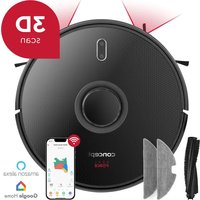
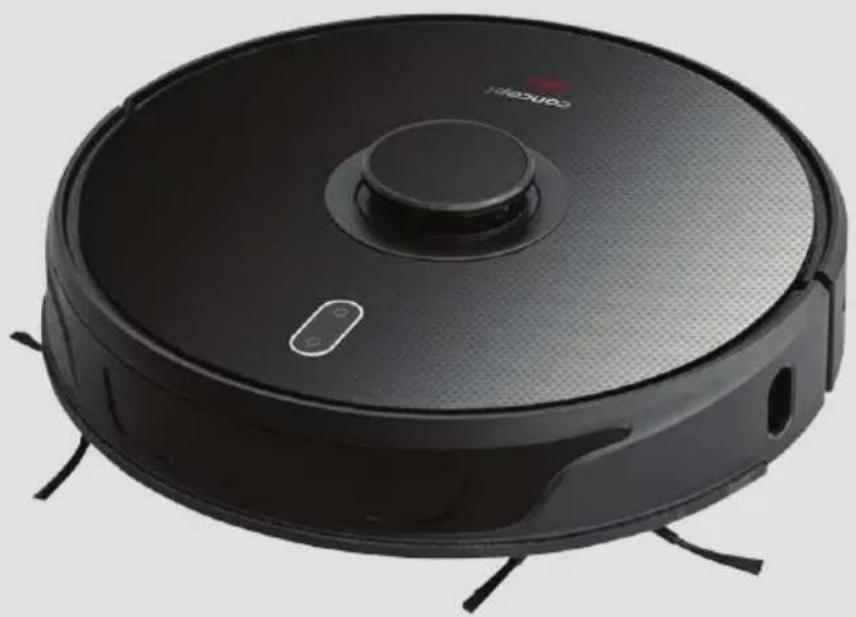
Real Force VR3400 - Vacuum Cleaner Concept - Free user manual and instructions
Find the device manual for free Real Force VR3400 Concept in PDF.


| Product type | Robot vacuum cleaner |
| Brand | Concept |
| Model | Real Force VR3400 |
| Power | 50 W |
| Battery voltage | 14.4 V |
| Battery type | Lithium-ion, 5200 mAh |
| Runtime | 300 min (5 hours) |
| Charging time | 5 hours |
| Noise level | 75 dB |
| WiFi frequency | 2.4 GHz (band 2412-2472 MHz) |
| Max transmission power | 18.711 dBm |
| Adapter voltage | AC 100-240 V, 50/60 Hz |
| Functions | Automatic cleaning, scheduled, spot, zone cleaning, carpet detection, turbo suction, wet mopping |
| Included accessories | Multifunction brush, side brushes, remote control, HEPA filter + foam, wiping cloth, mop module, docking station, adapter |
| Sensors | Laser rangefinder, anti-collision sensors, anti-drop sensors, ultrasonic, infrared |
| Maintenance | Regular cleaning of the main brush, side brushes, dustbin, filters (foam and HEPA), sensors |
| Safety | Do not use on wet floors, do not vacuum liquids, use only with the original adapter |
| App compatibility | Android 5.0+, iOS 9.0+ |
Frequently Asked Questions - Real Force VR3400 Concept
User questions about Real Force VR3400 Concept
0 question about this device. Answer the ones you know or ask your own.
Ask a new question about this device
Download the instructions for your Vacuum Cleaner in PDF format for free! Find your manual Real Force VR3400 - Concept and take your electronic device back in hand. On this page are published all the documents necessary for the use of your device. Real Force VR3400 by Concept.
USER MANUAL Real Force VR3400 Concept
Robotic vacuum cleaner
Roboterstaubsauger
Aspirateur robot
Robot aspirapolvere
Aspiradora robótica
Aspirator robot
natural_image
Black robotic vacuum cleaner with visible sensor and control buttons (no text or symbols)VR3400
CZ
HULVDEFR ENSKPL
ITES
RO
concept
CZ
PODĚKOVÁNÍ
natural_image
Technical line drawing of a mechanical assembly with no visible text or symbolsPoznámka:
Stacja dokująca
natural_image
Technical line drawing of a mechanical assembly with no visible text or symbolsPL
concept
concept
PL
Pamiętaj:
natural_image
Technical line drawing of a mechanical assembly with no visible text or symbolsHU
concept
concept
HU
Megjegyzés:
Bāzes stacija
IESLÊGSANA/IZSLÊGSANA
llgi nospiediet taustiņu 3 sekundes. ledegas signāllampina, un ierice sāk darboties.
Kad ierice ir gaidišanas rezimă, ilgi nospiediet pogu uz 3 sekundem, un ierice izslëgsies.
natural_image
Technical line drawing of a circular device with internal components and ventilation slots (no text or symbols)Sānu birste (tīriet regulārì)
Puteklu tvertne un filtra režgis (tiriet regulari)
natural_image
Exploded view diagram of a mechanical assembly with no visible text or symbolsPiezime:
- Noskalojiet filtra režgi ar tiru údeni, nepievienojot mazgāšanas līdzekli.
- Netirlet filtra režgi ar birsti val pirkstiem.
- Laujiet filtra režgim nožut gaisa vismaz 24 stundas.
Thank you for purchasing a Concept product. We wish you much joy with your new appliance every day you use it. Please read the instruction manual carefully before initial use. To refer to this manual any time you need to, we recommend you to keep it in a safe place. And please pass it to any future owner of the appliance.
| Technical specifications | |
| Input 50 W | |
| Battery voltage 14,4 V | |
| Charger voltage AC 100-240 V - 50/60 Hz | |
| Sound level 75 dB | |
| Battery 5200 mAh, Li-Ion | |
| Operation time 300 min. | |
| Full charge time 5 h | |
| Frequency range 2412 - 2472 GHz | |
| Transmitter power (max.) 18/71 dΩm | |
IMPORTANT
Before connecting to the mains, make a visual check to ensure that the unit is intact and that no damage occurred during transport.
IMPORTANT SAFETY PRECAUTIONS
- Do not use the appliance in any other way than as described in this manual.
- Remove all the covering and marketing materials from the appliance before the first use.
- Remove all items from the floor that could disrupt the effective a trouble-free cleaning (cables, papers, clothes, table cloths and curtains touching the ground).
- Use only original accessories and spare parts for this model.
- Do not sit on the vacuum robot or place other objects on it.
- The appliance should only be used in households at temperatures between 0 °C and 40 °C.
-
Make sure that the dust container and mopping cloth are properly attached before use.
-
Do not put your hair, clothes, fingers or other body parts near the main brush. Keep the main brush and the suction part of the vacuum robot clean, remove all hair and dust that can lower the suction properties of the vacuum robot and the cleaning quality.
- Do not use the appliance on wet or damp floors.
- Do not vacuum liquids, burning cigarettes, splinters and sharp objects, matches and other flammable materials, larger pieces of paper, plastic bags or other items that can damage the vacuum robot.
- Do not allow the vacuum robot to pass over loose cables when vacuuming.
- When servicing and cleaning the appliance, turn the power switch to the OFF position.
- Direct sunlight may cause a reduced sensitivity of the infra-red sensors of the vacuum robot, please avoid direct sunlight.
- A carpet must be secured so that the robot does not enter on it during cleaning. If a mopping cloth with a water tank is installed on the vacuum robot, cleaning can be interrupted or unwanted soaking of the carpet can occur.
- Do not place the appliance in a place where it could easily fall on the floor (table, chairs).
- Before charging the appliance, make sure the charging station is properly connected.
- Extreme thermal conditions or inappropriate use may result in leakage of the battery. If the fluid gets on your skin, wash immediately under running water. In case of contact with eyes, rinse immediately under running water for at least 10 minutes. Get medical help.
- In case you want to dispose of the product, first disconnect the battery from the appliance.
- If the appliance is being transported or it is not used for a long time, switch it to the OFF position. This extends the battery life.
- Make sure the mains voltage corresponds to the values on the rating plate of the product. Do not connect the appliance to the distribution sockets and extension leads.
- When disconnecting the appliance from the wall outlet, never pull the power cord, grasp the plug end and disconnect it by removing it from the receptacle.
- Do not use the appliance as a toy.
EN
concept
concept
EN
- Do not use coarse and chemically aggressive substances to clean the appliance.
- The appliance is only suitable for home use and is not intended for commercial use.
- Do not immerse the power cord, plug or appliance in water or any other liquid.
- Do not repair the appliance yourself. Please contact an authorized service centre to prevent injury from improper handling.
- This appliance can be used by children aged from 8 years and above and persons with reduced physical, sensory or mental capabilities or lack of experience and knowledge if they have been given supervision or instruction concerning the use of the appliance in a safe way and understand the hazards involved. Cleaning and maintenance performed by the user must not be carried out by children unless they are 8 years old and under supervision. Children aged under 8 years of age must be kept away from the appliance and its power cord. Do not let children play with the appliance.
- Children aged under 3 years of age must be prevented from accessing the appliance unless they are permanently supervised.
- The manufacturer and importer to the European Union has no liability for damage caused by the operation of the appliance, i.e. wounds, scalding, fire, injuries, damage to other things, etc.
- If the power cord is damaged, have it replaced by a qualified service centre to avoid a dangerous situation. It is forbidden to use the appliance with a damaged power cord.
- The robotic vacuum cleaner must only be used with the original AC adapter supplied with it. To avoid a dangerous situation, never use any other type of adapter.
Damages from failure to follow the manufacturer's instructions are not covered by the warranty.
Carefully check that you have unpacked all the accessories that are supplied. During the warranty period, we recommend to keep the original paper box, user manual and the packaging material
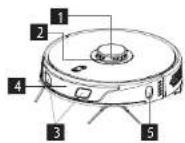
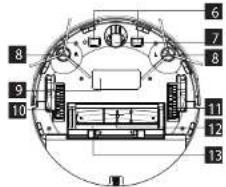
PRODUCT DESCRIPTION
1 Laser rangefinder
2 Anti-collision sensor for radar sensor
3 Linear laser sensor
4 Bumper
5 Side sensor
6 Charging contacts
7 Universal wheel
8 Side brushes
9 Battery cover
10 Left running wheel
11 Right travel wheel
12 Rotary brush
13. Rotary brush cover
14 Dust container
15. 2in1 container lock
16. Reset button
17 Side sensor

Docking station
1 Docking station
2 Station cover
3 Power indicator light
4 Signal transmission location
5 Station contacts
6 Cable slot
7 Connector
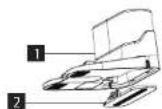
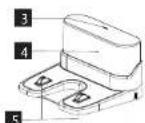

EN
concept
concept
EN
List of parts
1 Multifunctional brush
2. Brush cover
3. Remote control
4 Hepa filter + foam filter
5 Wiping cloth
1
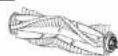
2
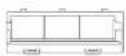
6 Docking station
7 Side brush
8 Cleaning brush
9 Adapter
10 Wiping module
11 2in1 tray
7

10
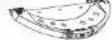
3

4
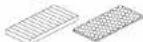
8

11

5
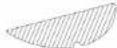
6
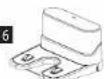
[Non-Text]

KEY FEATURES
Cleaning / ON/OFF
- Press briefly to start or pause cleaning.
- Press and hold for 3 seconds to switch the appliance on or off.
Charging / Local cleaning
- Press briefly to start or pause charging.
Wi-Fi reset - Press both buttons simultaneously for 3 seconds.
Note: To reset the appliance, press both buttons for approximately 15 seconds
INSTALLATION
- Connect the power cord.
Note:
- Provide a space of min. 0.5 m on both sides of the docking station and min. 1.5 m in front of the station
- If the power cord is stretched vertically to the ground, the appliance may pull it out and the docking station may be switched off.
- In normal condition, the charging indicator light is on when switched on, and off when charged.
- Do not move the docking station or expose it to direct sunlight.
Note: Direct sunlight will interfere with the docking station signal and the appliance may not return to the docking station properly.
- Installing the side brush
Make sure the left side brush (L) and right side brush (R) markings correspond to the L and R markings on the bottom cover. Push the side brushes L and R and tighten the screws. - Putting the appliance into operation and charging To switch the robot on, press and hold the button ⏻. If the power indicator light is normally on, charge the robot in the docking station.
Note: If the appliance does not start due to a low battery, charge it in the docking station and it will start automatically. Normally, the appliance can only operate when the battery level is ≥ 20%.
- Connecting a mobile app (you can skip this step)
Read the instructions for connecting Wi-Fi and connect the mobile app. - Start of cleaning
After switching on the robot, briefly press the button ⏻ on the robot or start cleaning using the mobile app (you can pause the appliance by pressing any button during use).
Note:
• The sweeping robot cannot be used to remove fluids.
- If the battery charge level is less than 20 %, the
appliance cannot operate. In this case, recharge it.
- If the battery charge level is less than 20 %, the appliance automatically returns to the docking station.
- Before use, remove various wires (including the docking station power cord) from the floor to prevent outages and damage to objects or wires when the appliance catches these wires.
- Installing the wiping module
a) Installing the wiping cloth: Stick the wiping cloth straight to the bottom of the wiping module.
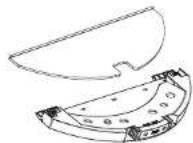
Wiping module
Note: Clean the wiping cloth after use to keep it in good condition.
b) Fill the 2-in-1 container with water: Open the cover and fill the water tank with water.
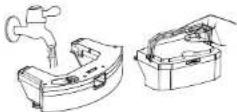
2-in-1 container
Note: Before filling the water container, remove the dust container. This will prevent unwanted water from entering the dust container.
c) Install the module:
Press and hold the button in the centre of the container and slide it horizontally along the back of the robot. The 2-in-1 container is installed in place when you hear a "click" sound and a voice announcement from the appliance. After installing the 2-in-1 container, insert the wiping module. Once you hear a "click" sound, the module is correctly inserted.
8. Removing the wiping module
Once the robot has completed its work, press the latches on both sides, pull backwards and remove the wiping module, empty the water from the 2-in-1 container and clean the cloth (do not move or flip the robot during cleaning).
9. Instructions for using the wiping module
- Do not use the wiping module unless supervised.
- For safety, make sure the wiping module is removed when charging or when not in use.
- Do not attempt to wipe the carpet.
- For a better wiping effect, the wiping module should be used after sweeping or vacuuming the floor three times.
- To refill water or clean the cloth while the appliance is operating, pause it, remove and reinsert the wiping module as described in steps 8 and 9. Do not move or flip the appliance to avoid positioning errors and map loss.
- The wiping function of the appliance is designed for wiping and aids deep cleaning. However, it cannot effectively remove stubborn dirt and thus replace human power.
• We recommend soaking the wiping cloth before mopping for better cleaning. - If the robot has a wiping module installed, the dirt from the 2-in-1 container will not be sucked out.
Note: When the mopping module is fitted, the appliance automatically detects carpets and will not go to this area.
USE
ON/OFF
Press and hold the button for 3 seconds, the indicator light comes on and the appliance starts.
Press and hold the button ☐ for 3 seconds while the appliance is in standby mode and the appliance switches off.
NOTE: The appliance cannot be switched off while it is being charged.
CLEANING/PAUSE
After starting the appliance, briefly press the button Ⓗ on the appliance or start the appliance using the mobile app (press any button to pause the appliance).
Note:
- The robotic vacuum cleaner cannot be used to remove fluids.
- If the battery charge level is less than 15 %, the appliance cannot operate. In this case, recharge it.
- If the battery charge level is less than 15 %, the appliance automatically returns to the docking station.
EN
concept
concept
EN
- Before use, remove various wires (including the docking station power cord) from the floor to prevent outages and damage to objects or wires when the robot catches these wires.
- You can activate silent mode in the app. The robot turns off all voice messages.
CHARGING
Automatic mode: The appliance automatically returns to the docking station after work.
Manual mode: When paused, press the button ⚙ briefly to start charging or you can use your mobile app to charge the appliance. The orange and blue lights flash while charging. When the lights are on, the robot is charged.
Note: If the appliance does not find the docking station, it will automatically return to its original position. In this case, place the device manually into the docking station.
COMPLETE AUTOMATIC CLEANING
Once the robot is on, it performs a search, generates a map and intelligently divides it into areas. Then it sweeps the areas one after the other properly, efficiently and thoroughly along the wall and plans a curved / S-shaped cleaning path. After cleaning, the robot automatically returns to the charging base.
Note: Do not move the robot arbitrarily and often during cleaning. After moving, place the robot in its original position. When the robot is on again, it will try to take a position itself. After successful positioning, the robot will follow the planned path and continue working. If positioning fails, the robot cancels the previous task, creates a map, and cleans up again. Even if it does not find a charging base.
LOCAL TURBO CLEANING
If a local area needs more thorough cleaning, the user specifies an area of 1.5 x 1.5 m that he/she wants to clean on the map. The appliance automatically moves to this area and starts cleaning it.
LOCAL CLEANING
If you cannot control the robot using the mobile app, move the robot manually to the place you want to clean up. Press the button ⏻ for 3 seconds and the robot will perform double cleaning in the area of 1.5 x 1.5 m with the centre in its starting position.
ZONE CLEANING
Use the mobile app to set the size and location of the area you want to clean up. You can set up to 15 areas. The robot will clean in the areas you have set.
ROOM CLEANING
Use the mobile app to select the rooms you want to clean.
RESTRICTED ZONE
Use the mobile app to set up one or more restricted areas. The robot will not clean in these restricted areas and will clean in others.
Note: The robot may reach the restricted area due to positioning errors, sensor errors or other reasons.
- A permanently restricted zone may be invalidated due to a significant change in position of the charging base and furniture. Therefore, try not to move the robot or otherwise interfere with its work during cleaning.
- The permanently restricted area will be revoked as soon as the map is restored.
NO WIPING ZONE
Use the mobile app to select a no wiping zone. If the appliance has a wiping module installed, it will not go to this area. If the appliance only vacuums, it will go to this area.
CLEANING PLANNING
You can set a fixed cleaning time using the mobile app. The appliance will automatically start cleaning at the specified time and will return to the docking station when completed.
WI-FI RESET
If the mobile phone cannot connect to the appliance due to a change in router and password configuration or other reasons, press the button ⏻ and the button for 3 seconds until the beep sounds and the icons turn orange. Then they start flashing - the wifi is reset.
SILENT MODE
You can activate silent mode in the app. The robot turns off all voice messages.
CARPET TURBO
When the carpet is detected, the suction force automatically increases to the highest level.
SETTING THE SUCTION POWER
You can switch off or adjust the suction power using the mobile app or remote control.
WATER FLOW SETTING
You can adjust the water flow using the mobile app or the remote control.
USING THE REMOTE CONTROL
- Automatic cleaning/pause
- Forward movement
- Left turn
- Suction power adjustment
- Quiet mode
- Lights off/on
- Start/stop charging
- Turn right
- Edge cleaning
- Adjusting water flow rates
- Local cleaning
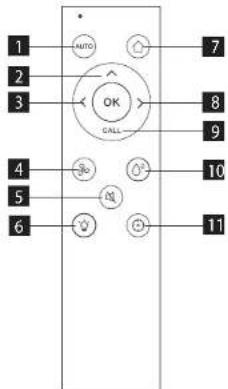
Note: To ensure that all the correct settings are effective, you must point the remote control at the front of the robotic vacuum cleaner from close proximity.
DAILY MAINTENANCE
Main brush (clean regularly)
- Tum the appliance over and press the latch on the main brush cover to pull it out.
- Remove dust from inside and from inside the main brush with a small brush and clean the main brush.
- Reassemble the main brush and press firmly on the cover until the latch clicks into place.
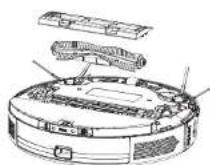
Side brush (clean regularly)
- Turn the appliance over, remove the screws and pull the brushes upwards.
- Remove hair and dirt and refit the side brush.
- Make sure the left side brush (L) and right side brush (R) correspond to the L and R symbols on the bottom cover. Screw the brushes back on.
Note: Replace the side brushes every 3 to 6 months to ensure their cleaning effect.
Dust container and filter grid (clean regularly)
- Press the button and pull the dust container backwards.
- Open and clean the dust container.
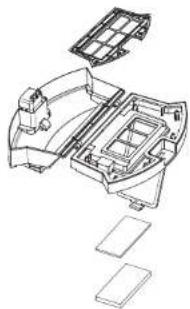
Cleaning the filter grid (clean regularly)
- After prolonged use, remove the foam filter and HEPA filter.
- Rinse the foam filter and HEPA filter under water.
- Wipe the individual parts and let them dry freely.
- After drying, gradually install them in the correct order: grid - foam filter - HEPA filter.
natural_image
Exploded view diagram of a mechanical housing assembly (no text or labels)EN
concept
concept
EN
Note:
- Rinse the filter grid with clean water and do not add any detergent.
- Do not clean the filter grid with a brush or fingers.
- Allow the filter grid to air dry for at least 24 hours.
Wiping module (clean after each use)
-
Remove and clean the cloth.
-
Wipe the water tank dry.
Sensors (clean regularly)
Clean the sensors with a soft cloth as follows:
- Clean the rechargeable sensor on the left side, the two laser sensors on the front and one on the side of the robot and all the sensors shown in the picture.
- Wipe also the charging contacts on the bottom of the robot, unplug the charging contacts on the docking station before cleaning.
- Similarly, wipe the signal transmission point of the docking station.
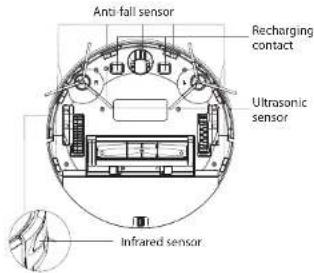
Sensors (clean every month)
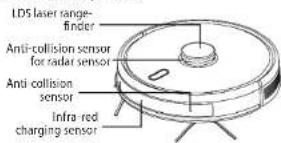
Battery
• The appliance is equipped with high-performance lithium-ion batteries. To maintain battery performance, keep the appliance charged every day.
- If the appliance is not used for a long time, turn it off and store it properly. Charge it at least every 3 months to prevent damage to the batteries due to excessive discharge.
Firmware update
Use the mobile app to update the firmware. If new firmware is detected, update as prompted. When updating the firmware, the battery level should be ≥ 50% and the appliance must be placed in the docking station.
Docking station
- Regularly check the bag in the docking station. If the bag is full, replace it with a new one.
- Clean the charging contacts and the suction opening.
- Remove the coarse filter of the docking station and rinse it with water. Allow it to dry properly and reinstall it.
COMMON PROBLEMS
| Problem Remedy | |
| The robot cannot be started | • If the battery is low, place the robot in the docking station and align it with the board contacts, the appliance will start automatically (if the robot is completely off, it can start automatically after a while).• Do not use the appliance if the ambient temperature is below 0 °C or above 50 °C. Use at 0-40 °C. |
| The robot cannot be charged | • Move the robot off the station, make sure the docking station indicator light turns on, and make sure both ends of the docking station power adapter are properly connected.• In case of poor contact, clean the docking station contact points and charging contacts on the robot or turn the side brush to the side. |
| The robot cannot be recharged | The robot is too far from the docking station, place it near the docking station and try again. |
| Abnormal behaviour Turn off the robot and restart it. | |
| Unusual noise is heard during use | The main brush, side brush or wheel may be wrapped with foreign objects, turn off the robot and remove foreign objects. |
| Cleaning ability is reduced or dust is dropping from the appliance | • The dust container is full. Clean it.• The filter grid is clogged. Clean or replace.• The main brush is wrapped with foreign objects, clean it. |
| Wi-Fi cannot be connected | • The Wi-Fi signal is bad. Check that the correct Wi-Fi coverage is available.• Wi-Fi is connected in an unusual way. Reset Wi-Fi, download the latest app, and try connecting again.• The password is entered incorrectly.• There is a router for the 5GHz frequency band, the robotic vacuum cleaner is equipped only for the 2.4GHz frequency band. |
| The planned cleaning did not take place | If the battery level is low, planned cleaning can only be started if the battery level is at least 30 %. |
| Does the robot consume power when it is always placed in the docking station? | The robot consumes a small amount of power when it is permanently placed in the docking station, allowing the best battery performance. |
| Do I need to charge the robot three times for 16 hours the first time? | The lithium battery can be used immediately after charging and has no memory effect. |
TROUBLESHOOTING
| Voice message Remedy | |
| Error 1: Oh dear! I cannot find the dust collector | Cleaning was started after removing the dust container. |
| Error 2: Please check if the radar on top has been covered or blocked | The top sensor is covered or placed in an open area (there is no obstruction in the 6 × 6 m^2 area). |
| Error 3: Please place me in a new location and try again Pick up the robot or lift it into the air. | |
| Error 4: Please scrub the cliff sensor, and restart me from a new location | The cliff sensor is covered or placed at a height. |
| Error 5: Please scrub the front sensor, and restart me from a new location | The infra-red anti-collision sensor is dirty or covered. |
| Error 6: Please scrub the right-hand sensor, and restart me from a new location | The wall sensor is dirty or covered. |
| Error 7: Please scrub the radar housing on top, and restart me from a new location | The anti-collision radar sensor is dirty or covered. |
| Error 8: Please check if the bumper has been blocked in some way | The edge sensor or anti-collision sensor is stuck. |
| Error 9: Master, please clean the dust container and filter | The dust container is full or the filter grid needs to be replaced. |
| Error 10: Dust container has been removed, please clean the container and filter | After error 9 has been signalled, the user has removed the dust container and this triggers error 10. |
| Error 11: I'm stuck, please help me! The robot is stuck somewhere. | |
| Error 12: Please place me correctly! The robot is tilted. | |
| Error 13: Please check if my wheels have become blocked somewhere | The drive wheel is stuck or tangled. |
| Error 14: Please check if the main brush has become stuck | The main brush is tangled or stuck. |
| Error 15: Please check if the side brushes have become stuck | The side brush is tangled or stuck. |
| Error 16: What's going on? Where is the docking station? | Docking station not found or not connected. |
| Error 17: Oh dear! Program error, please restart me | Abnormal condition due to unknown failure, restart the robot. |
| Error 18: Error encountered initiating shutdown | The robot alerts the user and automatically shuts down or recharges. |
| Error 19: Low battery, please recharge | When the battery charge level is too low, the robot is not in the docking station and cleaning starts (the battery charge level is less than 10%). |
| Error 20: To shut me down, please place me away from the docking station | The robot was turned off while charging at the docking station. |
WIRELESS CONNECTION AND COMPATIBILITY
- Jindlich Valenta - CONCEPT shall in no way be liable for any incidental, indirect or consequential damages, or for any loss of data or loss due to information leakage during communication via wireless technology.
- Successful wireless communication cannot be 100% guaranteed on all Smart devices and Wi-Fi networks (routers). Due to the variety of devices on the market, there may be cases where the character or specification of a given Smart device or Wi-Fi network (router) makes connection impossible or is somehow disturbed. In addition, a number of factors, including hardware and software configuration, also affect the success of wireless communication via Wi-Fi network. The connection between the robot and your Wi-Fi network can also be adversely affected by the surrounding Wi-Fi networks, which can be tuned to the same channel and thus interfere with the connection (e.g., in housing estates, apartment buildings, etc.). These facts are not a reason to claim the appliance.
- The app is owned and operated by a third party (the "Entity") different from Jindrich Valenta - CONCEPT (the "Seller"). No personal data is transferred to the Entity by the Seller. When registering for the app, the customer submits personal data directly to the Entity, who becomes the administrator of personal data. The app and the associated protection of personal data are governed by the Entity's rules.
Compatibility:
Smart device operating system
- Android 5.0 and higher
-105 9.0 and higher
-2.4GHz
- WPA1 and WPA2 security (WPA2 recommended)
NOTICE: The appliance cannot be operated on IEEE 802.1X-protected Wi-Fi networks (usually corporate Wi-Fi networks).
Before you can control the device using the app, it is necessary to connect it to your phone and give it access to your Wi-Fi network.
Recommended distance during set-up: less than 4 meters
Make sure your robotic vacuum cleaner, router, and your mobile phone are close together so that you can pair your phone with the device with no problems.
Downloading and installing the app and pairing the device
Note: Pair the vacuum cleaner with a charged battery or directly placed in the charging station.
1. Scan the QR code below (Fig. 1) or find and download the "Concept Home" app from Google Play or App Store to your mobile phone.
2. If you already have Concept Home, open the app, sign in, and continue with the pairing instructions.
3. Press and hold both control buttons on the vacuum cleaner at the same time until the voice signal for pairing the robot sounds. The wifi indicator under the top cover of the vacuum cleaner will flash.
4. Then press "+" or "Add device" in the app.
5. Select the appliance from the list of appliances.
6. Fill in the name of your Wi-Fi and password (they can also be filled in automatically).
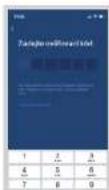
7. Continue with the application instructions
8. Go to Wi-Fi settings on your mobile device, connect to the "SmartLife-xxx" Wi-Fi and wait for it to connect.
9. Then return to the app and wait for your appliance to pair. After successful pairing, you can start controlling the appliance using the mobile app.
Fig.1
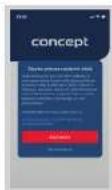
Fig. 2
Fig. 3
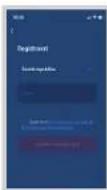
Fig. 5Fig. 4
Pairing troubleshooting
- Verify that your Wi-Fi network password is correct.
- The device only supports 2.4 GHz Wi-Fi networks.
- The router is overwhelmed by connecting many other devices (especially in housing estates or in case of large concentrations of connected Smart devices). For stable operation it is necessary that the Wi-Fi signal reaches the places intended for use of the vacuum cleaner and at the same time is sufficiently strong.
- restart the vacuum cleaner and smart device and repeat the process; - if possible, try also restarting the Wi-Fi router itself;
• If your smart device is running Android 6.0 and above, you need to have location detection turned on.
- Once you have paired the vacuum cleaner with your smart device via the "Concept Home" app, do not move or relocate the docking station. The vacuum cleaner uses the charging station as a landmark on the map.
- By relocating the docking station, you risk losing the generated map, including the selected cleaning zones and restricted zones! The vacuum cleaner creates a new map, which overwrites the original map.
SERVICE
Extensive maintenance or repair, which requires access to internal parts of the product, has to be performed by a qualified specialist or the service centre.
ENVIRONMENTAL CONCERNS
- Packaging materials and old appliances should be recycled.
- Packaging materials may be disposed of as sorted waste.
- Dispose the plastic bags made of polyethylene (PE) of as sorted waste.
Recycling of the appliance at the end of its lifespan:

This appliance is labelled in accordance with European Directive 2012/19/EU concerning used electrical and electronic appliances (Waste Electrical and Electronic Equipment - WEEE). The symbol on the product or on its packaging indicates that this product may not be treated as household waste. Instead, it should be taken to the appropriate collection point for the recycling of electrical and electronic equipment. By ensuring this product is disposed of correctly, you will help prevent potential negative consequences for the environment and human health, which could otherwise be caused by inappropriate waste handling of this product. The disposal of such material has to be done according to the recycling regulations. For more detailed information about recycling of this appliance see the authorized local office or service for household waste disposal or the shop, where you purchased the appliance.

The product meets all the necessary requirements of the EU directives applicable to the specific product.
Changes in text, design, and technical specifications are subject to change without prior notice and we reserve the right to change them.
DE
concept
concept
DE
DANKSAGUNG
DE
concept
concept
DE
Dockingstation
Bloc d'alimentation
natural_image
Technical line drawing of a mechanical assembly with no visible text or symbols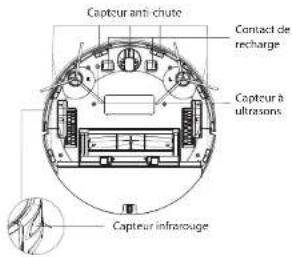
PULIZIA/SOSPENSIONE TEMPORANEA
natural_image
Exploded view diagram of a vehicle chassis with internal compartments and mounting brackets (no text or labels)Note:
- IOS 9,0 e superiore
Rete Wifi - 2.4 GHz
Estación base
natural_image
Technical line drawing of a car interior frame with structural components and cardboard boxes (no text or symbols)Nota:
Stația de andocare
natural_image
Exploded view diagram of a car interior showing structural components and mounting brackets (no text or labels)Notă:

- concept
- PODĚKOVÁNÍ
- Poznámka:
- Stacja dokująca
- PL
- Pamiętaj:
- HU
- Megjegyzés:
- Bāzes stacija
- Sānu birste (tīriet regulārì)
- Puteklu tvertne un filtra režgis (tiriet regulari)
- Piezime:
- IMPORTANT
- IMPORTANT SAFETY PRECAUTIONS
- EN
- Damages from failure to follow the manufacturer's instructions are not covered by the warranty.
- PRODUCT DESCRIPTION
- Docking station
- List of parts
- KEY FEATURES
- INSTALLATION
- Note:
- Removing the wiping module
- Instructions for using the wiping module
- USE
- ON/OFF
- CLEANING/PAUSE
- CHARGING
- COMPLETE AUTOMATIC CLEANING
- LOCAL TURBO CLEANING
- LOCAL CLEANING
- ZONE CLEANING
- ROOM CLEANING
- RESTRICTED ZONE
- NO WIPING ZONE
- CLEANING PLANNING
- WI-FI RESET
- SILENT MODE
- CARPET TURBO
- SETTING THE SUCTION POWER
- WATER FLOW SETTING
- USING THE REMOTE CONTROL
- DAILY MAINTENANCE
- Main brush (clean regularly)
- Side brush (clean regularly)
- Wiping module (clean after each use)
- Battery
- Firmware update
- WIRELESS CONNECTION AND COMPATIBILITY
- Compatibility:
- Downloading and installing the app and pairing the device
- Pairing troubleshooting
- SERVICE
- ENVIRONMENTAL CONCERNS
- Recycling of the appliance at the end of its lifespan:
- DANKSAGUNG
- DE
- Dockingstation
- Bloc d'alimentation
- Estación base
- Nota:
- Stația de andocare
- Notă:
Brand : Concept
Model : Real Force VR3400
Category : Vacuum Cleaner