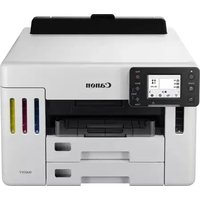
CANON MAXIFY GX5550 - Printer

MAXIFY GX5550 - Printer CANON - Free user manual and instructions

Find the device manual for free MAXIFY GX5550 CANON in PDF.

📄 24 pages English EN Download 💬 AI Question 12 questions ⚙️ Specs
Notice CANON MAXIFY GX5550 - page 3
Pick your language and provide your email: we'll send you a specifically translated version.
Product Type Multifunction inkjet printer
Brand Canon
Model MAXIFY GX5550
Print Technology Inkjet
Print Resolution Up to 600 x 1200 dpi
Functions Print, Scan, Copy
Black Print Speed 24 pages/min
Color Print Speed 15.5 pages/min
Input Tray Capacity 250 sheets
Output Tray Capacity 50 sheets
Connectivity Wi-Fi, USB 2.0, Ethernet
Display Non-touch
Power Supply 100-240 V, 50/60 Hz
Weight 10 kg
Dimensions (L x P x H) 463 x 403 x 254 mm
Box Contents Printer, ink bottles, power cord, installation CD-ROM, setup manual
Power Consumption (Printing) 18 W
Power Consumption (Standby) 0.3 W
Noise Level 45 dB
Compatible Operating Systems Windows, macOS, iOS, Android
Maintenance and Cleaning Clean the exterior regularly with a soft, dry cloth; use the print head cleaning utilities
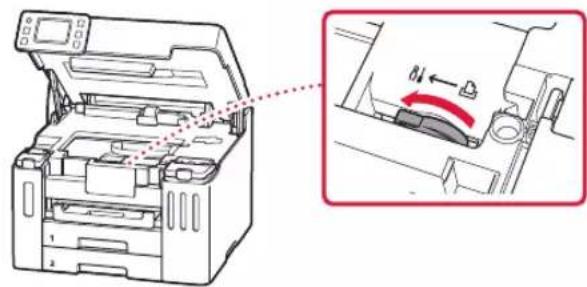
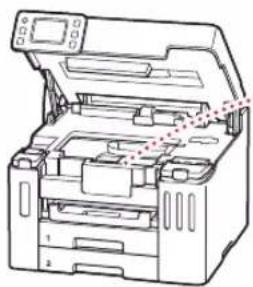
Safety Do not tilt the printer during transport; use the ink valve lever in the closed position
Spare Parts and Repairability Replacement ink bottles available; contact Canon customer service for repairs

Frequently Asked Questions - MAXIFY GX5550 CANON

How to install the ink bottles on the MAXIFY GX5550?
Open the top cover, remove the orange tape, then insert the ink bottles into the corresponding tanks following the on-screen instructions. Close the cover after installation.
How to connect the printer to a computer via Wi-Fi?
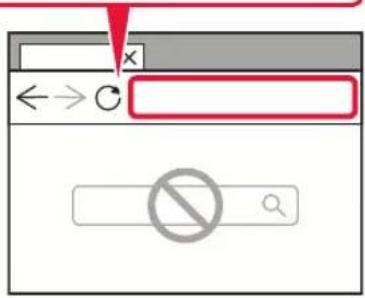
Go to https://ij.start.canon/connect on your computer, enter your printer model, then follow the instructions to set up the Wi-Fi connection.
What to do if the printer is not recognized by my computer?
Make sure the printer is powered on and connected to the same Wi-Fi network as your computer. Refer to the Online Manual to resolve network issues.
How to load paper in the printer?
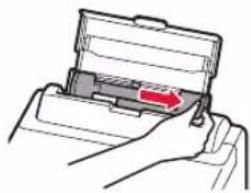
Open the cover of the rear tray, extend the paper support, slide the paper guide to the right, load the paper with the print side facing up, then adjust the guide against the stack.
How to move the printer safely?
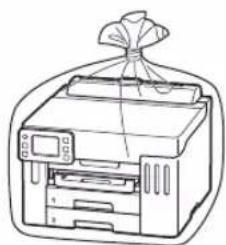
Check that the ink valve lever is in the closed position. Pack the printer in a plastic bag, place it in a sturdy cardboard box with the bottom side down and label it 'THIS SIDE UP'.
How to enable automatic firmware updates?
During initial setup, the screen asks if you want to enable automatic updates. Select Enable (recommended) to benefit from the latest features.
Where to find the online manual for the MAXIFY GX5550?
The online manual is available at https://ij.start.canon/pst or on the Canon website by entering your printer model.
How to install the software from the CD-ROM?
Insert the CD-ROM into your computer, double-click EasySetup.exe and follow the on-screen instructions. If nothing appears, open File Explorer and manually run the file.
What types of paper are compatible with the printer?
The printer accepts plain paper, photo paper, envelopes, etc. Refer to the online manual for detailed paper specifications.
How to clean the print heads?
Use the Maintenance menu on the printer's display or the software utilities on the computer to start a print head cleaning. Follow the on-screen instructions.

User questions about MAXIFY GX5550 CANON

2 questions about this device. Answer the ones you know or ask your own.

Ask a new question about this device

The email remains private: it is only used to notify you if someone responds to your question.

Does the Canon MAXIFY GX5550 have a scanning glass?
Frequently Asked Questions - 16/05/2026
Response Notice-Facile

The Canon MAXIFY GX5550 is a complete multifunction printer that features printing, scanning, copying, and faxing capabilities. As a multifunction device, it is designed to accept documents from an automatic document feeder rather than through a scanning glass.

To scan or copy documents with the GX5550:

  • Insert your sheets face up into the feeder (250-sheet capacity)
  • Adjust the paper guides according to the size of your documents
  • Start the scanning or copying from the control panel or via software

This automatic feeding setup is typical of professional multifunction printers and allows for faster and continuous processing of multiple pages, unlike devices with flatbed scanners.

Respond (be the first)
How to make a photocopy with the Canon MAXIFY GX5550?
Frequently Asked Questions - 16/05/2026
Response Notice-Facile

The Canon MAXIFY GX5550 is a multifunction printer equipped with a document feeder (ADF) for easily photocopying your documents. Here’s how to proceed:

Steps to photocopy:

  • Turn on the printer and make sure paper is loaded in the tray (capacity: 250 sheets)
  • Insert your documents into the automatic document feeder (ADF) located at the top of the printer, with the side to be printed facing up
  • Press the Copy button on the control panel to access the copy menu
  • On the GX5550 control screen, adjust the settings according to your needs: number of copies, print quality (draft, normal, or high quality), color or black and white mode
  • Press the Start button to begin the photocopying

Important points to follow:

  • The GX5550 uses an automatic document feeder (ADF) and not a scanning glass: always insert your documents from the top of the feeder
  • The feeder can handle up to 250 sheets at a time, which is ideal for large documents
  • Do not interrupt the scanning once the copy has started: wait for all documents to be fully processed
  • After copying, the GX5550 returns the original documents to the front
  • For double-sided copies or advanced settings, refer to the Copy Options menu on the printer's control screen
  • The maximum copy resolution is 600 x 1200 dpi for optimal quality
Respond (be the first)

Download the instructions for your Printer in PDF format for free! Find your manual MAXIFY GX5550 - CANON and take your electronic device back in hand. On this page are published all the documents necessary for the use of your device. MAXIFY GX5550 by CANON.

USER MANUAL MAXIFY GX5550 CANON

Read Safety and Important Information (addendum) first.

natural_image Icon showing a printer with a paper airplane and a document, symbolizing file transfer or sync (no text present)

Installing the Printer...... page 1

natural_image Two white icons: a laptop and a smartphone, on a solid red background (no text or symbols)

Connecting to a Computer, Smartphone or Tablet......page 2

natural_image Line drawing of a printer with two hands inserting a slot into the front panel (no text or symbols)
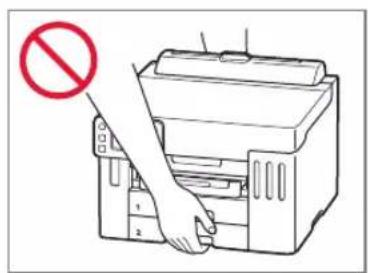
Diagram showing a printer with a hand using a paper plane, marked with a red prohibition symbol.

Setting Up the Printer

1. Box Contents

  • Ink Bottles
    Power Cord
  • Setup CD-ROM
    • Safety and Important Information
    • Getting Started (this manual)

2. Removing the Orange Tape

1 Remove the orange tape.
2 Open the top cover, and then remove the orange tape.
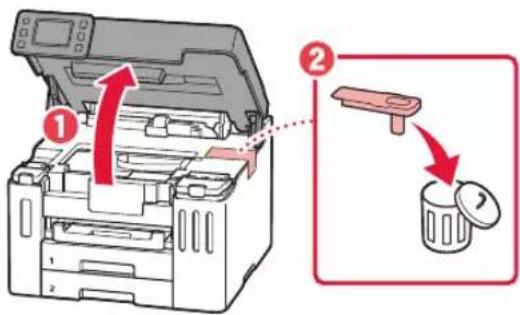
Diagram showing a printer's open lid with labeled parts and a close-up of the paper bin containing a pencil icon.

3 Close the top cover.

- If you lift the top cover slightly and release it, it will close by itself.
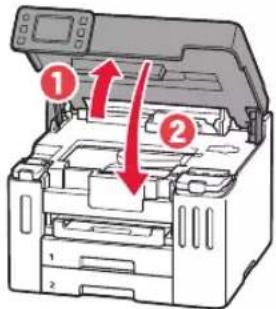
Diagram of a printer with labeled parts and directional arrows indicating process flow

3. Turning on the Printer

1 Connect the power cord.
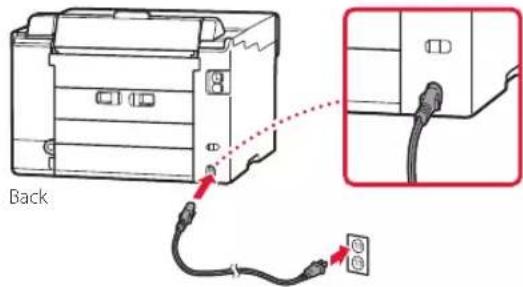
Back

2 Open the operation panel and press the ON button.
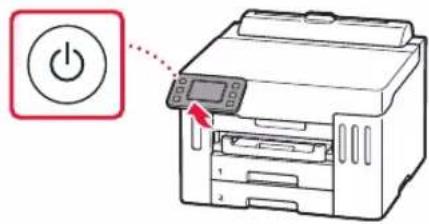
Diagram showing a printer with a power button and a control panel, highlighting the power input.

4. Follow the Instructions on the Printer's Screen to Complete Setup

Follow the on-screen instructions to install ink and load paper. Continue until you reach the final screen.
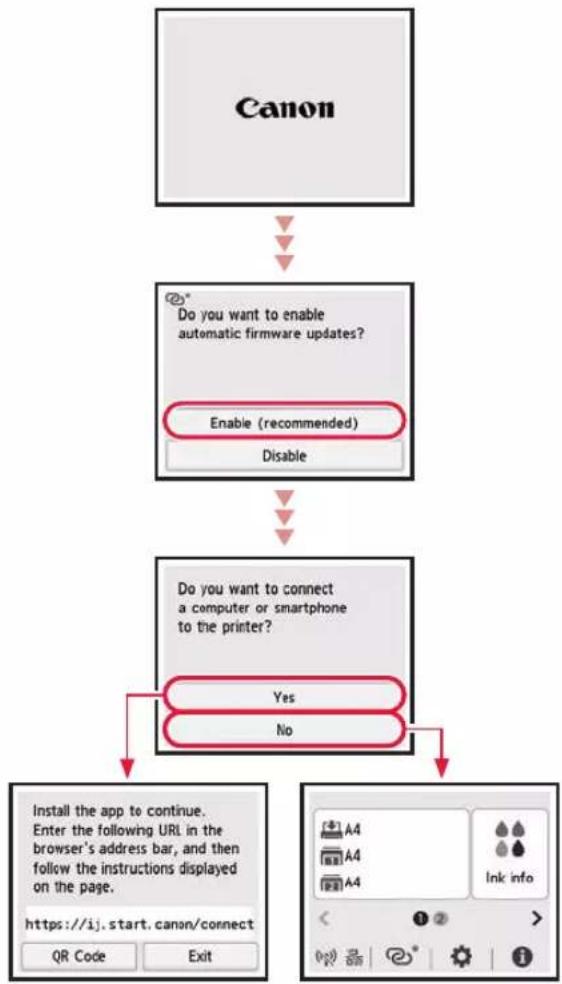
CANON MAXIFY GX5550 - Follow the Instructions on the Printer's Screen to Complete Setup - 1

flowchart
graph TD
    A["Canon"] --> B["Do you want to enable automatic firmware updates?\nEnable (recommended)\nDisable"]
    B --> C["Do you want to connect a computer or smartphone to the printer?\nYes\nNo"]
    C --> D["Install the app to continue.\nEnter the following URL in the browser's address bar, and then follow the instructions displayed on the page.\nhttps://ij.start.canon/connect\nQR Code\nExit"]

Setting Up the Printer

5. Connecting to a Computer or Smartphone
CANON MAXIFY GX5550 - Connecting to a Computer or Smartphone - 1

If you are using multiple computers/smartphones, perform these steps on each device. Also perform these steps to add a new computer/smartphone or replace your current one.

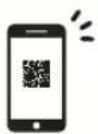
1 Access the Canon website directly. No need to search.
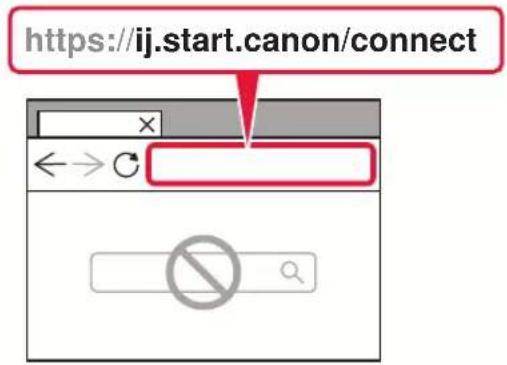
https://ij.start.canon/connect

Image showing a smartphone icon with a QR code and a right-pointing arrow, likely indicating mobile payment or linking to a QR code.

2 Enter your printer's model name and click Go.

3 Follow the on-screen instructions.

CANON MAXIFY GX5550 - Connecting to a Computer or Smartphone - 4

Note

Refer to the Online Manual if you cannot connect the printer to your computer or smartphone (network trouble).

CANON MAXIFY GX5550 - Note - 1

Using the Setup CD-ROM

  1. Double click EasySetup.exe on the screen that appears.
  2. If the printer selection screen appears, select GX5540.

If the installation screen appears, click Next.

  1. Follow the on-screen instructions.

If nothing appears, start Explorer and then run EasySetup.exe in the CD-ROM.

Loading Paper

1 Open the rear tray cover and extend the paper support.
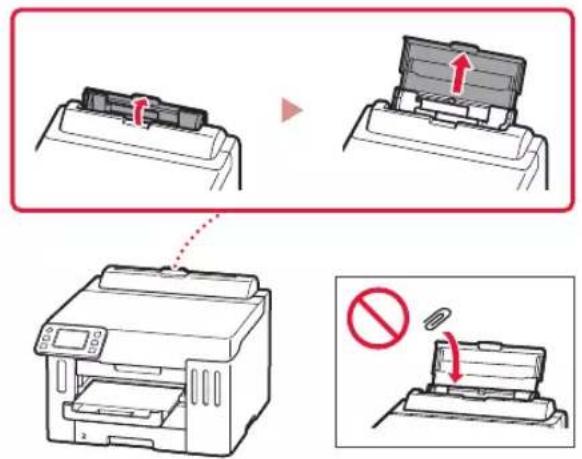
Diagram illustrating printer press operation with labeled steps and prohibition symbol

2 Slide the right-hand side paper guide to the far right.
3 Load several sheets of paper with the print side facing up and slide the side paper guide against the edge of the paper stack.
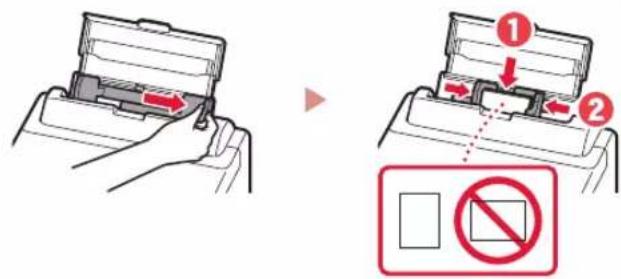
Diagram illustrating a printer's internal structure and no-smoking symbol, showing step 1 with red arrows and ② indicating disassembly or reassembly.

Refer to the Online Manual for details.

CANON MAXIFY GX5550 - Loading Paper - 3

https://ij.start.canon/pst

Transporting Your Printer

When relocating the printer, check the following. Refer to the Online Manual for details.

Check that the position of the ink valve lever is closed.
CANON MAXIFY GX5550 - Transporting Your Printer - 1

natural_image Technical diagram of a printer with an open lid and internal components, showing a close-up view of the lid's internal structure (no text or symbols present)

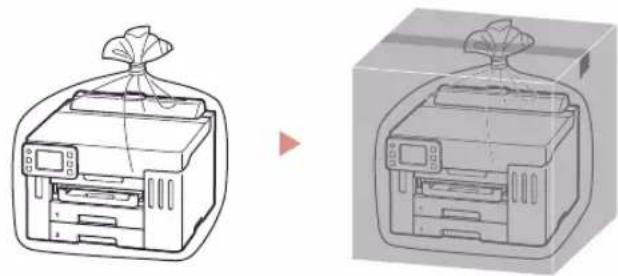
Pack the printer in a plastic bag in case ink leaks.

  • Pack the printer in a sturdy box so that it is placed with its bottom facing down, using sufficient protective material to ensure safe transport.
  • Do not tilt the printer. Ink may leak.
  • Please handle with care and ensure the box remains flat and NOT turned upside down or on its side, as the printer may be damaged and ink in the printer may leak.
  • When a shipping agent is handling transport of the printer, have its box marked "THIS SIDE UP" to keep the printer with its bottom facing down. Mark also with "FRAGILE" or "HANDLE WITH CARE".
CANON MAXIFY GX5550 - Transporting Your Printer - 2

natural_image Illustration of a printer and its 3D printing machine, showing front and side views (no text or symbols)

3. Encender la impresora

flowchart
graph TD
    A["Canon"] --> B["Do you want to enable automatic firmware updates?\nEnable (recommended)\nDisable"]
    B --> C["Do you want to connect a computer or smartphone to the printer?\nYes\nNo"]
    C --> D["Install the app to continue.\nEnter the following URL in the browser's address bar, and then follow the instructions displayed on the page.\nhttps://ij.start.canon/connect\nQR Code\nExit"]


CANON MAXIFY GX5550 - Encender la impresora - 1

Diagram illustrating printer press operation with labeled steps and a prohibition symbol

natural_image Technical line drawing of a printer with an inset showing a mechanical component (no text or symbols)
natural_image Illustration of a printer with a cloth and paper bag, shown from front and side views (no text or symbols)

Configurando a impressora

3. Ligando a impressora

flowchart
graph TD
    A["Canon"] --> B["Do you want to enable automatic firmware updates?\nEnable (recommended)\nDisable"]
    B --> C["Do you want to connect a computer or smartphone to the printer?\nYes\nNo"]
    C --> D["Install the app to continue.\nEnter the following URL in the browser's address bar, and then follow the instructions displayed on the page.\nhttps://ij.start.canon/connect\nQR Code\nExit"]

Configurando a impressora

CANON MAXIFY GX5550 - Configurando a impressora - 1

Diagram illustrating printer press operation with labeled steps and a prohibition symbol

natural_image Technical diagram of a printer with internal components and a close-up view showing a red curved arrow indicating rotation (no text or symbols present)
natural_image Illustration of a printer with a bag and paper towel, shown from front and side views (no text or symbols)

Configuration de l'imprimante

CANON MAXIFY GX5550 - Configuration de l'imprimante - 1

Diagram illustrating printer press operation with labeled steps and prohibition symbol

natural_image Technical diagram of a printer with internal components and a close-up view showing a red curved arrow indicating rotation (no text or symbols present)
natural_image Illustration of a printer and its 3D printing machine, showing front and side views (no text or symbols)

Настройка принтера

flowchart
graph TD
    A["Canon"] --> B["Do you want to enable automatic firmware updates?"]
    B --> C{Enable (recommended)}
    C -->|Yes| D["Do you want to connect a computer or smartphone to the printer?"]
    C -->|No| E["Install the app to continue. Enter the following URL in the browser's address bar, and then follow the instructions displayed on the page. https://ij.start.canon/connect"]
    D --> F["QR Code"]
    D --> G["Exit"]

Настройка принтера

Image showing a smartphone icon with a QR code and a right-pointing arrow, next to a QR code.

natural_image Illustration of a printer and its 3D printing machine, showing front and side views (no text or symbols)
flowchart
graph TD
    A["Canon"] --> B["Do you want to enable automatic firmware updates?\nEnable (recommended)\nDisable"]
    B --> C["Do you want to connect a computer or smartphone to the printer?\nYes\nNo"]
    C --> D["Install the app to continue.\nEnter the following URL in the browser's address bar, and then follow the instructions displayed on the page.\nhttps://ij.start.canon/connect\nQR Code\nExit"]


CANON MAXIFY GX5550 - Настройка принтера - 2

Diagram illustrating printer press operation with labeled steps and prohibition symbol

natural_image Diagram of a printer with an open lid and internal components, showing a close-up of the lid's edge detail (no text or symbols present)
natural_image Illustration of a printer and its 3D printing device, showing front and side views (no text or symbols)

تحميل الورق

CANON MAXIFY GX5550 - تحميل الورق - 1

CANON MAXIFY GX5550 - تحميل الورق - 2

natural_image Illustration of a hand holding a device with a red arrow indicating the process (no text or symbols present)
natural_image Line drawing of a printer with a paper airplane, no text or symbols present

CANON MAXIFY GX5550 - تحميل الورق - 3

CANON MAXIFY GX5550 - تحميل الورق - 4

natural_image Line drawing of a printer with a ribbon tied to top (no text or symbols)
CANON MAXIFY GX5550 - تحميل الورق - 5

natural_image Line drawing of an open industrial machine with internal components and a red dotted line indicating a connection or inspection (no text or symbols present)
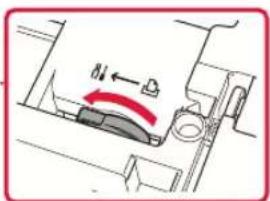

Diagram showing a mechanical or electrical component with a red curved arrow indicating direction and a label 'N' pointing left.

CANON MAXIFY GX5550 - تحميل الورق - 7

https://ij.start.canon/connect

CANON MAXIFY GX5550 - تحميل الورق - 8

CANON MAXIFY GX5550 - تحميل الورق - 9

CANON MAXIFY GX5550 - تحميل الورق - 10

Screenshot of a software interface with a dropdown menu, left arrow labeled 'C', and a red checkbox with a crossed-out 'No' symbol.

flowchart
graph TD
    A["Canon"] --> B["Do you want to enable automatic firmware updates?\nEnable (recommended)\nDisable"]
    B --> C["Do you want to connect a computer or smartphone to the printer?\nYes\nNo"]
    C --> D["Install the app to continue.\nEnter the following URL in the browser's address bar, and then follow the instructions displayed on the page.\nhttps://ij.start.canon/connect\nQR Code\nExit"]

1. مح\*Tويات elaborate

زجاجات الحبر

سلك الطاقة

أغلق الغطاء العلوي.

3

3. تشغيل الطبعة

natural_image Illustration of a smartphone and a laptop connected by lines, no text or symbols present

CANON MAXIFY GX5550 - تشغيل الطبعة - 1

CANON MAXIFY GX5550 - تشغيل الطبعة - 2

CANON MAXIFY GX5550 - تشغيل الطبعة - 3

Frequently Asked Questions

Manual assistant
Powered by Anthropic
Waiting for your message
Product information

Brand : CANON

Model : MAXIFY GX5550

Category : Printer