
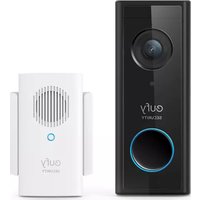
Video Doorbell 2 Pro HomeBase - Doorbells eufy - Free user manual and instructions
Find the device manual for free Video Doorbell 2 Pro HomeBase eufy in PDF.


| Product type | Video doorbell with base station (HomeBase) |
| Brand | eufy |
| Doorbell model | T8213 |
| HomeBase model | T8010X |
| Doorbell power supply | Rechargeable built-in battery (micro-USB port) or doorbell wiring 8-24 V AC |
| HomeBase power supply | 12 V DC, 2 A power adapter |
| Battery life | Up to 6 months (depending on usage, about 10 events per day) |
| Camera | Dual lens (main and secondary) |
| Motion detector | Yes |
| Audio | Built-in microphone and speaker |
| Night vision | Yes (infrared) |
| Wi-Fi connectivity | 2.4 GHz (doorbell and HomeBase), 24 GHz (doorbell), Sub-1G (HomeBase) |
| Storage | Local on HomeBase (capacity not specified) |
| Operating temperature | -20°C to 45°C |
| Mounting | Wall mount with 15° mounting wedge, recommended height 1.2 m |
| Cleaning | Soft cloth, avoid abrasive and chemical products |
| Security | Compliant with CE standards, safety distance of 20 cm for RF exposure |
| Box contents | Video doorbell, HomeBase 2, adapters, Ethernet cable, micro-USB cable, mounts, screws, detachment pin |
Frequently Asked Questions - Video Doorbell 2 Pro HomeBase eufy
User questions about Video Doorbell 2 Pro HomeBase eufy
0 question about this device. Answer the ones you know or ask your own.
Ask a new question about this device
Download the instructions for your Doorbells in PDF format for free! Find your manual Video Doorbell 2 Pro HomeBase - eufy and take your electronic device back in hand. On this page are published all the documents necessary for the use of your device. Video Doorbell 2 Pro HomeBase by eufy.
USER MANUAL Video Doorbell 2 Pro HomeBase eufy
Anker Innovations Limited. All rights reserved eufy Security and eufy Security Logo are trademarks of Anker Innovations Limited, registered in the United States and other countries. All other trademarks are the property of their respective owners.
51005003046 V01
QUICK START GUIDE
eufy Security Video Doorbell Dual (Battery)
KURZANLEITUNG
natural_image
Line drawing of a dual-camera security device with two circular buttons and a 'eufy SECURITY' branding (no additional text or symbols)English
Deutsch
Español
Français
Italiano
Nederlands
Portuguese
لعربية
197
For Video Doorbell Installation
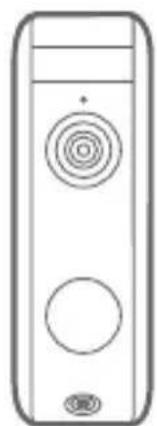
natural_image
Simple line drawing of a rectangular device with circular buttons and a plus sign (no text or symbols)eufy Security Video Doorbell Dual (Battery)
Model: T8213
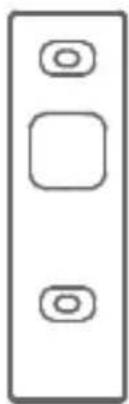
natural_image
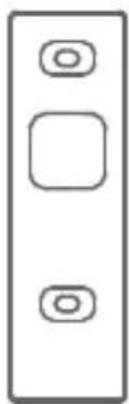
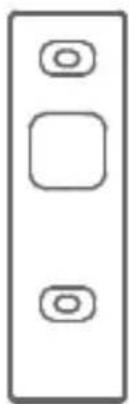
Simple diagram of a vertical rectangle with three rounded square buttons on top (no text or symbols)Mounting Bracket
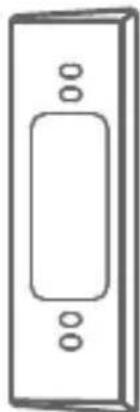
natural_image
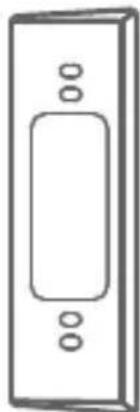
Simple line drawing of a rectangular device with internal components (no text or symbols)15° Mounting Wedge (Optional)
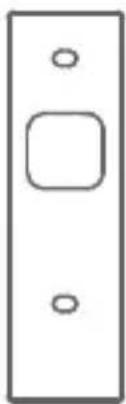
natural_image
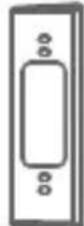
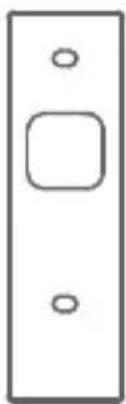
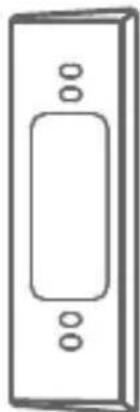
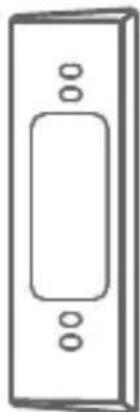
Simple line drawing of a vertical rectangular panel with three small circular holes (no text or symbols)Screw Hole Positioning Card
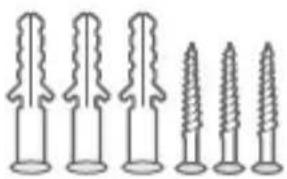
natural_image
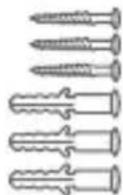
Six different screw fasteners shown in line drawings (no text or symbols)Screw Pack
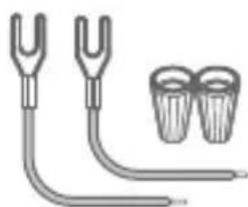
natural_image
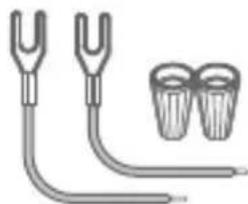
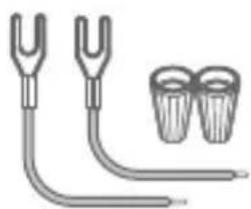
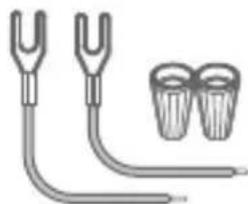
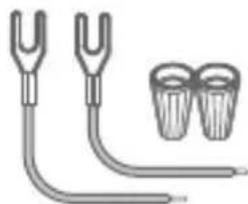
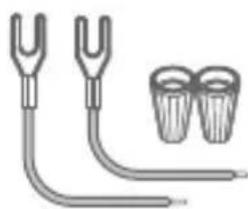
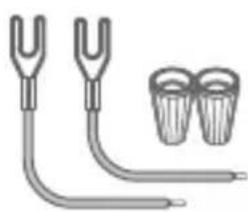
Illustration of two dental tools with curved and straight lines, accompanied by two separate cup-like objects (no text or symbols)Extension Wires and Wire Nuts (Optional)
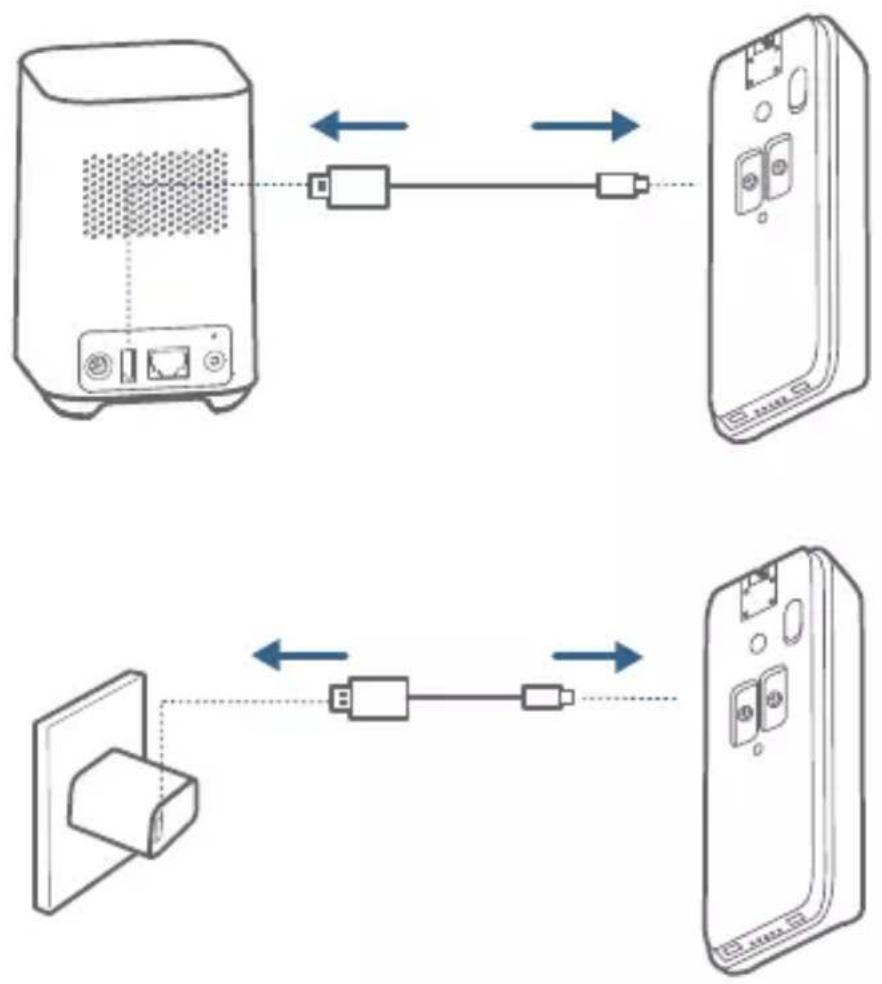
micro-USB charging cable

Detaching Pin
Quick
Start Guide
For HomeBase 2 Installation
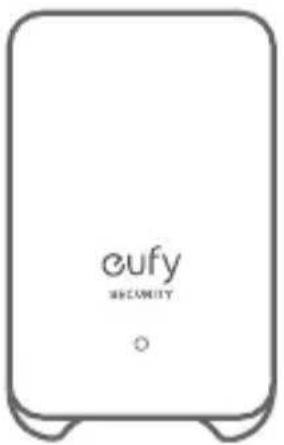
HomeBase 2 Model: T8010X
natural_image
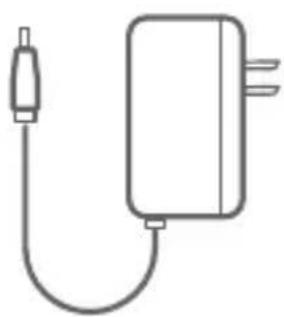
Simple line drawing of a connected electrical plug (no text or symbols)Power Adapter for HomeBase 2
natural_image
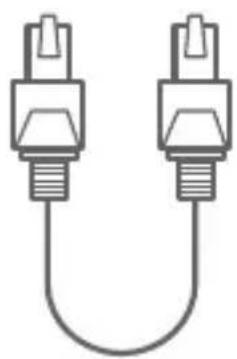
Simple line drawing of two connected electrical connectors (no text or symbols)Ethernet Cable for HomeBase 2
Note: Power plug may vary in different regions.
2 EN
2 / PRODUCT OVERVIEW
Video Doorbell
Front View:
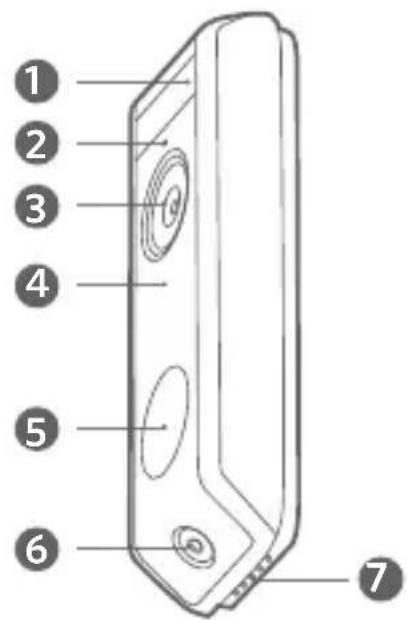
I. Motion Sensor
2. Microphone
3. Primary Camera Lens
4. Ambient Light Sensor
5. LED Ring / Doorbell Button
6. Secondary Camera Lens
7. Speaker
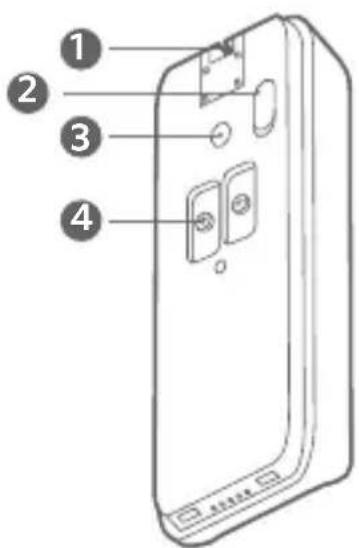
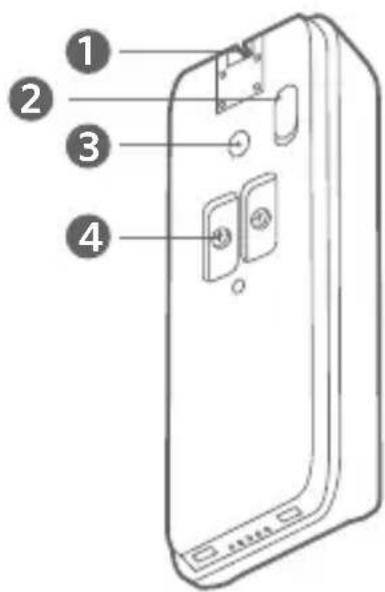
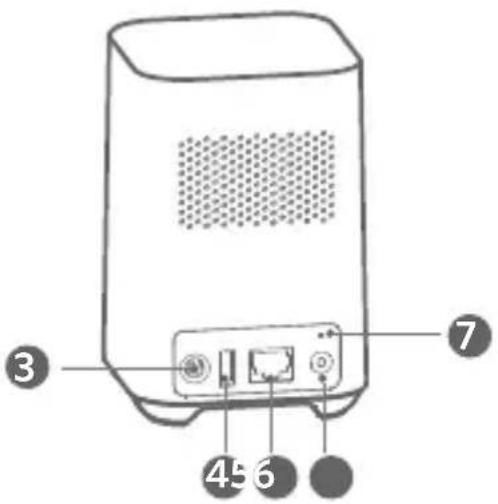
Rear View:
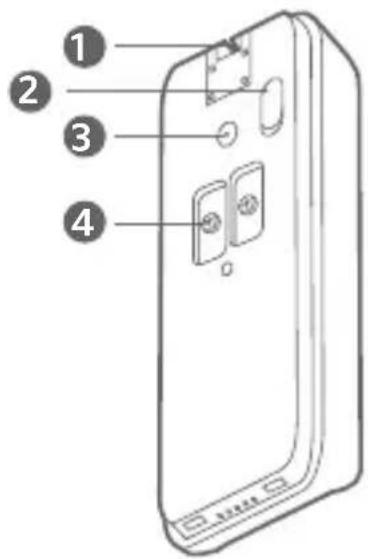
I. Detaching Mechanism
2. Micro USB Charging Port
3. SYNC/RESET Button
4. Power Terminals for Existing Doorbell Wires (Optional)
| Operation How-to | |
| Power on the doorbell Press | the SYNC button . |
| Add doorbell to HomeBase | Press and hold the SYNC button until you hear a beep. |
| Power off the doorbell Quick | -press the SYNC button 5 times in 3 seconds. |
| Reset the doorbell Press and | hold the SYNC button for 10 seconds. |
HomeBase 2
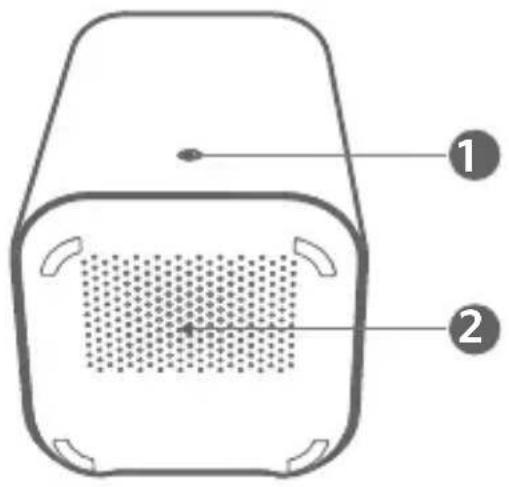
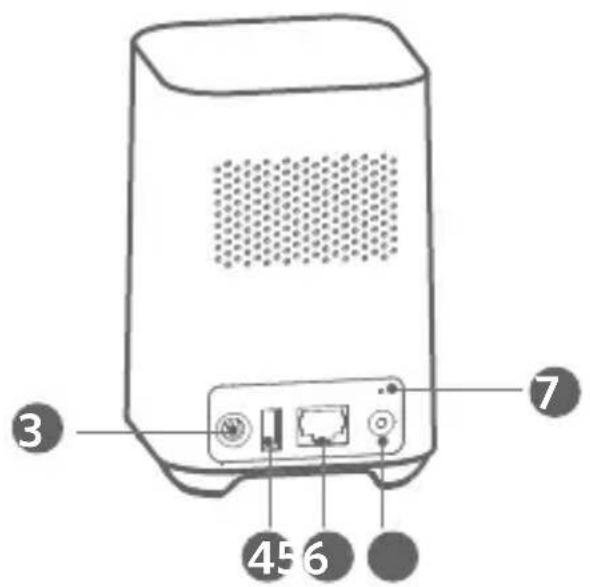
I. Status LED
-
Ethernet Port
-
Speaker
-
SYNC/ALARM OFF Button
-
Power Port
-
Reset Button
-
USB Port
4 EN
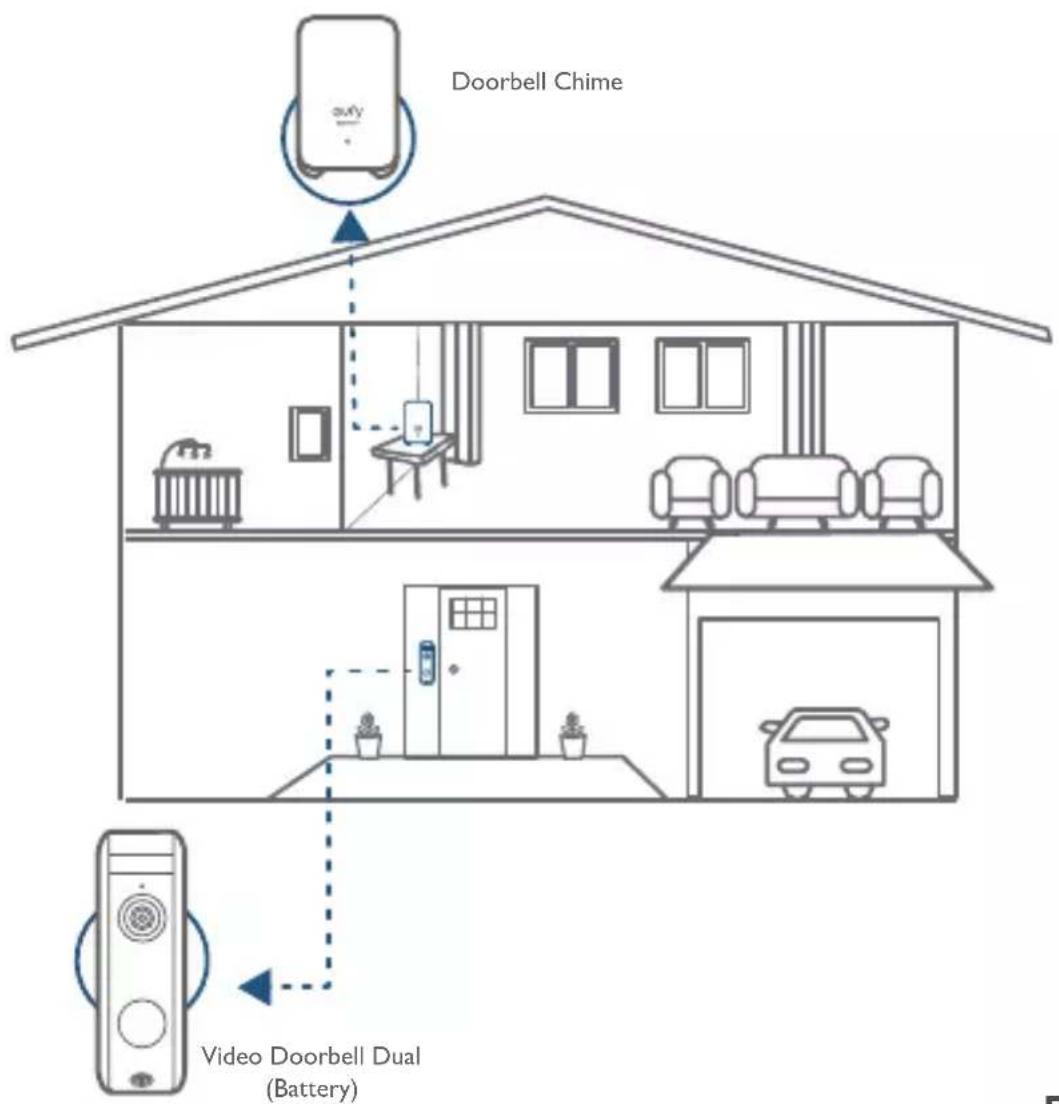
How the System Works
The video doorbell system includes 2 parts. One is the video doorbell at your door. The other is the HomeBase in your house.
The video doorbell detects motion at your porch and allows you to answer the door anytime and anywhere. The HomeBase stores video clips on its built-in storage. When someone rings the doorbell, people in the house will be notified.
flowchart
graph TD
    A["Doorbell Chime"] --> B["Device 1"]
    B --> C["Device 2"]
    C --> D["Device 3"]
    D --> E["Device 4"]
    E --> F["Device 5"]
    F --> G["Device 6"]
    G --> H["Device 7"]
    H --> I["Device 8"]
    I --> J["Device 9"]
    J --> K["Device 10"]
    K --> L["Device 11"]
    L --> M["Device 12"]
    M --> N["Device 13"]
    N --> O["Device 14"]
    O --> P["Device 15"]
    P --> Q["Device 16"]
    Q --> R["Device 17"]
    R --> S["Device 18"]
    S --> T["Device 19"]
    T --> U["Device 20"]
    U --> V["Device 21"]
    V --> W["Device 22"]
    W --> X["Device 23"]
    X --> Y["Device 24"]
    Y --> Z["Device 25"]
    Z --> AA["Device 26"]
    AA --> AB["Device 27"]
    AB --> AC["Device 28"]
    AC --> AD["Device 29"]
    AD --> AE["Device 30"]
    AE --> AF["Device 31"]
    AF --> AG["Device 32"]
    AG --> AH["Device 33"]
    AH --> AI["Device 34"]
    AI --> AJ["Device 35"]
    AJ --> AK["Device 36"]
    AK --> AL["Device 37"]
    AL --> AM["Device 38"]
    AM --> AN["Device 39"]
    AN --> AO["Device 40"]
    AO --> AP["Device 41"]
    AP --> AQ["Device 42"]
    AQ --> AR["Device 43"]
    AR --> AS["Device 44"]
    AS --> AT["Device 45"]
    AT --> AU["Device 46"]
    AU --> AV["Device 47"]
    AV --> AW["Device 48"]
    AW --> AX["Device 49"]
    AX --> AY["Device 50"]
EN 5
4 / STEP I CONNECTING THE HOMEBASE
Connect HomeBase 2 to the Internet
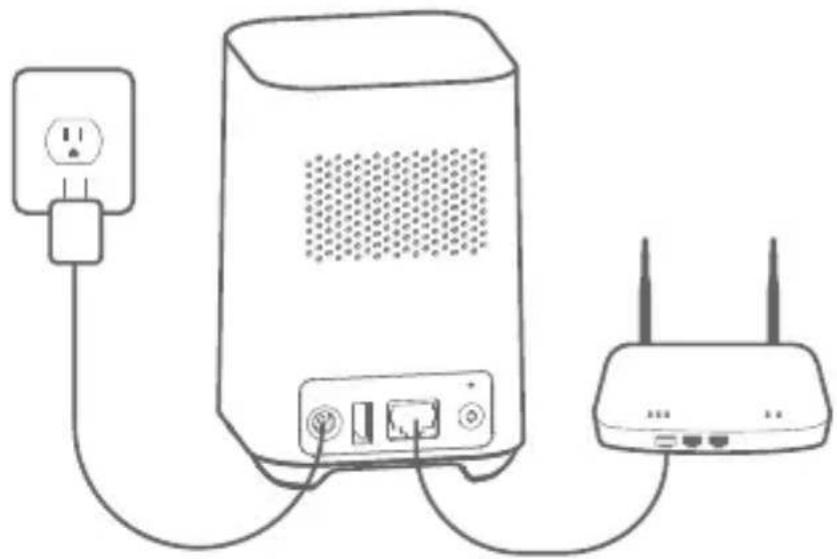
I. Power on the HomeBase 2, then use the ethernet cable provided to connect the HomeBase 2 to your home router.
natural_image
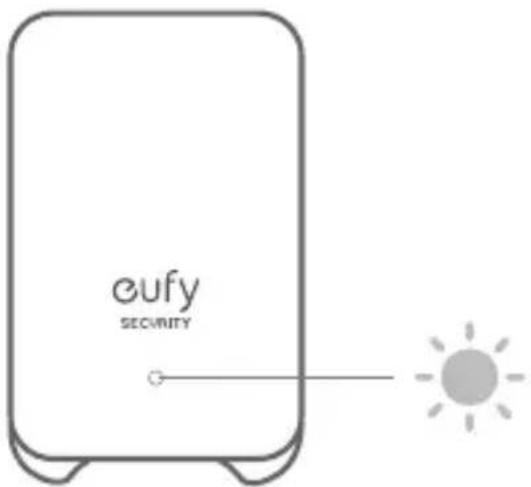
Line drawing of a network device with two connected devices, one connected to a power outlet and the other to a router (no text or symbols present)- The LED indicator turns blue (this may take up to 1 min) when HomeBase 2 is ready for setup.
6 EN
5 / STEP 2 SETTING UP THE SYSTEM
Download the App and Set up the System
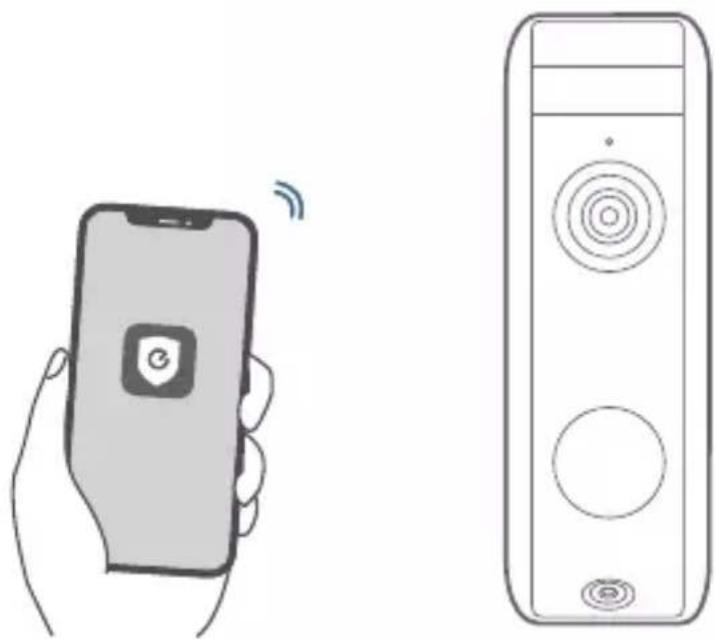
Download the eufy Security app from the App Store (iOS devices) or Google Play (Android devices).

natural_image
Blue shield icon with a white circular symbol inside, resembling a stylized 'e' or refresh symbol (no text or numbers present)
Sign up for a eufy Security account, then follow the onscreen instructions to complete the setup.
natural_image
Illustration of a hand holding a smartphone with wireless signal and a vertical screen displaying a speaker (no text or symbols)EN 7
Option I - Battery Powered
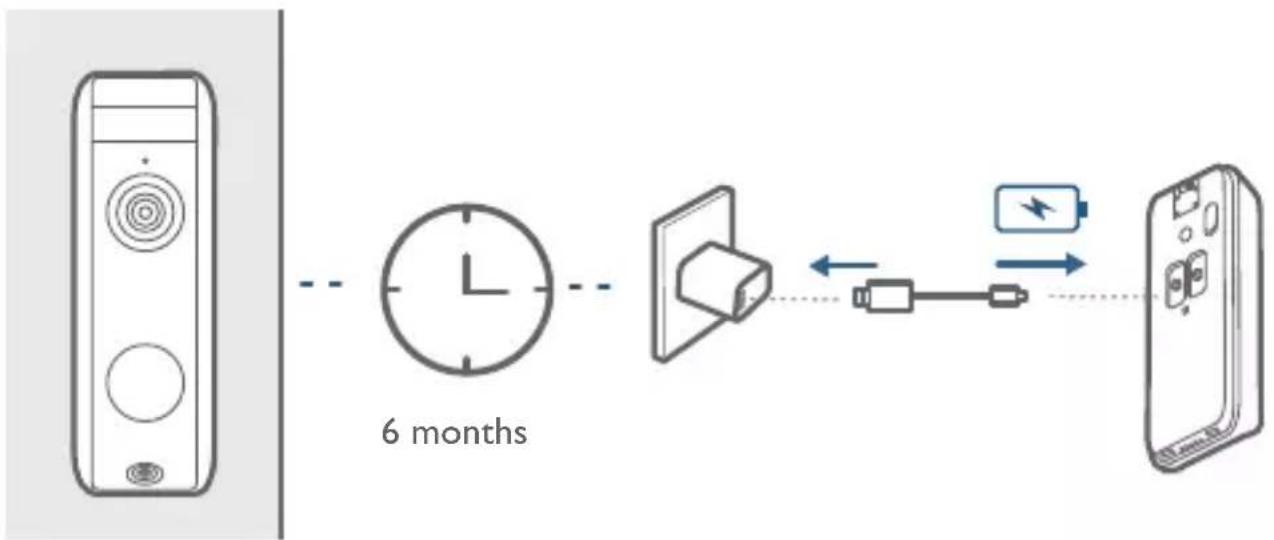
I. If you don't have existing doorbell wiring at the front door, use the built-in battery. You are free to determine the doorbell position and the mounting is easy and quick.
2 When the doorbell battery level is low, you need to detach and charge it.
3. If you choose this option, please jump to STEP 4 FINDING A MOUNTING SPOT.
flowchart
graph LR
    A["Device"] --> B["Clock"]
    B --> C["Battery"]
    C --> D["Battery"]
    style A fill:#f9f,stroke:#333
    style B fill:#ccf,stroke:#333
    style C fill:#cfc,stroke:#333
    style D fill:#fcc,stroke:#333
Note: The battery life varies depending on usage. In most common cases, a doorbell may have up to 10 events per day and each recording lasts 20 seconds on average. Under this scenario, the doorbell battery life can last up to 6 months.
8 EN
Option 2 - Doorbell Wire Powered
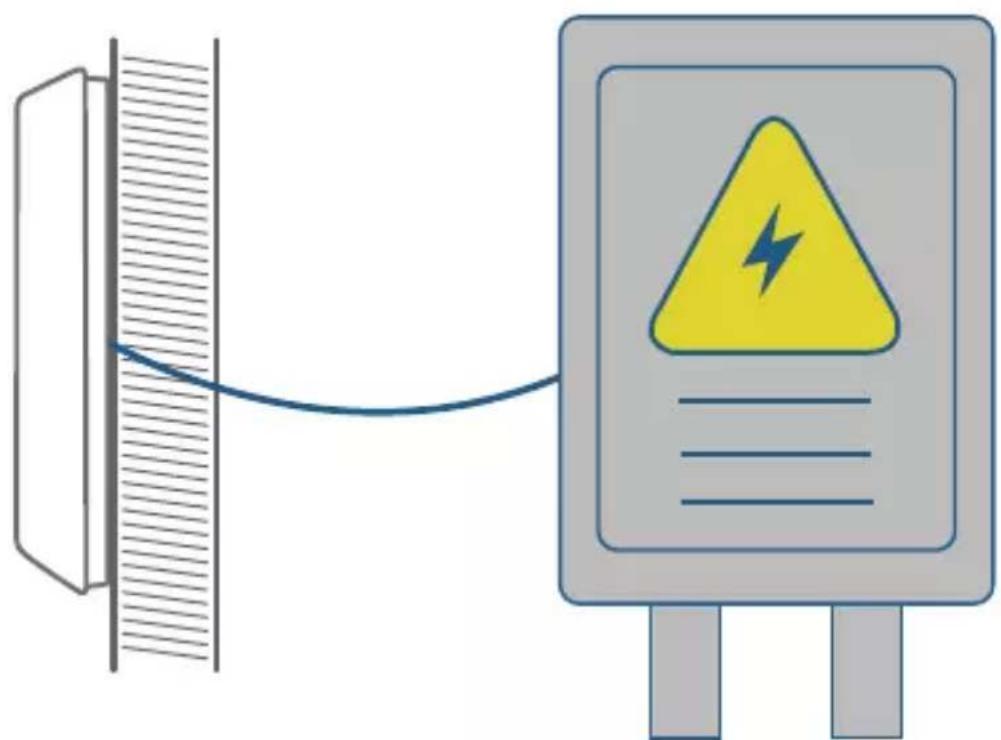
I. If you have existing and working doorbell wiring at the front door, the doorbell will be powered by the wires constantly. So you don't need to detach and charge it after installation.
2. Since the doorbell is connected to the wires, the mounting position is limited.
3. If you choose this option, please jump to APPENDIX 3 POWERING THE DOORBELL WITH EXISTING DOORBELL WIRES.
natural_image
Illustration of a warning sign with a yellow triangle and lightning bolt connected to a wall-mounted device (no text or symbols)8 - 24V AC Doorbell Wiring
7/
STEP 4
FINDING A MOUNTING SPOT
Find a Mounting Spot
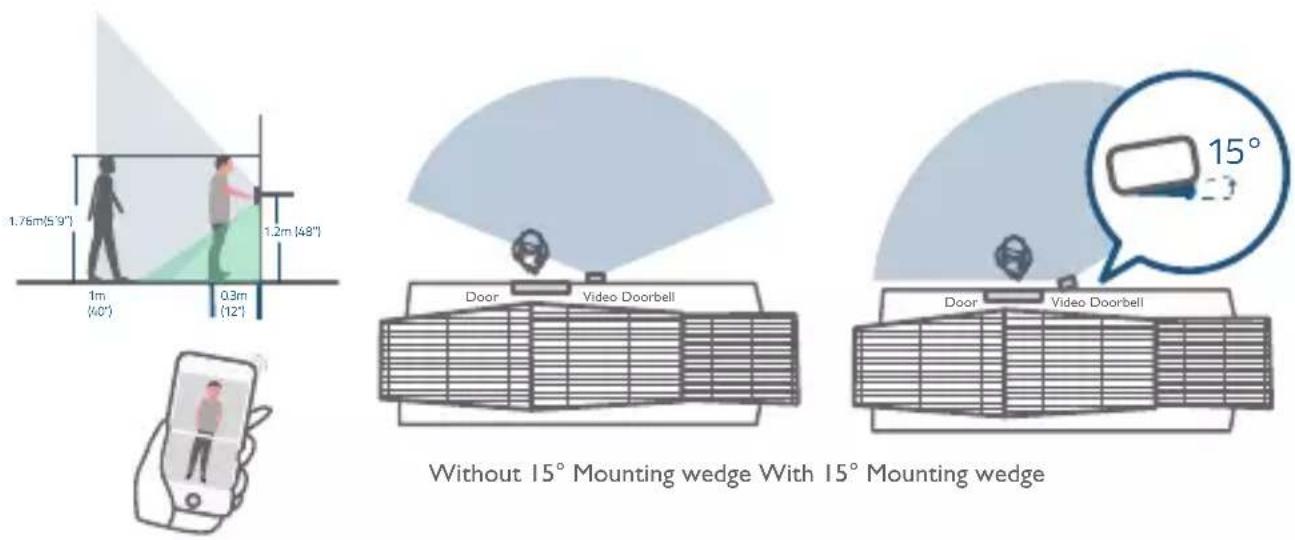
Take the video doorbell to your front door and check the live view on the app at the same time. Find a location where you can see the desired field of view.
Consider the following factors:
- Check if you can reuse the existing holes and anchors on the wall or door frame.
- If you want to place the doorbell close to a side wall, make sure the wall doesn't show up in the field of view. Otherwise IR light will be reflected and night vision will become blurry.
- If you are drilling the mounting holes for the first time, the recommended mounting height is 48" / 1.2 m from the ground.
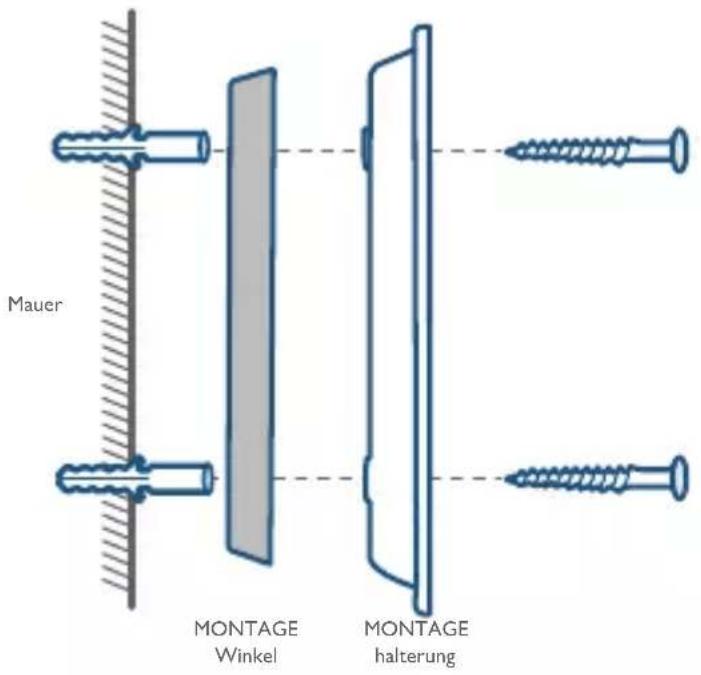
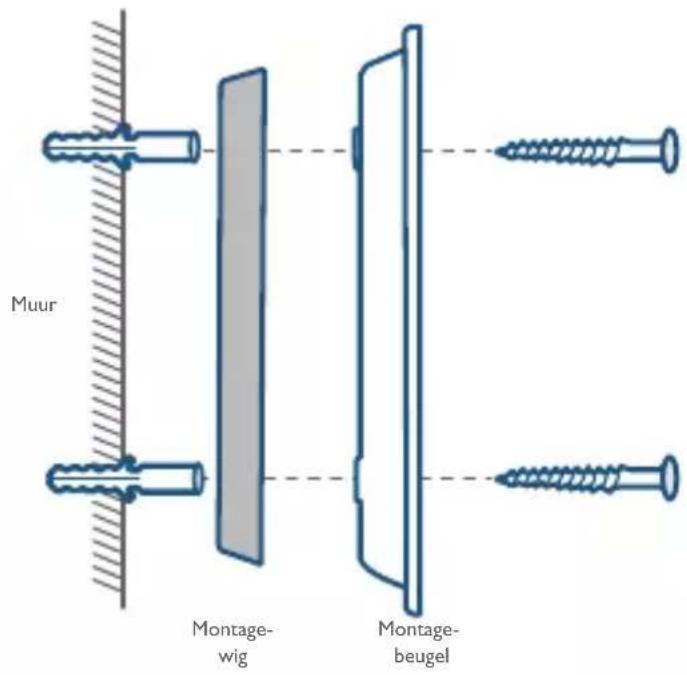
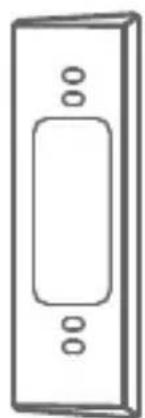
- To adjust the angel, use the 15^ mounting wedge as a supplementary mounting bracket.
10 EN
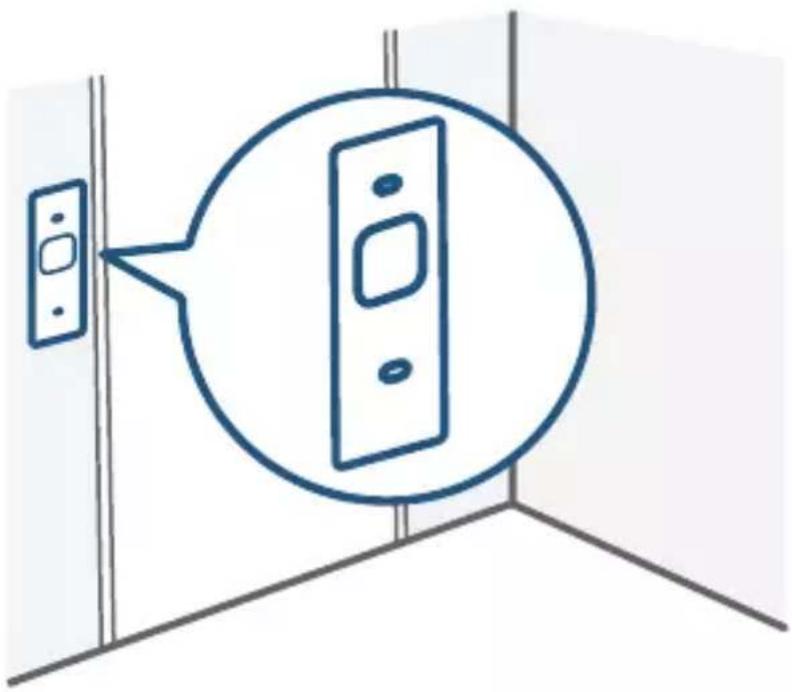
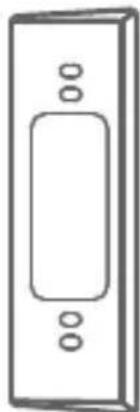
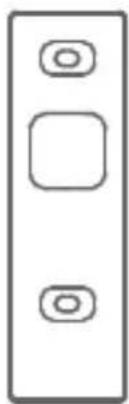
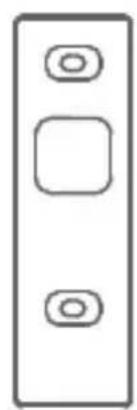
Place the screw hole positioning card against the wall to mark the position.
natural_image
Simple line drawing of a door with a speech bubble and vertical panel, no text or symbols present8 / STEP 5 MOUNTING THE BRACKET
Mount the Doorbell on a Wooden Surface
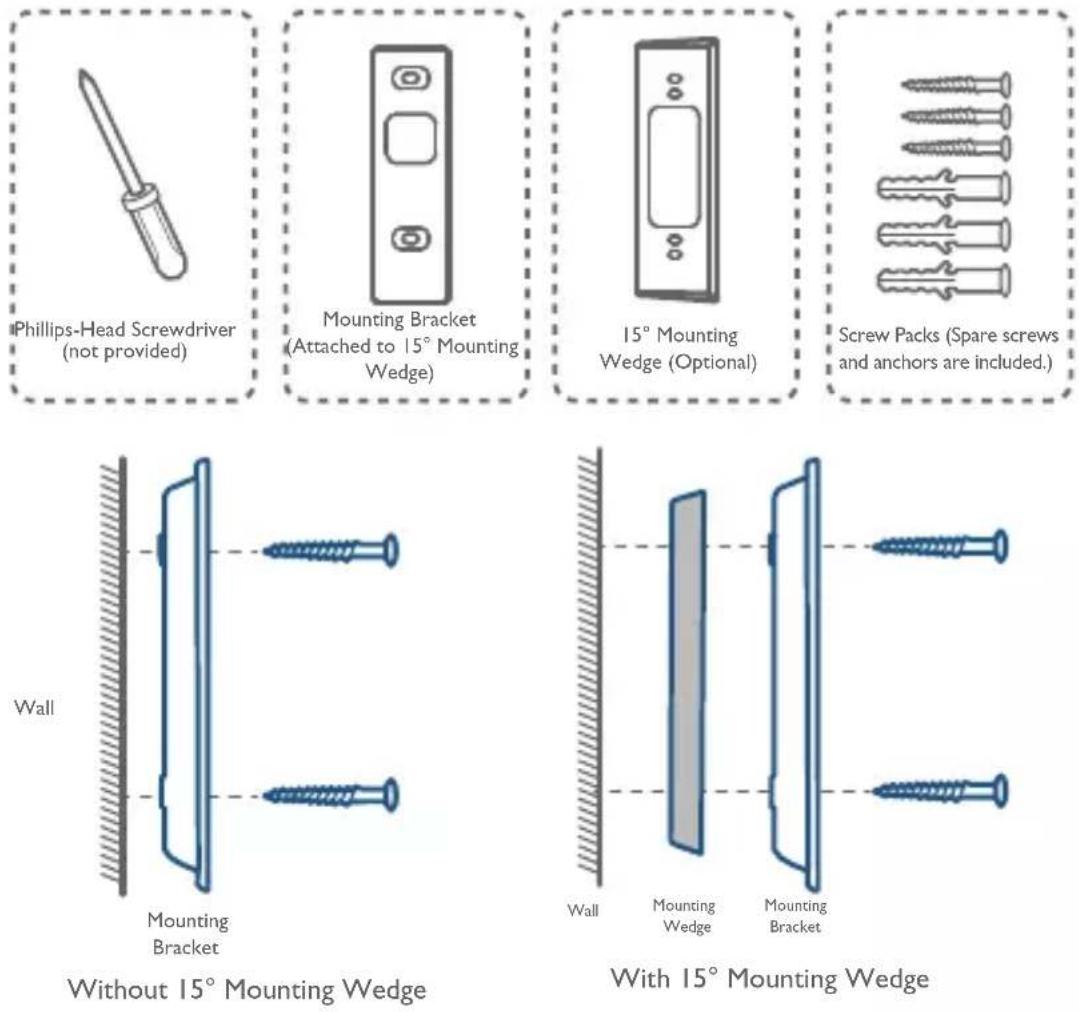
If you're mounting the doorbell on a wooden surface, you don't need to pre-drill pilot holes. Use the provided screws to secure the mounting bracket on the wall, the screw hole positioning card indicates the position of the screw holes.
What you need: Screwdriver, Mounting Bracket, 15° Mounting Wedge (Optional), Screw Packs
12 EN
Mount the Doorbell on Surfaces Made Out of Hard Materials
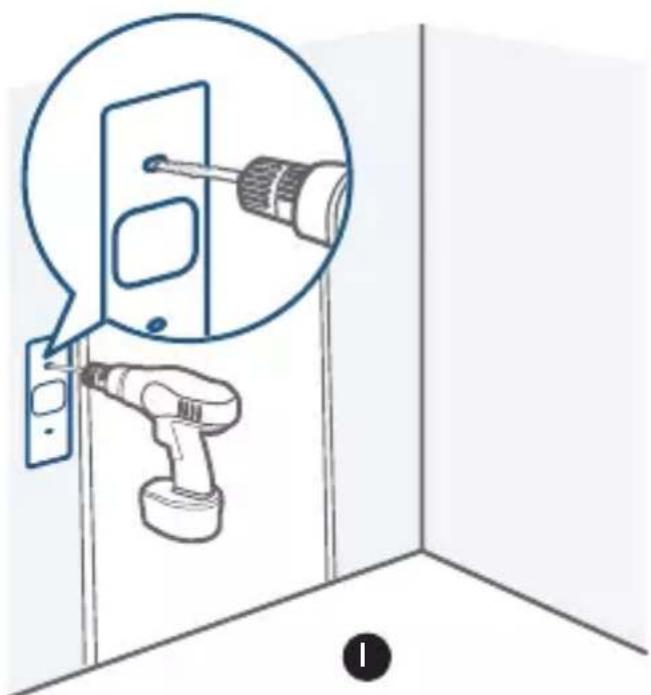
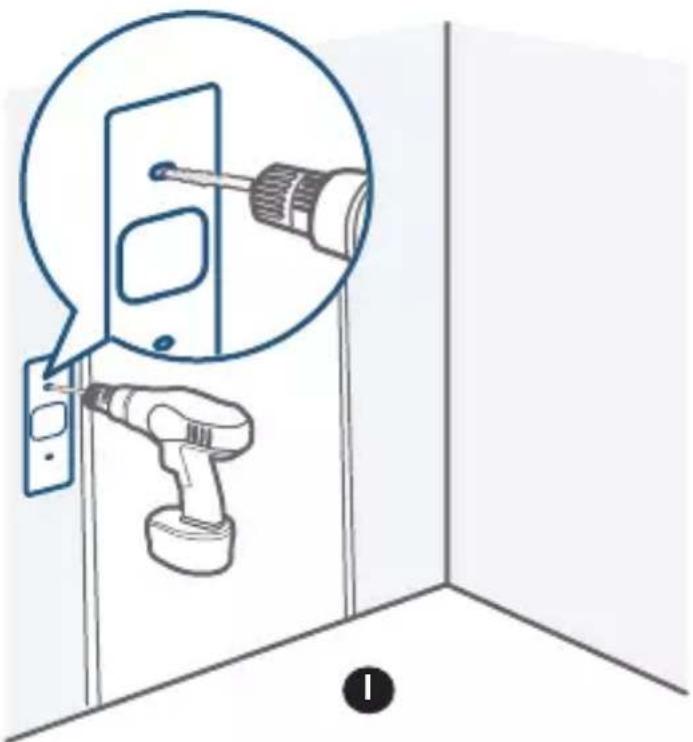
I. If you're mounting the doorbell on a surface made out of hard materials, like brick, concrete, stucco, drill 2 holes through the screw hold positioning card with a 15/64"(6mm) drill bit.
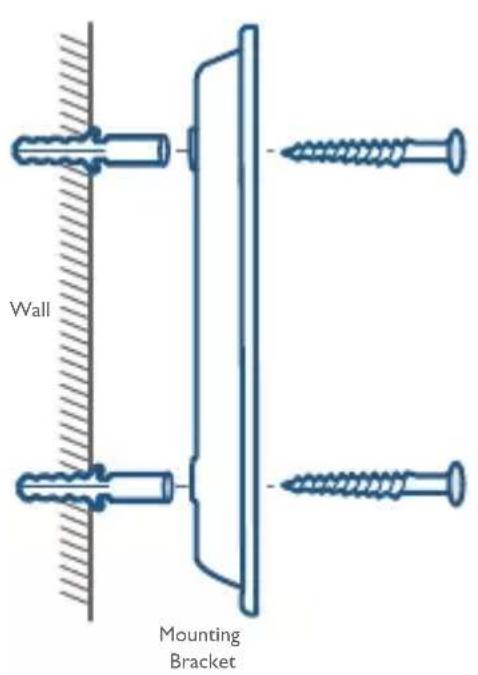
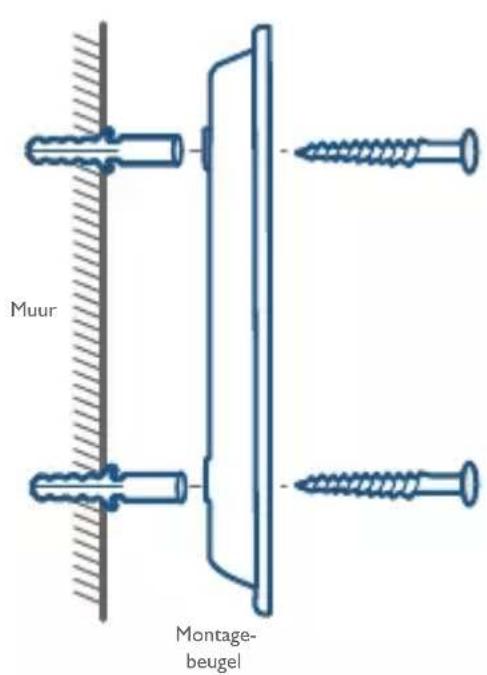
2. Insert the provided anchors, and then use the provided long screws to secure the mounting bracket on the wall.
What you need: Power Drill, 15/64"(6 mm) Drill Bit, Mounting Bracket, 15° Mounting Wedge (Optional), Screw Packs
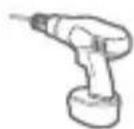
Power Drill (not provided)
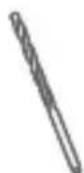
15/64"(6 mm) Drill Bit
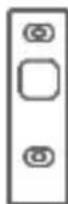
Mounting Bracket (Attached to 15° Mounting Wedge)
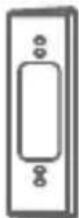
15° Mounting Wedge (Optional)
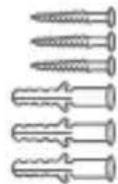
Screw Packs (Spare screws and anchors are included.)
natural_image
Diagram showing a robotic arm operating near a door panel, with a magnified inset highlighting the component (no text or symbols present)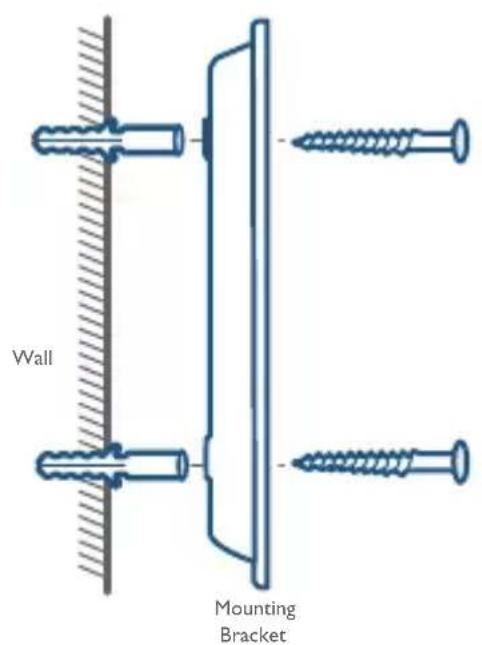
Without 15° Mounting Wedge
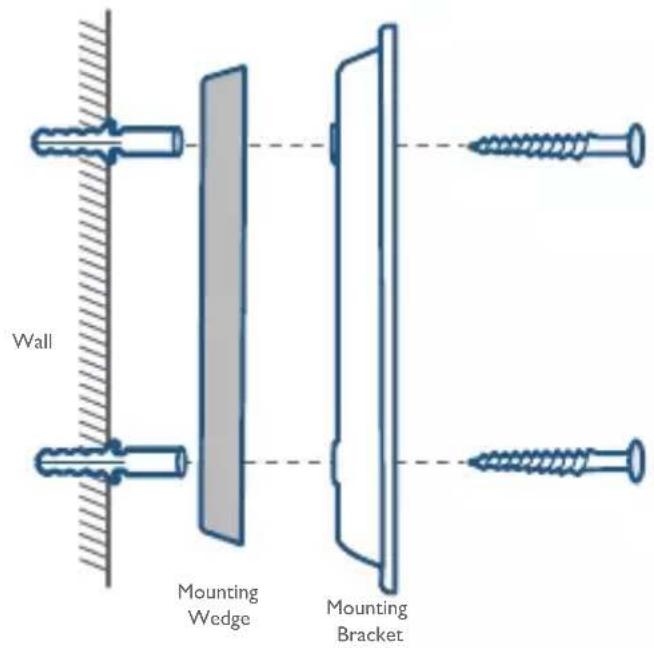
With 15° Mounting Wedge
2
2
9/STEP 6 MOUNTING THE DOORBELL
Mount the Doorbell
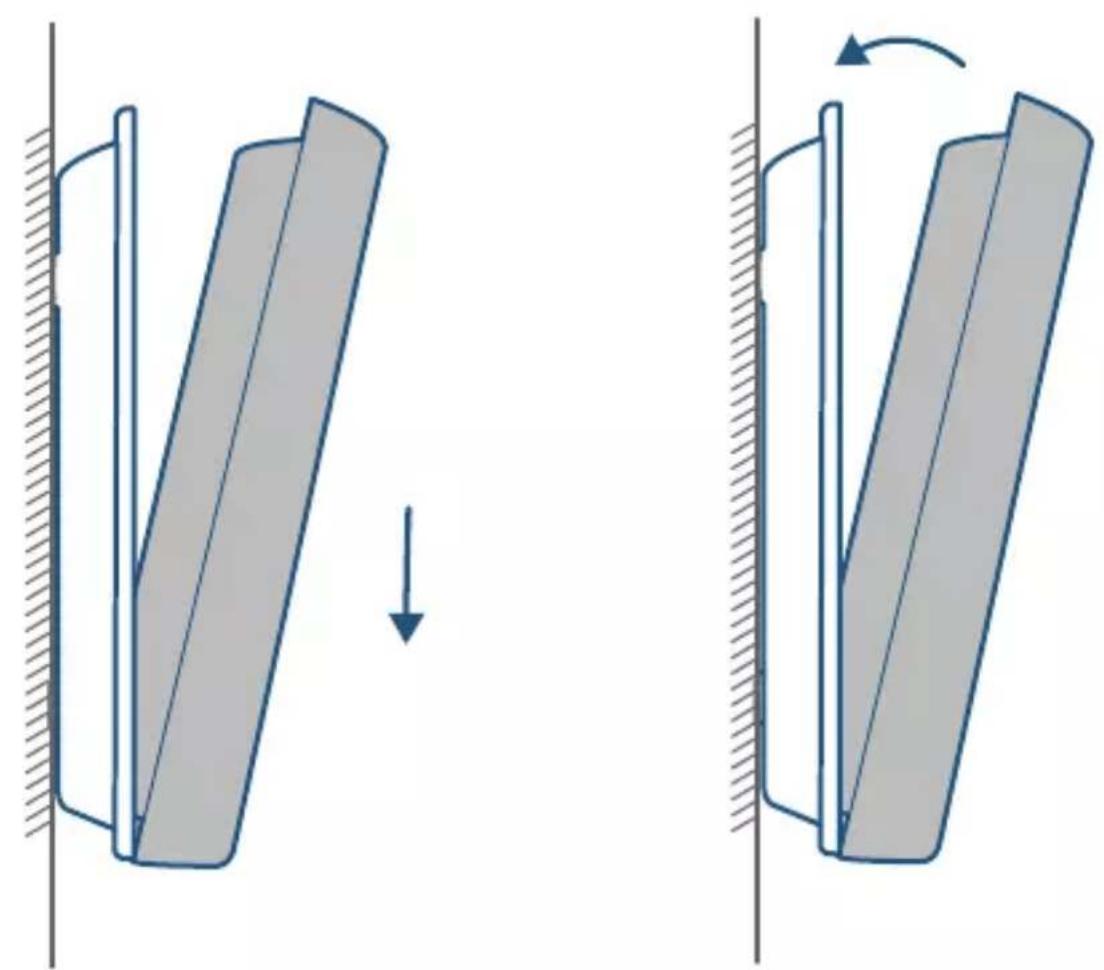
Align the doorbell on the bottom, and then move it into place on top. Press the doorbell down until it clicks.
natural_image
Diagram showing two mechanical components with a downward arrow indicating motion, no text or symbols presentYou're all set!
If you want to detach the doorbell or recharge it, please refer to the following sections.
EN 15
10 / APPENDIX I DETACHING THE DOORBELL
Detach the Doorbell
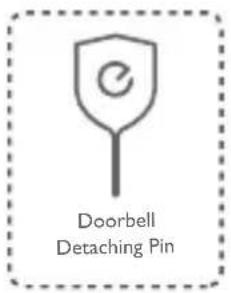
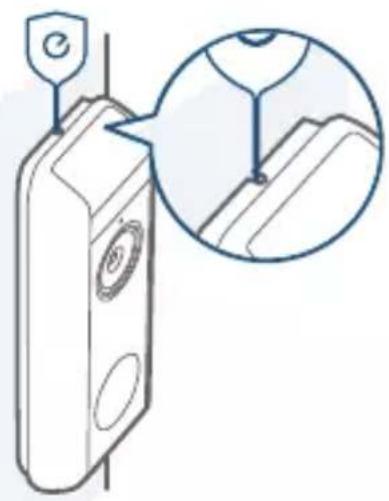
I. Use the doorbell detaching pin provided if you wish to detach the doorbell from the mounting bracket.
2. Press into the pinhole on top of the doorbell, and then lift the top for removal.
What you need: Doorbell Detaching Pin
natural_image
Diagram of a device with a magnified inset showing internal structure (no text or symbols)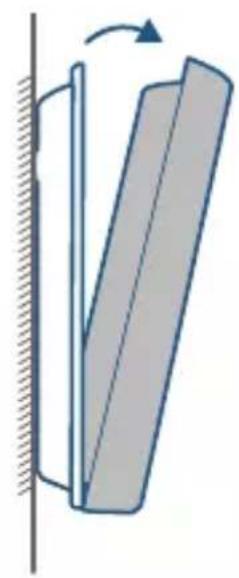
natural_image
Diagram of a mechanical component with a rotating arrow indicating rotation (no text or symbols)16 EN
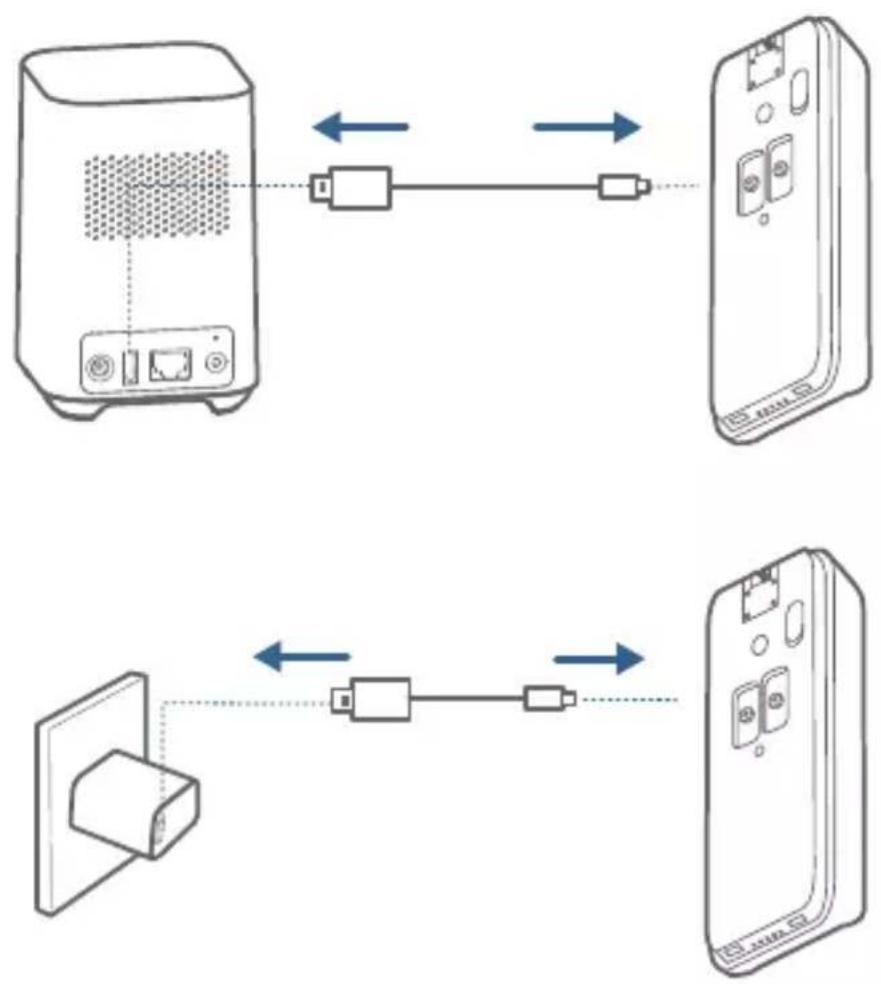
Recharge the Doorbell
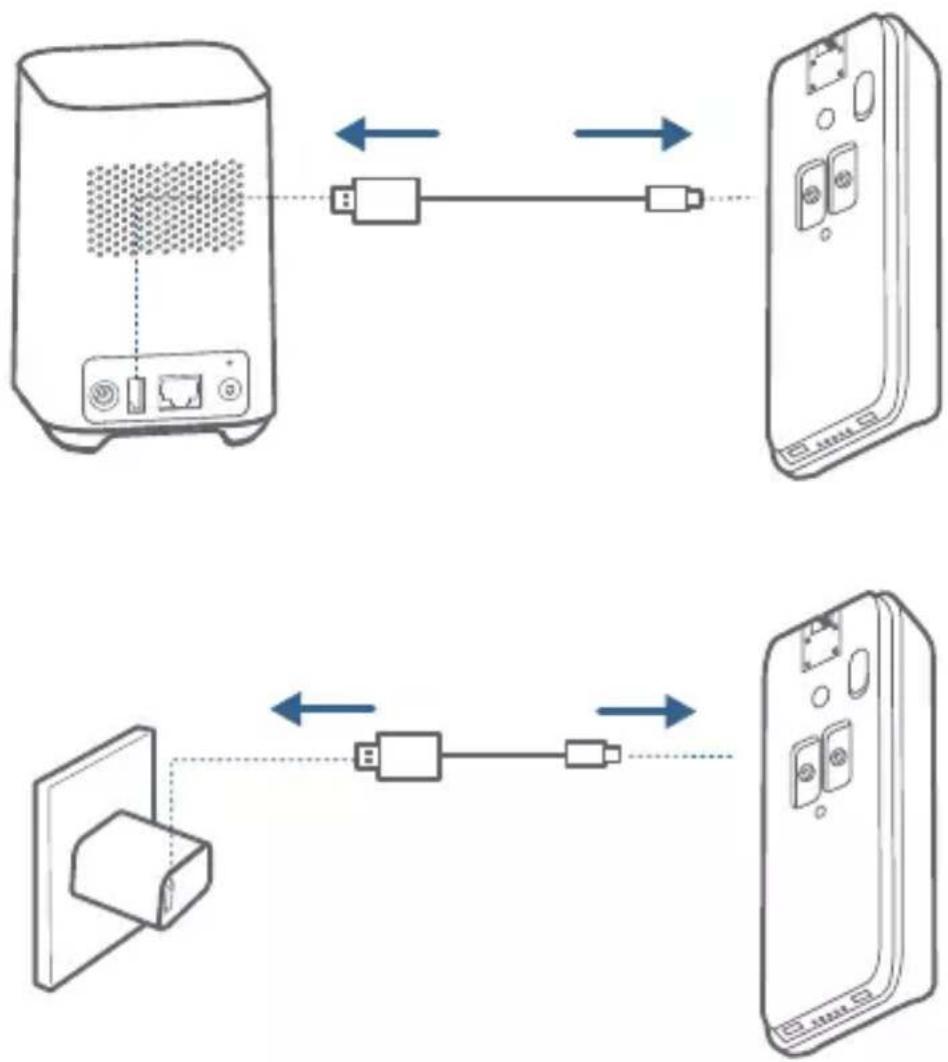
| LED indicator | Charging: Flashing Green |
| Fully charged: Green | |
| Charging time 6 hours from | 0% to 100% |
12/APPENDIX 3 POWERING THE DOORBELL
POWERING THE DOORBELLWITH EXISTING DOORBELL WIRES
3. I Verify whether the doorbell wires are working
I. Ring the existing doorbell to check if it is working. If the doorbell doesn't ring, your doorbell wires may be defective. Power the doorbell on its own battery or consult an electrician to fix the wires.
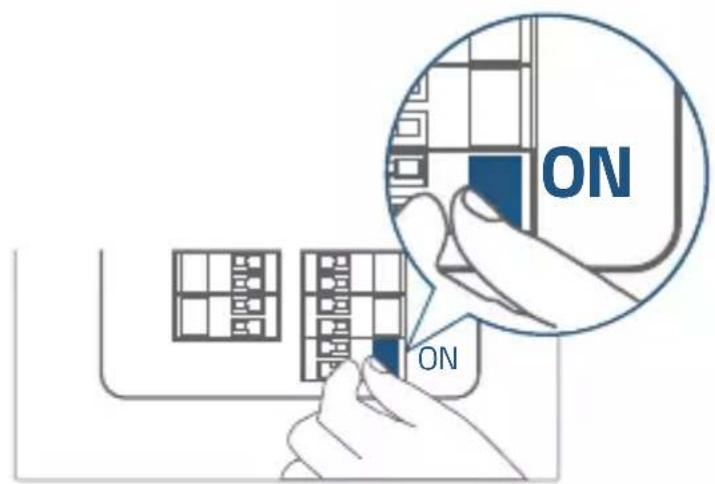
2. Shut off power at the breaker. Turn the lights on / off in your home to make sure the electricity in your house is properly shut off.
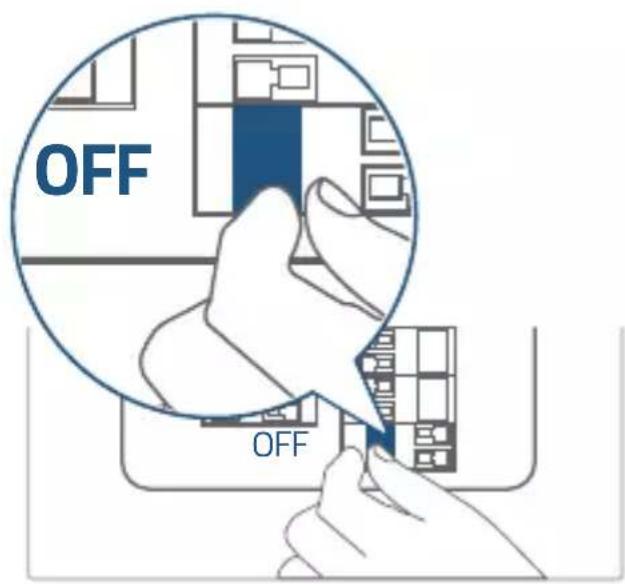

Always be careful when handling wires. If you're not comfortable installing it yourself, have a qualified electrician do it.
3.2 Detach the Existing Doorbell Button
If you already have existing doorbell wiring:
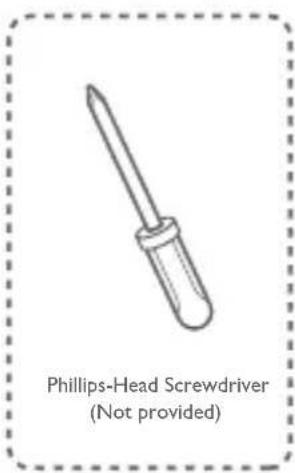
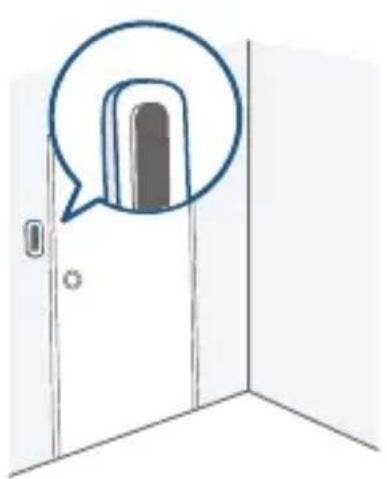
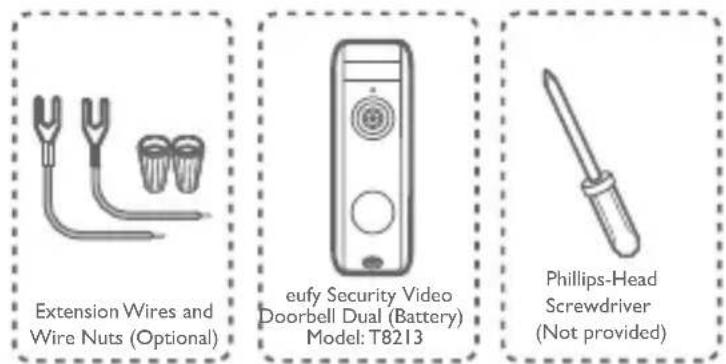
I. Remove the existing doorbell button with a Phillips-head screwdriver (not provided).
- Pull the two wires out carefully when removing the existing doorbell. Straighten the wire ends if necessary.
What you need: Philips-Head Screwdriver
natural_image
Simple line drawing of a door with a speech bubble highlighting the interior (no text or symbols)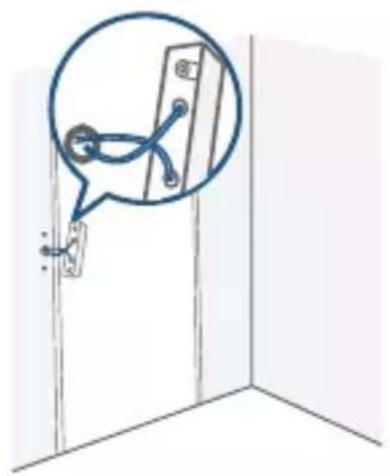
natural_image
Simple line drawing of a door with a magnified inset showing a blue circular detail (no text or symbols)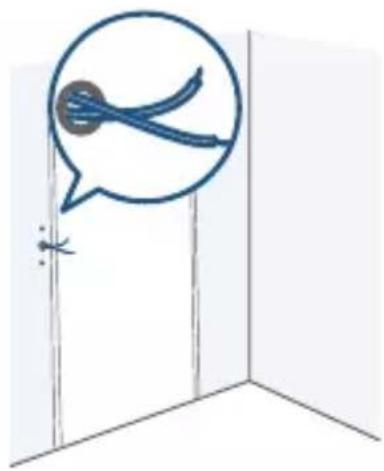
natural_image
Simple line drawing of a door with a speech bubble containing a blue object, no text or symbols present.EN 19
3.3 Find a Mounting Spot
I. When determining the mounting position of the doorbell, consider these factors:
① Check if you can reuse the existing holes and anchors on the wall or door frame.
② If you are drilling the mounting holes for the first time, the recommended mounting height is 48" / 1.2 m from the ground.
③ To adjust the angel, use the 15^ mounting wedge as a supplementary mounting bracket.
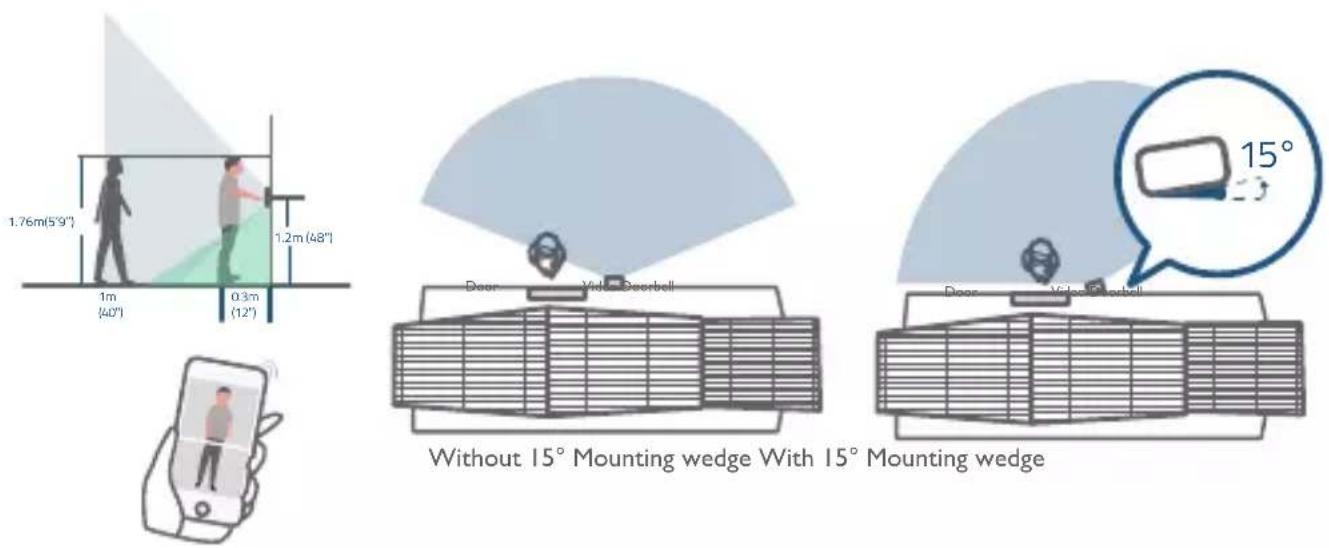
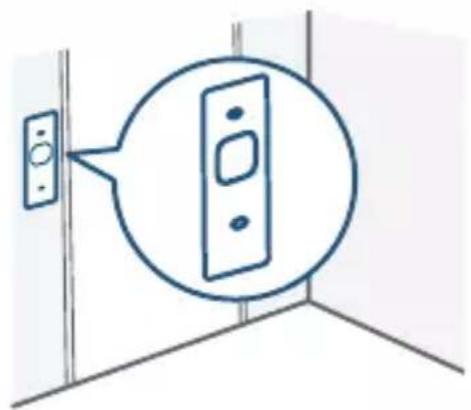
2 Place the screw hole positioning card against the wall to mark the position.
natural_image
Simple line drawing of a door with a wall-mounted device and a circular diagram highlighting the interior (no text or symbols)20 EN
3.4 Mount the Bracket
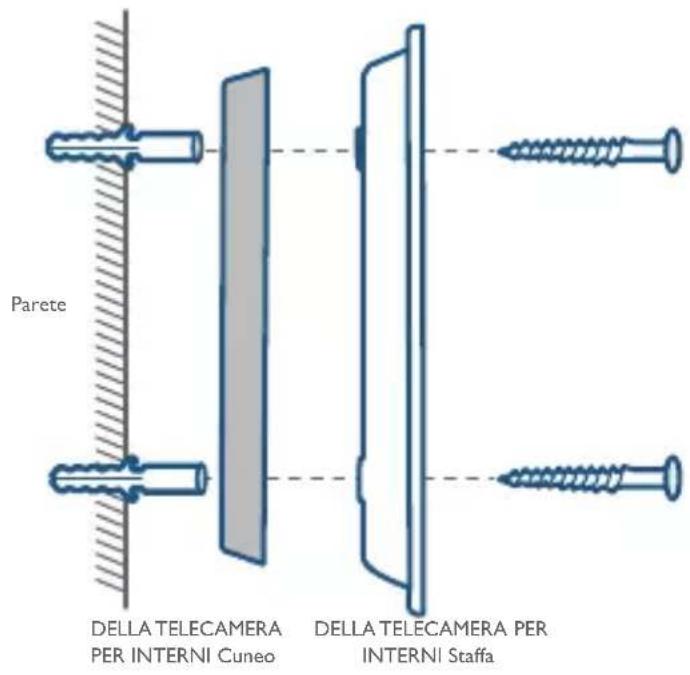
If you're mounting the doorbell on a wooden surface, you don't need to pre-drill pilot holes. Use the provided screws to secure the mounting bracket on the wall. The screw hole positioning card indicates the position of the screw holes.
What you need: Power Drill, Mounting Bracket, 15° Mounting Wedge (Optional), Screw Packs
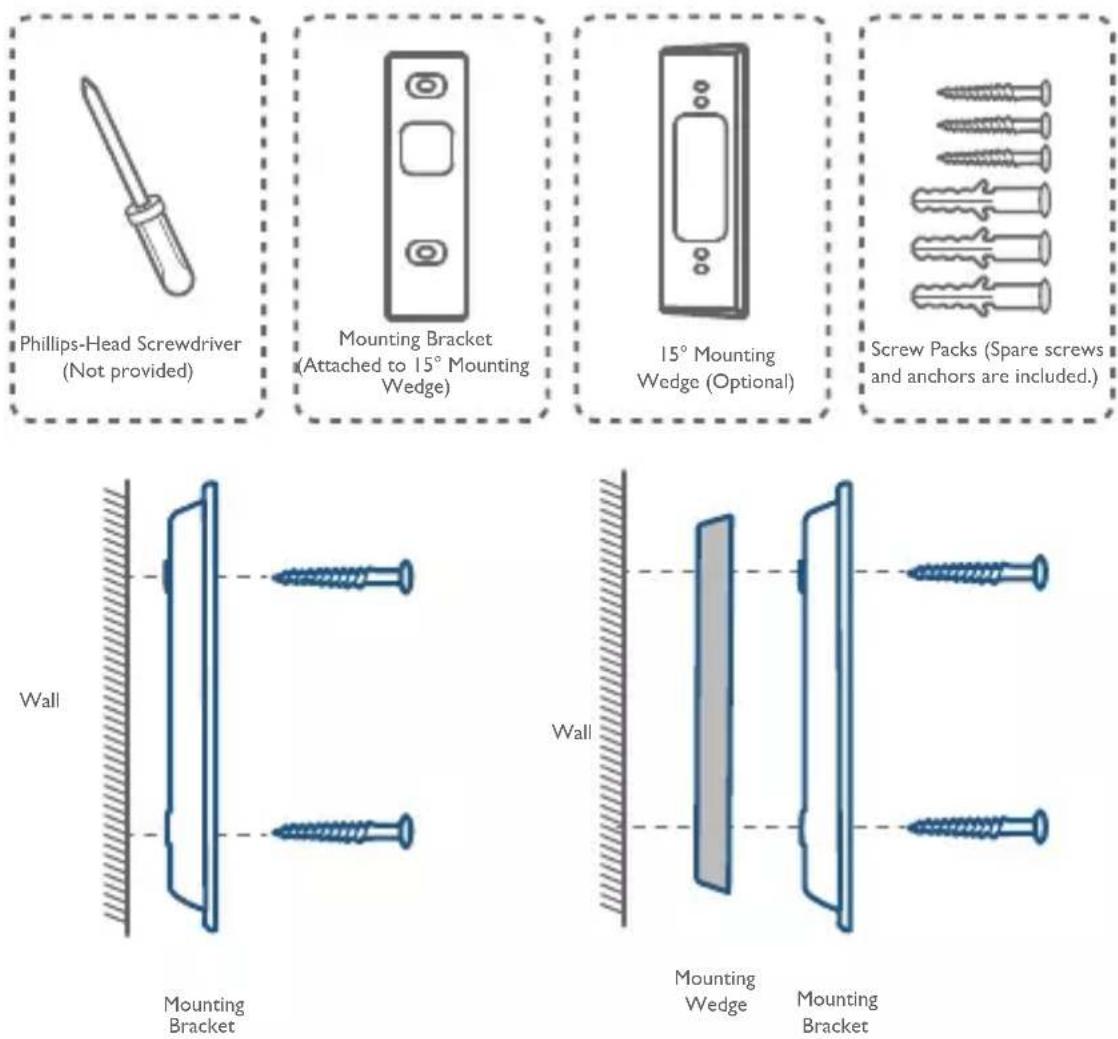
Without 15° Mounting Wedge With 15° Mounting Wedge
If you're mounting the doorbell on a surface made out of hard materials, like brick, concrete, stucco:
① Drill 2 holes through the screw hole positioning card with 15/64"(6mm) drill bit.
② Insert the provided anchors, and then use the provided long screws to secure the mounting bracket on the wall.
What you need: Power Drill, 15/64"(6mm) Drill Bit, Mounting Bracket, 15° Mounting Wedge (Optional), Screw Packs
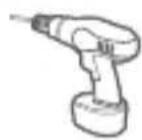
Power Drill (not provided)
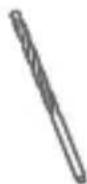
15/64"(6 mm) Drill Bit
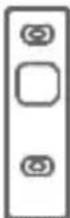
Mounting Bracket (Attached to 15° Mounting Wedge)
15° Mounting Wedge (Optional)
Screw Packs (Spare screws and anchors are included.)
natural_image
Diagram showing a hand operating a screwdriver inside a room, with an inset magnified view of the device (no text or symbols present)22 EN
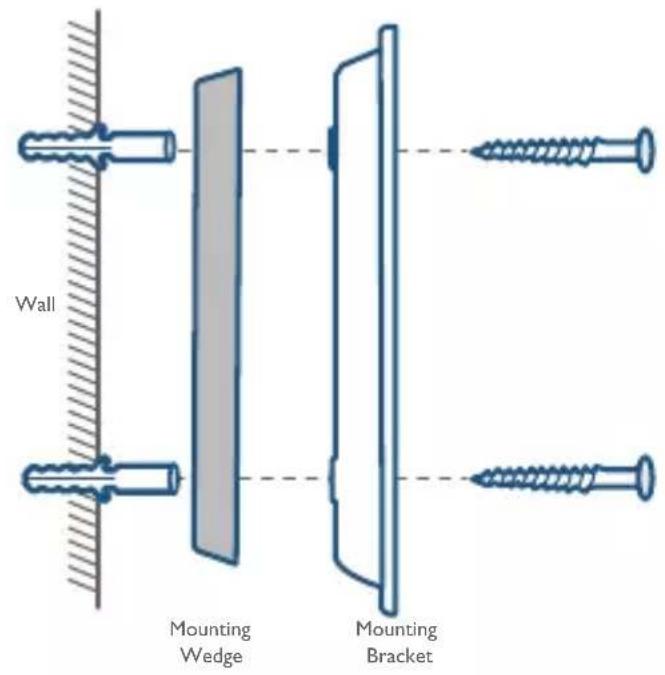
Without 15° Mounting Wedge With 15° Mounting Wedge
2
2
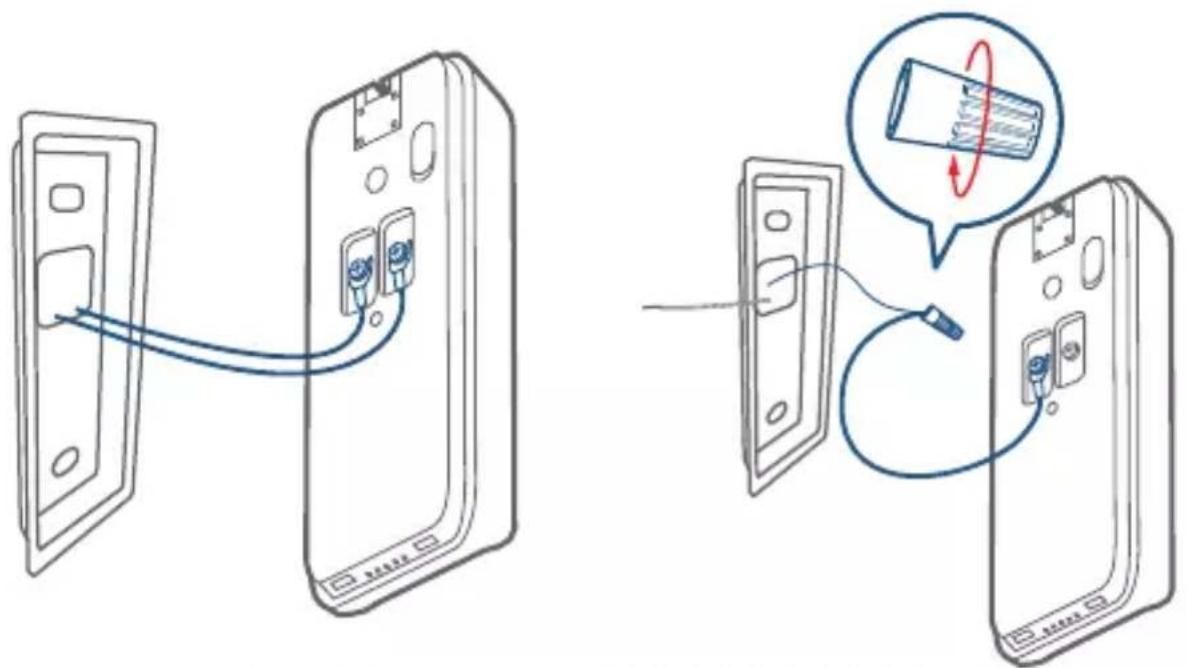
3.5 Connect the Doorbell Wires to the Doorbell
Connect the wires to the terminals at the back of the doorbell, then tighten the terminal screws. Wire can connect to any terminal.
What you need: Wires and Wire Nuts (Optional), Video Doorbell, Philipshead Screwdriver
Note:
• To prevent short-circuiting, make sure the wires are not touching each other after connecting them to the terminals.
- If the wires are too short, use the extension wires and wire nuts provided to make them longer. Use electrical wiring tape instead if there is no more space on the wall for wire nuts.
24 EN
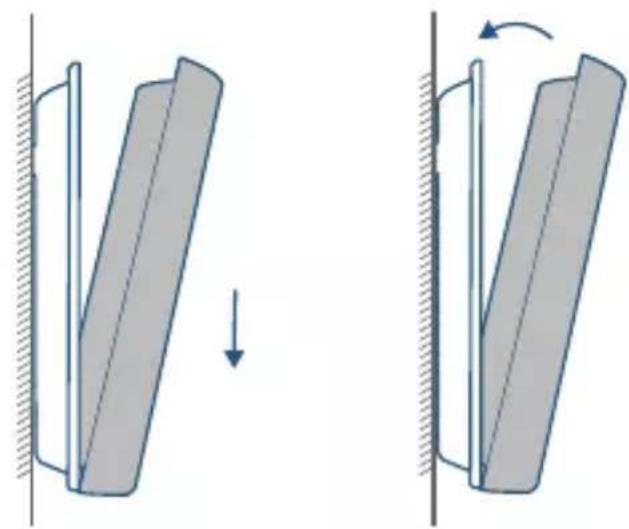
3.6 Mount the Doorbell on the Bracket
Align the doorbell on the bottom, and then move it into place on top. Press the doorbell down until it clicks.
natural_image
Diagram showing two mechanical or structural changes with arrows indicating direction, no text or symbols present.3.7 Restore Power
Switch the master circuit breaker back to ON.
You're all set!
If you want to detach the doorbell or recharge it, please refer to the corresponding sections.
EN 25
13/NOTICE
CE This product complies with the radio interference requirements of the European Community
Declaration of Conformity
Hereby, Anker Innovations Limited declares that this device is in compliance with the essential requirements and other relevant provisions of Directive 2014/53/EU. For the declaration of conformity, visit the Web site: https://uk.eufylife.com/.
The adapter shall be installed near the equipment and shall be easily accessible. Do not use the Device in the environment at too high or too low temperature, never expose the Device under strong sunshine or too wet environment. The suitable temperature for the product and accessories is -20^ to 45^ .
When charging, please place the device in an environment that has a normal room temperature and good ventilation.
It is recommended to charge the device in an environment with a temperature that ranges from 5^ C\~ 25^ C.
Please ensure to use only the adapter offered by the manufacturer. Using unauthorized charger may cause danger and violate the guarantee article.
This adapter is for indoor use only. The adapter type is KA2401A-1202000DE/, output voltage/current is 12Vdc/2A. The plug considered as disconnect device of adapter.
CAUTION RISK OF EXPLOSION IF BATTERY IS REPLACED BY AN INCORRECT TYPE. DISPOSE OF USED BATTERIES ACCORDING TO THE INSTRUCTIONS
RF exposure information: The Maximum Permissible Exposure (MPE) level has been calculated based on a distance of d=20 cm between the device and the human body. To maintain compliance with RF exposure requirement, use
26 EN
product that maintain a 20cm distance between the device and human body. The Device T8213 Wifi Operating Frequency Range:2412\~2472 MHz(2.4G); Range:23-24 GHz(24GHz);
Wifi Max Output Power:17.88 dBm(ERIP for 2.4G); Max Output Power:5dbm(EIRP for 24Ghz)
The Device T8010X Wifi Operating Frequency Range:2412\~2472 MHz(2.4G); Range:866-866.8 MHz(Sub-IG);
Wifi Max Output Power: 18.40 dBm (ERIP for 2.4G); Max Output Power: 5.492dbm (EIRP for Sub-IG)
The following importer is the responsible party (contract for EU and UK matters)
This product is designed and manufactured with high quality materials and components, which can be recycled and reused.
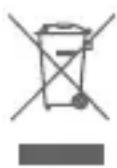
This symbol means the product must not be discarded as household waste, and should be delivered to an appropriate collection facility for recycling. Proper disposal and recycling helps protect natural resources, human health and the environment. For more information on disposal and recycling of this product, contact your local municipality, disposal service, or the shop where you bought this product.

This product complies with the radio interference requirements of the United Kingdom
Declaration of Conformity
Hereby, Anker Innovations Limited declares that this product is in compliance with Radio Equipment Regulations 2017. The full text of the UK declaration of conformity is available at the following internet address: https://uk.eufylife.com Anker Technology (UK) Ltd I Suite B, Fairgate House, 205 Kings Road, Tyseley,
EN 27
natural_image
Simple line drawing of a rectangular device with two circular buttons and a top panel (no text or symbols)eufy Security Video
Doorbell Dual (Battery)
Modell: T8213
natural_image
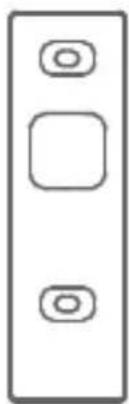
Simple diagram of a vertical rectangle with three rounded square buttons on the top (no text or symbols)Montagehalterung
natural_image
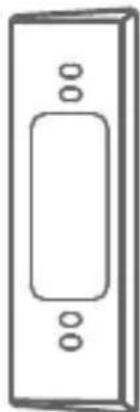
Simple line drawing of a rectangular device with internal components (no text or symbols)15°-Montagewinkel (optional)
natural_image
Simple line drawing of a vertical rectangular panel with three small circular holes (no text or symbols)natural_image
Six different screw or screw installation variants shown in line drawings (no text or symbols)Schraubenpaket
natural_image
Illustration of two U-shaped dental tools with a separate cup holder (no text or symbols)natural_image
Simple line drawing of a connected electrical device with a cable (no text or symbols)natural_image
Simple line drawing of two connected electrical connectors (no text or symbols)Rückseite:
natural_image
Line drawing of a network device with two connected devices, one connected to a power outlet and the other to a router (no text or symbols present)natural_image
Blue shield icon with a white circular symbol inside, resembling a stylized 'e' or refresh symbol (no text or numbers present)
natural_image
Illustration of a hand holding a smartphone with wireless signal and a separate device with circular buttons (no text or symbols)DE 35
natural_image
Illustration of a safety warning sign with a yellow triangle and lightning bolt, connected to a wall-mounted device (no text or symbols)8 – 24 V AC Türklingelverkabelung
7 / SCHRITT 4 BESTIMMEN EINER MONTAGEPOSITION
natural_image
Simple line drawing of a door with a speech bubble and two buttons, no text or symbols present.natural_image
Diagram showing a robotic arm installing or adjusting a door panel, with a magnified inset highlighting the component (no text or symbols present)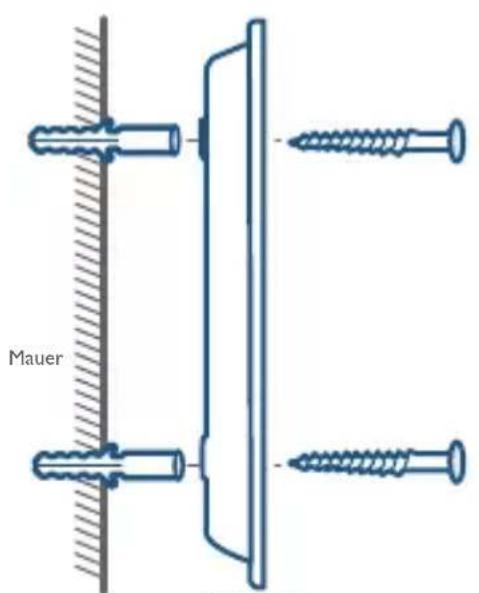
natural_image
Diagram showing two mechanical components with a downward arrow indicating rotation, no text or symbols presentDas war's!
natural_image
Diagram of a device with a magnified inset showing internal structure (no text or symbols)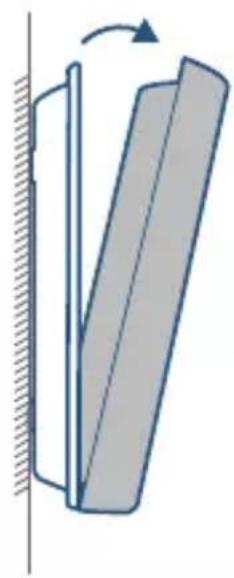
natural_image
Diagram of a mechanical component with a rotating arrow indicating rotation (no text or symbols)44 DE
Türklingel aufladen
natural_image
Simple line drawing of a door with a speech bubble highlighting the interior (no text or symbols)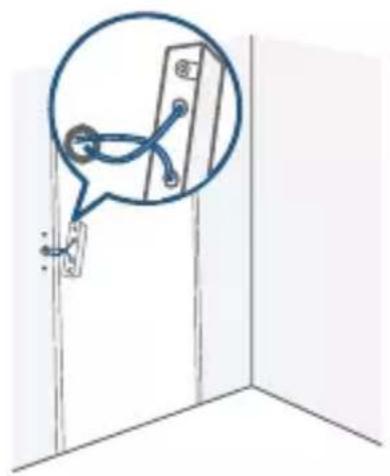
natural_image
Simple line drawing of a door with a magnified inset showing a blue circular detail (no text or symbols)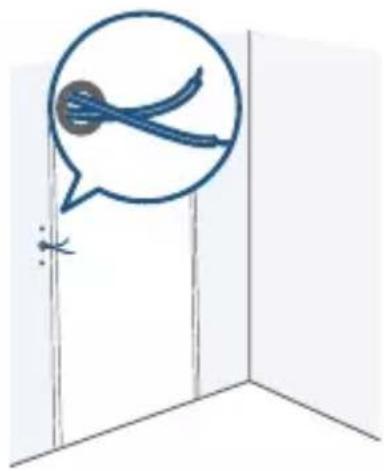
natural_image
Simple line drawing of a door with a speech bubble containing a blue object, no text or symbols present.natural_image
Simple line drawing of a door with a wall-mounted switch and a circular icon highlighting the interior (no text or symbols)natural_image
Diagram showing a hand operating a screwdriver inside a room, with an inset magnified view of the device (no text or symbols present)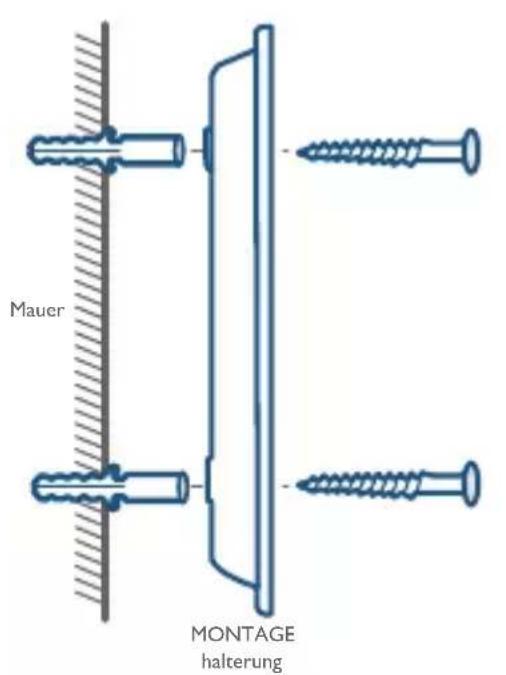
Hinweis:
natural_image
Diagram showing two mechanical or structural changes with a downward arrow indicating motion (no text or symbols present)natural_image
Simple line drawing of a rectangular device with circular buttons and a plus sign (no text or symbols)eufy Security Video
Doorbell Dual (Battery)
Modelo: T8213
natural_image
Simple diagram of a vertical rectangle with three rounded square buttons on top (no text or symbols)Soporte de montaje
natural_image
Simple line drawing of a rectangular device with internal components (no text or symbols)natural_image
Simple line drawing of a vertical rectangular frame with three small circles on both sides (no text or symbols)natural_image
Six different screw thread designs arranged in a row (no text or symbols)natural_image
Illustration of two dental tools with curved leads and two separate cup-like objects (no text or symbols)natural_image
Simple line drawing of a connected electrical plug (no text or symbols)natural_image
Simple line drawing of two connected connectors (no text or symbols)Cable Ethernet para HomeBase 2
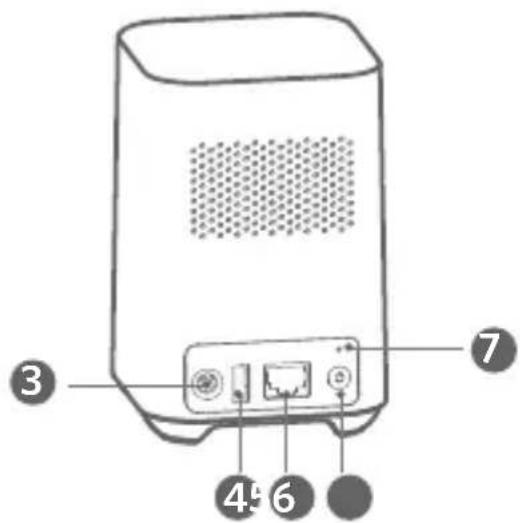
I.LED de estado
- Puerto Ethernet
2.Altavoz
6.Botón SYNC/ALARMA
natural_image
Line drawing of a network device with two connected devices, one connected to a power outlet and the other to a router (no text or symbols present)natural_image
Blue shield icon with a white circular symbol inside, resembling a stylized 'e' or refresh symbol (no text or numbers present)
natural_image
Illustration of a hand holding a smartphone with wireless signal and a separate device with circular buttons (no text or symbols)ES 63
flowchart
graph LR
    A["Device with monitor"] --> B["Clock with time scale"]
    B --> C["Device connected to battery via battery icon"]
    C --> D["Device with battery icon"]
natural_image
Illustration of a warning sign with a yellow triangle and lightning bolt connected to a wall-mounted device (no text or symbols)natural_image
Simple line drawing of a door with a speech bubble and three buttons, no text or symbols present.8 / PASO 5 MONTAJE DEL SOPORTE
natural_image
Diagram showing a robotic arm installing a door panel, with a magnified inset highlighting the component (no text or symbols present)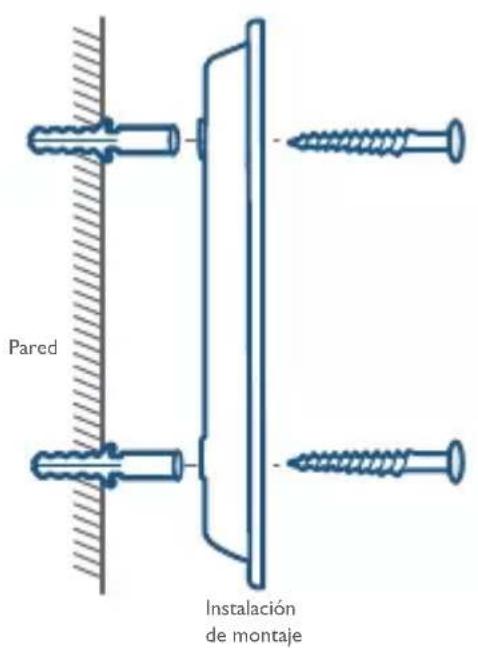
natural_image
Diagram showing two mechanical components with a downward arrow indicating motion, no text or symbols present¡Ya está!
natural_image
Diagram of a device with a magnified inset showing internal structure (no text or symbols)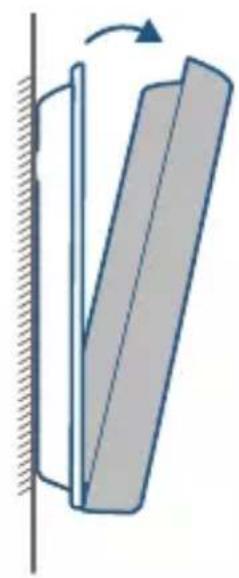
natural_image
Diagram of a mechanical component with a rotating arrow indicating rotation (no text or symbols)72 ES
Recarga del timbre
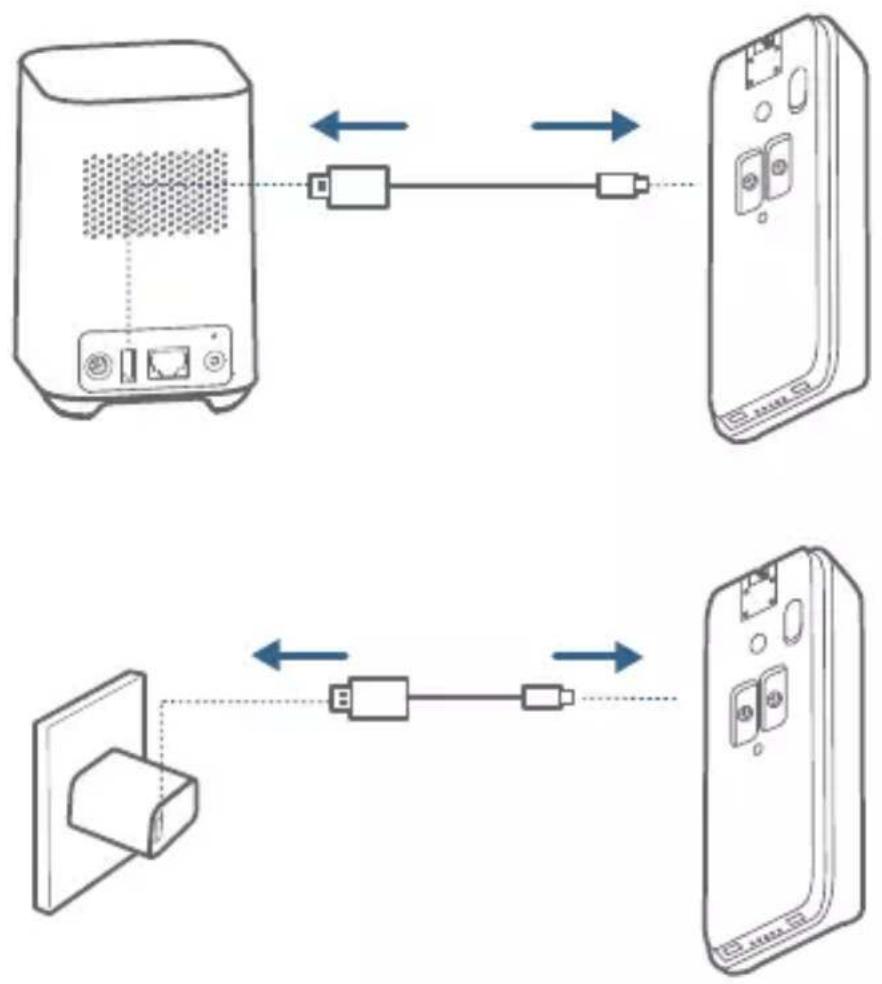
natural_image
Simple line drawing of a door with a speech bubble highlighting the interior (no text or symbols)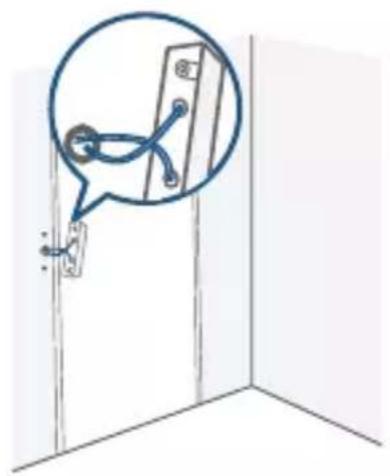
natural_image
Simple line drawing of a door with a magnified inset showing a blue circular detail (no text or symbols)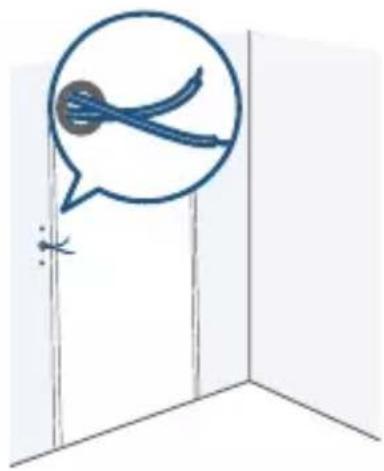
natural_image
Simple line drawing of a door with a speech bubble containing a blue object, no text or symbols present.ES 75
natural_image
Simple line drawing of a door with a circular annotation highlighting the interior (no text or symbols)natural_image
Diagram showing a hand operating a screwdriver inside a room, with an inset magnified view of the device (no text or symbols present)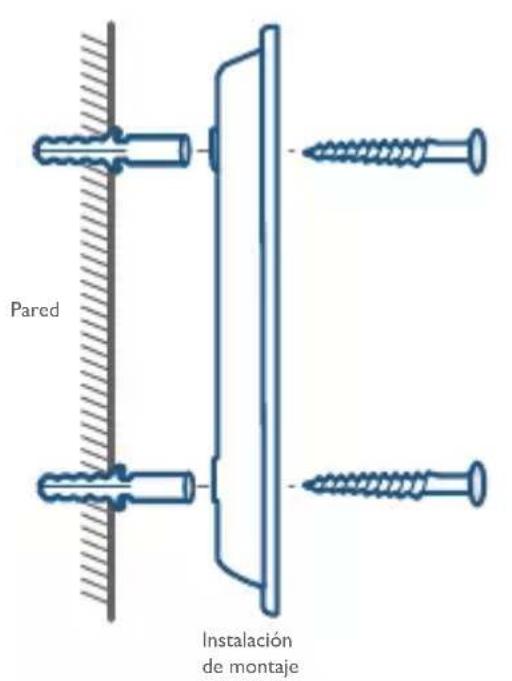
Nota:
natural_image
Diagram showing two mechanical or structural changes with a downward arrow, no text or symbols presentnatural_image
Simple line drawing of a rectangular device with circular buttons and a plus sign (no text or symbols)natural_image
Simple diagram of a vertical rectangle with three rounded square buttons on top (no text or symbols)Support de montage
natural_image
Simple line drawing of a rectangular device with internal components and mounting holes (no text or symbols)natural_image
Simple line drawing of a vertical rectangular panel with three small circular holes (no text or symbols)natural_image
Six different screw thread designs arranged in a row (no text or symbols)Jeu de vis
natural_image
Illustration of two U-shaped dental tools with two separate cup-like objects (no text or symbols)natural_image
Simple line drawing of a connected electrical plug (no text or symbols)natural_image
Simple line drawing of two connected connectors (no text or symbols)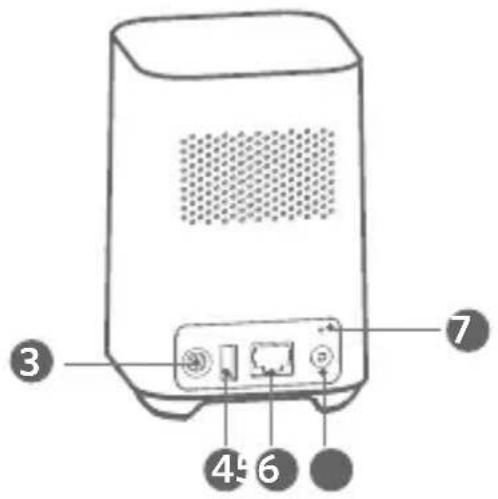
I.LED d'état
- Port Ethernet
2.Haut-parleur
6.Bouton SYNC/ALARM OFF
natural_image
Line drawing of a network device with two connected devices, one connected to a power outlet and the other to a router (no text or symbols present)natural_image
Blue shield icon with a white circular symbol inside, resembling a stylized 'e' or refresh symbol (no text or numbers present)
natural_image
Illustration of a hand holding a smartphone with wireless signal and a vertical device on the right (no text or symbols)6 / ÉTAPE 3 DÉTERMINATION DE L'OPTION D'ALIMENTATION
natural_image
Illustration of a power outlet with a warning sign and lightning bolt, connected by a cable (no text or symbols)natural_image
Simple line drawing of a door with a speech bubble and two buttons, no text or symbols present.8 / ÉTAPE 5 MONTAGE DU SUPPORT
natural_image
Diagram showing a robotic arm mounted on a wall next to a door, with a magnified inset highlighting the component (no text or symbols present)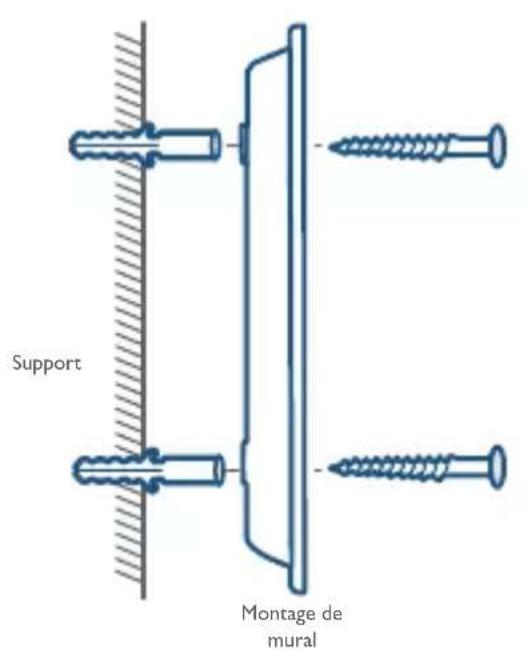
natural_image
Diagram showing two mechanical components with a downward arrow indicating rotation, no text or symbols presentnatural_image
Diagram showing a device with a magnified inset of its internal structure, alongside a close-up of its edge panel (no text or symbols present)100 FR
natural_image
Simple line drawing of a door with a speech bubble highlighting the interior (no text or symbols)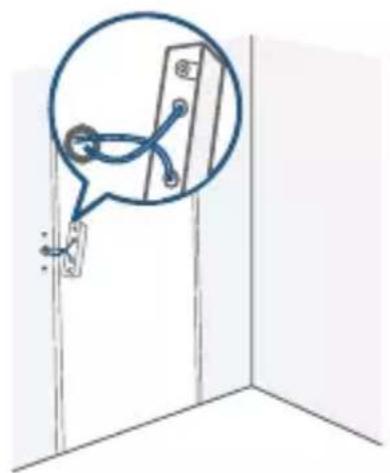
natural_image
Simple line drawing of a door with a magnified inset showing a blue object (no text or symbols)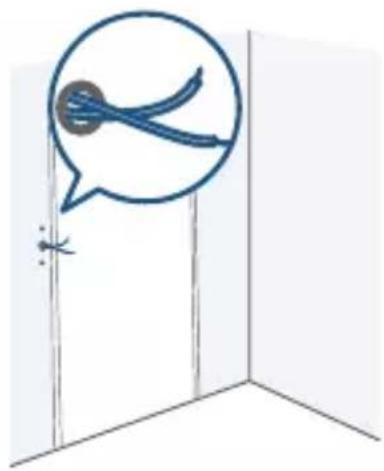
natural_image
Simple line drawing of a door with a speech bubble containing a bird silhouette (no text or symbols)FR 103
natural_image
Simple line drawing of a door with a wall-mounted device and a circular diagram highlighting the interior (no text or symbols)104 FR
natural_image
Diagram showing a hand operating a screwdriver inside a door, with an inset magnified view of the device (no text or symbols present)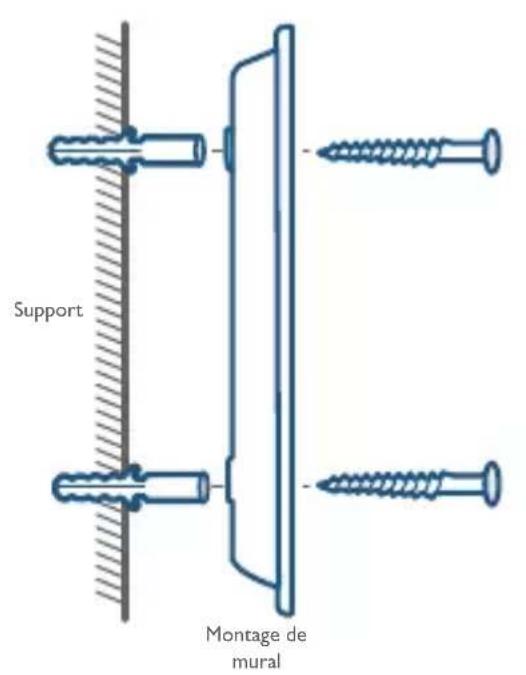
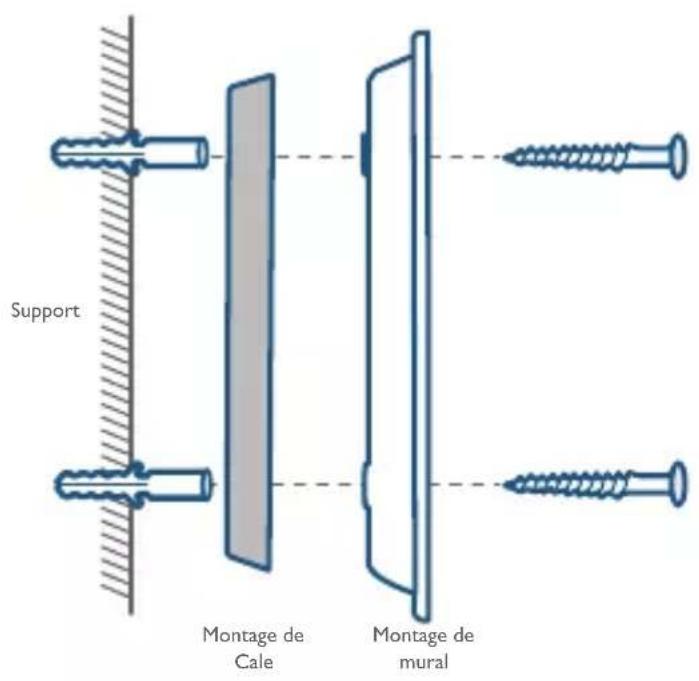
Remarque :
natural_image
Diagram showing two mechanical or structural changes with a downward arrow indicating motion (no text or symbols present)natural_image
Simple line drawing of a rectangular device with circular buttons and a plus sign (no text or symbols)eufy Security Video
Doorbell Dual (Battery)
Modello: T8213
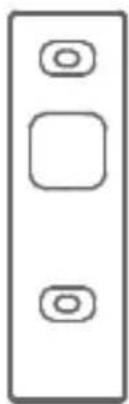
natural_image
Simple diagram of a vertical rectangle with three rounded square buttons on the top (no text or symbols)Staffa di montaggio
natural_image
Simple line drawing of a rectangular device with four circular ports, no text or symbols present.natural_image
Simple line drawing of a vertical rectangular panel with three small circular holes (no text or symbols)natural_image
Six different screw fasteners shown in line drawings (no text or symbols)Pacchetto di viti
natural_image
Illustration of two U-shaped dental tools with a separate cup holder (no text or symbols)natural_image
Simple line drawing of a connected electrical device with a cable (no text or symbols)natural_image
Simple line drawing of two connected connectors (no text or symbols)natural_image
Line drawing of a network device with two connected devices, one connected to a power outlet and the other to a router (no text or symbols present)natural_image
Blue shield icon with a white circular symbol inside, resembling a stylized 'e' or refresh symbol (no text or numbers present)

natural_image
Illustration of a hand holding a smartphone with wireless signal and a separate device with circular buttons (no text or symbols)6/
PASSAGGIO 3.
natural_image
Illustration of a warning sign with a yellow triangle and lightning bolt connected to a wall-mounted device (no text or symbols)natural_image
Simple line drawing of a door with a speech bubble and two buttons, no text or symbols present8 / PASSAGGIO 5. MONTAGGIO DELLA STAFFA
natural_image
Diagram showing a robotic arm mounted on a wall-mounted device, with a magnified inset highlighting the component (no text or symbols present)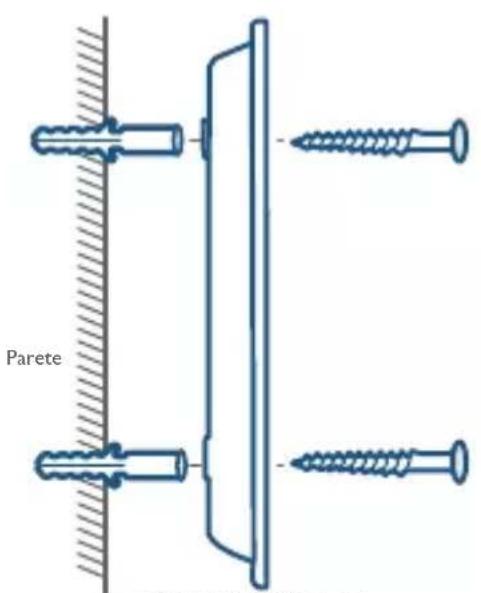
natural_image
Diagram showing two mechanical components with a downward arrow indicating motion, no text or symbols presentnatural_image
Diagram of a device with a magnified inset showing internal structure (no text or symbols)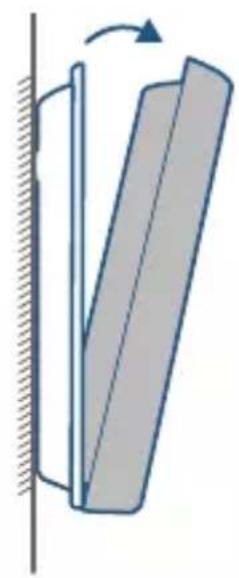
natural_image
Diagram of a mechanical component with a rotating arrow indicating rotation (no text or symbols)natural_image
Simple line drawing of a door with a speech bubble highlighting the interior (no text or symbols)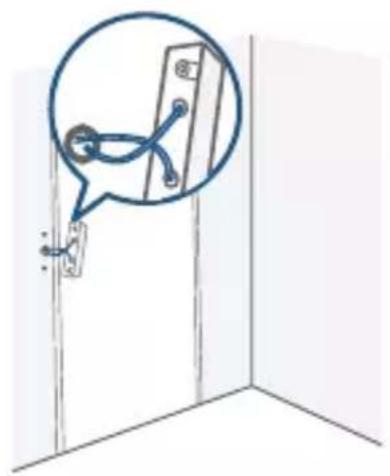
natural_image
Simple line drawing of a door with a magnified inset showing a blue circular detail (no text or symbols)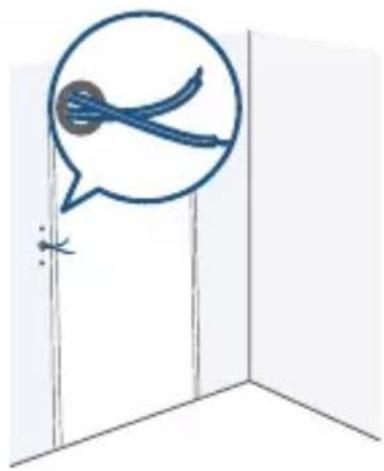
natural_image
Simple line drawing of a door with a speech bubble containing a blue object, no text or symbols present.natural_image
Simple line drawing of a door with a circular indicator light and two buttons, no text or symbols present.3.4 Montare la staffa
natural_image
Diagram showing a hand tool inserted into a door panel, with a magnified inset highlighting the device (no text or symbols present)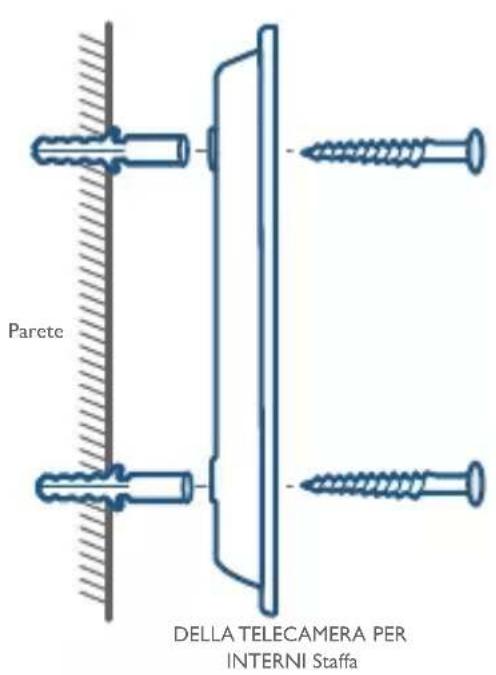
Nota:
natural_image
Diagram showing two mechanical components with a downward arrow indicating rotation or change, no text or symbols present.natural_image
Simple line drawing of a rectangular device with circular buttons and a plus sign (no text or symbols)eufy Security Video
Doorbell Dual (Battery)
Model: T8213
natural_image
Simple diagram of a vertical rectangle with three rounded square buttons on top (no text or symbols)Montagebeugel
natural_image
Simple line drawing of a rectangular device with internal components (no text or symbols)natural_image
Simple line drawing of a vertical rectangular frame with three small circles on both sides (no text or symbols)natural_image
Six different screw thread designs arranged in a row (no text or symbols)Schroeven
natural_image
Illustration of two U-shaped dental tools with a separate cup holder (no text or symbols)natural_image
Simple line drawing of a connected electrical plug (no text or symbols)natural_image
Simple line drawing of two connected connectors (no text or symbols)I. Bewegingssensor
2. Microfoon
3. Primaire cameralens
4. Omgevingslichtsensor
5. Led-ring/deurbelknop
6.Secundaire cameralens
7.Luidspreker
Achteranzicht:
natural_image
Line drawing of a network device with two connected devices, one connected to a power outlet and the other to a router (no text or symbols present)natural_image
Blue shield icon with a white circular symbol inside, resembling a stylized 'e' or refresh symbol (no text or numbers present)
natural_image
Illustration of a hand holding a smartphone with wireless signal and a separate device with circular buttons (no text or symbols)NL 147
6 / STAP 3 DEVOEDINGSMETHODE KIEZEN
natural_image
Illustration of a warning sign with a yellow triangle and lightning bolt connected to a wall-mounted device (no text or symbols)8 - 24V AC-deurbelbedrading
7/
STAP 4
EEN MONTAGEPLEK VINDEN
natural_image
Simple line drawing of a door with a speech bubble and two buttons, no text or symbols present.natural_image
Diagram showing a robotic arm operating near a door panel, with a magnified inset highlighting the component (no text or symbols present)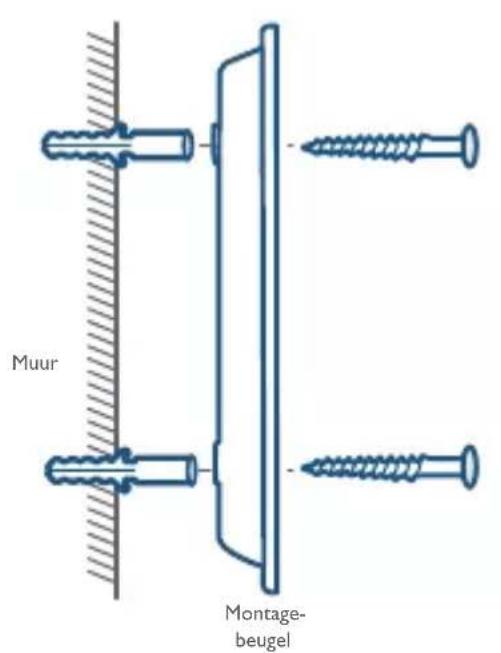
Zonder montagewig van 15°
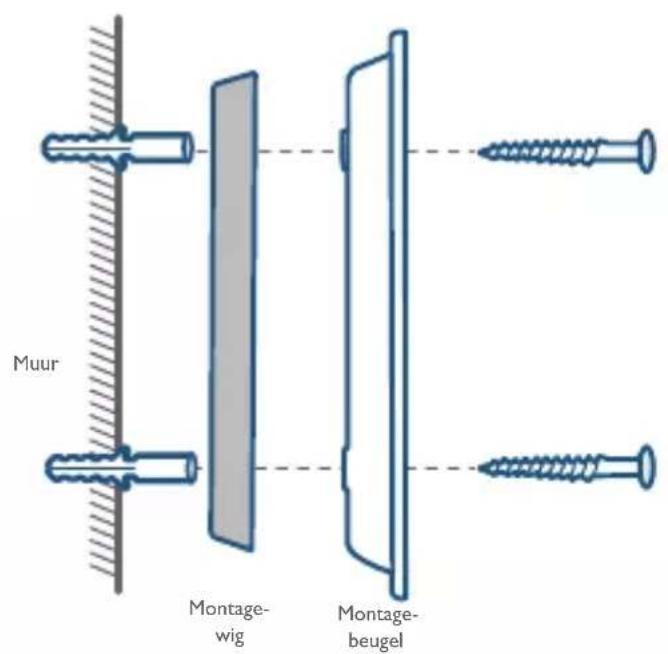
natural_image
Diagram showing two mechanical components with a downward arrow indicating motion, no text or symbols presentU bent klaar!
natural_image
Diagram showing a device with a magnified inset of its internal structure, alongside a close-up of its edge panel (no text or symbols present)De deurbel opladen
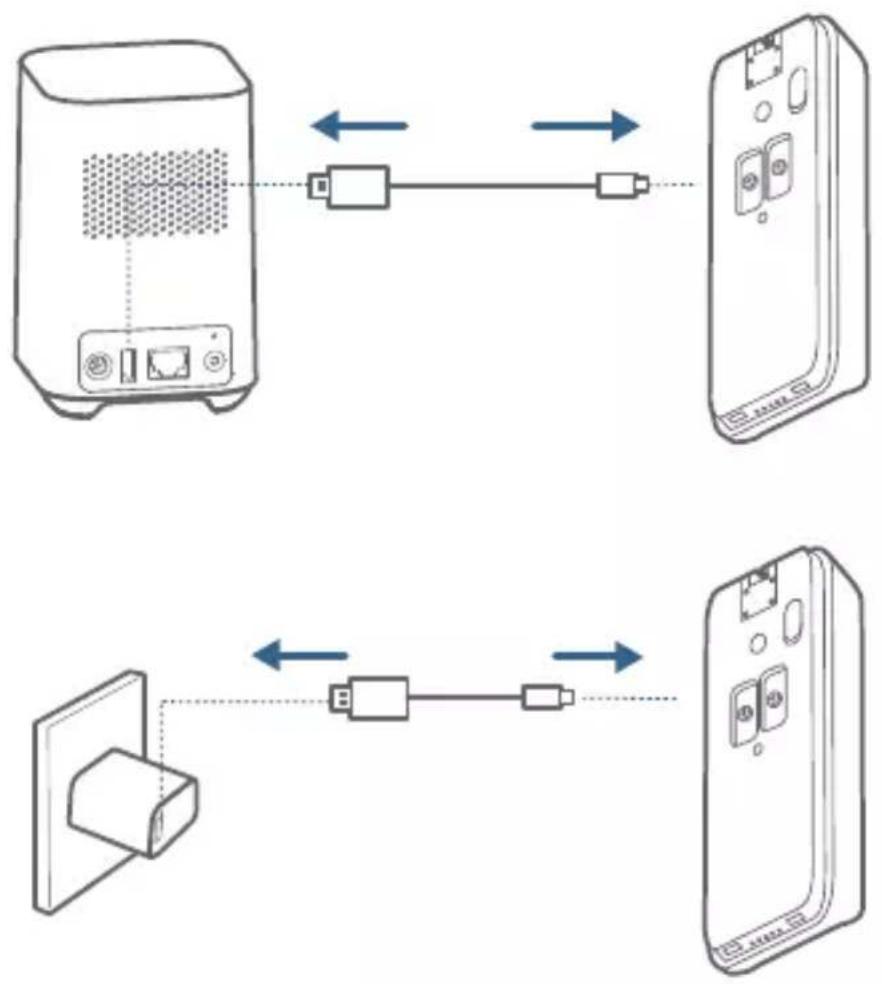
natural_image
Simple line drawing of a door with a speech bubble highlighting the interior (no text or symbols)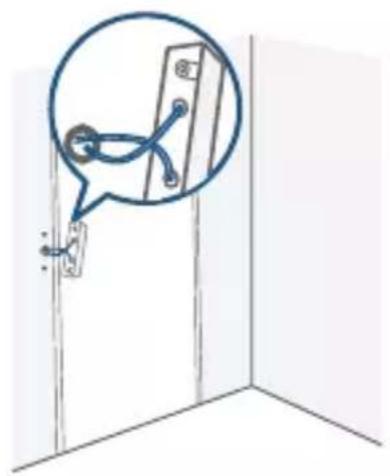
natural_image
Simple line drawing of a door with a magnified inset showing a blue circular detail (no text or symbols)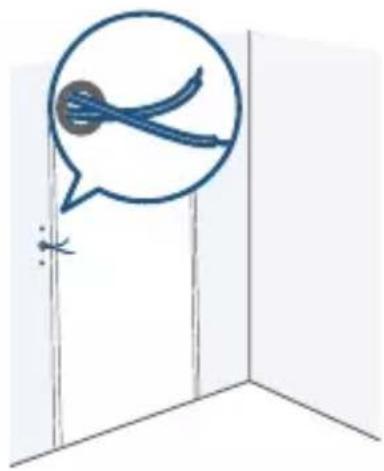
natural_image
Simple line drawing of a door with a speech bubble containing a blue object, no text or symbols present.NL 159
natural_image
Simple line drawing of a door with a circular icon highlighting the interior (no text or symbols)160 NL
3.4 De beugel monteren
natural_image
Diagram showing a robotic arm inserting a screwdriver into a door panel, with a speech bubble highlighting the component (no text or symbols present)162 NL
Opmerking:
natural_image
Diagram showing two mechanical components with a downward arrow indicating rotation or change, no text or symbols present.natural_image
Simple line drawing of a rectangular device with two circular buttons and a top panel (no text or symbols)eufy Security Video
Doorbell Dual (Battery)
Modelo: T8213
natural_image
Simple diagram of a vertical rectangle with three rounded square buttons on the top (no text or symbols)natural_image
Simple line drawing of a rectangular device with internal components (no text or symbols)natural_image
Simple line drawing of a vertical rectangular panel with three small circular holes (no text or symbols)natural_image
Six different screw or screw installation variants shown in line drawings (no text or symbols)Pacote de parafusos
natural_image
Illustration of two dental tools with curved leads and two separate cup-like objects (no text or symbols)natural_image
Simple line drawing of a connected electrical device with a cable (no text or symbols)natural_image
Simple line drawing of two connected connectors (no text or symbols)Cabo de Ethernet da HomeBase 2
I.LED de estado
-
Porta Ethernet
-
Altifalante
flowchart
graph TD
    A["Campainha"] -->|Signal| B["Videoporteiro Dual"]
    B --> C["Car with Potted Pots"]
    C --> D["Room with Living Room"]
    D --> E["Building Area"]
    E --> F["Apartment with Dish"]
    F --> G["Building Area"]
    G --> H["Building Area"]
    H --> I["Apartment with Car"]
    I --> J["Building Area"]
    J --> K["Apartment with Bus"]
    K --> L["Building Area"]
    L --> M["Apartment with Airplane"]
    M --> N["Apartment with Airplane"]
    N --> O["Apartment with Airplane"]
    O --> P["Apartment with Airplane"]
    P --> Q["Apartment with Airplane"]
    Q --> R["Apartment with Airplane"]
    R --> S["Apartment with Airplane"]
    S --> T["Apartment with Airplane"]
    T --> U["Apartment with Airplane"]
    U --> V["Apartment with Airplane"]
    V --> W["Apartment with Airplane"]
    W --> X["Apartment with Airplane"]
    X --> Y["Apartment with Airplane"]
PT 173
4 / PASSO I LIGAR A HOMEBASE
natural_image
Line drawing of a network device with two connected devices, one connected to a power outlet and the other to a router (no text or symbols present)natural_image
Blue shield icon with a white circular symbol inside, resembling a stylized 'e' or refresh symbol (no text or numbers present)
natural_image
Illustration of a hand holding a smartphone with wireless signal and a separate device with circular buttons (no text or symbols)flowchart
graph LR
    A["Device with monitor"] --> B["Clock with time scale"]
    B --> C["Device connected to battery via battery icon"]
    C --> D["Device with battery icon"]
natural_image
Illustration of a safety warning sign with a yellow triangle and lightning bolt, connected by a blue cable to a wall-mounted device (no text or symbols)natural_image
Simple line drawing of a wall-mounted device with a speech bubble and control panel, no text or symbols present.natural_image
Diagram showing a robotic arm operating near a door panel, with a magnified inset highlighting the component (no text or symbols present)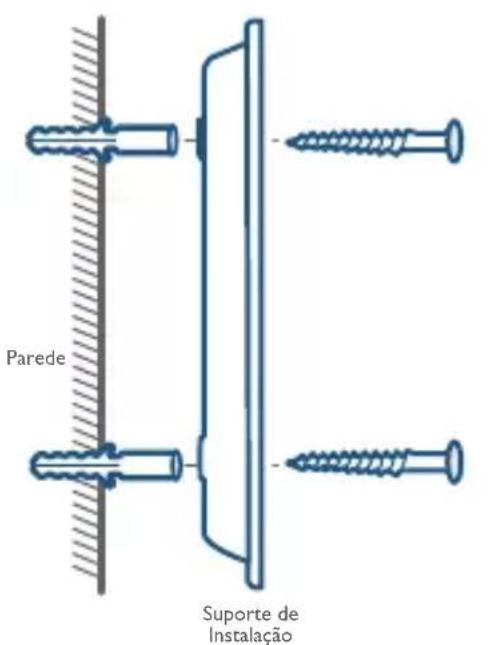
natural_image
Diagram showing two mechanical components with a downward arrow indicating motion, no text or symbols presentEstá pronta!
natural_image
Diagram showing a device with a magnified inset of its internal structure, alongside a close-up of its edge panel (no text or symbols present)Recarregar a campainha
natural_image
Simple line drawing of a door with a speech bubble highlighting the interior (no text or symbols)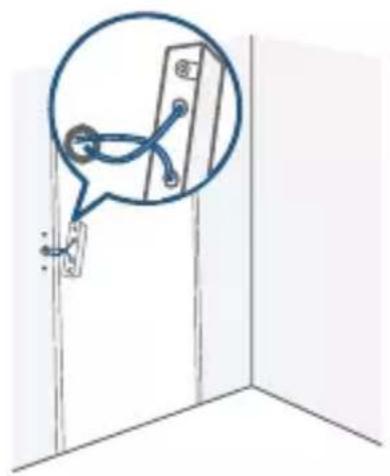
natural_image
Simple line drawing of a door with a magnified inset showing a blue circular detail (no text or symbols)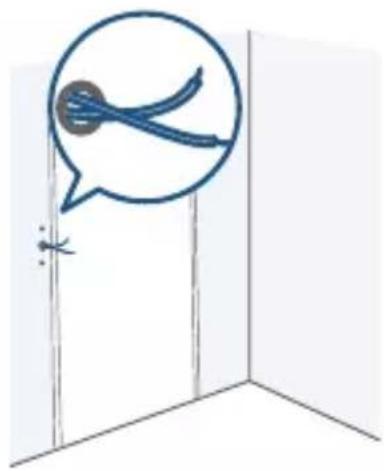
natural_image
Simple line drawing of a door with a speech bubble containing two blue objects, no text or symbols present.PT 187
natural_image
Simple line drawing of a door with a circular inset showing a device and a lock (no text or symbols)3.4 Instalar o suporte
natural_image
Diagram showing a hand operating a screwdriver inside a room, with an inset magnified view of the device (no text or symbols present)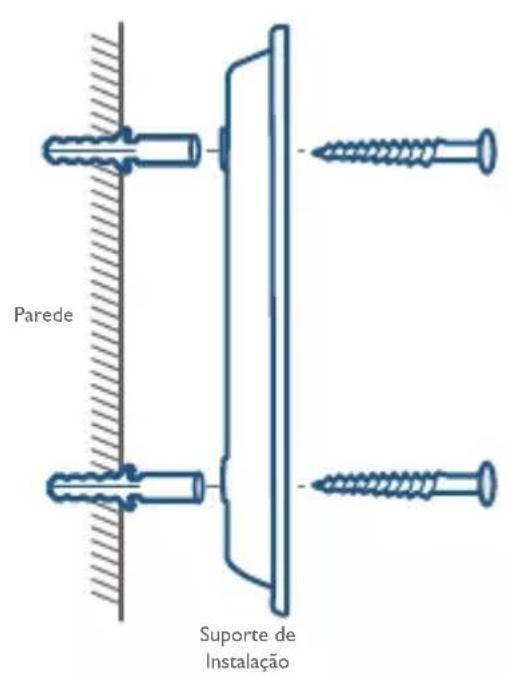
Nota:
natural_image
Diagram showing two mechanical components with a downward arrow indicating rotation or change, no text or symbols present.natural_image
Simple line drawing of a rectangular device with circular and square buttons (no text or symbols)eufy Security Video Doorbell Dual (Battery)
T8213 : الطراز
natural_image
Simple line drawing of a vertical rectangular panel with three rounded square buttons on top (no text or symbols)كتيفة التركيب
natural_image
Simple line drawing of a rectangular panel with four circular cutouts (no text or symbols)natural_image
Simple line drawing of a vertical rectangular panel with three circular holes, no text or symbols present.natural_image
Six different screw fasteners shown in line drawings (no text or symbols)عبوة برا غي
natural_image
Illustration of two fork-shaped tools with a separate cup holder (no text or symbols)natural_image
Simple line drawing of a connected battery with a cable (no text or symbols)natural_image
Simple line drawing of two connected electrical connectors (no text or symbols)- آلية الفصل
- مؤشر حالة
.2.السماعة
- منせず الطاقة
USB مزفر.4
natural_image
Line drawing of a network device with two connected devices, one connected to a power outlet and the other to a router (no text or symbols present)natural_image
Blue shield icon with a white circular symbol inside, resembling a stylized 'e' or refresh symbol (no text or numbers present)
natural_image
Illustration of a hand holding a smartphone with wireless signal and a vertical screen displaying circular elements (no text or symbols)AR 203
natural_image
Simple line drawing of a rectangular device with circular buttons and a base (no text or symbols)
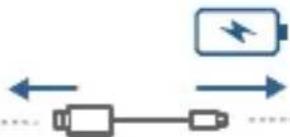
natural_image
Diagram showing bidirectional arrows between battery and plug, with a lightning bolt symbol (no text or labels)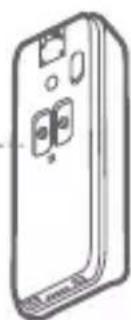
natural_image
Line drawing of a smartphone with buttons and display screen (no text or symbols)natural_image
Illustration of a warning sign with a yellow triangle and lightning bolt connected to a wall-mounted device (no text or symbols)natural_image
Simple line drawing of a door with a speech bubble and control panel, no text or symbols presentnatural_image
Diagram showing a robotic arm installing a door panel, with a magnified inset highlighting the component (no text or symbols present)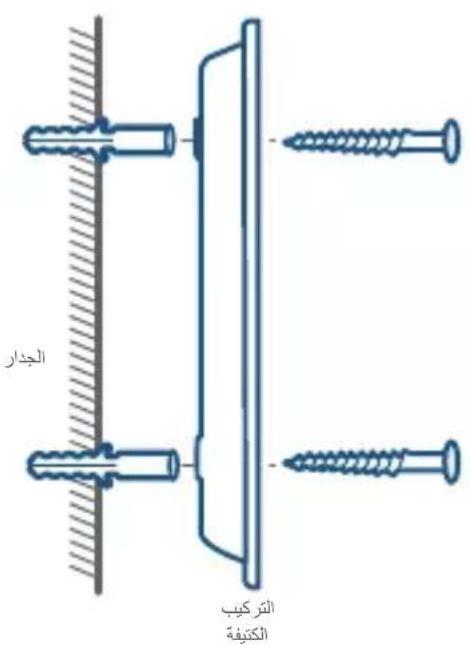
natural_image
Diagram showing two mechanical or structural components with a downward arrow indicating rotation, no text or symbols present.كل شيء جاهز للعمل!
natural_image
Diagram of a device with a magnified inset showing internal components (no text or symbols)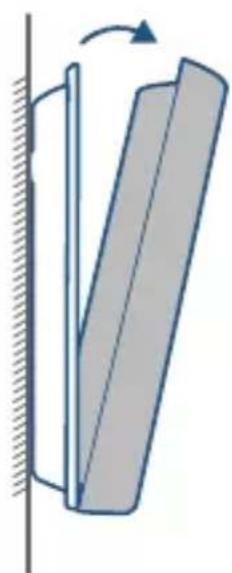
natural_image
Diagram of a mechanical or structural component with a curved arrow indicating rotation, no text or symbols present212 AR
natural_image
Simple line drawing of a door with a speech bubble highlighting the interior (no text or symbols)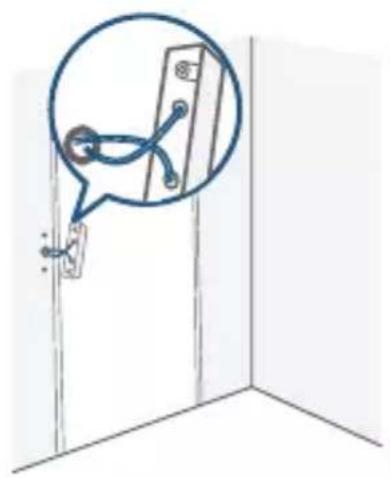
natural_image
Simple line drawing of a door with a magnified inset showing a door handle and handle (no text or symbols)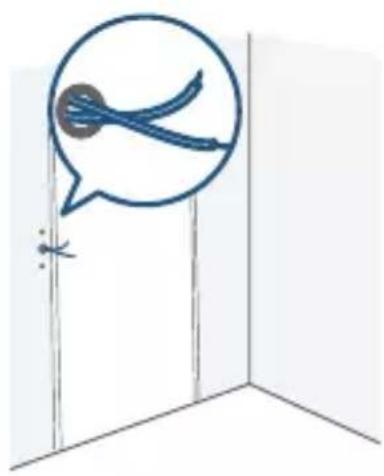
natural_image
Simple line drawing of a door with a speech bubble containing a blue object, no text or symbols present.natural_image
Simple line drawing of a door with a wall-mounted switch and a circular annotation highlighting the component (no text or symbols)3.4 تركيب الكتابة
natural_image
Diagram showing a robotic arm inserting a screwdriver into a door panel, with a magnified inset highlighting the component (no text or symbols present)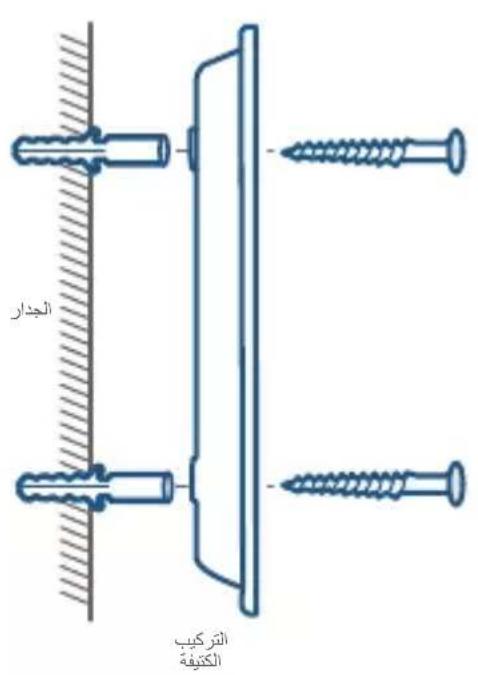
ملاحظة:
natural_image
Diagram showing two mechanical or structural changes with an arrow indicating direction, no text or symbols present.3.7 استعادة الطاقة
12-month limited warranty
12 Monate eingeschränkte Garantie | Garantía limitada de 12 meses
Garantie limitée de 12 mois | Garanzia limitata di 12 mesi | 12 maanden beperkte garantie | 12 meses de garantia
United States +1 (800) 988 7973
Mon-Fri 9AM-5PM (PT)
United Kingdom +44 (0) 1604 936 200
Mon-Fri 6AM-11AM (GMT)
Germany +49 (0) 69 9579 7960
Mon-Fri 6:00-11:00
Email Us
Senden Sie uns eine E-Mail | Contacto por correo electrónico | Par e-mail | E-mail
Customer Support: support@eufylife.com
Anker Innovations Limited
Room 1318-19, Hollywood Plaza, 610 Nathan Road, Mongkok, Kowloon, Hong Kong

@EufyOfficial @EufyOfficial @EufyOfficial



- QUICK START GUIDE
- English
- Deutsch
- Español
- Français
- Italiano
- Nederlands
- Portuguese
- For Video Doorbell Installation
- For HomeBase 2 Installation
- EN
- / PRODUCT OVERVIEW
- Video Doorbell
- Front View:
- Rear View:
- HomeBase 2
- EN
- How the System Works
- / STEP I CONNECTING THE HOMEBASE
- Connect HomeBase 2 to the Internet
- / STEP 2 SETTING UP THE SYSTEM
- Download the App and Set up the System
- Option I - Battery Powered
- EN
- Option 2 - Doorbell Wire Powered
- 7/
- STEP 4
- FINDING A MOUNTING SPOT
- Find a Mounting Spot
- Consider the following factors:
- EN
- / STEP 5 MOUNTING THE BRACKET
- Mount the Doorbell on a Wooden Surface
- EN
- Mount the Doorbell on Surfaces Made Out of Hard Materials
- 9/STEP 6 MOUNTING THE DOORBELL
- Mount the Doorbell
- / APPENDIX I DETACHING THE DOORBELL
- Detach the Doorbell
- Recharge the Doorbell
- 12/APPENDIX 3 POWERING THE DOORBELL
- I Verify whether the doorbell wires are working
- Detach the Existing Doorbell Button
- Find a Mounting Spot
- Mount the Bracket
- EN
- Connect the Doorbell Wires to the Doorbell
- Note:
- EN
- Mount the Doorbell on the Bracket
- Restore Power
- 13/NOTICE
- Declaration of Conformity
- EN
- Rückseite:
- / SCHRITT 4 BESTIMMEN EINER MONTAGEPOSITION
- Das war's!
- Türklingel aufladen
- Hinweis:
- / PASO 5 MONTAJE DEL SOPORTE
- Recarga del timbre
- Nota:
- / ÉTAPE 3 DÉTERMINATION DE L'OPTION D'ALIMENTATION
- / ÉTAPE 5 MONTAGE DU SUPPORT
- Remarque :
- 6/
- PASSAGGIO 3.
- / PASSAGGIO 5. MONTAGGIO DELLA STAFFA
- Montare la staffa
- Achteranzicht:
- / STAP 3 DEVOEDINGSMETHODE KIEZEN
- STAP 4
- EEN MONTAGEPLEK VINDEN
- U bent klaar!
- De deurbel opladen
- De beugel monteren
- Opmerking:
- / PASSO I LIGAR A HOMEBASE
- Está pronta!
- Recarregar a campainha
- Instalar o suporte
- AR
- تركيب الكتابة
Brand : eufy
Model : Video Doorbell 2 Pro HomeBase
Category : Doorbells