R3S - Hi-fi system Ruark Audio - Free user manual and instructions
Find the device manual for free R3S Ruark Audio in PDF.



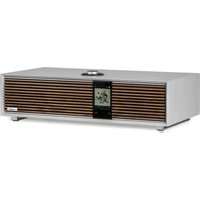
| Product Type | Hi-fi system with CD player, DAB+/FM radio, Internet radio, music streaming |
| Brand | Ruark Audio |
| Model | R3S |
| Dimensions (H x W x D) | 165 mm x 420 mm x 235 mm |
| Weight | 5.2 kg |
| Power Supply | External mains adapter: input 100-240 V AC 50/60 Hz, output 14 V DC 2.85 A; typical consumption 7.0 W, standby 1.6 W |
| Speakers | 2 x 75 mm Ruark NS+ speakers, class AB 30 W amplifier, 3D digital audio processor |
| Display | OLED display with ambient light sensor |
| Audio Sources | CD, DAB/DAB+, FM (RDS), Internet radio, Spotify Connect, Deezer, Amazon Music, Bluetooth 5.2 (SBC), USB (FAT32, MP3 up to 320 kbps), RCA line input (2.3 Vrms max), TOSLINK optical input (24-bit 96 kHz), 3.5 mm headphone jack (25 mW into 16-32 Ω) |
| Outputs | RCA line/subwoofer (2.0 Vrms), USB 5 V/1 A (charging) |
| Network Connectivity | Wi-Fi 802.11 b/g/n (WEP, WPA, WPA2), Bluetooth 5.2 |
| Remote Control | Infrared, 2 x 1.5 V AAA batteries |
| Main Functions | Dual alarms (2), sleep timer, presets (8 per source), bass/treble equalizer, loudness, brightness adjustment, auto standby mode |
| App Control | OKTIV app (Apple/Android) for control and settings |
| Cleaning and Maintenance | Soft non-linting duster or slightly damp cloth; do not use wax sprays; avoid direct sunlight, high humidity, dust, excessive vibration, extreme temperatures (5°C to 40°C) |
| Safety | Do not open the device; use only the specified voltage; do not expose to water or flames; leave at least 10 cm ventilation space around the device; disconnect during thunderstorms or prolonged non-use |
| Warranty | 2 years standard, extendable to 3 years upon product registration at www.ruarkaudio.com |
Frequently Asked Questions - R3S Ruark Audio
User questions about R3S Ruark Audio
0 question about this device. Answer the ones you know or ask your own.
Ask a new question about this device
Download the instructions for your Hi-fi system in PDF format for free! Find your manual R3S - Ruark Audio and take your electronic device back in hand. On this page are published all the documents necessary for the use of your device. R3S by Ruark Audio.
USER MANUAL R3S Ruark Audio
The Art of Listening
R3
R3S Compact Music System
EN User guide
DA rugervejledning
UK PSTI Statement of Compliance
Ruark Audio, as the manufacturer, hereby declares that this R3S Compact Music System complies with the applicable security requirements in Schedule 1 of the Product Security and Telecommunications Infrastructure (PSTI) Act 2022 by adhering to the harmonised standard Cyber Security for Consumer Internet of Things: Baseline Requirements, ETSI EN 303 645 V2.1.1 (2020-06).
The minimum support period for this product is 2 years after its end-of-life date. For up to date information on this product's end-of-life please visit: ruarkaudio.com/customer-support/product-support
Signed on behalf of Ruark Audio Ltd
Simon Young
Product development manager
07 Nov 2025
Ruark Audio Ltd, 59-60 Tailors Court, Temple Farm Industrial Estate, Southend-On-Sea, Essex, SS2 5TH, UK
Important information about the AC power adapter
Model DYS836-140285W-K
Input 100-240V\~50/60Hz 1.00A MAX
Output 14.0V -2.85A
Class II, Efficiency Level VI
- This AC adapter is for audio & video equipment use only and complies with IEC 62368 safety standard.
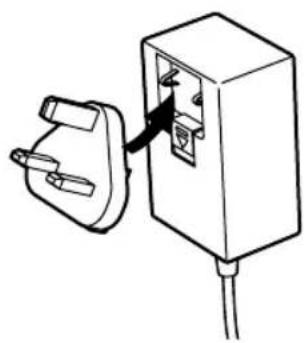
•The supplied 3-pin plug adapter complies with BS 1363-1 and the supplied 2-pin plug adapter complies with EN 50075. - Before using the AC adapter, ensure the mains voltage is within the rated supply voltage range.
- The output power taken from this AC adapter must not exceed its rated output power.
- DO NOT disassemble or modify the AC adapter.
- DO NOT drop or throw the AC adapter.
- The external flexible cable cannot be replaced and if the cord is damaged, the AC adapter must be replaced.
- DO NOT expose the AC adapter to dripping or splashing water, and do not place objects filled with liquids, such as vases, on or near the device.
-
DO NOT leave the AC adapter in a hot location, such as near fire or under strong sunlight.
-
DO NOT cover ventilation openings on the device.
- Unplug the AC adapter during lightning storms or when unused for long periods of time to prevent damage.
- Ensure that the AC adapter is readily accessible when plugged into the mains. If an abnormal condition occurs while using it, immediately turn off the connected device and disconnect the mains adapter from the mains.
- DO NOT dispose this AC adapter as general household waste or unsorted municipal waste, dispose of it according to local regulations.
EN
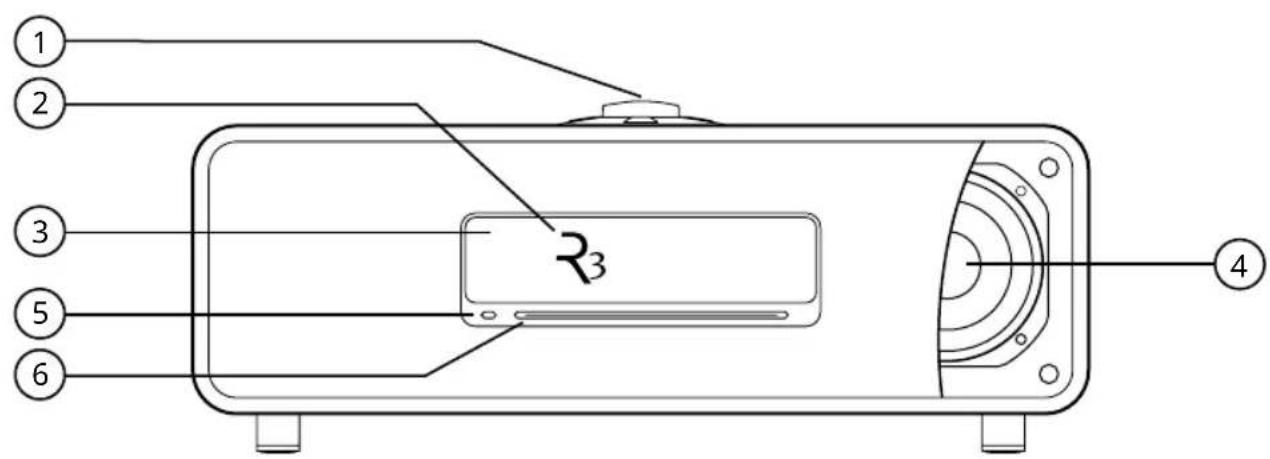
- Controls
- OLED display
- Ambient light sensor
- 75mm NS+ driver
- CD eject button
- CD slot
DE
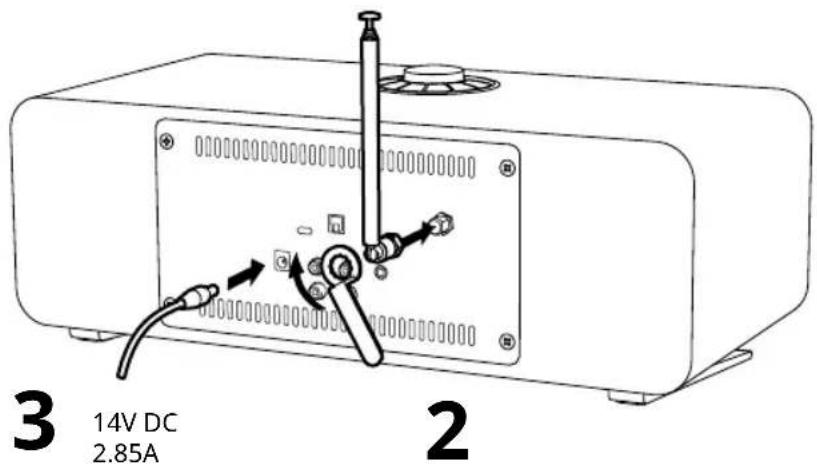
- Optical input
- DAB-FM antenna
- USB C
- DC input
- Line in
- Line out/sub out
- Headphone socket
DA
natural_image
Line drawing of a rectangular electronic device with a central display and two mounting feet (no text or symbols)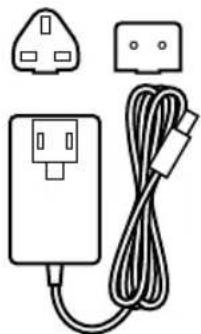
natural_image
Line drawing of a power adapter with two socket covers and a cord, no text or symbols present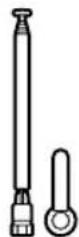
4
natural_image
Simple line drawing of an electrical outlet with a plug inserted into the socket (no text or symbols)5
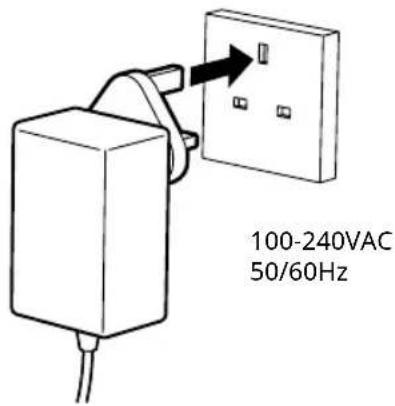
EN
6
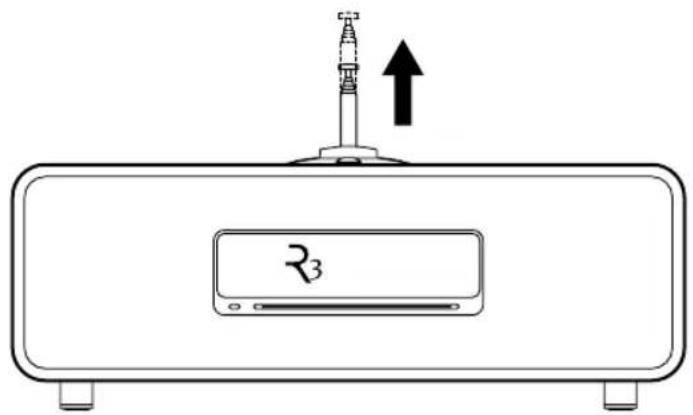
7
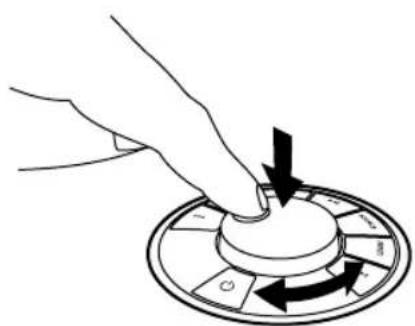
natural_image
Hand pressing a button on a circular device with directional arrows (no text or symbols)Setup wizard
Follow the setup wizard to configure your R3.
Rotate the CONTROL KNOB until your preferred choice is shown, then press the CONTROL KNOB to SELECT.
When your setup is complete, your R3 will display a menu with a list of the available sources. Select a source and enjoy your music!
App control
You can also control your R3 using OKTIV. Find it on the Apple/Android app store.
For more information visit www.ruarkaudio.com/app


Music streaming services
Spotify Connect
Use your phone, tablet or computer as a remote control for Spotify. Go to spotify.com/connect to learn how.
Amazon Music
For more details, visit www.amazon.com
Deezer
For more details, visit dzr.fm/airable
The range of supported music services may change without notice.



DEEZER
Specifications
Amplifiers and drivers
2 × 75mm Ruark NS+ drivers
30W class AB power amplifier
Enhanced digital 3D audio processor
Tuner
DAB, DAB+ and FM Tuner with RDS
75 Ohm F-type DAB/FM connector
Digital audio
Internet radio, Spotify Connect, Deezer, Amazon Music
Wi-Fi 802.11b/g/n WEP, WPA, WPA2
CD compatible with CD-DA & CD-R, WAV 16-bit 44.1kHz,
MP3, WMA & AAC up to 320 kbps
Inputs and outputs
Digital optical input (TOSLINK) 24-bit 96kHz PCM
Line input (RCA) 2.3Vrms max
Line out / Sub out (RCA) 2.0Vrms
USB 2.0 (FAT32 format only), 5W (5V 1A)
3.5mm headphone jack, 25mW into 16-32 Ohm
Power
AC mains adapter input: 100-240V AC 50/60Hz 1.0A
AC mains adapter output: 14V DC 2.85A
Typical power: 7.0W
Standby power: 1.6W
Remote batteries: 2 x 1.5V AAA
Dimensions and weight
H165 x W420 x D235mm max
5.2kg
Specification and design subject to modification without notice.
Ruark Audio assumes no responsibility for any errors that may appear in this manual and the information contained in it may change without notice.
Troubleshooting
For help with your product, please refer to the FAQ (Frequently Asked Questions) page in the support area of our website.
For more information visit
www.ruarkaudio.com/support
If you accidentally select the incorrect language you can factory reset your radio by pressing and holding the standby key for 10 seconds.
Controls
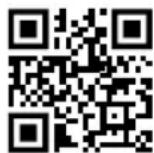
- ⏻STANDBY
- CONTROL KNOB / SELECT
Rotate to adjust volume from a Now Playing screen.
Rotate to browse menus or station lists.
Press to SELECT.
Press to SNOOZE a sounding alarm. Press it again to increase the snooze time or press and hold to cancel.
- ▶press to skip to next station or track, press and hold to fast forward a track or seek next FM station. In standby, press to increase display brightness.
- ▶press to skip to previous station or track, press and hold to rewind a track or seek the previous FM station. In standby, press to decrease display brightness.
- PRESET – press to recall a saved station or playlist, press and hold for two seconds to save a currently playing station or playlist.
- SOURCE – press to change audio source.
- press to play/pause a track or mute audio.
- MENU - press to view the options menu.
- BACK - press to return to the previous menu or screen.
- LED - indicates radio is on and flashes when Bluetooth is ready to connect or pair.
Tips
You can also press ▶▶▶ or ◀◀▶ browse menus, sources or station lists.
Currently saved settings are highlighted with an asterisk, eg "Radio text *".
Press = tap or press and immediately release.
Press and hold = press and release after two seconds.
Remote
- ⏻ STANDBY
- ✉SOURCE - press to change audio source.
- INCREASE VOLUME
- ▶SELECT - press to play/pause a track, mute/unmute radio or to select a menu item.
- I press to skip to previous station or track, press and hold to rewind. In standby, press to decrease display brightness.
- ▶▶press to skip to next station or track, press and hold to fast forward. In standby, press to increase display brightness.
- DECREASE VOLUME
- BACK - press to return to the previous menu or list screen.
- MENU - press to view the menu.
- RESET - press to recall a saved station or playlist, press and hold for two seconds to save a currently playing station or playlist.
- PRESET 1/2/3

2 x 1.5V AAA Alkaline
CAUTION: Risk of fire or explosion if the batteries are replaced by an incorrect type
Common functions
Switch on and to standby
Press STANDBY to turn your music system on. Press again to switch to standby.
Now Playing screens
Unless you're adjusting a setting, the screen will look similar to the example below with the clock above and station/track/album/artist information below.
12:30
BBC Radio 3
Enigma Variations
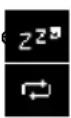
The on-screen icons below are shown when their respective functions are active.
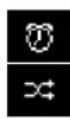
Alarm Sleep time
Shuffle Repeat
Menu screens
The menus enable you to set the various options such as adjusting the bass and treble.
To change a setting, press MENU to display the list of available options, rotate the CONTROL KNOB to highlight the one you wish to change, then press the knob to confirm your selection.
System
Audio
Network
Date and time
Brightness
Language
To change settings – press MENU
To scroll through options - rotate CONTROL KNOB
To select option - press CONTROL KNOB
To exit menu – press MENU or wait for a few seconds
To return to the previous menu/list – press BACK
How long you press a key is important
Press = tap or press and immediately release
Press and hold = press and release after two seconds
Adjust volume
Rotate the CONTROL KNOB from any Now Playing screen.
Speaker volume and headphone volume are adjusted separately.
Please note that rotating the CONTROL KNOB when a menu or station list is displayed will scroll through the options or stations and not change the volume.
Change audio source
Press SOURCE to view the current source, rotate the CONTROL KNOB or press▶td scroll through the available sources, then press the CONTROL KNOB to select one. (You can also press SOURCE repeatedly to cycle through the list of sources.)
Change Internet radio station
Press MENU, select Last listened or Station list and select a station.
Change DAB radio station
Press▶▶▶ to ▶une to the next or previous station or press MENU, select Station list and select a station.
Change FM radio station
Press▶▶▶▶▶▶▶▶▶▶▶▶▶▶▶▶▶▶▶▶▶▶▶▶▶▶▶▶▶▶▶▶▶▶▶▶▶▶▶▶▶▶▶▶▶▶▶▶▶▶▶▶▶▶▶▶▶▶▶▶▶▶▶▶▶▶▶▶▶▶▶▶▶▶▶▶▶▶▶▶▶▶▶▶▶▶▶▶▶▶▶▶▶▶▶▶▶▶▶▶>
Play next/previous track
Press▶to skip to the next track, press to skip to the previous track.
Save preset
You can save 8 presets in DAB, FM, Internet radio, Spotify, Amazon Music and Deezer.
Press and hold PRESET for two seconds and select a preset to save the currently playing station, track or playlist.
Empty presets are marked as "[Not set]".
If you save a new preset over an existing preset, the new one will replace it.
Recall preset
Press PRESET, and select a preset station, track or playlist.
Connect a Bluetooth device
Your R3 will attempt to automatically connect to the last connected device. If you have not yet paired your device or the previous device is not available, your R3 will enter into pairing mode. See Bluetooth section for more details.
Station or track information
MENU > Info
Select the type of station / track information shown.
Bass and treble
MENU > System > Audio > Bass or Treble
Adjust the bass and treble levels to best suit your room and personal taste.
Loudness
MENU > System > Audio > Loudness
Loudness automatically boosts the treble and bass frequencies at lower volumes.
Display brightness
MENU > System > Display
Adjust the display brightness when the radio is on and in standby.
In standby, press ◀◀◀ to decrease display brightness, or ▶td increase it.
Please note that the brightness also automatically adjusts according to ambient light conditions.
Date and time
MENU > System > Clock
Select the time and date formats and whether the clock is updated automatically from network, DAB, FM, or set manually.
Please note that FM time and date synchronisation may not be available on some stations in your region.
Daylight savings
MENU > System > Clock > Daylight savings
Turn on if daylight savings are currently in use in your region, eg during the summer. Setting has no effect if time is updated from DAB or FM.
Language
MENU > System > Language
Change the user interface language.
If you accidentally select the incorrect language you can factory reset your radio by pressing and holding STANDBY for 10 seconds.
Auto standby
MENU > System > Auto standby
Change how long before your R3 automatically goes into standby if there is no audio.
Factory reset
MENU > System > Factory reset
Resets all settings and clears presets.
Network settings
MENU > System > Network settings
Network settings including the network wizard to help you connect to a new Wi-Fi network.
Alarms, snooze and sleep
Press ALARM, select Alarm 1, Alarm 2 or sleep timer and follow the on-screen instructions to set an alarm or sleep timer.
Setting an alarm
ALARM > Alarm 1 or Alarm 2.
Choose when the alarm will sound (Off, Daily, Once, Mon-Fri or Sat-Sun), set the time, volume and source (Buzzer, Internet radio, DAB or FM).
An active alarm is indicated by the alarm icon which then flashes when the alarm sounds.
Snooze
Press the CONTROL KNOB to temporarily silence a sounding alarm, press it again to increase the snooze period (5, 10, 15, 30 minutes).
To cancel a sounding or snoozed alarm, press and hold the CONTROL KNOB for two seconds, or press ALARM or STANDBY.
Sleep timer
ALARM > Sleep timer or press and hold ALARM
Set the time after which your R3 will automatically switch to standby.
Choose the delay in minutes (Off, 15, 30, 45, 60) and press the CONTROL KNOB to confirm your selection. The display then returns to the Now-playing screen and displays the sleep icon.
Please note that MENU > System > Audio > Bass means press MENU, select System and select Audio
Press ALARM to turn alarms on or off when your radio is in standby
Bluetooth
Your R3 radio is Bluetooth enabled and can receive audio streamed from a Bluetooth smartphone, tablet or laptop.
Connect your Bluetooth device
Change source to Bluetooth, your R3 will show "Connecting...", the indicator light on the dial will flash and your R3 will attempt to connect to the last connected device.
If it cannot connect to the last connected device, it will show "Discoverable as R3".
If you do not connect within a few minutes, your R3 will stop attempting to connect and show "No connection".
Play audio
Once connected, audio from your Bluetooth device will play through your R3. For more information on playing audio from your Bluetooth device, refer to your device's documentation.
Please note that you may need to select Ruark R3 or Bluetooth as the audio output on your device.
Pause track
Press ▶ and then press again to play.
Skip track
Press ▶ to skip to the next or previous track.
Now Playing information
MENU > Info
Artist, album and track name will show if your Bluetooth device and app support Bluetooth metadata. You can also show the name of the connected device.
Operating range
This is typically up to 10 metres from your R3, although obstructions such as walls may reduce this.
Adjust volume
Adjusting the volume on your Bluetooth device will automatically change the volume on your R3.
Connect a different device
MENU > Connect device
Select New or select one of the existing devices in the pairing list.
You can pair up to 8 devices, although you will only be able to play audio from one device at a time.
Clear paired devices list
MENU > Forget devices
Clearing the paired devices list removes all remembered devices and allows you to start a new list by connecting the ones you want remembered.
Device name
You can change the device name of your R3 to something more descriptive like "Ozzie's R3", so then it will show on Bluetooth searches and networks as "Ozzie's R3".
You can do this from the companion app OKTIV.
www.ruarkaudio.com/app
Troubleshooting
Ensure the Bluetooth function on your device is on, and select "Ruark R3" from the list of available devices.
It may take a few seconds for your R3 to appear in the list on your device, and in some cases you may need to input "0000" as the pairing password.
If you are having trouble connecting your Bluetooth device, we recommend you clear the paired devices list.
You will also need to delete "Ruark R3" from the paired devices list on your Bluetooth device before pairing it to your R3 again. For more information, refer to your Bluetooth device's documentation.
For help with using Bluetooth, please visit www.ruarkaudio.com/support
You cannot use the Bluetooth function on your R3 to connect to Bluetooth headphones
DAB radio
The first time you use DAB on your R3, or if the DAB station list is empty, it will automatically perform a station scan to create a list of available stations.
Change station
Press▶▶▶ td▶▶▶▶ to the next or previous station.
You can also select a station from the station list by selecting MENU > Station list.
DAB radio text (DLS)
MENU > Info
Select what programme information is shown.
Save preset
Press and hold PRESET for two seconds and select a preset to save the currently playing station.
You can store 8 stations in your preset list.
For optimal reception, fully extend the aerial and adjust its position.
Recall preset
Press PRESET, and select a preset station.
Station scan
MENU > Station scan
We recommend you periodically update the station list with a station scan. If the station list is empty the radio will automatically perform a station scan as soon as you switch to DAB.
FM radio
Change station
Press ▶▶▶ to tune to the next or previous station.
The station frequency is normally replaced by the station name a few seconds after tuning into an FM station.
FM radio text (RDS/RBDS)
MENU > Info
Select what programme information is shown.
Save preset
Press and hold PRESET for two seconds and select a preset to save the currently playing station.
You can store 8 stations in your preset list.
If RDS data is not available, your R3 will store the frequency instead of the station name in the preset list.
Recall preset
Press PRESET, and select a preset station, track or playlist.
FM sensitivity
MENU > FM sensitivity
Select Strong stations only to only tune to strong stations with good reception.
Mono only
MENU > Mono only
Set FM playback to mono to reduce hiss during FM playback.
Manual tune
MENU > Manual tune
Select manual tune, rotate the CONTROL KNOB to manually change the frequency and press it to select that station and exit manual tuning.
Line in
Listen to an external audio device using a 3.5mm stereo jack cable connected to the Line in socket on the back of your R3.
Input level
MENU > Input level
Adjust the input level and choose the highest level that does not distort - if it distorts, turn down the input level.
1 - Devices with high output level, eg some CD players
2 - Most devices
3 - Devices with low output, eg some smartphones
4 - Devices with a very low output
If your external audio source has a volume control you may need to adjust it for best performance. If it's too high the sound may distort; if it's too low the playback volume may be too low and lack bass.
USB
Your R3 plays MP3 audio tracks stored on a USB C flash drive. Plug it into the USB socket on the back and change the source to USB.
Select Track list to view the tracks stored on your flash drive and select one to start playback.
Press ▶▶ to skip to the next track in the folder or album, press ◀◀ skip to the start of the current track, press again to skip to the previous track.
Press ▶II to pause playback or restart a track.
Press and hold I to fast forward or fast rewind a track.
If a USB flash drive is not detected, it will show "No USB device found".
Your USB flash drive must be formatted as FAT32. NTFS, exFAT, or other formats are not supported.
Your R3 has a 5W, 1.0A USB power output and will charge most devices but it may not charge devices that require more than 5W.
CD player
To insert a CD, gently push it into the CD slot. Once loaded it will play automatically.
Now playing information
MENU > Info
Select what track information is shown.
Generally, track number and time is shown on audio CDs and track and album name is shown on MP3 CDs.
Play / Pause
Press ▶th play or pause a track.
Stop play
Press and hold ▶.II
Skip track
Press▶▶▶ to◀skip to the next or previous track.
Fast-forward or rewind
Press and hold ▶ to fast-forward or rewind.
Any folder structure on MP3 disks will be ignored and the tracks will show in a single list
Eject
Press the eject button next to the CD slot.
Shuffle
MENU > Shuffle
Turn on to play tracks in a random order.
Repeat
MENU > Repeat
Select repeat mode for tracks (Off / One / All).
Headphones
Connect your headphones to the 3.5mm stereo jack socket on the back of your R3.
Headphone volume is adjusted independently from the speaker volume.
Safety information
- Read this user guide and follow all instructions, it will help you set up and operate your product properly.
- Heed all warnings and keep this user guide for future reference.
- Do not attempt to use a damaged device as this could result in a dangerous electric shock.
- Do not open the unit or remove any panels to expose the electronics. No user serviceable parts inside.
- Refer all servicing to qualified service personnel. Servicing is required when the device has been damaged in any way, such as when any power cord, or power plug is damaged, liquid has been spilled or objects have fallen into the device, the device has been exposed to rain or moisture, does not operate normally, or has been dropped.
- This device is intended to be operated ONLY from the AC voltages listed on the back panel or included AC mains adapter. Operation from voltages other than those indicated may cause irreversible damage to the device and void the product warranty.
- Ensure that the mains plug or mains connector into the unit is readily accessible in case disconnection from the mains is required.
- The AC mains adapter, mains plug, or mains connector must be removed from the socket to completely disconnect the system from AC mains power.
- Do not place any naked flame sources, such as lighted candles, on or near the device. Do not install near any heat sources such as radiators, stoves, or other devices that produce heat.
- Avoid exposure to extreme heat or cold.
- Only use attachments/accessories specified for this device. Make no modifications to the system or accessories. Unauthorised alterations may compromise safety, regulatory compliance, and system performance.
- Only use the supplied aerial or an approved replacement.
- To reduce the risk of fire or electrical shock, do not expose the device to rain or moisture. Do not expose this device to dripping or splashing, and do not place objects filled with liquids, such as vases, on or near the device. As with any electronic products, use care not to spill liquids into any part of the system. Liquids can cause a failure and/or a fire hazard.
- Disconnect this device from AC mains power during lightning storms or when unused for long periods of time to prevent damage to this device.
- To prevent risk of fire or electric shock, avoid overloading AC mains power outlets or extension cords.
- Long-term exposure to loud music may cause hearing damage. It is best to avoid extreme volume when using headphones, especially for extended periods.
- Do not install this device in a confined space. Always leave a space of at least 10cm around the device for ventilation and ensure that curtains or other objects never cover ventilation openings on the device.
Regulatory information

This device is labelled in accordance with European Directive 2012/19/EU concerning waste electrical and electronic equipment. This symbol indicates that the product or associated batteries should not be disposed of as general household waste. As with any electrical equipment, please dispose of it according to local regulations.

CE COMPLIANCE INFORMATION
This product conforms to all EU Directive requirements as applicable by law. Hereby, Ruark Audio, declares that this device complies with the essential requirements and other relevant provisions of the European Radio Equipment Directive 2014/53/EU. You can download the full CE Declaration of Conformity at www.ruarkaudio.com/doc/R3Sdoc.pdf
Guarantee
Register your product to get an extended three-year guarantee.
As standard, this product is guaranteed to be free from defects for a period of two years from date of purchase, but this is extended to three years if you register your product at www.ruarkaudio.com.
This guarantee remains valid providing this product has been treated with due care and attention. Product failure through accidental damage, excessive wear and tear, negligence or unauthorised modification will void this guarantee.
If this product was purchased in the UK and it develops a fault, please contact the retailer from which it was purchased, or contact us directly via our website www.ruarkaudio.com/support.
For products purchased outside the UK the distributor in the country of purchase guarantees the product. For details, please contact the local Ruark distributor or outlet.
If returning this product, please ensure it is packed in its original packaging and a proof of purchase is included.
This guarantee in no way varies or removes the purchaser's statutory rights.
Errors and omissions excepted.
General care
- Do not expose to direct sunlight. Natural and engineered wood finishes can change colour with age, particularly when exposed to sunlight.
- Clean with a soft, lint-free duster or slightly dampened cloth. Do not use wax sprays or other substances as these may damage the surface finish or impair performance.
- Do not expose your unit to high humidity, dust, excessive vibration or extreme temperatures for prolonged periods, as this can affect the finish, performance and reliability of your Ruark product.
- Recommended operating temp. range is 5°C to 40°C.
Copyright and trademarks
© Ruark Audio. All rights reserved. Ruark Audio, the Ruark Audio logo, and other Ruark Audio marks are owned by Ruark Audio and may be registered. Ruark Audio assumes no responsibility for any errors that may appear in this manual and the information contained in it may change without notice.
Bluetooth® and associated logos are registered trademarks owned by Bluetooth SIG, Inc.
The Spotify Software is subject to third party licenses: www.spotify.com/connect/third-party-licenses
All other trademarks are the property of their respective owners.
Opsætningsguide
Følg installationsguiden for at konfigurere din R3.
Internet radio, Spotify Connect, Deezer, Amazon Music
Wi-Fi 802.11b/g/n WEP, WPA, WPA2
Internet radio, Spotify Connect, Deezer, Amazon Music
Wi-Fi 802.11b/g/n WEP, WPA, WPA2
www.ruaraudio.com/app
Fehlerbehebung
FM radio text (RDS/RBDS)
MENU > Info
www.spotify.com/connect/third-party-licenses
Radio internet, Spotify Connect, Deezer, Amazon Music Wi-Fi 802.11b/g/n WEP, WPA, WPA2
Changer de station radio DAB
Changer de station radio FM
CE INFORMATIONS SUR LA CONFORMITÉ À LA CE
www.spotify.com/connect/third-party-licenses
Radio DAB, DAB+ FM con RDS
Radio Internet, Spotify Connect, Deezer, Amazon Music Wi-Fi 802.11b/g/n WEP, WPA, WPA2
Consumo in stand-by: 1,6W
Batterie telecomando: 2 x 1,5V AAA
Dimensioni e peso
H165 × L420 × P235mm max
5,2kg
Suggerimenti
Potete salvare 8 preset in DAB, FM, Radio Internet, Spotify, Amazon Music e Deezer.
Testo radio FM (RDS/RBDS)
MENU > Info
Press ▶ and then press again to play.
Skip track
Press ▶▶▶ or ◀◀◀ to skip to the next or previous track.
再生中の情報
H165 × W420 × D235mm (최대)
5.2kg
Internetradio, Spotify Connect, Deezer, Amazon Music
Wi-Fi 802.11b/g/n WEP, WPA, WPA2
USB 2.0 (alleen FAT32-indeling), 5W (5V 1A)
ALARM > Alarm 1 of Alarm 2.
Fast-forward of rewind
Internett-radio, Spotify Connect, Deezer, Amazon Music
Wi-Fi 802.11b/g/n WEP, WPA, WPA2
www.spotify.com/connect/third-party-licenses
Radio internetowe, Spotify Connect, Deezer, Amazon Music
Wi-Fi 802.11b/g/n WEP, WPA, WPA2
www.spotify.com/connect/third-party-licenses
所有其他商标均为其各自所有者的财产。

ruark
Ruark, 59-60 Tailors Court, Temple Farm Industrial Estate, Southend on Sea, Essex, SS2 5TH, UK ruarkaudio.com

GREAT BRITISH DESIGN
20251221.1