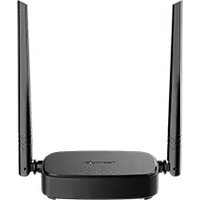
4G03 Pro - Router Tenda - Free user manual and instructions
Find the device manual for free 4G03 Pro Tenda in PDF.


| Product Type | 4G LTE Router |
| Brand | Tenda |
| Model | 4G03 Pro |
| Category | Router |
| Cellular Connectivity | 4G LTE (Nano SIM card) |
| Ethernet Ports | 1 WAN/LAN port (10/100 Mbps), 1 LAN port (10/100 Mbps) |
| Wi-Fi Standards | IEEE 802.11 b/g/n |
| Maximum Wi-Fi Speed | Up to 300 Mbps (estimated) |
| Wi-Fi Frequency Band | 2.4 GHz |
| Failover Function | Automatic failover between SIM card and WAN port |
| Physical Button | WPS/RST (short press WPS, long press reset) |
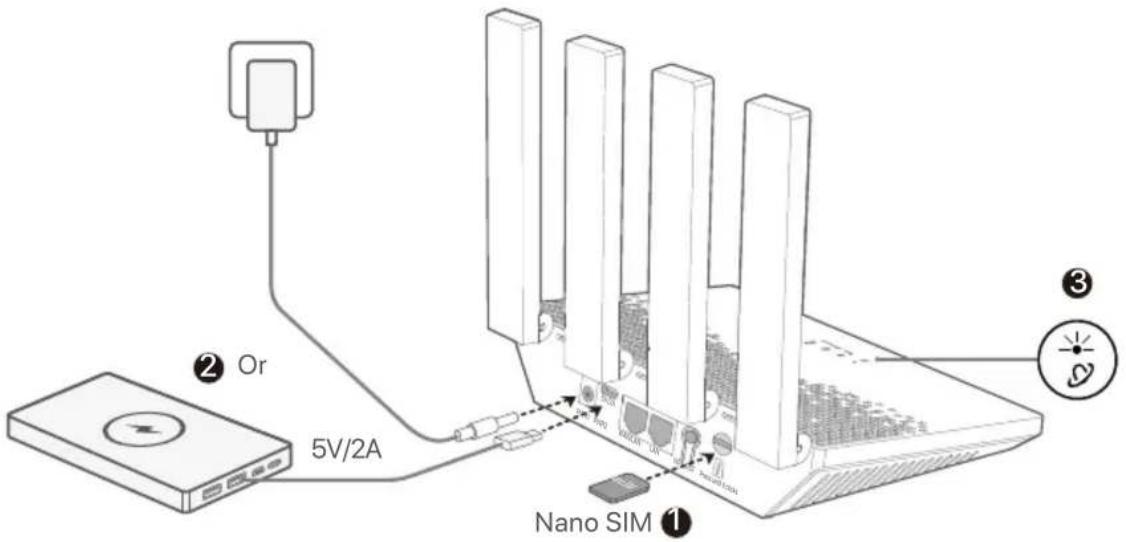
| Main Power Supply | 5V/2A power adapter |
| Alternative Power Supply | USB-C port 5V/2A (cable max 1.2 m) |
| LED Indicators | Internet (on/off/fast blink), Signal (3 bars) |
| Approximate Dimensions | 150 × 100 × 25 mm |
| Approximate Weight | 200 g |
| Wireless Security | WPA2, WPS |
| Configuration | Web interface via http://tendawifi.com or 192.168.0.1 |
| IPv4 Support | Yes |
| DHCP | Built-in DHCP server |
| Operating Temperature Range | 0 °C to 40 °C (estimated) |
| Operating Humidity | 10% to 90% RH (estimated) |
| Maintenance and Cleaning | Clean with a dry, soft cloth. Do not use liquid products. |
| Safety Instructions | Use the provided adapter. Do not expose to water or excessive heat. Reset with the RST button if necessary. |
| General Information | 4G LTE router with WAN/LAN port, failover functions and 2.4 GHz Wi-Fi. Warranty and support via Tenda. |
Frequently Asked Questions - 4G03 Pro Tenda
User questions about 4G03 Pro Tenda
0 question about this device. Answer the ones you know or ask your own.
Ask a new question about this device
Download the instructions for your Router in PDF format for free! Find your manual 4G03 Pro - Tenda and take your electronic device back in hand. On this page are published all the documents necessary for the use of your device. 4G03 Pro by Tenda.
USER MANUAL 4G03 Pro Tenda
natural_image
Diagram showing four electronic devices: a battery, four test tubes, one plug-in, and one card (no text or symbols present)1
text_image
② Or 5V/2A Nano SIM ① ③2
text_image
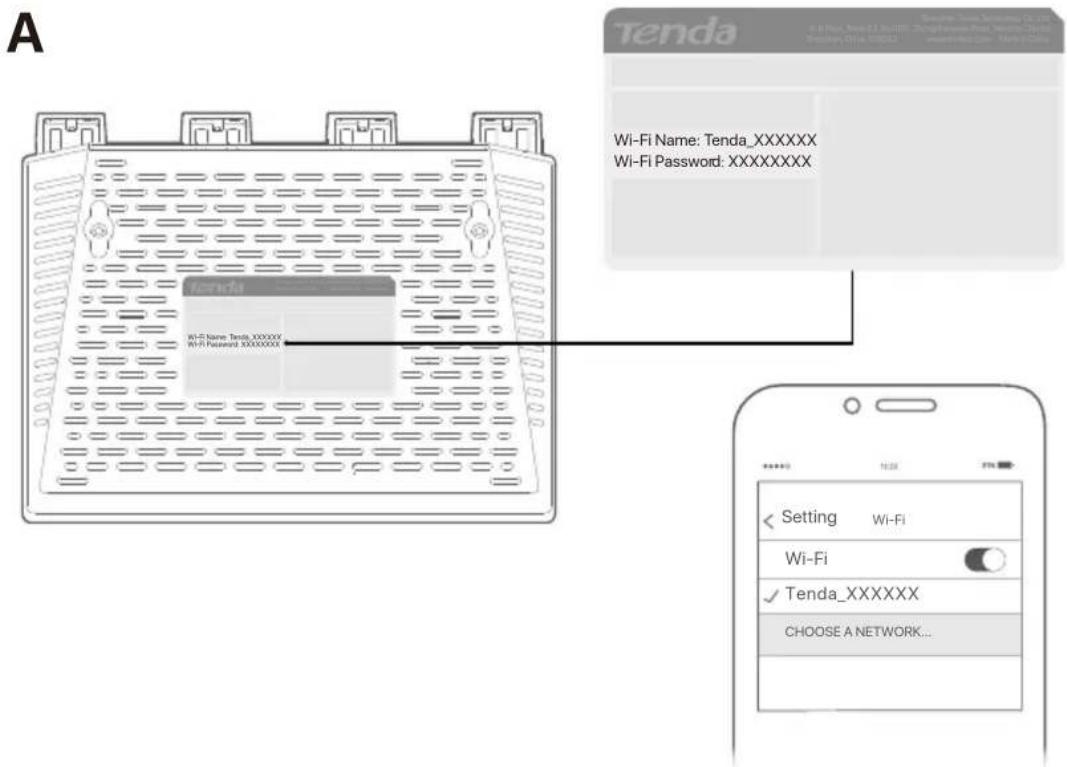
A Tenda Wi-Fi Name: Tenda_XXXXXX Wi-Fi Password: XXXXXXXX Tenda Wi-Fi Name: Tenda_XXXXXX Wi-Fi Password: XXXXXXXX Setting Wi-Fi Wi-Fi Tenda_XXXXXX CHOOSE A NETWORK...B
text_image
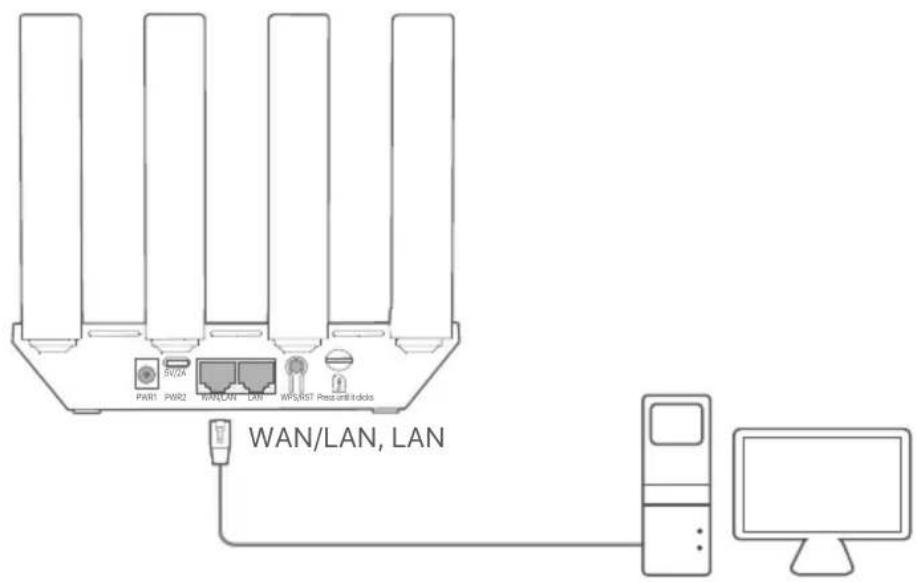
PAR1 PWR2 WAN/LAN DW WPS/RST Resun/Redocks WAN/LAN, LAN
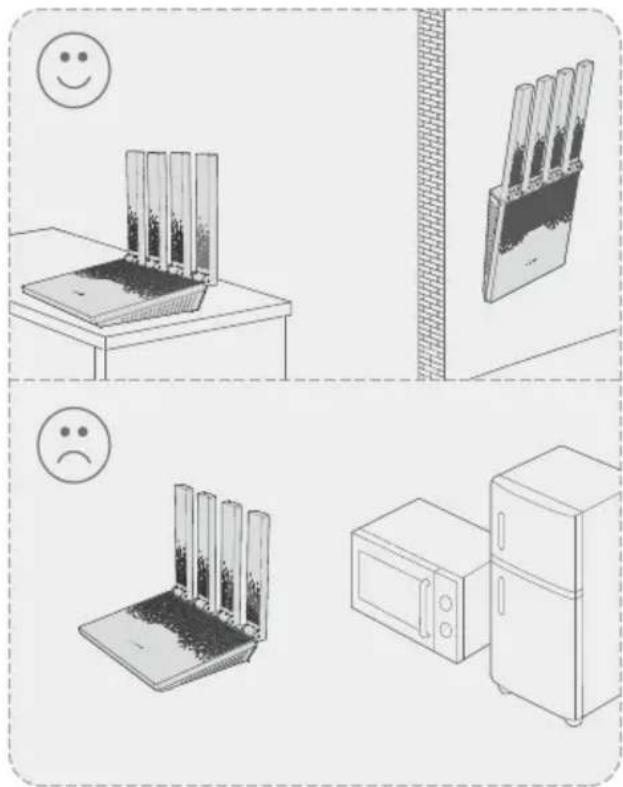
natural_image
Illustration showing a kitchen scene with a smiling emoji, a close-up of a table with food items, and a neutral emoji (no text or symbols)* Keep away from metal objects, weak-current boxes and high-power appliances.
Q1: What should I do if I cannot access the internet?
A1:
- Check that your SIM card supports LTE or WCDMA.
- Check that your SIM card is in your ISP's service area.
- Check that your SIM card balance is sufficient.
- Start a web browser on the device connected to the router, and access http://tendawifi.com. You will be redirected to the troubleshooting page. Then, perform troubleshooting as prompted on the page.
- Confirm with your ISP if you are in a roaming service area. If yes, log in to the web user interface of the router and navigate to Internet Settings to enable Data Roaming.
If the problem persists, contact our technical support.
Q2: What should I do if I cannot access the web user interface of the router by visiting http://tendawifi.com?
A2: First, try to visit http://tendawifi.com or
http://192.168.0.1 in the address bar (not the search bar). If you log in with a Wi-Fi-enabled device, such as a smartphone:
- Ensure that your smartphone is connected to the Wi-Fi network of the router.
- Disable the cellular network of your smartphone.
- Clear the cache of your web browser or use another web browser and try again.
If you log in with a wired device, such as a computer:
- Ensure that the computer has connected to the router properly.
- Ensure that the computer is set to Obtain an IP address automatically and Obtain DNS server address automatically.
- Clear the cache of your web browser or use another web browser and try again.
If the problem persists, refer to Q3 to reset the router and try again.
Q3: How to reset the router?
A3: When the device completes startup, press the WPS/RST button for about 8 seconds, and release it when all indicators light off and then light up. The router will be reset successfully in about two minutes.
Q4: How do I access the internet through the SIM card or (and) WAN port?
A4: Connect your smartphone to the router's Wi-Fi, log in to the router's web user interface, and enable the Failover function on the Internet Settings page. Insert a SIM card (if available), connect the WAN/LAN port to the internet using an Ethernet cable, and configure the corresponding internet parameter.

Tips
- When you access the internet through the SIM card and WAN port, the WAN port is prioritized for internet access by default. You can manually switch the SIM card or WAN port to the current internet connection method on the Internet Status page as required.
- If there is a network failure, the router will automatically switch to an available internet connection method.
Q5: What should I do if I forget my Wi-Fi password?
A5: Connect your computer to the router using an Ethernet cable, log in to the router's web user interface, navigate to Wi-Fi Settings > Wi-Fi Name & Password, and find your Wi-Fi password.
Appendix
Indicators
| Indicators | Status Description | ||
| Solid on The router is connected to the internet. | |||
 | Internet | Blinking slowly | No internet access is available. |
| Blinking fast The router is performing WPS negotiation. | |||
| The router is powered off.Off | |||
| 3 bars | Good signal | ||
| [CH43] | Signal | 2 bars | Fair signal |
| 1 bar | Poor signal | ||
| No signalOff | |||
Jacks, Ports and Buttons
| Jacks/Ports/Buttons Description | |
 PWR1 PWR1 | Use the power adapter to connect the router to a power source. |
 PWR2 PWR2 | Use a Type-C cable to connect the router to devices such as power banks (5V/2A recommended).NoteFor stable performance, use a USB-C charging cable within 1.2 meters.Longer or non-compliant cables may cause the router to reboot. |
 WAN/LAN WAN/LAN | Used to connect to devices such as computers, switches or game machines.When the Failover function is enabled, the WAN/LAN port can connect to devices such as ONTs or DSL modems. |
 LAN LAN | |
 WPS/RST WPS/RST | -WPS: Press the button for about 3 seconds to enable WPS negotiation.-RST: Press the button for about 8 seconds to reset the router. |
 | Insert your Nano SIM card into the slot. |
Video and More Info
Scan the QR code or visit www.tendacn.com for installation videos, technical specifications, user guides, Symbols on Products and Materials and more information.
The label showing the product name and model can be found on the bottom of the router.
text_image
QR code with central logo, likely linking to a digital service or websitetext_image
QR code with a central logo, likely linking to a digital service or websiteDOMANDE FREQUENTI
text_image
QR code with a central logo, likely linking to a digital service or websitetext_image
QR code with a central logo, likely linking to a digital service or websiteFAQ
text_image
QR code with a central logo, likely linking to a digital service or websitetext_image
QR code with a central logo, likely linking to a digital service or websitetext_image
QR code with a central logo, likely linking to a digital service or applicationCâu hỏi thường gặp
text_image
QR code image with a central logo, likely linking to a digital resource or website.Soalan Lazim
text_image
QR code with a central logo, likely linking to a digital service or websitetext_image
QR code with a central logo, likely linking to a digital service or websitetext_image
QR code with central logo, likely linking to a digital service or websitetext_image
QR code with a central logo, likely linking to a digital service or websiteคำถามที่พบบ่อย
text_image
QR code with a central logo, likely linking to a digital service or websiteTechnical Support
Shenzhen Tenda Technology Co., Ltd.
Floor 6-8, Tower E3, No.1001, Zhongshanyuan Road, Nanshan
District, Shenzhen, China. 518052
Website: www.tendacn.com
E-mail: support.fwa@tenda.cn (Recommended)
support@tenda.cn
support.uk@tenda.cn (United Kingdom)
support.usa@tenda.cn (North America)
support.mx@tenda.cn (Mexico)
support.au@tenda.cn (Australia)
Copyright © 2026 Shenzhen Tenda Technology Co., Ltd. All rights reserved.
V1.0 Keep for future reference.