Terminal Mix 2 - DJ Equipment Reloop - Free user manual and instructions
Find the device manual for free Terminal Mix 2 Reloop in PDF.



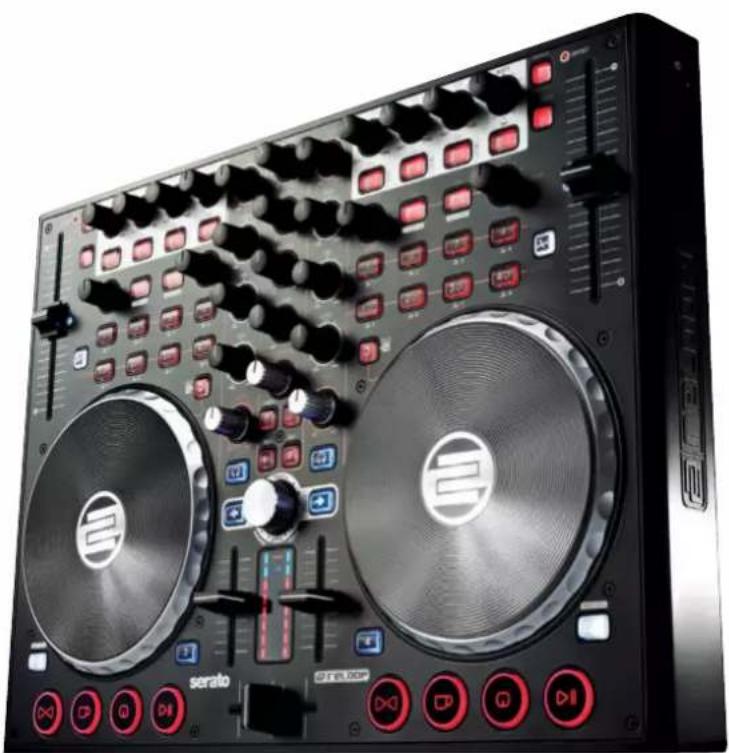
| Product Type | Professional MIDI controller with 4-channel sound card |
| Brand | Reloop |
| Model | Terminal Mix 2 |
| Power Supply | DC 6V / 1.5A via power adapter (not included) |
| Connection Interface | USB |
| Compatible Software | Serato DJ Intro, Traktor (with official mapping) |
| Number of Virtual Decks | 4 |
| Jog Wheels | 2 jog wheels with scratch and pitch bend modes, adjustable sensitivity |
| Pitch Fader | 2 sliders with ranges 8%, 16%, 50% |
| Effects | 3 parametric effect slots, tempo and tap |
| Loops | Automatic and manual loops, start/end offset |
| Hot Cues | 4 hot cues per deck with delete function |
| Samples | 4 sample banks per deck |
| Crossfader | Yes, with adjustable curve |
| Microphone | 6.3mm jack input with EQ and routing (SW/MST) |
| Audio Inputs | 1 line/phono input (RCA) with switch |
| Audio Outputs | Balanced master (6.3mm jack) and unbalanced (RCA), Booth (RCA) |
| Headphone Output | 3.5mm and 6.3mm jacks with EQ and CUE/Master mix |
| Equalizer | 3-band (High, Mid, Low) per deck |
| Filter | 1 filter per deck |
| Maintenance and Cleaning | Slightly damp cloth, no solvents or greasy products |
| Safety | Do not open the casing, avoid moisture, unplug before cleaning |
| Repairability | Maintenance by qualified personnel, fuses of same type |
| Minimum PC Configuration | Windows XP/Vista/7, Intel Pentium 4 2.4 GHz or Core Duo, 2 GB RAM |
| Minimum Mac Configuration | Mac OS X 10.5, Intel Core Duo, 2 GB RAM |
Frequently Asked Questions - Terminal Mix 2 Reloop
User questions about Terminal Mix 2 Reloop
0 question about this device. Answer the ones you know or ask your own.
Ask a new question about this device
Download the instructions for your DJ Equipment in PDF format for free! Find your manual Terminal Mix 2 - Reloop and take your electronic device back in hand. On this page are published all the documents necessary for the use of your device. Terminal Mix 2 by Reloop.
USER MANUAL Terminal Mix 2 Reloop
Deutsch. 02-15
English 16-29
Francais 30-43
Espanol. 44-57
terminalmix2
PROFESSIONELLER 2-DECK-MIDI-CONTROLLER MIT INTEGRIERTEM 4-KANAL-AUDIO-INTERFACE
PROFESSIONAL 2 DECK MIDI CONTROLLER WITH INTEGRATED 4 CHANNEL AUDIO INTERFACE
CONTROLEUR MIDI PROFESSIONNEL À 2 PLATINES AVEC INTERFACE AUDIO 4 CANAUX INTÉGRée
CONTROLADOR MIDI PROFESIONAL CON 2 PLATOS E INTERFAZ DE AUDIO DE 4 CANALES INTEGRADA

Bedienungsanleitung
ACHTUNG!
For your own safety, please read this operation manual carefully before initial operation! All persons involved in the installation, setting-up, operation, maintenance and service of this device must be appropriately qualified and observe this operation manual in detail. This product complies with the requirements of the applicable European and national regulations. Conformity has been proven. The respective statements and documents are deposited at the manufacturer.
Mode d'emploi
ATTENTION!
To prevent fire or avoid an electric shock do not expose the device to water or fluids!
Never open the housing!
ATTENTION!
Keep information for further reference!
48153 Muenster / Germany © 2012
| 1-4 1 | |
| 5-8 2 | |
| 9-12 3 | |
| 13-16 | 4 |
General Specifications:
Power supply: USB 5V 500mA / DC: 6V, 1.5A
Dimensions: 440 × 337 × 62.5 ~mm
Weight: 4.1 kg
| ITEM LIMIT CONDITION | ||
| OUTPUT LEVEL (OUTPUT VR MAXIMUM) | ||
| MASTER/BOOTH OUTPUT: +6dB +/-1.5dB TCD-782 TRK.2/1KHz 0dB | ||
| BALANCE OUTPUT: +6dB +/-1.5dB TCD-782 TRK.2/1KHz 0dB, 300Ω TO GND BALANCE | ||
| PHONES: -6dB +/-1.5dB TCD-782 TRK.16/1KHz -20dB | ||
| MASTER OUTPUT: +6dB +/-1.5dB MIC IN 1KHz, -36dB (INPUT SWITCHING=MST) | ||
| MASTER OUTPUT: +6dB +/-1.5dB LINE IN 1KHz, 0dB (INPUT SWITCHING=MST) | ||
| MASTER OUTPUT: +6dB +/-1.5dB PHONO IN 1KHz, -36dB (INPUT SWITCHING=MST) | ||
| CHANNEL BALANCE | ||
| ALL OUTPUT: WITHIN 1dB | TCD-782 TRK.2/1KHz 0dB | |
| L/R CHANNEL SEPARATION (*2): | ||
| MASTER/BOOTH OUTPUT: 80dB | TCD-782 TRK.9 & 11/1KHz 0dB | |
| THD+N(*1): | ||
| MASTER/BOOTH OUTPUT: 0.05% | TCD-782 TRK.2/1KHz 0dB | |
| PHONES: 0.3% | TCD-782 TRK.2/1KHz 0dB | |
| S/N RATIO(*2): | ||
| MASTER/BOOTH OUTPUT: 85dB | TCD-782 TRK.2 & 8/1KHz 0dB | |
| FREQUENCY RESPONSE(OUTPUT VR MAXMUM): | ||
| USB PLAYBACK: | 17Hz-16KHz +/-1dB | TCD-781 TRK.1,4 & 16 |
| LINE INPUT: | 20Hz-20KHz +/-3dB | IN LEVEL -14dB (INPUT SWITCHING=MST) |
| PHONO INPUT: | 20Hz-20KHz +/-3dB | IN LEVEL -54dB (INPUT SWITCHING=MST) WITH RIAA |
| MIC INPUT: | 20Hz-20KHz +/-3.5dB | IN LEVEL -54dB (INPUT SWITCHING=MST) |
| TONE (OUTPUT VR MAXIMUM): | ||
| PHONES: -14dB +/-2dB | TONE VR MAX TO MIN, (TCD-782 TRK.17/10KHz -20dB) | |
| MIC: | -14dB +/-2dB | TONE VR MAX TO MIN, MIC IN 10KHz, LEVEL -54dB (INPUT SWITCHING=MST) |
| PHONES MAX. OUTPUT: | MORE THAN +3dB | THD=1% (TCD-782 TRK.2/1KHz 0dB) |
| RECORD/PLAY SECTION | ||
| OUTPUT LEVEL (OUTPUT VR MAXIMUM): | ||
| LINE INPUT: | +6dB +/-1.5dB IN LEVEL 1KHz -14dB | |
| MIC INPUT: | +6dB +/-1.5dB IN LEVEL 1KHz -54dB | |
| L/R CHANNEL SEPARATION (*2): | ||
| MASTER/BOOTH OUTPUT: 70dB | IN LEVEL 1KHz -14dB | |
| S/N RATIO(*2): | ||
| MASTER/BOOTH OUTPUT: 80dB | IN LEVEL 1KHz -14dB | |
| MASTER/BOOTH OUTPUT: 58dB | MIC IN 1KHz -54dB | |
| THD+N(*1) (OUTPUT VR MAXIMUM): | ||
| MASTER/BOOTH OUTPUT: | 0.05% | LINE IN 1KHz -14dB (INPUT LEVEL SET TO OUTPUT=0dB) |
| NOTES: | ||
| *1: WITH 20KHz LOW PASS FILTER | ||
| *2: WITH 20KHz LOW PASS FILTER, .IHF-A"WEIGHTED | ||
| *3: ALL TEST CONDITION WITH EXTERNAL POWER SUPPLY UNIT | ||
Reloop Distribution
Global Distribution GmbH
Schuckertstrasse 28
48153 Munster / Germany
Fax: +49.251.6099368
For your own safety, please read this operation manual carefully before initial operation! All persons involved in the installation, setting-up, operation, maintenance and service of this device must be appropriately qualified and follow this operation manual in detail. This product complies with the requirements of the applicable European and national regulations. Conformity has been proven. The respective statements and documents are deposited at the manufacturer.
INDEX
SAFETY INSTRUCTIONS. 17
APPLICATION IN ACCORDANCE WITH REGULATIONS. 17
MAINTENANCE 18
1. SETUP 18
2. INITIAL OPERATION 20
3. COMPUTER CONFIGURATION 20
3.1 ASIO Driver Installation 20
3.2 Serato DJ Intro Installation 21
3.2.1 Serato DJ Intro Installation / Windows 21
3.2.2 Serato DJ Intro Installation / Mac OSX 22
3.3 Traktor Support 22
4. OPERATION 22
4.1 Software Function Chart 22
4.2 Routing Functions 24
4.2.1 Microphone 24
4.2.2 External Sound Sources 24
4.2.3 Outputs 24
5. DEVICE SETTINGS AND TESTS 24
5.1 Firmware Version Check 24
5.2 LED Dimmer 24
5.3 Jog Sensitivity 24
5.4 Firmware Update / Windows, MAC OSX.. 24
5.5 MIDI Channel Assignment 25
6. APPENDIX 25
6.1 Minimum System Requirements 25
6.2 MIDI Assignment Chart 26
6.3 Troubleshooting 27
6.4 Technical Specifications 28
Congratulations on purchasing the Reloop Terminal Mix 2. Thank you for placing your trust in our disc jockey technology. Before operating this equipment we ask you to carefully study and follow all instructions.
Please remove the Reloop Terminal Mix 2 from its packaging. Before initial operation please make sure that the device has not been visibly damaged during transport. If you detect any damage to the power cable or the casing, do not operate the device and contact your specialised dealer.
SAFETY INSTRUCTIONS
CAUTION! Please exercise particular caution when handling 1,5A / 6V, 60/50Hz power voltage (optional). This voltage rating may lead to a critical electrical shock! Any damage caused by the non-observation of this operation manual excludes any warranty claims. The manufacturer is not liable for any damage to property or for personal injury caused by improper handling or non-observation of the safety instructions.
This device has left the factory in perfect condition. To maintain this condition and to ensure a risk-free operation the user must observe the safety instructions and warnings contained in this operation manual.
For reasons of safety and certification (CE) the unauthorised conversion and/or modification of the device is prohibited. Please note that in the event of damage caused by the manual modification to this device any warranty claims are excluded.
The inside of the device does not contain any parts which require maintenance, with the exception of wear parts that can be exchanged from the outside. Only qualified staff must carry out maintenance, otherwise warranty does not apply!
The fuse must exclusively be exchanged against fuses of the same class, with the same trigger features and nominal current rating.
Make sure that the power will only be supplied after the device has been fully set up. Always plug in the mains plug last. Ensure that the mains switch is in the "OFF" position when connecting the device to power.
Only use cables that comply with regulations. Make sure that all jacks and bushes are tightened and correctly hooked up. Refer to your dealer if you have any questions.
Ensure that when setting up the product the mains cable is not squashed or damaged by sharp edges.
Prevent the mains cable from coming into contact with other cables! Exercise great care when handling mains cables and connections. Never touch these parts with wet hands!
Connect the power cable exclusively to appropriate shock-proof outlets. The only supply point to be used is a supply outlet in accordance with specifications of the public supply network.
Disconnect the device from the supply outlet when not in use and before cleaning! Be sure to hold the mains plug by the body. Never pull the mains cord!
Position the device on a horizontal and stable low-flame base.
Avoid any concussions or violent impact when installing or operating the device.
When selecting the location of installation make sure that the device is not exposed to excessive heat, humidity, and dust. Be sure that no cables lie around openly. You will endanger your own safety and that of others!
Do not rest any containers filled with liquid that could easily spill onto the device or in its immediate vicinity. If, however, fluids should access the inside of the device, immediately disconnect the mains plug. Have the device checked by a qualified service technician before re-use. Damage caused by fluids inside the device is excluded from the warranty.
Do not operate the device under extremely hot (in excess of 35^ ) or extremely cold (below 5^ ) conditions. Keep the device away from direct exposure to the sun and heat sources such as radiators, ovens, etc. (even during transport in a closed vehicle). Never cover the cooling fan or vents. Always ensure sufficient ventilation.
The device must not be operated after being taken from a cold environment into a warm environment. The condensation caused hereby may destroy your device. Do not switch on or operate the device until it has reached ambient temperature!
Controls and switches should never be treated with spray-on cleaning agents and lubricants. This device should only be cleaned with a damp cloth. Never use solvents or cleaning fluids with a petroleum base for cleaning.
When relocating, the device should be transported in its original packaging.
Devices supplied by voltage should not be left in the hands of children. Please exercise particular care when in the presence of children.
At commercial facilities the regulations for the prevention of accidents as stipulated by the organization of professional associations must be observed.
At schools, training facilities, hobby and self-help workshops the operation of the device must be monitored with responsibility by trained staff.
Keep this operation manual in a safe place for later reference in the event of questions or problems.
APPLICATION IN ACCORDANCE WITH REGULATIONS
This device is a professional DJ MIDI controller with integrated 4-channel soundcard that can control software. The device should be connected via USB cable to a computer.
This product is authorised for connection to 1,5A / 6V, 60/50 Hz AC via an optional mains adapter (sold separately) and is designed exclusively for indoor application.
If the device is used for any other purposes than those described in the operation manual, damage can be caused to the product, leading to exclusion of warranty rights. Moreover, any other application that does not comply with the specified purpose harbours risks such as short circuit, fire, electrical shock, etc.
The serial number determined by the manufacturer must never be removed to uphold the warranty rights.
MAINTENANCE
Check the technical safety of the device regularly for damage to the mains cord or the casing, as well as for wearout of wear parts such as rotary knobs and sliding faders.
If it is to be assumed that a safe operation is no longer feasible, then the device must be disconnected and secured against accidental use. Always disconnect the mains plug from the outlet!
It must be assumed that a safe operation is no longer feasible, if the device bears visible defects, if the device no longer functions, following longer storage under unfavourable conditions or after major transport stress.
1. SETUP
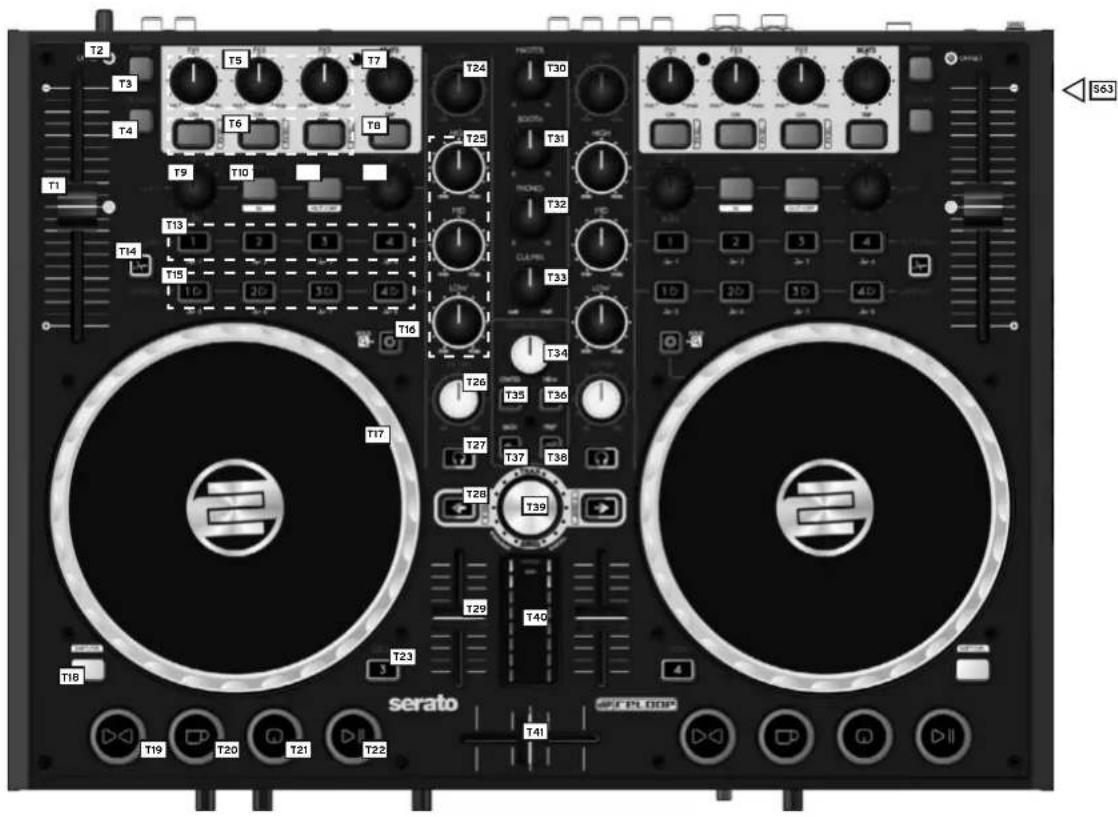


SURFACE
| NO DESIGNATION SHIFT BEZEICHNUNG | |
| T1 Pitch | Fader |
| T2 Offset LED | |
| T3 Range | |
| T4 Keylock | |
| T5 Effect Parameter | |
| T6 FX On Buttons Effect Change Button | |
| T7 FX Tempo | |
| T8 Tap Button | |
| T9 Loop Length | |
| T10 Adjust Loop Beginning | |
| T11 Adjust Loop Ending | |
| T12 Adjust Loop | |
| T13 Hot Cue Buttons Delete Hot Cue | |
| T14 Slice Button | |
| T15 Sample Bank | |
| T16 Jog Wheel Mode Buttons | |
| T17 Jog Wheel | |
| T18 Shift Button | |
| T19 Sync Button | |
| T20 Cup Button | |
| T21 Cue Button | |
SURFACE
| NO DESIGNATION SHIFT BEZEICHNUNG | |
| T22 Play/Pause Button | |
| T23 Deck Select Switch | |
| T24 Gain Dial | |
| T25 EQ Dial | |
| T26 Filter Dial | |
| T27 Monitor CUE Button | |
| T28 Load Button Fader Start Button | |
| T29 Linefader | |
| T30 Master Volume | |
| T31 Booth Volume | |
| T32 Headphones Volume | |
| T33 CUE-Mix Fading | |
| T34 Sampler Volume Dial | |
| T35 Crates Button | |
| T36 View Button | |
| T37 Back Button | |
| T38 Preparation Button | |
| T39 Track Navigation | |
| T40 VU Meter | |
| T41 Cros fader | |
REAR PANEL
| NO DESIGNATION | |
| B42 | Mains Cord Stress Release |
| B43 | Mains Connection (DC 6V/1,5A) |
| B44 | On/Off Button |
| B45 | USB Port |
| B46 | 6.3 mm Master Balanced Output |
| B47 RCA | Master Unbalanced Output |
| B48 | RCA Booth Unbalanced Output |
| B49 Shift Lock Switch | |
| B50 | Line/Phono Switch |
| B51 RCA | Input 1 |
| B52 | Grounding Screw |
FRONT PANEL
| NO DESIGNATION | |
| F53 6.3 | mm Jack Microphone Connection |
| F54 | Microphone Volume |
| F55 Microphone Equalizer | |
| F56 | Microphone Routing Switch |
| F57 Input 1 Routing Switch | |
| F58 Input 1 Volume | |
| F59 Crossfader Curve | |
| F60 | Headphones Equalizer |
| F61 3.5 | mm Jack Headphones Connection |
| F62 6.3 | mm Jack Headphones Connection |
LATERAL SIDE
| NO DESIGNATION | |
| S63 | Kensington Lock |
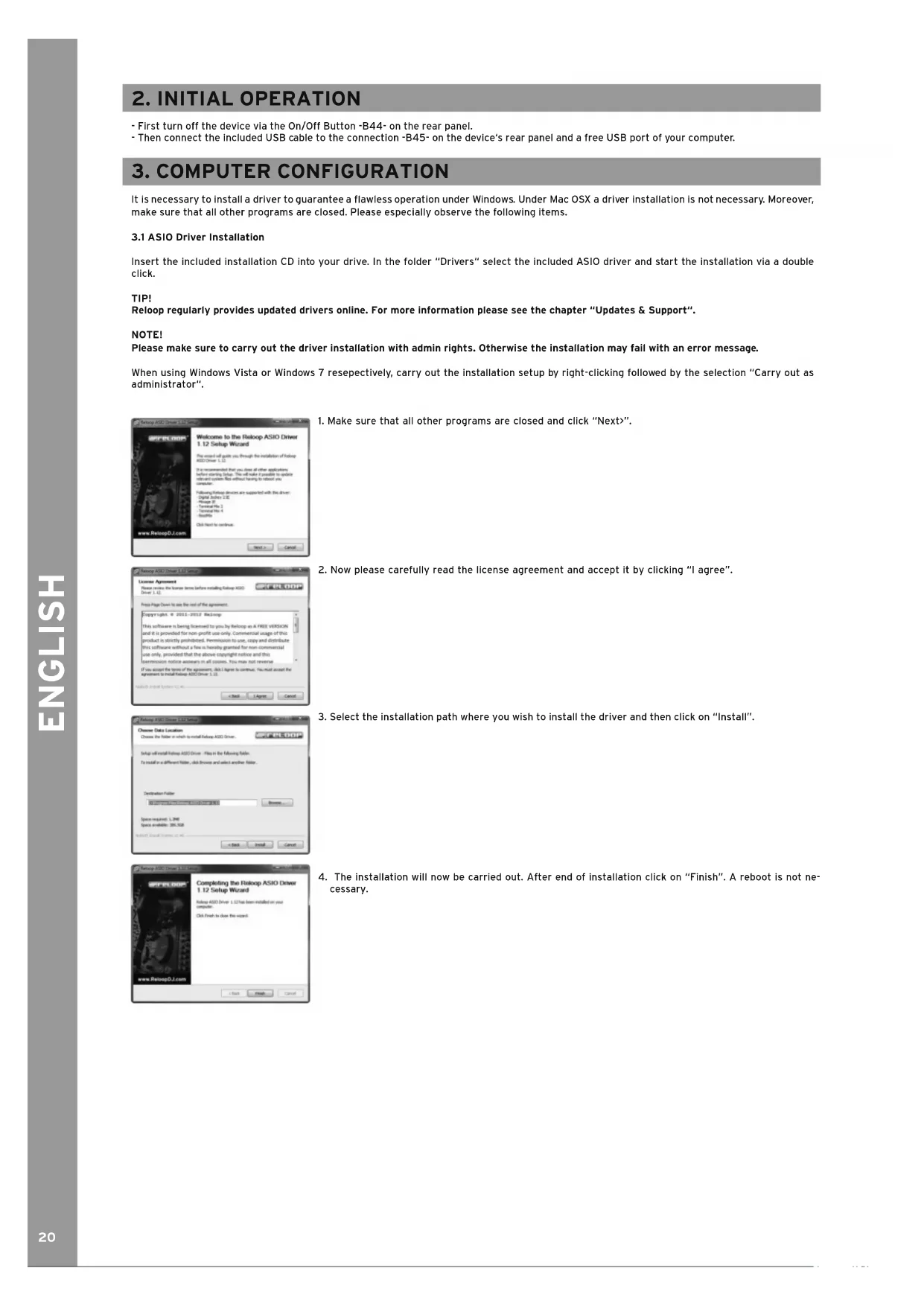
- First turn off the device via the On/Off Button -B44- on the rear panel.
- Then connect the included USB cable to the connection -B45- on the device's rear panel and a free USB port of your computer.
3.COMPUTER CONFIGURATION
It is necessary to install a driver to guarantee a flawless operation under Windows. Under Mac OSX a driver installation is not necessary. Moreover, make sure that all other programs are closed. Please especially observe the following items.
3.1 ASIO Driver Installation
Insert the included installation CD into your drive. In the folder "Drivers" select the included ASIO driver and start the installation via a double click.
TIPI
Reloop regularly provides updated drivers online. For more information please see the chapter "Updates & Support".
NOTE!
Please make sure to carry out the driver installation with admin rights. Otherwise the installation may fail with an error message.
When using Windows Vista or Windows 7 resepectively, carry out the installation setup by right-clicking followed by the selection "Carry out as administrator".
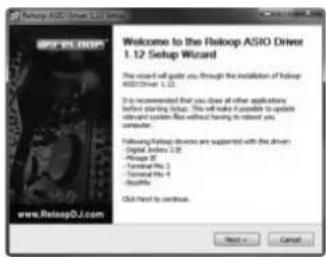
- Make sure that all other programs are closed and click "Next".
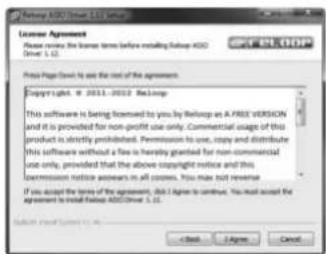
- Now please carefully read the license agreement and accept it by clicking "I agree".
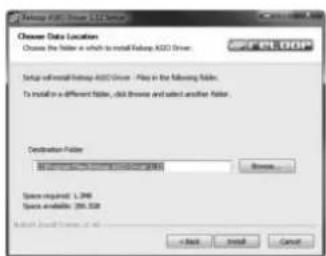
- Select the installation path where you wish to install the driver and then click on "Install".
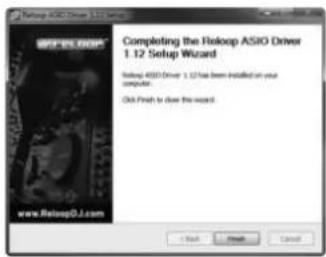
- The installation will now be carried out. After end of installation click on "Finish". A reboot is not necessary.
3.2 Serato DJ Intro Installation
3.2.1 Serato DJ Intro Installation / Windows
On the included CD you can find the directory "Serato DJ Intro". Open this directory and select the setup file that corresponds to your system. Start the installation with a double click.
NOTE!
Please make sure to carry out the driver installation with admin rights. Otherwise the installation may fail with an error message.
When using Windows Vista or Windows 7 respectively, carry out the installation setup by right-clicking followed by the selection "Carry out as administrator".
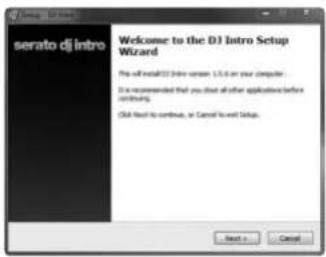
- Make sure that all other programs are closed and click "Next".
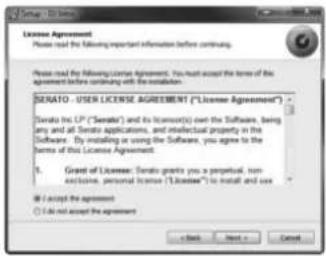
- Now please carefully read the license agreement and accept it by clicking "I accept the agreement" and then clicking "Next".
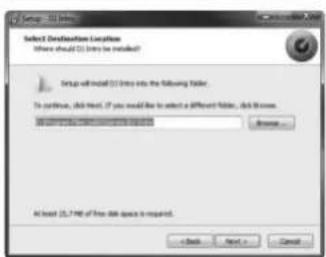
- Select the installation path where you wish to install the driver and then click on "Install".
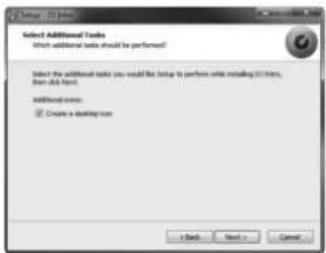
- If you do not wish to have an icon on your desktop, simply remove the checkmark under "Create a desktop icon" and click on "Next".
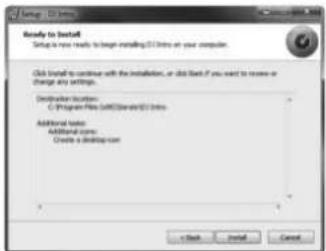
- Now click "Install" to start the installation.
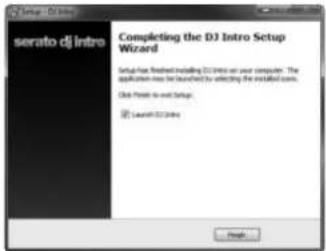
- After a successful installation you can start Serato DJ Intro by clicking "Finish".
3.2.2 Serato DJ Intro Installation / Mac OSX
On the included installation CD you can find the directory "Serato DJ Intro". Open it and select the setup file that corresponds to your system. Now start the installation with a double click.
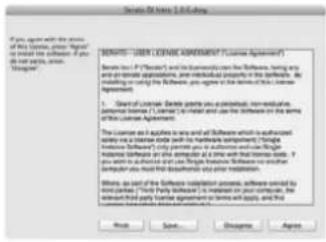
- Please carefully read the license agreement and accept it by clicking "I agree".
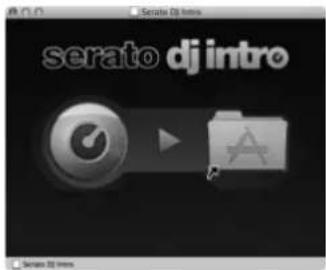
-
Now drag and drop the file "Serato DJ Intro" in your "Programs" folder.
-
You can now start Serato DJ Intro via your "Programs" folder.
3.3 Traktor Support
Reloop provides Traktor mappings (4-deck, 2-deck, 2 sample decks) which you can download from our forum. An instruction how to embed the mappings can also be found in our forum. http://www.reloopdj.com/forum
4. OPERATION
4.1 Software Function Chart
After the Reloop Terminal Mix 2 has been properly connected and correctly configured in the DJ software it can now be used.
| SURFACE | ||
| NO DESIGNATION SHIFT DESIGNATION | ||
| T1 Pitch Fader | ||
| Adjusts the current deck's pitch (see -T23-). | ||
| T2 Offset LED | ||
| If you switch the deck (see -T23-) and move the pitch fader the value will be stored. The LED shows whether the pitch fader is at its initial value when setting back. | ||
| T3 Range | ||
| You can select between the following pitch fader ranges:8%, 16%, 50% | ||
| T4 Keylock | ||
| (De-)activates keylock. | ||
| T5 Effect Parameter | ||
| Changes the selected effect's effect parameters in the respective slot. | ||
| T6 FX On Button | Effect Switch Button By pressing this button the effect in the respecti-ve slot can be changed. | |
| Activates the selected effect in the respective slot. | ||
| T7 FX Tempo | ||
| Changes effect tempo of all effects. | ||
| T8 Tap Button | ||
| Determines the effect section's tempo. | ||
| T9 Loop Length | ||
| By turning the encoder the set loop's length will be varied. By pushing the encoder an automatic loop will be set with the selected loop length; it is not necessary to set the loop ending point. | ||
| T10 Adjust beginning of loop | ||
| Sets a loop-in point. If a loop is set, the loop-in point can be adjusted via the jog wheel when pressed again. | ||
| T11 Adjust loop ending point Sets a loop-out point. When pressed again the loop-out point can be adjusted via the jog wheel. | ||
| a loop | ||
| Moves the loop in a bar. | ||
| T13 Hot Cue Buttons | Delete Hot Cue If you press a hot cue in shift mode, it will be deleted. | |
| Herewith the 4 hot cues of a track can be accessed. If a hot cue is unassigned (no LED feedback) the hot cue will be assigned to the current track position by pressing the button -T23-. | ||
| T14 Slice Button | ||
| Reserved for future software updates. | ||
| T15 Sample | Bank Plays a loaded sample. By pressing again the sample will be replayed from the beginning. | Sample Bank Stops the sample and jumps back to the beginning. A double click deletes the sample from the corresponding slot. |
| T16 Jog Wheel Mode Button (De-)activates jog wheel scratch mode. By holding the button it is possible to browse the track with the jog wheel. If the LED is deactivated the jog wheel is in pitch bend mode. | ||
| T17 Jog Wheel Various functions can be controlled herewith. Please refer to the Jog Wheel Mode Button -T16-. | ||
| T18 Shift Button By pressing this button all control elements will receive another assignment. The current assignment can be seen on the right side of this chart. | ||
| T19 Sync Button The current deck's tempo will be matched to the master deck. By pressing again the beat phases will be matched. | Sync Button Deactivates synchronisation. | |
| T20 CUP Button Jumps to the last set cue-point and starts playback from this point. | ||
| T21 Cue Button If the deck is in play mode, the track jumps back to the last set cue point. By pressing again, playback starts as long as the button is being held. If the deck is in pause mode, a new cue point will be set at the current point. | ||
| T22 Play/Pause Button Starts and pauses track playback. | ||
| T23 Deck Select Switch With this button you can select the controllable decks. | ||
| T24 Gain Dial With this dial the respective channel's gain can be adjusted. | ||
| T25 EQ Dial With this dial highs/mids/loos can be adjusted. | ||
| T26 Filter Dial Regulates the channel filter. By turning the dial to the left, a low pass filter will be activated; by turning the dial to the right, a hippass filter will be activated. | ||
| T27 CUE Monitor With this button the selected deck can be monitored. | ||
| T28 Load Button By pressing this button the selected track can be loaded to the repetitive deck. If you press this button twice in succession, the opposite deck will be copied and continue playback at the exact same position. | Fader Start Button When active, by drawing up the linefader -T29- the track will be started. By moving down the linefader the track will jump back to the cue point. | |
| T29 Linefader With the linefader the channel volume can be adjusted. | ||
| T30 Master Volume With this dial the master output volume can be adjusted. This is an analog dial which does not send a MIDI signal. | ||
| T31 Booth Volume With this dial the booth output volume can be adjusted. This is an analog dial which does not send a MIDI signal. | ||
| T32 Headphones Volume With this dial the headphones volume can be adjusted. This is an analog dial which does not send a MIDI signal. | ||
| T33 CUE Mix Fading With the Cue Mix Dial a pre-mix can be simulated in your headphones. When in the right position, the master signal is audible; in the left position the cue signal is audible. | ||
| T34 Sampler Volume Controls the sample volume. | ||
| T35 Crates Button Jumps back to crates view. | Crates Button Switches between effect and sampler view. | |
| T36 View Button Switches between the views FILES and PREPARE. | View Button Fades out FILES and PREPARE views. | |
| T37 Back Button If file view is activated, you will always get to the previous layer. If it is closed, you will get back to crates view. | ||
| T38 Preparation Button Loads the selected track into the preparation list. | ||
| T39 Track Navigation If you are in folder navigation or playlist view, it is possible to browse through these by turning. By pressing you will get to the next layer. | ||
| T40 VU Meter The VU Meter shows the master out's output level. | ||
| T41 Crossfader With this fader you can fade between the decks. Also see -T59-. | ||
4.2 Routing Functions
Terminal Mix 2 disposes of different routing possibilities in order to include already existing equipment.
4.2.1 Microphone
A microphone can be connected via a 6.3 mm jack on the device's front panel -F53-. Besides the volume dial -F54- a routing switch -F56- is also integrated which controls the following routing options:
SW = The microphone signal is routed to the software.
MST = The microphone signal is directly routed to the device's master-out.
NOTe!
In Serato DJ intro it is not possible to route the microphone signal to the software.
Moreover, it is possible to manipulate the microphone signal via the included Equalizer -F55-.
4.2.2 External Sound Sources
At the device's side you have the possibility to connect an external sound source via RCA cable to the Terminal Mix 2 -B51- and integrate it in the controller. There is also the possibility to route the signal directly to the master output or to a software.
In order to route the signal directly to the master output please put the Input Routing Switch -F57- on the device's front side in the MST position. Now you can control the input level via the Volume Dial -F58-. Additionally to a line-in source you also have the possibility to connect a turntable. To do so please put the Line/Phono Switch -B50- in the "PH" position.
If you wish to route the signal to a software, put the Input Routing Switch -F57- in the "SW" position.
NOTc!
In Serato DJ Intro it is not possible to route the external source's signal to the software.
4.2.3 Outputs
On the rear panel of Terminal Mix 2 you can find three stereo outputs. Master 1-B47-(RCA) as well as Master 2-B46-(symmetrical 6.3 mm jack) can be adjusted via the Master Volume Encoder -T30-.
The booth output -B48- (RCA output) can be adjusted via the Booth Dial -T31.
5. DEVICE SETTINGS AND TESTS
Several adjustments and tests can be carried out with Terminal Mix 2 without the help of a computer. In the following a few of these items are explained in detail.
5.1 Firmware Version Check
To see the current firmware version of the Terminal Mix 2 proceed as follows:
- Make sure that Terminal Mix 2 is turned off (see position On/Off Switch -B44-).
- Hold TRAX + CRATES + VIEW simultaneously and turn on the device.
Now different LED statutuses will be shown on the device; these are assembled in three different sections (X.YZ).
x SeTION Y SeTION Z SECTION
Add all illuminated LEDs from the left Hot Cue -T13-, Sample -T15- & Jog Wheel Mode button -T16-. If nothing is displayed, this corresponds to a value of 0.
Add all illuminated LEDs from the right Hot Cue -T13-, Sample -T15- & Jog Wheel Mode button -T16-. If nothing is displayed, this corresponds to a value of 0.
Add all illuminated LEDs from the transport section -T19---T23. If nothing is displayed, please repeat steps 1 & 2.
Example: In X section no LED is illuminated, in Y section 1 LED is illuminated and in Z section 3 LEDs are illuminated. This corresponds to the firmware version 0.13. By pressing the TRAX Encoder -T39- again the device will reboot.
5.2 LED Dimmer
You can adjust the LEDs' intensity. Simultaneously the functionality of all LEDs can be checked.
- Make sure that Terminal Mix 2 is turned off (see position On/Off Switch -B44-).
- Hold TRAX + BACK + PREP simultaneously and turn on the device.
By turning the TRAX Encoder -T39- you can now adjust the LED intensity. By pushing the TRAX Encoder -T39- again the value will be stored and the device will be rebooted.
5.3 Jog Sensitivity
Terminal Mix 2 offers the possibility to adjust the jog wheel sensitivity.
- Make sure that Terminal Mix 2 is turned off (see position On/Off Switch -B44-).
- Hold TRAX + BACK + CRATES simultaneously and turn on the device.
- Turn deck A's MOVE Encoder -T12- to adjust the desired value of Jog wheel A.
- Turn deck B's MOVE Encoder -T12- to adjust the desired value of jog wheel B.
There is a total of 10 adjustment possibilities that are displayed by LED statuses in the Hot Cue and Sample section. By pressing the Trax Encoder again the value will be stored and the device will reboot.
5.4 Firmware Update / Windows, MAC OSX
It is possible to update the Terminal Mix 2 firmware. This way changes can be carried out later and new features can be added. The latest firmware can be found under:
www.reloopdj.com/forum
Carrying out a firmware update
- Make sure that Terminal Mix 2 is turned off (see position On/Off Switch -B44-) and all programs are closed.
- Hold TRAX + LOAD A + LOAD B (-T28-) simultaneously and turn on the device. The device is now in firmware update mode.
- Insert the included installation CD into your drive. In the folder "Firmware" select the included UsbUpgDataApp_v.*.jar tool and start the program with a double-click.
- Now open the firmware file that corresponds to your device by clicking "Open file".
- Now carry out the firmware update by clicking the "Start" button.
The new firmware will now be transmitted. This procedure may take a few minutes. The device shows the current update status via the hot cue buttons. After a successful update the device will reboot.
5.5 MIDI Channel Assignment
CAUTION!
By default the Terminal Mix 2 is configured for MIDI channels 1-4. Deck A is assigned to channel 1, deck B to channel 2, deck C to channel 3 and deck D to channel 4. Reloop's official mappings are laid out for the standard configuration. Usually an adjustment is not necessary.
However, if you wish to switch the decks to the MIDI channel combination 5-8, 9-12 or 13-16, please proceed as follows:
- Make sure that Terminal Mix 2 is turned on (see position On/Off Switch -B44-).
- Press the TRRAX Encoder -T39- for more than three seconds and keep it pressed.
- In the left Hot Cue section -T13- the current MIDI channel will be displayed. For the desired adjustment please see the chart below and press the corresponding hot cue button.
MIDI CHANNEL COMBINATION HOT CUE BUTTON
| 1-4 1 | |
| 5-8 2 | |
| 9-12 3 | |
| 13-16 4 |
- In order to assume the adjustment, release the TRAX Encoder -T39-. The adjustment is now stored.
6. APPENDIX
6.1 Minimum System Requirements
PC MAC
WindowsXP (latest Service Pack,32-Bit),Windows Vista/Windows
7 (latest Service Pack, 32/64-Bit)
Intel® Pentium 4® 2.4 GHz or Intel® Core™ Duo
2GBRAM
Mac OSX® starting from 10.5
Intel® Core™ Duo
2GBRAM
| NO. | ITEMS | TYPE | DECK A | DECK B | DECK C | DECK D | SW NOTE | VR CC | SW NOTE | VR CC | LED NOTE | LED NOTE | ||||||
| HEX | HEX | HEX | HEX | HEX | HEX | |||||||||||||
| 1 | RANGE | SW/LED | CH 1 | CH 2 | CH3 | CH 4 | 1 | 1 | - | - | 71 | 47 | - | - | 1 | 1 | 71 | 47 |
| 2 | KEY LOCK | SW/LED | CH 1 | CH 2 | CH 3 | CH 4 | 2 | 2 | - | - | 72 | 48 | - | - | 2 | 2 | 72 | 48 |
| 3 | FX1 | VR | CH 1 | CH 2 | CH 1 | CH 2 | - | - | 3 | 3 | - | - | 73 | 49 | - | - | - | - |
| 4 | FX2 | VR | CH 1 | CH 2 | CH 1 | CH 2 | - | - | 4 | 4 | - | - | 74 | 4A | - | - | - | - |
| 5 | FX3 | VR | CH 1 | CH 2 | CH 1 | CH 2 | - | - | 5 | 5 | - | - | 75 | 4B | - | - | - | - |
| 6 | BEATS | SW/ENC | CH 1 | CH 2 | CH 1 | CH 2 | 6 | 6 | 6 | 6 | 76 | 4C | 76 | 4C | - | - | - | - |
| 7 | FX_SEL1 | SW/LED | CH 1 | CH 2 | CH 1 | CH 2 | 7 | 7 | - | - | 77 | 4D | - | - | 7 | 7 | 77 | 4D |
| 8 | FX_SEL2 | SW/LED | CH 1 | CH 2 | CH 1 | CH 2 | 8 | 8 | - | - | 78 | 4E | - | - | 8 | 8 | 78 | 4E |
| 9 | FX_SEL3 | SW/LED | CH 1 | CH 2 | CH 1 | CH 2 | 9 | 9 | - | - | 79 | 4F | - | - | 9 | 9 | 79 | 4F |
| 10 | TAP | SW/LED | CH 1 | CH 2 | CH 1 | CH 2 | 10 | A | - | - | 80 | 50 | - | - | 10 | A | 80 | 50 |
| 11 | LOOP LENGTH | SW/ENC | CH 1 | CH 2 | CH 3 | CH 4 | 11 | B | 11 | B | 81 | 51 | 81 | 51 | - | - | - | - |
| 12 | LOOP IN | SW/LED | CH 1 | CH 2 | CH 3 | CH 4 | 12 | C | - | - | 82 | 52 | - | - | 12 | C | 82 | 52 |
| 13 | LOOP OUT | SW/LED | CH 1 | CH 2 | CH 3 | CH 4 | 13 | D | - | - | 83 | 53 | - | - | 13 | D | 83 | 53 |
| 14 | LOOP MOVE | SW/ENC | CH 1 | CH 2 | CH 3 | CH 4 | 14 | E | 14 | E | 84 | 54 | 84 | 54 | - | - | - | - |
| 15 | DELETE | SW/LED | CH 1 | CH 2 | CH 3 | CH 4 | 15 | F | - | - | 85 | 55 | - | - | - | - | - | - |
| 16 | HOT CUE1(DELETE OFF) | SW/LED | CH 1 | CH 2 | CH 3 | CH 4 | 16 | 10 | - | - | 86 | 56 | - | - | 16 | 10 | 86 | 56 |
| 17 | HOT CUE2(DELETE OFF) | SW/LED | CH 1 | CH 2 | CH 3 | CH 4 | 17 | 11 | - | - | 87 | 57 | - | - | 17 | 11 | 87 | 57 |
| 18 | HOT CUE3(DELETE OFF) | SW/LED | CH 1 | CH 2 | CH 3 | CH 4 | 18 | 12 | - | - | 88 | 58 | - | - | 18 | 12 | 88 | 58 |
| 19 | HOT CUE4(DELETE OFF) | SW/LED | CH 1 | CH 2 | CH 3 | CH 4 | 19 | 13 | - | - | 89 | 59 | - | - | 19 | 13 | 89 | 59 |
| 20 | SAMPLE(DELETE OFF) | SW/LED | CH 1 | CH 2 | CH 3 | CH 4 | 20 | 14 | - | - | 90 | 5A | - | - | 20 | 14 | 90 | 5A |
| 21 | SAMPLE2(DELETE OFF) | SW/LED | CH 1 | CH 2 | CH 3 | CH 4 | 21 | 15 | - | - | 91 | 5B | - | - | 21 | 15 | 91 | 5B |
| 22 | SAMPLE3(DELETE OFF) | SW/LED | CH 1 | CH 2 | CH 3 | CH 4 | 22 | 16 | - | - | 92 | 5C | - | - | 22 | 16 | 92 | 5C |
| 23 | SAMPLE4(DELETE OFF) | SW/LED | CH 1 | CH 2 | CH 3 | CH 4 | 23 | 17 | - | - | 93 | 5D | - | - | 23 | 17 | 93 | 5D |
| 24 | HOT CUE1(DELETE ON) | SW/LED | CH 1 | CH 2 | CH 3 | CH 4 | 24 | 18 | - | - | 94 | 5E | - | - | 24 | 18 | 94 | 5E |
| 25 | HOT CUE2(DELETE ON) | SW/LED | CH 1 | CH 2 | CH 3 | CH 4 | 25 | 19 | - | - | 95 | 5F | - | - | 25 | 19 | 95 | 5F |
| 26 | HOT CUE3(DELETE ON) | SW/LED | CH 1 | CH 2 | CH 3 | CH 4 | 26 | 1A | - | - | 96 | 60 | - | - | 26 | 1A | 96 | 60 |
| 27 | HOT CUE4(DELETE ON) | SW/LED | CH 1 | CH 2 | CH 3 | CH 4 | 27 | 1B | - | - | 97 | 61 | - | - | 27 | 1B | 97 | 61 |
| 28 | SAMPLE1(DELETE ON) | SW/LED | CH 1 | CH 2 | CH 3 | CH 4 | 28 | 1C | - | - | 98 | 62 | - | - | 28 | 1C | 98 | 62 |
| 29 | SAMPLE2(DELETE ON) | SW/LED | CH 1 | CH 2 | CH 3 | CH 4 | 29 | 1D | - | - | 99 | 63 | - | - | 29 | 1D | 99 | 63 |
| 30 | SAMPLE3(DELETE ON) | SW/LED | CH 1 | CH 2 | CH 3 | CH 4 | 30 | 1E | - | - | 100 | 64 | - | - | 30 | 1E | 100 | 64 |
| 31 | SAMPLE4(DELETE ON) | SW/LED | CH 1 | CH 2 | CH 3 | CH 4 | 31 | 1F | - | - | 101 | 65 | - | - | 31 | 1F | 101 | 65 |
| 32 | HOLD | SW/LED | CH 1 | CH 2 | CH 3 | CH 4 | 32 | 20 | - | - | 102 | 66 | - | - | - | - | - | - |
| 33 | SHIFT | SW/LED | CH 1 | CH 2 | CH 1 | CH 2 | 33 | 21 | - | - | - | - | - | - | - | - | - | - |
| 34 | SYNC | SW/LED | CH 1 | CH 2 | CH 1 | CH 2 | 34 | 22 | - | - | 104 | 68 | - | - | 34 | 22 | 104 | 68 |
| 35 | CUP | SW/LED | CH 1 | CH 2 | CH 3 | CH 4 | 35 | 23 | - | - | 105 | 69 | - | - | 35 | 23 | 105 | 69 |
| 36 | CUE | SW/LED | CH 1 | CH 2 | CH 3 | CH 4 | 36 | 24 | - | - | 106 | 6A | - | - | 36 | 24 | 106 | 6A |
| 37 | PLAY/PAUSE | SW/LED | CH 1 | CH 2 | CH 3 | CH 4 | 37 | 25 | - | - | 107 | 6B | - | - | 37 | 25 | 107 | 6B |
| 38 | DECK | SW/LED | CH 1 | CH 2 | CH 3 | CH 4 | 38 | 26 | - | - | - | - | - | - | - | - | - | - |
| 39 | JOG WHEEL(HOLD Off) | SW/ENC | CH 1 | CH 2 | CH 3 | CH 4 | 39 | 27 | 39 | 27 | 109 | 6D | - | - | - | - | - | - |
| 40 | JOG WHEEL(HOLD On) | SW/ENC | CH 1 | CH 2 | CH 3 | CH 4 | 40 | 28 | 40 | 28 | 110 | 6E | - | - | - | - | - | - |
| 41 | JOG WHEEL(HOLD) | SW/ENC | CH 1 | CH 2 | CH 3 | CH 4 | 41 | 29 | 41 | 29 | 111 | 6F | - | - | - | - | - | - |
| 42 | PITCH BEND(middle) | VR | CH 1 | CH 2 | CH 3 | CH 4 | 42 | 2A | - | - | - | En,0xII(LSB),0xmm(MSB) | ||||||
| 43 | GAIN | VR | CH 1 | CH 2 | CH 3 | CH 4 | - | - | 43 | 2B | - | - | 113 | 71 | - | - | - | |
| 44 | HIGH(minimum) | VR | CH 1 | CH 2 | CH 3 | CH 4 | 44 | 2C | 44 | 2C | 114 | 72 | 114 | 72 | - | - | - | |
| 45 | MID(minimum) | VR | CH 1 | CH 2 | CH 3 | CH 4 | 45 | 2D | 45 | 2D | 115 | 73 | 115 | 73 | - | - | - | |
| 46 | LOW(minimum) | VR | CH 1 | CH 2 | CH 3 | CH 4 | 46 | 2E | 46 | 2E | 116 | 74 | 116 | 74 | - | - | - | |
| 47 | FILTER(middle) | VR | CH 1 | CH 2 | CH 3 | CH 4 | 47 | 2F | 47 | 2F | 117 | 75 | 117 | 75 | - | - | - | |
| 48 | CH CUE | SW/LED | CH 1 | CH 2 | CH 3 | CH 4 | 48 | 30 | - | - | 118 | 76 | - | - | 48 | 30 | 118 | 76 |
| 49 | CH FADER | VR | CH 1 | CH 2 | CH 3 | CH 4 | - | - | 49 | 31 | - | - | 119 | 77 | - | - | - | |
| 50 | FAVER START | SW/LED | CH 1 | CH 2 | CH 3 | CH 4 | 50 | 32 | - | - | 120 | 78 | - | - | 50 | 32 | 120 | 78 |
| 51 | CUE MIX | VR | CH 1 | CH 1 | CH 1 | CH 1 | - | - | 51 | 33 | - | - | - | - | - | - | - | |
| 52 | SAMPLE VOL | VR | CH 1 | CH 1 | CH 1 | CH 1 | - | - | 52 | 34 | - | - | - | - | - | - | - | |
| 53 | CREATES | SW/LED | CH 1 | CH 1 | CH 1 | CH 1 | 53 | 35 | - | - | - | - | - | - | 53 | 35 | - | |
| 54 | VIEW | SW/LED | CH 1 | CH 1 | CH 1 | CH 1 | 54 | 36 | - | - | - | - | - | - | 54 | 36 | - | |
| 55 | BACK | SW/LED | CH 1 | CH 1 | CH 1 | CH 1 | 55 | 37 | - | - | - | - | - | - | 55 | 37 | - | |
| 56 | PREP | SW/LED | CH 1 | CH 1 | CH 1 | CH 1 | 56 | 38 | - | - | - | - | - | - | 56 | 38 | - | |
| 57 | TRAX | SW/ENC | CH 1 | CH 1 | CH 1 | CH 1 | 57 | 39 | 57 | 39 | - | - | - | - | - | - | - | |
| 58 | CROSS FAVER | VR | CH 1 | CH 1 | CH 1 | CH 1 | - | - | 58 | 3A | - | - | - | - | - | - | - | |
| 59 | CF A A | SW | CH 1 | CH 1 | CH 1 | CH 1 | 59 | 3B | - | - | - | - | - | - | - | - | - | |
| 60 | CF A THRU | SW | CH 1 | CH 1 | CH 1 | CH 1 | 60 | 3C | - | - | - | - | - | - | - | - | - | |
| 61 | CF A B | SW | CH 1 | CH 1 | CH 1 | CH 1 | 61 | 3D | - | - | - | - | - | - | - | - | - | |
| 62 | CF B A | SW | CH 1 | CH 1 | CH 1 | CH 1 | 62 | 3E | - | - | - | - | - | - | - | - | - | |
| 63 | CF B THRU | SW | CH 1 | CH 1 | CH 1 | CH 1 | 63 | 3F | - | - | - | - | - | - | - | - | - | |
| 64 | CF BB | SW | CH 1 | CH 1 | CH 1 | CH 1 | 64 | 40 | - | - | - | - | - | - | - | - | - | |
| 65 | CF C A | SW | CH 1 | CH 1 | CH 1 | CH 1 | 65 | 41 | - | - | - | - | - | - | - | - | - | |
| 66 | CF C THRU | SW | CH 1 | CH 1 | CH 1 | CH 1 | 66 | 42 | - | - | - | - | - | - | - | - | - | |
| 67 | CF C B | SW | CH 1 | CH 1 | CH 1 | CH 1 | 67 | 43 | - | - | - | - | - | - | - | - | - | |
| 68 | CF D A | SW | CH 1 | CH 1 | CH 1 | CH 1 | 68 | 44 | - | - | - | - | - | - | - | - | - | |
| 69 | CF D THRU | SW | CH 1 | CH 1 | CH 1 | CH 1 | 69 | 45 | - | - | - | - | - | - | - | - | - | |
| 70 | CF D B | SW | CH 1 | CH 1 | CH 1 | CH 1 | 70 | 46 | - | - | - | - | - | - | - | - | - | |
| 71 | CF CURVE | VR | CH 1 | CH 1 | CH 1 | |||||||||||||
6.3 Troubleshooting
If a problem should arise while using Reloop Terminal Mix 2 the following chart is the first drop-in center:
SYMPTOMS POSSIBLE CAUSES CORRECTIVE MEASURES
| The device does not receive any power when turning it on via the On/Off Button -B44-. | USB cable is not connected correctly. Check wether the USB cable is connected to a USB port of your computer and the USB port of Terminal Mix 2-B45-. | |
| The controller's LEDs are only weakly lit and the device does not react. | The power supply is not sufficient. Please install the ASIO driver again. To do so please also read the paragraph "ASIO Driver Installation" in the chapter "Computer configuration". | |
| Not all outputs of the integrated audio interface can be selected in the DJ software. | The ASIO driver is not installed correctly. Bitte installieren Sie den ASIO-Treiber erneut. Lesen Sie dazuitte den Abschnitt „ASIO Treiber-Installation" des Kapitels „Computer-Konfiguration". | |
| The audio interface's sound is distorted. | - The ASIO driver is not being used.- The performance settings do not correspond to the computer's capacity. | - Please make sure that the ASIO driver is installed and is also being used. To do so please read the paragraph "ASIO Driver Installation" in the chapter "Computer Configuration".- It is also possible that in the ASIO driver's settings the available computer capacity has to be re-configured. To do so open the Reloop ASIO settings and increase the "ASIO Buffer". |
| There is a problem that is not listed here. | Various causes. Visit the website www.reloopd.com/forum to get support for your Reloop products. |
6.4 TECHNICAL SPECIFICATIONS
The following specifications are not verified by Global Distribution GmbH in terms of plausibility and accuracy:
General Specifications:
Power supply: USB 5V 500mA / DC: 6V, 1.5A
Dimensions: 440 × 337 × 62.5 ~mm
Weight: 4.1 kg
| ITEM LIMIT CONDITION | ||
| OUTPUT LEVEL (OUTPUT VR MAXIMUM) | ||
| MASTER/BOOTH OUTPUT: +6dB +/-1.5dB TCD-782 TRK.2/1KHz 0dB | ||
| BALANCE OUTPUT: +6dB +/-1.5dB TCD-782 TRK.16/1KHz -20dB | ||
| MASTER OUTPUT: +6dB +/-1.5dB MIC IN 1KHz, -36dB (INPUT SWITCHING=MST) | ||
| MASTER OUTPUT: +6dB +/-1.5dB LINE IN 1KHz, 0dB (INPUT SWITCHING=MST) | ||
| MASTER OUTPUT: +6dB +/-1.5dB PHONO IN 1KHz, -36dB (INPUT SWITCHING=MST) | ||
| CHANNEL BALANCE | ||
| ALL OUTPUT: WITHIN 1dB | TCD-782 TRK.2/1KHz 0dB | |
| L/R CHANNEL SEPARATION (*2): | ||
| MASTER/BOOTH OUTPUT: 80dB | TCD-782 TRK.9 & 11/1KHz 0dB | |
| THD+N(*1): | ||
| MASTER/BOOTH OUTPUT: 0.05% | TCD-782 TRK.2/1KHz 0dB | |
| PHONES: 0.3% TCD-782 TRK.2/1KHz 0dB | ||
| S/N RATIO(*2): | ||
| MASTER/BOOTH OUTPUT: 85dB | TCD-782 TRK.2 & 8/1KHz 0dB | |
| FREQUENCY RESPONSE(OUTPUT VR MAXMUM): | ||
| USB PLAYBACK: | 17Hz-16KHz +/-1dB | TCD-781 TRK.1,4 & 16 |
| LINE INPUT: | 20Hz-20KHz +/-3dB | IN LEVEL -14dB (INPUT SWITCHING=MST) |
| PHONO INPUT: | 20Hz-20KHz +/-3dB | IN LEVEL -54dB (INPUT SWITCHING=MST) WITH RIAA |
| MIC INPUT: | 20Hz-20KHz +/-3.5dB | IN LEVEL -54dB (INPUT SWITCHING=MST) |
| TONE (OUTPUT VR MAXIMUM): | ||
| PHONES: | -14dB +/-2dB | TONE VR MAX TO MIN, (TCD-782 TRK. 17/10KHz -20dB) |
| MIC: | -14dB +/-2dB | TONE VR MAX TO MIN, MIC IN 10KHz, LEVEL -54dB (INPUT SWITCHING=MST) |
| PHONES MAX. OUTPUT: | MORE THAN +3dB | THD=1% (TCD-782 TRK.2/1KHz 0dB) |
| RECORD/PLAY SECTION | ||
| OUTPUT LEVEL (OUTPUT VR MAXIMUM): | ||
| LINE INPUT: | +6dB +/-1.5dB IN LEVEL 1KHz -14dB | |
| MIC INPUT: | +6dB +/-1.5dB IN LEVEL 1KHz -54dB | |
| L/R CHANNEL SEPARATION (*2): | ||
| MASTER/BOOTH OUTPUT: 70dB | IN LEVEL 1KHz -14dB | |
| S/N RATIO(*2): | ||
| MASTER/BOOTH OUTPUT: 80dB | IN LEVEL 1KHz -14dB | |
| MASTER/BOOTH OUTPUT: 58dB | MIC IN 1KHz -54dB | |
| THD+N(*1) (OUTPUT VR MAXIMUM): | ||
| MASTER/BOOTH OUTPUT: | 0.05% | LINE IN 1KHz -14dB (INPUT LEVEL SET TO OUTPUT=0dB) |
| NOTES: | ||
| *1: WITH 20KHz LOW PASS FILTER | ||
| *2: WITH 20KHz LOW PASS FILTER, .IHF-A"WEIGHTED | ||
| *3: ALL TEST CONDITION WITH EXTERNAL POWER SUPPLY UNIT | ||
Reloop Distribution
Global Distribution GmbH
Schuckertstrasse 28
48153 Munster / Germany
Fax: +49.251.6099368
Subject to technical alterations.
Illustrations similar to original product.
Misprints excepted.
General Specifications:
Power supply: USB 5V 500mA / DC: 6V, 1.5A
Dimensions: 440 × 337 × 62.5 ~mm
Weight: 4.1 kg
| ITEM LIMIT CONDITION | ||
| OUTPUT LEVEL (OUTPUT VR MAXIMUM) | ||
| MASTER/BOOTH OUTPUT: +6dB +/-1.5dB TCD-782 TRK.2/1KHz 0dB | ||
| BALANCE OUTPUT: +6dB +/-1.5dB TCD-782 TRK.2/1KHz 0dB, 300Ω TO GND BALANCE | ||
| PHONES: -6dB +/-1.5dB TCD-782 TRK.16/1KHz -20dB | ||
| MASTER OUTPUT: +6dB +/-1.5dB MIC IN 1KHz, -36dB (INPUT SWITCHING=MST) | ||
| MASTER OUTPUT: +6dB +/-1.5dB LINE IN 1KHz, 0dB (INPUT SWITCHING=MST) | ||
| MASTER OUTPUT: +6dB +/-1.5dB PHONO IN 1KHz, -36dB (INPUT SWITCHING=MST) | ||
| CHANNEL BALANCE | ||
| ALL OUTPUT: WITHIN 1dB TCD-782 TRK.2/1KHz 0dB | ||
| L/R CHANNEL SEPARATION (*2): | ||
| MASTER/BOOTH OUTPUT: 80dB | TCD-782 TRK.9 & 11/1KHz 0dB | |
| THD+N(*1): | ||
| MASTER/BOOTH OUTPUT: 0.05% | TCD-782 TRK.2/1KHz 0dB | |
| PHONES: 0.3% | TCD-782 TRK.2/1KHz 0dB | |
| S/N RATIO(*2): | ||
| MASTER/BOOTH OUTPUT: 85dB | TCD-782 TRK.2 & 8/1KHz 0dB | |
| FREQUENCY RESPONSE(OUTPUT VR MAXIMUM): | ||
| USB PLAYBACK: | 17Hz-16KHz +/-1dB | TCD-781 TRK.1,4 & 16 |
| LINE INPUT: | 20Hz-20KHz +/-3dB | IN LEVEL -14dB (INPUT SWITCHING=MST) |
| PHONO INPUT: | 20Hz-20KHz +/-3dB | IN LEVEL -54dB (INPUT SWITCHING=MST) WITH RIAA |
| MIC INPUT: | 20Hz-20KHz +/-3.5dB | IN LEVEL -54dB (INPUT SWITCHING=MST) |
| TONE (OUTPUT VR MAXIMUM): | ||
| PHONES: | -14dB +/-2dB | TONE VR MAX TO MIN, (TCD-782 TRK. 17/10KHz -20dB) |
| MIC: | -14dB +/-2dB | TONE VR MAX TO MIN, MIC IN 10KHz, LEVEL -54dB (INPUT SWITCHING=MST) |
| PHONES MAX. OUTPUT: | MORE THAN +3dB | THD=1% (TCD-782 TRK.2/1KHz 0dB) |
| RECORD/PLAY SECTION | ||
| OUTPUT LEVEL (OUTPUT VR MAXIMUM): | ||
| LINE INPUT: | +6dB +/-1.5dB IN LEVEL 1KHz -14dB | |
| MIC INPUT: | +6dB +/-1.5dB IN LEVEL 1KHz -54dB | |
| L/R CHANNEL SEPARATION (*2): | ||
| MASTER/BOOTH OUTPUT: 70dB | IN LEVEL 1KHz -14dB | |
| S/N RATIO(*2): | ||
| MASTER/BOOTH OUTPUT: 80dB | IN LEVEL 1KHz -14dB | |
| MASTER/BOOTH OUTPUT: 58dB | MIC IN 1KHz -54dB | |
| THD+N(*1) (OUTPUT VR MAXIMUM): | ||
| MASTER/BOOTH OUTPUT: | 0.05% | LINE IN 1KHz -14dB (INPUT LEVEL SET TO OUTPUT=0dB) |
| NOTES:*1: WITH 20KHz LOW PASS FILTER*2: WITH 20KHz LOW PASS FILTER, "HF-A" WEIGHTED*3: ALL TEST CONDITION WITH EXTERNAL POWER SUPPLY UNIT | ||
Reloop Distribution
Global Distribution GmbH
Schuckertstrasse 28
48153 Munster / Germany
Fax: +49.251.6099368
Sous reserve de modifications techniques.
General Specifications:
Power supply: USB 5V 500mA / DC: 6V, 1.5A
Dimensions: 440 × 337 × 62.5 ~mm
Weight: 4.1 kg
| ITEM LIMIT CONDITION OUTPUT LEVEL (OUTPUT VR MAXIMUM) | ||
| MASTER/BOOTH OUTPUT: +6dB +/-1.5dB TCD-782 TRK.2/IKHz OdB | ||
| BALANCE OUTPUT: +6dB +/-1.5dB | TCD-782 TRK.2/IKHz OdB, 300Ω TO GND BALANCE | |
| PHONES: -6dB +/-1.5dB TCD-782 TRK.16/IKHz -20dB | ||
| MASTER OUTPUT: +6dB +/-1.5dB MIC IN 1kHz, -36dB (INPUT SWITCHING=MST) | ||
| MASTER OUTPUT: +6dB +/-1.5dB LINE IN 1kHz, 0dB (INPUT SWITCHING=MST) | ||
| MASTER OUTPUT: +6dB +/-1.5dB PHONO IN 1kHz, -36dB (INPUT SWITCHING=MST) | ||
| CHANNEL BALANCE | ||
| ALL OUTPUT: WITHIN 1dB | TCD-782 TRK.2/IKHz OdB | |
| L/R CHANNEL SEPARATION (*2): | ||
| MASTER/BOOTH OUTPUT: 80dB | TCD-782 TRK.9 & 11/1kHz OdB | |
| THD+N(*1): | ||
| MASTER/BOOTH OUTPUT: 0.05% | TCD-782 TRK.2/IKHz OdB | |
| PHONES: 0.3% | TCD-782 TRK.2/IKHz OdB | |
| S/N RATIO(*2): | ||
| MASTER/BOOTH OUTPUT: 85dB | TCD-782 TRK.2 & 8/1kHz OdB | |
| FREQUENCY RESPONSE(OUTPUT VR MAXIMUM): | ||
| USB PLAYBACK: | 17Hz-16KHz +/-1dB | TCD-781 TRK.1,4 & 16 |
| LINE INPUT: | 20Hz-20KHz +/-3dB | IN LEVEL -14dB (INPUT SWITCHING=MST) |
| PHONO INPUT: | 20Hz-20KHz +/-3dB | IN LEVEL -54dB (INPUT SWITCHING=MST) WITH RIAA |
| MIC INPUT: | 20Hz-20KHz +/-3.5dB | IN LEVEL -54dB (INPUT SWITCHING=MST) |
| TONE (OUTPUT VR MAXIMUM): | ||
| PHONES: | -14dB +/-2dB | TONE VR MAX TO MIN, (TCD-782 TRK. 17/10KHz -20dB) |
| MIC: | -14dB +/-2dB | TONE VR MAX TO MIN, MIC IN 10KHz, LEVEL -54dB (INPUT SWITCHING=MST) |
| PHONES MAX. OUTPUT: | MORE THAN +3dB | THD=1% (TCD-782 TRK.2/1KHz OdB) |
| RECORD/PLAY SECTION | ||
| OUTPUT LEVEL (OUTPUT VR MAXIMUM): | ||
| LINE INPUT: | +6dB +/-1.5dB IN LEVEL 1KHz -14dB | |
| MIC INPUT: | +6dB +/-1.5dB IN LEVEL 1KHz -54dB | |
| L/R CHANNEL SEPARATION (*2): | ||
| MASTER/BOOTH OUTPUT: | 70dB | IN LEVEL 1KHz -14dB |
| S/N RATIO(*2): | ||
| MASTER/BOOTH OUTPUT: 80dB | IN LEVEL 1KHz -14dB | |
| MASTER/BOOTH OUTPUT: 58dB | MIC IN 1KHz -54dB | |
| THD+N(*1) (OUTPUT VR MAXIMUM): | ||
| MASTER/BOOTH OUTPUT: | 0.05% | LINE IN 1KHz -14dB (INPUT LEVEL SET TO OUTPUT=0dB) |
| NOTES: *1: WITH 20KHz LOW PASS FILTER *2: WITH 20KHz LOW PASS FILTER, "IHF-A" WEIGHTED *3: ALL TEST CONDITION WITH EXTERNAL POWER SUPPLY UNIT | ||
Reloop Distribution
Global Distribution GmbH
Schuckertstrasse 28