
Beatmix 4 MK2 - DJ Equipment Reloop - Free user manual and instructions
Find the device manual for free Beatmix 4 MK2 Reloop in PDF.


| Product Type | 4-channel DJ controller |
| Brand | Reloop |
| Model | Beatmix 4 MK2 |
| Dimensions (W x D x H) | 520 x 320 x 60 mm |
| Weight | 3.5 kg |
| Power supply | USB 5V DC or mains adapter (sold separately) |
| Number of channels | 4 |
| Main features | 4 decks, performance pads, faders, crossfader, built-in effects, filters, loops |
| Software compatibility | Serato DJ Pro, rekordbox, Virtual DJ, Mixxx |
| Connectivity | Line inputs (RCA), microphone (XLR/Jack), headphone (Jack), USB, MIDI |
| Display | None |
| Chassis material | Plastic and metal |
| Color | Black |
| Care and cleaning | Wipe with a soft, dry cloth. Do not use abrasive products. |
| Safety | Do not expose to moisture, extreme temperatures, or vibrations. |
| Spare parts and repairability | Contact Reloop customer service or an authorized repairer. |
| Included accessories | USB cable, quick start guide |
| Country of manufacture | China |
| Warranty | 2 years (subject to conditions) |
| General information | Professional DJ controller for mixing and performances. |
Frequently Asked Questions - Beatmix 4 MK2 Reloop
User questions about Beatmix 4 MK2 Reloop
0 question about this device. Answer the ones you know or ask your own.
Ask a new question about this device
Download the instructions for your DJ Equipment in PDF format for free! Find your manual Beatmix 4 MK2 - Reloop and take your electronic device back in hand. On this page are published all the documents necessary for the use of your device. Beatmix 4 MK2 by Reloop.
USER MANUAL Beatmix 4 MK2 Reloop
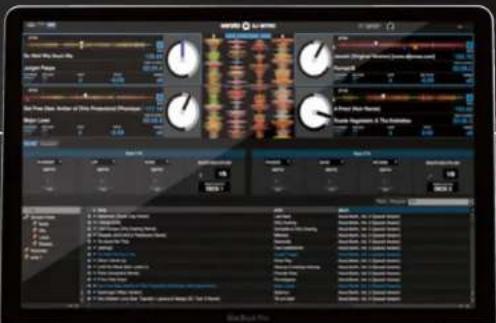
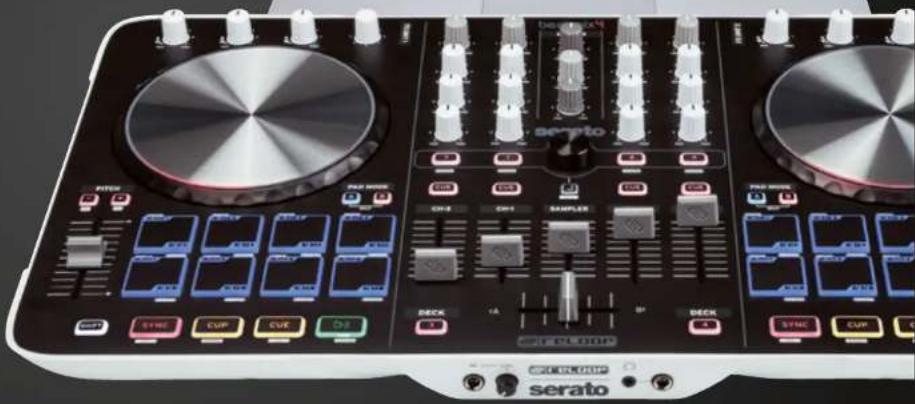
The BeatMix 4 is a designated controller for Serato and is a class compliant USB plug and play device for Mac* and PC**.
To get it set up, simply connect your laptop to the BeatMix using the USB cable supplied.
Connect your BeatMix to your sound system using RCA (unbalanced) cables.
Connect your headphones (either 3.5 mm or 6.3 mm jack) to the front panel socket.
Make sure the volume is low when first connecting, then increase the volume slowly.
![graph TD A["SPEAKERS"] --> B["RCA"] B --> C["USB CABLE"] C --> D["Laptop"] C --> E["HEADPHONES"] E --> F["Ground"]](/content/2026/06/1273744/images/24786e6e0ac5a1176537cbf2bceac47d3b5ca28c81620039fca202a0fdc9ac17.jpg)


* OSX 10.9/10.10 Firmware Update:
http://www.reloop.com/reloop-beatmix-4#download
** WIN ASIO Driver:
http://www.reloop.com/reloop-beatmix-4#download


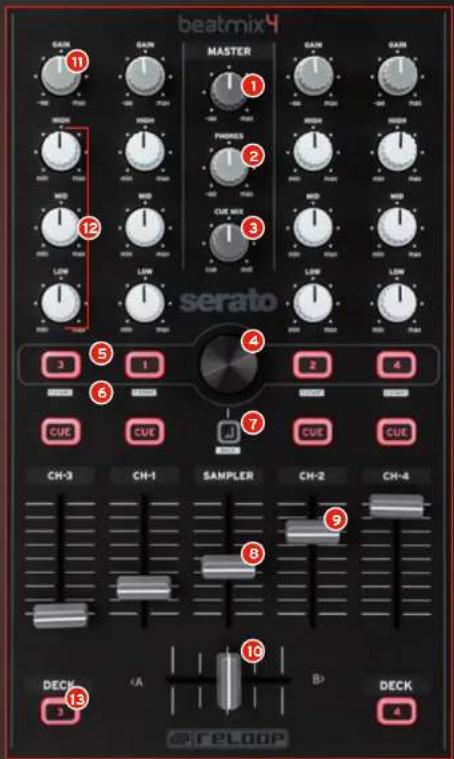
beatmix4
QUICK START GUIDE
MIXER SECTION
1 MASTER
Controls the master volume to your main sound system.
2 PHONES
Controls your headphones volume.
31 CUE MIX
Mixes the headphones CUE signal between your selected channel and the master output.
4 TRAX SELECT
Use the trax select encoder to navigate through your song library.
5 TRACK LOAD
Press 1 - 4 to load tracks on either channel.
6 FADER-START
Press SHIFT + track load 1 - 4 to enable and launch a track using your linefader.
7 BACK
Moves you back one step in your track menu.
8 SAMPLER VOLUME
Controls the master volume of your sampler section.
9 LINEFADERS
Controls your channel volume.
CROSSFADER
Enables you to fade between your decks.
11 GAIN
Fine adjust the input volume for each deck.
12 EQ
Tweak the high, mid or low frequencies when mixing your track.
13 DECK
Press the deck button to swap between decks 1 - 3 and 2 - 4.
beatmix4
QUICK START GUIDE
TRANSPORT SECTION

OFF

RANGE

41
CENSOR
PLAY/PAUSE
Press to launch and pause your track.
SHIFT PLAY+PAUSE
This reverses the direction of the track playing.
CUE
Cue sets a temporary CUE point. It is set by pausing the track and pressing the CUE button. Whilst the track is playing, press CUE to return to that point, where it will pause.
SHIFT+ CUE
Takes you back to the start of your track.
CUP
Pressing CUP takes you directly to your temporary CUE point, starting playback instantly.
If no CUE point is set, it will jump to the beginning of the track.
FX SECTION
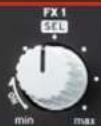
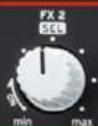


FX UNIT 1
SHIFT + CUP
Changes the pitch range.
SYNC
Sync automatically matches a track to the BPM of the other deck.
SHIFT + SYNC
Turns SYNC off.
Turning the FX knob will activate and increase the effect parameter.
SHIFT + turning allows you to browse through your effect selection.
Turning the Beats encoder sets the parameter length of the chosen effect.
SHIFT + pressing Beats sets a manual TAP tempo for the effects.
Pressing SHIFT + Pitch Bend +/- will activate FX1 and 2 for the corresponding deck.
JOG WHEEL

Touch and move the jog wheel to scratch.
Hold SHIFT and turn the jog wheel to quick search through your track.
beatmix4
QUICK START GUIDE
DRUM PAD SECTION
There are two Pad modes, A + B. Pressing SHIFT in either mode deletes or effects that function

PAD MODE A
① Top Row 4 Pads - CUE Points
Press an unlit pad to set a new CUE point.
② Top Row 4 Pads - SHIFT + DRUM PAD Deletes CUE points.
③ Lower Row 4 Pads - LOOP
Press the Drum Pad to activate a loop.
④ Lower Row 4 Pads + SHIFT - LOOP ADJUST
A Drum Pad 1 - Sets a loop length.
B Drum Pad 2 - Shortens the LOOP.
c Drum Pad 3 - Lengthens the LOOP.
D Drum Pad 4 - Replays the LOOP.


PAD MODE B
① Top Row 4 Pads - SAMPLER PLAY Pressing drum pads 1-4 launches a sample.
② Lower Row 4 Pads - SAMPLER STOP Pressing drum pads 5-8 stops the sample.
③ Top Row 4 Pads + SHIFT - CYCLE
Pressing 1 - 4 cycles through sampler play types.
④ Lower Row 4 Pads + SHIFT - EJECT Pressing drum pads 5-8 ejects the sample.
SPLIT MODE
Press A + B simultaneously to split both modes across the top and bottom of the drum pads.

Top Row 4 Pads - CUE
Lower Row 4 Pads - SAMPLE PLAY
Top Row 4 Pads + SHIFT = DELETE CUE
Lower Row 4 Pads + SHIFT = STOP SAMPLE
beatmix4
QUICK START GUIDE
FRONT AND BACK


beatmix4
QUICK START GUIDE


beatmix4
QUICK START GUIDE
MIXER SEKTION
1 MASTER


beatmix4
QUICK START GUIDE
SECTION MIXER
1 MASTER
beatmix4
QUICK START GUIDE
SECTION TRANSPORT


OFF

(RANCE)

<1

CENSOR
PLAY/PAUSE

beatmix4
QUICK START GUIDE
SECCIÓN MEZCLADOR
1 MASTER
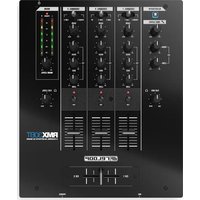


Brand : Reloop
Model : Beatmix 4 MK2
Category : DJ Equipment