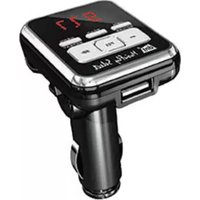
MusicFly Select - FM Transmitter dnt - Free user manual and instructions
Find the device manual for free MusicFly Select dnt in PDF.


User questions about MusicFly Select dnt
0 question about this device. Answer the ones you know or ask your own.
Ask a new question about this device
Download the instructions for your FM Transmitter in PDF format for free! Find your manual MusicFly Select - dnt and take your electronic device back in hand. On this page are published all the documents necessary for the use of your device. MusicFly Select by dnt.
USER MANUAL MusicFly Select dnt
Makes your music fly by wireless transmission to your car radio. It allows to enjoy the music of portable audio devices via car audio system without the need for earphones or headsets.
dnt
Contents
Preface 17
Security instructions ....18-19
Appliance description 20
Getting started
Power On/Off 21
Setup Frequency manually/atomatically 21
Playback....22
Repeat....22
Volume control 23
RDS
RDS display mode 23
RDS Interval 23
RDS mode 23
Playback delay time 24
Operation
Display mode 24
Storing frequencies 24
Select memory 25
Audio input level(Analog) 25
Folders 25
Indexierung......25
Remote control 26
Service information/FAQs 28
Specifications 29
Disposal of old electronic equipment 29
Declaration of conformity 61
Warranty regulations 63
Security instructions

Please read this information carefully before you use the appliance for the first time.
General instructions
- Never place the appliance on an uneven surface. People may be injured if it falls down.
- Keep the appliance out of the reach of small children.
- If you connect the appliance to other electronic equipment, read the safety information and the owner's guides for this equipment as well.
- If you have any questions regarding the appliance, how it works, safety or correct connections, please contact our technical support service or ask any specialist.
- The seller does not assume liability for damage caused when the appliance is used or for claims by third parties.
- Never apply external voltage to the appliance unless this is provided directly for operations and is necessary.
Environmental conditions
- Keep the appliance away from heavy mechanical loads. Protect it from vibrations and severe impacts, and do not drop or shake it.
- Do not expose the appliance to high temperatures (above 60°C) and severe temperature fl ectuations. Protect it from direct sunlight and keep it away from sources of heat.
- Protect the appliance from damp.
- Do not use the appliance in dusty places and protect it from dust.
- Parts of the appliance or accessories may contain so-called softeners, which may damage sensitive furniture and plastic surfaces. Avoid direct contact with sensitive surfaces.
Technical problems
- In case any foreign material or liquid gets into the product, please immediately remove it from the car cigarette lighter power adaptor. Before you use it again, ask your authorised dealer to check the product carefully.
Security instructions
- Please do not hesitate to contact our service center.
Packaging material
- Please don't keep any packaging material within reach of small children. It can become a dangerous toy.
Cleaning and maintenance
- For cleaning use dry and soft cloth.

This product can be used only with 12V cigarette lighter jack power.
Delivery content
MusicFly Select / stereo cable / jack adaptor/ additional fuse / user manual
Appliance description
Functions
• Use of full band channels (87.6\~107.9 MHz)
- 6 channels preset & auto shut off
- Searches, plays and displays the user defined folder: In case user makes the folder named Musicfl y, the device plays only the files in Musicfl y folder.
- Directory loading: 5-level depth, Max 20 directories
- File loading: 1999 fi les can be loaded at one try - Supports directory shift
● Supports all memory devices with USB port, up to 32Gbyte (USB flash memory, Portable hard disk, Memory card)
● Supports fi le index: Once you name the number from 001 to 500 on the head of the fi le name, the fi le numbers are displayed on LCD and the fi les are played in serial order.
● Automatic play: Once you plug USB removable disk, MP3 or WMA files are played automatically.
● Displays remaining time of the playing fi le.
Appliance description
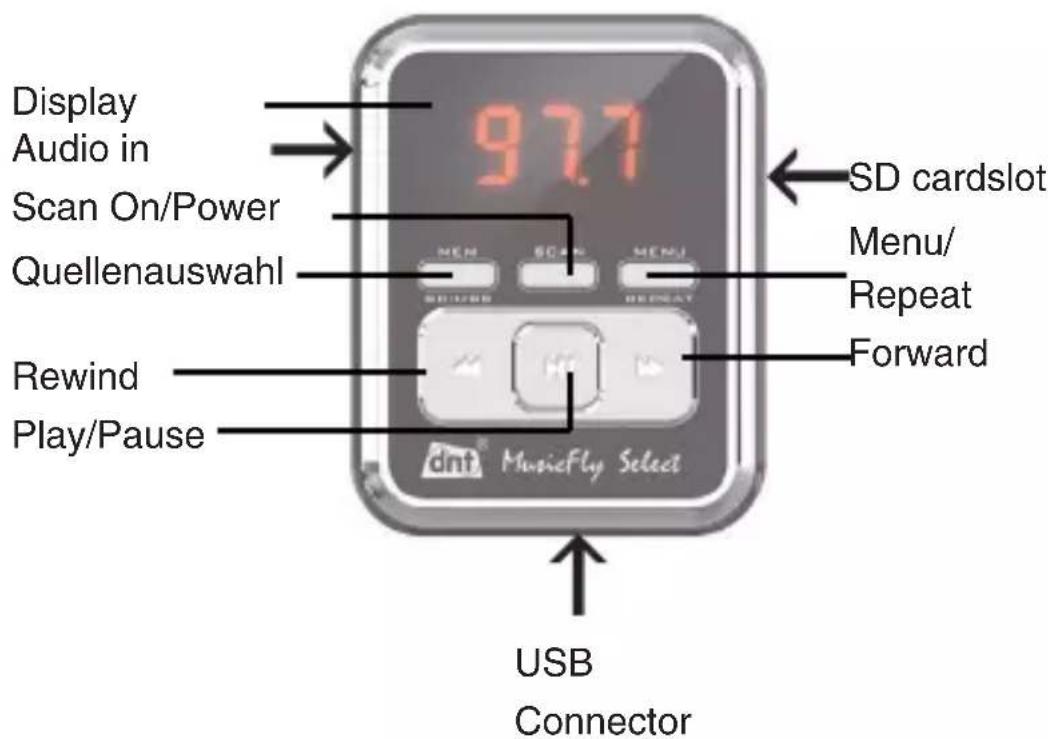
text_image
Display Audio in Scan On/Power Quellenauswahl Rewind Play/Pause 977 SD cardslot Menu/ Repeat Forward dnt MusicFly Select USB ConnectorGetting started
Place the MusicFly Select into the 12V cigarette lighter socket power. Adjust the device, that it can be operated comfortably. The display appears immediately. The equipment is ready for use. The MusicFly Select checks whether a device is attached to the USB port or a SD card is in the card slot and starts to playback the music.
Switch on from standby mode
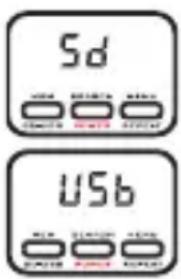
text_image
5d USBPress and hold the POWER button for 2 seconds to turn the unit on. The previous display settings appear. The MusicFly Select checks whether a device is attached to the USB port or a SD card is in the card slot and starts to playback the music.
Switch off
The unit switches off automatically after 60 minutes when no music is played. Alternatively the unit can be switched off with the POWER button
Standby Mode
If no audio device is connected to the USB port, SD card slot or audio in or the device is in PAUSE mode the device turns off after 1 Minute. A noise is heard in the radio. If the audio device is connected to the MusicFly Select in the next 60 Minutes, the device turns itself on automatically, otherwise turn the device on with the POWER button.

If the menu for the settings is active, then a LED below the MENU/REPEAT button appears.
Setup frequency manually
- Press the MENU/REPEAT-button.
- Adjust the frequency with the ▶buttons.
- Press the MENU/REPEAT-button once again.
Setup frequency automatically
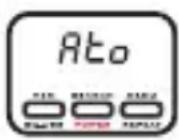
- Press the SEARCH-button.
- The display shows Ato shortly and starts scanning a new frequency.
operation
- As soon as a new empty frequency was found, the display fl ashes with the new frequency.
Playback
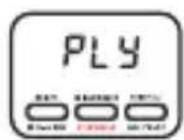
- Press the ▶button for playback or pause.
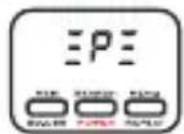
- Press briefly the ▶buttons, to select the next or previous track.
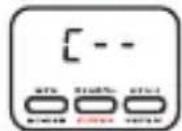
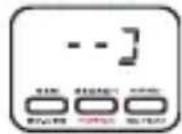
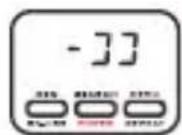
- Press and hold the ▶▶-button to select the next/previous folder.
● After the playback is started, the display shows the remaining playback time or the frequency depending on the display mode.
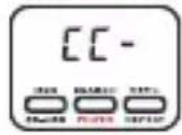
Repeat

This function is available, if a audio device is connected to the usb port or a SD card is in the slot.
The MusicFly Select has a repeat function. If the repeat function is on, the tracks are played repeatedly.
- Press the MENU/REPEAT-button during playback for 2 seconds.
• The display shows in order:
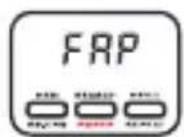
repeat the current track
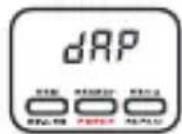
repeat the current folder
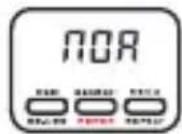
normal
Volume

This function is available, if a audio device is connected to the usb port or a SD card is in the slot.
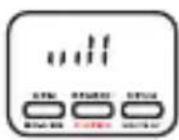
- Press the MENU/REPEAT-button briefly twice.
- The display shows a bar with the current volume setting.
- Adjust the required volume mit the ▶buttons.
RDS
RDS display mode

This function is available, if an audio device is connected to the usb port or a SD card is in the slot.
- Press the MENU/REPEAT-button briefly 3 times.
- Select the RDS display mode:
● The display of the car radio shows 8 characters in the user selected time. - The RDS information scrolls through the display every second.
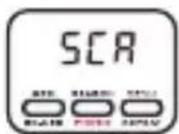
- Press the MENU/REPEAT button once again
RDS Interval

This function is available, if a audio device is connected to the usb port or a SD card is in the slot.
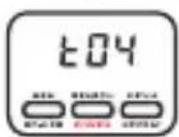
- Press the MENU/REPEAT-button briefl y 4 times.
- Adjust the display intervall time with the buttons (2-6 seconds).
- Press the MENU/REPEAT button once again.
RDS mode
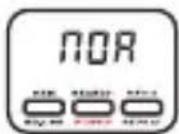
The MusicFly Select has 2 RDS modes to adjust the fre-wuency.
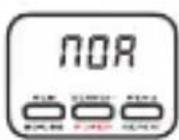
- In the mode NOR the MusicFly Select scans for an empty frequency automatically and shows it
operation
on the display.( see also setup Setup frequency automatically). After that, the radio can be tuned to this frequency manually.
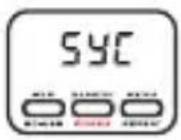
- In the mode SYC the MusicFly Select scans for a empty frequency automatically. After that, the unit tunes the radio on that frequency via RDS.

The tuning to the new frequency may take a couple of seconds. This depends on the tuning speed of the radio.

The SYC mode is not suitable for all car radios. The right mode must be found out.
- Press the MENU/REPEAT-button briefly 5 times.
- Select the RDS mode with the ▼buttons.
Setup playback delay time
Change the waiting time from the time auto scan is fi nished and start of the playback.
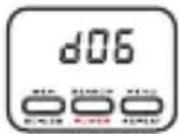
- Press the MENU/REPEAT-button briefl y 6 times.
- Setup the delay with the ▶buttons.
Display mode

This function is available, if an audio device is connected to the usb port or a SD card is in the slot.
Frequency ● Press and hold ▶ button during playback for 2 seconds to switch the display mode.
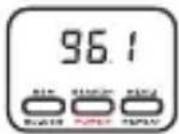
remaining playback time
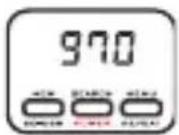
Storing frequencies
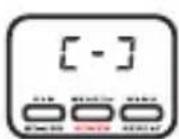
- Select the desired frequency
- Press briefly the MEM SD-USB-button. The display shows [-].
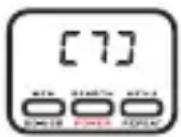
- Select a memory (1-7) with the ▶buttons
- Press the MENU/REPEAT button once again.
Select memory
- Press repeatedly the MEM SD-USB-button until the desired frequency appears in the display.
- With every keystroke on the MEM SD-USB-button the next memory is selected.
Adjust audio input level (Audio in)
In order to have the best signal quality, it is necessary to adjust the volume of the connected audio device. Follow the below guideline:
Start playback of the audio device. Adjust the volume to a low level. Now increase the level until the noise disappears. Keep the level in mind. Increase the level until a distortion is heard in the radio. Keep also this level in mind. Now adjust the volume level to the middle of these 2 values, which you have determined.
Folders and Files
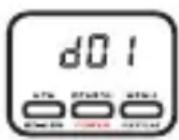
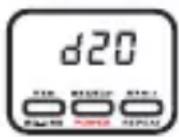
The device can manage up to 1999 fi les. You can make folders in the main directory to manage fi les easier. The folders will be played in the same order as they are copied onto the memory device. The MusicFly Select fi nds up to 20 folders. This folders are shown briefl y in the display as d1-d20. If no folder is selected the tracks are played in order.
Feature of supporting fi le index
MusicFly Select has fi le index feature that lets you set the play list as you want. If you use a 3-digit number at the head of fi le names of each folder, MusicFly Select plays the fi les in order. If there are the fi les with given numbers and the fi les without numbers in one folder, MusicFly Select plays the fi les that have numbers fi rst and then plays the other fi les.
text_image
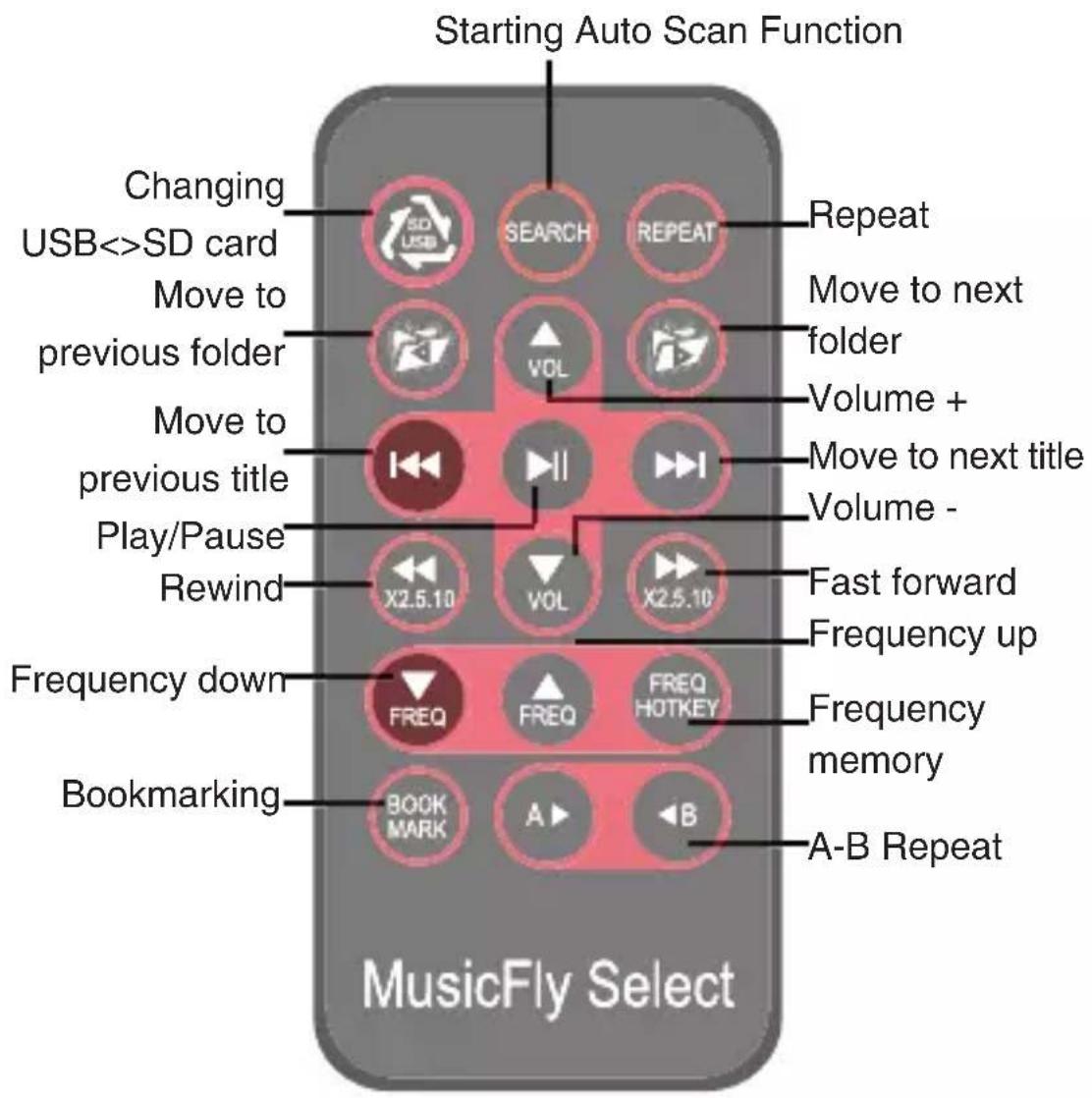
Starting Auto Scan Function Changing USB<>SD card Move to previous folder Move to previous title Play/Pause Rewind Frequency down Bookmarking BOOK MARK A B A-B Repeat FREQ HOTKEY FREQ FREQ X2.5.10 VOL X2.5.10 I II I VOL VOL Repeat Move to next folder Volume + Move to next title Volume - Fast forward Frequency up Frequency memory MusicFly SelectPlease use the remote control after having removed the protection sticker.

Press the button and choose the mode between SD card & USB mode.
Search Press SEARCH button, MusicFly Auto start searching clearest frequency automatically.
Repeat Press REPEAT button, the song you are listening to is played repeatedly. Press repeat button again to stop the repeat function.


ess the buttons to move to previous folder, first song of the folder is played.
Press
button to move to next song.

Press the buttons fastforward or rewind 2x, 5x, 10x.
Remote Control
ess the buttons to adjust the frequency in 0,1 MHz intervals. Hold the buttons longer than 2 seconds, the frequency is adjusted in 1 MHz intervals.
Press the button to select one of the stored frequencies (1-7). Press the button repeatedly until the desired frequency is selected.
A▶◀ Selective replay of a part of a track. Press button to mark the starting. The playback of the song continues. Press◀to mark the ending. To cancel press◀B once again.

You can use this feature in case the playing time is long such as lecture fi le & language fi le. Before you shut the device off, press book button to store the point of time. When you turn the device on again, the device plays from the point you memorized.
Info
- When you use MusicFly Select with portable memory device (USB storage, memory card or portable hard disk) you can listen to sound files like MP3, WMA in USB storage, through any FM radio.
- Plug USB storage into the USB port at the bottom of MusicFly, then MP3 or WMA files are played automatically stored in the USB storage.
● Support only MP3 and WMA fi le, the other fi le types and the fi les locked by DRM are not played.
• Using USB storage
Recognizee up to 32GByte, 1999 fi les. Supports directory loading up to 5-level depth, max 50 directories.
• Using portable hard disk
When you use portable hard disk, you need to divide the disk into under 32Gbyte and format FAT32.
● MusicFly Select recognizes only the fi rst drive under 32Gbyte so you need to store the fi les that you want to listen to in the fi rst drive.

When you use portable hard disk, you must connect extra power with ‘cigarette lighter jack to USB’ cable. Please ask the store or us for information about this. We do not take the responsibility of any problem caused by not connecting extra power.
Specification
Product Dimension 94 x 47 x 56mm
Weight of the product 52g
Frequency range 87.6 \~ 107.9MHz
Input Voltage 12V
Output power Conformity with FCC, CE, MIC
Modulation FM(F3E)
USB Rated output power 5V 200mA
Disposal of old electrical & electronic equipment
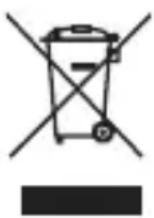
This symbol on the product indicates that this product shall not be treated as household waste. Instead it shall be handed over to the applicable collection point for recycling of electrical and electronic equipment. For more detailed information about recycling of this product, please contact your local city office or your household waste disposal service.
Préface
Declaration of Conformity
text_image
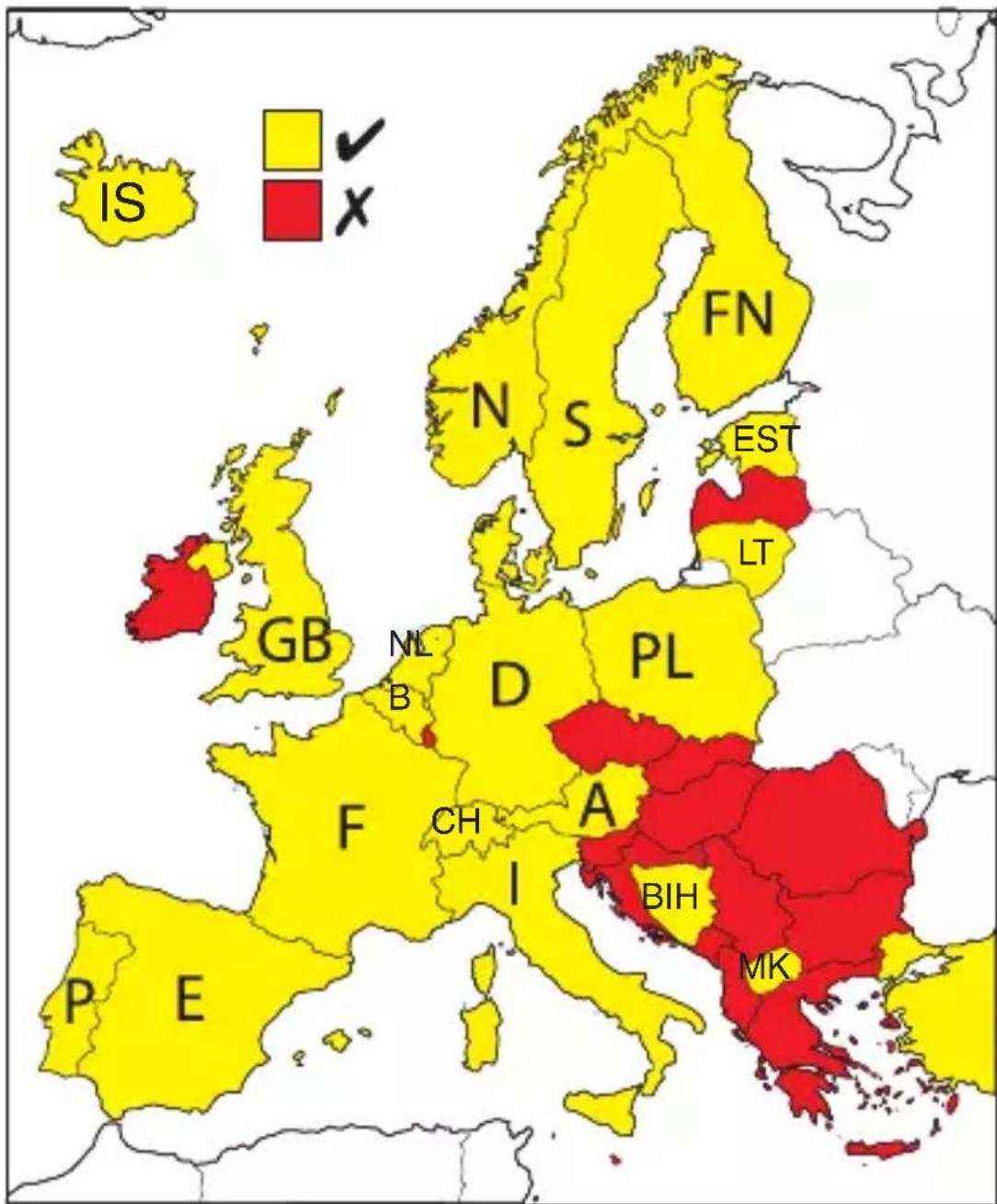
IS FN N S EST LT GB NL B D PL F CH A I BIH MK P EHereby, dnt GmbH, declares that this MusicFly Select is in compliance with the essential requirements and other relevant provisions of Directive 1999/5/EC.
Declaration of Conformity
Warranty regulations
- In general the European warranty regulations are valid. Warranty starts with receipt of unit. In a warranty case, please submit the unit together with invoice, unit pass and error description. Without these documentary evidence we are not obliged to a warranty performance.
- During warranty period we repair all constructional or material defects which are caused by a manufacturing fault. It is in the decision of the manufacturer to change or replace defective parts/units. Further claims are excluded. Changed parts will automatically go over into our property. We will not be held responsible for future damages.
- Manipulation on the unit through non-authorized companies/persons automatically leads to an end of warranty period.
- Excluded of warranty claims are damages due to improper treatment, not following the manual, oxidation of batteries, permanent usage.
- The initial warranty period is not extended because of repair or replacement of parts.
- These warranty regulations are valid in the Federal Republik of Germany.
Application de la garantie
Email Support support@dnt.de
Serien Nr.
Serial no.
Kaufdatum:
Date of purchases